by Contributed | Mar 2, 2021 | Technology
This article is contributed. See the original author and article here.
Pairing Delivery Optimization with Microsoft Connected Cache can minimize internet bandwidth usage as your cloud-managed devices come back to the office.
With the surge of people working from home, IT admins are increasingly using cloud management for their devices, pulling updates directly from the Microsoft cloud. In doing so, however, they also face concerns around minimizing internet bandwidth usage and supporting a hybrid model to manage devices from on-premises to cloud management. Fortunately, Delivery Optimization is here to help you alleviate these concerns. Today’s post focuses on helping you understand how.
Delivery Optimization: a distributed solution
Before jumping into the specifics of Delivery Optimization and Microsoft Connected Cache, here’s a refresher on the Delivery Optimization technology.
Delivery Optimization is used in most Microsoft cloud-managed content downloads today. It’s a built-in Windows component that leverages a cloud service designed to reduce the download bandwidth impact for Microsoft content or your content.
Delivery Optimization is mostly known for being a peer-to-peer (P2P) distributed cache technology, but it is also used as a downloader to pull most Microsoft content from the cloud, providing you with tools to control bandwidth traffic and throttling capabilities, to name a few.
Microsoft Connected Cache complements Delivery Optimization by serving as a dedicated cache on your organization’s network. This is a server-based solution that transparently and dynamically caches content that your devices need to download. The Microsoft Connected Cache efficiently caches content locally from what Delivery Optimization pulls down from the cloud.
Delivery Optimization is integrated with most Microsoft platforms and continually adds support for new content. Some of the most recent examples include Windows Dynamic Updates, MSIX apps, and the new Edge browser. Some of the most recent examples include Windows Dynamic Updates, MSIX apps, and the new Edge browser. Down the road, Delivery Optimization will be used for downloads when using an MDM tool like Microsoft Intune to push a new policy.
Delivery Optimization umbrella: P2P and Microsoft Connected Cache
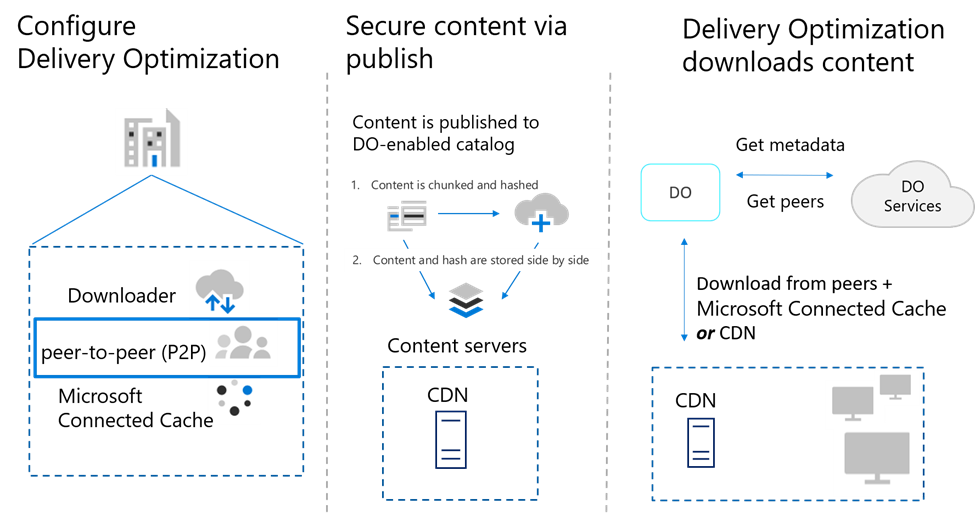
Delivery Optimization is a sophisticated downloader. Building on top of it, we can find a hybrid P2P communication capability. In P2P, content must be published, generating metadata about that content.
When content is requested by Delivery Optimization, this metadata helps guarantee that content has not been tampered with, determines which content is available within the peer network, and ensures the content is reliably downloaded.
By default, Delivery Optimization is enabled out-of-the-box with P2P enabled for seeking peers in the same local network. This means the Delivery Optimization service identifies peers behind the same Network Address Translation (NAT), breaking out to the internet using the same public IP address and returns the private IP address of those peers to connect to. To extend P2P beyond the same NAT, Delivery Optimization can be enabled with group download mode.
Delivery Optimization with peer-to-peer cache
Delivery Optimization is integrated with boundary groups within the Configuration Manager where it can select peers from a specific boundary group. By default, Delivery Optimization will use the information it gathers about the LAN to create a strong P2P network. For example, when a co-managed endpoint downloads the app provisioned by Intune, Delivery Optimization can use boundary group information to find a peer within that device group.
Check out the Delivery Optimization: Scenarios and configuration options blog post for more information on the options you have for different scenarios to help manage bandwidth with Delivery Optimization.
There are cases where P2P technologies aren’t a viable option, for example, environments with network limitations like an all VPN Wi-Fi network, or environments where there aren’t enough devices in the network or group to warrant P2P (fewer than 10 devices).
Enter Microsoft Connected Cache, a solution that can work as a complement to P2P. Microsoft Connected Cache dynamically caches content based on the client requesting the content the device needs.
The Microsoft Connected Cache solution is easily configured within Configuration Manager. It doesn’t require massive amounts of hardware because it caches content at the requested byte range level vs the entire file, reducing the space requirement on your distribution points. For example, if a device downloads an update and only 5MBs are needed out of a 1GB file, Microsoft Connected Cache would only cache the 5MBs. Otherwise, the Configuration Manager would push content to be cached to a distribution point and require the device to download the 1GB file.
You can use Microsoft Connected Cache with Configuration Manager or Intune by setting the DOCacheHost or the Cache Server Hostname policy set to a comma-separated list of fully qualified domain names (FQDNs) or IPs of the distribution point can be set as a Configuration Manager group policy or an MDM policy in Intune. Visit the Delivery Optimization reference for a complete list of policies.
Microsoft Connected Cache is pre-provisioned to cache Microsoft content. During the download, the Microsoft Connected Cache policy will tell the Delivery Optimization client to use Microsoft Connected Cache for content. If there’s an issue accessing Microsoft Connected Cache, the Content Delivery Network (CDN) will be used as the fallback to retrieve content.
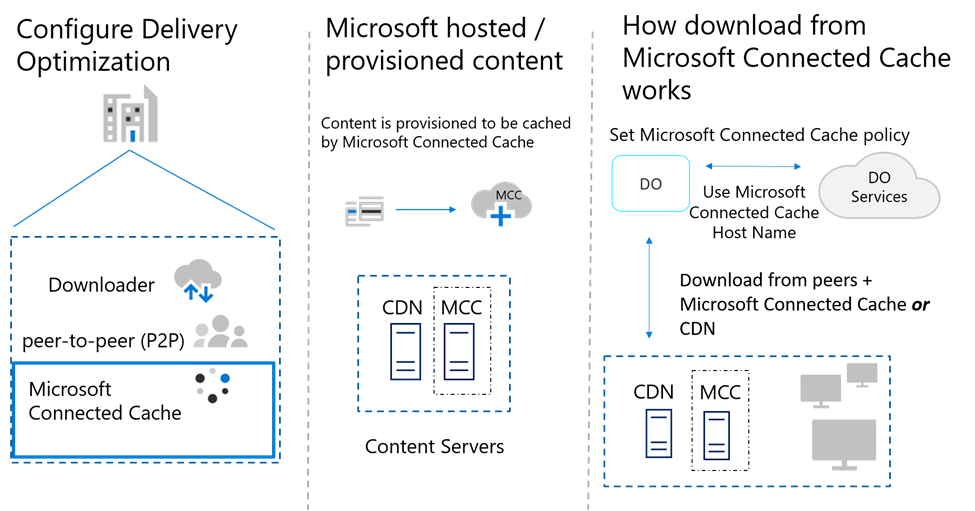 Delivery Optimization with Microsoft Connected Cache
Still wondering about how powerful the Delivery Optimization umbrella of offerings is? When adding P2P to downloads from the cloud, we see up to 70% of bandwidth savings. By adding Microsoft Connected Cache to P2P, we almost close the gap with up to 98% caching efficiency for delivering content to a device.
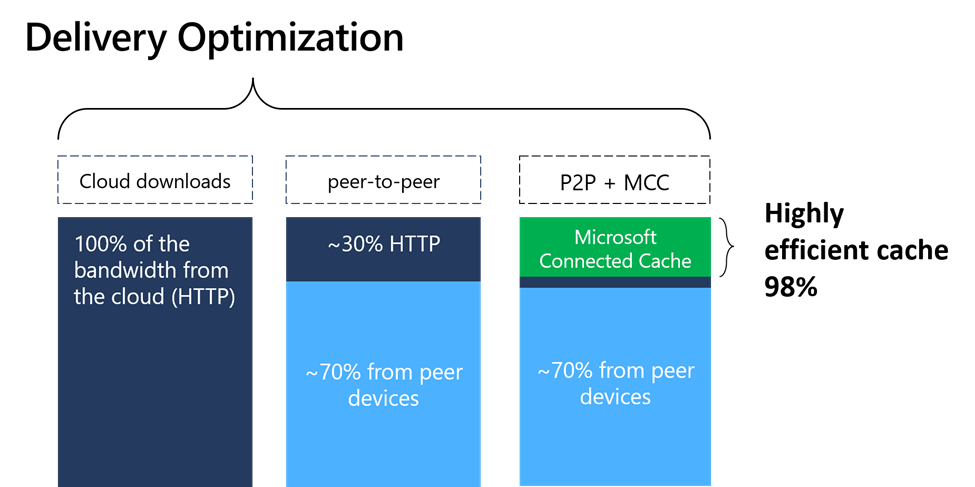 Bandwidth savings with Delivery Optimization
Microsoft Connected Cache use cases
Use case 1
Your devices may be managed via Configuration Manager or co-managed. You have boundary groups defined to reflect your network topology.
Recommendations:
- Install Microsoft Connected Cache on your distribution point with just a few clicks to set the drive you want to use or the amount of storage you will need.
- Configure Delivery Optimization to pull content from Microsoft Connected Cache on your distribution point in line with your boundary group definitions.
You can do so by following this path: Default Settings > Delivery Optimization > Device Settings > Enable devices managed by Configuration Manager to use Microsoft Connected Cache servers for content download > Yes.
Use case 2
Your devices may be managed via Configuration Manager or co-managed. You have not defined any boundary groups in Configuration Manager.
Recommendations:
- Same as use case 1, install Microsoft Connected Cache on your distribution point.
- Configure Delivery Optimization by setting up a Group Policy that points to Microsoft Connected Cache via the server FQDN or IP.
Use case 3
Some of your devices are managed via Intune. Boundary groups are not applicable.
Recommendations:
- Same as use case 1, install Microsoft Connected Cache on your distribution point.
- Set an MDM policy to point Delivery Optimization to Microsoft Connected Cache by using FQDNs or an IP address.
With Microsoft Connected Cache installed on your Configuration Manager distribution points, you can extend your existing on-prem infrastructure to support your cloud-managed devices that would otherwise pull content from the cloud. You do not need to manage the devices via Configuration Manager to take advantage of Microsoft Connected Cache in Configuration Manager!
Visit Microsoft Connected Cache in Configuration Manager for more information on setting up Microsoft Connected Cache in Configuration Manager.
Microsoft Connected Cache: client configuration in Windows 10, version 2004
In the Windows 10 version 2004 release, we added a few more configuration options to help you leverage Microsoft Connected Cache on your Intune-managed devices.
The Cache Server Hostname Source allows you to specify how your devices can discover Microsoft Connected Cache servers dynamically using a DHCP server. You can set the desired FQDN or IP Address using DHCP Scope 235.
We’ve also introduced policies to delay the fallback from Microsoft Connected Cache to the HTTP Source, which can be set separately for foreground and background activities. By default, if a Microsoft Connected Cache server returns a failure, the download will switch back to the HTTP source or the CDN. With these policies set, you can ensure that Microsoft Connected Cache will be used even in a network where the connectivity between the client device and Microsoft Connected Cache is flaky.
Another update is the activity monitor inside the Delivery Optimization settings so you can quickly see if a Microsoft Connected Cache server is being used and how much data is coming from that server.
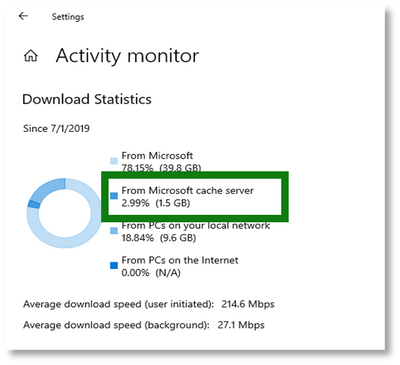 Activity monitor within Delivery Optimization
Delivery Optimization and VPN
With people around the world working from home, we’ve received many questions on the topic of VPN and how Delivery Optimization handles a VPN connection. It’s important to remember that VPNs try to hide themselves, and even though Delivery Optimization tries to detect a VPN, it may not always be able to do so.
Once Delivery Optimization detects a VPN connection, it will suspend all P2P activity. However, if you notice unexpected traffic over port 7680, you can apply a policy to all devices connecting over VPN to disable P2P by setting the Download Mode policy to 0.
For devices that connect over VPN, you can configure split tunneling and FQDN-based safelists to enable devices to connect freely to your network and avoid the burden to your VPN infrastructure by sending all cloud traffic directly. This also allows P2P to be used in the home environment.
Microsoft Connected Cache: what’s coming next
We are working on a version of Microsoft Connected Cache that doesn’t require a Configuration Manager distribution point. In addition, we are working towards bringing you a containerized solution that will be managed via the Azure portal to offer greater flexibility in installation requirements. Stay tuned for more details on this one in a future blog post.
In the meantime, visit the Introducing Microsoft Connected Cache: Microsoft’s cloud-managed cache solution blog post to learn more about the capabilities of Microsoft Connected Cache and let us know that you are interested in participating in our preview program.
Leave a comment below to let us know what you think about using Delivery Optimization with Configuration Manager to make your cloud content downloads easier!
by Contributed | Mar 2, 2021 | Technology
This article is contributed. See the original author and article here.
Last month, we released Microsoft Viva Topics as part of the introduction of Microsoft Viva, the first Employee Experience Platform built for the digital era. SharePoint Syntex and Viva Topics are developed and delivered together to help you enrich your content and turn it into action and knowledge.
This week at Microsoft Ignite we highlighted our continuing enhancements to Microsoft Viva Topics and announced our latest expansion of the Microsoft Content Services Partner Program. And we’ve also rolled out new capabilities for SharePoint Syntex to help you get even more from your content in Microsoft 365.
Document understanding model improvements
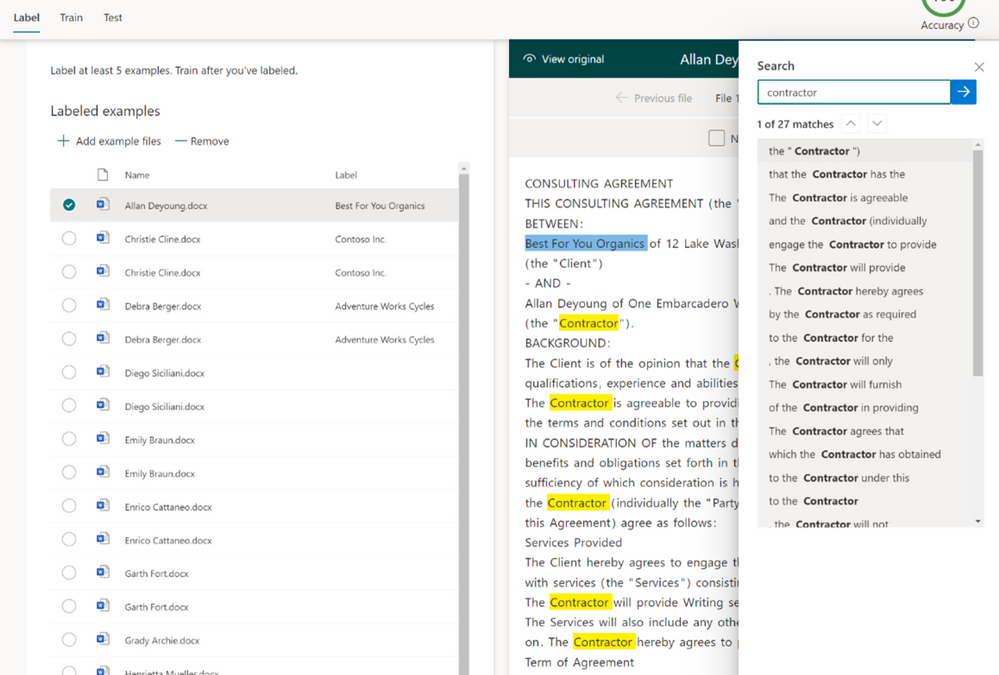
Document understanding helps you scale your expertise and build no-code AI models to recognize and tag unstructured content. When working with your example files, we’ve added a new find function to make it easier to locate the terms you wish to extract.
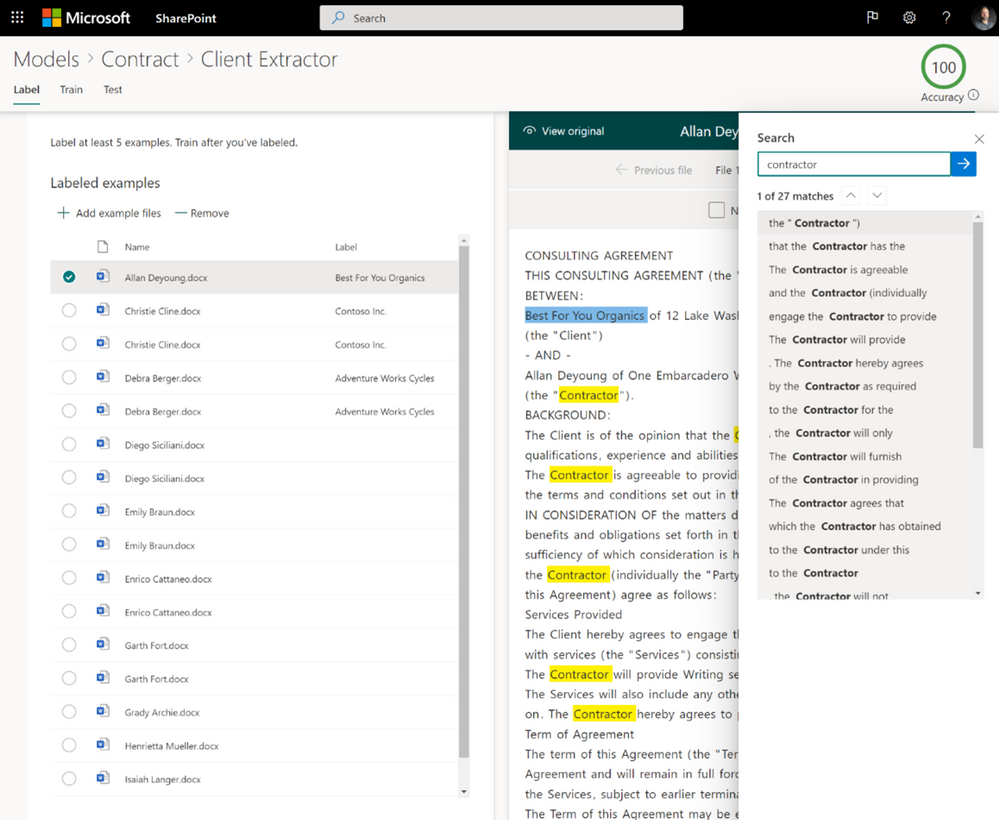 Search inside model training files
This feature is available now.
When you create an explanation, by default the entire document is searched for the phrase you are trying to extract. However, you can use the Where these phrases occur setting to isolate a specific location in the document for that phrase.
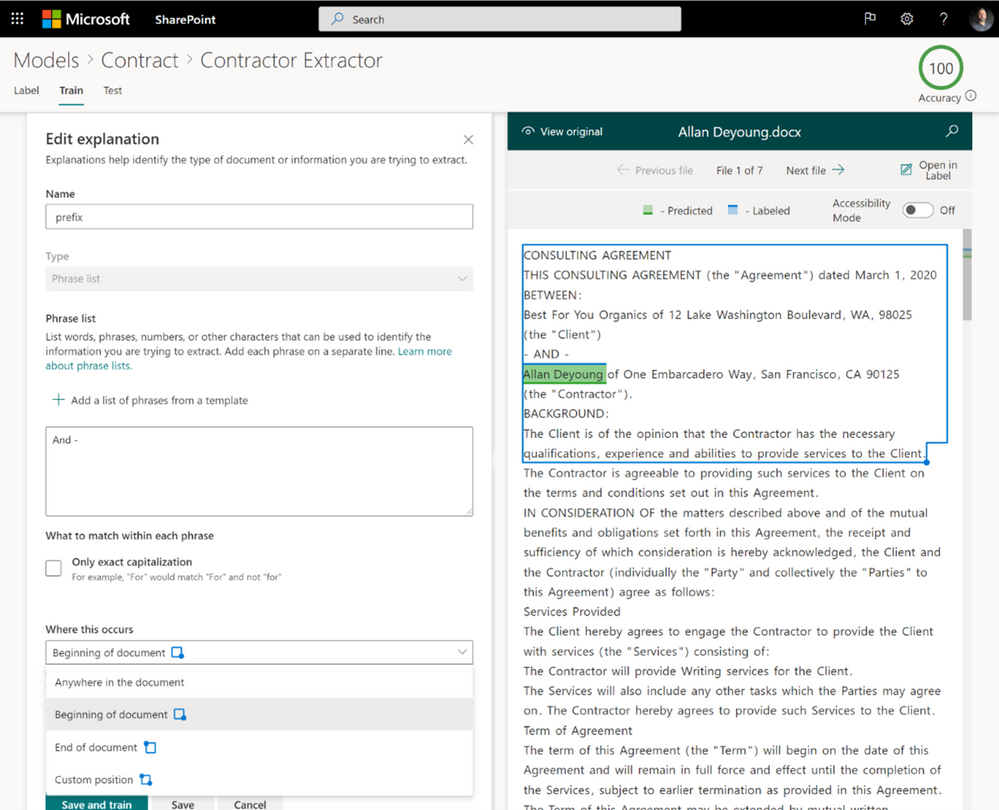 Use regions in document for more precise modeling
This feature is available now.
We’re providing three new explanation templates to aid with creating explanations for your models. These new explanations automatically enumerate the words or characters that occur before or after your labels – or the labels themselves to create a contextual explanation.
This feature is available now.
Compliance updates
Retention labels are now available for form processing models. When creating a form processing model, you can now apply a published retention label to use by default when that content type is recognized.
 Apply retention label to form processing models
This feature is available now.
Content center analytics
If you have multiple content centers, you can now see activity across all content centers rolled up to you default content center. This includes both document understanding models from the different content centers, in addition to form processing models created across the tenant. You’ll need to be a SharePoint Syntex content manager or a SharePoint admin to use these analytics. This gives content managers and other stakeholders a centralized portal to manage and oversee the content centers and models across the company.
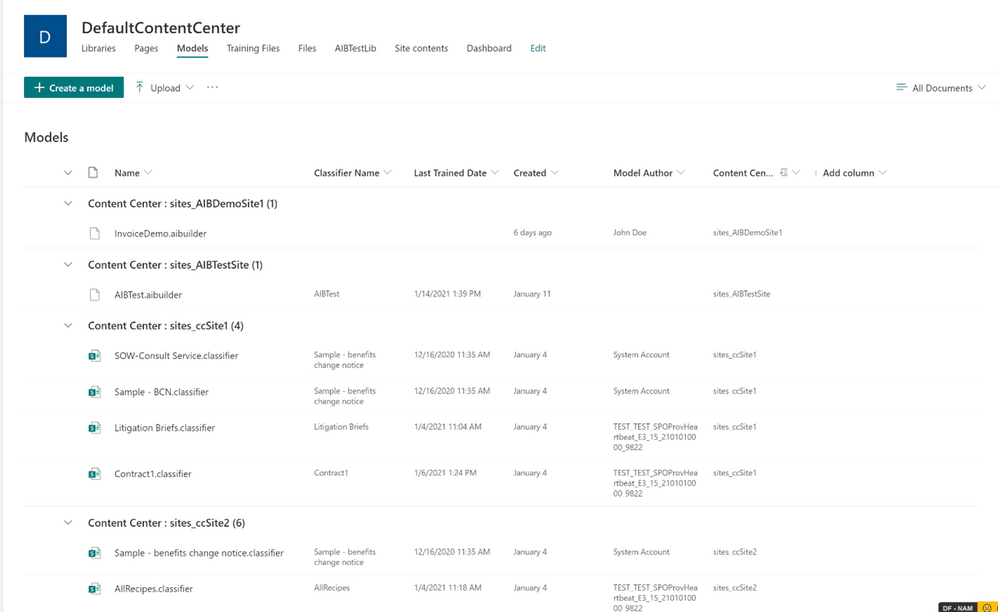 VIew models from multiple content centers
Other content centers will only show model usage analytics for their “local” models. This gives “local” content managers usage data without the clutter of activity from across the organization.
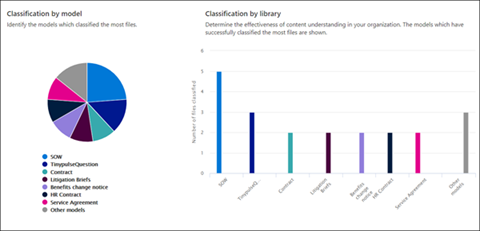 SharePoint Syntex model analytics
This feature is available now.
Content type publishing to hub sites
A content type is a reusable collection of details about a category of content in Microsoft 365. A content type associates this item with key metadata or other information such as a template or a set of extended metadata columns. For example, you can define a Sales Contract content type and add it to the library that your team uses. Then, any time someone wants to create a sales proposal, they just choose Sales Contract from the New Document menu. Their document will use the default template and have placeholders for custom columns, such as “Customer” or “Product”.
SharePoint Syntex builds document understanding models as a superset of content type properties, so the processing rules for identifying content and extracting metadata, along with default retention policies can be automatically invoked. SharePoint itself has an existing process for synchronizing changes to content types among multiple sites – syndication – that requires manual subscriptions from target sites to a master set of content types. But this process can be cumbersome in large, distributed information architectures.
To make important content types more consistently available to document libraries, you can push them to the SharePoint hub sites that you select. Pushing the content types automatically adds them to any new lists and libraries created on the sites associated with the hub – and to any new sites added to the hub. This feature requires a SharePoint Syntex license for administrators and users. After the initial push, changes to content types will be distributed in minutes from the hub site to connected sites.
This feature will begin rollout in April 2021.
Roadmap
Our team is working with our customers as we deliver additional updates to Microsoft Viva Topics and SharePoint Syntex. We’ll continue to drive user experiences, foundational services and APIs, expanded language support, and government cloud coverage (GCC) as our top priorities for 2021.
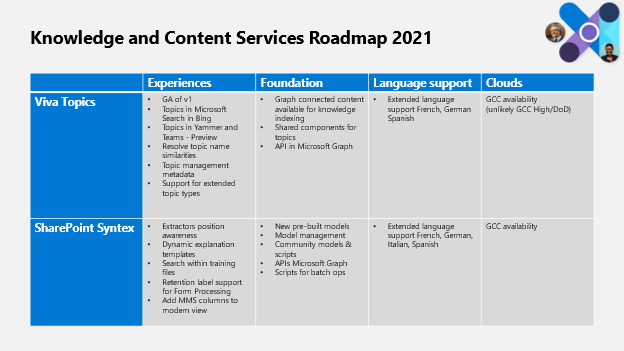
We’ll share more detail on all of these and more on the Microsoft 365 roadmap.
SharePoint Syntex at Ignite
You can learn more about SharePoint Syntex at Microsoft Ignite this week, including:
Ask the Experts
ATE-FS193 | Ask the Experts: Meet Microsoft Viva: a new kind of employee experience
Now that you have the basics covered, we invite you to ask the questions that may not have been answered in sessions already. There will be a team of Subject Matter Experts available to answer questions both on camera and in chat and point you in the right direction to get started on your own Microsoft Viva journey. Come with questions about SharePoint Syntex, Viva Connections, Viva Topics, Viva Learning, and Viva Insights.
Wednesday, March 3 | 2:00 PM – 2:30 PM PST
On-Demand Sessions
OD372 | Microsoft Viva Topics: Put knowledge to work with content and AI by Chris McNulty and Naomi Moneypenny
Viva Topics frees up time by making it easy for people to find information and put knowledge to work. And SharePoint Syntex uses advanced AI and machine teaching to amplify human expertise, automate content processing, and transform content into knowledge.
For details on all the sessions at Microsoft Ignite, please read the Viva Guide to Ignite blog post.
Thanks again, and we look forward to seeing you at Microsoft Ignite and here on the Tech Community.
by Scott Muniz | Mar 2, 2021 | Security, Technology
This article is contributed. See the original author and article here.
The Apache Software Foundation has released a security advisory to address a vulnerability in multiple versions of Apache Tomcat 9.0. An attacker could exploit this vulnerability to access sensitive information.
CISA encourages users and administrators to review the Apache security advisory for CVE-2021-25122 and upgrade to the appropriate version.
by Contributed | Mar 2, 2021 | Technology
This article is contributed. See the original author and article here.
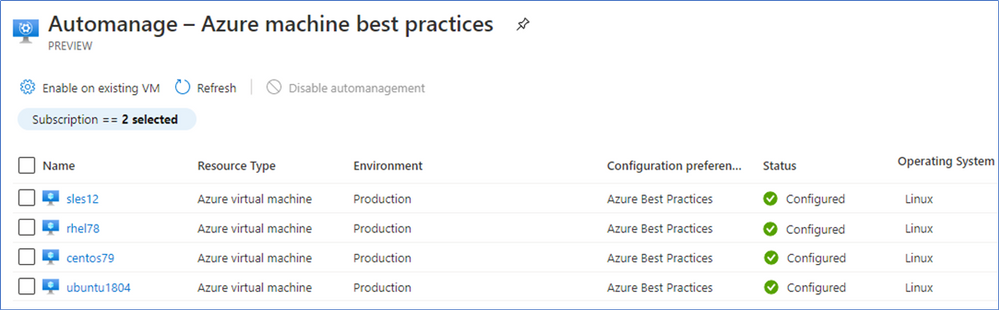
In September 2020, we introduced Azure Automanage for virtual machines (VMs) in public preview, a service that helps customers reduce day-to-day management tasks in various areas across the entire lifecycle of their VMs by automatically implementing VM management best practices as defined in the Microsoft Cloud Adoption Framework for Azure. With a few simple clicks, Azure Automanage automates management of key best practices services such as backup, update management, monitoring, security, OS baselines, and more. Today, we’re excited to share some updates for Azure Automanage to further simplify your IT operations.
Azure Automanage now supports Linux
We are excited to share that Azure Automanage, previously only available on Windows Server, is now in public preview for Linux VMs. Azure Automanage now supports CentOS, RHEL, Ubuntu and SLES, with more distributions and versions planned to be supported in the future. More details on Linux distribution and version support are available in our public documentation.
There are three differences to note for Automanage on Linux VMs:
- Microsoft Antimalware is not supported on Linux VMs so you will have to bring your own antimalware solution. We are working to add this support in the future.
- Guest Configuration and the Azure baseline behavior are different for Linux VMs. Automanage will enable Guest Configuration and onboard your Linux VMs to the Azure Linux OS Baseline, but the baseline will be enabled in audit mode only. Noncompliance will not be automatically remediated, but instead is able to be reviewed within Guest Assignments in the Azure portal. More details on Guest Configuration and the Azure Linux OS Baseline are available in our public documentation.
- The hotpatch feature is not available for Linux VMs. More details in the Windows Server section below.
You can deploy Automanage on your Linux and Window Server VMs using the Azure portal, the existing , or using an Azure Resource Manager (ARM) template. Our various deployment options allow for easy deployment at the scale and scope that works for you. Get started today with Automanage in the Azure portal.
Azure Automanage for Windows Server
We are also excited to introduce a brand-new hotpatch capability unique to Azure Automanage for Windows Server. This new Automanage capability allows updates to be installed on your new without needing to reboot, helping keep your VM up to date and secure while minimizing workload impact.
With Azure Automanage for Windows Server, you receive all the base management benefits – automatic onboarding, configuration, and management of services such as Azure Backup, Azure Security Center, Azure VM Insights Monitoring, Azure Update Management, and more – as well as the uptime benefits of hotpatching, all bundled into one simple user experience.
Azure Automanage for Windows Server is available when you create a new Windows Server VM in the Azure portal. Use the “Microsoft Server Operating Systems Preview” offer in the marketplace.
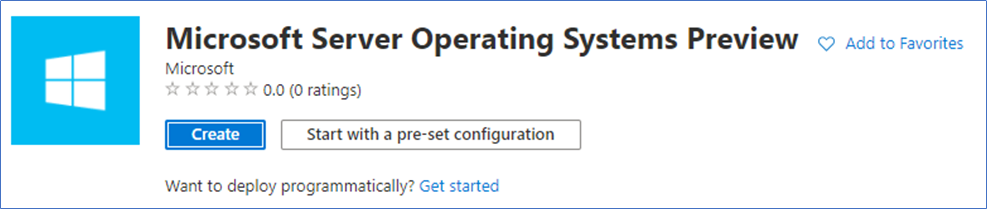
Within the Microsoft Server Operating Systems Preview offer, select the “Windows Server 2019 Datacenter: Azure Edition” image, and Automanage will be automatically enabled for you when you create the VM.

Get started with Azure Automanage for Windows Server in the Azure portal.
New Azure Automanage portal experiences
VM Create portal experience
Up until now, you could only enable Automanage on an existing VM, either through the Automanage blade in the portal, or through Azure Policy, or an ARM template. We’re excited to share that Automanage is now available as an option within the VM Create workflow, meaning that now you can create a VM with Automanage automatically enabled. Now you can truly point-click-set-and-forget about the overhead of VM management for your VM’s entire lifecycle, from the very beginning when it is created to when you no longer need it.
You can find Automanage under the Management tab in the VM Create flow:
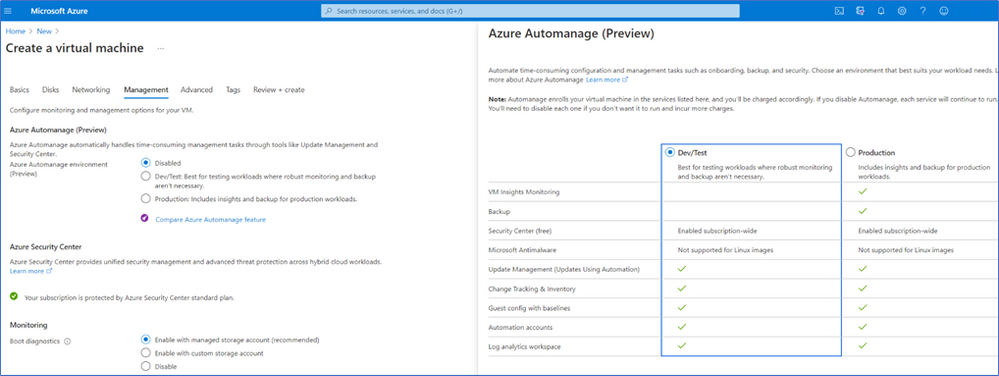
Note that this experience is currently not enabled by default. To access this experience, use the link at the end of this blog post.
VM Management portal experience
You can now also access Automanage directly from your VM’s table of contents on the left. Simply scroll down to the Operations section and you will be able to view Automanage details of your VM if Automanage is enabled.
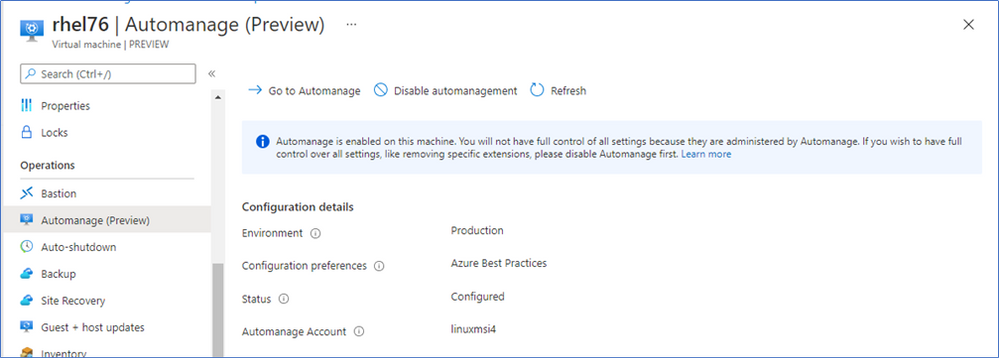
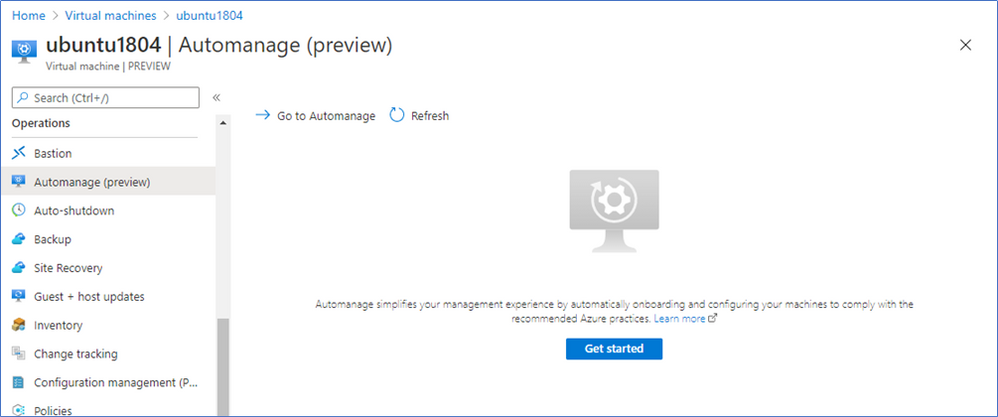
If Automanage is not enabled, you will be given an option to enable Automanage directly in the portal, or visit the Automanage blade for more details.
Enable Automanage updated portal experience
We have updated the experience of enabling Automanage on an existing VM to make it easier for you to understand what choices you have to choose from. The Machines selection remains unchanged, and you may select either Windows Server or Linux VMs from the pane that pops up when you click Select machines. You may also view eligibility information at that time for your VMs.
The Configuration selection has been streamlined to better reflect the environment in which you may be running your VMs. Click on Compare environments if you want to compare the services offered in Dev/Test and Production.
We have moved Configuration preferences to the main enable workflow, allowing you to easily tweak the Dev/Test or Prod Configurations to meet your requirements. The list of adjustable configuration preferences has also increased: you may now disable Antimalware and save that as a new Configuration preference if that better suits your needs.
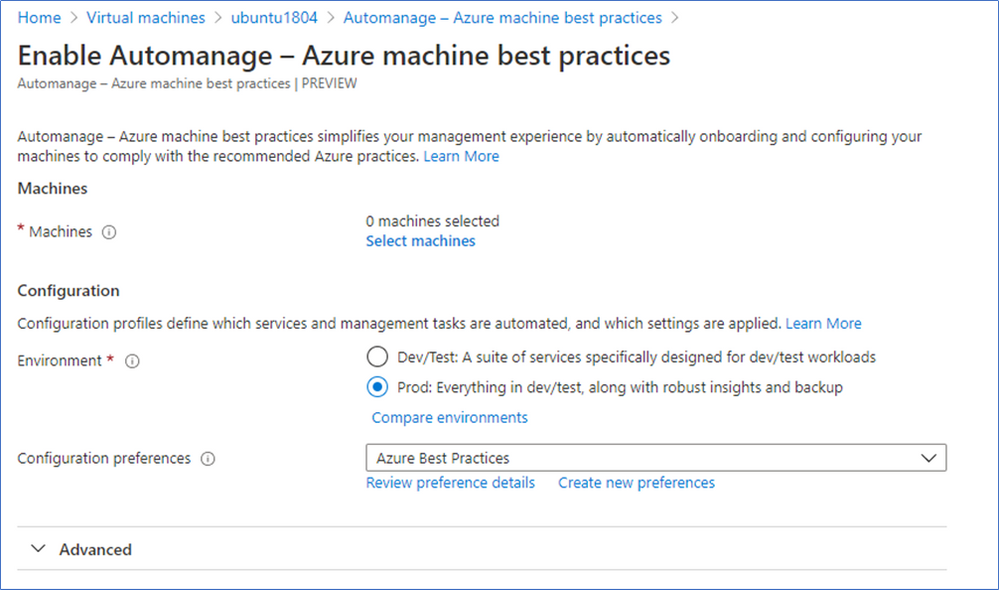
To see the portal updates for yourself, visit the Azure portal.
Get started
Get started with Azure Automanage in the Azure portal here.
Learn More
General documentation
https://aka.ms/automanage-docs
Linux preview documentation
https://aka.ms/amvmlinuxpreview
Automanage onboarding using the portal
https://aka.ms/AutomanagePortal
Automanage onboarding using Azure Policy
https://aka.ms/AutomanagePolicy
Automanage FAQ
https://aka.ms/AutomanageFAQ
by Contributed | Mar 2, 2021 | Technology
This article is contributed. See the original author and article here.
Tech capability is more crucial than ever in driving productivity, innovation, and growth. As we rise to meet each new technological challenge, our continued mission is to empower you with essential skills for digital transformation today and the future. At Microsoft Ignite, you’ll have the opportunity to learn, connect, and explore new tech. Register and join us today for a two-day digital experience and learn about our new training and certification announcements, along with engaging opportunities at the event’s Learning Zone.
Our commitment to closing the security skills gap
With complex cyberattacks increasing and more employees working remotely, the need for cybersecurity professionals is growing by the day. With the struggle to fill security skills gap, there’s an estimated global shortage of 3.5 million security professionals. To help close this gap, we’re dedicated to getting you up to speed on Microsoft security, compliance, and identity solutions with training and certifications on Microsoft Learn. And wherever you are with your learning journey, expand your knowledge and validate your skills with four new certifications:
- Microsoft Certified: Security, Compliance, and Identity Fundamentals. Validate your foundational understanding of security, compliance, and identity across cloud-based and related Microsoft services.
- Microsoft Certified: Information Protection Administrator Associate. Prove your expertise in planning and implementing controls to meet organizational compliance needs.
- Microsoft Certified: Identity and Access Administrator Associate. Certify your knowledge of core identity governance principles and your ability to ensure a proper identity lifecycle.
- Microsoft Certified: Security Operations Analyst Associate. Validate your skills in threat mitigation using Microsoft security, compliance, and identity solutions, in addition to performing proactive threat-hunting activities.
In addition, find relevant content based on your needs in the Microsoft Security Technical Content Library, and sign up for Microsoft Virtual Training Days – free in-depth virtual training events available in multiple languages and time zones. Learn more about these additional resources to help you expand your knowledge and skills on security and compliance solutions.
New Windows Virtual Desktop specialty certification
Over the past year, we’ve witnessed a worldwide surge in the remote work economy, and organizations around the globe are looking for reliable productivity tools for their remote workers. Along with the burgeoning growth of remote work comes the urgent need and great demand for administrators with subject matter expertise in planning, delivering, and managing virtual desktop experiences and remote apps—for any device—on Azure. That’s why we’re excited to announce the release of a new certification to help validate those skills. Get ready for the upcoming Microsoft Certified: Windows Virtual Desktop Specialty certification, available at the end of March.
Certification renewal features are now available on Microsoft Learn
In December 2020, we shared our new approach to renewing role-based and specialty certifications for free on Microsoft Learn. We’re happy to announce that this feature is now available for 19 certifications, with more following shortly. If you have a certification that expires within six months, you can take a certification renewal assessment online—at no cost and on your schedule—and extend your certification for an additional year. Learn more about renewing your Microsoft Certification .
Get in the zone at Microsoft Ignite
Whether you’re new to the industry or a seasoned professional, you’ll find the perfect way to expand your digital toolkit in the Learning Zone at Microsoft Ignite. We’ve designed Learning Zone experiences for every learning style and skill level:
- Cloud Skills Challenge. Self-starters will enjoy diving into this challenge, where you can learn and earn a free certification exam to help you validate your skills.
- Learn LIVE. If hands-on learning is your preferred style, tap into these self-paced modules while you’re guided by subject matter experts.
- Intro to Tech Skills. If you’re just getting started in a tech career or looking to make your next move in tech, you’ll feel right at home in these sessions. Build new skills using Microsoft technologies and get started on your chosen path to success.
- Ask the Experts. During these Q&A sessions, pick our experts’ brains about your specialty or role and their accompanying Microsoft Certifications.
- Learn at Ignite. Continue learning with us after the event. Find your way to deeper content, training options, communities, and certification details across Microsoft cloud solutions from one place.
Now that you’ve learned about what we have in store for you, what are you waiting for? Register for Microsoft Ignite and join us today at the Learning Zone so you can build your journey to having greater tech confidence.


Recent Comments