by Contributed | Mar 2, 2021 | Technology
This article is contributed. See the original author and article here.
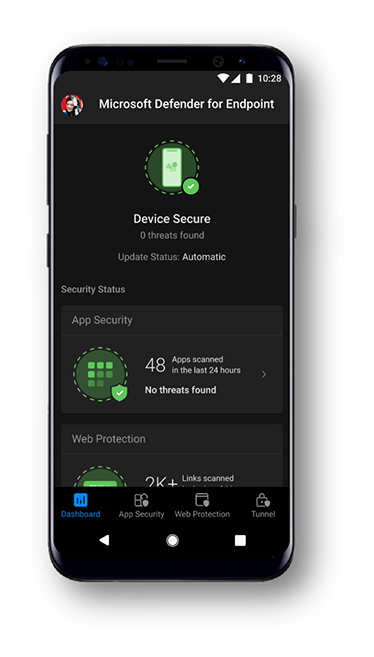
Today we are excited to announce that Microsoft Tunnel VPN capabilities will show up in the Microsoft Defender for Endpoint app for iOS and Android. This enables organizations to offer a simplified end user experience with one security app, while security and IT teams are able to maintain the same admin experiences they are familiar with.
Later this month, existing customers of Microsoft Defender for Endpoint, who are also licensed for Microsoft Tunnel, will see Tunnel capabilities in the Defender for Endpoint app on Android. On iOS, Tunnel capabilities will be added to the Defender app next quarter. Existing Tunnel customers that opt-in for the new public preview will switch to using the Microsoft Defender for Endpoint app for VPN. They will not see any other changes to Tunnel features, it will simply now appear within the Defender for Endpoint app. IT administrators will be able to continue to use the Microsoft Endpoint Manager admin center to configure both Defender and Tunnel features. For additional details, read the blog announcing these changes.
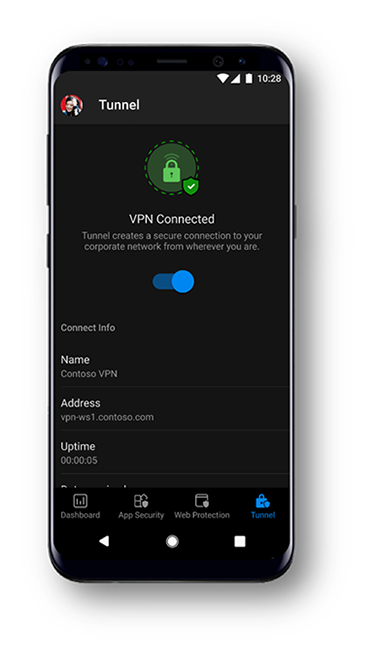
Microsoft Defender for Endpoint customers will notice an updated look and feel to the app. The new experience helps end users better understand the capabilities the app provides and enables the user to be more aware of the security threats to their device. There are no changes to Defender for Endpoint capabilities on mobile. Microsoft’s mobile threat defense solution will continue to offer:
- Protection against phishing coming from browsing, email, apps, and messaging platforms
- Scans for malware and potentially unwanted apps (on Android)
- Blocking of unsafe connections as well as access to sensitive data (on Android)
- A single pane-of-glass experience for SecOps through the Microsoft Defender Security Center, or the unified Microsoft 365 security center
Finally, we are pleased to share that later this month, we will be offering mobile application management (MAM) support for Android and iOS in public preview. Currently, Microsoft Defender for Endpoint on Android and iOS works on devices that are enrolled with Intune mobile device management (MDM) only. With this update, we are extending support to enable enterprises that are using Intune only for application management to use Microsoft Defender for Endpoint. This will also extend support to devices enrolled with third-party EMM providers as long as they are using Intune to manage apps on the devices.
Please don’t hesitate to share your feedback with us! We look forward to continuing to make our experiences for end users as well as security and IT teams better and better.
Microsoft Defender for Endpoint is an industry leading, cloud powered endpoint security solution offering vulnerability management, endpoint protection, endpoint detection and response, and mobile threat defense capabilities. With our solution, threats are no match. If you’re not yet taking advantage of Microsoft’s industry leading capabilities, sign up for a free Microsoft Defender for Endpoint trial today.
by Contributed | Mar 2, 2021 | Technology
This article is contributed. See the original author and article here.
I hope you are all having a great time at Microsoft Ignite! My name is Chris Hoard, Partner Education Lead at Vuzion here in the UK. I am a Microsoft Certified Trainer Regional Lead (MCT RL) and Office Apps and Services MVP. I am interested in everything Microsoft – however my principle focus is Microsoft 365 and all the apps within it.
A few weeks ago, I had the pleasure of meeting Melinda Hu for the first time. Melinda is the PMM for Microsoft Forms, and in our discussion, we covered a number of things including how Forms has matured over the last few years, how it could develop further, and how I use them every day for the education practice that I run here in the UK. Of all the apps in the Microsoft 365 stack, I rate Forms as highly as Microsoft Teams, Lists and Stream – powerful apps both in and of themselves which help us individually and as a team to save time and be more productive. However, in this blog I want to show the power of Forms when used alongside several other Microsoft 365 apps such as Power Automate, Lists and even Yammer. This is an example of how we can take Forms to the next level.
I am going to break it down into three parts:
- How Forms helps me capture data
- How I can analyse data that I receive from the form
- How I can act on data that I receive from the form
In the scenario I’m walking through below, I have an education practice which runs cloud computing courses. The Form that I will create will be used to capture feedback on multiple courses, including the quality of the course
PART ONE: HOW FORMS HELPS ME CAPTURE DATA
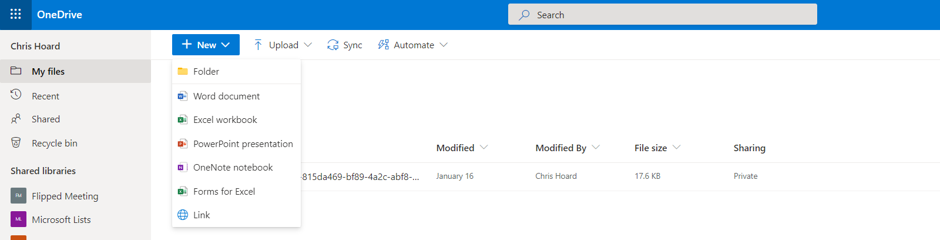
My first step is to create the feedback form itself. I don’t do this at https://forms.office.com but in OneDrive for Business via Forms for Excel. I choose a name for the Form and then Create.

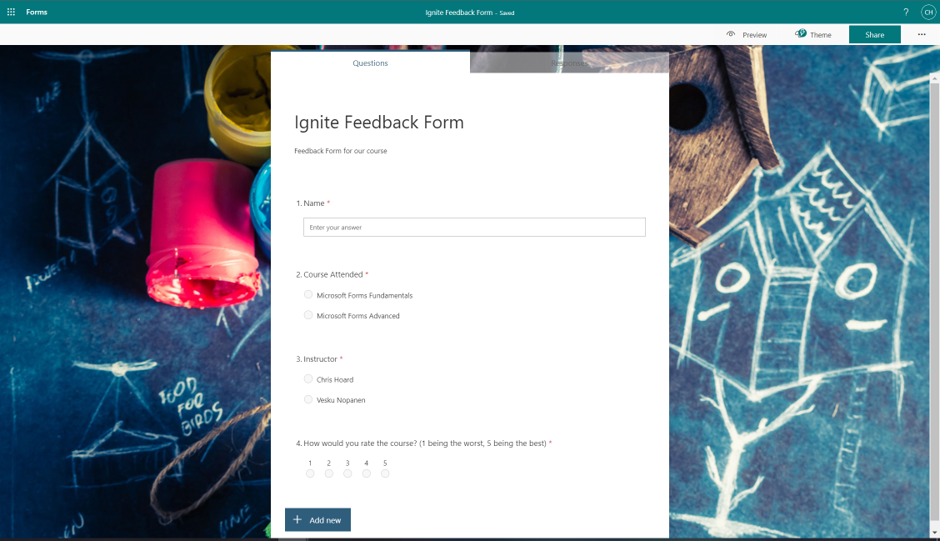
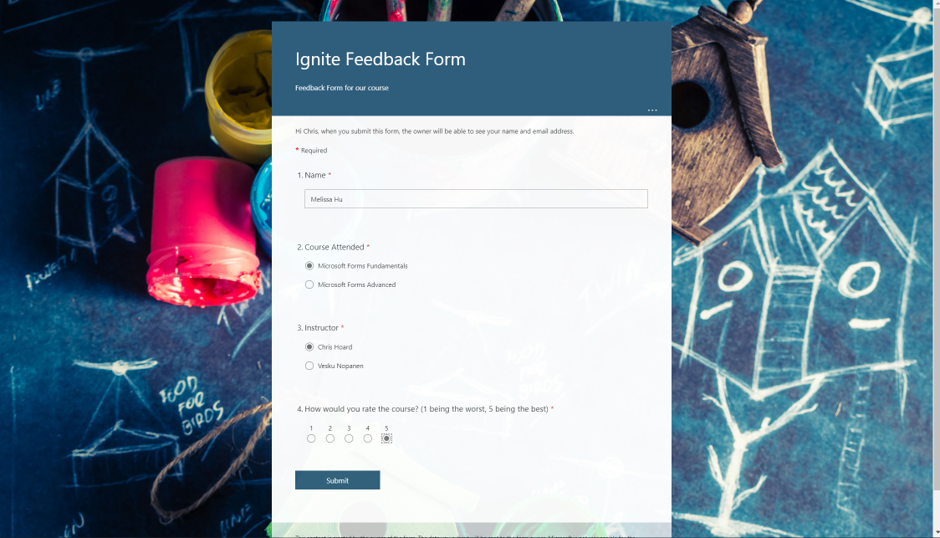
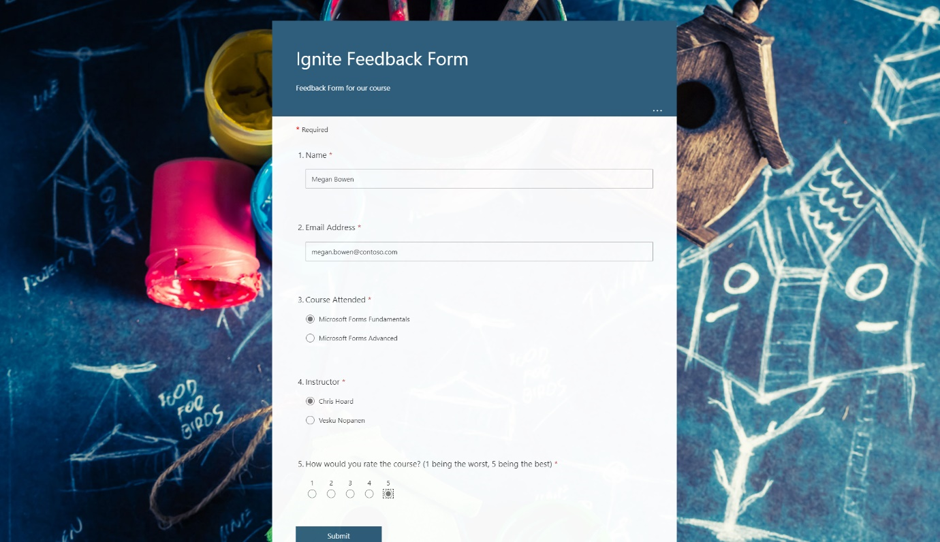
I now populate the Form. As you can see it’s a simple form with four questions – Name (Text), Course Attended (Choice), Instructor (Choice) and Course Rating (Rating).
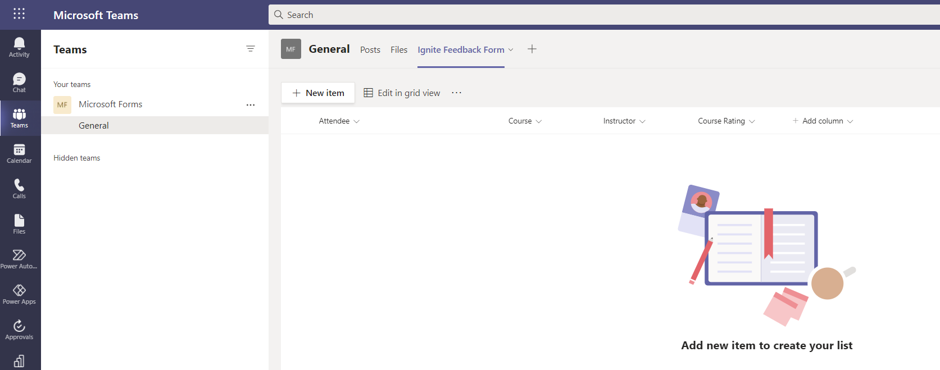
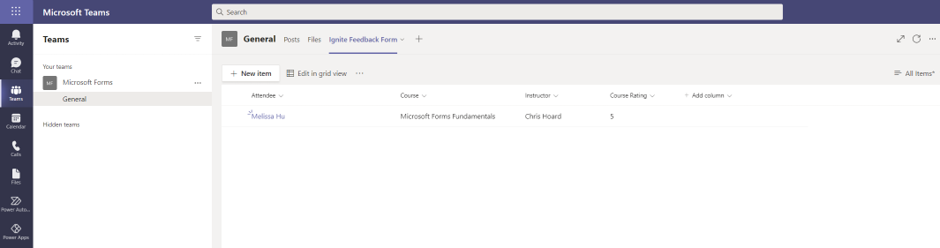
I then create a corresponding List within Microsoft Teams. In Teams, I create that List with column names corresponding to the questions in the Form
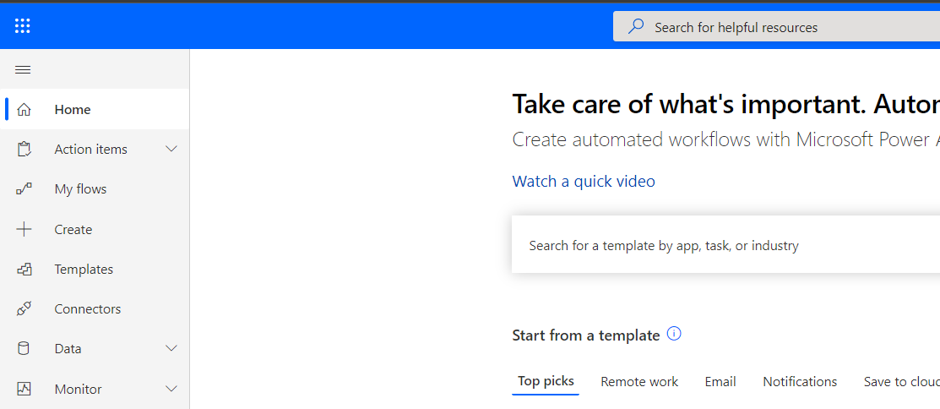
Now I connect the Form and List via Power Automate. I go to https://flow.microsoft.com and then select create
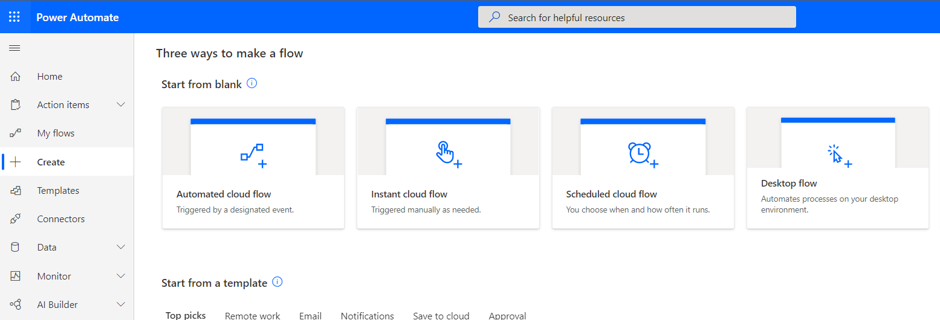
I select Automated Cloud Flow.
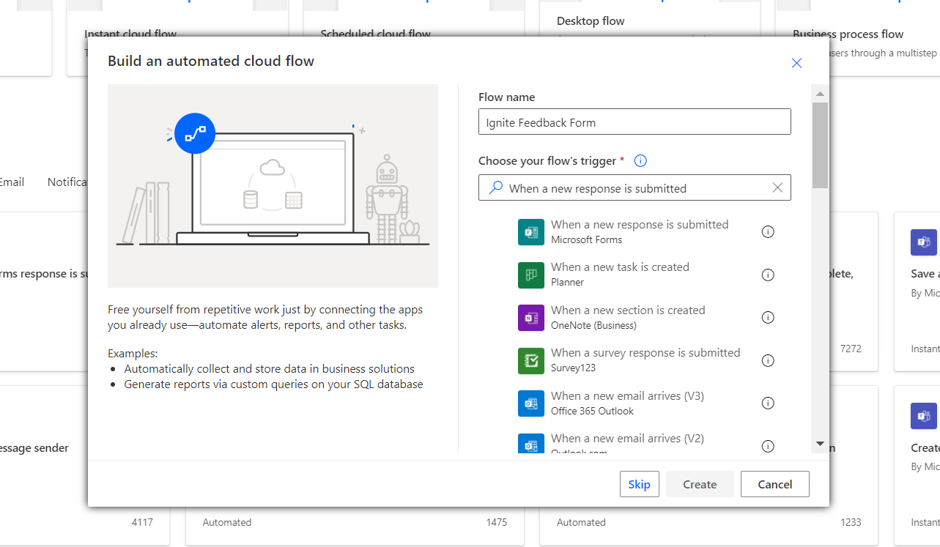
I search for the trigger When a new form response is submitted then Create.
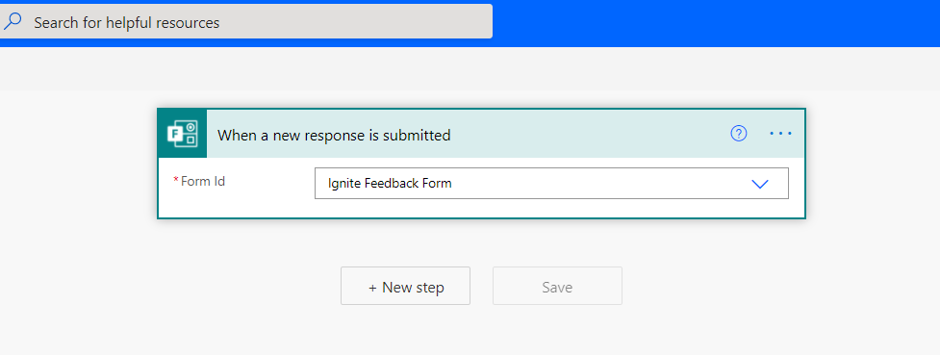
I select the new form in the Form ID field from the dropdown and then select New Step.
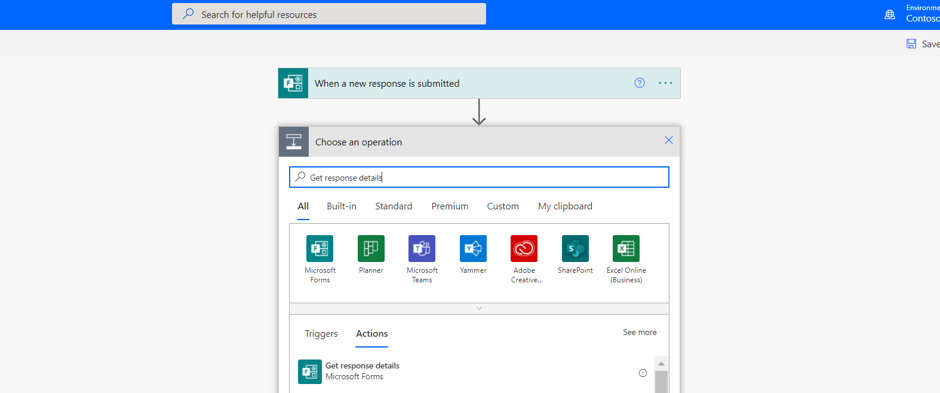
I search for and select Get response details (Forms).
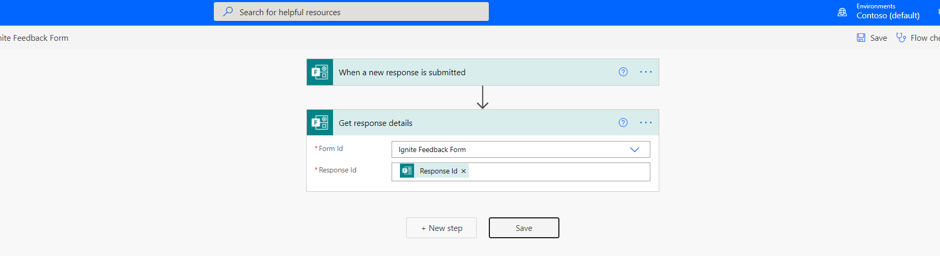
In the Form ID field I select the new form from the drop down and in the Response ID field add the dynamic content Response ID. I select New Step.
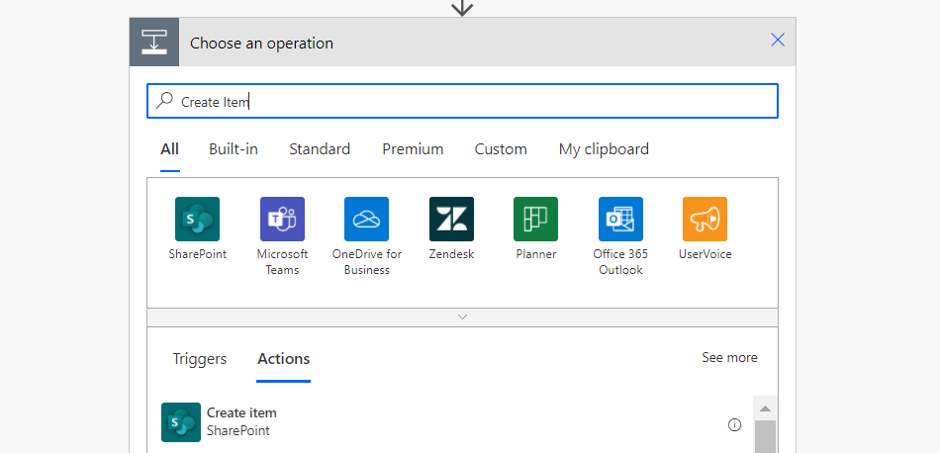
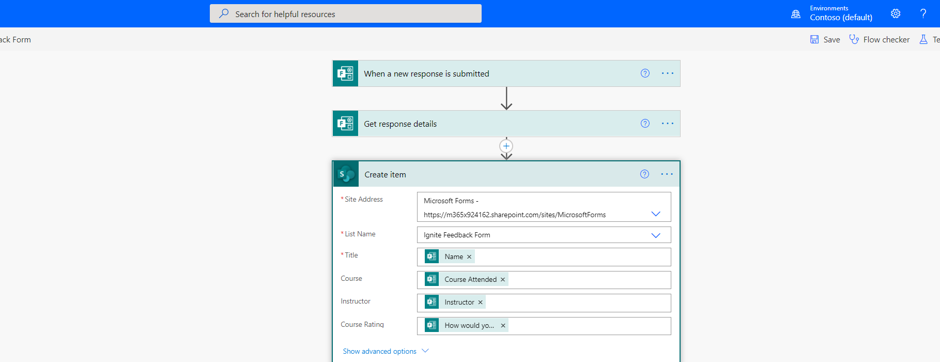
I now search for and select Create Item (SharePoint).
In the Site Address field, I add the URL of the SharePoint Site where the list is housed from the dropdown. In the List Name I then select the List created earlier. The next four fields will correspond to the List Columns – add the dynamic content corresponding to the form questions so the answers to the questions in the form go into the right List columns.
Once done select Save.
Now I test the form. The responses should go into both the Excel in OneDrive for Business as well as the List in Teams. This will open up the Microsoft 365 stack as we look to analyse and act on data from our form. If you want a team/sharepoint site to house the data instead of an individual’s onedrive, you can always create a form at https://forms.office.com, create an Excel online document in the underlying sharepoint site of the team, create a table within that Excel similar to the List, then add an extra step on the flow to add a row into a table after it has been created in the List.

PART TWO: HOW I CAN ANALYSE THAT DATA FROM THE FORM
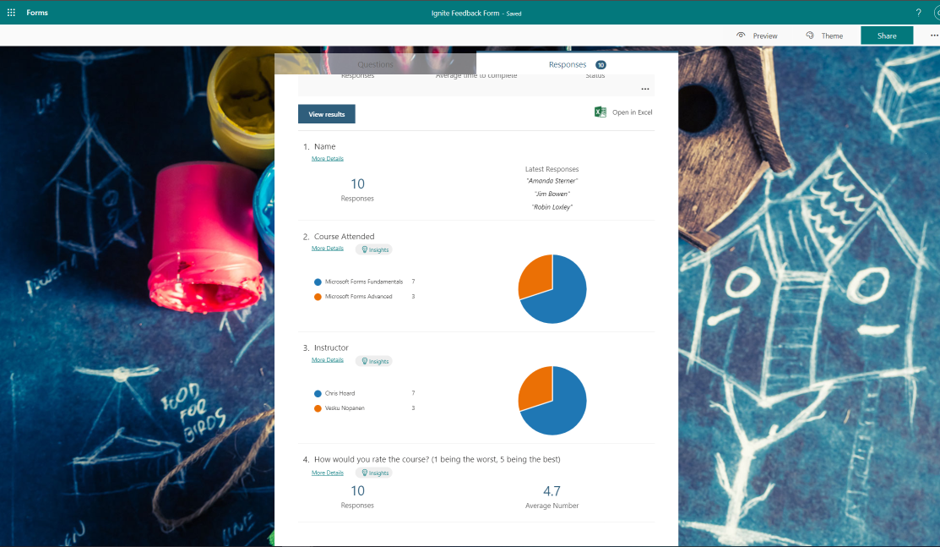
Now that data is coming in through my form and captured in both Excel (in OneDrive) and the List there is a few ways that I can analyse that data to make better data driven decisions based upon the data that is being captured. Firstly, I can always go into https://forms.office.com and look at the form to see analytics and insights from the form responses.
Secondly, if I want to go use the form data alongside other data sources, I can surface those responses in Power BI. As I have created the form through OneDrive (or if the data is added into an Excel within SharePoint via the flow as suggested above) the data can be ingested into a Power BI workspace and kept up to date continuously as opposed to having to manually import it periodically. So I go to Power BI at https://app.powerbi.com/ select Workspaces and then Create a Workspace.
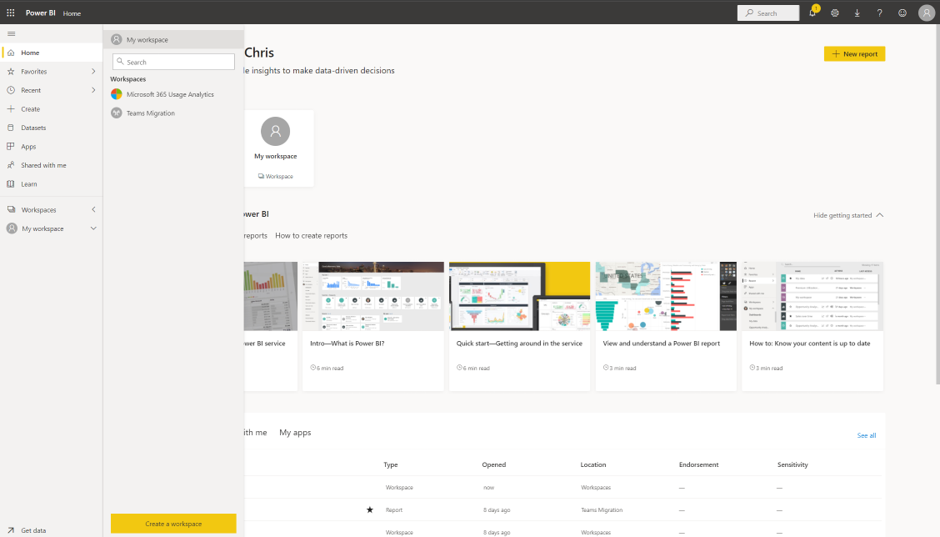
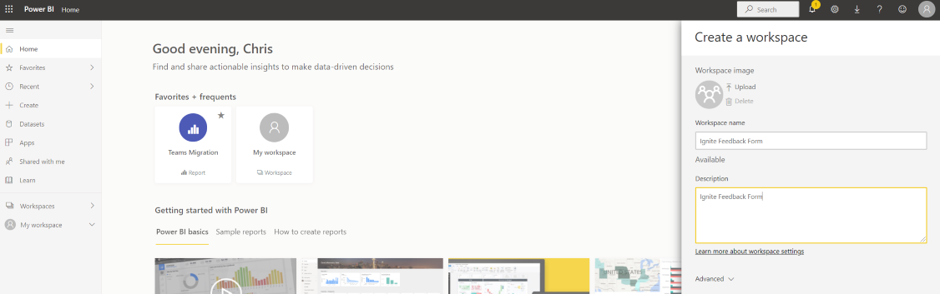
I give the workspace a name and description and select Save.
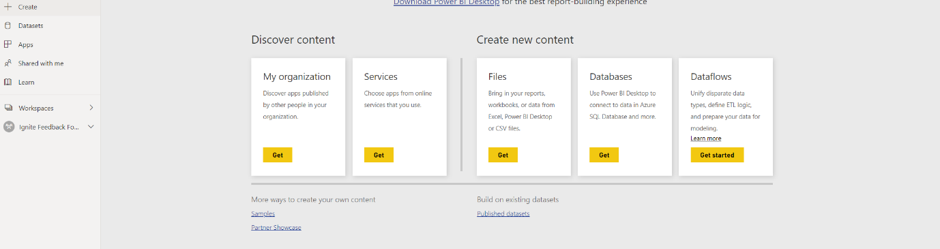
I select Add Content.

On Files I select Get.
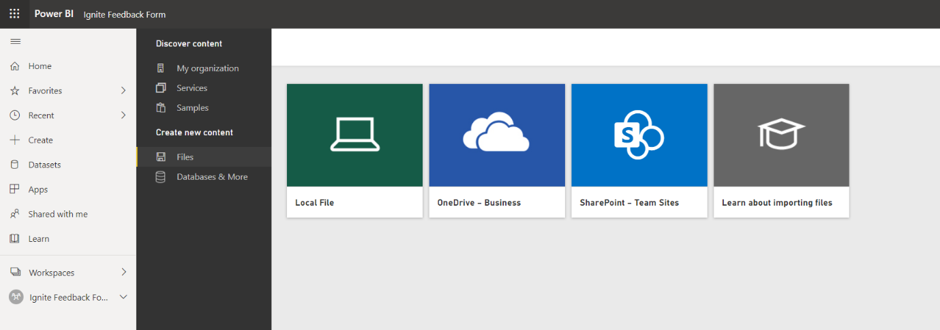
I select OneDrive – Business.
I select the Excel connected to my form and select Connect.
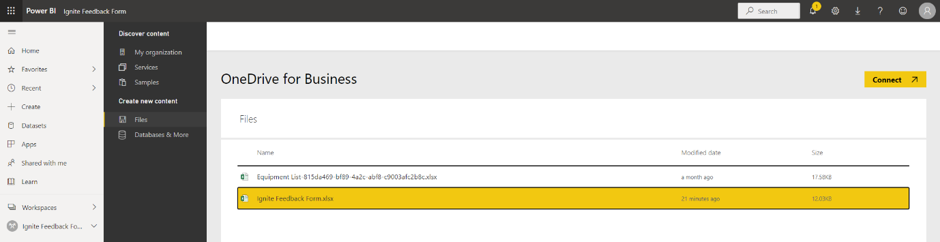
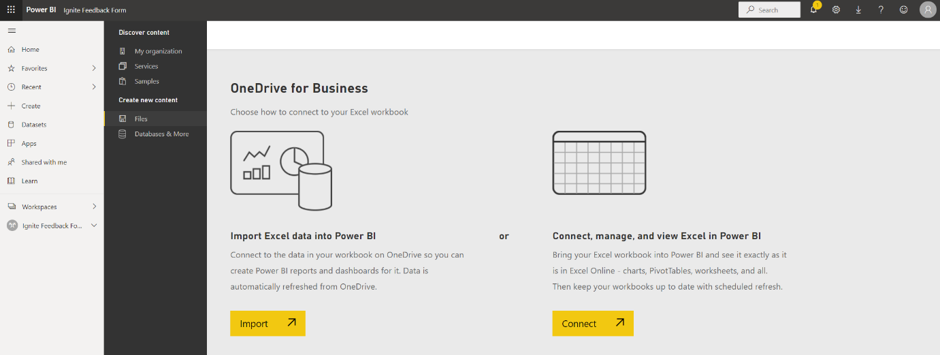
As I intend to keep the Excel in OneDrive, I select Import.
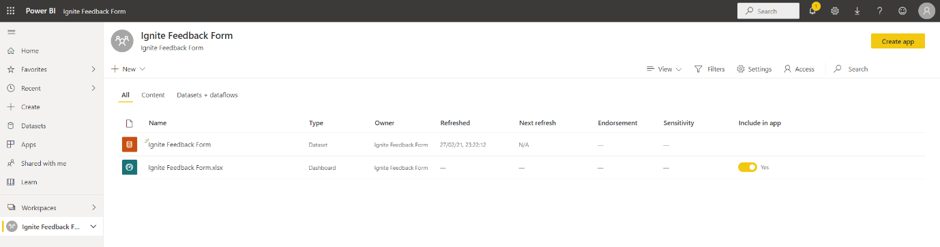
I select the Dashboard.
I then click on the data.
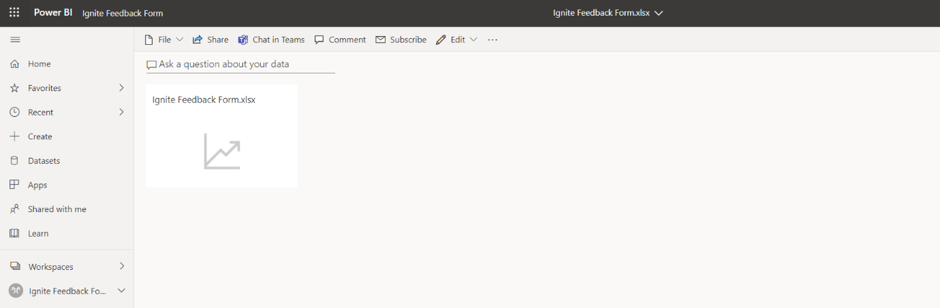
From a blank canvas, I can now go on to build the visualisations I want from the form data.
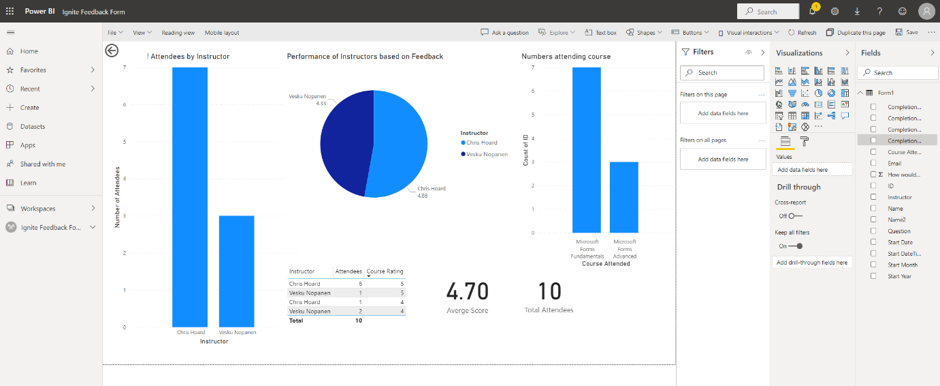
Once saved as a report this can the added back into Microsoft Teams as a Tab within the channel.
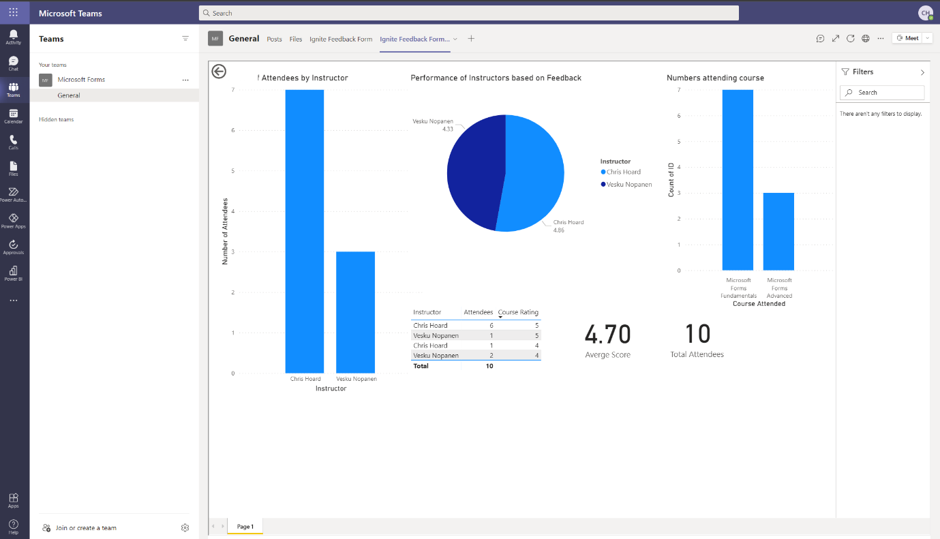
I can even surface it easily in the new Power BI app within Teams. Awesome.
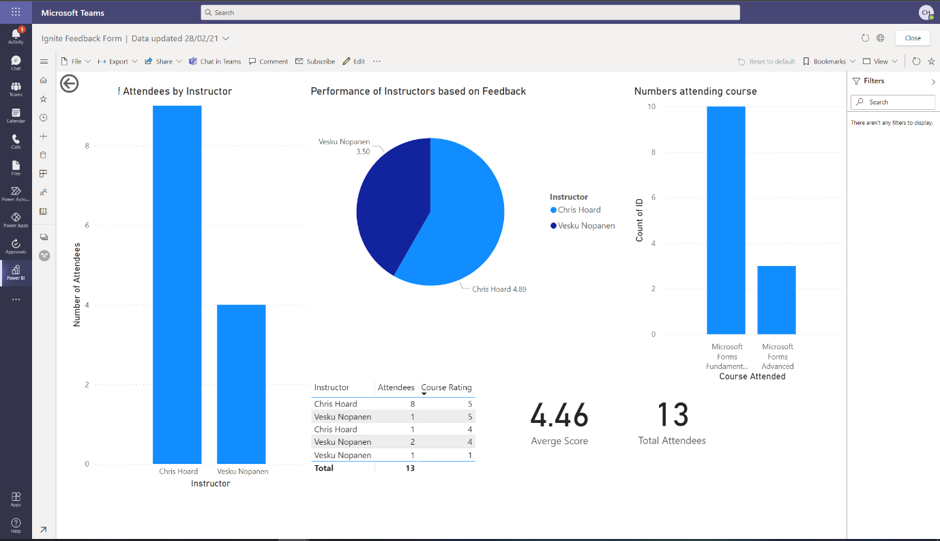
PART THREE: HOW I CAN ACT ON DATA THAT I RECEIVE FROM THE FORM
Data is coming through my form and captured in both Excel (in OneDrive) and the List within Teams. It is being analysed and provides insights within the Forms app and from Power BI, where I can begin to blend it with other data I capture, should I need. Now, I need to act on that data – however, I think this would be even more awesome if I could save myself time and have it be done in an automated way. For example, if the rating of the course was high, I can let my organisation know of its success. If it were low, I can reach out and ask for ways to improve. For this, I add another question to my form which captures the email address of the attendee. You’ll see why in a moment.

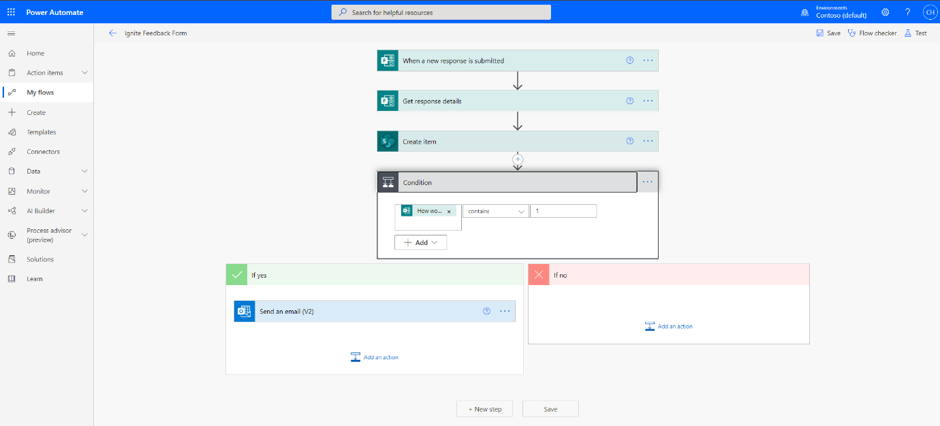
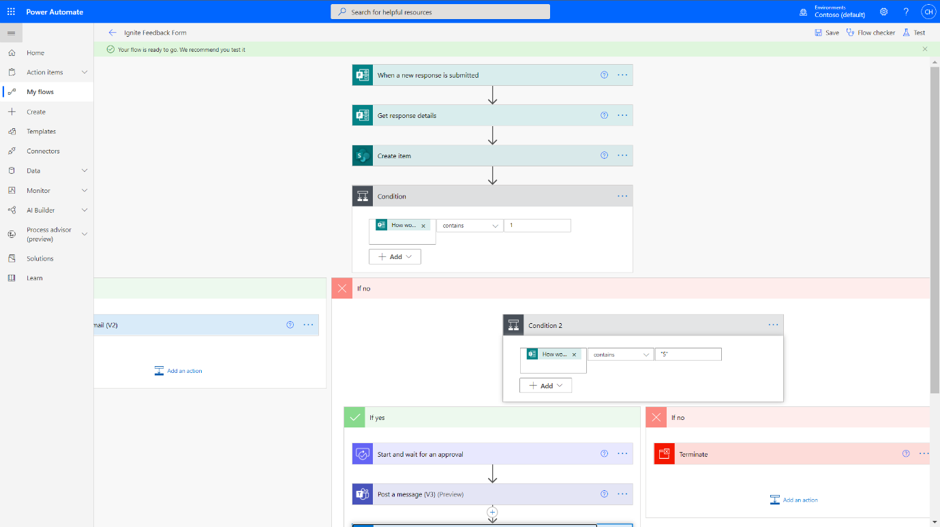
I head back to Power Automate at https://flow.microsoft.com and in my flow add New Step. I search for, and select condition.
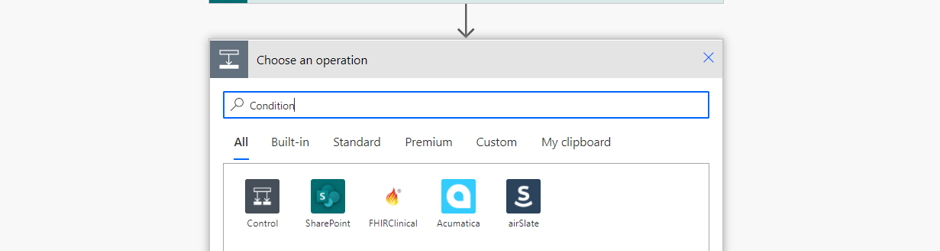
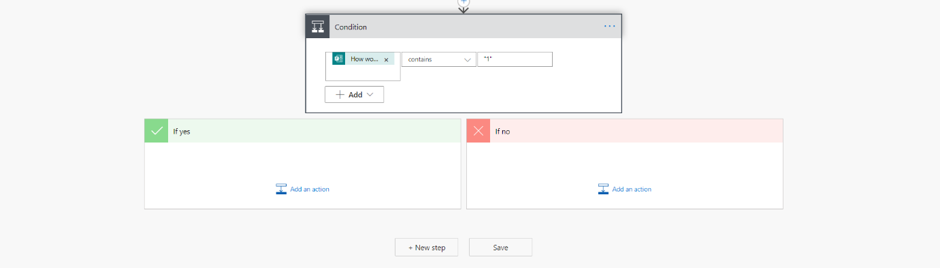
I am going to tackle bad feedback for courses through the form first. In the condition box I add the dynamic content for the course rating and set contains “1” – the lowest mark possible. In the yes box I select add an action.
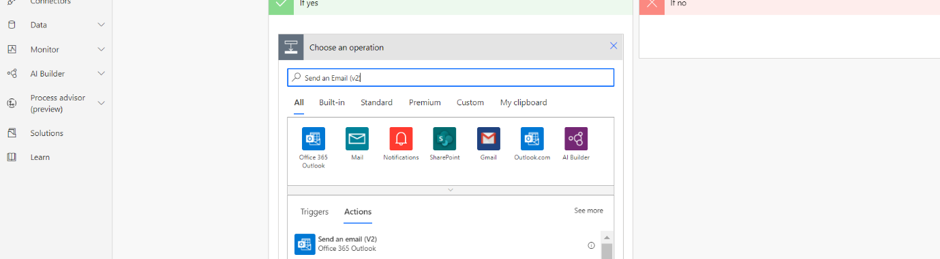
I search for and select Send an Email (v2) (Outlook).
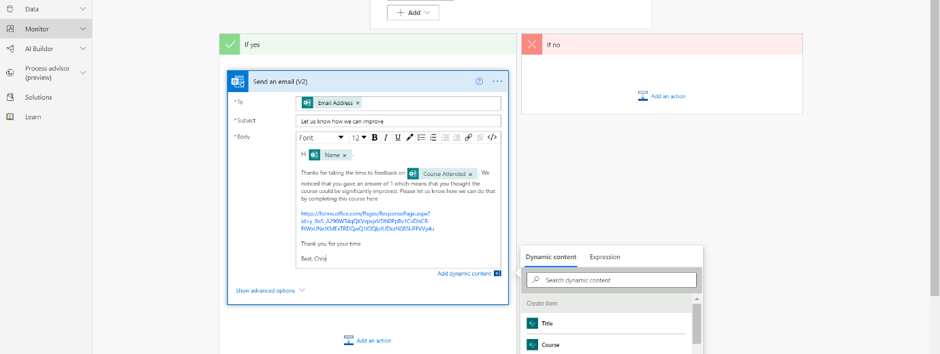
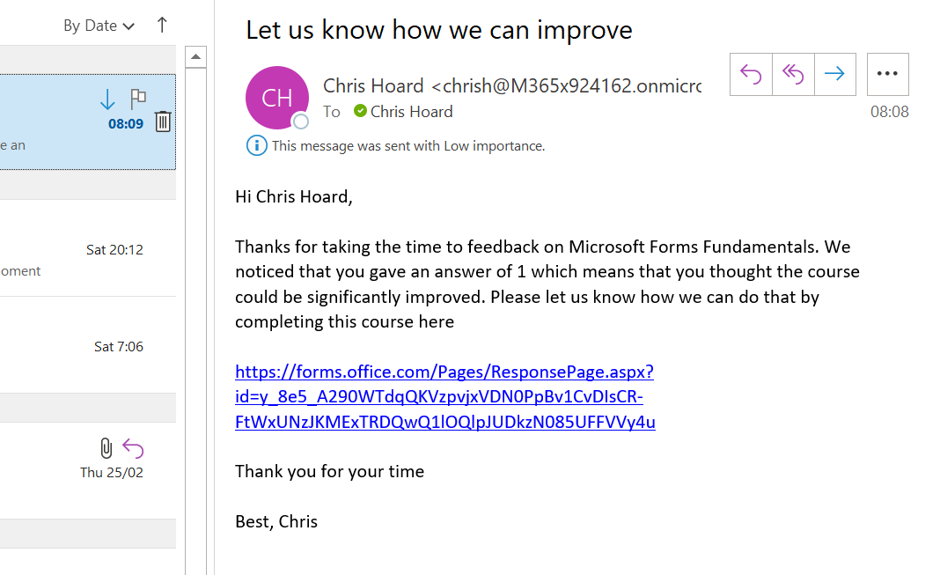
I now complete the email action, using dynamic content Email Address (Forms) to send an email to the attendee who gave the low score. It’s requests them to then go to another Form in order to suggest how the course can improve. I have also used dynamic content such as Name (Forms) and Course Attended (Forms) to personalise the email.
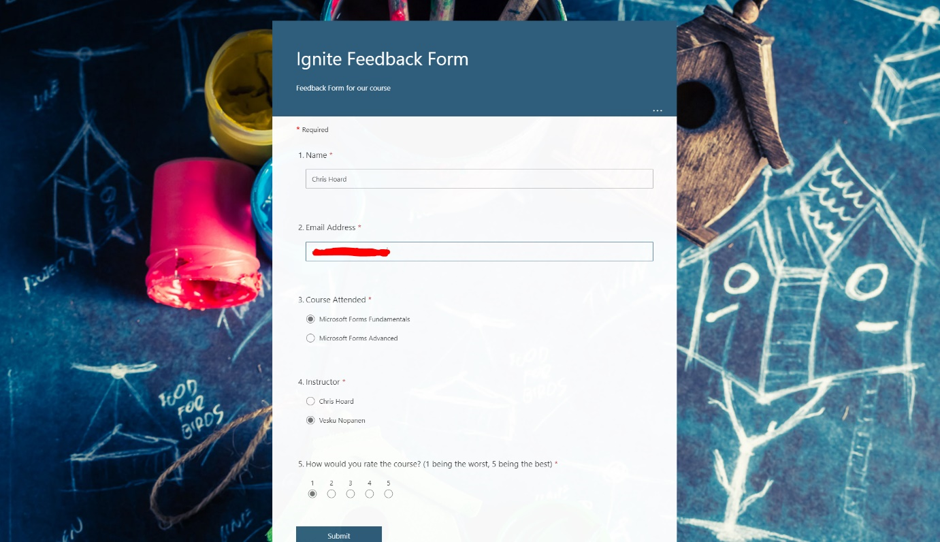
I test this to make sure that it works. I send the form with a rating of 1.
I now receive an email calling me to another form to feedback on course improvements.
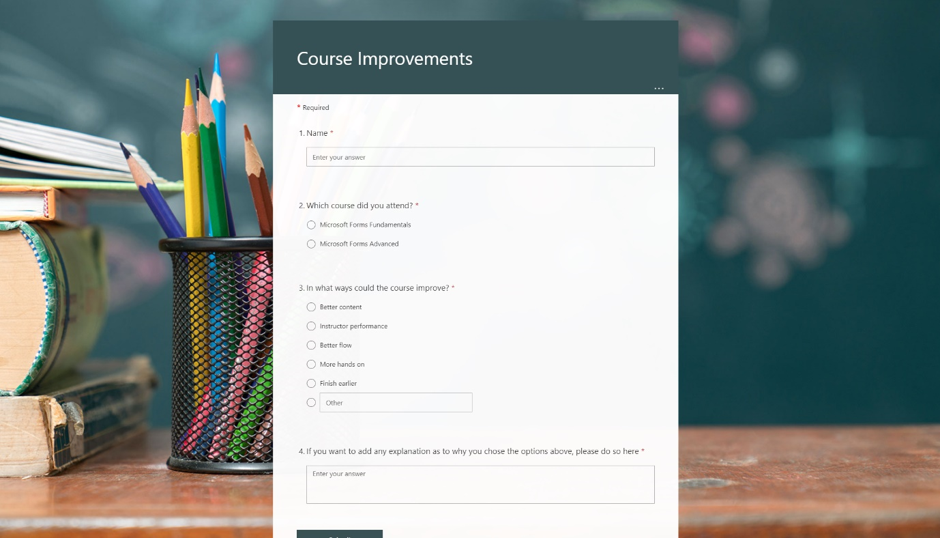
I can now feedback on the course and how it can improve.
So my flow is now set for low scores, but what about high ones? This is something which I want to broadcast to my team, and to my organisation to let them know of the good news. I head back yet again to Power Automate at https://flow.microsoft.com and in my flow, within the no box of he condition I select Add an Action.
For a second time I search for, and select condition.
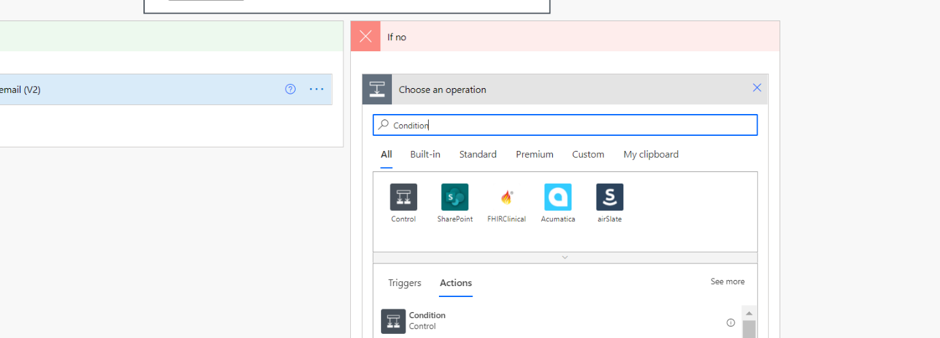
In the second condition box I add the dynamic content for course rating and set contains “5” – the highest mark possible. In the No box I select add an action.
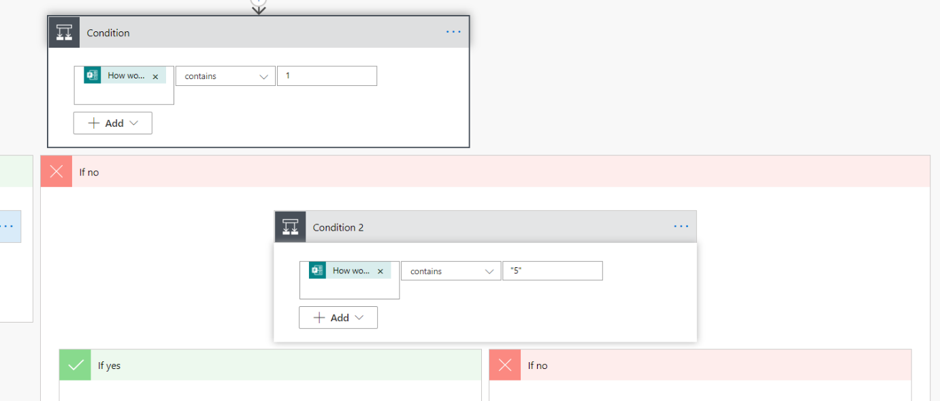
I search for and select Terminate.
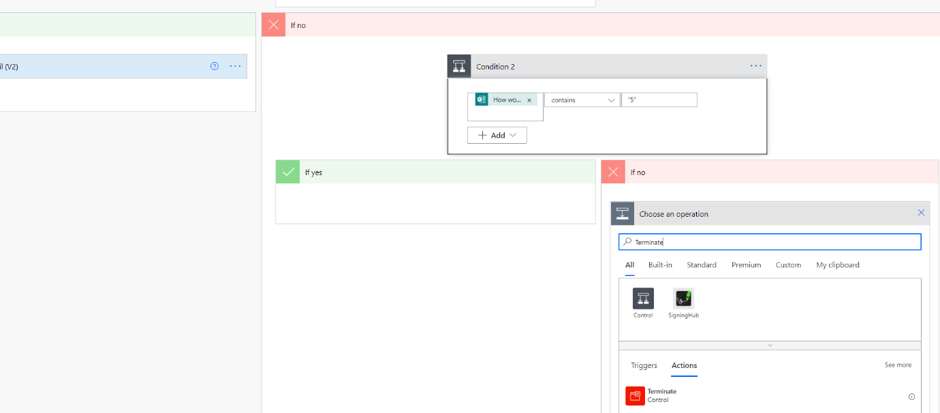
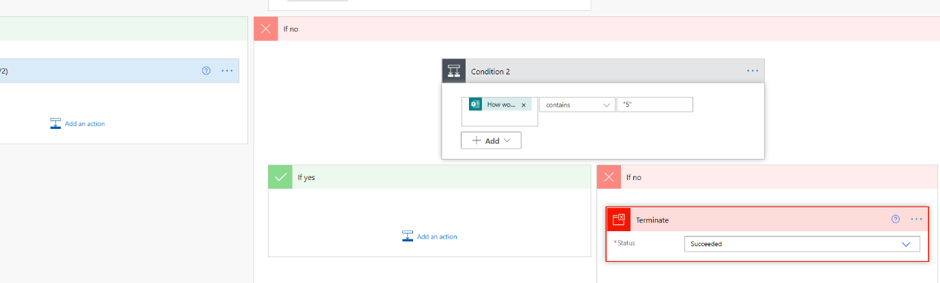
What this does is that it stops the flow with no further action if the score on the form is neither a 1 or a 5. The flow ends as successful. In the Yes box I now select add an action.
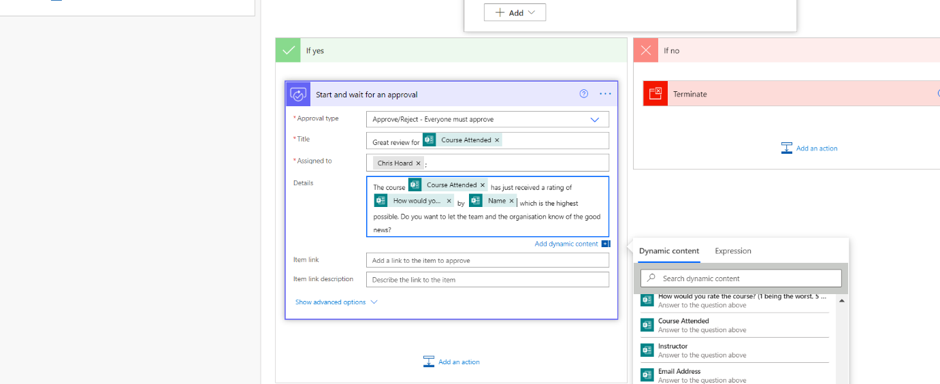
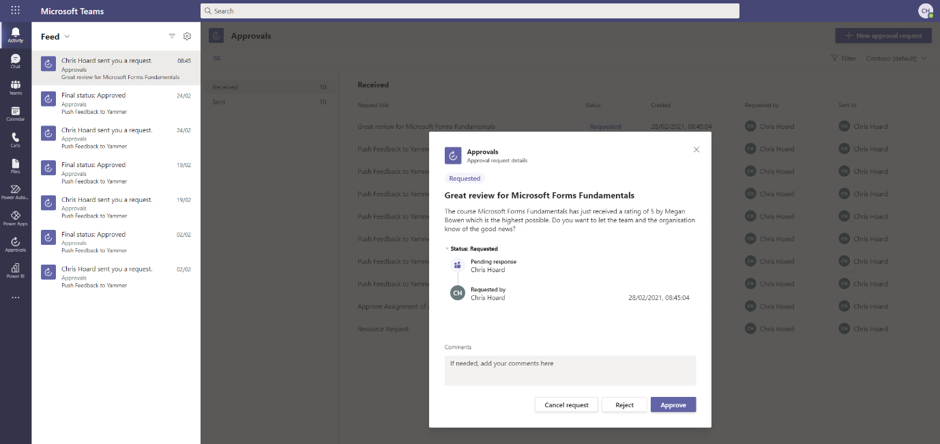
I search and select Start and Wait for an Approval.
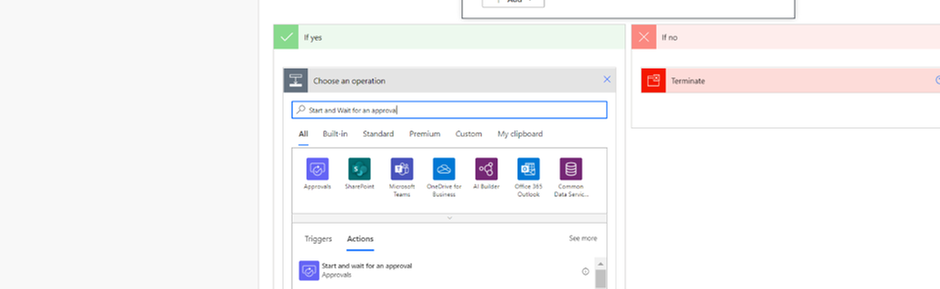
I complete the approval fields – again using dynamic content to complete the title and the details (the body of the approval). I select add an action.
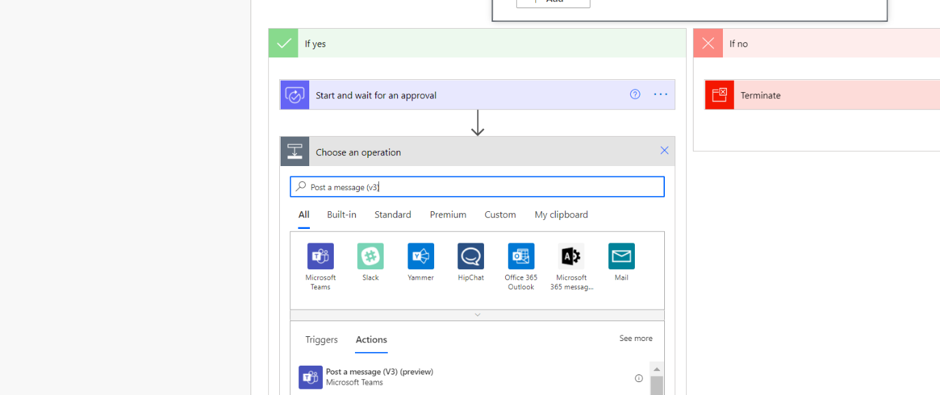
I search for and select Post a Message (v3) (Teams).
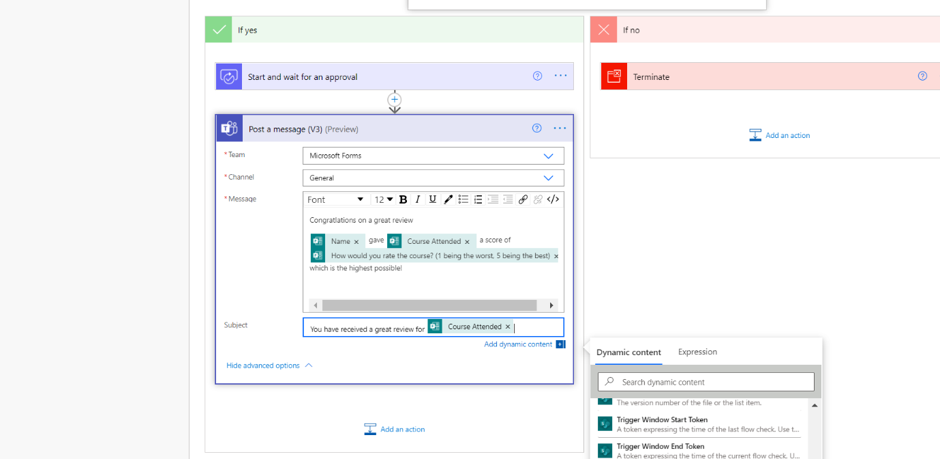
I complete the message I want to send to the team, and personalise that with dynamic content. I select Add an action.
I search for and select Post Message (Yammer).
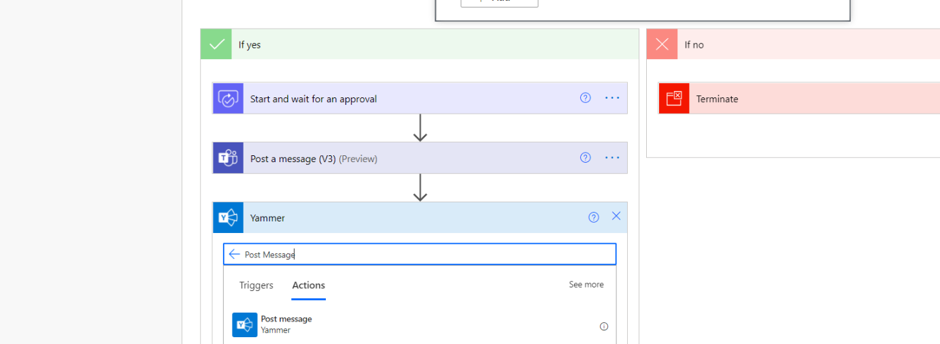
I complete the message I want to send to the organisation, and personalise that with dynamic content.
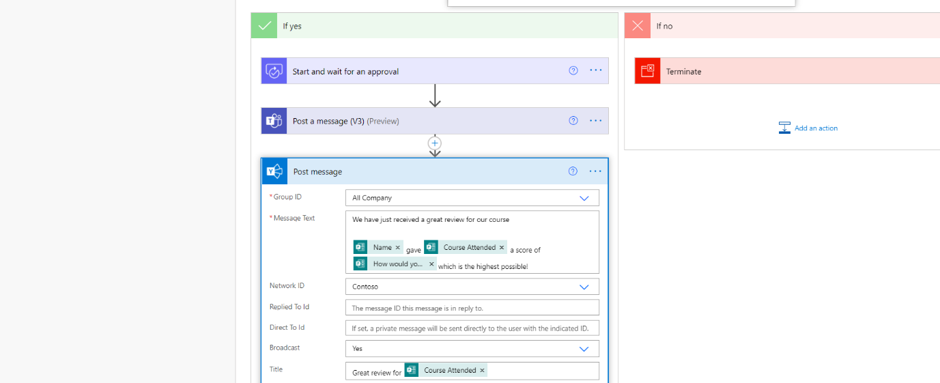
I now Save the flow. Here it is in its entirety – all based on a single form.
I have a final test by submitting another form with a rating of 5.
An approval shows in Microsoft Teams. I select Approve.
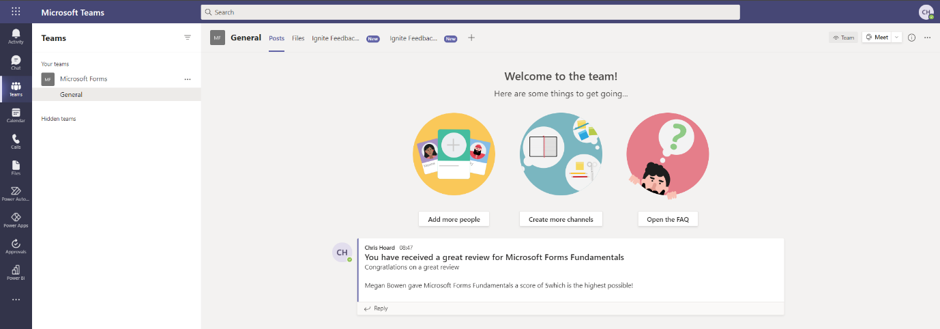
The team is messaged the good news in the Teams channel…
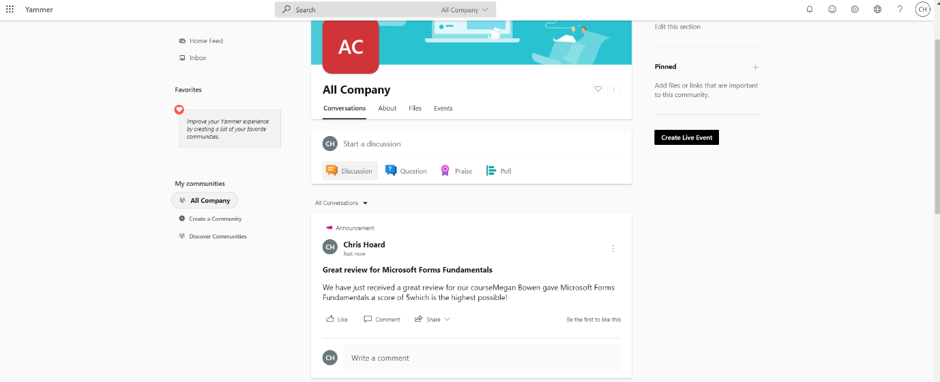
…and so is the wider organisation in Yammer.
CONCLUSION
We broke down this blog into three parts:
- How Forms helps me capture data
- How I can analyse data that I receive from the Form
- How I can act on data that I receive from the Form
In part one, I showed how form data can go into Lists as well as Excel sheets housed in OneDrive (or in SharePoint if you want it out of personal storage). This means we can get data to where we can analyse and act on it. In part two, I showed how we can use analytics already in the Forms app but can go beyond this by using Power BI to create rich workspaces and dashboards, which we can pipe back up into Teams. This would be great to review the running feedback on courses where things like instructor performance, content and format can be reviewed over time. In part three, I showed how we can act on the form data. If a course is scored low, we can have an immediate response via email to the attendee who felt the course could be improved, whereas if a course is scored high, we can get that great feedback to the team, and broadcast it out to our organisation. The amazing thing here is that all of this is automated. And this isn’t the end – there is much more scope as this was only a simple form and a simple setup.
Thanks for taking the time to read. I hope you have an amazing time at Ignite!
You can follow me on:
Twitter: @Microsoft365Pro
by Contributed | Mar 2, 2021 | Technology
This article is contributed. See the original author and article here.
March 2021 Edition Sections:
- Highlighted
- Microsoft Teams – IT Admins & Planning
- Microsoft Teams – End Users & Champions
- Security & Compliance
- Device Management
- Ignite 2021
- Blogs & Articles of Interest
Highlighted
This month we highlight our annual Ignite conference, along with some new Teams-focused events.
Microsoft Ignite – March 2021
When: Tuesday, March 2, 2021 – Thursday, March 4, 2021 | Join our digital experience on March 2–4, 2021 to learn, connect, and explore new tech that’s ready to implement. All skill levels welcome. Save the date! Registration is now open.
Ask Microsoft Anything (AMA): Microsoft Teams Virtual Events
When: Tuesday, March 9, 2021 at 9:00am PT | We are very excited to announce a Microsoft Teams ‘Ask Microsoft Anything’ (AMA) for Virtual Events in Microsoft Teams! The AMA will take place on Tuesday, March 9, 2021 from 9:00 a.m. to 10:00 a.m. PT in the Microsoft Teams AMA Space. An AMA is a live online event similar to a “YamJam” on Yammer or an “Ask Me Anything” on Reddit. This AMA gives you the opportunity to connect with members of the product engineering team who will be on hand to answer your questions and listen to feedback. Be sure to add the event to your calendar!
Microsoft Teams Summit: March 2021 | Online Event
In 2020, remote and hybrid working became the new normal. Through Microsoft Teams, we came together; connecting, collaborating – and keeping our teams productive, creative and secure. Microsoft is hosting a three-day digital event, The Microsoft Teams Summit, commencing the week of March 22, 2021. It’s an event you won’t want to miss. You’ll hear from experts on how Teams can supercharge the way you and your organization work and discover best practices from customers who’re using Teams to achieve amazing successes. To make sure you’re getting information tailored to your needs, each of the three days will be dedicated to a different group of Teams users: Business leaders, IT professionals, and our everyday users.. So, however you’re using Teams, join us to discover new ways to enhance your skills, and bring your teams closer together to achieve more.
Microsoft Teams – IT Admins & Planning
Microsoft Teams: Plan your upgrade (Start here!)
Discover everything you need to facilitate a successful upgrade to Teams. By the end of this workshop, participants will be able to: (1) Understand why a formal plan is crucial for upgrade success, (2) Identify the steps to the upgrade success framework, (3) Recognize common attributes of successful customers, and (4) Create and implement their own upgrade plan. The audience for this session is All (Business Sponsors, IT Admins, User Readiness/Change Manager, Project Lead).
Microsoft 365 Virtual Training Day: Enabling Remote Work with Microsoft Teams
To be productive in a remote environment, your employees need to be able to safely collaborate from anywhere. Microsoft 365 Virtual Training Day: Enabling Remote Work with Microsoft Teams helps you provide a remote workforce with the tools, resources and solutions they need to stay connected and productive. Join us to learn how to get the most out of Microsoft Teams online meetings, calling, video and chat, and empower your workforce to work from any location on any device. During this two-part training event, you will explore how to: (1) Enable your people to meet and collaborate from home, (2) Make productivity applications available on any device, and (3) Deliver the best remote user experience.
Teams Chalk Talk: Get to Teams – Zero to Production
Microsoft Teams can help your employees stay connected and collaborate with each other, especially in the current unprecedented time where remote work is a reality of employees around the world. Being able to chat, do video meetings and collaborate on Office documents within Teams can help companies stay productive. Whether you are a small business, a non-profit or a large organization, you can get started with Teams within Microsoft 365 or Office 365 suite – even before deploying any other Office app or service. Join Microsoft Teams experts as we review Teams implementation for collaboration, chat and meetings. We’ll share key configurations, considerations, best practices, and resources to get your users up and running quickly. After this session, you will be able to: (1) Recognize key success factors for technical and user readiness, (2) Identify pre-requisites and tenant setup for your environment, (3) Install the Teams clients appropriate for your organization, (4) Configure policies that enable your preferred user experiences, and (5) Leverage collaboration features to enhance remote work scenarios.
Teams Chalk Talk: Apps in Teams Fundamentals
Join Microsoft Teams experts as we review how you can deploy commonly-used applications directly within Teams, enabling your users to work more efficiently and effectively by accessing everything they need in a single interface. This foundational workshop covers basic capabilities across app management and security. With over 400 out-of-the-box applications available (and growing), you’re sure to find an app, or two, that your team can begin using today in Teams. After this session, you will be able to: (1) Identify suitable apps to meet the needs for your organization, (2) Recognize common attributes of successful app deployment, (3) Navigate security and compliance considerations for Teams’ apps, and (4) Determine the next steps to deploy an app to your environment.
Teams Chalk Talk: Taking charge of AV quality experiences
Are you looking to ensure users have optimal experiences with meetings and voice capabilities in Teams? During this session, we’ll discuss tools, reporting and best practices to help you manage service quality — from establishing a proactive strategy to resolving common quality issues as they arise. We’ll build upon best practices from Teams experts and make it real with examples of common scenarios that may arise as your organization embraces meetings and voice capabilities in Teams. Join us for an expert-led workshop for guidance on key resources and actionable insights to manage audio and video quality with Microsoft Teams. Your users will thank you for it! After this session, you will be able to: (1) Define key service metrics and user experience factors for quality, (2) Recognize concepts and metrics in core tools and resources that help you assess usage and quality, (3) Identify key indicators of poor experience in common scenarios and relevant actions to address, and (4) Establish a proactive quality management strategy to ensure optimal user experience.
Teams Chalk Talk: So…you want to make calls with Microsoft Teams?
Are you ready to add PSTN calling capabilities to Microsoft Teams? Join Microsoft Teams Engineering subject-matter-experts as they demystify the options for adding PSTN calling to Teams, provide you with best practices for configuring calling options and show you how to monitor call quality. After this session, you will be able to: (1) Understand the history of voice services in Microsoft products, (2) Identify what calling options in Microsoft Teams are right for you, (3) Configure your calling options in the Teams admin portal, and (4) Monitor and use call quality tools in Teams.
Microsoft Teams – End User & Champions
Get Started with Microsoft Teams
Whether you are switching from Skype for Business or brand new, join us to learn the basics of how to use Teams to chat with your colleagues and collaborate on projects. Through a series of live demonstrations and best practices, you’ll leave this session with everything you need to start using Teams. After this session, you will be able to: (1) Set up your profile and notifications in Microsoft Teams, (2) Use chat and calling for 1:1 and group conversations, sharing and collaboration in Microsoft Teams, (3) Schedule and conduct meetings in Microsoft Teams, and (4) Align your team and teamwork in Microsoft Teams.
Customer Immersion Experience: Getting Started with Microsoft Teams
Whether you are switching from Skype for Business or brand new, join us to learn the basics of how to use Teams to chat with your colleagues and collaborate on projects. Join us for this session and leave this with everything you need to start using Teams. During this 2-hour interactive session, you will explore how to: (1) Set up your profile and notifications in Microsoft Teams, (2) Use chat and calling for 1:1 and group conversations, sharing and collaboration in Microsoft Teams, (3) Schedule and conduct meetings in Microsoft Teams, and (4) Align your team and teamwork in Microsoft Teams. Each session is limited to 15 participants, reserve your seat now.
Microsoft Teams: Master working from home
Working from home offers the opportunity to maintain your workflow while allowing flexibility in how and where you get your work done. Shifting to a remote worker status can be an adjustment as you look for ways to balance home and work life, maintain focus and be fully productive. Microsoft Teams can help you stay connected to your team while providing access to all of the tools and resources you need to get your work done. Join us to learn tips that can help set you up for success as you transition into a ‘work from home’ scenario. During this session, we’ll share: (1) Guidance for setting up your home environment for work, (2) Best practices for maintaining your workflow while working at home, (3) Tips for staying connected to your team while remote, and (4) Insights for effectively supporting a remote team.
Go Deeper with Microsoft Teams: Leverage pro tips and tricks for Microsoft Teams
Designed for those who are already familiar with Microsoft Teams, our ‘Go Deeper’ sessions offer insights and best practices. Learn how Teams can help organize your workday and make it easier to stay connected with colleagues. Learn tips and tricks for managing and organizing work and communications in Teams. After this session, you will be able to: (1) Leverage formatting best practices to help get your messages noticed (and responded to), (2) Easily find files, chats and projects, (3) Implement strategies to manage and organize your work, and (4) Simplify your workday.
Go Deeper with Microsoft Teams: Build collaborative workspaces in Microsoft Teams
Designed for those who are already familiar with Microsoft Teams, our ‘Go Deeper’ sessions offer insights and best practices. Learn how Teams can help organize your workday and make it easier to stay connected with colleagues. Explore ways to determine the best approach for creating workspaces for projects and workgroups. After this session, you will be able to: (1) Determine the best approach for your collaboration needs (chat versus teams & channels), (2) Create workspaces for your team to provide the best teamwork experience, and (3) Determine best practices in Microsoft Teams to enhance productivity.
Run Effective Meetings with Microsoft Teams
Have you spent significant time and resources to prepare for a meeting and still felt it wasn’t productive? Have you attended a meeting only to leave feeling like not much was accomplished? Join this class to learn how to make your meetings engaging, productive and effective. Microsoft Teams can help make your meetings worth showing up for. After this session, you will be able to: (1) Use Teams for your entire meeting experience, (2) Record your meeting, making it easy for those who couldn’t attend to get caught up, (3) Keep important meetings at your fingertips by pinning them for easy access, and (4) Assess which audio and video devices are best for your meeting needs.
Integrate apps to do more in Microsoft Teams
Do you want to get more done in Teams? Receive targeted and timely updates? Access services directly through Teams? Apps let you complete tasks, receive updates and communicate. This session introduces you to the key activities needed to get started with adding applications, bots and connectors in Microsoft Teams today. Through a series of live demonstrations and best practices, you’ll leave this session with everything you need to start using apps in Teams. After this session, you will be able to: (1) See how applications, bots and connectors can help you be more efficient while working in Teams, (2) Select an application, bot or connector for your workspace, (3) Install an application, bot or connector, and (4) Use an application, bot or connector in your workspace.
Microsoft 365 Virtual Training Day: Building Microsoft Teams Integrations and Workflows
Remote work requires smarter workflows. Microsoft 365 Virtual Training Day: Building Microsoft Teams Integrations and Workflows shows you how the Microsoft Teams developer platform makes it easy to integrate your apps and services to improve productivity, make decisions faster and create collaboration around existing content and workflows. Join us to learn how to build apps for Teams and create integrated, people-centered solutions that can transform productivity in your organization, whether you’re on-site or working remotely. During this two-part training event, you will explore how to: (1) Build modern enterprise-grade collaboration solutions with Microsoft Teams, (2) Transform everyday business processes with Microsoft 365 platform integrations for Power Platform, SharePoint and Microsoft Office, and (3) Use the wealth of data in Microsoft Graph to extend Microsoft 365 experiences and build unique intelligent applications.
Security & Compliance
Microsoft 365 Virtual Training Day: Secure and Protect Your Organization
When employees are confident in their ability to collaborate remotely and securely, they are free to achieve more without worry. Learn how to protect data, devices, and applications while simplifying IT and minimizing the impact on employees at Microsoft Security Virtual Training Day: Secure and Protect Your Organization. During this free two-part learning event and accompanying Q&A, you’ll form the foundations to safeguard your company’s digital footprint. During this training event, you will explore how to: (1) Craft identity synchronization, protection, and management, (2) Utilize security in Microsoft 365, and (3) Integrate cloud app security and device management plans.
Microsoft Ignite 2021 Tech Community Blog for Security, Compliance, and Identity
We are so excited to have you virtually joining us either live or catching the event on-demand. Our product and engineering teams have been working hard over the past six months to bring you the latest product news and announcements that will be shared during the event. Below is a comprehensive list of all sessions and opportunities to engage with Microsoft experts. There is a lot to explore during Microsoft Ignite, so we hope you take some time to watch, participate and learn!
Device Management
Office Hours: Managing Windows 10 Devices & Updates
To support your efforts to deliver and deploy updates to the Windows 10 devices being used by remote, onsite, and hybrid workers across your organization, and manage those devices effectively, we are continuing our series of weekly “office hours” for IT professionals here on Tech Community. During office hours, we will have a broad group of product experts, servicing experts, and engineers representing Windows, Microsoft Endpoint Manager (Microsoft Intune, Configuration Manager), security, FastTrack, and more. They will be monitoring the Windows 10 servicing space and standing by to provide guidance, discuss strategies and tactics, and, of course, answer any specific questions you may have. Office hours are text-based; there is no audio or virtual meeting component. To post a question, you just need to be a member of the Tech Community. Simply visit the Windows 10 servicing space and click Start a new conversation. At the start of office hours, we’ll pin a post outlining the individuals on hand, and their areas of expertise. Can’t attend at the designated time? Again, no problem. Post a question in the Windows 10 servicing space up to 24 hours in advance and we’ll make sure we review it during office hours.
Ignite 2021
Microsoft Ignite – March 2021
When: Tuesday, March 2, 2021 – Thursday, March 4, 2021 | Join our digital experience on March 2–4, 2021 to learn, connect, and explore new tech that’s ready to implement. All skill levels welcome. Save the date! Registration is now open.
Your Guide to Microsoft Teams @ Spring Microsoft Ignite 2021
Microsoft Spring Ignite is just around the corner and we’d like to share a preview of what you’ll see from Microsoft Teams at this event. This spring we will be focused on external collaboration, meetings, and digital events and webinars. We’ve created sessions that span the breadth of Teams to give you a view into our product capabilities, answer your questions, and provide insights into how your organization can create an even better hybrid workplace with Microsoft Teams.
Related:
Guide to Microsoft 365 Apps deployment and servicing at Microsoft Ignite
In May 2020, we discussed how to modernize servicing by introducing a new Monthly Enterprise Channel, and in September, we introduced new cloud-based admin capabilities to help IT admins service Microsoft 365 Apps for their organizations. This time at Ignite, we’re bringing you more! Learn what’s new and ask our Microsoft 365 Apps deployment experts any questions you have during one of our Office Hours Q&A sessions, or head over to the Microsoft 365 Apps discussion space and post your question there. Be sure to also check out the on-demand sessions, blogs, and Microsoft Docs articles below to learn more. | Related: Windows & Devices at Microsoft Ignite 2021: March edition
Microsoft Ignite 2021 Tech Community Blog for Security, Compliance, and Identity
We are so excited to have you virtually joining us either live or catching the event on-demand. Our product and engineering teams have been working hard over the past six months to bring you the latest product news and announcements that will be shared during the event. Below is a comprehensive list of all sessions and opportunities to engage with Microsoft experts. There is a lot to explore during Microsoft Ignite, so we hope you take some time to watch, participate and learn!
Blogs & Articles of Interest
Public Sector Blog Website | RSS Feed
Microsoft Teams Blog Website | RSS Feed
Office & Microsoft 365
Enterprise identity, mobility, and security
Microsoft Azure and Development
Windows, Operations, Management, and Deployment
Support and adoption
Misc
Thanks for stopping by and reading our monthly resources. Feel free to reach out in the comments below with any comments, questions or ideas on other events to add to the list. Here in Public Sector we want to make sure we are giving you the information and insights to best serve your needs in this community.
by Contributed | Mar 2, 2021 | Technology
This article is contributed. See the original author and article here.
Today, we are excited to announce the Windows Update for Business deployment service. This new service empowers IT professionals to meet the business goals of their organizations and requirements of their end users no matter where a device resides on the planet—be it in the office, at home, or on the road.
Over the past year, organizations have rapidly shifted to remote work strategies, emphasizing and leveraging cloud services more than ever before. We have evolved our approach to Windows as a service since the release of Windows 10. We added more controls, and developed frameworks to help you successfully transition to a cloud servicing cadence.
Microsoft AI powers update decisions for more than a billion devices worldwide, and we are committed to making the same controls and technology available to every device manager. The deployment service is designed as an enterprise-grade solution on top of this servicing platform.
These technologies represent an exciting next step in the evolution of Windows as a service.
A closer look at the Windows Update for Business deployment service
The deployment service is a new cloud service within the Windows Update for Business product family. It provides control over the approval, scheduling, monitoring, and safeguarding of content delivered from Windows Update, and is designed to work in harmony with your existing Windows Update for Business policies.
We have designed deployment service with your feedback in mind.
- IT is in control. Approve and schedule any Windows content delivered from Windows Update, including feature updates, quality updates, drivers, and firmware. As the IT professional responsible for your organization, if you have not approved the content, it won’t deploy.
- Easy to adopt. The deployment service is integrated with Microsoft Endpoint Manager, either through cloud-only controls or co-management so you can adopt content and features at your own pace. No need to “lift and shift” your organization at one time.
- Responsive to change. Delivering innovation through cloud services makes it easy for you to adopt. Capabilities are common across OS releases and you no longer need to install an update to access new update controls.
- Compliant and privacy-focused. ISO 27001, FedRAMP High, HiTRUST, and SOC II certified.
The deployment service significantly extends the management plane available to devices connecting to Windows Update. It will enable you to:
- Schedule update deployments to begin on a specific date (ex: deploy 20H2 to these devices on March 14, 2021)
- Stage deployments over a period of days or weeks using rich expressions (ex: deploy 20H2 to 500 devices per day, beginning on March 14, 2021)
- Bypass pre-configured Windows Update for Business policies to immediately deploy a security update across your organization when emergencies arise
- Ensure coverage of hardware and software in your organization through deployments that are tailored to your unique device population through automatic piloting
- Leverage Microsoft ML to automatically identify and pause deployments to devices which are likely to be impacted by a safeguard hold
- Manage driver and firmware updates just like feature updates and quality updates
Availability
Our Preview release of the deployment service will be available to all Windows Enterprise customers in the first half of 2021. These capabilities will be made available through new Microsoft Graph APIs and the associated PowerShell SDK. An extension to Update Compliance will provide reporting and monitoring support for the deployment service.
For customers who are looking for an integrated solution, we are delivering these capabilities through Microsoft Endpoint Manager as well. We started with the Windows 10 feature updates public preview, and we have been encouraged by the strong adoption from customers of all sizes and industries across the globe. New organizational and operational reporting capabilities are also available, with more update management capabilities coming in future releases.
For all enterprise customers, deployment service capabilities are available to Azure AD joined and Hybrid Azure AD joined devices that are covered by a Microsoft 365 or Windows 10 E3 user license. Intune support requires either a Microsoft 365 E3 license, or both Windows and EMS E3 licenses.
Next steps
We are excited to see how you and your partnering application developers will use the deployment service and broader Windows Update for Business product family to simplify update management and deliver better results for your organization and users.
For more details on the scenarios and capabilities coming to you through the deployment service, see the depth on demand sessions listed at https://aka.ms/WindowsAtIgnite.

by Contributed | Mar 2, 2021 | Technology
This article is contributed. See the original author and article here.
Microsoft is excited to announce a new deployment service for driver and firmware updates, giving you visibility into the drivers hosted in Windows Update that are a match for your enterprise devices and offering you control over both the selection of individual updates and the scheduling of update deployments to devices from Windows Update.
IT admins, we’ve heard you. You want more support for the ongoing servicing of drivers for the devices you manage. Today’s post informs you how to browse all drivers (we will be using this term going forward to refer to both drivers and firmware) on Windows Update and decide which updates to deploy, to which devices, and in which manner. We also unveil how our new deployment service provides reporting capabilities that will help you monitor driver deployments and outcomes.
To dive deeper into the topics discussed in the post, visit https://aka.ms/WindowsAtIgnite and look for our “Driver updates and servicing in the enterprise” session.
Ongoing servicing leads to ongoing security and functionality
There are many reasons why enterprises want to deploy driver updates regularly from Windows Update. A few are worth calling out:
- The hardware ecosystem constantly publishes new drivers and fixes to Windows Update.
- The Windows Update service targets devices with the right drivers just for them.
- Security incidents are often mitigated with driver updates and require a quick servicing response.
Don’t miss out: new drivers and driver fixes are published frequently to Windows Update
Drivers are primarily built by independent hardware vendors (IHVs) like Intel or Realtek and original equipment manufacturers (OEMs) like Dell and Lenovo. The hardware ecosystem for Windows devices comprises hundreds of partners who continuously build new drivers and deliver updates to existing ones. All drivers must be certified by the Windows Hardware Dev Center and signed by Microsoft in order for Windows to install them, and most are also published to Windows Update.
Drivers are published to Windows Update with specific targeting parameters that identify individual hardware components, computers, operating system (OS) versions, and/or a combination of these items. Microsoft enforces a robust publishing process that aims to grant only the highest quality drivers to Windows Update. Post-publishing rollout monitoring is used to find issues fast and mitigate them with the hardware partner who published the update.
Hardware components benefit from regular software updates, when available, to improve performance and interoperability with other components, and are often required for new OS versions to unlock new functionality.
Windows Update delivers the right driver to the right device
The IT admins we frequently meet with mention how difficult it is to identify the right drivers required for their devices. Windows Update does this automatically by evaluating the information sent by a device when it scans the service and identifying drivers on the service that are better than those already installed on the device. A combination of factors like driver version, driver date, and targeting information such as Hardware ID and Computer Hardware ID is used to inform the selection process. Microsoft continuously collaborates closely with the hardware ecosystem to bring more and eventually all driver updates to Windows Update.
React faster to security incidents with established servicing practices
Firmware and hardware issues are one of the most active areas of enterprise security. We are all familiar with recent incidents that impacted end-users and enterprises around the globe in the past few years. Hackers take advantage of increasingly sophisticated attacks that are often mitigated with drivers.
However, the complexity of driver servicing and the prevalence of parallel servicing practices for drivers and other Windows updates generate additional friction for IHVs, OEMs, and enterprises at a time when mitigations are most urgent. Investments in ongoing servicing for operability optimization and better functionality also set you up for success when the next security incident hits.
Current driver & firmware servicing capabilities and feedback
Over the past two years, we’ve met with hundreds of admins from a wide range of industries, geos, sizes, and servicing infrastructures. The goal was to learn how you think about drivers, how you make servicing decisions, and how you act on these decisions. We are also collaborating with many IHVs and OEMs on the journey to bring ongoing servicing to our joint customers: IT admins and enterprises.
Servicing capabilities for devices that already scan Windows Update
Let’s recap the existing capabilities available to enterprises.
Intune admins, who have adopted cloud servicing and point their devices to scan Windows Update, can choose to accept drivers whenever they become available on the service or instruct Windows Update never to offer these updates. Admins set a policy in Intune that is, in turn, set on each device.
The policy choice is communicated to the Windows Update service as part of the daily scan from the device. Windows Update will only offer drivers it determines to be better than what is on a device only if the policy to allow driver updates stipulates it.

Configuration Manager admins cannot sync drivers from Windows Update to Windows Server Update Services (WSUS) like they do other Windows updates due to the sheer size of the driver’s catalog; recall the explanation of how drivers are published to explain why the catalog is so large. Configuration Manager customers must rely on OEM updaters and other processes to address their driver servicing needs.
We heard you
Configuration Manager admins have little capabilities available, since WSUS doesn’t sync any drivers from Windows Update. This means that admins lack the same level of control over deployments they are used to for all other updates from WSUS. Based on feedback, IT admins need help to learn when updates are available for devices, which ones should be deployed to which devices, and support for the servicing mechanism that is already in place for other Windows updates.
Usually, Configuration Manager admins delay driver servicing until forced, generally during OS upgrades. These tend to be infrequent, so driver servicing is also infrequent with all the benefits of ongoing servicing forgone.
It is encouraging that many of the Configuration Manager admins we’ve spoken with express willingness to leverage co-management and connect to Windows Update in the cloud for driver servicing. However, some admins feel reluctant to move all their Windows updates management to Windows Update in one fell swoop. They want to connect to Windows Update for drivers only, while evaluating a gradual move to Windows Update for all other Windows update when the time is right. Sneak peek: this co-management capability is included in what we are announcing today! Keep reading.
Intune admins have access to a driver’s policy to allow or block all drivers from Windows Update. This approach, when adopted, means that whenever a driver becomes available in Windows Update, it will be offered to scanning devices with no notice to admins. Since the hardware ecosystem publishes drivers on an irregular cadence, there is also no control over the timing of such deployments.
Intune admins need a way to pause the deployment of individual drivers identified to cause potential reliability issues while an investigation is ongoing with drivers flowing whenever they become available. In fact, admins need to control the flow of all drivers, choosing the manner and timing of their deployments. Finally, Intune admins lack reporting to track driver installations and their outcomes.
Meet the commercial deployment service for drivers & firmware
The new deployment service is coming to Intune and the Microsoft Graph in second half of 2021. In preparation, we will be launching a private preview program in the coming weeks.
We collaborate closely with many hardware partners on the success and functionality of the deployment service for drivers and firmware, and some of them wanted to share a personal message with you.
Tom Garrison, Intel VP, Client Security:
Balaji JR “JRB”, Director of Product, Dell Technologies:
Joseph R Parker, Principal Engineer, Director, Commercial Deployment Readiness Team, Lenovo:
Control over driver and firmware deployments from Windows Update
Before we share more about the capabilities of the new deployment service, we are excited to announce that we are making it easier for Configuration Manager admins to benefit from all that we are announcing today without changing the way you service Windows updates with WSUS.
When our Private Preview launches, co-management will support configuring a cloud scan for drivers only, knowing that Windows Update will offer only those drivers you approved and at the time you scheduled them. There will be no change to any of your deployments from WSUS.
IT admins can access the deployment service in Intune by creating Driver Update Policies and assigning devices to them. Once a device is under the purview of such a policy, the deployment service allows Windows Update to make its selection decisions, but the results are sent to the admin for review and action instead of simply offering the drivers to the device.
Admins can review available content and then make approval decisions on a per driver basis – no longer all and any drivers are offered by default – and choose the timing when Windows Update should start offering the driver to the devices in the policy. At the right time, Windows Update activates the approval and the next time the device scans it will offer drivers that are the “just right” only if they are approved by the admin. In fact, the deployment service augments the matching logic in Windows Update to also consider admin-approval as one of the targeting parameters for commercial devices.
Let the approval and scheduling of drivers begin!

To see a comprehensive demonstration of how Driver Update Policies are created in Intune and how driver deployments are approved, scheduled, and suspended, visit https://aka.ms/WindowsAtIgnite and look for our “Driver updates and servicing in the enterprise” session.
Join the community and sign up for the private preview
We invite you to join our engineering neighborhood in the Windows Customer Connection Program to stay informed and engage other IT admins in the community (select the Driver and Firmware Updates Private Preview option in question #5). We will continue to provide regular updates via Microsoft Teams, including the timing of all Preview phases.
We look forward to our continued collaboration and to your enterprise’s adoption of the new deployment service and ongoing servicing of driver and firmware updates.


Recent Comments