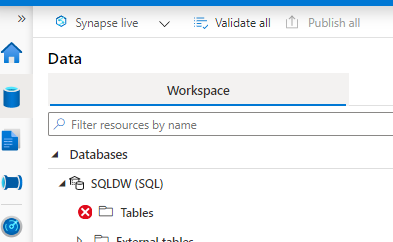
1) I am trying to load SQLDW on Synapse Studio and it shows not accessible. Keep in mind make questions to investigate the issue:
Do you in fact have permission to open SQLDW?
Is your SQL DW pause?
Can you connect from SSMS or Azure Data Studio?
Does the issue affect only your user or Any User?
Script to check permissions:
SELECT     DPUsers.name, 'has the '
           , permission_name
		   , 'permission on the item described as class = '
		   , class, 'id = '
		   , major_id
FROM sys.database_permissions AS DP
JOIN sys.database_principals AS DPUsers
    ON DP.grantee_principal_id = DPUsers.principal_id
	--where DPUsers.name like 'nameoftheuser'
You are trying to use SQL Serverless and the database is unreachable.
Almost the same questions:
Can you connect from SSMS or Azure Data Studio?
Does the issue affect only your user or Any User?
Does this issue affect only your user or any user?
If you switch browser can you connect?
In one of the cases, we had a situation while the customer was using firefox when he hit this CORR Issue documented here:
This article is contributed. See the original author and article here.
We are thrilled to announce that the OneDrive iOS app now uploads Live Photos. When you take a Live Photo, you capture a still image along with several seconds of before and after video. OneDrive now stores and plays back the full motion and sound of your Live Photos, bringing your memories to life.
Uploading Live Photos from the OneDrive iOS app To upload your Live Photos in all their moving glory, simply turn on automatic camera-roll upload, or you can also hand-pick a few favorite memories to save one-by-one. In both cases you will need to run OneDrive app build 12.11 or higher and iOS 13 or higher.
If you have uploaded Live Photos from your device prior to OneDrive’s support of Live Photos, then these were stored in OneDrive as still photos by default. However, you can easily re-upload these to OneDrive as Live Photos. To do this, make sure you are on OneDrive app build 12.11 or higher and iOS 13 or higher. Then go to the OneDrive Settings > tap “Camera Upload” > tap “Reupload from Original Formats” > toggle ON the switch labeled “Reupload Still Photos as Live Photos”. Note: This action cannot be undone and will upload Live Photos in their original format (by default, iOS devices capture Live Photos in the HEIC format which some Windows and Android devices can’t display.)
Uploading and playing back Live Photos is only supported for OneDrive personal accounts. It is not enabled for OneDrive work or school accounts. Additionally, Live Photos are roughly twice the size of still photos, and they will take up more of your OneDrive storage space than still photos.
Viewing a Live Photo You can view your Live Photos on the OneDrive website and in the OneDrive iOS app. To play back the motion and sound of your Live Photo in the OneDrive iOS app, simply tap and hold on the photo in the OneDrive iOS app. To play back the motion and sound of your Live Photo on OneDrive for web, click the “Live” badge in the top left of the image.
At this time, Live Photo playback is not supported on the OneDrive Android App or the OneDrive sync clients. When you view a Live Photo in either of these places you will see a still photo.
Sharing a Live Photo When you share a Live Photo in OneDrive, your recipient will be able to play back the Live Photo if they are viewing it on the OneDrive iOS app or on OneDrive for web. Recipients who view the Live Photo from the OneDrive Android app or the OneDrive sync client will see a still photo.
Editing a Live Photo in OneDrive Editing of Live Photos is not currently supported in OneDrive. If you change a Live Photo by performing a rotate, markup, crop, or other edit, OneDrive will save the edits as a still photo. If you would like to revert these changes and restore the photo to the original Live Photo, you can do this by clicking on the Version History command for the photo on OneDrive for web, and clicking “Restore” on the previous version. Note, previous versions are kept in version history for 30 days.
Thank you to the many people who requested this feature on our feedback platform, User Voice. Your requests and feedback help us to build a better product, and we’re delighted to release this feature today.
This article is contributed. See the original author and article here.
Hi Teams Community,
Our team is constantly hard at work to bring you Diagnostics to help troubleshoot and resolve the top issues we see in Microsoft Teams Support. We’ve just released Teams Voicemail Diagnostic written by my teammate @TonyQTony Quintanilla
If you or your users are having issues with Teams Voicemail, this Diagnostic is for you. We check the most common causes of Voicemail issues in Teams including User Provisioning, Policies, Licensing, and Voicemail configuration.
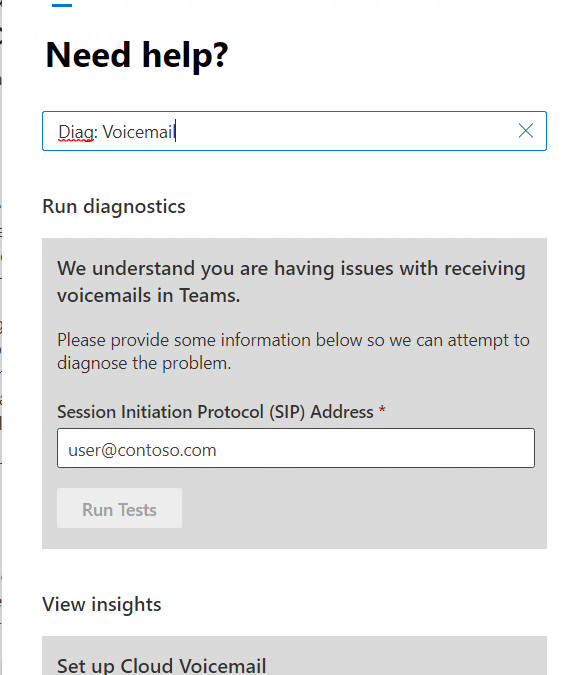
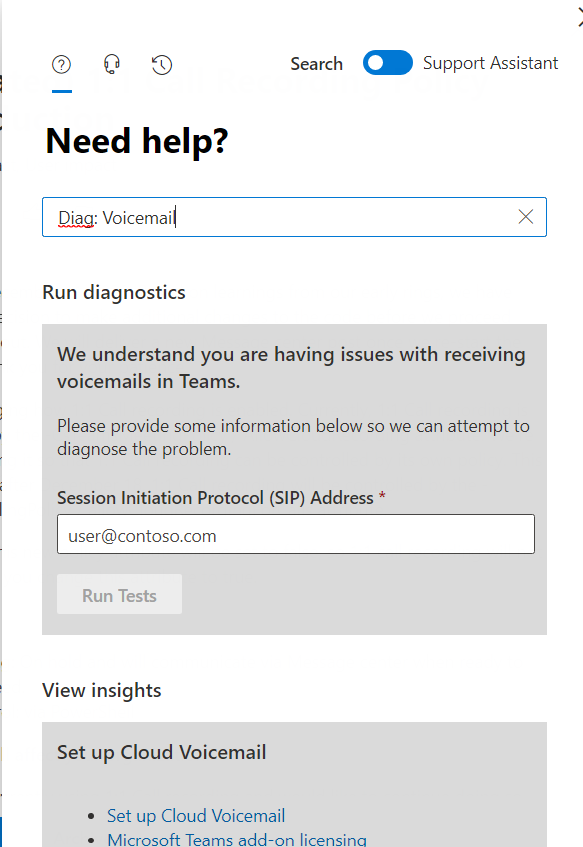
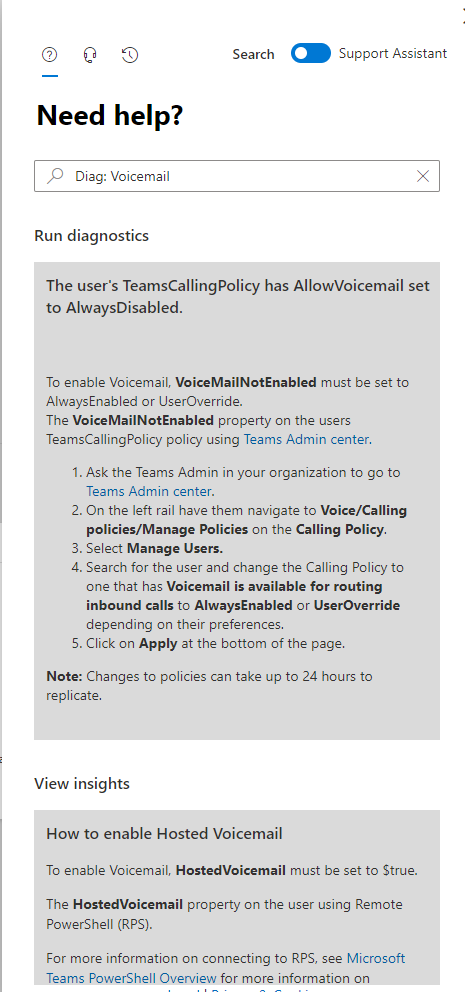
As always you can call the diagnostic directly in your M365 Admin Portal with by typing in Diag: Voicemail as in the following example:
Here’s an example where a user didn’t have Voicemail enabled via policy:
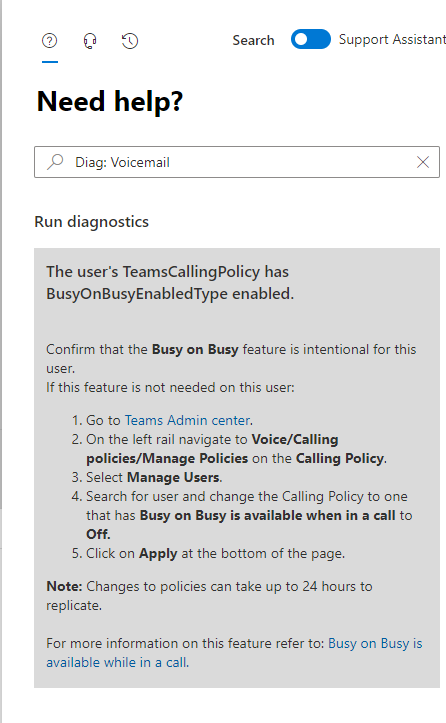
And here’s an example where the User had Busy on Busy set. Occasionally users will have Busy on Busy set and not realize it. When BoB is set and the user is in another call (or joined to a meeting) any incoming calls will be rejected with a Busy signal. Read more about that here: Busy on Busy is available when on a call
And of course the Diagnostic does a lot more than that! So if you’re having trouble with Voicemail for a particular user, please use the Diagnostic as your starting point for troubleshooting.
As always, we’re constantly working on new diagnostics and expanding our existing ones; for a full list, click here.
Questions? Comments? Please post below and we’ll happily follow up!
This article is contributed. See the original author and article here.
Part 2: Re-setting the bar for meeting and call quality
This is the second in a series of blog posts focused on helping you get the most out of your meetings and calls with Microsoft Teams. Millions of people around the world rely on Teams to collaborate via meetings, calls, and chat. In this series, we share best practices and highlight new features in Teams and the Microsoft 365 service designed to help your teams achieve more together.
As many of us have experienced, meetings often get derailed by unintentional distractions. An echo or unidentifiable background noise cuts in. Someone’s audio breaks up while they’re making an important point. A person suddenly gets booted off the call. Poor audio and visual quality can hijack a meeting, inhibiting focus, wasting time, and in the long term, causing meeting fatigue. However, in the moments when technology fails us, it seems there’s nothing we can do but keep going and hope the problem resolves quickly.
With Microsoft Teams, we want to give people more control over the digital quality of their meetings. Born in the cloud and built with Microsoft AI at its core, Teams uses AI to remove unwanted sounds, monitor quality and adapt as needed, give users more information and proactive actions, and provide insight into issues before they disrupt meetings.
AI-based noise suppression
Whether it be multiple meetings occurring in a small space, children playing loudly nearby, or construction noise outside of your home office, unwanted background noise can be distracting in Teams meetings. We are excited to announce that you will have the ability to remove unwelcome background noise during your calls and meetings with our new AI-based noise suppression option.
You can enable this helpful new feature by adjusting your device settings before your call or meeting and selecting “High” in the “Noise suppression” drop-down (note this feature is currently only supported in the Teams Windows desktop client). See this support article for details about how to turn it on here.
Our new noise suppression feature works by analyzing an individual’s audio feed and uses AI to filter out noise and only retain speech. While traditional noise suppression can only address simple stationary noise sources such as a consistent fan noise, our AI-based approach learns the difference between speech and unnecessary noise and is able to suppress non-stationary noises such as keyboard typing, crunching of paper or food wrappers, and vacuuming.
Satin: A new audio codec for great quality even in low bandwidth With more virtual meetings, many users require great call quality even when your network is limited. There are many scenarios that can contribute to low bitrate – parents and children sharing the household’s network for meetings and classes, high cost of large data plans, and many more. To help with these challenges, our latest innovation is a new audio codec, Satin, which offers great audio quality at a bitrate as low as 6kbps, making meetings sound natural and clear even when the network has low bandwidth.
Before
After
Packet loss improvement for choppy audio Teams also pays attention to the strength of the network and adapts as needed. When bandwidth is poor, some of the audio information gets lost in transmission, which causes the choppy audio that we’ve all become too familiar with. When Teams detects an unable network, it automatically attempts to recover some of the lost data to deliver smooth, clear audio. Teams continually monitors audio quality and adapts accordingly to keep participants engaged in the meeting.
Before
After
Proactive user assistance Teams actively helps people improve the quality of the meeting by offering suggestions to optimize their audio and video experience based on their work environment. For example, the dreaded echo or howling noise is caused when multiple devices are present and connected in the same room. When Teams notices that a participant is joining via their PC in a conference room, Teams will prompt them to “join with audio off” since the conference room device will manage the audio. If they don’t see the prompt, Teams will automatically mute the participant’s microphone and speakers upon joining – circumventing a potential distraction.
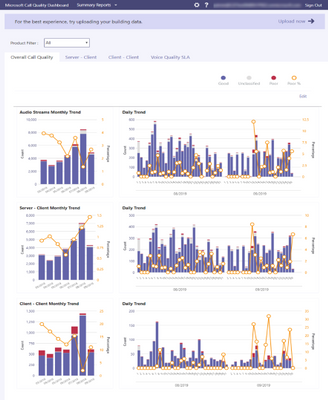
Actionable insights for IT Your IT department also has an important role to play in improving the quality of virtual meeting experiences. Teams has a robust set of capabilities to help IT manage, triage and resolve issues. The Call Quality Dashboard gives IT administrators an at-a-glance view of monthly, daily and hourly quality trends for various types of Teams meetings and calls. When issues arise, IT can quickly access data reports to effectively troubleshoot. These reports include rich information that helps IT not only understand the problem, but also data about specific individuals affected or involved in the issue.
When it comes to getting the most out of meetings and calls, quality matters. That is why we continue to invest in intelligent capabilities that improve the quality and reliability of calls and meetings experiences. We’re excited for the new innovations ahead that will bring even better quality to our customers around the world. With our continuous commitment to quality improvement, users can save time and focus on connecting with one another.
This article is contributed. See the original author and article here.
People in many different roles and at various stages in their careers can all benefit from the two new fundamentals certifications being added to the Microsoft training and certification portfolio: Microsoft Certified: Dynamics 365 Fundamentals Customer Engagement Apps (CRM) and Microsoft Certified: Dynamics 365 Fundamentals Finance and Operations Apps (ERP). With more and more businesses using Microsoft Dynamics 365, and a growing need for people skilled in using it to help take advantage of its potential, the opportunities for people who can demonstrate their skill with certification are also increasing. See if these two new certifications can help you advance your career.
Microsoft Certified: Dynamics 365 Fundamentals Customer Engagement Apps (CRM)
The training for this certification gives you a broad understanding of the customer engagement capabilities of Dynamics 365. It covers the specific capabilities, apps, components, and life cycles of Dynamics 365 Marketing, Sales, Customer Service, Field Service, and Project Operations, and also the features they share, such as common customer engagement features, reporting capabilities, and integration options. Exam MB-910: Dynamics 365 Fundamentals: Customer Engagement apps (CRM), which you must pass to earn this certification, measures skills in these areas. There are no prerequisites for this certification.
Is this certification right for you?
If you want to gain broad exposure to the customer engagement capabilities of Dynamics 365, and you’re familiar with business operations and IT savvy—with either general knowledge or work experience in information technology (IT) and customer relationship management (CRM)—this certification is for you. Acquiring these skills and getting certified to validate them can help you advance, no matter where you are in your career or what your role is. Here are just a few examples of who can benefit from this certification:
IT professionals who want to show a general understanding of the applications they work with
Business stakeholders or people who use Dynamics 365 and want to validate their skills and experience.
Developers who want to highlight their understanding of business operations and CRM.
Student, recent graduates, or people changing careers who want to leverage Dynamics 365 customer engagement capabilities to move to the next level.
Microsoft Certified: Dynamics 365 Fundamentals Finance and Operations Apps (ERP)
The training for this certification covers the capabilities, strategies, and components of these finance and operations areas: Supply Chain Management, Finance, Commerce, Human Resources, Project Operations, and Business Central, along with their shared features, such as reporting capabilities and integration options. Exam-MB-920: Dynamics 365 Fundamentals: Finance and Operations apps (ERP), which you must pass to earn this certification, measures skills in these areas. There are no prerequisites for this certification.
Is this certification for you?
If you’re looking for broad exposure to the enterprise resource planning (ERP) capabilities of Dynamics 365 and a better understanding of how finance and operations apps fit within the Microsoft ecosystem—and how to put them to work in an organization—this certification is for you. People who are familiar with business operations, have a fundamental understanding of financial principles, and are IT savvy—with either general knowledge or work experience in IT and the basics of ERP—are good candidates for this certification.
By earning this fundamentals certification, you will gain the skills to solve ERP problems and you can validate those skills to current or potential employers, helping to open career doors. If one of the following groups describes you, earning this certification can benefit you.
IT professionals who want to highlight their broad understanding of the applications they work with
Technical professionals and business decision makers who are exploring how Dynamics 365 functionality can integrate with apps they’re using.
Business stakeholders and others who use Dynamics 365 and want to learn more.
Developers who want to show a deeper understanding of business operations, finance, and ERP.
Students, recent graduates, and people changing careers who want to leverage Dynamics 365 finance and operations apps to move to the next level.
Exam MB-901 is being retired
The two exams associated with these new certifications, Exam MB-910 and MB-920, are replacing Exam MB-901: Microsoft Dynamics Fundamentals. Exam MB-901 will expire on June 30, 2021. After that date, it will no longer be available for you to take – only MB-910 and MB-920 will be – so if you’re currently preparing for MB-901, make sure you take and pass that exam before June 30, 2021.
This article is contributed. See the original author and article here.
Whether it be multiple meetings occurring in a small space, children playing loudly nearby, or construction noise outside of your home office, unwanted background noise can be really distracting in Teams meetings. We are excited to announce that users will have the ability to remove unwelcome background noise during their calls and meetings with our new AI-based noise suppression option.
Users can enable this helpful new feature by adjusting their device settings before their call or meeting and selecting “High” in the “Noise suppression” drop-down (note this feature is currently only supported in the Teams Windows desktop client). See this support article for details about how to turn it on and more here: https://aka.ms/noisesuppression.
Our new noise suppression feature works by analyzing an individual’s audio feed and uses specially trained deep neural networks to filter out noise and only retain speech. While traditional noise suppression algorithms can only address simple stationary noise sources such as a consistent fan noise, our AI-based approach learns the difference between speech and unnecessary noise and is able to suppress various non-stationary noises, such as keyboard typing or food wrapper crunching. With the increased work from home due to the COVID-19 pandemic, noises such as vacuuming, your child’s conflicting school lesson or kitchen noises have become more common but are effectively removed by our new AI-based noise suppression, exemplified in the video below.
The AI-based noise suppression relies on machine learning (ML) to learn the difference between clean speech and noise. The key is to train the ML model on a representative dataset to ensure it works in all situations our Teams customers are experiencing. There needs to be enough diversity in the data set in terms of the clean speech, the noise types, and the environments from which our customers are joining online meetings.
To achieve this dataset diversity, we have created a large dataset with approximately 760 hours of clean speech data and 180 hours of noise data. To comply with Microsoft’s strict privacy standards, we ensured that no customer data is being collected for this data set. Instead, we either used publicly available data or crowdsourcing to collect specific scenarios. For clean speech we ensured that we had a balance of female and male speech and we collected data from 10+ languages which also include tonal languages to ensure that our model will not change the meaning of a sentence by distorting the tone of the words. For the noise data we included 150 noise types to ensure we cover diverse scenarios that our customers may run into from keyboard typing to toilet flushing or snoring. Another important aspect was to include emotions in our clean speech so that expressions like laughter or crying are not suppressed. The characteristics of the environment from which our customers are joining their online Teams meetings has a strong impact on the speech signal as well. To capture that diversity, we trained our model with data from more than 3,000 real room environments and more than 115,000 synthetically created rooms.
Since we use deep learning it is important to have a powerful model training infrastructure. We use Microsoft Azure to allow our team to develop improved versions of our ML model. Another challenge is that the extraction of original clean speech from the noise needs to be done in a way that the human ear perceives as natural and pleasant. Since there are no objective metrics which are highly correlated to human perception, we developed a framework which allowed us to send the processed audio samples to crowdsourcing vendors where human listeners rated their audio quality on a one to five-star scale to produce mean opinion scores (MOS). With these human ratings we were able to develop a new perceptual metric which together with the subjective human ratings allowed us to make fast progress on improving the quality of our deep learning models.
To advance the research in this field we have also open-sourced our dataset and the perceptual quality crowdsourcing framework. This has been the basis of two competitions we hosted as part of the Interspeech 2020 and ICASSP 2021 conferences as outlined here: https://www.microsoft.com/en-us/research/dns-challenge/home/
Finally, we ensured that our deep learning model could run efficiently on the Teams client in real-time. By optimizing for human perception, we were able to achieve a good trade-off between quality and complexity which ensures that most Windows devices our customers are using can take advantage of our AI-based noise suppression. Our team is currently working on bringing this feature also to our Mac and mobile platforms.
AI based noise suppression is an example of how our deep learning technology has a profound impact on our customer’s quality of experience.
This article is contributed. See the original author and article here.
References and Information Resources
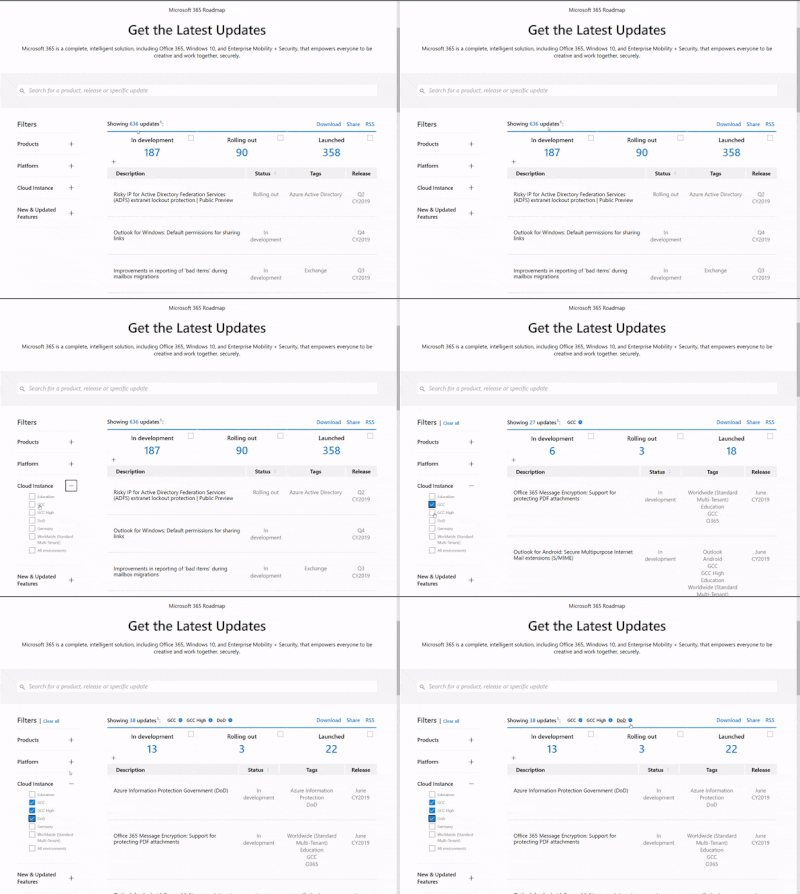
Microsoft 365 Public Roadmap This link is filtered to show GCC, GCC High and DOD specific items. For more general information uncheck these boxes under “Cloud Instance”.
New to filtering the roadmap for GCC specific changes? Try this:
MC225752 – Extending the temporary limit increase for live events
The temporary limit increases for Microsoft 365live events hosted with Teams, Stream and Yammer will be extended until January1, 2021.
Limit increases for live events include:
Event support for up to 20,000 attendees
50 events hosted simultaneously across a tenant
Event duration of 16 hours per broadcast
After January 1, 2021, an Advanced Communications license will be required to host events for more than 10,000 attendees and durations longer than 4 hours
MC226347 – SharePoint spaces: Touch device support
SharePoint spaces is adding support for viewing spaces using touch devices. Some visual updates to context menus are included with this change in order to provide the best experience on touch devices.
MC226549 – Compliance Manager: Announcement of release to GCC cloud
In mid-September (Roadmap IDs 60771) we announced (MC222630 and MC222638) that Compliance Manager solution was available via the Worldwide/Multi-tenant cloud. We are now pleased to announced Compliance Manager availability in the GCC cloud.
MC226631 – Exclude specific files from OneDrive sync
We are introducing a setting that allows you to exclude newly added OneDrive files from syncing to the cloud by file name or extension on Windows devices.
MC226681 – Full screen support in new meetings experience for GCC
We will be retiring tenant-wide search usage reports from the SharePoint admin center beginning December, 9, 2020. Instead we recommend the utilization of Microsoft Search Insights, which is where we will continue to invest. Additional Information
MC226683 – Secure by Default – Honoring EOP/ATP detonation verdicts
We’re making some changes to how tenant (Anti-spam/Hosted Content Filter policy) and user (Safe sender) allows work when it comes to high confidence phish. A message is marked with the high confidence phish verdict when we detonate it and know that it is malicious. We want to ensure that our customers are protected and therefore block those messages from getting to the inboxes of end-users. This is normally the case, but tenant and user overrides can stop this from happening. We have decided to no longer honor Allowed senders or domains when the messages are considered as high confidence phish.
Key Points:
Timing: Beginning mid-December through the end of January 2021
MC226539 – Updates to ‘Records Management’ default role group in Security
To simplify the permissions management of the new Records Management solution, we will be updating the configuration of the ‘Records management’ role group in the Security & Compliance Center. The updates will add additional roles to this role group to manage all facets of the Records Management solution including disposition review.
When this will happen?
We will roll out this update starting on December 14th, 2020.
MC226863 – Azure SSL/TLS certificate changes
In early November, DigiCert replaced the certificate of an Intermediate Certificate Authority (ICA) which issues SSL/TLS certificates used by Azure Active Directory (Azure AD) services, such as Microsoft 365 and Dynamics 365, in the Public and US Government Clouds. In most cases, no action is required. However, if you explicitly hard code (i.e. “pin”) the ICA certificates to be trusted or have custom solutions that depend on storing ICA certificates in a trust store, you will need to take action as soon as possible in order to avoid service disruptions.
MC223082 – (Updated) Microsoft To Do web app available for GCC
Updated November 17, 2020: We have updated the content of the message for clarity. Thank you for your patience.
The Microsoft To Do web app will soon be available for GCC customers.
Key points:
Timing: Beginning in December and complete in January
MC223174 – (Updated) Redirecting eDiscovery tool usage from the Security and Compliance Center to the Microsoft Compliance Center
Updated November 18, 2020: To ensure the best experience, we will be adjusting the roll out timeline to align for all customers. Thank you for your patience.
Today, customers can access content search, eDiscovery, and Advanced eDiscovery through:
Security and Compliance Center (SCC) via protection.office.com
Microsoft 365 Compliance Center (MCC) via compliance.microsoft.com
On Oct 30th, we will redirect customers accessing content search, eDiscovery, and Advanced eDiscovery from SCC to the same solutions offered in MCC.
Key Points:
Major: Retirement
Timeline: GCC, GCC-High and DoD tenants: December 18, 2020
MC226990 – (Updated) Improving the Message Center user experience
You will soon be able to restrict Teams sign-in for Windows and Mac managed devices to ensure that employees cannot sign-in to another organization’s tenant using other tenant’s credentials from the device they are authorized to use for work. This policy can also be used to configure access to personal accounts. This policy does not apply to the Teams web app. Similar policies are available to restrict sign-in on Teams on iOS and Android apps.
We would like to inform you that the Linux Teams app will be available in Public Preview in GCC-High.
For information about differences that exist between our various clients, please see Teams Features by Platform. Also, see the following list of Known Issues.
When this will happen?
The public preview version of the Teams Linux client will be fully available to GCC-High users on November 23, 2020.
This article is contributed. See the original author and article here.
For this week’s Reconnect, we are joined by none other than Visual Studio Application Lifecycle Management titleholder Davide Benvegnu!
Born and raised in Italy, Dave is currently based in Hong Kong as a DevOps Architect at Microsoft and GitHub. Here, Dave leverages his more than 17 years of experience in software development and IT to lead the FastTrack program for Microsoft’s and GitHub’s enterprise customers in Asia.
Previously, in addition to software development, Dave managed and coordinated systems administration and dealt with virtualization and consolidation of entire data centers.
Active in the community, Dave is the founder of HKMSC, the Hong Kong’s Microsoft community, and a staff member of DotNetToscana, an official Microsoft Technical Community in Italy. Further, Dave runs a YouTube channel where he shares insights into DevOps, especially Azure DevOps and GitHub.
While Dave gave up his MVP title to join Microsoft in 2017, he looks back fondly at his time in the program. Now, Reconnect offers an important way to stay in touch with his colleagues, Dave says.
“Being part of the MVP Reconnect community helps me keep in touch easier with the other members, and it makes me still feel part of this awesome extended family,” he says.
“The community encourages me to keep sharing, keep learning, keep coaching, mentoring and helping others. I’d probably do it anyway, but I feel the community spirit keeps pushing me.”
For new members to the MVP program, Dave has some simple advice: “Don’t do it for the title nor the benefits, do it for the community,” he says.
“Go and spread the knowledge as much as you can, in as many ways as you can. Every contribution matters. Enjoy sharing, and enjoy learning from others. Grow as a community, this is all that matters.”
This article was originally posted by the FTC. See the original article here.
You’ve finished your online shopping, your gifts have shipped and you’re waiting for them to arrive – but some Grinch decides to ruin your holiday. On this 9th day of Consumer Protection, we’re talking about how to stop porch pirates in their tracks.
Every year millions of people have packages stolen right from their doorsteps. So what’s the best way to stop them?
Require a signature. When your shopping cart is full and it’s time to choose your shipping details, take a moment to check “signature required.” A contact-free way to sign may be available through major package delivery services. You can request delivery confirmations, too.
Give specific delivery instructions. Many shippers will let you specify where to leave packages — maybe in your back yard, or even redirecting them to a trusted neighbor’s address, if you won’t be home.
Install motion activated lights. Outdoor lights with a motion sensor might make your home a lot less attractive to would-be thieves, making them much more visible than they’d likely want to be.
Brought to you by Dr. Ware, Microsoft Office 365 Silver Partner, Charleston SC.
This article is contributed. See the original author and article here.
The new Starbucks app makes it easy to treat your colleagues to coffee by sending a Starbucks eGift within Microsoft Teams this holiday season and beyond, plus new backgrounds from Starbucks to add holiday cheer to your meetings.








Recent Comments