by Contributed | Feb 18, 2021 | Technology
This article is contributed. See the original author and article here.
How do organizations today balance risk, cost, and capabilities—while continuing to deliver business value? The cloud can address all of these issues, and it has transformed the way businesses solve their technology challenges. Microsoft Azure solutions architects are the key to implementing cloud architecture, using resources efficiently, and maintaining security—whether migrating an existing system to the cloud or building a new one.
The Azure Solutions Architect Expert certification validates that you have what it takes to design and implement solutions that run on Azure, including aspects like compute, network, storage, and security. You earn this certification by passing Exam AZ-303: Microsoft Azure Architect Technologies and Exam AZ-304: Microsoft Azure Architect Design.
If your responsibilities include advising stakeholders and translating business requirements into secure, scalable, and reliable cloud solutions—especially if you partner with cloud administrators, cloud database administrators, and clients to implement solutions—this could be the certification for you.
What kind of knowledge and experience should you have?
As a candidate for this expert-level certification, an Azure solutions architect has the skills to design end-to-end solutions for Azure, considering infrastructure, apps, data, security, and more. Since it’s the most comprehensive certification, it’s suitable for IT pros, developers, and data professionals. If your experience is on the infrastructure side, you might need to reinforce your apps and data design and architecture skills. If you’re coming from the developer side, be sure to reinforce your Azure administration skills. And all candidates need to be experts in DevOps processes.
When you’re skilled up and confident in your administration and developer foundations, combine them with your advanced experience and knowledge of IT operations. These include networking, virtualization, identity, security, business continuity, disaster recovery, data platform, budgeting, and governance. And you should know how to manage the way that decisions in each area affect an overall solution.
How can you get ready?
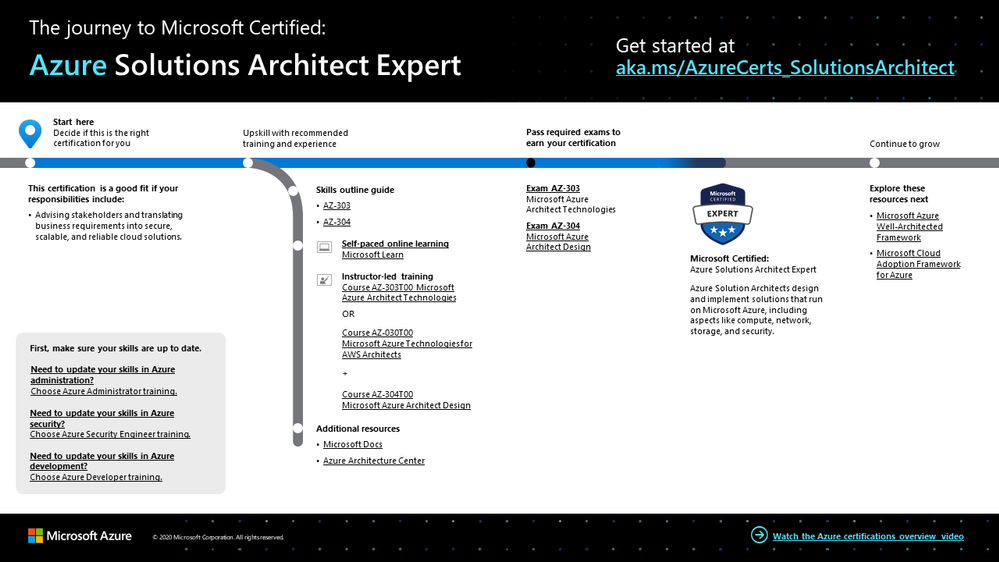
To help you plan your journey, check out our infographic, The journey to Microsoft Certified: Azure Solutions Architect Expert. You can also find it in the resources section on the certification and exam pages, which contains other valuable help for Azure solutions architects.
The journey to Azure Solutions Architect Expert
To map out your journey, follow the sequence in the infographic. First, decide whether this is the right certification for you, and then make sure your administration and development skills are up to date. To understand what you’ll be measured on when taking Exam AZ-303 and Exam AZ-304, review the skills outline guides for Exam AZ-303 and Exam AZ-304 on the exam pages.
Sign up for training that fits your learning style and experience:
Then take a trial run with the Microsoft Official Practice Test for AZ-303: Microsoft Azure Architect Technologies and the Microsoft Official Practice Test for AZ-304: Microsoft Azure Architect Design. All objectives of the exams are covered in depth, so you’ll find what you need to be ready for any question.
Complement your training with additional resources, like Microsoft Docs or the Azure Architecture Center.
After you pass the exam and earn your certification, check out the many other certification opportunities. Want to add to your Azure knowledge? Explore the Microsoft Azure Well-Architected Framework.
Note: Remember that Microsoft Certifications assess how well you apply what you know to solve real business challenges. Our training resources are useful for reinforcing your knowledge, but you’ll always need experience in the role and with the platform.
Celebrate your Azure talents with the world
When you earn a certification or learn a new skill, it’s an accomplishment worth celebrating with your network. It often takes less than a minute to update your LinkedIn profile and share your achievements, highlight your skills, and help boost your career potential. Here’s how:
- If you’ve earned a certification already, follow the instructions in the congratulations email you received. Or find your badge on your Certification Dashboard, and follow the instructions there to share it. (You’ll be transferred to the Acclaim website.)
- To add specific skills, visit your LinkedIn profile and update the Skills and endorsements section. Tip: We recommend that you choose skills listed in the skills outline guide for your certification.
Keep your certification up to date
If you’ve already earned your Azure Solutions Architect Expert certification, but it’s expiring in the near future, we’ve got good news. You’ll soon be able to renew your current certifications by passing a free renewal assessment on Microsoft Learn—anytime within six months before your certification expires. For more details, please read our blog post, Stay current with in-demand skills through free certification renewals.
It’s time to level up!
Your Microsoft Certification can help validate that you have the skills to stay ahead with today’s technology. It can also help empower you with a boost in confidence and job satisfaction—and maybe even a salary increase. Want to know more? In our blog post, Need another reason to earn a Microsoft Certification?, we offer 10 good reasons to earn your certification.
In modern business, the cloud is definitely here to stay. Be future-ready! Validate your skills and experience as an Azure solutions architect expert by earning your certification. Then apply key principles and best practices to your cloud solutions to meet your organization’s needs. Prove your worth to your team and company by designing, building, and continuously improving secure, reliable, efficient, and scalable architecture on Azure—today and in the future.
Related announcements
Understanding Microsoft Azure certifications
Finding the right Microsoft Azure certification for you
Master the basics of Microsoft Azure—cloud, data, and AI
by Contributed | Feb 18, 2021 | Technology
This article is contributed. See the original author and article here.
Azure Sentinel is a cloud native SIEM that provides various ways to import Threat Intelligence data and use it in various parts of the product like hunting, investigation, analytics, workbook etc. It enables customers to harness the power of threat intelligence to find actionable threats.
Anomali Match is a high–performance security solution that detects threats within Sentinel observed data and identifies the point of origin of an attack, going back more than 5 years. With this intelligence, Match gives security teams the ability to investigate associated global threats, actors, techniques and potential future attacks and their impact on an organization’s security posture.
Today we want to highlight the availability of a new integration between Azure Sentinel and Anomali Match, which will allow you to:
- Bring in logs using a simple Kusto Query from Azure Sentinel into Anomali Match
- Correlate logs with millions of Threat Intelligence records imported within Anomali Match to create detection alerts
- Export the alerts created by these matches back into Azure Sentinel in form of Common Security (CEF) logs, and then create incidents on top of them for triage by the Security Operation Center analyst team in your organization.
Anomali Match + Microsoft Azure Sentinel Solution
The Anomali match and Azure Sentinel integration provides a bi-directional flow of data between them. With this integration Azure Sentinel users can export log data out of Sentinel into Anomali match. This can be done simply by registering an application in Azure Active Directory to access the log analytics workspace and then configuring the Azure Sentinel log source on the Universal Link through the Anomali Match Interface. Once the log data is imported into Anomali Match, it can be used for matching against the threat intelligence in Anomali Match and generating alerts. These alerts can then be pushed back to Azure Sentinel using a CEF over Syslog collector. This allows importing high fidelity alerts from Anomali Match into the Common Security table of Azure Sentinel from where customers can generate incidents using simple KQL based scheduled rules for making them available for triage in Azure Sentinel. The device vendor for all these alerts is set to Anomali match.
This blog will give a walkthrough of the process of importing event data from Azure Sentinel into Anomali Match and then exporting alerts generated in Anomali Match back to Azure Sentinel for triage.
Importing logs from Azure Sentinel into Anomali Match
Collecting logs from Azure Sentinel and importing into Anomali Match involves the follows 2 steps:
1. Register an application in Azure Active Directory to access the log analytics workspace.
2. Configure the Azure Sentinel log source on the Universal Link through the Anomali Match Interface.
Register an application in Azure Active Directory to access the Log Analytics Workspace
To import logs from Azure Sentinel to Anomali match, you need to register an application which will enable access to the log analytics workspace of Azure Sentinel. The following steps can be used for doing so:
1. Open the Azure Portal and navigate to the Azure Active Directory.
2. Navigate to the App Registration option under Manage menu.
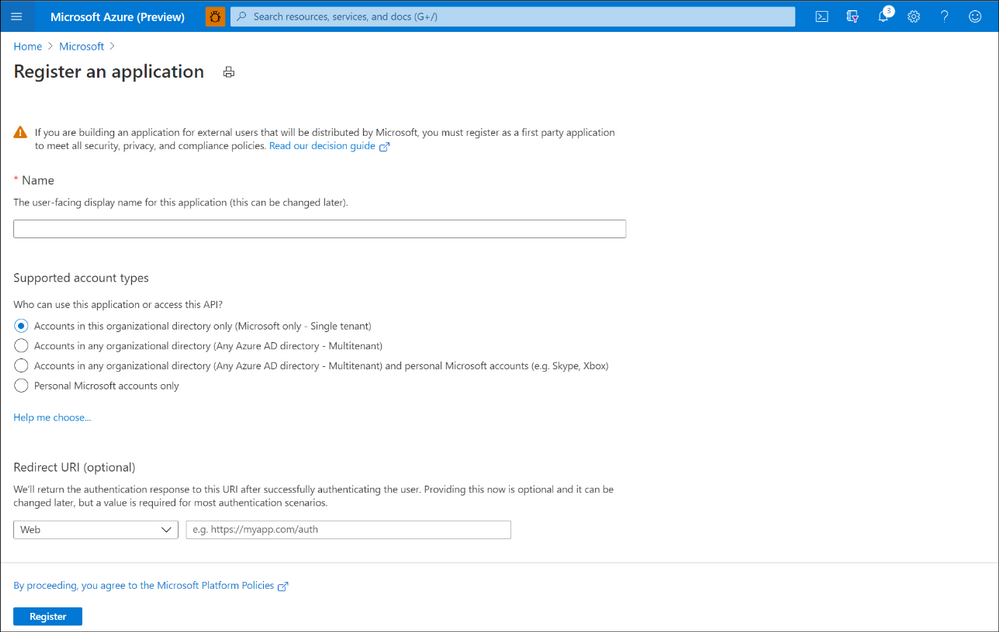
3. Select New Registration.
4. Enter the following information:
a. Name: This is a user-friendly name of the application. For example, Anomali Match for Log Analytics.
b. Supported account types: This is to decide who can use the application and access it.
c. Redirect URL: This can be left blank.
5. Click Register
6. Once the app is registered, copy the Application (client) ID and Directory (tenant) ID. You will need these later to configure the Azure Sentinel log sources in Anomali Match.
7. Select Certificates & secrets from the Manage menu.
8. Click the New client secret option.
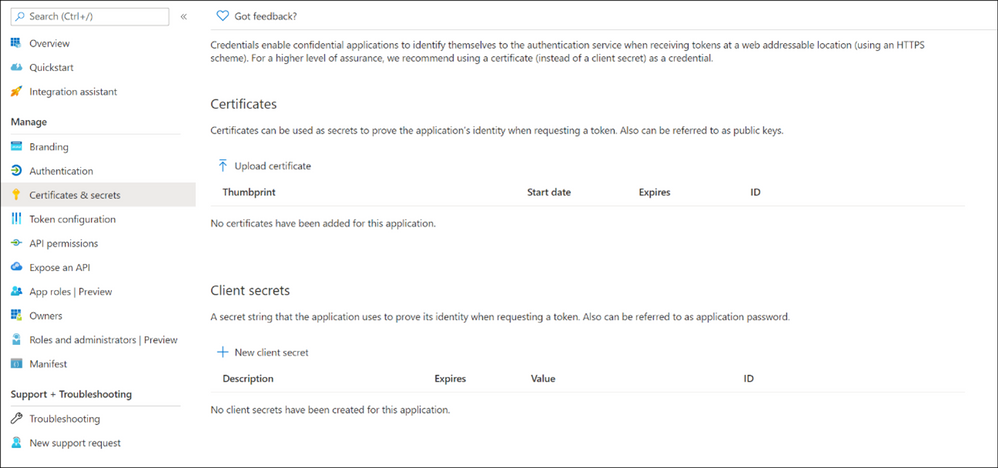
9. Enter a Description and select the Time-to-live for the new secret and click Add.
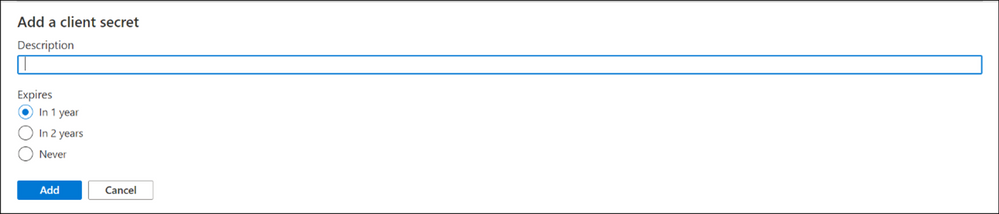
10. Copy the Value of the key. You will need this later to configure the Azure Sentinel log sources in Anomali Match.
11. Select the API permissions from the Manage menu.
12. Click Add a permission.
13. Navigate to the APIs my organization uses tab on the dialogue box that opens and search for Log analytics API.
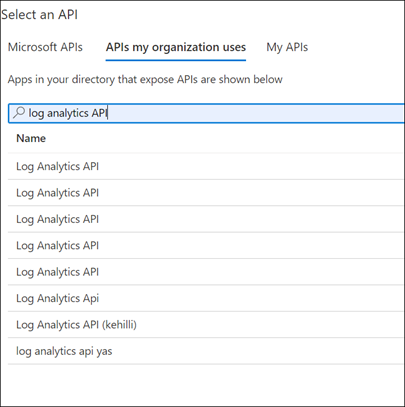
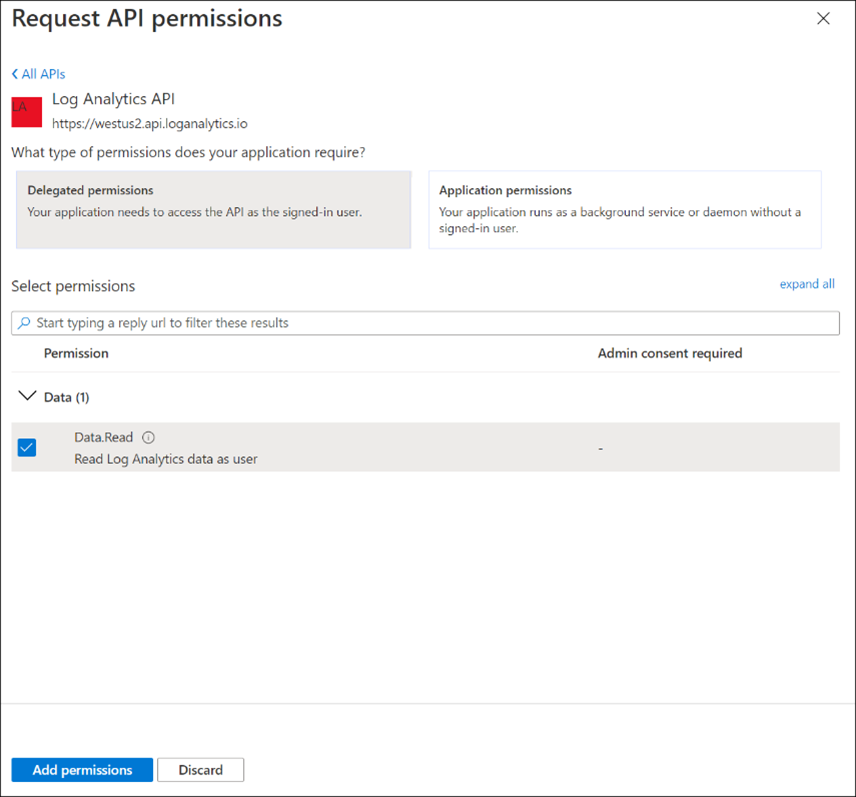
14. Select Delegated Permissions and enter the permissions below in the Select permissions text box. Permissions that need to be added are Data.Read. Select the permission and click Add.
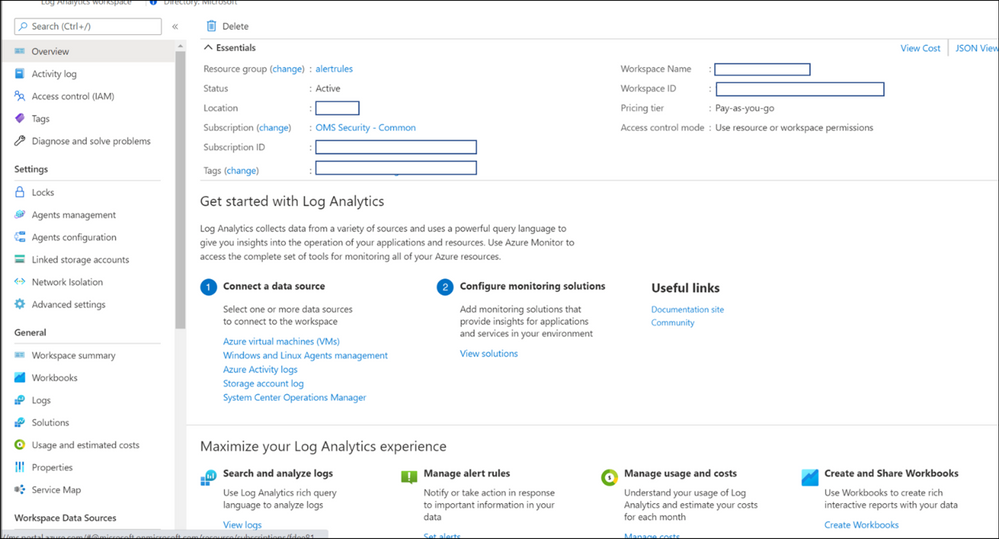
15. Navigate to the Log Analytics workspace that contains Sentinel Logs. To do so search Log Analytics Workspaces in the Azure Portal and select the workspace that contains Azure Sentinel Logs. Copy the Workspace ID from the Overview page. You would need this to configure Sentinel log sources in Anomali match.
16. Navigate to the Access Control (IAM) menu. Click on Add -> Add role assignment. Select Log Analytics Reader from the role dropdown. Enter the name of your application in the Assign access to > Select text box. Once the name is visible in the list, select it. Click Save.
Configure the Azure Sentinel log source on the Universal Link through the Anomali Match Interface
Now that the application to access the Log analytics workspace is configured, we can use the Anomali Match Universal Link to add log sources in the Anomali Match user interface. To add logs sources, follow the below steps:
Add Azure Sentinel as a log source to Match
1. Click on the gear icon ( ) from the top right.
2. Click Links from the left side. The list of configured links is displayed.
3. Identify and click the Universal Link to which you want to add the new log source. The link must be online.
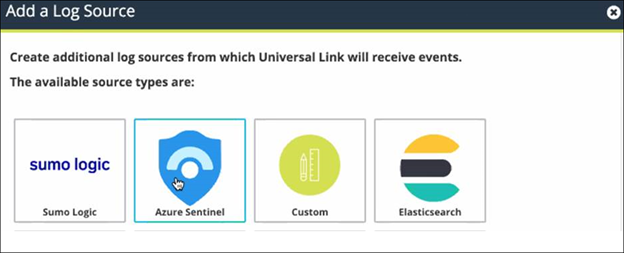
4. Click the plus ( ) icon on the top right. The Add a Log Source popup displays the available log sources from the Link.
5. Click on the Azure Sentinel icon.
6. Enter a Data Source Name for the log source. Enter the Data Source Description which is a short description of the source and is an optional field.
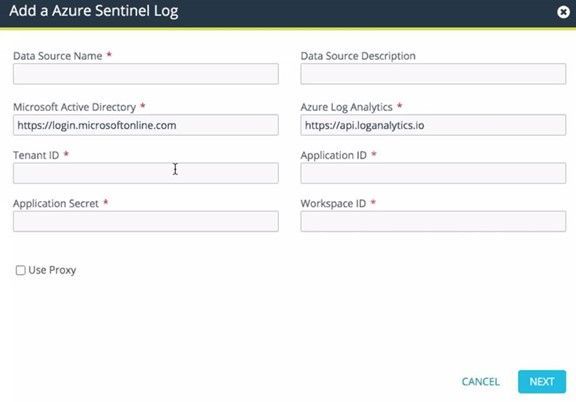
7. Configure settings related to your application as registered in Azure Active Directory (steps to which are given in the section Register an application in Azure Active Directory to access the Log Analytics Workspace above).
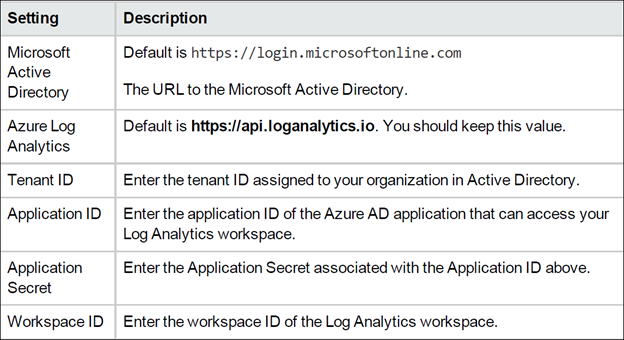
8. Click Use Proxy if you wish to use a proxy.
9. Click Next.
10. Enter the query string in the Search Query 1 field. This defines what data will be retrieved from the log source. The query syntax is:

A sample query is below:
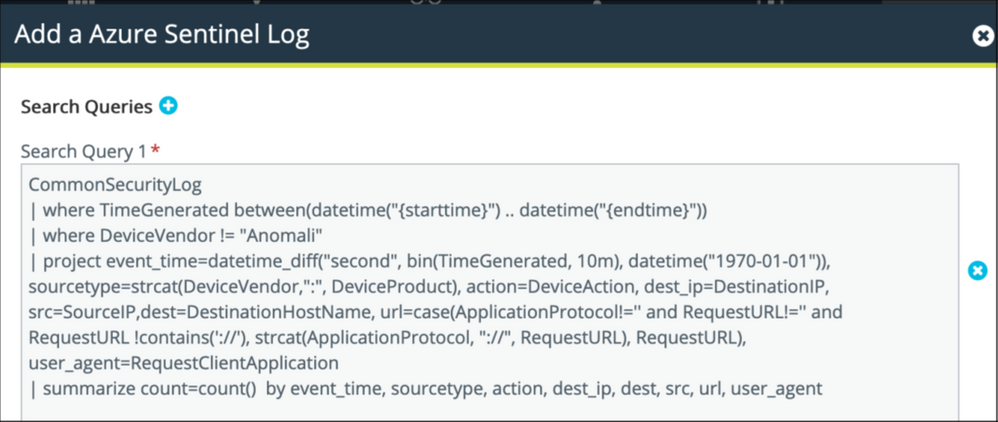
Click the plus sign ( ) to add another query for the same table. Then enter the additional query statement in the field on the same table in Sentinel.
11. Enter the Interval Schedule. This is the time between each query run. Default value for this is 10 minutes.
12. Click Backfill Enabled if you want to specify how far back in time to go to the log
source to get data. This is an optional field.
Use one of the following formats to specify your backfill period:
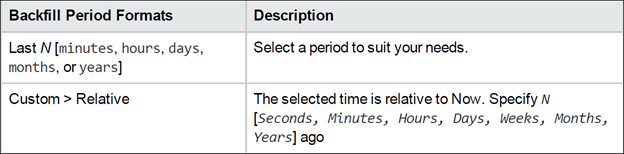
13. Enter the Drilldown Settings as mentioned below:
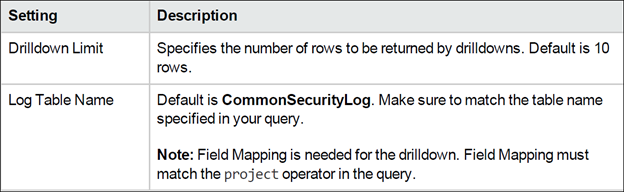
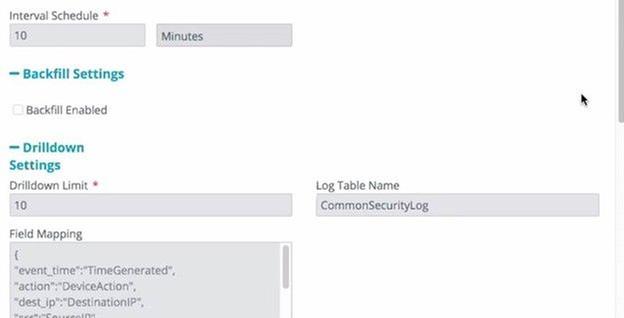
14. Click Save.
Now the configuration for pulling data from Azure Sentinel into Anomali match is complete. Once the data is imported in Anomali match it is matched against Threat Intelligence indicators in Anomali Match to generate alerts. You can view these alerts in the Anomali match portal :
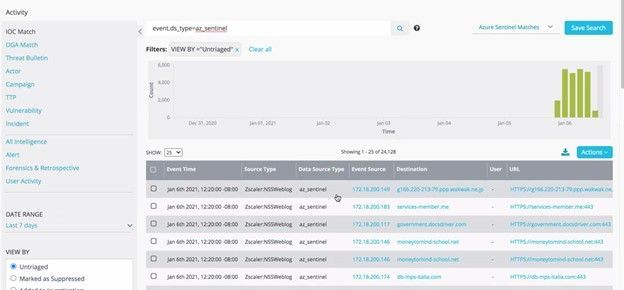
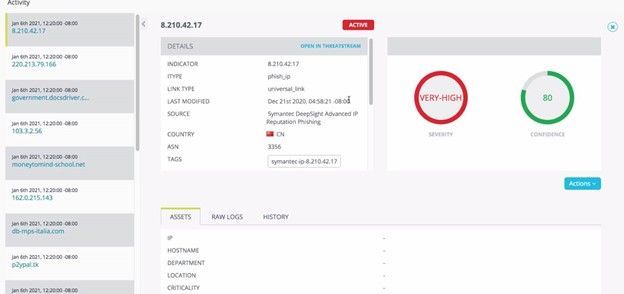
You can also drill down indicator details from the alerts to see additional context information about the indicator in the Anomali Match portal:
Exporting alerts from Anomali Match into Azure Sentinel
If you would like to import the Anomali Match alerts back into Azure Sentinel for further investigation and hunting, you can do so by setting up the CEF over Syslog connector. For doing so you will have to follow the below steps:
1. Create a Workflow for exporting alerts to Azure Sentinel in the Anomali Match portal. This can be done by clicking the Alerts option on the top bar.

2. In the Rule Workflow window, enter a Rule Name and Source. You can add Filters to decide which alerts you would like to export back to Azure Sentinel. In the Actions tab, you can configure forwarding using Syslog.
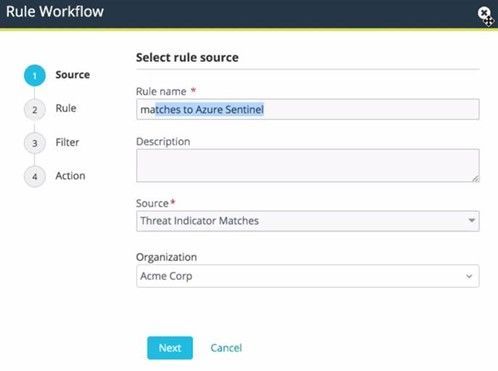
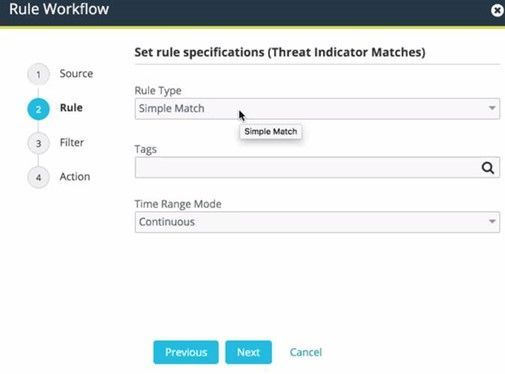
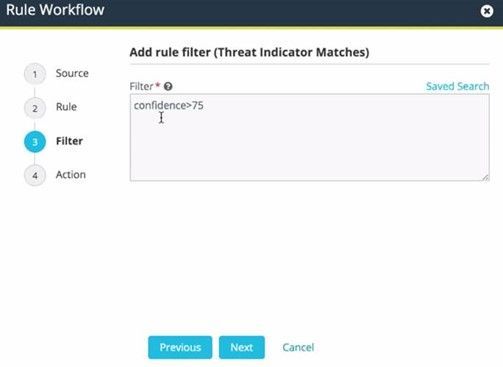
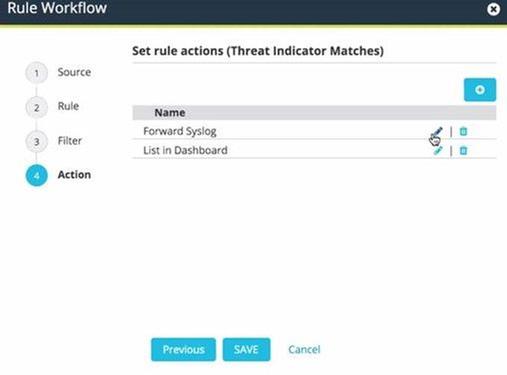
Once the alerts are imported into the Common Security table of Azure Sentinel, you can generate incidents using simple KQL based scheduled rules for making them available for triage in Azure Sentinel under the Incidents tab. This can be done by using the scheduled rule to look for the device vendor as the device vendor for all these alerts is set to Anomali. In order to do so, the following steps can be used:
1. Open the Azure Portal and navigate to the Azure Sentinel.
2. Navigate to the Analytics tab under the Configuration menu.
3. Click on the Create -> Scheduled query rule option.
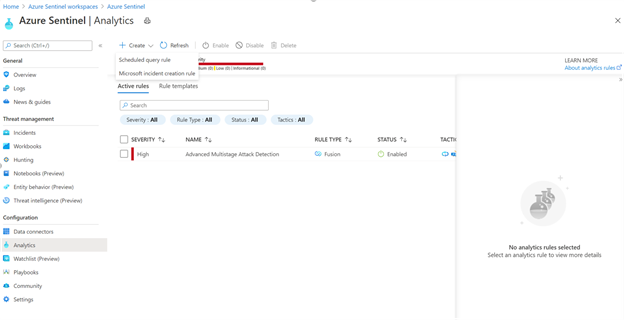
4. Add a Name for the analytics rule and make sure that the rule is Enabled. You can also add a Description for the rule and Tactics.
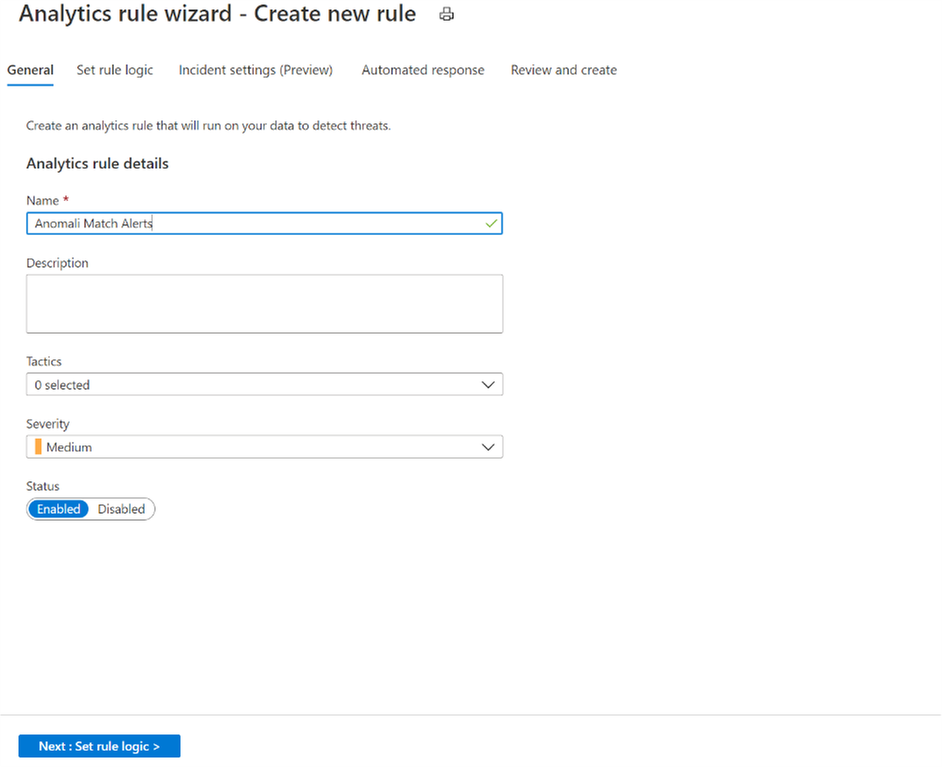
5. Click on the Next : Set Rule Logic button and add the KQL query. A sample query that you can use to generate incidents from the Anomali match alerts is as follows:
CommonSecurityLog
| where DeviceVendor == “Anomali”
6. Enable Alert grouping on the Incident settings page and playbooks (if any) on the Automated response page.
7. Create the rule on the Review and Create tab.
Summary
This unique integration between Azure Sentinel and Anomali match allows you to use the power of Threat Intelligence in Anomali for matching against log data from Azure Sentinel to find actionable threats. The bi-directional capabilities allow you to bring all the security insights gained from Anomali Match into Azure Sentinel for triage and analysis by your security operations team.
by Contributed | Feb 18, 2021 | Technology
This article is contributed. See the original author and article here.
Windows 10 introduced Windows as a service, a method of continually providing new features and capabilities through regular feature updates. Semi-Annual Channel versions of Windows, such as version 1909, version 2004, and version 20H2, are released twice per year.
In addition to Semi-Annual Channel releases of Windows 10 Enterprise, we also developed a Long Term Servicing Channel for Windows, known as Windows 10 Enterprise LTSC, and an Internet of Things (IoT) version known as Windows 10 IoT Enterprise LTSC. Each of these products was designed to have a 10-year support lifecycle, as outlined in our lifecycle documentation.
What are we announcing today?
Today we are announcing that the next version of Windows 10 Enterprise LTSC and Windows 10 IoT Enterprise LTSC will be released in the second half (H2) of calendar year 2021. Windows 10 Client LTSC will change to a 5-year lifecycle, aligning with the changes to the next perpetual version of Office. This change addresses the needs of the same regulated and restricted scenarios and devices. Note that Windows 10 IoT Enterprise LTSC is maintaining the 10-year support lifecycle; this change is only being announced for Office LTSC and Windows 10 Enterprise LTSC. You can read more about the Windows 10 IoT Enterprise LTSC announcement on the Windows IoT blog.
Frequently asked questions (FAQ)
Why are you making this change to Windows 10 Enterprise LTSC?
Windows 10 Enterprise LTSC is meant for specialty devices and scenarios that simply cannot accept changes or connect to the cloud, but still require a desktop experience: regulated devices that cannot accept feature updates for years at a time, process control devices on the manufacturing floor that never touch the internet, and specialty systems that must stay locked in time and require a long-term support channel.
Through in-depth conversations with customers, we have found that many who previously installed an LTSC version for information worker desktops have found that they do not require the full 10-year lifecycle. With the fast and increasing pace of technological change, it is a challenge to get the up-to-date experience customers expect when using a decade-old product. Where scenarios do require 10 years of support, we have found in our conversations that these needs are often better solved with Windows 10 IoT Enterprise LTSC.
This change also aligns the Windows 10 Enterprise LTSC lifecycle with the recently announced Office LTSC lifecycle for a more consistent customer experience and better planning.
You state that you are making this change to Windows 10 Enterprise LTSC to align with the changes to Office LTSC. Has your guidance changed on installing Office on Windows 10 Enterprise LTSC?
Our guidance has not changed: Windows 10 Enterprise LTSC is designed for specialty devices, and not information workers. However, if you find that you have a need for Windows 10 Enterprise LTSC, and you also need Office on that device, the right solution is Windows 10 Enterprise LTSC + Office LTSC. For consistency for those customers, we are aligning the lifecycle of the two products.
What about the current versions of LTSC – Windows 10 Enterprise LTSC 2015/2016/2019?
We are not changing the lifecycle of the LTSC versions that have been previously released. This change only impacts the next version of Windows 10 Enterprise LTSC, scheduled to be released in the second half of the 2021 calendar year.
What should I do if I need to install or upgrade to the next version, but I need the 10-year lifecycle for my device?
We recommend that you reassess your decision to use Windows 10 Enterprise LTSC and change to Semi-Annual Channel releases of Windows where it is more appropriate. For your fixed function devices, such as kiosk and point-of-sale devices, that need to continue using LTSC and are planning to install or upgrade to the next version, consider moving to Windows 10 IoT Enterprise LTSC. Again, we understand the needs for IoT/fixed purpose scenarios are different and there is no change to the 10-year support lifecycle for Windows 10 IoT Enterprise LTSC. For information on how to obtain Windows 10 IoT Enterprise LTSC, please reach out to your local IoT distributor.
Is there a difference in the Windows 10 operating system between Windows 10 Enterprise LTSC and Windows 10 IoT Enterprise LTSC?
The two operating systems are binary equivalents but are licensed differently. For information on licensing Windows 10 IoT Enterprise LTSC, please reach out to your local IoT distributor.
Where can I find more information about Windows 10 IoT Enterprise LTSC?
You can learn about the different Windows for IoT editions, and for which scenarios each edition is optimized in the Windows for IoT documentation. You’ll also find tutorials, quick start guides, and other helpful information. Check it out today!
When will Windows 10 IoT Enterprise LTSC announce their release?
Windows 10 IoT Enterprise LTSC will be released in the second half of 2021. You can read more about the Windows 10 IoT Enterprise LTSC announcement on the Windows IoT blog.
Continue the conversation. Find best practices. Visit the Windows Tech Community.
Stay informed. For the latest updates on new releases, tools, and resources, stay tuned to this blog and follow us @MSWindowsITPro on Twitter.

by Contributed | Feb 18, 2021 | Business, Microsoft 365, Office 365, Technology
This article is contributed. See the original author and article here.
At Microsoft, we believe that the cloud will power the work of the future. Overwhelmingly, our customers are choosing the cloud to empower their people—from frontline workers on the shop floor, to on-the-go sales teams, to remote employees connecting from home. We’ve seen incredible cloud adoption across every industry, and we will continue to invest…
The post Upcoming commercial preview of Microsoft Office LTSC appeared first on Microsoft 365 Blog.
Brought to you by Dr. Ware, Microsoft Office 365 Silver Partner, Charleston SC.
by Contributed | Feb 18, 2021 | Technology
This article is contributed. See the original author and article here.
Today we are announcing that the next version of Windows 10 Enterprise LTSC and Windows 10 IoT Enterprise LTSC will be released in the second half (H2) of calendar year 2021. Windows 10 Client LTSC will change from a 10-year to a 5-year lifecycle, aligning with the changes to the next perpetual version of Office. You can read more about their announcements here.
While Windows 10 Client is changing, the needs of the IoT industry remain very different and for that reason Microsoft developed Windows 10 IoT Enterprise LTSC and the Long Term Servicing Channel of Windows Server, which today is Windows Server 2019. Each of these products will continue to have a 10-year support lifecycle, as documented on our Lifecycle datasheet.
We remain committed to the ongoing success of Windows 10 IoT, which is deployed in millions of intelligent edge solutions around the world. Industries including manufacturing, retail, medical equipment and public safety choose Windows IoT to power their edge devices because it a rich platform to create locked-down, interactive user experiences with natural input, provides world class security and enterprise grade device management allowing you to build a solution that is designed to last.
We are planning to talk more about the exciting future of Windows 10 IoT at Embedded World 2021 and as well at Microsoft Ignite both of which will be held the week of March 1, 2021.
Continue the conversation. Find best practices. Visit the IoT Tech Community
Stay informed. For the latest updates on new releases, tools, and resources, stay tuned to this blog and follow us @MicrosoftIoT on Twitter.
by Contributed | Feb 18, 2021 | Technology
This article is contributed. See the original author and article here.
With the new ability to deploy Windows SSUs and LCUs together with one cumulative update, I wanted to offer some background on how cumulative updates grow and the best practices you can employ to improve the update experience.
Why and how do cumulative updates grow?
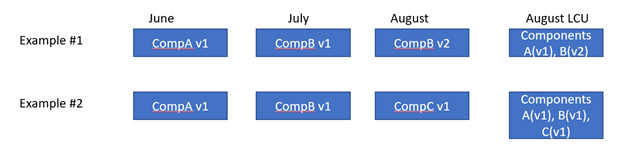
The longer an operating system (OS) is in service, the larger the update and associated metadata grow, impacting installation time, disk space usage, and memory usage. Windows quality updates use Component-Based Servicing (CBS) to install updates. A cumulative update contains all components that have been serviced since release to manufacturing (RTM) for a given version of Windows. As new components are serviced, the size of the latest cumulative update (LCU) grows. However, servicing the same component again does not significantly increase the size of the LCU.
In the image below, you can see two examples, each with three changes. The resulting LCU in example #2 will be larger than the LCU in example #1 because it contains components A, B, and C.
During an OS release, the size of the update grows quickly and then slowly levels out as fewer and fewer un-serviced components get added to the LCU.
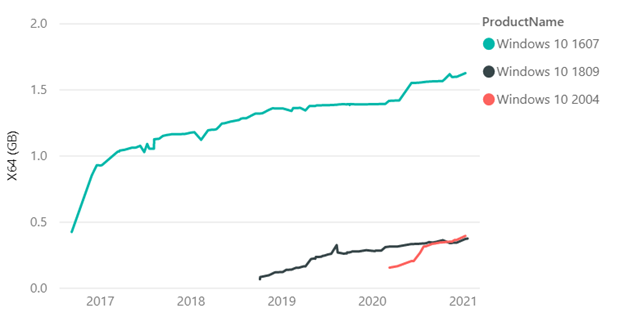
With regard to the graph above, you’ll see that there are points where the size goes down briefly due to a specific edition of Windows going out of service. For example, the Windows 10 Enterprise Long Term Servicing Channel (LTSC) has a longer servicing lifecycle than Windows 10 Home edition. When the Home edition reaches end of service, we stop servicing any components in the Home edition, which reduces the size. Shared components still get serviced.
Starting with Windows 10, version 1809, Microsoft implemented new technology to reduce the size of the LCU and growth rate, and improve installation efficiency. Maliha Qureshi’s blog post What’s next for Windows 10 and Windows Server quality updates coupled with the Windows updates using forward and reverse differentials document, aim to help you understand more about this change to support forward and reverse deltas and the benefits of reducing the size of the LCU.
Starting in Windows 10, version 1903, more improvements came along in the update package. For example, if individual binary files in a component are unchanged, they are replaced with their hash value in the update package. In the example above, if Component A had five binary files and four changed, we would only send the payload for the four that changed. Overall, this results in the LCU growing about 10-20% more slowly and is useful when the image or video files are part of the component and rarely change.
What happens when an update is installed?
The Windows quality update installation process has three major phases:
- Online: The update is uncompressed, impacted components are identified, and the changes are staged.
- Shut down: The update plan is created and validated, and the system is shut down.
- Reboot: The system is rebooted, components are installed, and the changes are committed.
The shut down and reboot phases affect users the most since their systems can’t be accessed while the process takes place.
Best practices to improve installation time
Now let’s get to best practices that can improve your update experience:
- If possible, upgrade to Windows 10, version 1809 or newer. Version 1809 offers technology improvements that reduce the size of the updates and more efficient to install. For example, the LCU of Windows 10, version 1607 was 1.2GB in size on year after RTM while the LCU in version 1809 was 310MB (0.3GB) one year after RTM.
- Hardware optimizations:
- Run Windows and the update process on fast SSD drives (ensure the Windows partition is on the SSD) instead of HDD by placing the Windows drive in the SSD. During internal testing, we’ve seen up to a 6x install time reduction from SSD vs HDD.
- For systems with SSD (faster than 3k IOPS), CPU clock speed is the bottleneck and CPU upgrades can make a difference.
- Antivirus (or any file system filter driver): Ensure you are only running a single antivirus or file system filter driver. Running both a 3rd party antivirus and Microsoft Defender can slow down the update process. Server 2016 enables Defender by default, so if you install another antivirus program, remember to disable Defender. The fltmc.exe command is a useful defrag tool to see the running set of filter drivers. You can also check out virus scanning recommendations for Enterprise computers that are running currently supported versions of Windows to learn which files to exclude in virus scanning tools.
- Validate that your environment is ready to apply updates by checking out the Cluster-Aware Updating requirements and best practices.
Best practices to improve performance of Windows Update offline scan
Using Windows Update Agent (WUA) to scan for updates offline is a great way to confirm whether your devices are secure without connecting to Windows Update or to a Windows Server Update Services (WSUS) server. WUA parses all cumulative update metadata during a scan so larger cumulative updates require additional system memory. Cumulative metadata can become quite large and must be parsed in memory for WUA offline scans so machines with less memory may fail the WUA offline scan. If you encounter out of memory issues while running WUA scans we recommend the following mitigations:
- Identify whether online or WSUS update scans are options in your environment.
- If you are using a third-party offline scan tool that internally calls WUA, consider reconfiguring it to either scan WSUS or WU.
- Run Windows Update offline scan during a maintenance Window where no other applications are using memory.
- Increase system memory to 8GB or higher, this will ensure that the metadata can be parsed without memory issues.
Microsoft continues to investigate and improve the Windows 10 update experience as it is a critical component to stay productive and secure. Use the Feedback Hub or contact your support representative if you face any challenges when updating.
by Contributed | Feb 18, 2021 | Technology
This article is contributed. See the original author and article here.
Final Update: Thursday, 18 February 2021 18:55 UTC
We’ve confirmed that all systems are back to normal with no customer impact as of 2/18, 16:50 UTC. Our logs show the incident started on 2/18, 13:10 UTC and that during the 3 hours 40 min that it took to resolve the issue, customers in West Europe and West Central US using Log Analytics may have not seen heartbeat events through the Log Analytics workspace and also would have experienced incorrect alerting on heartbeat events. Additionally, between 19:35 UTC on 17 Feb 2021 to 16:50 UTC on 18 Feb 2021, a subset of customers were not able to see the following columns: SubscriptionId, Resource, ResourceId, ResourceType through the Azure Portal, Azure CLI or Power Shell.
- Root Cause: The failure was due to implementation of a new transform as part of a recent deployment. As the current deployment started, backend workflows were mistakenly deleted and that the deletion caused the alert objects to not be processed through Log Analytics.
- Incident Timeline: 3 Hours & 40 minutes – 2/18, 13:10 UTC through 2/18, 16:50 UTC
We understand that customers rely on Azure Log Analytics as a critical service and apologize for any impact this incident caused.
-Anupama
by Contributed | Feb 18, 2021 | Technology
This article is contributed. See the original author and article here.
In January 2021, the Microsoft CSM (Customer Success Manager) team representing State & Local Government customers came together in a two-day event to deliver 11 live sessions on the topic of Meetings in Microsoft Teams. Topics included the Before-During-After lifecycle of a meeting, breakout rooms, accessibility and more.
The playlist of the session recordings can be found here on YouTube, along with social media callouts on Twitter via the #TeamsMtgs4Govt hashtag.
For a sneak peek of what you can expect from this series, check out the teaser trailer below:
For more info from me on Microsoft Teams and teamwork, follow me at TeamworkCowbell (blog | Twitter | YouTube) or at ricardo303, SharePointCowbell, and LinkedIn.
Related Teams for Government articles: Notifs in GCC | Custom Apps in GCC | Gamification of Teams
by Contributed | Feb 18, 2021 | Technology
This article is contributed. See the original author and article here.
This past October, we notified you that we were going to improve the Windows update history experience, particularly with regard to release notes. Our optimization efforts are complete and I’d like to take this opportunity to walk you through the changes and improvements.
KB identifiers and URL structure
One of the primary ways that many find release notes is through the use of a KB identifier (KBID). We use a unique identifier for each Windows update. Once a KBID is created, it is then used to identify the update throughout the release process, including documentation. In the older experience, the KBID was used in several different ways:
With the new experience, many of these methods are still utilized, just in different ways. For instance, the URL structure of https://support.microsoft.com/help/<KBID> is still supported, however, it will redirect to a newly formatted URL https://support.microsoft.com/<locale>/topic/<article-title><GUID>. Additionally, if a KBID appears in the title of a page, it will appear in the URL. If a KBID is not in the title, it will not appear in the URL. Types of articles where you may not find a KBID include informational articles and articles released for non-cumulative updates or specialty packages.
For those of you who are familiar with viewing web-based source code, there is still a way to locate the KBID for future reference.
- Right-click on the article.
- Select “view page source.”
- Look for <meta name=”awa-kb_id” content=”###” />
- The number listed as the value for “content” is the KBID.
We understand that this workaround is not ideal and are working to find a more user-friendly means of providing this ID within the article body.
Landing pages and update pages
There are two different types of articles that make up the Windows update history experience:
- Landing/product pages
- Update pages
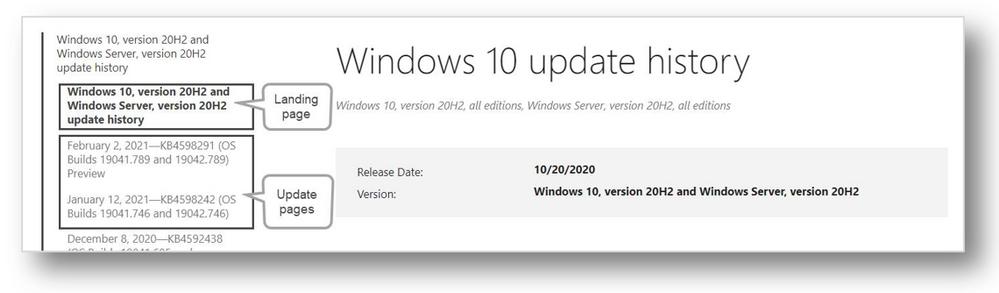
Landing page and update pages for Windows 10, version 20H2 and Windows Server, version 20H2
Landing pages
Landing/product pages supply details on the overall feature update release. These details may include information on the servicing lifecycle, known issues, troubleshooting, and related resources.
Update pages
Update pages supply information on a specific update. These updates service the operating system detailed on the landing page. On an update page, you’ll find:
- Highlights – fixes important to both consumer and commercial audiences.
- Improvements and fixes – addressed issues in more detail specially targeted to commercial audiences.
- Known issues with the update.
- Information on how to get and install the update.
- A detailed list of all files that were changed as part of the update.
File lists
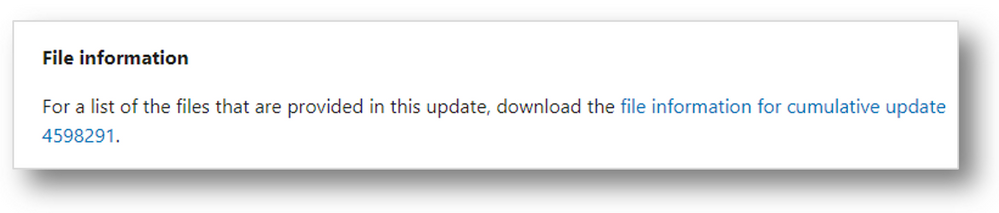 Where the file list appears on the update history pages
The file list can be found at the bottom of each update history page in the “How to get this update” section and enables you to track which system files were affected as part of the release. This allows you to gauge risk and impact. In prior releases, the file list was working improperly and not supplying the versioning or the architecture information for newer operating systems. With our new format, this issue is resolved and versioning is now working as expected. There are still files listed as “not applicable”, however, these are files that do not have versioning information. The files are also now organized by architecture, so it is easier to see which files belong to a specific architecture, as shown below:

RSS and article sharing
Really Simple Syndication (RSS) feeds will continue to be available for the Windows update history pages. If you are already subscribed to Windows update history RSS feeds, you will continue receiving updates and no further action is necessary. However, please note that the feature that allows the initiation of a new RSS subscription has been delayed and will be available in the next few months.
The ability to share an article via Facebook, LinkedIn, and email will be coming soon and we look forward to providing this new functionality for our customers. To make the wait worth it, here is a brief walkthrough of how it will work:
 Share controls on the Windows update history pages
Facebook
Selecting the Facebook icon will trigger the dialog below. You can then provide a comment and select whether to post to your story or your news feed.
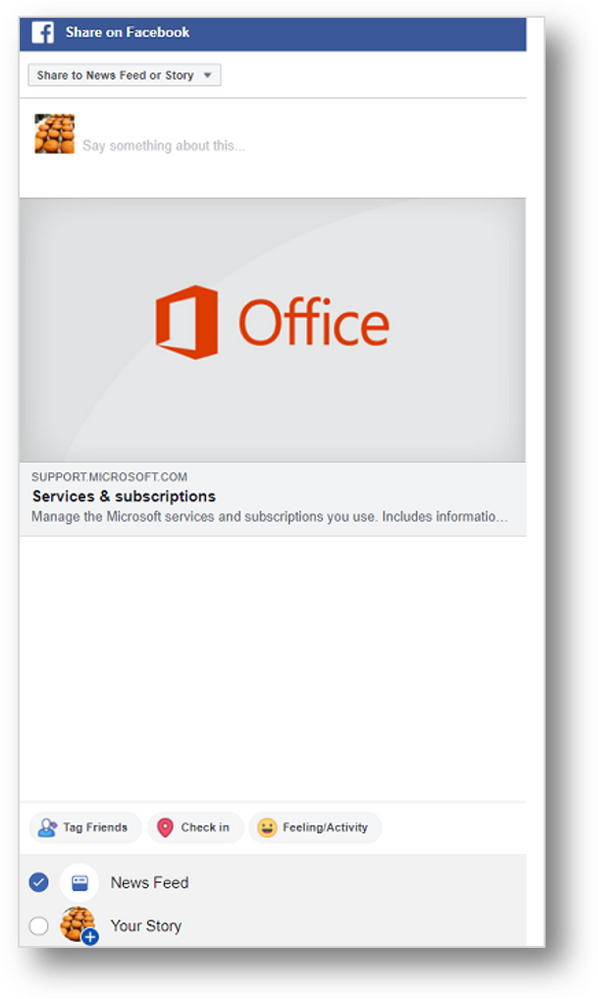 Sharing a Windows update history page article via Facebook
LinkedIn
To share an article on LinkedIn, select the Linked in icon, log in, and choose to share the post or send it as a private message.
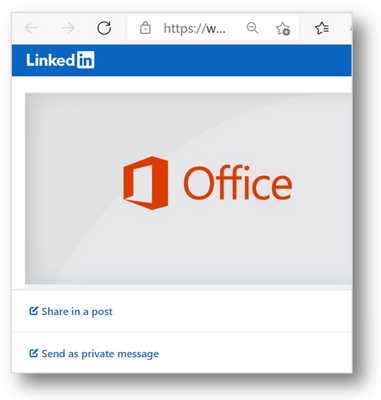 Sharing a Windows update history page article via LinkedIn
Email
The ability to share articles via email works as it has previously. You will be able to select the envelope icon and your default email client will open a new email message with a link to the content embedded in the content.
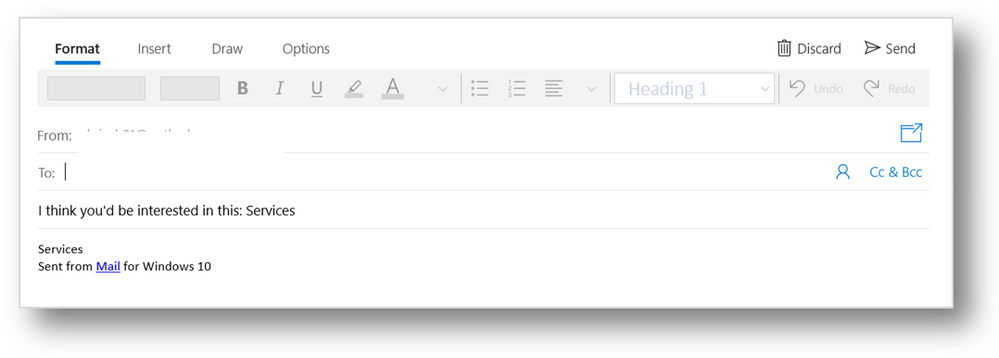 Sharing a Windows update history page article via email
Feedback
If you have feedback on this new experience, please feel free to reach out via the feedback options at the bottom of each article. Selecting “Yes” or “No” will provide you with a dialog to elaborate on how we are doing.
 How to provide feedback on the Windows update history pages
We believe that these changes will make it easier for you to search for, and find, the resources you need to support and get the most out of your Windows experience. We look forward to bringing you future improvements!
by Contributed | Feb 18, 2021 | Technology
This article is contributed. See the original author and article here.
Learn all about how to get started in Cloud Discovery from Microsoft Cloud App Security in this deep dive article by guest author and Microsoft partner Sami Lamppu.
An Introduction to Cloud Discovery in Microsoft Cloud App Discovery (MCAS)
Cloud Discovery, which is one of the Microsoft Cloud App Security (MCAS) features, helps organizations to identity applications and user activities, traffic volume, and typical usage hours for each cloud application. In a nutshell, it can help to detect “Shadow IT” applications and possible risky applications.
This blog concentrates on the Microsoft Cloud App Security – ‘Cloud Discovery’ feature and its integration with Microsoft Defender for Endpoint (MDE) service. If you want to learn more about Microsoft Cloud App Security I encourage you to start from here: Cloud App Security Overview document.
Cloud Discovery Description:
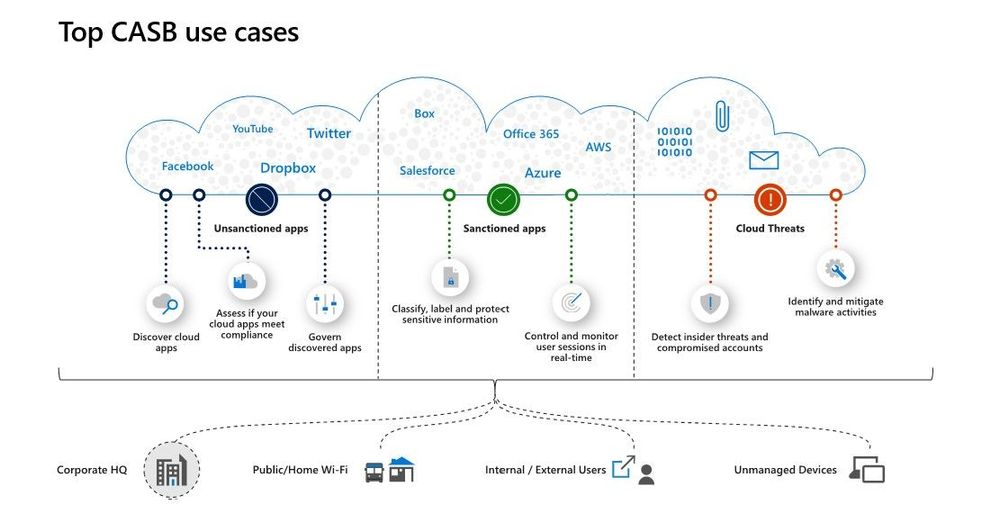
The Cloud Discovery identifies cloud applications that the organization might not have visibility to, provides risk assessments and ongoing analytics and lifecycle management capabilities to control use. Cloud Discovery analyses the traffic logs and runs them against the cloud app catalog; to provide information on the discovered applications and the users accessing them.
Picture and description from Cloud App Security playbook.
Options for Ingesting Data
Cloud Discovery analyzes traffic logs against Microsoft Cloud App Security’s cloud app catalog of over 16,000 cloud apps. The apps are ranked and scored based on more than 80 risk factors to provide insights and visibility into applications used in the cloud, and the risk Shadow IT poses to the organization. At the time of writing the following options are available to ingest network traffic data to MCAS:
Snapshot reports
The snapshot reports provides ad-hoc visibility on traffic logs manually upload from firewalls and proxies.
Continuous reports
The following options are available for the continuous reports:
- Microsoft Defender for Endpoint integration (MDE)
- Log collector
- Secure Web Gateway (SWG) – such as ZScaler, iboss, Corrata and Menlo Security integration
Based on my personal experience, the Microsoft Defender for Endpoint (MDE) has been the selected solution in most cases I have worked. The main reason has been easy and smooth integration with the Microsoft Cloud App Security.
Cloud Discovery API
The Cloud Discovery API offers an option to automate traffic log upload and get automated Cloud Discovery report and risk assessment. You can also use the API to generate block scripts and streamline app controls directly to your network appliance.
Cloud App Security and Defender for Endpoint Integration – How It Works? (docs.microsoft.com)
The following chapters concentrate on MCAS & MDE integration benefits. The policy examples are based on the traffic information collected by the MDE service.
Cloud App Security uses the traffic information collected by Microsoft Defender for Endpoint (MDE) about the cloud apps and services being accessed from IT-managed Windows 10 machines. The native integration enables you to run Cloud Discovery on any machine in the corporate network, using public Wi-Fi, while roaming, and over remote access. It also enables machine-based investigation.
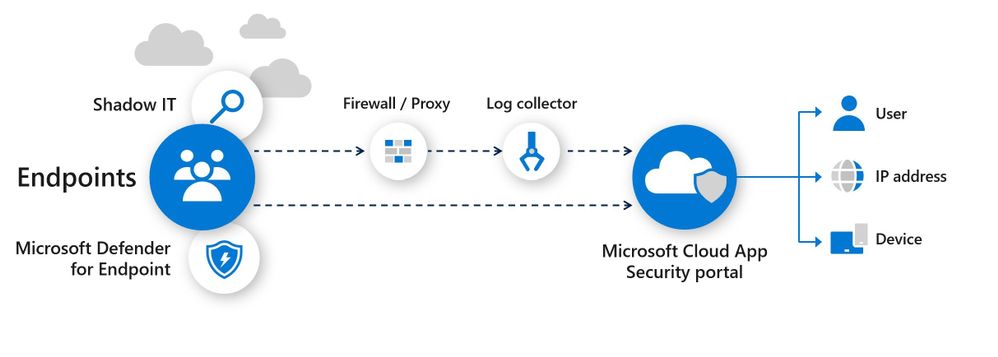
How Cloud Discovery Identifies the Apps?
Traffic data is analyzed against the Cloud App Catalog to identify more than 16,000 cloud apps and to assess their risk score. Active users and IP addresses are also identified as part of the analysis.
The current traffic detection model:
- The discovery of apps is achieved by comparing the destination URL/IP to a set of apps’ signatures, link.
Scenarios – Policy Examples
Here, I will go through some of the typical Cloud Discovery scenarios requested by customers I have worked with. Selected scenarios to identify apps from the cloud discovery data are:
- New cloud storage App
- New risky webmail application based on the risk score
In both scenarios, the App Discovery policies are used. The detection mechanism is based on the collected data, where MCAS creates alerts if a match is found based on the App Discovery policies.
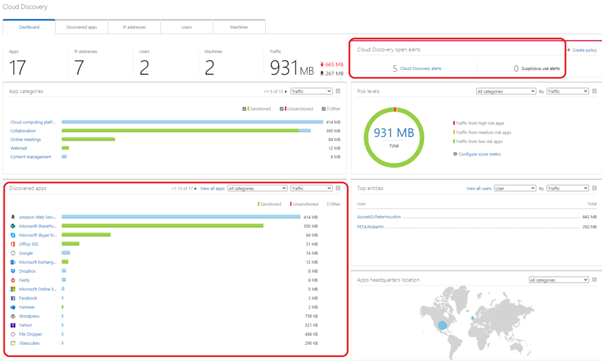
Cloud Discovery Dashboard
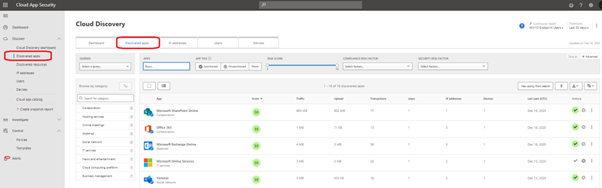
The Cloud Discovery dashboard gives a nice overview of the collected data, possible alerts, and apps discovered in the network. Inside the marked area, you can find the apps and alerts created.
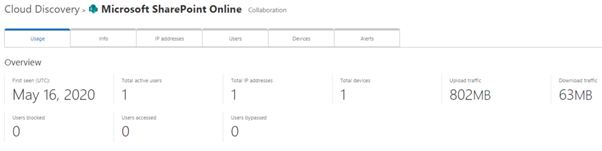
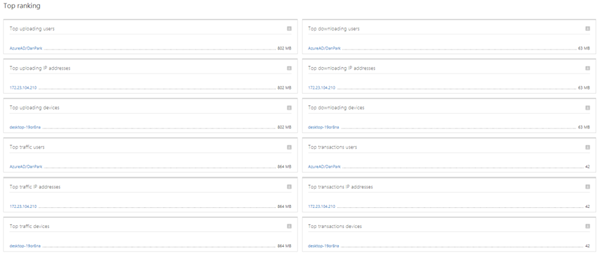
Application Details
When you select the application, you can see the detailed usage of the app. The App page includes overall information (+ alerts tab) of the application usage including the list of top rankings at the bottom of the page.
Cloud Discovery Policies
There are two kind of Cloud Discovery policies in MCAS:
- App Discovery policies
- App Discovery policy basically creates an alert when a new application is detected in the network.
- Additional parameters can be used to create the alert such as traffic in MB’s, the number of users, the application risk score among others.
- Discovery Anomaly detection policies
- Anomaly detection is enabled in out of the box rules.
- If fine-tuning is needed it can be done by customizing the built-in policy or creating a new custom policy.
In the policy configuration, you have a variety of options to configure your Cloud Discovery policy. In my example, I’m using the app “category” and “risk score”.
Example 1 – New App in Cloud Storage
Detect potential data exfiltration by a user to a cloud storage app and mark the app as unsanctioned.
Policy Configuration
In this example Cloud Discovery policy is configured with the following settings:
- Category: Cloud Storage
- Risk score: 0-5, means that the App risk score needs to be between 0-5. 10 means lower risk in the app, 0 means higher risk app based on the MCAS App catalog.
- Daily traffic: Greater than 50MB
- Number of users: Greater than 1
- Governance: Tag app as unsanctioned immediately if seen in the network
Alert
During the tests, I used different apps from the cloud storage category. The apps were StoreBigFile, Lucky Cloud, and FileDropper. All of the apps are found with a risk score of 2 from the Cloud App Security cloud app catalog.
When the traffic is received by MCAS, the data will be analyzed. If the traffic matches the Cloud Discovery policies alert is created in the MCAS instance.
As you can see from the below, the dashboard contains information about the traffic to the ‘FileDropper’ application. To perform a deeper analysis of the app usage, users, and devices, select the app for details. The best part is the integration between MCAS and MDE which allows you to see device information on the dashboards. This integration offers a smooth transition to the MDE portal when deep-dive investigation of network traffic is needed.
As configured, when the App is found (FileDropper) it’s marked as “unsanctioned” (red tag) by the governance actions in the example policy.
Example 2 – New Risky Webmail App Based on Risk Score – With Governance
With this policy, you can detect potential exposure of your organization to cloud apps that do not meet your security standards. The idea of this policy is to detect any App that risk score by App Catalog is below 3 and mark such App immediately as “unsanctioned”.
Policy Configuration
The policy is configured with the following settings:
- Risk score: 3 or below
- Apply to: All continuous reports (proxy + MDE endpoints)
- Number of users: Greater than 1 (for testing purposes, in the real environment this would be higher)
- Governance: Mark app as unsanctioned immediately when detected
Alert
I tested a number of Webmail & also Online meeting applications with similar detection policies but in example pictures, there is “Daum” webmail used. When the data is received from the MDE service, the MCAS makes parsing to the data and creates an alert.
In the example case, “High” category alert received from the suspicious application used in my organization.
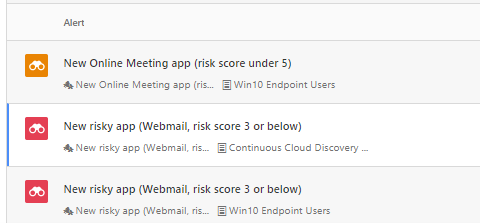
In the policy, governance action is configured. This means, that when the policy detects the app, the app is immediately tagged with the “Unsanctioned” tag.

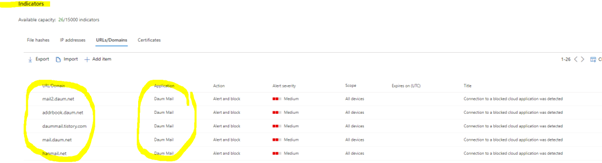
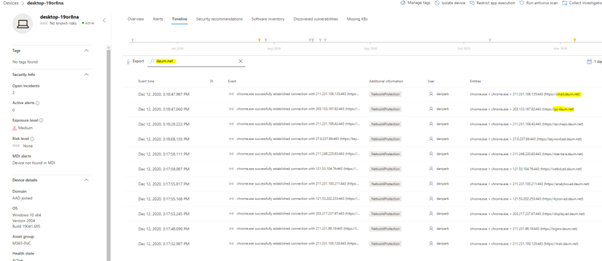
Because of MCAS and MDE integration and, governance action to the application, the next time user browses to the ‘Daum’ webmail app it will be blocked by MDE from W10 devices. How cool is that? :)
This integration has some pre-requisites that I’m not covering here. If you need more information and want to establish it in your environment read more from here and here.
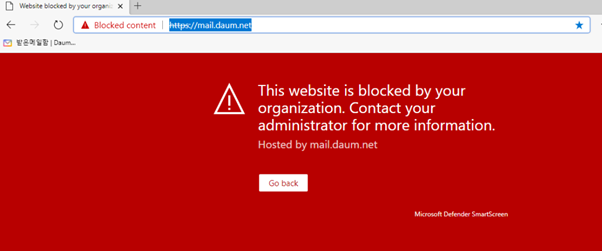
Blocking the Apps
Worth mentioning is, in general, Unsanctioning an app doesn’t block use of the app but enables to monitor its use more easily with the Cloud Discovery filters. Blocking the apps only works when accessing the app using a Windows 10 device with MDE configured, and MCAS & MDE integration has been configured.
The app marked as unsanctioned in MCAS should be found from MDE in a two (2) hours timeframe.
Block Script for On-Prem Appliances
Cloud App Security (MCAS) can help to block access to unsanctioned apps by using existing on-prem security appliances. Basically, you manage the apps in the MCAS end by tagging them as sanctioned/unsanctioned and create a dedicated block script and import it to the appliance. This solution doesn’t require redirection of all of the organization’s web traffic to a proxy. More information and how to establish the solution is found from the Microsoft docs article: “Export a block script to govern discovered apps”.
Considerations
There are a lot of development activities on-going in the MCAS and MDE services to deeper the integration and strengthen the security posture of the environment. I recommend following the MCAS updates from both, M365 Roadmap and What’s new in Cloud App Security pages for future updates.
Microsoft Zero Trust deployment guide for apps contains also a hint of what’s coming next in terms of app management (more granular controls).
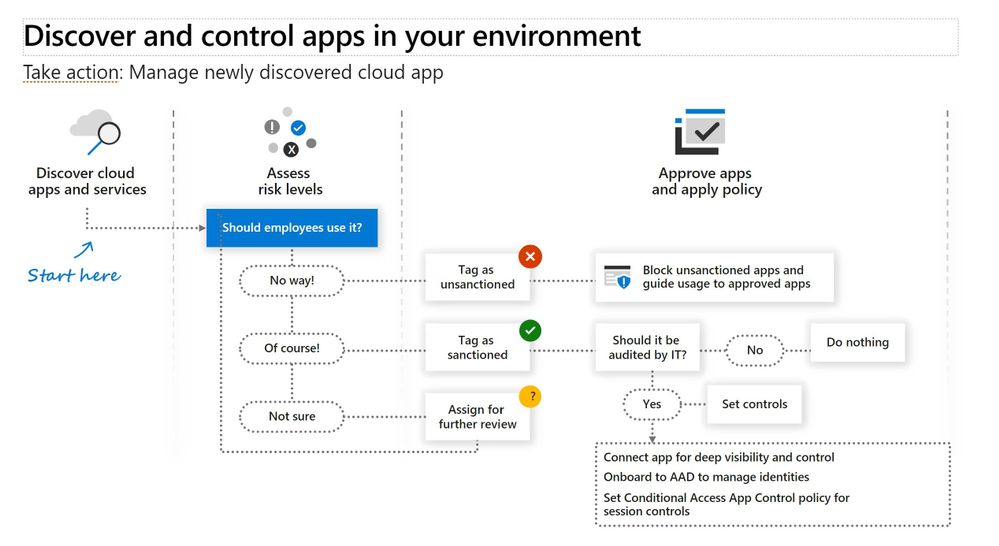
MDE Integration
- If the endpoint device is behind a forward proxy, traffic data will not be visible to Microsoft Defender for Endpoint service (by default) and hence will not be included in Cloud Discovery reports.
- Cloud Discovery with MDE only works with the W10 devices that have pre-requisites filled.
- MDE allows 15.000 indicators per tenant
- Cloud discovery enables dive deep into the organization’s cloud usage, to identify specific instances that are in use by investigating the discovered subdomains.
- It takes up to two hours after you tag an app as Unsanctioned for app domains to propagate to endpoint devices
- By default, apps and domains marked as Unsanctioned in Cloud App Security will be blocked for all Windows 10 endpoint devices in the organization
- Currently, full URLs are not supported for unsanctioned apps. Therefore, when “unsanctioned” apps configured with full URLs, they are not propagated to Defender for Endpoint and will not be blocked. For example, google.com/drive is not supported, while drive.google.com is supported
- In-browser notifications may vary between different browsers
References
MCAS Deep dive into discovered apps
Integrate Microsoft Defender for Endpoint with Cloud App Security | Microsoft Docs
M365 Roadmap
MCAS release notes
Sami Lamppu works for Nixu Corporation in Finland. He wrote the contents of this blog, edited by the MCAS team. Nixu is a cybersecurity services company that helps organizations embrace digitalization securely. https://www.nixu.com


Recent Comments