Enabling remote work and new scenarios with Microsoft 365 E3

Enabling remote work and new scenarios with Microsoft 365 E3

This article is contributed. See the original author and article here.

IT decision makers are being asked to ensure their businesses are secure and their end users are productive – regardless of where they are working. To support this need, our customers are looking to accelerate their growth in the cloud with Microsoft 365. The Microsoft 365 E3 plan provides the flexibility to adapt and thrive through societal and economic disruptions because it combines best-in-class productivity apps with core security and compliance capabilities. One of the most powerful tools in the Microsoft 365 toolkit is Microsoft Endpoint Manager.


In the last eighteen months, customers and partners have taken advantage of several product innovations to not only simplify the consumption of the latest technologies in their organizations, but also adapt to changing demands of remote work without missing a beat.


Stay protected when working remotelyStay protected when working remotely


 Here are some highlights of recent announcements, with even more coming very soon:


  • Microsoft Tunnel virtual private network (VPN) capabilities, extending Conditional Access to workers to use Android and iOS devices to remotely access on-premises data – a key principle of Zero Trust security.

  • Broadened endpoint management, including adding support for virtual desktops and kiosks and shared devices, in addition to Windows PCs, Macs, and mobile devices.

  • Expanded MacOS management to deliver more apps securely, collect better telemetry to improve management decisions, and improve security with enterprise Single Sign-On (SSO) and file encryption.

  • Endpoint analytics to help you understand how performance and health issues with your organization’s hardware and software may be impacting your end-user’s productivity. Further, Endpoint analytics connects insights from Productivity Score with Microsoft Endpoint Manager to ensure everyone can do their best work with Microsoft 365.

  • Unified endpoint security management that reduces the friction between end-user computing teams and security operations by providing deep integration between Microsoft Endpoint Manager and Microsoft Defender for Endpoint, as well as enabling specialized security roles for security managers to view and manage their day-to-day tasks within the Configuration Manager Console.

  • Modernize your IT by bringing intelligent security value to all endpoints, whether managed on-premises or in the cloud.


Microsoft 365 helps foster a culture of collaboration with connected experiences while protecting company data, increasing employee satisfaction, and optimizing the administration of security and management.


Given these significant investments in Microsoft Endpoint Manger and Microsoft Enterprise Mobility + Security (EMS) over the past 18 months – with even more to come in the coming weeks – we plan to increase the price of these standalone products: EMS E3 from $9 to $11, and Intune standalone from $6 to $8 effective July 1, 2021. The price for Microsoft 365 E3 will not change.


Continue the conversation by joining us in the Microsoft 365 Tech Community! Whether you have product questions or just want to stay informed with the latest updates on new releases, tools, and blogs, Microsoft 365 Tech Community is your go-to resource to stay connected!

How Azure SQL Enables Real-time Operational Analytics (HTAP) – Part 1 | Data Exposed

This article is contributed. See the original author and article here.

Azure SQL enables hybrid transactional/analytical workloads for real-time operational analytics scenarios through a mix of in-memory and columnar database technologies. In the first episode of this three-part series with Silvano Coriani, we will explore Azure SQL capabilities to run a mix of transactional and analytical queries on the same underlying data store.


Watch on Data Exposed


Resources:
Get started with Columnstore for real-time operational analytics
Sample performance with Operational Analytics in WideWorldImporters
T-SQL Window Functions: For data analysis and beyond, 2nd Edition
Real-Time Operational Analytics:
Memory-Optimized Tables and Columnstore Index
DML operations and nonclustered columnstore index (NCCI) in SQL Server 2016
Filtered nonclustered columnstore index (NCCI)


View/share our latest episodes on Channel 9 and YouTube!

Enabling productivity for everyone with Microsoft 365 Apps for enterprise

Enabling productivity for everyone with Microsoft 365 Apps for enterprise

This article is contributed. See the original author and article here.

Enabling productivity for everyone with Microsoft 365 Apps for enterprise  


A huge benefit to being in the cloud with Microsoft 365 is having the flexibility to provide employees working across different roles and locations with the latest features and updates—a critical task for any IT organization. That’s why we’re excited to announce two new features for Microsoft 365 Apps for enterprise—extended offline access and device-based subscriptionsthat remove critical blockers and enable customers to deploy Microsoft 365 across their entire environment, streamlining deployment and administration. These capabilities will help you ensure that employees who are offline for months at a time or rely on shared devices and workstations can benefit from the same user experience and stay productive and secure no matter where they’re working. 


Enabling extended offline access scenarios


To ensure Microsoft 365 Apps stays up to date, devices must connect to the internet at least once every 30 days. However, we’re aware that in industries, including government, oil and gas, manufacturing, agriculture, and scientific research, some people work in secure or remote environments where they have limited or no internet connectivity for longer periods of time.  


To address this, we’re now providing extended offline access* to enable devices to stay activated without connecting to the internet for up to 180 days. Workers in secure or remote environments who are offline for long periods of time can continue using Microsoft 365 Apps to stay productive on-the-job without worrying about being cut off from the tools they need most after 30 days.  


Setting up and running Microsoft 365 Apps for offline use 


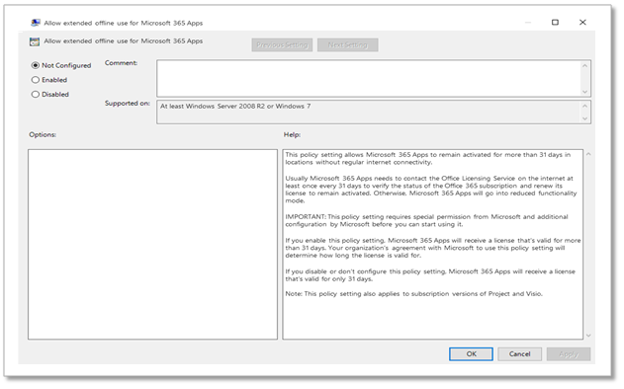
For organizations with workers who need to run Microsoft 365 Apps offline for an extended period, IT administrators can enable extended offline access when they install Microsoft 365 Apps on a device. The worker signs into Windows with their Microsoft 365 account by viewing the expiration date that appears in a Product Information window on their device. After that, the worker can continue using Office with no internet for up to 180 days. Fifteen (15) days before offline access expires, they will receive an in-app notification. At that point, the worker can either reconnect the device to the internet before the expiration date or the IT administrator can generate a license in the Office portal from a second, connected device and copy the license to the other device.  


In order to enable Extended Offline Access on a device, IT admins need to deploy the group policy on that deviceIn order to enable Extended Offline Access on a device, IT admins need to deploy the group policy on that device


Setting up device-based subscriptions for shared devices


For organizations, whose employees are mostly information workers, user-based licensing for Microsoft 365 covers most use case scenarios. But for organizations in industries, such as manufacturing, agriculture, healthcare, retail and hospitality, many employees may share one device. In those cases, users that rely on shared devices have not been able to have access to the latest and most secure productivity tools that are available on desktop, to address this scenario we’re introducing device-based subscriptions for Microsoft 365 Apps.  


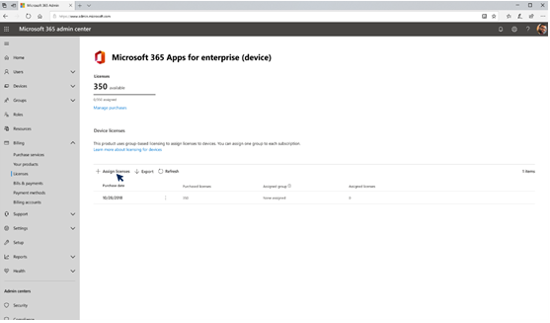
Assigning licenses to devices in Microsoft 365 admin center.Assigning licenses to devices in Microsoft 365 admin center.


Having device-based subscriptions for Microsoft 365 Apps enables you to extend coverage to commonly used devices on loading docks, at nurses’ stations, on the manufacturing floor, or in a breakroom. Because the license is assigned to the device, workers aren’t required to have their own Azure Active Directory identity. Workers can sign into the device as many times as needed and access all Microsoft 365 Apps, including Excel, OneNote, Outlook, PowerPoint, Publisher, and Word.


To deploy a device-based subscription, you simply purchase the required number of Microsoft 365 licenses and assign a license to a device group in the Microsoft 365 admin center. To enable this functionality on a device, use the group policy for currently installed devices and/or the configuration.xml attribute. 


Learn more about device-based licensing for Microsoft 365 Apps for enterprise here.


*Eligible customers should contact their Microsoft account representative to determine if extended offline access for Microsoft 365 Apps for enterprise is the right solution for them.


Continue the conversation by joining us in the Microsoft 365 Tech Community! Whether you have product questions or just want to stay informed with the latest updates on new releases, tools, and blogs, Microsoft 365 Tech Community is your go-to resource to stay connected!

Why Simple’s CEO thinks exciting times are ahead in 2021

Why Simple’s CEO thinks exciting times are ahead in 2021

This article is contributed. See the original author and article here.

As we enter 2021, we reached out to a few Microsoft partners and asked if they could share with us about their experiences from 2020how they and their customers faired amidst the challenges presented by the onset of the COVID-19 pandemic, as well as what trends they’re seeing, what lessons they had learned, and what predictions they had for 2021.

In our last article in this series, we talked to Sunrise Technologies CEO John Pence. This time, we hear from Aden Forrest, CEO of Australia-based Simple, a marketing operations platform that helps companies plan, create, and optimize their marketing activities to deliver exceptional customer experiences across marketing touchpoints. Learn how Microsoft Dynamics 365 partners like Simple can help you get the most value from your Dynamics 365 implementation.

Headshot of Aden Forrest
Aden Forrest, CEO, Simple

A shift in conversation, a focus on people

According to Forrest, when the pandemic hit in March, the executive board at Simple reviewed the situation to determine how it was going to navigate the upcoming period of uncertainty. “Our offices were closed and our working from home policy was put in place,” Forrest said. “Some of the activities included setting up weekly board meetings, weekly company all hands meetings, daily stand ups, and team check-ins that focused on team and individual well-being.”

Forrest noted that, over the course of the year, the types of conversations he’s having with customers has shifted. Our conversations are now focused on supporting our new market normal and new expectations,” Forrest said. “The big picture is still important, but immediate payback is equally critical. It truly is a ‘think big, start small, and grow fast’ conversation. For our own applications, we are also diving into the following conversation areas immediately; supporting newly remote teams, business and regulatory compliance, reduced budgets driving increased productivity requirements, and larger rapid digitalization of business outcomes,” Forrest said.

Forrest has observed a common trend across the customers he works with: a focus on people. “Consistent across all of our customers and prospects are the people aspects of our new normal,” Forrest said. “Our customers are aggressively investing in their people, and this translates into how they support them through their respective technology and processes. These are typically areas that have previously been under-invested in.”

Simple company logo in purple text

Cloud-based business grows in 2020

Forrest said the fact that Simple’s business is powered by cloud-based business applications benefitted the company greatly over the course of 2020. “Our business has not only continued under the enforced remote working requirementsit has grown,” he said. “Our customers were able to continue to use our solution with no service interruptions, and as a result, they have invested further in our offerings.”

The COVID-19 environment has led to increased innovation within Simple, Forrest said. “As an Independent Software Vendor (ISV), we have delivered more applications and capabilities than before across Microsoft Azure, Microsoft Power Platform, and Microsoft Teams, and our customers are also extending our applications and other cloud technologies faster than before,” he said.

Lessons from a challenging year

Forrest said the year’s critical learnings have included the following five lessons:

  1. People will always surprise you. The strength of the human spirit is amazing.
  2. Don’t be afraid to ask for more from your team, partners, and customers.
  3. Communication continues to drive culture, brand, and relationships.
  4. Technology, and your ability to embrace it, can be the difference between survival and excelling.
  5. Stretch targets become the new norm in a time of crisis.

While 2020 was a demanding year, Forrest thinks his team has emerged more resilient and focused. “Our business faced many challenges in 2020, but through totally focusing on the value we provide our customers and cutting back on anything not linked to delivering this, I believe our team has become stronger, more engaged, and significantly more commercial,” he said.

“I believe our team has become stronger, more engaged, and significantly more commercial.”Aden Forrest, CEO, Simple

A new business landscape

Looking ahead to 2021, Forrest believes that staff retention initiatives will be increasingly important, “since in the remote digital environment, good people will be able to work for an ever-increasing number of global employers. Business culture and the associated brand will become even more important. People want to work for causes, not just money.”

Forrest believes that the new cloud-enriched business landscape will continue to provide people the ability to work as countries will continue to manage lockdowns. “Through technology, the world has gotten significantly smaller, and employers need to understand the benefits and potential challenges this brings. The trusted relationship between the employer and employee is going to take on even more importance,” he said.

He continued, “2020 has been all about survival in our new normal. 2021 will be all about taking full advantage of this new business landscape. Things will not go back to the way they were. 2020 has changed the business landscape for the better, forever. It is now up to Microsoft and its partners to ensure this is for the betterment of all. We have exciting times ahead.”

Learn more

The post Why Simple’s CEO thinks exciting times are ahead in 2021 appeared first on Microsoft Dynamics 365 Blog.

Brought to you by Dr. Ware, Microsoft Office 365 Silver Partner, Charleston SC.

Responsible Machine Learning with Error Analysis

Responsible Machine Learning with Error Analysis

This article is contributed. See the original author and article here.

Overview


Website: ErrorAnalysis.ai


Github repository: https://github.com/microsoft/responsible-ai-widgets/


Machine Learning (ML) teams who deploy models in the real world often face the challenges of conducting rigorous performance evaluation and testing for ML models. How often do we read claims such as “Model X is 90% on a given benchmark.” and wonder what does this claim mean for practical usage of the model? In practice, teams are well aware that model accuracy may not be uniform across subgroups of data and that there might exist input conditions for which the model fails more often. Often, such failures may cause direct consequences related to lack of reliability and safety, unfairness, or more broadly lack of trust in machine learning altogether. For instance, when a traffic sign detector does not operate well in certain daylight conditions or for unexpected inputs, even though the overall accuracy of the model may be high, it is still important for the development team to know ahead of time about the fact that the model may not be as reliable in such situations.


besmiranushi_0-1613538210604.png


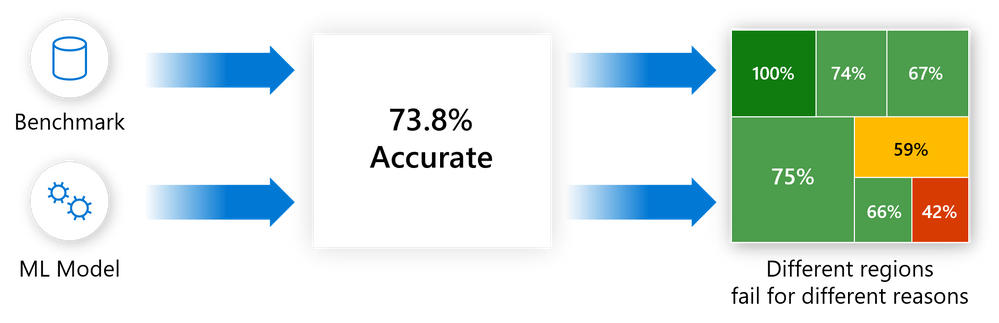
Figure 1 – Error Analysis moves away from aggregate accuracy metrics, exposes the distribution of errors to developers in a transparent way, and enables them to identify & diagnose errors efficiently.


While there exist several problems with current model assessment practices, one of the most obvious is the usage of aggregate metrics to score models on a whole benchmark. It is difficult to convey a detailed story on model behavior with a single number and yet most of the research and leaderboards operate on single scores. At the same time, there may exist several dimensions of the input feature space that a practitioner may be interested in taking a deep dive and ask questions such as “What happens to the accuracy of the recognition model in a self-driving car when it is dark and snowing outside?” or “Does the loan approval model perform similarly for population cohorts across ethnicity, gender, age, and education?”. Navigating the terrain of failures along multiple potential dimensions like the above can be challenging. In addition, in the longer term, when models are updated and re-deployed frequently upon new data evidence or scientific progress, teams also need to continuously track and monitor model behavior so that updates do not introduce new mistakes and therefore break user trust.


To address these problems, practitioners often have to create custom infrastructure, which is tedious and time-consuming. To accelerate rigorous ML development, in this blog you will learn how to use the Error Analysis tool for:


  • Getting a deep understanding of how failure is distributed for a model.

  • Debugging ML errors with active data exploration and interpretability techniques.


The Error Analysis toolkit is integrated within the Responsible AI Widgets OSS repository, our starting point to provide a set of integrated tools to the open source community and ML practitioners. Not only a contribution to the OSS RAI community, but practitioners can also leverage these assessment tools in Azure Machine Learning, including Fairlearn & InterpretML and now Error Analysis in mid 2021.


If you are interested in learning more about training model updates that remain backward compatible with their previous selves by minimizing regress and new errors, you can also check out our most recent open source library and tool BackwardCompatibilityML.


Prerequisites


To install the Responsible AI Widgets “raiwidgets” package, in your python environment simply run the following to install the raiwidgets package from pypi. If you do not have interpret-community already installed, you will also need to install this for supporting the generation of model explanations. 

pip install interpret-community
pip install raiwidgets

Alternatively, you can also clone the open source repository and build the code from scratch:

git clone https://github.com/microsoft/responsible-ai-widgets.git

You will need to install yarn and node to build the visualization code, and then you can run:

yarn install
yarn buildall

And install from the raiwidgets folder locally:

cd raiwidgets
pip install –e .

For more information see the contributing guide.


If you intend to run repository tests, in the raiwidgets folder of the repository run:

pip install -r requirements.txt


Getting started


This post illustrates the Error Analysis tool by using a binary classification task on income prediction (>50K, <50K). The model under inspection will be trained using the tabular UCI Census Income dataset, which contains both numerical and categorical features such as age, education, number of working hours, ethnicity, etc.


We can call the error analysis dashboard using the API below, which takes in an explanation object computed by one of the explainers from the interpret-community repository, the model or pipeline, a dataset and the corresponding labels (true_y parameter):

ErrorAnalysisDashboard(global_explanation, model, dataset=x_test, true_y=y_test)

For larger datasets, we can downsample the explanation to fewer rows but run error analysis on the full dataset.  We can provide the downsampled explanation, the model or pipeline, the full dataset, and then both the labels for the sampled explanation and the full dataset, as well as (optionally) the names of the categorical features:

ErrorAnalysisDashboard(global_explanation, model, dataset=X_test_original_full,true_y=y_test, categorical_features=categorical_features, true_y_dataset=y_test_full)

All screenshots below are generated using a LGBMClassifier with three estimators. You can directly run this example using the jupyter notebooks in our repository.


How Error Analysis works


1. Identification


Error Analysis starts with identifying the cohorts of data with a higher error rate versus the overall benchmark error rate. The dashboard allows for error exploration by using either an error heatmap or a decision tree guided by errors.


Error Heatmap for Error Identification


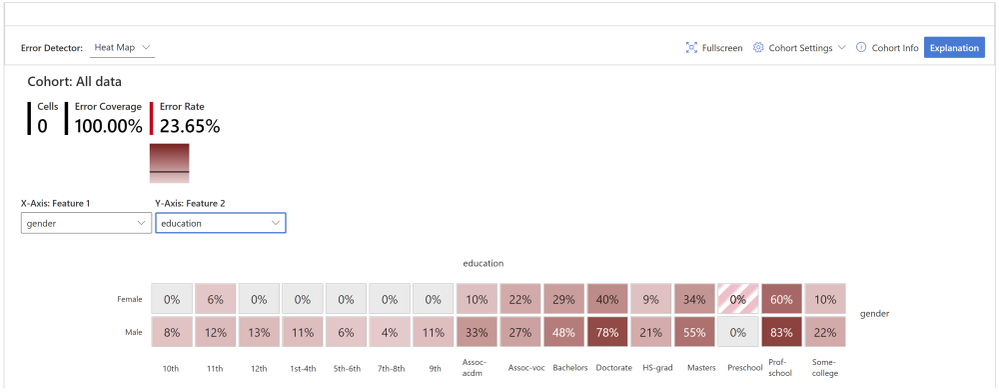
The view slices the data based on a one- or two-dimensional grid of input features. Users can choose the input features of interest for analysis. The heatmap visualizes cells with higher error with a darker red color to bring the user’s attention to regions with high error discrepancy. This is beneficial especially when the error themes are different in different partitions, which happens frequently in practice. In this error identification view, the analysis is highly guided by the users and their knowledge or hypotheses of what features might be most important for understanding failure.  


heatmap.png


Figure 2 – While the overall error rate for the dataset is 23.65%, the heatmap reveals that the error rates are visibly higher, up to 83%, for individuals with higher education. Error rates are also higher for males vs. females.


Decision Tree for Error Identification


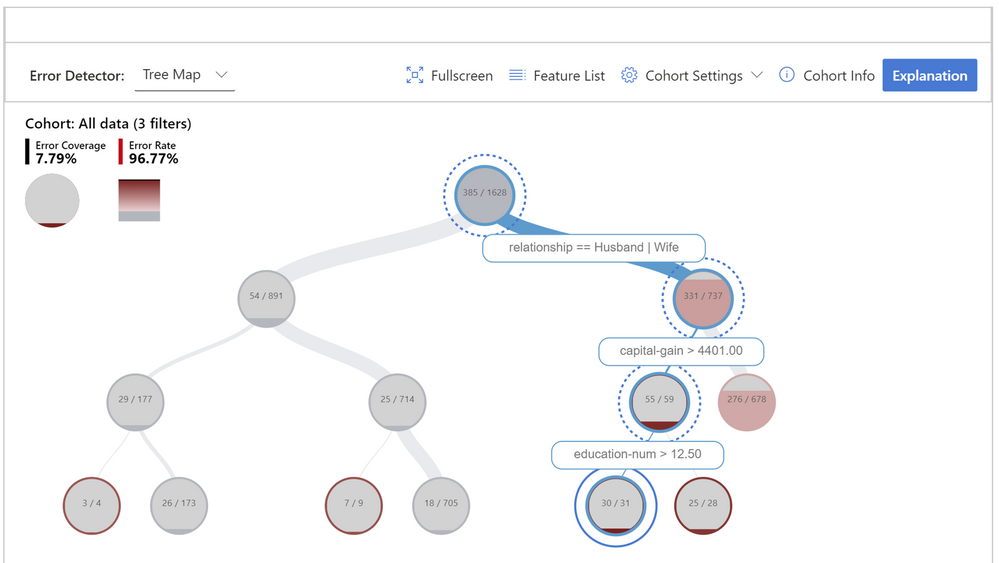
Very often, error patterns may be complex and involve more than one or two features. Therefore, it may be difficult for developers to explore all possible combinations of features to discover hidden data pockets with critical failure. To alleviate the burden, the binary tree visualization automatically partitions the benchmark data into interpretable subgroups, which have unexpectedly high or low error rates. In other words, the tree leverages the input features to maximally separate model error from success. For each node defining a data subgroup, users can investigate the following information:


  • Error rate – a portion of instances in the node for which the model is incorrect. This is shown through the intensity of the red color.

  • Error coverage – a portion of all errors that fall into the node. This is shown through the fill rate of the node.           

  • Data representation – number of instances in the node. This is shown through the thickness of the incoming edge to the node along with the actual total number of instances in the node.

tree.png


Figure 3 – Decision tree that aims at finding failure modes by separating error instances from success instances in the data. The hierarchical error pattern here shows that while the overall error rate is 23.65% for the dataset, it can be as high as 96.77% for individuals who are married, have a capital gain higher than 4401, and a number of education years higher than 12.


Cohort definition and manipulation


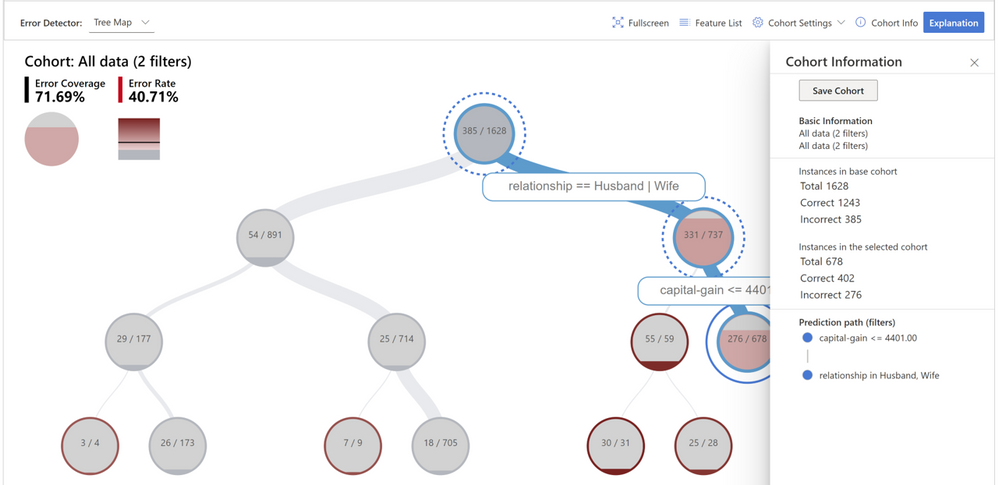
To specialize the analysis and allow for deep dives, both error identification views can be generated for any data cohort and not only for the whole benchmark. Cohorts are subgroups of data that the user may choose to save for later use if they wish to come back to those cohorts for future investigation. They can be defined and manipulated interactively either from the heatmap or the tree. They can also be carried over to the next diagnostical views on data exploration and model explanations.


cohort manipulation.png


Figure 4 – Creating a new cohort for further investigation that focuses on individuals who are married and have capital gain lower than 4401.


2. Diagnosis


After identifying cohorts with higher error rates, Error Analysis enables debugging and exploring these cohorts further. It is then possible to gain deeper insights about the model or the data through data exploration and model interpretability.


Debugging the data


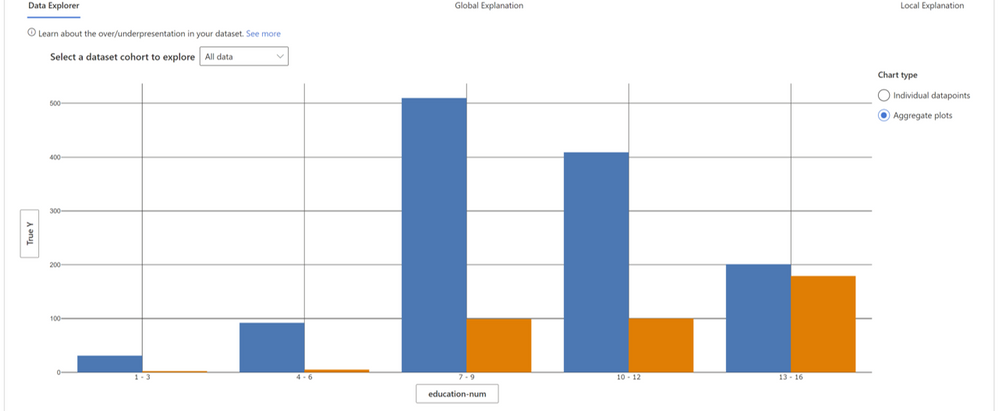
Data Explorer: Users can explore dataset statistics and distributions by selecting different features and estimators along the two axes of the data explorer. They can further compare the subgroup data stats with other subgroups or the overall benchmark data. This view can for instance uncover if certain cohorts are underrepresented or if their feature distribution is significantly different from the overall data, hinting therefore to the potential existence of outliers or unusual covariate shift.


data explorer.png


Figure 5 – In figure 1 and 2, we discovered that for individuals with a higher number of education years, the model has higher failure rates. When we look at how the data is distributed across the feature “education_num” we can see that a) there are fewer instances for individuals with more than 12 years of education, and b) for this cohort the distribution between lower income (blue) and higher income (orange) is very different than for other cohorts. In fact, for this cohort there exist more people who have an income higher than 50K, which is not true for the overall data.


Instance views: Beyond data statistics, sometimes it is useful to merely just observe the raw data along with labels in a tabular or tile form. Instance views provide this functionality and divide the instances into correct and incorrect tabs. By eyeballing the data, the developer can identify potential issues related to missing features or label noise.


Debugging the model


Model interpretability is a powerful means for extracting knowledge on how a model works. To extract this knowledge, Error Analysis relies on Microsoft’s InterpretML dashboard and library. The library is a prominent contribution in ML interpretability lead by Rich Caruana, Paul Koch, Harsha Nori, and Sam Jenkins.  


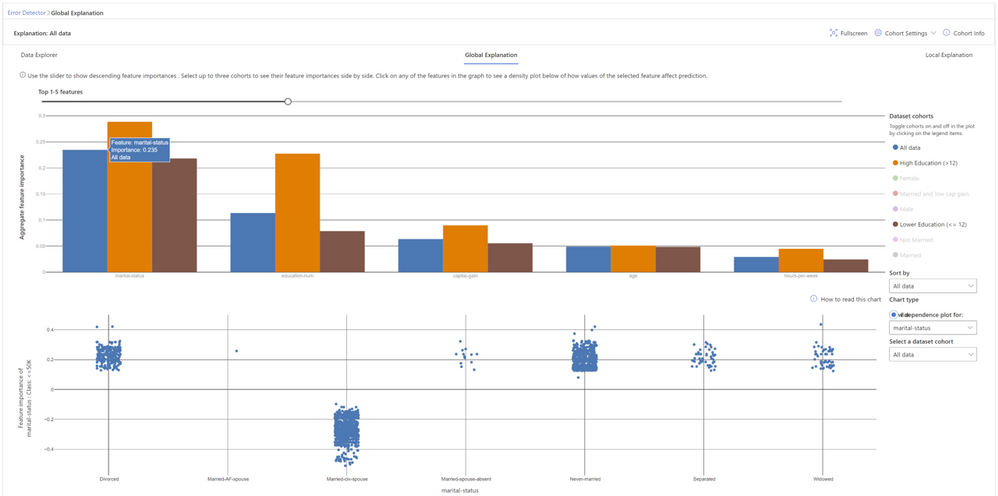
Global explanations


Feature Importance: Users can explore the top K important features that impact the overall model predictions (a.k.a. global explanation) for a selected subgroup of data or cohort. They can also compare feature importance values for different cohorts side by side. The information on feature importance or the ordering is useful for understanding whether the model is leveraging features that are necessary for the prediction or whether it is relying on spurious correlations. By contrasting explanations that are specific to the cohort with those for the whole benchmark, it is possible to understand whether the model behaves differently or in an unusual way for the selected cohort.


Dependence Plot: Users can see the relationship between the values of the selected feature to its corresponding feature importance values. This shows them how values of the selected feature impact model prediction.


global explanations.png


Figure 6 – Global feature explanations for the income prediction model show that marital status and number of education years are the most important features globally. By clicking on each feature, it is possible to observe more granular dependencies. For example, marital statuses like “divorced”, “never married”, “separated”, or “widowed” contribute to model predictions for lower income (<50K). Marital status of “civil spouse” instead contributes to model predictions for higher income (>50K).


Local explanations


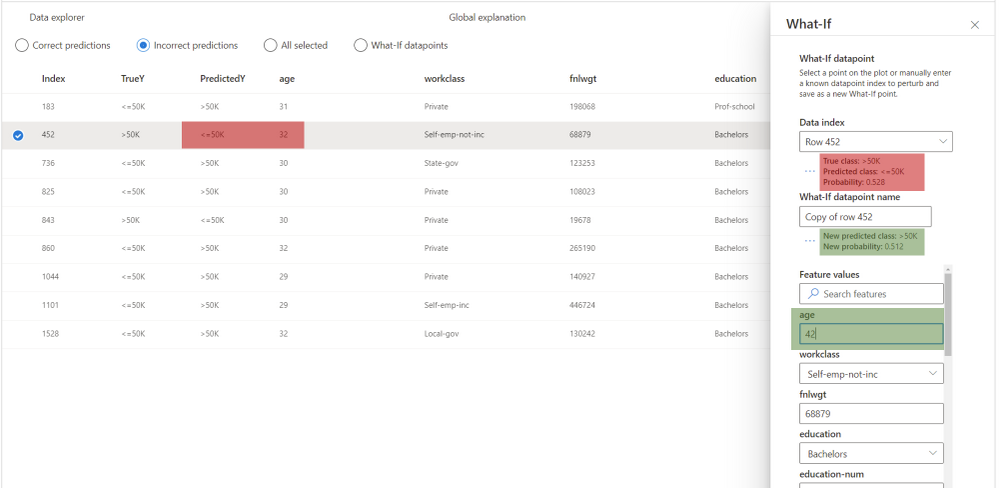
Global explanations approximate the overall model behavior. For focusing the debugging process on a given data instance, users can select any individual data points (with correct or incorrect predictions) from the tabular instance view to explore their local feature importance values (local explanation) and individual conditional expectation (ICE) plots.


Local Feature Importance: Users can investigate the top K (configurable K) important features for an individual prediction. Helps illustrate the local behavior of the underlying model on a specific data point.


Individual Conditional Expectation (ICE): Users can investigate how changing a feature value from a minimum value to a maximum value impacts the prediction on the selected data instance.


Perturbation Exploration (what-if analysis): Users can apply changes to feature values of the selected data point and observe resulting changes to the prediction. They can save their hypothetical what-if data points for further comparisons with other what-if or original data points.


local explanation what if.png


Figure 7 – For this individual, the model outputs a wrong prediction, predicting that the individual earns less than 50K, while the opposite is true. With what-if explanations, it is possible to understand how the model would behave if one of the feature values changes. For instance, here we can see that if the individual were 10 years older (age changed from 32 to 42) the model would have made a correct prediction. While in the real world many of these features are not mutable, this sensitivity analysis is intended to further support practitioners with model understanding capabilities.


Other relevant tools


Error Analysis enables practitioners to identify and diagnose error patterns. The integration with model interpretability techniques testifies to the joint power of providing such tools together as part of the same platform. We are actively working towards integrating further considerations into the model assessment experience such as fairness and inclusion (via FairLearn) as well as backward compatibility during updates (via BackwardCompatibilityML).


Our team


The initial work on error analysis started with research investigations on methodologies for in-depth understanding and explanation of Machine Learning failures. Besmira Nushi, Ece Kamar, and Eric Horvitz at Microsoft Research are leading these efforts and continue to innovate with new techniques for debugging ML models. In the past year, our team was extended via a collaboration with the RAI tooling team in the Azure Machine Learning group as well as the Analysis Platform team in Microsoft Mixed Reality. The Analysis Platform team has invested several years of engineering work in building internal infrastructure and now we are making these efforts available to the community as open source as part of the Azure Machine Learning ecosystem. The RAI tooling team consists of Ilya Matiach, Mehrnoosh Sameki, Roman Lutz, Richard Edgar, Hyemi Song, Minsoo Thigpen, and Anup Shirgaonkar. They are passionate about democratizing Responsible AI and have several years of experience in shipping such tools for the community with previous examples on FairLearn, InterpretML Dashboard etc. We also received generous help and expertise along the way from our partners at Microsoft Aether Committee and Microsoft Mixed Reality: Parham Mohadjer, Paul Koch, Xavier Fernandes, and Juan Lema. All marketing initiatives, including the presentation of this blog, were coordinated by Thuy Nguyen.


Big thanks to everyone who made this possible!


Related research


Towards Accountable AI: Hybrid Human-Machine Analyses for Characterizing System Failure. Besmira Nushi, Ece Kamar, Eric Horvitz; HCOMP 2018. pdf


Software Engineering for Machine Learning: A Case Study. Saleema Amershi, Andrew Begel, Christian Bird, Rob DeLine, Harald Gall, Ece Kamar, Nachiappan Nagappan, Besmira Nushi, Thomas Zimmermann; ICSE 2019. pdf


Updates in Human-AI Teams: Understanding and Addressing the Performance/Compatibility Tradeoff. Gagan Bansal, Besmira Nushi, Ece Kamar, Daniel S Weld, Walter S Lasecki, Eric Horvitz; AAAI 2019. pdf


An Empirical Analysis of Backward Compatibility in Machine Learning Systems. Megha Srivastava, Besmira Nushi, Ece Kamar, Shital Shah, Eric Horvitz; KDD 2020. pdf


Understanding Failures of Deep Networks via Robust Feature Extraction. Sahil Singla, Besmira Nushi, Shital Shah, Ece Kamar, Eric Horvitz. arXiv 2020. pdf



Adding Custom Metadata Through a Content Pack in Learning Pathways

Adding Custom Metadata Through a Content Pack in Learning Pathways

This article is contributed. See the original author and article here.

Overview 


Learning Pathways is a customizable, on-demand learning solution in Microsoft 365. Learning Pathways offers a customizable SharePoint Online communication site (that may be used as a training portal), easy provisioning from the SharePoint Look Book, the ability to make your own training playlists with custom assets, a custom web part to surface training content across your SharePoint site collections, and up-to-date Microsoft documentation for Microsoft 365 solutions. 


eemancini_0-1613662523386.png


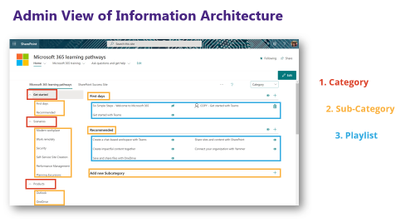
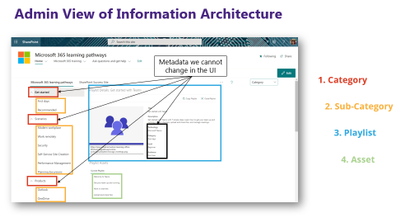
The information architecture behind Learning Pathways supports structuring your playlists by category and subcategory. Within a playlist, you may add custom assets (in the form of SharePoint site pages) or use the content provided by Microsoft. For each playlist, you may add additional information for the playlist title, description, technology, subcategory, level, and audience. While you may add your own subcategories to Learning Pathways, out of the box you cannot add new categories or choices within technology, level, or audience.  


eemancini_1-1613662523389.png


Some organizations may find the existing choices do not support their needs. To customize these fields, you will need to create a custom content pack within GitHub and add the content pack to your Learning Pathways instance. 


Deciding to Make a Custom Content Pack 


There are two primary reasons an organization may decide to begin using a custom content pack: 


  1. Edit the information architecture in Learning Pathways further than what is capable out of the box. As we discussed, there are some fields where you cannot add values. 


  1. Control the release of Microsoft’s automatic content updates to Learning Pathways. Some organizations might want to review the new content releases to evaluate what is applicable to the organization before it appears in their Learning Pathways instance. 


Please note, creating a custom content pack also means you will need to submit a pull request from the main Learning Pathways repo to your forked repo to take advantage of any content updates. In layman’s terms, you divided your content from the Learning Pathways original source so you will not get the automatic content updates from Microsoft for new docs.microsoft.com content. You will instead need to complete manual steps to get that content into your custom content pack. 


Pre-Work: Provision Learning Pathways 


Follow the docs.microsoft.com instructions for provisioning Learning Pathways. 


Step 1: Fork the Learning Pathways Repo 


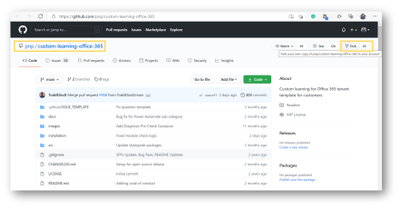
Navigate to https://github.com/pnp/custom-learning-office-365 and click Fork in the upper-right hand of the page. This will create an identical copy of the Learning Pathways content in your own repository allowing you to make customizations to the information architecture through editing the JSON. 


eemancini_2-1613662523392.png


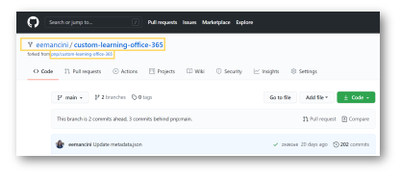
After you are done forking the repo, you will see your own copy of the repo in the top left navigation: 


eemancini_3-1613662523373.png


Step 2: Turn on GitHub pages 


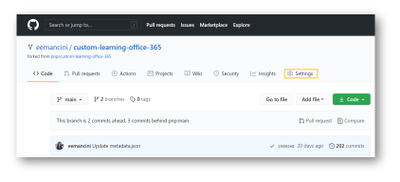
Click Settings in the top navigation: 


eemancini_4-1613662523375.png


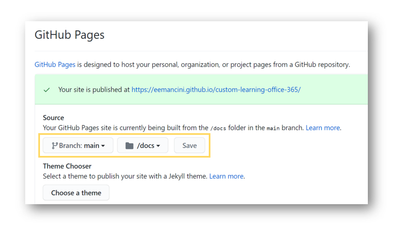
 Scroll down the page until you see a header for GitHub Pages. In the Source dropdowns, select Main and /docs then click Save: 


eemancini_0-1613663078684.png
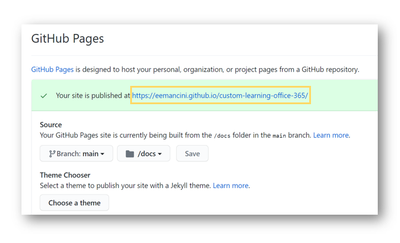
Upon saving, GitHub will bring you to the top of the page again. Scroll down to GitHub Pages once more to copy the URL for your GitHub pages: 


eemancini_1-1613663087728.png


Step 4: Add GitHub pages as a custom content pack to Learning Pathways 


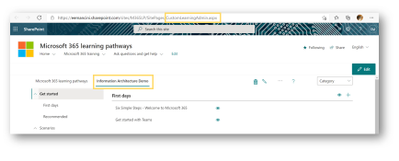
Follow the docs.microsoft.com instructions for adding a content pack to learning pathwaysWhen adding the URL for your custom content pack, paste the URL from step 3add learningpathways/ to the URL, and click Save. For example: 


https://eemancini.github.io/custom-learning-office-365/learningpathways/ 


This adds your forked copy of Learning Pathways as a tab in the site page CustomLearningAdmin.aspx of Learning Pathways: 


eemancini_2-1613663101656.png


Step 5: Edit metadata in GitHub 


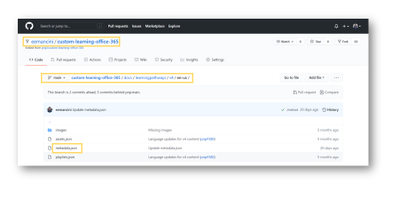
As of this step, your custom content pack is an identical copy of Learning Pathways content as you have not made any edits in the repo. Navigate to https://[yourusername].github.io/custom-learning-office-365/learningpathways/v4 to begin making edits. Open the applicable language folder, in this example we will be working in en-us. In this folder you will find 3 JSON files. Select metadata.json:


eemancini_3-1613663112898.png
Explore the metadata.json structure for more guidance on how to edit the information architecture within this JSON file. If you are new to JSON, Bob German’s Introduction to JSON provides an excellent overview for beginners. Watch an example video of editing the existing technologies field and adding new ones. 


Step 6: Commit changes to main branch of your forked repo 


After completing your JSON edits, scroll to the bottom of the page to the section for Commit Changes. Add a title and description that clarifies what edits you made and click Commit Changes. Once you commit a change, your edits will automatically appear in Learning Pathways. (Note: You may need to hard refresh or clear your cache to see these changes). 


Step 7: Add the web part to a page and filter to the content pack 


Now that your custom content is added to Learning Pathways, you can surface it by adding a Learning Pathways web part to a page. Follow the docs.microsoft.com instructions on how to filter to the content pack. 


Conclusion


Whether you are creating a content pack to customize the metadata or control the content releases by Microsoft, creating a custom content pack is a powerful way to support your needs as long as you can support manually pulling content from the Learning Pathways repo in the future.

Cisco Releases Security Updates for AnyConnect Secure Mobility Client

This article is contributed. See the original author and article here.

Cisco has released security updates to address a vulnerability in Cisco AnyConnect Secure Mobility Client. An attacker could exploit this vulnerability to take control of an affected system.

CISA encourages users and administrators to review Cisco Security Advisory cisco-sa-anyconnect-dll-hijac-JrcTOQMC and apply the necessary updates.

Updated End-to-end Azure Synapse and Power BI CMS Medicare Part D Solution

This article is contributed. See the original author and article here.

Back in December I worked with a colleague from the Azure team, Kunal Jain, to release an end-to-end Azure Synapse and Power BI solution using real CMS Medicare Part D data. The solution can be deployed with a few clicks in Azure and runs in less than an hour. Here is a link to the December article: https://techcommunity.microsoft.com/t5/healthcare-and-life-sciences/deploy-an-end-to-end-azure-synapse-analytics-and-power-bi/ba-p/1940720 . Here’s a link to the GitHub site: https://github.com/kunal333/E2ESynapseDemo .


Based upon feedback from users and our own to-do list, we have released new updates to the solution:


  • New 2018 Data is now added to the solution. The solution now has about 148 million rows of real CMS Medicare Part D Healthcare data.

  • Design of the Dimensions in Synapse was simplified to improve query performance. The column [Year] in each dimension used to represent every time a granular value existed, and now it represents to most recent year that it existed. See the Azure Update video below for a detailed explanation.

  • Logic in Azure Data Factory was consolidated to simplify the data flows and improve performance.

  • The New Azure Synapse Workspace can now be used to access the Synapse portion of the solution.

  • ‘Smart Narrative’ Power BI AI visual was added to the Summary page of the Power BI report (see video below).

  • ‘Q & A’ Power BI AI visual was added to a new page called “Q & A” of the Power BI report (see video below).

  • ‘Decomposition Tree’ Power BI AI visual was added to a new page called “Decomp Tree” of the Power BI report (see video below).

  • ‘Key Influencers’ Power BI AI visual was added to a new page called “Key Influencers” of the Power BI report (see video below).

  • Small Multiples were also added on a new page (see video below).


The video below summarizes some of the changes in Azure:


The video below summarizes some of the changes in Power BI:


So, what’s next? Feedback and recommendations are appreciated and can be provided in the following form. A few potential ideas include expanding to include CMS Medicare Part D reference tables (such as Opioid and Antibiotic lists), integrating new CMS data sets, expanding to new sources of Healthcare Open Data, etc. Please let us know what you’d like to see, and stay tuned!:


Build a tailored fraud prevention strategy with custom assessments

Build a tailored fraud prevention strategy with custom assessments

This article is contributed. See the original author and article here.

Effectively managing fraud requires a multi-tiered strategy. It is essential to adopt a fraud prevention strategy with a broad view, encompassing multiple user interaction events, and phased decision-making points.

A user interacts in many ways on a merchant’s website, such as searching for products, updating account info, writing a review, adding or removing items from their cart, or signing up for events or newsletters. Each of these interactions provides tell-tale signs of their behavior and intent. Analyzing all of these interactions cohesively helps to identify fraud more accurately and provides a seamless experience to legitimate customers.

The classic approach to fraud is to look for specific events to identify certain types of fraud, like purchases with a stolen credit card or account takeovers. Most tools support this approach, to assess specific generic events such as purchases, sign-up, sign-in, or coupon redemption. Evolving beyond this classic approach requires tools that can help you tailor a fraud prevention strategy to best suit the unique interactions between your business and your customers.

Custom assessments are available as part of Dynamics 365 Fraud Protection and enable you to tailor a fraud prevention strategy that best suits your business and customer needs.

Analyzing the customer journey in your business is the first step in understanding where to deploy custom assessments.

Identify key touchpoints of a user journey

Begin by identifying user actions that could indicate a high risk of fraud or help you track unusual behavior later in the user’s journey. These actions can vary by the type of business you run. For example, a user updates the physical address on their account. If a restaurant offers promotions for users from certain locations, an address change may indicate a risk of fraud or abuse of the promotion and you may choose to act immediately. In contrast, if you are an e-commerce merchant offering gifts and accessories, this event alone may not indicate risk, but subsequent actions may. In this case, you can add an additional check if the next action was updating the phone number, as it may indicate the risk of a compromised account.

Create custom assessments for these key touchpoints

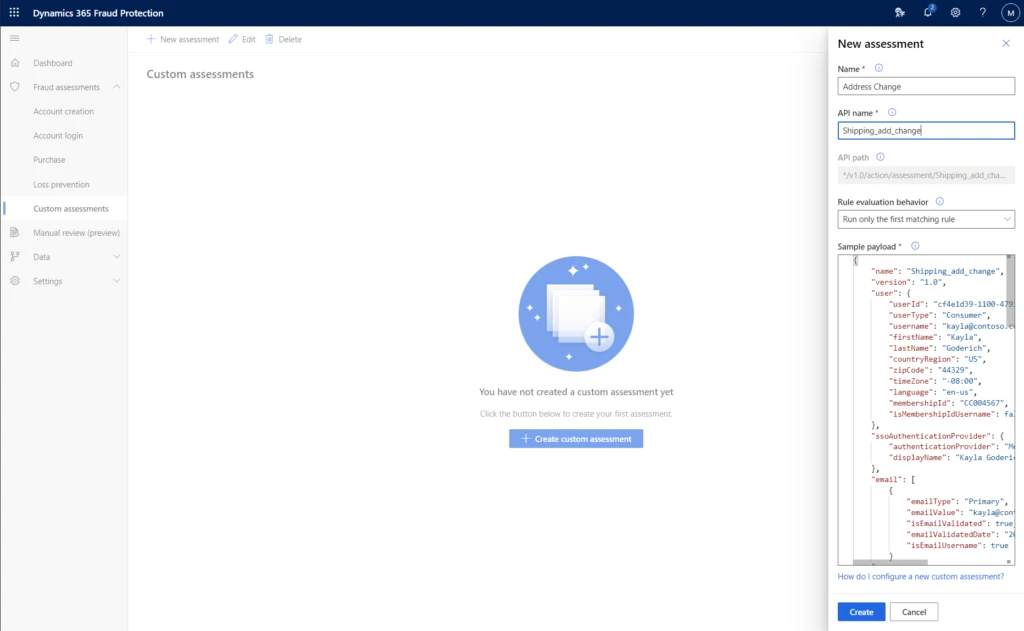
After you have listed the touchpoints that are key indicators, you can add assessments to these events. Custom assessments have the flexibility to define every part of the assessment to match your business-specific scenario — including the API name, event name, and the payload. This helps you to easily manage all the assessments.

Fraud protection custom assessments screen

Using the rules engine to determine actions

After your custom assessments are created, you can use the rules engine to configure what actions you want to take on them. From the earlier example for a restaurant, you can create rules for the address change event to check the distance between both addresses or the history of orders from that user and return a reject decision to block the user. Or if you are the e-commerce merchant, return this event to a watch list for action later.

You can view the performance of your custom assessments, including the total volume of events and what rules were triggered if any, in the scorecard tab of the assessment.

Next steps

To learn more about custom assessments, check out the documentation. To see for yourself how Dynamics 365 Fraud Protection can help your business, get started today with a free trial.

The post Build a tailored fraud prevention strategy with custom assessments appeared first on Microsoft Dynamics 365 Blog.

Brought to you by Dr. Ware, Microsoft Office 365 Silver Partner, Charleston SC.

Upload Custom Linux Hyper-V Image for Gen 2 VM in Azure

Upload Custom Linux Hyper-V Image for Gen 2 VM in Azure

This article is contributed. See the original author and article here.

Introduction


This is Andrew Coughlin and I am a Customer Engineer at Microsoft focusing on Azure IaaS. In this blog I will focus on how to upload a custom linux Hyper-V image for generation 2 virtual machines in Azure. Support for generation 2 virtual machines in Azure was released on November 4, 2019, these systems use UEFI boot, SCSI, supported on VMs that support premium storage compared to generation 1 which use PCAT boot, IDE and are available on all VM sizes.  Generation 2 VMs provide for OS disk size greater than 2TB in size and build larger VMs, up to 12TBs. To get additional information about generation 2 virtual machines in Azure please visit this post.


If you have ever uploaded a custom image in Azure in the past you will notice the process is very similar.  Are you looking for the process for Windows VMs, head over to my post here that covers this same process but for Windows VMs.


Prerequisites


  • Review the Support for generation 2 VMs on Azure.

  • Install Azure PowerShell as documented here.

  • Create Hyper-V Gen 2 machine to be used as the image.

  • Review Generic Linux image documentation here.

  • Review the specific distribution preparation documentation:

    • Debian is located here.

    • Oracle Linux is located here.

    • OpenBSD is located here.

    • Redhat is located here.

    • SUSE is located here.

    • Ubuntu is located here.


  • Convert VHDX to VHD as documented here.

  • Download and Install azcopy as documented here.

  • Sign in with Azure as documented here.

  • Select Azure subscription to upload image as documented here.


Upload Hyper-V Image to Managed Disk


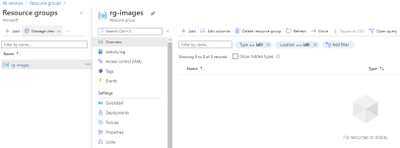
First you want to determine which resource group the image will reside in or if you will create a new resource group. As a reminder a resource group is a container that holds related solutions: virtual machines, storage accounts, disks virtual networks, etc. for your Azure solutions. A resource group can include all resources for your solutions or only those resources that you want to be managed together. For documentation on how to create a new resource group, this can be found on this page. In this example I’m going to use the resource group called “rg-images”.


AndrewCoughlin_1-1613582763909.png


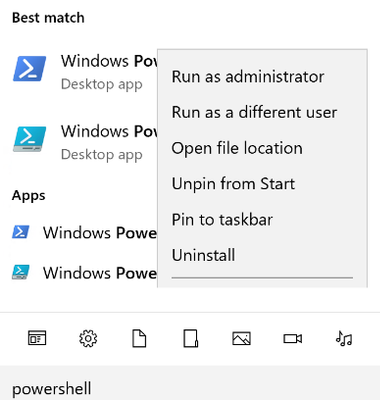
First, we need to open an elevated PowerShell command prompt.


AndrewCoughlin_2-1613582763917.png


Next, we will set some variables as we will need these throughout the process, in this example. We are going to be creating this image in Central US, with the image name CentOS7-Image-V2, in the resource group called rg-images, with a disk image called CentOS7-Image-V2.


  • $location = ‘Central US’

  • $imageName = ‘Ubuntu1804-Image-V2’

  • $rgName = ‘rg-images’

  • $diskname = ‘Ubuntu1804-Image-V2’


AndrewCoughlin_3-1613582763920.png


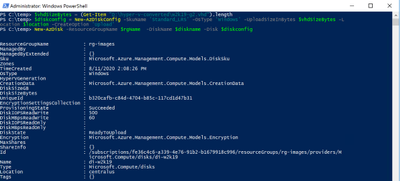
Next, we want to create an empty managed disk, we will type the following commands:


$vhdSizeBytes = (Get-Item "<full File Path>").length
$diskconfig = New-AzDiskConfig -SkuName 'Standard_LRS' -OsType 'Linux' -UploadSizeInBytes $vhdSizeBytes -Location $location -CreateOption 'Upload'
New-AzDisk -ResourceGroupName $rgName  -DiskName $diskname -Disk $diskconfig


AndrewCoughlin_4-1613582763941.png


NOTE: You can replace the Standard_LRS, with Premium_LRS or StandardSSD_LRS.  At the writing of this blog Ultra disks are currently not supported.


Next, we need to confirm the disk status is equal to “ReadyToUpload”, we will type the following:


$disk = Get-AzDisk -ResourceGroupName $rgName -DiskName $diskname
$disk.DiskState


AndrewCoughlin_5-1613582763943.png


NOTE: The disk status must be set to “ReadyToUpload”, if it is not you need to check what was typed in the “New-AzDiskConfig” command.


Now we want to create the writable shared access signature (SAS) for the managed disk we just created.  Then we will get the disk status and make sure it is equal to “ActiveUpload”, to do this we will type the following:


$diskSas = Grant-AzDiskAccess -ResourceGroupName $rgName -DiskName $diskname -DurationInSecond 86400 -Access 'Write'
$disk = Get-AzDisk -ResourceGroupName $rgName -DiskName $diskname
$disk.DiskState


AndrewCoughlin_6-1613582763945.png


Now we are ready to upload our disk to Azure, to do this we will type the following and wait for the process to complete:


cd <location of Azcopy>
.azcopy.exe copy "<location of vhd>" $diskSas.AccessSAS --blob-type PageBlob


AndrewCoughlin_7-1613582763950.png


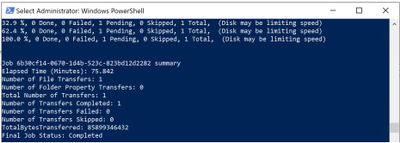
When the upload is completed you will get the following results:


AndrewCoughlin_8-1613582763955.png


After the upload has completed, we will revoke access from the disk as we no longer need the shared access signature we created above, we will type the following:


Revoke-AzDiskAccess -ResourceGroupName $rgName -DiskName $diskname


AndrewCoughlin_9-1613582763959.png


Create Image from Managed Disk


We now have the managed disk uploaded to the cloud.  The next step is to create an image from that managed disk.  When the image is created, we want to make sure to specify this image will be a V2 image.  To do this we will type the following:


$imageConfig = New-AzImageConfig -Location $location -HypervGeneration V2
$imageConfig = Set-AzImageOsDisk -Image $imageConfig -OsState Generalized -OsType Linux -ManagedDiskId $disk.Id
$image = New-AzImage -ImageName $imageName -ResourceGroupName $rgName -Image $imageConfig


AndrewCoughlin_10-1613582763965.png


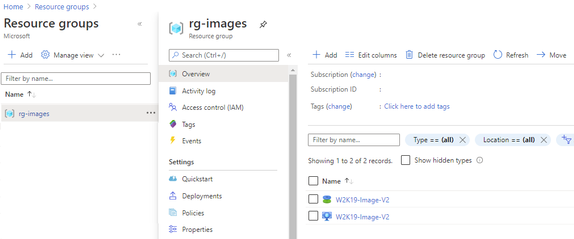
Verify in the portal that our image is now created from our managed disk.  We can now start provisioning generation 2 virtual machines with this image.


AndrewCoughlin_11-1613582763969.png


Conclusion


There you have it; we have just uploaded a custom linux image and now we can use that image to deploy generation 2 virtual machines in your Azure environment.  Thank you for taking the time to read this blog, I hope this helps you and see you next time.


Disclaimer


The sample scripts are not supported under any Microsoft standard support program or service. The sample scripts are provided AS IS without warranty of any kind. Microsoft further disclaims all implied warranties including, without limitation, any implied warranties of merchantability or of fitness for a particular purpose. The entire risk arising out of the use or performance of the sample scripts and documentation remains with you. In no event shall Microsoft, its authors, or anyone else involved in the creation, production, or delivery of the scripts be liable for any damages whatsoever (including, without limitation, damages for loss of business profits, business interruption, loss of business information, or other pecuniary loss) arising out of the use of or inability to use the sample scripts or documentation, even if Microsoft has been advised of the possibility of such damages.