by Contributed | Oct 23, 2020 | Technology
This article is contributed. See the original author and article here.
Double Key Encryption (DKE) is a new feature, which enables customers to protect their most confidential content using a key they control, thereby allowing them to comply with regulatory requirements. DKE ensures that Microsoft cannot access their data under any circumstances.
The quickest way to get the DKE reference implementation running is by publishing it to Azure – detailed steps can be found in our documentation . However, many of our customers prefer to test and run DKE on-premises – here we describe the necessary steps to implement this option.
For this post, we assume the server will be reachable under the following URL:
https://aip-dke4.contoso-o365.net
Preparation
Whether the DKE service is published on Azure or on IIS, the following preparation steps from our documentation are required:
- Install software prerequisites for the DKE service
- Clone the Double Key Encryption GitHub repository
- Modify application settings
- Generate test keys
- Build the project
Provision machine and build IIS
By going through the following steps, the virtual machine is provisioned and IIS is installed:
- Provision VM with Windows Server 2019 Datacenter.
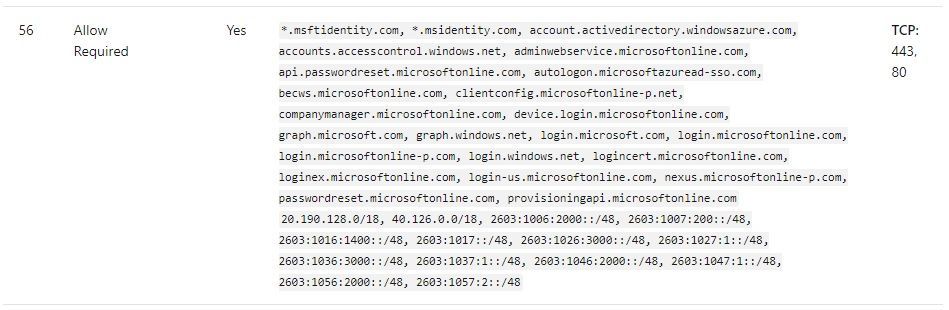
- Make sure the VM has outbound Internet Connectivity (among other, it needs to reach the following URL: <https://login.microsoftonline.com/common/v2.0>), for an exhaustive list of URLs and IP addresses, please consult box 56 on our documentation:
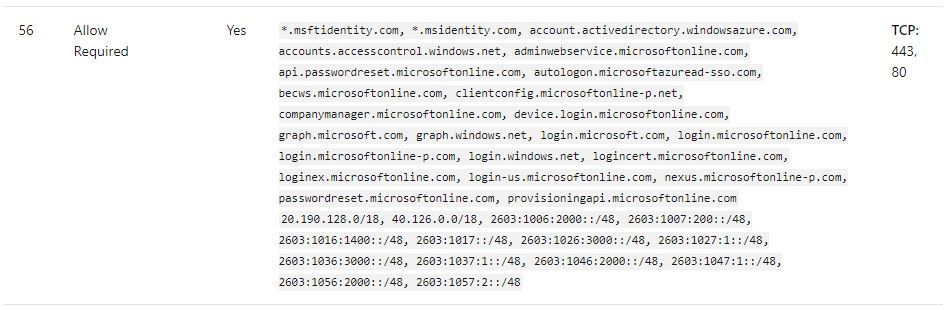 URLs and IP addresses that need to be reachable
- Join the server to a domain, in case membership of a local AD group should be the criteria for authorizing access to the DKE service.
- Install a suitable Web server certificate to the machine store. The certificate needs to match the URL, under which the service can be reached.
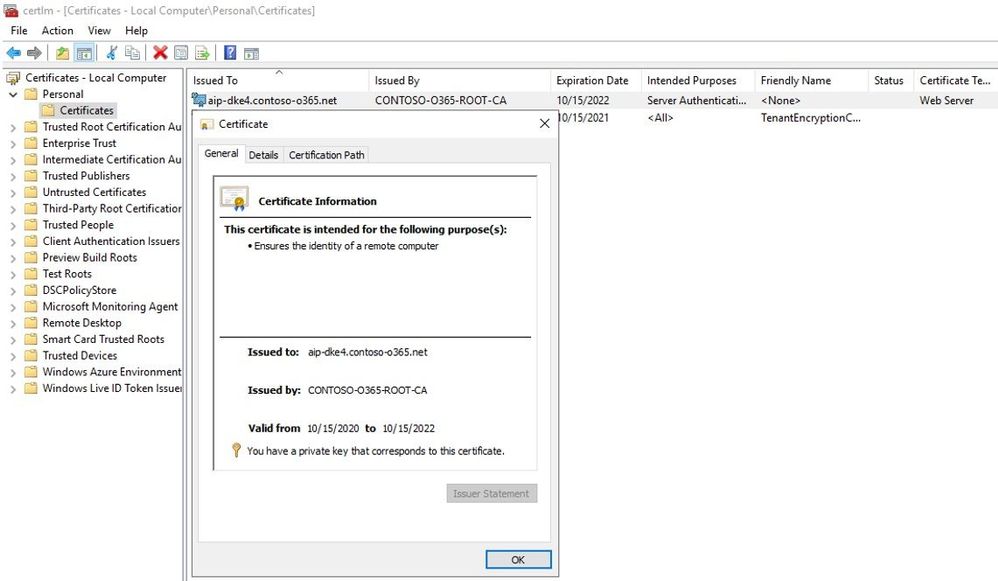 Certificate used for IIS
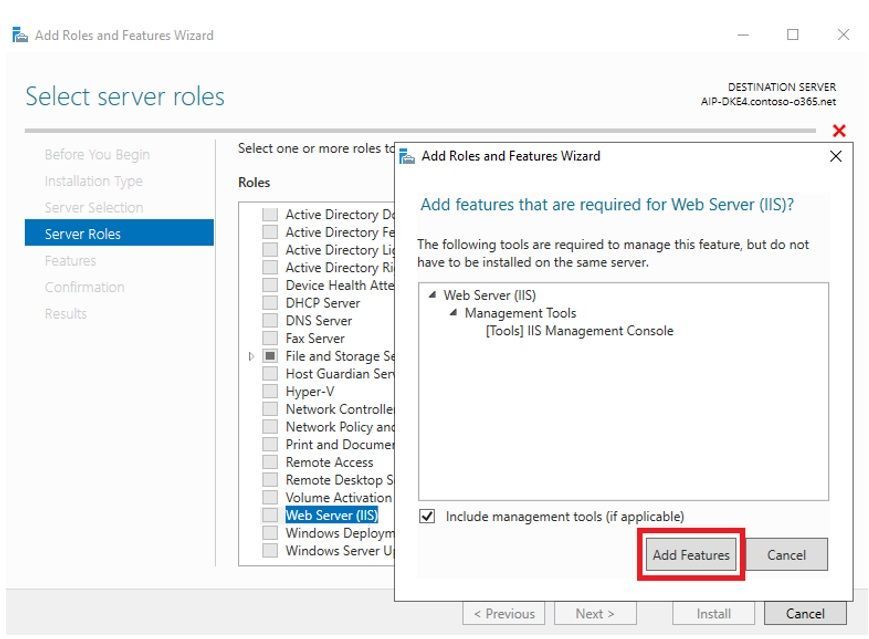
- Install IIS with with default role features – selecting «Next» on each page of the wizard.
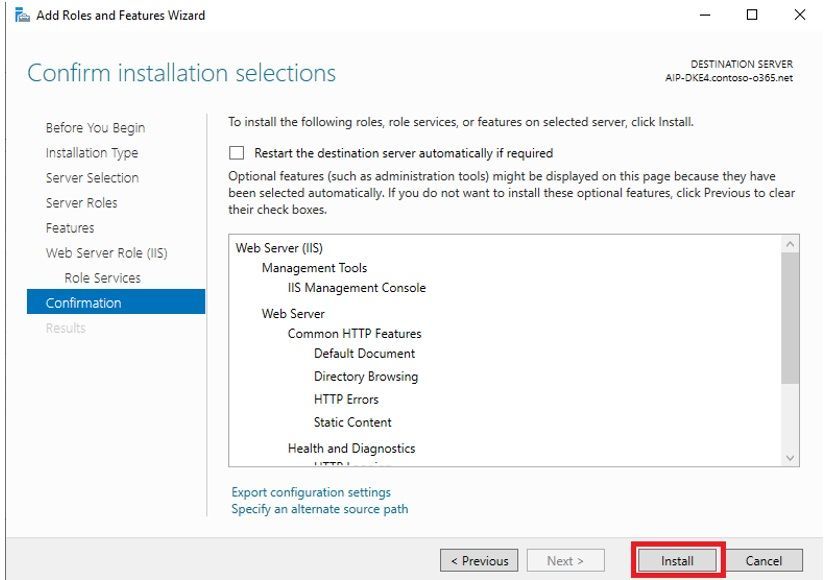
- Download and install the .NET 3.1.9 hosting bundle. The bundle is available here.
Build and publish code to IIS
- Switch to the machine with Visual Studio Code installed, which was used for steps 1 to 5.
- Open an administrative command line and switch to the directory «DoubleKeyEncryptionServicesrccustomer-key-store»
- Run the following command:
dotnet publish –configuration Release
- Transfer the following directory to the folder c: of the IIS machine – this will result in a new folder c:publish on the IIS machine:
«DoubleKeyEncryptionServicesrccustomer-key-storebinReleasenetcoreapp3.1publish»
- On IIS, create a new web site «DKE» with https binding, port 443 and using host name “aip-dke4.contoso-o365.net”:
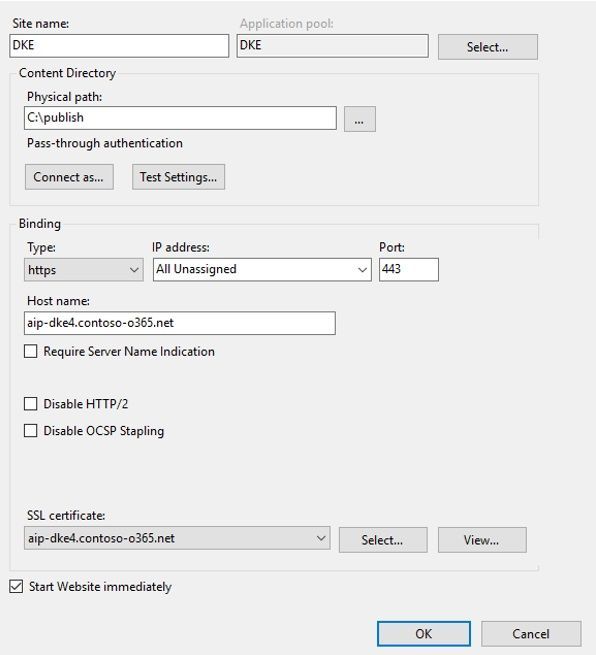 IIS site configuration
- Make sure the value for «JwtAudience» matches the selected URL for the IIS Server:

Finish DKE implementation
The following steps are needed to complete the DKE implementation (refer again to our documentation)
7. Validate your deployment
8. Register your key store
9. Create sensitivity labels using DKE
10. Enable DKE in your client
11. Migrate protected files from HYOK labels to DKE labels
Conclusion
By publishing the DKE service on an on-premises server with IIS, customers maintain full control over the key used for protecting their most sensitive content.
by Contributed | Oct 22, 2020 | Technology
This article is contributed. See the original author and article here.
Microsoft is aware of the upcoming time zone change for the Palestinian Authority.
- Daylight Saving Time (DST) will end at 01:00 on October 24, 2020 instead of October 31, 2020.
As there is insufficient time for Microsoft to release an update to support this change before it goes into effect, we recommend that customers temporarily disable the automatic DST adjustments in Windows to reflect the correct local time between October 24, 2020 and October 31, 2020.
This can be done in one of the two ways:
- Select the Windows logo key, type “Date and time”, and select Date and time settings. From the Date & time settings page, toggle Adjust for daylight saving time automatically to Off.
- Go to Control Panel > Date and Time > Change time zone and uncheck “Automatically adjust clock for Daylight Saving Time”.
After 01:00 on October 31, 2020, follow the steps below to re-enable automatic DST adjustments and ensure accurate time switching with future DST transitions.
- Select the Windows logo key, type “Date and time”, and select Date and time settings. From the Date & time settings page, toggle Adjust for daylight saving time automatically to On.
- Go to Control Panel > Date and Time > Change time zone and check “Automatically adjust clock for Daylight Saving Time”.
For Microsoft’s official policy on DST and time zone changes, please see Daylight saving time help and support. For information on how to update Windows to use the latest global time zone rules, see How to configure daylight saving time for Microsoft Windows operating systems.

by Contributed | Oct 22, 2020 | Technology
This article is contributed. See the original author and article here.
Azure Policy for Azure Kubernetes Service (AKS) clusters now utilizes/extends Gatekeeper v3 (OPA). The overview, installation steps for the Azure Policy add-on, limitations and recommendations are documented here – https://aka.ms/kubepolicydoc
Azure Security Center actually requires the add-on to audit and enforce security capabilities and compliance inside your clusters.
I am depicting the 3 Gatekeeper pods in the following image – which are utilized after the Azure Policy add-on has been enabled for an AKS cluster.

By installing / enabling the Azure Policy add-on customers can gain the inherent benefits of utilizing a managed add-on – the most important benefit being that – they would not need to resort to any manual upgrades if/when there is a version upgrade of Gatekeeper itself.
However, at present there are a few limitations. Let us focus on 2 limitations from the present list –
1.Installations of Gatekeeper outside of the Azure Policy Add-on aren’t supported. Uninstall any components installed by a previous Gatekeeper installation before enabling the Azure Policy Add-on.
2. Only built-in policy definitions are supported.
This means that the customer would not be able to utilize custom policies – considering – only built-in policies are supported + the usage of the add-on precludes any native Gatekeeper installation/usage.
So, for customers requiring policies beyond the list of built-in policies the overarching guidance is to use a combination of preventive and detective measures to achieve the same objective as their intended custom policies.
As an example – one of the customers wanted to take the policy driven route to ensure that the [default] namespace usage is always prohibited. At the time of this writing – it is not a built-in policy – so a preventive measure this customer could take is utilize Kubernetes native capabilities / RBAC as part of their deployment pipeline not allowing objects to be created in the [default] namespace.
Essentially, a preventive process enhancement to achieve their original objective.
The Azure Policy add-on is indeed an advantage-laden route to take – utilizing the set of built-in Kubernetes policies as applicable in combination with preventive and detective measures to achieve the any custom policy intent.
by Contributed | Oct 22, 2020 | Technology
This article is contributed. See the original author and article here.
Earlier this year, we announced the Public Preview of the latest update to the Surface Hub Operating System, the Windows 10 Team 2020 Update.
This update delivers on top customer requested features and brings new and added experiences to help customers configure, manage and collaborate on their 1st-generation Surface Hubs and Surface Hub 2S devices. Since releasing the public preview we’ve seen incredible reception from our customers who have installed the update and provided valuable feedback.
Today, we’re pleased to share more information about the availability of Windows 10 Team 2020 Update, based on Windows 10, version 20H2, for all Surface Hub 2S devices, starting October 27, 2020 via Windows Update for Business.
Availability for 1st-generation Surface Hubs (55” and 84”) is expected soon after, and we’ll communicate as it becomes available.
The Windows 10 Team 2020 Update is a feature update – which allows IT admins to control its installation using Windows Update for Business rings, similar to your standard Windows 10 update rings. Using these rings will allow organizations to stay current with the latest security updates and provide better manageability and reliability.
A new Bare Metal Recovery (BMR) image for Surface Hub 2S will become available on October 27, 2020 as well.
As soon as we have the update ready for 1st-Generation Surface Hubs, a new and improved Surface Hub Recovery Tool (SHRT) will become available too.
For customers using Windows Update, we’ll be taking a phased approach and throttle the updates by regions/countries as detailed in the following table:
Phase
|
Start Date (week of)
|
Regions/Countries Involved
|
1
|
10/27/2020
|
NZ, Australia, Canada, Belgium, Mexico
|
2
|
11/10/2020
|
UK, Japan, Switzerland, Italy
|
3
|
11/30/2020
|
US, Germany
|
4
|
12/7/2020
|
Global
|
Windows 10, version 1703 (RS2) reached end of servicing on October 8, 2019, except for Surface Hub which remained in support. We extended support for Surface Hub to continue to provide our customers with security and quality updates.
As we roll out the Windows 10 Team 2020 update based on Windows 10, version 20H2, the last RS2-based security update will be distributed on December 8, 2020, at which point Windows 10 Team RS2 will reach end of service for Surface Hub.
Customers currently enrolled in the Windows Insiders Program (WIP) for Surface Hub and wish to leave the program can do so by BMR/SHRT their devices. Alternatively, they can choose to remain in WIP Slow (Once Windows 10 Team RS2 reaches end of servicing, we will switch to Slow ring for Windows 10 Team 2020) or Fast to continue receiving early features of the OS.
Prepare for the Windows 10 Team 2020 Update
The recommended update path is via Windows Update or Windows Update for Business. Customers that don’t allow their devices to receive updates from the internet and customers who wish to join their devices to Azure Active Directory or start on a clean slate can use the new Windows 10 Team 2020 BMR Image.
Important note on Surface Hub 2S:
When updating drivers and firmware for Surface Hub 2S, we’re updating drivers and firmware on both the compute unit (“Cartridge”) and the Touch-Display Module (TDM). It is required that both be updated at the same time to avoid driver/firmware compatibility issues. Customers should allow up to 60 minutes for the update process to complete .
We are committed to empowering organizations to transform their meeting spaces in today’s world. Delivering this update is an important step for Surface Hub and for our customers, especially in a time people are turning to technology, to Surface Hub to stay connected to one another and navigate hybrid and remote work environments.
by Contributed | Oct 22, 2020 | Technology
This article is contributed. See the original author and article here.
IT administrators using Update Compliance now have access to information on which safeguard holds are preventing individual devices in their organization from updating to a new version of Windows 10.
What are safeguard holds?
Microsoft uses quality and compatibility data to identify issues that might cause a Windows 10 feature update to fail or roll back. When find such an issue, we might apply holds to the updating service to prevent affected devices from installing the update in order to safeguard them from these experiences. We also use holds when a customer, a partner, or Microsoft internal validation finds an issue that would cause severe impact (for example, rollback of the update, data loss, loss of connectivity, or loss of key functionality) and when a workaround is not immediately available.
Safeguard holds prevent a device with a known issue from being offered a new operating system version. We renew the offering once a fix is found and verified. We use holds to ensure customers have a successful experience as their device moves to a new version of Windows 10.
The lifespan of holds varies depending on the time required to investigate and fix an issue. During this time Microsoft works diligently to procure, develop, and validate a fix and then offer it to affected devices. We monitor quality and compatibility data to confirm that a fix is complete before releasing the hold. Once we release the hold, Windows Update will resume offering new operating system versions to devices. Safeguard holds only affect devices that use the Window Update service for updates. We encourage IT admins who manage updates to devices through other channels (such as media installations or updates coming from Windows Server Update Services (WSUS)) to remain aware of known issues that might also be present in their environments.
How can you monitor safeguard holds impacting devices in your organization?
Previously, IT administrators using Update Compliance could see which devices were unable to update due to safeguard holds, but did not have any information on which individual hold was preventing the device from updating. We have made improvements to Update Compliance to address this customer pain point.
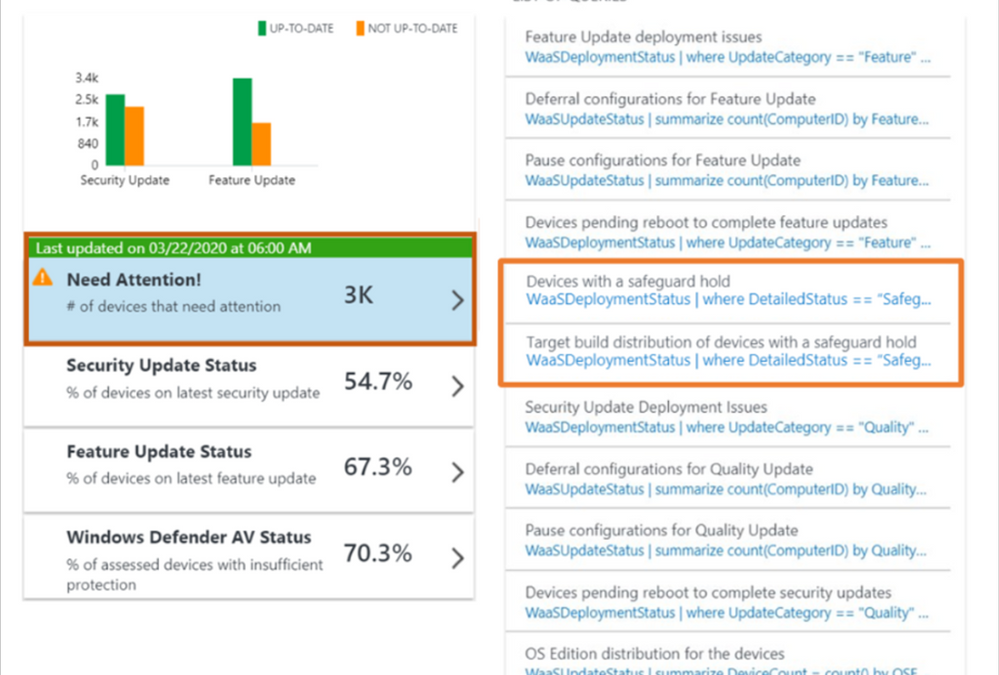
Update Compliance now supports two queries designed to help you retrieve data related to safeguard holds. The first query, “Devices with a safeguard hold”, shows the device data for all devices impacted by safeguard holds. The second query, “Target build distribution of devices with a safeguard hold”, shows data specific to how many devices are prevented from updating and which build version they belong to. One commercial ID can have devices that could be on different OS build versions. The “Target build distribution” queries displays the devices belonging to different build versions impacted by safeguard holds in the form of a chart.
 Safeguard holds as they appear in Update Compliance
Update Compliance reporting surfaces the safeguard hold IDs for known issues impacting a device in the ‘DeploymentErrorCode’ column. Every safeguard hold has a unique ID associated with it. Safeguard hold IDs for documented issues will be included in the Windows release health dashboard. To determine which safeguard hold is preventing your device’s update, go to the “Known issues and notifications” page for the specific version to which you are attempting to update (e.g. Known issues and notifications for Windows 10 and Windows Server, version 20H2). Once you have navigated to the appropriate known issues and notifications page, search (Ctrl + F) for the safeguard ID blocking your device (e.g. “25178825”). This process enables you to easily look up information related to the safeguard hold impacting your devices if that safeguard hold’s documentation is publicly available.
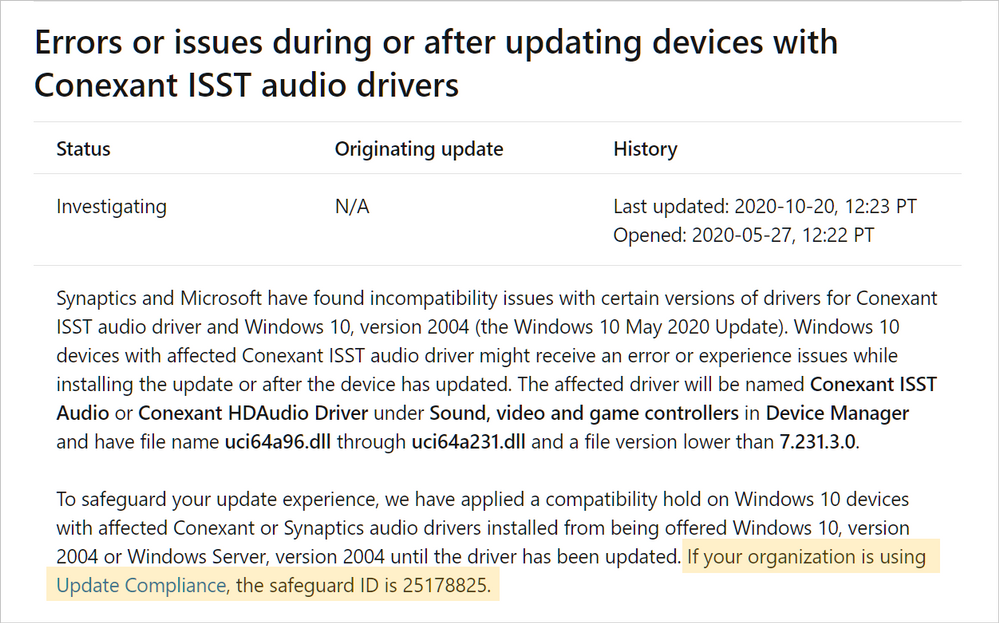 Safeguard IDs as they appear on the Windows release health dashboard
Microsoft publicly discloses information about safeguard holds preventing Windows updates when the holds are broadly applied, and Microsoft can independently address the issues driving the block. When a safeguard is the result of third-party software or hardware incompatibilities, Microsoft is subject to confidentiality requirements. Only in certain circumstances are we authorized to disclose original equipment manufacturer-driven holds.
Safeguard holds help deliver a positive update experience. Similarly, this new reporting capability in Update Compliance helps to ensure that IT administrators have a positive management experience with the insights they need to effectively manage the devices in their organization. This is another step in our path toward providing IT administrators with greater transparency and control when managing Windows updates.
by Contributed | Oct 22, 2020 | Technology
This article is contributed. See the original author and article here.
We are happy to announce that Azure RTOS 6.1 is released. This is another important milestone release after we published our source code of v6.0 in May this year. You can find the latest source code, samples and docs on GitHub: https://github.com/azure-rtos
Major features and enhancements
We build features gravitate to two major areas:
- To fulfill the requirements from major semis to better enable their devices and capabilities within Azure RTOS.
- To further simplify Azure RTOS connecting to Azure IoT services.
And these are highlighted features we added in v6.1:
- Additional MCU/Compiler support, including ThreadX modules and ThreadX SMP
- [GA] Azure IoT Middleware for Azure RTOS, with Azure Defender (Azure Security Center) integrated.
- NetX Duo standalone cryptography library. This allows customers to use NetX Crypto library without ThreadX or NetX Duo).
- FreeRTOS adaptation layer for ThreadX. This will help ST customer to migrate from FreeRTOS to use Azure RTOS ThreadX.
Samples and getting started guides
Sample projects and getting started guides were all updated using v6.1 code that developers can start evaluating by building and running them. IoT Plug and Play, DPS and Azure Security Center samples are newly included.
Licensed hardware
You can find the list of licensed Azure RTOS chips and SoCs from LICENSED-HARDWARE.txt.
If you encounter any bugs, have suggestions for new features, you can create issues on GitHub or post a question to Stack Overflow using the threadx and azure-rtos tags.
by Contributed | Oct 22, 2020 | Technology
This article is contributed. See the original author and article here.
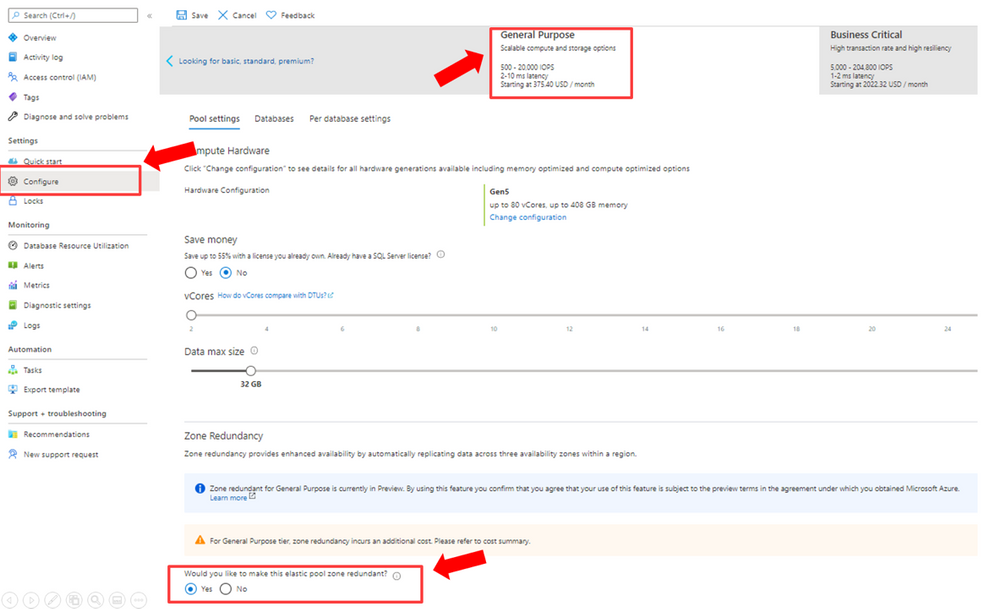
Now in preview, your new and existing Azure SQL Databases and elastic pools that use the general purpose tier can enable the zone redundant configuration. The zone redundant configuration utilizes Azure Availability Zones to replicate databases across multiple physical locations within an Azure region. By selecting zone redundancy, you can make your general purpose single databases and elastic pools resilient to a much larger set of failures, including catastrophic datacenter outages, without any changes of the application logic. For more information see general purpose service tier zone redundant availability.
How to enable the zone redundant configuration
The zone redundant configuration can be enabled for both new and existing general purpose databases and elastic pools. Once the zone redundant option is enabled, Azure SQL Database will automatically reconfigure the database or pool. You can configure this setting by using Portal, CLI, PowerShell, or ARM API.
Portal
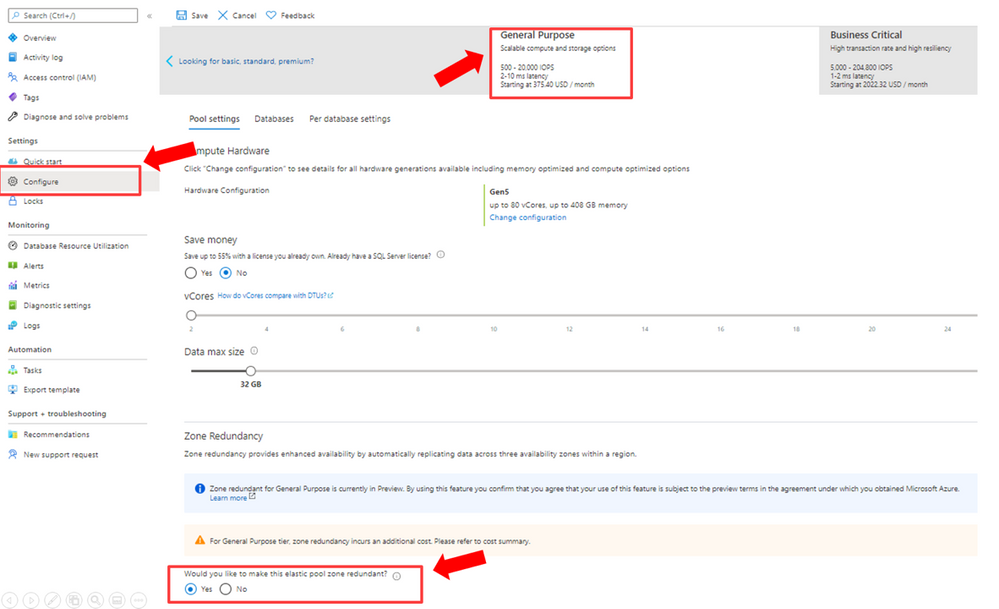
The following diagram illustrates how to use Azure portal to configure a general purpose elastic pool to be zone redundant.
CLI
The following CLI commands can be used to enable the zone redundant configuration using the –zone-redundant {false, true} parameter.
PowerShell
The following PowerShell commands can be used to enable the zone redundant configuration using the -ZoneRedundant parameter.
ARM
The zone redundant configuration can be enabled using create or update in ARM.
Regions where this is available
Zone redundant general purpose Azure SQL databases and pools are available in preview in the following regions:
- East US
- East US 2
- West US 2
- North Europe
- West Europe
- Southeast Asia
- Australia East
Additional regions will be added over time. Visit the documentation for up to date information on regions that support Availability Zones in Azure.
Please visit the pricing pages for single databases and elastic pools for pricing details for this configuration.
by Contributed | Oct 22, 2020 | Technology
This article is contributed. See the original author and article here.
We are excited to announce that the October 2020 release (1.2020.1006.0) of the MSIX Packaging Tool is now available!
We have released the MSIX Packaging Tool through the Microsoft Store, and are offering the offline download of the tool and license here as well. You can also check out the Quick Create VM to easily get the latest release in a clean environment.
Our October 2020 release features new abilities such as a services report in Package Editor, and support for Device Guard Signing v2. To learn more about other great features and fixes we’ve made, you can check out our release notes. If you have any questions, feature ideas, or just want to connect with the Product Team, join our Tech Community. We love connecting and hearing from you, so don’t hesitate to file any feedback with us via the Feedback Hub as well!
Don’t forget about our Insider Program, which gets you early access to releases as they are in development!
Sharla Akers (@shakers_msft)
Program Manager, MSIX
by Contributed | Oct 22, 2020 | Technology
This article is contributed. See the original author and article here.
To all identity focused customers, we’re giving you further capabilities and recommend you begin using the Microsoft 365 Defender portal as your focal point for everything threat protection.
Microsoft Defender for Identity feeds into Microsoft 365 Defender, Microsoft’s end to end experience which correlates signals from Microsoft Defender for Endpoints, Microsoft Defender for Office and Microsoft Cloud App Security. It truly is your one stop shop for insights into advanced threats.
This integration introduces powerful advantages to your security toolkit. Microsoft Defender for Identity with Microsoft 365 Defender allows you to do:
- Advanced Hunting – A threat-hunting tool that allows you to leverage query-based analytics across large datasets. You can bring together alerts and activities across all Microsoft 365 Defender products.
- Incident Correlation – investigation is made easier by aggregating identity alerts, assets and investigation, evidence from your devices both in the cloud and on-premises and Office 365 data locations to give you a single view to get a thorough insight into a possible attack.
- Custom Detections – allows you to get alerted on rule-based detections from advanced hunting queries, customizing your organization’s ability to respond to real threats being experienced in your industry.
Watch the video below to learn all about the new capabilities within Microsoft 365 for Defender that are available with your existing Microsoft Defender for Identity data.
https://www.microsoft.com/en-us/videoplayer/embed/RE4HcEU
by Contributed | Oct 22, 2020 | Technology
This article is contributed. See the original author and article here.
To all identity focused customers, we’re giving you further capabilities and recommend you begin using the Microsoft 365 Defender portal as your focal point for everything threat protection.
Microsoft Defender for Identity feeds into Microsoft 365 Defender, Microsoft’s end to end experience which correlates signals from Microsoft Defender for Endpoints, Microsoft Defender for Office and Microsoft Cloud App Security. It truly is your one stop shop for insights into advanced threats.
This integration introduces powerful advantages to your security toolkit. Microsoft Defender for Identity with Microsoft 365 Defender allows you to do:
- Advanced Hunting – A threat-hunting tool that allows you to leverage query-based analytics across large datasets. You can bring together alerts and activities across all Microsoft 365 Defender products.
- Incident Correlation – investigation is made easier by aggregating identity alerts, assets and investigation, evidence from your devices both in the cloud and on-premises and Office 365 data locations to give you a single view to get a thorough insight into a possible attack.
- Custom Detections – allows you to get alerted on rule-based detections from advanced hunting queries, customizing your organization’s ability to respond to real threats being experienced in your industry.
Watch the video below to learn all about the new capabilities within Microsoft 365 for Defender that are available with your existing Microsoft Defender for Identity data.
https://www.microsoft.com/en-us/videoplayer/embed/RE4HcEU


Recent Comments