by Contributed | Jan 13, 2021 | Dynamics 365, Microsoft 365, Technology
This article is contributed. See the original author and article here.
Truly engaged, always connected
The past year has brought complex challenges for retailers of every size, and in response many have quickly pivoted their businesses to adjust.
With store closures during lockdown, retailers leveraged Microsoft Dynamics 365 to facilitate new purchasing options for their customers, such as shipping from stores and click and collect. Once stores reopened, Dynamics 365 helped retailers realize the vitality of mobile point of sale solutions and contactless payment options to ensure safe and secure shopping experiences for both customers and sellers alike.
It’s clear that resilience and agility will be the key drivers of success for retailers moving forward, as customer demands change and new challenges emerge, and Microsoft is dedicated to empowering these organizations with the technology solutions they need.
Today at NRF 2021: Retail’s Big Show, we are introducing the private preview of Microsoft Cloud for Retail, as well as updates to Dynamics 365 that help retailers better engage both B2B and B2C customers. These new capabilities join Dynamics 365 and Microsoft Power Platform solutions that work together to help brands deliver personalized and meaningful customer experiences across physical and digital channels, uniquely connecting the end-to-end shopper journey.
We are excited to continue partnering with retailers leveraging Dynamics 365 and Power Platform solutions, including the new capabilities we’re announcing today, to drive their success in 2021. Take a look at how a few leading retailers around the world are looking to Dynamics 365 and Power Platform to build resilience, increase agility, and ultimately accelerate business outcomes.
Unify your e-commerce capabilities
With disparate retail systems, it’s difficult for retailers to scale across both traditional e-commerce and emerging channels for a truly seamless customer experience.
At NRF 2021, we are announcing the preview of B2B e-commerce functionality for Microsoft Dynamics 365 Commerceone of the solution’s most requested features. This new capability makes Dynamics 365 Commerce the optimal solution for B2B and B2C e-commerce on a single, holistic retail and commerce platform. By building on our consumer capabilities and bringing together B2B and B2C e-commerce, businesses can deliver consistent, personalized, and user-friendly purchasing options for all their customers. Combine this with close integration to Microsoft Dynamics 365 Sales and Microsoft Dynamics 365 Customer Service, retailers can enable curated self-service buying options for business accounts, along with increasing the productivity of their sales reps and empower them to provide informed and relevant offers to their buyers.
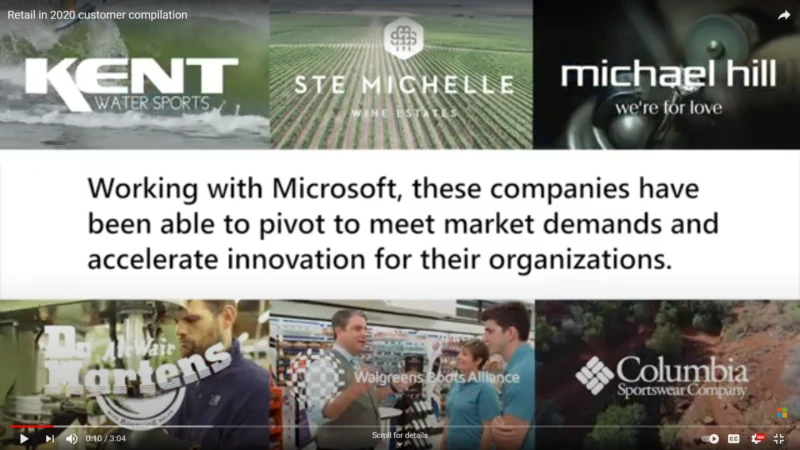
Kent Watersports is one of the largest sellers of watersports equipment globally. With a range of brands including O’Brien, Hyperlite, Connelly, Liquid Force, and more, Kent Watersports chose to work with Microsoft to help expand their e-commerce capabilities and sales capacity amidst increased online demand in 2020 and deliver a connected and user-friendly experience for both B2C and B2B customers.
“Our business customers want to be able to connect to our site and place their orders themselves. Historically, they were sharing Excel spreadsheets or calling a sales rep. We really appreciate the ability of the buyer to place the order electronically. It saves us a lot of time, and in fact it’s a better experience for the customers, and the sales reps, to actually be using our B2B e-commerce solution.”Rhett Thompson, Director of IT, Kent Watersports
Along with Kent Watersports, Columbia Sportswear also worked with Microsoft to rapidly adjust to market changes amid temporary store closures by the pandemic in early 2020. Columbia Sportswear leveraged Dynamics 365 Commerce to facilitate shipping from stores to meet customer demand and also started converting their store experiences to be compliant with local regulations. Once stores reopened, mobile point of sale solutions and contactless payment options became broadly adopted and ensured safe and secure shopping experience for both customers and sellers alike. Russel Anderson, Sr. Director Retail Operations, Columbia Sportswear shared how Dynamics 365 reduces time to value: “With Dynamics 365 Commerce we have realized that technology does not need to move as slowly as we previously thought it did, it can move faster.”
Throughout the NRF 2021 digital event, we will also showcase how retailers are using Dynamics 365 and Power Platform solutions to understand and engage customers, reduce fraud risk, and build resilient and agile supply chains.
Know your customer like never before
Providing personalized experiences at scale requires deep insights into customer needs and buying behavior. Microsoft Dynamics 365 Customer Insightsbrings together transactional, behavioral, and demographic data in real time to create a complete view of your customers and unlock insights to drive informed decisions, automate processes, and personalize customer engagement across channels.
Chipotle Mexican Grill is using Dynamics 365 Customer Insights to organize, analyze, and enrich its customer data to target marketing efforts so they’re as meaningful and effective as possible. With multiple sources of customer data but no comprehensive customer data platform, they couldn’t use that data to drive business insights or improve marketing efforts. Now, having chosen Microsoft to help navigate its customer data journey, Chipotle can understand customer preferences and customize relevant marketing messages, boosting revenue for the company and increasing personalization for customers.
Protect your customers and your bottom line
As more businesses turn to e-commerce, it also increases the exposure to fraud and abuse: a majority of fraud is committed during card-not-present transactions. Fraud is not only a burden for customers with stolen identities, account takeover, and more, but it represents a serious operational hazard for merchants. Microsoft Dynamics 365 Fraud Protection is a cloud-based SaaS solution designed to help e-commerce, brick-and-mortar, and omnichannel merchants decrease fraud costs and improve profitability. We are helping merchants globally to protect their revenue and reputation with tools and capabilities to decrease fraud and abuse, reduce operational expenses, and increase acceptance rates, while safeguarding user accounts from fraud exposure.
Darden Restaurants, operating some of the most recognizable brands in full-service dining including Olive Garden and LongHorn Steakhouse, needed to move swiftly to address a growing fraud issue during the COVID-19 pandemic. With the shift to an online-only model, Darden started noticing some fraudulent payments and looked to Microsoft for help. Darden Restaurants deployed Dynamics 365 Fraud Protection to combat purchase fraud at LongHorn Steakhouse, and together with Microsoft they had the solution quickly up and runningprotecting the restaurants and customers against fraud.
Build a supply chain that can handle any challenge
Another major repercussion of the COVID-19 outbreak has been the exposure of global supply chain vulnerabilities. Merchants need real-time visibility into their inventory to drive demand for overstock products and expedite replenishment of out-of-stock items cost effectively. Microsoft Dynamics 365 Supply Chain Management helps businesses build a resilient supply chain and agility to rapidly re-plan supply and distribution of products in near real-time with in-memory microservice to adapt to shifting customer demand. Dynamics 365 Supply Chain Management enables businesses to accomplish this in a matter of minutes, instead of days. Businesses can also seamlessly scale distribution and warehouse operations with edge computing during peaks. This capability, combined with an intelligent distributed order management system, provides businesses with a single global view of their inventory, to intelligently manage, automate, and optimize order fulfillment to ensure on-time delivery in a cost-effective manner.
One of our customers, Mobilezone, simplified the solutions landscape by choosing Dynamics 365 to get a better view of their customers and omnichannel sales capabilities for operating online, company-owned, and partner stores. Mobilezone consolidated its customer information within a single platform for heightened security, greater ease of use, and vastly improved inventory management. Mobilezone uses the synergy between Dynamics 365 Supply Chain Management and Dynamics 365 Commerce to analyze and satisfy demand.
“By using Supply Chain Management, we can automate alerts regarding inventory in specific locations, so we avoid the risks of out-of-stocks and overstocking.”Fritz Hauser, Director of IT and Logistics, Mobilezone
Another customer, Monogram Foods, is excited to enhance warehouse operations and create resiliency using edge scale units for Dynamics 365 Supply Chain Management. As Turner Foster, Senior Developer Manager, Monogram Foods explains: “Our frozen goods warehouse has a tight time constrained picking process, and it is critical for our warehouse team to have a consistent and reliably quick response throughout the entire picking operation. The architectural design of the solution ensures that these critical warehouse workloads are isolated from the rest of our operations, eliminating points of contention during these time sensitive processes.”
Retail solutions that are built to work together
Together, Dynamics 365 Commerce, Dynamics 365 Customer Insights, Dynamics 365 Supply Chain Management, and Dynamics 365 Fraud Protection help businesses streamline omnichannel operations, providing near real-time solutions for managing inventory, reducing fraud risk, and creating new customer services. Power Platform works together with Dynamics 365 to provide an additional layer of flexibility of adaptability, delivering low-code solutions to innovate with apps, automate processes, create virtual bots to improve service, and analyze data quickly to streamline reporting and gain insights across the organization, from the frontline to the supply chain, sales to service.
Get the full story
If you are registered for NRF 2021, we invite you to join Shelley Bransten, Microsoft’s Corporate Vice President, Consumer Goods and Retail Industries, to learn how Microsoft is empowering retailers from across the globe to build more intelligent, resilient, and sustainable retail operations. Tune in on Wednesday, January 13 at 1:00 PM Eastern Time.
Also, continue to visit the Dynamics 365 blog this week to learn more about how Dynamics 365 and Power Platform are helping retailers reimagine the road ahead with truly engaged, always connected solutions. Be sure to check out our new Business Applications retail industry webpage for more information.
The post NRF 2021: enabling retailers to reimagine the road ahead with Microsoft Business Applications appeared first on Microsoft Dynamics 365 Blog.
Brought to you by Dr. Ware, Microsoft Office 365 Silver Partner, Charleston SC.
by Contributed | Jan 13, 2021 | Technology
This article is contributed. See the original author and article here.
If there’s one thing we learned in 2020, it is that frontline workers are essential in today’s world. As companies realize how important they are, this time, they are bringing them along the digital transformation journey. There is no excuse for these workers to be left on the sidelines anymore.
Here are 8 new features that make frontline workers, managers, and IT’s jobs a little easier.
One tool to meet frontline worker needs
Whether working in back-to-back shifts where hand-offs cannot occur in person, connecting with corporate employees or consulting with remote company experts – Microsoft Teams has your frontline workers covered. In fact, Teams daily active usage more than doubled since March, primarily driven by chats/channels activity, which resembles frontline worker behavior.
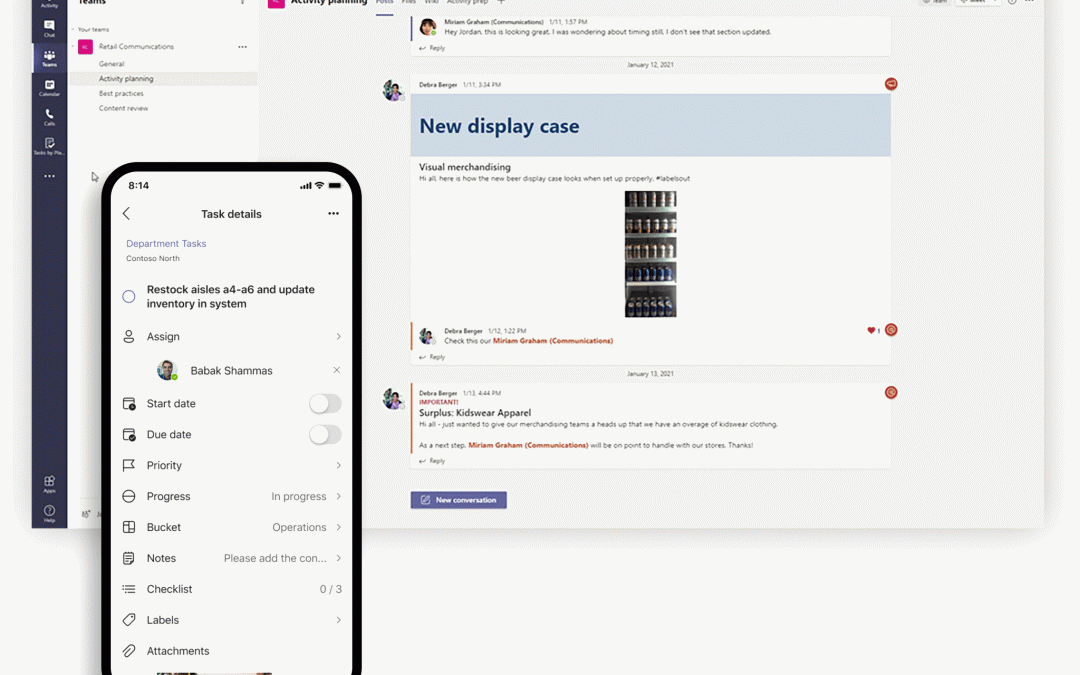
1. Tasks Publishing – As the need for corporate offices to better communicate and work with their frontline workforce becomes top of mind, task publishing lets companies create tasks centrally at the corporate level and publish those tasks to different locations, specific store layouts or other customizable attributes of their frontline teams. For example, leadership for a nationwide retailer can create tasks for the reopening of their stores, attach relevant documents like a planogram, send that list to only the affected store locations, and then track progress against the assigned tasks. Managers can easily assign tasks to individual employees, while frontline workers can see a simple prioritized list of those tasks on their personal or company-issued mobile device. Task publishing is now generally available. Learn more about task publishing here.
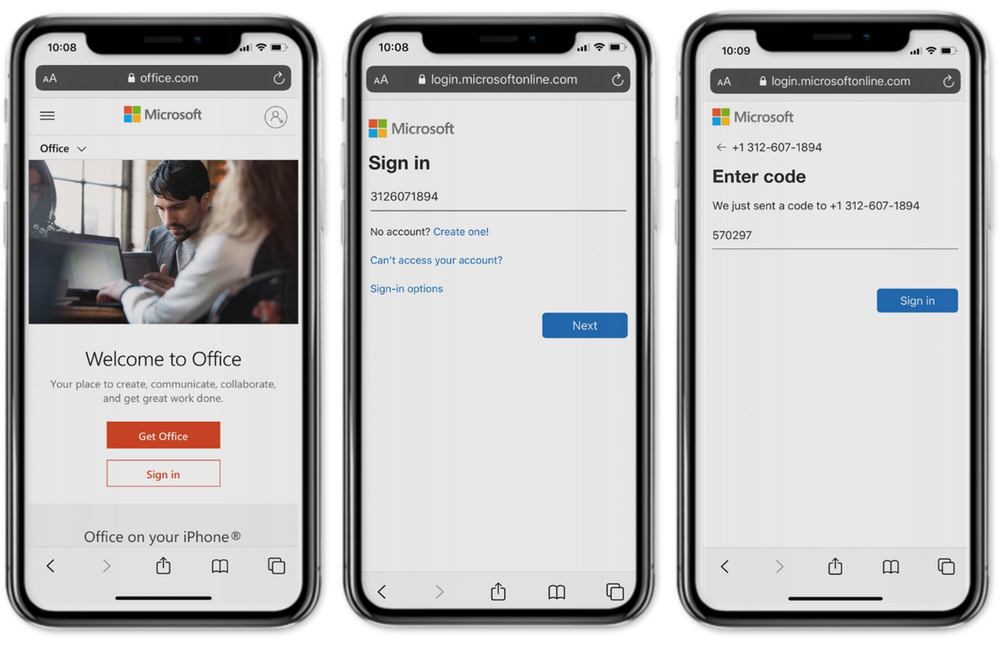
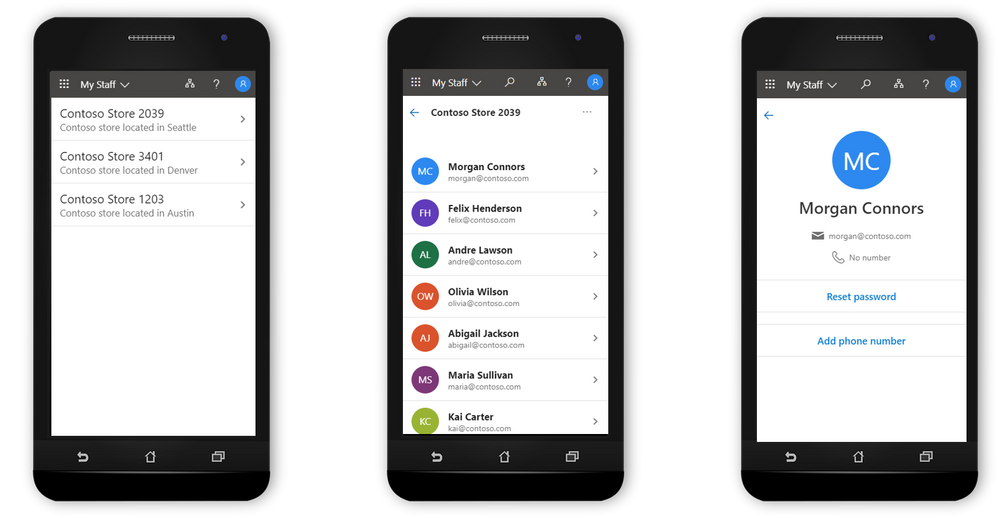
2. SMS sign-in – employees are able to sign in to their Azure Active Directory (Azure AD) account using one-time SMS codes—reducing the need to remember usernames and passwords. Once enrolled, the user is prompted to enter their phone number, which generates an SMS text with a one-time password. SMS sign-in is a single sign-on (SSO) experience, enabling frontline workers to seamlessly access all the apps they are authorized to use. This new sign-in method can be enabled for select groups and configured at the user level in the My Staff portal—helping to reduce the burden on IT. Click here to learn more.
3. @mention by shift group – Tagging by shift connects you to the right people faster. This new feature enables teams to take the guesswork out of knowing the names of on-shift employees and automatically assigns users with tags matching their schedule in the Shifts app in Teams, backed by major workforce management systems like AMiON, BlueYonder, and Kronos. Use this @mention tag to start a chat or call, or to just notify everyone on a channel.
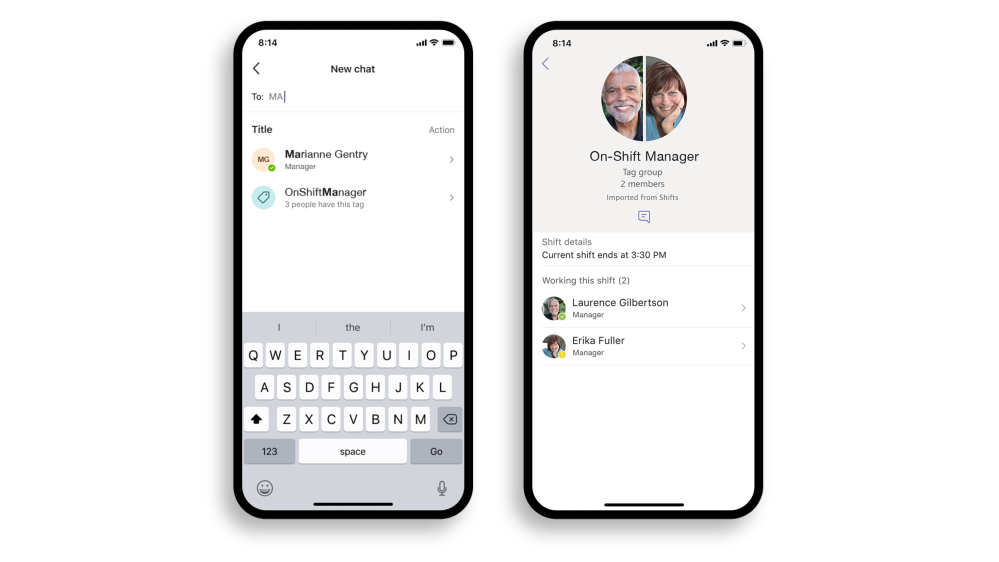
Tagging by shift is rolling out now and will be fully available by Jan 31. Learn more about how to start using @mention by shift group here.
Supporting frontline managers
4. Delegated user management through My Staff portal – Frontline managers can approve password resets and enable employees to use their phone numbers for SMS sign-in, all via a single customizable portal enabled by IT. With this tool, managers can unblock staff issues—reducing the burden of identity management on IT, and keeping employees connected to the apps they need on the job. Click here to learn more.
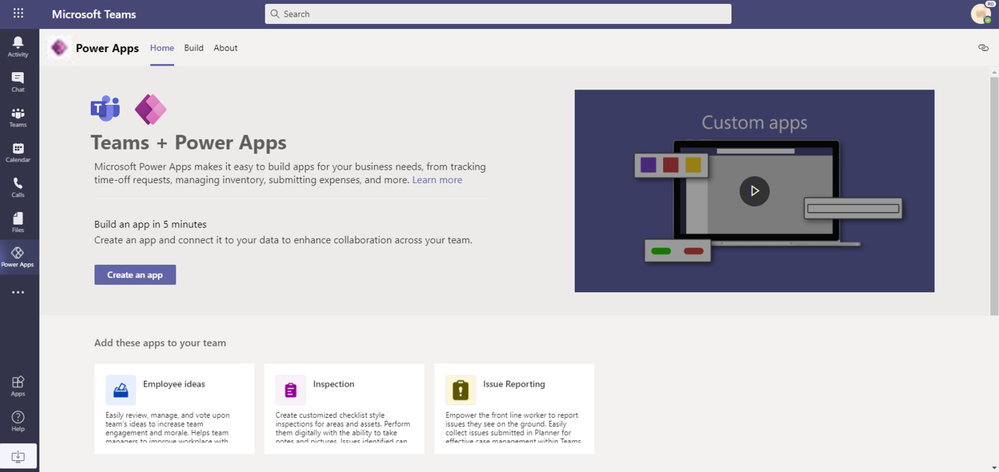
5. Digitize manual processes with the Power Platform – Power Apps allow you to create custom low code apps for your frontline workers. The relative simplicity of building these apps allow you to be responsive to the needs of your business, including many firstline scenarios that don’t have technology solutions today. And when combined with automated workflows built with Power Automate, you can digitize and streamline entire processes. For example, Power Apps and Power Automate can totally transform a customer service recall process by alerting store members on Teams via an automate workflow of an item that needs to be pulled from shelves. The frontline workers can then monitor recall alerts and flag new issues with products using a custom app built with Power Apps. Click here to learn more!
Simplifying IT
Bring time to value benefits by streamlining the deployment process and tailoring a frontline team’s collaboration experience. See what Teams templates and policy packages can do for you.
6. Policy Packages – With frontline worker and frontline manager policy packages, IT administrators can easily assign pre-defined policies and policy settings tailored for their frontline workforce. Policy packages create a simple, centralized, and consistent way to manage your Frontline workforce, no matter how big. This month, we are launching group assignment for policy packages via PowerShell and coming soon, group assignment via Teams Admin center.
Availability: These new policy packages are available by default in the IT Admin Center and in PowerShell. Learn more about setting up and customizing the policy packages for Firstline Workforce here.
7. Team Templates – With Teams templates, you can create effective teams faster and more easily than ever. Users can choose from common business scenarios, such as Employee Onboarding and/or industry-specific templates, like Retail – manager collaboration and Organize a store. Each team template comes with pre-defined channels, tabs, and apps. Coming soon are team template policies which allow IT administrators to hide/show specific team templates for users in their organization. This allows admins to tailor the content for business needs. For example the IT administrator could only show retail templates or only show a set of retail + custom team templates, etc.
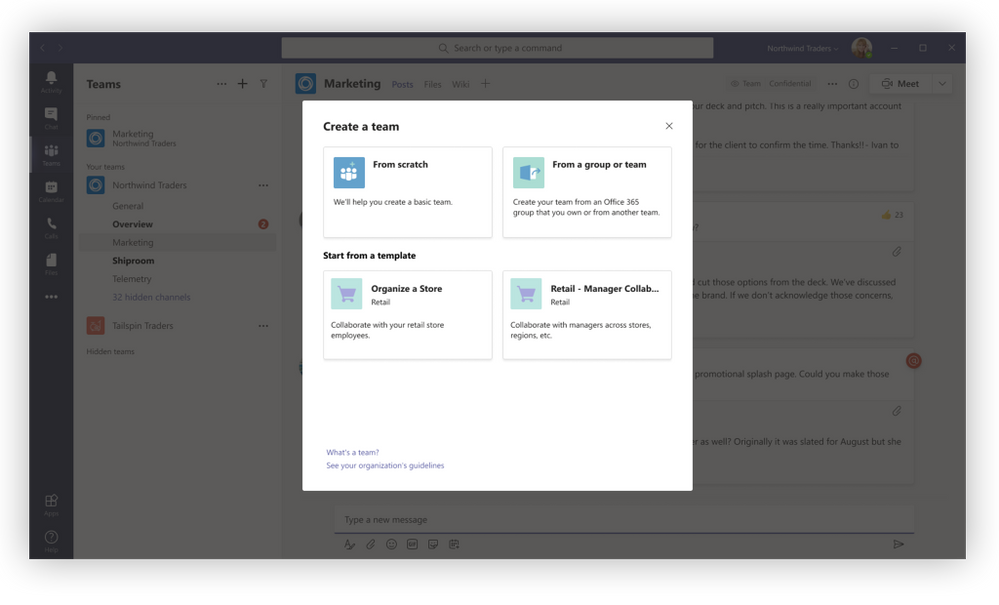
Custom team templates empower admins to create the right collaboration space for users in their organization. Learn more about creating a template from scratch, from an existing team, from an existing template, and team templates using Microsoft Graph. Teams templates policies will be rolling out soon.
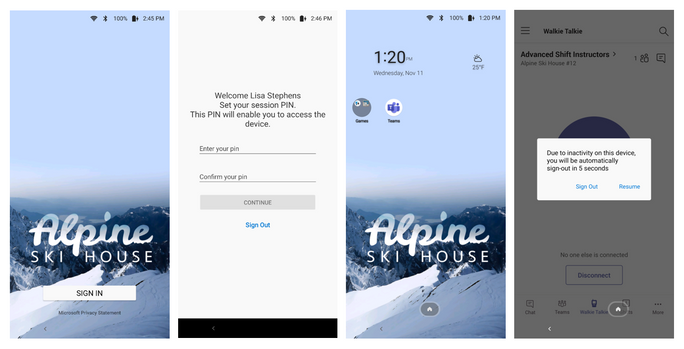
8. Manage shared devices with Endpoint Manager – Microsoft Intune and Configuration Manager are now part of a unified management platform known as Microsoft Endpoint Manager. You can choose to enroll your Android Enterprise (AE) dedicated devices into Microsoft Intune with Azure AD shared mode automatically configured. For more information: Customize and configure shared devices for Firstline Workers at scale – Microsoft Tech Community
Looking ahead
We look forward to sharing the latest innovations as we approach Microsoft Ignite! This is just the beginning in our journey to empower every frontline worker in every organization to achieve more. We look forward to sharing more announcements in future blogs. Don’t forget to check out the newest Microsoft Mechanics video covering the latest frontline worker features in Teams!
by Contributed | Jan 13, 2021 | Technology
This article is contributed. See the original author and article here.
After releasing many features/enablers that unblock and accelerate the migration of SQL Server Integration Services (SSIS) packages into Azure Data Factory (ADF), see https://techcommunity.microsoft.com/t5/sql-server-integration-services/blast-to-the-future-accelerating-legacy-ssis-migrations-into/ba-p/1792821, we’d like to show you how to use Azure-Enabled SQL Server Data Tools (SSDT) as an all-in-one SSIS migration tool.
Azure-enabling SSDT has allowed us to preserve the skillsets of our customers who are familiar with it as they’ve been using it for a while to design, debug, and deploy their SSIS packages to run on premises. Now, they can also use it to assess their existing packages for cloud compatibility, test their executions in Azure, and migrate/redeploy them to run in Azure.
This article illustrates how to perform cloud assessment, execution testing in Azure, and migration/redeployment to Azure of a typical ETL package, all using SSDT and without changing/modifying the original package.
Cloud Compatibility Assessment
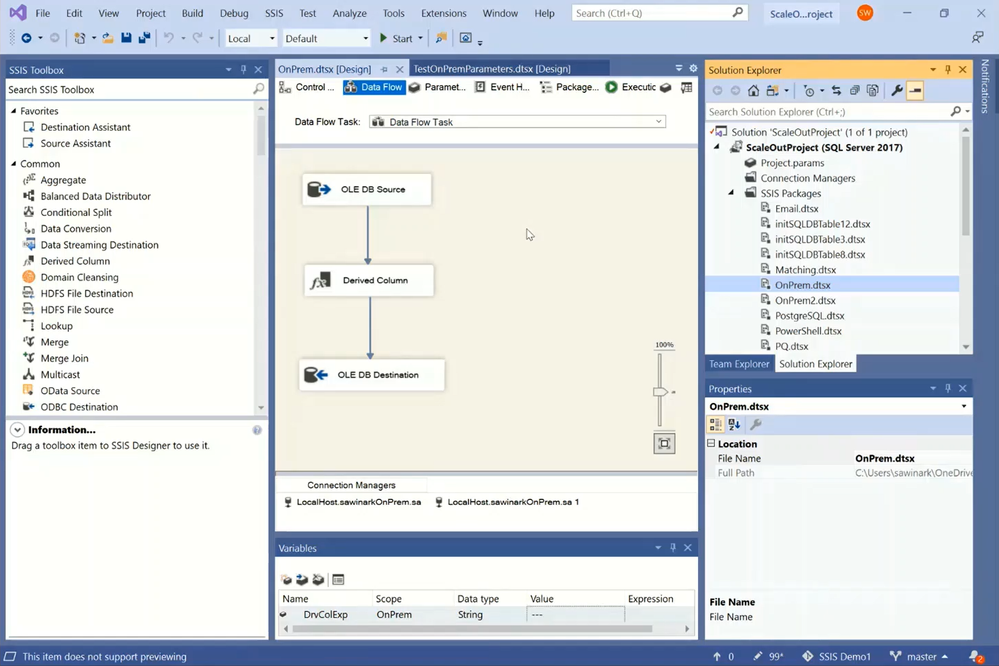
Let’s start by opening my existing on-premises SSIS project using the latest SSDT with SSIS Projects extension for Visual Studio (VS). The sample ETL package I use, OnPrem.dtsx, executes a Data Flow Task:
— It first extracts data from a database table in my SQL Server on premises using an OLEDB Source component that connects with Windows authentication.
— It then transforms the data using a Derived Column component that adds a new column filled by combining entries from other columns and a string user variable.
— It finally loads the transformed data into another database table in my SQL Server on premises using an OLEDB Destination component that connects with Windows authentication.
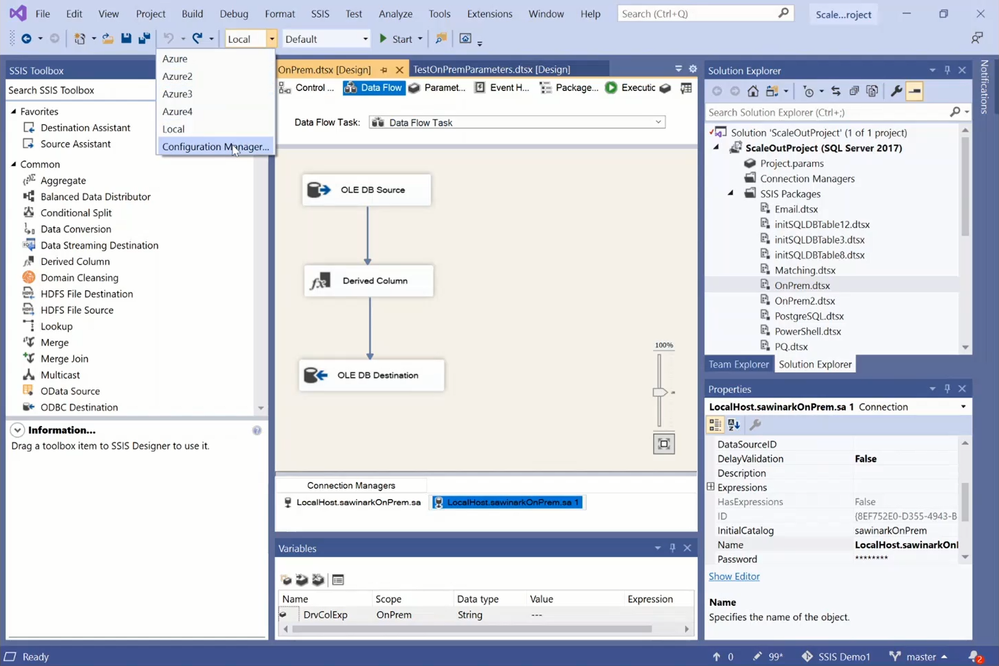
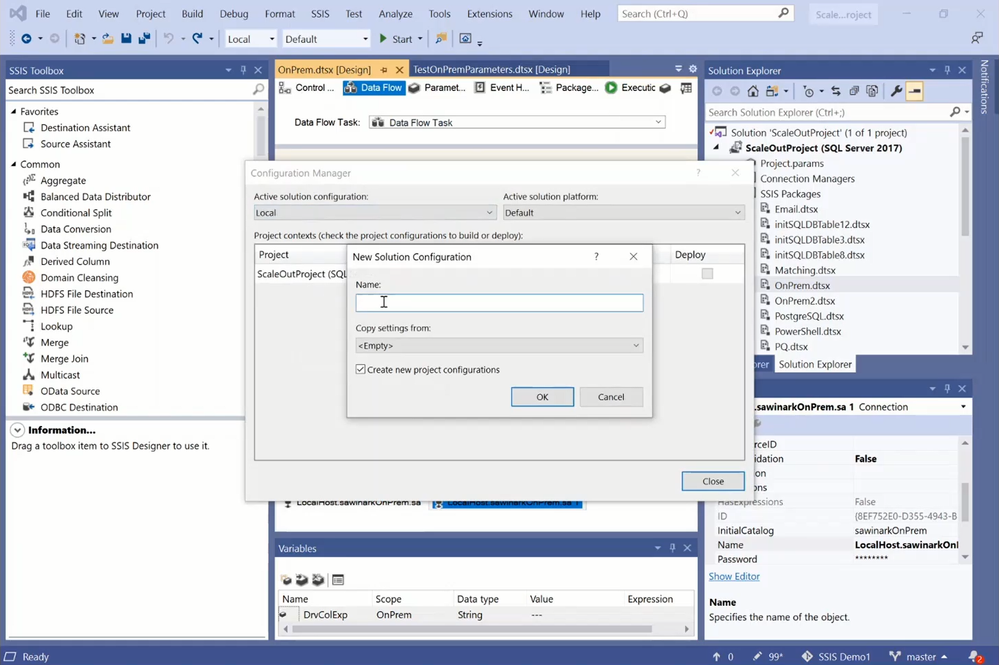
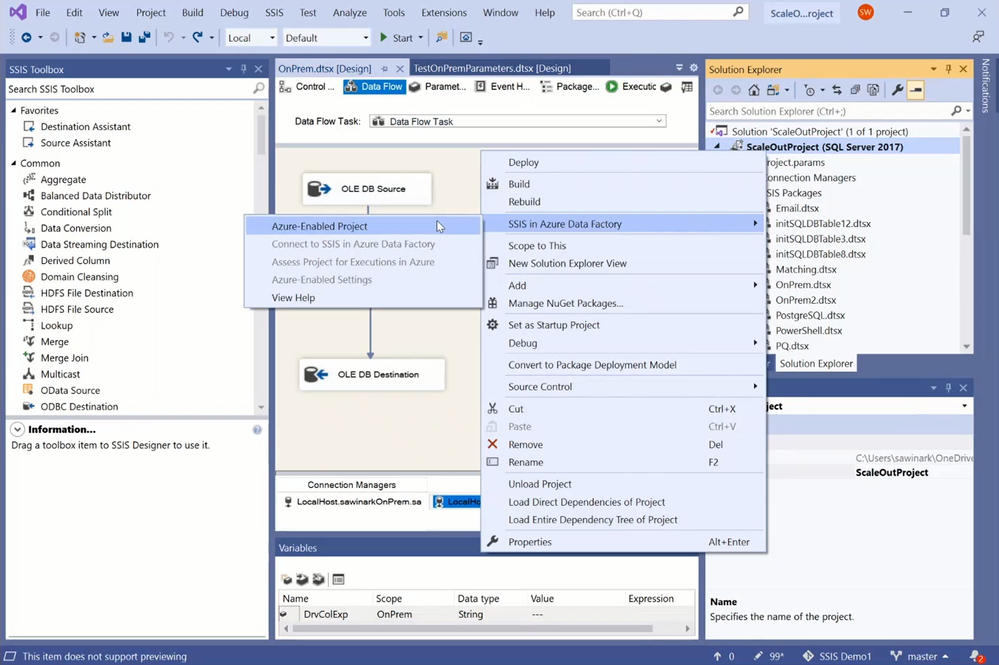
To assess the cloud compatibility of my sample package and test its execution in Azure, I need to Azure-enable my project in a VS configuration. I’ve already created five VS configurations to apply different package execution settings, one for executions on my local machine and four for executions on my SSIS Integration Runtime (SSIS IR) in Azure Data Factory (ADF). You can create new VS configurations using Configuration Manager.
You can Azure-enable your project using Azure-Enabled Project Wizard, where you’ll be guided to select your VS configuration, SSIS IR, and Azure Storage. In this way, when you execute your packages in Azure, SSDT will upload them to Azure Storage for your SSIS IR to fetch and run with the run-time settings from your selected VS configuration.
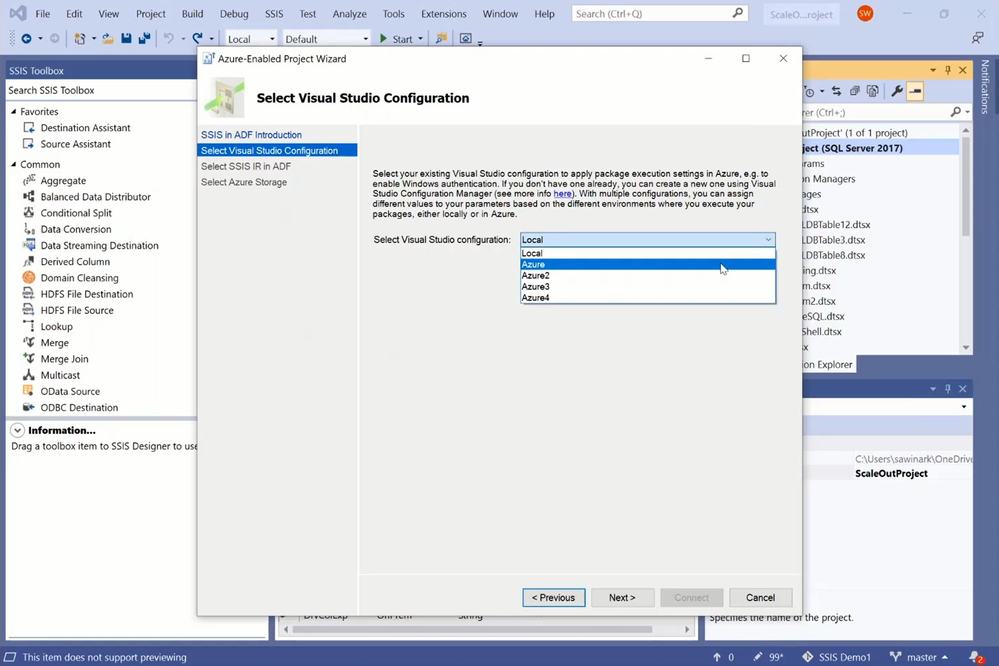
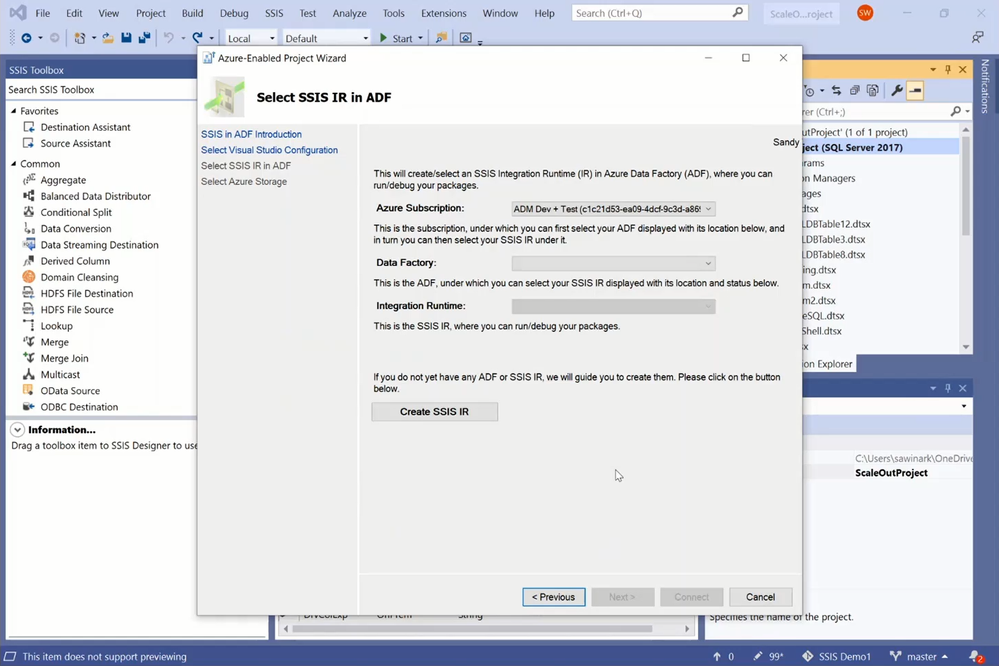
On Azure-Enabled Project Wizard, you can select your Azure subscription, under which you’ll then select your existing ADF and SSIS IR. If you don’t have any under your selected subscription, you can create new ones using Integration Runtime Creation Wizard.
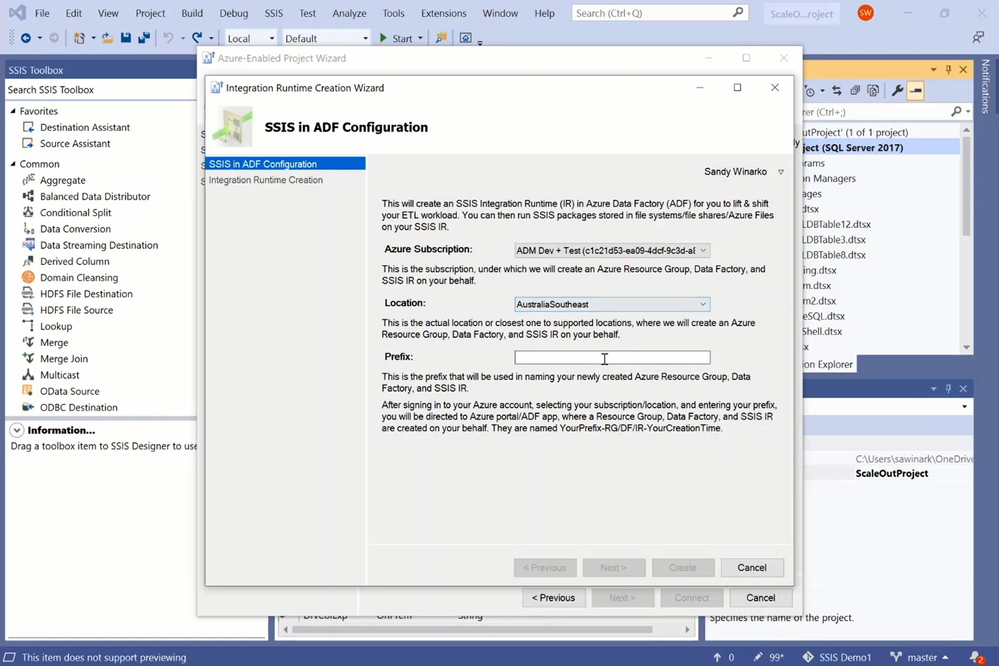
On Integration Runtime Creation Wizard, you can select your Azure subscription, under which a new Azure Resource Group, ADF, and SSIS IR will be created, select an Azure region, where they’ll be created, and enter a prefix that will be used in their names.
After selecting your ADF and SSIS IR, you can select your Azure subscription, under which you’ll then select your existing Azure Storage. If you don’t have any under your selected subscription, you’ll be guided to create a new one. After selecting your SSIS IR and Azure Storage, you can connect them to your Azure-enabled project and assess its cloud compatibility, all packages at once or one by one.
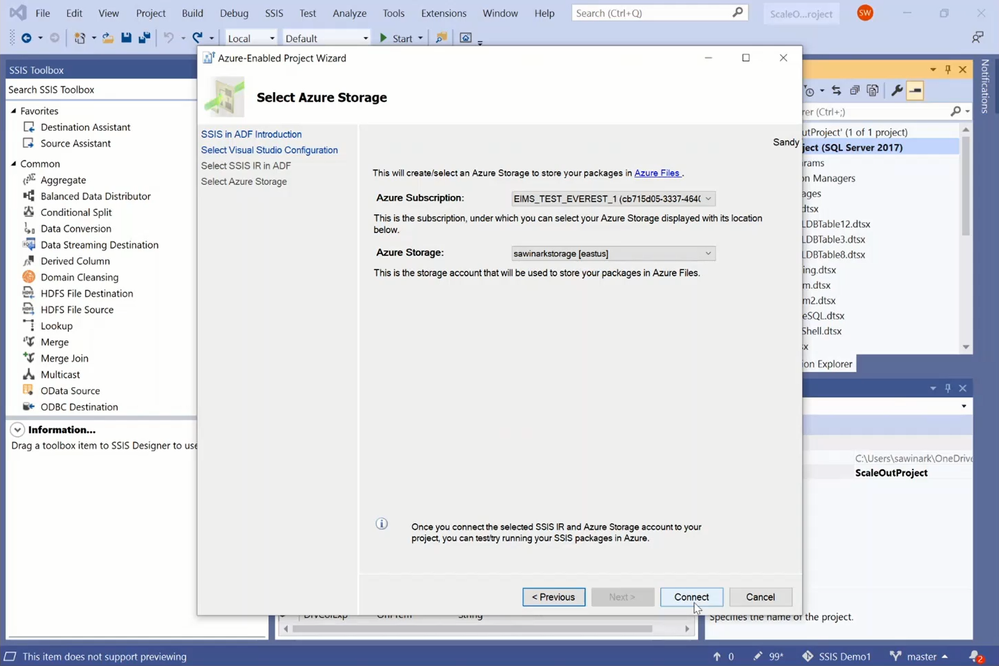
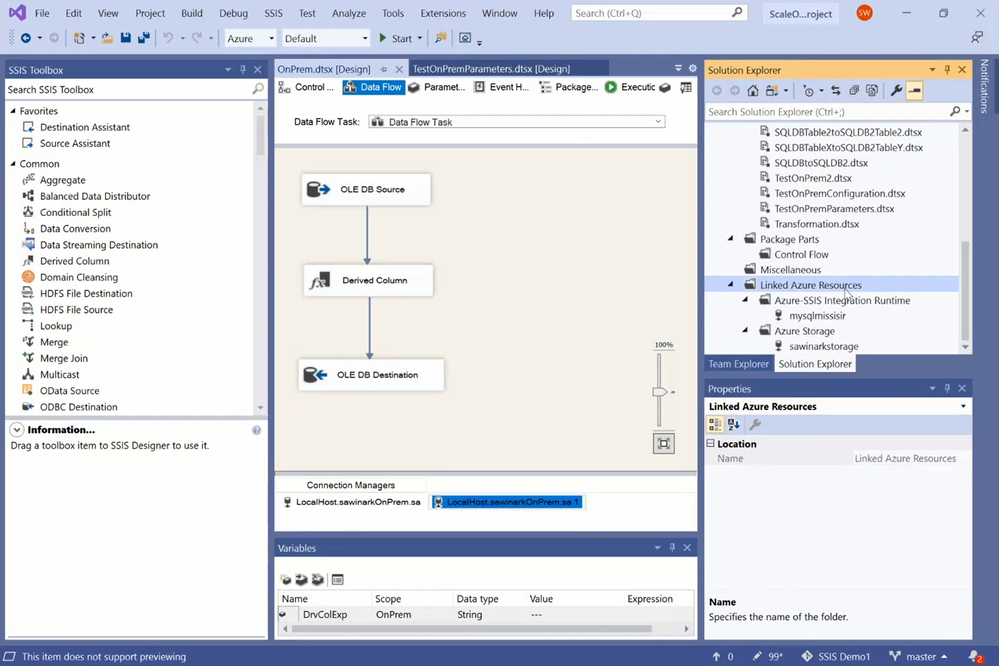
Let’s assess the cloud compatibility of my sample package that was run on SSIS on premises to perform on-premises-to-on-premises ETL.
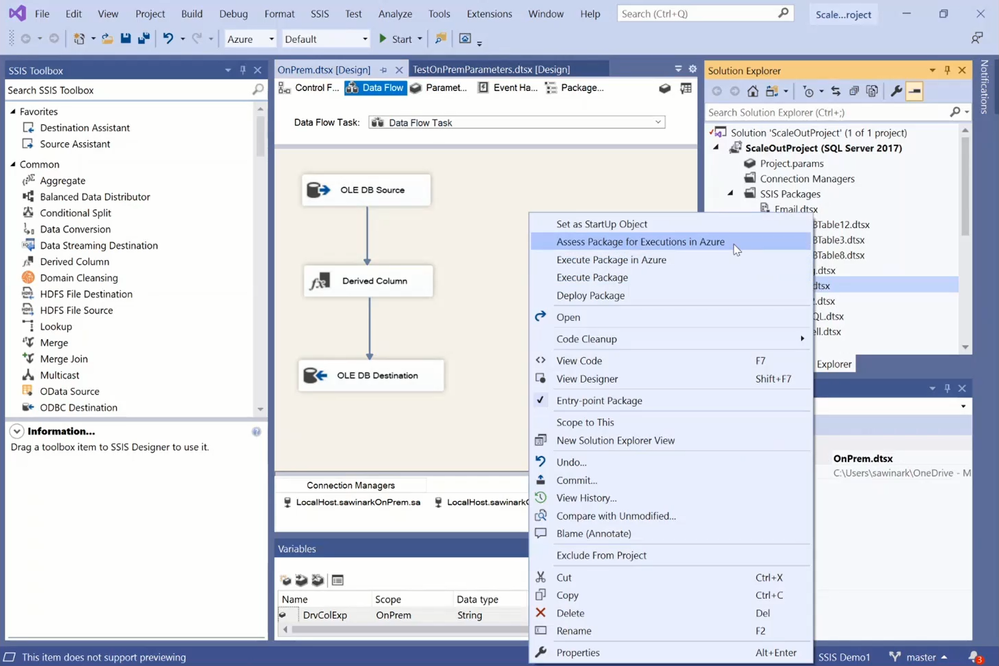
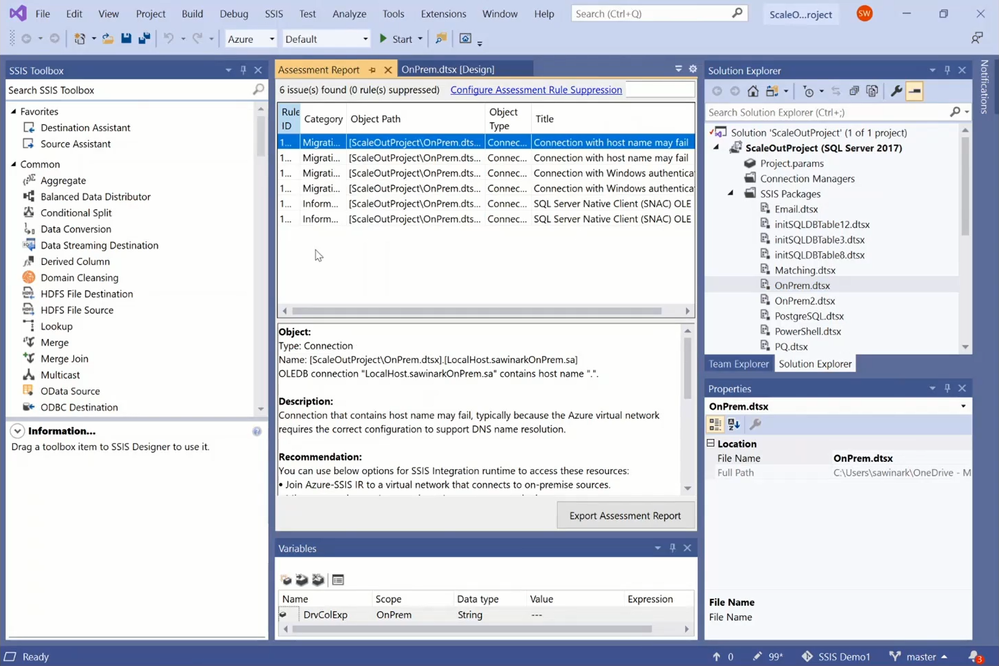
On the Assessment Report, you can observe six potential issues if my sample package is run on SSIS IR in ADF without any modifications:
— The first and second issues highlight the connection string property of source and destination connection managers that contains a host name.
— If the source and or destination stay on premises, then the host name can be resolved if this package runs on Self-Hosted IR as a proxy for SSIS IR or if a Domain Name System (DNS) server is configured for SSIS IR that joins a virtual network (VNet) connected to the on-premises network.
— If the source and or destination move to the cloud, for example to Azure SQL Database (DB)/Managed Instance (MI), then the connection string must be modified to use the appropriate data source, initial catalog, etc.
— The third and fourth issues highlight the connection string property of source and destination connection managers that uses Windows authentication.
— If the source and or destination stay on premises, then the Windows authentication feature of SSIS IR must be enabled.
— If the source and or destination move to the cloud, for example to Azure SQL DB/MI that don’t support Windows authentication, then the connection string must be modified to use SQL authentication or Azure Active Directory (AAD) authentication.
— The fifth and sixth issues highlight the connection string property of source and destination connection managers that uses a deprecated SQL Server Native Client (SQLNCLI) driver.
— If the source and or destination move to the cloud, for example to Azure SQL DB/MI, and I want to connect using AAD authentication, then the connection string must be modified to use the latest MSOLEDBSQL driver.
In order to run my sample package on SSIS IR in ADF, we can mitigate the compatibility issues in many ways, for example:
— We can mitigate the first, third, and fifth issues by keeping the source in SQL Server on premises and connecting to it using Windows authentication. This requires us to do the following:
— We need to configure Self-Hosted IR as a proxy for SSIS IR. I’ve done this when provisioning my SSIS IR, see https://docs.microsoft.com/azure/data-factory/self-hosted-integration-runtime-proxy-ssis.
— You can select your connected SSIS IR on SSDT to open its monitoring page in ADF portal, where you can see which Self-Hosted IR is configured as its proxy.
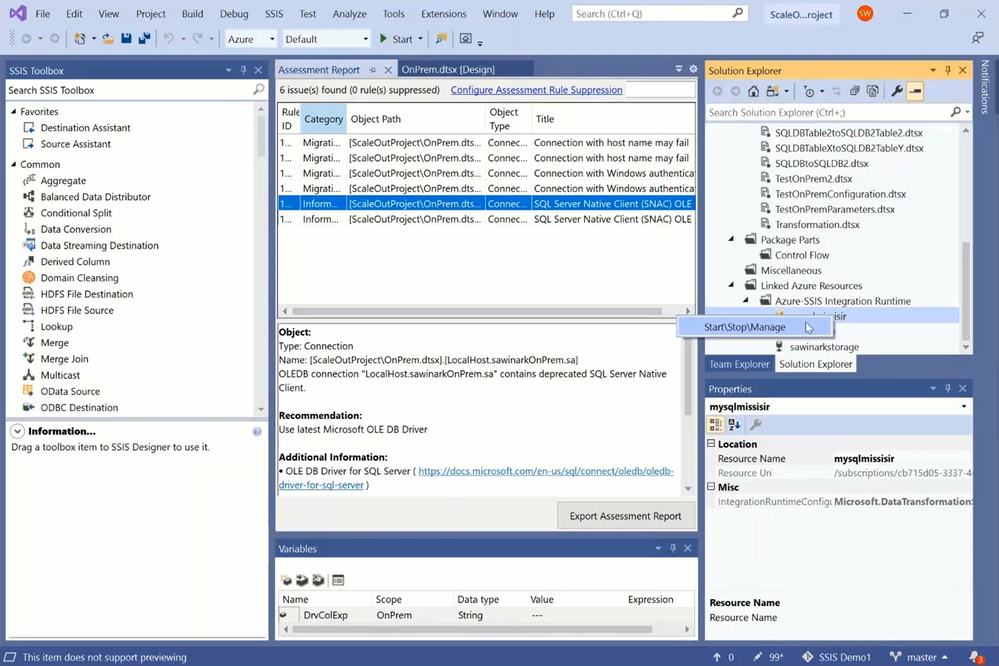
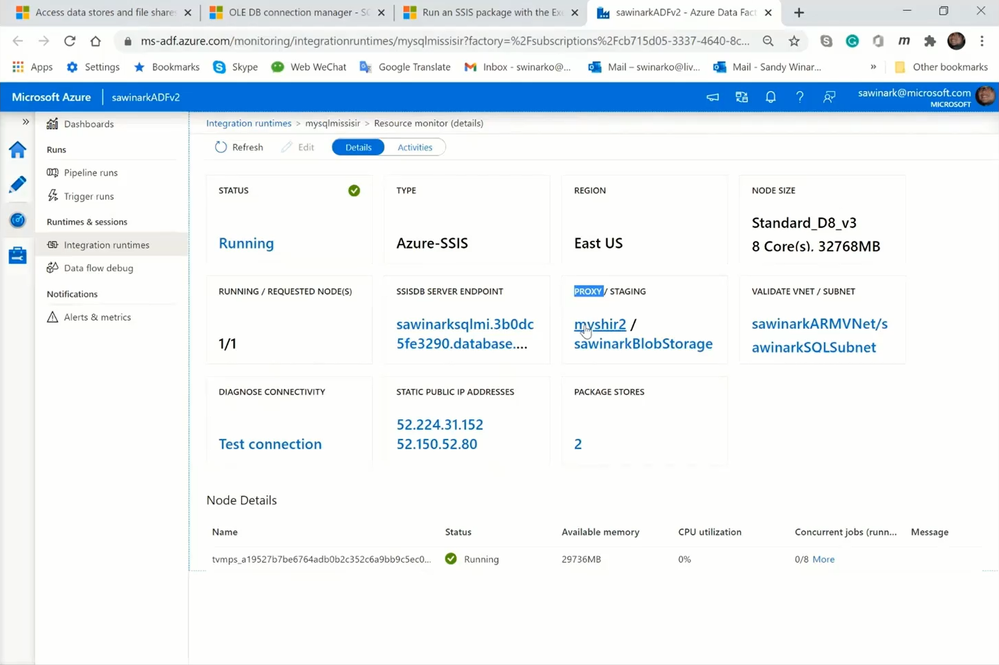
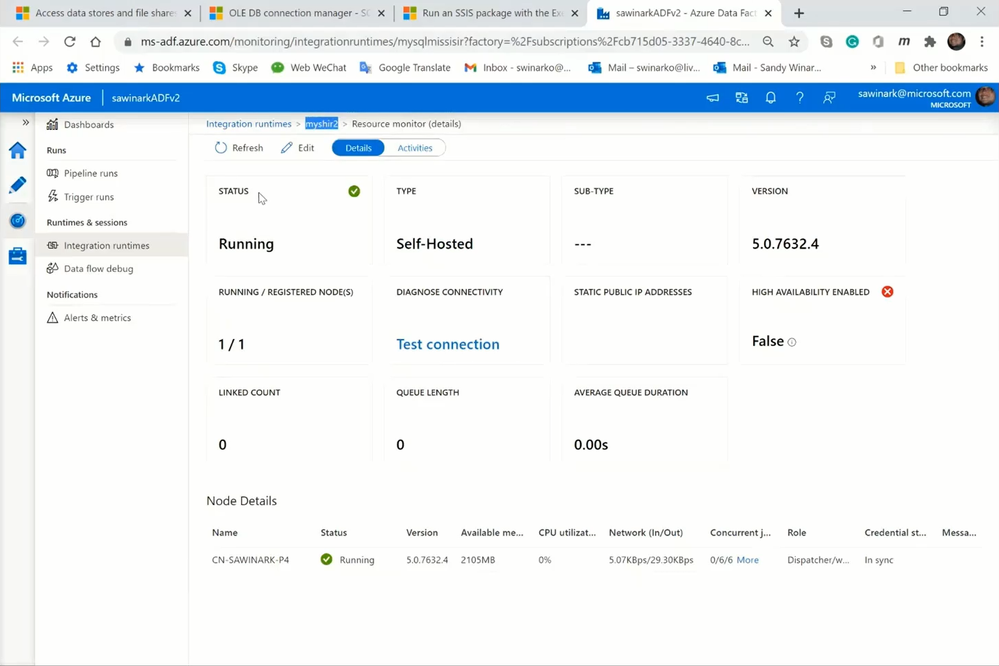
— You can also download, install, and register Self-Hosted IR on a local machine connected to the on-premises SQL Server. I’ve installed both Self-Hosted IR and SQL Server on my laptop.
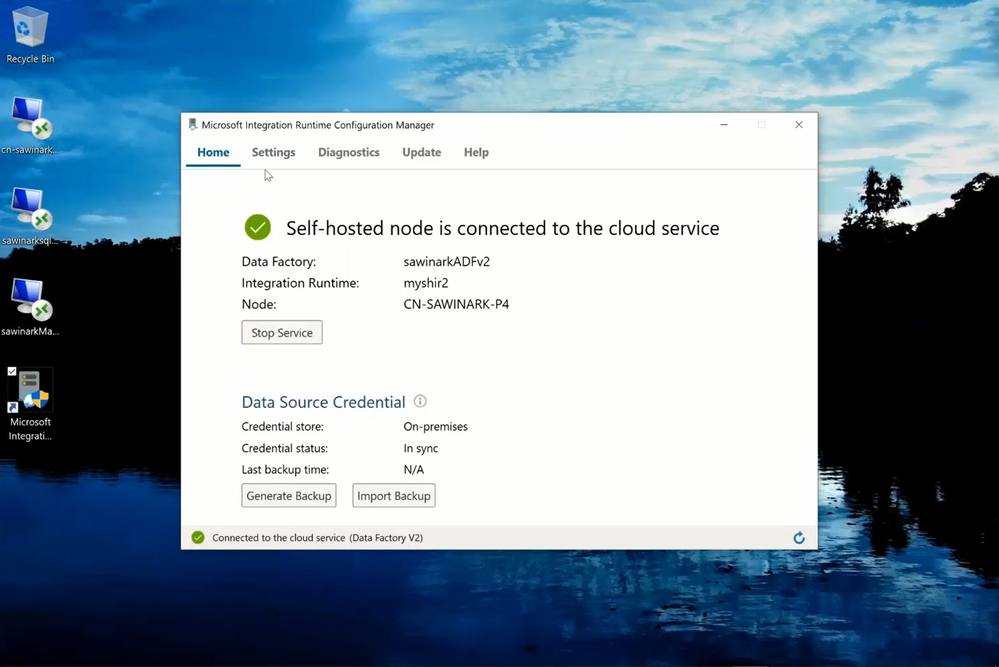
— We also need to enable Windows authentication feature of SSIS IR:
— To do this in production, you can use Execute SSIS Package activities in ADF pipelines, SSIS catalog (SSISDB) stored procedures, or custom setups to run Windows cmdkey command, see https://docs.microsoft.com/azure/data-factory/ssis-azure-connect-with-windows-auth.
— To do this in testing from SSDT, you can use Azure-enabled settings on VS configuration.
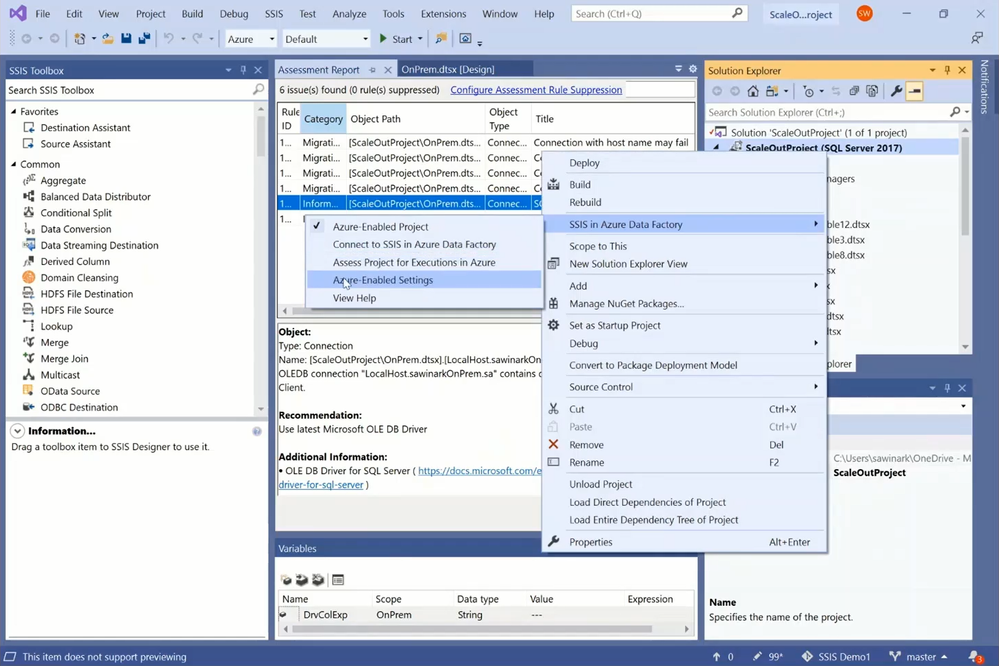
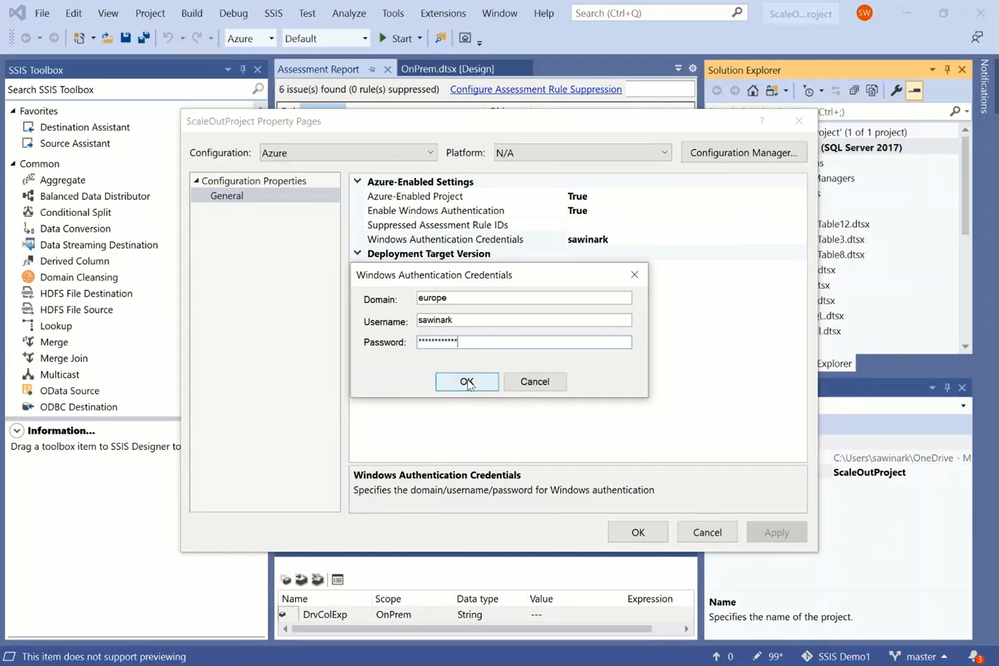
— We finally need to enable the ConnectByProxy property of source connection manager:
— To do this in production without redesigning your existing packages, you can assign the appropriate values to your SSIS parameters, connection manager properties, or property overrides at run-time.
— To do this in testing from SSDT without redesigning your existing packages, you can use VS configurations with SSIS parameters/package configuration files on copies of your packages.
— We can also mitigate the second, fourth, and sixth issues by changing the destination to Azure SQL DB and connecting to it using AAD authentication with ADF managed identity. This requires us to do the following:
— We need to create a contained database user for ADF managed identity. You can do this on SQL Server Management Studio (SSMS), see https://docs.microsoft.com/sql/integration-services/connection-manager/ole-db-connection-manager?view=sql-server-ver15#managed-identities-for-azure-resources-authentication.
— We also need to modify the ConnectionString property of destination connection manager to use the appropriate data source, initial catalog, authentication method, and driver/provider, as well as to enable its ConnectUsingManagedIdentity property.
— To do this in production without redesigning your existing packages, you can assign the appropriate values to your SSIS parameters, connection manager properties, or property overrides at run-time.
— To do this in testing from SSDT without redesigning your existing packages, you can use VS configurations with SSIS parameters/package configuration files on copies of your packages.
Execution Testing in Azure
We can use VS configurations with SSIS parameters to mitigate the compatibility issues and test running my sample package on SSIS IR in ADF from SSDT.
— To avoid making any changes to the existing OnPrem.dtsx package, I’ve copied it as TestOnPremParameters.dtsx for testing.
— We can now parameterize the ConnectByProxy, ConnectionString, and ConnectUsingManagedIdentity properties of both source and destination connection managers.
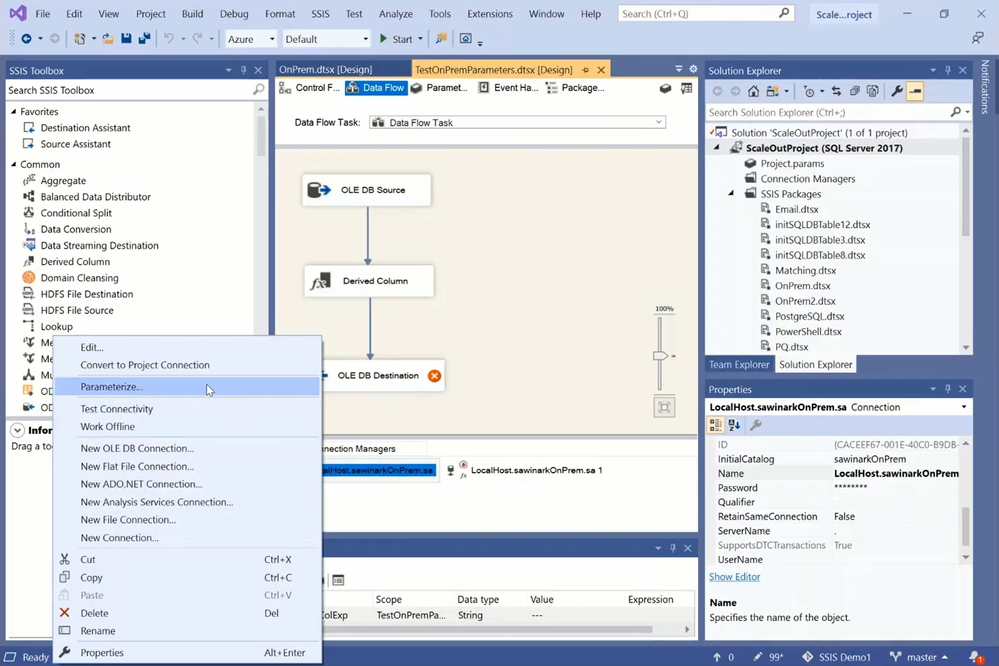
— We can add those parameters to VS configurations and assign different run-time values to them for each configuration. I’ve already created five VS configurations:
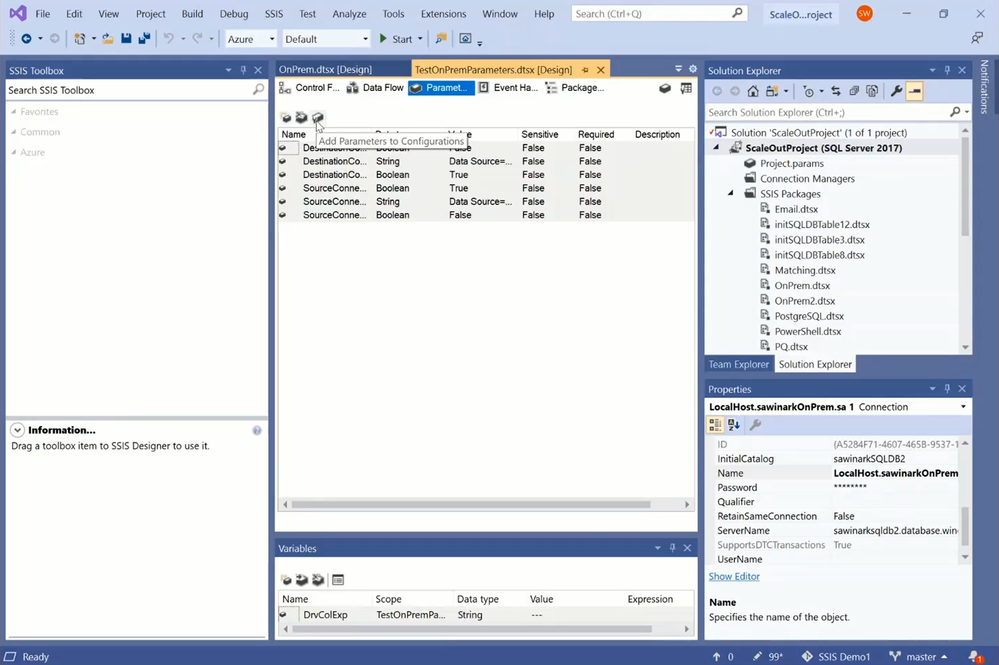
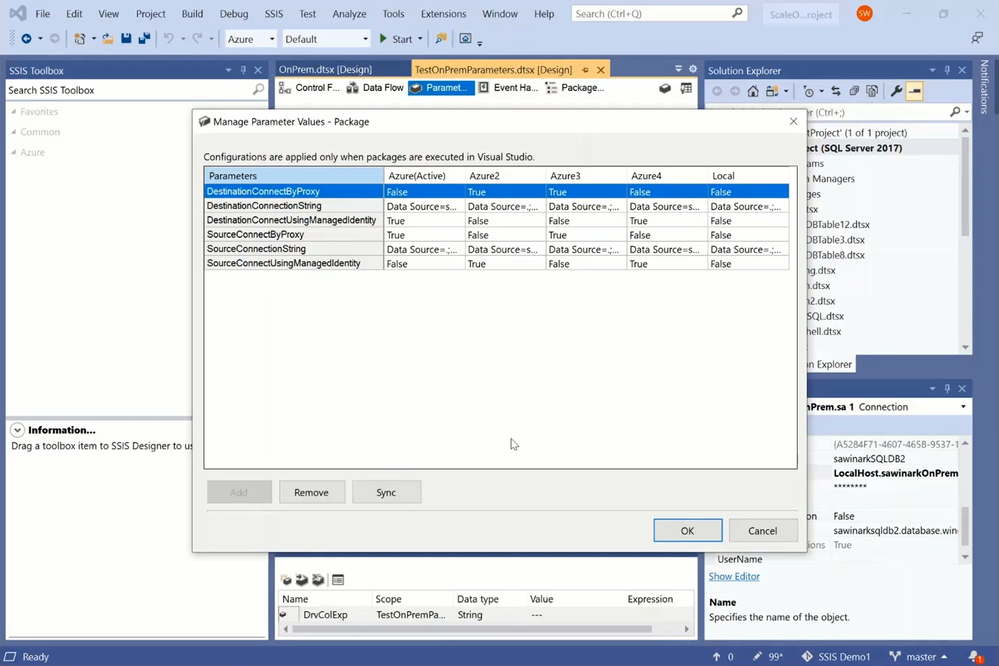
— I have a Local configuration to run this package locally on my laptop and perform on-premises-to on-premises ETL:
— It will set the ConnectByProxy and ConnectUsingManagedIdentity properties of both source and destination connection managers to False.
— It will set the ConnectionString property of both source and destination connection managers to connect to SQL Server on premises using Windows authentication.
— I have an Azure configuration to run this package on SSIS IR in ADF and perform on-premises-to-cloud ETL:
— It will set the ConnectByProxy and ConnectUsingManagedIdentity properties of source and destination connection managers to True, respectively.
— It will set the ConnectionString property of source and destination connection managers to connect to SQL Server on premises using Windows authentication and to Azure SQL Database using AAD authentication with ADF managed identity, respectively.
— I have an Azure2 configuration to run this package on SSIS IR in ADF and perform cloud-to-on-premises ETL:
— It will set the ConnectUsingManagedIdentity and ConnectByProxy properties of source and destination connection managers to True, respectively.
— It will set the ConnectionString property of source and destination connection managers to connect to Azure SQL Database using AAD authentication with ADF managed identity and to SQL Server on premises using Windows authentication, respectively.
— I also have an Azure3 configuration to run this package on SSIS IR in ADF and perform on-premises-to-on-premises ETL:
— It will set the ConnectByProxy property of both source and destination connection managers to True.
— It will set the ConnectionString property of both source and destination connection managers to connect to SQL Server on premises using Windows authentication.
— And finally, I have an Azure4 configuration to run this package on SSIS IR in ADF and perform cloud-to-cloud ETL:
— It will set the ConnectUsingManagedIdentity property of both source and destination connection managers to True.
— It will set the ConnectionString property of both source and destination connection managers to connect to Azure SQL Database using AAD authentication w/ ADF managed identity.
Alternatively, we can use VS configurations with package configuration (dtsconfig) files to mitigate the compatibility issues and test running my sample package on SSIS IR in ADF from SSDT.
— To avoid making any changes to the existing OnPrem.dtsx package, I’ve copied it as TestOnPremConfiguration.dtsx for testing.
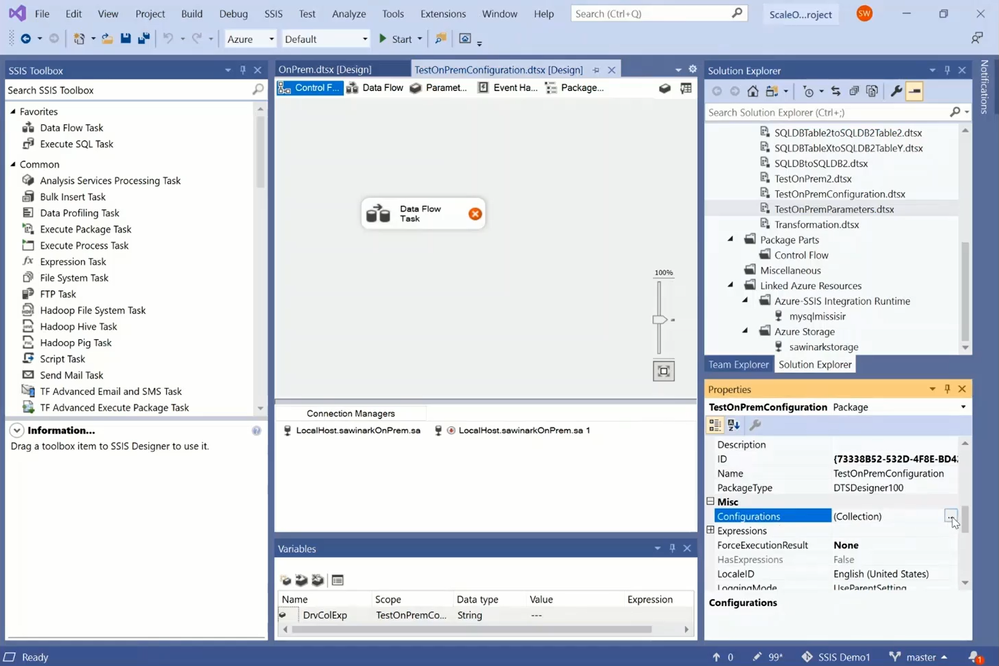
— We can now select the Configurations property of its Control Flow to open Package Configurations Organizer.
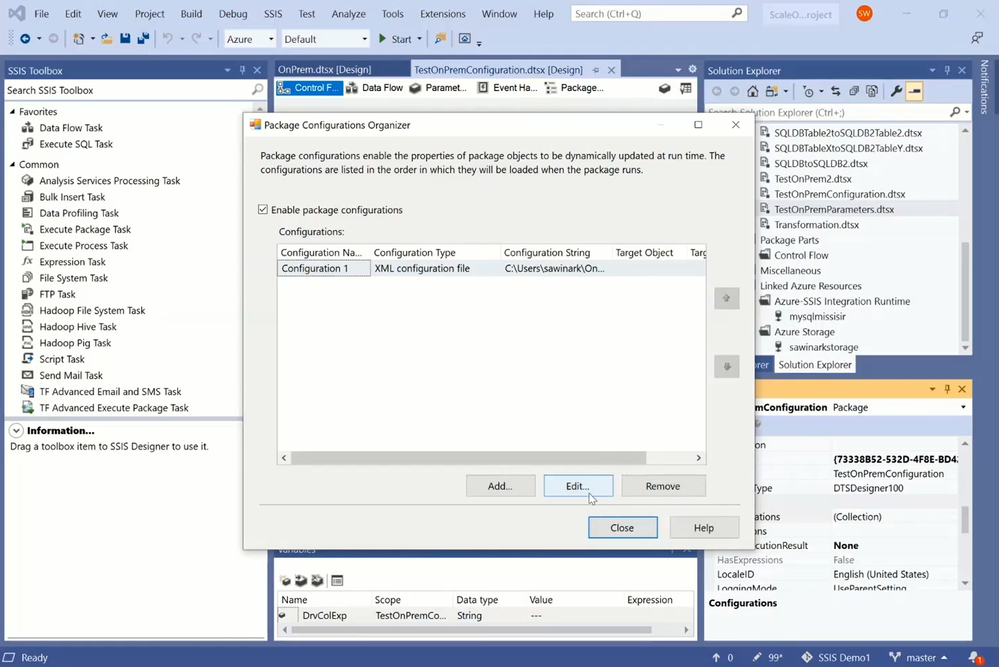
— On Package Configurations Organizer, you can open Package Configuration Wizard to create/edit a package configuration.
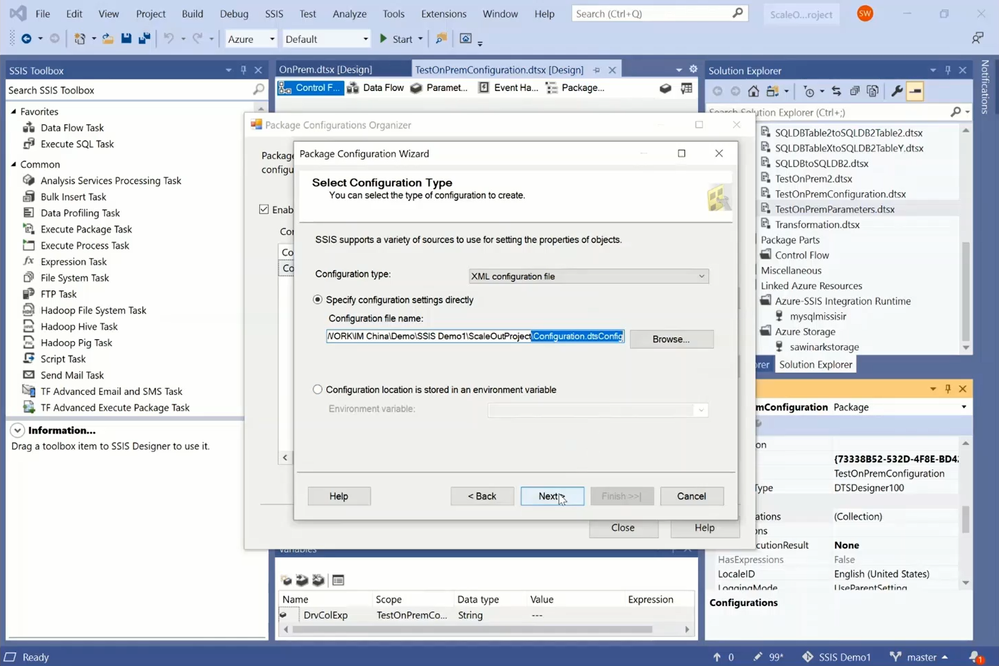
— On Package Configuration Wizard, you can select XML configuration file as the configuration type and enter the full path of your dtsconfig file.
— Next, you can select the package properties to be exported and configured in your dtsconfig file. In this case, these are the ConnectByProxy, ConnectionString, and ConnectUsingManagedIdentity properties of both source and destination connection managers.
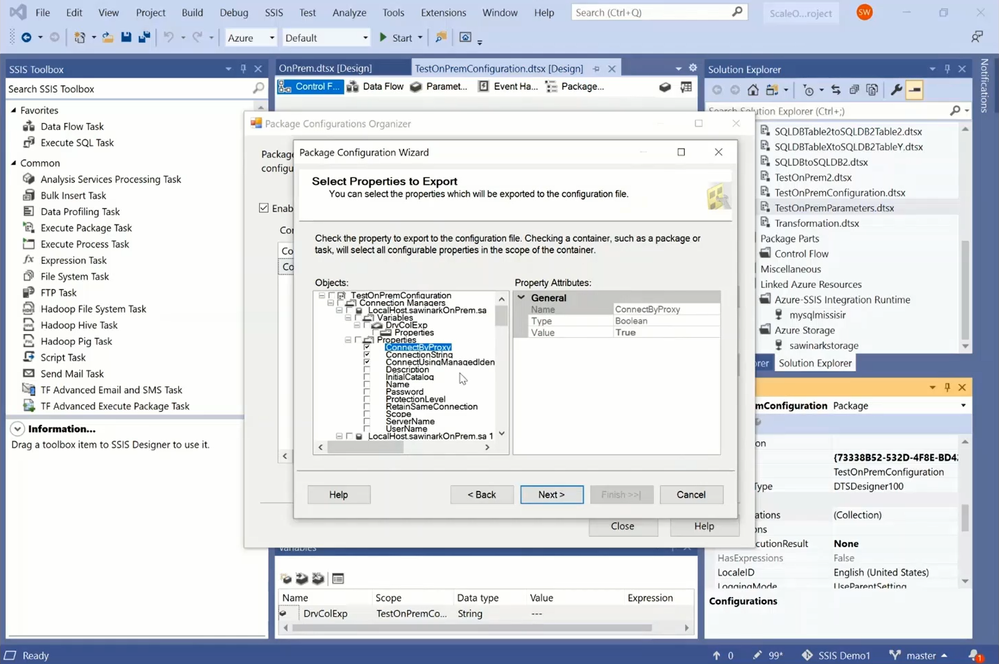
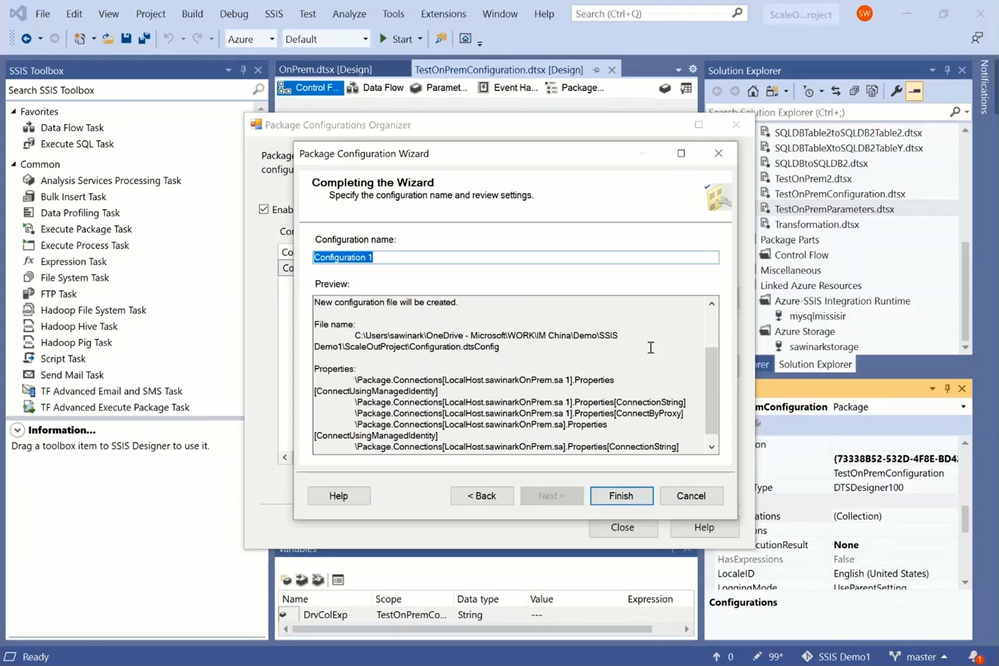
— Finally, you can name, review, and generate your configuration.
Using XML editor app like XML Notepad, I’ve opened my dtsconfig file and enter the appropriate values for the selected package properties to perform on-premises-to-cloud ETL:
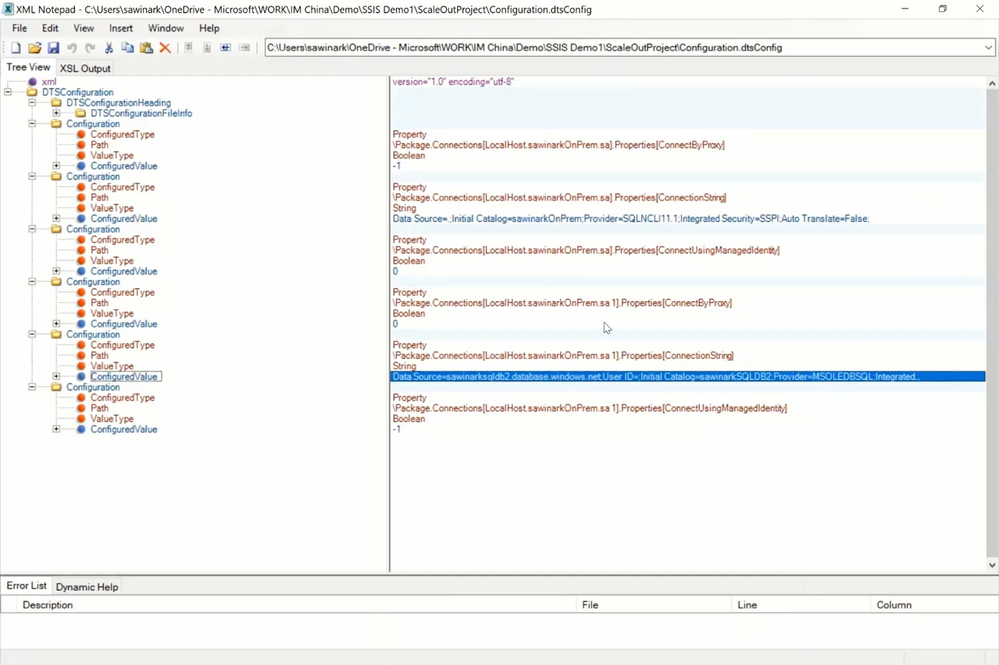
— It will set the ConnectByProxy and ConnectUsingManagedIdentity properties of source and destination connection managers to True, respectively.
— It will set the ConnectionString property of source and destination connection managers to connect to SQL Server on premises using Windows authentication and to Azure SQL Database using AAD authentication with ADF managed identity, respectively.
When I run TestOnPremParameters.dtsx/TestOnPremConfiguration.dtsx package on SSIS IR in ADF from SSDT using my Azure VS configuration with SSIS parameters/dtsconfig file, respectively, to perform on-premises-to-cloud ETL, the following happens:
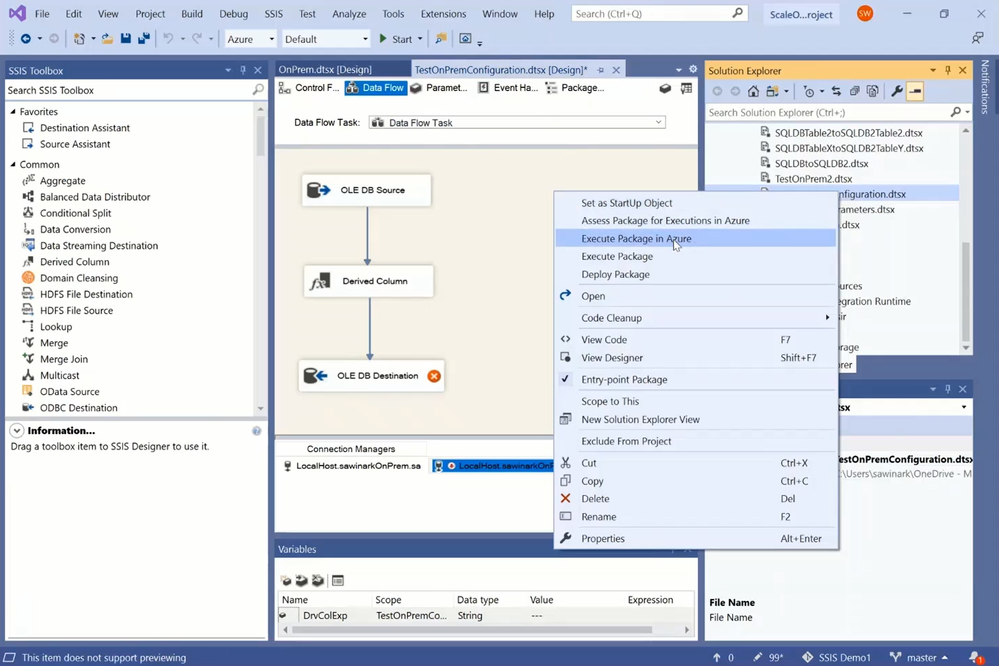
— SSDT will upload it into Azure Storage for SSIS IR to fetch.
— SSIS IR will break it down into on-premises and cloud staging tasks.
— Self-Hosted IR will then run the on-premises staging task to extract data from on-premises SQL Server and stage it in Azure Storage blob container.
— SSIS IR will finally run the cloud staging task to move data from Azure Storage blob container, transform it, and load it into Azure SQL DB as the final destination.
Migration/Redeployment to Azure
After successfully assessing and testing all of your existing packages to run on SSIS IR in ADF from SSDT using VS configurations with SSIS parameters/package configuration files, you can migrate/redeploy them to Azure with no changes and run them in production by assigning the appropriate values to your SSIS parameters, connection manager properties, or property overrides at run-time.
Depending on your deployment model, you can use Integration Services Deployment Wizard on SSDT to deploy projects/packages into SSISDB hosted by Azure SQL DB/MI or dtutil command prompt utility to deploy packages into Azure Files or MSDB hosted by Azure SQL MI.
For more info, see the following docs:
https://docs.microsoft.com/sql/integration-services/packages/deploy-integration-services-ssis-projects-and-packages?view=sql-server-ver15
https://docs.microsoft.com/azure/data-factory/azure-ssis-integration-runtime-package-store#deploying-multiple-packages-with-dtutil
Alternatively, I can redeploy my existing OnPrem.dtsx package with no changes as an embedded package in ADF pipeline and assign the appropriate values to relevant connection manager properties at run-time to perform on-premises-to-cloud ETL.
For more info, see the following docs:
https://docs.microsoft.com/azure/data-factory/how-to-invoke-ssis-package-ssis-activity#package-location-embedded-package
https://docs.microsoft.com/azure/data-factory/how-to-invoke-ssis-package-ssis-activity#connection-managers-tab.
On ADF portal, I can select the Author hub to show my ADF pipeline with Execute SSIS Package activity, where on the Settings tab:
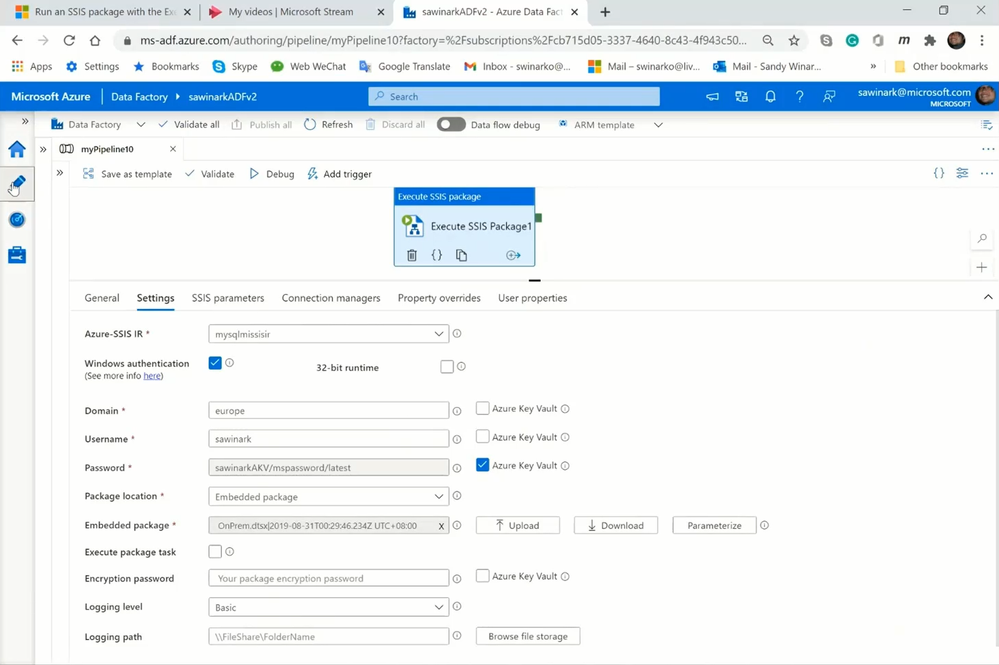
— I‘ve configured Windows authentication feature to access my SQL Server on premises.
— I‘ve configured Azure Key Vault (AKV) to store my password.
— I‘ve configured Embedded package as my package location to copy & paste/drag & drop OnPrem.dtsx into the activity payload.
On the Connection Managers tab:
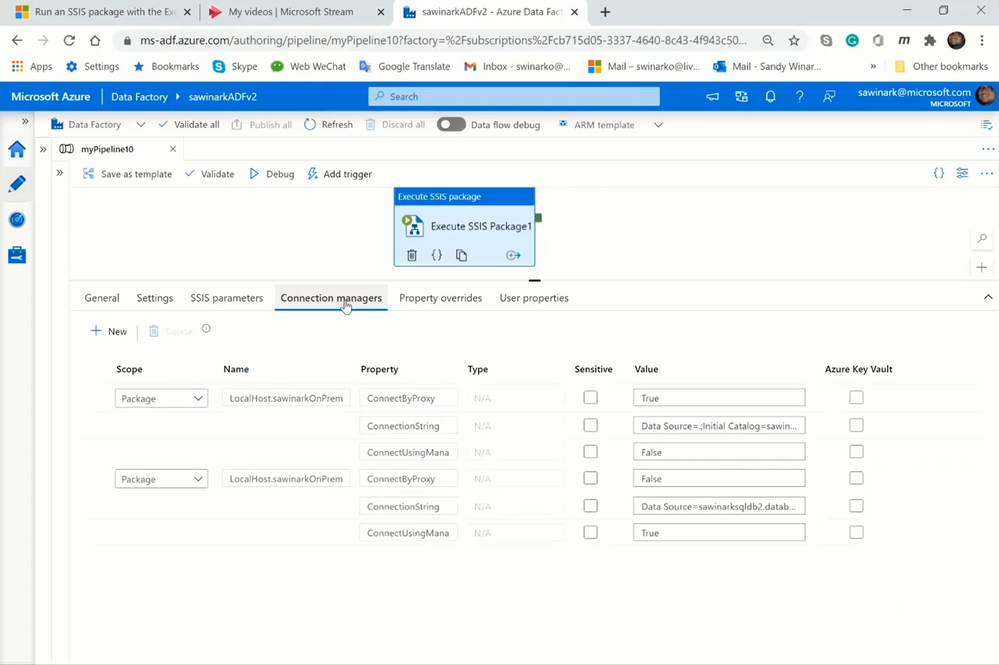
— I‘ve configured ConnectByProxy, ConnectionString, and ConnectUsingManagedIdentity properties of both source and destination connection managers to assign the appropriate values to them at run-time to perform on-premises-to-cloud ETL.
On the Property Overrides tab:
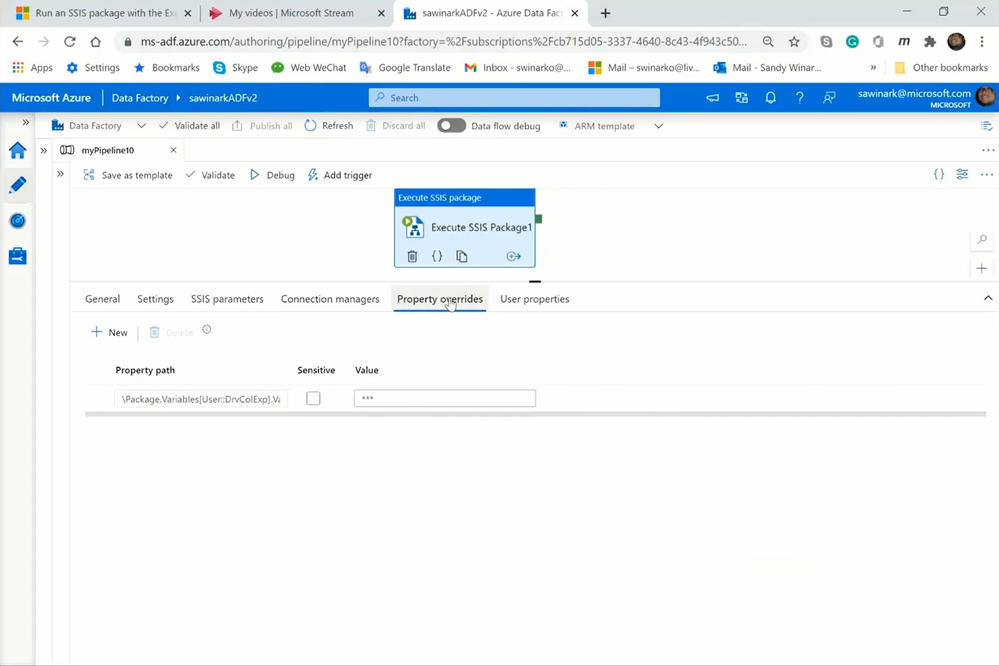
— I‘ve configured a property override to assign new value to my string user variable at run-time.
I can now drag & drop the unchanged OnPrem.dtsx package into the activity payload and publish my pipeline.
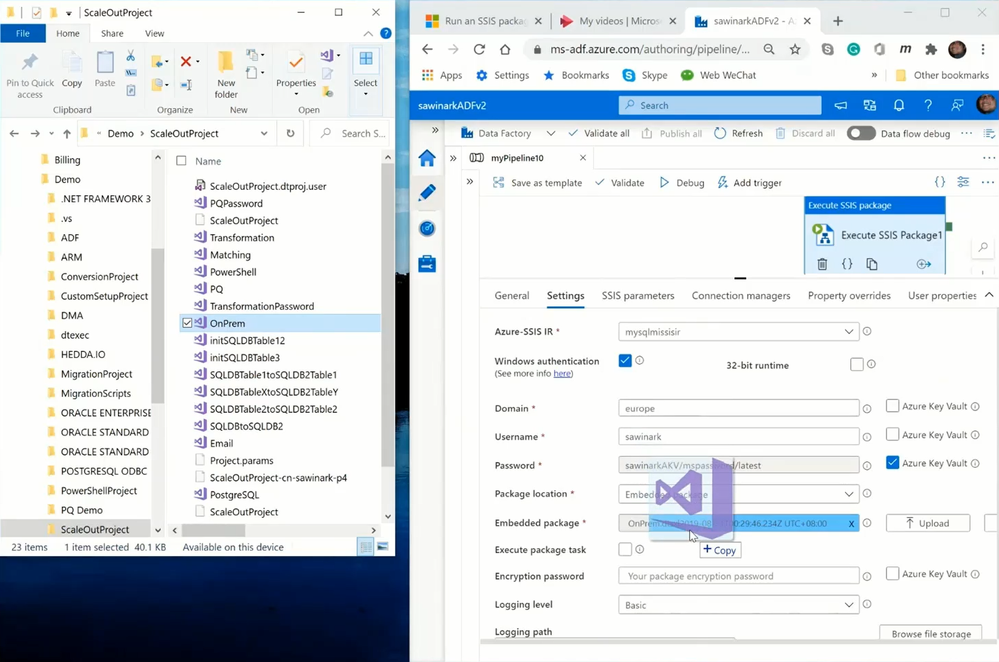
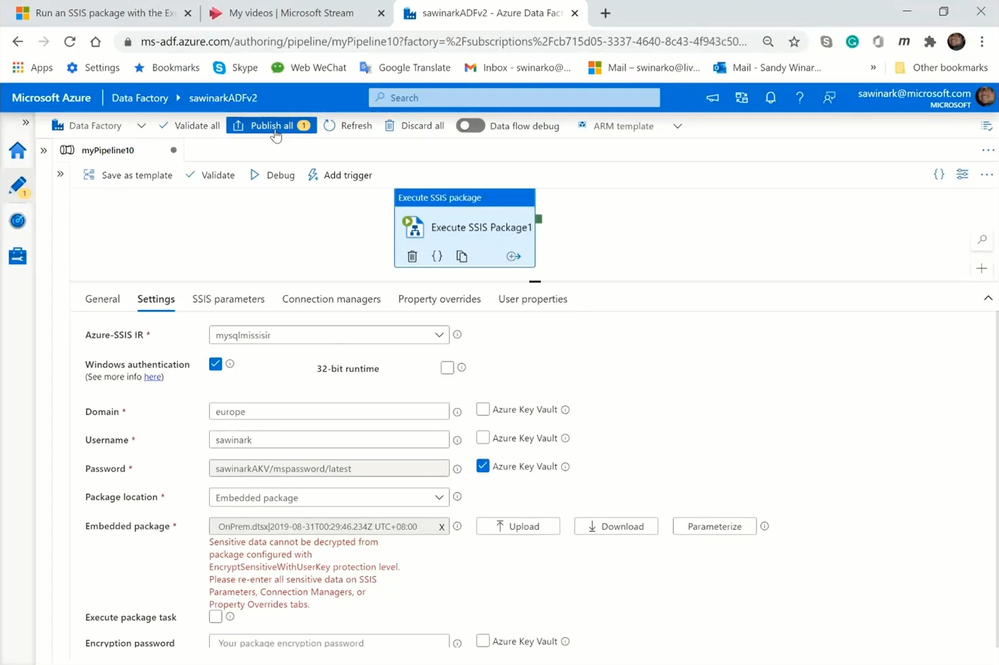
When I run my pipeline with the embedded OnPrem.dtsx package on SSIS IR in ADF, the following happens:
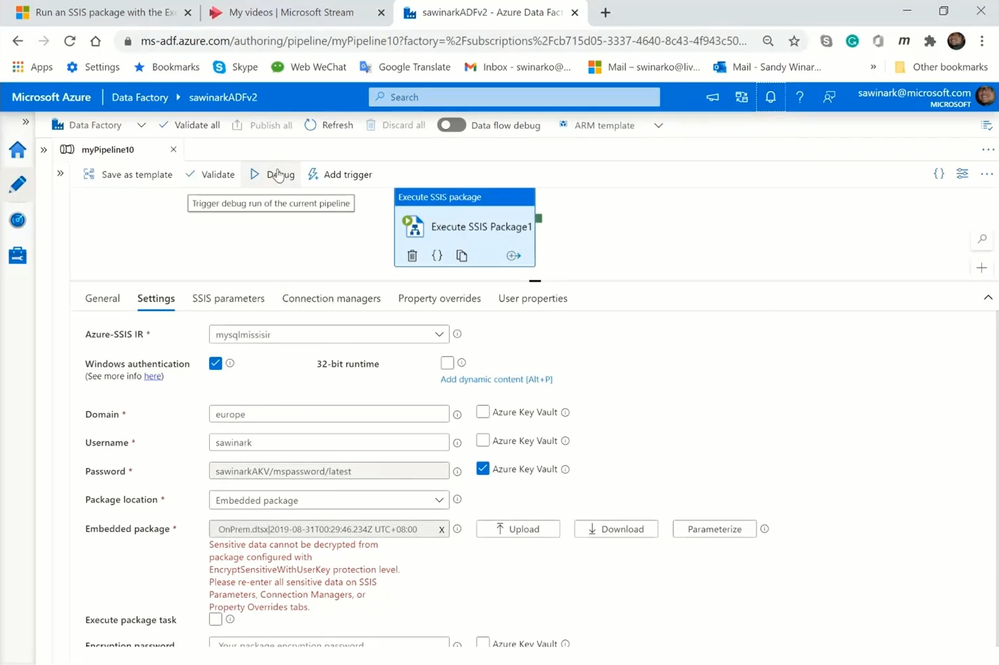
— SSIS IR will break it down into on-premises and cloud staging tasks.
— Self-Hosted IR will then run the on-premises staging task to extract data from on-premises SQL Server and stage it in Azure Storage blob container.
— SSIS IR will finally run the cloud staging task to move data from Azure Storage blob container, transform it, and load it into Azure SQL DB as the final destination.
For more info on using Azure-enabled SSDT, see https://docs.microsoft.com/azure/data-factory/how-to-invoke-ssis-package-ssdt.
I hope you’ll find Azure-enabled SSDT useful for assessing the cloud compatibility of your existing packages, testing their executions in Azure, and migrating/redeploying them to run in Azure.
Please don’t hesitate to contact us if you have any feedbacks, questions, or issues, and we’ll follow up ASAP. Thank you as always for your support.
by Contributed | Jan 13, 2021 | Technology
This article is contributed. See the original author and article here.
Entering 2021, Microsoft Forms’ new features aim to streamline your experience of accessing, creating, and distributing forms. From text formatting, specific user sharing, and creating polls for form creators, to response downloads and immersive reader for form respondents, read on to learn about our latest updates.
Text Formatting in Forms
Bold, Italicize, or Underline Form Title
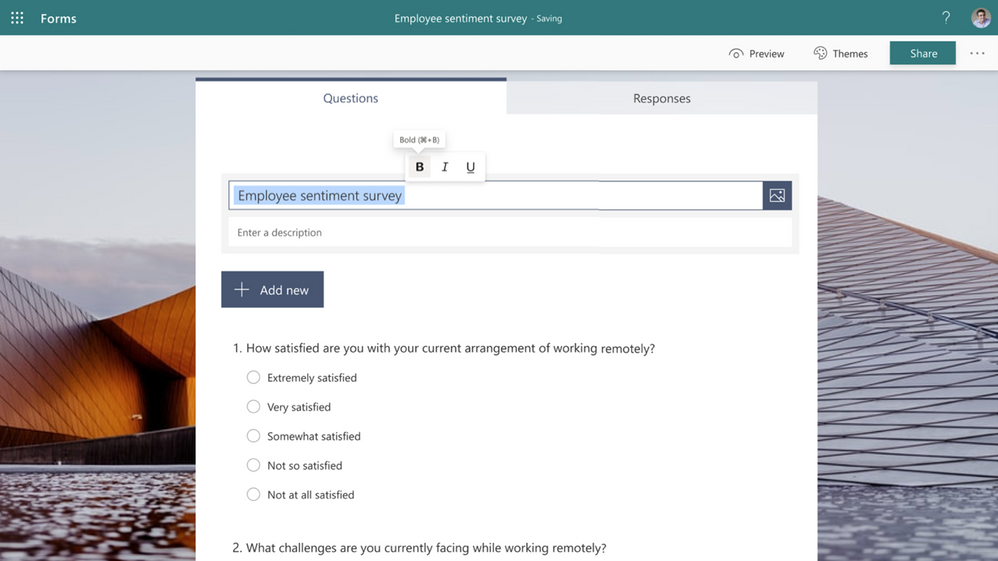
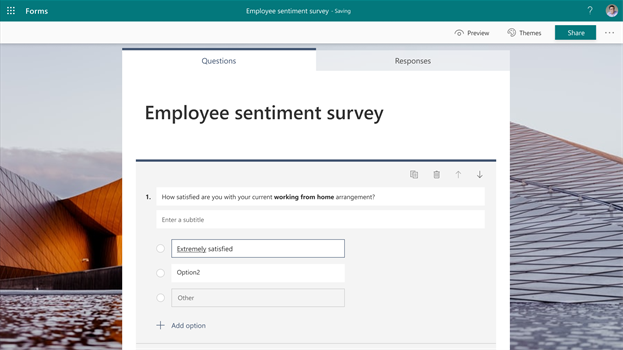
Soon, you can bold, italicize, or underline words in Forms, allowing you to create forms that emphasize and differentiate content with hierarchy. When composing any text content in your form, you can format the text via the floating tool bar that appears when you highlight the text. Or, format your text using the known keyboard shortcuts: control/command + B/I/U.
With a quick click or shortcut, you can highlight or lowlight information without leaving the current interface. Starting rollout soon, this feature will be generally available by late January.
 Bold, Italicize, or Underline Form Questions and Answer Choices
Specific User Sharing for Response Collection
With this feature, you can determine who within your organization is allowed to respond to a form or quiz you have created. Under the “Share” button, you can select “Specific people in my organization can respond” from the drop-down menu to activate this feature. Then, you can specify the particular individuals or groups by entering the individual or group email addresses.
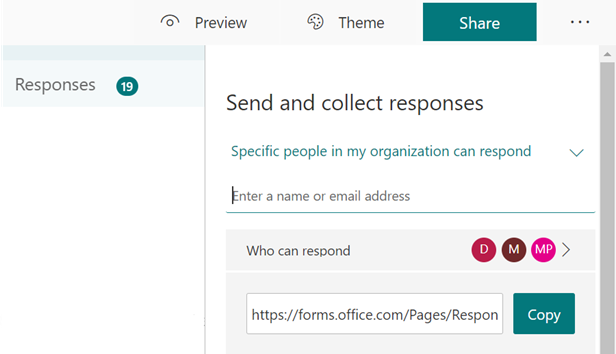 Specific People Can Respond – Desktop
This experience is just as intuitive on mobile, whether you are using the Office app or your mobile web browser. After tapping the paper airplane icon to share your phone, you will find the option to limit your respondent pool with “Specific people in my organization can respond.”
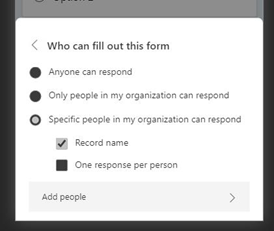 Specific People Can Respond – Mobile
Download or Print Your Form Response
Soon, you can enable form respondents—both internal and external to your organization—to save or print a copy of their answers to your form or quiz. To enable this feature, head to “Settings” at the top right corner of your forms page, and select “Allow receipt of responses after submission.”
After completing the form, respondents will have the option to save or print a PDF of the form with their filled-in answers on the “Thank You” page. This feature is rolling out and will reach all users by the end of this month.
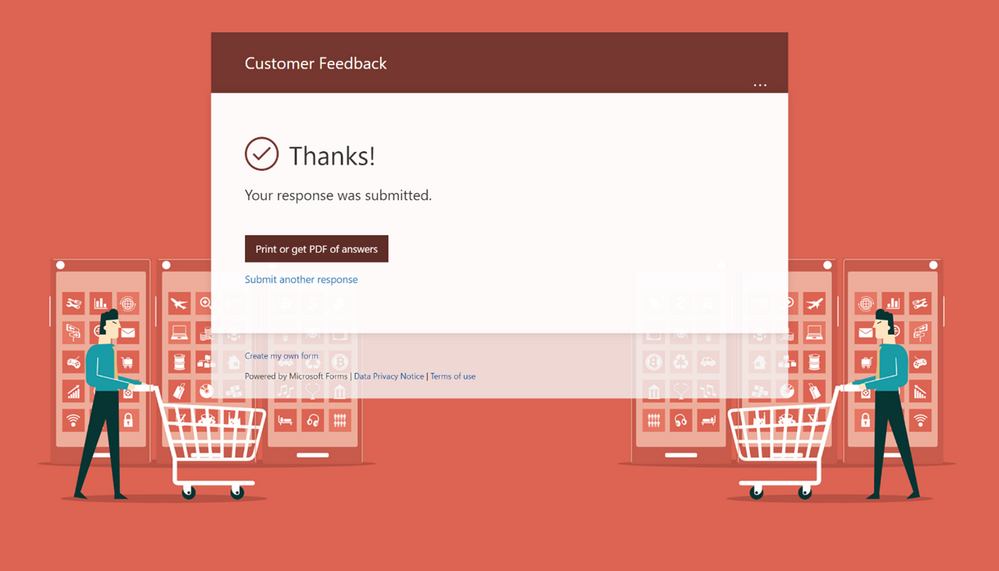 Option to Print or Download Answers on Thank You page
Please note that selecting this setting still allows form respondents who are internal to your organization to ask for an email receipt of their form. For more information on this specific functionality, which was available since last January, please see our previous blog post.
New Forms Start Page Experience
If you have used Forms recently on either your desktop or mobile browser, you may have noticed that you land on a newly designed start page on Office.com. Whether you already access Forms from your sidebar on Office.com already, or you always visited forms.microsoft.com directly, you will experience this new interface as someone with an Enterprise, Business, Education, or Personal account.
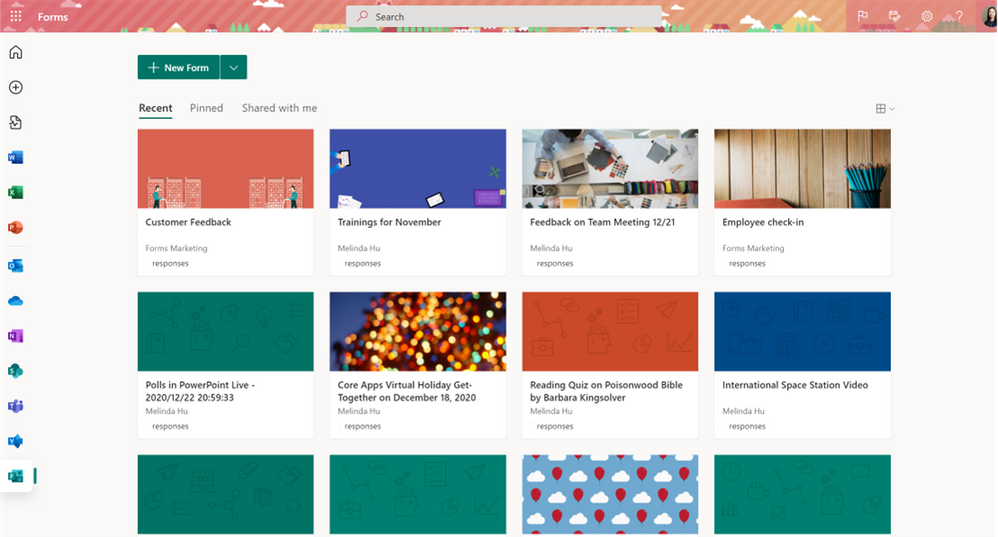 Office.com Forms Start Page
Right away, you can find your recently used forms. You can pin any of your forms for quick access under the “Pinned” tab. Under “Shared with me,” you’ll find all forms that have been shared with you as a collaborator. When you scroll to the bottom of the page, you can access group forms under the Microsoft 365 of which you are a part. Then, right above group forms, you can go to “All My Forms” to view a larger list of your forms. From there, you can find your deleted forms, as well as Copy, Move, and Delete any of your forms.
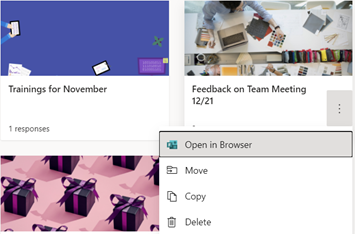 Move, Copy or Delete Forms under “All My Forms”
Immersive Reader in Forms for Anonymous Users
Last year, we enabled immersive reader for students who are logged in to their Microsoft accounts to improve the readability and accessibility of Microsoft Forms on both desktop and mobile. Recently, we made Immersive Reader available to any respondents filling out a form, whether you are logged in to your Microsoft account or not. Simply click the “…” near the top of the form to enable Immersive Reader.
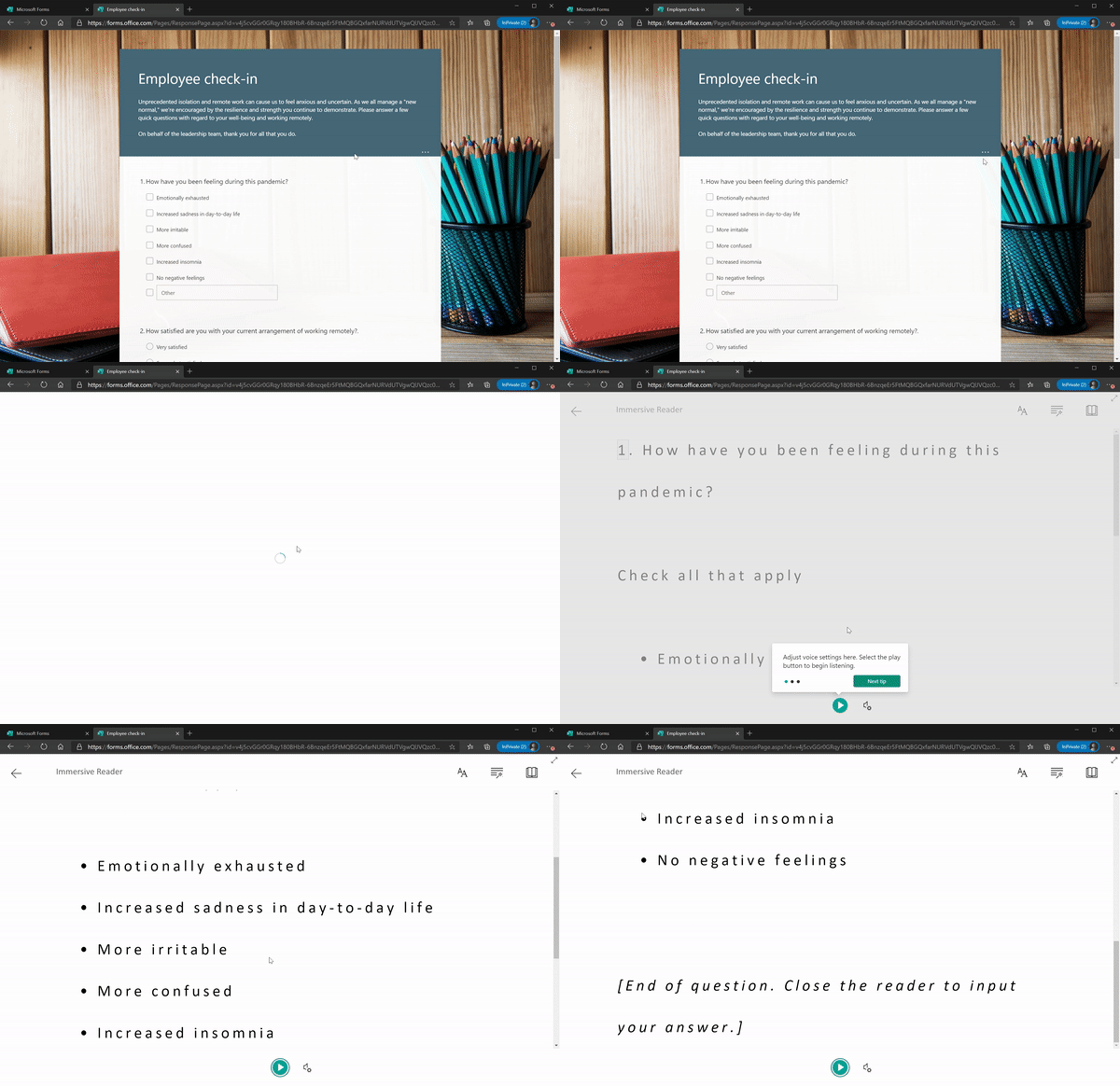 Immersive Reader in Forms for All Respondents
Increased Capacity for Polls in Other Microsoft 365 Apps
With Polls in Teams Meetings becoming available in late November, we wanted to help you leverage polls not just in meetings, but across Outlook, PowerPoint Live Presentations, and Teams chat and channels too. Now, you have additional capacity to use polls in other apps: an additional 200 beyond the current 200-form limit. In other words, polls you create starting in January 2021 will count towards the new limit of 200; however, polls made before the end of December are still counted in the original 200-form limit.
We hope you explore and use these latest updates. If you have additional questions on Forms surveys, quizzes, or polls, please visit our Support page. To provide feedback, please visit our Forms UserVoice site. You can also join discussions in the Microsoft Forms Tech Community and follow the Forms Blog to stay updated in the future.








Recent Comments