
by Contributed | Mar 24, 2021 | Technology
This article is contributed. See the original author and article here.
If you are evaluating , kicking off or in the process of moving your organizational data to Microsoft 365 here are some recommendations from the subject matter experts based on their learnings managing large scale migrations for multiple organizations.
Tune in to learn more about the tools and options available to enable you to successfully migrate your organizational data to Microsoft 365 as well as best practices that will help you run an effective, speedy and seamless migration to OneDrive and SharePoint
so that you can empower your users for collaboration and productivity.
Webinar details :
Choosing the right tools for your Microsoft 365 migration
Date: 6/6/2021
Time: 9:00 am PT
Agenda:
- Introduction
- Migration from file shares and SharePoint servers
- Migration from cloud providers
- Future investments
- Conclusion and QA
Please register for the free webinar here.
Best practices for data migrations to Microsoft 365
Date: 6/13/2021
Time: 9:00 am PT
Agenda:
- Introduction
- How to prepare data for migration
- How to plan and communicate about the migration
- How to run a successful migration
- Conclusion and QA
Please register for the free webinar here.
Looking forward to interacting with you! :)
Thanks,
Ankita
by Scott Muniz | Mar 24, 2021 | Security
This article was originally posted by the FTC. See the original article here.
-
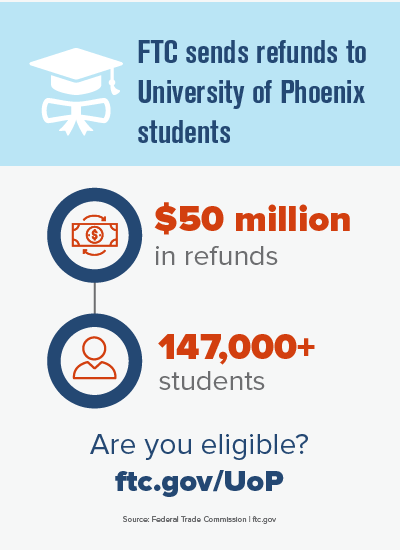
They first enrolled in an associate’s, bachelor’s, or master’s degree program at the University of Phoenix between October 15, 2012 and December 31, 2016;
-
They paid more than $5,000 to the University (using cash, student loans, military benefits, or a combination);
-
They did not object when the University of Phoenix sent them a notice asking if it could give their information to the FTC.
If you think you might be getting a payment, know this: the FTC will never ask you to pay or give sensitive information before it sends you a payment. Not your Social Security, bank account, or credit card number. If someone says they’re from the FTC, but they ask for money, that’s a scam. If you spot a scam, fraud or bad business practice, please tell the FTC at ReportFraud.ftc.gov.
Brought to you by Dr. Ware, Microsoft Office 365 Silver Partner, Charleston SC.
by Contributed | Mar 24, 2021 | Technology
This article is contributed. See the original author and article here.
Many organizations are coming up on their first-year anniversary of supporting a remote workforce. While some have already started transitioning people back to the office, whether in full-time or hybrid mode, others are looking to make remote work permanent. Either way, having modern collaboration tools that help people share information and work together in real time has become absolutely essential to maintaining productivity. Last year, many IT organizations found themselves scrambling to quickly get people access to tools and information they needed to work from home effectively. Now, they’re in a position to think more strategically about the best ways to support a remote workforce. For organizations who’ve deployed Microsoft 365, one of those ways is by migrating content to SharePoint and OneDrive.
Why migrate?
Your organization may have any number of reasons for migrating to SharePoint and OneDrive. Maybe you were already planning the migration when the pandemic hit, maybe you realized that asking people to VPN in to access on-premises file shares wasn’t providing a good employee experience, or maybe your subscription to 3rd party cloud storage is expiring and you realized you can centralize administration and save costs by moving to Microsoft 365.
But the most important reason to migrate is that SharePoint and OneDrive work securely and seamlessly with Microsoft Teams, the digital hub for teamwork that over 115 million daily users rely on to connect and collaborate. And the integration between Teams, SharePoint, and OneDrive empowers you to set governance and compliance policies at an organizational level that can be extended across Teams, SharePoint, and OneDrive—something you can’t do with third-party tools.
With content stored in SharePoint and OneDrive, you can configure secure sharing policies, use Microsoft Information Protection to create policies for automatic classification of sensitive data, or implement information barriers to restrict communication and collaboration between specific business units or teams to avoid conflicts of interest from occurring or between certain people to safeguard internal information. You can also monitor shared content, adding an extra layer of security and control. Through detailed audit logs and reports available in the Microsoft 365 Security and Compliance Center, you can trace SharePoint and OneDrive activity at the folder, file, and user levels, so you can see at a glance if any unauthorized users have tried to access sensitive company or client information. Every user action, including changes and modifications made to files and folders, is recorded for a full audit trail. In addition, even remotely, you also get device visibility and control that’s especially important for thwarting breaches and ransomware attacks.
What are the critical steps for a successful migration?
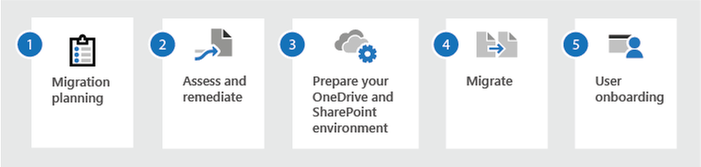
No matter what your reasons for migrating to SharePoint and OneDrive, the process can seem overwhelming. You have so much to consider: What content do you have, and where is it stored? What will you move? What needs extra consideration, like regulatory compliance? How will you get data from file shares or third-party cloud apps into SharePoint and OneDrive? And those are just some of the logistical aspects—you also need to think about things like timing for the migration and how to communicate what’s happening to the rest of the organization. To help, we’ve outlined some critical steps for you to consider for a successful migration.
Consider your current environment
The first step is to understand your current environment. Many organizations have a combination of solutions: file servers with many years’ worth of data, third-party storage solutions holding archived data for legal or regulatory reasons, or third-party cloud storage apps adopted by specific business units. In considering your current environment, you’ll want to review:
- Where your data is located, and whether you need it. As a first step you need to determine what content you have, what you need to keep, and what you want to get rid of.
- What content people are using. You’ll also want to understand how people across the organization are using the file shares or cloud storage apps to do their daily jobs, so you can plan around the way people work to avoid disrupting productivity.
- Who has access to what. You probably have certain groups who need to share a lot of information with external parties—clients, partners, or vendors. You’ll need to know what access has been granted so you can ensure they still have access once the content is migrated.
- How you want to structure things going forward. Once you’ve collected that information from the business, you can reconsider your file and permissions structures for more streamlined administration and better security.
- Whether you need help. All of this can be daunting, so consider enlisting support: Microsoft FastTrack services can help you get started by helping to assess your environment and develop a plan, If you need help with migrating your file shares, on-premises SharePoint environments, or other cloud sharing solutions to Microsoft 365.
Create a high-level timeline and outline any risks
Develop a high-level timeline for your migration based on priority and your earlier assessments. This will help you determine cutover dates for all content and users and address any risks you’ve identified, such as sites or file shares that need to be scrubbed, legal hold or eDiscovery issues, or even holidays or other important business dates or events that you need to consider.
Choose the right tool(s)
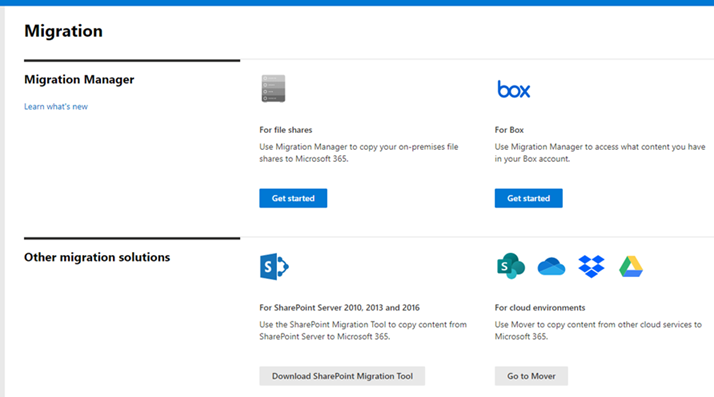
You may not want or need to migrate all your data the same way. For example, your organization may prefer to have users in some business units manually move their content to OneDrive or SharePoint from share network files or other sharing apps, while other business units with many TBs of customer content or sensitive IP may prefer that IT and security teams work together to move content to its new location. Microsoft offers a broad range of tools to help you migrate different types of content, depending on your needs:
Manual Upload. You can ask users to manually upload their files to SharePoint or OneDrive. This works best for smaller files like general Word documents, Excel spreadsheets, and PowerPoint presentations.
Best for: Moving small individual files
OneDrive Sync App. For individual users who have a lot of content to move, they can install the OneDrive Sync App for Windows or Mac to drag and drop files from file shares or their computer’s File Explorer to OneDrive. This app also lets users easily manage and access OneDrive files in the same way they manage and access files in File Explorer.
Best for: Moving a personal file library to the cloud
SharePoint Migration Tool. You can use the SharePoint Migration Tool (SPMT) to migrate your files from SharePoint on-premises document libraries, lists, or regular files shares.
You can also use the new PowerShell cmdlets based on the SharePoint Migration Tool (SPMT) migration engine to move files from SharePoint 2010 and SharePoint 2013 on-premises document libraries and list items, and file shares to Microsoft 365.
Best for: Migrating SharePoint Server 2010, 2013, and 2016 environments
SharePoint Assessment Tool. You can use this simple command line executable to assess and identify issues with your on-premises SharePoint Server content prior to migration. It also includes the SharePoint Migration Identity Management Tool, that performs identity mapping by scanning SharePoint, Active Directory, and Azure Active Directory.
Best for: Assessing SharePoint Server 2010 and 2013 content prior to migration
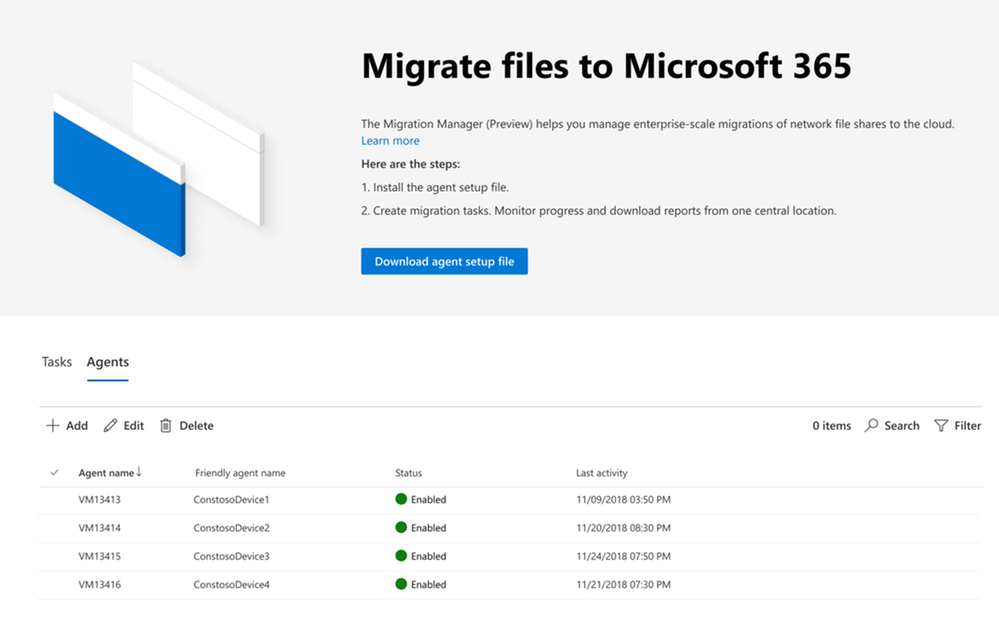
Migration Manager. Available in the SharePoint Admin center, Migration Manager provides a centralized way of connecting servers, creating tasks, and automatically distributing your migration tasks.
Best for: Migrating network file shares
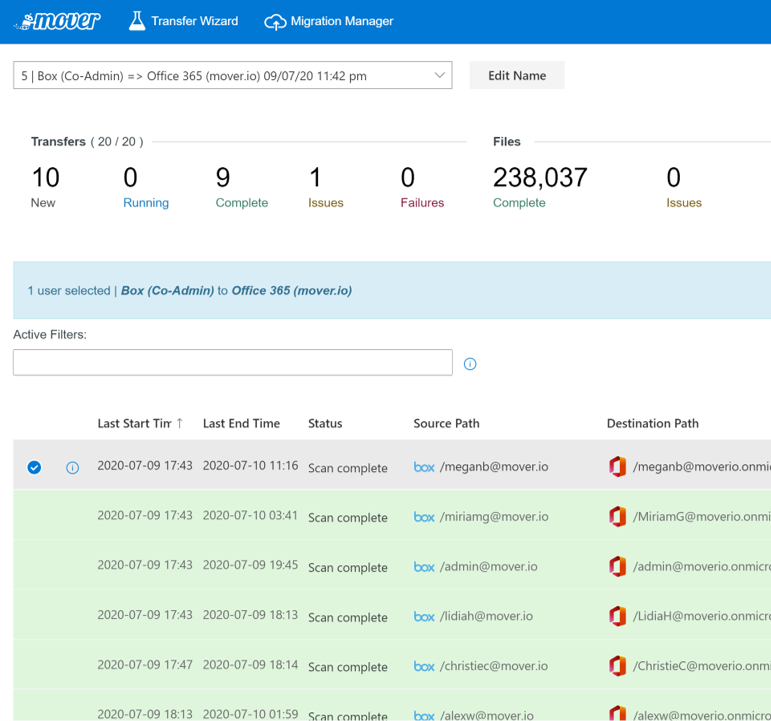
Mover. Automated cloud-to-cloud migration service for Office 365 tenant-to-tenant migrations or moving from cloud apps like Box and DropBox.
Best for: Migrating data from other cloud service providers
Azure Data Box. The Microsoft Azure Data Box is a service that lets you order a device from the Microsoft Azure portal. You can then copy TBs of data from your servers to the device, ship it back to Microsoft, and your data is copied into Azure. Once your data is in Azure, you can use SPMT to migrate content to SharePoint.
Best for: Removing the dependency on your WAN link to transfer data when migrating files
Plan your migration and communicate the plan
Depending on the tool you choose to use for your migration and your organization’s business needs, you may want to plan your migration during off-work hours or on weekends, if possible, just to avoid disrupting daily business. You may decide to move content and users in waves by business units or teams, or you may decide to move certain content types first—for example, moving smaller documents and working your way up to larger files such as video or CAD files. Whenever and however you decide to move content, you should also create a communications plan, giving people plenty of advanced notice and explaining what they should expect and when. If you have a change management team, you could also work with them on ensuring that documentation and training materials are readily available when the migration begins.
Prepare and run your migration
Before you begin your actual migration, consider running a pilot to ensure you’ve worked out most of the kinks. A successful pilot can help build confidence, especially with leadership and other key stakeholders, and can help you mitigate risks. Select people from across the organization who own data that they are sharing with each other and/or with external parties so you can test how permissions transfer. You can keep your pilot running even during the actual migration just to help minimize surprises.
On the selected migration date—one you’ve communicated ahead of time to everyone in the organization—ensure people cannot edit or add files. We also suggest leveraging the “Big Bang” approach that involves moving all your users at once providing highest concurrency, throughput and speed.
To keep key stakeholders up-to-date on the progress consider publishing a report that highlights data migrated, status and any errors which can be mostly eliminated by re-running your transfers. Once concluded, your change management team can help with user adoption and onboarding for a smooth transition to OneDrive and SharePoint.
Learn more and stay engaged..
Check out all the details on migrating to Microsoft 365 documented here.
We are very thrilled to showcase the tools and best practices for migrating to Microsoft 365 . Please join us for these webinars
Choosing the right tools for your Microsoft 365 migration on April 6, 2021 at 9:00 am PT.
Best practices for data migrations to Microsoft 365 on April 13, 2021 at 9:00 am PT.
Also, check out our latest episode of Sync Up- a OneDrive podcast to hear the experts on success factors that can help you drive an effective migration.
https://html5-player.libsyn.com/embed/episode/id/18429635/height/90/theme/custom/thumbnail/yes/direction/backward/render-playlist/no/custom-color/f99400/
We continue to evolve OneDrive as a place to access, share, and collaborate on all your files in Office 365, keeping them protected and readily accessible on all your devices, anywhere.
You can stay up-to-date on all things via the OneDrive Blog and the OneDrive release notes.
Check out the new and updated OneDrive documentation.
Take advantage of end-user training resources on our Office support center.
Thank you again for your support of OneDrive. We look forward to your continued feedback on UserVoice and hope to connect with you at Ignite or another upcoming Microsoft or community-led event.
Thanks for your time reading all about OneDrive,
Ankita Kirti
OneDrive | Microsoft

by Contributed | Mar 24, 2021 | Technology
This article is contributed. See the original author and article here.
This will be your guide to the best things about Microsoft Compliance at Ignite March 2021. Bookmark it. Save it. Come back to it. Share it. Reference it. Enjoy.
Microsoft Ignite March 2021 may be over but that does not mean you have to stop learning about Microsoft Compliance. Earlier this year Microsoft CVP of Security, Compliance, and Identity (SCI), Vasu Jakkal spoke about how Microsoft surpassed over $10 billion of security business revenue. And while that’s a significant milestone we are just getting started. Don’t be fooled…we are not just best in suite; we are best in breed. Just ask Gartner – the Magic Quadrants we reside in say so.
Anyway, I digress. Here is a quick recap of the Compliance announcements you may have missed:
Additionally, here goes the list of on-demand sessions you must absolutely watch in case you missed any of our Compliance goodies.
Security Keynote
CVP Vasu Jakkal talked about Microsoft’s vision on Security for All including how to reduce complexity and defend your organization against business risk with innovations in security, compliance, identity, and management. She is joined by a start studded cast in Security leader Andrew Conway, Identity leader Irina Nechaeva, and Compliance leader as they dig into the latest news, releases, and updates. WATCH ON-DEMAND Security for All
Compliance Keynote
Microsoft Compliance GM Alym Rayani illuminates how Microsoft’s risk management and compliance solutions enable you to identify and respond to these emerging risks while keeping your most important information safe. WATCH ON-DEMAND Manage risk and secure information across your environment
Compliance Sessions
Ask the Experts
Security & Compliance Certifications
Security & Learning Path (Online – Free)
Compliance Blogs
To learn more about Microsoft Security solutions, visit our website. Bookmark the Security blog to keep up with our expert coverage on security matters. Also, follow us at @MSFTSecurity for the latest news and updates on cybersecurity.
Follow Christopher on Twitter and LinkedIn
by Contributed | Mar 24, 2021 | Technology
This article is contributed. See the original author and article here.
こんにちは SQL Server サポートチームです。
今回は SQL Server 2019 CU2 以降を適用した際に ERRORLOG に記録されるエラーについてご説明します。
■概要
SQL Server 2019 CU2 以降で拡張イベントの”sqlserver.feature_restriction_usage”が廃止されたことにより、
累積的な更新プログラムを適用した後の初回起動時に、下記のエラーが記録されることがあります。
このエラーは更新プログラム適用後の一時的なものであり、無視していただいて問題ありません。
Error: 25623, Severity: 16, State: 1.
The event name, “XXXXXXXXXXXXXXXX.sqlserver.feature_restriction_usage”, is invalid, or the object could not be found
Error: 25710, Severity: 16, State: 1.
Event session “telemetry_xevents” failed to start. Refer to previous errors in the current session to identify the cause, and correct any associated problems.
Error: 25709, Severity: 16, State: 1.
One or more event sessions failed to start. Refer to previous errors in the current session to identify the cause, and correct any associated problems.
■発生条件
SQL Server 2019 CU1 以下のバージョンの SQL Server を使っている環境に対して、SQL Server 2019 CU2 以降の更新プログラムを適用することで発生します。
■影響
このエラーによるお客様のアプリケーションへの影響はありません。
拡張イベントの”feature_restriction_usage”は、SQL Server CEIP サービス に関連して動作する拡張イベントセッション”telemetry_xevents”で使用されています。
SQL Server CEIP サービスは、Microsoft が SQL Server の使用状態に関する情報を収集する内部機能となっており、お客様のすべてのアプリケーションの動作には影響しません。
SQL Server CEIP サービスに関する詳細は下記の公開情報をご確認ください。
SQL Server の使用状況および診断データの収集を構成する (CEIP)
https://docs.microsoft.com/ja-jp/sql/sql-server/usage-and-diagnostic-data-configuration-for-sql-server?view=sql-server-ver15
■注意事項
SQL Server CEIP サービスを停止/無効化している環境や、SQL Server CEIP サービスが”telemetry_xevents”の定義を変更する前に、SQL Server サービスが再起動された場合は引き続きエラーが記録される可能性があります。
SQL Server CEIP サービスの無効化はサポートされないため、起動した状態にする必要があります。
なお、SQL Server CEIP サービスが起動した状態であれば拡張イベントセッションの定義変更は通常数分で完了し、定義変更後は基本的に自動で”telemetry_xevents”が起動するため特に操作は不要です。
by Contributed | Mar 24, 2021 | Technology
This article is contributed. See the original author and article here.
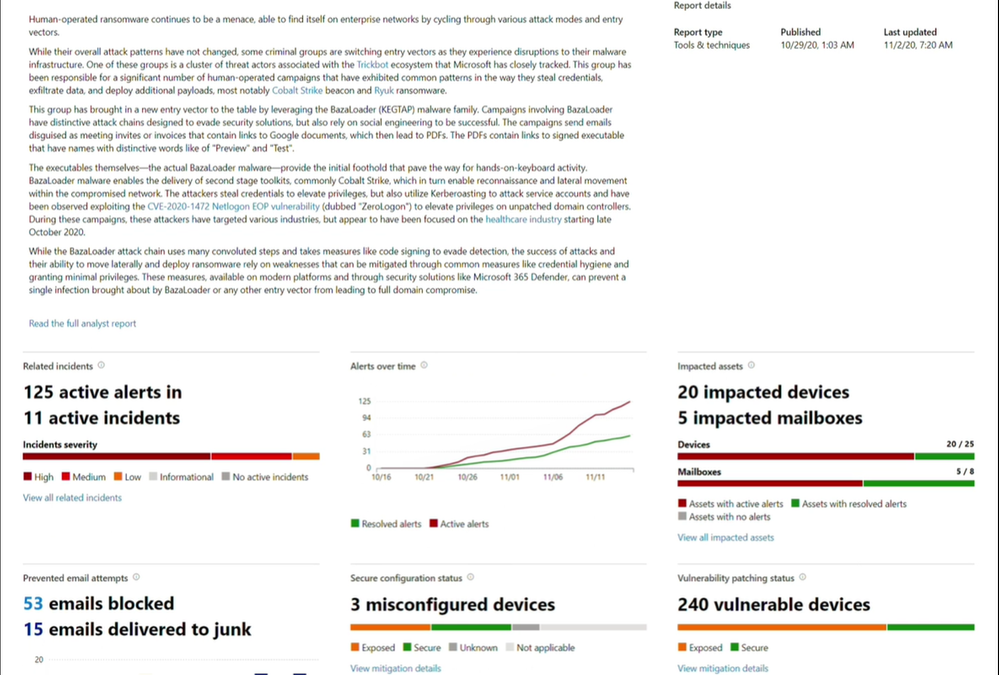
Threat analytics is Microsoft 365 Defender’s in-product threat intelligence (TI) solution designed to help defenders like you to efficiently understand, prevent, identify, and stop emerging threats. It provides a unique combination of in-depth TI analysis and reports from expert Microsoft security researchers, and consolidated data showing your organization’s security posture relative to the threats. Threat analytics helps you respond to and minimize the impact of active attacks.
As part of a unified extended detection and response (XDR) experience in Microsoft 365 Defender, threat analytics is now available for public preview. It includes better data coverage, incident management across security pillars, automatic investigation and remediation, and cross-domain hunting capabilities. Microsoft 365 Defender threat analytics is available for Microsoft Defender for Office 365 and Microsoft Defender for Endpoint users.
If you’re familiar with threat analytics in Microsoft Defender for Endpoint, you’ll be excited to know that the integrated experience you’ll see in Microsoft 365 Defender threat analytics takes your report consumption to another level.
What’s new?
Threat analytics for Microsoft 365 Defender introduces:
- Better data coverage between Microsoft Defender for Endpoint and Microsoft Defender for Office 365, making combined incident management, automatic investigation, remediation, and proactive or reactive threat hunting across-the domain possible.
- Email-related detections and mitigations from Microsoft Defender for Office 365, in addition to the endpoint data already available from Microsoft Defender for Endpoint.
- A view of threat-related incidents that aggregate alerts into end-to-end attack stories across Microsoft Defender for Endpoint and Microsoft Defender for Office 365 to reduce the work queue, as well as simplify and speed up your investigation.
- Attack attempts detected and blocked by Microsoft Defender for Office 365. You can also see data that you can use to drive preventive actions that mitigate the risk of further exposure and increase resilience.
- Enhanced design that puts actionable information in the spotlight to help you quickly identify data to urgently focus on, investigate, and leverage from the reports.
What’s in each report?
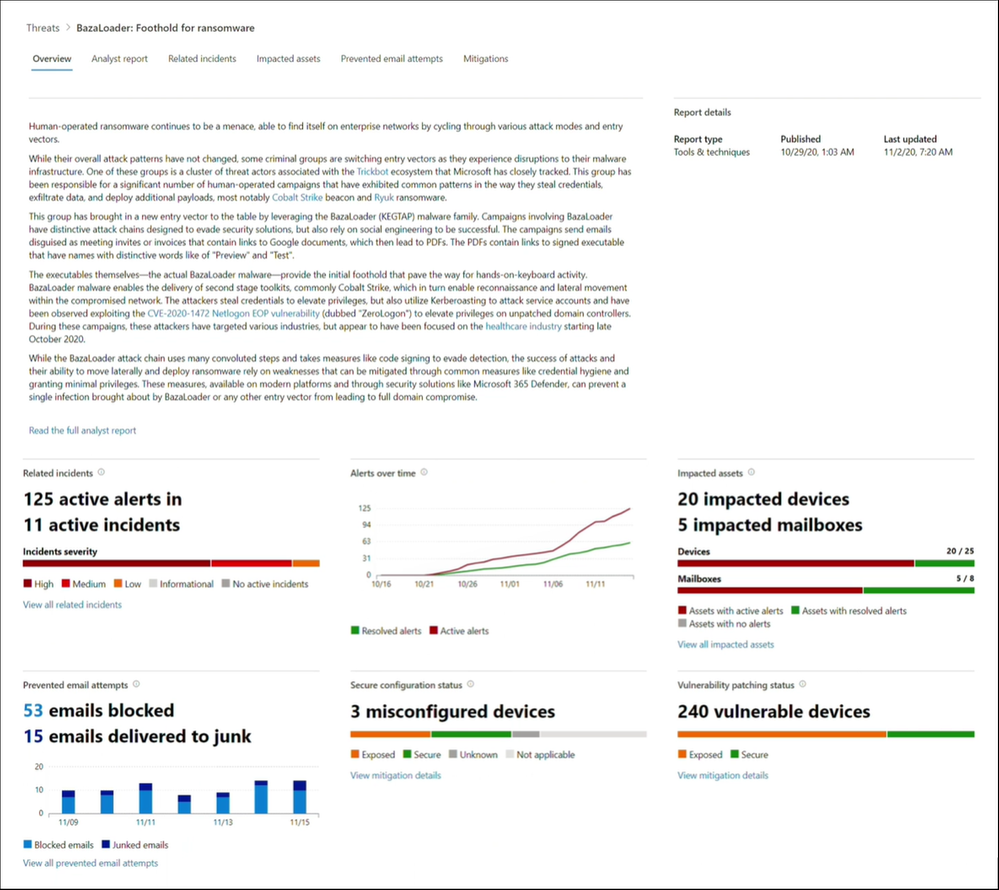
With each threat analytics report, you’ll find:
- Detailed analyst report—deep-dive analysis, MITRE techniques, detection details, recommended mitigations, and advance hunting queries that expand detection coverage.
- Active alerts and incidents.
- Impacted assets, including your devices and mailboxes.
- Prevented email attempts, indicating whether you were a target of this threat even if the email has been blocked before delivery or delivered to the junk mail folder.
- Mitigations and their statuses, with options to investigate further and remediate weaknesses using threat and vulnerability management (please note that email related mitigations are found in the analyst report).
How do I get there?
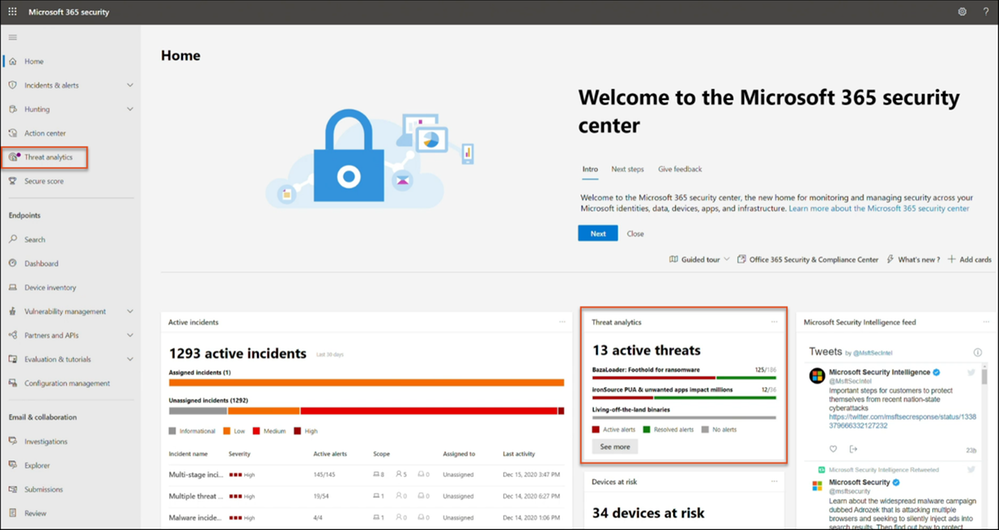
- Threat analytics can be accessed from the Microsoft 365 security center navigation bar.
- When a new threat report is published or updated, you’ll get a badge in the navigation bar.
- A dedicated threat analytics card has also been added to the Microsoft 365 security center dashboard, so you can track the threats that are active on your network.
Ready to check it out? Explore these threat analytics reports.
Solorigate supply chain attack
Microsoft continues to work with partners and customers to expand our knowledge of the threat actor behind the nation-state cyberattacks that compromised the supply chain of SolarWinds and impacted multiple other organizations. Microsoft previously used ‘Solorigate’ as the primary designation for the actor, but moving forward, we want to place appropriate focus on the actors behind the sophisticated attacks, rather than one of the examples of malware used by the actors. Microsoft Threat Intelligence Center (MSTIC) has named the actor behind the attack against SolarWinds, the SUNBURST backdoor, TEARDROP malware, and related components as NOBELIUM. As we release new content and analysis, we will use NOBELIUM to refer to the actor and the campaign of attacks.
This report about the sophisticated attack details how NOBELIUM inserted malicious code into a supply chain development process. A malicious software class was included among many other legitimate classes and then signed with a legitimate certificate. The resulting binary included a backdoor and was then discreetly distributed into targeted organizations. This attack was discovered as part of an ongoing investigation.
Emotet breaks hiatus with spike in cybercrime activity
Understand how Emotet operators have started to ramp up activity starting July 2020. Notable for their involvement in Ryuk ransomware distribution, Emotet operators are back with basically the same goals, utilizing similar lure themes and macro-enabled documents. Despite the recent take-down which has interrupted Emotet, your security operation centers should continuously monitor Emotet-related alerts in your antivirus and EDR solutions. Secondary payloads delivered by Emotet prior to the take-down remain a serious and real threat to your network.
BazaLoader: Foothold for ransomware
Possibly tied to the same cybercriminals leveraging Trickbot infrastructure, these campaigns appear to be part of ongoing attempts to shift to other entry vectors. Started in late October 2020, these campaigns use phishing emails that take recipients through link chains to implant BazaLoader. Unsurprisingly, the new implant brings in potent tools like Cobalt Strike, which make persistent, direct human attack activity possible. Microsoft’s security solutions remain effective against this threat, regardless of the recent BazaLoader activities that we’ve observed this month. Use advanced hunting to proactively hunt for this threat in your Microsoft 365 security portal (Microsoft 365 Defender) or Microsoft Security Center portal (Microsoft Defender for Endpoint).
IcedID’s frosty arrival can lead to data theft
Get your shields up by learning about this modular banking trojan’s modus operandi and how Microsoft 365 Defender can help detect and stop IcedID campaigns at multiple points along the attack chain and across domains, including the very start.

by Contributed | Mar 24, 2021 | Technology
This article is contributed. See the original author and article here.
Microsoft partners like Denodo, Genymobile, and Confluent deliver transact-capable offers, which allow you to purchase directly from Azure Marketplace. Learn about these offers below:
|
Denodo Standard 8.0 (Hourly): Denodo Standard is a new, cost-effective option that helps small to medium-sized organizations get started with Denodo for departmental use cases. Its real-time integrated views can combine your Microsoft Azure data sources with data from on-premises databases and applications. Use Denodo’s modern data virtualization to accelerate your analytics and data services.
|
 |
Genymotion Cloud – Run Android as a VM on Azure: Genymotion Cloud is a suite of Android operating systems based on Microsoft Azure server instances. With Genymotion Cloud, you can access an Android application or environment from any device, just as you would access a remote desktop. This enables mobile threat detection, app testing, content sharing, and more.
|
 |
Apache Kafka on Confluent Cloud: Confluent Cloud lets you harness the power of Apache Kafka without the burden of infrastructure management. The fully managed event-streaming platform helps development teams deliver immediate value with real-time analytics use cases. Start streaming with Confluent Cloud on Microsoft Azure in seconds, with on-demand provisioning of elastically scalable clusters.
|
|

by Contributed | Mar 24, 2021 | Dynamics 365, Microsoft 365, Technology
This article is contributed. See the original author and article here.
Join us on April 6, 2021 for the Microsoft Business Applications Launch Event, a digital event streaming live from 9:00 10:30 AM Pacific Time (UTC7). This is your opportunity to learn about new innovations coming to Microsoft Power Platform and Microsoft Dynamics 365 over the next six months. James Phillips, President, Microsoft Digital Transformation Platform, will share stories from customers about how they use Microsoft Business Applications to drive success. You’ll also hear from other executives behind the technology as they discuss the new 2021 release wave 1 features and capabilities coming to Dynamics 365 and Power Platform and how they will help you: Bring a new level of innovation and agility to your organization with modular applications that all work together. Unify relationships, processes, and data with connected, comprehensive, cloud Business Applications across your organization. Gain end-to-end visibility while enabling your teams to achieve greater outcomes faster. Thrive as your business changes by extending existing applications and building new solutions. Give your organization the tools it needs to provide a safer workplace while maintaining productivity as teams work remotely. And that’s just the start. During the event, participate in a live Q&A chat to get answers to questions and learn more. Register today to ensure you don’t miss a single update, insight, or in-depth product demonstration from the experts behind them. Come join us. And experience tomorrow’s innovations for your businesstoday. Register now. Catch up on news, demos, and learning sessions from Microsoft Ignite For a complete list of new capabilities, please review the Dynamics 365 and Power Platform 2021 release wave 1 plans, as well as overviews of updates announced at Microsoft Ignite in early March, including: Dynamics 365: The introduction of Dynamics 365 Intelligent Order Management, a new application that can help accelerate omnichannel transformation across order and fulfillment. New ways to extend collaboration across teams and departments with Dynamics 365 and Microsoft Teams. The debut of real-time customer journey orchestration to elevate personalized customer experiences. Power Platform: The ability to automate desktop tasks in Windows 10 with Microsoft Power Automate Desktop, available for all Windows 10 users at no cost. Microsoft Power Fx, a low-code, open-source programming language across the Power Platform. New and enhanced governance, security, and administration capabilities to enable IT professionals to safely manage and scale the growth of low-code solutions within the organization. Power BI Premium Per User, which will be generally available on April 2nd for $20 per user, per month, and the introduction of a new Autoscale option with pay-as-you-go, and improved utilization metrics. New AI capabilities in Power Virtual Agents enable bots to automatically learn and improve over time. You can also watch dozens of learning sessions from Ignite on-demand, a great way to learn about the very latest technology for every part of your business. Tomorrow’s innovations for your business Register today and join us for the Microsoft Business Applications Launch Event. Transform data from every source to give you holistic guidance and improve decision making
The post Explore Dynamics 365 and Power Platform updates at the Microsoft Business Applications Launch Event appeared first on Microsoft Dynamics 365 Blog.
Brought to you by Dr. Ware, Microsoft Office 365 Silver Partner, Charleston SC.
by Contributed | Mar 24, 2021 | Technology
This article is contributed. See the original author and article here.
This blog post is a follow-on to a three-part series exploring the many ways that Microsoft Power Platform empowers people with no coding experience to upskill and quickly learn how to create apps to solve business problems or local community issues. The cloud advocate featured in this post, Greg Hurlman, shows developers how using Microsoft Power Platform can empower them in new ways. He also works with nondeveloper creators who use Microsoft Power Platform to come up with inventive solutions. To hear the other cloud advocates talk about their experience with Microsoft Power Platform, tune in to this Digital Lifestyle podcast.
When Dona Sarkar, lead for the Microsoft Power Platform Advocacy team, needed a developer advocate for the team, she looked for “one of the best people in the world at what they do.” She wanted someone who could show classic software developers how to do their job more efficiently and how to write and debug less code. She found that person in Greg Hurlman, who is now in customer engagement on the Microsoft Power Apps engineering team.
As Hurlman talked to customers trying to get Power Apps started in their organizations, he heard about Sarkar’s efforts. In fact, he even helped her when she had issues with her own environment as she was doing a demo. Sarkar saw firsthand how knowledgeable and helpful Hurlman was and how friendly and informative he was when he moderated Q&As for different Microsoft Power Platform sessions. So when he asked her if there was anything else he could do to help, she told him she needed a cloud developer advocate. As Hurlman puts it, “If you’re going to volunteer to Dona that you’re going to help her do her work, she will volunteer you to do it.”
A career helping others use technology
As a support engineer and consultant, Hurlman has always helped customers solve their problems. As he puts it, “I’ve been keeping people from having to call IT for the past 20 years.” His consulting work allowed him to develop empathy for customers. Hurlman explains, “I met with a lot of end users of the folks that were going to use the applications that IT was having us build. I helped them figure out their requirements and how they were going to actually use it. I’ve done a lot of community work when I was in the SharePoint space. That gives me a more rounded outlook on how software gets built because I’ve actually talked to customers that build things.”
Reaching out to traditional developers
The message that Hurlman brings to the traditional developer community is simple—using Power Apps saves time and development effort. He points out, “At this point in my career, I’ve been coding forever but I will create an app with Power Apps first before I try to create anything with custom code—just because it’s so much faster and does so much of what you’re trying to do.”
Hurlman has a lot of tips and tricks to show traditional developers how to create apps faster using Power Apps. He observes that there are two types of traditional developers—those who like building the user interface (UI) for the web (the front end) and those who like building the middle layer APIs that talk to databases (the back end). Typically, these developers can code for both the front end and the back end, but they have a preference. He uses an example, “If you’re a developer who only wants to work on the back end but you still need to work on the UI, you can use Power Apps to create that front end for you. You create your API, and you write a connector to it. Now the data through your API can get into that app super easily. The amount of time you can spend on the front end goes from weeks and months to days and weeks.”
He tells the story of a mobile developer who was introduced to Power Apps. “In the span of an hour, he was able to build an app that was actually useful, that you could run on your phone. It made him question why he would go through the rigamarole of doing things to create mobile apps the way you do as a professional developer when you’re getting 90 percent of everything you could get either out of the box or with just a little bit of tweaking with Power Apps.”
Greg notes that Microsoft Certification can be a great career boost for developers who become Power Apps power users. To learn more about these developer certifications, check out the “Skill up with Microsoft Power Platform certification” section later in this post.
Reaching out to app creators
Then there’s Lauren Taylor, an elementary school principal in Tacoma, Washington, who uses Power Apps to help her run the school better. Her customers are her faculty. She created apps to help track student reading data, to have the teachers coordinate lesson plans, and more. Hurlman was struck by the fact that Taylor says that “she’s not an application developer—she’s an app creator.”
To acknowledge these new skills, Hurlman points out that the cloud advocates are working on a fusion developer team learning path that walks through creating Microsoft Power Platform apps using both the traditional dev sensibility and the app maker approach. Hurlman marvels at the creativity of the app makers. “They will take one thing and use it the way you planned,” he states, “and then use it 10 more ways that you didn’t plan.”
A future full of opportunity
Sometimes these app creators attend Hurlman’s talks for developers on custom connectors or the Power App platform at (pre-COVID-19) in-person events. He explains, “Every single time there would be somebody who has never written traditional code who maybe created a few Power Apps or maker apps or used Power Apps with Power Automate, and so on. These folks didn’t understand the developer content, but they would come up to me after and say that they’re interested in learning more so they can take the next step in their career journey. They just need to pick up the development 101 stuff.” They’re eager to use Power Apps to enrich or advance their careers.
Hurlman observes that there’s going to be a surge in the number of apps that need to be created in the next decade. He explains, “The amount of traditional developers we have to create those apps does not line up. We’re only going to be able to create a third of what we need. The other two-thirds are going to have to come from this maker space.” This means that there’s more than enough work for traditional developers and app makers who understand their organizations’ needs and who want to quickly create and iterate on apps.
Skill up with Microsoft Power Platform certifications
Depending on your skill set, Hurlman recommends that you check out the certifications for Microsoft Power Platform developers. A Microsoft Certification signals that you have the skills that organizations are looking for when they hire and advance employees. And it can help open career doors for you.
If you’re a maker and an app creator without a formal background in development, see whether your skills map to the requirements for passing Exam PL-100: Microsoft Power Platform App Maker for the Microsoft Power Platform App Maker Associate certification.
Those with a more traditional development background and some experience with Microsoft Power Platform should take a look at the new Microsoft Power Platform Developer Associate certification. To learn more, read our blog post, New certification: Microsoft Power Platform Developer Associate.
And if you’re a traditional developer looking to showcase your consulting and configuration skills, explore the Microsoft Power Platform Functional Consultant Associate certification.
Seasoned developers who have a lot of experience with Microsoft Power Platform should check out the Microsoft Power Platform Solution Architect Expert certification. It’s a great way to signal that you’re ready to take your career further.
Helping developers discover their career paths
Hurlman is passionate about helping a wide variety of developers. He likes to surprise the traditional developers by showing them new ways they can save time and effort by incorporating Power Apps into their traditional tool set. Certifications can help them grow their careers. Plus, the inventive app creators have a special place for him because they, too, will be important to tomorrow’s workplace. It doesn’t matter what their backgrounds are—they can come to Power Apps and quickly build tools that make a difference for themselves and their organizations. Power Apps is a confidence builder, and Hurlman wants to spread the news that there are Power Apps development career paths available for people who love to create apps.
by Contributed | Mar 24, 2021 | Technology
This article is contributed. See the original author and article here.
This blog post is part 2 of the three-part series on Microsoft Teams and on-premises Exchange mailboxes.
Microsoft Teams and on-premises mailboxes: Part 1 – How do Teams and Exchange Server interact?
Teams Backend AutoDiscover
The Teams Backend Services use AutoDiscover Version 2 to find a user’s Exchange mailbox on behalf of a Teams client. This AutoDiscover V2 call is an anonymous call for performance reasons to determine the Exchange target URL for the mailbox sought as quickly as possible. As already mentioned in the previous blog post, the Teams Backend Services query the AutoDiscover endpoint of Exchange Online first. If Exchange Online does not host the mailbox, the services receive an HTTP redirect to search for the local Exchange organization’s endpoint.
The detailed steps are:
1. The Teams Backend Services query the Exchange Online AutoDiscover endpoint for the URL for the EWS protocol using an AutoDiscover V2 JSON query
https://outlook.office365.com/autodiscover/autodiscover.json?Email=John.Doe@varunagroup.de&Protocol=EWS
2. Exchange Online verifies the recipient type for the email address contained in the JSON query and replies with one of the following options:
a. RecipientType: Mailbox
https://outlook.office365.com/EWS/Exchange.asmx
The mailbox is an Exchange Online mailbox. No further steps are necessary. The Teams Services have the information they need to access the users’ calendar.
b. RecipientType: MailUser
Exchange Online determines the AutoDiscover endpoint based on the ExternalEmailAddress attribute; in this example autodiscover.varunagroup.de
3. Exchange Online replies with an HTTP 302 redirect to autodiscover.varunagroup.de
4. The Teams Backend Services send an AutoDiscover V2 JSON query for the URL for the EWS protocol
https://autodiscover.varunagroup.de/autodiscover/autodiscover.json?Email=John.Doe@varunagroup.de&Protocol=EWS
5. On-premises Exchange Server replies with an external EWS URL of a virtual Exchange Web Services virtual directory
Example: {“Protocol”:”EWS”,”Url”:”https://mail.varunagroup.de/EWS/Exchange.asmx“}
6. The Teams Backend Services use the received URL to establish a connection to the on-premises Exchange organization
But what do the Teams Backend Services exactly, after receiving the EWS URL? The services perform the following steps:
- Open an HTTPS connection to the on-premises EWS URL and perform an OAuth authentication using the registered services principal
- Send an EWS calendar query
- Receive the Exchange Web Services response
- Send the parsed calendar data to the Teams clients’ calendar app for further use
As you can see, accessing the calendar of a user mailbox hosted in an on-premises Exchange organization is complex. This complexity can lead to errors.
How can you now perform an error analysis for the AutoDiscover process and the subsequent calendar access? Let’s start with AutoDiscover.
Troubleshooting AutoDiscover
Since Microsoft Teams Backend Services perform all AutoDiscover and other client accesses, there are no viable troubleshooting steps on the local Teams client. The client itself must have access to the internet and proper DNS name resolution working.
Because AutoDiscover V2 uses anonymous access, you can test it for any email address. This self-test helps you as an IT administrator check AutoDiscover for a users’ email address that might not work correctly. You can check the AutoDiscover response using PowerShell or with the help of a browser.
PowerShell
Run the Invoke-RestMethod cmdlet with the following Uri-Strings for EWS and REST protocol
Invoke-RestMethod -Uri ‘https://outlook.office365.com/autodiscover/autodiscover.json?Email=John.Doe@varunagroup.de&Protocol=EWS‘
Invoke-RestMethod -Uri ‘https://outlook.office365.com/autodiscover/autodiscover.json?Email=John.Doe@varunagroup.de&Protocol=REST‘
Out-of-Office information and calendar-based presence status requests use the on-premises REST-endpoint.
Ensure that there are no unsupported characters in the Uri.
Browser
You can test and query the AutoDiscover endpoint using the following URLs
https://outlook.office365.com/autodiscover/autodiscover.json?Email=john.doe@varunagroup.de&Protocol=EWS
https://outlook.office365.com/autodiscover/autodiscover.json?Email=john.doe@varunagroup.de&Protocol=REST
For an on-premises mailbox, you receive an AutoDiscover response from your on-premises Exchange Server, like the one shown in the following screenshot.

Perform a Fiddler trace for a more detailed error analysis when executing the HTTPS queries. The trace results help you to identify other possible sources of error, i.e., a failed TLS handshake.
If an error occurs while determining the AutoDiscover information, this does not automatically imply a problem. Check the following options:
- The AutoDiscover query terminates with a timeout
- Is the HTTPS access to your Exchange organization restricted to the remote IP address ranges of Microsoft 365?
- Maybe the Exchange Server systems have a performance problem and cannot respond promptly?
- You receive a “User Not Found”-response
- Is the user account excluded from the Azure AD Connect synchronization and does not exist as a “Mail User” object in Exchange Online?
- The response does not contain the expected EWS or REST URL
- The mailbox is an on-premises mailbox, but the response contains the Exchange Online endpoint
https://outlook.office365.com/EWS/Exchange.asmx
Most likely, the user has an additional mailbox in Exchange Online. Resolve the double mailbox situation.
- The response contains a URL that seems to be an internal URL, i.e.,
https://exch01.varunagroup.local/EWS/Exchange.asmx
The ExternalUrl attribute configuration is not correct for all virtual directories.
- You use bound namespaces, the user mailbox location is AD site EMEA, but the response contains an URL of a different site, i.e.,
https://mail.apac.varunagroup.de/EWS/Exchange.asmx
Expected URL: https://mail.emea.varunagroup.de/EWS/Exchange.asmx
Until March 2021, AutoDiscover V2 is not AD site-aware. The March 2021 cumulative updates for Exchange Server 2016 and 2019 fix this issue. Read more about the updates in this blog post.
- DNS Name resolution fails for the email address target domain
- There is no DNS resource record for AutoDiscover in the internet-facing DNS zone
The next steps to identify connection problems lead us to the on-premises Exchange servers. With a local network trace, you can determine whether there are TLS handshake errors. Please note that your Exchange Server systems must be configured correctly for TLS 1.2. The TLS 1.2 configuration might require manual steps if you use Exchange Server 2016 or Exchange Server 2013.
If there are no errors in the TLS handshake, you must check the Exchange server’s log files. Checking the log files on the local Exchange servers requires several steps. Depending on your local Exchange organization’s size and the number of Exchange Servers, this check can be very complicated.
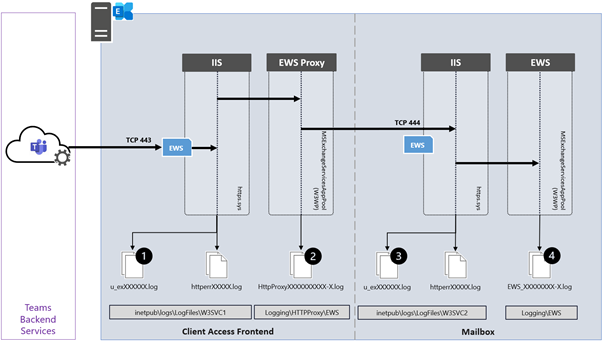
The following diagram shows the participating Exchange Server components of a single Exchange Server for incoming connections from the Teams Backend Services to the Exchange Web Services endpoint.
The IIS Default website receives the incoming HTTPS connection from the Teams Services and passes it to the Frontend Proxy component, i.e., EWS or REST. You find information about those two connections in the W3SVC1 (1) and the HttpProxy logs of the targeted protocol (2). The Frontend Proxy component proxies the connection to the Exchange Backend website of the Exchange Server, where the active database copy containing the user mailbox is mounted. This is not necessarily the same Exchange Server accepting the Frontend connection. You find information about this proxied connection in the W2SVC2 IIS logs (3) and the queried Exchange service (4). Depending on the Exchange protocol you want to troubleshoot, you must check the AutoDiscover, EWS, or REST log files.
Troubleshooting Calendar App
Now that you know how to deal with the AutoDiscover process’s errors, it’s time to take a look at the Teams Calendar app.
Suppose the access to AutoDiscover works without errors. There is a high probability that the access to the Exchange Web Services will also work, and therefore the calendar app in the Teams client will show calendar information.
However, if the Teams client does not display the calendar, check the following:
- Can the EWS URL determined by AutoDiscover, is the hostname resolvable in the domain’s external DNS zone, and can it be reached from the Internet via HTTPS?
- Use a browser to connect to the EWS URL and use Fiddler to identify any connection-based issues
The EWS endpoint must reply with am HTTP 401 status code
- Use the Remote Connectivity Analyzer to perform a Teams Calendar Access Tab Test
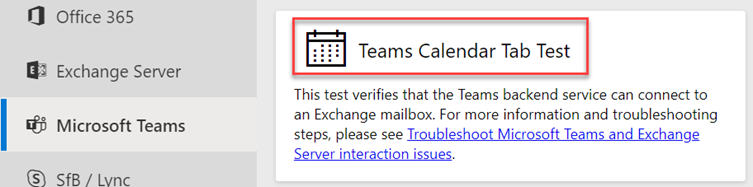
http://bit.ly/TeamsCalTest
- Verify the OAuth Authentication configuration
In the next blog post, we will take a closer look at calendar delegate situations.
Links
Thomas Stensitzki is a leading technology consultant focusing on Microsoft messaging and collaboration technologies and the owner of Granikos GmbH & Co. KG. He is an MVP for Office Apps & Services and an MCT Regional Lead. As a user group organizer, he hosts the Microsoft Teams User Group Berlin and the Exchange User Group DACH.
Twitter: https://twitter.com/stensitzki
Blog: https://JustCantGetEnough.Granikos.eu
Teams User Group: https://TeamsUserGroup.berlin
Exchange User Group: https://exusg.de
To write your own blog on a topic of interest as a guest blogger in the Microsoft Teams Community, please submit your idea here: https://aka.ms/TeamsCommunityBlogger


Recent Comments