by Contributed | Apr 8, 2021 | Technology
This article is contributed. See the original author and article here.
EasyBuild is a software build and installation framework that allows the efficient management of scientific software on HPC systems. Originally developed by the HPC team at Ghent University, EasyBuild is today developed by the EasyBuild community which spans several hundred HPC sites globally.
As part of the 6th EasyBuild User Meeting (EUM’21), Microsoft provided dedicated Azure HPC Cloud resources to support a CernVM File System (CernVM-FS) tutorial which was organised and delivered by Kenneth Hoste (HPC team at Ghent University), Bob Dröge (University of Groningen), and Jakob Blomer (lead developer of CernVM-FS at CERN).
This CernVM-FS tutorial was organised in the context of the European Environment for Scientific Software Installations (EESSI) project, which aims to set up a shared repository of optimised scientific software installations that can be used across different platforms including personal workstations, cloud environments, and HPC clusters. CernVM-FS and EasyBuild are key components in the EESSI project, alongside other open source projects like archspec, Lmod, Gentoo Prefix, Ansible, Terraform, and ReFrame.
Tutorial Description
CernVM-FS was originally developed to assist High Energy Physics (HEP) collaborations to deploy software on the worldwide-distributed computing infrastructure used to run data processing applications.
The tutorial was split into an introductory talk by lead developer Jakob Blomer and four tutorial sessions with hands-on exercises and support provided through a dedicated Slack channel. Dedicated cloud resources in Microsoft Azure (sponsored by Microsoft) were made available to registered tutorial attendees for working on the hands-on exercises.
The CycleCloud environment set up by Kai Neuffer and Karl Podesta (Snr Technical Specialists from the Azure EMEA Global Black Belt Team) was found to be a very good fit for the tutorial. A cluster template was set up in CycleCloud so that a cluster could be created per attendee. The template was used to specify names and open ports for each of the different node types in the cluster, and once this was in place then creating the clusters was found to be very easy.
Clusters needed to be created manually via the Azure CLI with accounts also being assigned manually to the clusters. This took some effort, and as an advanced topic it was recommended that this could be automated in a production setup with a tool like Ansible or Puppet.
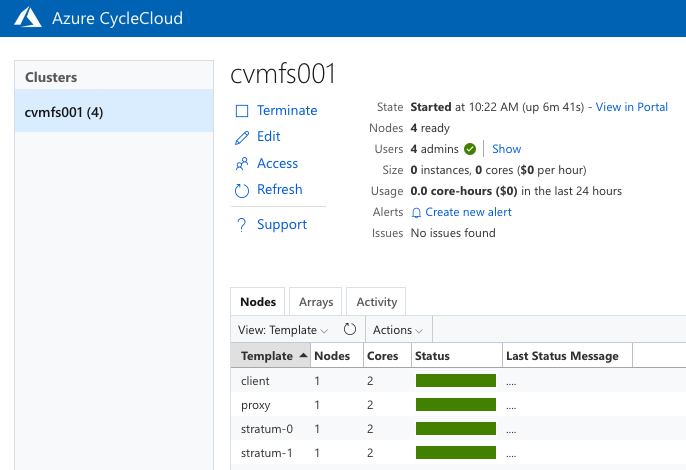
The green status bar shown in the example below shows all the nodes in the cluster which started successfully and were ready to be connected via the Secure Shell (SSH) protocol in the next stage of the exercise using an assigned username and the public IP address of the node:
With all the components for hosting and accessing a CernVM-FS repository in place, it could now be used and the next practical stages of the tutorial focused on adding files to the repository (referred to as publishing) by starting a transaction on the server and then publishing the changes, adding tags, recommendations around handling the metadata in a file catalog, and making use of nested catalogs by having separate catalogs for different subtrees of the repository.
Conclusion & Feedback
Over 30 people were registered, each of whom were assigned 4 Virtual Machines (VMs) with 2 cores each. As this was the first tutorial of this kind to make use of CycleCloud, a lesson learned for next time would be to ensure a larger pool of external IP addresses. However, this was overcome with assistance from Karl Podesta of the Azure EMEA Global Black Belt HPC team by relocating some of the clusters to another region (North Europe rather than West Europe) which provided extra IP addresses.
Minor teething-troubles aside, Dr Hoste reported that CycleCloud had been a good a good fit for the tutorial, both for attendees and for the tutorial organizers, and that it would certainly be something he would like to consider again for future tutorials:
“I feel that the Azure CycleCloud environment was a very good fit for the tutorial. Attendees found it quite intuitive to navigate, and it was very useful for us to have access to the individual clusters to help troubleshoot things in case something went wrong.
Overall, I think we can state that the CernVM-FS tutorial went well: content-wise the tutorial was well received, and we are also quite happy with how it worked out. We feel this will be a valuable asset for both
the EESSI and CernVM-FS communities going forward.”
Further Information
by Contributed | Apr 8, 2021 | Technology
This article is contributed. See the original author and article here.
Overview
« Time is money » I like that old phrase :)
Security teams are often burdened with a growing number and complexity of security incidents. A Security Orchestration, Automation and Response (SOAR) solution offers a path to handling the long series of repetitive tasks involved in incident triage, investigation and response, letting analysts focus on the most important incidents and allowing SOCs to achieve more with the resources they have.
Azure Sentinel, in addition to being a Security Information and Event Management (SIEM) system, is also a platform for Security Orchestration, Automation, and Response (SOAR). One of its primary purposes is to automate any recurring and predictable enrichment, response, and remediation tasks that are the responsibility of your Security Operations Center and personnel (SOC/SecOps), freeing up time and resources for more in-depth investigation of, and hunting for, advanced threats.
Automation takes a few different forms in Azure Sentinel, from automation rules that centrally manage the automation of incident handling and response, to playbooks that run predetermined sequences of actions to provide powerful and flexible advanced automation to your threat response tasks.
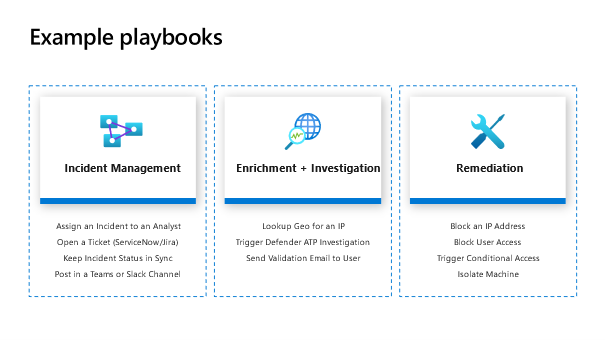
Here are some use cases a SOAR solution can help in analyst journey:
In this Blog post I will try to present some practical use cases around automation.
Use case 1: Threat Intelligence gathering
- SOC team gets threat intelligence feeds and log data from 3rd party solutions via Azure Sentinel connectors and correlate data.
- Some of the alerts match patterns of suspicious activities that were seen before and trigger Azure Sentinel playbooks (designed to automatically respond to known threats).
The goal here is to import threat intelligence feeds from AlienVault OTX platform to enrich logs stored in Azure Sentinel
Why it’s important: is there recent intelligence that suggests an URL or IP in your environment is part of command-and-control infrastructure? Are you concerned your domain is being used to serve malware? Threat intelligence can help quickly recognize the existence of these threats, allowing you to begin the remediation process. This intelligence is directly related to alerts from Azure Sentinel, enabling you to make faster, more informed, risk-based decisions.
To address this use case, I used this Logic App to import threat indicators from AlienVault into Azure Sentinel using the Graph Security API.
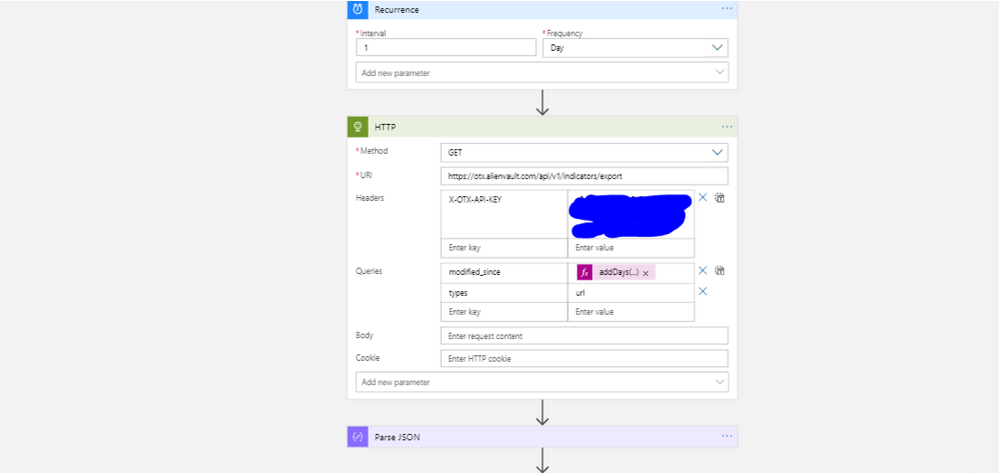
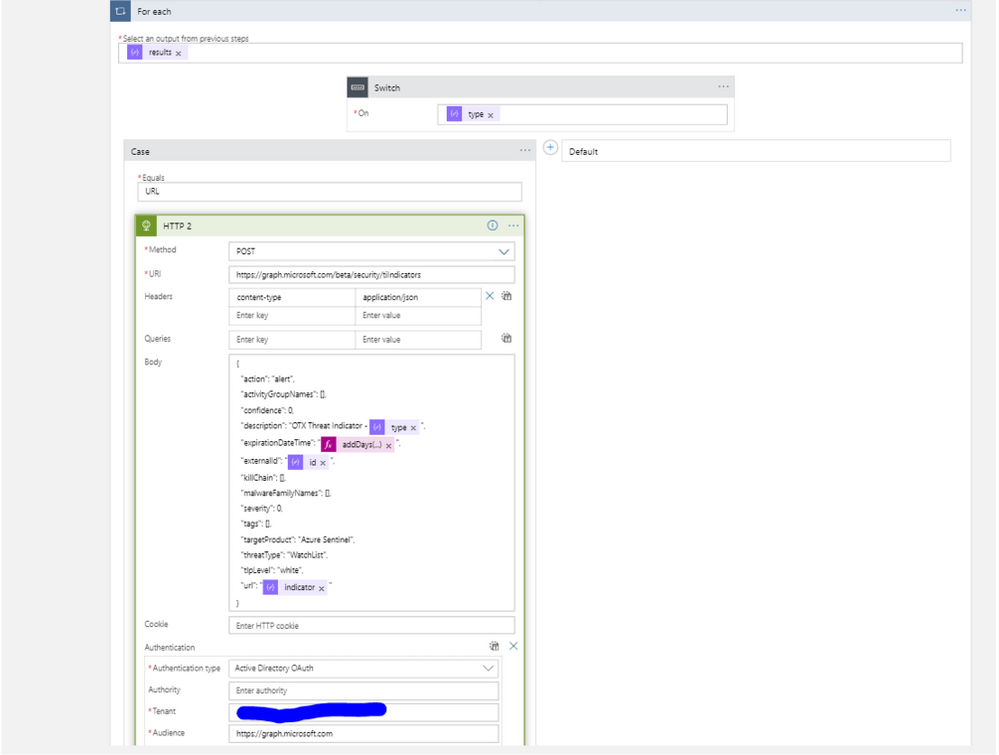
Here the procedure to implement playbooks in Azure Sentinel:
Tutorial: Use playbooks with automation rules in Azure Sentinel | Microsoft Docs
View AlienVault TI in Azure Sentinel
The logs will go to a native Azure Sentinel table called ‘ThreatIntelligenceIndicator’ as shown below.
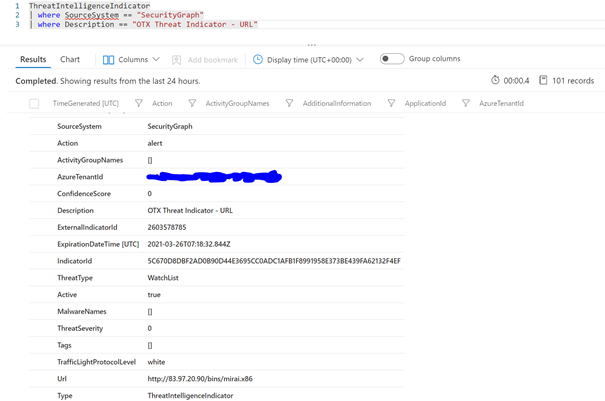
These malicious URLs can be correlated with other data generated from Endpoint security or proxy solutions. In this use case, I will use Microsoft Defender for Endpoint raw data collected by the new Microsoft 365 Defender connector to detect which devices in my network communicates with URLs known as malicious based on AllienVault threat indicators:

From here you can easily transform your hunting query to a detection rule (reactive way):
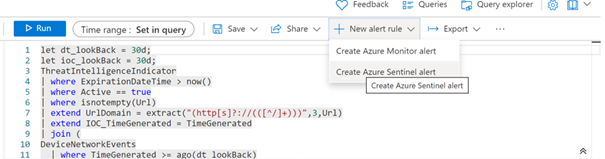
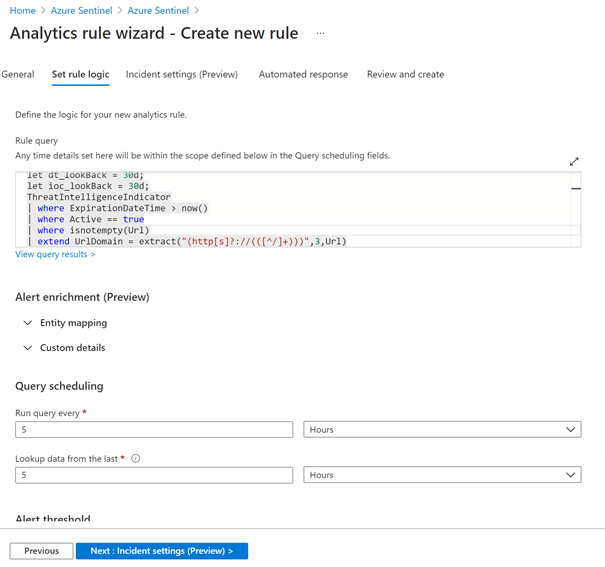
and assign any playbook for remediation:
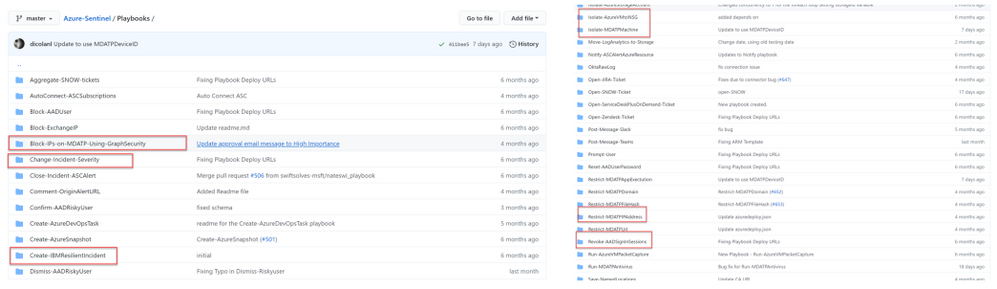
Use case 2: Reducing false positive
- The activities that are deemed normal “use case” are filtered to avoid SOC team wasting time on false positives.
The goal here is to use the new feature in Azure Sentinel which is called « Automation rules » to resolve incidents that are known false or benign positives without the use of playbooks.
For example, during a tests the Dev team is using new agent browser and testing automation procedures, many false-positive incidents may be created that the SOC wants to ignore. A time-limited automation rule can automatically close these incidents as they are created while tagging them with a descriptor of their generation’s cause.
Here we can see a new incident generated in Azure Sentinel based on a specific detection rule:
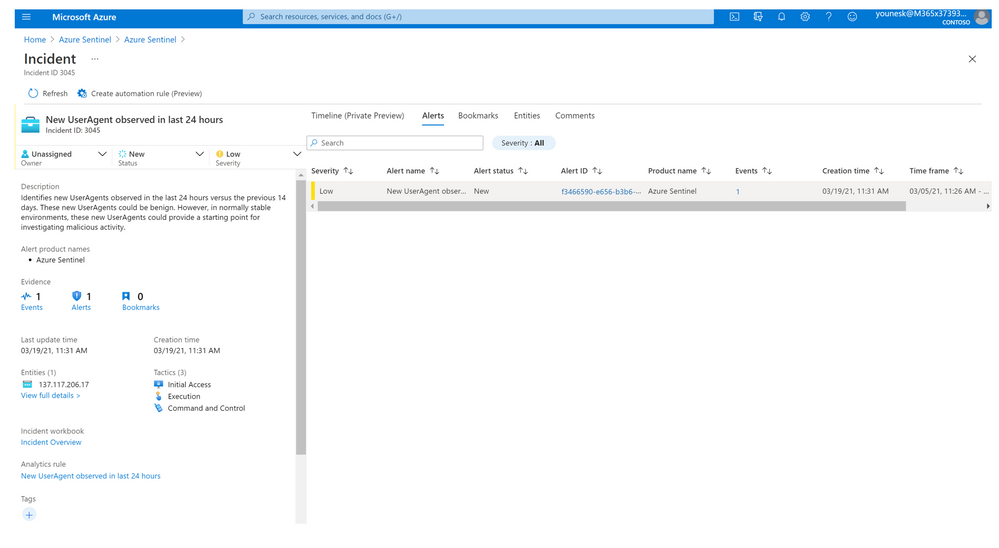
Our goal is to avoid this kind of false positive and close the incident based on specific criteria.
As an alternative, we can edit the detection rule and apply a filter based on IP address or username, but we should maintain this rule and update it after tests finish. More details can be found here: Handling false positives in Azure Sentinel – Microsoft Tech Community
The advantage of using automation rules is that we can apply an expiration time to remove this rule!
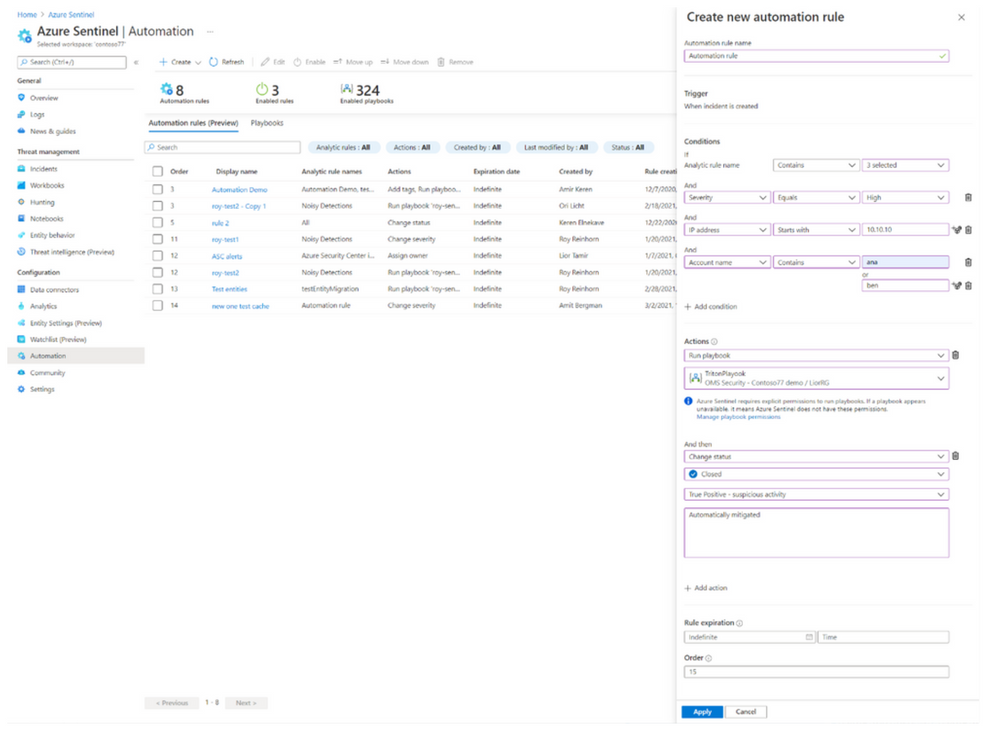
Use case 3: Incident enrichment
- SOC team starts investigating incidents by simply clicking on them to see threat details such as the activity logs, devices involved, or identities used.
- Add information (GEO IP, IOC) to the incident during the investigation process
In this example, Microsoft cloud app security (MCAS) triggered an alert about an activity which is detected from a location that was not recently or was never visited by any user in the organization.
This alert is imported in Azure Sentinel through the Microsoft 365 Defender connector and generate an incident :
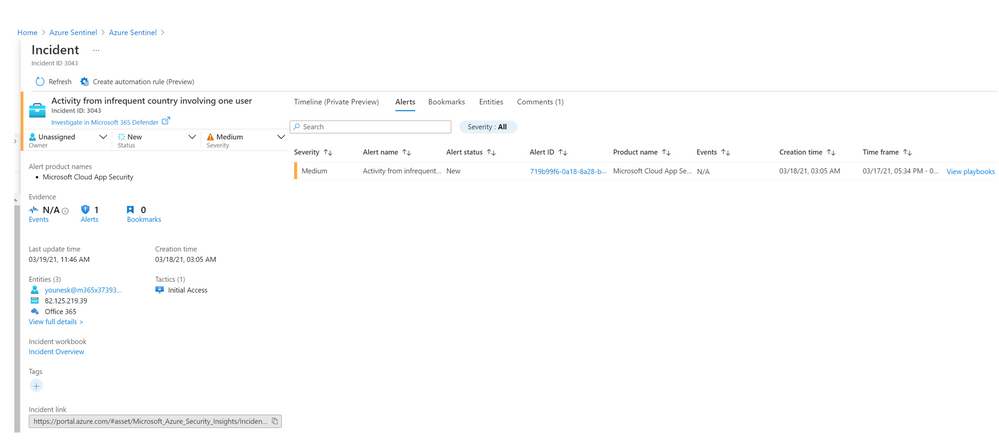
The security analyst can use Azure Sentinel playbook to enrich this incident with information about the associated entities, in this case our goal is to get more information about the IP associated to the incident.
To address this use case, I create a playbook based on the official Logic App connector for Virus Total
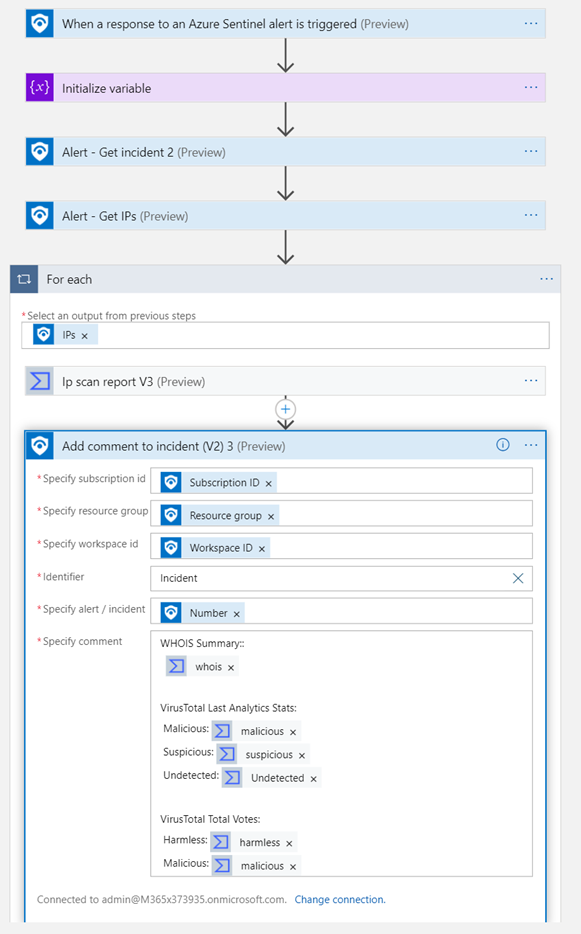
For more details on how implement the playbook, you can see this blog written by my colleague Rod Trent How to Take Advantage of the New Virus Total Logic App Connector for Your Azure Sentinel Playbooks – Azure Cloud & AI Domain Blog
Once the playbook is created, you can run it from the incident page:
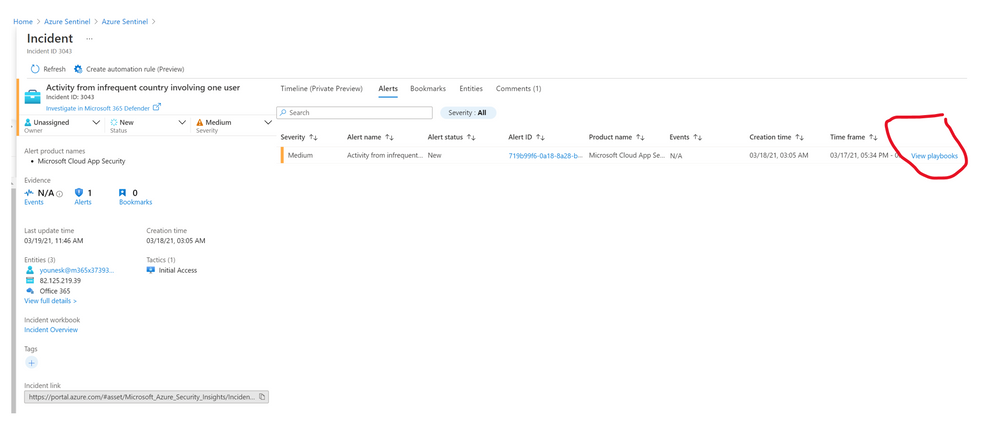
Then select the right playbook from the list:

After few seconds, you will be able to see information about this IP in the comment section:
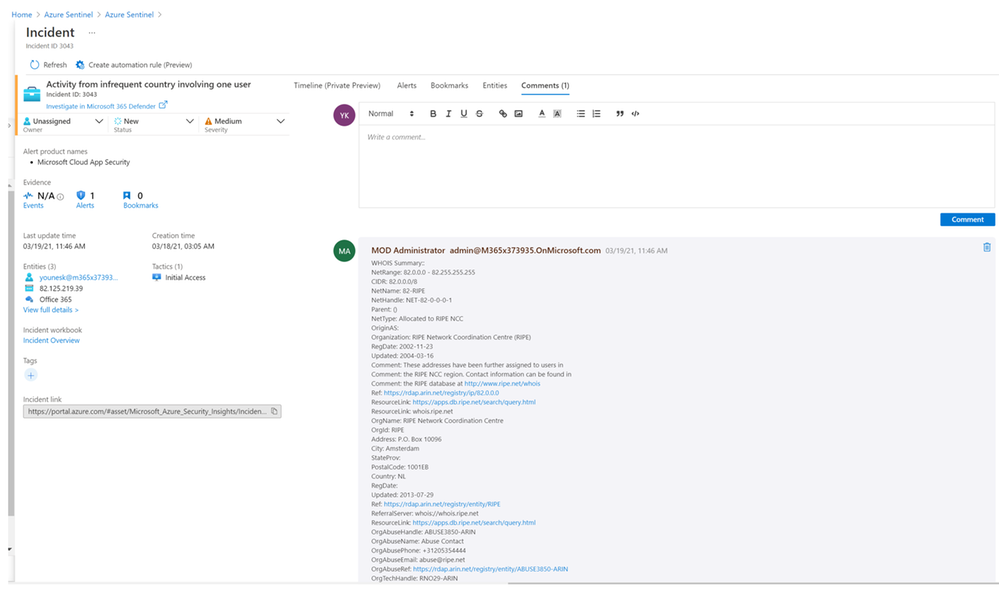
As I said at the beginning « Time is money » so have a fun playing with these use cases :)
Special thanks to Clive Watson and Alp Babayigit for their support.
Further reading
by Contributed | Apr 8, 2021 | Technology
This article is contributed. See the original author and article here.
This post is co-authored by Abe Omorogbe, Program Manager, Azure Machine Learning.
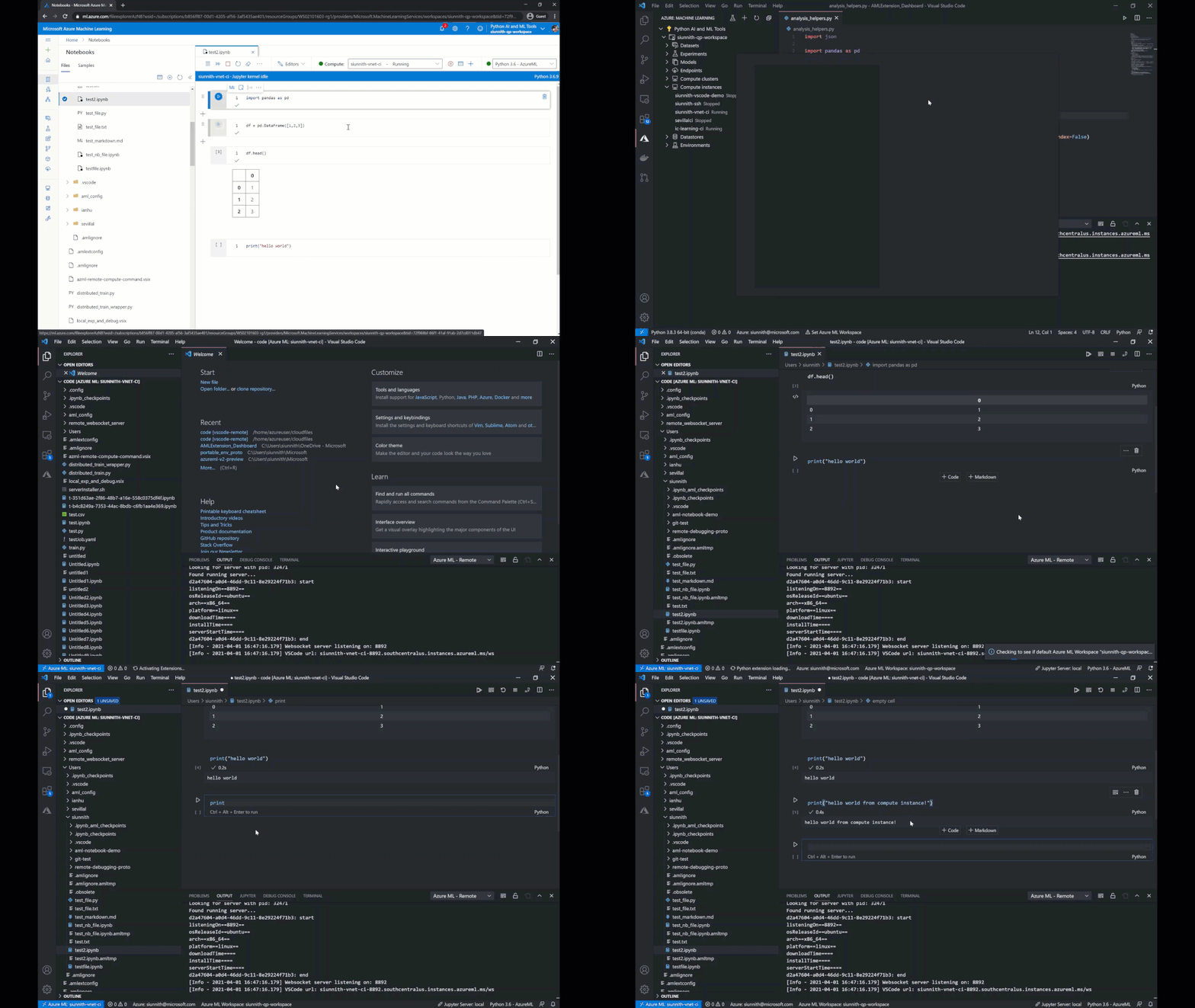
The Azure Machine Learning (Azure ML) team is excited to announce the release of an enhanced developer experience for ‘compute instance’ and ‘notebooks’ users, through a VS Code integration in the Azure ML Studio! It is now easier than ever to work directly on your Azure ML compute instances from within Visual Studio Code, , and with full access to a remote terminal, your favorite VS Code extensions, Git source control UI, and a debugger.
Bringing VS Code to Azure Machine Learning
The Azure Machine Learning and VS Code teams have been working in collaboration over the past couple of months to better understand user workflows for authoring, editing, and managing code files. The demand for VS Code became clear after speaking to a wide variety of users tasked with managing larger projects and operationalizing their models. Users were eager to continue working on their Azure ML compute resources and retain the development context initially defined through the Studio UI.
The first step to enabling a better editing experience for users was to evaluate what was currently used in VS Code. Users were familiar with extensions such as Remote-SSH and , the former used to connect to their remote compute and the latter to author notebook files. The advantage of using Jupyter, JupyterLab, or Azure ML notebooks was that they could be used for all compute instance types without requiring any additional configuration or networking changes.
To enable users to work against their compute instances without requiring SSH or additional networking changes, the Azure ML and VS Code teams built a Notebook-specific compute instance connect experience. The Azure ML extension was responsible for facilitating the connection between VS Code – Jupyter and the compute instance, taking care of authenticating on the user’s behalf. After a month or so of releasing this capability, it was clear that users were excited about connectivity without SSH and being able to work from directly within VS Code. However, working in the editor implied expectations around being able to use other VS code features such as the remote terminal, debugger, and language server. Users expressed their frustration with being limited to working in a single Notebook file, being unable to view files on the remote server, and not being able to use their preferred extensions.
VS Code Integration: Features
Learning from prior releases and talking to users led the Azure ML and VS code teams, to build a complete VS Code experience for compute instances without using SSH. Getting started with this experience is trivial – entry points have been integrated within the Azure ML Studio in both the Compute Instance and Notebooks tabs.
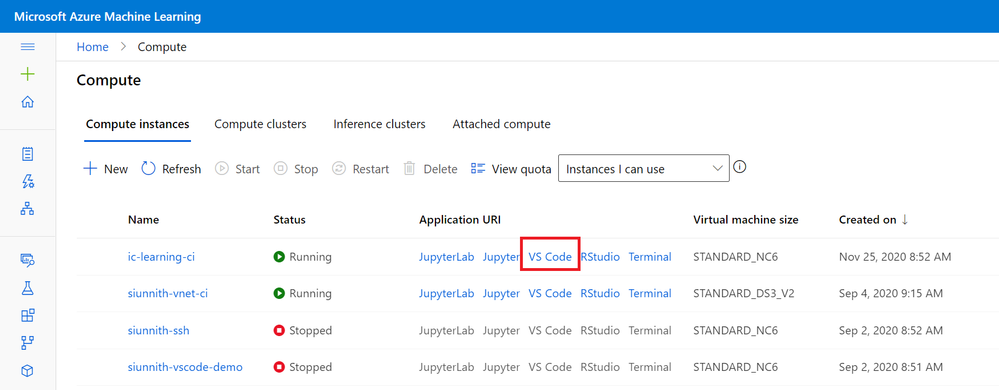 Studio UI Compute Entry Point
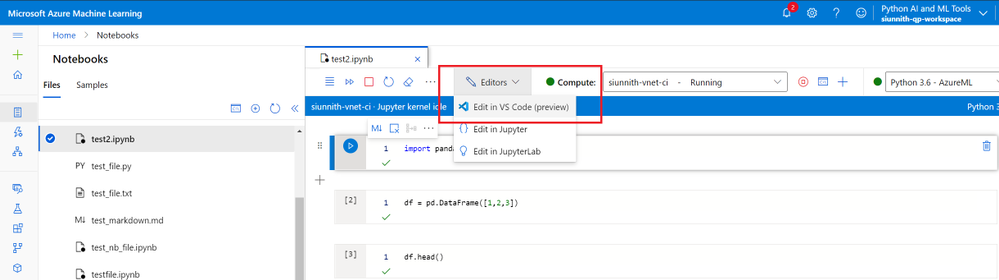 Studio UI Notebooks Entry Point
Through this VS Code integration customers will now have access to the following features and benefits:
- Full integration with Azure ML file share and notebooks: All file operations in VS Code are fully synced with the Azure ML Studio. For example, if a user drags and drops files from their local machine into VS Code connected to Azure ML, all files will be synced and appear in the Azure ML Studio.
- Git UI Experiences: Fully manage Git repos in Azure ML with the rich VS Code source control UI.
- Notebook Editor: Seamlessly click out from the Azure ML notebooks and continue to work on notebooks in the new native VS code editor.
- Debugging: Use the native debugging in VS Code to debug any training script before submitting it to an Azure ML cluster for batch training.
- VS Code Terminal: Work in the VS Code terminal that is fully connected to the compute instance.
- VS Code Extension Support: All VS Code extensions are fully supported in VS Code connected to the compute instance.
- Enterprise Support: Work with VS Code securely in private endpoints without additional, complicated SSH and networking configuration. AAD credentials and RBAC are used to establish a secure connection to VNET/private link enabled Azure ML workspaces.
VS Code Integration: How it Works
Clicking out to VS Code will launch a desktop VS Code session which initiates a secondary remote connection to the target compute. Within the remote connection window, the Azure ML extension creates a WebSocket connection between your local VS Code client and the remote compute instance.
The connected window now provides you with:
- Access to the mounted file share, with consistent syncing between what is seen in Jupyter* and the Azure ML Notebooks experience.
- Access to the machine’s local SSD in case you would like to clone and manage repos outside of the shared file share.
- The ability to manage repositories through the source control UI.
- The ability to create, interact and debug running applications.
- A remote terminal for executing commands directly against the remote compute.
Below is a high-level overview of the remote connection
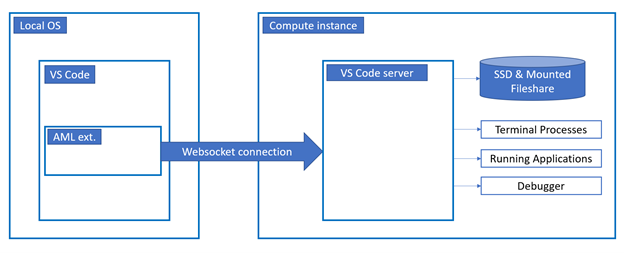 Remote Connection Architecture Diagram (High-Level)
This new connect capability and direct integration in the Azure ML Studio creates a better-together experience between Azure ML and VS Code! When working on your machine learning projects you can get started with a notebook in the Azure ML Studio for early data prep and exploratory work, when you’re ready to start fleshing out the rest of your project, work on multiple file types, and use more advanced editing capabilities and VS Code extension, you can seamlessly transition over to working in VS Code. The retained context and file share usage enables you to move bi-directionally (from notebooks to VS Code and vice-versa) without requiring additional work.
Getting Started
You can initiate the connection to VS Code directly from the Studio UI through either the Compute Instance or Notebook pages. Alternatively, there are routes starting directly within VS Code if you would prefer. Given you have the Azure Machine Learning extension installed, you can find the compute instance in the tree view and right-click on it to connect. You can also invoke the command “Azure ML: Connect to compute instance” and follow the prompts to initiate the connection.
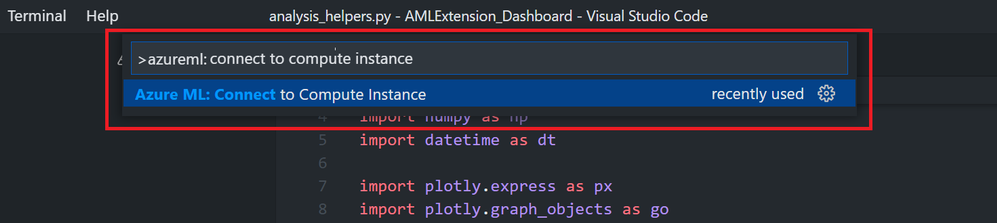 Azure ML extension command
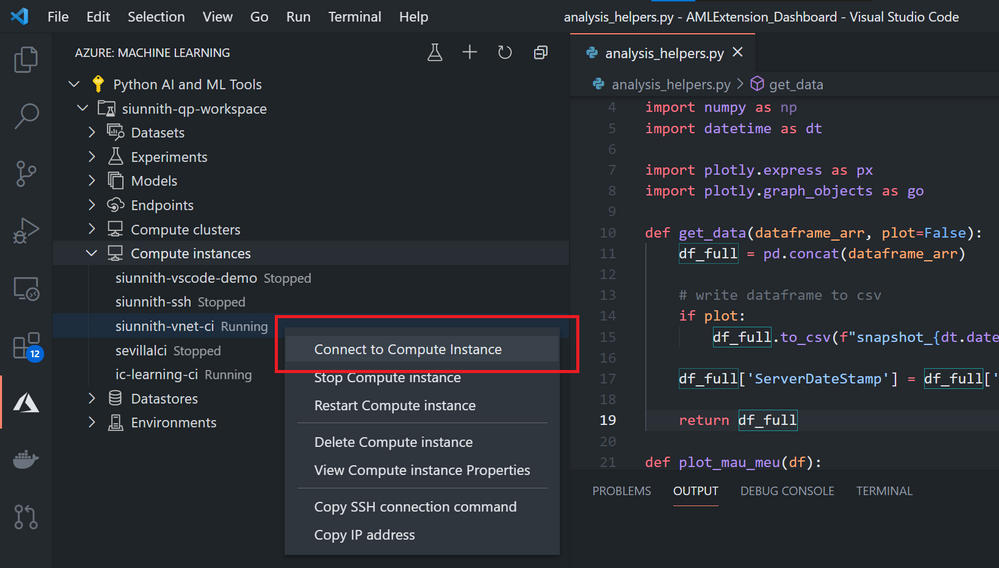 Azure ML extension tree view context menu option
For more details on how you can get started with this experience, please take a look at our public documentation.
Both the Azure ML and VS Code extension teams are always looking for feedback on our current experiences and what we should work on next. If there is anything you would like us to prioritize, please feel free to suggest so via our GitHub repo; if you would like to provide more general feedback, please fill out our survey.
by Contributed | Apr 8, 2021 | Technology
This article is contributed. See the original author and article here.
We are thrilled to announce a number of enhancements that are now generally available on Microsoft Teams Rooms on Android. From an updated calendar view to a new touch console experience, users now have more visibility of meetings and easier access to them on these devices.
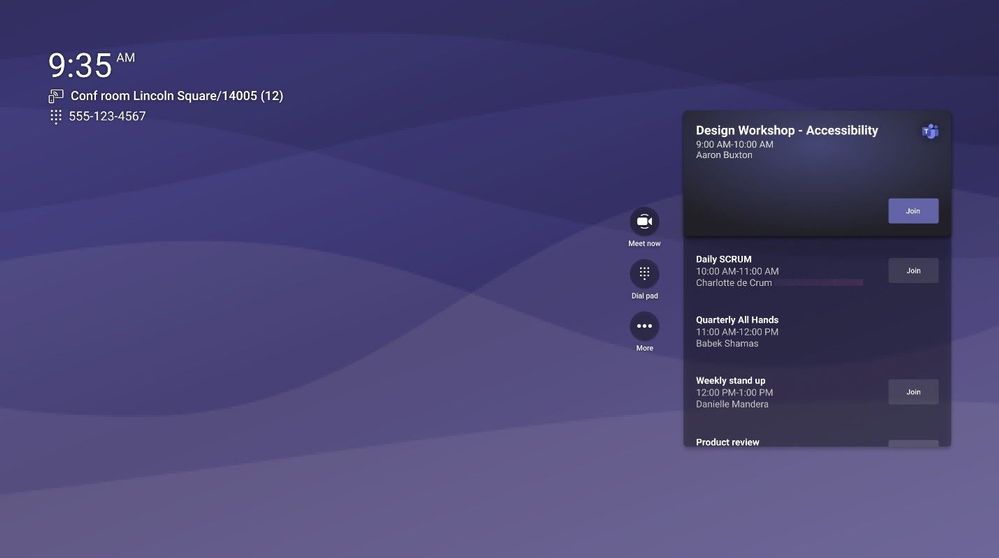
A New Calendar on the Home Screen
In this release we are bringing a more robust calendar experience to the front of the room so you can see and join not only the current meeting but also future meetings as well. Also, all the familiar controls you need have moved alongside the calendar for a sleek, modern look.
Introducing A New Touch Console Experience
Formerly, the touch console experience mimicked a physical remote, where users had to use directional keys to navigate the UI. With this new experience on the touch console, users can directly interact with the console UI, similar to Microsoft Teams Rooms on Windows. Check with your manufacturer to see if your device supports this new, updated touch console experience.
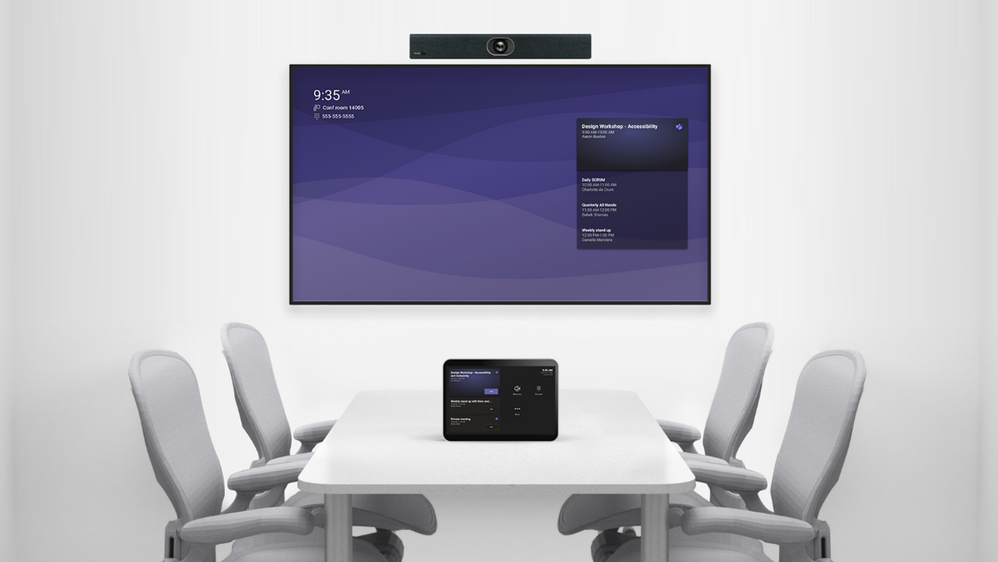
The touch console includes calendar functionality where you can view your current and upcoming meetings. In addition, it also features the most important meeting and calling functionality.
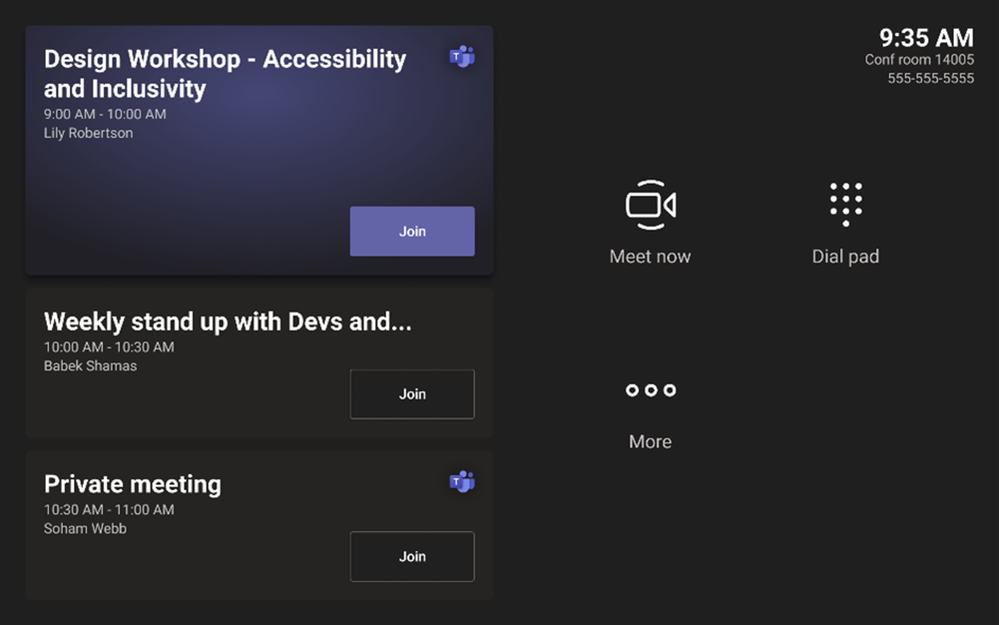
Once you join a meeting, you will be able to take advantage of call functionality, toggle between gallery views, see hands that are raised, and use inclusive features such as pinning and turning on live captions.
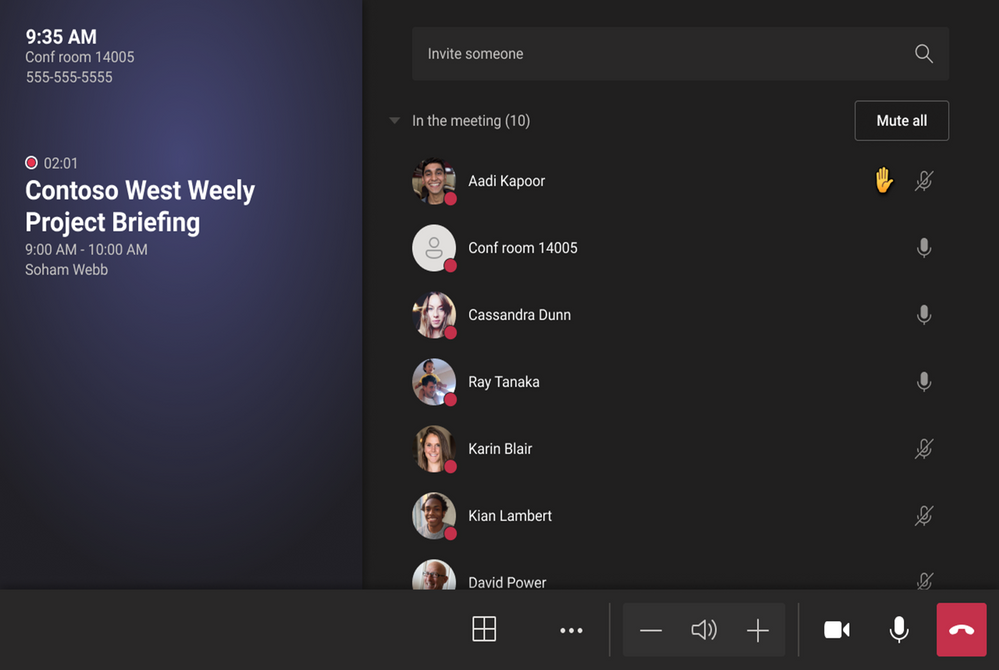
Touch console is an optional peripheral and Teams Rooms on Android will continue functioning without the console. However, once touch console is paired, front-of-room controls will be hidden, and device operation will be available from the touch console.
More Enhancements When Using Microsoft Teams Rooms in Personal Mode
If you are logged into a Teams Rooms on Android with a personal account, we have added convenient features that help you manage your meetings better.
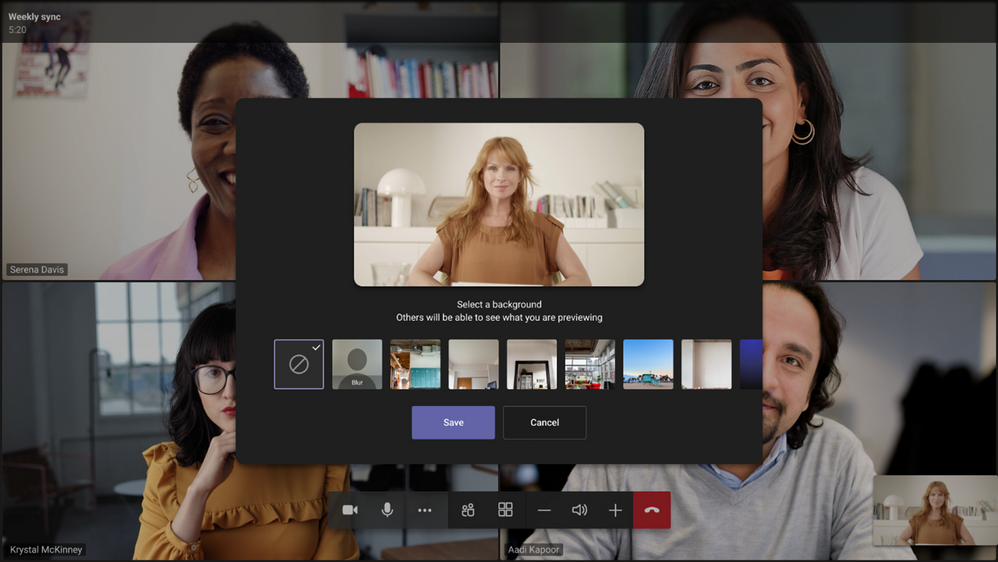
You can blur your background or change it entirely. The background will persist across meetings to make things easier. This option is available through the … menu.
Recordings can be an important way to keep those who couldn’t make it to the meeting in the loop. We are introducing an ability to start and stop recordings directly from your Microsoft Teams Rooms on Android. As in all other Teams applications, you can find the “Start recording” button in the … menu.
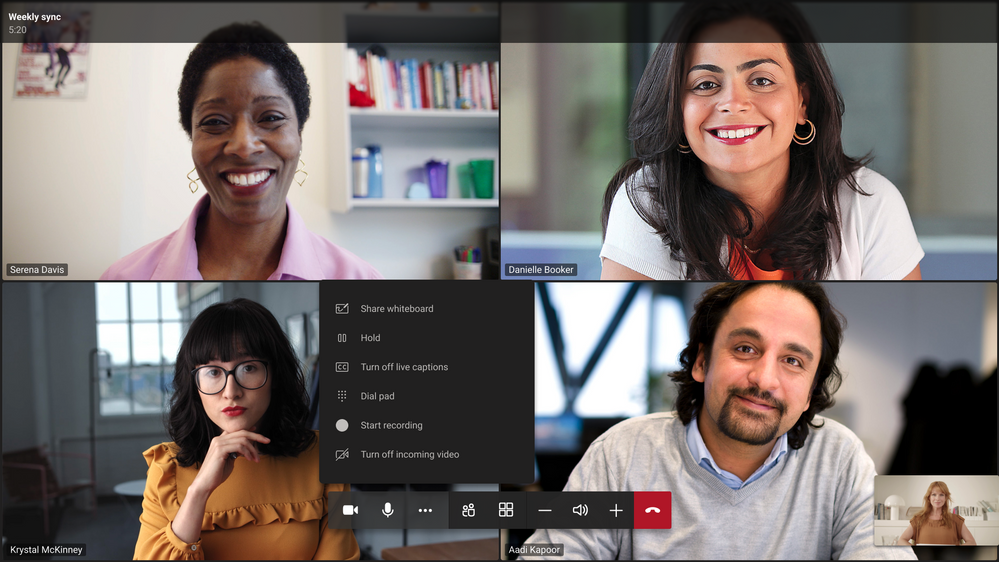
For now, starting and stopping recording is only supported for personal accounts. Shared account (aka resource account) support is coming soon.
Whiteboard is a great collaboration tool. Previously, users could use Microsoft whiteboard as part of a Teams meetings, but they could not initiate a whiteboarding session. We are introducing the ability to start a whiteboarding session directly from your device. You can find “Share whiteboard” button in the … menu.
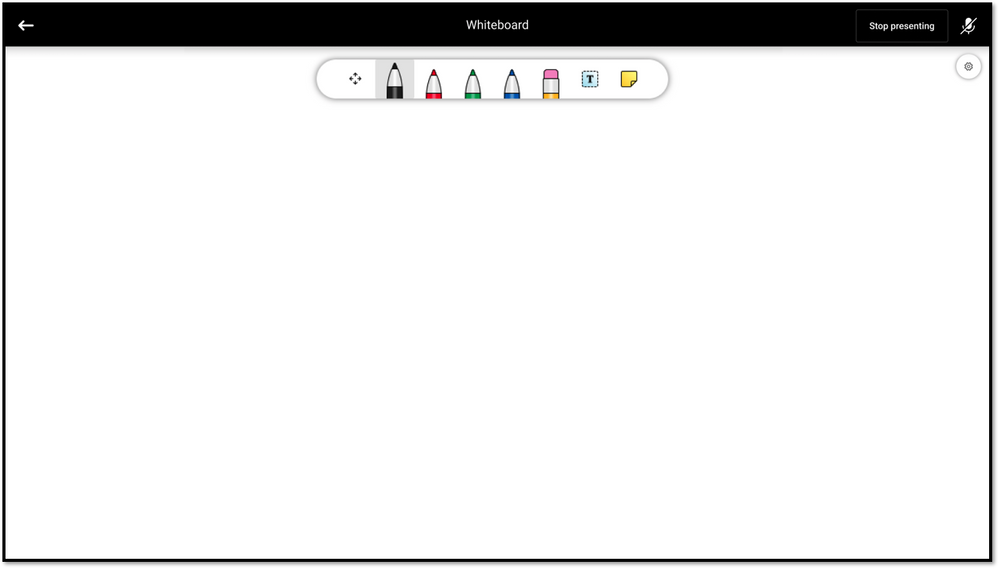
For now, sharing the whiteboard is only supported for personal accounts. Shared account (aka resource account) support is coming soon.
Still getting started on Microsoft Teams Rooms on Android? Check our Get Started guide here:
Get started with Teams Rooms on Android – Office Support
by Contributed | Apr 8, 2021 | Technology
This article is contributed. See the original author and article here.
This blog post is a follow-on to a three-part series exploring the many ways that Microsoft Power Platform empowers people with no coding experience to upskill and quickly learn how to create apps to solve business problems or local community issues. The cloud advocate featured in this post, April Dunnam, is a developer and app creator who uses social media, including YouTube, Twitter, and blogs, along with virtual conference sessions, to show devs and other makers how using Microsoft Power Platform can empower them in new ways. To hear the other cloud advocates talk about their experience with Microsoft Power Platform, tune in to this Digital Lifestyle podcast.
If you follow Microsoft Power Platform on Twitter or other social media, you’ll know that April Dunnam is a familiar and popular presence. You might have seen her YouTube channel where she introduces Microsoft Power Platform—and the certification process—to thousands of new users. Before joining Microsoft, Dunnam was a Power Apps and Power Automate Most Valuable Professional (MVP) who shared development tips and tricks at many events and on her community blog. She’s part of an elite group of makers who love to share their knowledge and to inspire others. You might be wondering about the path that brought her to Microsoft Power Platform. We recently met with Dunnam for a conversation and got all the interesting details.
Before Microsoft, Dunnam had a successful career in IT, running her own consulting business for eight years. Back in her college days, she started in the Microsoft SharePoint space and quickly found an affinity for development. During a college internship, she was introduced to C# and .NET development on top of SharePoint, as she helped the organization’s IT team with an internet rollout.
Over time, she did some on-premises work as a SharePoint developer and then transitioned (along with the rest of the world) to SharePoint cloud development. Back in the day, as a SharePoint dev, she did a lot of business process workflow work using full-stack code or InfoPath and SharePoint Designer. When Microsoft Power Platform came along, it was a natural transition for her. She was an early adopter of Power Apps. She points out, “I started looking at it and figuring out ways I could use it instead of InfoPath and SharePoint Designer for things I was building for my clients. It was a smooth transition to the Power Platform.”
Sharing the excitement of Microsoft Power Platform
Dunnam saw the potential of Microsoft Power Platform because it was so customizable and so much was already in the product. As she explains, “I loved not having to worry about coding in authentication to the various services I might need to connect to, like SQL databases. That was already baked in, and I could tell that using it would save me a lot of development time over using custom code. That’s what really got me excited about it.”
To spread the word and help make it easier for others to build applications, Dunnam started a “Template Tuesdays” series on her YouTube channel. In addition to those available in Power Apps, she created her own templates and explained how to use them. She remembers a timesheet template that she created, which saved a lot of time. She made it available to download for free. She notes, “It really took off.” Her generous attitude toward other makers, that template, and those downloads all caught the eye of Dona Sarkar, lead for the Microsoft Power Platform Advocacy team. The two stayed in touch.
Harnessing the power of certification
In addition to showing developers and makers the ins and outs of Microsoft Power Platform, Dunnam is passionate about bringing the message of certification to them. She’s a believer in the power of certification to help discover your career path. “I have all the Microsoft Power Platform certifications,” she enthuses. She wants to help users decide which certifications are right for them. “I put a video together to explain the key differences between the certifications because I definitely see the value.” She started accumulating certifications early in her career. “I really believe that they help you on your career path by validating your skills. They are something that organizations look for. They definitely see merit in them.”
Dunnam remembers how challenging it was to graduate from college during the economic collapse of 2008–2009. It was hard to find a development job right away, so she took a data entry role at a telecom company. She kept up her development work on the side and started studying for her first SharePoint certification. She attributes her success at moving into a role as a SharePoint developer to proving her skills and to the Microsoft Certification that validated them. “Certification,” she explains, gave her “personal validation and proved that I actually knew what I was talking about. ”
So, when Dunnam started to add Microsoft Power Platform development skills to her portfolio, she continued to study for additional certifications. She first took Exam PL-900: Microsoft Power Platform Fundamentals. “It seemed like a good starting point because it’s about the basics.” She knows that certification can be a great career boost for developers like her who become Power Apps power users. To learn more about Microsoft Power Platform certifications, check out the Discover your career path: Microsoft Power Platform certifications section later in this post.
An award-winning Power Apps solution
Dunnam joined Microsoft in 2019 as a Partner Technical Architect in the One Commercial Partner (OCP) organization. She helped partners in the Microsoft ecosystem build Microsoft Power Platform practices. Along the way, she also developed a Power Apps application for her team so they could have a virtual internal conference, with an experience that would be like Ignite, where people could go in, browse virtual sessions, and register. The app that she created for the internal conference won a Technology Solutions Award within her team.
Many paths to Microsoft Power Platform
In her work, Dunnam has noticed that there are many paths to Microsoft Power Platform. She thinks the smoothest path is to come from a Dynamics 365 background, but she has seen a lot of people in the community come from a SharePoint background, as she did. She observes, “With SharePoint, it’s easy to set up your data, and a lot of people are used to this. People who use SharePoint are used to working with collaborative suites of products. It’s a great introductory data source when you’re building Power Apps. For people like me, who used InfoPath to customize forms, it seemed like a natural migration to just use Power Apps and to switch to Power Automate if you’re already using tools like SharePoint Designer to create workflows.”
Dunnam also sees a path to Microsoft Power Platform for people who don’t have a Dynamics or SharePoint background. “Most people use Microsoft Excel. You’d like it better if you had an interface to get data into Excel and have an actual application you can pull up on your phone easily. That’s a natural integration, and it’s pretty simple. Using Power Apps this way is like taking a hybrid of Microsoft PowerPoint and Excel because the interface to build the app is very similar to PowerPoint, and endless people are familiar with PowerPoint and Excel. If you use these products, you’re already halfway to knowing how to use Power Apps.”
Working with the Microsoft Power Platform Advocacy team
As a developer and maker, Dunnam was excited to join Dona Sarkar’s Microsoft Power Platform Advocacy team. Sarkar had noticed and shared Dunnam’s social content. Dunnam reports, “When the position on Dona’s team opened, I thought it would be a really great fit for the things I’m passionate about. I wanted to scale out and help developers and makers be successful with Microsoft Power Platform.” On the team, Dunnam deploys social media to reach makers and code developers and to dive into Power Apps and Power Automate—whether it’s helping those who are just getting started or sharing tips and tricks about integrations and customizations with pro devs.
Dunnam blogs regularly about Microsoft Power Platform, SharePoint, and other technologies. A recent post, Power Automate Desktop for Windows 10 Intro, explores Microsoft Power Automate Desktop, which is now free for Windows 10 users. She also keeps a busy conference schedule, having recently presented at Microsoft Power Platform week at a virtual SharePoint conference in Europe. You can check out her conference schedule on her blog.
On Dunnam’s popular YouTube channel, she continues to post educational videos on Microsoft Power Platform. In the past few months, her content has had more than 500,000 views. A particularly popular video is her Microsoft Power Platform Certification Guide. You can join more than 6,000 April Dunnam followers on Twitter to read her #PowerAddict comments. She’s also planning a Microsoft Learn TV Channel 9 show for developers, The Powerful Dev Show, with another member of the Cloud Advocate team, Greg Hurlman, whom we recently featured in Create inventive solutions with Microsoft Power Platform. They plan to highlight stories about using Microsoft Power Platform in code first innovations.
Discover your career path: Microsoft Power Platform certifications
Depending on your skill set and where you are on your career path, Dunnam recommends that you check out the certifications for Microsoft Power Platform developers. A Microsoft Certification signals that you have the skills that organizations are looking for when they hire and advance employees. And, as Dunnam’s career path shows, certification—when paired with your drive and abilities—can help open career doors for you.
As mentioned earlier in this post, Dunnam started with Exam PL-900 to validate her overall understanding to earn the Microsoft Certified: Power Platform Fundamentals certification.
If you’re a maker and an app creator without a formal background in development, see whether your skills map to the requirements for passing Exam PL-100 for the Microsoft Power Platform App Maker Associate certification. Dunnam found this certification extremely useful.
Those who have a passion for designing, developing, securing, and extending Microsoft Power Platform solutions should consider the new Microsoft Certified: Power Platform Developer Associate certification (pass Exam PL-400). To learn more, read our blog post, New certification: Microsoft Power Platform Developer Associate.
And if you’re a functional consultant, data analyst, developer, or solution architect looking to showcase your consulting and configuration skills, explore the Microsoft Certified: Power Platform Functional Consultant Associate certification (pass Exam PL-200).
Seasoned pros who have a lot of experience with Microsoft Power Platform should consider the
Microsoft Certified: Power Platform Solution Architect Expert certification (complete a prerequisite and pass Exam PL-600). It’s a great way to signal that you’re ready to take the next steps in your career.
Helping developers build their careers
Dunnam is always enthusiastic about giving practical technical guidance to Microsoft Power Platform developers and makers. And she’s equally enthusiastic about helping people nurture and grow their careers through certification. She and the other experts on the Cloud Advocates team are eager to help you along the way. Watch for Dunnam’s latest content on her YouTube channel, her current thoughts on Twitter, and her most recent tips, advice, instruction, and encouragement for Microsoft Power Platform users at upcoming virtual conferences. As Dunnam says, “I’m really passionate about helping people get certified and celebrate their certification wins.”
by Scott Muniz | Apr 8, 2021 | Security
This article was originally posted by the FTC. See the original article here.
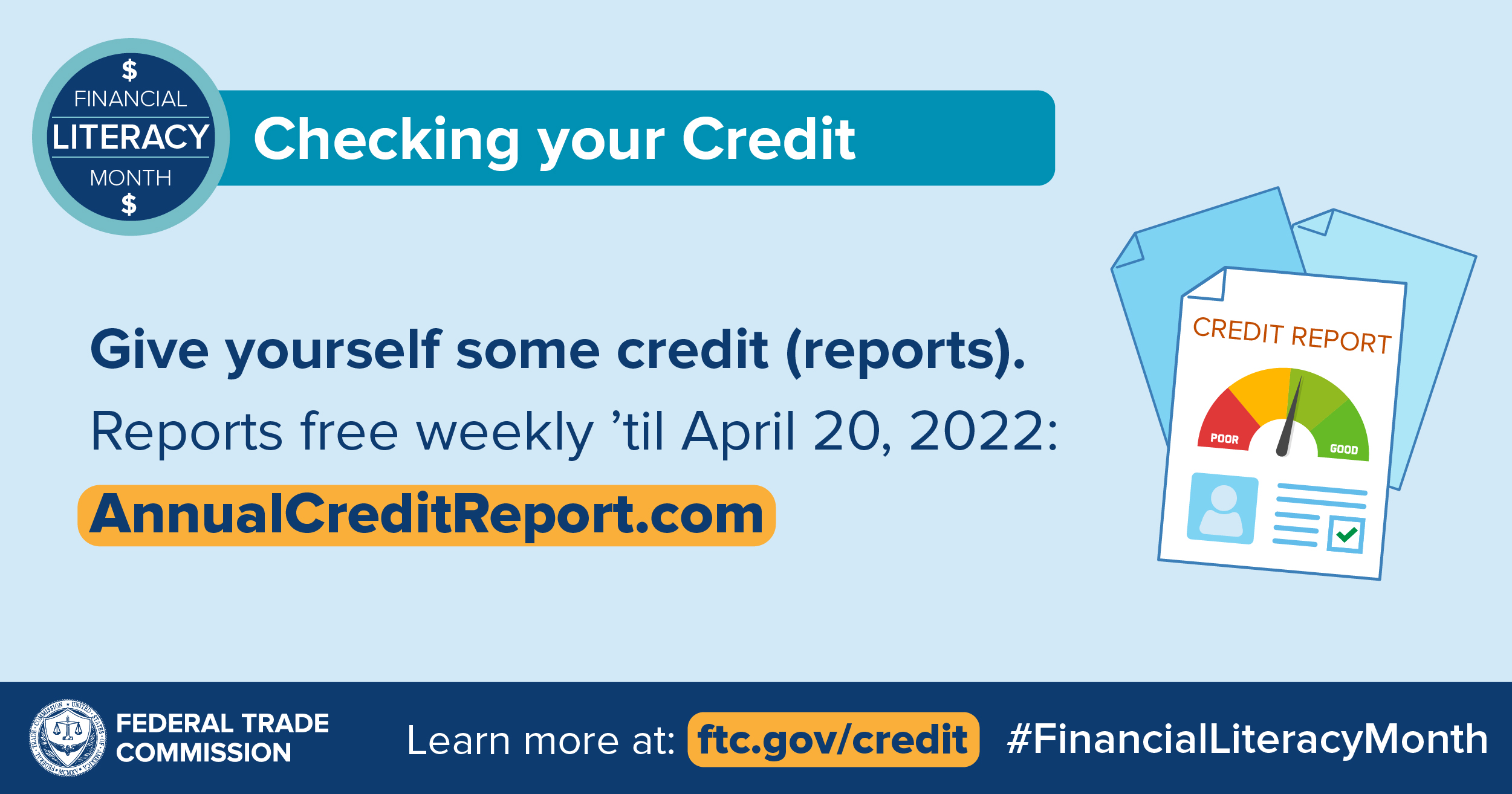
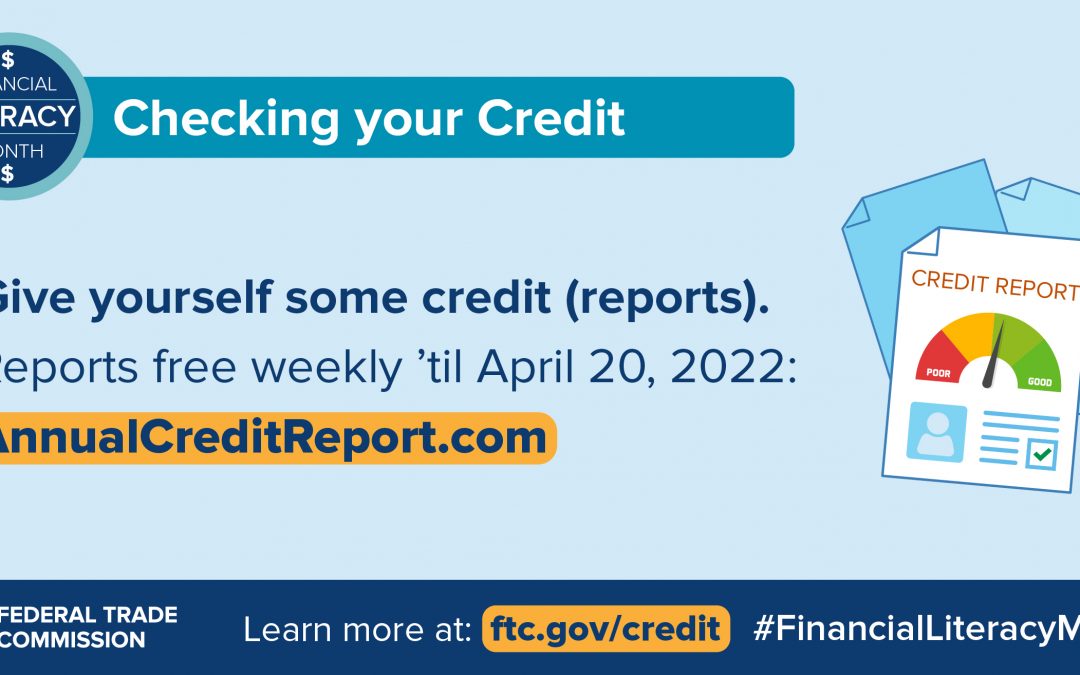
One important back-to-basics step you can take this Financial Literacy Month (or anytime) is checking your credit report.
Your credit report has a summary of your credit history. For example, if you’ve been evicted and a landlord turns uncollected rent over to a collection agency, that might be on your credit report. Information in your credit report affects your credit score. That’s important because businesses — like insurance and phone companies — use your credit score to decide whether to give you a policy or service, and what rate to offer. And potential employers and landlords also might check your credit.
So you want to know that the information on your report is accurate. And if it’s wrong, you want to make sure someone didn’t steal your identity.
Here’s the plan:
- Order your free credit report. Go to AnnualCreditReport.com or call 877-322-8228. Until the end of the pandemic, everyone in the U.S. can get a free credit report each week from all three national credit bureaus (Equifax, Experian, and TransUnion).
- Read the reports carefully. Do you recognize the accounts? Do they list credit applications? Did you apply for credit at those places?
- Spot mistakes. Fix anything that looks wrong (read more about how). But if it looks like someone else is using your credit, go to IdentityTheft.gov to report it and get a recovery plan.
- Spot a credit repair scam. If a credit repair company asks for money up front, or tells you not to contact the credit bureaus yourself, that’s probably a scammer.
Look, it’s been a tough time, and it’s hard to get back on track. But you can take steps to rebuild your credit. Only time and a plan to pay off debt will improve your credit, but with free credit reports available every week, it’s a good time to take a small step towards recovery.
Brought to you by Dr. Ware, Microsoft Office 365 Silver Partner, Charleston SC.

by Scott Muniz | Apr 8, 2021 | Security, Technology
This article is contributed. See the original author and article here.
Official websites use .gov
A .gov website belongs to an official government organization in the United States.

Secure .gov websites use HTTPS A
lock ( )
) or
https:// means you’ve safely connected to the .gov website. Share sensitive information only on official, secure websites.

by Contributed | Apr 8, 2021 | Technology
This article is contributed. See the original author and article here.
Welcome back to Reconnect, the biweekly series that catches up with former MVPs and their current activities.
This week we are thrilled to be joined by none other than two-time titleholder Volodymyr Bezmalyi!
Based in Ukraine, Volodymyr describes himself as a “security evangelist” since he trains people and larger companies about cybersecurity, with a special focus on remote and mobile security.
Security is Volodymyr’s pet subject, with the expert named an MVP in Windows Security from 2006 to 2016, and a Windows Insider MVP from 2016 to 2020.
Now, Volodymyr says Reconnect offers an important way to stay in touch with his Microsoft family and hone his tech knowledge.
Volodymyr is a regular writer with multiple articles and publications to his name, including his own book series titled “Safety Tales.” In fact, Volodymyr was named “Outstanding Blogger of the Year” in 2015 and 2016 by Security Lab.
For more, visit his blog and Twitter.
by Contributed | Apr 8, 2021 | Technology
This article is contributed. See the original author and article here.
While many blogs talk about capturing memory dump for .NET application on Windows platform, this blog introduces one way of collecting .NET Core dump on Linux Web App with dotnet-dump tool.
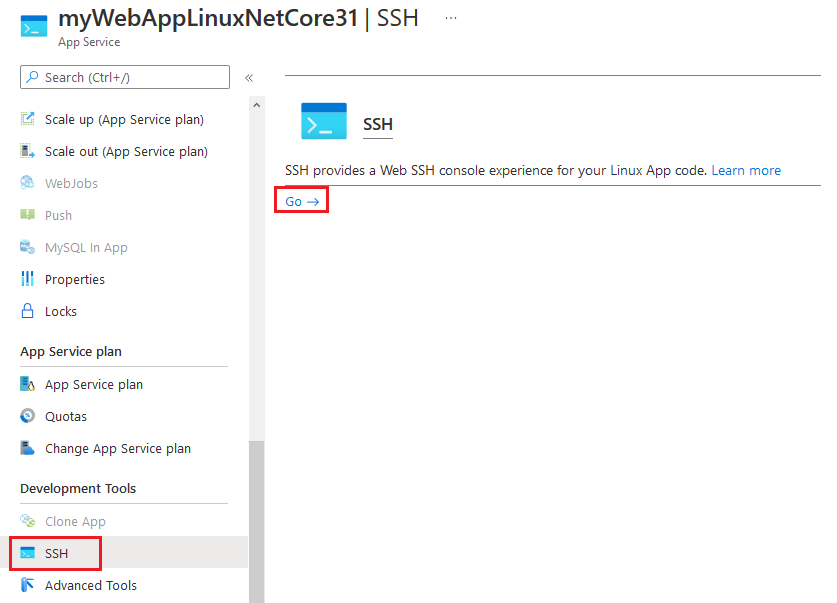
1. SSH to web app.
2. Install .NET Core SDK with following commands. Here we use Debian 10 distribution as an example. For installing .NET Core SDK on other Linux distributions, you may refer to document at https://docs.microsoft.com/en-gb/dotnet/core/install/linux.
apt-get update
apt-get install -y wget
wget https://packages.microsoft.com/config/debian/10/packages-microsoft-prod.deb -O packages-microsoft-prod.deb
dpkg -i packages-microsoft-prod.deb
apt-get update
apt-get install -y apt-transport-https
apt-get update
apt-get install -y dotnet-sdk-3.1
3. Install dotnet-dump tool.
dotnet tool install –global dotnet-dump –version 3.1.141901
4. Refresh SSH session window to enable dotnet-dump command.
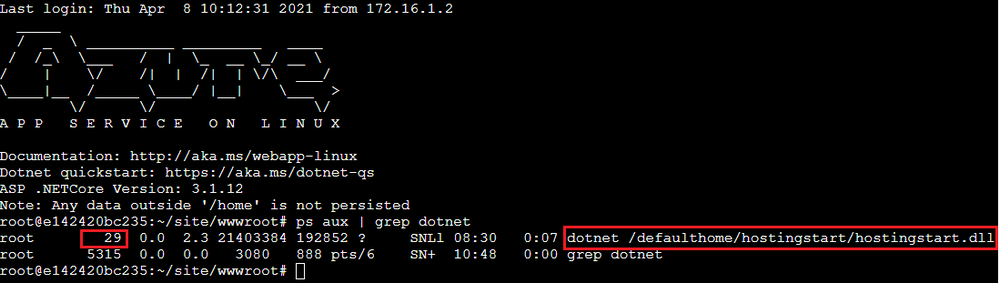
5. Check dotnet process id. In example below, process id of the web app is 29.
ps aux | grep dotnet
6. Change directory to persistent storage.
cd /home/LogFiles
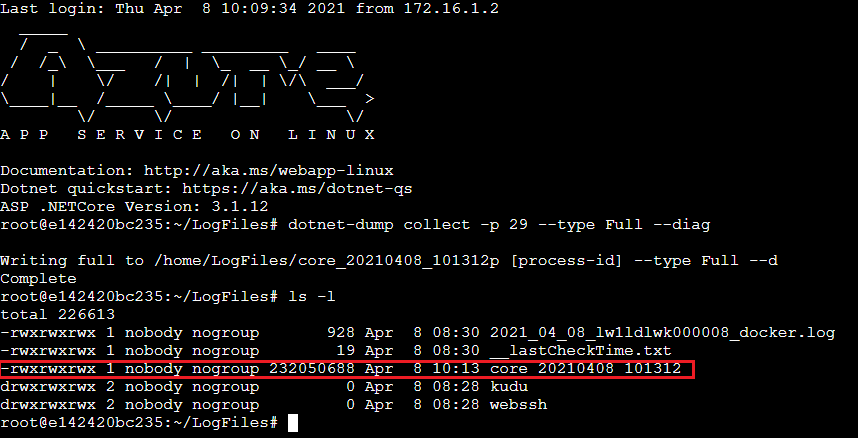
7. Capture dotnet core dump.
dotnet-dump collect -p [process-id] –type Full –diag
-p|–process-id <PID>
Specifies the process ID number to collect a dump from.
–type <Full|Heap|Mini>
Specifies the dump type, which determines the kinds of information that are collected from the process. There are three types:
Full – The largest dump containing all memory including the module images.
Heap – A large and relatively comprehensive dump containing module lists, thread lists, all stacks, exception information, handle information, and all memory except for mapped images.
Mini – A small dump containing module lists, thread lists, exception information, and all stacks.
–diag
Enables dump collection diagnostic logging.
8. Once capture completed, we should be able to see dump file in the “/home/LogFiles” directory.
References:
https://docs.microsoft.com/en-us/dotnet/core/diagnostics/dotnet-dump
by Contributed | Apr 8, 2021 | Technology
This article is contributed. See the original author and article here.
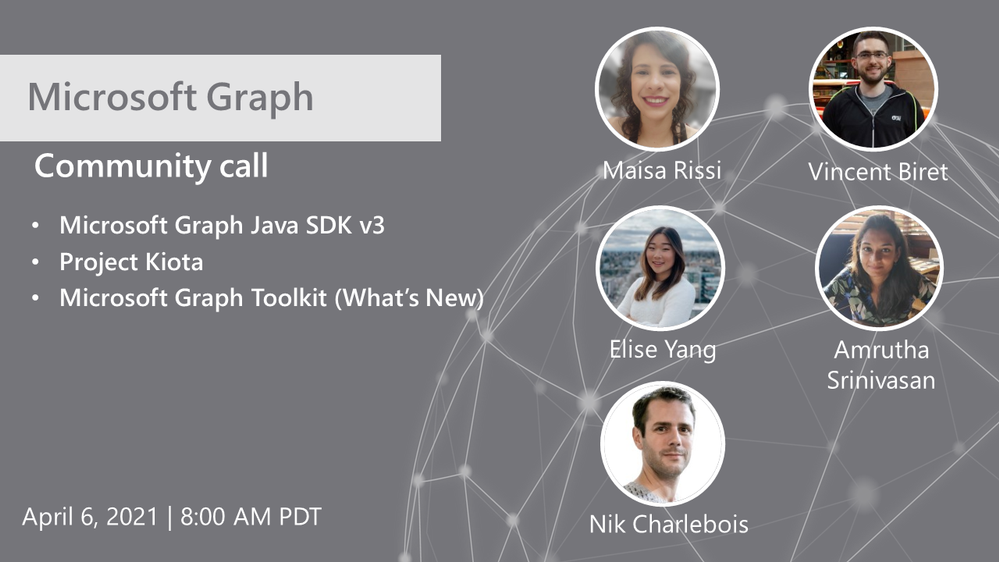
Hosted by Nik Charlebois, this month’s call covered topics including the Microsoft Graph Java SDK version 3, project Kiota and an overview of what’s new with the Microsoft Graph Toolkit.
Topics:
Microsoft Graph Java SDK version 3
Maisa Rissi from the Microsoft Graph SDK team delivers an update on Microsoft Graph Java SDK version 3 – new features including a streamlined authentication with Azure Identity and improved batch support. To learn more about enhanced capabilities with the release of version 3, go to https://developer.microsoft.com/en-us/microsoft-365/blogs/microsoft-graph-java-sdk-v3-adds-enhanced-capabilities-with-general-availability/.
Project Kiota
Vincent Biret from the Microsoft Graph team introduced Project Kiota, a new project to project to build an OpenAPI based code generator for creating SDKs for HTTP APIs. To learn more about the project or to get involved, go to https://GitHub.com/Microsoft/Kiota
What’s New with the Microsoft Graph Toolkit
Elisa Yang and Amrutha Srinivasan from the Microsoft Graph Toolkit team gave an overview of new features being rolled out and worked on in the Graph toolkit, including a new electron provider. To learn more about the Microsoft Graph Toolkit, go to: https://aka.ms/MGT
Microsoft Graph TAP program
As part of our TAP program for Microsoft Graph, we are looking for additional partners and customers to join. Benefits to participation in the program include:
- Monthly TAP calls with workload deep dives
- Early access / notification of upcoming features
- Case studies and keynote showcases
- Share feedback and feature requests
Complete the submission for our review at https://aka.ms/GraphTAPForm.
Actions:
Resources:
General Resources:
Stay connected:


Recent Comments