![[Announcement] Community Mentors App Update: New Features Released!](https://www.drware.com/wp-content/uploads/2020/07/192x415)
by Scott Muniz | Jul 27, 2020 | Uncategorized
This article is contributed. See the original author and article here.
Looking to find easier ways to connect and deepen meaningful mentoring relationships? Has remote work impacted the way you’ve connected with other technologists in your community?
Good news! We’ve just released a plethora of new features on the Microsoft Humans of IT Community Mentors App to enhance your mentorship experience, and help you connect more effectively with other Humans of IT on our mentorship platform.
NOTE: You will need to install latest Version 3.0 of the app to gain access to these new features.
Here are some of the newly-released features that are now available on v3.0:
1. Featured stories
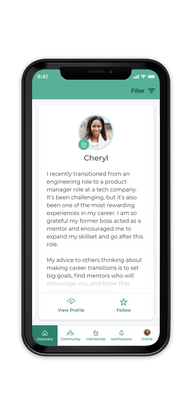
We’re thrilled to introduce Featured Stories, a powerful way to discover your new connections. Featured stories will help highlight and share unique stories from different community members in your network. You will see the stories flagged as Featured Stories on the “Discovery” tab on the app.
How do I use this new feature?
- Tap the Discovery tab on the bottom menu. As you swipe, you’ll see profiles with a green badge at the bottom – this means they were recommended specifically for you!
- Each time you login, you will see a new set of featured stories. Over time, the machine learning algorithm in the app will learn your preferences as you select your mentors, and will continue recommending new and interesting people for you to connect with.
2. Mentorship Enhancement: Offer Mentorship Option
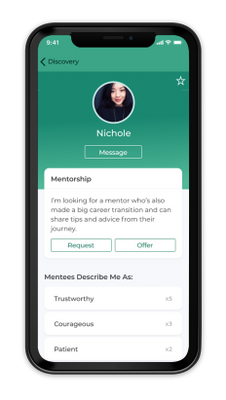
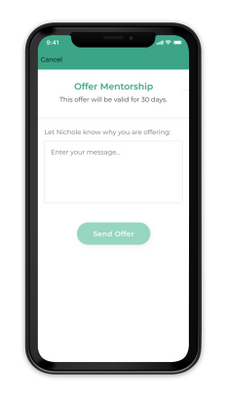
Some of us are more introverted than others, and may have previously struggled to make the first move in requesting mentorship from others. If you’re a mentor with skillsets to offer prospective mentees who may be too shy to ask, you can now offer mentorship to anyone in the app! Mentees will then get to decide if they want to accept your offer based on what they are looking to get out of the mentorship. This update also allows users looking to mentor others to actively connect with people they are inspired by and whom they think they could help as well.
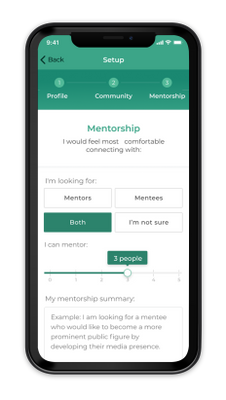
Are you a mentor going through a particularly hectic season? We understand that life happens! Mentors can now also set more granular mentorship availability preferences to help balance work-life priorities, providing more flexibility over the time you can commit to mentoring others. Previously, the default was 5 open mentorship spots, but mentors now have an adjustable slider to determine how many mentees they can reasonably accommodate at any one point in time.
How?
- See someone you might be able to help mentor? Simply click the Offer button on a user’s profile — mentees will be notified of your offer and once they accept, the mentorship can begin!
- Set how many people they can mentor at one time (between 0–5) via the adjustable slider that you can update anytime to help you cope with work-life demands
3. Reactions
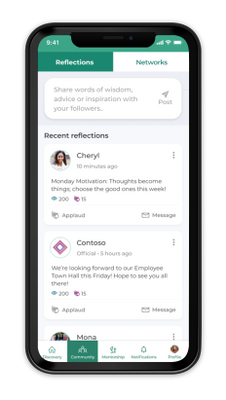
Remember the days when you could only either read or comment on posts? Did you read a post that really resonated with you and wanted to express your support as well? With the new Reactions feature, you can! Let others know you support them by hitting the “Applaud” button. Mentees and mentors now also have the option to add a reaction when reading a reflection or community post. This lets you show your solidarity and support to others in the community, and build your network.
How?
- When reading a community post that personally resonated with you, tap on the Applaud icon!
4. Notifications
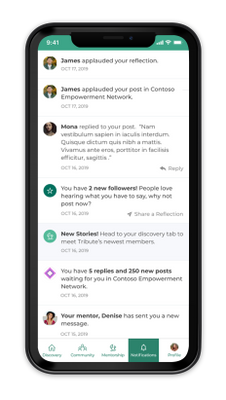
We’ve now also added a holistic notifications center, replacing the existing Messages tab within the app. Never miss a notification or be left hanging again!
How?
- This robust notification center will ensure users receive alerts for all important events, and create a place within the app for users to return to and see all recent notifications.
- Alerts will be shared via push notifications, in-app notifications, and red dots (i.e. badges) that designate “to-dos” or unread notifications within the app.
COMING SOON: Desktop version – due to popular demand, we will be launching the desktop version of our mentorship app very soon, so stay tuned!
Become a mentor/mentee on our Community Mentors app today!
- Go to https://aka.ms/communitymentors and download our mentorship app.
- Follow the steps to complete your registration.
- Once you’re in the app, explore new featured stories, mentorship enhancements, reactions, and notifications.
We hope that you enjoy exploring these new features!
Have ideas on new features you’d like to see, or experiences to add? Submit your ideas here, or feel free to drop us a note at msftcmp@microsoft.com.
#HumansofIT
#TechforGood
#CommunityMentors
by Scott Muniz | Jul 27, 2020 | Alerts, Microsoft, Technology, Uncategorized
This article is contributed. See the original author and article here.
Authored by: datamigrationteam@microsoft.com
SSMA Support for Db2 i (also called Db2/400 or AS400 Db2)
Starting with version 8.11, SSMA now supports Db2 i Series to automate the migration process. SSMA will continue to support Db2 for zOS & LUW. Db2 for i Series is an important member of IBM’s family of Db2 databases available on the IBM i operating system and Power Systems. Extending support for Db2 for i allows our customers to simplify and automate database migration process through SSMA.
With an automated end-to-end solution, this tool simplifies the data migration/modernization process and can be leveraged for:
- Database Assessment
- Database Schema & Objects Conversion
- Data Migration
With this enhancement, SSMA becomes a unique tool that covers all Db2 platforms (except DashDB).
SQL Server Migration Assistant (SSMA) for Db2 automates database migration to SQL Server, and the Azure SQL family of products, including Azure SQL Database, Azure SQL Managed Instance, and SQL Server on Azure VMs. SSMA is a popular Microsoft tool to assess and accelerate schema and data migrations for competing database platforms such as Db2, Oracle, MySQL, and SAP ASE. SSMA currently supports migrating DB2 databases running on LUW and zOS and starting with 8.11 introduces support for migrating DB2 for i Series databases as well.
Database Assessment
To begin any database migration process, it is fundamental to identify and classify the database functionalities and features being used. These could range fromusing certain data types like LOBs to very specific implementations such as shared data infrastructure using Data Sharing Groups. To determine the target environment characteristics, it is vital to understand the compatible and comparative capabilities of the target database to the ones being used on the current system. Therefore, assessment is the first step of the journey towards modernizing your data ecosystem.
SSMA can now assess the Db2 for i databases and generate an assessment report.
Database Schema & Objects conversion
SSMA now automatically converts the database schema and objects such as views, stored procedures, indexes, triggers and functions, to objects that are compatible with SQL Server and the Azure SQL family of products.
Data Migration
Data migration is an importance process for any application migration/modernization. This process can be very complex and time consuming depending on the Db2 for i data type and size. SSMA now supports data migration from Db2 for i to SQL Server and the Azure SQL family of products.
How to Use?
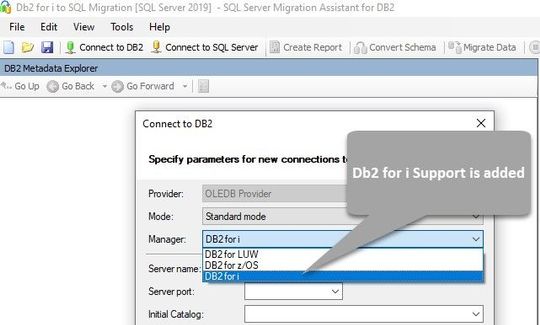
The prerequisites and system requirements for installing SSMA are described in the Prerequisites section. Select the DB2 for i option from the drop-down list in the Connect to DB2 dialog box as shown in the below screenshot.
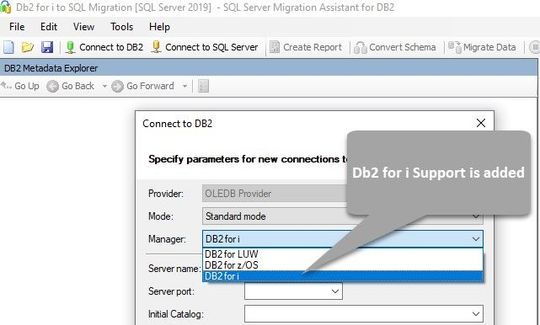
You can establish a connection to Db2 i by using either the standard connection mode, or connection string mode. For standard mode, enter the server name, port, initial catalog, package collection, username and password. For connection string mode, provide the OLEDB connection string.
To learn more about SSMA for Db2, please refer to the SSMA documentation.
#AzureLegacyModernizationEngineers
#Mainframe&DataModernization2Azure
Download
SSMA for DB2
References:
SQL Server Migration Assistant documentation
by Scott Muniz | Jul 27, 2020 | Uncategorized
This article is contributed. See the original author and article here.
Learn how to get started with Microsoft Lists from the Microsoft Lists engineers themselves – lots to learn and lots of demos. And if you have any questions or feedback for the team, please join us right after the webinar for an Ask Microsoft Anything (AMA) event within the Microsoft Tech Community. Train your brain and the tech will follow.
UPCOMING WEBINAR | ‘Working with Microsoft Lists’
Learn how to get started with Microsoft Lists from the Microsoft Lists engineers themselves. Start a list from a template, add your information, and then use conditional formatting, rules, and key collaboration features to make the list your own – to make it work across your team. Lots to learn. Lots of demos. [below Lists AMA directly after for all your questions]
- Date and time: Wednesday, August 5th, 2020 at 9am PST (12pm EST; 5pm CET) [60 minutes]
- Presented by: Harini Saladi, Miceile Barrett, Chakkaradeep Chandran and Mark Kashman
- Add to your calendar. And join us live on the above date and time.
UPCOMING AMA | “Microsoft Lists AMA”
This will be a 1-hour Ask Microsoft Anything (AMA) within the Microsoft Tech Community. An AMA is like an “Ask Me Anything (AMA)” on Reddit, providing the opportunity for the community to ask questions and have a discussion with a panel of Microsoft experts taking questions about Microsoft Lists, SharePoint list, Lists + Teams integrations, Lists + Power Platform integrations, and more.
- When: Wednesday, August 5th, 2020 at 10am PST (12pm EST; 5pm CET) [60 minutes]
- Where: Microsoft 365 AMA space within the Microsoft Tech Community site
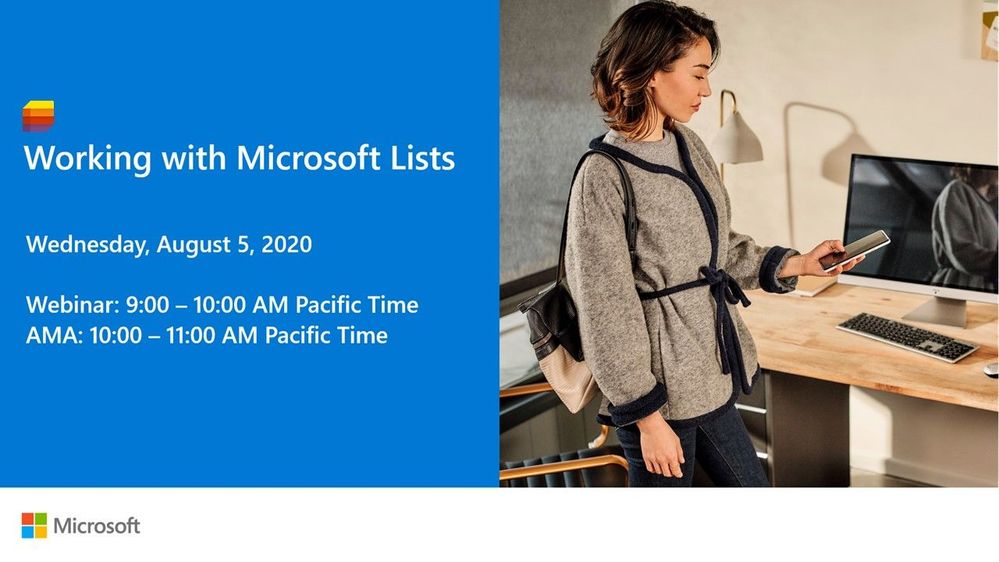 Microsoft Lists webinar and AMA (August 5th, 2020 starting at 9:00 AM PST)
Thanks, Mark Kashman (Microsoft Lists PMM — @MKashman)
by Scott Muniz | Jul 27, 2020 | Uncategorized
This article is contributed. See the original author and article here.
Learn how to get started with Microsoft Lists from the Microsoft Lists engineers themselves – lots to learn and lots of demos. And if you have any questions or feedback for the team, please join us right after the webinar for an Ask Microsoft Anything (AMA) event within the Microsoft Tech Community. Train your brain and the tech will follow.
UPCOMING WEBINAR | ‘Working with Microsoft Lists’
Learn how to get started with Microsoft Lists from the Microsoft Lists engineers themselves. Start a list from a template, add your information, and then use conditional formatting, rules, and key collaboration features to make the list your own – to make it work across your team. Lots to learn. Lots of demos. [below Lists AMA directly after for all your questions]
- Date and time: Wednesday, August 5th, 2020 at 9am PST (12pm EST; 5pm CET) [60 minutes]
- Presented by: Harini Saladi, Miceile Barrett, Chakkaradeep Chandran and Mark Kashman
- Add to your calendar. And join us live on the above date and time.
UPCOMING AMA | “Microsoft Lists AMA”
This will be a 1-hour Ask Microsoft Anything (AMA) within the Microsoft Tech Community. An AMA is like an “Ask Me Anything (AMA)” on Reddit, providing the opportunity for the community to ask questions and have a discussion with a panel of Microsoft experts taking questions about Microsoft Lists, SharePoint list, Lists + Teams integrations, Lists + Power Platform integrations, and more.
- When: Wednesday, August 5th, 2020 at 10am PST (12pm EST; 5pm CET) [60 minutes]
- Where: Microsoft 365 AMA space within the Microsoft Tech Community site
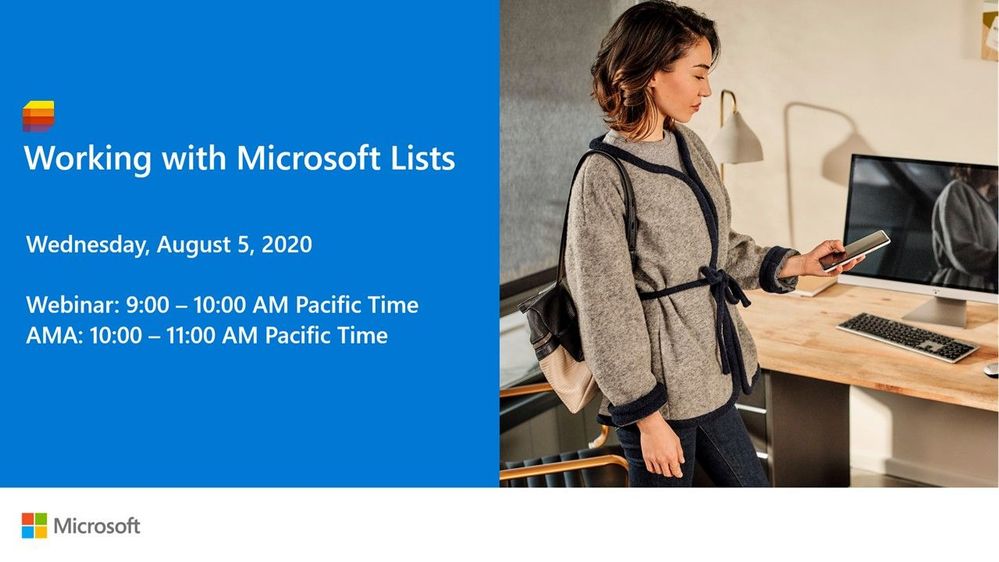
!["Working with Microsoft Lists" webinar and AMA [August 5th, 2020 starting at 9:00 AM PST]](https://gxcuf89792.i.lithium.com/t5/image/serverpage/image-id/208275iCB9D377D5A707EE2/image-size/large?v=1.0&px=999 "MSLists_Webinar-AMA-graphic_080520.jpg") “Working with Microsoft Lists” webinar and AMA [August 5th, 2020 starting at 9:00 AM PST]
“Working with Microsoft Lists” webinar and AMA [August 5th, 2020 starting at 9:00 AM PST]
Thanks, Mark Kashman (Microsoft Lists PMM — @MKashman)
by Scott Muniz | Jul 27, 2020 | Alerts, Microsoft, Technology, Uncategorized
This article is contributed. See the original author and article here.
We are announcing public preview of a new capability that enables creation of Azure AD guest users directly as database users and setting Azure AD guest users as Active Directory admin for SQL for Azure SQL Database, Managed Instance and Synapse Analytics, without the requirement of adding them to an Azure AD group first.
This is applicable to:
- Azure SQL Database
- Azure SQL Managed Instance
- Synapse Analytics (formerly SQL DW)
What are Guest Users and how are they supported in Azure SQL
Guest users in Azure AD are users that have been imported into the current Azure Active Directory from other Azure Active Directories, or outside of it. Guest users include users invited from other Azure ADs, Microsoft accounts such as outlook.com, hotmail.com, live.com, or other accounts like gmail.com.
Previously, guest users could connect to SQL Database (SQL DB), Managed Instance (MI) and Synapse Analytics (formerly SQL DW) only as part of members of a group created in current Azure AD that was then mapped manually using the Transact-SQL CREATE USER and CREATE LOGIN statements in a given Similarly, to make a guest user the Active Directory Admin for the server, the guest user had to be added to an Azure AD group and the group would then have to be set as the Active Directory Admin.
What functionality does the Public Preview offer
This public preview extends previous functionality by allowing Azure AD guest users to be directly added as database users, without the requirement of adding them to an Azure AD group first and then creating a database user for that Azure AD group. Additionally, this enables Azure AD guest user to be set directly as Active Directory admin for SQL DB, MI and DW without being part of an Azure AD group.
Example
Consider user1@outlook.com is a guest user and belongs to the Azure AD group ‘external_group’ in the current Azure AD tenant.
Previously, we had to create this group as a database user using the T-SQL command below, allowing the guest user to connect to the database as user1@outlook.com
create user [external_group] from external provider
With this preview, the guest user can now be directly created as a database user using the T-SQL command below:
create user [user1@outlook.com] from external provider
In the same way, the guest user can now be directly added as the Active Directory Admin for the database server using the PowerShell command below (or equivalent CLI command):
Set-AzSqlServerActiveDirectoryAdministrator -ResourceGroupName <ResourceGroupName> -ServerName <ServerName> -DisplayName ‘user1@outlook.com’
Note – This works for all types of guest users, namely:
- Guest users invited from other Azure AD tenants
- Microsoft accounts such as outlook.com, hotmail.com, live.com
- Other accounts like gmail.com
Notes
This new capability does not impact existing functionality, rather it allows greater flexibility in managing guest users in SQL DB/MI/DW. Guest users can continue to be part of an Azure AD group in order to be added as a database user and/or Active Directory admin for the server.
Please refer our documentation for more details and for the PowerShell/T-SQL commands to be used for adding a guest user as a database user and as Active Directory Admin.
For feedback/questions on this preview, please reach out to the SQL AAD team at SQLAADFeedback@Microsoft.com


Recent Comments