by Scott Muniz | Jul 28, 2020 | Uncategorized
This article is contributed. See the original author and article here.
We have released a refresh to the MSIX Toolkit. The Toolkit has been updated with redistributables from the Windows 10, version 2004 SDK. In addition we have created easy to download individual .zip files for x86 and x64.
MSIX Toolkit is available on Github: https://github.com/microsoft/MSIX-Toolkit. Let us know what types of things you would like to see in future releases.
Thanks!
John Vintzel (@jvintzel)
Program Manager Lead, MSIX
by Scott Muniz | Jul 28, 2020 | Uncategorized
This article is contributed. See the original author and article here.
The results of current and past automatic investigations and remediation actions across your organization’s devices and mailboxes are visible in the Action center in Microsoft Threat Protection. The Action center provides a unified experience for remediation actions and an audit log. The Action center enables your security operations team to approve pending remediation actions and to remediate impacted assets. You can also review approved actions in an audit log. The Action center brings all this together across Microsoft Threat Protection security workloads, including Office 365 Advanced Threat Protection (Office 365 ATP) and Microsoft Defender Advanced Threat Protection (Microsoft Defender ATP).
Furthermore, if you need to undo a remediation action that was taken by Microsoft Defender ATP, in most cases, you can do that in the Action center in Microsoft Threat Protection. The History tab tracks all remediation actions that were completed, and you can undo an action there.
But what about remediation actions that were taken manually or from an advanced hunting experience, such as isolating a device, or restricting app execution on a specific device? How do you view an audit log for those actions?
Suppose, for example, that in order to slow down the spread of ransomware, your security operations team decides to isolate all of the devices connected to specific subnet in your org. To take this action, you could use an advanced hunting custom detection with the predefined action, “Isolate device.” Such a custom detection might look like this:
DeviceNetworkEvents
| extend Subnet = extract(@”(?:(?:25[0-5]|2[0-4][0-9]|[01]?[0-9][0-9]?).){3}”,0,LocalIP ) | where Subnet starts with “192.168.0.”
Or, maybe you use a slightly more advanced example with specific alert categories to view the list of devices, like this:
DeviceAlertEvents
| where Category in(“Credential access”, “Ransomware”) | join kind=leftouter(
DeviceNetworkEvents
| extend Subnet = extract(@”(?:(?:25[0-5]|2[0-4][0-9]|[01]?[0-9][0-9]?).){3}”,0,LocalIP )
| where Subnet starts with “192.168.0.” )
, but how do you know which devices were isolated, and how do you undo device isolation if needed?
We’re happy to announce that you can now audit and undo manually taken actions in Microsoft Defender ATP in the Action center in Microsoft Threat Protection. This capability is in public preview now!
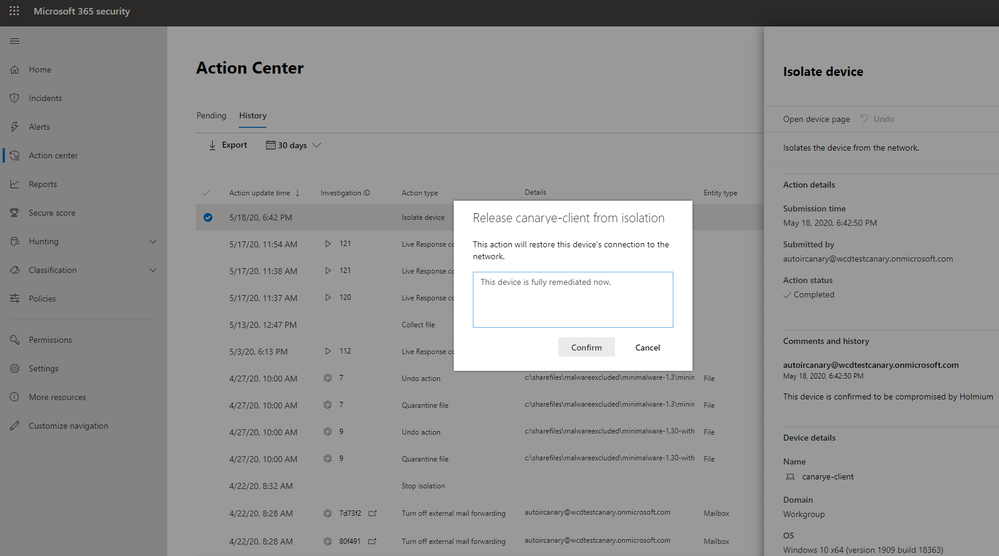
This capability provides you with one location to view an audit log of manually taken remediation actions that were performed in different portal experiences, such as the device page, file page, and advanced hunting. You can also undo certain actions, such as device isolation and app restriction, on the History tab in the Action center.
The full set of manual actions that are logged in the action center are :
- Collect investigation package
- Isolate device / Undo isolate device
- Offboard machine
- Release code execution
- Release from quarantine
- Request sample
- Restrict code execution / Undo restrict code execution
- Run antivirus scan
- Stop and quarantine
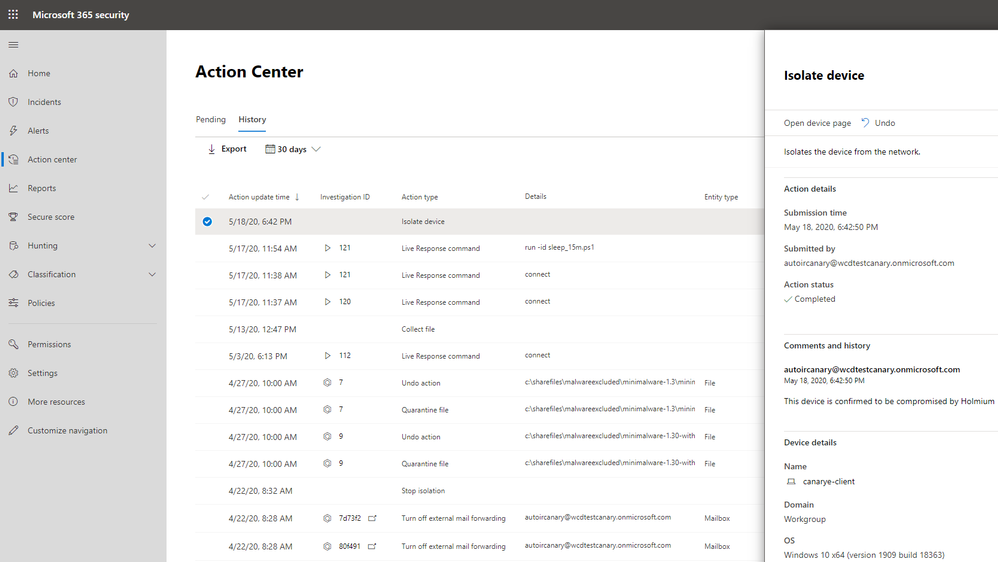
Want to see what this looks like? Here’s an example of an audit record showing device isolation:
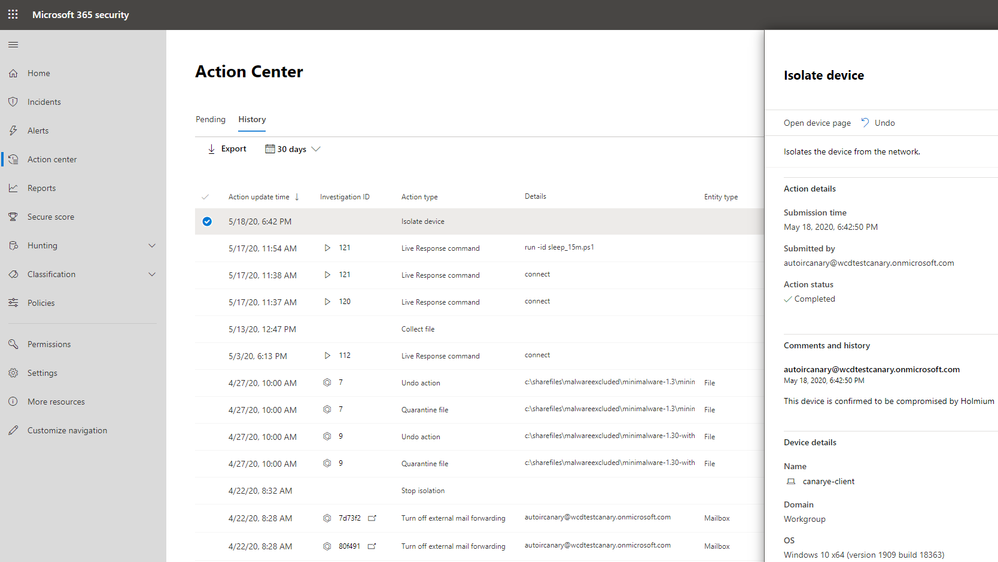
Here’s an example of undoing an action to isolate device:
Make sure to opt in to preview features, and try it now!
Let us know what you think by leaving a comment below.
The Microsoft Threat Protection Team

by Scott Muniz | Jul 28, 2020 | Uncategorized
This article is contributed. See the original author and article here.
Your task, should you choose to accept it: listen to the new “Tasks in Teams” Intrazone episode.
I’ll wait… just let me know when you’re done.
In this episode, Chris and I talk with Shin-Yi Lim (Senior PMM) and Howard Crow (Partner GPM) about Tasks in Teams. The new Tasks app brings a cohesive task management experience to Microsoft Teams, integrating personal tasks powered by Microsoft To Do and team tasks powered by Planner – all in one place. We dive into Microsoft tasks’ journey, task coherence, app integration, the use of AI, and the overall user experience.
Listen to podcast below.
Subscribe to The Intrazone podcast! And listen to episode 54 now + show links and more below.
 Intrazone guests – left-to-right, Shin-Yi Lim (senior product marketing manager) and Howard Crow (partner group product manager) – both focused on Planner & Tasks in Teams.
Links to important on-demand recordings and articles mentioned in this episode:
- Articles and sites
- Events
- Hosts and guests
Subscribe today!
Listen to the show! If you like what you hear, we’d love for you to Subscribe, Rate and Review it on iTunes or wherever you get your podcasts.
Be sure to visit our show page to hear all the episodes, access the show notes, and get bonus content. And stay connected to the SharePoint community blog where we’ll share more information per episode, guest insights, and take any questions from our listeners and SharePoint users (TheIntrazone@microsoft.com). We, too, welcome your ideas for future episodes topics and segments. Keep the discussion going in comments below; we’re hear to listen and grow.
Subscribe to The Intrazone podcast! And listen to episode 54 now.
Thanks for listening!
The SharePoint team wants you to unleash your creativity and productivity. And we will do this, together, one task at a time.
The Intrazone links
+ Listen to other Microsoft podcasts at aka.ms/microsoft/podcasts.
![Left to right [The Intrazone co-hosts]: Chris McNulty, director PMM (SharePoint, #ProjectCortex – Microsoft) and Mark Kashman, senior product manager (SharePoint – Microsoft).](https://www.drware.com/wp-content/uploads/2020/07/large-471 "Mark Kashman_1-1583812153608.jpeg") Left to right [The Intrazone co-hosts]: Chris McNulty, director PMM (SharePoint, #ProjectCortex – Microsoft) and Mark Kashman, senior product manager (SharePoint – Microsoft).
Left to right [The Intrazone co-hosts]: Chris McNulty, director PMM (SharePoint, #ProjectCortex – Microsoft) and Mark Kashman, senior product manager (SharePoint – Microsoft).
 The Intrazone, a show about the Microsoft 365 intelligent intranet (aka.ms/TheIntrazone)
by Scott Muniz | Jul 28, 2020 | Uncategorized
This article is contributed. See the original author and article here.
Tasks are the building blocks of our work. They help us keep track of what to do now and what needs to be done next. But tasks are hard to manage, especially when you have to flip between different places to see them all.
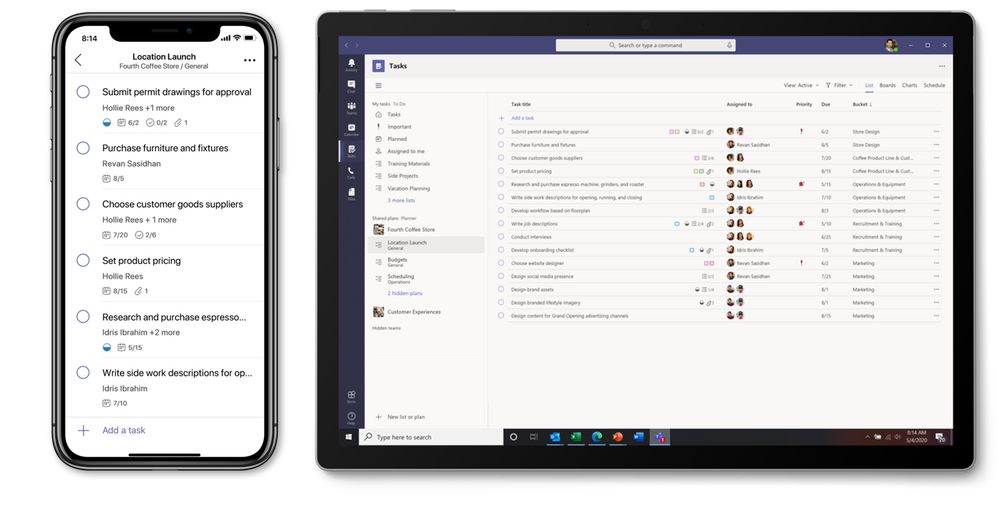
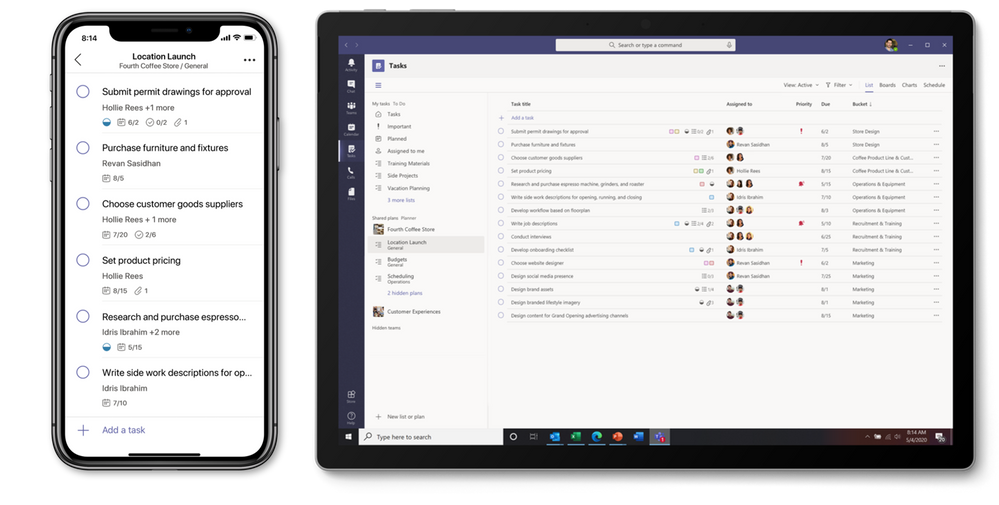
That’s why we’re thrilled to begin rolling out Tasks in Microsoft Teams, a coherent task management experience in your hub for teamwork. The new Tasks experience brings together Microsoft Planner and Microsoft To Do into Teams, giving you one place to manage your team plans and individual tasks.
We’re starting to roll out Tasks in Teams on desktop today to a small group of users, and that rollout will continue through September. The Tasks in Teams mobile experience will not be available until the desktop rollout is complete.
As a reminder from our announcement blog during Ignite last year, the Tasks in Teams experience comes as an app, which shows both Planner and To Do tasks, and as a tab, which is added to individual Teams channels and only shows Planner tasks. That blog also reiterated our commitment to Planner—and that’s still true today. We’re as dedicated to Planner as ever; in fact, there’s never been more momentum behind Planner because it powers key elements of the Tasks in Teams experience.
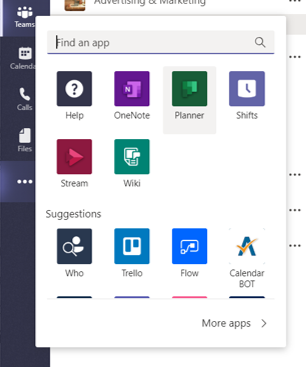
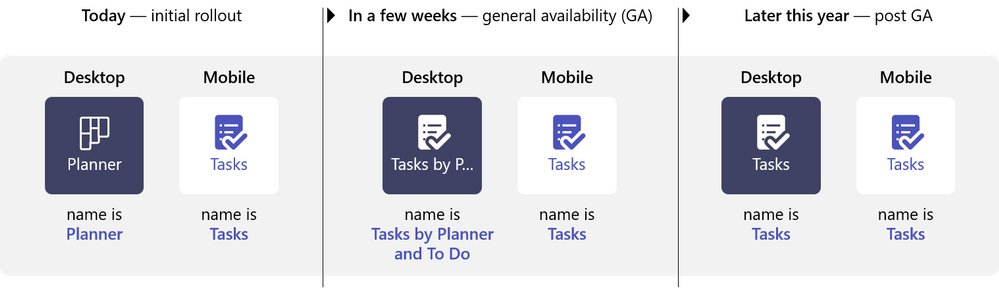
To get the Tasks in Teams app when it’s available, click the ellipses in the Teams left siderail and select Planner. No, that’s not a typo: as we roll out the new Planner experience in Teams desktop, the app name will initially remain Planner. It will then briefly change to Tasks by Planner and To Do. Finally, it’ll be simplified to Tasks. On Teams mobile clients, users will always see the app name as Tasks.
The above is true for the tab, too, which you can add by selecting the “+” icon at the top of a Teams channel.
We’ve devised this naming sequence on purpose to alleviate confusion among customers who miss our communications about this release. Nothing about the app’s functionality will change during this process; it only affects the name. Here’s a graphical representation of the sequence for reference.
If you’re not seeing the new Tasks experience after adding the app, hang tight. We’re enabling Tasks in Teams for customers little by little, and you will see it in the coming weeks. When it does appear, check out this support article first for tips on getting started. Government tenants will see the app and all its name changes but will not get the updated Tasks in Teams experience during this rollout. We’ll be in touch through Message Center when it becomes available.
We’ve made some exciting additions to the Tasks in Teams experience since the Ignite announcement. Here’s short summary of those changes, which are covered more extensively on our dedicated Microsoft Docs page.
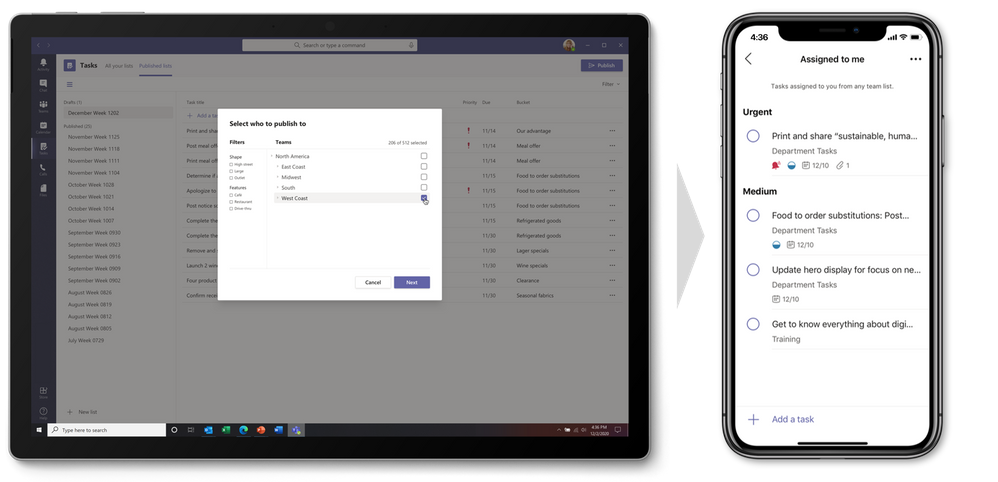
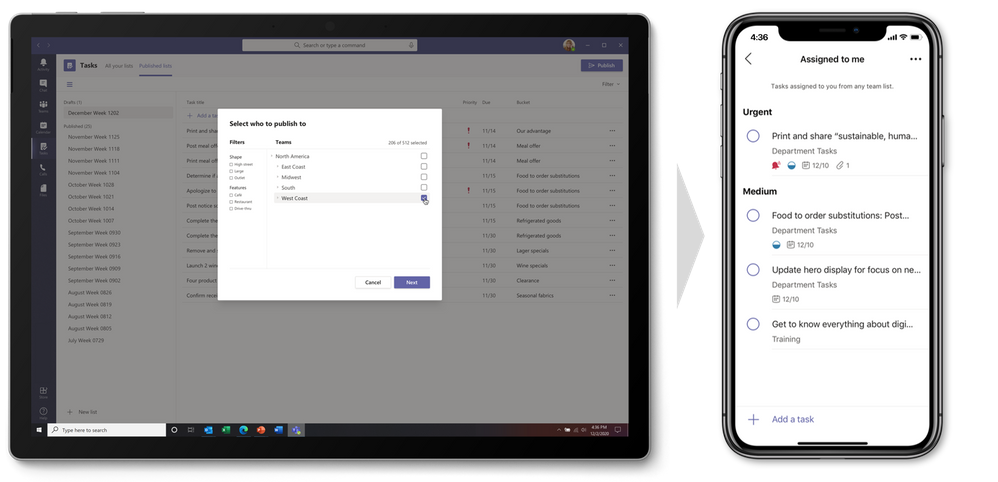
- Task publishing lets companies create tasks at the corporate level and push those tasks to targeted teams across their Firstline Workforce. For example, leadership for a nationwide retailer can create tasks for an upcoming promotional campaign, send that list to all affected store locations, and then track progress against the assigned tasks. Store managers can easily assign tasks to individual employees, while Firstline Workers can see a simple prioritized list of those tasks on their personal or company-issued mobile device. As of now, task publishing is only available in private preview. If you’re interested in getting the private preview of task publishing for your organization, please fill out this form to nominate your company.
- Tasks in Teams is available in Teams desktop, web, and mobile clients. If Tasks in Teams is added in Teams on desktop, it’ll appear in the other two environments, too. The exception is guest users, who can access the Tasks tab but will only see the app on mobile.
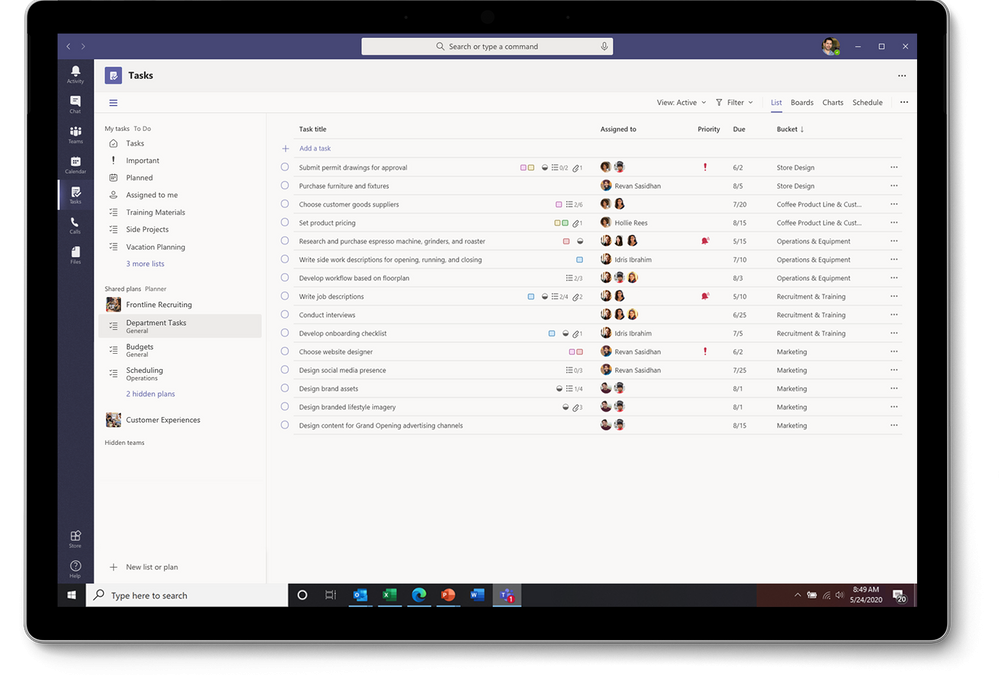
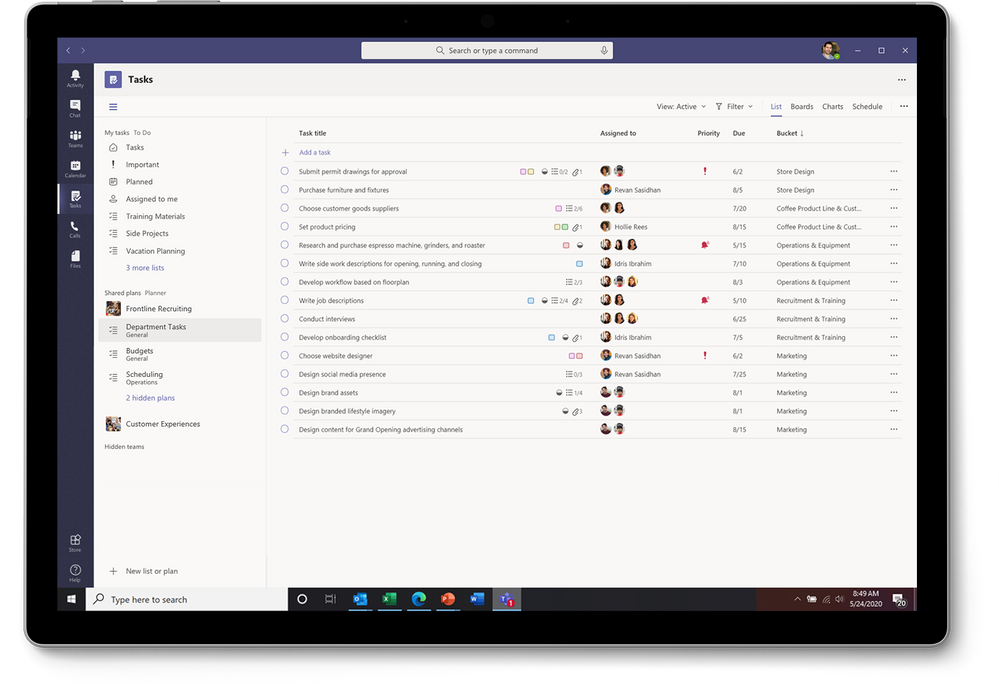
- Both the Tasks in Teams app and tab include four views: the traditional Board, Charts, and Schedule views from Planner, plus the new Lists view. All four are available in the Teams desktop and web experiences, but only the List view is available on mobile.
- The new List view also comes with a new capability: edit multiple tasks at once. In both the desktop and web experiences, instead of making the same edits to each task individually, you can edit all affected tasks simultaneously. This feature supports changes for progress, priority, due date, and more depending on what task list you’re looking at.
- If you’re an IT admin, the Docs page includes steps for enabling or disabling Tasks in Teams for either your entire organization or specific users; setting a policy to automatically pin the Tasks app to the Teams siderail; and, hiding My tasks lists for users.
- You can use Graph API and Power Automate integrations for To Do and Planner to surface tasks created in other apps in Tasks in Teams. You can read more about these APIs on our respective Planner and To Do pages. Note, the existing To Do Graph API will soon get updated to a new one, which is currently in private preview. For Power Automate, you can easily build workflows that create tasks based on certain criteria (e.g., a task is created when a form is submitted with a specific response). There are lots of premade Power Automate templates for To Do and Planner here, just search for the product name.
Tasks in Teams is the first major step in building a more connected task management experience across Microsoft 365 apps. Outlook already syncs all tasks to To Do where you can manage more task details, and Office will soon support task assignments from @mentions in Word, Excel, and PowerPoint.
We’re calling this entire effort Tasks in Microsoft 365, and it revolves around three core principles: coherence, intelligence, and integration. It’s part of a larger collaborative work management initiative that we just launched last week at Microsoft Inspire. You can watch the 30-minute presentation video about that effort here.
To stay current on our progress, keep checking the Planner Tech Community. We also invite you to check out our new Tasks in Microsoft 365 webpage, where you can find more information and announcements about Microsoft’s connected tasks experience. If you have ideas or suggestions for improving this experience, drop us a line on Planner UserVoice.
AMA happening now! We’re hosting our second hour-long Ask Microsoft Anything (AMA) of the year right now, Tuesday, July 28 at 12 p.m. EST/9 a.m. PST. All the session details are here. Our last AMA was in April and the summary notes from that session are here. AMAs are your opportunity to engage with members of the Microsoft Planner team to ask us… well, anything. Come join us!
by Scott Muniz | Jul 28, 2020 | Uncategorized
This article is contributed. See the original author and article here.
This new world of work can feel scattered. Even if you’re an old pro at working from home, things have changed. Your calendar is filled with meetings, you’re constantly managing requests from your team—not to mention your actual work. At times (or all the time), it can feel impossible to manage your ever-growing list of priorities, especially since those too are scattered across your calendar, Word docs, spiral notebooks, and sticky notes.
In this new normal, Microsoft’s vision for a unified tasks experience, which we first announced at Ignite last year, is more relevant than ever. Since then, we’ve made significant progress in creating a coherent, integrated, and intelligent experience to help you stay organized. Microsoft Teams, Microsoft Outlook, Microsoft Planner, Microsoft To Do, and Office—specifically, Word, Excel, and PowerPoint—all play a role in the Microsoft 365 tasks experience.
We’re celebrating progress in this space with the launch of a dedicated Microsoft 365 tasks experience webpage, where you can read about all the app connections that bring unified task management to life. But don’t go yet! Read on to see what we’ve been up to since Ignite and to learn more about our vision for this effort.
Teams: manage all your individual and team tasks in one place
If you’re like us, Teams is the nucleus of your workday, especially now that so much of our work is done remotely. So, it’s no coincidence that our unified tasks effort also centers around Teams, which brings tasks from both Planner and To Do into Tasks in Teams. First announced at Ignite last year, Tasks in Teams started rolling out to our customers today and will continue through the end of September. You can read more about the rollout here.
We’ve made some exciting additions to the Tasks in Teams experience since the Ignite announcement. Here’s short summary of those changes, which are covered more extensively on our dedicated Microsoft Docs page.
- Task publishing. Designed for companies that need strong communication between corporate and a large, geographically dispersed Firstline Workforce, task publishing lets you create tasks at the corporate level and push those tasks to targeted locations of their Firstline Workforce. Store managers can easily assign tasks to individual employees, while Firstline Workers can see a simple prioritized list of those tasks on their personal or company-issued mobile device. This task flow delivers an easy way for corporate and Firstline Workers to drive the right actions like sales promotions needed for business success. If you’re interested in task publishing—this feature is currently in private preview—please fill out this form to nominate your company.
- List view. Tasks in Teams includes the traditional Board, Charts, and Schedule views from Planner, plus the new Lists view, adding another option for visually managing all your tasks.
- Edit multiple tasks at once. List view also comes with bulk editing capabilities, where you can select multiple tasks and make the same edits to all of them simultaneously. This feature supports changes for progress, priority, due date, and more depending on what task list you’re looking at.
- APIs and Power Automate. You can use Graph API and Power Automate integrations for Planner and To Do to surface tasks created in other apps in Tasks in Teams. Read more about these APIs on our respective Planner and To Do pages, but note that the existing To Do API will soon get updated to a new one. For Power Automate, search “Planner” or “To Do” on the homepage for a host of premade workflow templates.
Outlook: take control of your entire day
Outlook is more than email and calendar: it’s your personal organizer, where you manage your day around work and life commitments—often in the context of tasks. Like Tasks in Teams, Outlook is another hub for the Microsoft 365 tasks experience, where integrated task management capabilities leverage familiar and intelligent solutions to streamline your workday’s commitments.
- My Day. Through My Day in Outlook, you can quickly see what your day looks like without disrupting your email workflow. My Day has two tabs: a calendar for creating and viewing meetings and events, and the To Do tab, lets you manage your individual tasks and lists. Any changes are synced to all your task lists across Microsoft 365.
- Tasks from email. Turn an email into a task or event by dragging and dropping it into My Day, flagging it in your Outlook message list, or selecting the Create a Task option in the email itself. For help while you’re away from your computer, use Play My Emails in Outlook mobile to flag emails for your To Do list or ask Cortana to add an email to your tasks list.
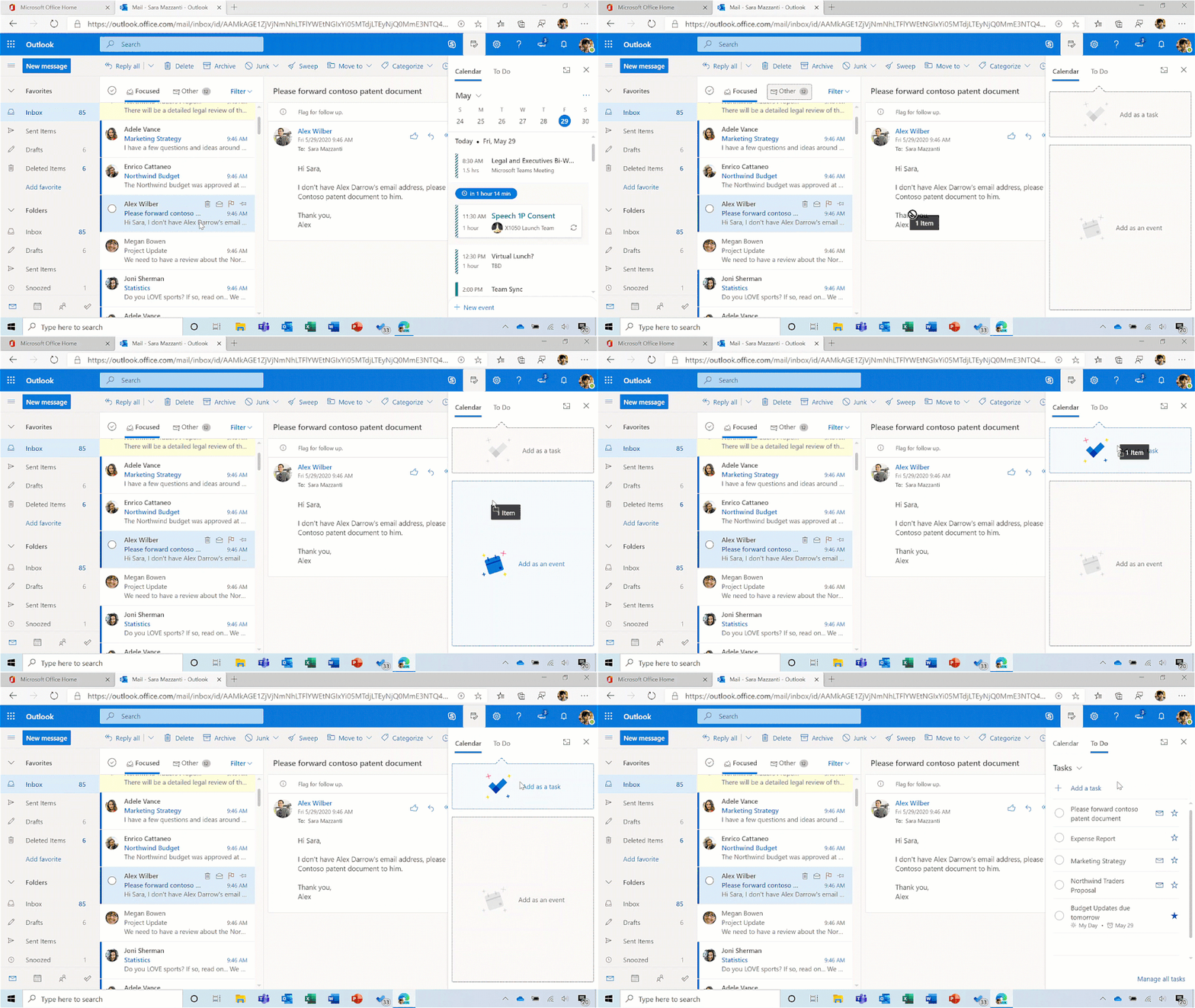
- Tasks from To Do in Search. When you open Search in Outlook mobile, it will proactively pull your top three tasks, regardless of where you created them, and add them to the Search home page. You can easily check them off your list as you go, or quickly open the To Do app to edit or add new tasks.
- Cortana Briefing email. To help you prepare for upcoming meetings and stay on top of commitments, the personalized Cortana Briefing email appears automatically in your Outlook inbox around the start of your workday. In that email, Cortana recommends action items from previous threads that you can add as tasks to To Do.
- MyAnalytics. If you’re using the MyAnalytics Insights add-in in Outlook, the “View outstanding tasks” insight reminds you of tasks that you’ve agreed to do during the last 14 days. You can also see inline suggestions to review suggested outstanding tasks for the person who sent the email or calendar invitation.
Planner and To Do: powering the Microsoft 365 tasks experience
The sub-headline says it all: Planner and To Do power the Microsoft 365 tasks experience. It’s from these apps that your team and individual tasks appear in Teams and Outlook. But that doesn’t mean they’re going away; on the contrary, Planner and To Do are critical to the success of this task management motion, so we’re as dedicated as ever to their evolution.
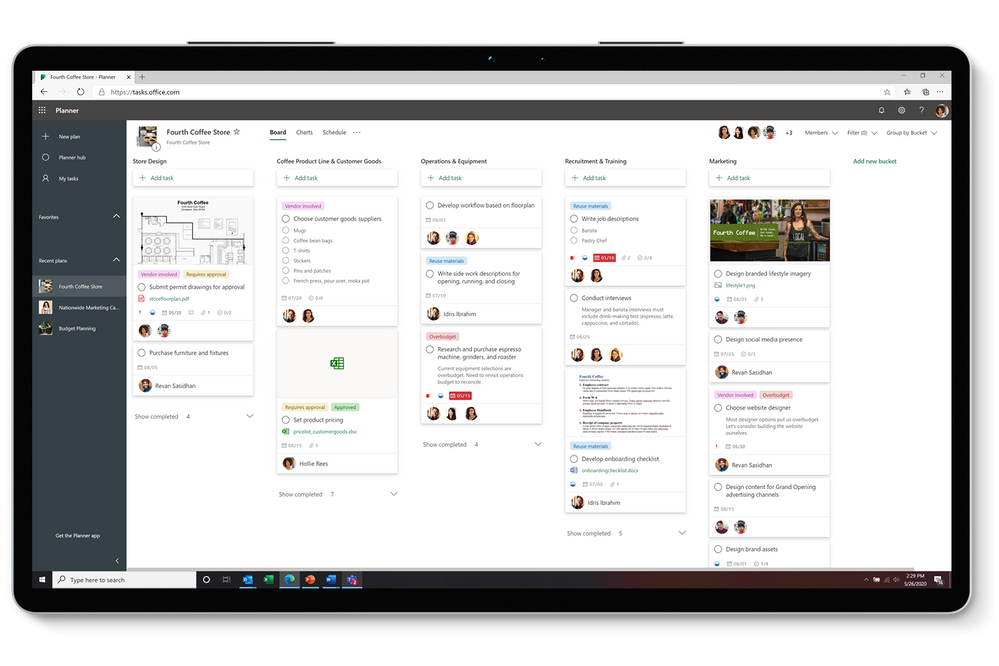
Planner is your go-to app for team tasks. Built around the Kanban approach to task management for teams, Planner lets you easily create plan boards and populate them with information-rich task cards that include files, checklists, labels, and more—everything you need to see tasks through to completion. The entire board can be organized around buckets and filtered based on priority, assignee, and other details. As your plan gains momentum, you can check the entire effort’s progress in the visual Charts view, where premade pie and bar charts provide quick status for all your plan’s tasks and team members.
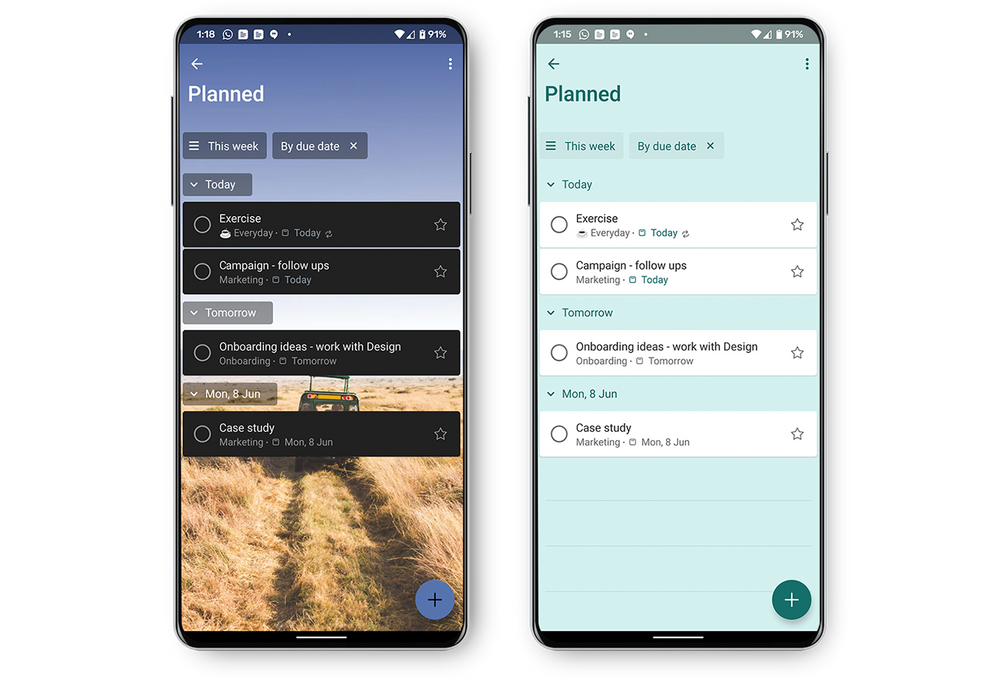
On the personal side of tasks is To Do, your go-to app for individual tasks. The perfect tool for homing in on your day’s top priorities, To Do helps create sanity in this new world of work. The To Do experience starts with My Day, where you can enter tasks you’d like to focus on for the day. These tasks can be manually added on your tablet or phone, or by asking Cortana to add one for you, and then tracked in Outlook. Added tasks are synced across Microsoft 365. This integration extends to Planner: tasks assigned to you there show up in the Assigned to you smart list. You can easily switch between your work and personal accounts on Android and Windows devices, too. But the best part? The To Do app is free, which means your family and friends with a Microsoft account can use it to coordinate on everything you love in your personal life. You can even share lists between your personal and work accounts, a highly requested feature that we’ve started rolling out this month.
Word, Excel, PowerPoint: capture tasks without switching apps
Tasks can originate from anywhere at any time. This is particularly problematic if you need to break concentration from whichever Office document you’re in to assign that task through another app. But those were the old days; these days—these new Microsoft 365 tasks experience days—you can assign tasks using comment @mentions directly in Word, Excel, and PowerPoint.
This capability is now rolling out in Word and Excel for the web, with PowerPoint for the web availability coming soon. In the future, these tasks will also show up in Planner and To Do.
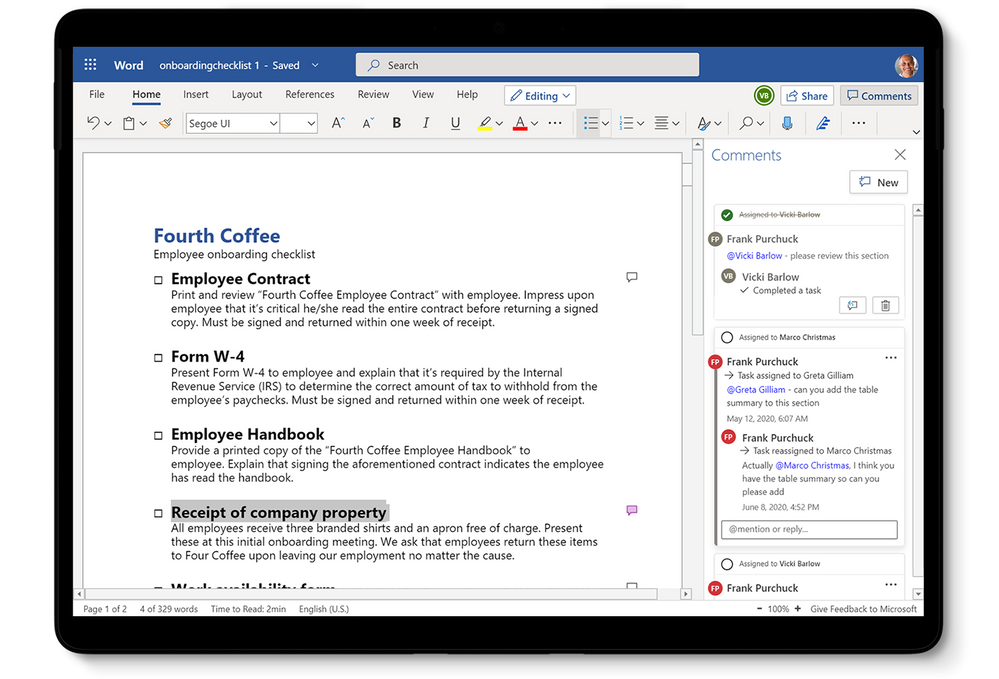
@mention task assignments trigger email notifications with a link to the comment in the document. The email notification shows your comment alongside the associated Word sentence, Excel cell, or PowerPoint slide. Add to that Microsoft’s threaded comments experience, and task assignees have all the context they need to get started on the assignment. The person you @mentioned can also respond to the comment directly from their email notification without opening the associated doc.
@mention task assignments, which are a logical extension of a familiar feature (i.e., in-app comments), are a perfect example of the work we’re doing around the Microsoft 365 tasks experience. As we build out this motion, look for similar capabilities that bring task management coherence and integration to your everyday productivity apps.
Continuously connecting the dots
This unified tasks experience is a year old, but we’ve only just begun. Microsoft’s mission is to empower every person and organization to achieve more, and we believe streamlining task management advances this goal. This starts with what you’ve read here: connecting the apps and services you use most into a coherent, integrated, and intelligent experience. This is especially important in this new, often-scattered world of work.
We hope you’ll continue to follow us on this journey through the Microsoft 365 tasks experience webpage. This experience is part of a larger collaborative work management initiative that we just launched last week at Microsoft Inspire. You can watch the 30-minute presentation video about that effort here. And as always, if you have ideas for improving your productivity, drop us a line on the various product UserVoice pages (Teams, Outlook, Planner, To Do, Word, Excel, PowerPoint).


Recent Comments