This article is contributed. See the original author and article here.
PostgreSQL is an excellent database for a wide range of workloads. Traditionally, the only problem with Postgres is that it is limited to a single machine. If you are using the Azure Database for PostgreSQL managed service, that limitation no longer applies to you because you can use the built-in Hyperscale (Citus) option—to transparently shard and scale out both transactional and analytical workloads. And Hyperscale (Citus) just keeps getting better and better.
The heart of Hyperscale (Citus) is the open source Citus extension which extends Postgres with distributed database superpowers. Every few months we release a new version of Citus. I’m excited to tell you that the latest release, Citus 10, is now available in preview on Hyperscale (Citus) and comes with spectacular new capabilities:
Columnar storage for Postgres: Compress your PostgreSQL and Hyperscale (Citus) tables to reduce storage cost and speed up your analytical queries!
Sharding on a single Citus node (Basic Tier): With Basic Tier, you can shard Postgres on a single node, so your application is “scale-out ready”. Also handy for trying out Hyperscale (Citus) at a much lower price point, starting at $0.27 USD/hour.[1]
Joins and foreign keys between local PostgreSQL tables and Citus tables: Mix and match PostgreSQL and Hyperscale (Citus) tables with foreign keys and joins.
Function to change the way your tables are distributed: Redistribute your tables in a single step using new alter table functions.
These new Citus 10 capabilities change what Hyperscale (Citus) can do for you in some fundamental (and useful) ways.
With Citus 10, Hyperscale (Citus) is no longer just about sharding Postgres: you can use the new Citus columnar storage feature to compress large data sets. And Citus is no longer just about multi-node clusters: with Basic Tier in Hyperscale (Citus), you can now shard on a single node to be “scale-out-ready”. Finally, Hyperscale (Citus) is no longer just about transforming Postgres into a distributed database: you can now mix regular (local) Postgres tables and distributed tables in the same Postgres database.
In short, Hyperscale (Citus) in Azure Database for PostgreSQL now empowers you to run Postgres at any scale.
Let’s dive in!
One of our favourite Postgres memorabilia is the PostgreSQL 9.2 race car poster with the signatures of all the committers from the PGCon auction in 2013. Since Citus 9.2, our open source team has been creating a new racecar image for each new Citus open source release. With Citus 10 giving you columnar, single node (Basic tier), & so much more, the Postgres elephant can now go to any scale!
Columnar storage for PostgreSQL with Hyperscale (Citus)
The data sizes of some new Hyperscale (Citus) customers are truly gigantic, which meant we needed a way to lower storage cost and get more out of the hardware. That is why we implemented columnar storage for Citus. Citus Columnar can give you compression ratios of 3x-10x or more, and even greater I/O reductions. The new Citus columnar feature is available in:
Hyperscale (Citus) in Azure Database for PostgreSQL: at the time of writing, the Citus 10 features are in preview in Hyperscale (Citus). So if you want to try out the new Citus columnar feature, you’ll want to turn the preview features on in the portal when provisioning a new Hyperscale (Citus) server group. Of course, depending on when you read this blog post, these Citus 10 features might already be GA in Hyperscale (Citus).
The best part: you can use columnar in Hyperscale (Citus) with or without the Citus scale-out features! More details about columnar table storage can be found in our Hyperscale (Citus) docs.
Our Citus engineering team has a long history with columnar storage in PostgreSQL, as we originally developed the cstore_fdw extension which offered columnar storage via the foreign data wrapper (fdw) API. PostgreSQL 12 introduced “table access methods”, which allows extensions to define custom storage formats in a much more native way.
Citus makes columnar storage available in PostgreSQL via the table access method APIs, which means that you can now create Citus columnar tables by simply adding USING columnar when creating a table:
CREATE TABLE order_history (…) USING columnar;
If you provision a row-based (“heap”) table that you’d like to later convert to columnar, you can do that too, using the alter_table_set_access_method function:
-- compress a table using columnar storage (indexes are dropped)
SELECT alter_table_set_access_method('orders_2019', 'columnar');
When you use Citus columnar storage, you will typically see a 60-90% reduction in data size. In addition, Citus columnar will only read the columns used in the SQL query. This can give dramatic speed ups for I/O bound queries, and a big reduction in storage cost.
Compared to cstore_fdw, Citus columnar has a better compression ratio thanks to zstd compression. Citus columnar also supports rollback, streaming replication, archival, and pg_upgrade.
There are still a few limitations with Citus columnar to be aware of: Indexes and update/delete are not yet supported, and it is best to avoid single-row inserts, since compression only works well in batches. We plan to address these limitations in future Citus releases, but you can also avoid them using partitioning.
If you partition time series tables by time, you can use row-based storage for recent partitions to enable single-row, update/delete/upsert and indexes—while using columnar storage to archive data that is no longer changing. To make this easy, we also added a function to compress all your old partitions in one go:
-- compress all partitions older than 7 days
CALL alter_old_partitions_set_access_method('order_history', now() – interval '7 days', 'columnar');
This procedure commits after every partition to release locks as quickly as possible. You can use pg_cron to run this new alter function as a nightly compression job.
Starting with Basic Tier in Hyperscale (Citus)—to be “scale-out ready”
We often think of Hyperscale (Citus) as “worry-free Postgres”, because Citus takes away the one concern you may have when choosing Postgres as your database: reaching the limits of a single node. However, when you migrate a complex application from Postgres to Hyperscale (Citus), you may need to make some changes to your application to handle restrictions around unique- and foreign key-constraints and joins, since not every PostgreSQL feature has an efficient distributed implementation.
In Azure, the easiest way to scale your application on Postgres without ever facing the cost of migration (and be truly worry-free) is to use Hyperscale (Citus) from day one, when you first build your application. Applications built on Citus are always 100% compatible with regular PostgreSQL, so there is no risk of lock-in. The only downside of starting on Hyperscale (Citus) so far was the cost and complexity of running a distributed database cluster, but this changes in Citus 10. With Citus 10 and the new Basic tier in Hyperscale (Citus), you can now shard your Postgres tables on a single Citus node to make your database “scale-out-ready”.
To get started with Hyperscale (Citus) on a single node, this post about sharding Postgres with Basic tier is a good place to start. Be sure to enable preview features in the Azure portal when provisioning Azure Database for PostgreSQL—and then select the new “Basic Tier” feature that’s available in preview on Hyperscale (Citus). As of today, you can provision Basic tier for $0.27 USD/hour in US East 1. This means that you can try out Hyperscale (Citus) at a much lower price point: about ~8 hours of kicking the tires and you’ll only pay $2-3 USD.
Diagram 1: When provisioning the Hyperscale (Citus) deployment option in the Azure portal for Azure Database for PostgreSQL, you’ll now have two choices: Basic Tier and Standard Tier.
Once connected, you can create your first distributed table by running the following commands:
CREATE TABLE data (key text primary key, value jsonb not null);
SELECT create_distributed_table('data', 'key');
The create_distributed_table function will divide the table across 32 (hidden) shards that can be moved to new nodes when a single node is no longer sufficient.
You may experience some overhead from distributed query planning, but you will also see benefits from multi-shard queries being parallelized across cores. You can also make distributed, columnar tables to take advantage of both I/O and storage reduction and parallelism.
The biggest advantage of distributing Postgres tables with Basic tier in Hyperscale (Citus) is that your database will be ready to be scaled out using the Citus shard rebalancer.
Joins & foreign keys between PostgreSQL and Citus tables
With the new Basic Tier feature in Hyperscale (Citus) and the shard rebalancer, you can be ready to scale out by distributing your tables. However, distributing tables does involve certain trade-offs, such as extra network round trips when querying shards on worker nodes, and a few unsupported SQL features.
If you have a very large Postgres table and a data-intensive workload (e.g. the frequently-queried part of the table exceeds memory), then the performance gains from distributing the table over multiple nodes with Hyperscale (Citus) will vastly outweigh any downsides. However, if most of your other Postgres tables are small, then you might end up having to make additional changes without much additional benefit.
A simple solution would be to not distribute the smaller tables at all. In most Hyperscale (Citus) deployments, your application connects to a single coordinator node (which is usually sufficient), and the coordinator is a fully functional PostgreSQL node. That means you could organize your database as follows:
convert large tables into Citus distributed tables,
convert smaller tables that frequently JOIN with distributed tables into reference tables,
convert smaller tables that have foreign keys from distributed tables into reference tables,
keep all other tables as regular PostgreSQL tables local to the coordinator.
Diagram 2: Example of a data model where the really large table (clicks) is distributed. Because the Clicks table has a foreign key to Ads, we turn Ads into a reference table. Ads also has foreign keys to other tables, but we can keep those other tables (Campaigns, Publishers, Advertisers) as local tables on the coordinator.
That way, you can scale out CPU, memory, and I/O where you need it. And minimize application changes and other trade-offs where you don’t. To make this model work seamlessly, Citus 10 adds support for 2 important features:
foreign keys between local tables and reference tables
direct joins between local tables and distributed tables
With these new Citus 10 features in Hyperscale (Citus), you can mix and match PostgreSQL tables and Citus tables to get the best of both worlds without having to separate them in your data model.
Alter all the things!
When you distribute a Postgres table with Hyperscale (Citus), choosing your distribution column is an important step, since the distribution column (sometimes called the sharding key) determines which constraints you can create, how (fast) you can join tables, and more.
Citus 10 adds the alter_distributed_table function so you can change the distribution column, shard count, and co-location of a distributed table. This blog post walks through how when and why to use alter_distributed_table with Hyperscale (Citus).
-- change the distribution column to customer_id
SELECT alter_distributed_table('orders',
                               distribution_column := 'customer_id');

-- change the shard count to 120
SELECT alter_distributed_table('orders',
                               shard_count := 120);

-- Co-locate with another table
SELECT alter_distributed_table('orders',
                               distribution_column := 'product_id',
                               colocate_with := 'products');
Internally, alter_distributed_table reshuffles the data between the worker nodes, which means it is fast and works well on very large tables. We expect this makes it much easier to experiment with distributing your tables without having to reload your data.
You can also use the alter_distributed_table function in production (it’s fully transactional!), but you do need to (1) make sure that you have enough disk space to store the table several times, and (2) make sure that your application can tolerate blocking all writes to the table for a while.
Many other features in Citus 10—now available in preview in Hyperscale (Citus)
And there’s more!
DDL support More DDL commands work seamlessly on distributed Citus tables, including CREATE STATISTICS, ALTER TABLE .. SET LOGGED, and ALTER SCHEMA .. RENAME.
SQL support Correlated subqueries can now be used in the SELECT part of the query, as long as the distributed tables are joined by their distribution column.
New views to see the state of your cluster: citus_tables and citus_shards citus_tables view shows Citus tables and their distribution column, total size, and access method. The citus_shards view shows the names, locations, and sizes of individual shards.
Two easy ways to start playing with Citus 10
If you are as excited as we are and want to play with these new Citus 10 features, doing so is now easier than ever.
And you can also run Citus open source on your laptop as a single Docker container! Not only is the single docker run command an easy way to try out Citus—it gives you functional parity between your local dev machine and using Citus in the cloud.
# run PostgreSQL with Citus on port 5500
docker run -d --name citus -p 5500:5432 -e POSTGRES_PASSWORD=mypassword citusdata/citus

# connect
psql -U postgres -d postgres -h localhost -p 5500
You can also check out our lovely new Getting started with Citus page for more resources on how to get started—my teammates have curated some good learning tools there, whether your preferred learning mode is reading, watching, or doing.
More deep-dive blog posts about new Citus 10 capabilities
And since the Citus 10 open source release rolled out, we’ve also published a bunch of deep-dive blog posts (plus a demo!) about the spectacular new capabilities in Citus 10:
Finally, a big thank you to all of you who use Hyperscale (Citus) to scale out Postgres and who have taken the time to give feedback and be part of our journey. If you’ve filed issues on GitHub, submitted PRs, talked to our @citusdata or @AzureDBPostgres team on Twitter, signed up for our monthly Citus technical newsletter, or joined our Citus Public community Q&A… well, thank you. And please, keep the feedback coming. You can always reach our product team via the Ask Azure DB for PostgreSQL email address too.
We can’t wait to see what you do with the new Citus 10 features in Hyperscale (Citus)!
Footnotes
As of the time of publication, in the East US region on Azure, the cost of a Hyperscale (Citus) Basic tier with 2 vCores, 8 GiB total memory, and 128 GiB of storage on the coordinator node is $0.27/hour or ~$200/month ↩
This article is contributed. See the original author and article here.
Azure Sentinel Incidents contain detection details which enable security analysts to investigate using a graph view and gain deep insights into related entities. The responsiveness of a security analyst towards the triggered incidents (also known as Mean Time To Acknowledge – MTTA) is crucial as being able to respond to a security incident quickly and efficiently will reduce the incident impact and mitigate the security threats.
The newly introduced Automation Rules allow you to automatically assign incidents to an owner with the built-in action. This is extremely useful when you need to assign specific incidents to a dedicated SME. It will reduce the time of acknowledgement and ensure accountability for each incident.
However, some organizations have a group of analysts working on different shift schedules and required the ability to assign an incident to an analyst automatically based on the working schedule to improve the MTTA.
In this blog, I will discuss how to extend the incident assignment capability in Azure Sentinel by using a Playbook to rotate user assignments based on shift schedules. Plus, I will also discuss how you could manage incident assignments for multiple support groups at the end of the blog.
Considerations and design decisions
Before we dive into the Playbook, let’s discuss some of the important points taken into consideration and the design decisions when implementing this incident assignment Playbook.
Scheduling tool
Shifts for Teams is used as the scheduling tool because it is available as part of the Microsoft Teams and it provides the ability to create and manage employee schedules.
It is easier to automate incident assignment when there is a centralized schedule management tool to keep track of employees’ timesheet or availability.
Assignment criteria
The goal is to assign the incidents equally across all analysts. Hence, the analyst with the least number of incidents in current shift will be assigned first.
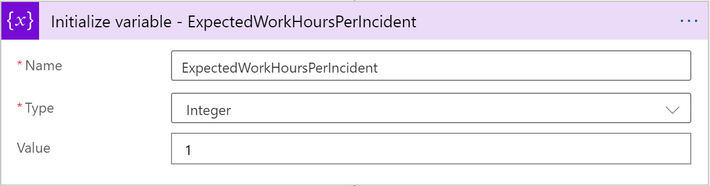
We also need to consider the average time a security analyst takes to resolve a security incident (also known as Mean Time To Resolve – MTTR). In this Playbook, I have set a default value of 1 hour as the MTTR (a configurable variable) and I am using it as a condition where a security analyst must have at least 1 hour remaining in the shift to be eligible for incident assignment. For example, if a security analyst is about to go off shift in 30 minutes, the incident won’t be assigned to that analyst as the remaining time is less than the default value of 1 hour.
Notification
It is important to notify the assignee when an incident is being assigned.
In this Playbook, an email will be sent to the assignee and a comment will be added to the incident on the incident assignment.
What is Shifts for Teams?
Shifts is a schedule management application in Microsoft Teams that helps you create, update, and manage schedules for your team. Shifts is enabled by default for all Teams users in your organization. You can add Shifts app to your Teams menu by clicking on the ellipses (…) and select Shifts from the app list.
The first step to get started in Shifts is to populate schedules for your team. You can either create a schedule from scratch (create for yourself or on behalf of your team members) or import an existing one from Excel. In terms of permission, you need to be an Owner of the team to create the schedule. The schedules will not be visible to your team members until you publish it by clicking “Share with team” button.
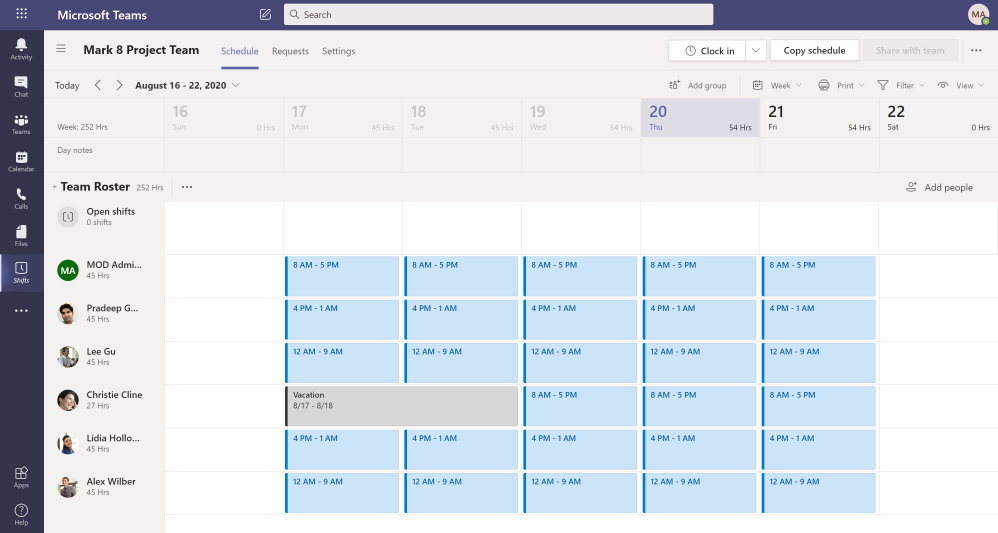
Here is an example of how a Shifts schedule looks like. If you’re an owner of multiple teams, you can toggle between different Shifts schedules to manage them.
1. User account or Service Principal with Azure Sentinel Responder role
– Create or use an existing user account or Service Principal or Managed Identity with Azure Sentinel Responder role.
– The account will be used in Azure Sentinel connectors (Incident Trigger, Update incident and Add comment to incident) and a HTTP connector.
– This blog will walk you through using System Managed Identity for the above connectors.
2. Setup Shifts schedule
– You must have the Shifts schedule setup in Microsoft Teams.
– The Shifts schedule must be published (Shared with team).
3. User account with Owner role in Microsoft Teams
– Create or use an existing user account with Owner role in a Team.
– The user account will be used in Shifts connector (List all shifts).
4. User account or Service Principal with Log Analytics Reader role
– Create or use an existing user account with Log Analytics Reader role on the Azure Sentinel workspace.
– The user account will be used in Azure Monitor Logs connector (Run query and list results).
5. An O365 account to be used to send email notification.
– The user account will be used in O365 connector (Send an email).
Post Deployment Configuration:
1. Enable Managed Identity and configure role assignment.
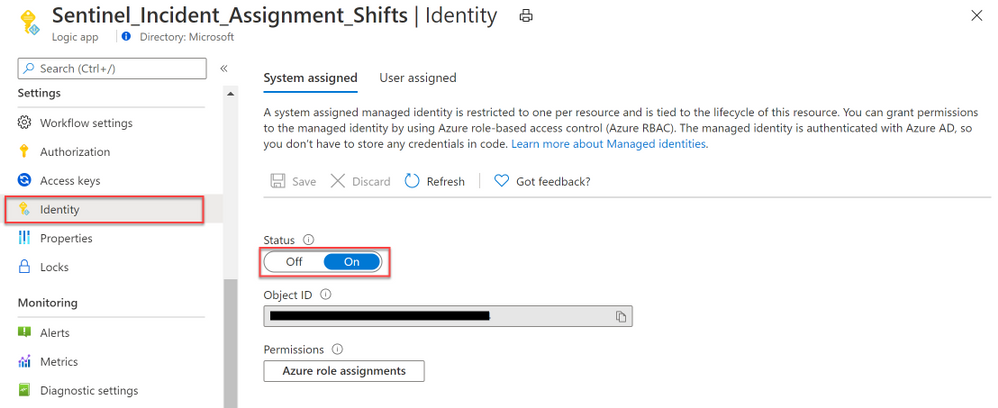
a) Once the Playbook is deployed, navigate to the resource blade and click on Identity under Settings.
b) Select On under the System assigned tab. Click Save and select Yes when prompted.
c) Click on Azure role assignments to assign role to the Managed Identity.
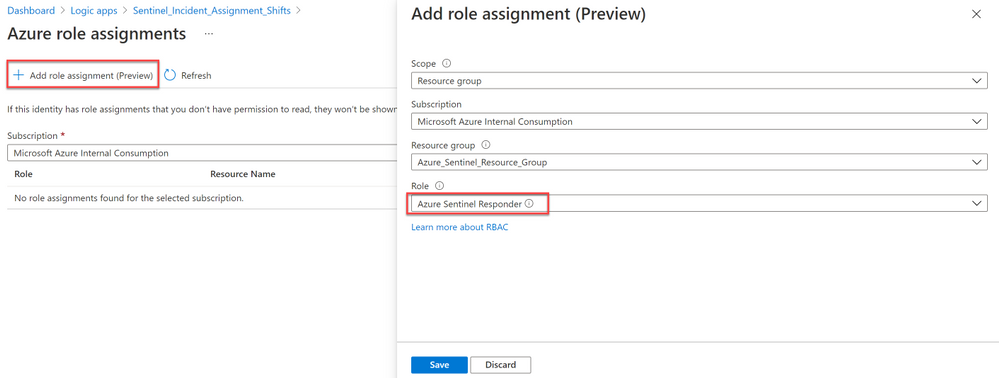
d) Click on + Add role assignment.
e) Select Resource group under Scope and select the Subscription and Resource group where the Azure Sentinel Workspace is located.
(Note: it’s the subscription and resource group of the Azure Sentinel workspace, not the Logic App).
f) Select Azure Sentinel Responder under Role and click Save.
2. Configure connections.
a) Edit the Logic App to find the below connectors marked with .
– When Azure Sentinel incident creation rule was triggered.
– List all shifts.
– Run query and list results – Get user with low assignment.
– Update incident.
– Add comment to incident.
– Send an email.
b) We will leverage the Managed Identity we configured in step 1 for the following Azure Sentinel Connectors
(hint: these are the ones with Azure Sentinel logo):
– When Azure Sentinel incident creation rule was triggered.
– Update incident.
– Add comment to incident.
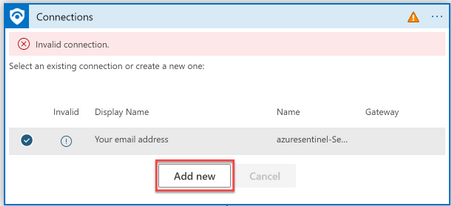
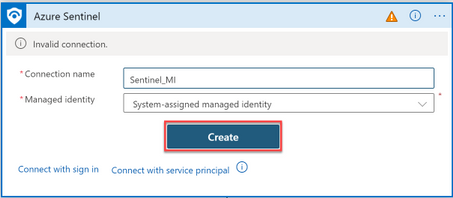
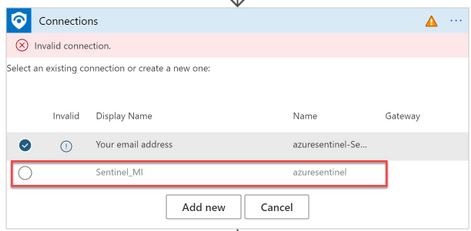
i) On the first connector (trigger), select Add new
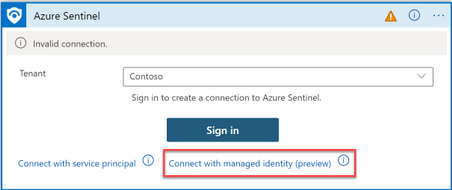
ii) Click “Connect with managed Identity”.
iii) Specify the connection name and click Create.
iv) On the remaining Azure Sentinel Connectors, select the connection you created earlier.
c) Next, fix the below remaining connectors by adding a new connection to each connector and sign in with the accounts described under prerequisites.
– List all shifts.
– Run query and list results – Get user with low assignment.
– Send an email.
3. Select the Shifts schedule
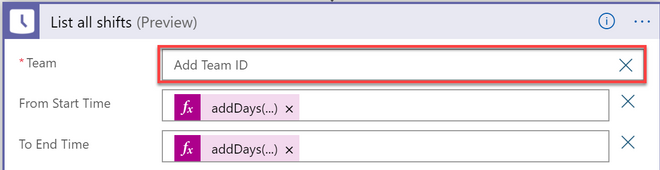
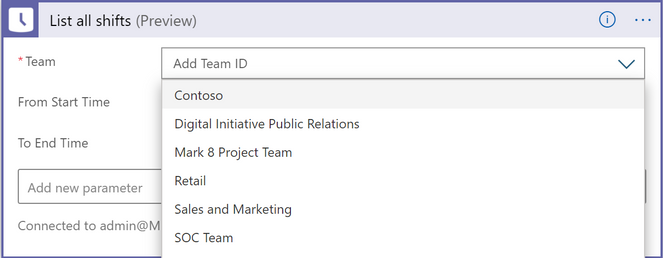
a) On the List all shifts connector, click on the X sign next to Team field for the drop-down list to appear.
b) Select the Teams channel with your Shifts schedule from the drop-down list.
c) Save the Logic App once you have completed the above steps.
Assign the Playbook to Analytic Rules using Automation Rules
1) Before you begin, ensure you have the following permissions:
– Logic App Contributor on the Playbook.
– Owner permission on the Playbook’s resource group (to grant Azure Sentinel permission to the playbooks’ resource groups).
2) Next, create an Automation Rule to assign the Playbook to your analytic rules with you specified conditions.
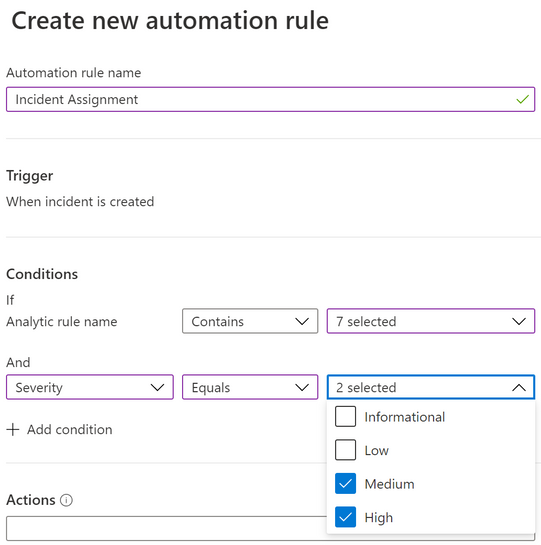
3) In the below example, I am creating an Automation Rule to run the incident assignment Playbook for selected Analytic rules and the severity equals to “High” and “Medium”.
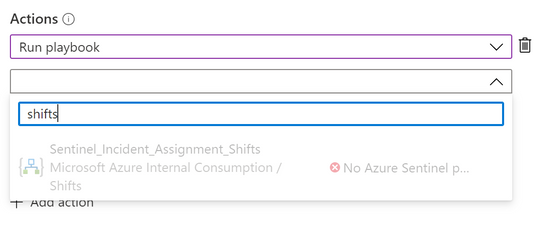
4) Uder Actions -> select Run Playbook and choose the Playbook.
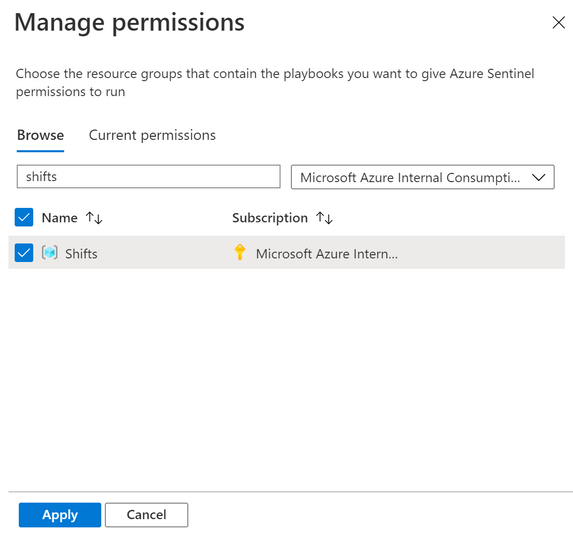
Note: If the Playbook appeared as grey-out in the drop-down list, that means Azure Sentinel doesn’t have permission to run this Playbook.
You can grant permission on the spot by selecting the Manage playbook permissions link and grant permission to the playbooks’ resource groups.
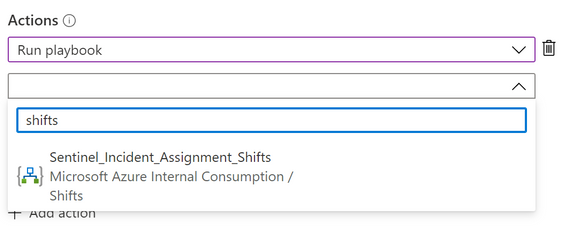
5) After that, you will be able to select the Playbook. Click Apply.
Note: If you received the error message “Caller is missing required Playbook triggering permissions” when saving the Automation Rule, that means you do not have the “Logic App Contributor” permission on the Playbook.
Incident Assignment Logic
1) When an incident is generated, it triggers the Logic app to get a list of analysts who are on-shift at that time (analysts with time-off will be excluded from the incident assignment).
2) Analyst with the least incidents assigned on the current shift will be assigned incident first. When there are multiple analysts with same incident count, the selection be will based on the order of the analyst’s AAD objectId.
3) Analysts must have at least 1 hour left (default value) in their shift to be eligible for assignment.
For example, if the shift of an analyst is ending at 6pm. The analyst will not be assigned between 5pm and 6pm.
You can change the variable value of “ExpectedWorkHoursPerIncident” to 0 if you want the analyst to be assigned during the final shift hour.
4) Here is a sample assignment flow for your reference:
In this example, the following shift schedules have been configured for 4 analysts.
User Object Id
Shift Schedule
A1
8am to 6pm
A2
8am to 6pm
A3
4pm to 2am
A4
4pm to 2am
Here is how the incident assignment would work based on the incident assignment logic:
Incident Creation Time
Assign to
Total
8:00am
A1
A1=1
A2=0
A3=0
A4=0
9:45am
A2
A1=1
A2=1
A3=0
A4=0
2:00pm
A1
A1=2
A2=1
A3=0
A4=0
4:00pm
A3
A1=2
A2=1
A3=1
A4=0
4:10pm
A4
A1=2
A2=1
A3=1
A4=1
5:00pm
A3
*A3 is assigned instead of A2 because ExpectedWorkHoursPerIncident is set to 1.
A1=2
A2=1
A3=2
A4=1
5:50pm
A4
*A4 is assigned instead of A2 because ExpectedWorkHoursPerIncident is set to 1.
A1=2
A2=1
A3=2
A4=2
11:20pm
A3
A1=2
A2=1
A3=3
A4=2
Notification
Email Notification:
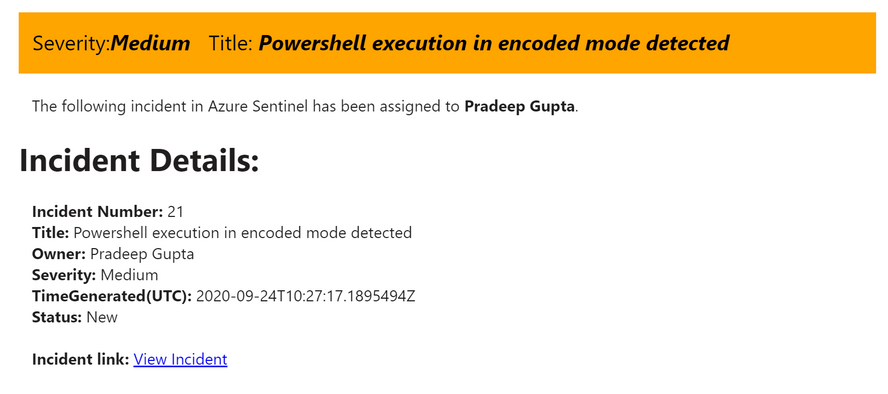
When an incident is assigned, the incident owner will be notified via email.
The email body has a direct link to the incident page and a banner with color mapped to incident’s severity (High=red, Medium=orange, Low=yellow and Informational=grey).
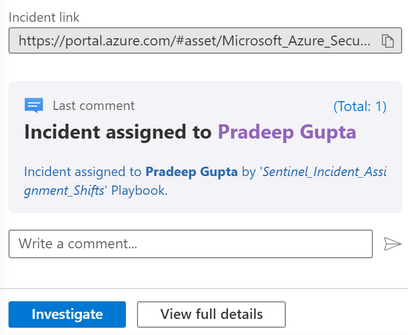
Incident Comment:
Comment will be added to the incident for the assignment with the name of the Playbook.
Managing Incident assignment for multiple Support Groups
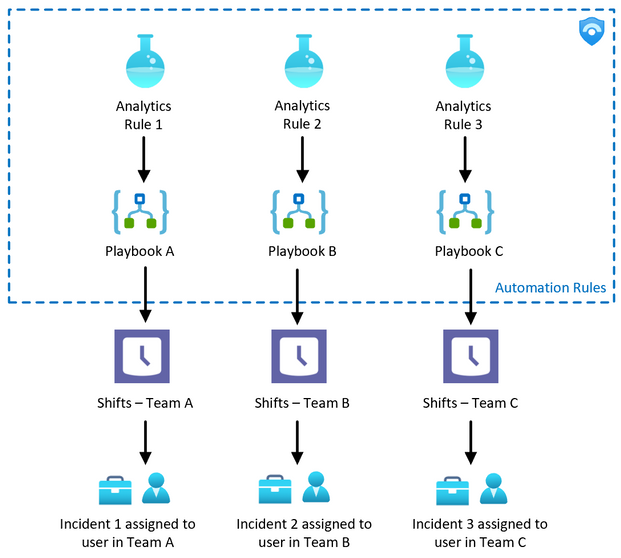
There are times when you need to assign incidents based on different incident types and support groups. For example, Team A is responsible for Azure AD incidents, Team B is responsible for Office 365 incidents while the rest of the incidents will go to Team C.
This can be achieved by creating Shifts schedule for each support group and deploy a separate Playbook for each group. Then, assign the Logic App to the analytic rules accordingly as illustrated in the diagram below:
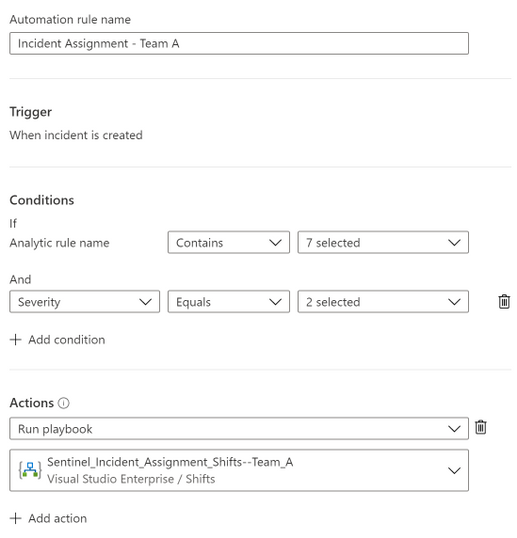
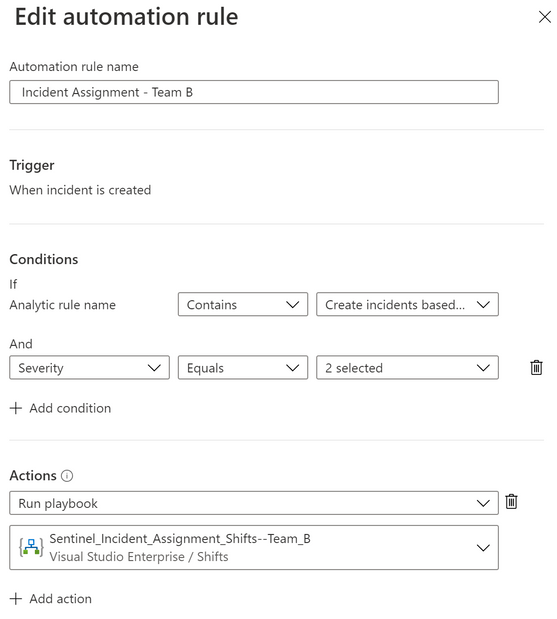
Below are the sample Automation Rules created for multiple Shifts channels (Support Groups).
Each Automation Rule is configured for different Team:
Automation Rule for Team A
Automation Rule for Team B
Summary
I hope you find this useful. Give it a try and hopefully it would help in reducing the time of acknowledgement (especially for critical incidents) in your environment.
This article is contributed. See the original author and article here.
As highlighted in my last blog posts (for Splunk and Qradar) about Azure Sentinel’s Side-by-Side approach with 3rd Party SIEM, there are some reasons that enterprises leverage Side-by-Side architecture to take advantage of Azure Sentinel capabilities.
For my last blog post I used the Microsoft Graph Security API Add-On for Splunk for Side-by-Side with Splunk. Another option would be to implement a Side-by-Side architecture with Azure Event Hub. Azure Event Hubs is a big data streaming platform and event ingestion service. It can receive and process events per second (EPS). Data sent to an Azure Event Hub can be transformed and stored by using any real-time analytics provider or batching/storage adapters.
For the integration, an Azure Logic app will be used to stream Azure Sentinel Incidents to Azure Event Hub. From there Azure Sentinel Incidents can be ingested into Splunk.
Let’s go with the configuration!
Preparation
The following tasks describe the necessary preparation and configurations steps.
Onboard Azure Sentinel
Register an application in Azure AD
Create an Azure Event Hub Namespace
Prepare Azure Sentinel to forward Incidents to Event Hub
Configure Splunk to consume Azure Sentinel Incidents from Azure Event Hub
Using Azure Sentinel Incidents in Splunk
Onboarding Azure Sentinel
Onboarding Azure Sentinel is not part of this blog post. However, required guidance can be found here.
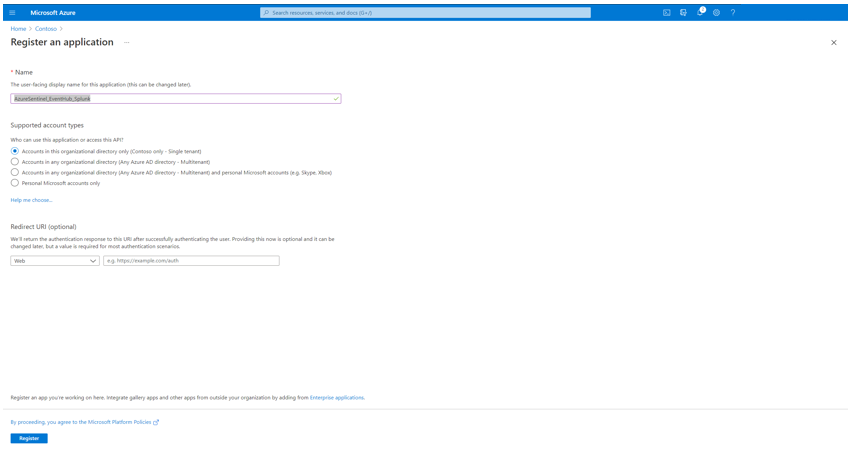
To register an app in Azure AD open the Azure Portal and navigate to Azure Active Directory > App Registrations > New Registration. Fill the Name and click Register.
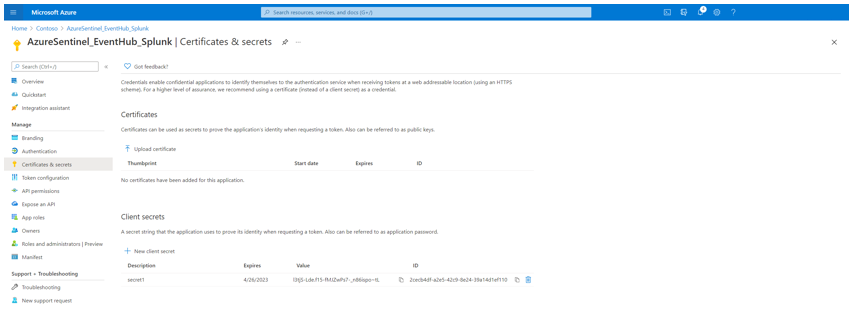
Click Certificates & secrets to create a secret for the Service Principle. Click New client secret and make note of the secret value.
As next step create an Azure Event Hub Namespace. You can use an existing one, however for this blog post I decided to create a new one.
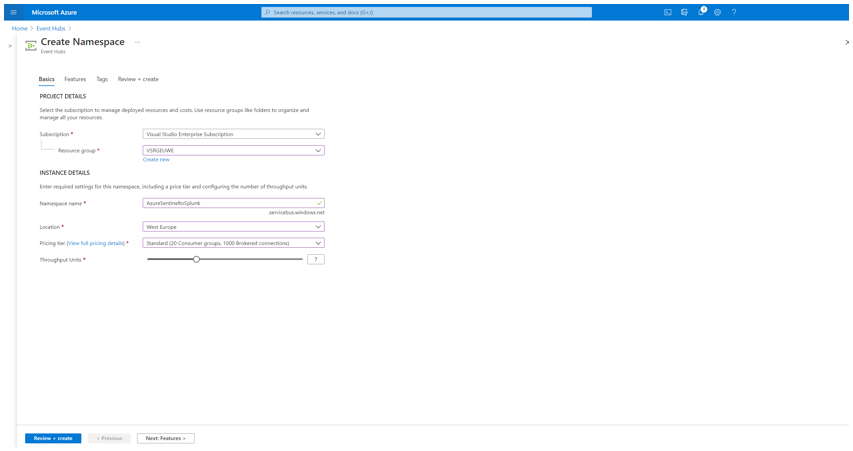
To create an Azure Event Hub Namespace open the Azure Portal, and navigate to Event Hubs > New. Define a Name for the Namespace, select the Pricing Tier, Throughput Units and click Review + create.
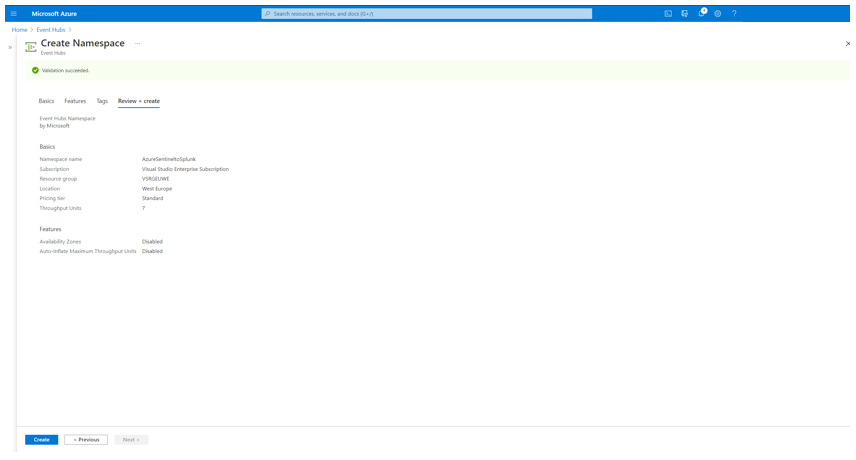
Review the configuration and click Create.
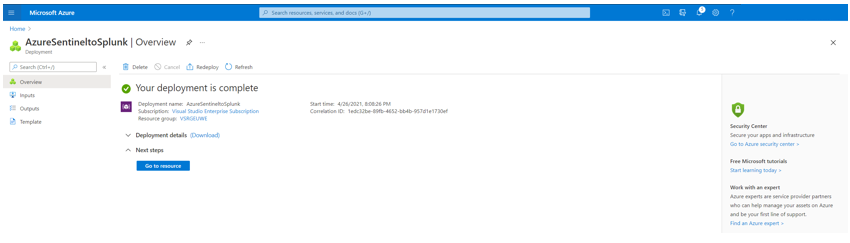
Once the Azure Event Hub Namespace is created click Go to resource to follow the next steps.
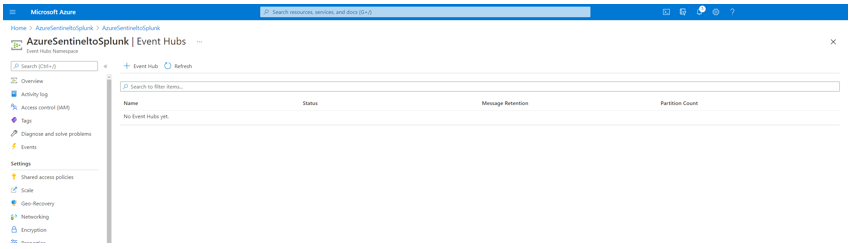
Click Event Hubs, after to Event Hub to create an Azure Event Hub within the Azure Event Hub Namespace.
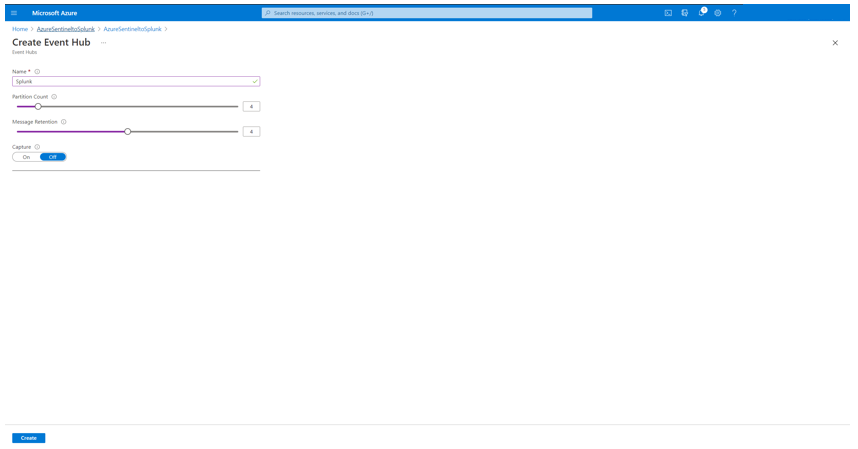
Define a Name for the Azure Event Hub, configure the Partition Count, Message Retention and click Create.
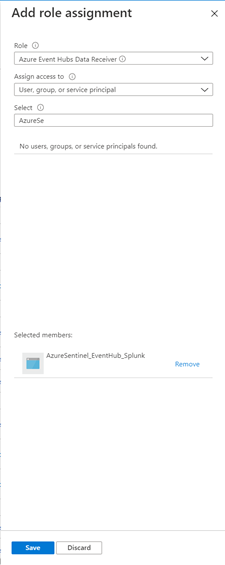
Navigate to Access control (IAM) and click to Role assignments. Click + Add to add the Azure AD Service Principle created before and delegate as Azure Event Hubs Data Receiver and click Save.
Prepare Azure Sentinel to forward Incidents to Event Hub
For the forwarding for Azure Sentinel Incidents to Azure Event Hub you need to firstly configure an Azure Logic App, and secondly an Automation Rule in Azure Sentinel to trigger the playbook for any Incidents in Azure Sentinel.
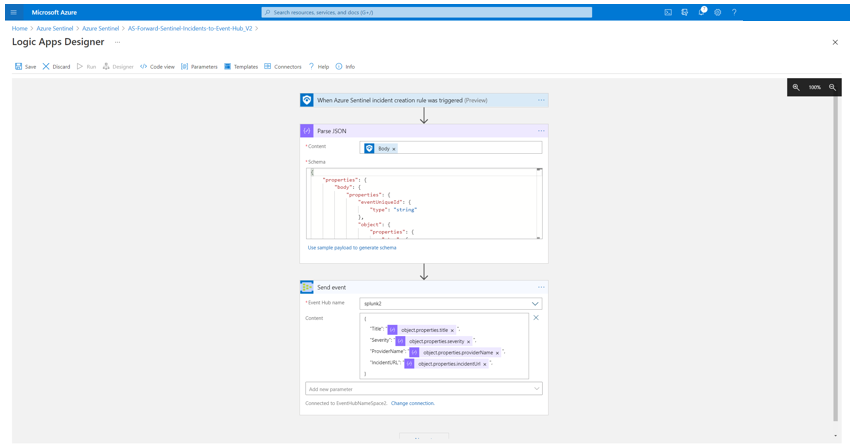
For my scenario I configured an Azure Logic App as following shown:
Startwith the Azure Sentinel trigger When Azure Sentinel Incident Cration Rule was Triggered. Parse the output for later usage. For the Azure EventHub connection, define first the connection to Azure Event Hub and select the Azure EventHub name. Define a JSON format as content to send selected fields from an Azure Sentinel Incident to Azure EventHub. For my case I want to forward the fields Title, Severity, ProviderName and the IncidentURL to Azure EventHub.
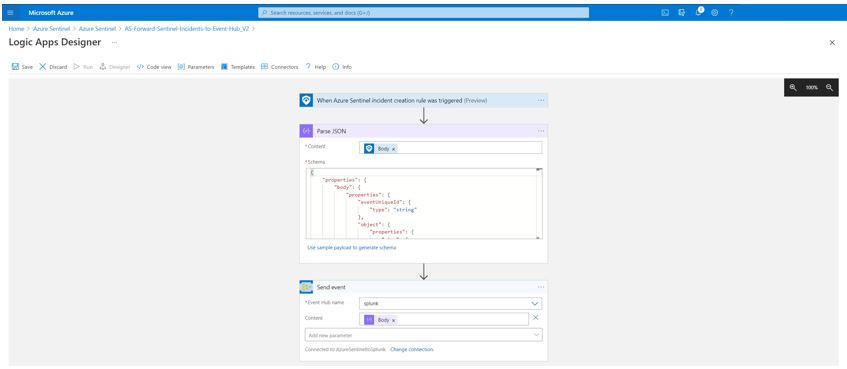
You can also have the full Body from Parse JSON output as well, to forward all attributes of an Azure Sentinel Incident.
Save the Azure Logic App and navigate to Azure Sentinel > Automation. From here you can create an Automation rule to trigger the Azure Logic App, created in previous step.
Click to + Create and select Add new rule.
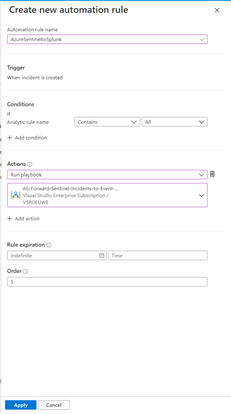
Define a Name for the Automation rule name and define the Conditions. As I want to trigger the Azure Logic App for any Analytics rule in Azure Sentinel, I let the Condition as is – “all” (for “all rules” is selected, you can choose specifc rules to inculde or exclude. Select the Run Playbook as Action and the Azure Logic App created before and click Apply.
Once the configuration is completed, you can review the Automation rule in Automation page.
Configure Splunk to consume Azure Sentinel Incidents from Azure Event Hub
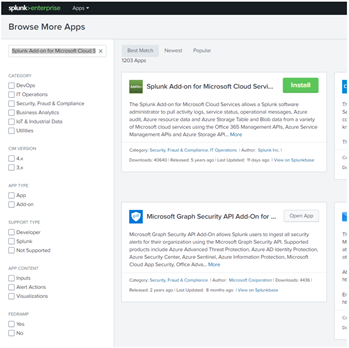
For the installation open the Splunk portal and navigate to Apps > Find More Apps. For the dashboard find the Splunk Add-on for Microsoft Cloud Services app and Install.
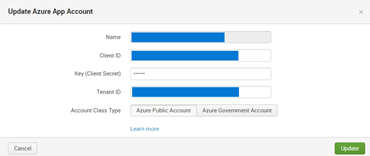
Once installed, navigate to App Splunk Add-on for Microsoft Cloud Services > Azure App Account to add the Azure AD Service Principles, and use the noted details from previous step. Click Add and define a Name for the Azure App Account, add the Client ID, Client Secret, Tenant ID and choose Azure Public Cloud as Account Class Type. Click Update to save and close the configuration.
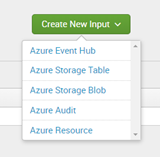
Now navigate to Inputs within the Splunk Add-on for Microsoft Cloud Services app and select Azure Event Hub in Create New Input selection.
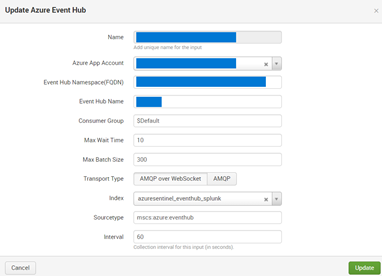
Define a Name for the Azure Event Hub as Input, select the Azure App Account created before, define the Event Hub Namespace (FQDN), Event Hub Name, let the other settings as default and click Update to save and close the configuration.
Using Azure Sentinel Incidents in Splunk
Once the ingestion is processed, you can query the data by using sourcetype=”mscs:azure:eventhub” in search field.
Summary
We just walked through the process of how to implement Azure Sentinel in Side-by-Side with Splunk by using the Azure Event Hub.
Stay tuned for more us cases in our Blog channel!
Thank you for
Many thanks to Clive Watson for brainstorming and ideas for the content.
This article is contributed. See the original author and article here.
This blog is written by Ian Riley, an inspiring musician, as a part of the Humans of Mixed Reality series. He shares his experience in music and technology, which led him to developing music in mixed reality.
Touching Light is an original musical work for Percussionist and Mixed Reality Environment that explores the border areas between the physical world that we see around us, and the worlds of infinite possibility that each of us holds in our imagination.
“A dream we dream together is called reality.” – Alex Kipman at the Microsoft Ignite Keynote, 2021
Mixed Reality, fundamentally, asks us to see the world differently, something that is so akin to the ways that as performers, we ask our audiences not just to hear, but to listen. By drawing the attention of those around us to something that we believe to be compelling, and even more when we can share something that we have had a hand in creating, we access a unique moment, a shared imaginative space and, in my experience, this is just the sort of thing that users of Mixed Reality are hoping to find.
“My dad’s a computer programmer.” I usually lead with this as it seems to put folks at ease when they contact me, hoping that there is some ‘secret’ for how I, someone with a doctorate in music, not computer science, learned to work with Mixed Reality. Yet, while his influence has certainly been a continual inspiration to me, it was in fact my mother’s encouragement to pursue training in the arts that positioned me to begin developing Touching Light. Despite its deep connectedness to technology, Touching Light is first a foremost a musical MR application.
Music and Technology
It was in pursuit of my master’s degree that I first became deeply interested in music technology. I was fascinated by the sounds that electronic instruments could create, and that curiosity would eventually lead me to perform an all percussion and live electronics final recital during my first graduate degree. This sort of recital was a first for the small college that I was attending and, though I was unaware of this at time, something that is still uncommon in the world of contemporary percussion. Those experiences would eventually lead me to pursue a DMA in Percussion Performance at West Virginia University with a desire to continue to explore and innovate with percussion and live electronics.
When I first started my DMA, I was aware of the work that Microsoft was doing with the HoloLens 1 (introduced in 2016), but it wasn’t until my wife and I moved to Morgantown, West Virginia that I saw the first marketing for the Microsoft HoloLens 2 on February 24th, 2019. I was amazed. Watching it again today still makes me smile, but I guess that’s good marketing for you! As I continued my studies at WVU, I kept thinking about that video, about the HoloLens 2, and about Mixed Reality. What seemed like a pipe dream in February, making music in Mixed Reality, would become a real possibility in mind in November of that same year.
Look toward the future – stop thinking about what is cutting edge right now and to start thinking about the cutting edge of the cutting edge; because that’s where we’re going to need people to do work. – Dr. Norman Weinberg, at PASIC 2019
And I knew that the future was Mixed Reality.
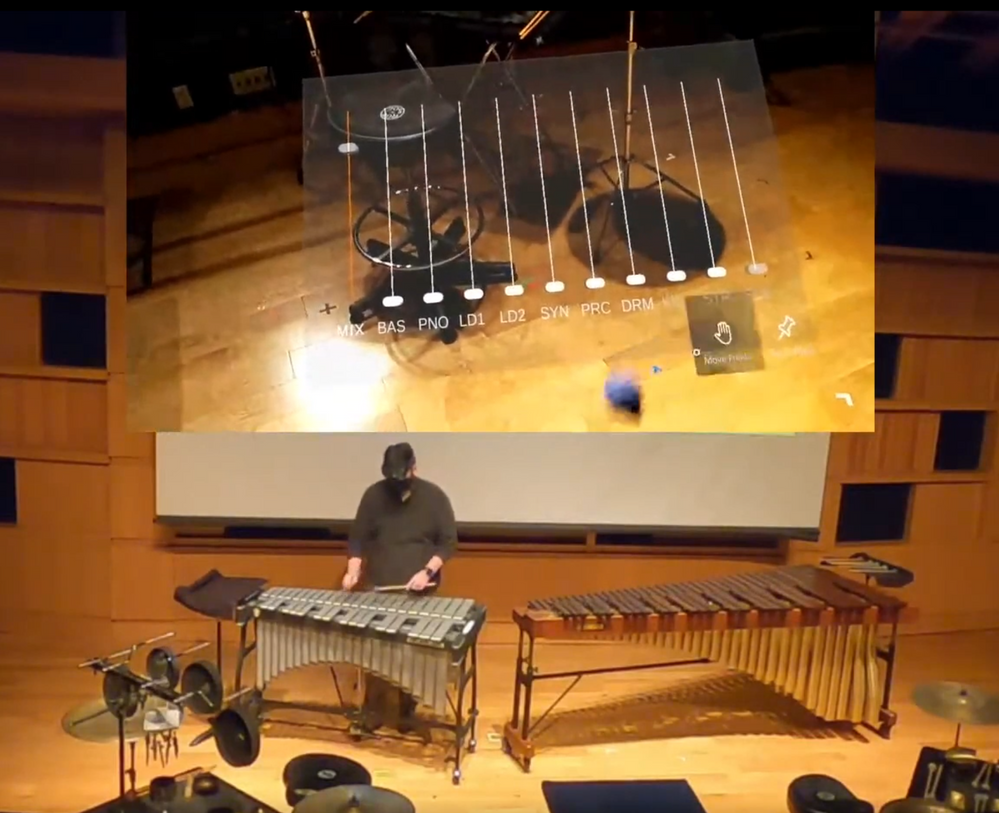
Playing vibraphone while using a holographic audio mixer from Touching Light
Preparing for HoloLens 2
Sometimes it is the mere fact that you know what you don’t know that can provide the clearest path forward. Soon after the reveal of the HoloLens 2 in early 2019, the first seeds of what would eventually become Touching Light began to take root. At the time, while I had done some minimal computer programming experience from high school (Java, and some HTML), since I began studying music in college, I had had little time or reason to engage with the ‘coding’ side of technology apart from some basic formatting for websites.
Knowing that the HoloLens 2 would likely run on something like C# or Visual Basic, I began thinking about other ways that I could engage with code-based music technology and would eventually teach myself how to build rudimentary circuits to trigger lighting and audio effects. Concurrent to this work, I also more fully invested myself into learning about audio recording and engineering, recording and editing my own performance videos from recitals and other concerts. Yet for all this experience, I still didn’t know how to program the HoloLens 2.
Learning Mixed Reality
When the first news of the global coronavirus pandemic entered the public awareness in the United States, it was met by a mixture of genuine concern, reasonable skepticism, and in some cases, outright dismissal. Living in West Virginia, the scope of the pandemic didn’t really hit home until the University received email correspondence from university president outlining the realities of campus closures, and the transition to online delivery for the remainder of the semester as the university endeavored to minimize the risk to the WVU community in the face of uncertain times. In the face of what seemed at the time to be indefinite lockdown, I found myself able to do what anyone would do with a sudden abundance of free time… learn how to code for Mixed Reality!
Over the course of the next several months, particularly during the summer of 2020, through a series of free tutorials, I learned the basics of 3-D modeling using a program called Blender, a modeling engine that is similar in many ways to the sort of interface I would eventually work with in Unity. Upon ordering a HoloLens 2 from Microsoft in early July, I quickly transitioned to Unity while familiarizing myself with the sorts of gestures and interactions that drive the HoloLens 2 holographic interface.
With all the components finally in hand, then began the work of writing, rehearsing, and performing Touching Light. Core to the performative practice of music, and particularly to that of the percussionist the same sorts of interactions that I already employed as a performer would serve as the conceptual framework from which the three ‘dimensions of translucence’ would be derived. These dimensions (modeled after the three coordinate dimensions in physical space) would serve to ground my creative work in the sorts of real decisions that I already knew how to make because of my work with percussion.
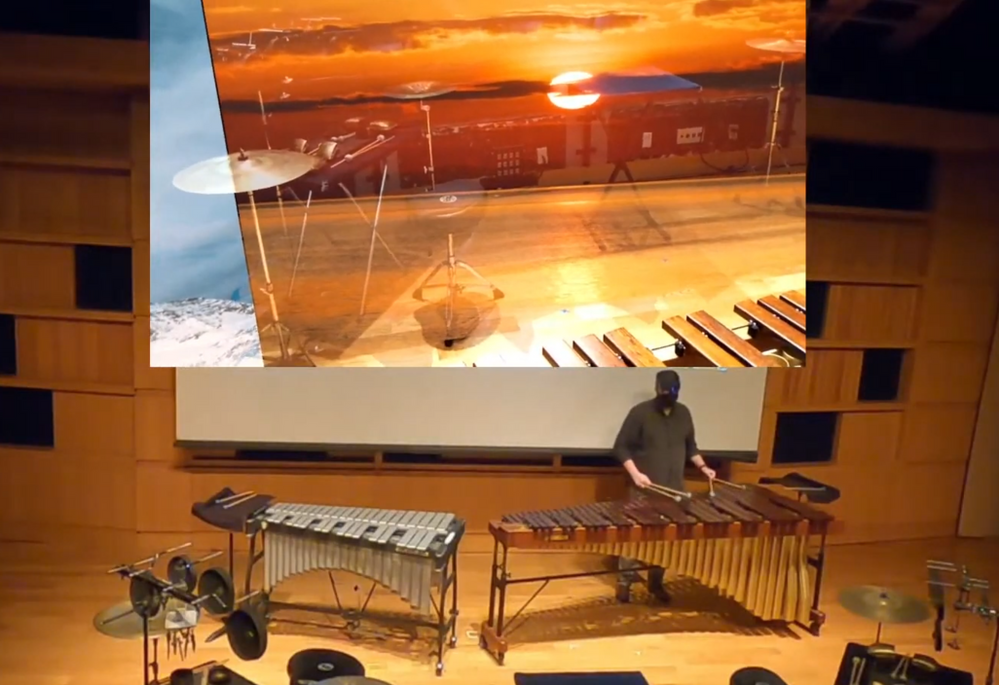
Improvising on a marimba in response to a rotating carousel of landscapes
Developing Music in Mixed Reality
I knew that I wanted Touching Light to be mobile. The promise of the HoloLens 2, and Mixed Reality in general, is that there are ‘no strings attached;’ if you wear this device, that is all you need to enter a Mixed Reality environment. I intentionally connected that idea of mobility to the sorts of interactions and environments that the user engages throughout the work. Even Soliloquy, the second movement of Touching Light which features a large carousel of static images, does not extend far beyond the anticipated ‘near-field’ (that which is within reach) that a percussionist will be used to engaging with. Everything in Touching Light, whether virtual or physical follows the design ethos of ‘always being within reach.’
The unique opportunity to engage music-making and Mixed Reality is not something that I take lightly; what began as a pipe dream just over a year ago has had a significant impact on the ways that I engage with both music and technology. I was pleasantly surprised to discover that Mixed Reality is a profoundly creative medium, and as such, engages easily with the process of music-making. From the deeply satisfying manipulation of a standing wave through the miniscule gestures of a rotating hand, to the shocking immersion of a massive holographic carousel slowly rotating around you while you perform, there is something much more connective about the spatial interactions presented by MR than the limitations of peripherals like a mouse and keyboard to control those same musical and visual elements.
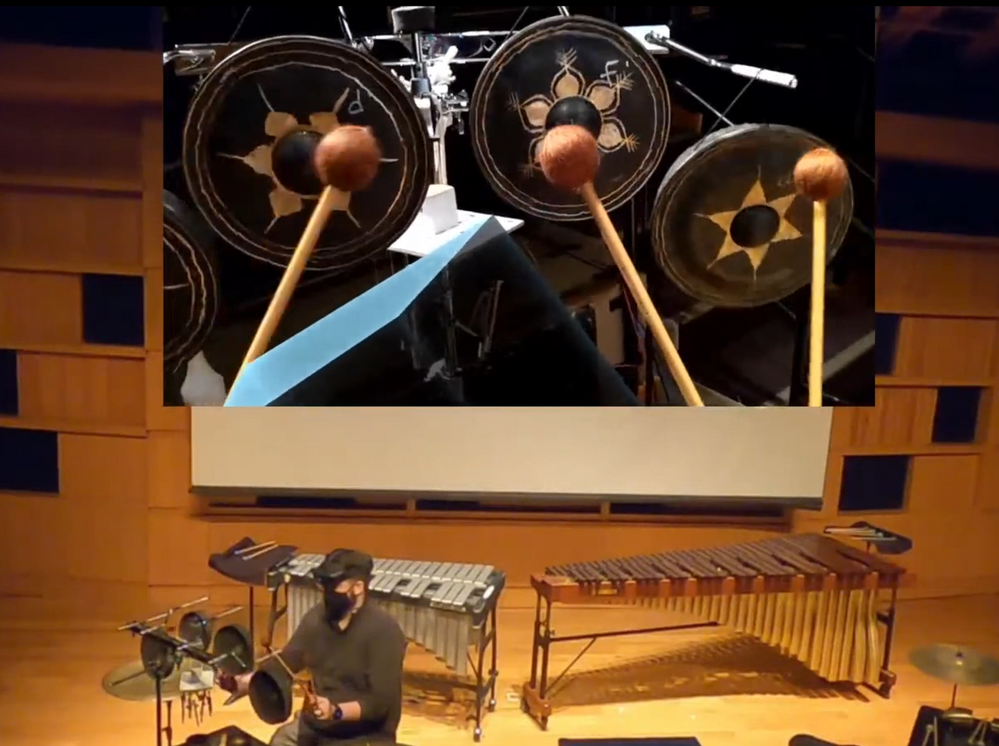
Exploring tuned Thai gongs while manipulating spatialized virtual instruments
Making Music in Mixed Reality (How to Get Started, and Why You Should)
Already, so much of what we do as musicians is, within the context of society at large, a niche endeavor; for the percussionist, these degrees of separation can seem even more severe. But in the same ways that we as artists commit ourselves to the craft of music, and the practice of music-making, engaging with MR has only served to deepen those sorts of commitments for me.
For Musicians or (“Performers”)
For those individuals who are interested in the musical side of Mixed Reality, the first step to get your hands on a platform. Touching Light is obviously designed with the Microsoft HoloLens 2 in mind, but similar functionality is available through any number of other VR headsets. Once you have a platform, you will need to decide what you will perform. If you are working with the Microsoft HoloLens 2, a great place to start is with Touching Light! You can download the complete Unity file package here. Follow the instructions from the Microsoft Mixed Reality Documentation, beginning at “1. Build the Unity Project.” Once you have deployed the application to your HoloLens 2, load up the application, and explore!
One of the most profound discoveries that I have made while working with this technology is just how musical it can be. There is something about engaging with technology within the Mixed Reality volume, about ‘spatial computing,’ that seems intuitive and artistic. This simple fact has even more deeply convinced me that music-making in Mixed Reality is not just an interesting possibility, but a deeply meaningful inevitability.
For Programmers (or “Composers”)
For those individuals who may be more interested in the nuts-and-bolts of developing musical applications for Mixed Reality, the first step is to familiarize yourself with a compiler. If you are interested in programming for the Microsoft HoloLens 2, the de facto solution at present is the Unity Development Engine, though support for other compilers is becoming increasingly available. You can download the Unity Hub for free from their website, and then following the instructions in the Microsoft Mixed Reality Documentation, beginning at “1. Introduction to the MRTK tutorials,” you can begin to develop your first Mixed Reality application.
I would strongly advise that, once you get a handle on the basic functionality of the compiler and complete some of the beginning MRTK tutorials, take some time to consider what sorts of functionality you would like your application to demonstrate, the connect with the Microsoft MR community (via Slack or the Microsoft MR Tech Community forums) and connect with other who may be able to answer your questions, and even help you with your project design.
Throughout the development process of Touching Light, I was surprised at not only how easy it was to onboard myself to Mixed Reality development by using the MRTK, but also by how friendly and helpful the then-current MR development community was. Whenever I had a question, or was struggling with some element of implementation, I would quickly be directed to the relevant documentation, YouTube video, or other resource that very often addressed the exact issue I was having without ever need to post snippets of code or consult more directly with someone on the project. As a bonus, I was also able to connect with a handful of individual who had a particular interest in developing creative applications for the HoloLens 2.
Touching Light
I had the distinct opportunity to present Touching Light in a public recital on Saturday, May 1st, 2021.
Only the beginning
Touching Light is only the beginning. It is my sincere hope that this project will serve to orient, assist, and inspire musicians, artists, and audiences alike as we continue to navigate an increasingly digital and virtual existence. Perhaps more than any other time in history, only compounded by the incredible circumstances surrounding global health and the subsequent impact that a response to such scenarios require, we have been forced to think differently about technology, and for those of us who found ourselves suddenly unable to engage in live musical performances, neither as artists nor audiences, it is my conviction that mediums like Mixed Reality will only become more essential to exploring ‘liveness’ within the context of digital and virtual spaces.
The work was designed during the global coronavirus pandemic of 2020-21 and it is my hope that Touching Light reminds each of us that, despite everything, we are never truly alone; there is a world beyond this one if we are only willing to reach out and touch it.
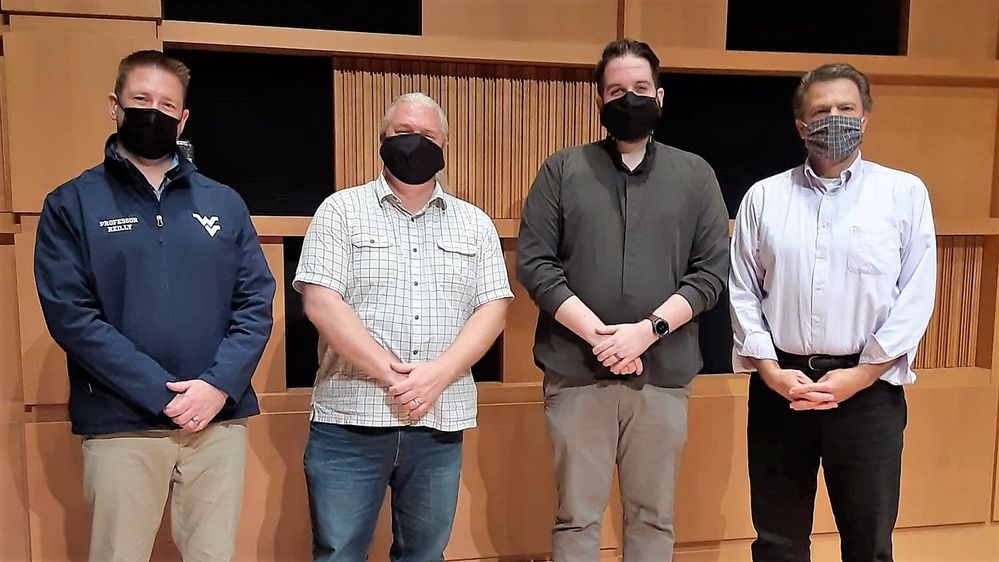
A photo with members of the WVU Percussion Faculty after the recital [from left: Pf. Mark Reilly, Dr. Mike Vercelli, Ian Riley, and Pf. George Willis]
Riley, Ian T. “Touching Light: A Framework for the Facilitation of Music-Making in Mixed Reality.” West Virginia University, West Virginia University Press, 2021.
This article is contributed. See the original author and article here.
The stage is set for the 19thannual Imagine Cup World Championship, taking place duringMicrosoft Build’sdigital experience on May 25.Four finalist teamsfrom across the world are bringing theirinnovations for impact toshowcase globally. Focused on four social good categories – Earth, Education, Healthcare, and Lifestyle – theirideas encompasstheImagine Cup’s mission to empower every student to apply technology to solve issues in their local and global communities.
In the 2021 competition, students reimagined a future through projects guided by accessibility, sustainability, inclusion, equality, and passion. Submitted solutions covered a variety of current issues, includinga 3D sign-language animation, a virtual game to combat social isolation, an early detection platform for Parkinson’s Disease, an intelligent bee keeping system, and more.
On May 25, our four finalists will present their innovations for the chance to take home USD75,000 and mentorship with Microsoft CEO, Satya Nadella. A panel of expert World Championship judges will assess each project. With combined industry and personal experience in diversity leadership, startups, founding businesses, and applying tech for social impact, our judges will apply their knowledge to evaluate the most inclusive and original solution with the potential to make a global difference.
Imagine Cup judges dedicate their personal time and experience to help empower the next generation of developers. We’ve been fortunate to have a diverse panel of industry experts, from around the world, leading up to the World Championship, including Devendra Singh, CTO at PowerSchool, Kai Frazier, Founder at KaiXR, Neil Sebire, Chief Clinical Data Officer at HDK UK, and Jason Goldberg, Chief Commerce Strategy Officer at Publicis, and more.
For the first time in Imagine Cup history, we are pleased to introduce a panel of all women judges for the World Championship. During the competition, each team will pitch their project and demo their technology, followed by questions from judges. Who will take home the trophy? Join our hosts, Tiernan Madorno, Microsoft Business Program Manager, and Donovan Brown, Microsoft Principal Program Manager, and tune into the show on May 25 at 1:30pm PT to find out!
Meet the World Championship judges
Jocelyn Jackson – National Society of Black Engineers National Chair, 2019-2021
Student, researcher, leader, and change agent are just a few descriptors of Jocelyn Jackson. In her final term as the National Chair of the National Society of Black Engineers (NSBE), Jocelyn led NSBE through one of the hardest years it has faced. Through the COVID-19 pandemic as well as the racial injustice reckoning in America, Jocelyn stayed dedicated to using her leadership and voice to make a difference in the lives of other young Black men & women interested in engineering, and to make engineering a more diverse and accepting field for all. As National Chair, Jocelyn made massive strides to accomplish the current strategic goal of NSBE: 10K by 2025, or to graduate 10,000 Black engineers annually by 2025 by launching NSBE’s newest 5 year strategic plan ‘Game Change 2025.’ During her last 3 years at NSBE, Jocelyn managed & led the board of directors to ensure the best overall experience of NSBE stakeholders.
Originally from Davenport, Iowa, Jackson received her bachelor’s and master’s degrees in mechanical engineering at Iowa State University, where her thesis research focused on the development of elastomeric coatings with reduced wear for ice-free applications. She is a second-year doctoral student in Engineering Education Research at the University of Michigan. Her current research works toward advancing equity in STEM and STEM entrepreneurship.
Enhao Li – Co-Founder and CEO of Female Founder School
Enhao Li is the Co-Founder and CEO of Female Founder School. Enhao studied Economics at Harvard and in a former life was an investment banker for fast-growing technology companies – helping to take companies like Pandora public, but she was always itching to be a founder herself. It wasn’t until she finally took the leap and started on her own company did she discover just how unprepared she was; she did all of the wrong things, wasted time and money, only to finally learn that there was a way to do this. Since then, she has become obsessed with learning how to build successful companies from experienced founders and investors and sharing it with new founders. That is where Female Founder School came from – her own personal experiences and a mission to make it easier for anyone especially women to build successful companies of their own.
Toni Townes-Whitley – President, US Regulated Industries, Microsoft As president of US Regulated Industries at Microsoft, Toni Townes-Whitley leads the US sales strategy for driving digital transformation across customers and partners within the public sector and commercial regulated industries. With responsibility for the 4900+ sales organization and ~$15B P&L, she is one of the leading women at Microsoft, and in the technology industry, with a track record for accelerating and sustaining profitable business and building high-performance teams.
Her organization is responsible for executing on Microsoft’s industry strategy and go-to-market for both public sector and regulated industries in the United States, including Education, Financial Services, Government, and Healthcare. In addition to leading a sales organization, Townes-Whitley is helping to steer the company’s work to address systemic racial injustice – with efforts targeted both internally at representation and inclusion; as well as externally at leveraging technology to counter prevailing societal challenges. She has developed expertise and speaks publicly about “Civic Technology”, applying tech innovation for social impact.
——————————–
Don’t miss out on the chance to see which team will win it all at the Imagine Cup World Championship! Plus, as a student at Microsoft Build, you can enhance your own developer skills and prepare to create the next great project. Register at no cost for the Student Zone now.


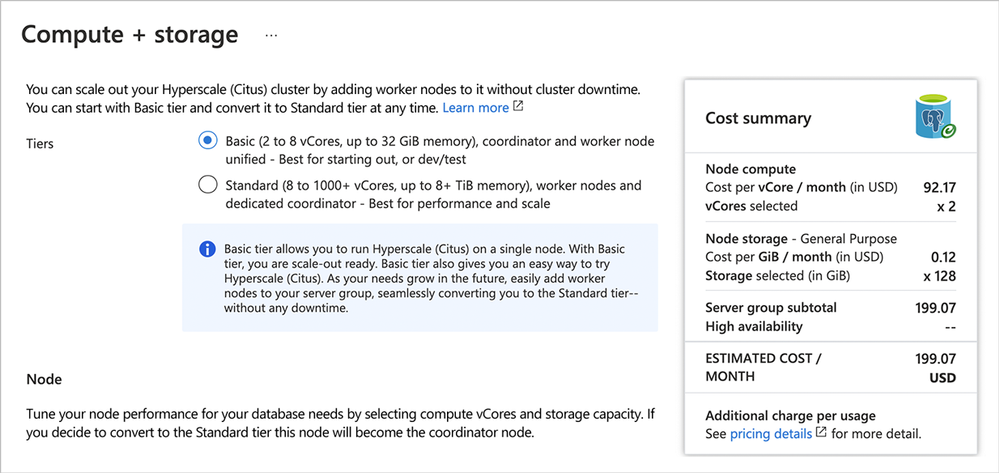 Diagram 1: When provisioning the Hyperscale (Citus) deployment option in the Azure portal for Azure Database for PostgreSQL, you’ll now have two choices: Basic Tier and Standard Tier.
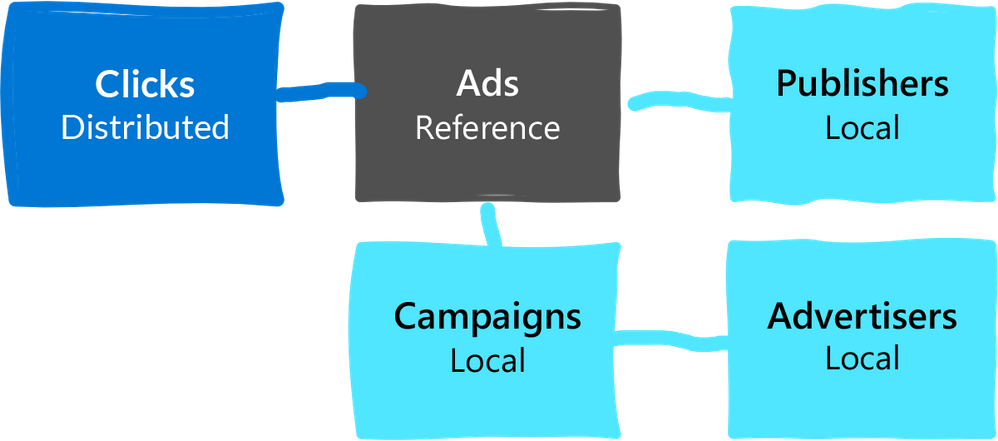 Diagram 2: Example of a data model where the really large table (clicks) is distributed. Because the Clicks table has a foreign key to Ads, we turn Ads into a reference table. Ads also has foreign keys to other tables, but we can keep those other tables (Campaigns, Publishers, Advertisers) as local tables on the coordinator.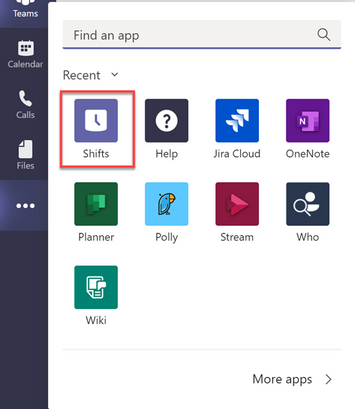




![[Guest Blog] Touching Light: Making Music in Mixed Reality](https://www.drware.com/wp-content/uploads/2021/05/fb_image-571.png)




Recent Comments