by Contributed | Mar 22, 2021 | Technology
This article is contributed. See the original author and article here.
Written in collaboration with @Yuri Diogenes (Principal PM CxE Azure Security Center Team)
Introduction
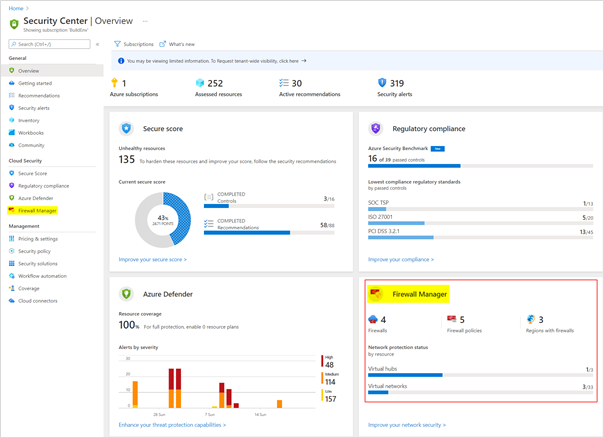
Azure Security Center is a unified infrastructure security management system that strengthens the security posture of your data centers, and provides advanced threat protection across your hybrid workloads in the cloud – whether they’re in Azure or not – as well as on premises. Azure Firewall Manager is a security management service that provides central security policy and route management for cloud-based security perimeters. To provide unified infrastructure and network security management to you, we have now integrated Azure Firewall Manager with the Azure Security Center.
Key Benefit
With the integration of Azure Firewall Manager with Azure Security Center, customers will now have a single pane of glass view of their infrastructure and network security. Customers will be able to see the status of Network Security from the Azure Security Center directly. Customers will no longer have to go into 2 different blades: in ASC for infrastructure security and in Firewall Manager for Network Security.
To learn more about this integration, visit the Azure Security Center blog – Azure Network Security Visibility and Control using ASC integration with Azure Firewall Manager
Additional Resources
by Contributed | Mar 22, 2021 | Technology
This article is contributed. See the original author and article here.
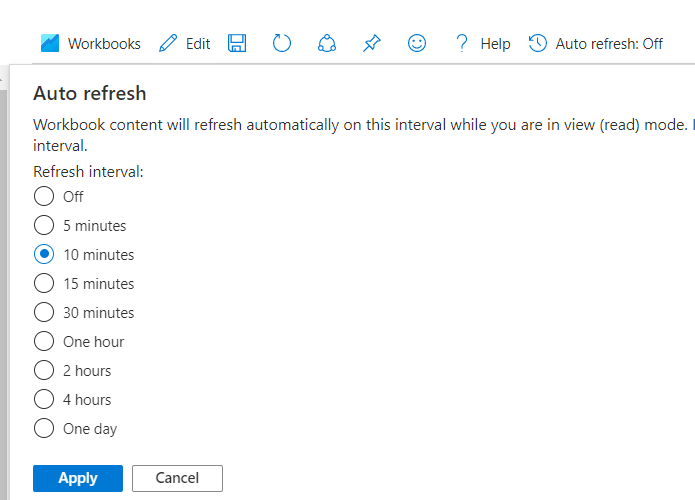
If you use workbooks or templates and do not want to keep clicking refresh, you can now set it to auto-refresh. Refresh frequency (interval) ranges from 5 mins to a day, just like Azure dashboard.
Here are three simple steps:
1. Open workbook and Auto refresh is available in toolbar (default set to off) 
2. Click on Auto refresh, Choose the refresh frequency (interval) and click Apply. These intervals are same as Azure dashboard.
3. Views will be updated at this interval

Things to remember:
- Auto refresh is off by default. You need to explicitly set it
- Auto refresh works in ‘view’ mode and stops in ‘edit’ mode
- Auto refresh settings are not persisted (each time you open workbook you have to set it) #designedforoptimalperformance
Learn more here
by Contributed | Mar 22, 2021 | Technology
This article is contributed. See the original author and article here.
Written in collaboration with @Mohit_Kumar (Senior PM CxE Azure Network Security Team)
Current challenges
Recent attacks are a great reminder that security hygiene should be your number one priority. To implement security hygiene, you need visibility across different workloads, and network is a critical area for any infrastructure. Azure Security Center can help you to improve your security hygiene by providing a comprehensive cloud security posture management platform for Azure and Non-Azure workloads. Although Azure Security Center always had network security recommendations and capabilities, it was still not possible to have a centralized visibility of Azure firewall coverage and policies. At Ignite 2021 we announced a new integration with Azure Firewall Manager that enables you to see Azure Firewall coverage status across all networks and to centrally manage Azure Firewall policies.
What’s New?
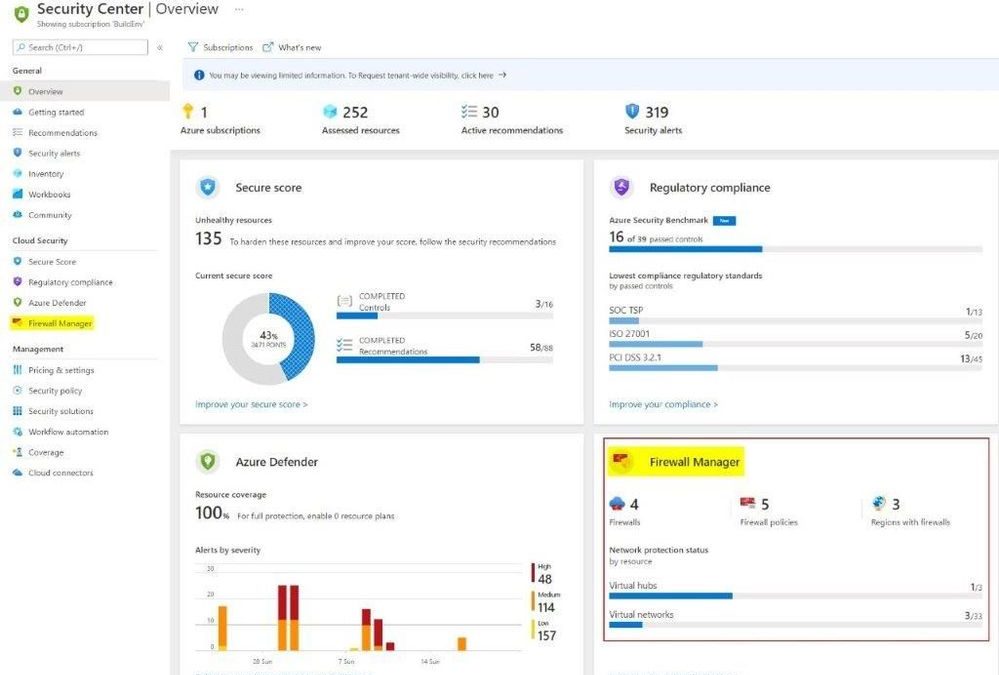
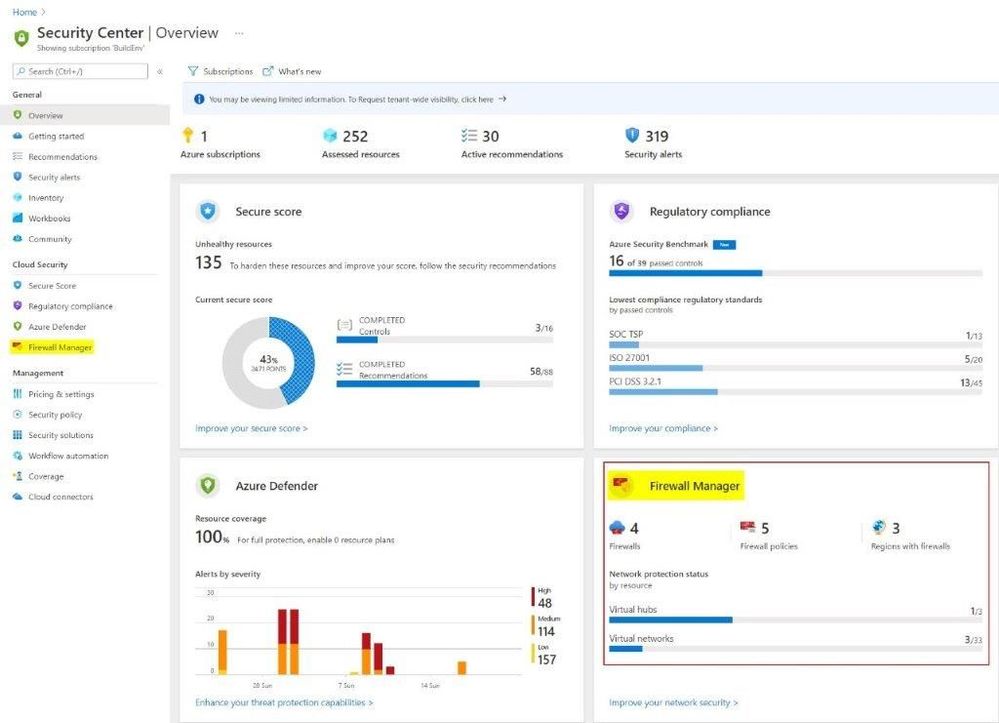
With the integration of Azure Firewall Manager with the Azure Security Center, you can now visualize all-up status of their infrastructure and network security in one place. The Firewall Manager tile in Azure Security Center dashboard, under the Overview blade provides an all-up status of Azure Network Security across all Virtual Networks and Virtual Hubs spread across different regions in Azure. With a single glance, you can see the number of Azure Firewalls, Firewall Policies and Azure regions where Azure Firewalls are deployed.
With a single click on the Firewall Manager tile or on the left-hand navigation pane in the ASC dashboard, you can get to the familiar Azure Firewall Manager dashboard to drill down deeper into different aspects of Network Security.
Advantages of this Integration
Prior to this integration, to determine which Virtual Networks (VNETs) and Virtual Hubs had an Azure Firewall deployed or which VNETs were peered with another VNET with an Azure Firewall in it or to find out the number of Firewall Policies they had, you had to look through multiple dashboards/blades in the Azure Firewall Manager.
With the integration of Azure Firewall Manager with Azure Security Center, you will now have a single pane of glass view of their infrastructure and network security. You will be able to see the status of Network Security from the Azure Security Center directly. You no longer have to go into 2 different dashboards: in ASC for infrastructure security and in Firewall Manager for network security.
Additional Resources
To learn more about Azure Firewall Manager, visit: https://docs.microsoft.com/en-us/azure/firewall-manager
To learn more about Azure Security Center, visit: https://aka.ms/ascninja
Watch a demonstration of Azure Security Center integration with Azure Firewall Manager in this episode of Azure Security Center in the Field – Out of Band Edition
by Contributed | Mar 22, 2021 | Technology
This article is contributed. See the original author and article here.
In line with our commitment to rapidly expand Microsoft Defender for Endpoint cross-platform capabilities, we are preparing a set of enhancements to further reduce organizational exposure attributed to common end user activities. Today we are thrilled to announce the public preview of USB storage device control for Mac!
Preventing threats and securing your organization takes a multi-layered approach. Many users will plug in USB removable storage devices without considering their potential security risk. Enabling removable device control policies reduces the attack surface on user’s machines and protects organizations against malware and data loss in these scenarios.
What level of USB device control comes with this new capability?
USB storage device control for Mac is designed to regulate the level of access given to external USB storage devices (including SD cards). The access level is controlled through custom policies.
- The capability supports Audit and Block enforcement levels.
- USB device access can be set to Read, Write, Execute, No access.
- To achieve a high degree of granularity, USB access level can be specified for Product ID, Vendor ID, and Serial Number.
- The custom policy allows customization of the URL where user is redirected to when interacting with an end user facing “device restricted” notification.
The USB device control policy is hierarchical. At the top of the hierarchy are vendors. For each vendor, there are products. Finally, for each product there are serial numbers denoting specific USB devices.
The policy is evaluated from the most specific entry to the most general one. When a USB device does not match any of the nested entries, the access level for this device defaults to the top-level permission.
|– policy top level
|– vendor 1
|– product 1
|– serial number 1
…
|– serial number N
…
|– product N
…
|– vendor N
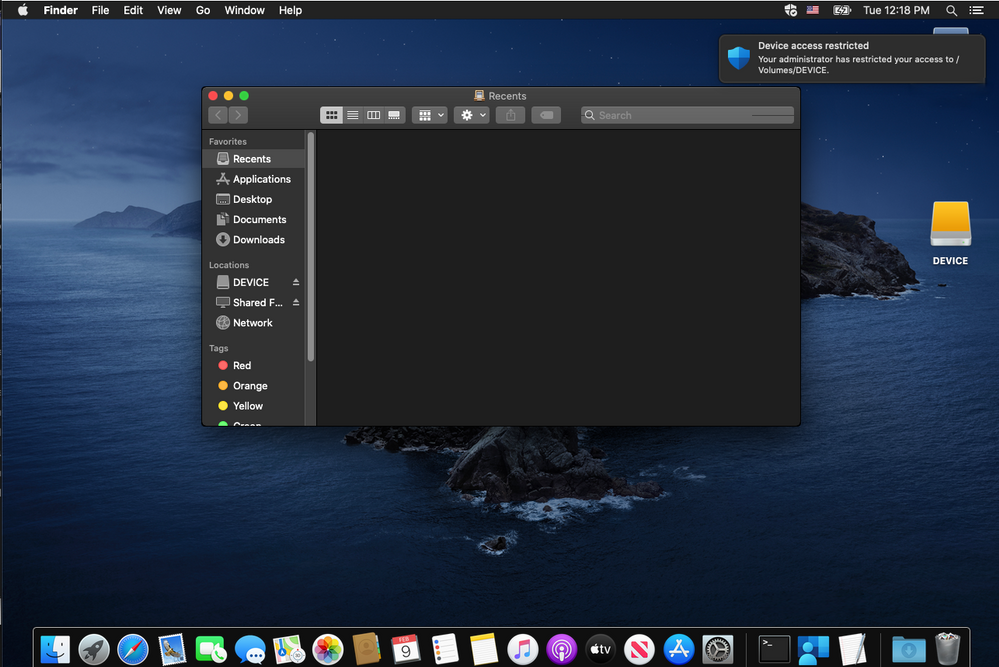
In cases when the USB device control policy restricts Mac end user actions, a notification appears informing the end user about the restriction imposed by the organization:
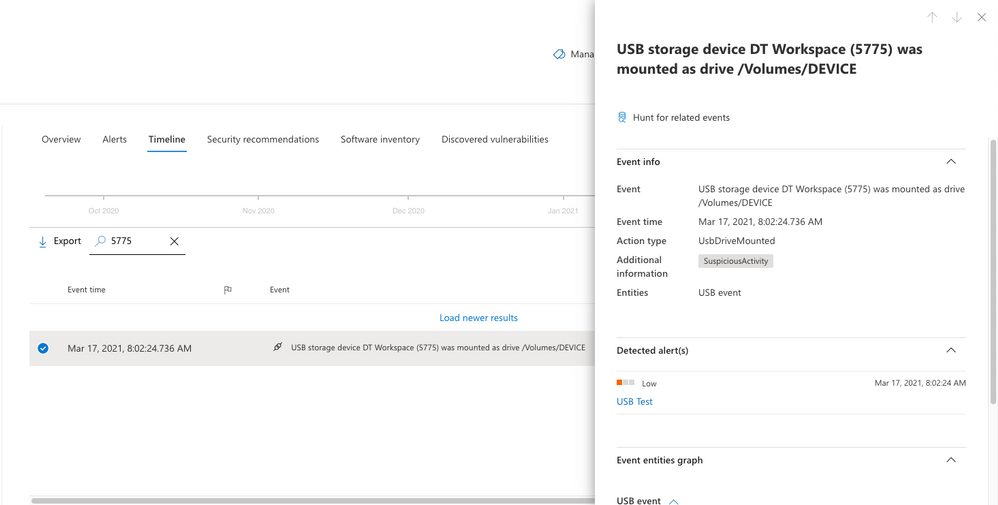
Security teams have visibility into instances of restricted actions involving USB storage devices in the Microsoft Defender Security Center:
USB device control events can also be explored using advanced hunting queries. For example:
DeviceEvents
| where ActionType == “UsbDriveMount” or ActionType == “UsbDriveUnmount” or ActionType == “UsbDriveDriveLetterChanged”
| where DeviceId == “<device ID>”
What are the available options to deploy USB storage device control policies for Mac?
USB device control policies can be deployed using , Intune, and manual deployment. For more information, read the Mac USB storage device control documentation [LINK] for detailed guidance on policy deployment (including examples of USB device control configurations).
What are the preview prerequisites for USB storage device control for Mac?
To experience the USB storage device control for Mac capability in public preview, you’ll need to have preview features turned on in the Microsoft Defender Security Center. If you have not yet opted into previews, we encourage you to turn on preview features in the Microsoft Defender Security Center today.
Ensure the following requirements are fulfilled:
- This new capability is supported on devices running macOS Catalina 10.15.4+
- Participating devices must be running with system extensions (this is the default on macOS 11 Big Sur)
- Participating devices must be registered for the InsiderFast Microsoft AutoUpdate channel
- Minimum client version for Microsoft Defender for Endpoint for this capability is 101.24.59
For more information, see the Mac USB device control documentation for additional details on setting and checking the aforementioned prerequisites on participating devices.
We welcome your feedback and look forward to hearing from you!
You can submit feedback by opening Microsoft Defender for Endpoint application on your Mac device and navigating to Help > Send feedback. Another option is to submit feedback via the Microsoft Defender Security Center.
Monitor the What’s new in Microsoft Defender for Endpoint on Mac page for upcoming announcements (including general availability of Mac USB storage device control).
If you’re not yet taking advantage of Microsoft’s industry leading optics and detection capabilities, sign up for free trial of Microsoft Defender for Endpoint today.
Microsoft Defender for Endpoint team

by Contributed | Mar 22, 2021 | Technology
This article is contributed. See the original author and article here.
Microsoft Teams Shared Channels have been a top request by customers as it facilitates secured, focused collaboration and sharing with external individuals and entities at the more granular channel level vs Team level.
On Monday 3/22, MidDay Café was joined by Microsoft’s Pouneh Kaufman and Eileen Zhou. Pouneh and Eileen presented all the latest around Microsoft Teams Shared Channels. It was a lively, informative, session with lots of questions from attendees.
Agenda:
- Welcome and Introductions.
- Mid-Day Café News and Events
- Microsoft Teams Shared Channels with Pouneh Kaufman and Eileen Zhou.
- Open Q&A
- Wrap Up
Resources:
Keep up to date with MidDay Café:
Thanks for visiting – Michael Gannotti LinkedIn | Twitter
 Michael Gannotti


Recent Comments