by Contributed | Mar 23, 2021 | Technology
This article is contributed. See the original author and article here.
Purpose:
The purpose of this post is to walk through the experience of configuring a Windows client to map a drive to an Azure File Share, with the User Experience that they are used to. The process is documented in a multi-part article on Microsoft Docs. This post is meant to summarize the experience of going through this process and offer some guidance on areas that may be confusing. The steps to complete this task along with notes on the experience will be listed below.
Assumptions:
Knowledge of creating Azure Storage Accounts, Azure File Shares, and Synchronizing on-premise Active Directory user accounts to Azure AD with Azure AD Connect is assumed. It is also assumed that you have inserted data into the Azure File Share with a supported tool, like Azure File Sync, AzCopy, Windows Explorer, etc. Depending on the security posture needed for a production environment, this configuration would likely have tighter access controls. For our demonstration purposes, this configuration is being used for functionality and convenience.
Steps:
- Join the Azure Storage Account containing the file share to AD (https://docs.microsoft.com/en-us/azure/storage/files/storage-files-identity-ad-ds-enable)
Run “Join-AzStorageAccountForAuth” cmdlet to join Storage account to Azure AD as shown here:
$ResourceGroupName = "My-Resource-Group-Name"
$StorageAccountName = "My-Sub-Name"
$Domain = "My-FQDN"
Import-Module -Name AzFilesHybrid
Join-AzStorageAccountForAuth `
        -ResourceGroupName $ResourceGroupName `
        -StorageAccountName $StorageAccountName `
        -DomainAccountType "ComputerAccount" # Default is set as ComputerAccount `
        -Domain $Domain
- Sync AD Users that need to map the drives to Azure AD using Azure AD Connect.
Note: These accounts cannot be privileged accounts in Active Directory because Azure AD Connect will not sync those accounts to Azure AD.
- Synchronize/Rotate Azure Storage Account AD Computer Object Password to your Azure Storage Account (https://docs.microsoft.com/en-us/azure/storage/files/storage-files-identity-ad-ds-update-password).
Note: If you omit this process, your AD users will NOT be able to access the Azure File Share as intended
Connect-AzAccount -Environment "AzureCloud" #Adjust as-necessary
$ResourceGroupName = "My-Resource-Group-Name"
$StorageAccountName = "My-Sub-Name"
Ipmo AzFilesBybrid
Update-AzStorageAccountADObjectPassword `
        -RotateToKerbKey kerb2 `
        -ResourceGroupName $ResourceGroupName `
        -StorageAccountName $StorageAccountName
- Assign share permissions: Assign Azure Storage Share Level Access roles (“SMB Roles”) to sync’d AD Users (https://docs.microsoft.com/en-us/azure/storage/files/storage-files-identity-ad-ds-assign-permissions)
Note: There are three built-in Azure SMB Roles that can be used to control access at the Azure File Share Level. These are share-level permissions; NTFS permissions do NOT control access at the Azure File Share level.
- Administratively Modify/Assign NTFS permissions (Only If Needed): The following scenarios will determine your path to assigning NTFS permissions:
- Your permissions are fine and do not need modified: Skip to Step 8
- Your permissions need to be changed and you have an AD Sync’d user that has the permissions to make the needed changes via mapped drive: Skip to Step 8
- Your permissions need to be changed and you do NOT have a Sync’d user that has NTFS permissions to do it, follow the code block below: Keep in mind that this method of mapping is using the storage account key and not a user account so proceed with caution.
$StorageAccountName = "My-Sub-Name"
$AzureFileShare = "My-Share-Name"
$connectTestResult = Test-NetConnection -ComputerName "$StorageAccountName.file.core.windows.net" -Port 445
if ($connectTestResult.TcpTestSucceeded)
{
  net use X: "$StorageAccountName.file.core.windows.net$AzureFileShare" /user:Azure<StorageAcctName> '<StorageAccessKey>'
}
else
{
  Write-Error -Message "Unable to reach the Azure storage account via port 445. Check to make sure your organization or ISP is not blocking port 445, or use Azure P2S VPN,   Azure S2S VPN, or Express Route to tunnel SMB traffic over a different port."
}
- If you used Step 5: Set ACL’s on File system in Azure Share (https://docs.microsoft.com/en-us/azure/storage/files/storage-files-identity-ad-ds-configure-permissions)
- If you used Step 5: Remove Drive Mapping Using Storage account key. If you used the script from above, you can use the following script to remove the drive mapping as the storage account key. This step is necessary so that you are able to successfully map the drive with your user account, as described in step 8.
Note: It is not recommended to keep the drive mapped with the Storage Account Key.
net use X: /DELETE
- Map a drive to your Azure File Share using your AD user account (Windows Explorer, Command-Line, PowerShell, etc.)
- Once the drive is mapped, make any necessary NTFS ACL Changes as-needed.
- Troubleshooting: If you encounter issues with this process, try the following tools for troubleshooting/debug information:
- https://docs.microsoft.com/en-us/azure/storage/files/storage-troubleshoot-windows-file-connection-problems#unable-to-mount-azure-files-with-ad-credentials
- Specifically, the following PowerShell command can expose many things that could be causing problems:
Connect-AzAccount -Environment "AzureCloud" #Adjust as-necessary
$ResourceGroupName = "My-Resource-Group-Name"
$StorageAccountName = "My-Sub-Name"
Ipmo AzFilesBybrid
Debug-AzStorageAccountAuth -StorageAccountName $StorageAccountName -ResourceGroupName $ResourceGroupName -Verbose
References:
Overview – On-premises AD DS authentication to Azure file shares | Microsoft Docs
Enable AD DS authentication to Azure file shares | Microsoft Docs
Control access to Azure file shares – on-premises AD DS authentication | Microsoft Docs
Control what a user can do at the file level – Azure file shares | Microsoft Docs
Mount Azure file share to an AD DS-joined VM | Microsoft Docs
Update AD DS storage account password | Microsoft Docs
by Contributed | Mar 23, 2021 | Technology
This article is contributed. See the original author and article here.
During the past three months, we posted a short series of whitepapers on the Visio Enthusiasts LinkedIn group about the development history of some of our favorite Visio products and capabilities. But since that group is private, you might have missed it.
Now, all three whitepapers from our under-the-hood series are available for you to download at the bottom of this blog post. We’ve also included a short summary of each, so you can read about the product or capability that’s most interesting to you (although we hope you’ll read all three).
The Visio Enthusiasts group is a great place to interact with other professional diagrammers and the internal Visio product group. It’s also where you can find exclusive content, including an upcoming series about enabling remote work with Visio. Select the link above to send us a request to join. We hope to see you in there!
Data Visualizer: simple but powerful data visualization
Data visualization tools are essential for analyzing information, exposing unique data to everyone in the organization, and making data-driven decisions. To enable all this, we developed Data Visualizer, an easy-to-use tool that quickly converts your Excel process map data into visual diagrams. Read this whitepaper to learn how we tested early ideas before landing on the Data Visualizer wizard; taught the tool how to refresh diagrams, handle interactions, and write back to the source code; and, just last year, launched the Data Visualizer add-in for Visio.
Visio layout: automating flowchart layouts
With so many ways to visualize data, it can be difficult to find the best layout for an aesthetic diagram. That’s why we developed Visio layout, a set of algorithms that work in the background to help you make smart decisions about shapes and semantic logic. For example, if you insert a shape in a diagram, Visio layout will add the appropriate connectors; and if you remove that shape, it will connect the remaining shapes. Read this whitepaper to learn how we developed Visio layout to automate the design of professional-looking diagrams.
Visio for the web: from desktop to browser and beyond
Five years ago, you could only create and edit Visio diagrams on the desktop client. Sharing those diagrams required manual workarounds, making it difficult to gather, collate, and incorporate input from across the organization. It was these challenges that prompted the development of Visio for the web. This under-the-hood whitepaper takes you on the journey from Visio Viewer to the Visio web app and the design considerations it took to get there, from load time optimizations to extensibility.
For questions or feedback about Visio, please email us at tellvisio [at] microsoft.com. Keep visiting the Visio Tech Community and follow us Twitter to stay current on the latest Visio releases. Remember to join the Visio Enthusiasts LinkedIn group for access to exclusive content and networking opportunities with your diagramming peers. All three whitepapers mentioned in this blog are available to download below.
by Contributed | Mar 23, 2021 | Technology
This article is contributed. See the original author and article here.
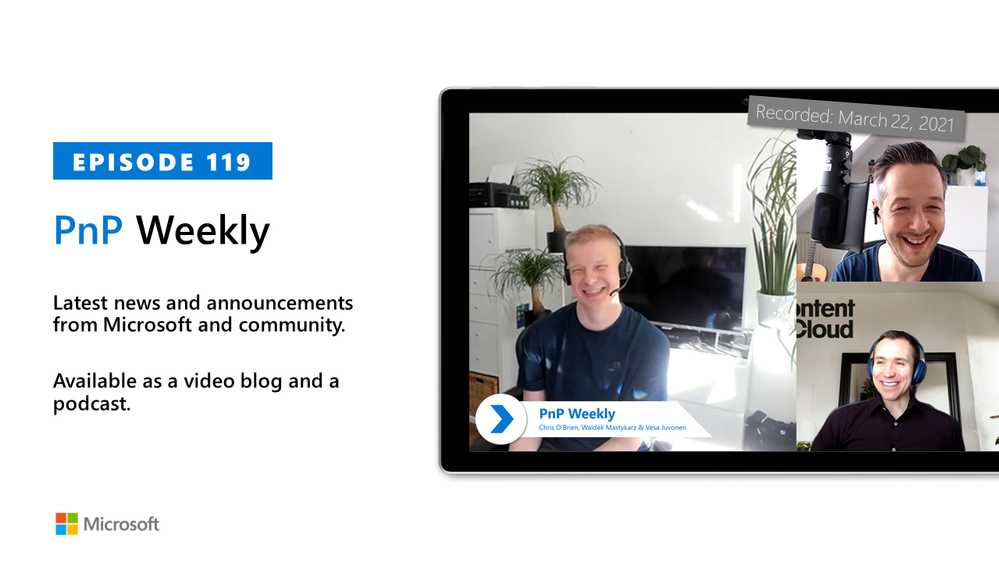
In this installment of the weekly discussion revolving around the latest news and topics on Microsoft 365, hosts – Vesa Juvonen (Microsoft) | @vesajuvonen, Waldek Mastykarz (Microsoft) | @waldekm are joined by London-based Products and Services Director at Content+Cloud and Microsoft MVP Chris O’Brien | @ChrisO_Brien. Topics discussed in this session include: Organizational coder vs influencer, work-life balance and prioritization, the importance of sustained focus, Partner opportunity in the cloud and success tied to being agile and innovating rapidly – attributes in a successful organization’s DNA! Finally, AI and Automation – options and Synapse. Microsoft and the Community delivered 18 articles and videos this last week. This session was recorded on Monday, March 22, 2021.
This episode was recorded on Monday, March 22, 2021.
These videos and podcasts are published each week and are intended to be roughly 45 – 60 minutes in length. Please do give us feedback on this video and podcast series and also do let us know if you have done something cool/useful so that we can cover that in the next weekly summary! The easiest way to let us know is to share your work on Twitter and add the hashtag #PnPWeekly. We are always on the lookout for refreshingly new content. “Sharing is caring!”
Here are all the links and people mentioned in this recording. Thanks, everyone for your contributions to the community!
Microsoft articles:
Community articles:
Additional resources:
If you’d like to hear from a specific community member in an upcoming recording and/or have specific questions for Microsoft 365 engineering or visitors – please let us know. We will do our best to address your requests or questions.
“Sharing is caring!”
by Contributed | Mar 23, 2021 | Technology
This article is contributed. See the original author and article here.
During Microsoft Ignite March 2021 four new security focussed exams were announced.
Each of the exams are currently in Beta format, meaning when you sit them you won’t get your result straight away, but don’t let that put you off sitting them! ;)
The four exams that were released focus across Microsoft Azure and Microsoft 365, around security, identity and compliance. Each of the exam is aimed at different roles within the organisation. From the fundamentals aspect to folks who implement technical solutions. Let’s take a look at each exam and point you in the direction of some study material.
Exam SC-900: Microsoft Security, Compliance, and Identity Fundamentals
This is the fundamentals exam aimed at anyone who is familiar with the fundamentals of security, compliance and identity. Much like the other fundamental exams this isn’t aimed at technical roles, it is aimed at anyone that is familiar with the theme.
There are several learning paths within Microsoft Learn that can help guide you towards sitting this exam.
Exam SC-200: Microsoft Security Operations Analyst
Understanding the risks towards your organisation, reducing them and introducing improvements is a Security Analysts’ job and this exam is aimed at people who are performing that role within their organisation. Anyone working with Microsoft Azure Sentinel, Azure Defender, Microsoft 365 Defender, and third-party security products should be looking at this exam.
There are eight learning paths at Microsoft Learn that can assist you in your preparations for this exam.
Exam SC-300: Microsoft Identity and Access Administrator
This exam is aimed at those that take care of their organisation’s identity and access management systems, primarily Azure Active Directory (Azure AD). This involves a full range of tasks, from creating users and group to planning an identity governance strategy.
To help you prepare for this exam there are several learning paths that can help prepare you for the exam at Microsoft Learn.
Exam SC-400: Microsoft Information Protection Administrator
This exams is focussed towards those that are responsible for translating requirements and compliance controls within their organisation into the technical implementation. Specifically those topics around information protection, data loss prevention and information governance within Microsoft 365.
There are several detailed Learning Paths within Microsoft Learn that can help guide you through the areas that will be tested within this exam.
Preparing for the exams
I think regardless of the exam you are sitting and the experience you have with the topic you should be looking at doing some study towards it, even if it’s just a refresher and looking through notes very quickly. You never know when you might find something you didn’t know that is being asked within the exam. ;) I covered off more about the exam preparation process and some tips in my
All you need to know about Microsoft Exams.
Good luck with what ever exam is on your radar, and do let us know in the comments which ones you are working towards!

by Contributed | Mar 22, 2021 | Technology
This article is contributed. See the original author and article here.
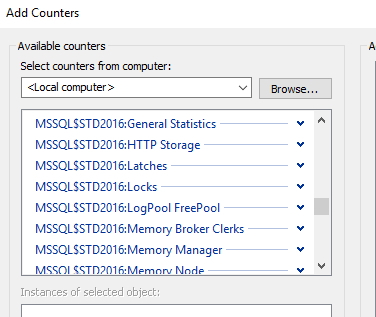
If you find the SQL Server related performance counter objects are missing, you can try below steps to get it back
For example, my instance name is STD2016, and now open the command window with Administrator
1. unload the counter. cd to the Binn folder of your instance, by default, the folder path should be
C:Program FilesMicrosoft SQL ServerMSSQLXX.INSTANCENAMEMSSQLBinn
And then run unlodctr command, if you are using the default instance, just use
unlodctr MSSQLSERVER
For me, it is unlodctr MSSQL$STD2016, the format is MSSQL$INSTANCENAME
2. Load the counter. Under the Binn folder you will see a file begins with “perf-MSSQL$”, the name format is
perf-MSSQL$INSTANCENAMEsqlctr.ini.
For default instance, use
lodctr perf-MSSQLSERVERsqlctr.ini
For mine, it is
lodctr perf-MSSQL$STD2016sqlctr.ini

3. Restart the remote registry key service
NET STOP “Remote Registry” & NET START “Remote Registry”

4. Close the performance counter and open it again, you will be able to see it


Recent Comments