by Contributed | Apr 6, 2021 | Technology
This article is contributed. See the original author and article here.
About #EarthDay
Did you know that April 22 is Earth Day?
In 2020, over 100 million people worldwide celebrated the 50th anniversary of Earth Day, driving awareness and actionable learning around environmental issues with activities focused on education, conservation, citizen science, cleanup and more.
In 2021, the #EarthDay theme is Restore Our Earth with a focus on five topics:
- The Canopy Project – a conservation and restoration effort to plant trees and rehabilitate areas in need of reforestation.
- Foodprints For the Future – an effort focused on fighting climate change with diet change.
- The Great Global Cleanup – an effort focused on reducing our waste footprints by working to clean up our environment.
- Climate and Environmental Literacy – combining grassroots community efforts with national initiatives and civic engagement.
- Global Earth Challenge – a citizen science initiative to engage millions of people in collecting and understanding environmental data.
Sustainability is an area of significant importance to Microsoft and we wanted to do something to help create awareness and empower actionable learning around relevant topics for technologists.
Awareness: #GreenTech Advocacy
In a January 2020 announcement, Microsoft laid out ambitious company-level goals for sustainability including: being carbon negative by 2030, removing historical carbon emissions by 2050, and establishing a $1B climate innovation fund to invest in research in context. One year later, the Environmental Sustainability Report (read the three-part blog coverage) reviewed progress, focusing on four pillars:
- Be carbon negative – remove more carbon dioxide than we emit each year.
- Be water positive – put more water back into the environment than we consume.
- Be zero waste — encourage redesign of resource lifecycles to eliminate or reduce waste.
- Support healthy ecosystems – collect and analyze data to understand ecosystems, stop decline.
This is progress at organization scale. But you might be asking yourself — “how can I educate myself on the issues and contribute to, or advocate for, sustainable living and engineering practices in my community and workplace?” We’re glad you asked!
Here are a few resources to get you started on your learning journey:
Awareness is great but actionable learning is better! So we came up with a fun challenge for April, just in time for #EarthDay!
Action: #VisualGreenTech Challenge
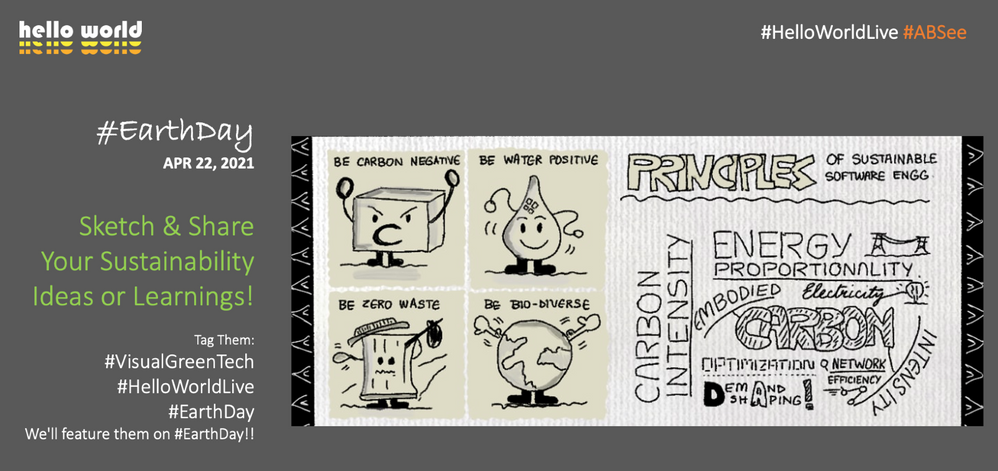
Here is how this works:
- What we do: Share a learning prompt (pinned daily under @nitya) with a resource link to help you explore that topic.
- What you do: Check out the resource and respond to the prompt using a visual (sketchnote or doodle) with insights.
- Share the visual on Twitter and tag it #EarthDay #VisualGreenTech
- We’ll collate all submissions and feature them in a segment on the #HelloWorldLive show on EarthDay (Apr 22)
Submit responses to as many prompts as you like, as many times as you want to. The goal is to create awareness around those topics and share our own learnings and perspectives in context. Want a sneak peek at the prompts in advance? check out the gallery here.
But wait. There’s one more thing!
Share a Sketch. Plant A Tree!
Along with featuring all submitted visual Earth Day images, we will also work with Ecosia to plant 1,000 trees in honor of all #VisualGreenTech challenge participants to help tackle climate change. Yes, that’s right! Let’s give back to the earth and learn more about sustainability in the process.
Have questions? Leave us a comment on this post! And let’s make a difference to this planet.

by Contributed | Apr 6, 2021 | Technology
This article is contributed. See the original author and article here.
Azure Static Web Apps seamlessly integrates globally distributed hosting for your static content, serverless APIs powered by Azure Functions, as well as features like authentication, custom routing, and route-based authorization.
With the new Static Web Apps CLI, you can now run your entire full-stack web app locally in your development environment and access many of the platform’s capabilities without deploying your app. The CLI hosts your frontend and API on a single localhost endpoint and emulates authentication, custom routing, and authorization rules.
Static Web Apps CLI can serve static content from a folder. It also works great with local development servers from any frontend framework, including React, Angular, Next.js, and Blazor WebAssembly.
Getting started
Install the Static Web Apps CLI from npm:
npm install -g @azure/static-web-apps-cli
To serve static content from a folder, run:
swa start ./my-app
Your app is accessible at http://localhost:4280. If you have any custom route logic or settings configured in a staticwebapp.config.json file, it’ll apply them automatically.
Run and test your full-stack app
Use a framework dev server
Most frontend frameworks provide a local dev server that allows you to iterate on your app quickly using features such as hot module reloading. Static Web Apps CLI can proxy traffic to a dev server that’s already running.
How you start your app’s dev server depends on your framework. Here are some examples:
# Create React App
npm start
# Next.js
npm run dev
# Blazor WebAssembly
dotnet watch run
Then, in a separate terminal, start the CLI and provide your framework dev server’s local address:
swa start http://localhost:3000
Requests to http://localhost:4280 are proxied to your dev server. Using that endpoint, you can test out how your app interacts with Static Web Apps features like authentication and API functions.
Simulate authentication
Azure Static Web Apps provides integrated authentication using providers such as GitHub, Twitter, and Azure Active Directory. The Static Web Apps CLI simulates the same authentication flow so you can test your authentication/authorization logic locally.
When your app requests a Static Web Apps authentication login URI, such as /.auth/login/github, the CLI displays a page that allows you to log in as any identity by specifying their information. This works with all supported identity providers without any additional configuration.
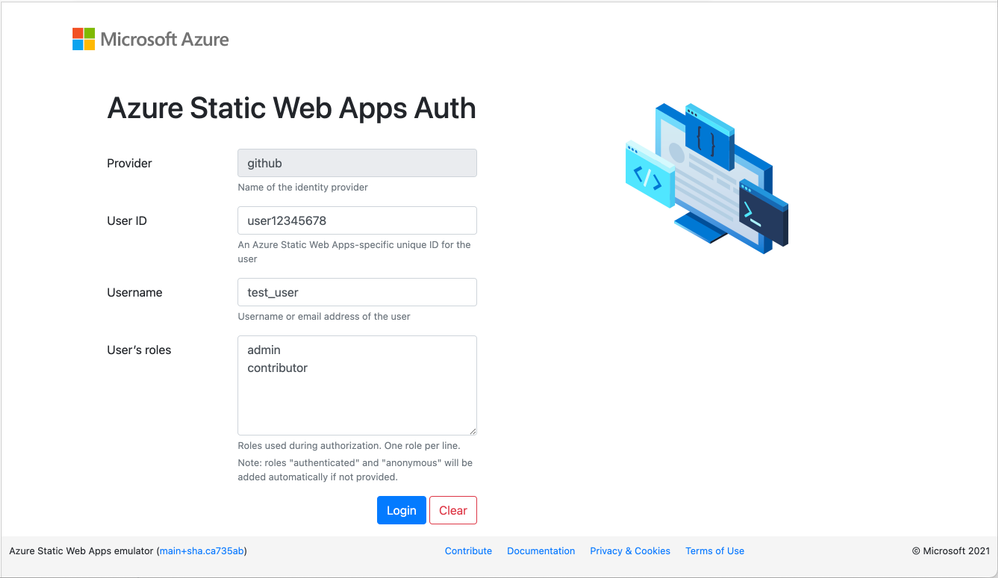 Static Web Apps CLI local authentication page
You can use this to easily test your app using different identities and roles. The /.auth/me endpoint returns information about the current user, and API function calls include a claims principal header—they work just like they do when your app is deployed to Azure! Learn more about how to access user information from our documentation.
Run API functions
If your app has an Azure Functions API, you can include its location when you start the Static Web Apps CLI:
swa start http://localhost:5000 –api ./api
Behind the scenes, as the CLI launches, it also starts the API app using the Azure Functions Core Tools. You can access your API functions at http://localhost:4280/api/*. Because the frontend app and serverless functions are served from the same origin, you don’t have to worry about CORS (cross-origin resource sharing) when you call your APIs.
What’s next?
Static Web Apps CLI is currently in preview. We’re only getting started and have lots more planned!
Together with the Azure Static Web Apps VS Code extension, the CLI will play an important role in our local development experience. We plan on offering an integrated debugging experience in VS Code that lets you start your entire stack and attach debuggers to both your frontend and backend apps.
While we are initially focusing on running apps locally, we plan on expanding the CLI with more commands such as creating Static Web Apps projects.
Try it today
Read the Azure Static Web Apps local development documentation to learn more and get started.
If you have feedback or would like to contribute, check out the Azure Static Web Apps CLI on GitHub.
by Contributed | Apr 6, 2021 | Technology
This article is contributed. See the original author and article here.
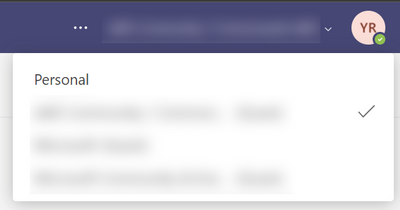
I love Microsoft Teams and I also love controlling my online appearance, but sadly both aren’t big friends when you are a Guest in another tenant. There still isn’t a good/easy way of controlling your own profile picture, which is sad because you are reduced to a not-very-personal coloured circle with initials:

Fellow MVP Kazushi Kamegawa shared a method of changing your profile picture in a private forum, but it stopped working due to some UI changes in the Azure Portal. Luckily, with some more “hackery”, we can still make it work!
The tldr version:
- Tenant switch to the tenant where you want to change your profile picture
- Figure out the ID of your user account in that tenant
- Open your user profile page in the Azure Portal using a direct link
- Edit the profile, upload a profile picture
- Wait for about a week to have the profile picture synced into Teams
Switch tenants
If you found this blogpost, it’s probably safe to assume that you know how to switch tenants. For the purpose of this guide, it is VERY important you do this in your browser because otherwise authentication will get confused ;).
- Open your browser, go to https://teams.microsoft.com and sign in with your credentials
- Top right of the Teams UI, switch to the tenant where you want to change the profile picture of your Guest account
Get ID of user account
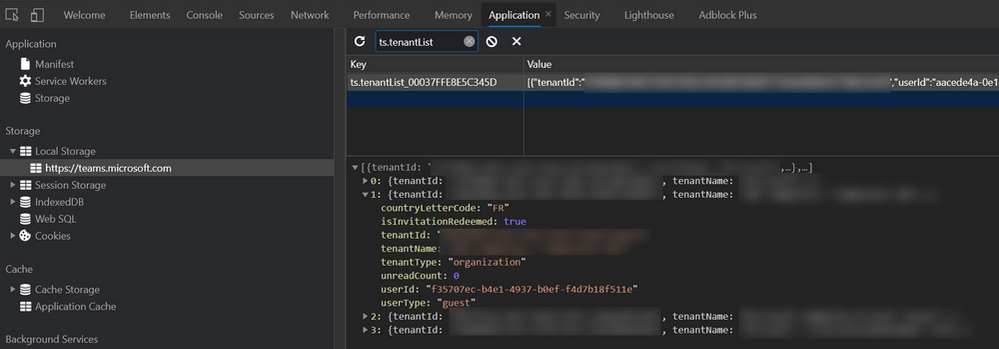
I don’t know of any place in the UI that shows the id of your Guest account in a tenant, so I had to find a way using the Developer Tools of Chrome/Edge.
- After switching to the Guest tenant, hit the F12 key to open the Developer Tools
- Select the
Applications tab
- In the left part underneath
Storage and Local storage, select https://teams.microsoft.com
- In the right part, do a search for
ts.tenantList. It should only show one result, select it.
- It shows all tenants you are part of as a Guest, open up the one you are currently in. You’ll need the value next to the
userId property. In my screenshot, it is the GUID that starts with f35707ec-…
User profile page in Azure Portal
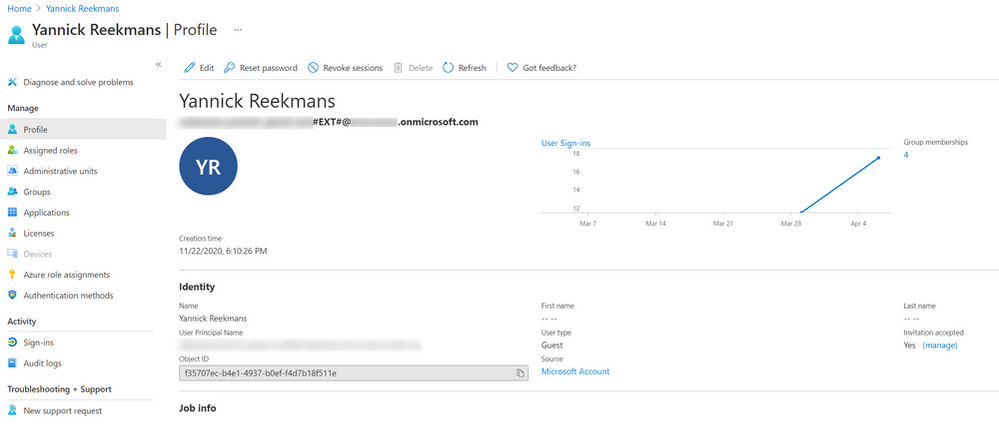
Now that you have your user account ID, you can open up your profile page in the Azure AD of the Guest tenant!
- In the same browser window, open https://portal.azure.com
- Top right of the portal, make sure you are in the tenant where you are a Guest. Most probably that is not the case, so do a tenant switch in the Azure Portal too.
- In the same browser window, open up this link:
https://portal.azure.com/#blade/Microsoft_AAD_IAM/UserDetailsMenuBlade/Profile/userId/<userId>. Make sure to replace <userId> with the id you copied in the previous step.
- You should now see your profile page in the Azure AD where you are a Guest.
Edit profile and upload picture
Finally time to upload your profile picture!
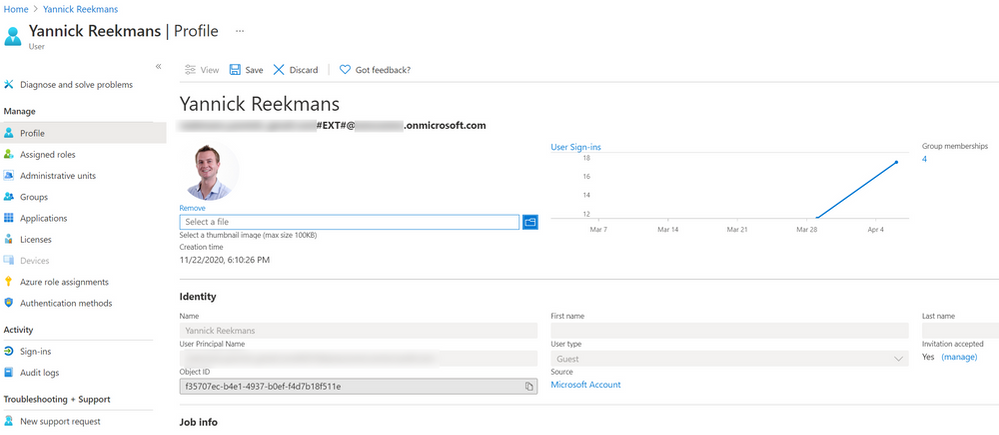
- Top of the profile, click the
Edit button
- With your profile in edit mode, you can browse for a photo on your computer and upload it to your profile!
Wait and enjoy success
It takes a while for your profile picture to show in Teams, and it might even show for a short while and go away again. But if you have enough patience, after about a week or so, your profile picture should show consistently across the Teams UI both for you and for others!

Until Microsoft Teams or Microsoft 365 gives us an easier way to change our profile picture, this is the best way to do it self service. The days of the anonymous circle with initials are over, time to show your personality also in your Guest tenants!
by Contributed | Apr 6, 2021 | Technology
This article is contributed. See the original author and article here.
Ever get annoyed with the page properties web part put out by Microsoft? If you’ve got some OCD issues (like me) then it may not take very long. At ThreeWill, we help clients with their digital workplaces and improving the way their users can obtain information and makes sense of it all. Oftentimes, the Page Properties web part can be useful here, as we very often add valuable metadata to pages in a digital workplace, which we often tie to page templates as well. News might roll up based on these page properties, which can assist in finding information in many ways. But its often handy to display this metadata in a clean way on a page as well. The standard Page Properties web part seeks to do just that. And, for the most part, it does a fine job with it. But it has a few deficiencies. The most annoying thing to me, when setting up digital workplaces was that it only supports a white background. But there are other small things, like the limitations with pretty standard field types. I like the idea of taking advantage of metadata columns for pages, but being able to use it visually is equally important. I finally decided to do something about it and build a new version of this web part. So with this in mind, let’s lay out our goals with this new web part. We will call it the Advanced Page Properties web part.
Feature Goals
Attempt to replicate the functionality of Page Properties with the following improvements:
Support for theme variants
Updated to standard capsule look for list options
Support for image fields
Support for hyperlink fields
Support for currency
Improved support for dates
In other words, we’re shooting for this:
Property Pane
For a part like this, it’s all about getting the property page figured out first. We want this to feel familiar too and not stray too much from the original design, unless it helps.
Let’s start by recognizing our chief property that the web part needs: selectedProperties. This array will hold the internal names of the fields that a user has selected for display in our web part. We intend on passing this property down to our React component. Here’s a look at our property object:
export interface IAdvancedPagePropertiesWebPartProps {
title: string;
selectedProperties: string[];
}
In our AdvancedPagePropertiesWebPart, we want to hold all possible properties for drop downs in a single array.
private availableProperties: IPropertyPaneDropdownOption[] = [];
Next, we need the following method to obtain the right types of properties for display:
private async getPageProperties(): Promise<VOID> {
Log.Write(“Getting Site Page fields…”);
const list = sp.web.lists.getByTitle(“Site Pages”);
const fi = await list.fields();
this.availableProperties = [];
Log.Write(`${fi.length.toString()} fields retrieved!`);
fi.forEach((f) => {
if (!f.FromBaseType && !f.Hidden && !f.Sealed && f.SchemaXml.indexOf(“ShowInListSettings=”FALSE””) === -1
&& f.TypeAsString !== “Boolean” && f.TypeAsString !== “Note” && f.TypeAsString !== “User”) {
this.availableProperties.push({ key: f.InternalName, text: f.Title });
Log.Write(f.TypeAsString);
}
});
}
We are using the PnP JS library for gathering the fields in the Site Pages library. Figuring out the right types of filters to gather was a bit of trial-and-error. We are excluding anything that’s inherited from a base type or is hidden in any way. We are also excluding 3 standard types so far: boolean, note and user. Note doesn’t make sense to display. Boolean can definitely work, but needs a good display convention. User was the only tricky object, which is the reason it isn’t done yet.
We call the above method prior to loading up the property pane.
protected async onPropertyPaneConfigurationStart(): Promise<VOID> {
Log.Write(`onPropertyPaneConfigurationStart`);
await this.getPageProperties();
this.context.propertyPane.refresh();
}
We need handlers for adding and deleting a property and selecting a property from a dropdown. These methods make necessary changes to the selectedProperties array.
protected onAddButtonClick (value: any) {
this.properties.selectedProperties.push(this.availableProperties[0].key.toString());
}
protected onDeleteButtonClick (value: any) {
Log.Write(value.toString());
var removed = this.properties.selectedProperties.splice(value, 1);
Log.Write(`${removed[0]} removed.`);
}
protected onPropertyPaneFieldChanged(propertyPath: string, oldValue: any, newValue: any): void {
if (propertyPath.indexOf(“selectedProperty”) >= 0) {
Log.Write(‘Selected Property identified’);
let index: number = _.toInteger(propertyPath.replace(“selectedProperty”, “”));
this.properties.selectedProperties[index] = newValue;
}
}
Finally, with all of our pieces in place, we can render our property pane with all it’s needed functionality.
protected getPropertyPaneConfiguration(): IPropertyPaneConfiguration {
Log.Write(`getPropertyPaneConfiguration`);
// Initialize with the Title entry
var propDrops: IPropertyPaneField<ANY>[] = [];
propDrops.push(PropertyPaneTextField(‘title’, {
label: strings.TitleFieldLabel
}));
propDrops.push(PropertyPaneHorizontalRule());
// Determine how many page property dropdowns we currently have
this.properties.selectedProperties.forEach((prop, index) => {
propDrops.push(PropertyPaneDropdown(`selectedProperty${index.toString()}`,
{
label: strings.SelectedPropertiesFieldLabel,
options: this.availableProperties,
selectedKey: prop,
}));
// Every drop down gets its own delete button
propDrops.push(PropertyPaneButton(`deleteButton${index.toString()}`,
{
text: strings.PropPaneDeleteButtonText,
buttonType: PropertyPaneButtonType.Command,
icon: “RecycleBin”,
onClick: this.onDeleteButtonClick.bind(this, index)
}));
propDrops.push(PropertyPaneHorizontalRule());
});
// Always have the Add button
propDrops.push(PropertyPaneButton(‘addButton’,
{
text: strings.PropPaneAddButtonText,
buttonType: PropertyPaneButtonType.Command,
icon: “CirclePlus”,
onClick: this.onAddButtonClick.bind(this)
}));
return {
pages: [
{
header: {
description: strings.PropertyPaneDescription
},
groups: [
{
groupName: strings.SelectionGroupName,
groupFields: propDrops
}
]
}
]
};
}
Our Component and Displaying our fields/values
Our React component needs to properly react to the list of selected properties changing. It also needs to react to our theme changing. I leveraged this awesome post from Hugo Bernier for the theming, so I will not cover that in-depth, although you will see how it’s being leveraged in the code snippets below. Here are the properties we plan to start with and respond to:
export interface IAdvancedPagePropertiesProps {
context: WebPartContext;
title: string;
selectedProperties: string[];
themeVariant: IReadonlyTheme | undefined;
}
We will track the state of our selected properties and their values with hooks. We want to trigger off of changes to our properties, so we will setup a reference to their current state. We will also establish our themeVariant and context at the start of our component.
// Main state object for the life of this component – pagePropValues
const [pagePropValues, setPagePropValues] = useState<PAGEPROPERTY>([]);
const propsRef = useRef(props);
const { semanticColors }: IReadonlyTheme = props.themeVariant;
propsRef.current = props;
sp.setup({ spfxContext: props.context });
So we are tracking the state of pagePropValues, which is an array of type PageProperty. What is PageProperty?
import { IFieldInfo } from “@pnp/sp/fields”;
export interface PageProperty {
info: IFieldInfo;
values: any[];
}
Our effect is looking to see when changes are made to the properties, then is peforming our core logic to refresh properties and values.
/**
* @description Effects to fire whenever the properties change
*/
useEffect(() => {
refreshProperties();
return () => {
// No cleanup at this moment
};
}, [propsRef.current]);
The core method is refreshProperties. It has 2 main calls it needs to make, whenever selected properties has changed: Establish any known metadata for each property that will assist in display and obtain all actual values for this property and the specific page id that we are viewing.
/**
* refreshProperties
* @description Gets the actual values for any selected properties, along with critical field metadata and ultimately re-sets the pagePropValues state
*/
async function refreshProperties () {
var newSetOfValues: PageProperty[] = [];
if (props.selectedProperties !== undefined && props.selectedProperties !== null) {
Log.Write(`${props.selectedProperties.length.toString()} properties used.`);
// Get the value(s) for the field from the list item itself
var allValues: any = {};
if (props.context.pageContext.listItem !== undefined && props.context.pageContext.listItem !== null) {
allValues = await sp.web.lists.getByTitle(“Site Pages”).items.getById(props.context.pageContext.listItem.id).select(…props.selectedProperties).get();
console.log(allValues);
}
for (let i = 0; i < props.selectedProperties.length; i++) {
const prop = props.selectedProperties[i];
Log.Write(`Selected Property: ${prop}`);
// Get field information, in case anything is needed in conjunction with value types
const field = await sp.web.lists.getByTitle(“Site Pages”).fields.getByInternalNameOrTitle(prop)();
// Establish the values array
var values: any[] = [];
if (allValues.hasOwnProperty(prop)) {
switch (field.TypeAsString) {
case “TaxonomyFieldTypeMulti”:
case “MultiChoice”:
values = _.clone(allValues[prop]);
break;
case “Thumbnail”:
values.push(JSON.parse(allValues[prop]));
break;
default:
// Default behavior is to treat it like a string
values.push(allValues[prop]);
break;
}
}
// Push the final setup of a PageProperty object
newSetOfValues.push({ info: field, values: […values] });
}
setPagePropValues({…newSetOfValues});
}
}
As we loop through all of the properties that have been selected, we make calls with PnP JS to get all of the metadata per field and all of the values per field. The call to get all of the values can return with any number of data types, so we need to be prepared for that. This is why it is of type any[] to start. But this is also why we have a switch statement for certain outlier situations, where the line to set the array of any need to be done a little differently than the default. Our 3 known cases of needing to do something different are TaxonomyFieldTypeMulti, MultiChoice and Thumbnail.
React and Display
Our function component returns the following:
return (
<DIV classname=”{`${styles.advancedPageProperties}”>
{RenderTitle()}
{RenderPageProperties()}
</DIV>
);
RenderTitle is pretty straightforward.
/**
* RenderTitle
* @description Focuses on the 1 row layer, being the Title that has been chosen for the page
* @returns
*/
const RenderTitle = () => {
if (props.title !== ”) {
return <DIV classname=”{styles.title}”>{props.title}</DIV>;
} else {
return null;
}
};
RenderPageProperties is the first of a 2-dimensional loop, where we want to display a section for each page property that was select, just like the original.
**
* RenderPageProperties
* @description Focuses on the 2nd row layer, which is the property names that have been chosen to be displayed (uses Title as the display name)
* @returns
*/
const RenderPageProperties = () => {
if (pagePropValues !== undefined && pagePropValues !== null) {
var retVal = _.map(pagePropValues, (prop) => {
return (
<>
<DIV classname=”{styles.propNameRow}”>{prop.info.Title}<SPAN style=”{{display:”> – {prop.info.TypeAsString}</SPAN></DIV>
<DIV classname=”{styles.propValsRow}”>
{RenderPagePropValue(prop)}
</DIV>
);
});
return retVal;
} else {
return <I>Nothing to display</I>;
}
};
This method then calls our final display method, RenderPagePropValue, which peforms our 2nd layer of array display, mapping all of the values and providing the correct display, based on the field type of the selected property. This is the heart of the display, where various type conversions and logic are done real-time as we display the values, including trying to achieve a slightly more modern SharePoint look using capsules for array labels.
/**
* RenderPagePropValue
* @description Focuses on the 3rd and final row layer, which is the actual values tied to any property displayed for the page
* @param prop
* @returns
*/
const RenderPagePropValue = (prop: PageProperty) => {
console.log(prop);
var retVal = _.map(prop.values, (val) => {
if (val !== null) {
switch (prop.info.TypeAsString) {
case “URL”:
return (
<SPAN classname=”{styles.urlValue}”><A href=”{val.Url}” target=”_blank” style=”{{color:” semanticcolors.link=””>{val.Description}</A></SPAN>
);
case “Thumbnail”:
return (
<SPAN><IMG classname=”{styles.imgValue}” src=”{val.serverRelativeUrl}” /></SPAN>
);
case “Number”:
return (
<SPAN classname=”{styles.plainValue}”>{(prop.info[“ShowAsPercentage”] === true ? Number(val).toLocaleString(undefined,{style: ‘percent’, minimumFractionDigits:0}) : (prop.info[“CommaSeparator”] === true ? val.toLocaleString(‘en’) : val.toString()))}</SPAN>
);
case “Currency”:
return (
<SPAN classname=”{styles.plainValue}”>{(prop.info[“CommaSeparator”] === true ? new Intl.NumberFormat(‘en-US’, { style: ‘currency’, currency: ‘USD’ }).format(val) : Intl.NumberFormat(‘en-US’, { style: ‘currency’, currency: ‘USD’, useGrouping: false }).format(val))}</SPAN>
);
case “DateTime”:
//,””,,
switch (prop.info[“DateFormat”]) {
case “StandardUS”:
return (
<SPAN classname=”{styles.plainValue}”>{new Date(val).toLocaleDateString()}</SPAN>
);
case “ISO8601”:
const d = new Date(val);
return (
<SPAN classname=”{styles.plainValue}”>{`${d.getFullYear().toString()}-${d.getMonth()}-${d.getDate()}`}</SPAN>
);
case “DayOfWeek”:
return (
<SPAN classname=”{styles.plainValue}”>{new Date(val).toLocaleDateString(“en-US”, { weekday: ‘long’, month: ‘long’, day: ‘numeric’, year: ‘numeric’ })}</SPAN>
);
case “MonthSpelled”:
return (
<SPAN classname=”{styles.plainValue}”>{new Date(val).toLocaleDateString(“en-US”, { month: ‘long’, day: ‘numeric’, year: ‘numeric’ })}</SPAN>
);
default:
return (
<SPAN classname=”{styles.plainValue}”>{new Date(val).toLocaleDateString()}</SPAN>
);
}
case “TaxonomyFieldTypeMulti”:
case “TaxonomyFieldType”:
return (
<SPAN classname=”{styles.standardCapsule}” style=”{{backgroundColor:” semanticcolors.accentbuttonbackground=””>{val.Label}</SPAN>
);
default:
return (
<SPAN classname=”{styles.standardCapsule}” style=”{{backgroundColor:” semanticcolors.accentbuttonbackground=””>{val}</SPAN>
);
}
} else {
return (<SPAN classname=”{styles.plainValue}”>N/A</SPAN>);
}
});
return retVal;
};
So that’s all of the necessary code. Here’s what the finished product looks like, compared to the original page properties web part.
This web part is now officially apart of the PnP Web Parts repository and can be found here. I would love to hear about improvements you’d like to see and obviously you are more than welcome to contribute. I already have a bit of a list of things I’d love to see it do.
Other ideas for improvements:
Capsules to be linkable to either a search result page or a filtered view of site pages (we always get clien requests for this)
Support for People fields (this is the only thing lacking from the original)
Support for Boolean fields (just need the right idea for proper display, really)
Styling per property (ie. colorizing per property or something to that effect)
Conclusion
Hopefully, I’ve gotten you excited about Page Properties again and you’ve learned a little along the way around how the current Page Properties part might be doing what it does under the hood. Please consider contributing and feel free to reach out to me anytime. Thanks for your time!
</PAGEPROPERTY></ANY></VOID></VOID>

by Contributed | Apr 6, 2021 | Technology
This article is contributed. See the original author and article here.
Azure Stack HCI integrates hyperconverged infrastructure (HCI) technology for you to run virtualized applications on-premises in a familiar way and gain easy access to Azure services. One of the strengths of Azure Stack HCI is that the customers can use the tools they are familiar with on Azure Stack HCI such as System Center, Windows Admin Center, and PowerShell. If a customer is already using Hyper-V, they are already well versed on how to run Azure Stack HCI on the compute front. To compliment this familiarity, Azure Stack HCI is also compatible with third partner software tools. In this blog, we explore the integration of Azure Stack HCI with utility software that brings great value to Azure Stack HCI customers and provide joint solution briefs for each partner solution.
One of the critical processes to make hyperconverged clusters enterprise ready is the backup and replication process so that customers can preserve their data in case of failure. We are proud to have the leading Independent Software Vendors in this space provide support for Azure Stack HCI with Altaro Software, Commvault, Veeam and Veritas. With this choice of popular vendors, the majority of Azure Stack HCI customers will have no need to learn a new tool for their backup and recovery.
Another area where customers can benefit from further insight is in their infrastructure and application monitoring. While there are often simple monitoring tools integrated with various hyperconverged products, there is no substitute for a global unified platform that can accelerate development and reduce mean time to resolution for various fault that can be monitored on the cluster. We have worked with a leading vendor in the space, Datadog, to provide this capability for Azure Stack HCI.
Get familiar with the high-level capabilities for these partners and for more in-depth information, we have published a set of solutions briefs that you can find at Utility applications for Azure Stack HCI – Azure Stack HCI | Microsoft Docs
- Altaro VM Backup is an award-winning VM backup and replication solution for Hyper-V and VMware environments. Designed for IT departments, IT resellers and consultants, and Managed Service Providers (MSPs), the solution provides robust, streamlined, enterprise-level functionality.
- Commvault is a complete data management platform to store, protect, manage, and use data across on-premises and cloud locations.
- Datadog is a fully unified platform encompassing infrastructure monitoring, application performance monitoring, log management, user-experience monitoring, and more.
- Veeam Backup & Replication is the one solution for simple, reliable, and flexible protection of all your cloud, virtual, and physical workloads. Take the stress out of managing your data protection, ransomware prevention, and compliance challenges.
- Veritas Backup Exec is an easy-to-use backup and recovery solution that helps protect your environment’s virtual, physical, and cloud resources.
Learn more about Azure Stack HCI www.azure.com/hci


Recent Comments