This article is contributed. See the original author and article here.
In December 2020, we introduced the Cluster API Provider for Azure (CAPZ) to enable users to operate self-managed Kubernetes clusters on Azure infrastructure. CAPZ empowers you to build and manage Kubernetes clusters on Azure using the same tools and methods you are already using to manage your Kubernetes workloads. Changing a configuration on the cluster becomes as easy as running a `kubectl patch` command.
Started by the Kubernetes Special Interest Group (SIG) Cluster Lifecycle, the Cluster API project uses Kubernetes-style APIs and patterns to automate cluster lifecycle management for platform operators. CAPZ is the Azure provider implementation of Cluster API and it is backed by Cluster API’s vibrant community that of engineers from cloud providers, ISVs and the wider FOSS community.
Since December, the community has continued growing, welcoming new members like GiantSwarm, getting closer to a v1alpha4 release, and starting to plan the v1beta1 release. While the v1alpha4 cycle was focused mostly on stability and iterative improvements, paving the way for a 1.0 release, some of the recent notable feature additions include support for Windows nodes and automatic remediation of unhealthy control plane machines via MachineHealthChecks.
As we look forward to the upcoming release, one capability that has been requested by users of CAPZ is the ability to integrate Azure services with your Kubernetes cluster, such as turning on Azure Monitor to track the health and performance of your workloads, or enabling Azure Active Directory (AD) role-based access control (RBAC) to limit access to cluster resources based a user’s identity or group membership. This is similar to the concept of AKS and AKS Engine addons that you might already be familiar with. But what if you could do this the same way across all your Kubernetes clusters?
Today, we’re excited to announce three new features for Azure Arc enabled Kubernetes that address the above-mentioned problems:
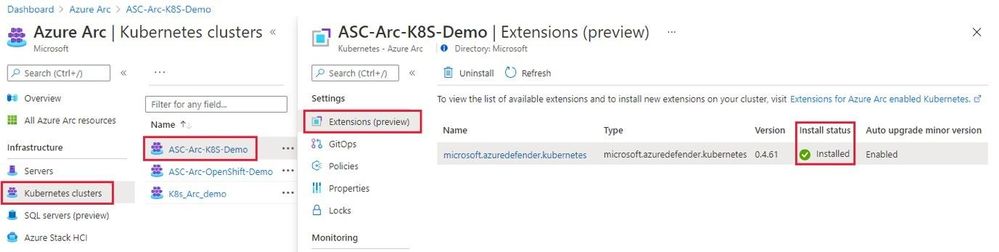
Cluster extensionsintroduces an Azure Resource Manager driven approach for deployment and lifecycle management of Azure Monitor and Azure Defender for Kubernetes. As each cluster extension gets its own Azure Resource Manager representation, you’ll now be able to leverage Azure Policy for at-scale deployment of these extensions across all your CAPZ clusters as well.
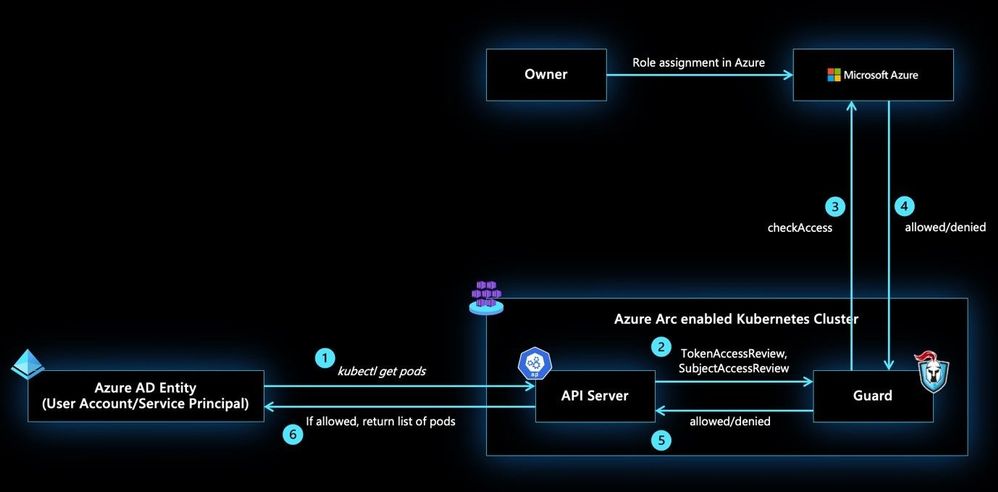
Azure RBAC for Arc enabled Kubernetesallows you to control authorization checks happening on your CAPZ clusters using role assignments on the Azure Arc enabled Kubernetes resource. These role assignments can be done at the cluster scope or namespace scope to account for multi-tenant scenarios on the same cluster. In addition to the built-in roles defined as part of this feature, custom roles could be authored and consumed in role assignments to control the permissions on Kubernetes resources at a more granular level.
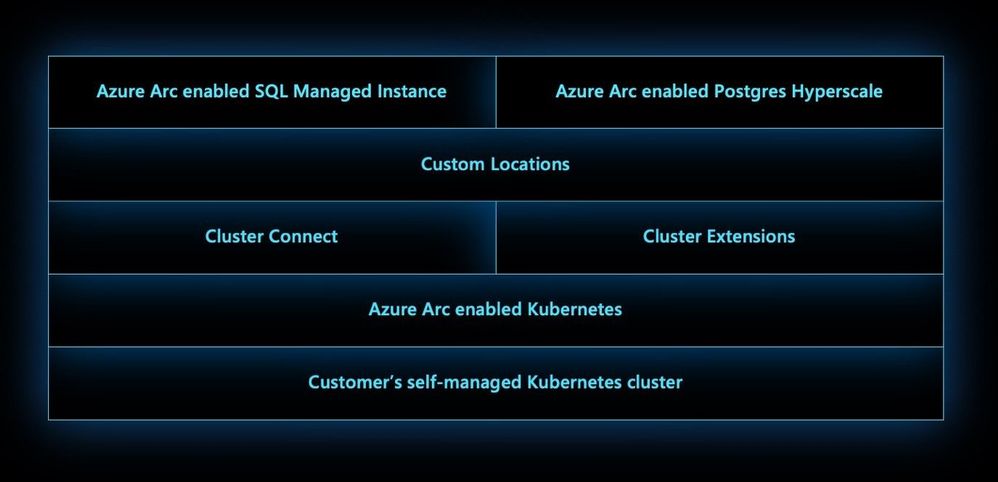
Custom locationson top of Azure Arc enabled Kubernetes is envisioned to be anevolutionoftheAzure locationconstruct. It provides a way for tenant administrators to utilize their Azure Arc enabled Kubernetes clusters as target locations to deploy instances of Azure services. Examples of such Azure resources are Azure Arc enabled SQL Managed Instance and Azure Arc enabled PostgreSQL Hyperscale. LikeAzurelocations, end users within the tenant who have access to Custom Locations can deploythese Azure PaaS resources ontheirself-managed Kubernetes clusters where they have complete control on the specification of the CAPZ cluster.
This article is contributed. See the original author and article here.
Extending Azure Arc enabled Kubernetes
The Azure Arc team is excited to bring a new set of capabilities to preview! In the new Azure Arc enabled Kubernetes 1.1 release customers may now turn on additional Azure integrated services for your Azure Arc enabled clusters using the Azure Portal, CLI or REST APIs. These new extension APIs give customers a unified way to turn on additional cluster services and the Azure Arc platform takes care of installing and updating those integrations over time.
Extensions greatly simplify onboarding; customers can deploy Azure integrations with just a few clicks or API calls. Azure Arc enabled Kubernetes ensures that you always have the latest bits and can automatically apply updates as they become available.
We are excited to bring two services to preview using extensions, Azure Monitor Container Insights and Azure Defender for Kubernetes:
Azure Defender for Kubernetes is expanding its threat protection capabilities to defend Azure Arc connected clusters, leveraging the new extensions capabilities.
When Kubernetes clusters are connected to Azure Arc, a new recommendation from Azure Security Center offers to deploy the Azure Defender extension to them with only a few clicks.
This integration between Azure Security Center, Azure Defender and Azure Arc enabled Kubernetes brings:
Easy provisioning of the Azure Defender extension to unprotected Azure Arc enabled Kubernetes clusters (manually and at-scale)
Monitoring the Azure Defender extension and its provisioning state on Azure Arc Portal
Security recommendations from Azure Security Center are reported in a new Security page of the Azure Arc Portal
Identified security threats from Azure Defender for Kubernetes are reported in new Security page of the Azure Arc Portal
Azure Arc enabled Kubernetes clusters are integrated into the Azure Security Center platform and experience
Azure Monitor Container Insights monitors the performance of container workloads deployed to any Azure Arc enabled Kubernetes cluster. Container insights provides performance visibility and log aggregation for Kubernetes controllers, nodes, and containers using standard Kubernetes APIs. Which helps customers:
Identify performance issues through processor and memory utilization
Review historical resource utilization for your workloads, including processes that may be running on underlying hosts
Configure alerts to proactively notify when a threshold is exceeded or a health state changes
Collect metrics from Prometheus endpoints, easily integrating with ecosystem applications
This preview release streamlines onboarding any Azure Arc enabled Kubernetes cluster using the new Azure CLI or portal experiences and allows automatic agent updates for all the latest container insights releases.
We are also excited to announce cluster connect in preview which allows developers or cluster administrators to securely access their clusters using standard Kubernetes tooling. Users who have access to your Azure Arc enabled Kubernetes cluster in Azure may request a secure connection to the cluster with authentication provided by Azure Active Directory and authorization for Kubernetes resources within the cluster provided by Kubernetes-native RBAC.
Cluster connect provides secure and seamless connectivity, no matter where your clusters are running and is great for interactive development and debugging in addition to integration into just about any system that speaks Kubernetes APIs.
We are also bringing custom locations to public preview, which is a building block for Azure Arc enabled services. Cluster administrators can create a custom location, enable Azure services for that location, and grant access to users within their tenant. We’ll have much more to talk about with custom locations in upcoming blogs.
Learn more about custom locations in our concepts docs
Azure AD-based Role Based Access Control
Finally, we are also excited to extend both authentication and authorization for Kubernetes clusters to Azure Active Directory. This is great for customers who would like to use Azure role assignments to not only manage visibility of Azure Arc enabled Kubernetes clusters but also use role assignments to control access to Kubernetes-native constructs.
Learn more about our Azure RBAC integration in our concepts docs
This article is contributed. See the original author and article here.
Database migrations often involve multiple phases, steps, and tools based on various scenarios and workload requirements. To help you migrate your databases to Azure, we have published a set of new Azure Database Migration Guides and a Hub page that provides scenario-based migration content and “How To” guides depending on your source database and target database platforms. In this episode with Mohamed Kabiruddin, he will walk you through the new migration hub page to easily navigate to the content you need based on your scenario, how to use the relevant database migration guides, and how to provide feedback to Microsoft for any specific content.
This article is contributed. See the original author and article here.
When you’re juggling work and personal tasks, having clearly defined to-do lists can help reduce stress and improve productivity. Microsoft To Do helps you manage your tasks so you can get more time for yourself. It seamlessly syncs your tasks across devices, so you always have access to them, whether you use To Do on Android, iPhone, Mac, Windows, or the web.
In the third installment of our six tips series, we’ll show you some nifty ways to make the most out of To Do on your iOS device. (Check out our other six tips articles for Windows and Android.)
1. Use Siri to add tasks and open lists in To Do
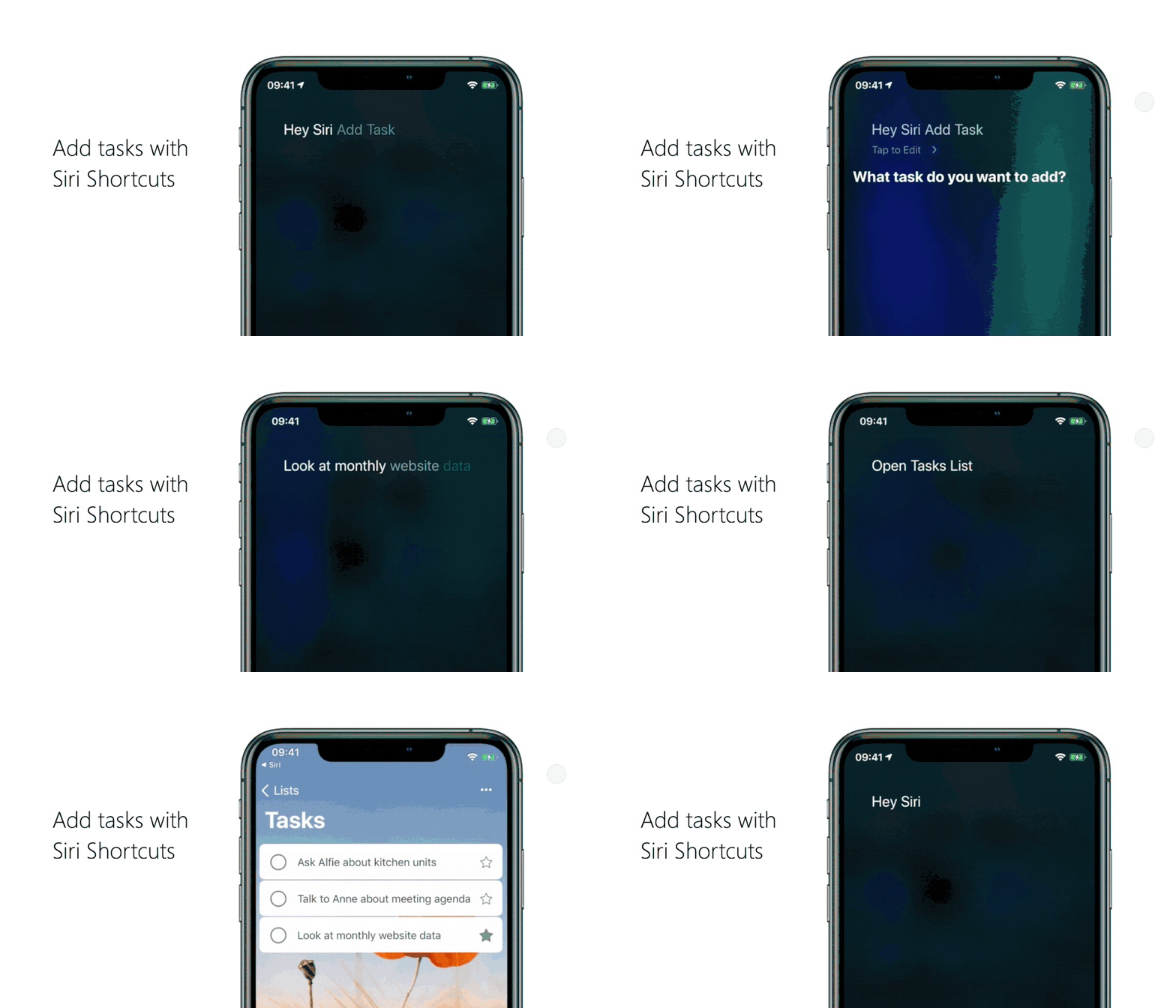
Want a super-fast way to add a task or open a list in To Do? We’ve got you covered. Here’s how to add “Open list” or “Add task” as shortcuts in Siri:
Adding a task with Siri
Head to your To Do settings and tap on Siri Shortcuts, then tap on the plus icon + next to Add Task.
Pick the phrase you want to use with Siri. For example, if you want a shortcut to add something to your grocery list, you can change the When I say phrase to “Add groceries”.
Under Do, select Add task and pick the name of the list you want to add tasks to.
If you want new tasks to be marked as important, come with reminders, or be added to My Day, tap on Show More and configure it the way you want. Once you’re done, select Back > Add to Siri.
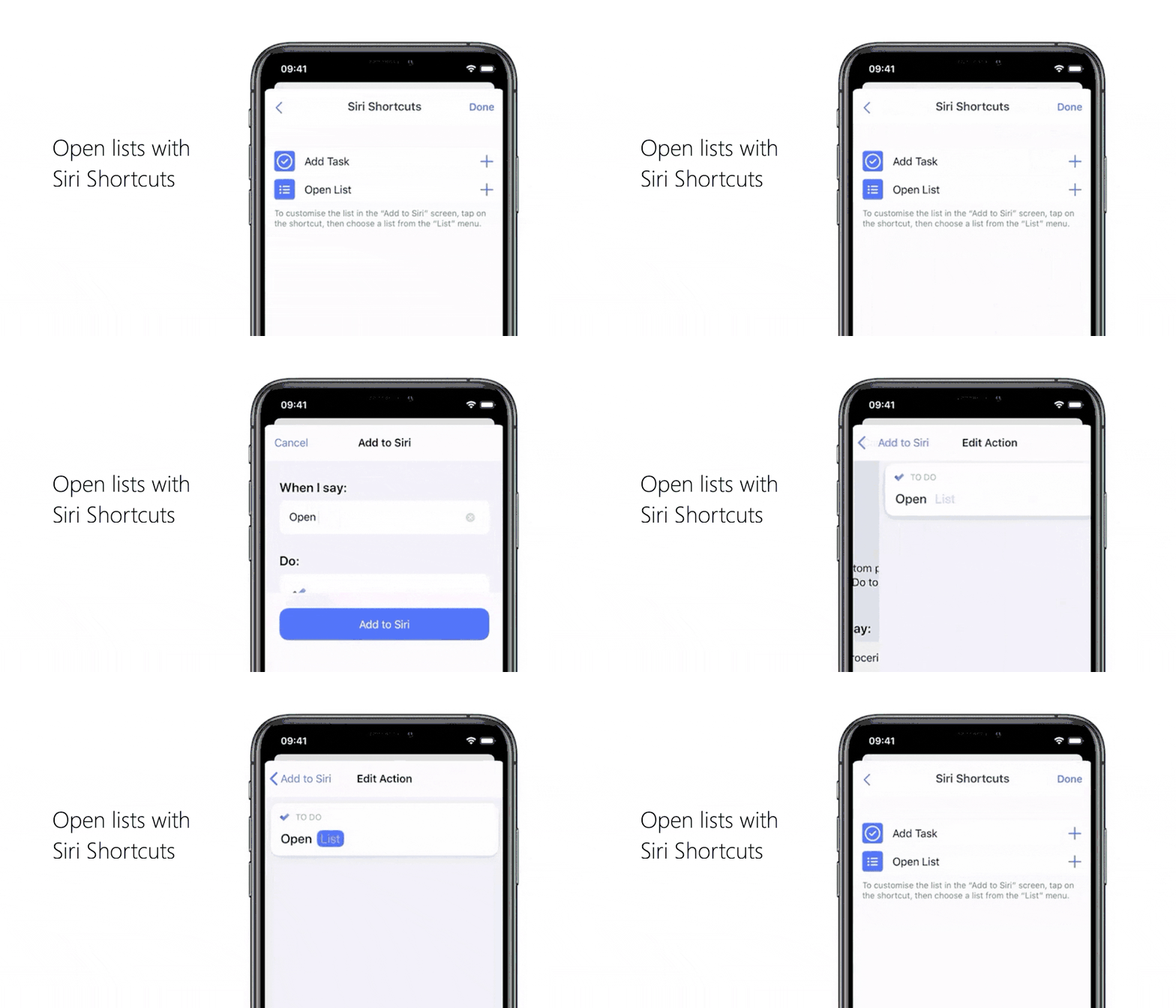
Opening a list with Siri
Head to your To Do settings and tap on Siri Shortcuts, then tap on the plus button next to Open List.
Pick the phrase you want as your shortcut, like “Open grocery list”.
Under Do, select Add task, then select List and pick your grocery list.
Select Back to go to the Add to Siri page, then select Add to Siri.
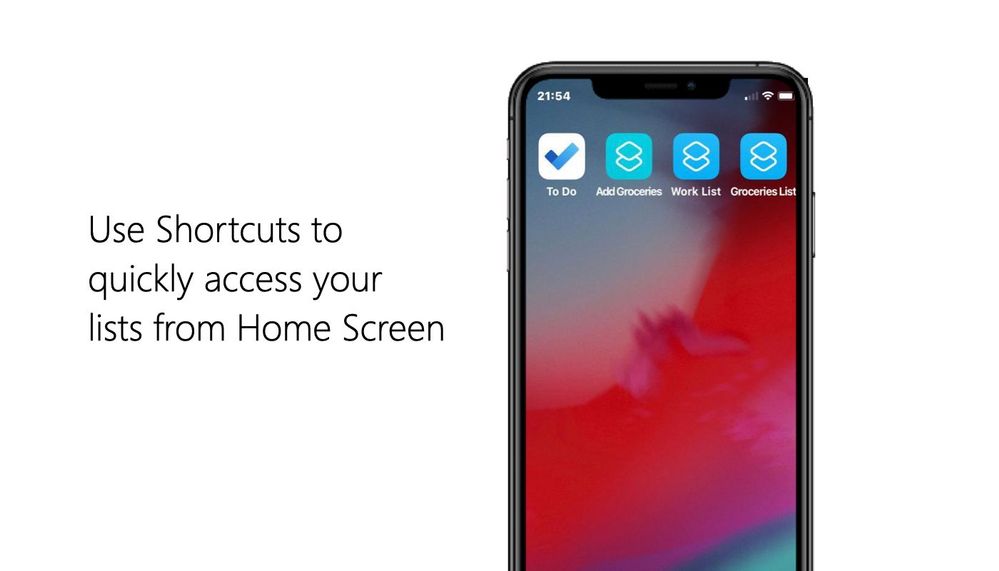
2. Create shortcuts to your lists on your device’s home screen
In To Do for iOS, you can create shortcuts to your lists on your home screen. (Note: you’ll need to install the Siri Shortcuts app to be able to do this.)
Here’s how to add shortcuts to your lists:
Create a Siri shortcut to open a list.
Open the Shortcuts app and open the created shortcut.
Tap the three dots to see more options. Tap on the option to add the shortcut to your home screen.
Check that the shortcut shows up on your home screen.
In To Do for iOS, you can create shortcuts. Or, if you’re using iOS 14, you can add a shortcut with the Shortcuts widget.
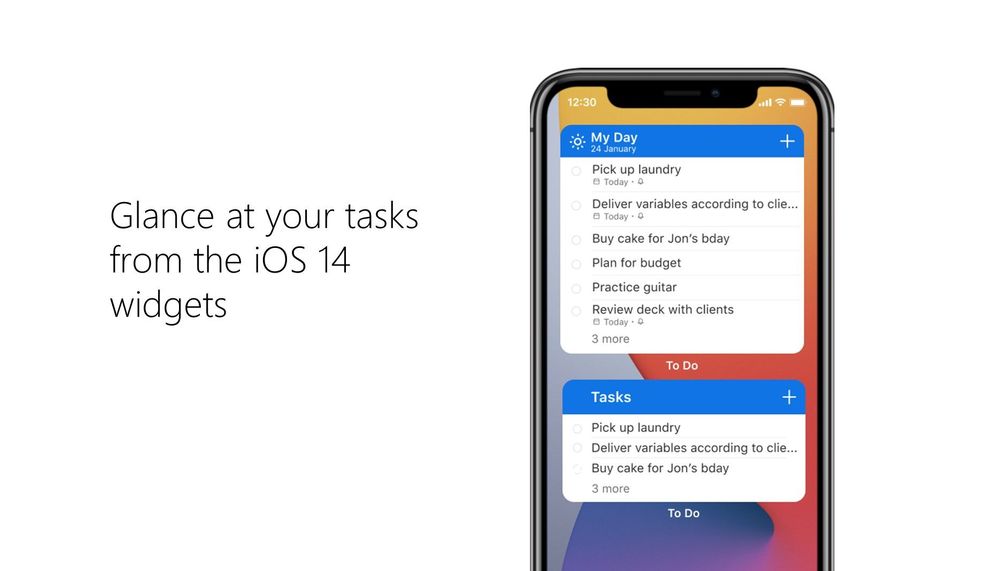
3. Glance at your tasks from the iOS 14 widgets
If you’re using iOS 14, you can check out a To Do list from your home screen with the new Microsoft To Do widgets. To set this up:
Long press on any empty space on your home screen, then tap the plus icon [] to open the widgets menu.
Search for To Do or scroll down to find Microsoft To Do, then add the widget of your choice.
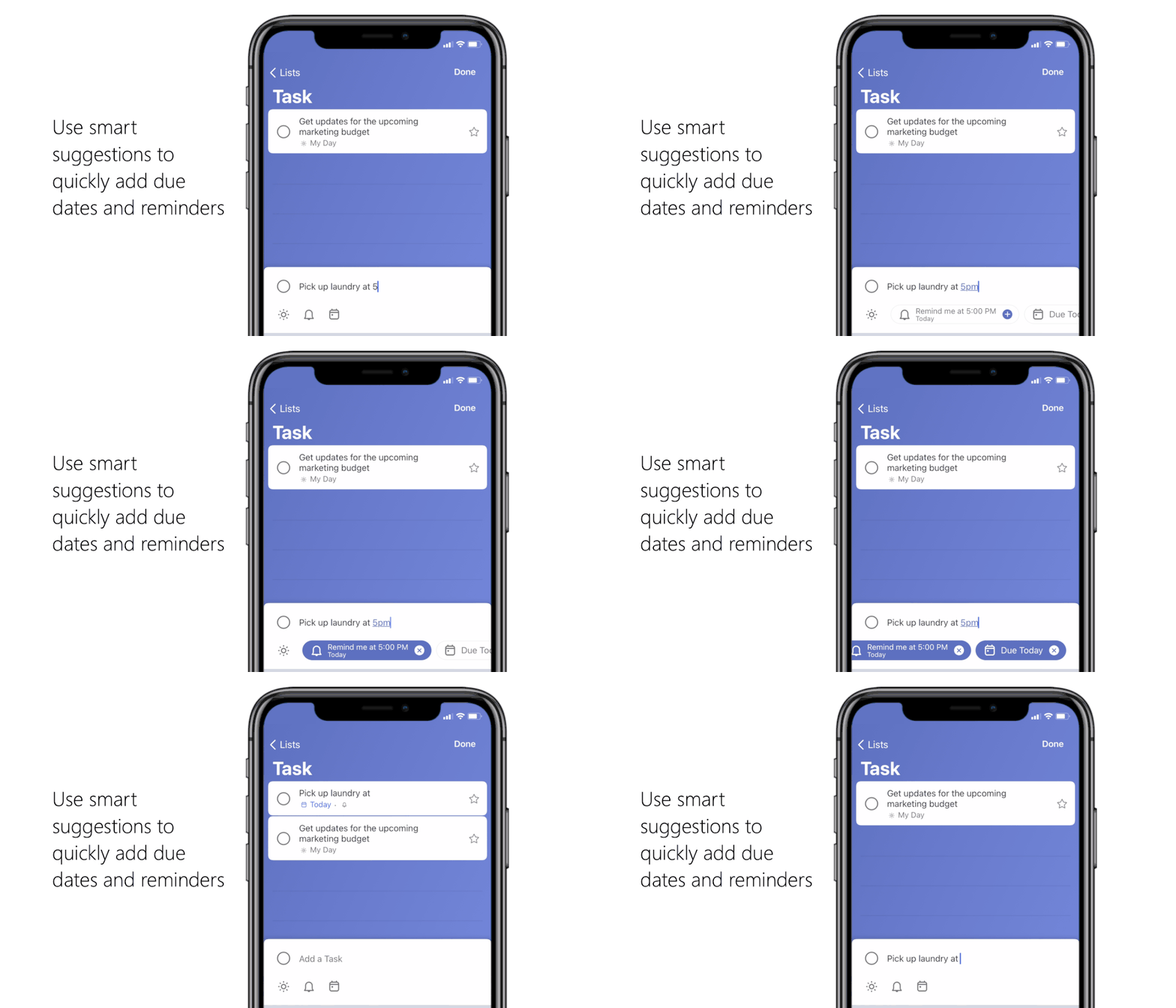
You don’t need to fiddle around with due dates and reminder times when creating a task. When typing a task’s title, include when it’s due or when you want to be reminded in that title and Microsoft To Do will create a task with that due date or reminder time.
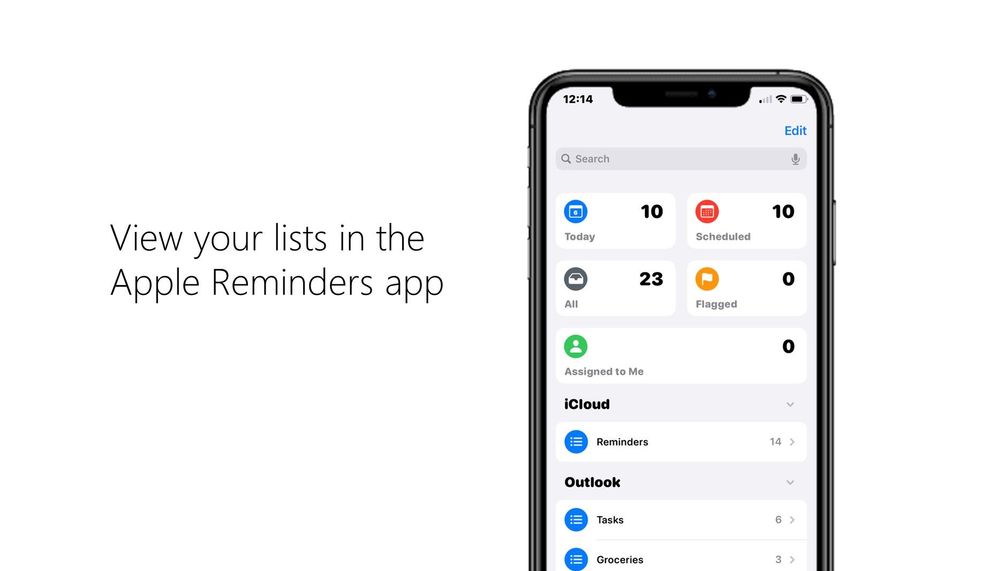
5. View your Microsoft To Do lists in Apple’s Reminders app Microsoft To Do is integrated with Apple’s Reminders app so you can view your To Do lists in Reminders if you use iOS 12 or later. Here’s how to link your Microsoft To Do account with Apple’s Reminders app:
Open your device’s settings and select Reminders > Add Account.
Add the email address associated with your Microsoft To Do account. When you open Apple’s Reminders app, you should be able to see your Microsoft To Do lists.
Note: currently shared lists and smart lists like My Day, Planned, Assigned to you, Important, and Flagged email won’t show up in Apple’s Reminders app.
6. Swipe actions
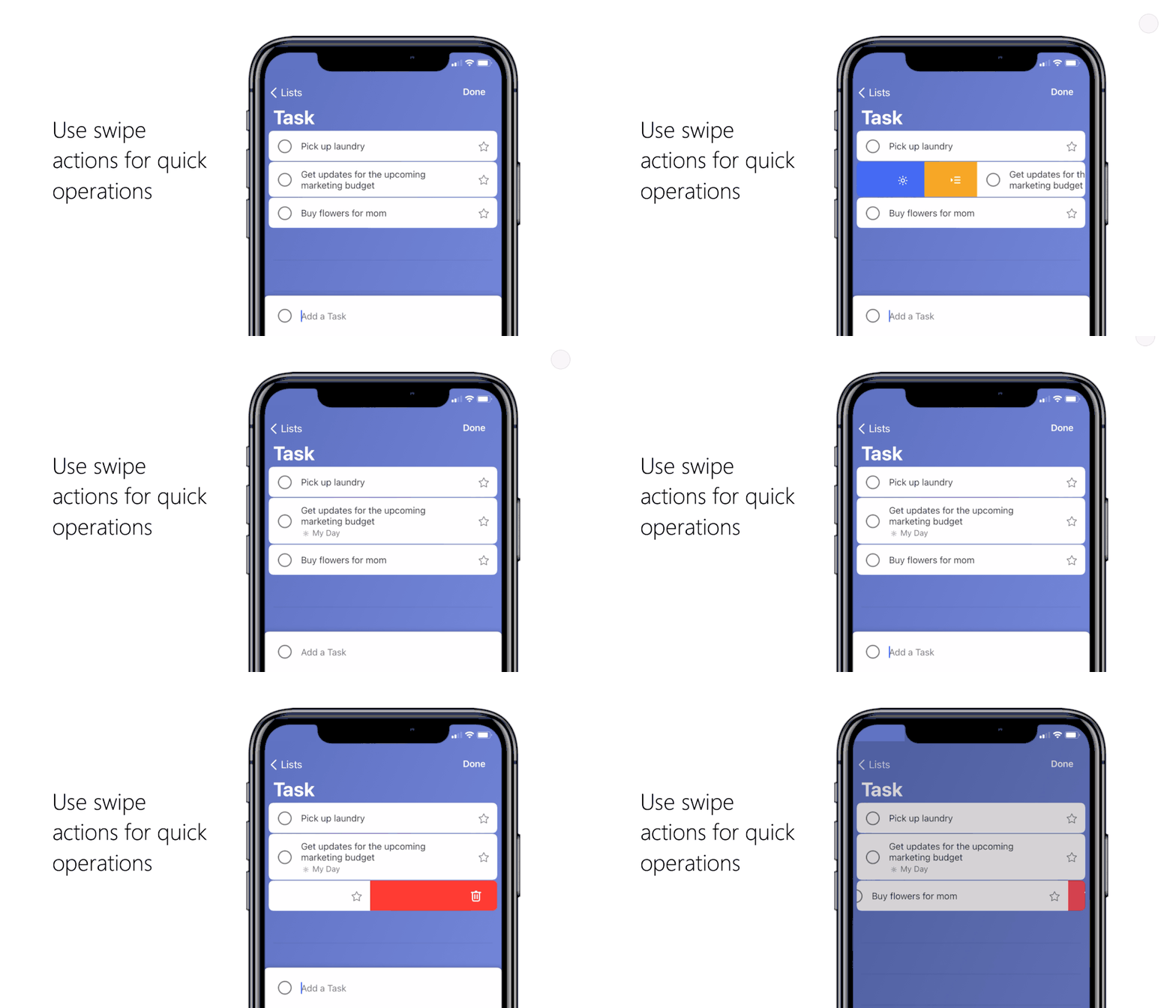
You can take a number of actions on a task just by swiping left or right. By swiping, you can:
Delete a task. Tap on the task, swipe from right to left, tap the trash can icon, and confirm that you want to delete the task.
Add a task to My Day. Tap on the task, swipe from left to right, and select the sun icon . Once a task is added to My Day, you can swipe from left to right again to remove it.
Move a task from one list to another. Tap on the task, swipe from left to right, and select the icon that looks like a list with an arrow. Tap it and pick the list you want to move your task to.
We hope these tips help you out! We’d love to hear your feedback. Let us know in the comments below or connect with us on Twitter and Facebook. You can also write to us at todofeedback@microsoft.com.
This article is contributed. See the original author and article here.
This article was written by Tracy Van der Schyff, a Business Applications and Office Apps & Services MVP, from South Africa. She shares her personal journey to support educators and teachers globally through community efforts.
To identify and celebrate success, we need to have empathy and compassion for the challenges that our fellow #HumansofIT experience. Low self esteems can make us wonder if we add any value, and this cannot be further from the truth. Never forget that an extended hand lifts someone up, and that together we can make a difference and overcome the greatest of challenges life presents us with.
To understand why this success story is so important to me, I must first share a glimpse into my colourful life with you. We all have a purpose of being (even multiples), some have figured it out, some of us are creating it for ourselves, and others are still searching.
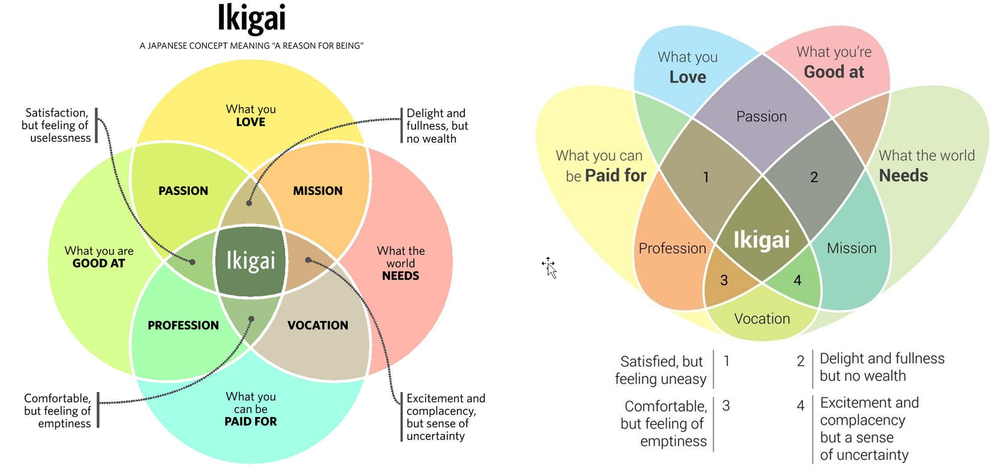
I spent many years searching and at 40, I had an epiphany with relation to my “purpose”. It all started with an image. The image was of the Ikigai Venn Diagram. Although this is the “western interpretation” and more accurately represents a Purpose Venn Diagram. Still, it had a profound impact on my life.
Ikigai & doing your part
My most important realisation was that I had never given myself enough credit to say that I was good at something, which meant that I felt unbalanced and that I had no purpose. As soon as I gained awareness of this “self-abuse” I was subjecting myself to, I focused even more on enabling others, especially when they do not have the means to do so themselves. It became clear as daylight that millions of others were doing the same, not believing in themselves and due to this, not achieving what they are capable of.
Over the next couple of years I wrote / created nearly a thousand blogs & videos (see more about my crazy personal challenge here) and joined various social media groups across Facebook, LinkedIn and Twitter to help support the incredible #HumansofIT out there.
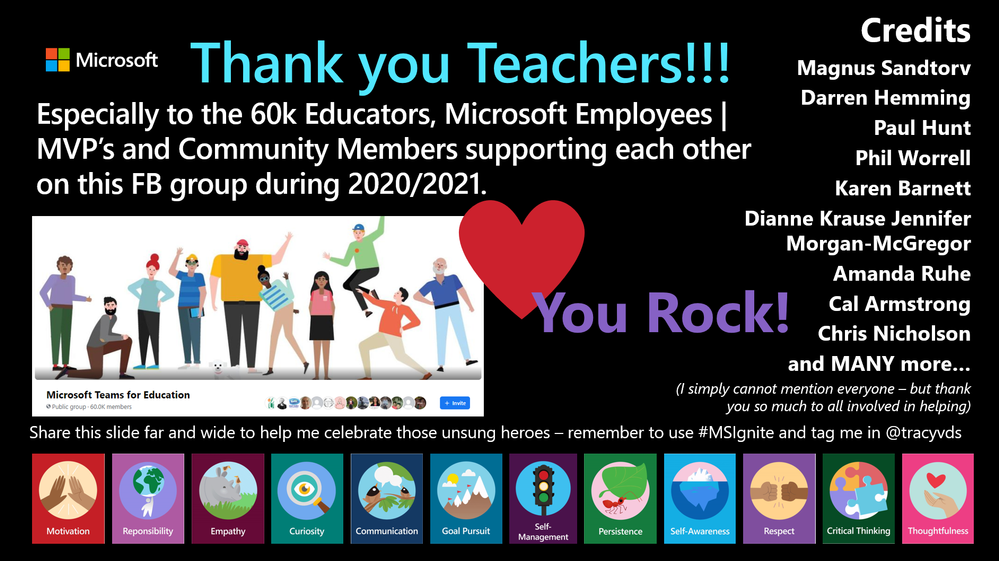
Of course, 2020 delivered a curve ball and I saw the group rapidly grow from 10,000 members to 60,000. Most of those being teachers in desperate need of support. I saw something in this group during the year which both scared me and inspired me. The emotions in the group went through the typical stages of the Kubler Ross Change Model Curve: Shock, denial, frustration, depression, experiment, decision and eventually integration.
It broke my heart as I could see that many of these teachers did not have the internal IT support in their companies / institutions they needed. I was also overwhelmed with gratitude towards the thousands who were helping (Microsoft employees, MVP’s, and community members) by answering questions and making suggestions to help these educational superheroes navigate these incredibly difficult times. Also, never losing sight, that by helping, we were all having a positive impact on our future (learners / students).
The Kubler Ross Change Curve – Success story 1
Towards the end of 2020 I noticed a change in the group. The teachers started supporting each other, sharing tips and tricks, cool new features and in general being more positive. This of course being the “experiment, decision and eventually integration” phase. I was overjoyed. A self-sustaining ecosystem of community support and love had evolved, right in front of our eyes.
Although not my success story to tell, it is a success story that needs to be highlighted and from the bottom of my heart – thank you to everyone who was (and is) part of that process.
ADvTECH Group – Success story 2
This brings me to the second success story. I have had the privilege to work with ADvTECH Group in South Africa, which consists of many schools and tertiary divisions. During 2020 I ‘nervously’ reached out to see how they were doing. I was pleasantly surprised when their overall experience had been positive, even though they had also moved completely to just using Microsoft Teams during this period. I was convinced that they must have done something different, which they had.
Soon Allie Thompson (Wieczorek) and I were “scheming ideas” on how to tell this story at Microsoft Ignite, which of course happened on the 4th of March, 2021. I was fortunate to be the moderator for this incredible panel which consisted of a EdTech Admin, Teacher & Student. I was so inspired by the passion, compassion, and empathy they share, and I am sure you will be as well.
So, block out 30 minutes in your calendar, go get a cup of coffee or tea and watch the video recording to see how they approached the most difficult “test” the education space has ever been challenged with and not only survived, but thrived.






Recent Comments