Consolidate data to one source with Azure SQL Managed Instance | Komatsu

Consolidate data to one source with Azure SQL Managed Instance | Komatsu

This article is contributed. See the original author and article here.

Modernize your existing data at scale, and solve for operational efficiency with Azure SQL Managed Instance. Azure SQL MI is an intelligent, scalable, cloud database service and fully managed SQL server.


Screen Shot 2021-05-04 at 2.16.51 PM.png


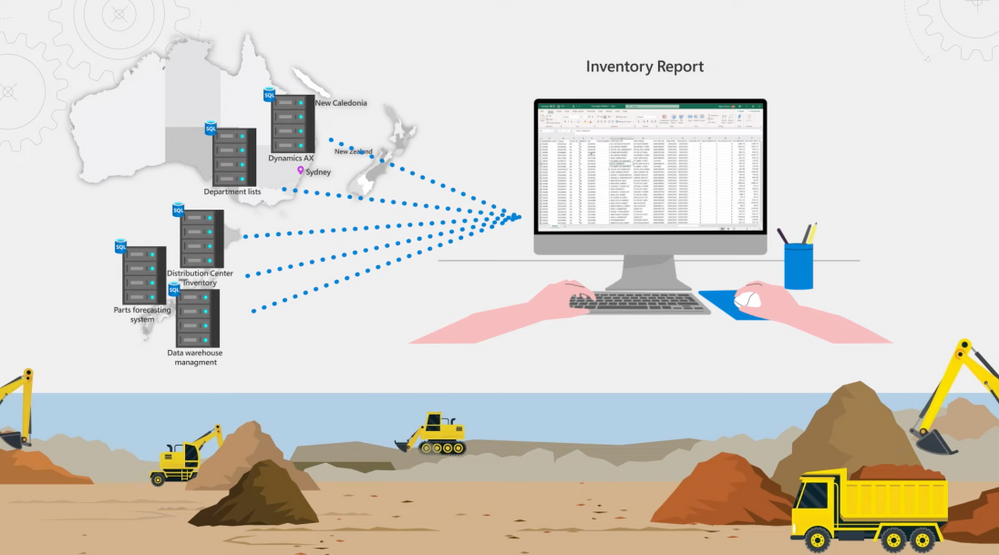
Nipun Sharma, lead data architect, joins Jeremy Chapman to share how the Australian subsidiary of large equipment manufacturer, Komatsu, built a scalable and proactive sales and inventory management and customer servicing model on top of Azure SQL Managed Instance to consolidate their legacy data estate on-premises. See what they did to expand their operational visibility and time to insights, including self-service reporting through integration with Power BI.


QUICK LINKS:


Unfamiliar with Microsoft Mechanics?


Keep getting this insider knowledge, join us on social:


Video Transcript:


New LTS release for Azure IoT Hub SDK for .NET

This article is contributed. See the original author and article here.

The .NET Azure IoT Hub SDK team released the latest LTS (Long-Term Support) of the device and service SDKs for .NET. This LTS version, tagged lts_2021-2-18, adds bug fixes, some improvements, and new features over the previous LTS (lts_2020-9-23), such as:


– Handle twin failures using AMQP.


– Make the DeviceClient and ModuleClient extensible.


– Install the device chain certificates using the SDK.


– Make DPS class ClientWebSocketChannel disposable.


– Use CultureInvariant for validating device connection string values.


– Reduce memory footprint of CertificateInstaller.


– Add an API to set a callback for receiving C2D.


– Make set desired property update method thread safe.


– Add support for disabling callbacks for properties and methods.


– Expose DTDL model Id property for pnp devices.


– Make payload in the invoke command API optional.


– Add APIs to get attestation mechanism.


– Improved logging for noting when the no-retry policy is enabled, in the MQTT/AMQP/HTTP transport layers, in the HttpRegistryManager, and in the AmqpServiceClient.


For detailed list of feature and bug fixes please consult the comparing changes with previous LTS: Comparing lts_2020-9-23…lts_2021-3-18 · Azure/azure-iot-sdk-csharp (github.com)


The following NuGet versions have been marked as LTS.


  • Microsoft.Azure.Devices: 1.31.0

  • Microsoft.Azure.Devices.Client: 1.36.0

  • Microsoft.Azure.Devices.Shared: 1.27.0

  • Microsoft.Azure.Devices.Provisioning.Client: 1.16.3

  • Microsoft.Azure.Devices.Provisioning.Transport.Amqp: 1.13.4

  • Microsoft.Azure.Devices.Provisioning.Transport.Http: 1.12.3

  • Microsoft.Azure.Devices.Provisioning.Transport.Mqtt: 1.14.0

  • Microsoft.Azure.Devices.Provisioning.Security.Tpm: 1.12.3

  • Microsoft.Azure.Devices.Provisioning.Service: 1.16.3


More detail on the LTS 2021-03-18 version can be found here.


Enjoy this new LTS version.


Eric for the Azure IoT .NET Managed SDK team

How to use Power Platform’s advanced data backend for all your apps | Dataverse

How to use Power Platform’s advanced data backend for all your apps | Dataverse

This article is contributed. See the original author and article here.

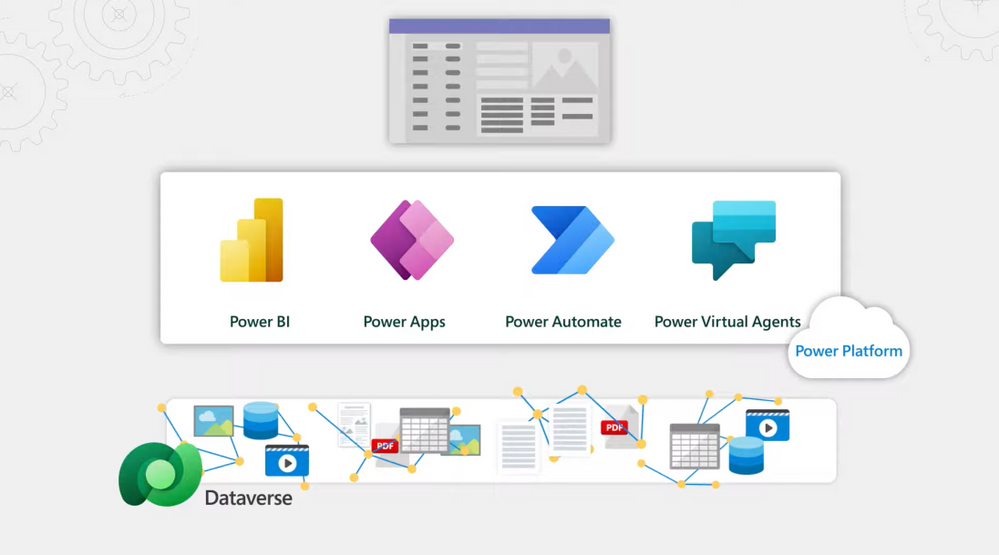
Take a closer look at Microsoft Dataverse, a managed service that securely shapes, stores, and manages any data across your business apps, from ERP systems to user generated Power Apps. Dataverse empowers citizen developers to quickly develop apps at scale, and pro developers to easily create apps that interoperate across multiple systems. Marc Mercuri, engineering lead, joins Jeremy Chapman to show how Dataverse is a great data backend for any app and any developer — without the need to architect, implement or manage it.


Screen Shot 2021-05-04 at 12.47.51 PM.png


Dataverse for Microsoft Teams:


  • Provides the data layer behind the Power Apps integration with Teams.

  • As you build data rich apps, it places text and file based data in the right data store.

  • Great for everyday, no-code apps built in Teams.

  • Scales to a million rows, or 2GB.


Dataverse in Power Apps Studio:


  • Works as the backend service that powers Power Apps, Power Automate, Power Virtual Agents and Power BI.

  • More capacity, control and capabilities.

  • Built on additional enterprise-grade Azure services for larger scale, data integration, relevance search, off-line support and more granular security.

  • Scales to 4TB or more.


Dataverse Pro-Dev:


  • Easily bring in existing data for an app.

  • Use virtual tables to directly call your remote data without importing or moving it.

  • Greater control and security options.

  • Build search into your apps and even into your processes or bots.


QUICK LINKS:


00:45 — What is Dataverse?


02:17 — How to get Dataverse for Teams


03:57 — How it’s built: Behind the scenes


05:05 — Dataverse in Power Apps Studio


06:17 — Additional options: Business rules


07:15 — Bring in existing data


08:45 — How to integrate Search


10:42 — Dataverse Pro-Dev


12:18 — Wrap up: How to get started


Link References:


For guidance and tutorials, go to https://aka.ms/DataverseMechanics


See controls for governance and compliance in action at https://aka.ms/PowerPlatformGovernance


Learn more about virtual tables at https://aka.ms/virtualtablemechanics


Get plugins and code samples at https://aka.ms/DataversePlugIns


Unfamiliar with Microsoft Mechanics?


We are Microsoft’s official video series for IT. You can watch and share valuable content and demos of current and upcoming tech from the people who build it at Microsoft.


Keep getting this insider knowledge, join us on social:


– Up next, we’re joined by engineering lead Marc Mercuri to take a closer look at Microsoft’s Dataverse service that provides a scalable and secure managed data layer through user-generated Power Apps built in Teams all the way through to business systems built on the Power platform. So Mark, welcome back to the show.


– Thanks, it’s great to be back.


– Thanks for joining us today. So Charles Lamanna was on a few months back and he recently introduced Dataverse for Teams which greatly simplifies the maker experience by taking care of the data backend for your apps. But that said, I think a lot of people might be surprised to know that Dataverse is a broader service, it’s full service in its own right and you can also upgrade to Dataverse from Teams and it can also be used independent of Teams with the Power Platforms as your apps scale out.


– That’s right. Dataverse is a managed service for your data that supports any app and any developer, whether you’re a citizen developer, a little bit more seasoned or a pro dev. It removes the complexity for managing your data backend, so you can focus just on building your app. Now as you pointed out, there really are two flavors of Dataverse. First, Dataverse for Teams. Here, as you build data rich apps, it knows to place your text and file-based data in the right store. You don’t need to think about it. It scales to a million rows or two GB, and it’s great for no-code apps that might be built in Teams. Second, if you want more capacity, control or capabilities, we call the three C’s, we have the Dataverse service that works as the backend and sits under the Power Platform for Power Apps and Power Automate and Power Virtual Agents. This is built on additional enterprise-grade Azure services under the covers for data integration, relevant search, offline support, more granular security. And that scales to four TB or more. Now, let me tell you a story where this is really powerful. We recently had a customer where they wanted to have a mobile app extended to pull data in from a database, also include images. They wanted to add relevant search and have the app call a single API which they planned to create themselves. Now this required them to work with four different services, different APIs, each with their own scalability, resiliency, considerations, and metering. Now all this extra work was eliminated by using Dataverse, because it uses the same great Azure service behind the scenes and exposes it via a single API. And so they’re only using a single service.


– Got it, so this is pretty turnkey data management. Instead of placing together all the different å la cart components, it’s one cohesive managed service. But can you show us how to get it and the types of things that you can do once you’re using Dataverse?


– Sure. You can easily get started with Dataverse by using Dataverse for Teams, which is included as part of Teams enterprise licenses. I’m going to go ahead and build a simple data entry app for invoicing in just a few minutes. All you need to do to get to it in Teams is build a Power App. Now in my case, I already have installed Power Apps in Teams and have it pinned on the left rail. Now earlier I created the Distributors table and we’ll be using this in a minute. But I’ll create a brand new app by clicking new and then I’ll click app. And we’ll call it Northwind Invoices. And I’m going to click this button to create a new table. And then we’ll name it the same as the app. This is the visual table editor. You can see it’s out of the default column. I’m going to rename that to invoice ID. Now there’s a distributor that will be assigned to this invoice. You can see I have all these different data types to choose from. I’ll go ahead and add a lookup to the table named Distributors. Behind the scenes it’s also creating a relationship between my new table and distributors. So when I click into this column you’ll see the values from the other table. Now I’ll add a column for amount and we’ll use a decimal data type for that. And finally, we want to track the status. I’ll name this Invoice Status, and I’ll select the field type choice and enter three options. First I’ll do paid and I’ll associate a green color with it. Then outstanding with yellow and finally overdue with red. Now let me add a couple of rows of data. I’ll add an invoice ID. Distributor is Woodgrove. Amount of 25,000, and the invoice status equals paid. I’ll add another for Contoso for 100,000 and overdue. I’m going to close my table. Boom, look at that. Not only do I have my table but it’s automatically bound to the controls in the app. I can see what I just entered into the table and easily create a new record with the new record button. So with just a few minutes I created an app that can handle my invoices right within Teams.


– Now that seemed all pretty simple to set up and get all the data entry parts working. But what’s happening then under the covers?


– Yeah, behind the scenes when we created the table, it’s building out a table in SQL. Now when I did a lookup, it created a relationship for me between my Northwind invoices table and the distributors table automatically, and also behind each field is an entire security layer for authentication, with identity and access management. Now, if we go back into Teams and click build, then see all it’ll take me to my solution explorer. Now I’ll click into the tables, select the Northwind invoices just built, and you saw me build four columns. But if I change the view to all you’ll see both the ones I created and a set of system-generated columns. So with these additional columns you can see who created each record, when, when was it last modified, and much more. And so these columns are very useful when you want to build reports based on activities like how many records were entered in a time period or how many did a specific person enter? It also automatically built relationships between different tables. If I wanted to create additional ones, I can do that here. Many to one, one to many, or many to many.


– All this unlocks all the querying potential in your data, adding metadata that you might not have thought about all automatically. Of course you might be building the next killer app though that gets super popular in your company. So can we take a look at what the broader Dataverse service then would give you?


– Sure, and you can easily upgrade to the Dataverse service if that’s the case. To give you an idea of what you can gain, I’ll show you another scenario that’s more advanced than our last one. Here I have an order management system. You can see our app front-end for orders and behind it there is data for invoices, customers, employees, products, shippers, suppliers, orders, purchase orders, inventory transactions, and more. We also have more relationships behind the scenes. In fact, there are 152. For what we’re trying to do, you can see that the Dataverse service in this case is the right choice. This is because, going back to our three C’s, from a capacity perspective, we have a lot of images and we’re targeting more than a million orders. And so this exceeds the capacity of Dataverse for Teams. Then from a capability perspective, we want to add things like business rules, search capabilities for a bot that we’re building. And we also want to be able to run the app outside of Teams. And for control, we’re taking advantage of fine-grain security controls like custom role-based access to manage data.


– On that last point, if you want to learn more about what controls are available for security and governance with Dataverse and also the broader Power Platform, we’ve covered that on our recent shows with Charles Lamanna and also Julie Strauss that you can check out at aka.ms/PowerPlatformGovernance. So can you walk us through though the additional things that you can do with the Dataverse service?


– Sure. First thing, going back to the table there you can see we’ve got a lot more options in Dataverse: business rules, forms, dashboards, charts, keys, and data. Before I showed you columns and relationships but let’s take a look at business rules. You also want to be able to execute logic against your data. And we have a number of options in Dataverse, with business rules, for low-code no-code and capabilities like plugins for pro dev. But here let’s build a new business rule. In this case, we’ll create a simple one. If the amount is over 25,000, we’ll make shipping free. Now in the business rules designer, you can see that there is already a condition here. We’ll create a rule called Check Order Amount. And here we’re checking if the value of amount due to see if it is greater than 25,000. If it is, we’ll take an action to apply discount for our shipping and we’ll set the amount to zero. Then we’ll hit apply and now there’s a business rule.


– Now that logic by the way will be automated and keep running in the future. And you mentioned though that the app has more than a million rows or will have more than a million rows. So how easy is it then to bring in existing data that you might have already into Dataverse?


– Well, there are a lot of ways to bring data in and we’ll start with the most popular way, which is using Dataflows. I’ll create a new one and start from blank. I’ll call it Order import. And there are a ton of options here for both structured and unstructured data from common sources and types. You see file, database, Power Platform, Azure online services and others including things like SharePoint lists. In my case though, I’ll use a CSV. I’ll paste in the path of the file. You’ll see it parse the columns and everything looks good. So I’ll go ahead and hit transform data. From here, I can edit the table further, but I’ll keep it as is. And if you notice this is the original access data set from Northwind traders from 25 years ago. Still works though in our case so we’ll use it. We’ll go ahead and hit next. If I had an existing table I wanted to import the data into, I could specify it here. In my case, I’ll load it to a new table, give it a name Orders, and use the same display name, and then type in a description. It’s found the data types for each column and for anything it can’t match it will choose text, which can be changed if you want. I’ll keep what’s here and hit next. Here if the data is continuously refreshed, I can setup polling intervals and I’ll define when to start. Or I can go ahead and choose specific days and times. In my case, I’ll choose daily at 5:00 PM and hit create. So now the data’s imported and it will continue refreshing on my defined schedule. And while I showed options for importing, it’s important to know you can also use what’s called virtual tables to directly call your remote data without importing it or moving it. And you can learn more about them at aka.ms/virtualtablemechanics.


– Okay, so it looks pretty easy then to bring data in and create business rules. But you also mentioned there’s built-in search as part of Dataverse as well. How do you integrate then search as part of an app experience?


– So yes, Dataverse let’s you tap into Azure search under the covers. And you can use that to build search directly into your apps, even into your processes or bots. In fact, I’m going to show you search in the context of building a chatbot. To do that, we’ll use Power Virtual Agents. Now in our case, I’m building a simple bot to find people and contact them. The logic behind the bot in this case uses Power Automate. And the data in search will use Dataverse. Let’s hop over to our cloud flow and Power Automate. This starts with our bot input as a trigger and it’s passing in the value to result variable which will be used to store our results. And here in the search rows action, I’m passing it by search input, which would be a person’s name. And in our case, we can leave the default until we get the table filter items. We’ll only focus on tables where we can find people, like customer, account, employee and contact. The we’ll loop through the list of rows that come back from the search. We’ll parse each of them. And we’ll add them to the value that will be returning to the bot. Now because we’re building a results table, we need to define the column headers for that response. If I add current row from search results, these are all the values we want to display in our table. You’ll see search, score, full name, email, and telephone. Finally, we’ll pass those values back to our bot. Let’s try it out. I’ll initiate the conversation with help me find someone. It’s going to ask me what’s the name of the person you’re looking for? And I’m going to type Helen Wilcox. Now it’s running our cloud flow and it returns two results. Helena Wilcox and Helen Garrett. The score is higher as you’ll see for Helena even though I spelled her name wrong. And from here, I can even use the fields in the table to email or call her. See if I click here, it’ll even start a Teams call. And that’s how easy it is to include search into chatbots, Power Apps, and even your custom code using a flow.


– Great, so now you’ve shown us how you can actually progress from an app that’s built in Teams to a robust business system and have Dataverse manage the entire backend, in addition to supporting some enterprise capabilities like search, all with low- to zero-code. But how would you then use Dataverse if you’re a professional developer?


– So as a professional developer, Dataverse, as I mentioned earlier, gives you a single API to connect to the service. This API can also be extended with your own methods. This is useful, for example, if you’re in the retail industry and you might want to expose a reusable function for something like calculating tax, and you can do this without having to create or host your own API. Dataverse also gives you an event pipeline. You can use what we call plugins to insert custom C# code before and after an operation is performed. And we’ve got some great code samples to help you get started. You can find those at aka.ms/DataversePlugins. Now there are four places in the pipeline where you can use plugins. We first receive an API request. Validation handlers can throw custom exceptions to reject specific operations, such as rejecting incorrectly formatted information like an email address. Then before the data operation is executed, pre-operation handlers can apply logic, such as applying a discount based on the properties of an order. Post-operation handlers can modify responses or take action after the operation, such as communicating with the web service for our fulfillment system. And then you have async handlers and they can perform automation after the response is returned. For example, it can send an order confirmation to the customer. Everything we talked about happens in the context of a pipeline but you may want to do some things asynchronously. Dataverse also supports event integration with Service bus, Event hub, and Webhooks to integrate with any app you may have. You can trigger Azure functions which supports many of the most popular enterprise languages. So you could do that same web service call to our fulfillment system using Java.


– Awesome stuff. And it really looks like a great data backend really for any app and any developer without the need to architect and implement and manage it. So if you’re new to Dataverse though, what’s the best way to get started?


– I would recommend that you start building Power Apps, whether that’s in Teams or right from Power Apps Studio. If your app grows and you started in Teams you can easily upgrade to Dataverse. We’ve also got a ton of guidance and tutorials available for you. You can find those at aka.ms/DataverseMechanics.


– Thanks so much for joining us today, Marc. And by the way, keep watching Microsoft Mechanics for all the latest updates. Subscribe, if you haven’t yet. And we’ll see you soon.


Announcing Public Preview of OneDrive Sync Admin Reports

Announcing Public Preview of OneDrive Sync Admin Reports

This article is contributed. See the original author and article here.

Today we’re excited to announce public preview of OneDrive Sync Admin Reports in Microsoft 365 Apps admin center.


These reports give you more visibility into who in your organization is running the OneDrive Sync client and any errors they might be experiencing. OneDrive Sync is a lot like electricity or internet—people tend to take it for granted until they have a problem and they’re in the middle of an important project. This is even more the case now with so many people working from home and relying on cloud capabilities like OneDrive and SharePoint Online to help them be productive. Having insights into what’s happening with OneDrive Sync across your organization can help you proactively reach out to educate people to resolve common issues and improve user experience to help increase OneDrive adoption.


Get an at-a-glance view of OneDrive Sync across your organization


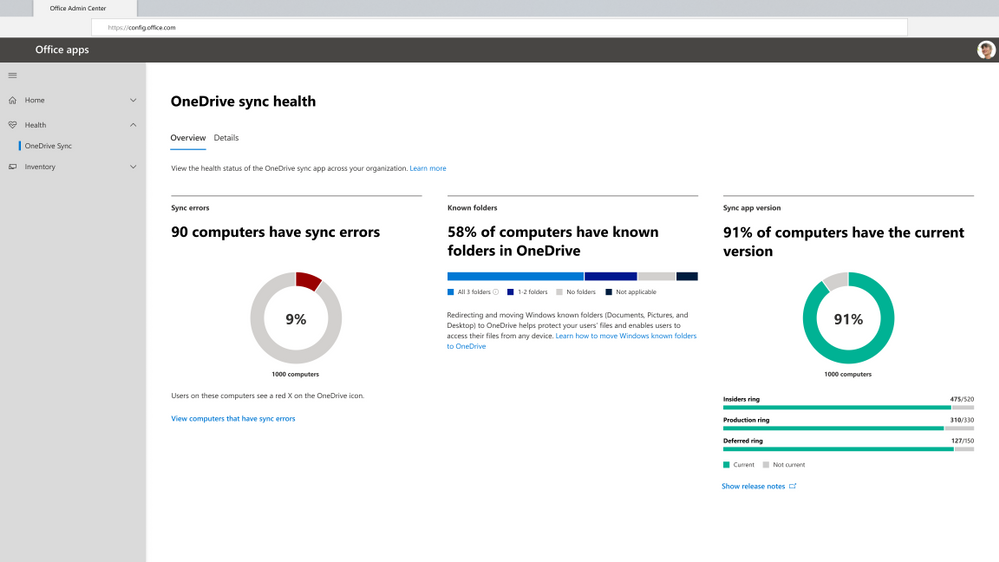
When you open the OneDrive Sync health dashboard, you’ll see an executive summary of what’s going on with OneDrive Sync in your organization. On the left, you can see how many devices have at least one sync error. In the middle, you can see at a glance what percentage of the devices in your organization have known folders OneDrive is helping to protect. You can see what percentage of devices have all three folders (Desktop, Documents, and Pictures) syncing with OneDrive, which have only one or two folders, and which have not opted in to sync those folders at all, meaning if something were to happen to those devices, all the contents of those folders would be lost. On the right, you can see how many devices are running on the current version of OneDrive, meaning they have all the latest and greatest fixes and features from Microsoft that you saw in the Release Notes.


Get an at-a-glance view of OneDrive Sync across your organizationGet an at-a-glance view of OneDrive Sync across your organization


Quickly resolve sync issues to help people stay productive.


When someone in your organization reports a problem syncing files to OneDrive, you can investigate quickly without having to ask for additional details and screenshots of the error message via Microsoft Teams chat or Outlook email. This can save valuable time for both you and the user. Having these insights into sync errors helps you react quickly to requests for help and be more proactive in driving down occurrence of the most common sync errors by providing more education for users in general or reaching out to specific users directly as needed.


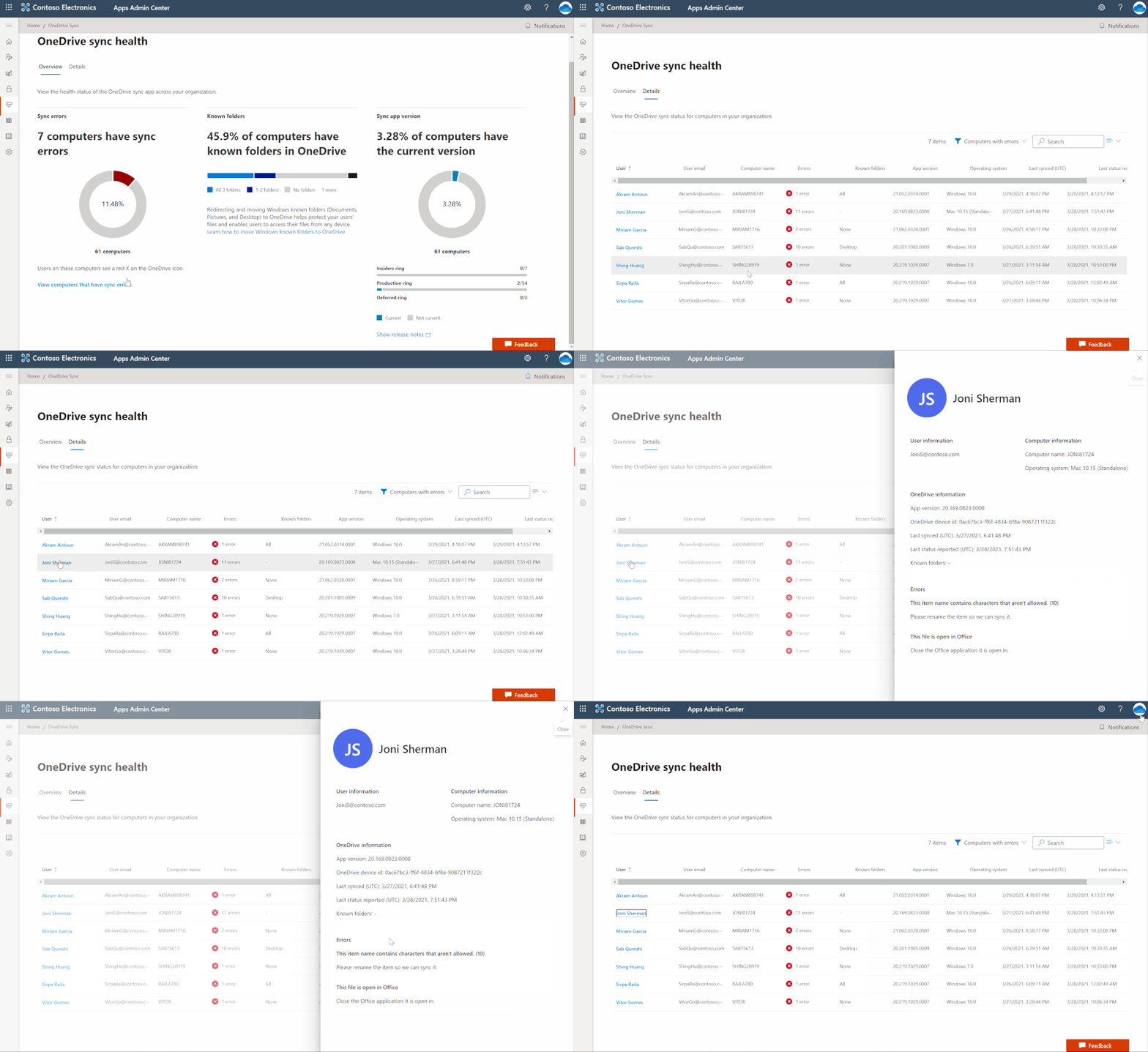
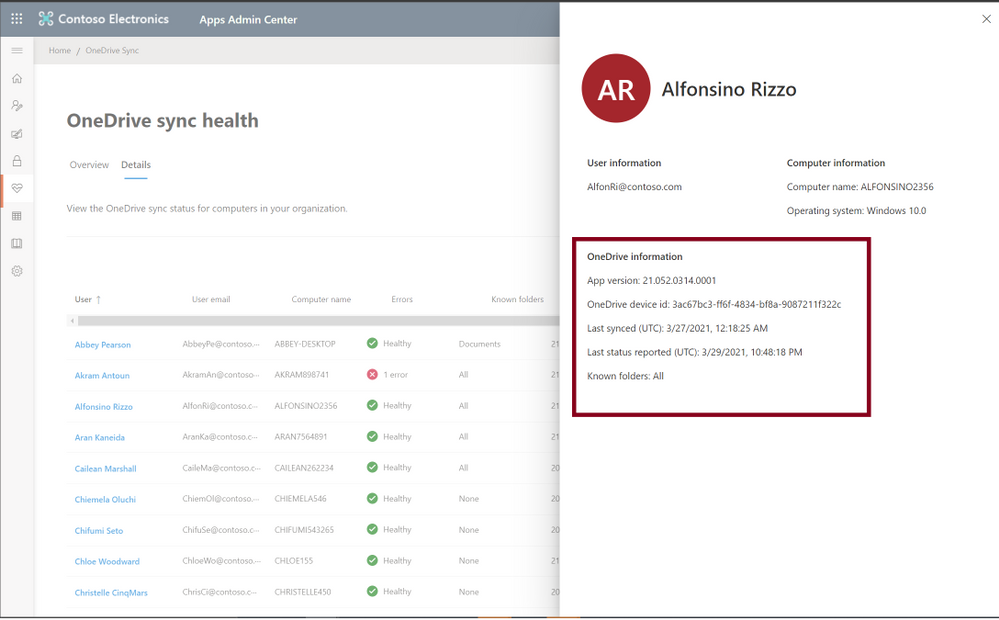
In the Details view, you can see all the information for users running OneDrive Sync. To resolve help requests, you can easily look up the person’s name and get a glimpse of the problem by seeing how many sync errors they have. To see details about the error type, you can click on the user name to open the detail panel. There you can see what device they are using and what build of the OneDrive Sync client they are using. You can also see the specific errors that are occurring on their device, such as issues related to unsupported file and folder names. With that information, you can reply with details about the error and the steps to resolve the issue—no back and forth about what error the user was seeing in the first place, just quick resolution!


At a glance in the Details table, you can see other users who have high numbers of sync errors. You can click on any user’s name to see the exact errors. This is especially helpful if you’re looking for ways to drive down sync errors across the organization to help improve adoption of OneDrive. This way, you can reach out to groups of users who are experiencing similar errors to provide training materials that can help them resolve sync errors and improve the user experience. You can also filter to devices with sync errors, to focus actions on driving down those unhealthy sync clients. 


Quickly resolve sync issues to help people stay productive.Quickly resolve sync issues to help people stay productive.


Easily track the status of Known Folder Move rollouts


If you’re rolling out Known Folder Move (KFM) for your organization to help people across the organization keep their Desktop, Documents, and Pictured folders protected by syncing them to the cloud with OneDrive, this is a great way for you to monitor progress. You can easily see what errors have occurred, how many people have opted in to protect some or all folders, and how many devices have been updated with the latest OneDrive Sync client.


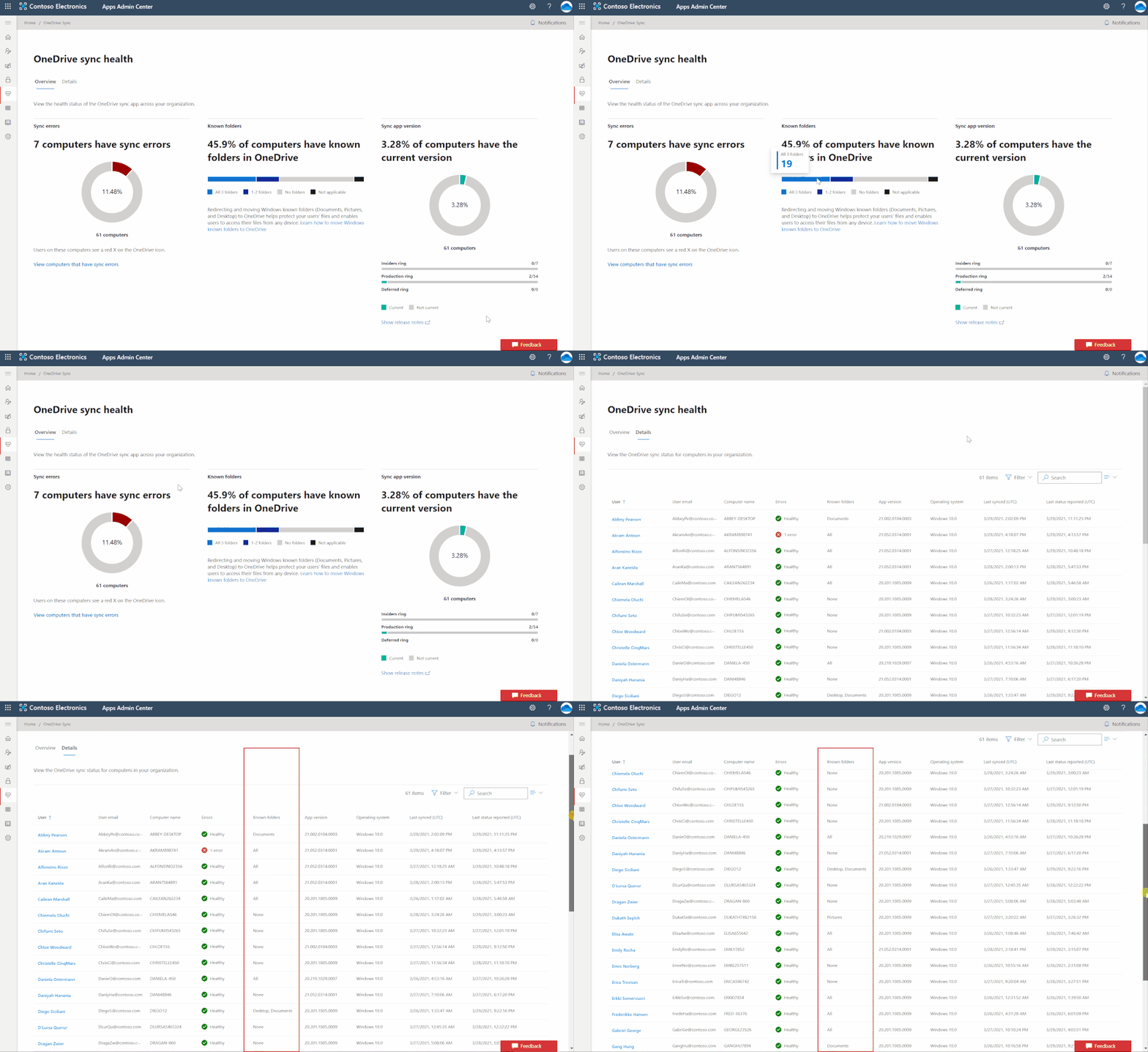
Let’s say you’re deploying KFM to your team, which has around 75 people. You can check the status of your KFM deployment by clicking into the Details view, which gives you a better look at devices belonging to specific people, so you can see clearly which folders users have selected to sync.


Easily track the status of Known Folder Move rolloutsEasily track the status of Known Folder Move rollouts


Give remote workers confidence their information is synced securely in the cloud


With more people working from home, you also need a better way to transition users over to new devices while helping to ensure they don’t lose any data from their old devices. For example, you need to check on the sync status of someone’s older laptop before you let her know she can safely begin using her new one and send the old one back to corporate. Before you give her the green light, you want to ensure all her data was uploaded through KFM, so she will see it as soon as she logs onto her new device. When you view the user’s name in the Details pane, you can see she has opted in to sync all three folders with OneDrive, and you can also see her last sync time was recent and that all the uploads completed successfully. You can also easily see whether she has any sync errors. This means you can get back to her right away and let her know whether she can send back her old device.


Give remote workers confidence their information is synced securely in the cloudGive remote workers confidence their information is synced securely in the cloud


With these new admin reports, you can get easy access into everything that’s going on with OneDrive Sync in your organization, from what sync errors people are facing to the status of a KFM rollout or what version of the app they’re on, helping you resolve issues quickly so you can focus on other strategic tasks.


Please note that currently only Windows machines are supported.


To manage and set up OneDrive Sync admin dashboard please refer to our documentation here.


Learn more and stay engaged..


We continue to evolve OneDrive as a place to access, share, and collaborate on all your files in Office 365, keeping them protected and readily accessible on all your devices, anywhere.


You can stay up-to-date on all things via the OneDrive Blog and the OneDrive release notes.


Check out the new and updated OneDrive documentation.


Take advantage of end-user training resources on our Office support center.


Check out our  episodes of Sync Up- a OneDrive podcast to learn more about OneDrive from the experts. 


Thank you again for your support of OneDrive. We look forward to your continued feedback and hope to connect with you at another upcoming Microsoft or community-led event.


Thanks for your time reading all about OneDrive,


Ankita Kirti


OneDrive | Microsoft

How to fix outbound IPs for App Service

How to fix outbound IPs for App Service

This article is contributed. See the original author and article here.

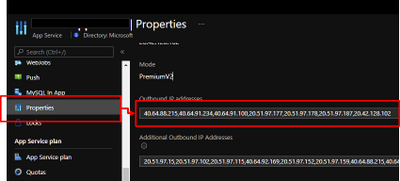
App Service are powerful features to retrieve Azure computer resources as PaaS platform. In other hands, PaaS is shared services for multi-tenant, so it might be caused as issues to collaborate with legacy applications. As one of such issues, external services sometimes require to fixed IP addresses from your applications. It was not allowed to fix outbound IPs for App Services in past, because the IPs are randomly selected by runtime from assigned ones like below.


daisami_0-1620117755181.png


In addition that, the outbound IPs might be changed. Refer to Inbound and outbound IP addresses in Azure App Service for the detail.


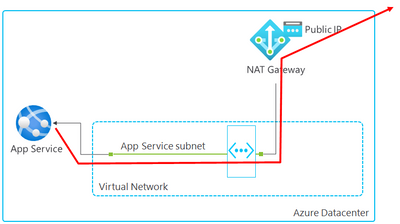
Here is brief architecture to fix outbound IPs for App Service. It’s required to utilize NAT Gateway and VNet Integration of App Service. You can fix outbound IP as Public IP on NAT Gateway by using this architecture.


daisami_0-1620116452111.png


Follow steps below to setup.


  1. Create VNET and NAT Gateway

  2. Associate NAT Gateway to a subnet 

  3. Enable VNet Integration

  4. Setup WEBSITE_VNET_ROUTE_ALL = 1

  5. Confirm outbound IP with Kudu


You can setup to fix outbound IP on your App Service by following this post.


1. Create VNET and NAT Gateway


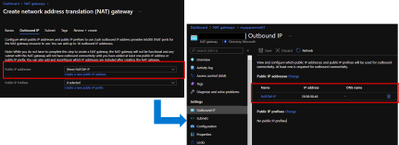
Follow Quickstart: Create a virtual network using the Azure portal to create a VNET.  Next, Create NAT Gateway by following Tutorial: Create a NAT gateway using the Azure portal. It’s required to specify Public IP like below and the Public IP will be an outbound IP for your App Service.


daisami_2-1620117141032.png


2. Associate NAT Gateway to a subnet 


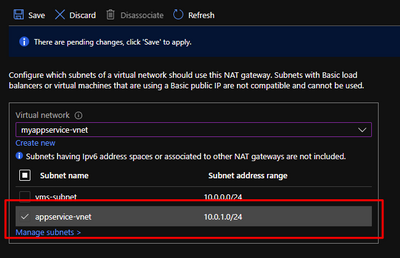
It’s required to integrate your App Service with VNET to utilize NAT Gateway, so visit your NAT Gateway and choose “Subnets” menu from left side. Choose a subnet which your will enable VNet Integration for your App Service in later.


daisami_3-1620117390926.png


3. Enable VNet Integration


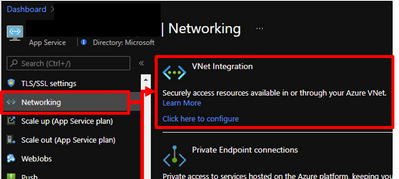
Visit your App Service and enable VNet Integration by choosing a subnet which you have already associated NAT Gateway.


daisami_1-1620117996877.png


4. Setup WEBSITE_VNET_ROUTE_ALL = 1


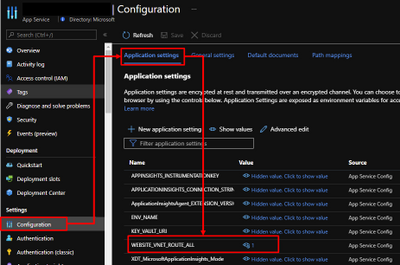
Next, it’s also required to route all your outbound traffic to your VNET, so visit your App Service and choose configuration menu from left side. Put WEBSITE_VNET_ROUTE_ALL = 1 like below. Refer to Integrate your app with an Azure virtual network for the detail.


daisami_2-1620118481867.png


5. Confirm outbound IP with Kudu


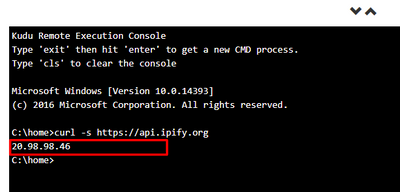
App Service offers useful feature as Kudu not only development usage. Visit your App Service and open Kudo on it. Run curl command and you can confirm returned IP is same with Public IP on your NAT Gateway.


daisami_1-1620119284693.png