by Contributed | Jun 11, 2021 | Technology
This article is contributed. See the original author and article here.
Azure Data Factory is continuously enriching the connectivity to enable you to easily integrate with diverse data stores. Now MongoDB and MongoDB Atlas are supported as both source and sink for copy. With this, you can copy data from any supported source data store to MongoDB or MongoDB Atlas database; or copy data from MongoDB or MongoDB Atlas to any supported sink data store. Besides, it’s also supported to import and export JSON documents as-is to achieve schema-agnostic copy.
Learn more from ADF MongoDB connector and MongoDB Atlas connector documentation. For a full list of data stores that are supported in ADF, see this connector overview article.
by Contributed | Jun 11, 2021 | Technology
This article is contributed. See the original author and article here.
Microsoft Teams offers scheduling capabilities through the Shifts app built into the native Teams experience. The idea is to empower teams to create, update, and manage schedules for a tighter collaborative experience. This functionality is heavily used by first-line worker groups, especially on the clinical floor. With a rich API extensibility and tight coupling with other M365 products, Shifts offers a way to truly automate the schedule management process – eliminating paper trails and removing redundancies in communication.
Process owners often struggle with adding business logic to the process of scheduling. The following use-case illustrates how Shifts can be paired with a data model (maintained in a SharePoint List), and elevated with business logic (set up using Power Automate) to create a role/eligibility-based scheduling process.
Let’s envision a scenario where we are looking to automate a Covid volunteer scheduling process for a vaccination clinic. In this clinic we likely have volunteers who are filling multiple, unique roles. Each of these roles may have defined shifts that are available to be volunteered for. For a volunteer to sign up for a specific shift they must meet a defined set of qualifications.
Clinic Roles:
- Vaccinator
- Observer
- Runner
- Check-In Support
- Documenter
Now for a volunteer to register for a vaccinator shift at the clinic they might have to be a RN, LPN, MA DO, or have some other qualification that allows them to administer vaccines. On the other hand, someone volunteering for a Check-In Support shift would not have to meet any qualifications.
Storing the Data
The first step to automating this process is determining where we want to store our volunteer data. In this example, I will be using a SharePoint list; however, any tabular data structure would work well.
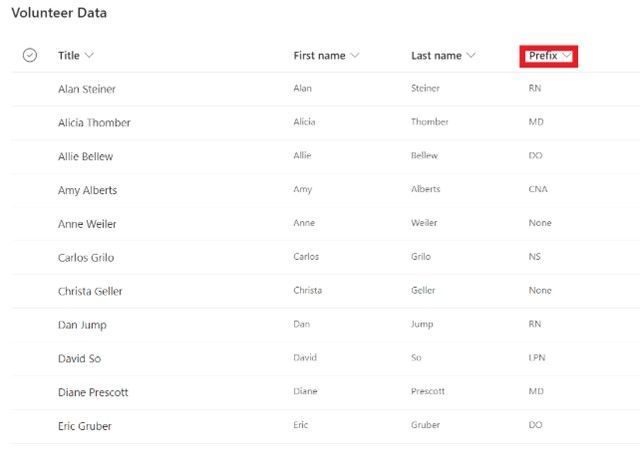
You can see the list stores basic information about the volunteer, including the UPN of the user (not pictured in screenshot), along with a prefix denoting their qualifications relevant to scheduling a shift.
Creating a Teams Shift Schedule
Before you can create a shifts schedule, you must create a Team! Once you have your team you can create a shifts schedule for that team by opening the Shifts app in Teams and creating a new team schedule.
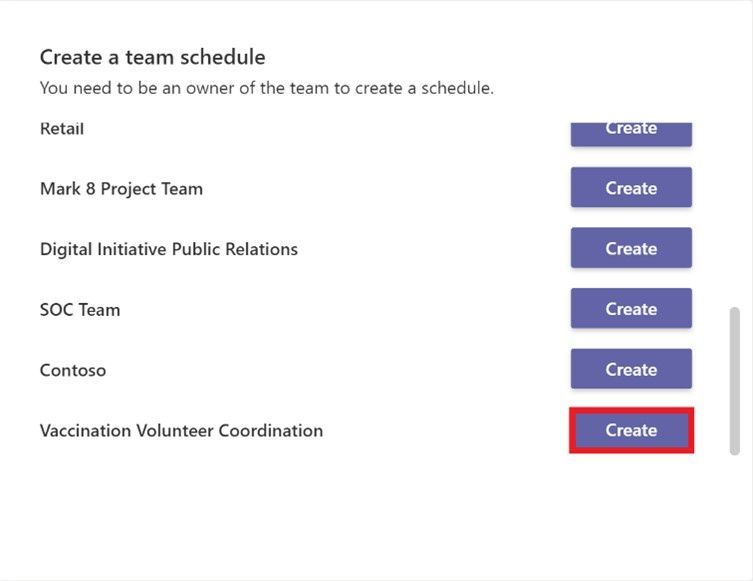
Once you have your Teams Schedule and you have added all volunteers to the team, you can create a new group within your schedule. Each group in the teams Shift Schedule can have its own unique schedule, so we will create a group for our vaccination clinic.
Creating a schedule group
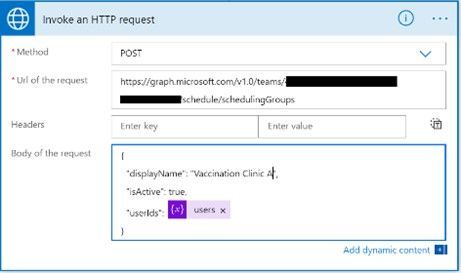
If you have only a few team members it is easy to create a schedule group and add the appropriate members through the Shifts app UI. However, if you have enough members (like in our volunteer example) it makes more sense to add members in a more automated fashion. To do this you can create a simple Power Automate that calls a Microsoft Graph API endpoint for creating a scheduling group.
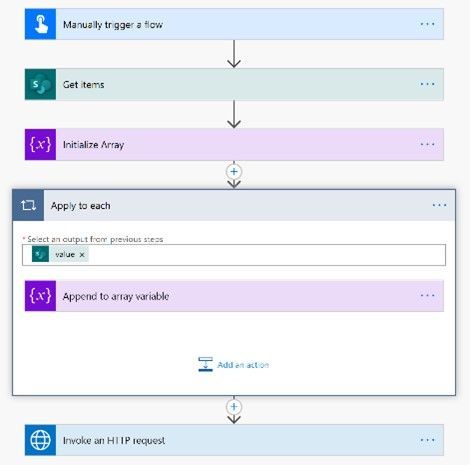
A sample Power Automate is pictured below. You can see the flow loops through the volunteer data that is stored in the SharePoint list and creates an array of UPNs. The last step is calling the Microsoft Graph API endpoint to create the group with the array of users (documentation below).
Create schedulingGroup – Microsoft Graph v1.0 | Microsoft Docs
Creating Shifts
After you have run your Power Automate to add your users to the Shifts group, you are ready to create some shifts! Create shifts that can be claimed by volunteers by using the open shifts functionality and specifying how many open slots there are for each open shift. You can also add a custom label and color theming to differentiate between your shift types.
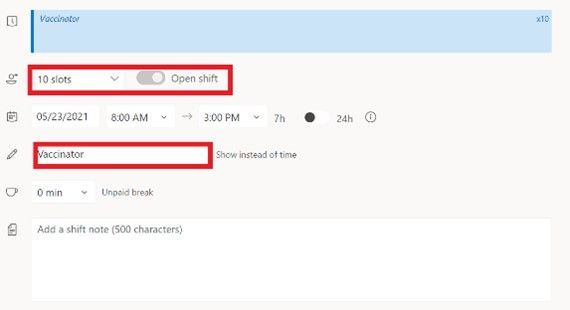

Once you have your open shifts created your team members will be able to sign up to volunteer!
Remember to share your changes with the team.
Automating Shift Approval
Once a volunteer signs up for a shift we need to make sure they are qualified for the shift. To automate this approval process again we will turn to Power Automate!
Your approval process will be specific to a set of requirements; however, in almost all cases the Power Automate will be triggered when the Open Shift request is created (a volunteer requests a shift) and will end with the Open Shift request being approved or rejected!
The beginning of my approval Power Automate for this volunteer example is pictured below. After you get some details about the open shift request, the type of shift, and validate the request was created (not deleted or updated), all you need to do is add your own business logic to validate the team member meets the requirements for the shift!
For more information on how to get started with power automate check out:
Get started with Power Automate – Power Automate | Microsoft Docs
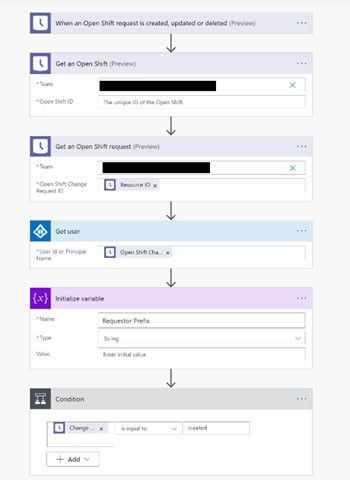
And that’s all! Now you can use Shifts in Teams and Power Automate to quickly design a fully automated role-based scheduling solution!
*Please note that different connectors in Power Automate have different throttling limits. Keep this in mind when designing your approval solution.
Author:

Andrew Roger
Technical Architect
Microsoft Technology Center
by Contributed | Jun 11, 2021 | Technology
This article is contributed. See the original author and article here.
As announced in a previous blog post, dynamic search ads can be created within search campaigns via the use of ad group type. Within a search campaign, you now have the option to create a standard ad group (containing expanded text ads, responsive search ads, and keywords) or a dynamic ad group (containing dynamic search ads and auto targets).
Starting this month you can no longer add, update, or retrieve campaigns that only support dynamic search ads. The campaign type of your existing campaigns has been updated from “DynamicSearchAds” to “Search”. The ad groups are now considered “dynamic” ad groups, but there are no structural changes i.e., they contain the same auto targets and dynamic search ads as before.
As always please feel free to contact support or post a question in the Microsoft Advertising developer Q&A forum.
![Records Management and Driving Compliance [M365 Meetup for Government]](https://www.drware.com/wp-content/uploads/2021/06/fb_image-74.jpeg)
by Contributed | Jun 11, 2021 | Technology
This article is contributed. See the original author and article here.
How are organizations digitally transforming to become leaders in records management, information protection, and eDiscovery? Microsoft 365 provides integrated and intelligent capabilities to help you discover, protect, and govern your business-critical information across your digital estate. At this session we will hear from subject matter experts and their lessons learned for success.
When: Tuesday, June 15th, 2021 @ 5pm EDT
Register for the session today!
Presenters:
Matt Littleton, Compliance Global Blackbelt, Microsoft
https://www.linkedin.com/in/matt-littleton/
Tim Shinkle, VP, Millican & Associates, Inc.
https://www.linkedin.com/in/tim-shinkle-4583121/
https://millican-assoc.com/
by Contributed | Jun 11, 2021 | Technology
This article is contributed. See the original author and article here.
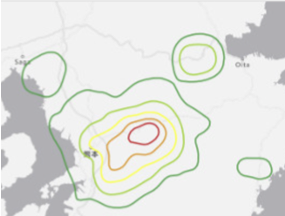
We are pleased to announce the general availability of our Elevation API. For any given point on the Earth’s surface, the Elevation API returns its elevation measured from the mean sea level. Azure Maps Elevation API will provide pole to pole coverage with <4M absolute and <2m relative accuracy. The elevation data uses a digital terrain model (DTM), man-made entities (e.g., buildings) are artificially flattened and elevation is measured to the ground surface.
Use cases & API Types
Azure Maps Elevation API is designed to make it easy for developers to build various scenarios leveraging elevation data. The following options are offered along with POST methods to support input of large data.
Get Elevation for Point(s)
|
Get Elevation for Bounding Box
|
Get Elevation for Path/ Profile
|
|

|
|
Solar power plant planners can measure elevation across large number of points to determine ideal locations for placing solar panels.
|
Mining engineers can measure elevation at specified intervals in each given grid and perform cut/ fill analysis.
|
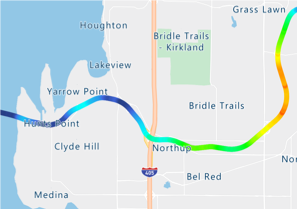
Fleet managers can measure elevation gain across routes and take appropriate safeguards e.g., refrigeration, braking etc.
|
API documentation and code samples




Recent Comments