by Contributed | May 27, 2021 | Technology
This article is contributed. See the original author and article here.
Data Consistency Score (DCS) is a (somewhat) new feature for Office 365 migrations that scores the fidelity of migrated data, allowing admins to identify inconsistencies and integrity issues between source and target data when performing a migration to or from Office 365 (onboarding and offboarding). DCS is meant to replace the existing Bad Item Limit and Large Item Limit (BIL / LIL) model and related shortcomings.
The DCS model identifies and tracks data that cannot be successfully migrated from an on-premises source environment to Office 365 (e.g., corrupt data, items larger than the service allows, or data that is found to be missing in the target but present in the source). The DCS model examines this data based on quantity (count of the items that cannot be migrated and must be skipped by the MRS service) and quality or importance (DCS differentiates between user data and metadata / system data). We then calculate a score based on the total amount of data that might be skipped during migration and how significant it is for the user.
This means that the admin is no longer required to guess the number to use for Bad Item Limit (BIL) or Large Item Limit (LIL) in advance, as the DCS mechanism takes care of this automatically. The admin is therefore better informed of the possibility of data loss during migration and can take necessary actions when appropriate. DCS allows admins to only have to deal with approvals at the end of the migration, when they have all of the information that they need to make an informed decision. Previously, there was a hard choice to make between data resiliency and efficiency. The best option for data resiliency was to interrupt the admin every time the migration process encountered an item that could not be migrated and request approval to continue. But the best option for efficiency was for admins to try to guess a number of items that they could skip without any regard to the scenario behind skipping them, and then hopefully remember to come back afterwards to review what was skipped. Avoiding carte blanche BIL and LIL values encourages the admin to look at the information they have about the items that could not be migrated and come up with their own policies for next steps, such as what to approve, what to work around, what to tell their users, and what to escalate to support.
We are constantly tuning the various thresholds used to determine the DCS to ensure that problematic data loss does not occur during migrations. Exchange Online administrators do not have access to thresholds details (this is done service side).
Here are a couple of examples of bad item types that are not considered as impactful and will trigger a DCS of “Good” (instead of “Investigate”) when encountered:
- Orphaned delegate permissions where the user was removed from Active Directory (for example, the delegate left the company) but the delegate’s permission was not removed from the mailbox being migrated and the permission cannot be mapped to a valid user account. We will dig more into this later in the article where we discuss source/target principal mapping exceptions.
- Corrupted Search Folder criteria where you might see something like this in the Bad Items failure: “Unable to set restriction on table, Operation: StorageDestinationFolder.ApplyRestrictions”
The DCS model tracks 3 main categories of items that would be skipped by the MRS in Exchange Online:
- Bad items (corrupt data / properties of the items or orphaned permissions);
- Large items (for example, in a Hybrid migration, the maximum item size is 150MB; an item above this size is considered too large for the Office 365 service and cannot be migrated to Exchange Online. In an IMAP migration or public folder migration, the default MaxReceiveSize is 35MB for Exchange Online user mailboxes and public folder mailboxes (a size that can be increased up to 150MB); and
- Missing items (for example, in an IMAP migration where a user or automated process like MRM retention policies or a mobile device (wiping data) would delete (or move data to archive mailbox or even to another folder in the same primary mailbox) from the live target mailbox to where you are migrating, but the migration process is still syncing from the source IMAP mailbox). See this reference here on Missing Items.
As a good practice, before starting a migration, you can check for items that might cause issues. Here are some suggestions:
Get-Mailbox -ResultSize Unlimited | Get-MailboxFolderStatistics -IncludeAnalysis -FolderScope All | Where-Object {(($_.TopSubjectSize -Match “MB”) -and ($_.TopSubjectSize -GE 35.0)) -or ($_.TopSubjectSize -Match “GB”)} | Select-Object Identity, TopSubject, TopSubjectSize, DisplayName | Export-CSV -path “C:tempreport.csv” -notype
And set, for example, the TopSubjectSize to 35MB or 150MB (depending on the type of migration and the MaxReceiveSize on the Office 365 mailbox). For example, public folder migration will be limited by MaxReceiveSize that you see on the PF mailbox via Get-Mailbox -PublicFolder <Mailbox01> | FL MaxReceiveSize, and by default it is 35MB. For a hybrid migration or PST import, the limit is 150MB.
If you didn’t check these prior to migration, the good news is that DCS will detect the bad/large/missing items and you can identify them from the migration reports and migration GUI.
Transitioning to DCS
While the new DCS feature was introduced, DCS and BIL/LIL models coexisted to avoid breaking any scripts in use by admins. When one would specify a BIL or LIL, the old model would be triggered which prevented the use of DCS.
If you still see or use BIL/LIL, we recommend not using them and instead using DCS. DCS will take the guesswork out of migration and will help you avoid large data loss (in cases where BIL/LIL parameters are set very high).
Once a batch is submitted without BIL/LIL, that batch will use the DCS method and cannot be switched to use BIL/LIL. This means that even if you set bad item limit when DCS is in Investigate status due to bad items, the manually set limit will be ignored, and you still need to approve the items flagged by DCS. Similarly, batches submitted with BIL/LIL cannot switch to use DCS.
Note that the BIL and LIL parameters will eventually be replaced by DCS.
In what types of migrations is DCS used?
DCS supports the following types of migration to Exchange Online:
- Mailbox migrations (hybrid onboarding and offboarding, cutover, staged, IMAP, Google Workplace (G-Suite), cross-tenant MRS moves);
- Public folder migrations; and
- Mailbox restore requests.
At this time, PST imports don’t use DCS, but they will in the future. This will have no impact on PST import when using DCS, as admins are not required to approve skipped items when importing data from a PST file.
Admins are prompted for intervention and approval when DCS status is Investigate and the admin is performing a hybrid migration, Google Workspace (G-Suite) migration, or public folders migration. These are the only migration types that need completion (Complete-MigrationBatch); thus, for such migrations where we have a risk of data loss admins must approve to complete the migration.
As a side note, the DCS model and especially DCS failures are frequently seen in the context of mailbox restores in Exchange Online, but this is expected and you don’t need to worry about it. There is more information on this later in the article.
More information on DCS can be found here:
DCS says Investigate? Let’s investigate!
Now let’s focus on troubleshooting low scores; that is when things are bad and significant data is skipped, and how admins can overcome this.
With regard to how we calculate the score for migration batches, the DCS of the batch is equal to the worst DCS of any user within the batch. This behavior helps administrators know immediately whether there is data loss that should be investigated.
We will focus on an “Investigate” score as this is within the admin’s control, whereas for a “Poor” score you will have to contact Microsoft Support for assistance. In general, you don’t need to worry about a Poor score because they are rare.
When you get a score that is too low (Investigate) on migration, you may see a similar error in the move request failures in PowerShell or the keyword “Investigate” and in the Skipped item details view in the classic Exchange admin center (EAC) you might see “DataConsistencyTransientException: The data consistency score (Investigate) for this request is too low…”
If the migration receives a grade of Investigate, you have a few options:
- Be aware of the skipped items, and communicate with the affected user;
- Approve skipped items manually to allow the migration to succeed (hybrid, Google Workplace (G-Suite) and PF migrations); or
- Correct the situation and re-migrate or resume/retry when possible.
Checking the skipped items
Like the score says, we should Investigate skipped items. There are 2 ways to retrieve the skipped items: (1) from the classic Exchange admin center – we will focus on that in this post; and (2) with Exchange Online PowerShell.
Classic Exchange Admin Center
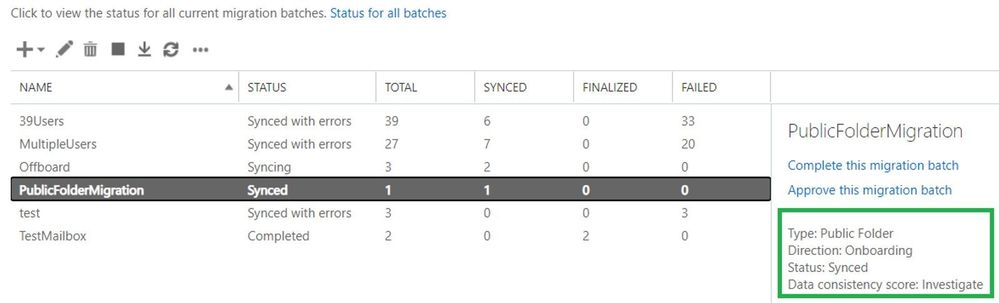
Here is a reference of the Migrations tab in the classic EAC using a public folder migration example:
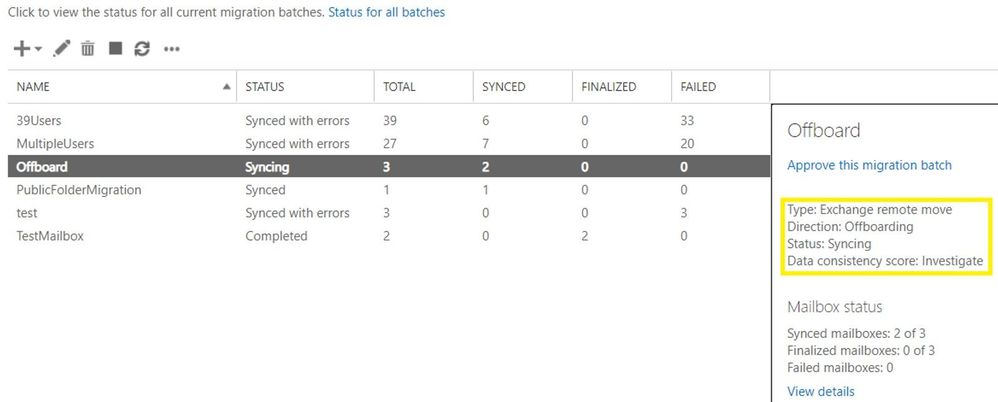
Mailbox offboarding example:
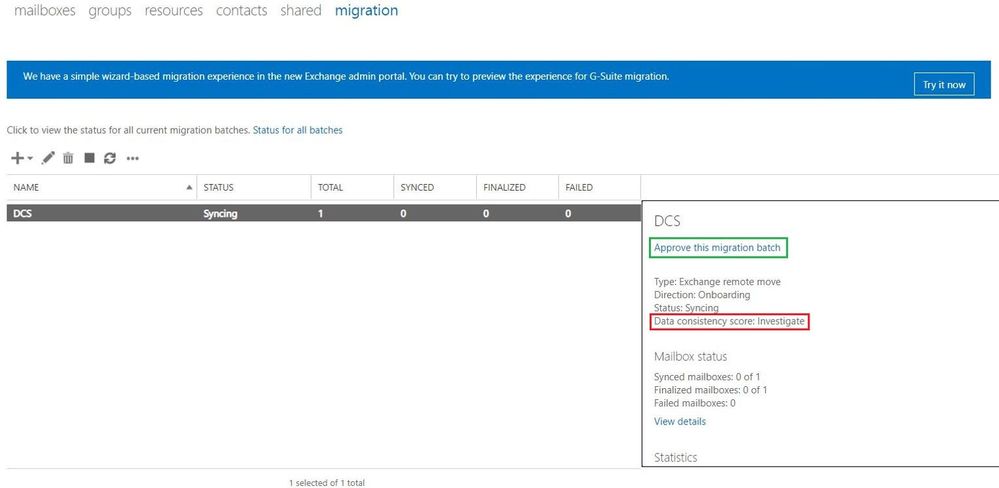
Mailbox onboarding example:
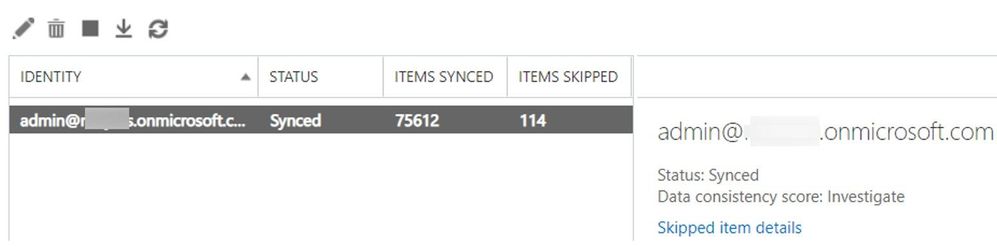
View details of the migration batch and skipped item details:
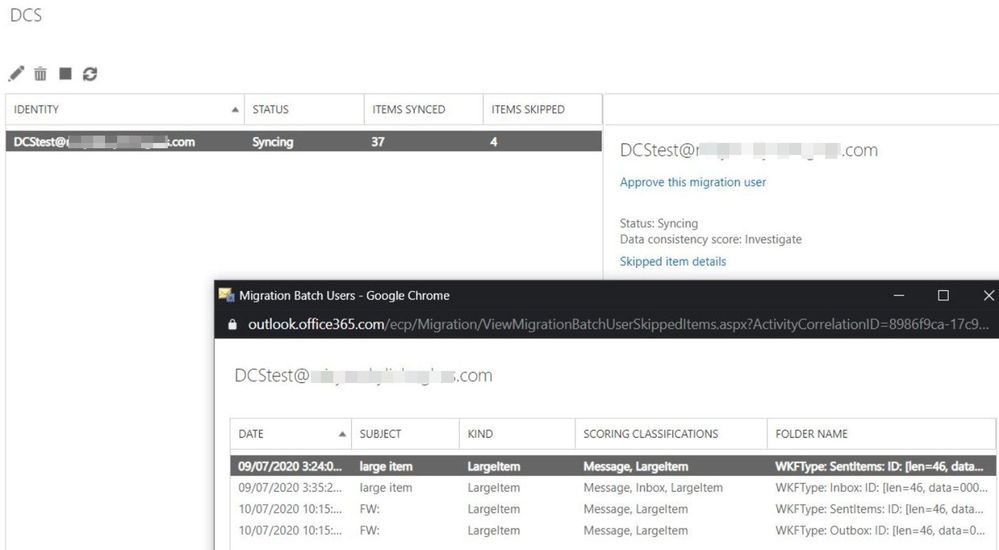
Let us comment a bit on the screenshots above for onboarding scenario:
- There is a migration batch called “DCS” with a type of “Exchange Remote Move” (hybrid migration) which has an Investigate score.
- The batch contains only 1 migration user (DCStest) with the Investigate score.
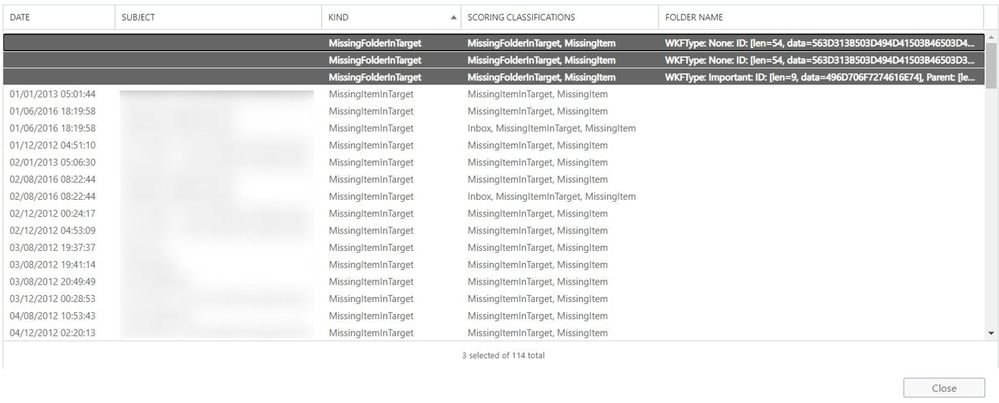
- In “Skipped Item details” view, we see 4 items that were skipped.
- The “Subject” column is very useful in identifying those large items that were skipped; in real life, you should be able to find items based on this.
- The column “Kind” indicates the type of the skipped item (bad / large / missing) and not the “kindness” or “niceness” level of the item (heh).
- The “Scoring classifications” indicates that these are IPM.Notes that are Large items type and the Large item that is found in Inbox is considered more significant than the ones in Sent items or Outbox (as seen in “Folder Name” column).
- Speaking of “Folder Name” column, in this example, all the folders where these large items reside (Inbox, Sent items, Outbox) are categorized as Well-Known Folders types (WKFType) because these are the default folders in a mailbox. However, if there was a large item in a user-created folder (e.g., a custom folder called “Training”), the folder name might not be as user friendly since in some cases a hexadecimal folder ID is displayed.
NOTE: In a situation where we have Missing Folders, the items that were inside of these folders are not counted individually against Items Skipped Column.
Example: in these 114 skipped items, the 3 missing folders are counted as 3 items.
PowerShell log collection and analysis
In this section we will show you how to retrieve the Skipped Items using PowerShell for your scenario (migration, PST import).
First, generate XML reports for the move request / sync request / mailbox import request / public folder mailbox move request or migration user statistics or a restore request to analyze. Note that you will need to connect to Exchange Online PowerShell and have the appropriate permissions to export these reports. If engaging with Microsoft Support, please provide these XML reports so that we can have a better understanding of your problem.
Migration user for Cutover/Staged/IMAP/Google Workplace (G Suite)/Public Folder/Hybrid migrations
Get-MigrationUserStatistics <user@contoso.com> -IncludeSkippedItems -IncludeReport -DiagnosticInfo verbose | Export-Clixml C:TempEXO_MigrationUserStatistics_User1.xml
Hybrid moves
Get-MoveRequestStatistics user@contoso.com -IncludeReport -DiagnosticInfo verbose | Export-Clixml C:TempEXO_MoveRequestStatistics_User1.xml
IMAP/Google Workplace (G Suite) migrations
Get-SyncRequest -Mailbox <user@contoso.com> | Get-SyncRequestStatistics -IncludeReport -DiagnosticInfo verbose | Export-Clixml C:TempEXO_SyncReqStats.xml
Public folder migrations
Get-PublicFolderMailboxMigrationRequest | where {$_.TargetMailbox -eq “<Mailbox1>”} | Get-PublicFolderMailboxMigrationRequestStatistics -IncludeReport -DiagnosticInfo verbose | Export-Clixml C:TempEXO_PFMailbox1.xml
PST imports using Office 365 import service
$i = Get-MailboxImportRequest -Mailbox <user@contoso.com> | Select Mailbox, RequestGuid, Status
$path = ‘C:temp’
$i | foreach { Get-MailboxImportRequestStatistics $_.RequestGuid -IncludeReport -DiagnosticInfo verbose | Export-Clixml “$pathEXO_Import_$($_.Mailbox)_$($_.RequestGuid).xml” }
Mailbox restores
Get-MailboxRestoreRequestStatistics <user@contoso.com> -IncludeReport -DiagnosticInfo verbose | Export-Clixml C:TempEXO_RestoreReq.xml
Checking the logs
Import the XML data into a variable. For example:
$ustats = Import-Clixml C:TempEXO_MigrationUserStatistics_User1.xml
$r = Import-Clixml C:TempEXO_MoveRequestStatistics_User1.xml
Whether we are looking at the migration user statistics or move request statistics, we can retrieve the logs to see if we have any large/bad/missing items encountered, if we have any limits set (BIL/LIL), information related to data consistency score, and the factors causing the low scores.
You can either use the XML files or you use Exchange Online PowerShell without exporting to XML. For example:
- Migration User Statistics: $ustats=Get-MigrationUserStatistics user@contoso.com -IncludeSkippedItems -IncludeReport -DiagnosticInfo “Verbose”
- Move Request Statistics: $r= Get-MoveRequestStatistics user@contoso.com -IncludeReport -DiagnosticInfo Verbose
For Migration User Statistics we will use the $ustats variable to extract the information and that will shed more light on our investigation.
To check the DCS value and why the score is Investigate, use this command:
$ustats| fl data*

The above output shows that the score is Investigate because of large item(s) found in the mailbox.
To check how many items are skipped, use this command:
$ustats | fl *item*
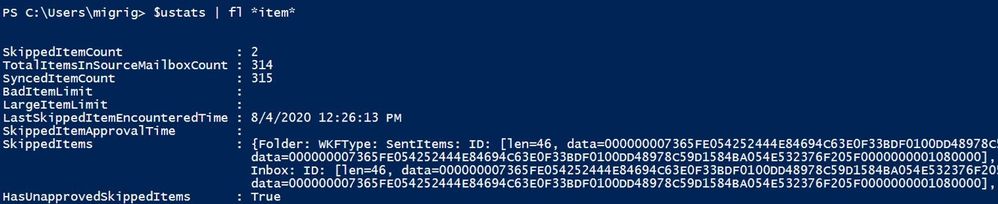
Based on the screenshots above, we can see that:
- We have no large/bad items limits set (we are using DCS).
- We have 2 skipped items.
- We did not approve the skipped items yet.
- We have a preview of skipped items.
- We have a score of Investigate due to large items encountered.
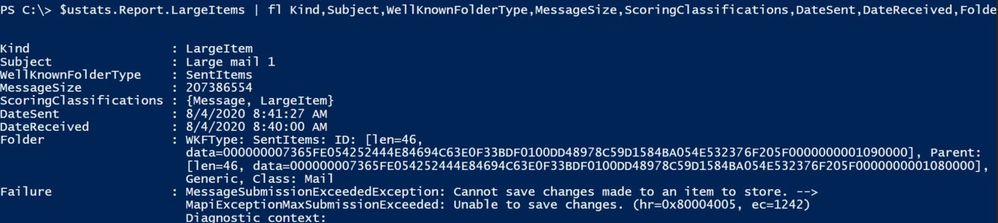
To investigate further, run the following command:
$ustats.Report.LargeItems | fl Kind,Folder,Subject,MessageSize,ScoringClassifications,DateSent,DateReceived,Failure
For bad items, run a similar command:
$ustats.Report.BadItems | FT foldername,subject,failure
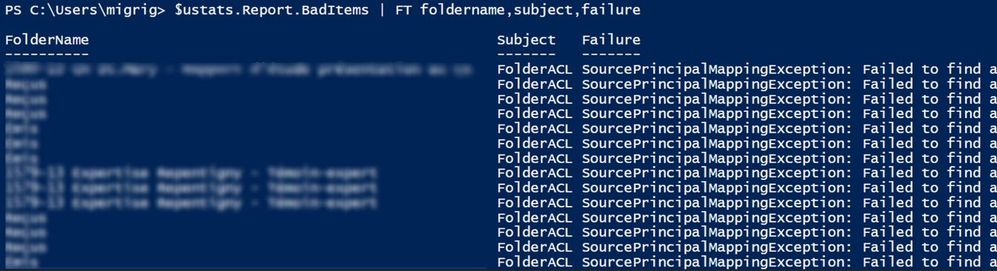
We can see all the bad items grouped by their type, using this command:
$ustats.report.BadItems | group kind

As you can see, every large/bad item has a failure associated with it.
To get more information on a specific bad/large item failure, use the following command (where 0 is the index of item):
$ustats.Report.LargeItems[0].Failure

Or you can check the failures report:
$ustats.Report.Failures[0]
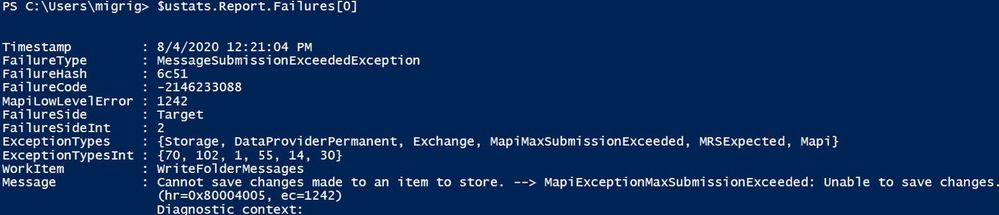
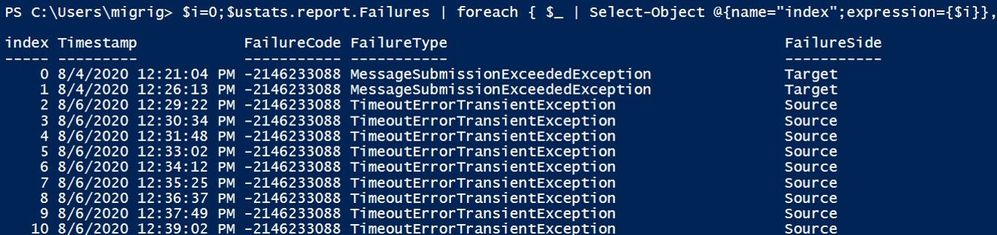
The following command should index all the failures so you can easily check the details of a specific failure:
$i=0;
$ustats.report.Failures | foreach { $_ | Select-Object @{name=”index”;expression={$i}},timestamp,failurecode,failuretype,failureside;$i++} | ft
To see all failures grouped by their type, use this command:
$ustats.Report.Failures | group FailureType | ft -AutoSize

The same information about large/bad items that were skipped can be seen in skipped items:
$ustats.SkippedItems | group Kind

To get a quick overview of the skipped items, run this command:
$ustats.SkippedItems |ft Kind,Subject,MessageSize,ScoringClassifications,DateSent,DateReceived,FolderName,Failure -AutoSize

We can see some of the information from command $ustats | fl *item*, data* also in SubscriptionSnapShot in DiagnosticInfo :
$ustats.DiagnosticInfo
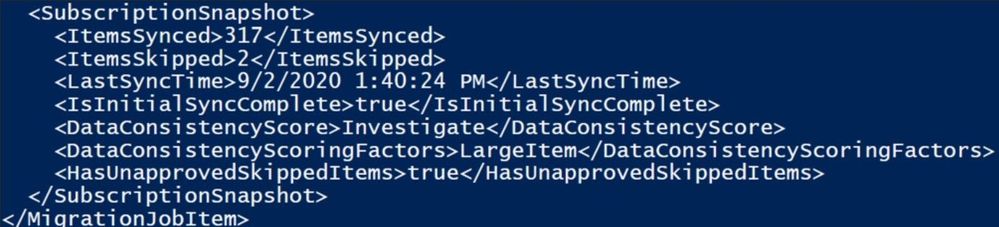
Now that we have checked the Migration User Statistics, let’s see what we have for our Move Request Statistics. Please keep in mind that most of the commands used above can be also used for the $r variable as well.
$r=Get-MoveRequestStatistics dcs@contoso.com -IncludeReport -DiagnosticInfo “verbose”
Check what failures are present for the migration; for this demo, we took as an example the move request statistics XML file. This command should provide a list with all errors and the count (number of bad/large items that have an associated failure).
$r.Report.Failures | group FailureType

To check the entire message for a failure, take them one by one. Normally, the last encountered error is a PermanentException:
Index Failures:
$i=0;
$r.report.Failures | foreach { $_ | Select-Object @{name=”index”;expression={$i}},timestamp,failurecode,failuretype,failureside;$i++} | ft
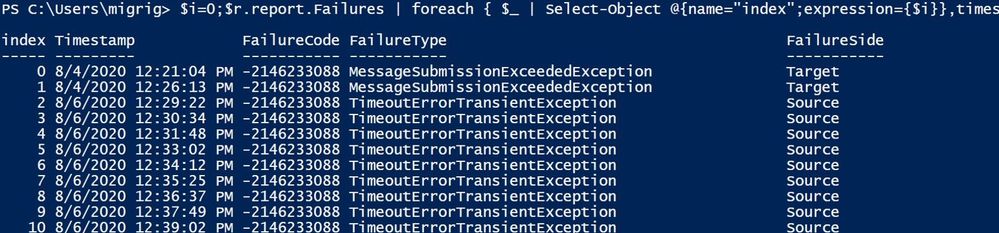
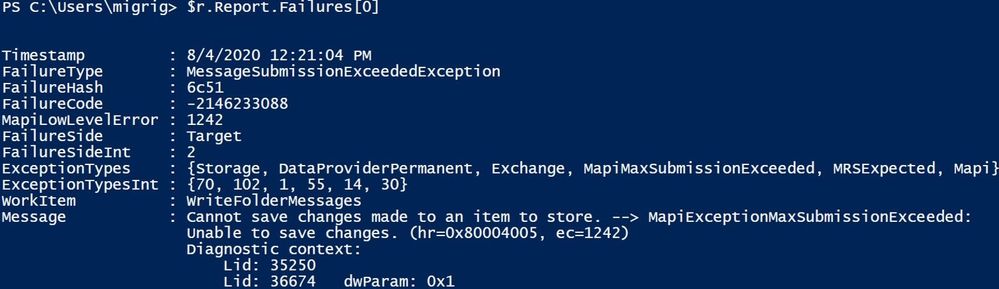
Get more details about one of the failures using the index number:
$r.Report.Failures[0]
Let’s take another example of DiagnosticInfo in which we will do a breakdown of all parameters:

Optionally, you can copy paste this section of <SkippedItemCounts> </SkippedItemCounts> to an XML file editor to see it more clearly:

In the report above, we have 15697 Corrupt items and 11 Large Items.
The Corrupt Items are the following: 4 calendar, 11 large items / user created (probably a custom form), 7 messages, 15695 bad folder permissions, 2 folder rules.
Focusing on majority of skipped items (FolderACL) most of them (12642) are Source Principal Mapping errors and the rest (3055) are Target Principal Mapping errors.
In short, the Source Principal Mapping Exception means that the user with permissions over the user mailbox which is being migrated is not found on the source side (on-premises Exchange / AD in an onboarding scenario). The user(s) with permissions that were tied to some SIDs are not found in AD and their related SIDs are orphaned SIDs since we cannot map them to the associated users that had permission over the mailbox being migrated. You can check / clean these permissions on-premises, but this is not normally impacting migration as they are skipped anyway (we assume that permissions are not needed since those users cannot be found).
The Target Principal Mapping Exception means the user with permissions over the user mailbox that is being migrated is not found on the Target (Office 365 in the case of onboarding). This can be the case if the user is not synced from on-premises to Office 365.
These permission failures (Source/Target Principal Mapping Exceptions) will typically not cause a score of Investigate. We will get migration failed when reaching 100,000 corrupt ACLs.
More details on Source and Target Principal error can be found here.
When it comes to the Missing items we can use $stats.MissingItemsEncountered or we can check the MailboxVerification report by using this pretty long command:
$ver = $r.report.MailboxVerification
$ver | ? {$_.FolderTargetPath-match $folderName} | select @{Name=”MissingItemInTargetCount”; Expression={$_.MissingItemsInTargetBucket.BucketCountAndSize.Count}} , @{Name=”ItemCountBeforeMove”; Expression={$_.Source.Count}}, @{Name=”ItemCountAfterMove”; Expression={$_.Target.Count}},WKFType, FolderTargetPath | ?{$_.ItemCountBeforeMove -gt 0 -or $_.ItemCountAfterMove -gt 0} | ft –a

To take a peek at some samples that were found to be missing in the target, use the command in PowerShell or Exchange admin center (Items Skipped):
$r.Report.MailboxVerification.MissingItemsInTargetBucket.DivergentItemsSamples | ft Kind, Subject, WellKnownFolderType, DateReceived
If you’ve analyzed these reports but still require assistance from Microsoft Support, please open a support case and send us the relevant logs for your scenario.
Poor score can happen
Note that this example is a manufactured one, created intentionally for the purpose of this blog post. In real life, if you get a Poor score for DCS, please raise a support case with Microsoft. We don’t allow completing the migration with a Poor score; when you try to approve / complete, you will see a warning similar to the one shown below and will need to contact Support.
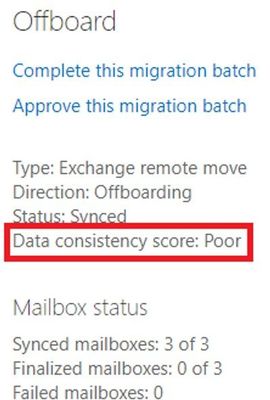
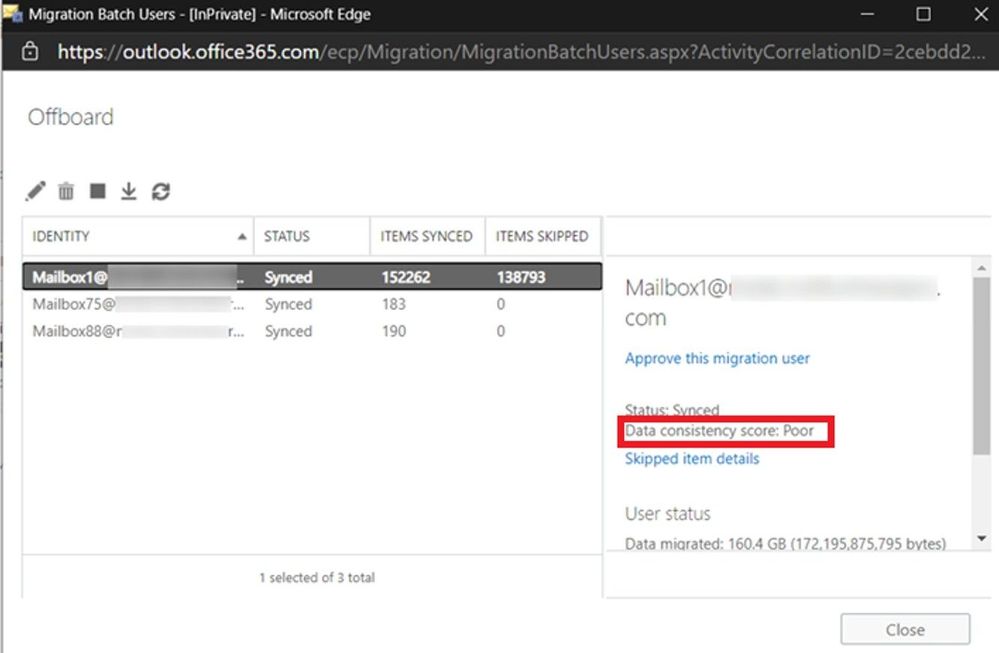
Here we have a migration batch with “Poor” score: 1 Migration User (Mailbox1) has Poor Score, the other two users have Perfect Score. Batch score is Poor, based on the lowest score:
A quick view of the DCS on the Move Request Statistics for Mailbox1:

If you try to approve / complete this batch, you will get the warning because of Mailbox1 Poor’s DCS score:
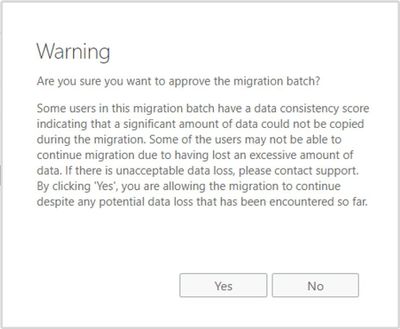
If you click on Yes, you will see the following:
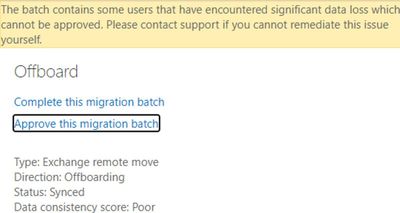
In the end, the Batch is “Completed with errors” and you need to contact support for the Migration User where the DCS is Poor if you want to complete that migration.
Approving skipped items
Now that you are aware of the items skipped and why we have the Investigate score and considering you can go ahead and complete the migration, you would need to Approve these skipped items.
Let’s say that you are doing a hybrid migration using migration batches and you have received a score of Investigate; you would run the following commands in PowerShell to approve the finalization of the mailbox migration or approve them through the classic Exchange admin center (easier way):
Set-MigrationBatch -ApproveSkippedItems or Set-MigrationUser -ApproveSkippedItems
If you are using MoveRequests directly, without using Migration Batches (applicable to hybrid moves), then run:
Set-MoveRequest -SkippedItemApprovalTime $([DateTime]::UtcNow)
If you are using hybrid remote moves with migration batches, we don’t recommend making changes on the individual moves as you will have inconsistency between batch / migration user and the move request status and you might also encounter an error related to SkippedItemApprovalTime being in the future (ApprovalTimeInFutureException) – depending on the regional settings on the admin who created the batch. If you still want to approve skipped items at the move request level and not batch / migration user level and you get the time error, you can try using this command (setting 5 minutes in the past or more):
Set-MoveRequest -SkippedItemApprovalTime $([DateTime]::UtcNow.AddMinutes(-5))
Note: For hybrid migrations, public folder migration, Google Workspace (G-Suite), approval is required.
How to see if we approved?
There might be situations when admin approved the skipped items but there are still Skipped items pending approval.
In DiagnosticInfo of the MRS request statistics (for example GetMoveRequestStatistics for hybrid and Get-SyncRequestStatistics for IMAP), you will see <timestamps> under <TimeTracker> for the request. In the example below we can see that the admin approved skipped items two times, first on October 25th but as we last encountered a skipped item 2 days later, the admin would need to approve again, and this was done on November 2nd.
<Timestamp Type=”SkippedItemApprovalTime” Time=”2020-11-02T10:34:12.0507654Z” />
<Timestamp Type=”LastSkippedItemEncounteredTime” Time=”2020-10-27T17:09:42+00:00″ />
<Timestamp Type=”SkippedItemApprovalTime” Time=”2020-10-25T07:37:25.4262119Z”></Timestamp>
<Timestamp Type=”LastSkippedItemEncounteredTime” Time=”2020-10-27T17:09:42+00:00″></Timestamp>
A note about mailbox restores and DCS
Mailbox restores often fail during mailbox verification because the target mailbox is a “live” mailbox. When other clients move items as they are being restored, it prevents MRS from being able to find these items during mailbox verification. Previously, restores would have failed with TooManyMissingItemsPermanentException or TooManyBadItemsPermanentException. Now they fail with DataConsistencyPermanentException instead. Restores do not stop their progress when these errors are hit – they are only flagged at the very end of the restore. This means that all of the content has already been restored by the time you see this message. This is really informational that items were moved during the restore. It does not require any action on behalf of the admin. You can see which folders were missing the items by getting the restore report and looking at the MailboxVerification section.
$stats = Get-MailboxRestoreRequestStatistics -Identity <id> -IncludeReport
This command will show you which folders didn’t have the same count between source and destination (thus, MRS counted them as missing).
$stats.Report.MailboxVerification | where { $_.Source.Count -ne $_.Target.Count }
I would like to thank you for reading this article and many thanks to the contributors to this blog post: Mirela Buruiana, Sruthi Sreeram, William Rall, Angus Leeming, Nino Bilic, Brad Hughes, Zacharie Zambalas.
Mihai Grigoruta

by Contributed | May 27, 2021 | Technology
This article is contributed. See the original author and article here.
(part 4 of my series of articles on security principles in Microsoft SQL Servers & Databases)
Security principle: Separation of Privilege
The Principle of Separation of Privilege, aka Privilege separation demands that a given single control component is not sufficient to complete a task. A different, more generic description is that multiple conditions need to be met in order to gain access to a given process or object. A control could be a permission, for example.
Privilege separation is sometimes (but not necessarily) implemented with a form of dual control and requires a certain level of compartmentalization of a process or program to facilitate multiple access checks.
This approach together with the Principle of Least Privilege reduces
- Folks with an affinity for history may like to use “Divide and conquer” or even more original, “divide et impera” as a memory hook :) .
Incidentally, OpenSSH has a security option called UsePrivilegeSeparation (https://linux.die.net/man/5/sshd_config), turned on by default, that has the effect that an unprivileged child process without root privileges to deal with incoming network traffic. However, this is more a case of classical PoLP and Privilege bracketing, as discussed here (The Principle of Least Privilege (POLP)) and here (Delegation of Authority). As you can see its easy to get confused when doing research. And I am not saying that is wrong. What matters is that you know what you want to reach and why.
More classical examples would be scenarios where 2 keys are required like certain types of safes. They may or may not be held by different people.
Privilege Separation with 2 keys
If we look at the authentication process, Azure AD Multifactor authentication (MFA) could be considered an example of multiple controls involved: Even if an attacker gains knowledge of the password, he would still need to gain access to an additional piece, like the (unlocked) phone.
Note on Separation of Privilege vs Separation of Duties
As some will notice, there is a great overlap with Separation of Duties (SoD): Depending on the exact implementation, Privilege Separation can directly enable SoD.
For example, the same way “Dual control”-mechanisms can be used to implement Privilege Separation, such a mechanism can also be used to implement SoD.
Depending on which sources you consult (I will even include such in the references below), you may read that Separation of Privileges is equivalent to SoD. But I find it important to distinguish and keep in mind the fine line between those two principles. And that is that Separation of Duties requires separate persona.
This is why in my view dual control does not necessarily solve Separation of Duties. Dual control could be solved involving but not necessarily SoD.
: Therefore, if you want to express the SoD-requirement to involve different persona, using the terms “Two-person control” or “4 eyes principle” is less prone to confusion than the more generic term “dual control”.
Separation of Privilege in the SQL realm
In SQL Server, privilege separation is not commonly built-in by design, but there are some examples that perfectly fit the criteria.
Example 1, Object-creation
One example is that to create tables, a User needs to have at least both the ALTER-Permission on the schema and the CREATE TABLE-Permission on the database. Other than that, this is a rare case within the SQL engine.
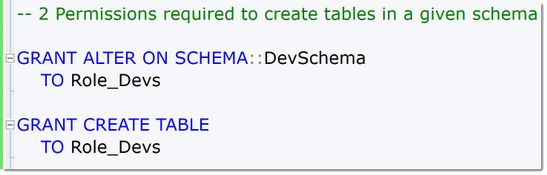 2PermissionsToCreateObjects
Example 2, querying across objects
There is another way one can implement privilege separation in SQL Server and Azure SQL: normally, when multiple objects are accessed within one query, the SQL Server engine honors the so-called “ownership-chain”. This is a concept unique to SQL Server and has the effect that so long as any referenced object within a query is owned by the same principal as the first one in the chain, no further permission checks occur. This means a single SELECT (or INSERT-, UPDATE-, DELETE) -permission is required to access, for example, a View “AggregatedSales” if that view accesses a table “Orders” and the view and the table have the same owner. It is not required to grant SELECT on the table if the intention is to solely grant access to the accumulated data from the view. This is a built-in behavior.
However, one can intentionally break this ownership-chain and change the owner of the table or the view (for example, by placing them into different schemas and with different schema-owners, a recommended practice over changing owners at object-level), which then would require the calling user to have the SELECT-permissions on both the view and the table to use the view. In other words, the user would need two permissions. So, there you have another scenario of technically privilege separation, as one permission is not sufficient alone any more to access the view. But to be fair, this applies only to accessing the view: to query the table alone, one still only requires one SELECT-permission.
This is how this looks like in code:
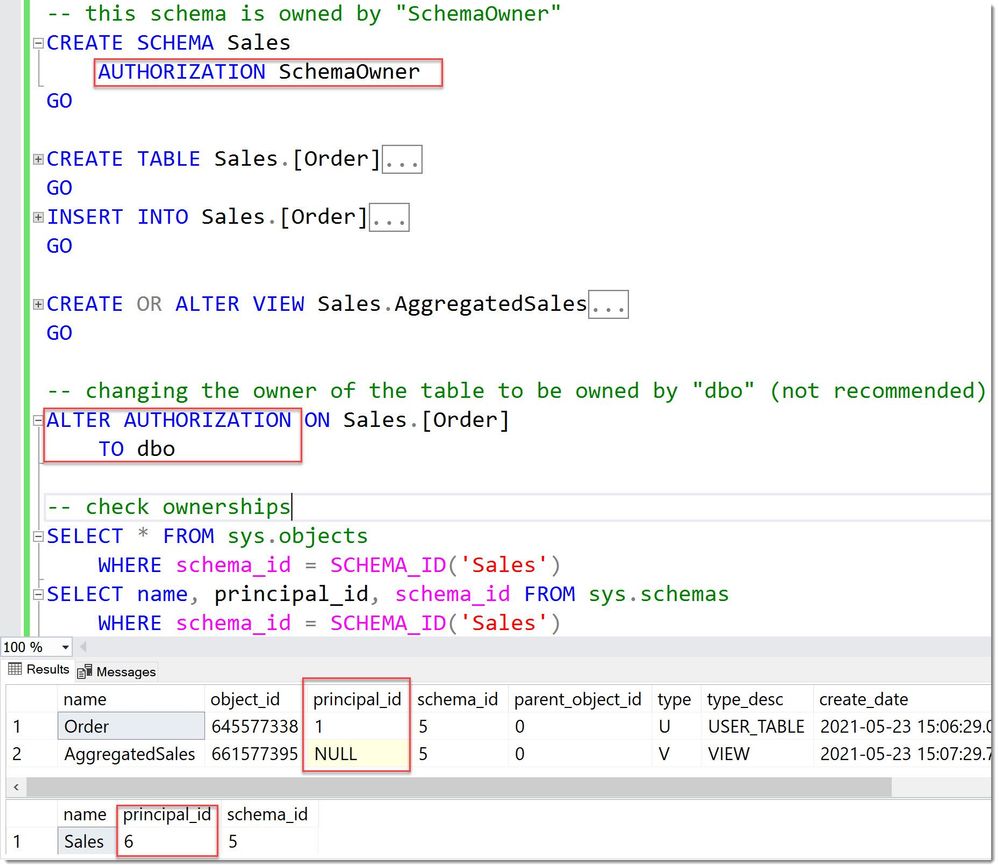 BrokenOwnershipChain
We can see that the table is owned by a “dbo” (principal_id =1 ) whereas the view is still owned by the overall Schema owner “SchemaOwner”.
Hence the SELECT-permission on the view alone is not sufficient for User Jiao to query it, as is accesses the table.
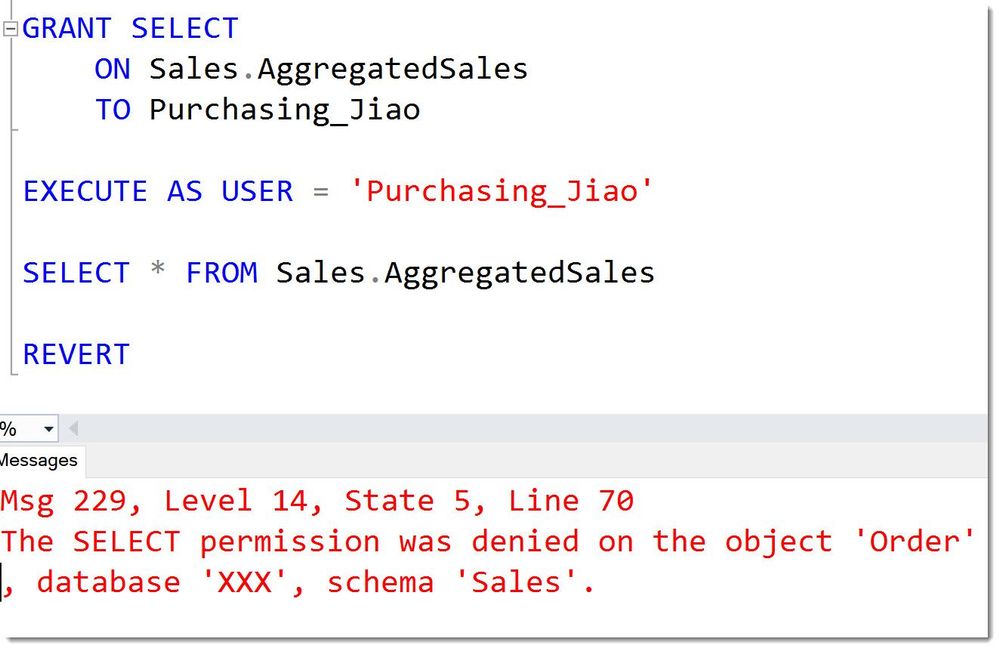 BrokenOwnershipChainMissingPermission
After granting the SELECT on the table as well, the User can use the View:
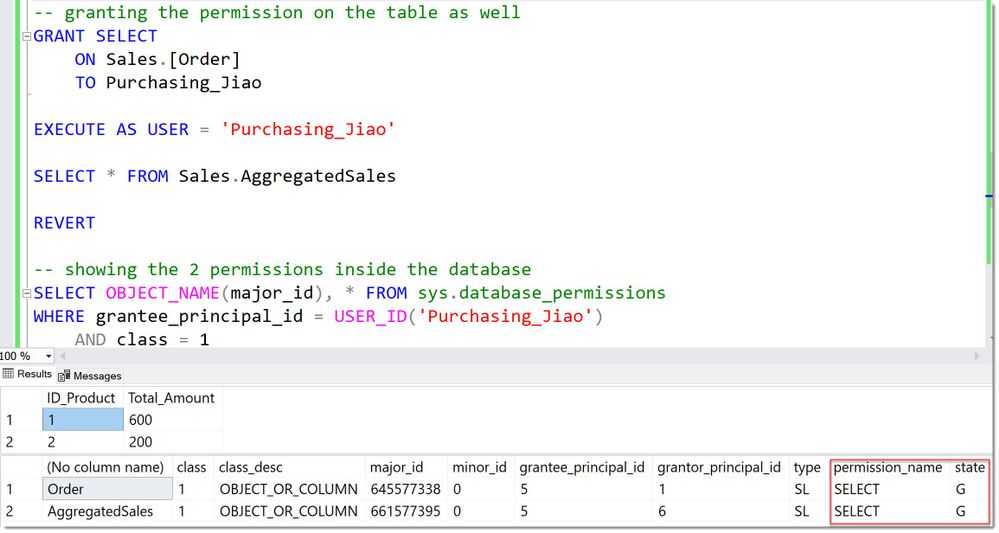 BrokenOwnershipChainPermissionsComplete
In many if not most cases, it makes sense to have ownership-chains set up. But there are cases where you will want to explicitly break them. In general, it is advisable to always make conscious decisions around this and use a different owner than the built-in dbo.
Ownership-chaining by itself is a topic that surely deserves its own articles, but this is where it connects with Separation of Privilege.
Divide and be more secure :)
Andreas
Thank you to my Reviewers:
Rohit Nayak, Senior Program Manager in SQL Security
Raul Garcia, Principal Security Program Manager
Resources



 ) or https:// means you’ve safely connected to the .gov website. Share sensitive information only on official, secure websites.

Recent Comments