This article is contributed. See the original author and article here.
This article was written by Elizabeth Kiernan, former Microsoft Ignite 2018/2019 Humans of IT student ambassador and current Student Advisor mentoring incoming cohorts of new student ambassadors. She shares about the impact of her Humans of IT experience during her speech class.
Elizabeth Kiernan at Microsoft Ignite 2019
Each person experiences the same thing in a different way. For me, I usually don’t realize how much an experience has impacted me until much later.
In 2018 and 2019, I participated in Microsoft Ignite as a Diversity & Tech Student Ambassador (as it was known back then), and now, a Humans of IT Student Ambassador. Both years were a lot of fun with many opportunities to learn new things, connect with other like-minded people, and be presented with opportunities that come with being at a large conference. In September 2018, I even got the opportunity to be interviewed during a livestream and was featured on a podcast – both for the very first time! Many of the sessions I went to I found to be valuable and insightful; however, my initial reflections were still pretty surface-level then. I could identify why the topics being talked about were important and how others related to them, but there were very few that I could personally relate to. When it was still known as the Diversity and Tech track at the time, I recall how there were many speakers, especially women, who were amazingly authentic and vulnerable when recounting experiences in their career where they were mistreated, talked down to, or harassed, and how it impacted them. Back then, I was only halfway through college. I hadn’t experienced anything like that firsthand (yet!) – it was an eye-opener indeed.
Elizabeth being on a community livestream interview with MVP Toni Solarin-Sodara at Microsoft Ignite
Fast forward several months to spring semester of this year when I took a public speaking course. I enjoyed the class and did much better in it than I thought I would. Our third speech was supposed to be something commemorative – one that celebrates or pays tribute to the subject. I wanted to choose something unique that I felt people could benefit from hearing about.
So I chose to talk about the Microsoft Humans of IT Community. It was pretty simple for me to start my speech outline and introduce the topic. I knew who created it, why it was created, and what the community does. But I still had an important question to answer about why I chose this topic and why it was personally important to me. So I thought, “How has the Humans of IT Community and being at Microsoft Ignite impacted me?” That’s an easy question to answer… or was it?
As it turns out, it wasn’t all that easy, because I realized that I had never actually thought about this in depth before, nor put words on a paper (or fingers to a keyboard, in my case). Until now.
This fall is my last full semester of college before I graduate with my Bachelor’s degree, so when I tried to answer that question to help write my speech, I had a lot to reflect on. My mind went to an experience I had towards the end of 2018 which escalated shortly after Microsoft Ignite ended. During that period I was not having the best time academically, but not in terms of grades. That fall semester I was in a course working on a term-long software project with a group. The group comprised three guys and me. I was excited about the project when the class first started. I took the class online because other time slots didn’t fit with my schedule. We met over Skype and had to submit screen-recorded meetings, one being the final presentation. Our project was a website, and despite them being fully aware of my front-end programming knowledge, to my dismay I discovered that my male project-mates had subtly pushed me out of programming and technical roles, and discounted my experience entirely.
It was a bunch of small stuff that added up. I was supposed to work on the front-end with another member, but while I waited for responses on planning, he had already completed a good chunk of code. My suggestion to use GitHub for source control was not taken, so it was difficult to add to code and understand what was going on. During one meeting we were discussing the database for the website. A team member singled me out specifically and (condescendingly, no less) said, “Elizabeth, if you don’t know how to install MySQL, I can send you a link.” But I already had MySQL installed. I knew how to use MySQL. I even got an “A” on a project using MySQL! He kept on talking and I didn’t say anything. Why didn’t I speak up and SAY something?
My main role for the project ended up being me doing all of the backend research and writing all of the content for the website. During our final presentation recording, I discovered that a team member had added another page to the site as a surprise – an “About Us” page that had an avatar and role description for everyone on the team. Everyone except me. I didn’t say anything, again. I felt like the cartoon dog in that famous meme sitting in a room on fire saying “this is fine”. It felt almost shameful to not say something when I should have.
This is Fine meme – image credit: KC Green (http://gunshowcomic.com/648)
I had talked to a few people (my mom, friends, mentors) about the project throughout the semester, but I tried convince myself to let it slide. I don’t like confrontation and didn’t really want to make a big deal out of it. I didn’t want to accuse anyone of doing anything. I didn’t want it to seem like I was incapable of working with others. But towards the end of the semester I finally acknowledged that it wasn’t okay, and that I needed to speak up. I talked to my professor and he was very understanding and felt terrible that it had happened. I think it also helped that I had done well in previous classes of his, so he knew what I am capable of. But what made all the difference was that he didn’t just feel bad – he actively sought feedback and asked how the class could be improved. The next semester I got an email from him saying that he implemented several new policies for that class, which included reflections for every virtual meeting to ensure everyone had the opportunity to participate equally, and an understanding to bring attention to what students felt was unfair treatment.
I told a close friend about what happened during the final presentation meeting, and before I finished telling the story she could already predict that they didn’t add me to the “About Us” page. We laughed about it because, in a weird way, it was a little funny because of how ridiculous it seemed. Even though I made the decision to talk about it, that situation still affected me more than I realized at that time. In fact, because of that experience I almost convinced myself I shouldn’t be a software developer. Thankfully, I did not give up. So many people have talked about bad experiences in the field, but experiencing it yourself is different. It can start to make it seem like it’s not worth it even if it’s something you’re passionate about. In my mind, I thought that if situations like that are things I may have to face frequently, is it even worth it? The following semester I registered for only Gen Ed classes I still needed to take because I wasn’t positive on what I wanted to do.
Throughout the next several weeks after that I was constantly reminded of my Humans of IT experience (which was still Diversity & Tech at the time). I was reminded on Twitter that you could watch all the recorded sessions on demand online. A video was released highlighting the community at Microsoft Ignite. A BizBash article was published listing Microsoft Ignite as one of the “Most Innovation Meetings in 2018”, specially illustrating why the Diversity and Tech track at Microsoft Ignite was so successful. I was reminded of so many people who experienced similar things and shared their stories, people who allowed themselves to be left out in the past, but didn’t give up and learnt to speak up. I remembered that I was not alone; that I was part of a community.
I was reminded of all the human-centric talks and sessions I knew were important, but couldn’t relate to back then. Now I do.
Over those weeks, I made up my mind to persevere in achieving my dream of becoming a software developer. I’m glad I did, because my story will help encourage other young women technologists like me to press on and not be disheartened by those who try to make us feel like we don’t belong in tech. We will pave the way for others to realize that they, too, are amazing humans who have earned their seat at the table, and have valuable skills to offer.
I wrote that story into the outline of my speech and was excited to commemorate the community and tell my full circle story for the first time. Unfortunately, like most other schools in the country, my college campus had to close due to COVID-19, so I didn’t get to give my speech in person. Instead, I had to record a video of me speaking and submit it for my assignment. Only my professor heard my speech. Nonetheless, just speaking it out loud felt good – cathartic, even.
Now all of you out here in the community have read my story as well. I hope this inspires you or someone you know who might be going through the same thing.
To finish my degree I need to complete a capstone course that is another semester-long group project, but I’m somehow no longer dreading it. Thanks to lessons I’ve learnt from the Humans of IT Community, I’m now much more confident in my technical abilities and my power to speak up – both for myself and others.
Back in March 2020, I told @ShonaBang (who founded the Humans of IT Community) about my commemorative speech idea and she suggested that I write a blog post to document my experience. I had no idea how I would go about writing about a speech, and was also initially a little reluctant to share a story about how I felt mistreated. However, I realized that sometimes the story isn’t about how people mistreated you, but instead reframing that into a battle story about how you grew, what you will not put up with again, and how your story can help someone else.
I think that’s what community is all about: Taking your experiences to empower yourself and helping others do the same. Now go tell your story and help someone do the same.
This article is contributed. See the original author and article here.
If you haven’t been following along as we explore a Maya pyramid in the middle of the uncharted jungle, it’s not too late! Join us as weexplorethe pyramid.
The following content contains spoilers about gameplay!
In part 1 of the Azure Maya Mystery, we discovered the meaning of many glyphs to gain access to the pyramid. Amongst others, we learned symbols with familiar imagery: ‘jaguar’, ‘macaw’, and ‘snake’
as well as more esoteric glyphs: ‘earth’, ‘wind’, and ‘tree’
Art by Dana Moot II
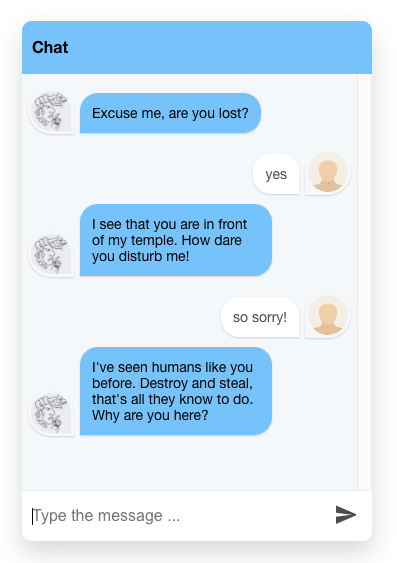
Winding our way around the pyramid’s base and finally up its steps, we used our new knowledge to gain entrance. We also learned the meaning of one of the parts of the temple’s name by launching a chat app on anAzure Static Web Appto talk to the goddess to whom the pyramid is dedicated.
But when the floor suddenly gives way underfoot, the intrepid explorer has to wait until Part 2 of the Maya Mystery to learn more!
That time is now.
In this part of the Mystery, you will continue your exploration of the deepest part of the pyramid, an underground cenote, a natural sinkhole that the ancient Maya sometimes used for sacrificial offerings. Your job? dive in and gather broken glyphs that careless prior explorers have tossed in to the cenote, restoring them to their former place. In the process, you will learn more glyph meanings and the second part of the pyramid’s name.
While exploring, you will also launch a shopping experience to acquire the gear you need to successfully complete your mission. Learn more about the Node.js code you need to launch by visiting anew Microsoft Learnlearning path all about the topic!
Are you prepared to continue your exploration? Haven’t joined us yet? It’s not too late! CompleteLevel 1, or skip right toLevel 2.
This article is contributed. See the original author and article here.
The Azure Data team at Microsoft recently launched FOUR new ways for you to learn Azure SQL. They’ll show you how to translate your existing SQL Server expertise to Azure SQL including Azure SQL Database and Azure SQL Managed Instance through all-new content on YouTube, GitHub, and Microsoft Learn. After completing the video series, learning path, or workshop, you will have a foundational knowledge of what to use when, as well as how to configure, secure, monitor, and troubleshoot Azure SQL. In this episode, Bob Ward, Anna Hoffman, and Marisa Brasile share the details of their all-new content and how to get started.
This article is contributed. See the original author and article here.
Howdy folks,
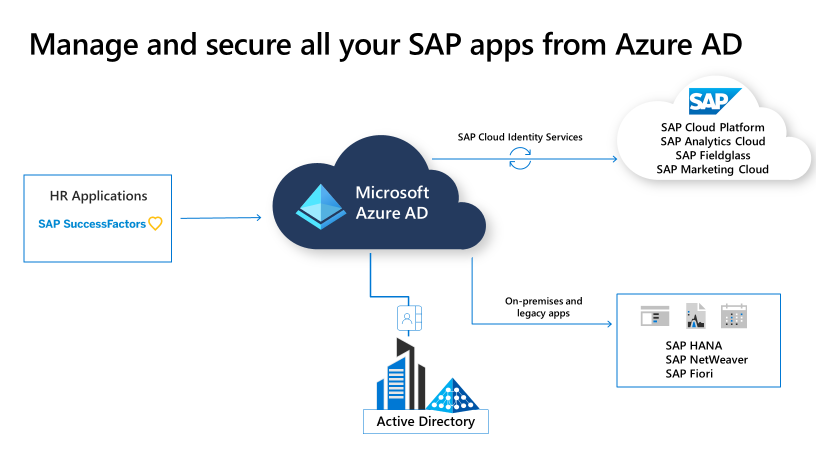
Today, we’re announcing the general availability of user provisioning from SAP SuccessFactors to Azure AD. In addition, SAP and Microsoft have been working closely together to enhance existing integrations between Azure AD and SAP Cloud Identity Services of the SAP Cloud Platform, making it easier to manage and secure your SAP applications.
User provisioning from SAP SuccessFactors to Azure AD is now generally available
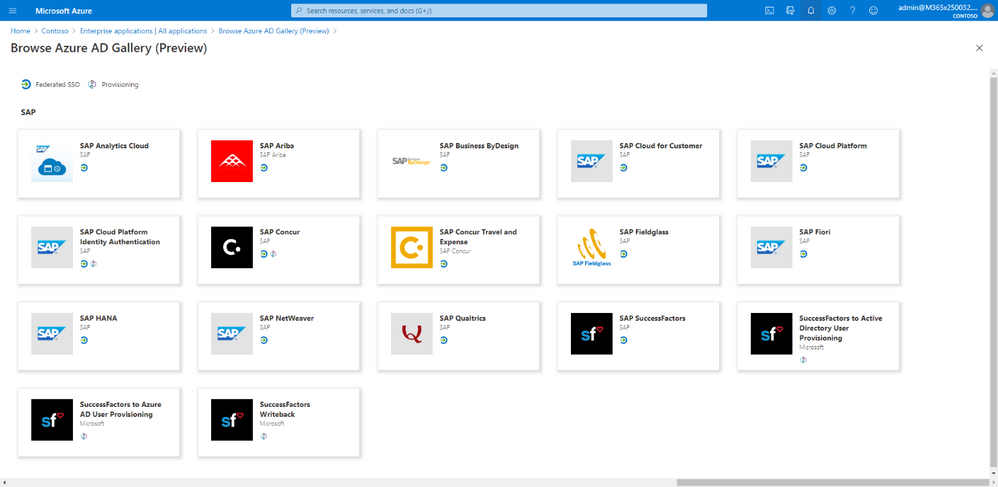
With the integration between Azure AD and SAP SuccessFactors, you can now automate user access to applications and resources so that a new hire can be up and running with full access to the necessary applications on day one. The integration also helps you reduce dependencies on IT helpdesk for on-boarding and off-boarding tasks.
Thanks to your feedback on our public preview, we’ve added these new capabilities:
With enhanced attribute support, you can now include any SAP SuccessFactors Employee Central attributes associated with Person, Employment and Foundation objects in your provisioning rules and attribute mapping.
Using flexible mapping rules, you can now handle different HR scenarios such as worker conversion, rehire, concurrent assignment, and global assignment.
In addition to email, we now support writeback of phone numbers, username, and login method from Azure AD to SAP SuccessFactors.
We’d like to say a special thank you to SAP SuccessFactors team who helped us enhance the integration. Here’s what they had to say:
“Enabling end-to-end user lifecycle management is critical. The Azure AD and SAP SuccessFactors integration will help streamline HR and IT processes to help our joint customers save time, improve security, and enable employee productivity.“ – Lara Albert, VP, Solution Marketing, SAP SuccessFactors
We’d like to also thank our preview customers and partners who provided great feedback on different aspects of this integration! Here’s what one of our system integrator partners, Olikka, had to say:
“Inbound provisioning from SAP SuccessFactors to Azure AD and on-premises Active Directory has helped us reduce the time customers need to spend on-boarding/off-boarding and adjusting access through the employee lifecycle. The integration that Microsoft has delivered means that we can avoid building complex custom connectors and managing on-premises infrastructure. This enables Olikka to get the customer up and running quickly while leveraging their existing Azure AD subscription.” – Chris Friday, Senior Project Consultant, Olikka
Using Azure AD to manage and secure your SAP applications
Our new provisioning integration between Azure AD and SAP Cloud Identity Services allows you to spend less time creating or managing accounts for individual SAP applications. With this integration, you can now use Azure AD to automatically provision user accounts for SAP Analytics Cloud. In the coming months, we will expand this support to additional SAP applications like SAP S/4HANA, SAP Fieldglass, and SAP Marketing Cloud.
We’re also enabling One-click SSO to simplify the configuration and setup of single sign-on with SAP Cloud Identity Services. One-click SSO allows you to quickly setup single sign-on between Azure AD and SAP Cloud Platform without needing to copy and paste values from different admin portals.
Learn more
User provisioning from SAP SuccessFactors to Azure AD requires an Azure AD P1 license, all other features referenced in this blog are available across all licensing tiers. To get started with these integrations, read our SAP identity integration documentation.
SAP Cloud Platform is also available on Azure regions around the globe to complement your SAP S/4HANA on Azure implementations, providing low latency and ease of integration. Learn more about SAP solutions on Azure at www.microsoft.com/sap and explore our SAP on Azure use cases to get started.
Together, our integrations with SAP allow you to manage and protect access to all your critical SAP landscape. As always, we’d love to hear any feedback or suggestions you may have. Please let us know what you think in the comments below or on the Azure AD feedback forum.
This article is contributed. See the original author and article here.
Since April 2020 Visual Studio Codespaces has been generally available. In addition to that, GitHub Codespaces has been provided as a private preview. Both are very similar to each other in terms of their usage. There are differences between both, though, discussed from this post. Throughout this post, I’m going to focus on the .NET Core application development.
Visual Studio Codespaces (VS CS) is an online IDE service running on a VM somewhere in Azure. Like Azure DevOps build agents, this VM is provisioned when a VS CS begins and destroyed after the VS CS is closed. With no other configuration, it is provisioned with default values. However, it’s not enough for .NET Core application development. Therefore, we might have to add some configurations.
What if, there is a pre-configured .NET Core development environment ready? It can be sorted out in two different ways. One is configuring the dev environment for each project or repository, and the other is personalising the dev environment. The former approach would be better to secure a common ground for the entire project, while each individual in the team can personalise their own environment using the latter approach. This post focuses on the former one.
Configuring Development Environment
As a Docker container takes care of the dev environment, we should define the Dockerfile. As there’s already a pre-configured one, we simply use it. But let’s build our opinionated one! There are roughly two parts – Docker container and extensions.
First of all, we need to create the .devcontainer directory within the repository. This directory contains Dockerfile, a bash script that the Docker container executes, and devcontainer.json that defines extensions.
Define Dockerfile
As there’s an official Docker image for .NET Core SDK, we just use it as a base image. Here’s the Dockerfile. The 3.1-bionic tag is for Ubuntu 18.04 LTS (line #1). If you want to use a different Linux distro, choose a different tag.
FROM mcr.microsoft.com/dotnet/core/sdk:3.1-bionic

WORKDIR /home/

COPY . .

RUN bash ./setup.sh
Now, let’s move on for setup.sh.
Configure setup.sh
In the setup.sh, we’re going to install several applications:
Update the existing packages through the apt-get command. If there’s a new package, the script will install the new ones. (line #1-9).
Install nvm for ASP.NET Core application development, which uses node.js (line #12).
Install Docker CLI (line #15).
The Docker image as on today includes PowerShell 7.0.2. If you want to install the latest version of PowerShell, run this part (line #18).
If you want to use zsh instead of bash, oh my zsh enhances developer experiences (line #30-34).
## Update and install some things we should probably have
apt-get update
apt-get install -y
  curl
  git
  gnupg2
  jq
  sudo
  zsh

## Instsall nvm
curl -o- https://raw.githubusercontent.com/nvm-sh/nvm/v0.35.3/install.sh | bash

## Install Docker CLI
curl -fsSL https://get.docker.com | bash

## Update to the latest PowerShell
curl -sSL https://raw.githubusercontent.com/PowerShell/PowerShell/master/tools/install-powershell.sh | bash

## Install Azure Functions Core Tools v3
wget -q https://packages.microsoft.com/config/ubuntu/18.04/packages-microsoft-prod.deb
dpkg -i packages-microsoft-prod.deb
apt-get update
apt-get install azure-functions-core-tools-3

## Enable local HTTPS
dotnet dev-certs https --trust

## Setup and install oh-my-zsh
sh -c "$(curl -fsSL https://raw.githubusercontent.com/robbyrussell/oh-my-zsh/master/tools/install.sh)"
cp -R /root/.oh-my-zsh /home/$USERNAME
cp /root/.zshrc /home/$USERNAME
sed -i -e "s//root/.oh-my-zsh//home/$USERNAME/.oh-my-zsh/g" /home/$USERNAME/.zshrc
chown -R $USER_UID:$USER_GID /home/$USERNAME/.oh-my-zsh /home/$USERNAME/.zshrc
We now have both Dockerfile and setup.sh for the container setting. It’s time to install extensions for VS CS to use for .NET Core application development.
List of Extensions
devcontainer.json is the entry point when a new VS CS instance is firing up. The Dockerfile we defined above is linked to this devcontainer.json so that the development environment is provisioned. Through this devcontainer.json file, we can install all the necessary extensions to use. I’m going to install the following extensions for .NET Core app development.
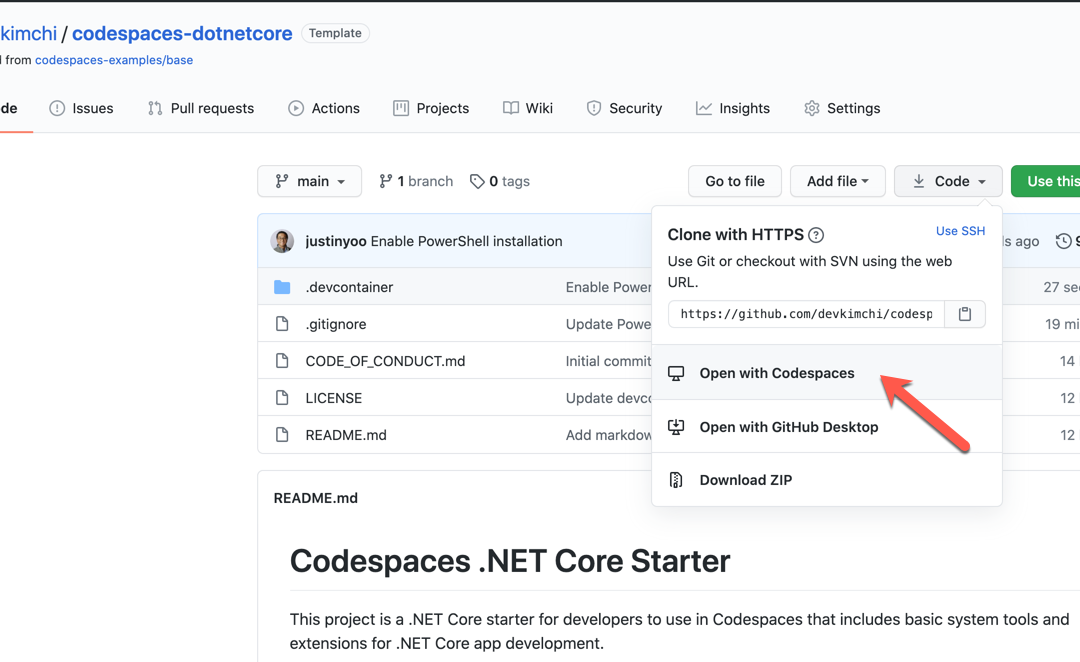
Push this .devcontainer directory back to the repository and run GitHub Codespaces. If you’ve already joined in the GitHub Codespaces Early Access Program, you’ll be able to see the menu like below:
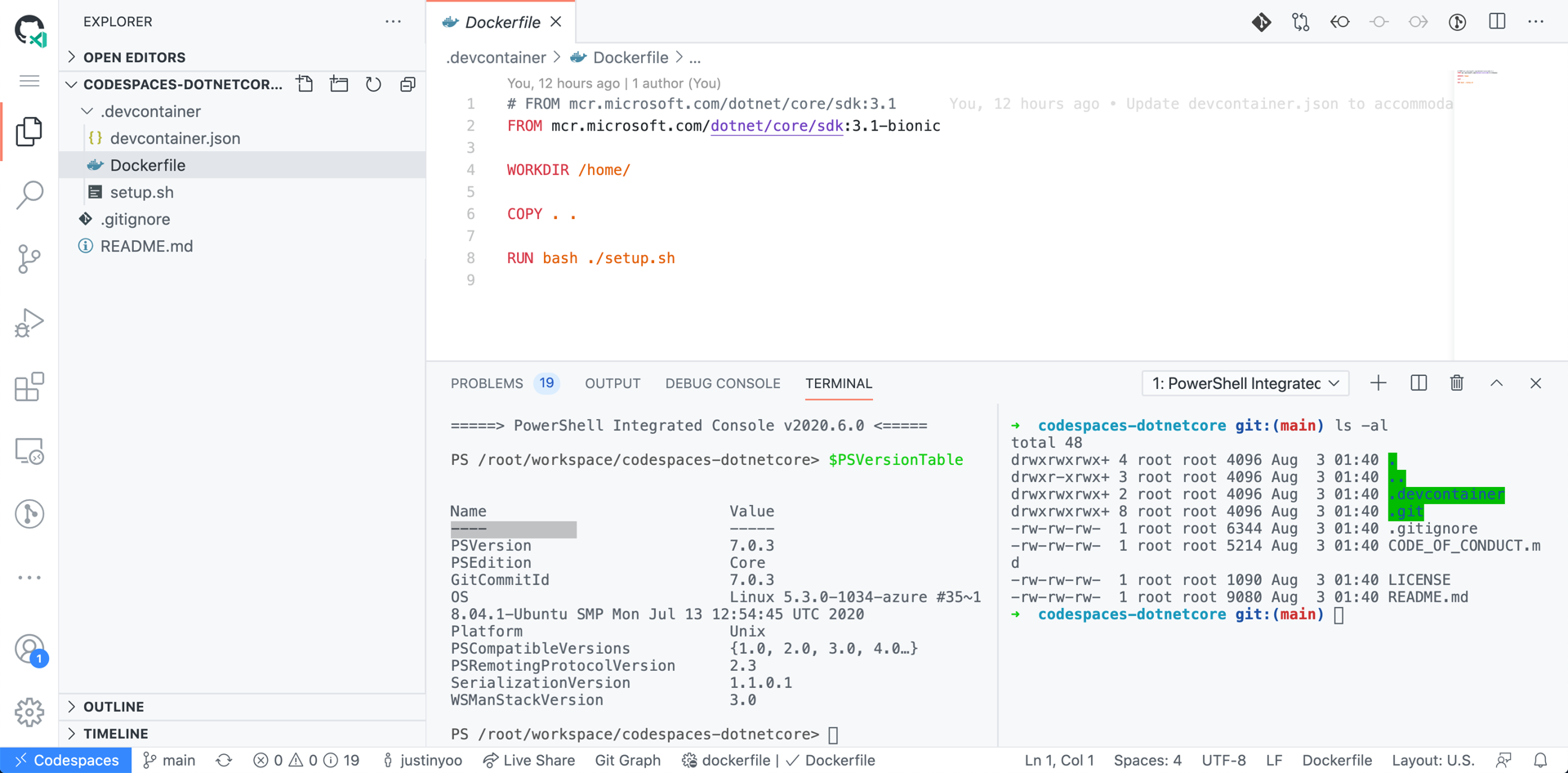
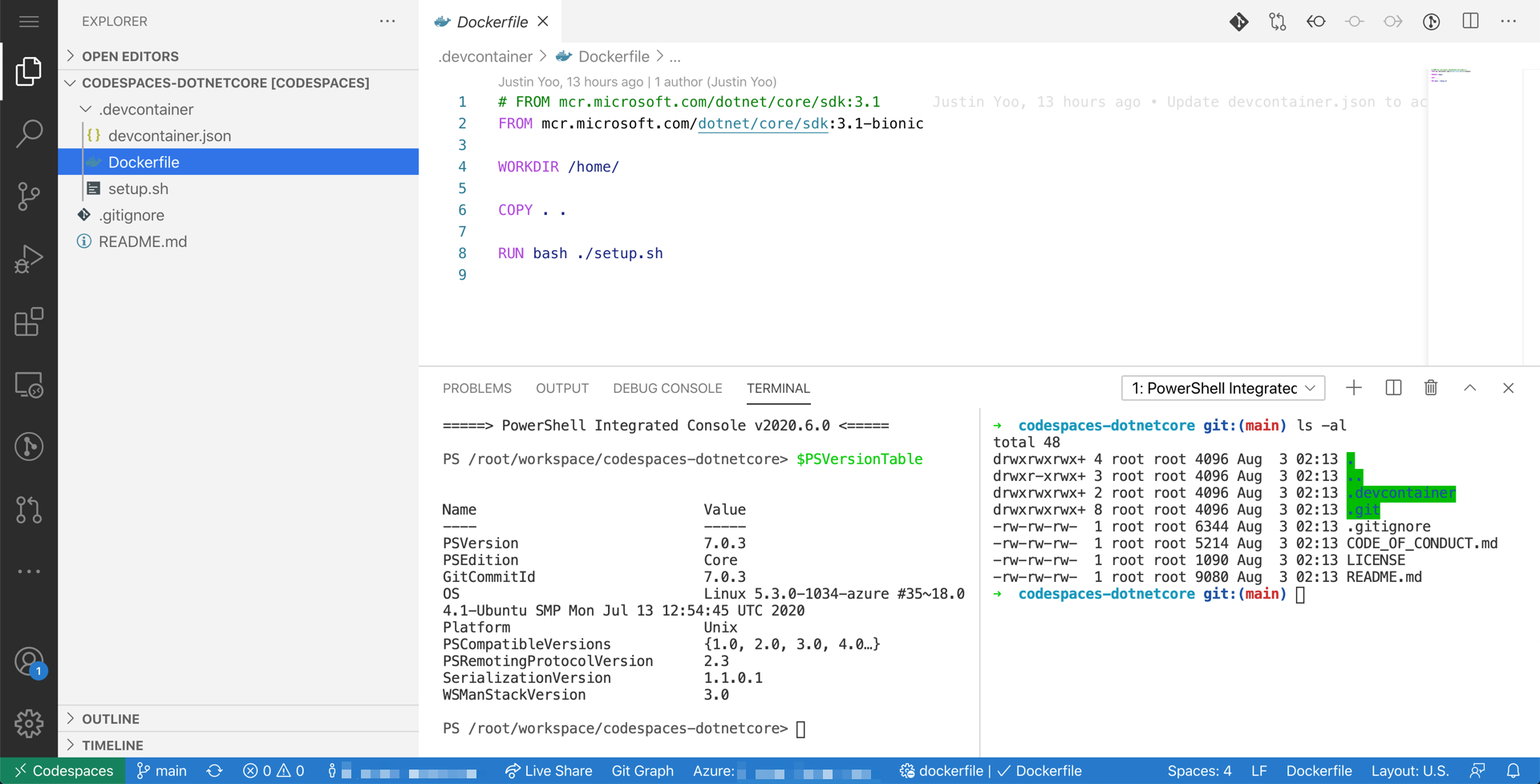
Click the menu, and you’ll be able to access to all files within GitHub Codespaces.
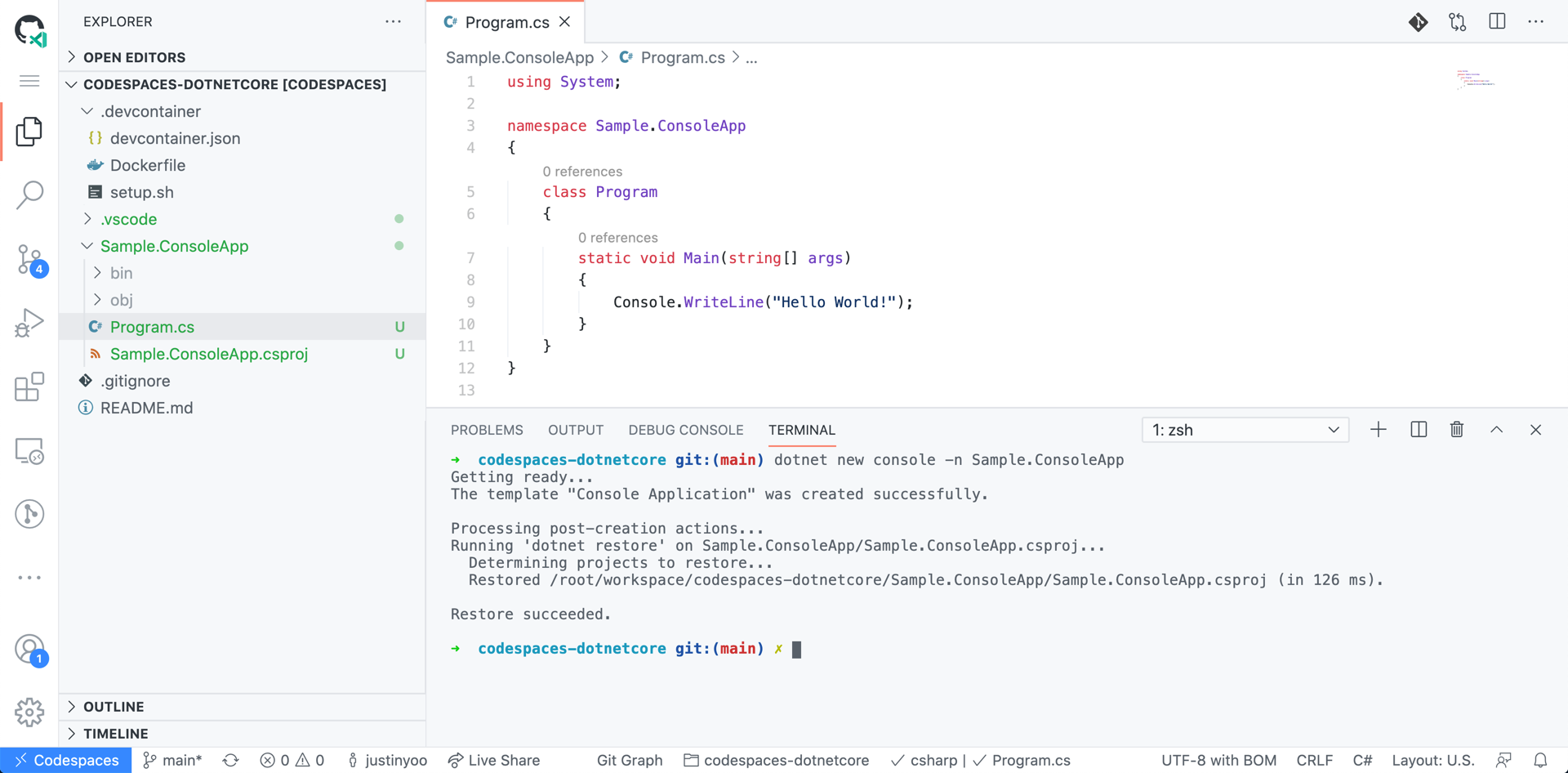
In addition to that, we have both a PowerShell console and zsh console. Run the following command to create a sample .NET Core console app to start writing the code!
You MUST have an active Azure subscription to run a VS CS instance. If you don’t, create a free account and subscription through this Free Azure account page.
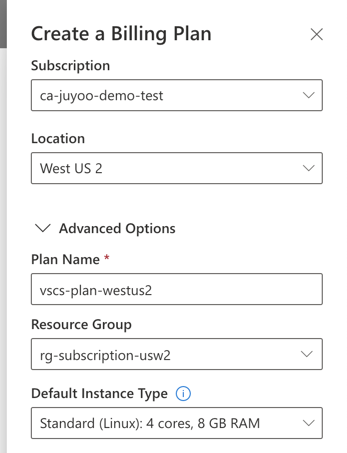
After the login, unless you have a billing plan, you should create it. VS CS takes the consumption-based model, which means that you only have to pay for what you have used. If you don’t need it any longer, delete it to avoid the further charge.
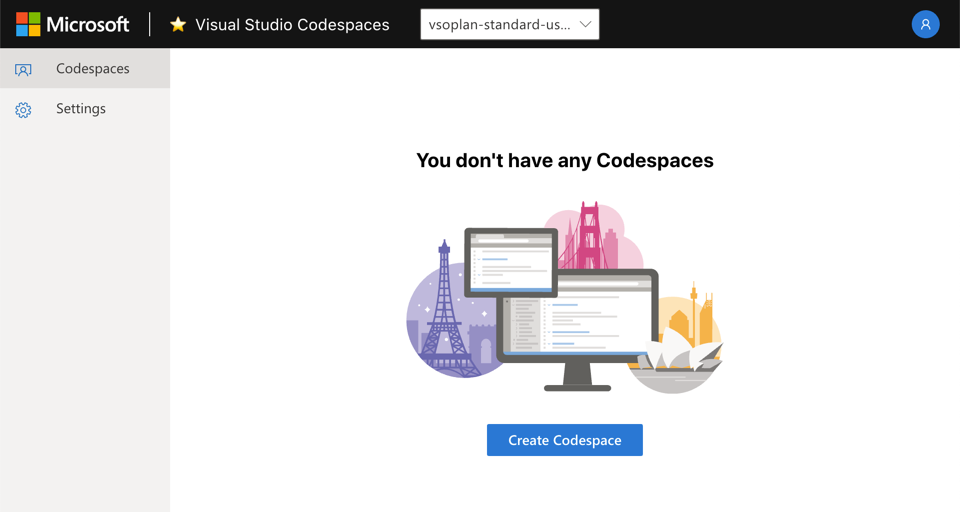
You will be asked to create a new instance if you don’t have one yet.
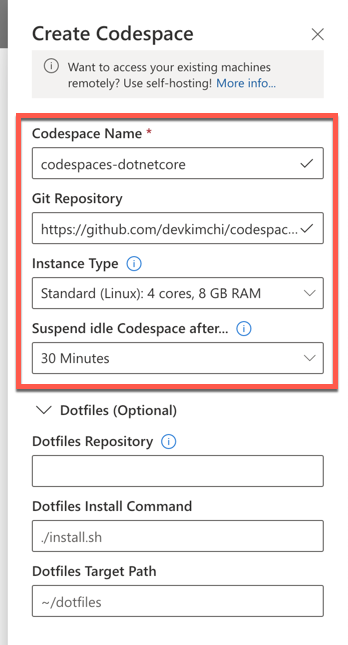
Enter the requested information and create a new VS CS instance. The screenshot below links the GitHub repository, which is dedicated to the repository. If you don’t link any of GitHub repository, it can be used for any repository.
The VS CS instance created looks like following. Although it uses the same repository as GitHub Codespaces uses, GitHub Codespaces has pushed nothing, VS CS doesn’t have the change.
So far, we’ve walked through how to set up the dev environment in VS CS for .NET Core application development. As this is the starting point of the team project efforts, it will significantly reduce the “It works on my machine” issue.
This article is contributed. See the original author and article here.
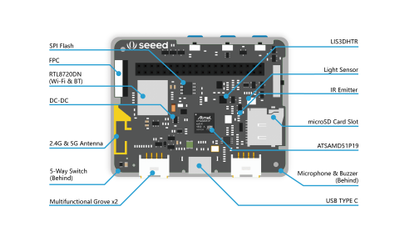
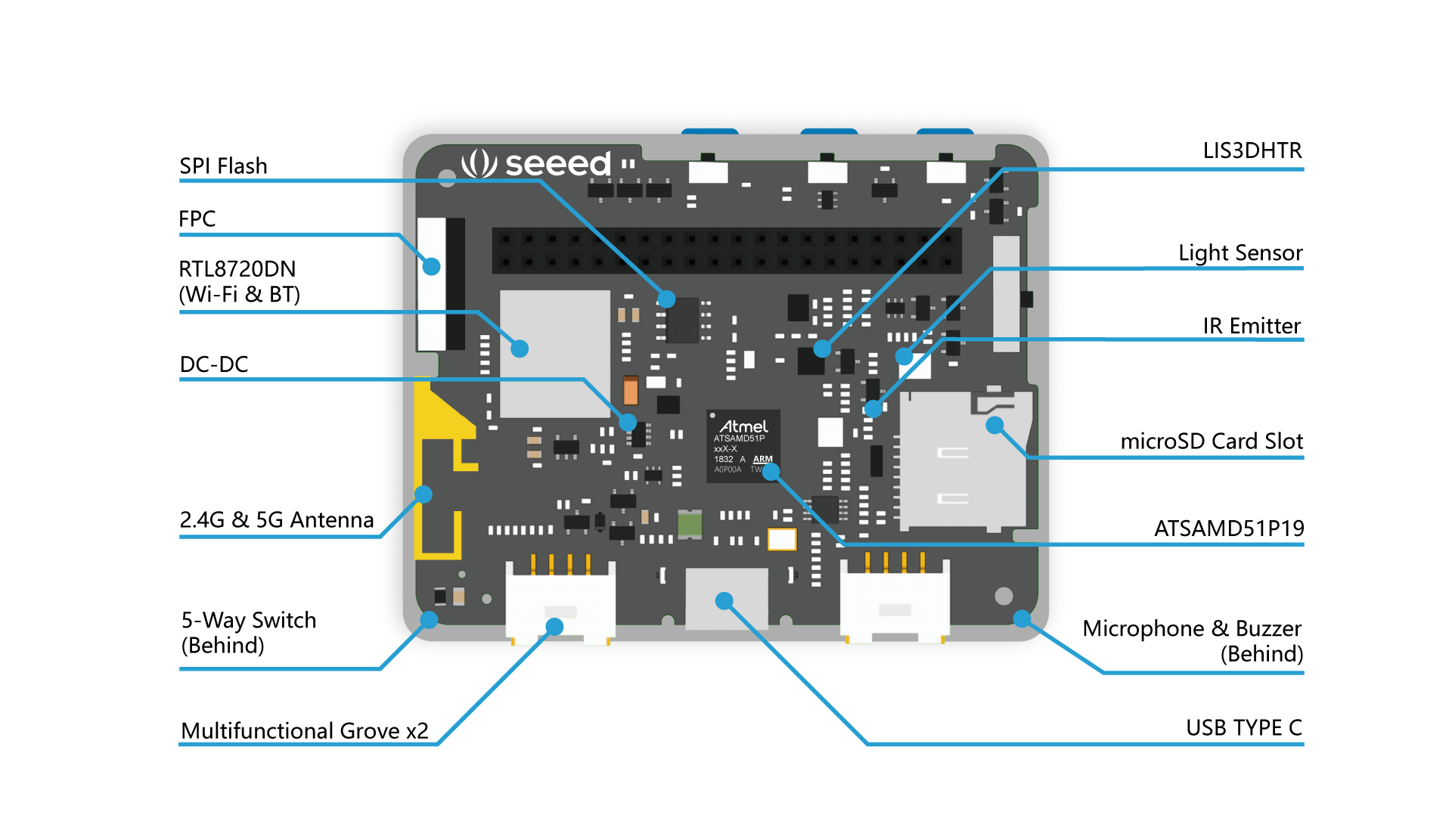
It’s been a few months now since I started playing with the Wio Terminal from Seeed Studio. It is a pretty complete device that can be used to power a wide range of IoT solutions—just look at its specifications!
Cortex-M4F running at 120MHz (can be overclocked to 200MHz) from Microchip (ATSAMD51P19) ;
192 KB of RAM, 4MB of Flash ;
Wireless connectivity: WiFi 2.4 & 5 GHz (802.11 a/b/g/n), BLE, BLE 5.0, powered by a Realtek RTL8720DN module ;
It is important to mention that this sample application is compatible with IoT Plug and Play. It means that there is a clear and documented contract of the kind of messages the Wio Terminal may send (telemetry) or receive (commands).
You can see the model of this contract below—it is rather straightforward. It’s been authored using the dedicated VS Code extension for DTDL, the Digital Twin Description Language.
When connecting to IoT Hub, the Wio Terminal sample application “introduces itself” as conforming to the dtmi:seeed:wioterminal;1 model.
This allows you (or anyone who will be creating IoT applications integrating with your device, really) to be sure there won’t be any impedence mismatch between the way your device talks and expects to be talked to, and what your IoT application does.
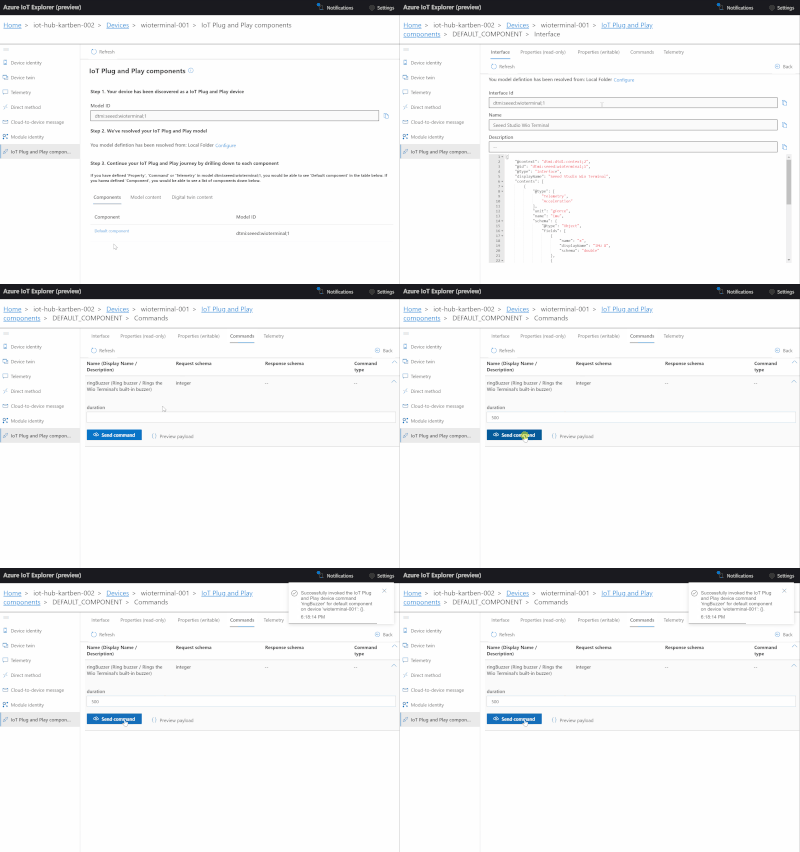
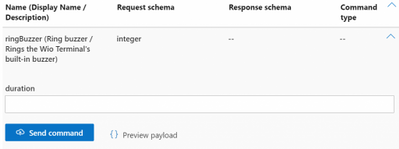
A great example of why being able to automagically match a device to a corresponding DTDL model is useful can be illustrated with the way we used the Azure IoT Explorer earlier. Since the device “introduced itself” when connecting to IoT Hub, and since Azure IoT Explorer has a local copy of the model, it automatically showed us a dedicated UI for sending the ringBuzzer command!
Azure SDK for Embedded C
In the past, adding support for Azure IoT to an IoT device using the C programming language required to either use the rather monolithic (ex. it is not trivial to bring your own TCP/IP or TLS stack) Azure IoT C SDK, or to implement everything from scratch using the public documentation of Azure IoT’s MQTT front-end for devices.
The Azure SDK for Embedded C is designed to allow small embedded (IoT) devices to communicate with Azure services.
The Azure SDK team has recently started to put together a C SDK that specifically targets embedded and constrained devices. It provides a generic, platform-independent, infrastructure for manipulating buffers, logging, JSON serialization/deserialization, and more. On top of this lightweight infrastructure, client libraries for e.g Azure Storage or Azure IoT have been developed.
You can read more on the Azure IoT client library here, but in a nutshell, here’s what I had to implement in order to use it on the Wio Terminal connected:
As the sample uses symmetric keys to authenticate, we need to be able to generate a security token.
The token needs to have an expiration date (typically set to a few hours in the future), so we need to know the current date and time. We use an NTP library to get the current time from a time server.
The token includes an HMAC-SHA256 signature string that needs to be base64-encoded. Luckily, the recommended WiFi+TLS stack for the Wio Terminal already includes Mbed TLS, making it relatively simple to compute HMAC signatures (ex. mbedtls_md_hmac_starts) and perform base64 encoding (ex. mbedtls_base64_encode).
The Azure IoT client library helps with crafting MQTT topics that follow the Azure IoT conventions. However, you still need to provide your own MQTT implementation. In fact, this is a major difference with the historical Azure IoT C SDK, for which the MQTT implementation was baked into it. Since it is widely supported and just worked out-of-the-box, the sample application uses the PubSubClient MQTT library from Nick O’Leary.
And of course, one must implement their own application logic. In the context of the sample application, this meant using the Wio Terminal’s IMU driver to get acceleration data every 2 seconds, and hooking up the ringBuzzer command to actual embedded code that… rings the buzzer.
Conclusion
I hope you found this post useful! I will soon publish additional articles that go beyond the simple “Hey, my Wio Terminal can send accelerometer data to the cloud!” to more advanced use cases such as remote firmware upgrade. Stay tuned! :)
Let me know in the comments what you’ve done (or will be doing!) with your Wio Terminal, and also don’t hesitate to ask any burning question you may have. Of course, you can also always find me on Twitter.
Wireless connectivity, extensibility, processing power… on paper, the Wio Terminal must be the ideal platform from IoT development, right? Well, ironically, one thing it doesn’t do out-of-the-box is to actually connect to an IoT cloud platform!
You will have guessed it by now… In this blog post, you’ll learn how to connect your Wio Terminal to Azure IoT. More importantly, you will learn about the steps I followed, giving you all the information you need in order to port the Azure IoT Embedded C libraries to your own IoT device.
Connecting your Wio Terminal to Azure IoT
I have put together a sample application that should get you started in no time.
You will need a Wio Terminal, of course, an Azure IoT Hub instance, and a working Wi-Fi connection. The Wio Terminal will need to be connected to your computer over USB—kudos to Seeed Studio for providing a USB-C port, by the way!—so it can be programmed.
Here are the steps you should follow to get your Wio Terminal connected to Azure IoT Hub:
If you don’t have an Azure subscription, create one for free before you begin.
Cloneand open the sample repository in VS Code, making sure you have the PlatformIO extension installed.
Update the application settings (include/config.h) file with your Wi-Fi, IoT Hub URL, and device credentials.
Flash your Wio Terminal. Use the command palette (Windows/Linux: Ctrl+Shift+P / macOS: ⇧⌘P) to execute the PlatformIO: Upload command. The operation will probably take a while to complete as the Wio Terminal toolchain and the dependencies of the sample application are downloaded, and the code is compiled and uploaded to the device.
Once the code has been uploaded successfully, your Wio Terminal LCD should turn on and start logging connection traces. You can also open the PlatformIO serial monitor to check the logs of the application (PlatformIO: Serial Monitor command).
> Executing task: C:Userskartben.platformiopenvScriptsplatformio.exe device monitor <
--- Available filters and text transformations: colorize, debug, default, direct, hexlify, log2file, nocontrol, printable, send_on_enter, time
--- More details at http://bit.ly/pio-monitor-filters
--- Miniterm on COM4  9600,8,N,1 ---
--- Quit: Ctrl+C | Menu: Ctrl+T | Help: Ctrl+T followed by Ctrl+H ---
Connecting to SSID: WiFi-Benjamin5G
......
> SUCCESS.
Connecting to Azure IoT Hub...
> SUCCESS.
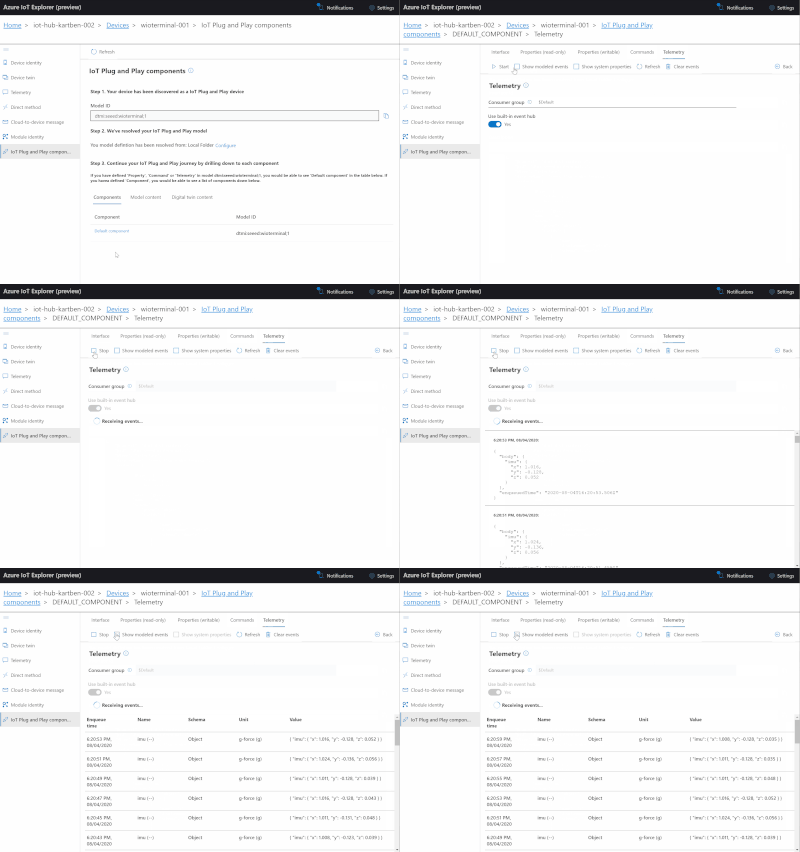
Your device should now be sending its accelerometer sensor values to Azure IoT Hub every 2 seconds, and be ready to receive commands remotely sent to ring its buzzer.
It is important to mention that this sample application is compatible with IoT Plug and Play. It means that there is a clear and documented contract of the kind of messages the Wio Terminal may send (telemetry) or receive (commands).
You can see the model of this contract below—it is rather straightforward. It’s been authored using the dedicated VS Code extension for DTDL, the Digital Twin Description Language.
When connecting to IoT Hub, the Wio Terminal sample application “introduces itself” as conforming to the dtmi:seeed:wioterminal;1 model.
This allows you (or anyone who will be creating IoT applications integrating with your device, really) to be sure there won’t be any impedence mismatch between the way your device talks and expects to be talked to, and what your IoT application does.
A great example of why being able to automagically match a device to a corresponding DTDL model is useful can be illustrated with the way we used the Azure IoT Explorer earlier. Since the device “introduced itself” when connecting to IoT Hub, and since Azure IoT Explorer has a local copy of the model, it automatically showed us a dedicated UI for sending the ringBuzzer command!
Azure SDK for Embedded C
In the past, adding support for Azure IoT to an IoT device using the C programming language required to either use the rather monolithic (ex. it is not trivial to bring your own TCP/IP or TLS stack) Azure IoT C SDK, or to implement everything from scratch using the public documentation of Azure IoT’s MQTT front-end for devices.
The Azure SDK for Embedded C is designed to allow small embedded (IoT) devices to communicate with Azure services.
The Azure SDK team has recently started to put together a C SDK that specifically targets embedded and constrained devices. It provides a generic, platform-independent, infrastructure for manipulating buffers, logging, JSON serialization/deserialization, and more. On top of this lightweight infrastructure, client libraries for e.g Azure Storage or Azure IoT have been developed.
You can read more on the Azure IoT client library here, but in a nutshell, here’s what I had to implement in order to use it on the Wio Terminal connected:
As the sample uses symmetric keys to authenticate, we need to be able to generate a security token.
The token needs to have an expiration date (typically set to a few hours in the future), so we need to know the current date and time. We use an NTP library to get the current time from a time server.
The token includes an HMAC-SHA256 signature string that needs to be base64-encoded. Luckily, the recommended WiFi+TLS stack for the Wio Terminal already includes Mbed TLS, making it relatively simple to compute HMAC signatures (ex. mbedtls_md_hmac_starts) and perform base64 encoding (ex. mbedtls_base64_encode).
The Azure IoT client library helps with crafting MQTT topics that follow the Azure IoT conventions. However, you still need to provide your own MQTT implementation. In fact, this is a major difference with the historical Azure IoT C SDK, for which the MQTT implementation was baked into it. Since it is widely supported and just worked out-of-the-box, the sample application uses the PubSubClient MQTT library from Nick O’Leary.
And of course, one must implement their own application logic. In the context of the sample application, this meant using the Wio Terminal’s IMU driver to get acceleration data every 2 seconds, and hooking up the ringBuzzer command to actual embedded code that… rings the buzzer.
Conclusion
I hope you found this post useful! I will soon publish additional articles that go beyond the simple “Hey, my Wio Terminal can send accelerometer data to the cloud!” to more advanced use cases such as remote firmware upgrade. Stay tuned! :)
Let me know in the comments what you’ve done (or will be doing!) with your Wio Terminal, and also don’t hesitate to ask any burning question you may have. Of course, you can also always find me on Twitter.
This article is contributed. See the original author and article here.
If you’ve been using ADX dashboards, you know it is now in public preview. Thank you for your great feedback on ease of use, performance, and deep integration with the Web UI client. You can continue sending your feedback to adxdbdsup@microsoft.com. You can also provide feedback in the feedback box in the dashboard app.
In this update we will present the new ADX dashboards features and capabilities released on August:
Auto refresh
Due to popular customer request, we recently introduced the capability to auto refresh dashboards. This feature allows you to display your ADX dashboards on team and hallway monitors. The dashboards are refreshed regularly to see the latest data. This feature allows you to control the minimal time interval of continuous refresh to reduce the load on the ADX cluster.
Free text parameter
The new “free text” parameter type lets you specify a text value to be used when filtering your dashboards. This is very useful in high cardinality situations where it’s not practical to display thousands or even millions of filter values in the filter control.
Filter search
Filter search allows you to quickly and easily search for specific values in the filter drop-down. This prevents the need to scroll through the whole list of filter values to find the value you need.
Visual formatting options
Using the visual formatting options, you can easily customize various aspects of the visuals.
Sharing and permission improvements
In addition to adding support for AAD groups, we now also fully support guest users within AAD groups.
Stay tuned for more upcoming ADX dashboard features!
This article is contributed. See the original author and article here.
Final Update: Thursday, 06 August 2020 13:30 UTC
We’ve confirmed that all systems are back to normal with no customer impact as of 8/6, 13:00 UTC. Our logs show the incident started on 8/06, 10:00 UTC and that during the 3 hours that it took to resolve the issue customers could have experienced a delay in alerting.
Root Cause: The failure was due to some backend dependencies.
Incident Timeline:3 Hours – 8/06, 10:00 UTC through 8/06, 13:00 UTC
We understand that customers rely on Azure Monitor as a critical service and apologize for any impact this incident caused.
This article is contributed. See the original author and article here.
When designing queries and filters (WHERE) sometimes we need to convert some data before filtering, and depending on what you do you may get a bad plan.
Find below some scenarios
1 – Date filter
1.1 Solution – Using range filter
1.2 Solution – Using DATE data type
2 – Function on Column / TRIM function
2.1 Solution – Cleanup source data
2.2 Solution – Using like
2.3 Solution – Using computed column + index
3 – Implicit conversions
3.1 Solution – Using parameters with correct data type
Creating environment
To create a test environment you can use adventure works + this scrip to create a table with data types needed
DROP TABLE IF EXISTS dbo.[Customer_TEST]
GO

SET ANSI_NULLS ON
GO
SET QUOTED_IDENTIFIER ON
GO

CREATE TABLE [dbo].[Customer_TEST](
	[CustomerID] INT NOT NULL PRIMARY KEY IDENTITY(1,1),
	[NameStyle] [dbo].[NameStyle] NULL,
	[Title] [nvarchar](8) NULL,
	[FirstName] [dbo].[Name] NULL,
	[MiddleName] [dbo].[Name] NULL,
	[LastName] [varchar](50) NULL,
	[Suffix] [nvarchar](10) NULL,
	[CompanyName] [nvarchar](128) NULL,
	[SalesPerson] [nvarchar](256) NULL,
	[EmailAddress] [nvarchar](50) NULL,
	[Phone] [dbo].[Phone] NULL,
	[PasswordHash] [varchar](128) NULL,
	[PasswordSalt] [varchar](10) NULL,
	[rowguid] [uniqueidentifier] NULL,
	[ModifiedDate] [datetime] NULL
) ON [PRIMARY]
GO


INSERT INTO [dbo].[Customer_TEST]
	([NameStyle],[Title],[FirstName],[MiddleName],[LastName]
	,[Suffix],[CompanyName],[SalesPerson],[EmailAddress]
	,[Phone],[PasswordHash],[PasswordSalt],[rowguid],[ModifiedDate])
SELECT
	 NameStyle
	,Title
	,FirstName
	,MiddleName
	,LastName = CONVERT(VARCHAR(50),LastName)
	,Suffix
	,CompanyName
	,SalesPerson
	,EmailAddress
	,Phone
	,PasswordHash
	,PasswordSalt
	,rowguid
	,ModifiedDate
FROM [SalesLT].[Customer]
GO 100 -- LOAD 100x


CREATE NONCLUSTERED INDEX IX_Customer_TEST_LastName ON dbo.[Customer_TEST](LastName)
CREATE NONCLUSTERED INDEX IX_Customer_TEST_ModifiedDate ON dbo.[Customer_TEST](ModifiedDate)
GO
1 – Date filter
One classic scenario we see this is when customer is looking to filter data range or when you want to ignore the hour part of the datetime data type.
DECLARE @ModifiedDate DATETIME2(7) = '2009-05-16 16:33:33.077'
SELECT
     CustomerID
    ,ModifiedDate
    ,CONVERT(VARCHAR(10),ModifiedDate,120)
    ,CONVERT(VARCHAR(10),@ModifiedDate,120)
FROM dbo.[Customer_TEST]
WHERE CONVERT(VARCHAR(10),ModifiedDate,120) = CONVERT(VARCHAR(10),@ModifiedDate,120)
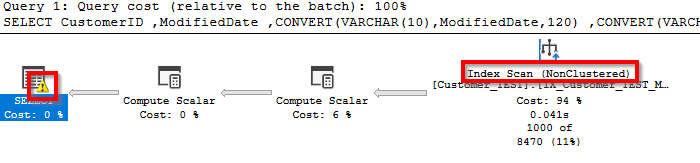
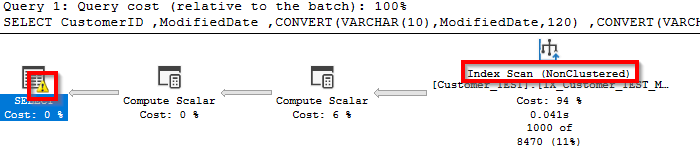
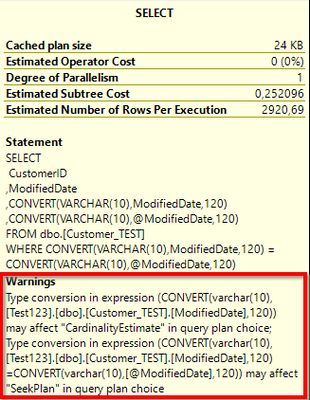
This conversion “CONVERT(VARCHAR(10),ModifiedDate,120)” converts full date + time to “YYYY-MM-DD” format. The problem here is that SQL will have to convert all values in the table to this format before filtering and will not use an index seek.
The plan will show this conversion as a warning that you can quickly find this
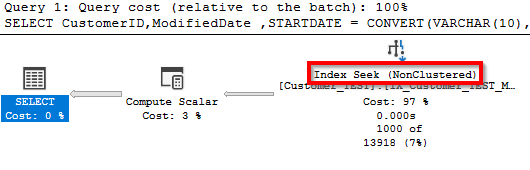
1.1 Solution – Using range filter
Use some date math to create two parameters and do like sample below
DateColumn >= DAY 00:00:00 and DateColumn < DAY+1 00:00:00
DECLARE @ModifiedDate DATETIME2(7) = '2009-05-16 16:33:33.077'
SELECT
     CustomerID
    ,ModifiedDate
    ,STARTDATE = CONVERT(VARCHAR(10),@ModifiedDate,120)
    ,ENDDATE = CONVERT(VARCHAR(10),DATEADD(day, 1, @ModifiedDate),120)
FROM dbo.[Customer_TEST]
WHERE
    ModifiedDate >= CONVERT(VARCHAR(10),@ModifiedDate,120)
    AND
    ModifiedDate < CONVERT(VARCHAR(10),DATEADD(day, 1, @ModifiedDate),120)
GO
1.2 Solution – Using DATE data type
If time part of the date is not needed for the business you can use DATE data type. It will also consume less space in disk as a bonus.
2 – Function on Column / TRIM function
Sometimes you are searching data that was not cleanup and you may have spaces before and after data and you need to TRIM data before you filter
“XXX”
” XXXX”
“XXX “
DECLARE @LastName VARCHAR(50)= 'Gates'
SELECT *
FROM dbo.[Customer_TEST]
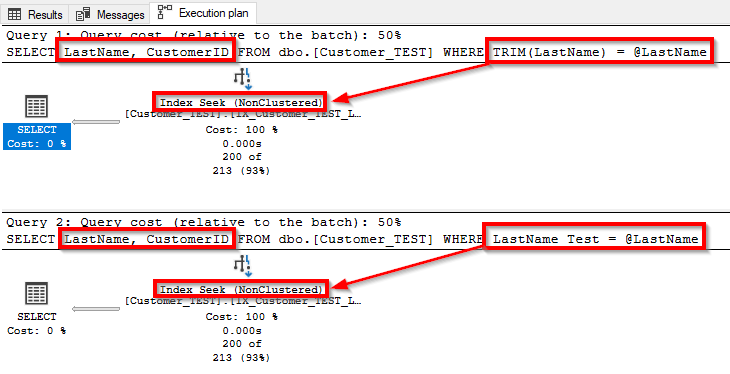
WHERE TRIM(LastName) = @LastName
GO
DECLARE @LastName VARCHAR(50)= 'Gates'
SELECT LastName, CustomerID
FROM dbo.[Customer_TEST]
WHERE TRIM(LastName) = @LastName
GO
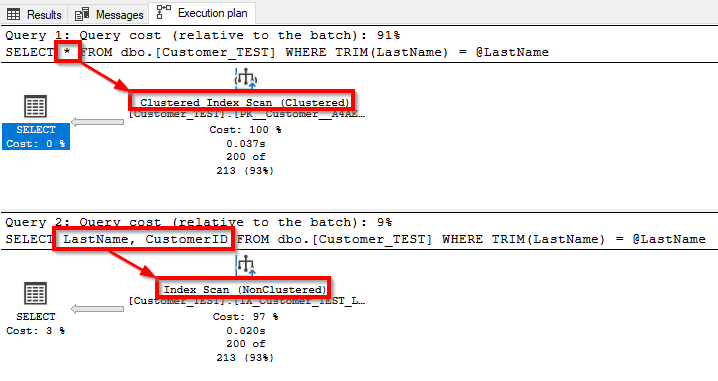
You will get a Cluster Index Scan or Noncluster Index Scan ( If its not needed all columns (*) ) but on both ways you will never be able to get a SEEK
2.1 Solution – Cleanup source data
You can cleanup empty spaces in the data before using it, like a big update in the source data and do not use function in the column side
DECLARE @LastName VARCHAR(50)= 'Gates'
SELECT LastName, CustomerID
FROM dbo.[Customer_TEST]
WHERE LastName = @LastName
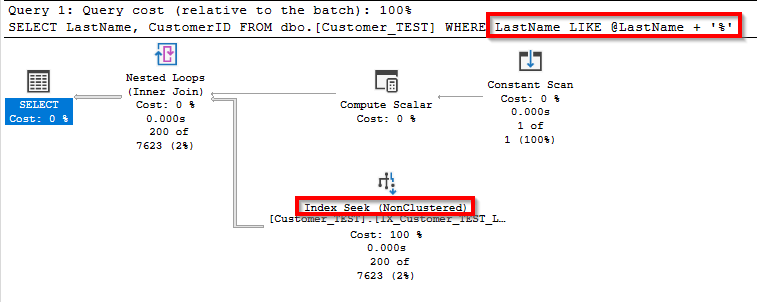
2.2 Solution – Using like
If only right trim is needed you can use like with % wildcard at end.
*If you use % at start it will also avoid index usage and is not recommended
DECLARE @LastName VARCHAR(50)= 'Gates'
SELECT *
FROM dbo.[Customer_TEST]
WHERE LastName LIKE @LastName + '%'
2.3 Solution – Using computed column + index
You can create a computed column and create noncluster index over the computed column.
*I also included LastName in index to avoid lookup when looking for original LastName without the trim
ALTER TABLE dbo.[Customer_TEST]
ADD LastName_Test AS TRIM(LastName)
GO
CREATE NONCLUSTERED INDEX IX_Customer_TEST_LastName_Test
ON dbo.[Customer_TEST](LastName_Test) INCLUDE (LastName)
GO
You can use the new column or the function used to create computed column and it will be using the index automatically.
This is good because you can fix the performance issue without changing the code. Be aware that as you are adding new column and may affect queries using * to return all columns. That is also not a best practice
3 – Implicit conversions
You should always match the parameter in procedures / application with the table data type. Depending on the data type you have SQL will have to convert the source data and will cause performance issues and avoid index usage
DECLARE @LastName VARCHAR(50) = 'Gates'
SELECT LastName, CustomerID
FROM dbo.[Customer_TEST]
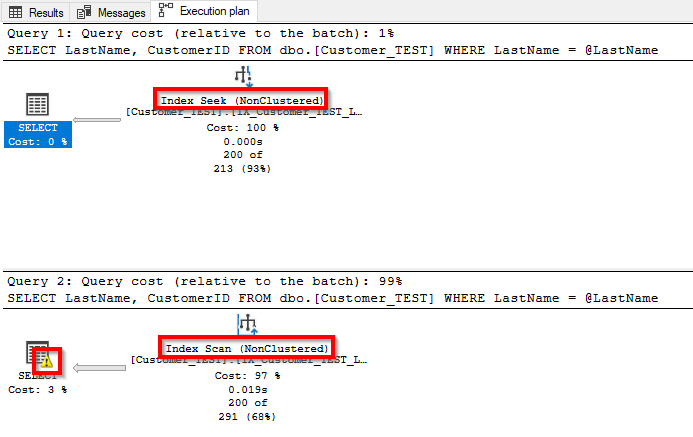
WHERE LastName = @LastName
GO
DECLARE @LastName NVARCHAR(50) = 'Gates'
SELECT LastName, CustomerID
FROM dbo.[Customer_TEST]
WHERE LastName = @LastName
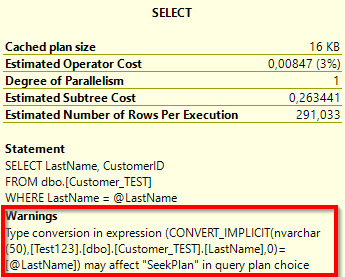
This implicit conversion is shown as a warning
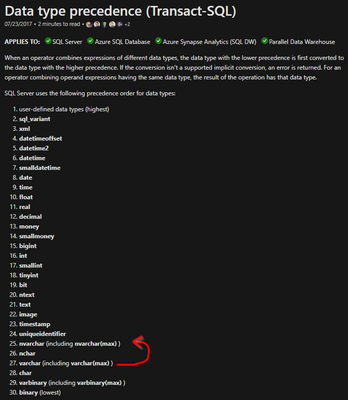
SQL will use Data Type precedence to check if data need to be converted and what the destination.
In this sample you should convert VARCHAR to NVARCHAR, because you can lose information if you convert NVARCHAR to VARCHAR
This article is contributed. See the original author and article here.
System Center team at Microsoft is committed to partner with customers in their journey to modernize their data centers. We are excited to announce thatUpdate Rollup 2 (UR2) for System Center Virtual Machine Manager (VMM) 2019 is just released and it is packed with exciting new features!
VMM 2019 UR2 release includes new features and bug fixes. In this blog, we will introduce you to all the new features in this release. For a quick update on all the bugs fixed in this release, please refer to the KB article here.System Center team is also working on next Update Rollup (UR3) for SCVMM 2019.
Following are the new features released in SCVMM 2019 UR2:
Support for managing Windows Server 2012 R2 hosts
Support for managing VMware vSphere 6.7 ESXi hosts
Support for new Linux versions as guest OS
Ability to set affinity between vNICs and pNICs
IPv6 Support for SDN
Simplifying Logical Switch Creation
Support for managing Windows Server 2012 R2 hosts
We understand that some enterprises might be using hardware that is not capable of being upgraded to latest Windows Server OS and hence these enterprises face the challenges of managing host servers on various Windows Server OS versions. To make the Windows Server management easier for such enterprises, VMM 2019 UR2 now supports managing 2012 R2 hosts.
Enterprises can now manage Windows Server 2012 R2 servers as hosts, SOFS and remote library shares in addition to the already supported versions of Windows Server 2016 and Windows Server 2019 OS servers. For details of all the hardware OS versions supported, please refer to the documentation here.
Windows Servers in the VMM fabric
Operating System
Hyper-V Host
SOFS
Remote Library Server
Update Server
PXE Server
Windows Server 2012 R2 (Standard and Data Center)
Y
Y
Y
N
N
Support for managing VMware vSphere 6.7 ESXi hosts
We are glad to announce that SCVMM 2019 UR2 now extends management support to ESXi 6.7 hosts and vCenter 6.7. Enterprises that have both VMware and Hyper-V environments can make use of this feature in VMM so that both VMware and Hyper-V hosts can be managed within the same fabric management tool. Also, customerslooking to migrate their VMware environments to Hyper-V can make use of our support for vSphere 6.7 so that there is seamless migration. For more details on ESXi server support, please refer here.
VMware servers in the VMM 2019 fabric
VMware
Versions Supported
ESX/ESXi
ESX/ESXi 5.1, 5.5, 6.0, 6.5, 6.7
vCenter
5.1, 5.5, 5.8, 6.0, 6.5, 6.7
Support for new Linux versions as guest OS
In SCVMM 2019 UR2, we have added support for the following Linux versions as guest OS:
Red Hat 8.0
Centos 8
Debian 10
Ubuntu 20.04
Ability to set affinity between vNICs and pNICS
VMM 2019 UR2 now supports affinity between vNICs and pNICs. Affinity between vNICs and pNICs brings in flexibility to route network traffic across teamed pNICs. With this feature, customers can increase throughput by mapping RDMA capable physical adapter with a RDMA settings enabled vNIC.
Use Cases
Customers can route specific type of traffic (eg: Live Migration) to a higher bandwidth physical adapter.
In HCI deployment scenarios, by specifying affinity, customers can leverage SMB multichannel to meet high throughput for SMB traffic.
Pre-Requisites to set Affinity between vNICs and pNICs
Logical Switch is deployed on a host
SET teaming property is enabled on the logical switch.
Configuration
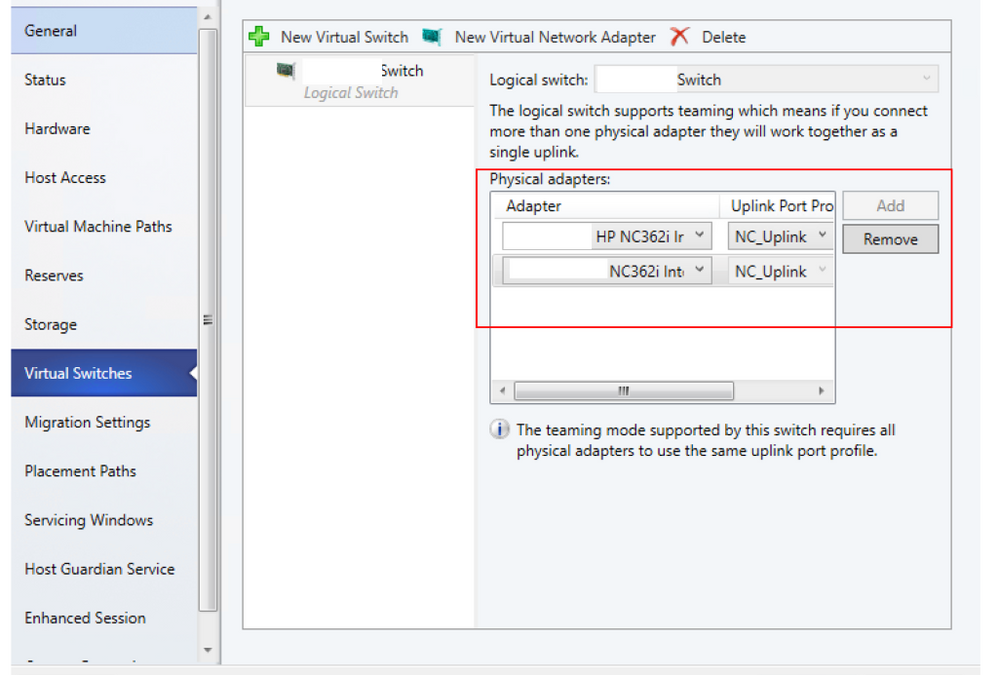
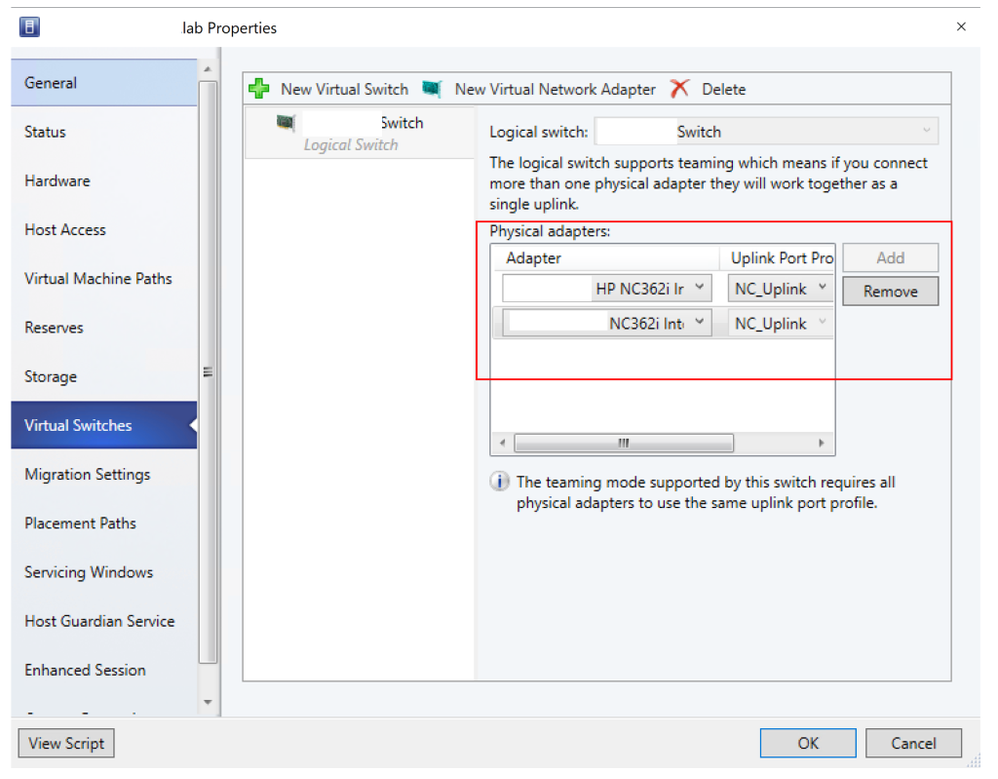
Open Fabric > Servers > All Hosts > Host group > Hosts > Host. Right-click Host, select Properties, and navigate to Virtual Switches tab.
Verify that the physical adapters to be teamed are added here. Affinity can be mapped only for physical adapters that are added here.
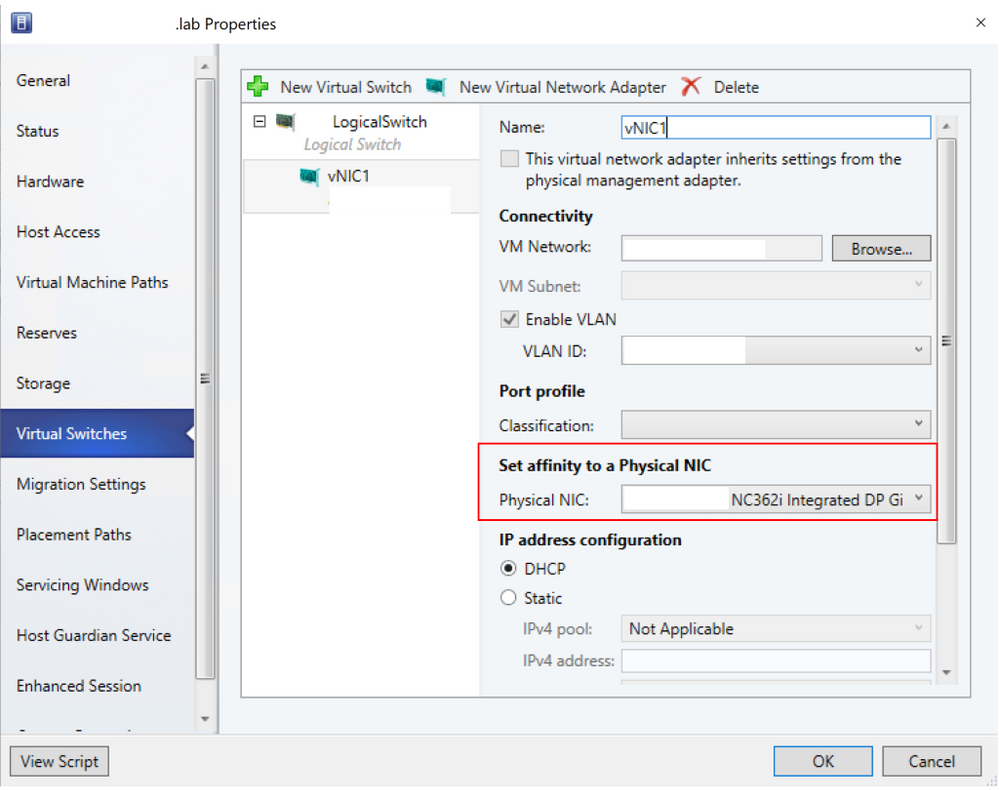
Click New virtual network adapterto add a new vNIC to the virtual switch
By default, the affinity value is set as None. This setting corresponds to the existing behavior, where the operating system distributes the traffic from vNIC to any of the teamed physical NICs.
Set the affinity between a vNIC and physical NIC by selecting a physical adapter from the drop-down menu.Once the affinity is defined, traffic from the vNIC is routed to the mapped physical adapter.
For more information on vNIC to pNIC mapping, please refer to the documentation here.
IPv6 Support for SDN
VMM 2019 UR2 now supports IPv6 for SDN deployments. IPv6 support is another exciting feature that helps our customers in their journey to modernize their data centers.
Advantages of IPv6 over IPv4
IPv6 was mainly created to overcome the IP address space limitation posed by IPv4. Apart from increasing the number of available IP addresses, IPv6 also provides some other advantages like Improved Security and Auto-Configuration. Customers can now enable IPv6 using VMM in their SDN deployments.
Regulatory and Compliance Requirements
IPv6 support for SDN not only helps the SC VMM customers who want to take advantage of IPv6 features but also helps the customers who want to have IPv6 support for meeting regulatory and compliance requirements.
Configuration
To enable IPv6 for SDN deployments, the required changes to setup NC (Network Controller) Gateway, MUX, and SLB (Load Balancer) are highlighted below. In this blog, we will cover the key configuration changes needed for IPv6 support at a high level. For a more detailed explanation about various IPv6 SDN configuration options, please refer to the documentation here.
Create the HNV provider network and Create the IPv6 address pool
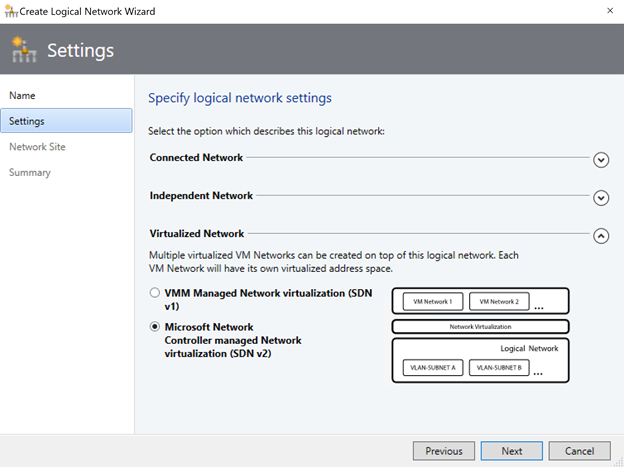
Start the Create Logical Network Wizard. Type a name and optional description for this network.
In Settings, select the network type as Virtualized Network and choose Microsoft Network Controller managed Network virtualization (SDN v2).
Right-click the HNV Provider logical network > Create IP Pool.
Provide a name and optional description, and ensure that the HNV Provider logical network is selected for the logical network.
In Network Site you need to select the subnet that this IP address pool will service. Note: To enable IPv6 support, add an IPv6 subnet and create IPv6 address pool. To use IPv6 address space, both IPv4 and IPv6 subnets should be added to the network site.
VM Network
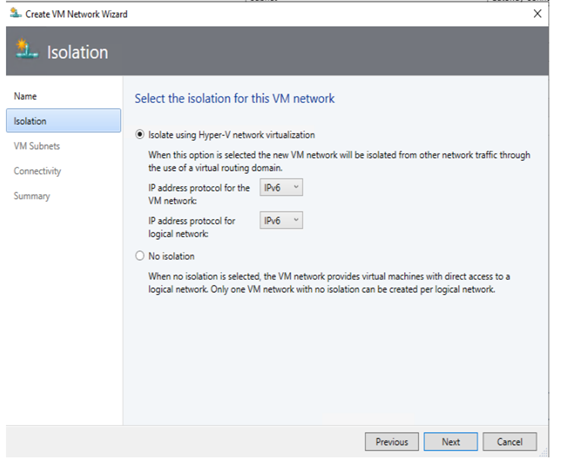
When you create VM network, to enable IPv6 support, select IPv6 from the dropdown ‘IP address protocol for the VM network’. Please note that dual stack (IPv4 + IPv6) support is not available for VM networks in the current release.
SLB (Load Balancer)
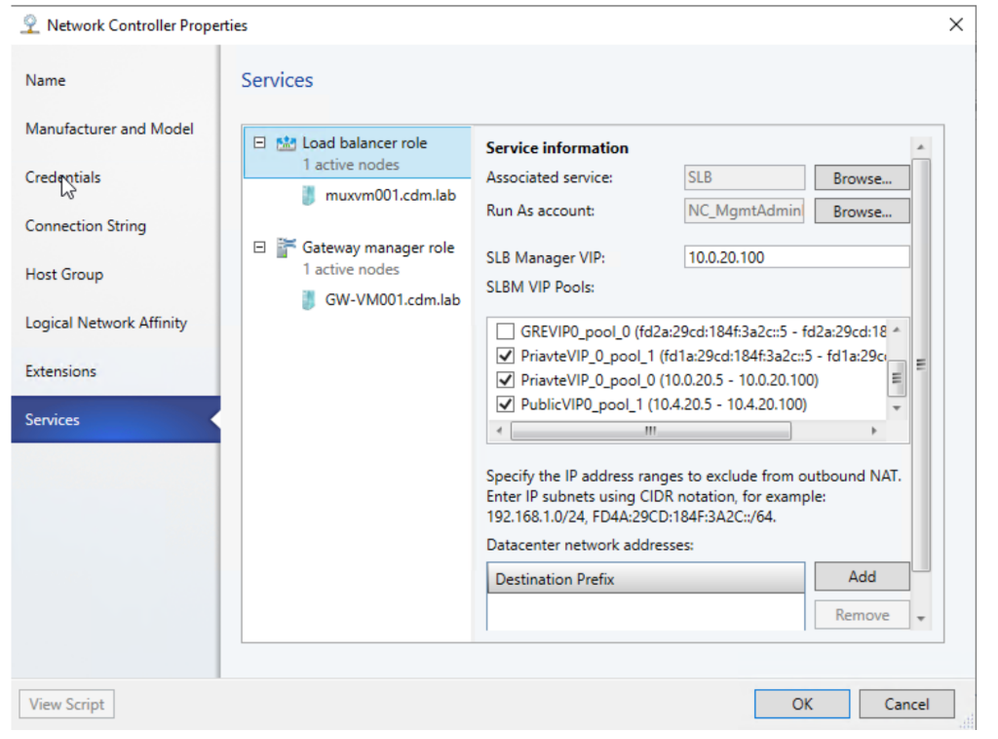
To use IPv6 address space, add IPv6 subnet to network site and create IPv6 address pools for the private and public VIP networks.
Add IPv6 address pools when you onboard an SLB service
Gateway
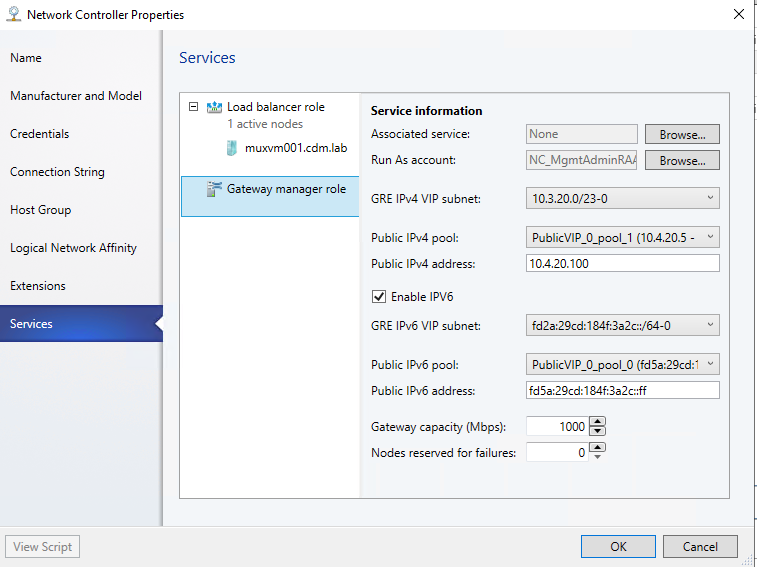
While creating GRE VIP logical network, add IPv6 subnet site and create IPv6 address pool.
While onboarding Gateway service, click on ‘Enable IPv6’ checkbox and select IPv6 GRE VIP subnet that you have created previously.
Also select public IPv6 pool and provide the public IPv6 address
Site to Site VPN connection
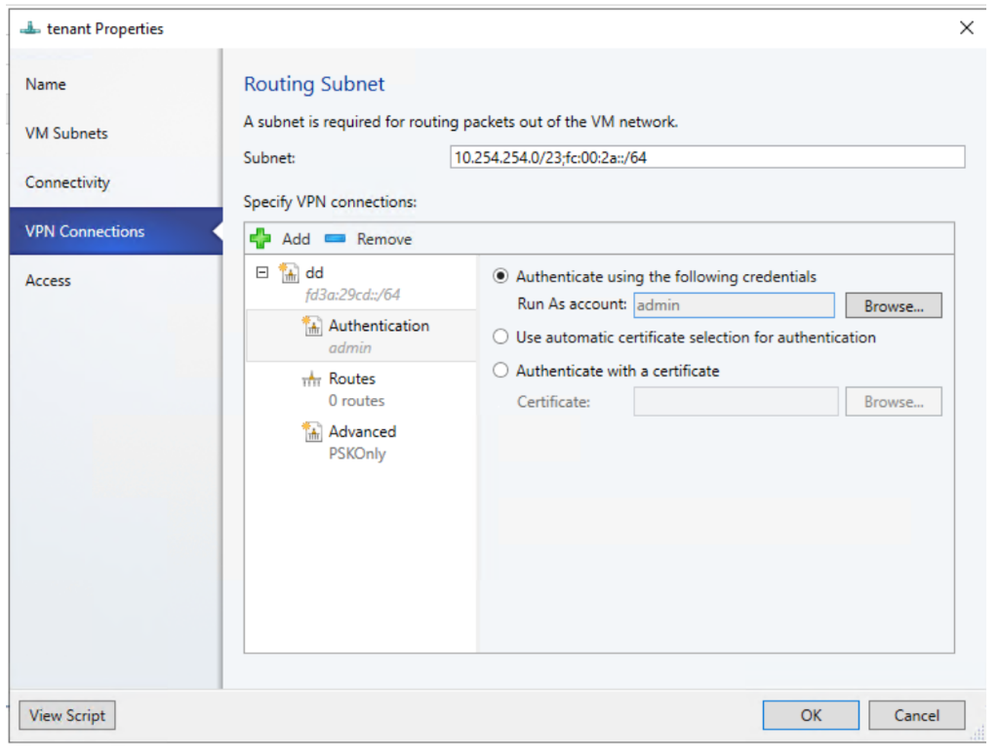
To enable IPv6 for site to site VPN connection, routing subnet must be both IPv4 and IPv6. For gateway to work in IPv6, Provide IPv4 and IPv6 addresses separated by ‘;’.
Simplifying Logical Switch Creation
Simplifying Logical switch creation is the second step in our journey to simplify VMM networking for our customers. In 2019 UR1 release, we simplified the process to create logical networks. In 2019 UR2 release, we have made it easier for the customers to configure logical switches.
Based on the feedback we received from the customers with respect to VMM networking, we understood that we need to provide the following to make it easier for the customers to configure VMM networking:
Smart Defaults and Visual Representations
Clear explanation of different options
Topology View
Smart Defaultsand Visual Representations
General Screen
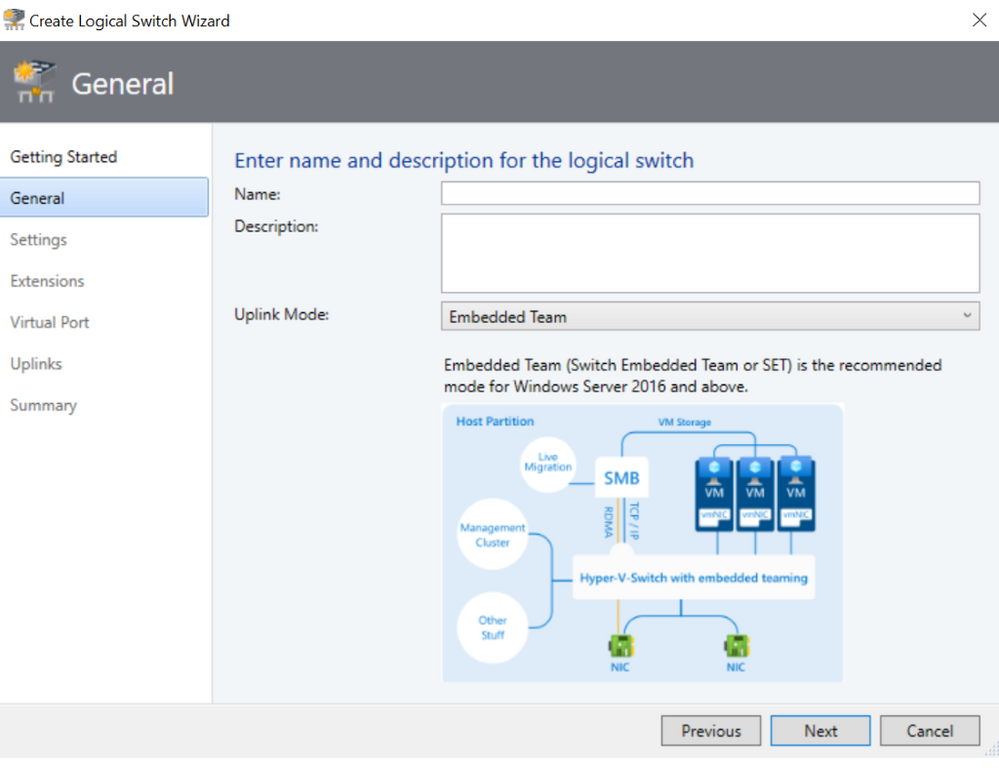
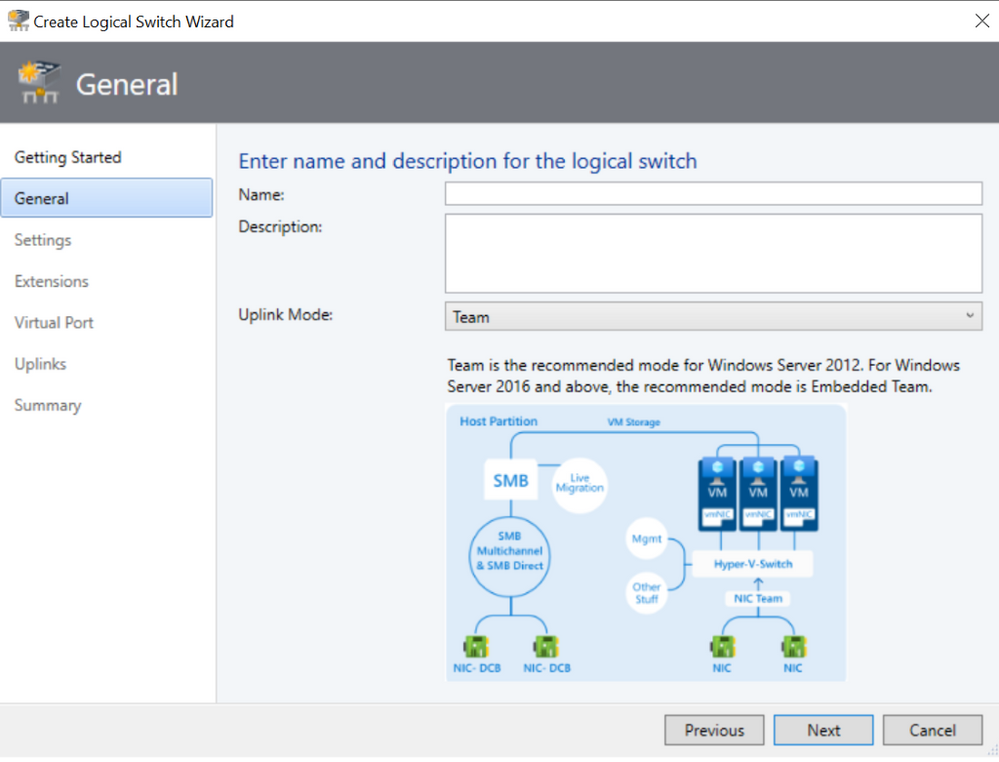
In General Screen, the default uplink mode is now shown as Embedded Team. There is now clear explanation suggesting the users to use “Embedded Team” as uplink mode for Windows Server 2016 and above. Similarly, there is explanation suggesting the users to use “Team” as uplink mode for Windows Server 2012. There are also visual representations for “Embedded Team” and “Team” options so that it is more clear for the customers.
Extensions Screen
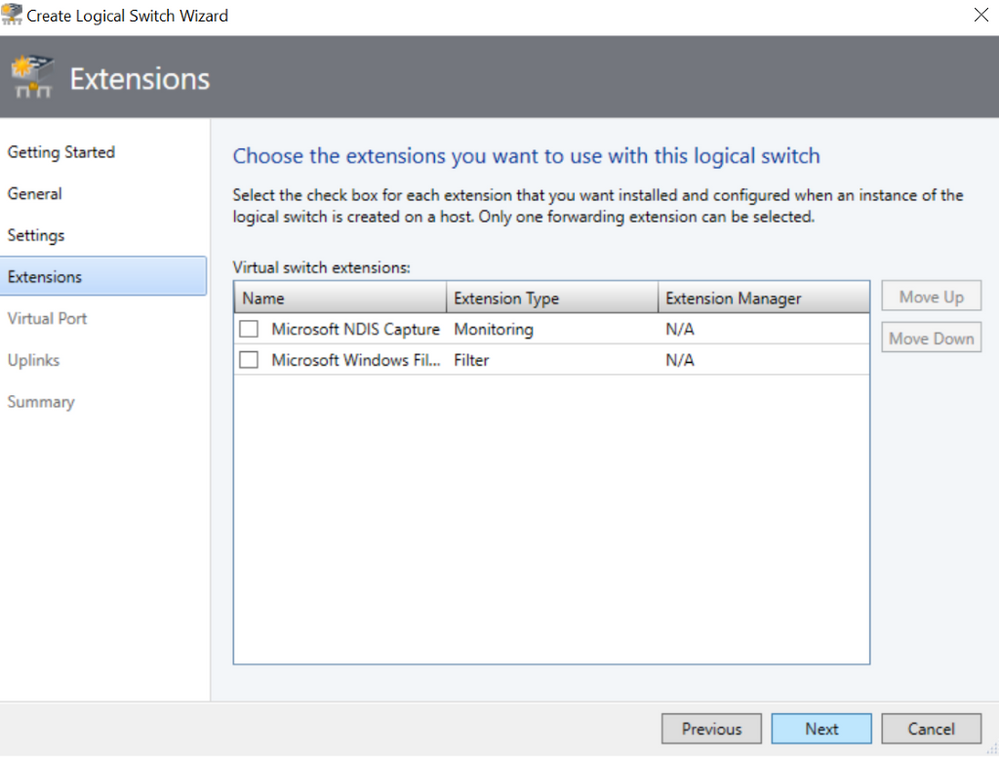
In the Extensions Screen, the default option is now not to have any extensions pre-selected.
Uplink Screen
In theUplink screen, we now show only the relevant load balancing algorithms corresponding to the Uplink mode selected. If the customers choose Embedded Team as the uplink mode, then the only supported load balancing algorithms are Hyper-V Port and Dynamic and the default is Hyper-V Port. When the user moves the cursor on Hyper-V Port and Dynamic algorithms, then we show user friendly informational message that Hyper-V Port is the highly recommended algorithm.
Clear explanation ofdifferent options
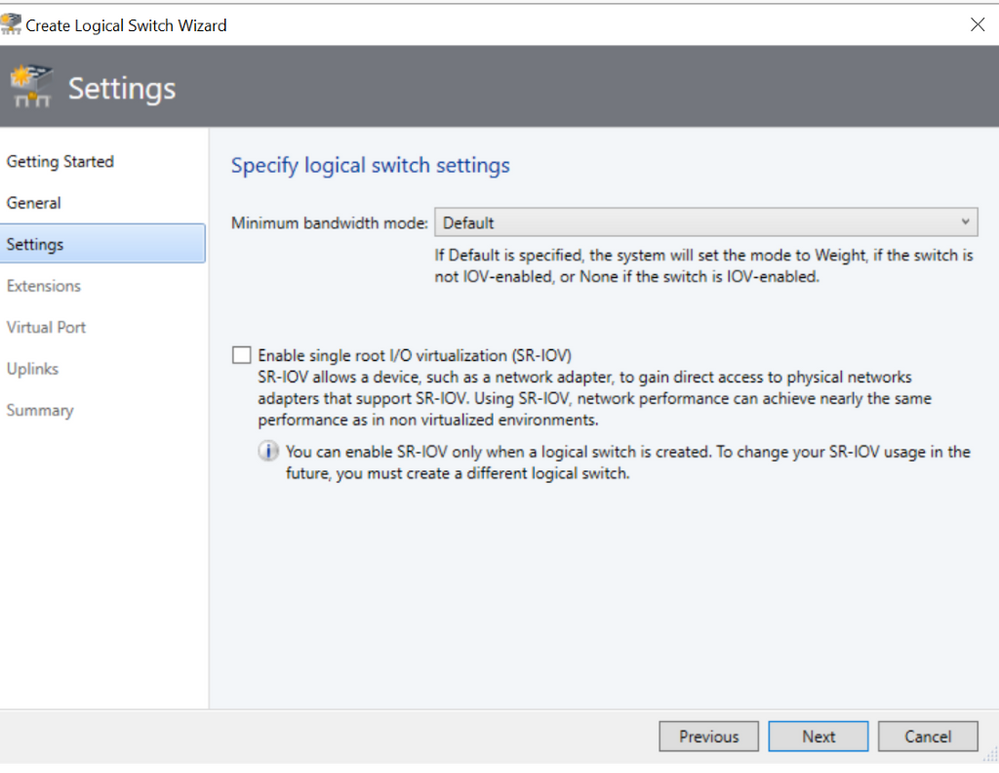
Settings Screen
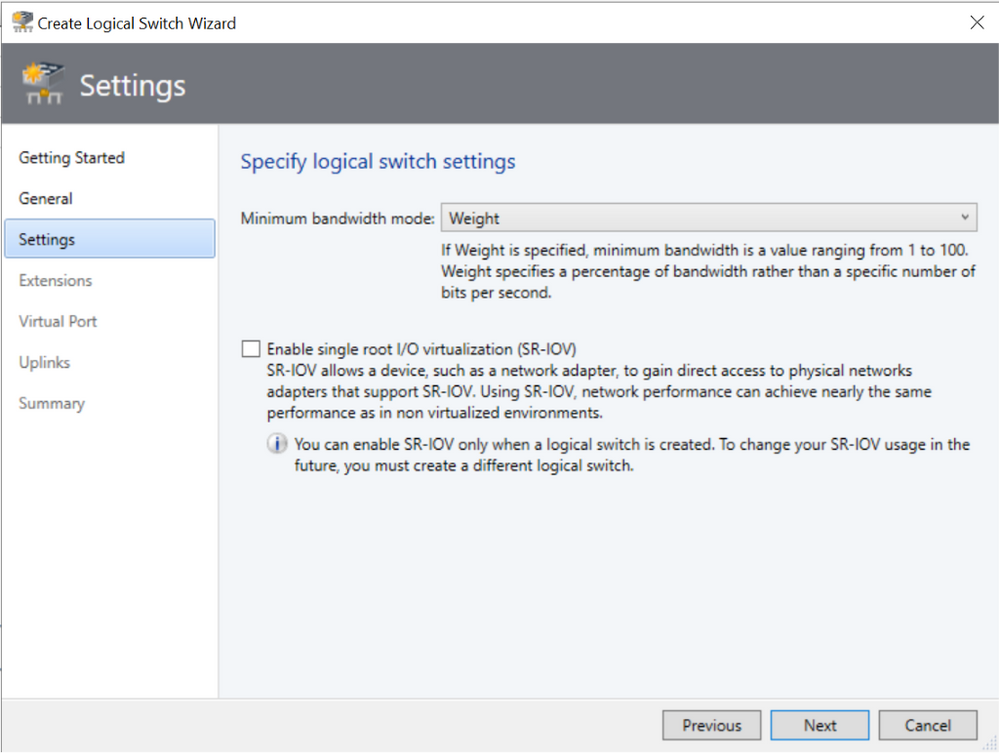
In Settings Screen, we have now provided explanation for various options related to Minimum Bandwidth mode. As the customer changes the minimum bandwidth mode, the corresponding explanation also changes.
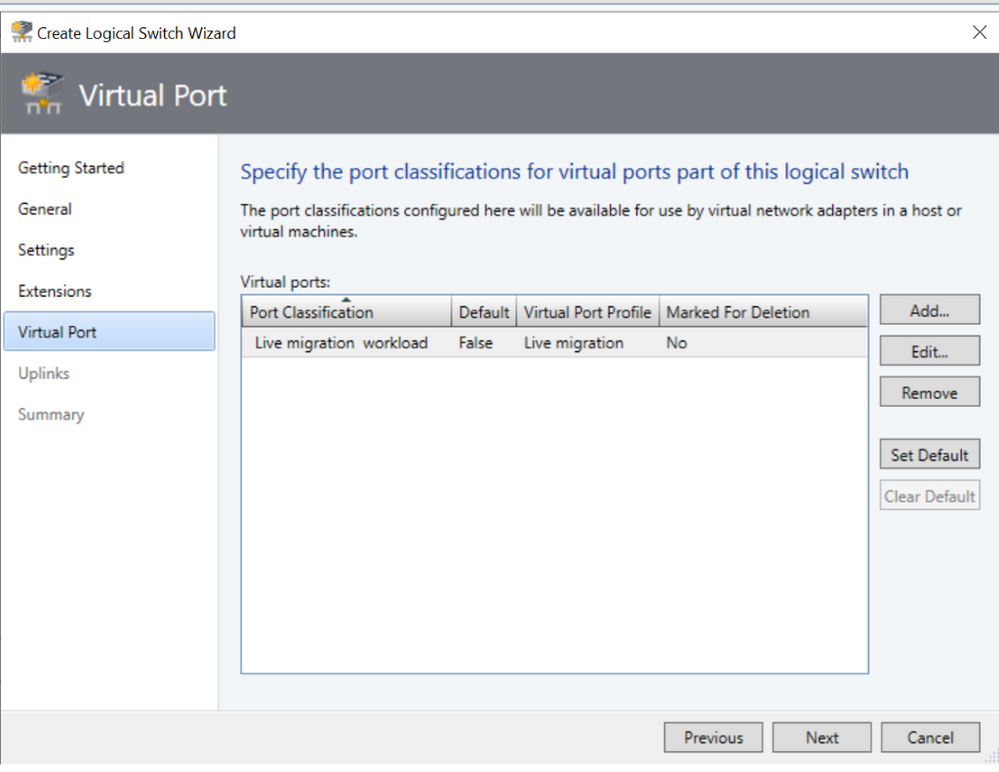
Virtual Port Screen
In Virtual Port Screen, we now show the mapping of Port Classification to Port Profile.
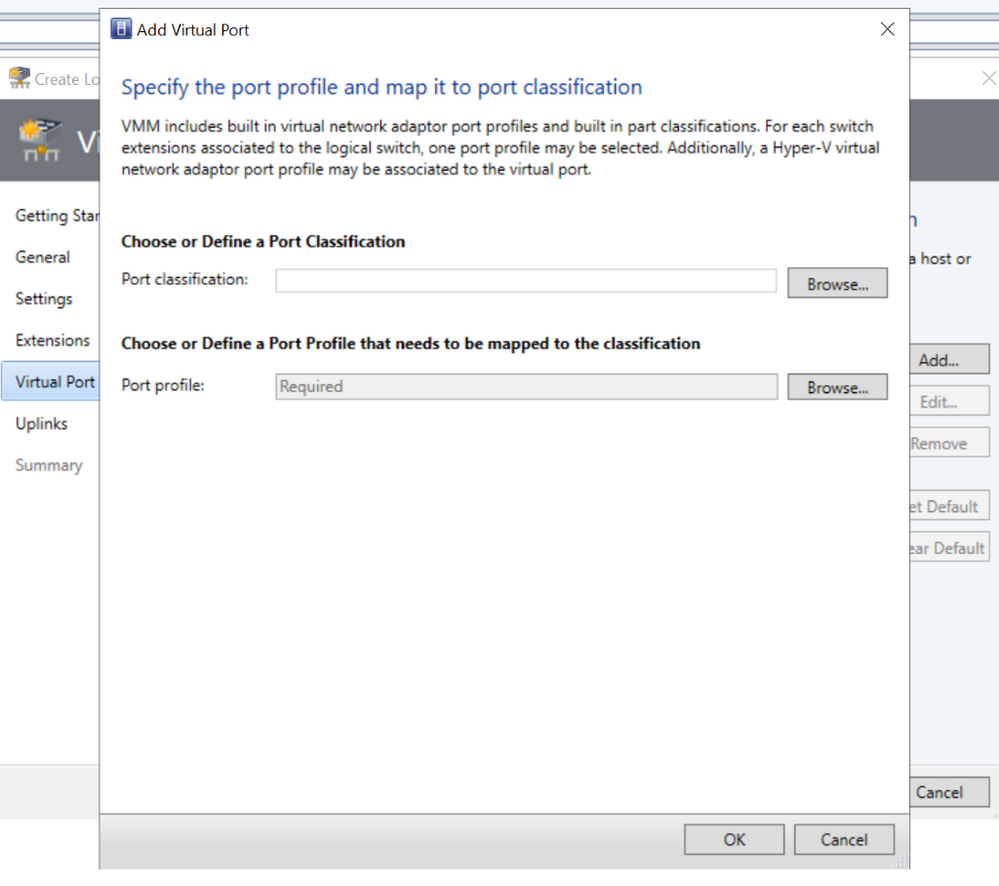
We have also simplified the text and layout of the screen where the customers add port classification and port profile as shown below.
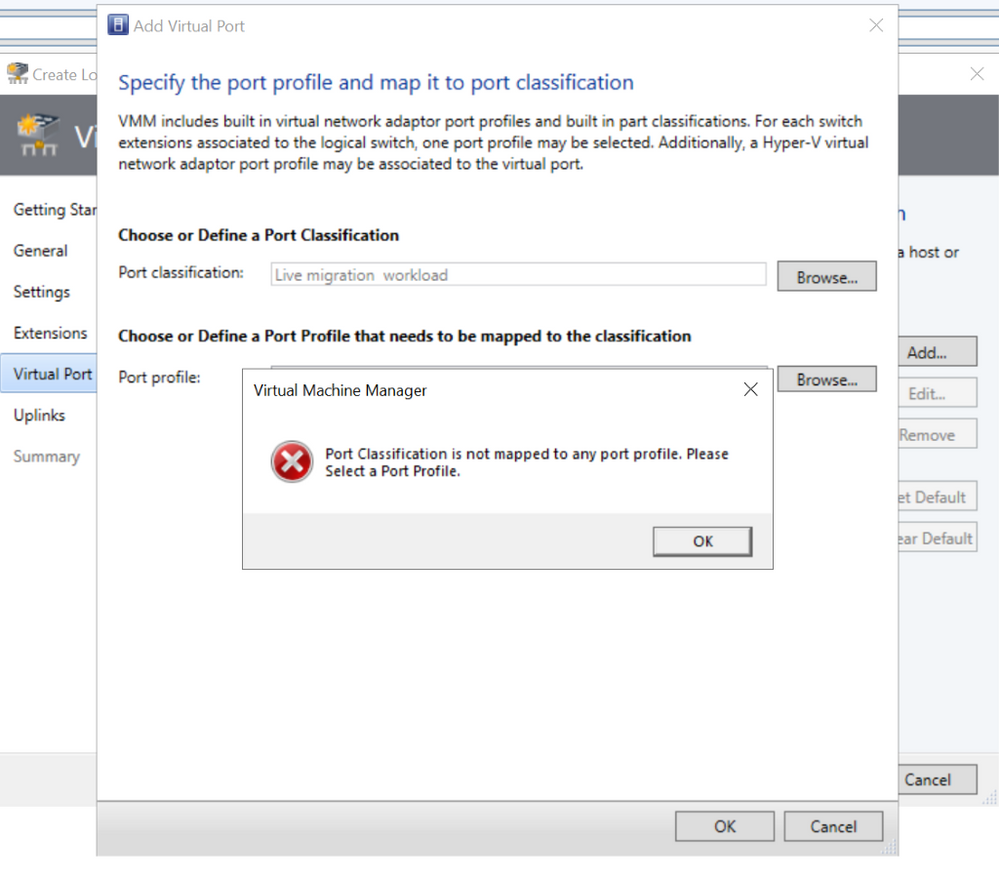
We have now added a check and user-friendly error message when the customer tries to proceed to the next screen by only adding port classification and not port profile.
Topology View
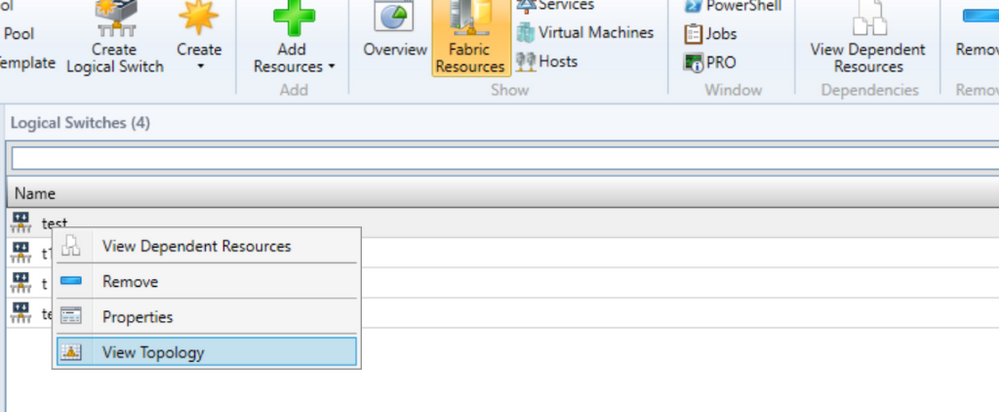
Once the logical switch is created, then the customer can right click on Logical Switch name and then click on View Topology option to view the topology.
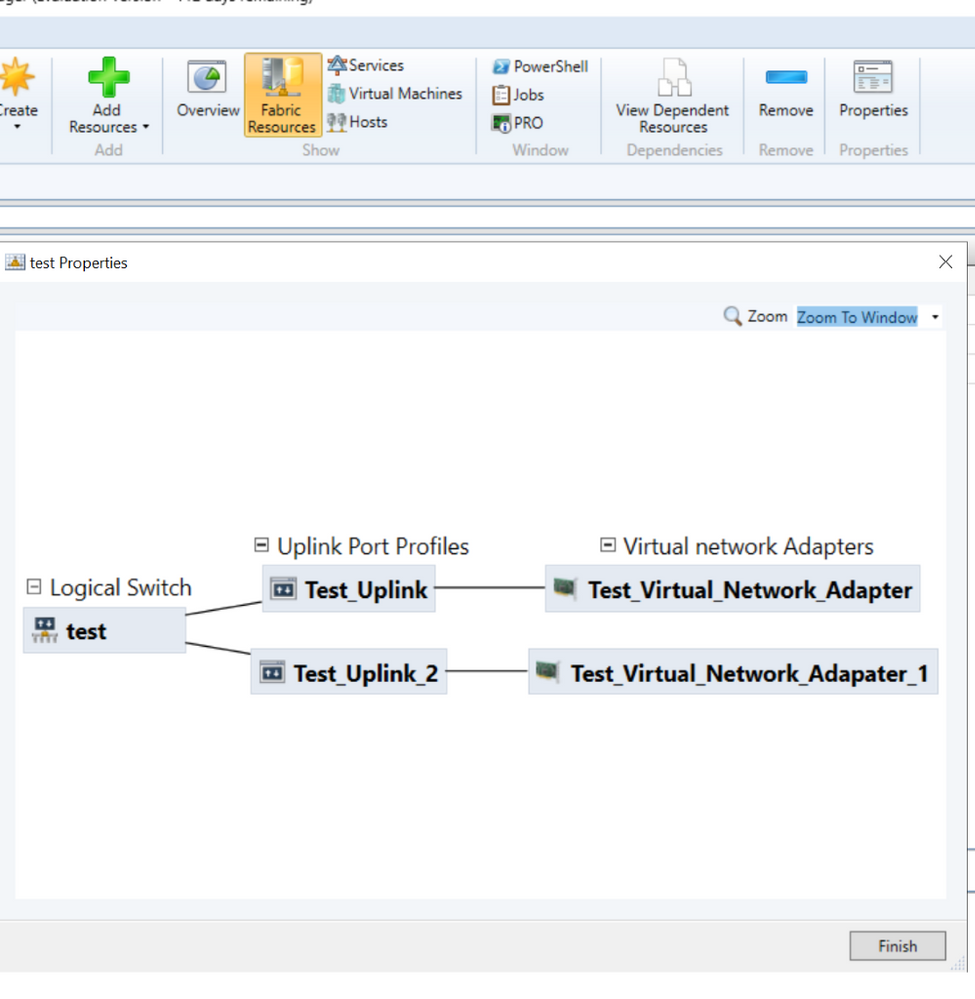
The topology diagram shows the uplink port profiles and virtual network adapters for this logical switch.
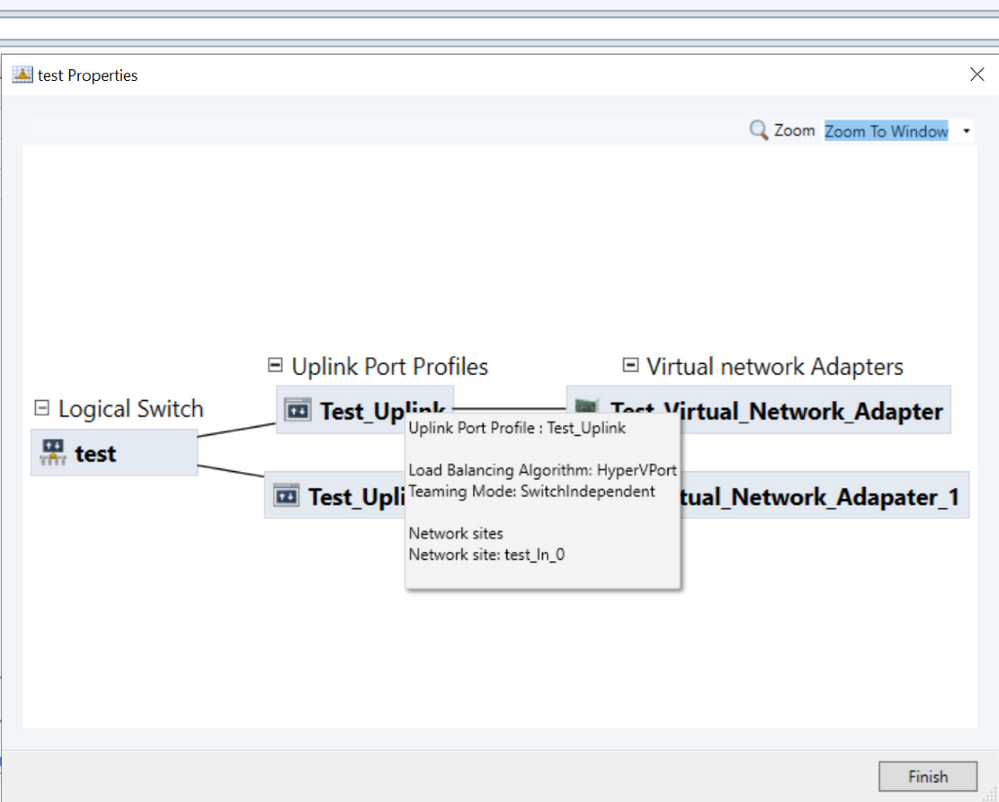
Uplink Port Profiles – Information regarding Load Balancing Algorithm, Teaming Mode and Network Sites is shown in the topology diagram.
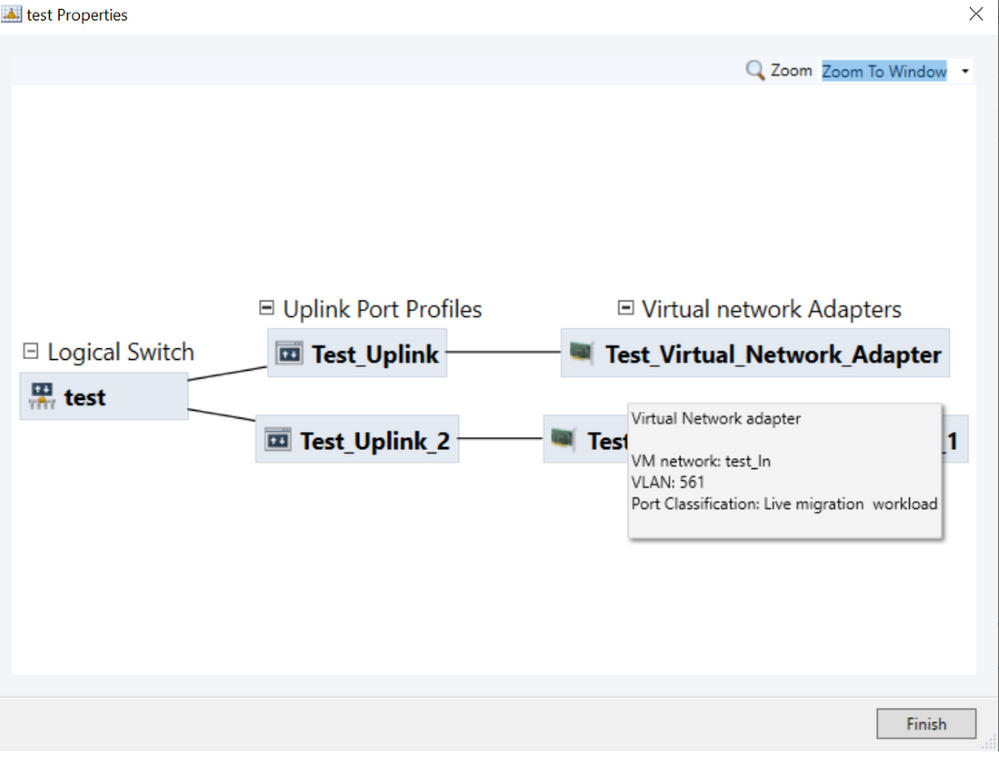
Virtual Network Adapters – Information regarding VM Networks, VLANs and Port Classifications is shown in the topology diagram.
We also want tonotifyour customers that Logical Network Simplification (introduced in 2019 UR1) and Logical Switch Simplification (introduced in 2019 UR2) are just intermediate steps in simplifying VMM networking and our end goal is to have a revamped UX/UIfor networking section so thatusers can easily and intuitively configure VMM networking settings.

![[Guest Blog] Voices of Tech Students: The Speech Only my Professor Got to Hear](https://www.drware.com/wp-content/uploads/2020/08/large-224)








Recent Comments