by Contributed | Oct 20, 2020 | Technology
This article is contributed. See the original author and article here.
SSMA migration from MySQL to Azure SQL DB repeatedly dropping connection while data migration is in progress.
Error: ‘The connection has been disabled‘.
Collect relevant logs
In this case the error message is not giving us enough details on the root cause, so further investigation is required. Start initial data collection from SSMA, by following the below steps.
1. On source

   – Collect the version details of the source database and the OS info. This is vital as there were numerous cases where we had started troubleshooting and then realized that we are on an unsupported build.

   – Collect the version details of the providers / drivers used to make connection to the source database.

2. On destination

   – Collect the version details of the SQL Server that we are trying to connect and the OS info.

   – Collect the version details of the providers / drivers used to make connection.

3. Check the Migration Engine used (Client side / Server side)

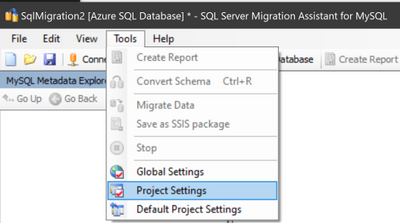
   – Navigate to Tools menu and go to Project Settings

   – Check the migration engine option from the Migration menu

4. Collect the SSMA logs after reproducing the issue, to get Log file path

   – Navigate to Tools menu and go to Global Settings

   – Select the Logging page and copy the Log file path under Misc category
You are now ready to check the SSMA logs. Dropping connection with error ‘The connection has been disabled’ is often encountered with a connection timeout.
Mitigation
When migrating big tables, the workaround is to tune the default migration parameters in Project Settings, to avoid the operation timeout and to make sure the migration succeed.
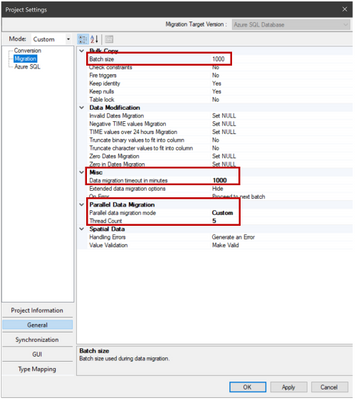
- Open SSMA for MySql -> Go to Tools -> Project Settings -> Select General from the left menu -> Select Migration -> In the Misc section -> Set data migration timeout to a higher value (i.e. 1000)
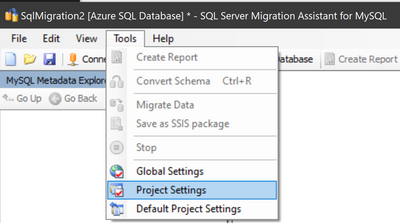
- Open SSMA for MySql -> Go to Tools -> Project Settings -> Select General from the left menu -> Select Migration -> In the Parallel data migration section -> Set Parallel data migration mode from Auto to Custom and set Thread Count from 10, which is the default, to a lower value (i.e. 5)
- Open SSMA for MySql -> Go to Tools -> Project Settings -> Select General from the left menu -> Select Migration -> Lower the value of BATCH_SIZE (i.e. 1000)
- Run the data migration.
After the above steps, the migration should complete successfully.
For more details on SSMA tool, check SSMA reference documentation.
by Contributed | Oct 20, 2020 | Technology
This article is contributed. See the original author and article here.
“Communication Link Failure” is often due to outdated drivers or poor network configuration settings.
In this scenario SSIS packages were used to load data from SQL on-premises to Azure SQL DB. After a while, the bulk insert fails with below errors:
Error: 2020-08-25 10:44:08.16
   Code: 0xC0202009
   Source: Extract Location Hierarchy Data to Datamart OLE DB Command [156]
   Description: SSIS Error Code DTS_E_OLEDBERROR.  An OLE DB error has occurred. Error code: 0x80004005.
An OLE DB record is available.  Source: “Microsoft OLE DB Driver for SQL Server”  Hresult: 0x80004005  Description: “Communication link failure”.
An OLE DB record is available.  Source: “Microsoft OLE DB Driver for SQL Server”  Hresult: 0x80004005  Description: “TCP Provider: An existing connection was forcibly closed by the remote host.
Error: 2020-08-25 10:44:08.23
   Code: 0xC0047022
   Source: Extract Location Hierarchy Data to Datamart SSIS.Pipeline
   Description: SSIS Error Code DTS_E_PROCESSINPUTFAILED.  The ProcessInput method on component “OLE DB Command” (156) failed with error code 0xC0202009 while processing input “OLE DB Command Input” (161). The identified component returned an error from the ProcessInput method. The error is specific to the component, but the error is fatal and will cause the Data Flow task to stop running.  There may be error messages posted before this with more information about the failure.
End Error”
There are several options to be considered to address this issue.
1 – Disable TLS_DHE ciphers on client machine
Unless you have a specific requirement for a legacy application, disable all the TLS_DHE ciphers, as they are outdated and not recommended to be used.
Option #1 – Follow the steps described in the documentation below:
Applications experience forcibly closed TLS connection errors when connecting SQL Servers in Windows
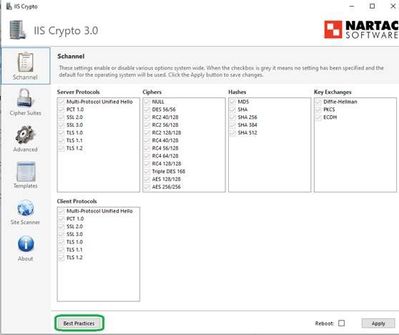
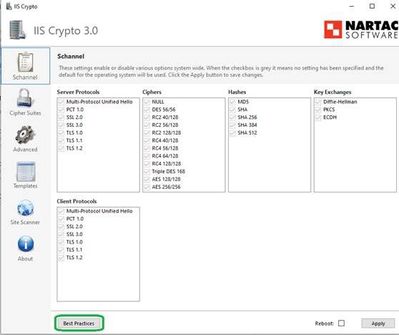
Option #2 – Alternatively, you can download IIS Crypto Tool from here and configure the best practices on your client and server.
Steps to configure best practices:
- Open IIS Crypto
- Click on Best Practices
- Go to Cipher Suits > Click on Best Practices Again
- Click Apply
- Restart the server (so that the changes are applied in the registries)
2 – Configure client machine
Step #1 Ensure NIC Drivers are up to date
Step #2 Disable TCP chimney at NIC Level
TCP Chimney Offload is a feature that provides capability to offload TCP/IP packet processing from the processor to the network adapters and some other balancing options. This has been known to cause issues on the SQL Server side causing network errors. Further information on this can be found in the following blog post as well.
TCP Chimney Offload – Possible Performance and Concurrency Impacts to SQL Server Workloads
Make sure that under Advanced Settings of NIC below options are DISABLED:
- IPv4 Checksum Offload
- IPv4 Large Send Offload
- Checksum Offload
- Large Send Offload
Steps to disable TCP chimney features at NIC level:
- Click Start -> Run -> type ncpa.cpl -> click OK
- Right-click a network adapter object -> click Properties
- Click Configure -> Advanced tab
- In the Property list: click receive side scaling -> Disable in the Value list -> OK
- In the Property list: click large send offload ->Disable in the Value list-> OK
- In the Property list: click ipv4 checksum offload -> Disable in the Value list -> OK
- In the Property list: click TCP checksum offload (IPv4) -> Disable in the Value list -> OK
The other properties to look for and disable are:
- Offload Receive IP Checksum
- Offload Receive TCP Checksum
- Offload TCP Segmentation
- Offload Transmit IP Checksum
- Offload Transmit TCP Checksum
Step #3 Configure TCP Chimney Offload, RSS and NetDMA in the operating system.
Open an elevated cmd and type below commands.
To determine the current status of TCP Chimney Offload and RSS:
netsh int tcp show global
To disable TCP Chimney Offload:
netsh int tcp set global chimney=disabled
To disable RSS:
netsh int tcp set global rss=disabled
To disable NetDMA:
netsh int tcp set global netdma=disabled
Restart the machine.
3 – Tune SSIS Package
Another recommendation to alleviate the connection issue is to actually tune your SSIS package to perform more efficiently. There’s lots of articles around this aspect, but the top settings are DefaultBufferMaxRows, DefaultBufferSize, and Rows per batch settings. However, this needs to be performed over many trials, while capturing logging data and adjusted accordingly. We usually see General Network Errors associated with poor performing packages, that degrade over time because of the data/transactions involved.
This blog gives a quick rundown about tuning your SSIS package for a better performance.
Here’s our documentation on top 10 SSIS Best Practices which will also go over different settings you can test.
by Contributed | Oct 20, 2020 | Technology
This article is contributed. See the original author and article here.
Login error received after initiating failover between Azure SQL primary server and its geo-replicated secondary:
“The server principal ‘<username>’ is not able to access the database ‘<db_name>’ under the current security context. Cannot open database ‘<db_name>’ requested by the login. The login failed. Login failed for user ‘<username>'”
This typically means the logins in secondary server are not mapped correctly from primary server. Reasons could be either primary and secondary server SID mismatch or it could be a permissions issue, i.e. did not provide proper permissions to database in primary server.
Steps to handle
Verify and create proper login mapping between primary and secondary. The procedure to map logins is exemplified below. I’ve configured geo-replication for my P1 database Adventureworks and I’ve created testlogin.
Step #1
Run below T-SQL in master of primary server to identify the login and check the SID matching.
SELECT [name], [sid]
FROM [sys].[sql_logins]
WHERE [type_desc] = 'SQL_Login'
name sid
testuser 0x010600000000006400000000000000004B1D98FA1758A440A6AC481292BFECAE
azure_test 0x0106000000000064000000000000000099514D212C5CC44AB7A
Step #2
Create testuser for Adventureworks DB in primary server and provide data_reader permission. You can skip this step if you already have the same user with read-only permissions.
CREATE USER testuser
FOR LOGIN testuser
EXEC sp_addrolemember 'db_datareader', 'testuser'
Run below T-SQL on Adventureworks DB to check SID value:
SELECT [name], [sid]
FROM [sys].[database_principals]
WHERE [type_desc] = 'SQL_USER'
name sid
dbo 0x010600000000016400000000000000002B84948B9D83A54182DE3A5602C009E3
testuser 0x010600000000006400000000000000004B1D98FA1758A440A6AC481292BFECAE
We can see testuser SID matches with logical master and primary database.
Step #3
If you have matching SID, execute below T-SQL to map the login in the configured geo-replicated database in secondary server.
Login to secondary server and create login like below in master db:
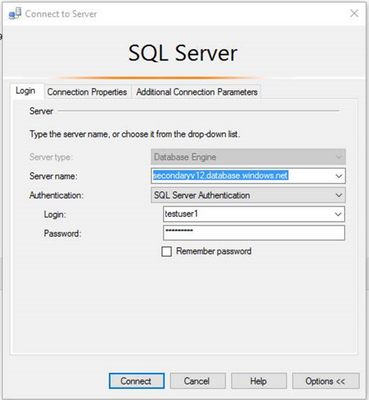
CREATE LOGIN testuser1
WITH PASSWORD ='****',
SID = 0x010600000000006400000000000000004B1D98FA1758A440A6AC481292BFECAE
The connection to the database should now be successful.
 SSMS test connection 1
For more details on how to configure logins and users for geo-replicated servers, please refer to the following article – Configure and manage Azure SQL Database security for geo-restore or failover .
The recommendation to overcome the incorrect mapping is to use contained users:
- With SQL Database, you can always create this type of user account.
- With SQL Managed Instance supporting Azure AD server principals, you can create user accounts to authenticate to the SQL Managed Instance without requiring database users to be created as a contained database user.
With this approach, the user authentication information is stored in each database, and replicated to geo-replicated databases automatically. However, if the same account exists in multiple databases and you are using Azure SQL Authentication, you must keep the passwords synchronized manually. Additionally, if a user has an account in different databases with different passwords, remembering those passwords can become a problem.
Note: To create contained users mapped to Azure AD identities, you must be logged in using an Azure AD account that is an administrator in the database in Azure SQL Database. In SQL Managed Instance, a SQL login with sysadmin permissions can also create an Azure AD login or user.
For more details on contained users, please check Authorize database access to SQL Database and Contained Database Users – Making Your Database Portable .
by Contributed | Oct 19, 2020 | Technology
This article is contributed. See the original author and article here.
Initial Update: Tuesday, 20 October 2020 00:27 UTC
We are aware of issues within Application Insights and are actively investigating. Newly created or updated Availability Tests do not take effect in executing the tests.
- Work Around: <none or details>
- Next Update: Before 10/20 01:30 UTC
We are working hard to resolve this issue and apologize for any inconvenience.
-chandar
![[Guest Blog] All Journeys Are Not The Same: Don’t Compare Yours](https://www.drware.com/wp-content/uploads/2020/10/397x325)
by Contributed | Oct 19, 2020 | Technology
This article is contributed. See the original author and article here.
This article is written by Business Applications MVP, Megan Walker, who shares challenges from her personal story that has impacted her career path today.
Have you ever compared yourself with someone else? I mean, we all have, right? And we know it’s kind of pointless too. You see someone the same age as you, in the same industry, and perhaps doing the same job, and you compare. You wonder, how have they achieved all they appear to have accomplished? How do they fit in so much blogging/presenting/whatever? Unless you are close friends with someone, you often will not ever know their story. Here is a small portion of mine.
Like so many women (although certainly not all), I assumed my life would go something like this. Meet someone, fall in love, get married, have some kids. It was not something I dreamed about or pined over, it was just there in the back of my mind as ‘the plan’. I had no time frame, no expectations about when these things would happen, but just figured they would. I was 23 when I met my now-husband, and I knew pretty much after a month that he was the one for me. Heck, I even moved to his homeland of the United States of America to start a new life with him. I was young and in love and it was exciting (note, I am still very much in love, just not so young!).

So, I was well ahead in this thing called life, but we wanted to have a marriage first, just be the two of us and were in no rush to have any mini versions of us for a while. For the first 6 or 7 years of that time, I worked in restaurants, which meant really long hours, early starts and late finishes. Realising it was not exactly great for a ‘family’ life, I worked my way OUT of hospitality and started working for a software company instead, which joyfully led me to the world of Microsoft Dynamics CRM.
Sadly, the joy of starting a family never happened. We had several miscarriages and many rounds of IVF. In the USA, it is also not typically covered by insurance and costs tens of thousands of dollars, which just kind of adds insult to injury. For anyone who has gone through this themselves, you will know and understand the true pain and heartbreak each time it does not work and are left with an emptiness that replaces the anticipation and hope felt previously. And to top it off, you paid for this too! It’s *%@*… Nothing else to say!
After many, many years of this, we made the difficult decision to stop the IVF treatments and decided to move to the UK. Back to my homeland, but a massive move for my American husband. After a few years back in England, I started a blog. I wanted to share things I was learning and still figuring out, and hoped that it might help the odd person. I was working for a Microsoft Partner, learning more and more, meeting people within the community, and starting to get a name out there. I loved it!
I have had many people comment, and exclaim, how do you find time to blog so much, and create so many videos, or travel (pre-COVID) to so many places. Honestly? When I realized I could not and would not be having any kids, I felt like I had lost my place in the world. I couldn’t see what value I could bring to others, plus, I could not see where I fit in. I don’t mean that having kids is the only purpose for someone, not at all. But that had been the path I thought I was on for so long. And when that path ends…. you feel kind of lost. Finding the Microsoft Dynamics & Power Platform Community felt like it gave me some kind of goal, to help others.
One perspective I have is that if I had children, I am not sure I would be here…. Being a Microsoft Business Applications MVP, travelling over the world to do presentations. Perhaps I would not be able to sit on a Saturday afternoon and write blog posts or record a video as I would be spending that time with them. I would be with my family and make sure they knew they were loved. I am happy for others who have managed to start their own families with kids, but having said that, the life that I now have is good and I’m grateful for it – I am married to my best friend (for over 20 years), and we are finally happy and at peace with what we have.

So yeah, I do a lot of community stuff. I create a bunch of content, and I really love doing it. But do not compare what I do with what you do when our lives are likely not the same. We all have our own journey and unique (sometimes unspoken) challenges – some are more painful and difficult to navigate than others, but we can all achieve our goals and find fulfillment when we focus. Sometimes those goals, objectives or the purpose we thought we once had can shift drastically – it’s important that we re-evaluate our lives to stay afloat, and find comfort in the things that we can be grateful for.
I hope this encourages you in your own journey as well, regardless of what struggles you are going through in your life. Your journey is your own – don’t compare yourself to others; you’ve got this!
#CareerJourneys
#HumansofIT
by Contributed | Oct 19, 2020 | Azure, Technology
This article is contributed. See the original author and article here.
Starting at 18:50 UTC on 19 Oct 2020, some customers may receive intermittent 403- or 500-level errors while accessing or performing service management operations – such as create, update, delete – for Application insights, Alerting and Log Analytics resources from the Azure portal or when using CLI.
We are aware of this issue and are actively investigating. The next update will be provided in 60 minutes, or as events warrant.
Public communication on this incident can be viewed at https://status.azure.com/en-us/status
-Chandar by Contributed | Oct 19, 2020 | Technology
This article is contributed. See the original author and article here.
Update: We would like to inform you that the issue is mitigated as of 12:00 AM UTC on 19th Oct 2020.
Please add a comment if you are still experiencing any issues within DevTest Labs.
—————————————————————————————————————-
We would like to inform you that starting 18:35 UTC on 19 Oct 2020, we are currently investigating an issue where certain lab operations may fail. Based on our current investigation, this is happening due to an outage within the Azure Resource Manager. More details on the outage here: https://status.azure.com/en-us/status?service=cognitive-services
Following lab operations may not work as expected during this time:
- Creating/ updating/ deleting lab virtual machines
- Creating custom images, formulas
- Setting lab schedules
Our team continues to work on a fix and we will update this post to share regular updates.
We apologize for the inconvenience and thank you for your patience.
-DevTest Labs Team
by Contributed | Oct 19, 2020 | Technology
This article is contributed. See the original author and article here.
We would like to inform you that starting 18:35 UTC on 19 Oct 2020, we are currently investigating an issue where certain lab operations may fail. Based on our current investigation, this is happening due to an outage within the Azure Resource Manager. More details on the outage here: https://status.azure.com/en-us/status?service=cognitive-services
Following lab operations may not work as expected during this time:
- Creating/ updating/ deleting lab virtual machines
- Creating custom images, formulas
- Setting lab schedules
Our team continues to work on a fix and we will update this post to share regular updates.
We apologize for the inconvenience and thank you for your patience.
-DevTest Labs Team
by Contributed | Oct 19, 2020 | Technology
This article is contributed. See the original author and article here.
Throughout the last several months there have been many new features, updates, and happenings in the world of Information Protection at Microsoft. As we continue to build out more of this story, we wanted to use this opportunity to connect with customers, partners, and more on some of these updates to keep you informed and provide a single pane of glass on everything we have been working on for the last several months. In addition, we hope to give you some insight into the next big things being built within MIP overall. In the future, we hope to release this blog quarterly, providing you the most important and relevant updates to look for in this area and continuing to drive great customer experiences.
Microsoft Information Protection:
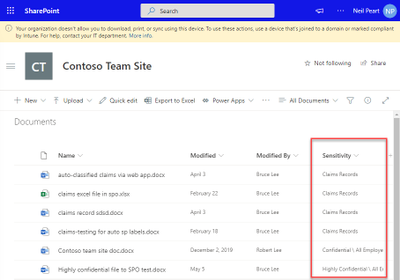
SharePoint Online (SPO) support for Sensitivity Labels, Co-authoring + Web-apps
- Enables SPO to process/store/index/search labeled/protected Office files
- Office web-apps support labeled/protected files and enable co-authoring
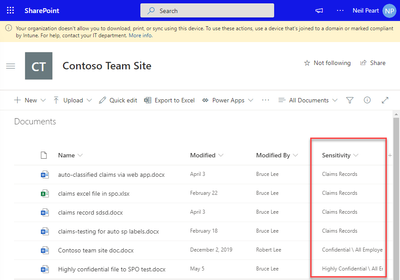
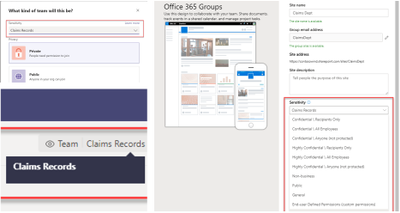
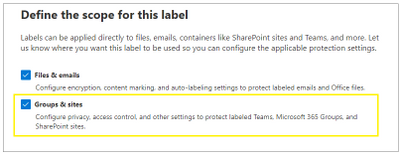
General Availability: Microsoft Information Protection sensitivity labels in Teams/SharePoint sites/O365 Groups
- You can now associate a sensitivity label with policies related to privacy, external user membership, and unmanaged device access.
Unified Labeling Scanner Network Discovery Feature
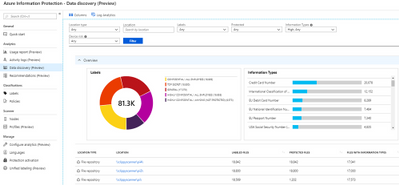
- New network discovery component that is now available in public preview enables you to map your file shares by scanning IP ranges and reporting on found shares and their exposure level.
- Exposure level can be used to prioritize the onboarding of this newly discovered shares to content scan job for deeper file inspections in these shares.
General availability of automatic classification with sensitivity labels in Microsoft 365 services
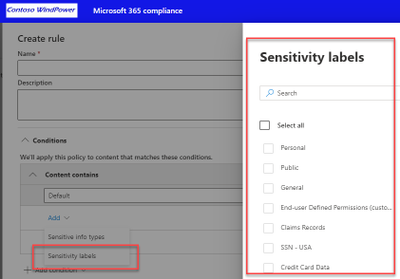
- You can create an auto-labeling policy with rules tailored for your organization’s sensitive data, targeting specific locations in your enterprise. A policy can either be in simulation or active mode. You can run the policy first in simulation mode and if the results satisfy your organization’s needs then you can proceed and publish the policy.
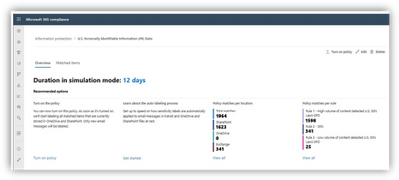
Announcing General Availability of Unified Labeling in GCC and GCC-H Environments
- GCC and GCC-H customers are now able to migrate sensitivity labels and label policies in the Azure Information Protection blade to the new label management portal, Microsoft 365 Compliance Center.
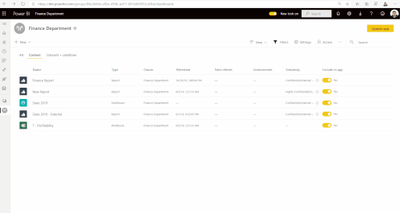
Announcing general availability of Microsoft Information Protection in Power BI
- The same sensitivity labels you use to classify and label data in Microsoft365 apps (e.g. Excel) can now be used to classify and label sensitive data in the Power BI service too.
- ***What’s Coming*** – MIP sensitivity labels in Power BI desktop (preview in December) enable creators to apply sensitivity labels and protection on PBIX files while author dataset and reports in Power BI desktop in addition to mandatory label policies in Power BI.
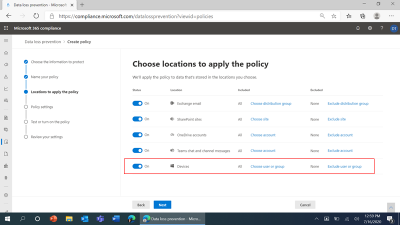
Announcing public preview of Microsoft Endpoint Data Loss Prevention
- Endpoint DLP is native to Windows 10 and the new Microsoft Edge browser. There is no need to install or manage additional DLP software on Windows 10 machines (Version 1809+) anymore. Endpoint DLP is managed via the cloud and the Microsoft 365 compliance center, eliminating the need to deploy and operate additional consoles, event management systems, databases, and hardware on premises.
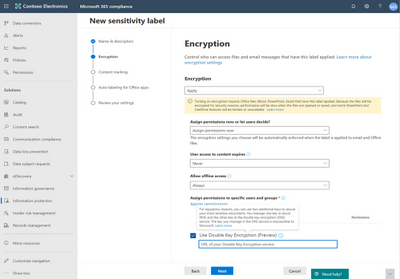
Announcing General Availability of Double Key Encryption for Microsoft 365
Announcing GA: Mark new files as “sensitive by default” in OneDrive & SharePoint
- When new files are added to SharePoint or OneDrive in Microsoft 365, it takes additional time for the Office Data Loss Prevention (DLP) policy to scan the content and apply rules to help protect sensitive content. If external sharing is turned on, sensitive content could be shared and accessed by guests before the Office DLP rule finishes processing.

PREVIEW – Labels as DLP condition in SPO/OD/EXO/PC
- Allows use of a label as a condition to trigger a DLP Rule
- If DLP Policy covers SPO/OD, then Teams attachments are covered
***What’s Coming*** – Per-site Azure Active Directory Conditional Access controls
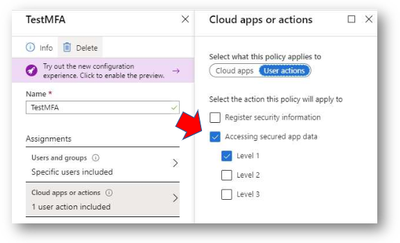
- Allows AAD CA controls ‘per site’ including per-site MFA and per-site Terms of Use
- CA Policy linked to a ‘tag’ applied to Site (via PowerShell). Soon, this will be possible based on Label assigned to the Site
***What’s Coming*** – Unifying logging
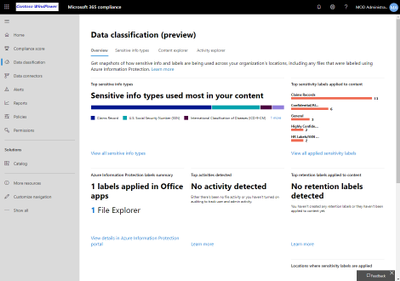
- Work is being done to bring it all to the M365 Audit log, and to consume these logs from the Data classification Content and Activity explorers for unified Logging and reporting.
2020 Ignite Information Protection Related Sessions:
For more information, take a look at some of our most recent Ignite Sessions on Information Protection:
Additional Information:
by Contributed | Oct 19, 2020 | Technology
This article is contributed. See the original author and article here.
Blog Series: MCAS Data Protection – Protect Box (Part 1: Near Real-Time Data Protection)
Hi everyone! Welcome to the first installment of my MCAS Data Protection Blog Series! If this is your first time seeing this blog, check out my landing page for some more information about me and what I’ll be covering! Within this article, I’ll be discussing three unique Box governance action behaviors (Apply classification label, Set an expiration date on a shared link, and Put in admin and user quarantine). These governance actions were selected based on customer scenarios and questions my team has received.
To get started, there are two ways to protect Box using MCAS.
- Near real-time (NRT) protection that’s configured through File Policies and manual file governance; this uses the Box app connector.
- Real-time data protection using Conditional Access App Control.
For this article (Part 1), we are covering NRT data protection mechanisms.
For the following scenarios, please ensure you have the following prerequisites in place:

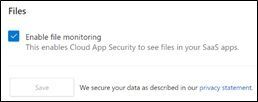
- File Monitoring is enabled.
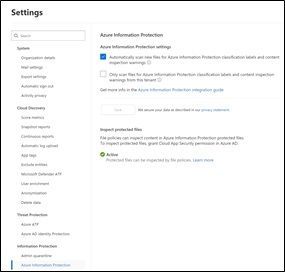
- Azure Information Protection integration is enabled.
Okay, so let’s jump into our files! If Box is fully configured and connected, the full list of files and folders in Box will populate within the Files list under Investigate.
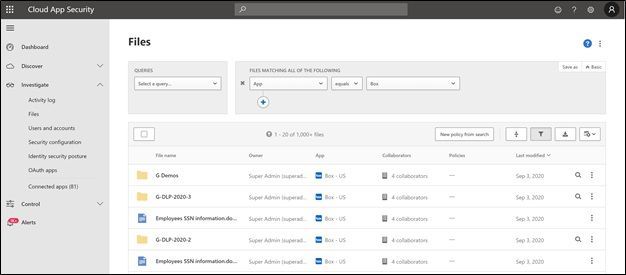
From here, you’ll able to do a manual investigation. When you go to the vertical ellipsis for a specific file, you get the below drop-down menu:
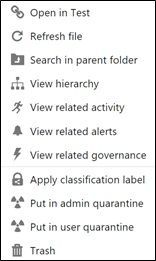
NOTE: If you’re using Sensitivity Labels, MCAS will use those labels for file labeling.
NOTE: If the Box file (any file) has already been labeled, you are unable to put that file in quarantine.
When you create a File Policy in MCAS, your list of governance actions (automatic) are slightly different from what you can do from the Files list under Investigate (manual).
Box Automatic Governance Actions
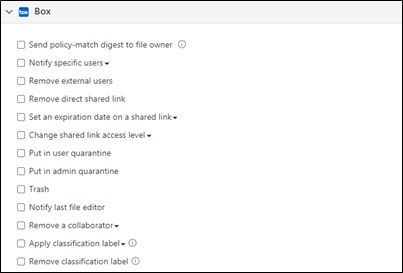
Now, let’s dive into the governance action, “Apply classification label.”
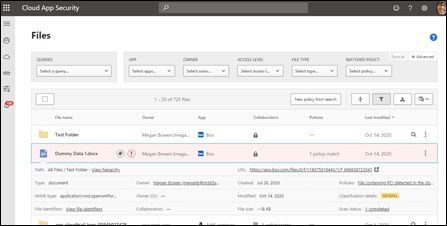
For our example, the file we’re using is named “Dummy Data 1.docx.” This file currently sits in Box and has credit card information. Using a File Policy for Box, MCAS detected the sensitive information and labeled the file (automated governance). In the screenshot below, the exclamation point indicates the file matches a policy and the tag indicates that this document is protected using Azure Information Protection. What is the customer ask here?
Scenario: The file has been labeled in Box through MCAS.
Question: How do we know that a file has been labeled by MCS in Box? When we’re in Box, we cannot see that this file has been labeled.
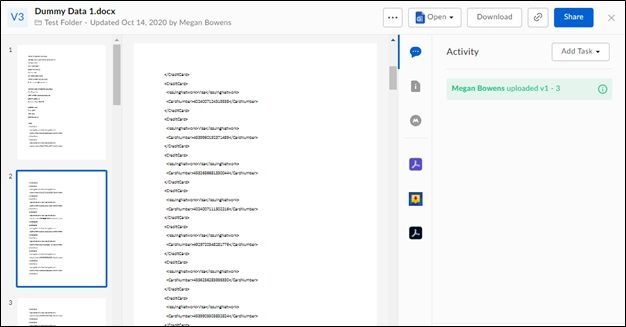
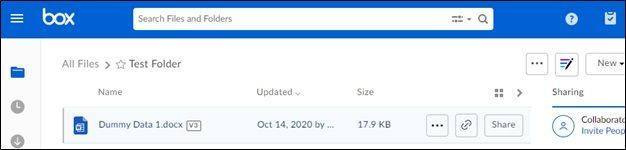
There’s a trick though… in order to get this information, you have to download the file. When you download the file, you can see within the file Properties (File -> Info -> Properties -> Advanced Properties -> Custom) that a label has been applied.
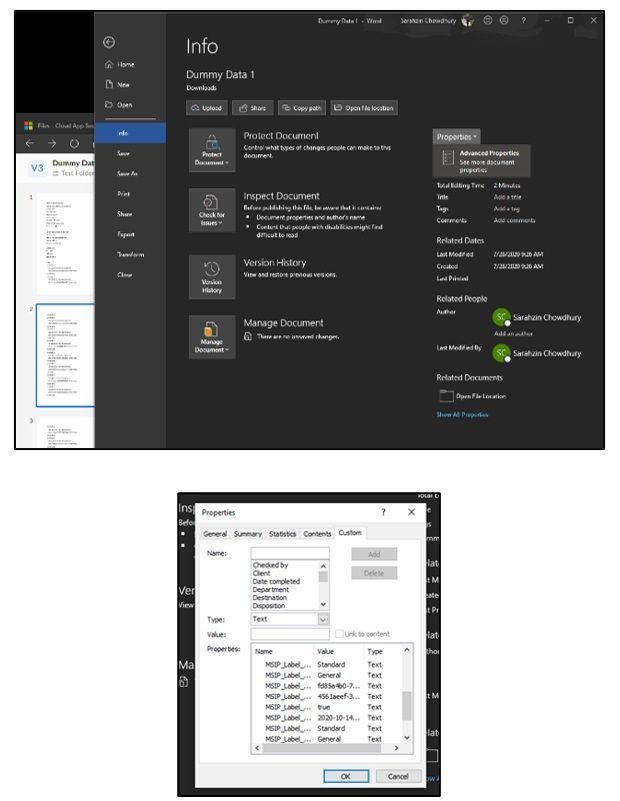
NOTE: If you use MCAS to apply a label to a file, you can use MCAS to remove that label as well. If the label was applied by a different service from MCAS (AIP Unified Labeling client, AIP Scanner, etc.), it cannot be removed by MCAS.
Next, let’s take a look at the governance action, “Set an expiration date on a shared link.”
For our example, the file we’re using is named “File set expiration date on shared.docx.” Using a File Policy for Box, MCAS detected this file had a shared link expiring on October 31st.
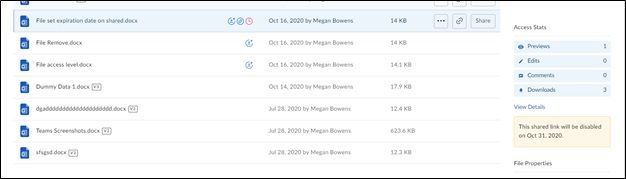
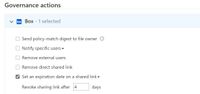
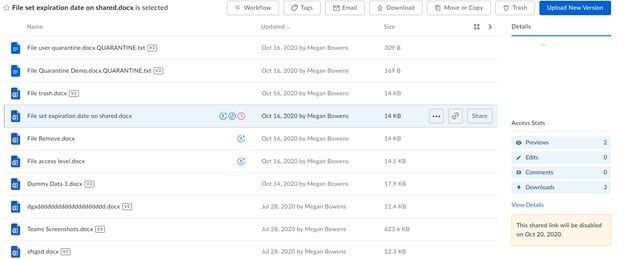
The policy itself was created on the 16th of October. When MCAS detected this, based on the configuration of revoking shared link access after 4 days, the new date is now October 20th. The customer ask is if the revocation of the link is from the current date assigned. The answer is no. It is from the day MCAS detected and applied the Governance action.
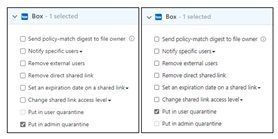
Alright, last but not the least, “Put in admin quarantine” and “Put in user quarantine.”
Box behaves different from the admin quarantine settings we currently have for SharePoint Online and OneDrive for business. We cannot select a specific folder nor can we change the message the user sees. For our example, we put 1 file in User Quarantine (File user quarantine.docx) and 1 file in Admin Quarantine (File Quarantine Demo.docx). In this example we have one policy putting a file in Admin quarantine and another policy putting a secondary file in user quarantine. The customer question here is always around why they cannot find the file in their SharePoint Admin Quarantine folder. This is because the entire experience with Box is different.
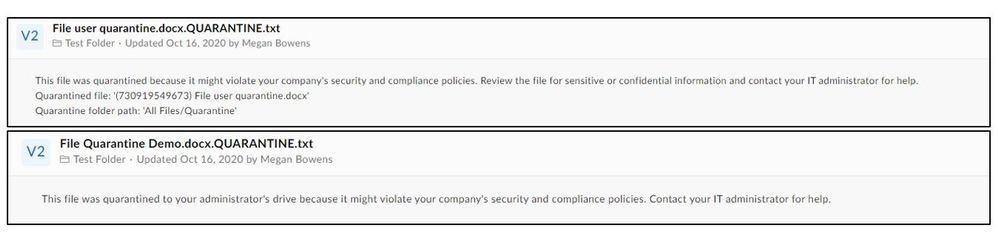
NOTE: For Box, the quarantine folder location and user message can’t be customized. The folder location is the drive of the admin who connected Box to Cloud App Security and the user message is: This file was quarantined to your administrator’s drive because it might violate your company’s security and compliance policies.
The below files are in the original folder, named “Test Folder” for our demo, and have yet to be quarantined.

Once MCAS goes through and quarantines these files, this is what it looks like in MCAS:
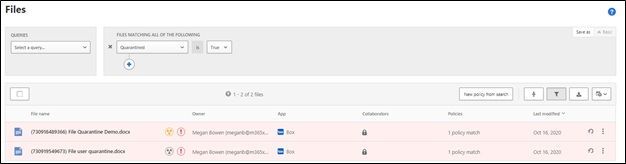
The yellow icon indicates the file is in Admin Quarantine while the grey icon indicates the file is in User Quarantine.
Within Box, a folder named “Quarantine” was created in the main landing page. Megan Bowens is the admin of this tenant and the current account holder. Within the folder, she has the file which is in User Quarantine and then another folder, with her name, indicating the admin quarantine of the file.
Admin quarantine files will populate under a sub-folder named with the user’s account (user whose file is being quarantined) within the “Quarantine” folder. This is to ensure an admin can have separate folders per user who has their file under Admin Quarantine.
User Quarantine files will populate under a folder named “Quarantine” on the main landing page for a user.
In our example, since Megan is both an admin and user, she is seeing a combination of the parent folder with the sub-folder and has access to both the files.
Main Landing Page for Megan:

Inside the “Quarantine” folder:

Inside the Meganb@M365x913048.onmicrosoft.com folder:

This is what the user sees in “Test Folder” after a file has been quarantined:

What each file says when you open in “Test Folder:”
The actions can be best summarized with the below:
- Put in user quarantine – Allow self-service by moving the file to a user-controlled quarantine folder.
- Put in admin quarantine – File is moved to quarantine in the admin account, and the admin must approve it.
There you have it! 3 unique behaviors of MCAS data protection with Box file governance. Let me know if you have any feedback. What other scenarios would you like me to cover? Feel free to comment below!


Recent Comments