by Contributed | Oct 28, 2020 | Technology
This article is contributed. See the original author and article here.
Reimagine your workday with Microsoft Teams displays, a new category of Teams device solutions that combine productivity, collaboration and artificial intelligence into one seamless experience. Teams display is the first all-in-one touchscreen device dedicated to bringing the Teams experience to life; by channeling your alerts, schedule, calls and meetings into one device you can free up your PC and mind space to the task at hand and minimize distractions. Most exciting, Teams displays are powered by Cortana, transforming what would be an ordinary video phone into a powerful personal assistant.
Whether you are at home or in the office, Teams displays change how you work.
1. Teams at your fingertips
As a device dedicated only to Teams, displays bring together everything you need to stay in the rhythm of work: chat, meetings, calls, calendar, and files can be accessed instantly, freeing up your PC for other tasks. Engage in high quality calling and meetings with your colleagues with industry leading microphones, cameras and speakers built in.
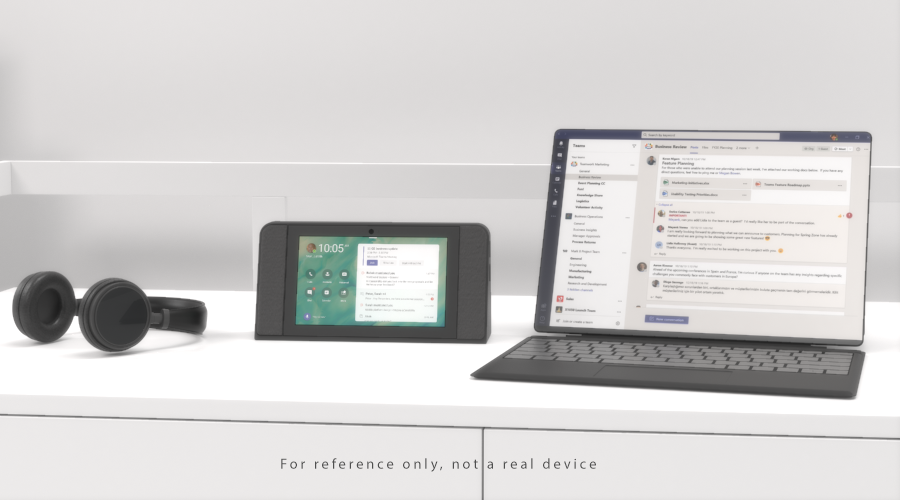
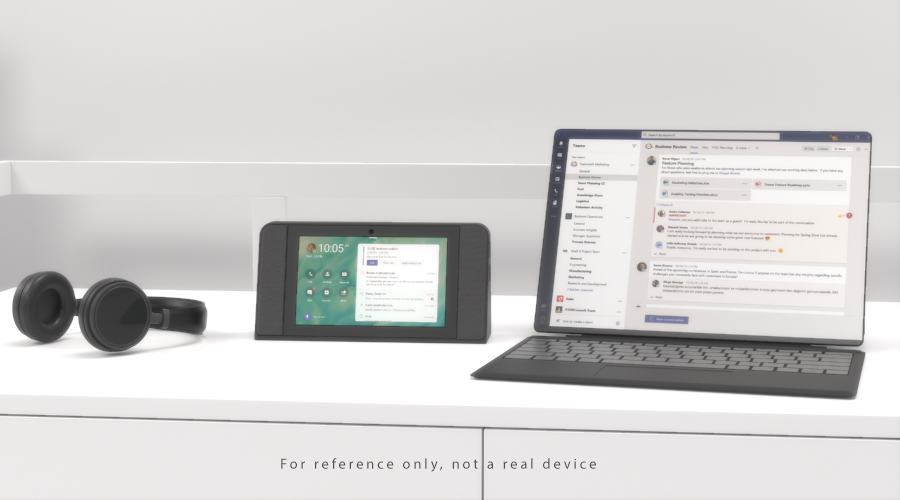 Dedicated Teams devices like Bluetooth headsets (left) and displays (center) create a more reliable calling and meeting experience.
2. Everything you need to know, at-a-glance
The customizable home screen of the display shows you key alerts from Team, your schedule highlights, and shortcuts to key communication apps like calling, contacts voicemail. Ever been heads down in a deliverable and can’t remember what is next in your day? Take a look at your display to stay caught up without skipping a beat. Customize your notifications to surface what is important to you and reduce pings and distractions from your primary work device or mobile. Finally change your wallpaper from a variety of delightful preset options, with the capability to add your own coming soon.
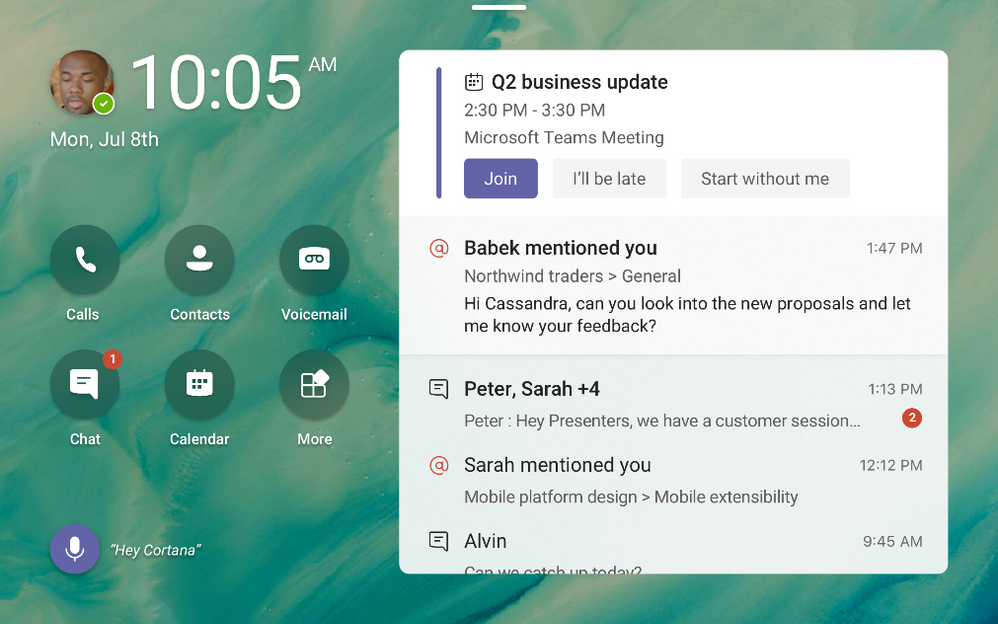 Microsoft Teams displays can be personalized to include wallpapers and highlight important activities and notifications.
3. Use the power of Cortana to go hands free
Use voice commands to leverage Cortana in your daily tasks. You can make requests like:
“What is on my calendar today?”
“Share this document with Megan”
“Join my next meeting”
“Add Joe to this meeting”
“Present the quarterly review deck”
Take back the time from little tasks with built in voice assistant capabilities.
4. Better together with your PC
Microsoft Teams displays seamlessly integrate with your PC to bring a companion experience that allows for seamless cross-device interaction. You can easily lock and unlock both devices from your connected PC, open files or messages on one with the option to respond on the other. You can even split the contents and participants in meetings across two screens, so you can consume information while maintaining contact with your collaborators.
 Using Microsoft Teams displays allows for a distributed meeting experience across devices.
5. Enterprise privacy, security, and compliance
Microsoft Teams displays ensure user’s privacy and meets enterprise-grade security and compliance in several ways:
- With a camera shutter and microphone mute switch, users can feel assured that your conversations and video will remain private.
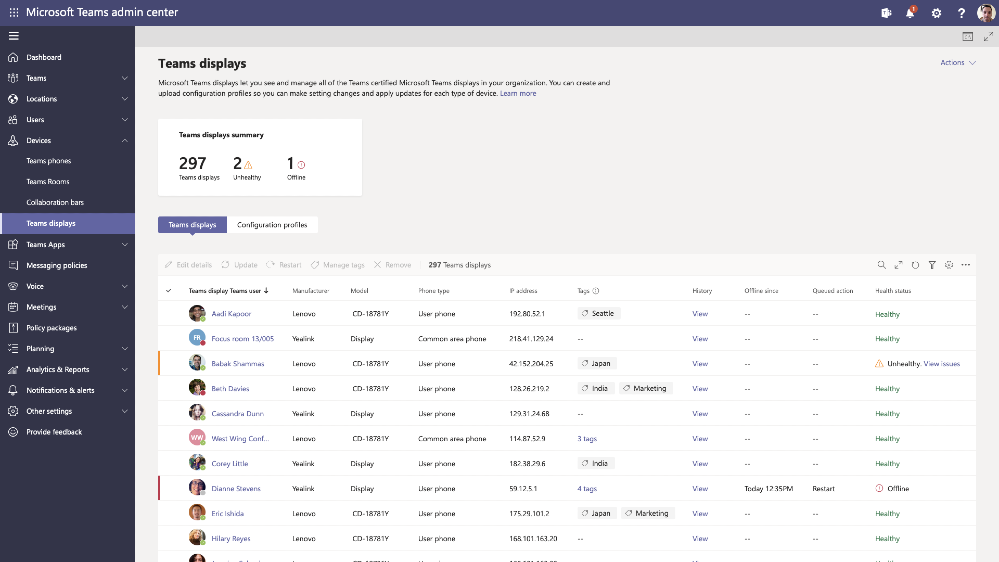
- IT admins can securely manage, update, and monitor Microsoft Teams displays through the Teams admin portal.
- Users will securely sign in with their enterprise Azure Active Directory credentials.
- Voice assistance experiences are delivered using Cortana enterprise-grade services that meet Microsoft 365 privacy, security and compliance commitments.
The Lenovo ThinkSmart View will be the first Microsoft Teams display to market, with Yealink coming soon.
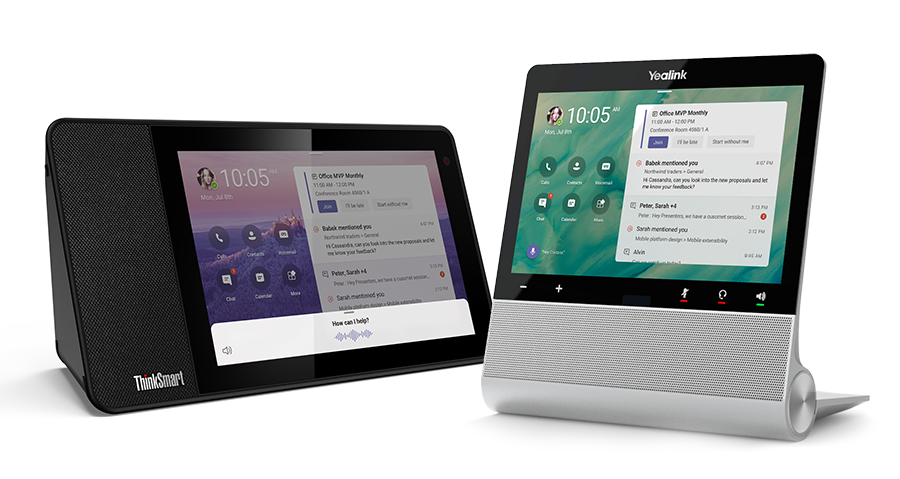 The first Microsoft Teams displays are from Lenovo (left) and Yealink (right).
To learn more about portfolio of devices certified for Teams, visit office.com/teamsdevices or shop the ThinkSmart View at Microsoft Stores.
by Contributed | Oct 28, 2020 | Technology
This article is contributed. See the original author and article here.
When a snapshot isolation transaction accesses object metadata that has been modified in another concurrent transaction, it may receive this error:
“Snapshot isolation transaction failed in database ‘%.*ls’ because the object accessed by the statement has been modified by a DDL statement in another concurrent transaction since the start of this transaction. It is disallowed because the metadata is not versioned. A concurrent update to metadata can lead to inconsistency if mixed with snapshot isolation.”
This error can occur if you are querying metadata under snapshot isolation and there is a concurrent DDL statement that updates the metadata that is being accessed under the snapshot isolation. SQL Server does not support versioning of metadata. For this reason, there are restrictions on what DDL operations can be performed within an explicit transaction running under snapshot isolation. An implicit transaction, by definition, is a single statement which makes it possible to enforce the semantics of snapshot isolation even with DDL statements.
The following DDL statements are not permitted under snapshot isolation after a BEGIN TRANSACTION statement:
- ALTER TABLE
- CREATE INDEX
- CREATE XML INDEX
- ALTER INDEX
- DROP INDEX
- DBCC REINDEX
- ALTER PARTITION FUNCTION
- ALTER PARTITION SCHEME
In addition, any common language runtime (CLR) DDL statement is subjected to the same limitation.
Note: The above statements are permitted when you are using snapshot isolation within implicit transactions.
An implicit transaction, by definition, is a single statement which makes it possible to enforce the semantics of snapshot isolation even with DDL statements.
Queries that run on read-only replicas are always mapped to the snapshot transaction isolation level. Snapshot isolation uses row versioning to avoid blocking scenarios where readers block writers.
To resolve the above error, the workaround is to change the snapshot isolation level to a non-snapshot isolation level such as READ COMMITTED before querying metadata.
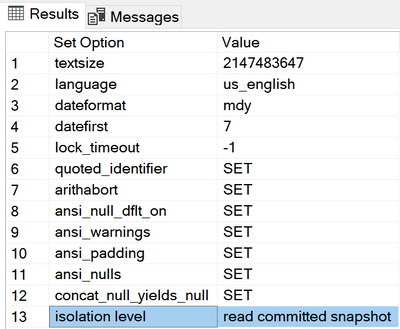
In Azure SQL, snapshot isolation is enabled and the default transaction isolation level is READ COMMITTED SNAPSHOT. To check the default values, you can run the following T-SQL:
CREATE DATABASE TestDB(EDITION = 'BASIC', MAXSIZE = 2GB)

SELECT name, snapshot_isolation_state, is_read_committed_snapshot_on
FROM sys.databases
WHERE name = 'TestDB'

or you can check the database active options with:
DBCC useroptions
If you need to change it to read committed to resolve the error described above, check the below steps:
ALTER DATABASE TestDB SET READ_COMMITTED_SNAPSHOT OFF

ALTER DATABASE TestDB SET ALLOW_SNAPSHOT_ISOLATION OFF

SELECT name, snapshot_isolation_state, is_read_committed_snapshot_on
FROM sys.databases
WHERE name = 'TestDB'
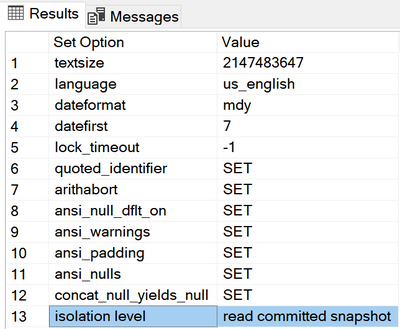
The result is :

Azure SQL supports two transaction isolation levels that use row versioning: Read Committed Snapshot and Snapshot isolation level. To read more about this, please check the
Database Engine Isolation Levels.
The behavior of READ COMMITTED depends on the READ_COMMITTED_SNAPSHOT database option setting:
If READ_COMMITTED_SNAPSHOT is set to OFF , SQL engine will use shared locks to prevent other transactions from modifying rows while the current transaction is running a read operation. The shared locks also block the statement from reading rows modified by other transactions until the other transaction is completed.
If READ_COMMITTED_SNAPSHOT is set to ON (the default on Azure SQL Database), the Database Engine uses row versioning to present each statement with a transactionally consistent snapshot of the data as it existed at the start of the statement. Locks are not used to protect the data from updates by other transactions.
Note: Choosing a transaction isolation level does not affect the locks acquired to protect data modifications. A transaction always gets an exclusive lock on any data it modifies, and holds that lock until the transaction completes, regardless of the isolation level set for that transaction. For more details, see the Transaction Locking and Row Versioning Guide.
by Contributed | Oct 28, 2020 | Technology
This article is contributed. See the original author and article here.
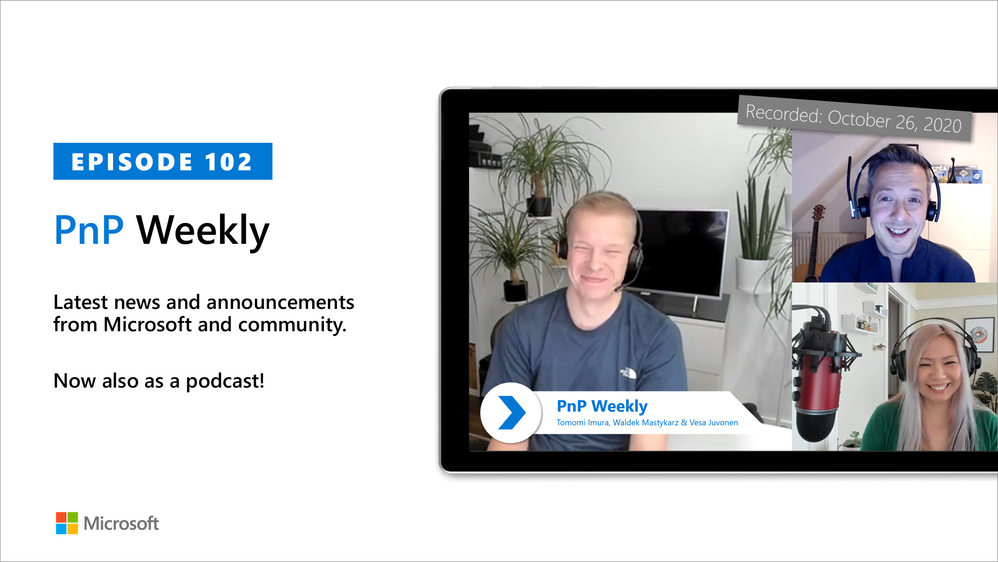
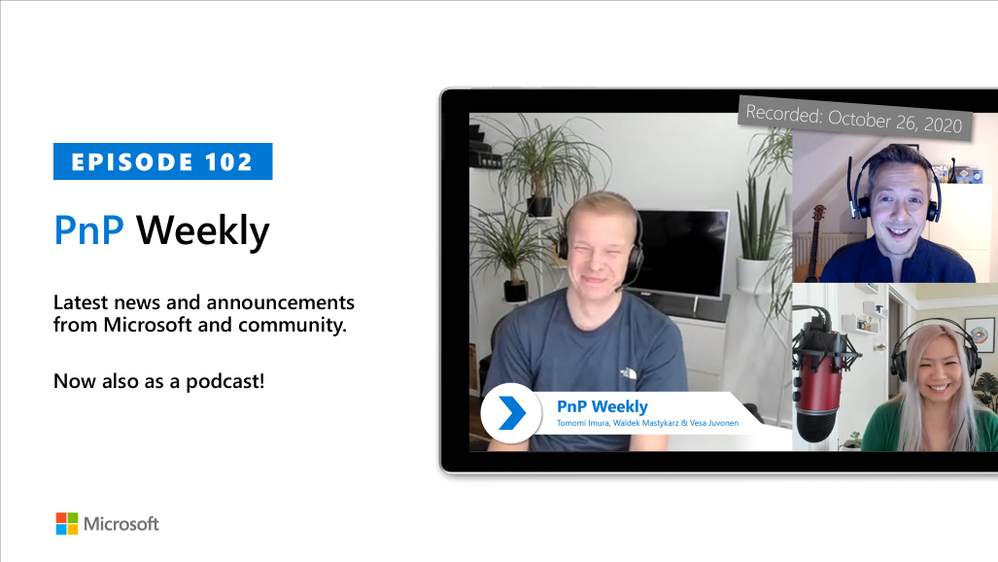
In this installment of the weekly discussion revolving around the latest news and topics on Microsoft 365, hosts – Vesa Juvonen (Microsoft) | @vesajuvonen, Waldek Mastykarz (Microsoft) | @waldekm, are joined by veteran (6 months) Cloud Developer Advocate focused on Microsoft Teams – Tomomi Imura (Microsoft) | @girlie_mac.
Tomomi actually has been working as a developer advocate for years. Now she is focused on learning the Microsoft product line in order to help others learn the product line. Discussion about competitive products and why it’s important to explain the capabilities of a product – the use scenario, in a way that conveys what’s possible to help the customer bridge the gap between business needs and technology capabilities. Presently, the crew is quite busy with triage, updates, consolidations, simplifications, etc. In response to how to explain the Microsoft 365 platform opportunity to partners, start with product integration, data locality, a single set of APIs, market size, support, and assistance landing apps.
This episode was recorded on Monday, October 26, 2020.
Did we miss your article? Please use #PnPWeekly hashtag in the Twitter for letting us know the content which you have created.
As always, if you need help on an issue, want to share a discovery, or just want to say: “Job well done”, please reach out to Vesa, to Waldek or to your PnP Community.
Sharing is caring!

by Contributed | Oct 28, 2020 | Uncategorized
This article is contributed. See the original author and article here.
Today we announced that Microsoft Teams reached 115 million daily active users (DAU).* This growth reflects the continued demand for Teams as the lifeline for remote and hybrid work and learning during the pandemic, helping people and organizations in every industry stay agile and resilient in this new era. A new way to work and learn for a…
The post Microsoft Teams reaches 115 million DAU—plus, a new daily collaboration minutes metric for Microsoft 365 appeared first on Microsoft 365 Blog.
Brought to you by Dr. Ware, Microsoft Office 365 Silver Partner, Charleston SC.
by Contributed | Oct 28, 2020 | Technology
This article is contributed. See the original author and article here.
Together with the Azure Stack Hub team, I am on a journey to explore the ways our customers and partners use, deploy, manage, and build solutions on the Azure Stack Hub platform. Today, Tiberiu and I had the chance to speak to MyCloudDoor. MyCloudDoor is an Azure Stack Hub partner and Preferred SI that focused on managed services and creating value for its customers throughout the world. They have a wide range of customers across many verticals. Join the MyCloudDoor team as we explore how they provide value and solve customer issues using Azure and Azure Stack Hub.
You can read more about the video series I created with Tiberiu Radu (Azure Stack Hub PM @rctibi) on our introduction blog: Azure Stack Hub Partner solution video series to show how our customers and partners use Azure Stack Hub in their Hybrid Cloud environment. In this series, as we will meet customers that are deploying Azure Stack Hub for their own internal departments, partners that run managed services on behalf of their customers, and a wide range of in-between as we look at how our various partners are using Azure Stack Hub to bring the power of the cloud on-premises.
https://www.youtube.com/watch?v=CQjXwQoM9Zk
Links mentioned through the video:
I hope this video was helpful and you enjoyed watching it. If you have any questions, feel free to leave a comment below. If you want to learn more about the Microsoft Azure Stack portfolio, check out my blog post.
by Contributed | Oct 27, 2020 | Technology
This article is contributed. See the original author and article here.
Update: Wednesday, 28 October 2020 01:19 UTC
We continue to investigate issues within Application Insights. Root cause is currently understood to be a query pattern that is causing backend stability problems. Some customers continue to experience data access issues when running queries that are going to cause you an issue in portal and may impact your alerts . We are working to establish the start time for the issue, initial findings indicate that the problem began at 10/27 ~17:58 PST. Currently the issue looks self mitigated, But we are working to find the cause of the issue and resolve the issue.
- Work Around: NA
- Next Update: Before 10/28 04:30 UTC
-Arish B
by Contributed | Oct 27, 2020 | Technology
This article is contributed. See the original author and article here.
HDInsight Realtime Inference
In this example, we can see how to Perform ML modeling on Spark and perform real time inference on streaming data from Kafka on HDInsight. We are deploying HDInsight 4.0 with Spark 2.4 to implement Spark Streaming and HDInsight 3.6 with Kafka
NOTE: Apache Kafka and Spark are available as two different cluster types. HDInsight cluster types are tuned for the performance of a specific technology; in this case, Kafka and Spark. To use both together, you must create an Azure Virtual network and then create both a Kafka and Spark cluster on the virtual network. For an example of how to do this using an Azure Resource Manager template, see modular-template.json file in the ARM-Template folder of this GitHub project.
Understanding the Usecase
Insurance companies use multiple inputs including individual/enterprise history, market conditions, competitor analysis, previous claims, local demographics, weather conditions, regional traffic data and other external/internal sources to identify the risk category of a potential customer. These inputs can come from multiple sources at very different intervals.
Let’s deploy a scenario in which we use historic data to create ML models on Spark. Then, we use Kafka to stream real-time requests from Insurance users or the agents. As new requests come in, we evaluate the users and predict in real time whether they are likely to be in a crash and how much would their next claim be, if they’re likely to be in a crash.
Architecture
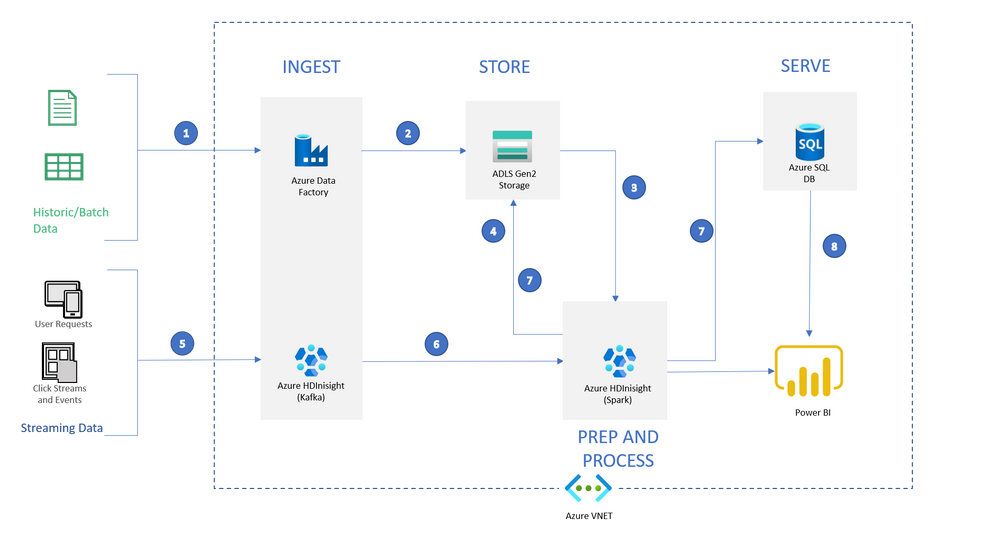
The architecture we’re deploying today is
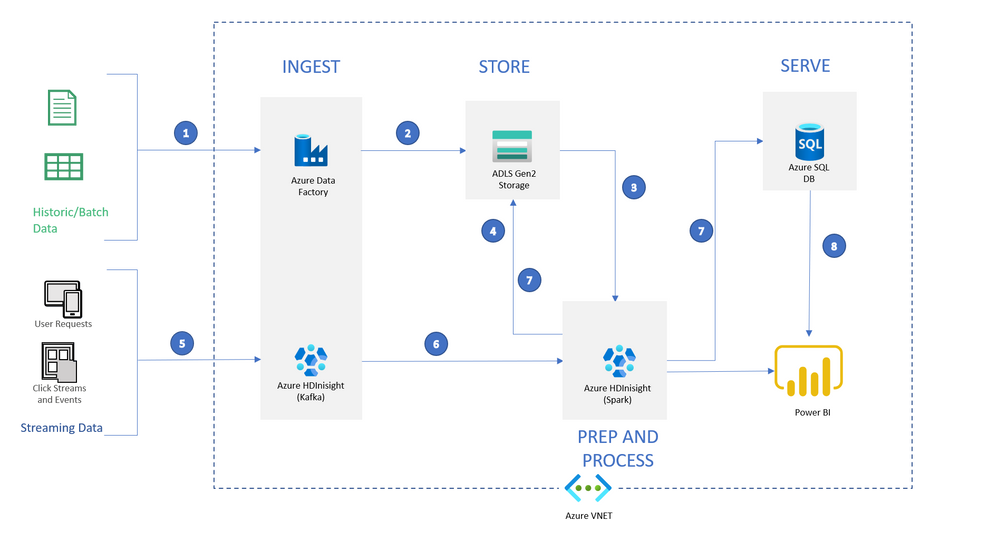
Data Flow:
1: Setup ADF to transfer historic data from Blob and other sources to ADLS
2: Load historic data into ADLS storage that is associated with Spark HDInsight cluster using Azure Data Factory (In this example, we will simulate this step by transferring a csv file from a Blob Storage )
3: Use Spark HDInsight cluster (HDI 4.0, Spark 2.4.0) to create ML models
4: Save the models back in ADLS Gen2
5: Kafka HDInsight will receive streaming requests for predictions (In this example, we are simulating streaming data in Kafka using a static file)
6: Spark HDInsight cluster will receive the streaming records and infer predictions during runtime using models saved in ADLS Storage
7: Once inference is done, Spark HDInsight cluster will write the files to both ADLS Storage in JSON format and SQL database into a pre-defined table
8: Power BI can now access data from both SQL table and Spark Cluster into a dashboard for further analysis (NOTE: In this example, we only have SQL setup)
Let’s get into it:
To complete the exercise, you’ll need:
- A Microsoft Azure subscription. If you don’t already have one, you can sign up for a free trial at https://azure.microsoft.com/free
- A contributor or an owner access on the subscription to create services
Step 1: Use the following button to sign in to Azure and open the template in the Azure portal:
[!CAUTION] Known Issue: Creating resources in West US, East Asia can fail while deploying SQL Database
Click Here to Deploy to Azure
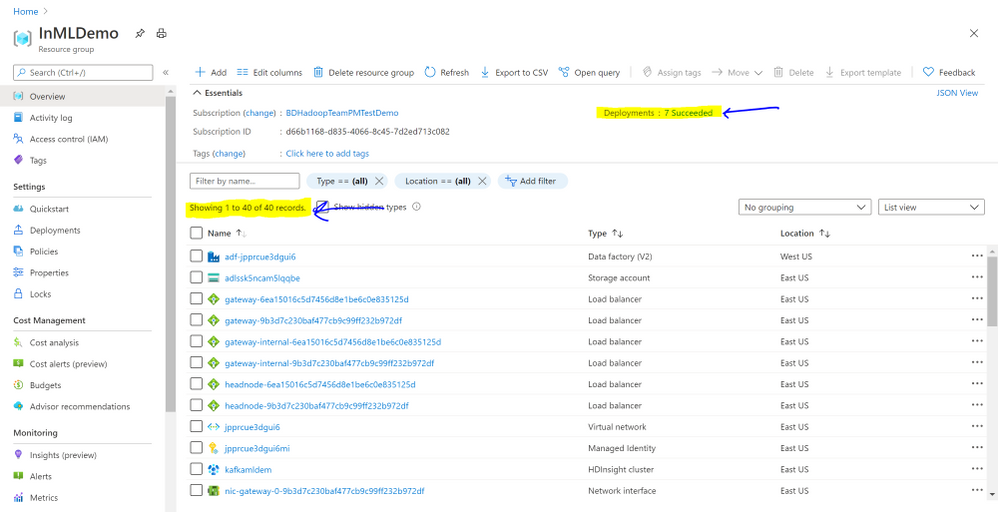
This template will deploy all the resources seen in the architecture above
(Note: This deployment may take about 10-15 minutes. Wait until all the resources are deployed before moving to the next step)
Log into the Azure Portal and go into the resource group to make sure all the resources are deployed correctly. It should look like this:
Step 2: Go to Azure Cloud Shell (either azure.shell.com or click on cloud shell  on portal.azure.com)
If you’re in a different subscription, set the subscription using the following command:
az account set <your-subscription-name>
Step 3: Clone the repository to your cloudshell and give execute permissions:
git clone https://github.com/SindhuRaghvan/HDInsight-Insurance-RealtimeML.git

chmod 777 -R HDInsight-Insurance-RealtimeML/
Step 4: Move into the first directory and run the DataUpload script. This script will update files with your unique resource names and upload all the required files to the newly deployed resources
[!NOTE] Before running this, note the resource names and passwords deployed through the ARM Template
cd HDInsight-Insurance-RealtimeML/
./Scripts/DataUpload.sh
Step 5: Take time to look through the ADF pipeline created, and then let’s run the ADF pilpeline through Azure PowerShell (Open and new session and toggle shell in the cloudshell)
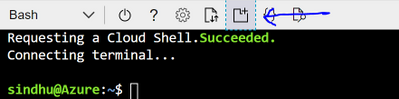
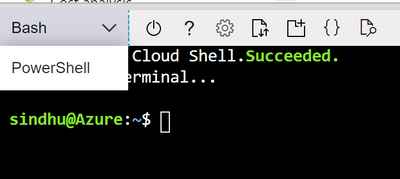
If required, set subscription using the following command after replacing with your SubscriptionId and TenanntId:
Get-AzureRmSubscription
Get-AzureRmSubscription -SubscriptionId "xxxx-xxxx-xxxx-xxxx" -TenantId "yyyy-yyyy-yyyy-yyyy" | Set-AzureRmContext
This will copy the car_insurance_claim.csv file from Azure Blob storage to ADLS Storage associated with the Spark cluster. Then, it will run the spark job to create and store the ML models on the transferred data.
$resourceGroup="<your-resource-group>"
$dataFactory="<your-data-factory-name>"

$pipeline =Invoke-AzDataFactoryV2Pipeline `
    -ResourceGroupName $resourceGroup `
    -DataFactory $dataFactory `
    -PipelineName "LoadAndModel"

Get-AzDataFactoryV2PipelineRun `
    -ResourceGroupName $resourceGroup `
    -DataFactoryName $dataFactory `
    -PipelineRunId $pipeline
[!NOTE] This job might take about 8-10 minutes to run
Run the second command as required to monitor the pipeline run. Alternatively, you can monitor the run through the ADF portal by clicking on the resource –> “Author and Monitor” –> “Monitor” on the left menu
If you would like to see what is going on in the spark job, go to the Spark cluster on Azure Portal and click on “Jupyter Notebook” in the Overview page. Once you login, click on Upload, and upload the CarInsuranceProcessing.ipynb file from the Notebook folder. You can run through the notebook step by step.
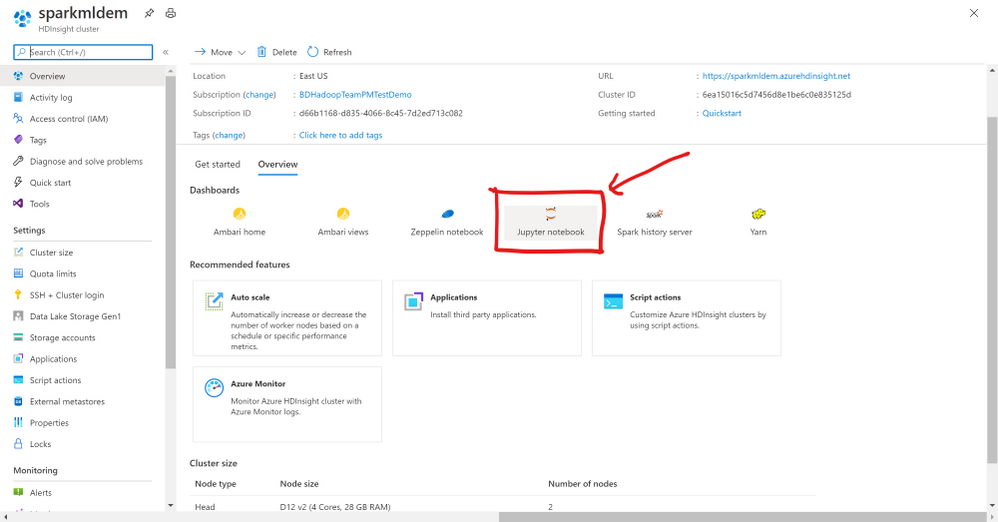
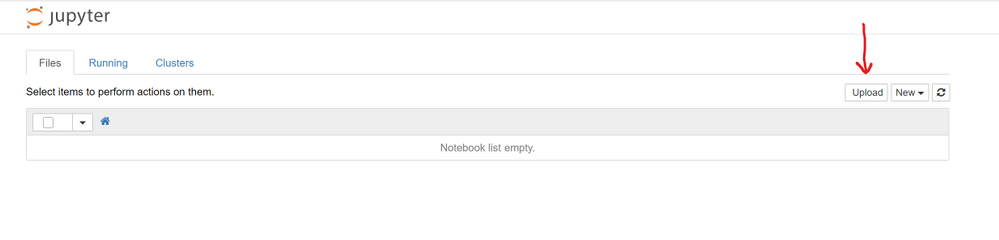
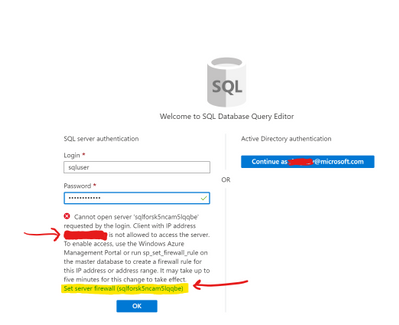
Step 6: Go to the Predictions database resource (NOT SQL server) deployed in the portal. Click on Query editor. Login with the credentials (SQL server Authentication) used during creation of ARM Template.
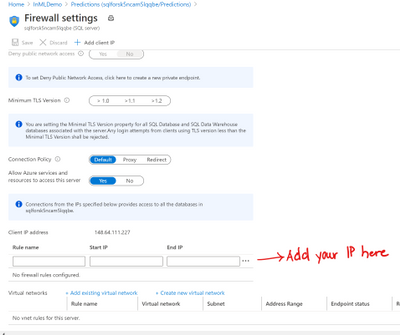
[!TIP] It is possible you might see an error while logging in because of firewall settings. Update firewall settings by clicking on “Set server firewall” in the error message and add your IP to the firewall (Reference)
In the query editor, execute the following query to create a table the holds final predictions:
IF OBJECT_ID('UserData', 'U') IS NOT NULL
DROP TABLE UserData
GO
-- Create the table in the specified schema
CREATE TABLE UserData
(
    ID INT, -- primary key column
    BIRTH DATE,
    AGE INT,
    HOMEKIDS INT,
    YearsOnJob INT,
    INCOME INT,
    MSTATUS NVARCHAR(3),
    GENDER NVARCHAR(10),
    EDUCATION NVARCHAR(20),
    OCCUPATION NVARCHAR(20),
    Travel_Time INT,
    BLUEBOOK INT,
    Time_In_Force INT,
    CAR_TYPE NVARCHAR(20),
    OLDCLAIM_AMT INT,
    CLAIM_FREQ INT,
    MVR_PTS INT,
    CAR_AGE INT,
    time_p DATETIME NOT NULL,
    CLAIM_PRED FLOAT,
    CRASH_PRED VARCHAR(4)
);
GO
Step 7: Go back to cloudshell bash and log into Kafka server via ssh and run the kafkaprocess.sh file inside the files/ directory. This will install all the required libraries to run our example.
ssh sshuser@<your-kafka-server>-ssh.azurehdinsight.net
./files/kafkaprocess.sh
Copy the output of the file (last line of the output) to use in a little bit

Step 8: Open another cloud shell session simultaneously and log into the spark cluster via ssh
ssh sshuser@<your-spark-clustername>-ssh.azurehdinsight.net
Step 9: Open the consumer.py file and edit the “KafkaBserver” variable. Paste the output of the file you copied on the kafka server and paste it here. It will enable the Spark cluster to listen to kafka stream.

[!NOTE] If you changed the SQL User name during deployment, you need to change the username as well.
Step 10: Now let’s run the sparkinstall script file to install all required libraries on Spark cluster
./sparkinstall.sh
Step 11: Now let’s run the producer-simulator file on kafka server to simulate a stream of records. This should print a set of records as they are streaming. (Ending this would end stop streaming also)
python files/producer-simulator.py
Simultaneously, let’s run the consumer file on Spark server to receive the stream from kafka server
python consumer.py
This file will use Spark streaming to retrieve the kafka data, transform it, run it against the models previously created and saved, then save it to the SQL table we just created. (Ending this would end stop processing the stream also)
Step 12: In a bit (after you see “Collecting final predictions…” and stage progression on the console), the table on SQL database should populate. Check on the SQL Query Editor with query:
select * from UserData
Step 13: Now Let’s setup PowerBI to view this new data. Download the FinalPBI file from the PBI folder. Open the file using PowerBI Desktop.
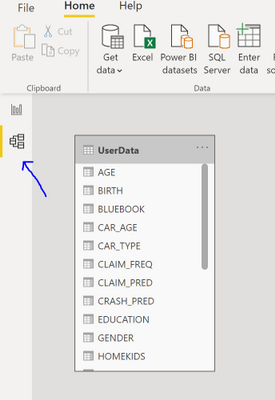
Now click on the model on the left as shown in the picture below, click on the UserData table and delete from the model.
Click on Get Data from the top ribbon, and choose Azure SQL Database.
Parameters:
servername: <your-server-name>.database.windows.net (full server name)
Database name: Predictions,
“Direct Query”
choose the “UserData” table and click on Load.
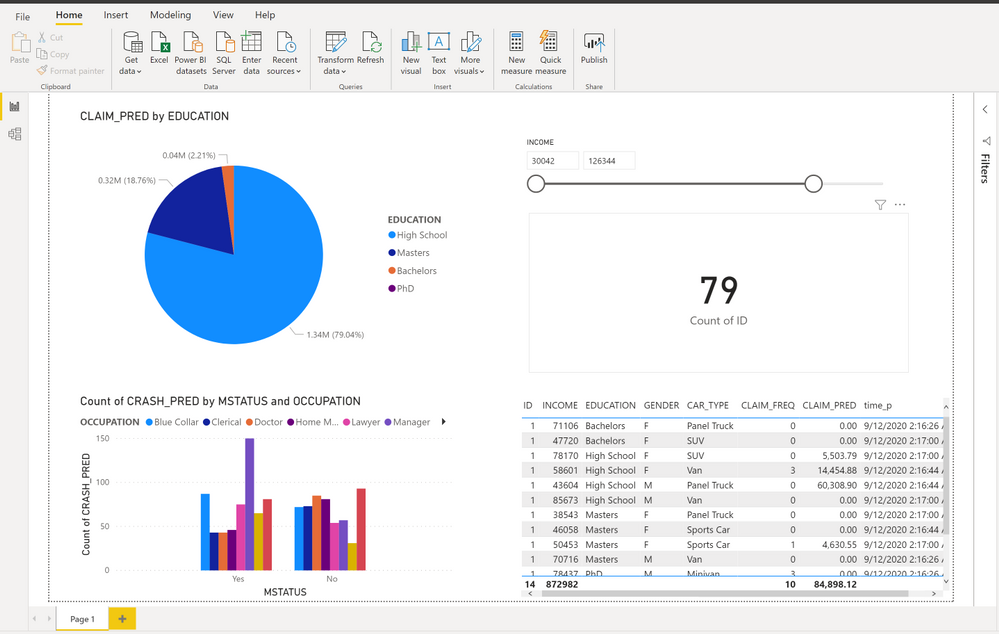
You can setup by clicking on change detection in the Modeling pane. Once setup, your report will update every 5 seconds to get fresh data, and should look like this:
Related:
by Contributed | Oct 27, 2020 | Technology
This article is contributed. See the original author and article here.
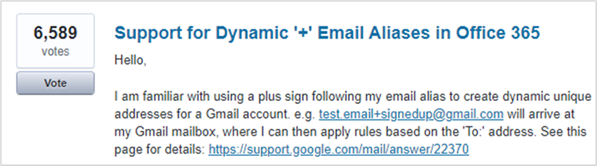
As announced at Microsoft Ignite 2020, support for plus addressing is now available in Exchange Online. Thanks to our UserVoice site, this feature was identified as the number 1 request for Exchange Admins and we acted on that to bring it to Exchange Online.
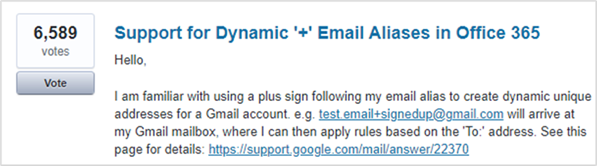
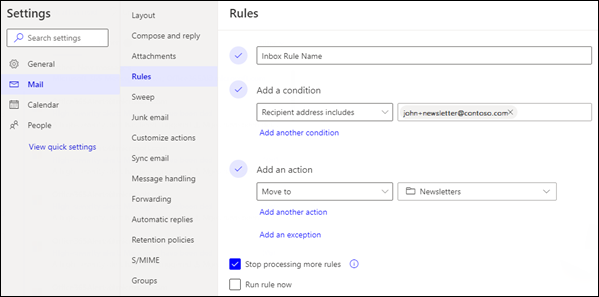
Plus addressing allows users to dynamically create unique email addresses that deliver messages to a user’s mailbox, but are easily distinguished from messages sent to the user’s regular email address. There are two main use cases for this. Some customers want to filter incoming email and move certain messages to their own folders. Other customers have business solutions (such as support ticketing systems) that add a case ID to an email address to help track support threads.
Support is currently scoped to mailboxes with support for distribution lists and Groups expected in December 2020.
Plus addressing can be enabled for your organization via PowerShell. The instructions to enable it can be found here.
Additional documentation for the PowerShell command used can be found here.
 We really hope you enjoy this new feature we’ve added to Exchange Online, and as always we want to hear your feedback, either here on the blog or over on UserVoice.
Sean Stevenson
Exchange Online Transport Team
by Contributed | Oct 27, 2020 | Technology
This article is contributed. See the original author and article here.
We present the fourth blog in our series to discover the learning journeys of our customers, partners, employees, and future generations by providing a peek into Microsoft’s approach to skill own employees.
Gabriela Barrios was supposed to be in Barcelona a few months ago to celebrate an important life milestone: a graduation ceremony at the Universitat Politécnica de Catalunya Barcelonatech for achieving her MBA through the Aden School of Business. However, like many of the 2020 graduates around the globe, that celebration was postponed in a world shut down by the Corona Virus. But don’t worry about Gabriela missing this unique life moment. Learning is a part of everyday life for the Microsoft Partner Development Manager from Guatemala City, and her stellar track record signals that celebrations for educational milestones are certainly in her future.
“My father was my inspiration to become a learner,” explains Gabriela, who is the first in her family to graduate from college and holds a master’s degree in marketing, and two bachelor’s degrees (business administration and digital transformation). “He never finished school, because he had to start working at age 14 to help out his mother but was very intelligent and he continued to learn throughout his life. He encouraged me to dream big, work hard, and keep learning.”
Growth mindset
The concept of continued learning at Microsoft has become synonymous with having a growth mindset. A term coined by American psychologist Carol Dweck in her 2006 book Mindset: The New Psychology of Success, “growth mindset” was adopted by Microsoft when Satya Nadella took the helm as CEO in 2014 and has become a cultural pillar for the company. As opposed to a “fixed mindset,” a person with a growth mindset believes they can learn from both successes and failures to develop their capability and continue to learn through effort, time, and training. Gabriela’s learning journey is one of many inspiring stories across the company, where employees and managers have fully embraced the concept.
“My first manager at Microsoft was very invested in personal growth. At least a portion of our one-on-one meetings would focus on how I could grow as a person and professional,” said Allan Richmond Morales, a Premier Field Engineer for Microsoft focused on Secure Infrastructure, who joined Microsoft in 2018 as part of the Aspire program, Microsoft’s intern program for recent college graduates. “Her guidance gave me the opportunity to become more invested in my own skillset and find the technologies I need to focus, and based on my learning path, how can I can branch out to support specific demands of the business or personal interest.”
Tech intensity = tech adoption + tech capacity
But make no mistake; this isn’t just about transforming culture. It’s about driving digital transformation. During a recent visit to India, Satya Nadella predicted that by 2030, there will be 50 billion connected devices and 175 zettabytes of data. For a company to succeed in that world, the Microsoft CEO argues they must embrace tech intensity, where you not only have to adopt new technologies, but also build leading-edge capabilities to use them*. The company has simplified this as a formula (Tech intensity = tech adoption + tech capability) that holds the secret to future success for companies in the age of digital transformation. Ongoing, proactive upskilling of your own employees is a key factor in building capabilities within.
John Saxton, a Microsoft Technical Specialist in Power Platform & Dynamics, had to embrace tech intensity as an individual, supporting many different clients during his 22 years as an independent consultant. One of the reasons that he became interested in joining Microsoft was the learning culture at the company and it shows in his learning track record; John already has five Microsoft Certifications under his belt this year, while only two were required.
“As a self-employed consultant you have to be open to constantly learning new things in order to get new opportunities, because you’re only as good as your next gig,” Saxton explained. “And I brought that same attitude to Microsoft. If I don’t know the answer, I will go research and dig until I find an answer, and it always leads to learning something new, which I love.”
“Around the world, 2020 has emerged as one of the most challenging years for many of us,” said Kim Akers, Corporate Vice President for Microsoft Worldwide Learning. “Over the last nine to ten months alone, the world has endured multiple crises, including a pandemic that spurred a global economic crisis. As businesses look to reopen, we’ve seen a huge amount of digital transformation across nearly every industry. COVID-19 has only made the skills gap more acute and every job increasingly requires digital skills. And as the world is digitally transforming, we need be more focused on the solutions and experiences our customers need that would help them achieve more. And, frankly, you can’t do any of this without technical skills and capability.”
Microsoft Learn is at the heart of the effort to feed this growth mindset culture, allowing learners to study in a style that fits best. Some learners prefer to do online training at night. Others would rather attend a training conference, event, or prefer customized, in-person instructor-led training. To meet learners where they are, Microsoft offers employees a collection of training options including self-paced learning, instructor-led training, and certifications. Microsoft training events also provide a unique upskilling experience through a combination of presentations, demos, discussions, and workshops.
“I love Microsoft Learn because it has allowed me to continue to learn on the job remotely,” adds Gabriela Barros, who just received her Microsoft Certified: Azure Fundamentals certification in December and is waiting on the exam results of her Microsoft 365 certification. “I work with eleven managed partners to support them as they digitally transform their business. In that role you have to understand the business, which is why I challenged myself to get an MBA. I also work with their technical teams, however, so I am going to continue to get certified on all of our products to help me better understand the technologies we use to help our customers.”
*Microsoft, We’re building Azure as the world’s computer: Satya Nadella
by Contributed | Oct 27, 2020 | Technology
This article is contributed. See the original author and article here.
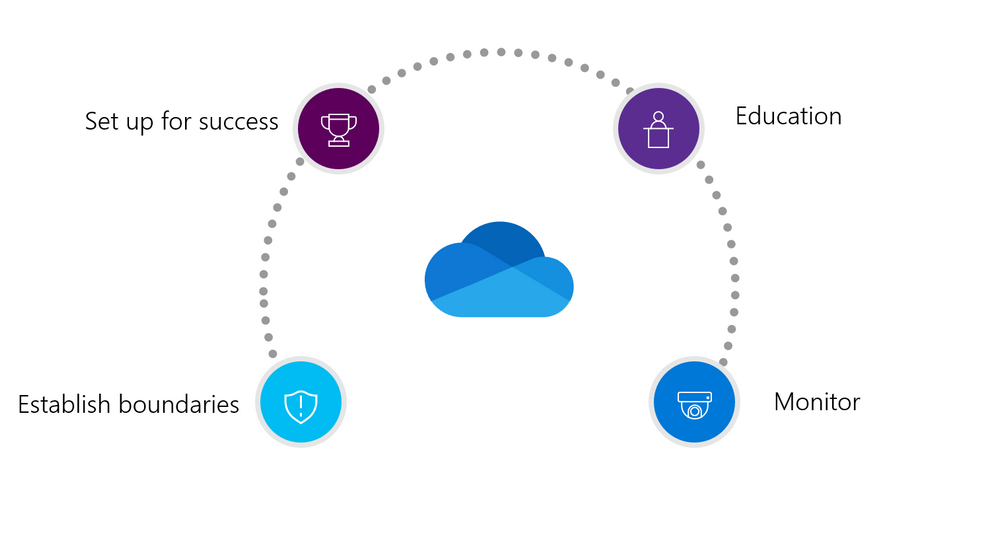
With today’s reality of remote work and online learning, people need the ability to share content—documents, presentations, photos, videos, lesson plans, you name it—to get work done. And because of this, security around internal and external sharing is more important than ever before. While the ability to share content with colleagues both inside and outside the organization helps people stay productive and connected, you must protect against risks. Accidental sharing of sensitive information or sharing with unintended recipients can pose a threat to the integrity and privacy of your data, people, and devices. OneDrive helps you define secure, virtual perimeters for sharing content, educate people about your policies for secure collaboration, and monitor how people share to discover and address gaps. In this practical guide, you’ll learn about how you can easily manage secure external sharing.
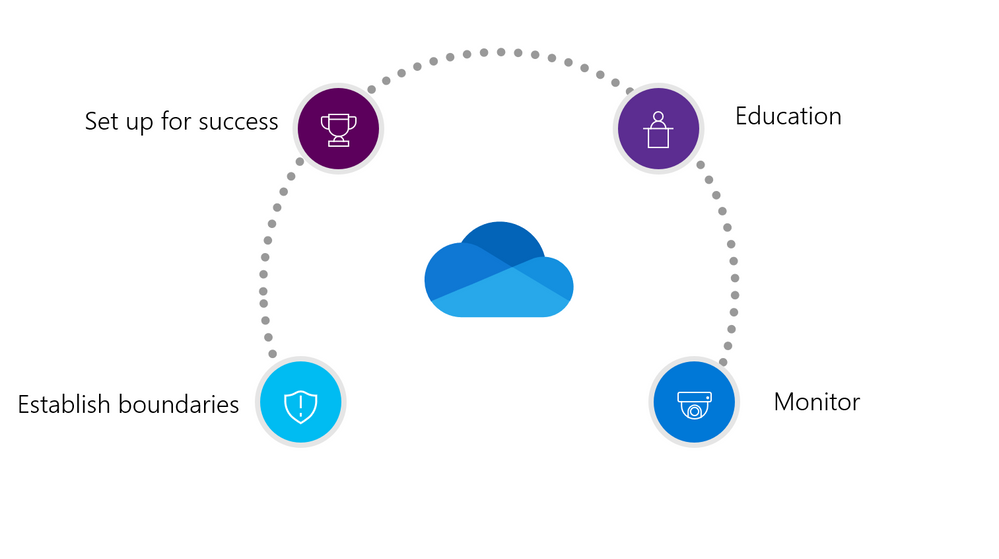
Establishing boundaries to help prevent critical mistakes
The first things to consider when it comes to external sharing are the hard sharing restrictions for your organization. Depending on your business or industry, you may have different requirements that you must meet for protecting sensitive information. You should also consider what behaviors you want to prevent entirely when people in your organization share information. For example, are you worried about users enabling anonymous access to files containing sensitive information, such as financial data, or personally identifiable information, such as credit card numbers, Social Security numbers, or health records? Or are you more concerned about leaking company IP? The best first step is to talk with your Security, Legal, or Compliance teams to understand their requirements.
With OneDrive, establishing these boundaries is easy! OneDrive offers a number of tools, including data loss prevention policies (DLP), for managing, monitoring, and automatically protecting confidential company information. For example, you can prevent Sales from accidentally sharing sensitive client data externally.
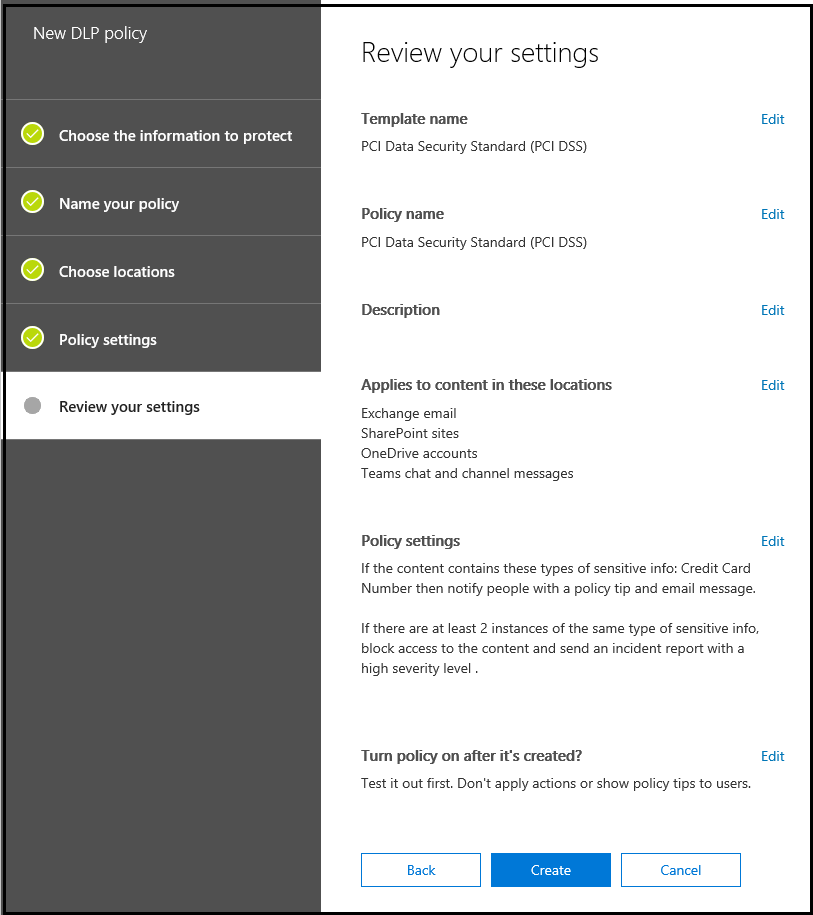 Data loss prevention policies helps you prevent leakage of critical organizational data.
In addition, OneDrive, together with Microsoft 365, includes a robust toolset for combating ransomware, retaining critical data, and meeting litigation requirements—all of which grow more critical as more organizations shift to remote work. If you’re in a highly regulated industry like Finance, Energy, or Government, tools such as Information Barriers can help you control risks like insider trading and demonstrate that control for regulators.
Another example of how OneDrive helps you establish these specific boundaries is by enabling you to limit external sharing to specific groups of users. For example, Sales and
Marketing may need permission to use Anyone links to share information with a broad number of vendors and customers. On the other hand, you may want to give HR and Finance permission to share information only with external users who authenticate their identities before accessing files. Now, you can add and manage security groups to determine who can share content externally—and who they can share it with. Bottom line, setting up security groups helps reduce the chance that someone who’s busy or distracted will accidently share the wrong information with someone outside your organization or school.
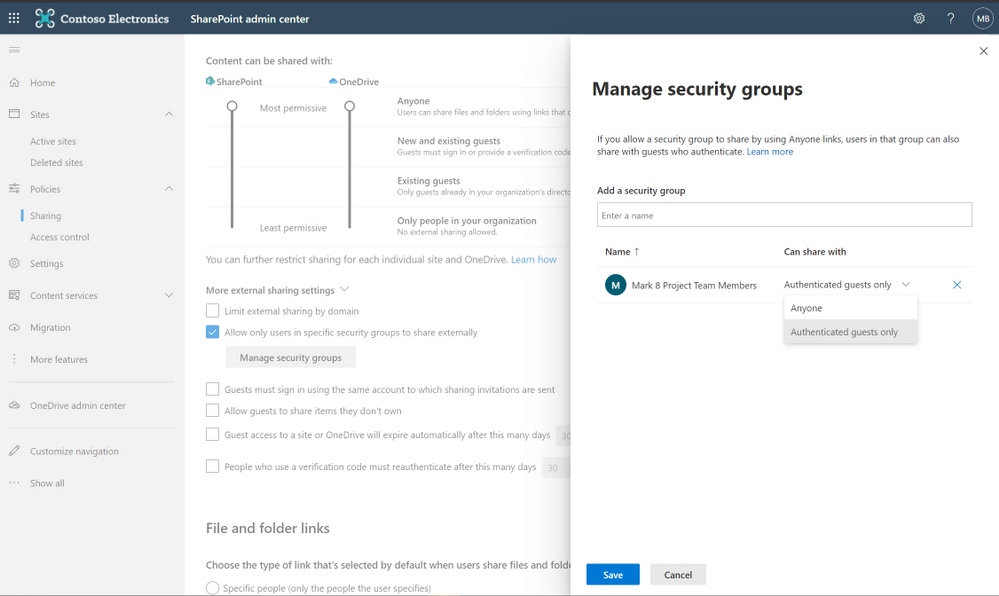 Create security groups to segment users and allow external sharing .
Setting people up for successful collaboration
Collaboration is absolutely critical for both remote work and online learning. But when people are working, security usually isn’t foremost in their minds. The power of OneDrive is that it provides rich capabilities that enable them to share content and collaborate securely by default. In OneDrive, you can set up your organization’s policies so that people who tend to click Share and go about their business have less permissive sharing options—and you can also let people choose more permissive options as needed. You do this by specifying the type of link that’s selected by default when people share files in OneDrive: anyone, people only inside the organization, or specific people. You can also set the permission to either view or edit. This way, employees, teachers, or students can’t accidently share information with anyone outside the organization or externally share content that is meant for internal use only.
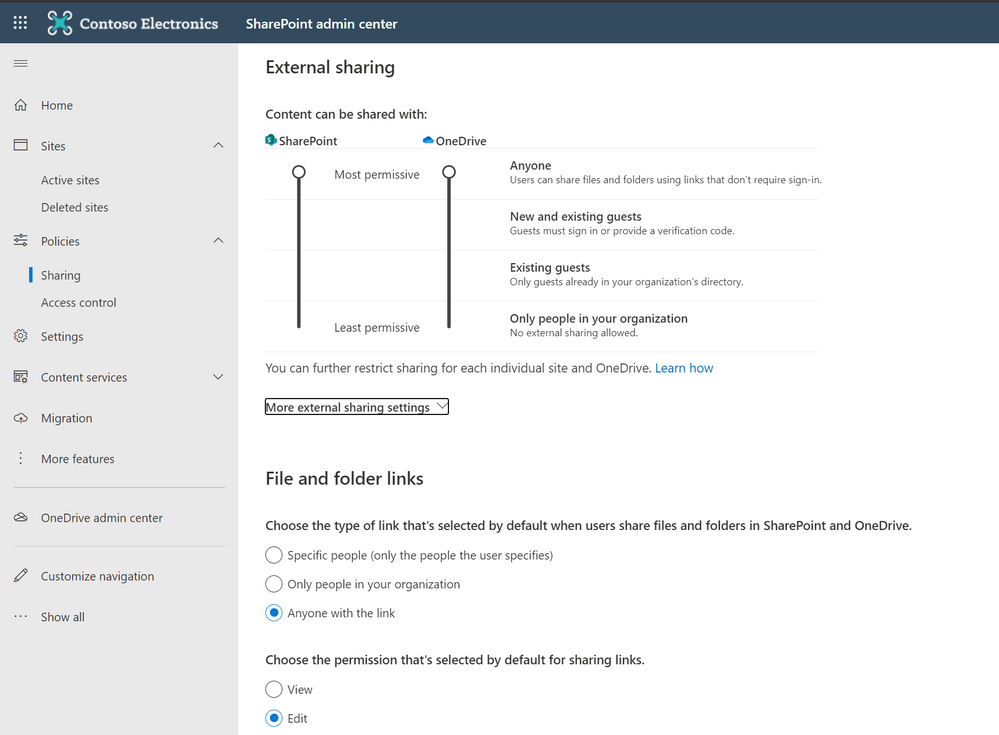 Set up your organization’s sharing policies.
Another great example of helping people be successful is setting up expiration policies. This ensures that external users won’t retain access to your content indefinitely, and helps prompt people in your organization to periodically review who they’ve given access to their files. You can also easily revoke access that was previously granted.
Educating people about secure collaboration
With long daily to-do lists, people are often trying get through tasks as quickly as possible and mark them complete. The last thing you want to do is slow them down by preventing them from sharing files. That’s why we built quick reminders and help into the OneDrive UI to remove some of the burden from your IT help desk. So if you’ve set up your environment for internal sharing only, when someone tries to share a file externally, they immediately see an error message that lets them know external sharing isn’t permitted. You can also set up custom help links, so employees can quickly and easily get in-context assistance and direction, such as instructions for signing up for a training course on protecting company information.
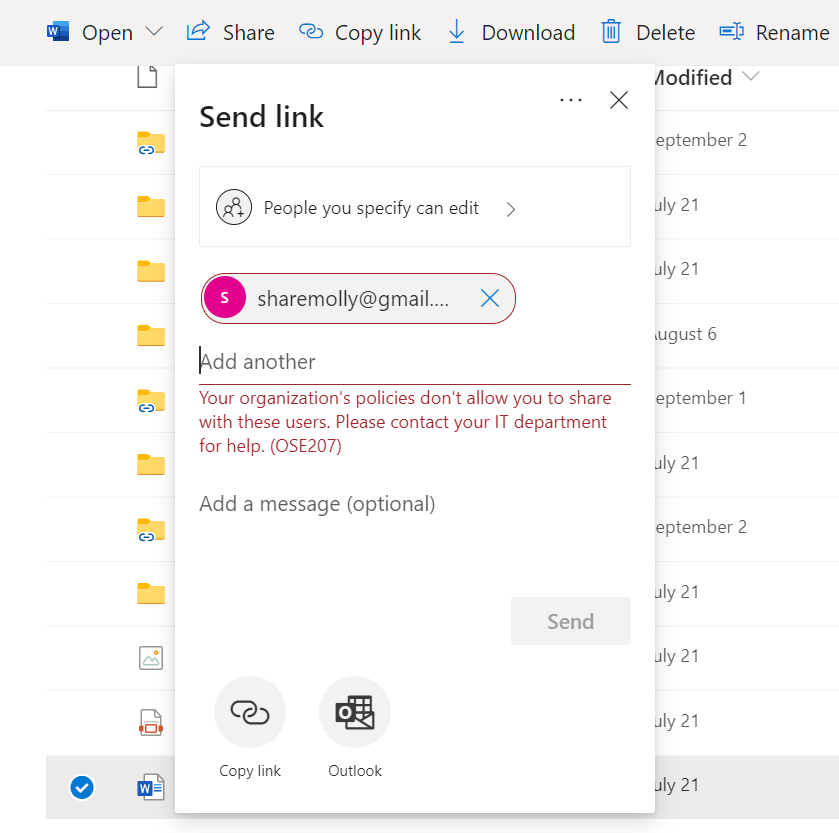 In product error messages help educate users of the organizational policies.
Unfortunately, shadow IT can still pose a problem. If some people need to share information or get feedback on a document quickly, they may choose more familiar apps—or an app suggested by a client–to share files. That’s why you need to help people see why using unapproved commercial apps can pose a security risk—and what tools you’ve provided instead to help make their jobs easier. You can also offer training courses for staff or students to complete for them to be added to a group with external sharing permissions. Creating a portal that people can access for further education around the right apps to use and secure sharing policies to follow can also help to reduce risk from information leakage, especially for new hires or new students.
Monitoring sharing to help keep data—and people—safe
Establishing sharing boundaries for your organization and educating people about your external sharing policies helps you spend less time managing requests and troubleshooting issues, so you can focus on other priorities. Instead, you can monitor OneDrive activity across your organization or school to see what people are doing. Using the information on the Productivity Score page of the Microsoft 365 Admin Portal, you can spot patterns that alert you to abnormal or suspect usage and adjust sharing and security policies to adapt or address issues. Understanding usage patterns can also help you develop and revise education materials to improve information security, which can help lessen the burden on your security team. You can also review audit logs to detect anomalies, such as people who are sharing or downloading more files than usual, and external sharing reports to help you gauge sharing behavior and provide insights that you can use to improve best practices and education across the board.
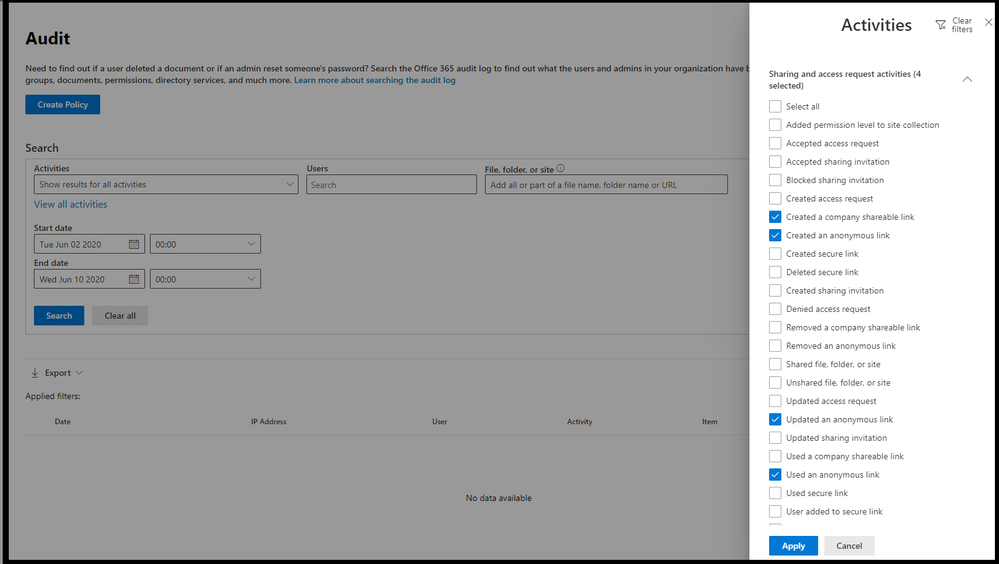 Audit logs help you monitor user behavior.
Learn more
To get more details about how you can help people inside your organization balance productivity and security check out session on External sharing & collaboration with OneDrive, SharePoint & Teams .
Hear the experts on Sync Up- a OneDrive podcast share recommendations around the best practices of external sharing and implementing the practical guide with real-life examples and scenarios.
https://html5-player.libsyn.com/embed/episode/id/16531949/height/90/theme/custom/thumbnail/yes/direction/backward/render-playlist/no/custom-color/f99400/
Thank you for your time reading all about OneDrive,
Ankita Kirti | Stephen Rice
OneDrive


Recent Comments