This article is contributed. See the original author and article here.
As we all adjust to remote and hybrid work, organizations big and small are leveraging cloud solutions to facilitate collaboration, stay productive, and ensure business continuity. Concerns about app compatibility is in the top 5 reasons for delays in cloud migration projects. We’ve begun a private preview of a new capability inside Azure Migrate to help organizations complete their Azure migrations successfully. Whether the migration is a simple lift and shift to Azure or includes optimizations like upgrading to a newer Windows Server OS version, this service will help identify potential app compatibility concerns that may arise to get organizations migrated more quickly and with fewer surprises.
A migration isn’t complete until all the apps and workloads are working correctly in Azure. Today this is a laborious and time-consuming process that can take months. We’ve talked with customers to understand their pain points in this process including:
Manual app inventory is time consuming. Customers create scripts to take stock of all apps running across their server estate and create complicated spreadsheets in an effort to sort out which are critical to migrate first, whether they work properly today, who’s using them and why, and if they even need to be migrated at all.
Validating apps in pilot migrations further slows down the migration. App owners may not be known, installation media for older apps may not even exist anymore, and validation and investigation of issues is all manual. If a critical app can’t be validated, portions of the migration may be canceled altogether.
App issues can occur from moving to the cloud itself or from Windows Server OS version upgrades done in concert with a migration. For example, even small changes in network latency can impact an app’s function, and apps that assume a static environment for example with hard-coded IP addresses can fail entirely post-migration. A Windows Server version upgrade can also affect apps, leaving organizations to trade off a smoother migration against getting access to the latest Windows server features.
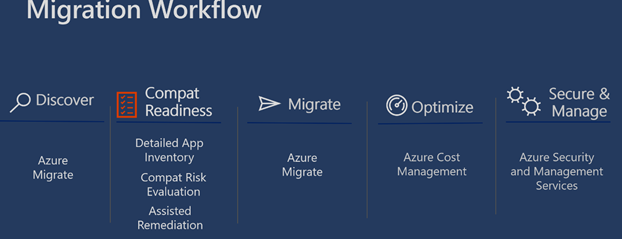
How app assessment solves problems Today Azure Migrate performs discovery to create an inventory of servers, network usage and other performance metrics but doesn’t provide any information whether applications found in the on premises environment will work when migrated to Azure in a similar or different version of windows. App assessment will add an additional Compat Readiness step into the standard migration workflow to address those pain points organizations experience today when migrating apps to the cloud.
We have built the initial experience to begin to address the pain points organizations are experiencing and are making it available for the first time in private preview. Today the experience will allow organizations to:
Get a detailed application inventory from on premises servers. The service will support Windows Server versions from 2008R2 SP1 to 2019.
Get a risk evaluation for all discovered applications. Today the service will be able to provide risk assessments for commercially available apps from Microsoft and other app developers. The service will discover an organization’s internal Line of Business apps but may not be able to provide a risk assessment for them. Risk evaluations can be generated for any supported target Windows Server version.
Recalculate an assessment after remediations have been applied to reassess the status of the apps.
With these initial capabilities organizations will be able to create individualized migration plans for apps based on their compatibility status including working with the app developer to address issues or upgrade to a newer, supported version for the target Windows Server version.
Key app assessment features
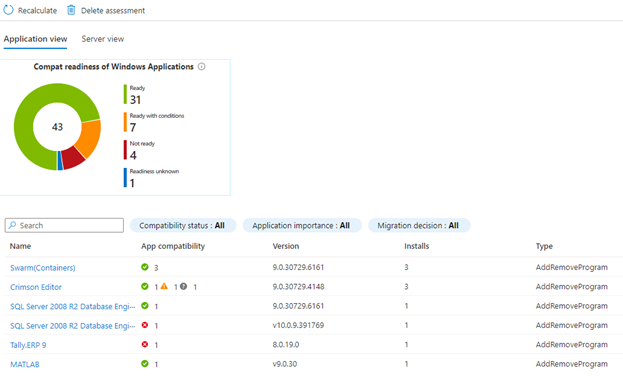
An assessment can be created for any group of VMs in the estate. Once created, the assessment can be viewed by apps or by servers to aid in understanding the results of the risk assessment and work toward being ready to migrate a group of servers.
Here we can see that 43 apps have been discovered across the machines in this assessment. They’re grouped by their readiness:
Ready: 31 have no known compatibility risks and are ready to migrate.
Ready with conditions: 7 are known to work in Azure on the target Windows Server version but something in the specific configuration may cause an issue.
Not ready: 4 have known compatibility issues with either the cloud environment or the target Windows Server version.
Readiness unknown: the service has no readiness information for 1 app in this environment. This may be because it’s an internal LOB app that is not used outside this organization.
The app inventory alone has saved weeks or months of manual work. Adding the risk assessment allows the organization to focus their efforts on apps which may have issues and minimize effort validating apps which are known to work well in the target environment.
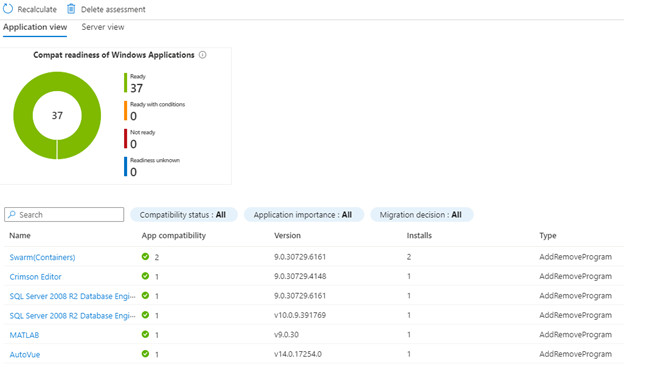
Once all issues have been addressed in an environment, the assessment can be recalculated. When everything is green, the migration can proceed with confidence that those flagged app risks have been addressed.
What’s next?
We are customer obsessed and eager to learn from real organizations using this new capability and use their feedback to improve with refinements and new capabilities.
We’re also already at work building more functionality that we know will be important to help organizations make the most of this new workflow. First up, we’ll help keep track of the apps we discover in an environment and save key metadata about them. This removes the need to keep a separate spreadsheet to track metadata such as apps that have been validated, what issues were found, and whether they have been investigated and resolved. It will be possible to track all this from within the service so effort can focus on the migration work and not tracking app metadata.
If you’re interested in joining our private preview and helping shape app assessment for Windows Server, register here.
This article is contributed. See the original author and article here.
In this episode of Data Exposed with Sasha Nosov, learn how Azure Arc allows you to leverage Azure Services for your existing database applications hosted on-premises or in other public clouds, without changing or even stopping them.
This article is contributed. See the original author and article here.
…put in the effort, time, and training to become knowledgeable about new technologies.
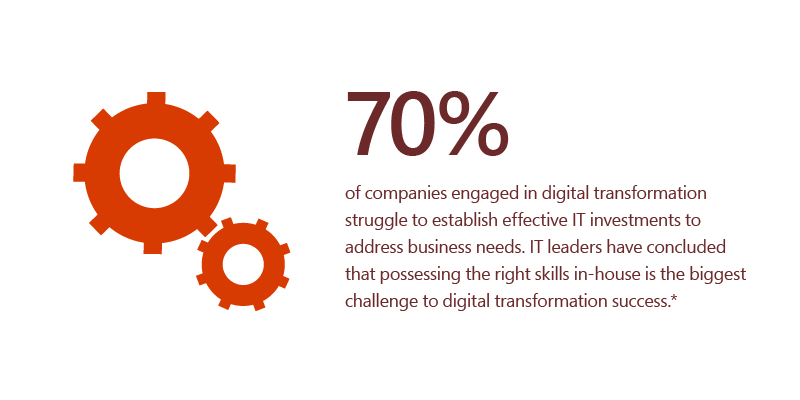
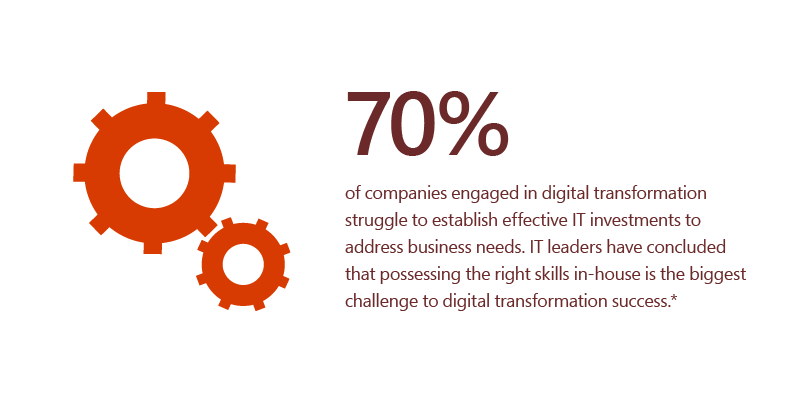
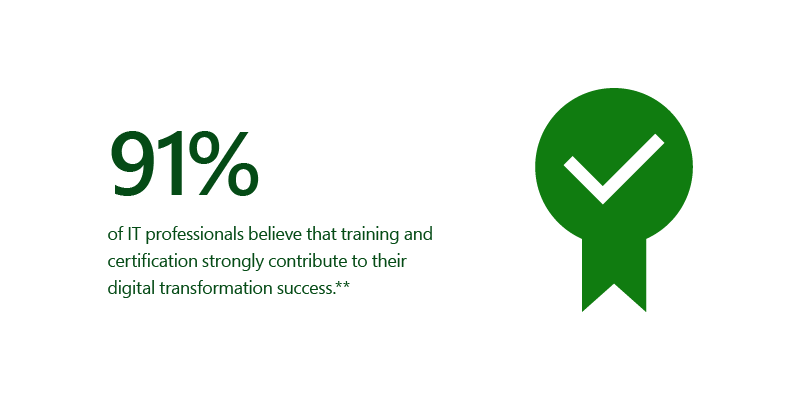
While many might think that success is the result of innovation, a recently published IDC white paper* has uncovered another component that could be just as vital. Microsoft-sponsored research revealed that IT professionals “who have achieved a relevant technical certification are more likely to have a self-belief that competence can be developed through dedication and hard work and a willingness to leverage tools and learning of others – what is called a growth mindset.”
What is growth mindset?
Coined by American psychologist Carol Dweck in her 2006 book Mindset: The New Psychology of Success, and adopted by Microsoft’s Satya Nadella, a person with a growth mindset believes they can learn from successes and failures. These people can develop their capabilities and continue to learn through effort, time, and training. The IDC white paper goes on to say that professionals in IT organizations who have embraced a growth mindset and a culture of learning “report feeling far more committed to the organization and empowered to put the organization’s vision into practice,” whereas people in organizations with a fixed mindset “rate higher in only one organizational statistic: more deception between employees.”
Hello digital transformation
As business models are shifting to optimization, so are mindsets and the corporate culture. From Hasbro’s push to leverage data and analytics to help shift their marketing strategy to Home Depot’s transition to build a successful move into the online shopping world, digital transformation is here and affects everyone. IT departments need a technical work force that can easily be retrained internally so they can adapt quickly when the latest demand creates a rapid new business direction. Easy enough, right? Well, organizations are telling us otherwise.
The case for certification
While we already know that encouraging employees on their learning journey inspires them to continue with growth mindset, why does certification specifically help businesses? First of all, certification increases efficiency and productivity. Certified employees become better at meeting client requirements, need less time to troubleshoot, and complete projects more quickly. Furthermore, these certified employees are the ones who help their companies succeed – which effectively helps execute digital transformation initiatives.**
Addressing the global need for continuous learning
Earlier this year, Microsoft president Brad Smith, announced the company’s commitment to helping 25 million people acquire new digital skills that are necessary, especially now due to the COVID-19 economy. “Our vision is a connected ‘system of learning’ that helps empower everyone to pursue lifelong learning.” Microsoft is offering free access to training content, low-cost certifications, free job-seeking tools, and more. But you need to start learning to build in-demand skills.
As technology continues to evolve at a rapid pace, continuous learning is more important than ever for staying ahead. And the key to taking on the next digital transformation successfully is simple: get trained and certified.
This article is contributed. See the original author and article here.
We have all been adjusting to the new ways we stay in touch, share, teach, and learn. As many of us have made the shift to working and learning from home, we’re relying more than ever on digital sharing and collaboration. Now, Microsoft OneDrive is introducing a new time-saving, frictionless way to share files with a predefined family or friend group.
OneDrive has always made it easy to share docs, photos, videos, albums, and folders. But until now, sharing to a group of people meant typing in the names of all the people you wanted to share with. Today, we’re simplifying that process with one-click sharing to family and groups.
Once you predefine your family or friend group, you’ll be able to share a photo, album, or important document to your group with one click.
Family and group sharing is available in OneDrive for the web and included in all free and paid OneDrive consumer plans, as well in Microsoft 365 Personal and Family plans. We expect it to become available on OneDrive sync client, Mac, and directly from Word, Excel, and PowerPoint by mid-2021.
To use family sharing, have your Microsoft account login and password at hand and follow these instructions:
First you will need to set up your family or a friend group:
To set up your family, go to family.microsoft.com, then select Create a family group and follow the directions. Note: All members of the group need a Microsoft account, and each will need to accept your invitation to the group to access it. (You can also set up a family group on Xbox or with the Family Safety app.)
To set up a friend group, see the article how to create an Outlook.com group. Groups can be family, friends, classmates, your kids’ sports league, your sports league, old college buddies, new game night pals—anyone you want to stay connected with. Note: you will need a free or paid Outlook account.
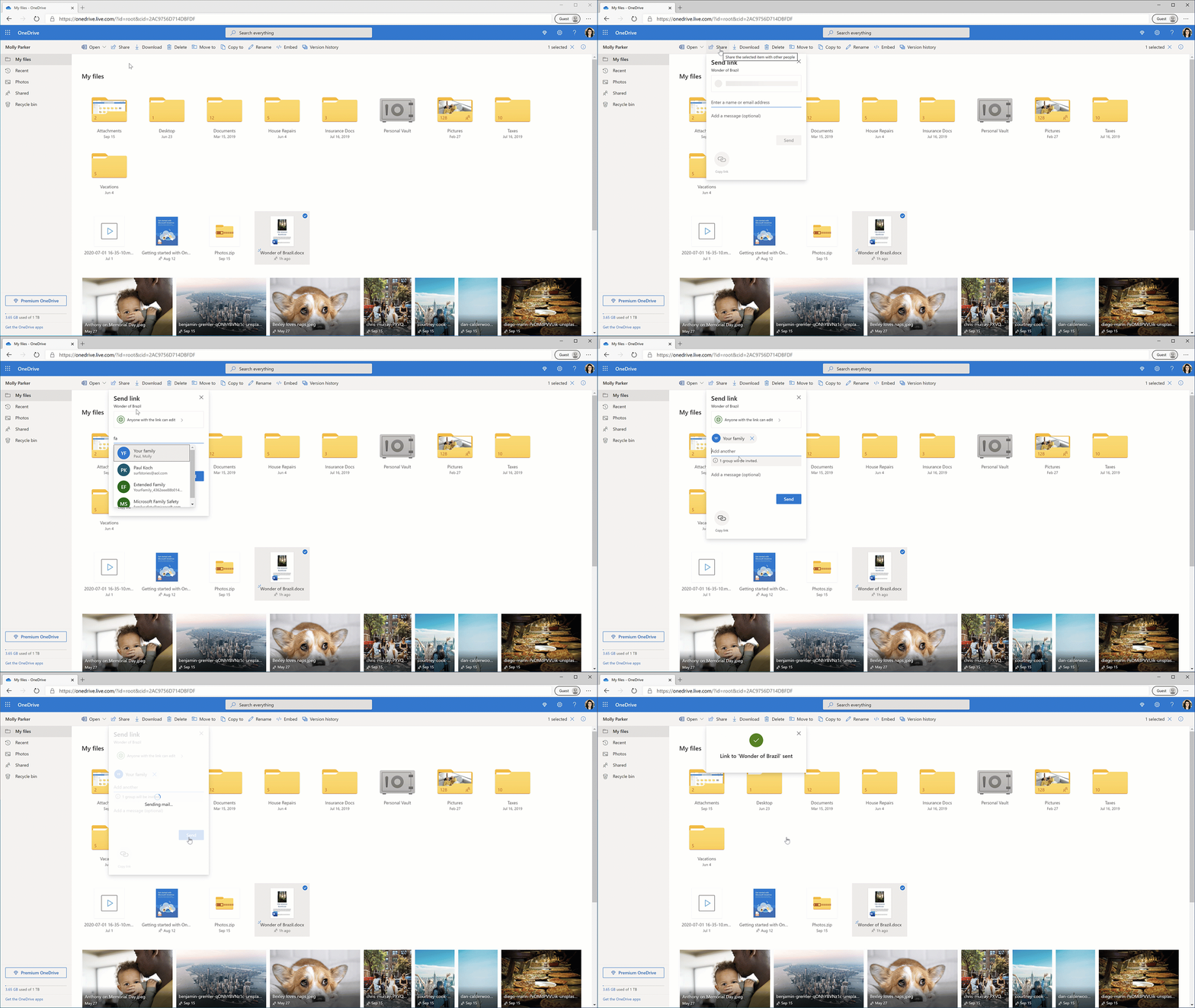
Go to the OneDrive page and sign in with your Microsoft account (or your Outlook.com, Live.com, Hotmail, or MSN account).
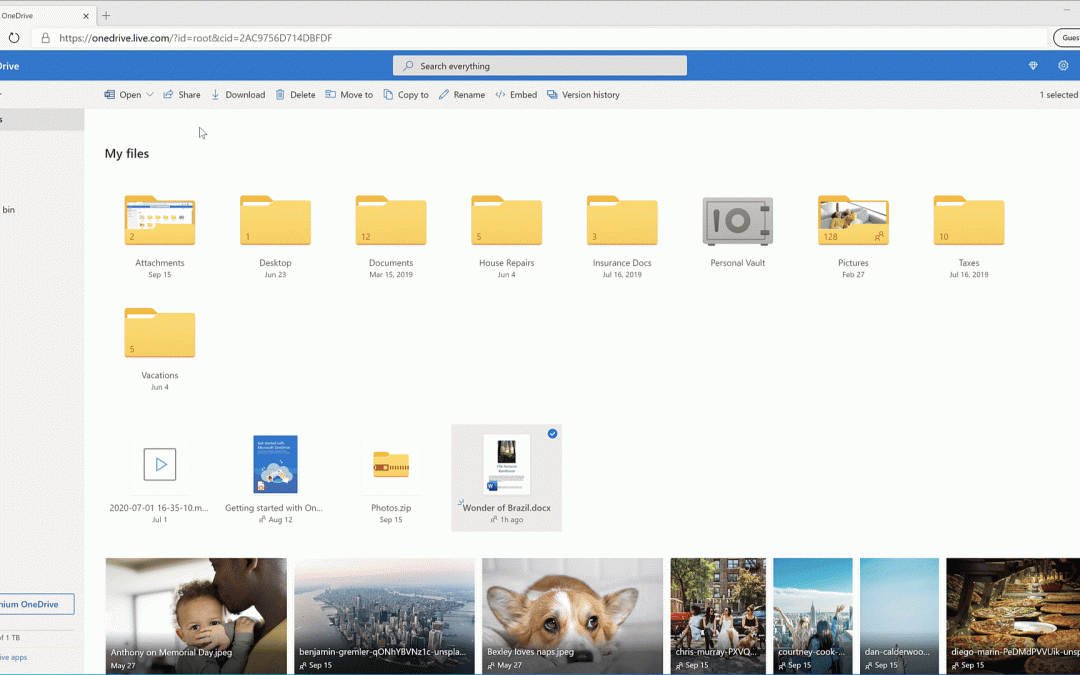
Select My files or Photos on the left pane.
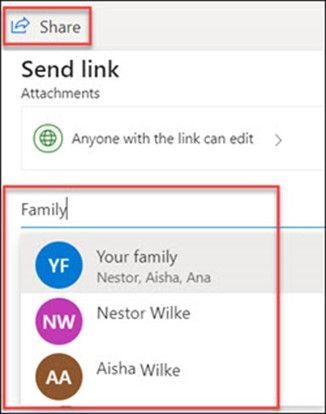
Pick the file or folder you want to share by selecting the circle in the upper corner of the item, then select Share at the top of the page.
Select Anyone with the link can edit.
In the Enter a name or email address field, type “Family” or the name of your group (i.e., Soccer Team). When you type “Family,” OneDrive will give you the option to share with specific members by surfacing their names, or you can select Your family to share with your entire family.
Add an optional message and then send then share the file/folder.
You can learn more about family and group sharing here. And as always feel free to send us your suggestions for making OneDrive even better on UserVoice.
This article is contributed. See the original author and article here.
This Wednesday (10/28/2020) Microsoft partner Innovaccer presented on “Physicians Predictive Model Development for Individuals and Patient Specific Interventions.” During the presentation Innovaccer’s Mike Sutton covered the following:
What is the current state of healthcare in terms of managing the widely distributed data across multiple facilities? Why do we still have distributed information and a complex system of disconnected silos of information? Why is a unified patient record accessible across the continuum of care so important?
What is the concept of “unified patient records?” How can a connected care framework help to manage the complexity within healthcare and help us to create the culture of “healthcare with no address?” What predictions do you have for where value-based care will be in five years? What should organizations be doing now to get ready for these changes?
With the new CMS interoperability regulations in place, what will be the future of data connectivity and sharing in the post-COVID world?
How can advanced technologies such as Artificial Intelligence (AI) and Machine Learning (ML) assist organizations in leveraging the data and efficiency they’ll need to embrace the rapidly evolving healthcare ecosystem and achieve better patient outcomes?
How are health systems changing the way they conduct their administrative, clinical, and financial operations?
Check out the recording then grab the resources discussed below and see how Innovaccer’s solutions are digitally transforming some of the today’s leading healthcare Payer and Provider organizations as well as Life Sciences organizations.
This article is contributed. See the original author and article here.
The evolution of Excel Excel is the ultimate decision-making tool. We’re amazed every day by the ways in which you, our customers, use Excel to make better decisions, leveraging the flexibility of the 2D grid and formulas to capture, analyze and collaborate on data. Up to this point, Excel has only had a couple base…
This article is contributed. See the original author and article here.
We are excited to announce a new and exciting update to Get & Transform Data capabilities in Excel – Power Query data types! This tool will help you organize your data better and consume it easily.
The following sections describe how create data types with Power Query and how to consume them in Excel.
Power Query data types
Power Query is a powerful and time-saving tool used to gather and analyze large sets of data by organizing them in a way that will make its consumption in Excel much easier. With this feature, you can create custom data types from any and load them in the Excel grid as rich values.
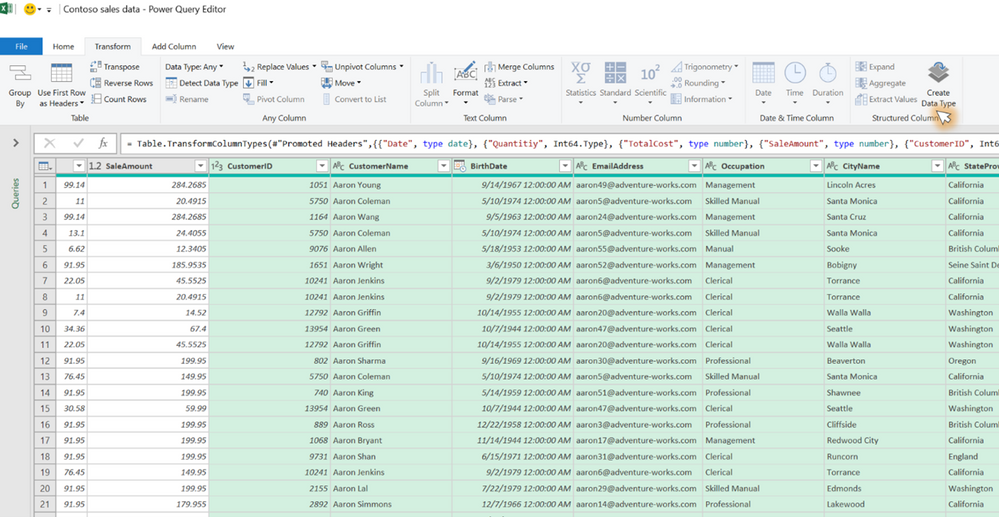
In the Power Query Editor, select the relevant columns, and then click the Create Data Type button on the Transform tab.
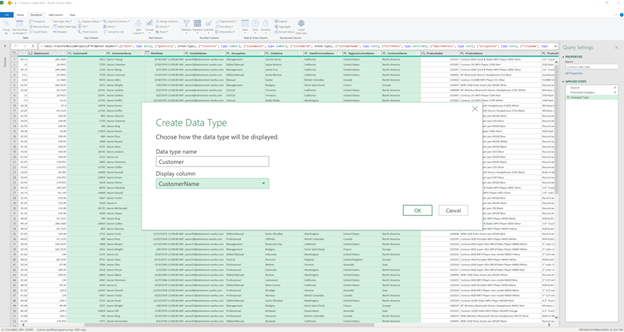
Define the data type name and choose a display column.
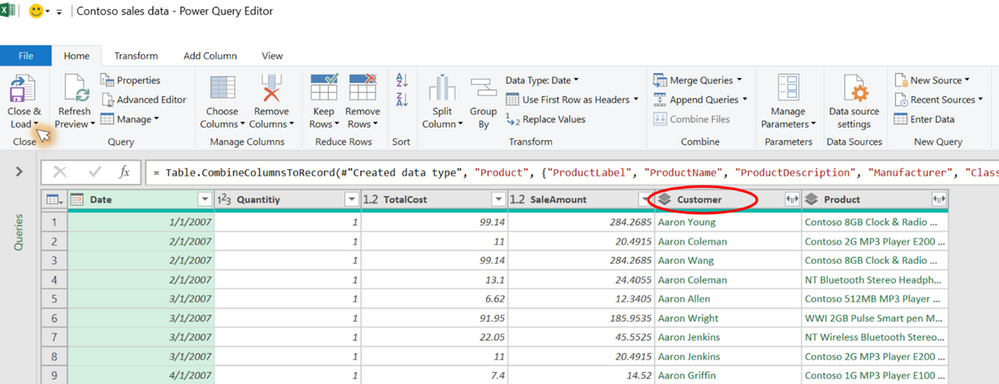
Notice the selected columns are collapsed into a single data type column and click the Close and Load button on the Home tab to load the query into Excel.
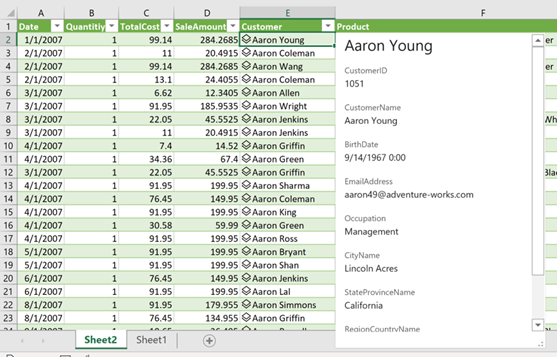
Easily consume and explore the output of the query in Excel with interactive data cards and formulas that reference your rich values.
Scenarios to try
Interact with the data types:
Check out the data type fields by clicking the icon the cell, and then open the associated card.
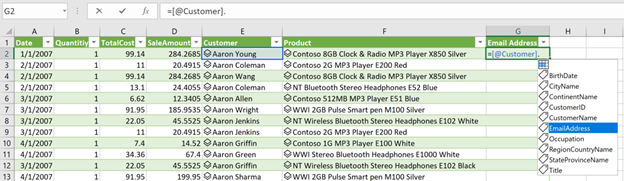
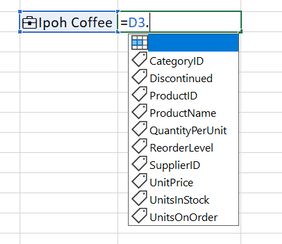
Extract fields to the grid by clicking the button. Use the data type fields in Excel formulas by referencing to a cell with a data type.
Refresh data types by clicking the button – from the data type context menu, the respective query context menu, or the Data tab in the Excel ribbon.
Requirements To use Power Query data types in Excel, you must meet these requirements: • You are in an organization with an Office 365 subscription. • You are using Excel for Windows.
More Resources Check out this video from one of Microsoft Excel’s Creators, Mynda Treacy from MyOnlineTrainingHub:
Microsoft Creators are community experts who create video content on YouTube that can help you learn how to use Microsoft products and services. Their content appears in the following playlists on the Microsoft 365 channel.
Customer Feedback We hope you like this new addition to Excel and we’d love to hear what you think about it!
Let us know by using the Feedback button in the top right corner in Excel – add #PowerQuery in your feedback so that we can find it easily. For more activities, join the conversations in our Excel Tech Community at aka.ms/ExcelCommunity.
This article is contributed. See the original author and article here.
Introducing Excel Organization data types from Power BI
Excel ♥ Data
Data is at the core of your workflows, and Excel is one of the most common tools for analyzing data and making decisions. Getting data in Excel is often the first step you take to do an analysis or to build a model, and it is critical for accurate results and sound decision-making.
Excel has powerful features to get and transform your data, from workbook links to Power Query and external connections. We are simplifying enterprise data discovery and analysis in Excel, and today we are excited to announce the general availability of Organization data types from Power BI, bringing additional flexibility and ease of use to get information in your spreadsheets.
Data types expand what’s possible in Excel
Excel data types expand what Excel can handle in the grid, no longer constrained to strings and numbers. This allows you to bring in rich information such as linked data from external sources. Drill into details by viewing fields in the data type card, or use fields with the Excel features you know and love such as formulas, tables, conditional formatting, charts, or data validation, to name a few.
Data types now use information from your company or organization, leveraging Power BI as an ideal source of authoritative data. This brings the best-in-class data ecosystem of Power BI including centralized and controlled access, row-level security, and Microsoft Information Protection (MIP) sensitivity labels to the flexible and familiar environment of Excel.
Scenarios to try
Choose Power BI data for use in Excel data types
The first step to using Organization data types is determining what information from Power BI you want, then simply enabling them for Excel:
Publish your dataset, tailored to specific users or teams through Power BI workspaces.
What organization information makes for good data types? Lookup-style tables that are commonly used in your organization such as product masters, customer lists, facilities, supplier lists, or asset tables are good examples of what you can now share through Excel data types.
Convert cells to Excel data types
Now that you have data ready to use in Excel, all you need to do is convert to a data type:
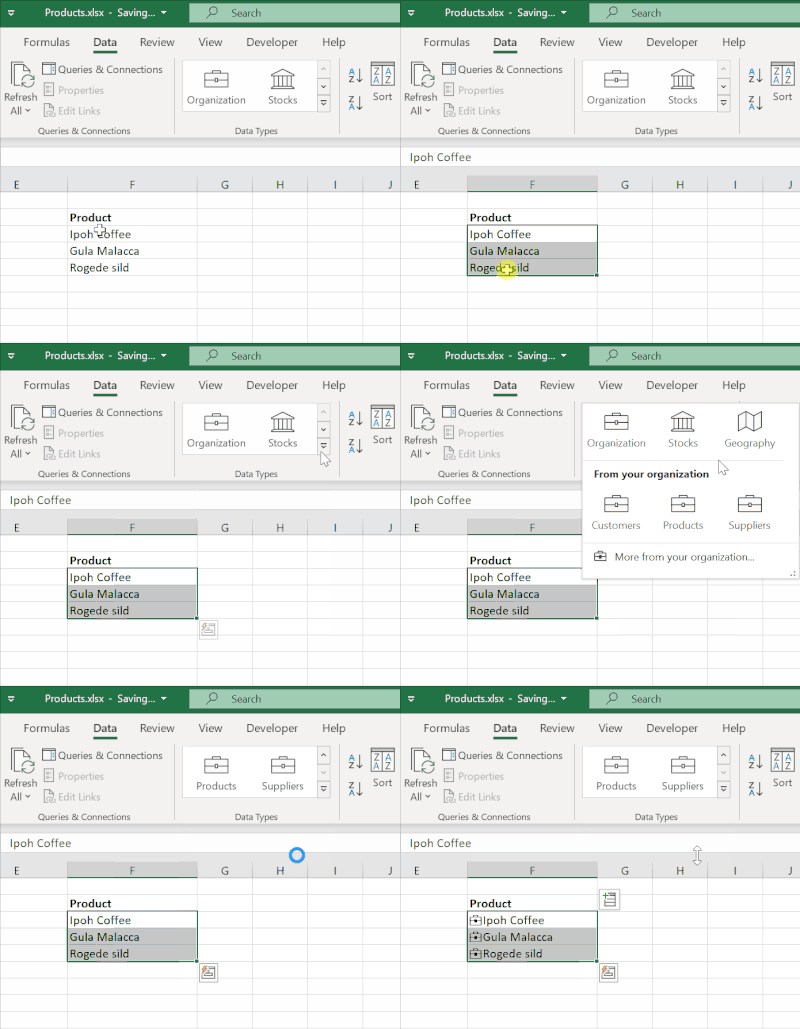
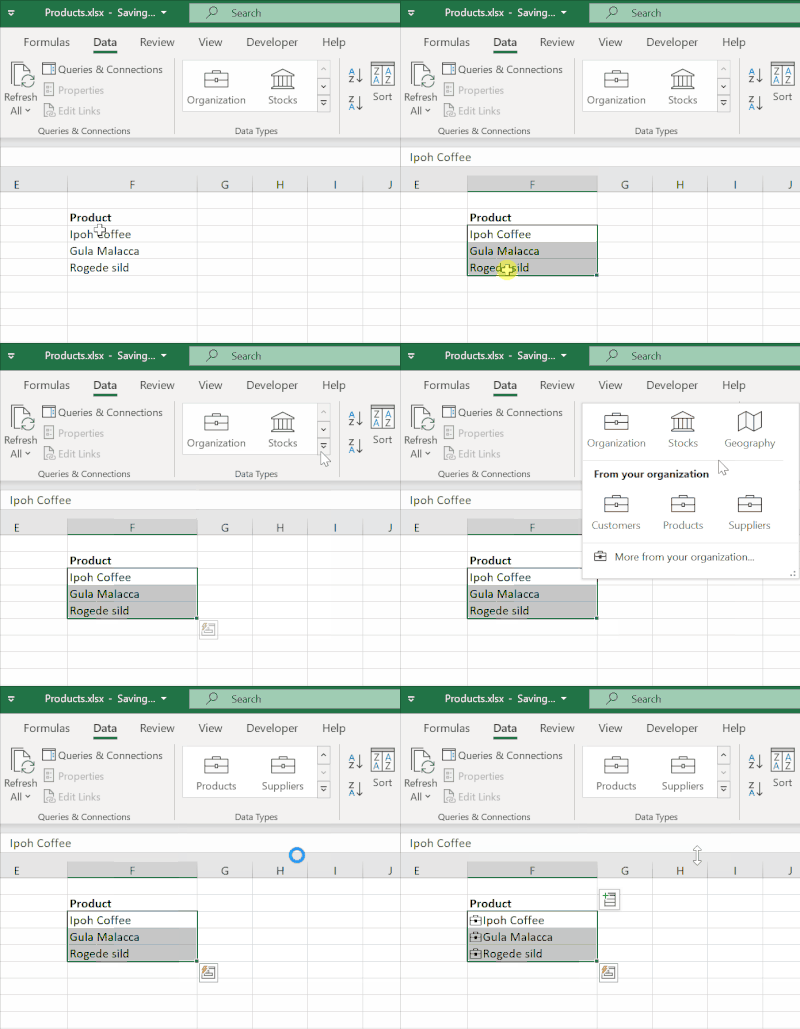
Select the content you want to convert.
In the Data Types group of the Data tab, select the button for the associated Power BI data.
For example, if you wanted to work with Power BI data on products, you’d enter a list of product names, select them, and then convert using your organization’s product data type.
Interact with your linked data
You can view the data type card by selecting the suitcase icon in the cell:
You can easily refresh your data types to get the latest information from Power BI. Right-click a cell and select Data Types > Refresh, or go to the Data tab > Refresh All.
Availability notes
Data types from Power BI are available to Excel subscribers in organizations with Office 365 or Microsoft 365 and the Power BI Pro service plan with English added as an editing language (more languages coming soon). The feature is currently available on the Current Channel in Excel for Windows and coming soon to Excel for Mac and Excel for the web.
Start using Organization data types from Power BI today!
We hope you love this new way to get data from your organization into Excel with ease, and we’d love to hear what you think about it. Send us your comments through File – Feedback in Excel. We’re excited to hear from you!
You can also join our Excel Community to keep up with all things Excel: aka.ms/excelcommunity
This article is contributed. See the original author and article here.
The Genome Aggregation Database (gnomAD) has made its catalog of genetic data available on Azure Open Datasets. Led by researchers at the Broad Institute of MIT and Harvard, gnomAD is the world’s largest public collection of human genetic variation and brings together data from numerous large-scale sequencing projects, including population and disease-specific genetic studies. A near-ubiquitous resource for human genetics research and clinical variant interpretation, it is used in clinical genetic diagnostic pipelines worldwide, with over 20 million page views of the consortium’s web browser to date.
The gnomAD dataset is now accessible on Azure at no cost as part of the Genomics Data Lake within the Azure Open Datasets Program. Azure users will no longer need to pay transfer fees or long-term storage costs to access or to maintain a personal copy of gnomAD. Azure Open Datasets containers can be accessed directly from services like Azure Synapse and Azure Machine Learning, as part of a workflow in Cromwell on Azure, or from deployed HPC infrastructure on Azure.
By democratizing access to gnomAD data through this collaboration, the gnomAD Consortium hopes to accelerate breakthrough genomic discoveries that enhance the scientific community’s understanding of human genetics and result in solutions that improve the lives of people all over the world.
As the industry anticipates further exponential growth of human genomic datasets over the next few years, the gnomAD Consortium and Microsoft Azure believe that the computational genomics community can benefit from free access to shared datasets. By reducing unnecessary duplication of terabyte- and petabyte-scale genomic datasets, we as a community save scarce environmental, capital, and human resources that would otherwise be spent maintaining many copies across separate institutions. With this collaboration, gnomAD and the Broad Institute hope to provide an avenue for more individuals and organizations to participate in creative research in human genomics, with potential downstream benefits to us all.
What’s included
All official gnomAD release data, comprising summary statistics and annotations for over 241 million unique short human genetic variants and 335,000 structural variants observed in over 141,000 healthy adult individuals across a diverse range of genetic ancestry groups
Standard “truth” sets used to assess and validate variant calls
Interval lists and other resources used in the creation of gnomAD releases
Data from the gnomAD Consortium’s latest collection of papers in Nature
azcopy ls https://azureopendatastorage.blob.core.windows.net/gnomad/
This post is contributed by Grace Tiao, Associate Director of Computational Genomics at the Broad Institute, and Jer-Ming Chia, Principal PM in Azure Compute
This article is contributed. See the original author and article here.
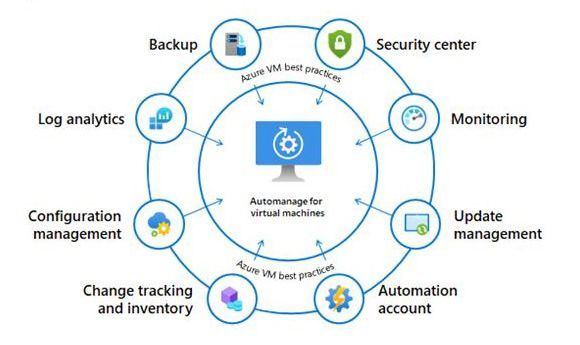
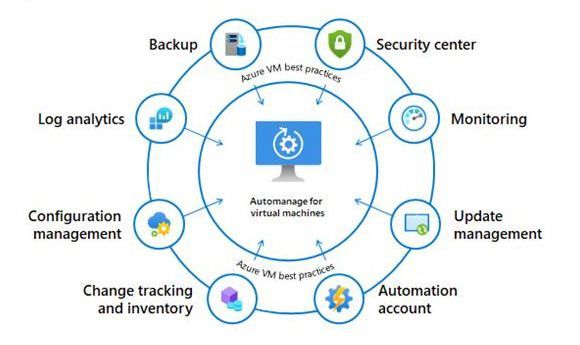
At Microsoft Ignite 2020 the team announce Azure Automanage, which is an exciting new preview service which aims to simplify the management of Windows Server virtual machines.
When you deploy a virtual machine (VM) into any environment, on prem or within the Cloud there are other components and services that you need to consider. Backup, Monitoring, Patch Management, etc. The management and operations of a VM. What Azure Automanage helps you with is enrolling and configuring those supporting components for you.
Using best practices as defined by the Cloud Adoption Framework, Azure Automanage helps enroll your VM with the following Azure services:
Azure Automanage is a straightforward, point, click, set, forget experience that helps eliminate the need to discover, know how to onboard and configure the above services.
As Azure Automanage is currently in preview (at the time of writing this article), there is no cost to using it, however it is important to note that Automanage only supports Windows VMs located in the following regions; West Europe, East US, West US 2, Canada Central, West Central US.
With Automanage when you are working through the onboarding experience you will be presented with two configuration profiles, one for Dev/Test and one for Production. The reason for the two profiles is that certain services are recommended depending on the environment, for example within Production backup is essential but as your Dev/Test environments typically have a lower impact on your business if they are not available backup isn’t included.
There are some settings that can be configured/personalised within a configuration profile, these personalisations are within a range so not to breach Microsoft’s best practices. If you wished to make changes to the configuration profile AFTER Automanage is enabled, you would have to Disable Automanage and then look at setting it up again with the changes that you wish to make to the configuration profile.
Azure auto manage can also be enabled through Azure Policy if that is something that you are utilising within your environment and your will to find the policy under Definitions, Categories and then Enable Automanage – Azure virtual machine best practices.
If you want to see Azure Automanage in action checkout the short video that walks you through the onboarding process and shows you what it looks like within the Azure portal.
Azure Automanage is in preview but it is available for everybody if you go into the your Azure portal experience and you can test the service and and interact with it, we’d love to hear your feedback from it so if anybody has any questions or feedback please do leave a comment at the bottom of this post.











Recent Comments