
by Contributed | Dec 1, 2020 | Dynamics 365, Microsoft 365, Technology
This article is contributed. See the original author and article here.
Even in challenging times, the holiday season’s irresistible deals attract both customers and fraudsters. A differentiated fraud prevention strategy is essential to keep a merchant’s fraud losses minimized while letting legitimate customers continue to have a smooth shopping experience.
Consumers often change buying and engagement patterns with merchants during the holiday season like shipping to a new address when buying a gift or adding a new card on file that may give them higher rewards or a higher spending limit.
These new consumer behaviors pose a challenge for fraud prevention because it makes it more difficult to differentiate between fraud attempts and legitimate purchases.
Online purchases are expected to increase this year due to social distancing requirements. Now more than ever merchants need to adopt a differentiated strategy for fraud preventionone that helps adapt and respond to changing customer behaviors and minimizes fraud loss.
Here are three tips for the holiday season to help keep fraud low and maximize gains during these peak sales times.
First: Identify your fraud attack zone
While this may sound like a no-brainer on the face of it, identify and make a list of products in your portfolio that fraudsters can benefit from, either by reselling the products or using it themselves.
One of the key strategies in fraud defense is to identify where you are likely to be attacked. A product that is of limited supply or being posted with a high discount is more likely to be targeted than a product that is abundantly available year-round and has a low discount. Digital goods, especially one-time or non-subscription digital goods, tend to be targeted more than physical goods.
Commonly, these will also be the products most of your customers want and are the star items of your holiday deals.
Loosening fraud-decision thresholds on these products could make you a soft target for fraud. Instead, evaluate if you can apply limits such as maximum quantity and then use it in a watch-list fashion for reviews and reporting.
If you have a process in place for manually reviewing some transactions, consider adding confirmation or shipping delays until the review is completed.
Second: Set up rapid internal fraud communication channels
Core sale events and accompanying fraud attempts can last from a few hours to days. During which there will be an outburst of information coming from customer escalations, social engineering attempts, reports of successful purchases, and successful fraud prevention.
Weeding out noise from useful signals in real-time is essential. Normal communication methods such as support tickets and email messages can’t scale to meet these needs.
Set up channels that promote cross-functional communication in real-time, such as incident management tools, command room techniques, or collaboration tools such as Microsoft Teams. Include fraud analysts, review agents, customer support agents, and any other teams involved in handling fraud or customer escalation in these rapid communication channels. This helps with quick resolution of any false positives (customers blocked due to fraud suspicion) and to identify new fraud patterns as well as react to them.
Third: Monitor trends as near to real-time as possible
During the rush of holiday sales activity, it is essential to monitor the trends as near to real-time as possible and as granular as possible. Set up reporting on decisions and trends such as reject rate, approval rate, review rate, and trends of total volume and score distribution with views across slices of products, geographies, and user segments. All teams responsible for fraud prevention should always have a hawk’s eye on these reports and be ready to quickly jump-in if suspicious trends are seen.
How Microsoft can help your business combat fraud efficiently this holiday season
If you are currently using Dynamics 365 Fraud Protection, you can use the virtual fraud analyst capability to get a segmented view across your products and fraud profiles. The scorecard gives you a real-time view of the performance and support tool that helps to search and investigate all transactions including risk information and history. You can also enable the transaction acceptance booster feature to share data with banks in real-time to maximize customer experience and reduce wrongful declines.
Next steps and continued learning
If you are not currently using Dynamics 365 Fraud Protection, you can learn more and start a free trial to see what additional value you can bring to your business and customers.
The post 3 ways to minimize fraud this holiday season appeared first on Microsoft Dynamics 365 Blog.
Brought to you by Dr. Ware, Microsoft Office 365 Silver Partner, Charleston SC.
by Contributed | Dec 1, 2020 | Technology
This article is contributed. See the original author and article here.
As calls and online meetings have increased, Microsoft has worked on continually improving our features and services to help you collaborate across teams, create clarity and maintain the human connection that went from the hallways of work to digital spaces. To complement the calling experience in Teams is a robust portfolio of Teams phones designed for the places and ways you stay connected.
USB Solutions
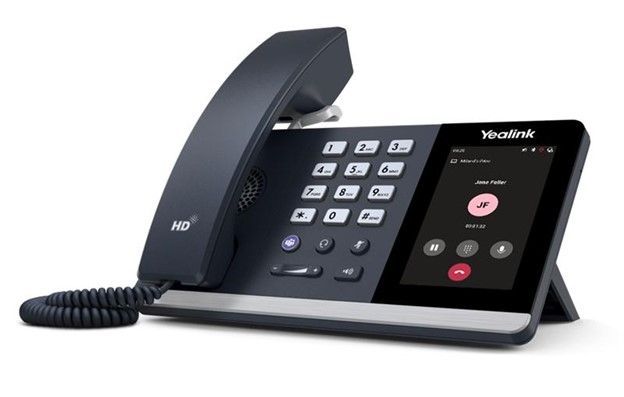
The first USB phone certified for Microsoft Teams will be available this month, the Yealink MP50. This PC peripheral gives users a phone experience with a dial pad and handset that is plugged directly into a PC or docking station without complicated set up. While connected to Teams, the USB phone frees up your PC screen for other tasks while the device can take on the call.
Affordable phones with hardware buttons – launching Q1 2021
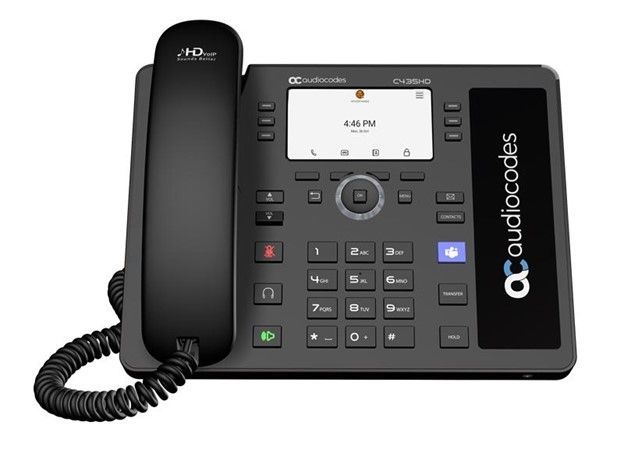
We have teamed up with partners Audio Codes and Yealink to release a line of phones with a non-touch display and hardware buttons. These phones will provide support for core calling functionality in Teams at an affordable price point. They will be available for purchase in spring of2021.
Teams phones
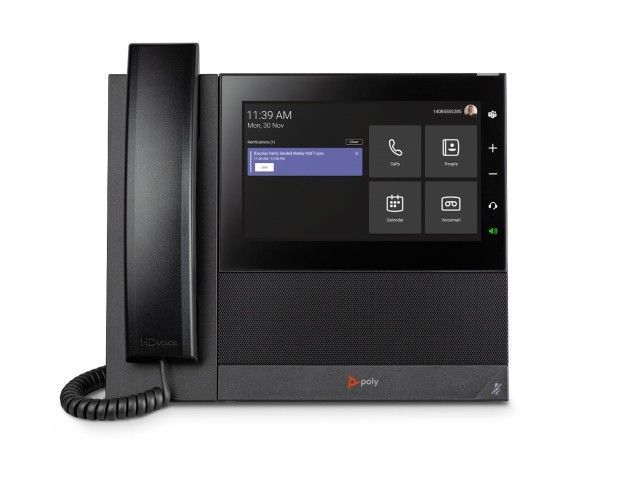
Since the first Teams phones came to market in 2018, we have added various options to our product portfolio to expand form factors, features, and experiences our devices can deliver. The Microsoft Teams phone app is brought to life with our OEM partners, Yealink, Audiocodes, and Poly. Together we bring best in class user experiences like sidecar support, redesigned home screen UI, and enterprise grade security and management.
Teams Displays
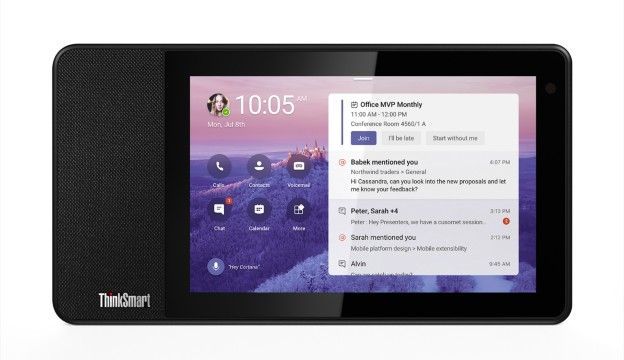
The Teams display is the newest category of collaboration experiences brought to market by our first partner, Lenovo. Now available on the ThinkSmart View, the Teams display integrates Artificial Intelligence and Cortana into your collaboration experience, creating the first intelligent companion device in market. Leverage voice activated commands with Cortana to quickly place a video call to your collaboration partners and rely on an informative ambient display which brings to your attention your personalized notifications and alerts.
Device as a Service
We are excited to announce that Teams certified devices, including the phones above, will be available for monthly financing through the Teams devices marketplace in the US starting in November. Users can add products to their shopping cart and with qualifying orders, be eligible for two or three year payment plans. This way what would have been an initial high investment can be broken up into smaller payments and redirected to other priorities customers may have. Shop today at the marketplace! More countries to come in 2021.
by Contributed | Dec 1, 2020 | Technology
This article is contributed. See the original author and article here.
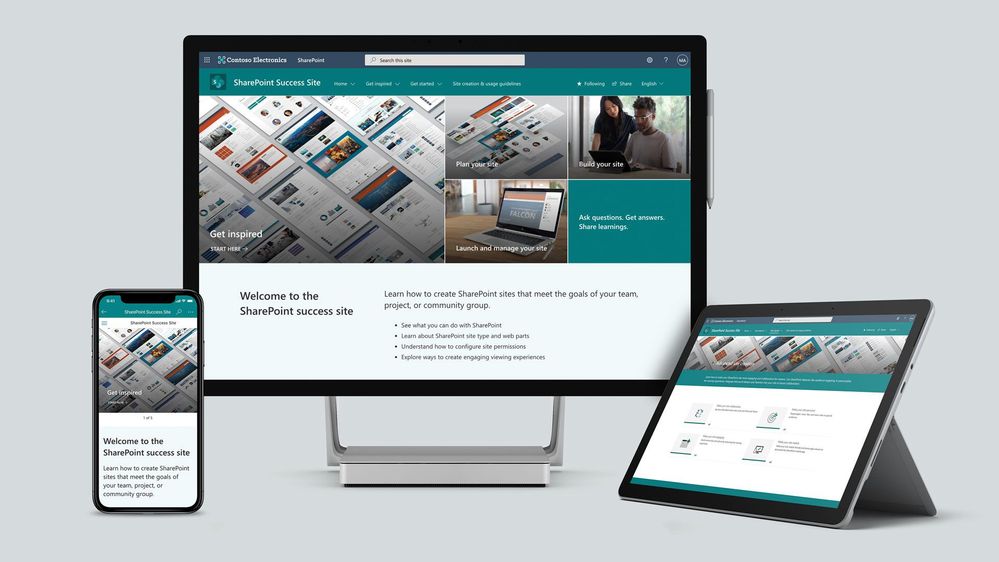
To help our customers drive adoption and get the most out of SharePoint, we are launching the new SharePoint Success Site. The SharePoint Success Site is a ready to deploy and customizable SharePoint communication site that helps your colleagues create high-impact sites to meet the goals of your organization. The SharePoint Success Site builds on the power of Microsoft 365 learning pathways which allows you to train end users via Microsoft-maintained playlists and custom playlists you create.
To help your colleagues get the most out of SharePoint, the SharePoint Success Site comes pre-populated with site creation inspiration and training on how to create high quality and purposeful SharePoint sites. The SharePoint Success Site is not just about creating high impact sites – organizations need users to meet their responsibilities as site owners and to adhere to your organization’s policies on how SharePoint is to be used. The SharePoint Success Site includes a page dedicated to site creation and usage policies that should be customized to fit the needs of your organization.
The SharePoint Success Site brings together all the critical elements that site owners need to know to create amazing SharePoint sites. Provision the SharePoint Success Site in your tenant to:
- Get more out of SharePoint – Help people understand the ways to work with SharePoint to achieve business goals. Then, show users how to utilize the power behind SharePoint’s collaboration capabilities with step-by-step guidance.
- Enable Site owners to create high-impact sites – Ensure Site owners have the right information and support to create purposeful sites that are widely adopted by the intended audience.
- Ensure Site owners follow site ownership policies – Customize the site creation and usage policies page in your SharePoint Success Site to ensure sites created in your organization are compliant with your policies.
- Provide the most up-to-date content – Equip Site owners with SharePoint training content that is maintained by Microsoft and published as SharePoint evolves.
What’s included?
To help accelerate your implementation of a SharePoint Success Site in your tenant the following highlights just some of the features included:
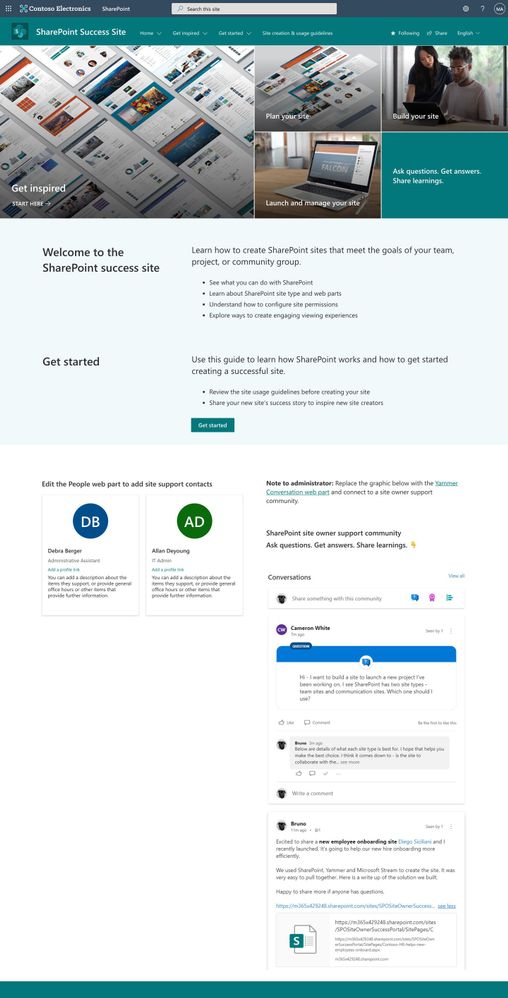
- A fully configured and customizable site owner SharePoint Communication Site: The SharePoint Success Site is a SharePoint communication site that includes pre-populated pages, pre-configured training, web parts, and site navigation. The site can be customized to incorporate your organization’s existing branding, support, and training content.
- Microsoft maintained SharePoint training content feed: The SharePoint Success Site’s up-to-date content feed includes a range of content that helps new users and existing Site owners plan, build, and manage SharePoint sites.
- Site inspiration: Content that helps users understand the different ways to leverage SharePoint to meet common business objectives.
- Success stories: A success stories gallery to showcase internal SharePoint site success stories that inspire others in the organization.
- Site creation guidelines: A starting point template to educate new Site owners about SharePoint site creation and usage policies for your organization. The customizable guidelines include suggested usage policy topics and questions to prompt consideration of usage policies within your organization.
Next steps
Learn more about the SharePoint Success Site. Provision the SharePoint Success Site to your tenant today and customize it to help your colleagues adopt SharePoint. Create custom learning paths to meet the unique needs of your environment. You can also create custom playlists by blending learning content from Microsoft’s online content catalog with your organization’s SharePoint specific process content.
We hope the SharePoint Success Site helps you and your colleagues get the most out of SharePoint. Share your feedback and experience with us in the Driving Adoption forum in the Microsoft Technical Community.
Frequently asked questions (FAQs)
Question: What are the requirements for installing the SharePoint Success Site into my tenant environment?
Answer:
- Ensure SharePoint Online is enabled in your environment.
- The individual that will provision the SharePoint Success Site must be the global admin (formerly called the Tenant admin) of the target tenant for install.
- The tenant where the site will be provisioned must have:
by Contributed | Dec 1, 2020 | Technology
This article is contributed. See the original author and article here.
High throughput streaming ingestion into Synapse SQL Pool is now available. Read the blog post here on the announcement.
Interestingly, I have been working with an enterprise customer which has streaming data in XML and produces close to 60GB/minute of streaming data. In this blog post, I will walk through the steps to implement a custom deserializer to stream XML events in .NET which will be deployed as Azure Stream Analytics (ASA) job. The data deserialized will be further ingested into Azure Synapse SQL Pool (provisioned data warehouse).
With custom deserializer programming, it is flexible to handle almost any types of data formats.
Create Azure Stream Analytics Application in Visual Studio
Launch Visual Studio 2019. Make sure you have Azure Stream Analytics tools for Visual Studio is installed. Follow the instruction here to install.
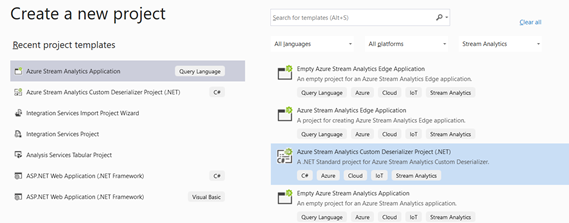
Click Create a new Project and select Azure Stream Analytics Custom Deserializer Project (.NET). Give the project a name and click Create.
Once the project is created, next is to create the deserializer class. Events that are parsed in certain formats, needs to be flatten into a tabular format. This is addressed as deserialization. Let’s create a new class that will be instantiated to deserialize the incoming events.
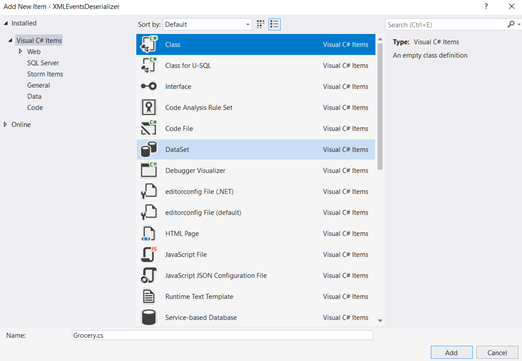
Right click the project > Add New Item > Class. Name the C# class as Grocery and click Add.
Once the C# class file is created, next is to create the class members which defines the properties of the object. In our example, the object is an XML event which captures the grocery transactions happening at Point of Sales.
Here is how the event records looks like in XML for each stream.

<Groceries>
<Grocery>
 <name>Roasting Pan</name>
 <storeId>1008</storeId>
 <category>Kitchen</category>
 <producttype>5</producttype>
 <price>17.99</price>
 <timestamp>1606185743.597676</timestamp></Grocery>
<Grocery>
 <name>Cutting Board</name>
 <storeId>1005</storeId>
 <category>Kitchen</category>
 <producttype>10</producttype>
 <price>12.99</price>
 <timestamp>1606185747.236039</timestamp>
</Grocery>
<Groceries>
Open the Grocery.cs file, and modify the class with the properties as below:
public class Grocery
    {
        public string storeId { get; set; }

        public string timestamp { get; set; }

        public string producttype { get; set; }

        public string name { get; set; }

        public string category { get; set; }

        public string price { get; set; }

    }
Check out the docs here for the Azure Stream Analytics supported data types.
Next, we just need to code the block that calls the Deserialize function of XmlSerializer class and specify the class that needs to be instantiated as a type of, in this case, as a type of Grocery.
Open the ExampleDeserializer.cs file, and replace the entire body of the Deserialize function with the code below:
XmlSerializer serializer = new XmlSerializer(typeof(List<Grocery>), new XmlRootAttribute("Groceries"));

List<Grocery> productList = (List<Grocery>)serializer.Deserialize(stream);

foreach (var Product in productList)
{
    yield return new Grocery()
    {
        category = Product.category,
        name = Product.name,
        price = Product.price,
        storeId = Product.storeId,
        producttype = Product.producttype,
        timestamp = Product.timestamp
    };
}
There are errors highlighted and this indicates that the reference to the XMLSerializer dll is yet to be referenced. Point over to the XMLSerializer class and press Ctrl + . (dot notation) in your keyboard and add the reference to System.XML.Serialization.
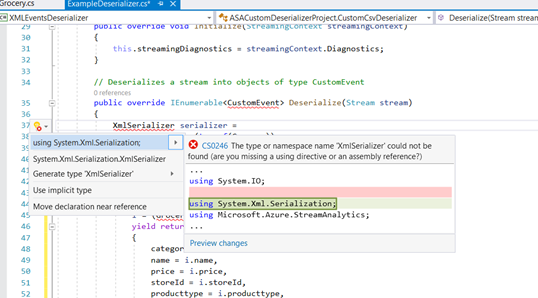
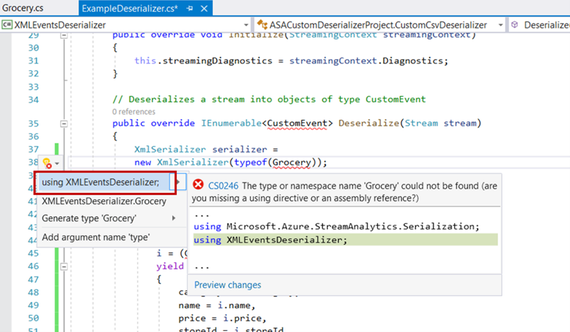
Repeat the same for Grocery.
Replace the return type of the Deserialize method from CustomEvent to Grocery. The method should like as below:
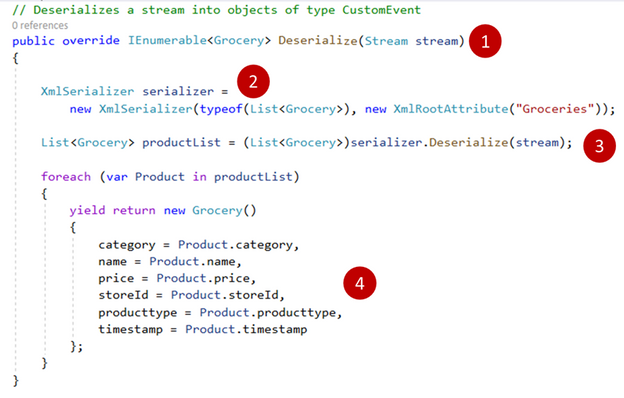
1. The code block above receives the incoming streaming events as a type of Stream.
2. New serializer object instantiated specifying the class of how each event records should be read as, in this case, as a type of Grocery.
3. Incoming stream input is being parsed as argument to the Deserializer method and a type cast to Grocery specifies that the object should be returned as a type of Grocery.
4. The deserialized object is instantiated as a type of Grocery and its attribute properties are initialized and the object is returned back to the caller. At this point, any customization such as discount calculations can be implemented if required. It is programming, almost anything can be programmed. :smiling_face_with_smiling_eyes:
Next, replace the return type from CustomEvent to the CustomCSVDeserializer class instantiation as shown below:
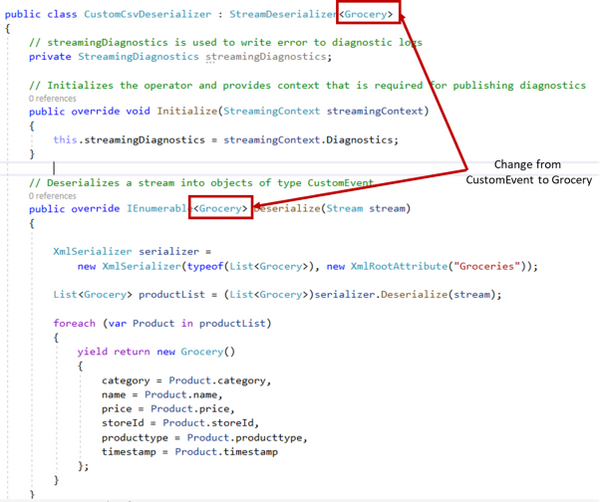
That’s all for the programming of the deserializer. We will need to build the project so that the DLL can be compiled. Right click on the project and click Build project.
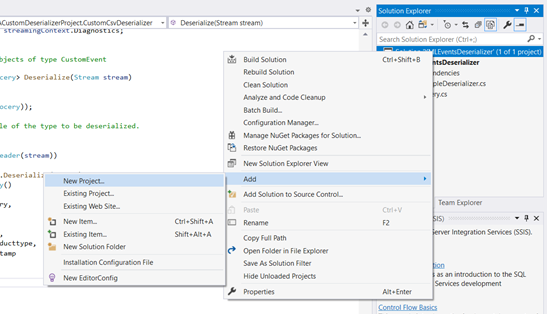
Next, we will need to create an Azure Stream Analytics application which can then be deployed to as a Azure Stream Analytics job. Add new Project to the same solution. Right click on the solution > Add > New Project > Azure Stream Analytics Application. Give a name to the project and click Create.
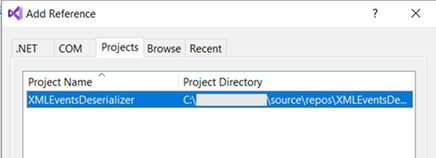
Once the Azure Stream Analytics project is created, right click on References > Projects > select the only project shown.
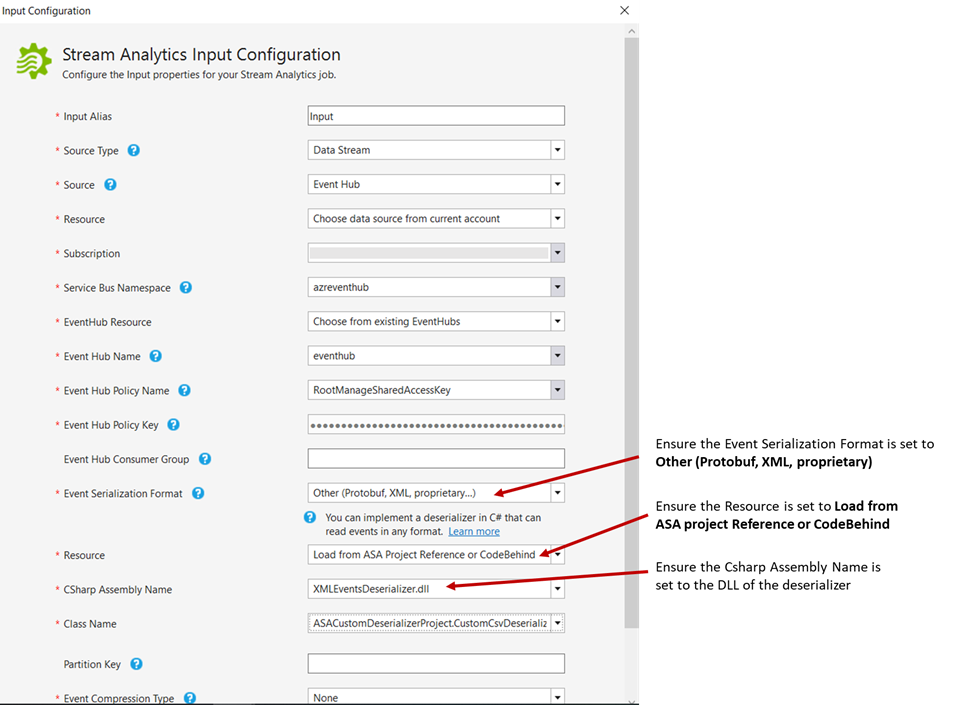
With the deserializer project added as a reference, next is to specify the input and output for the Azure Stream Analytics job. We will first configure the input to the Azure Event Hub. This blog assumes that the application at the Point-Of-Sale machine has already been configured to stream its events to Azure Event Hub. Check out our documentation here to understand this configuration.
In the Azure Stream Analytics application, expand the Inputs folder and double click on the Input.json file. Ensure the Source Type is set to Data Stream and the Source is set to Event Hub. The rest of the configuration is just to specify the Azure Event Hub resource. I have specified as below:
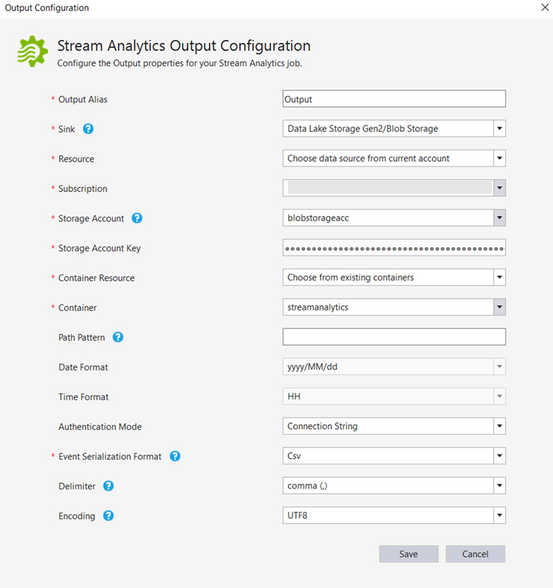
Next, the Output needs to be configured. At present, Visual Studio does not support the Output option to Azure Synapse Analytics. However, this can be easily configured once the Azure Stream Analytics job is deployed to Azure. For now, let’s configure the output to Azure Data Lake Storage. Expand Output folder and double click Output.json file.
Select the Sink to Azure Data Lake Storage Gen2/Blob Storage. The remaining of the fields requires the container name (create one if there are none) in the Azure Data Lake Storage and the storage account key. Configure this as required. I have configured as below:
We are done configuration the Azure Stream Analytics project. Right click the project and click Build.
Once build succeeded with no errors, right click the project, and click on Publish to Azure. Select the option to create a job and configure the subscription and the resource group to deploy the ASA job.
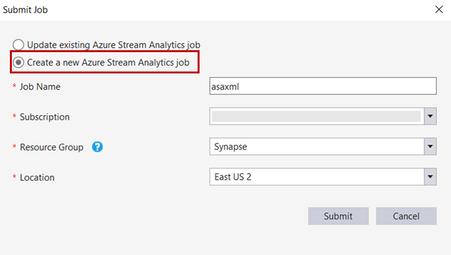
Do note that custom deserializer currently only supports limited regions which includes West Central US, North Europe,East US, West US, East US 2 and West Europe. You can request support for additional regions. Please refer to our documentation here.
Once the project is successfully published, changing the output to Azure Synapse SQL Pool (provisioned data warehouse) will be the next step.
Configuring Output to Azure Synapse Analytics
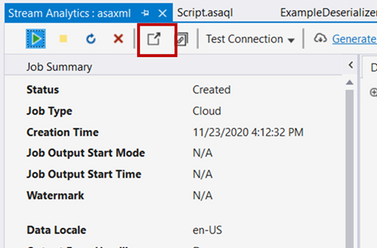
With Visual Studio open, you can click the icon from the ASA job deployed summary pane itself as shown below.
In the Azure Portal, click on the Azure Stream Analytics job output. Click Add output and select Azure Synapse Analytics (formerly SQL DW).
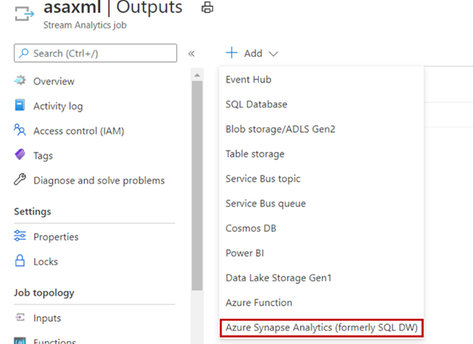
Prior selecting the destination to Azure Synapse SQL data warehouse, please ensure the table is created in the provisioned SQL Pool.
The Output configuration specifies the destination table. I have configured as below:
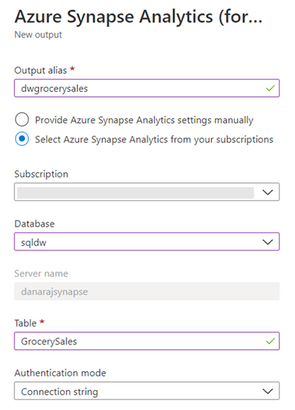
Once the Output configured successfully, next we can configure the job to stream the output to Azure Synapse SQL data warehouse. The older Output to Azure Data Lake Storage Gen2 can be deleted if wanted to. Click on the job query, type in the query as below and click Save query.
SELECT
   category,
   name,
   price,
   storeId,
   producttype,
   timestamp
INTO
    [factgrocerysales]
FROM
    [Input]
The INTO clause above specifies the destination data warehouse with the alias named as above.
That’s all. We are now ready to run the job. Navigate back to the job page and click Start. This will resume the job.
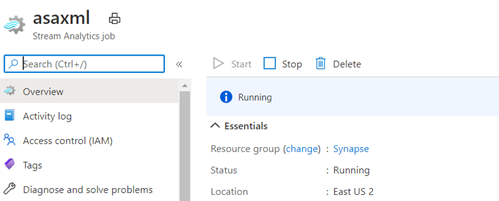
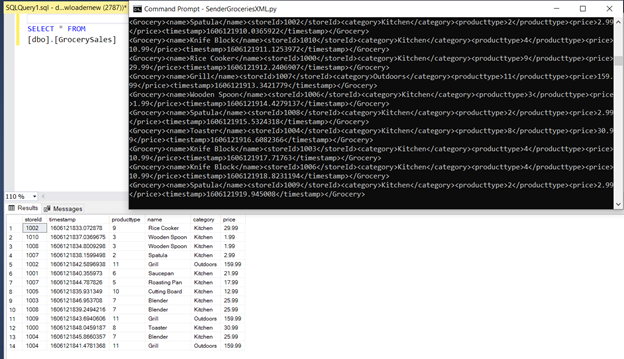
As the job is running, I have triggered the event producer which simulates the Point-Of-Sales scenario which captures the transactions as XML events.
Querying the table in SSMS, shows the events are streamed and written to Azure Synapse Analytics data warehouse successfully.
by Contributed | Dec 1, 2020 | Azure, Microsoft, Technology
This article is contributed. See the original author and article here.
Fluent Bit and Azure Data Explorer have agreed to a collaboration and released a new output connector for Azure Blob Storage. Fluent Bit is an open source and multi-platform log processor tool, and the new Azure Blob output connector is released under the Apache License 2.0.
The new output connector can be used to output large volumes of data from Fluent Bit and ingest logs to Azure Blob Storage. From Azure Blob Storage, logs can be imported in near real-time to Azure Data Explorer using Azure Event Grid. The Azure Blob output plugin can be used with General Purpose v2 and Blob Storage accounts and is supported with Standard and Premium storage accounts. It also includes support for the Azurite emulator, allowing customers to test and validate the format of output logs locally.
The Azure Blob output connector can be quickly configured and once enabled logs will immediately begin flowing to the configured storage account and container. Once the logs are in Azure Blob Storage, they can be ingested to Azure Data Explorer using one-click ingestion and Event Grid notifications. The connector can output both block blobs and append blobs to an Azure storage account. However, only block blobs are supported by Azure Data Explorer for ingestion.
Learn more about how to configure the Azure Blob output connector from Fluent Bit and get started ingesting your logs to Azure Data Explorer from Azure Blob Storage today.
by Contributed | Dec 1, 2020 | Technology
This article is contributed. See the original author and article here.
Hello Folks,
We live in a cloud world. That is clear… However, most of us in the REAL world know that we’ll have to manage and maintain our servers on-prem or in multiple clouds for the foreseeable future. Therefore, it’s imperative that we find the right management solution to allow us to manage and maintain ALL our machines regardless of where they live. Azure, On-prem or other clouds.
During a private chat in our Discord Server (aka.ms/itopstalk-discord) with a community member it became clear that there may be some confusion out there with the growing number of managing solutions we offer that are labeled “hybrid management”. So, I decided to do a quick round-up to see if I could shed some light.
Today I will look at the following solutions:
- Log Analytics
- Azure Monitor
- Azure Automation
- Azure Arc
Log Analytics
Log Analytics is a tool to query data in Log Analytics Workspace. A Log Analytics Workspace is an Azure resource and a container where data is collected, aggregated, and serves as an administrative boundary. In essence, it’s a logical storage unit where your log data (from your servers and other sources) is collected and stored.
Can write very a simple query that returns a set of records and then use features of Log Analytics to sort, filter, and analyze the results. Or maybe you need to write more involved queries and perform statistical analysis and visualize the results in a chart to identify a particular trend. Ether way, Log Analytics is the tool that you’re going to use write and test them.
Log Analytics is also the foundation of most of the management tools we have in the list above. So much so that we even changed the term Log Analytics in many places to Azure Monitor logs. Apparently, this better reflects the role of Log Analytics and provides better consistency with metrics in Azure Monitor. Azure Monitor log data is still stored in a Log Analytics workspace and is still collected and analyzed by the same Log Analytics service.
The term log analytics now primarily applies to the page in the Azure portal used to write and run queries and analyze log data. It’s the functional equivalent of metrics explorer, which is the page in the Azure portal used to analyze metric data.
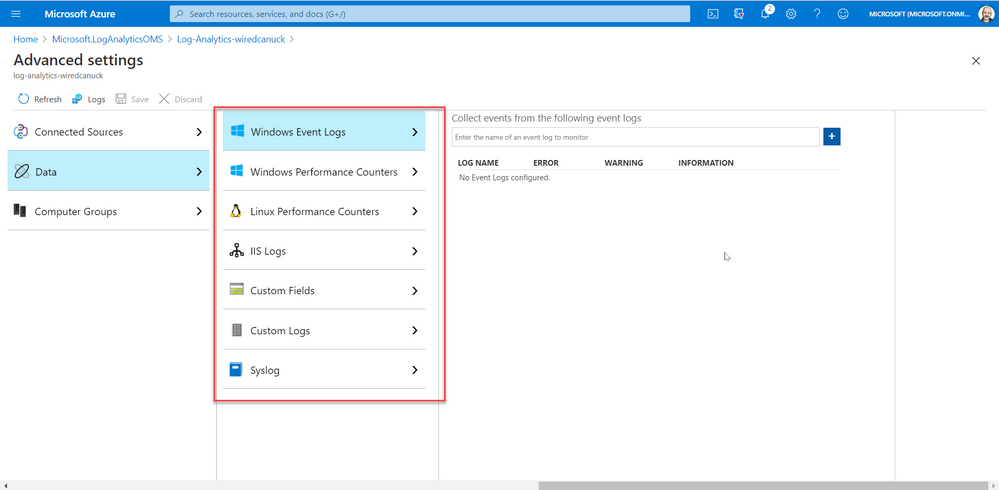
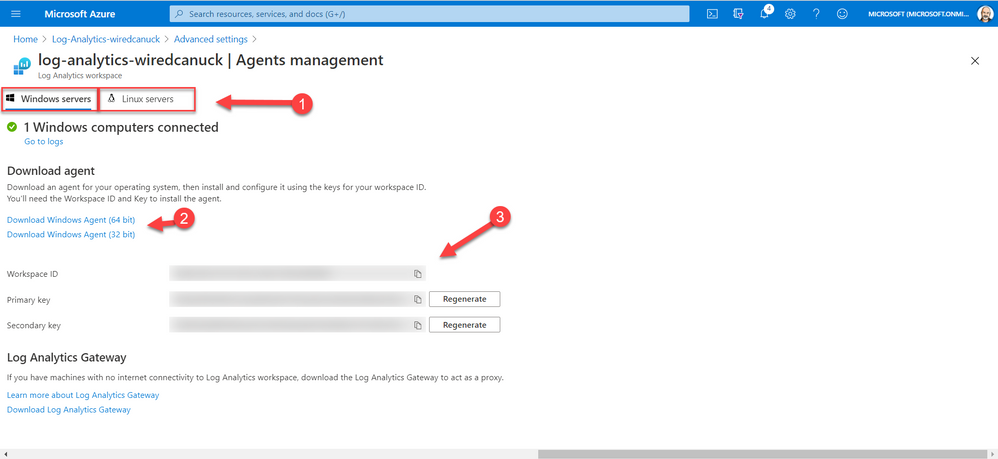
And since I started this article stating that I was looking at hybrid solutions, I must touch on the fact that you can deploy the Log Analytics Agent on machines (Windows or Linux) on-prem or in other cloud manually or scripted by using the Agent management pane in the portal. By selecting your OS, downloading the agent, and installing it while providing the Workspace ID and access key.
Azure Monitor
Azure Monitor is the service we most refer to when we are looking to monitor availability and performance of our apps and services. Log Analytics and Metrics Explorer (which we will not discuss today) collect the data from your cloud and on-premises environments. That data is then analyzed and acted upon to helps you understand how your environments are performing. Azure Monitor can also proactively identify issues affecting your resources.
Here are a few examples of what you can use Azure Monitor to help with:
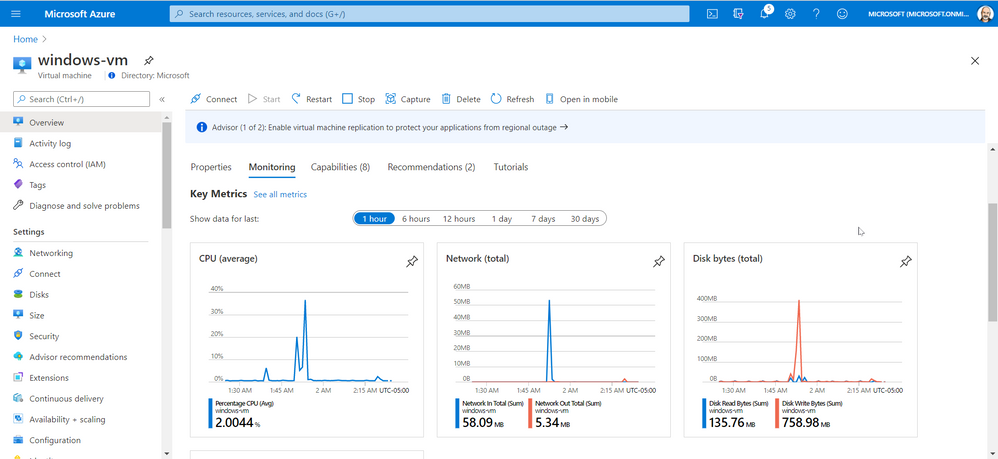
However, Azure Monitor starts collecting data from Azure resources the moment that they’re created. And you can see it in the portal for every resource. For example, in the image below you can see that once a VM is created the Overview and Activity Log panes in the left side of the portal provides you with info on the health of your resources. You just can’t query all that data until you have created a log analytic workspace.
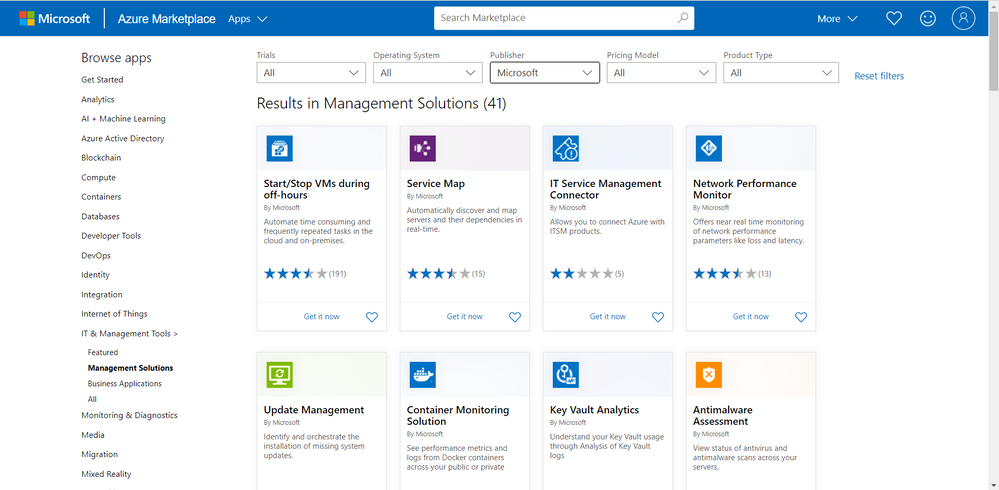
You can also add monitoring solutions that provide analysis of the operation of a particular Azure application or service. They are specifically tuned using queries and metrics to provide you with enhanced monitoring of these specific services.
Azure Automation
Azure Automation provides a service that allows you to automate the creation, deployment, monitoring, and maintenance of resources in your Azure environment and across external systems. It uses a highly scalable and reliable workflow execution engine to simplify cloud management. Orchestrate time-consuming and frequently repeated tasks across Azure and third-party systems.
With Automation, you can connect into any system that exposes an API over typical Internet protocols. Azure Automation includes integration into many Azure services, including:
- Web Sites (management)
- Cloud Services (management)
- Virtual Machines (management and WinRM support)
- Storage (management)
- SQL Server (management and SQL support)
Azure Automation Accounts can help you automate configuration management in in your environment by enabling Change Tracking, inventory, state Configuration and update management. On top of providing the foundation for runbooks.
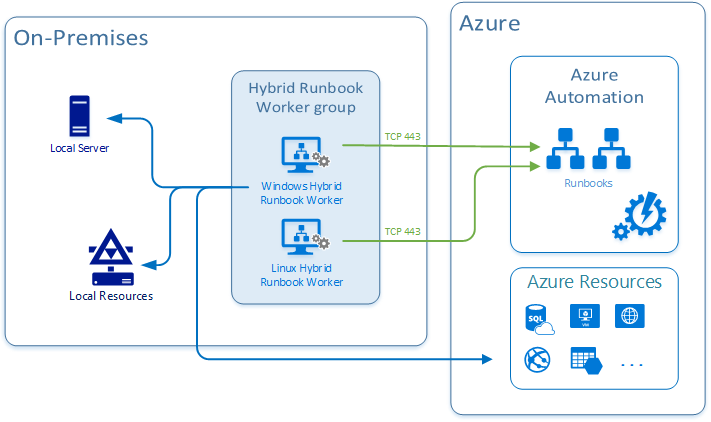
And just like Azure Monitor, this is also connected to your log analytics workspace and it can integrate with your on-prem or other cloud environments by deploying a Hybrid Runbook Worker. The Hybrid Runbook Worker feature of Azure Automation to run runbooks directly on the machine that’s hosting the role and against resources in the environment to manage those local resources.
Azure Arc
Last but not least on our list today is Azure Arc. It really is for those of you who want to simplify complex and distributed environments across clouds, datacenters, and edge.
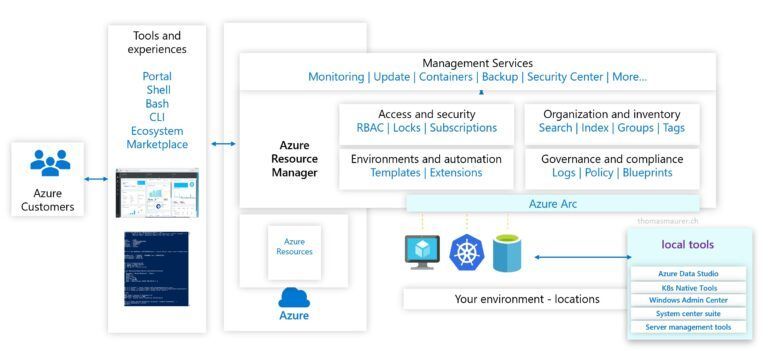
Azure Arc facilitates the deployment of Azure services anywhere and extends Azure management to any infrastructure. It’s really a streamlined way of onboarding your machine in all the Azure management capabilities so you can leverage services like:
- Organize and govern all your servers – Azure Arc extends Azure management to physical and virtual servers anywhere. Govern and manage servers from a single scalable management pane. You can learn more about Azure Arc for servers here.
- Manage Kubernetes apps at scale – Deploy and configure Kubernetes applications consistently across all your environments with modern DevOps techniques.
- Run data services anywhere – Deploy Azure data services in moments, anywhere you need them. Get simpler compliance, faster response times, and better security for your data. You can learn more here.
- Adopt cloud technologies on-premises – Bringing cloud-native management to your hybrid environment.
Conclusion
All these services can be leveraged by you and your organization as you see fit. The capabilities are there and it’s really fairly straight forward to deploy the bits you need in the cloud, on multiple clouds and on-prem.
All you need now is to decide what you need.
Go ahead… take those services for a spin. You might even like them.
Cheers!
Pierre
by Contributed | Dec 1, 2020 | Azure, Microsoft, Technology
This article is contributed. See the original author and article here.
Monthly Webinar and Ask Me Anything on Azure Data Explorer register now
Azure Data Explorer is a fast, fully managed data analytics service for real-time analysis on large volumes of data streaming from applications, websites, IoT devices, and more. Ask questions and iteratively explore data on the fly to improve products, enhance customer experiences, monitor devices, and boost operations. Quickly identify patterns, anomalies, and trends in your data. Explore new questions and get answers in minutes. Run as many queries as you need, thanks to the optimized cost structure.
register now
09:00-09:45 AM PST Azure Data Explorere overview by Uri Barash, Azure Data Explorer Group Program Manager
YouTube Live Stream
09:00-10:00 AM PST Ask me Anything with Azure Data Explorer Product group.
Ask Me Anything
by Contributed | Dec 1, 2020 | Technology
This article is contributed. See the original author and article here.
November 2020
Protect Box (Part 2: Real-Time Data Protection)
Hi everyone!
Welcome to the second blog of MCAS Data Protection Blog Series! If this is your first time seeing this blog, check out my landing page for some more information about me and what I’ll be covering! This blog series is also a part of our newly published MCAS Ninja Training (check it out at aka.ms/MCASNinja)!
Within this article, I’ll be discussing a few different ways we can use real time session controls to protect Box based on common customer scenarios.
Before we get started, please ensure you have the following perquisites in place.
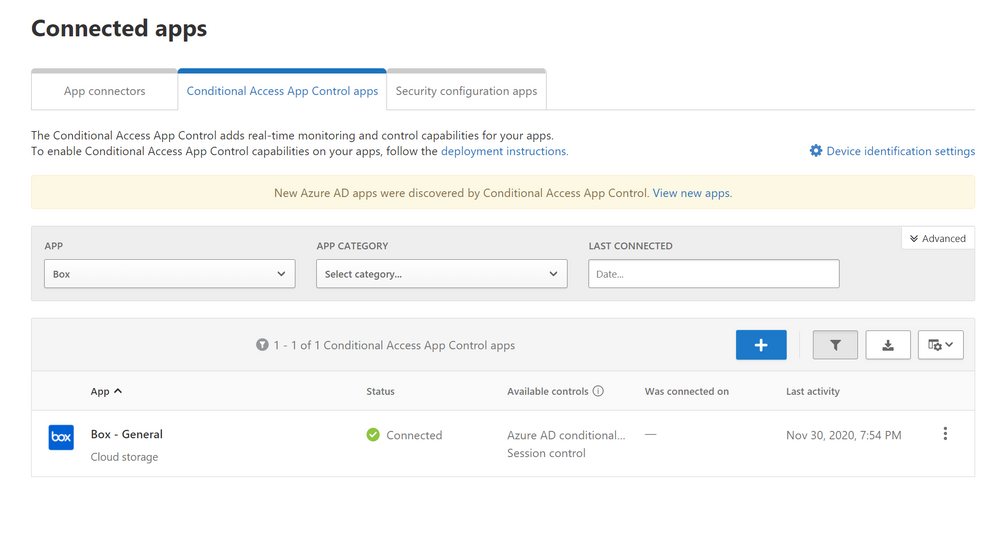
- User has configured Box with AAD for use in Conditional Access App Control.
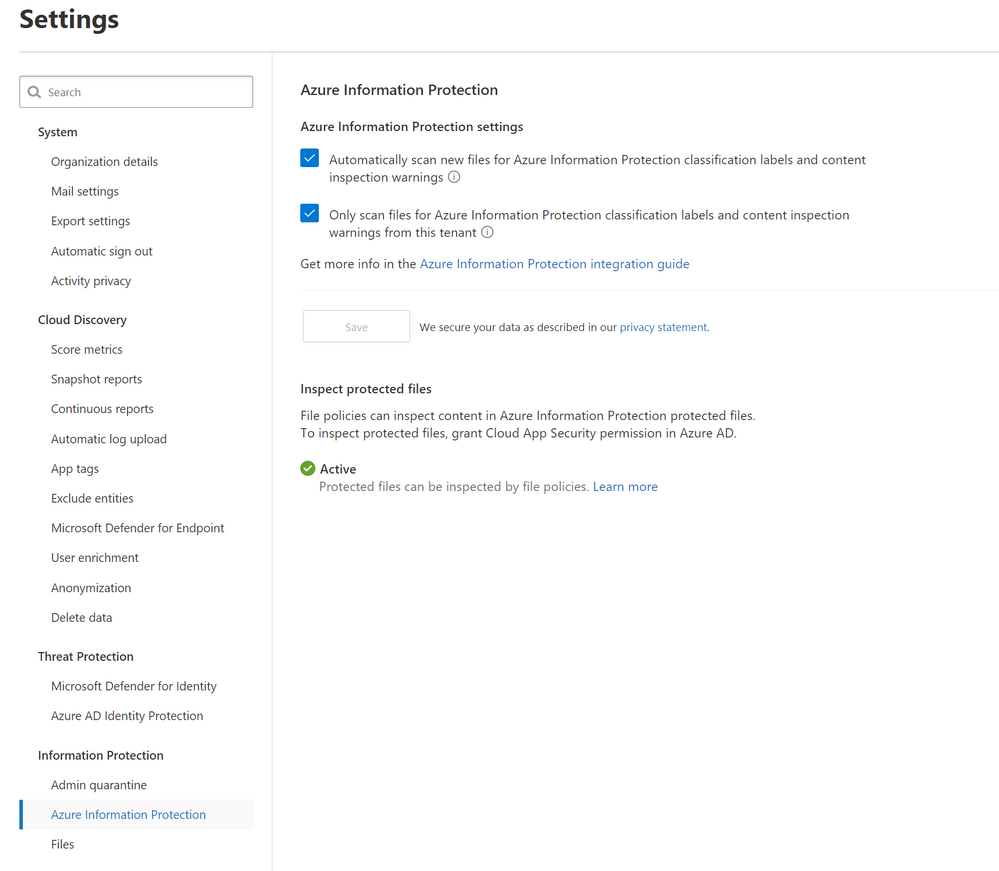
- Azure Information Protection integration is enabled.
There are two ways to protect Box using MCAS.
- Near real-time (NRT) protection that’s configured through File Policies and manual file governance; this uses the Box app connector.
- Real-time data protection using Conditional Access App Control.
For this article (Part 2), we are covering real-time data protection mechanisms.
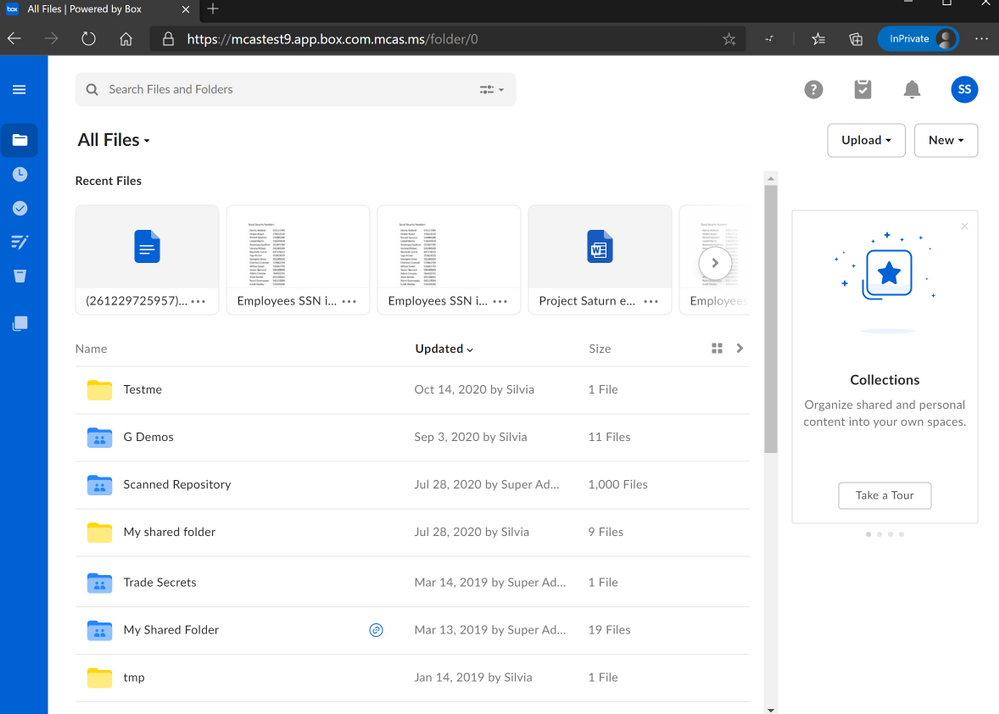
Alright, lets go ahead and start with use case number 1: applying an Azure Information Protection (AIP) label (Sensitivity Labels work too, if you’ve already migrated to Unified Labeling) to downloads or, preventing downloads of labeled files.
When you are using real-time session controls, it is important to note that you can prevent uploads and downloads for files that do not have Azure Information Protection labels as well as block downloads for files that have those labels. For first example, we are going to prevent a download of a file that has sensitive information. The sensitive information types can be blocked using a custom information type or be one of the built-in information types that integrate once the Azure Information Protection integration is enabled.
Here are the configurations for 3 block policies.
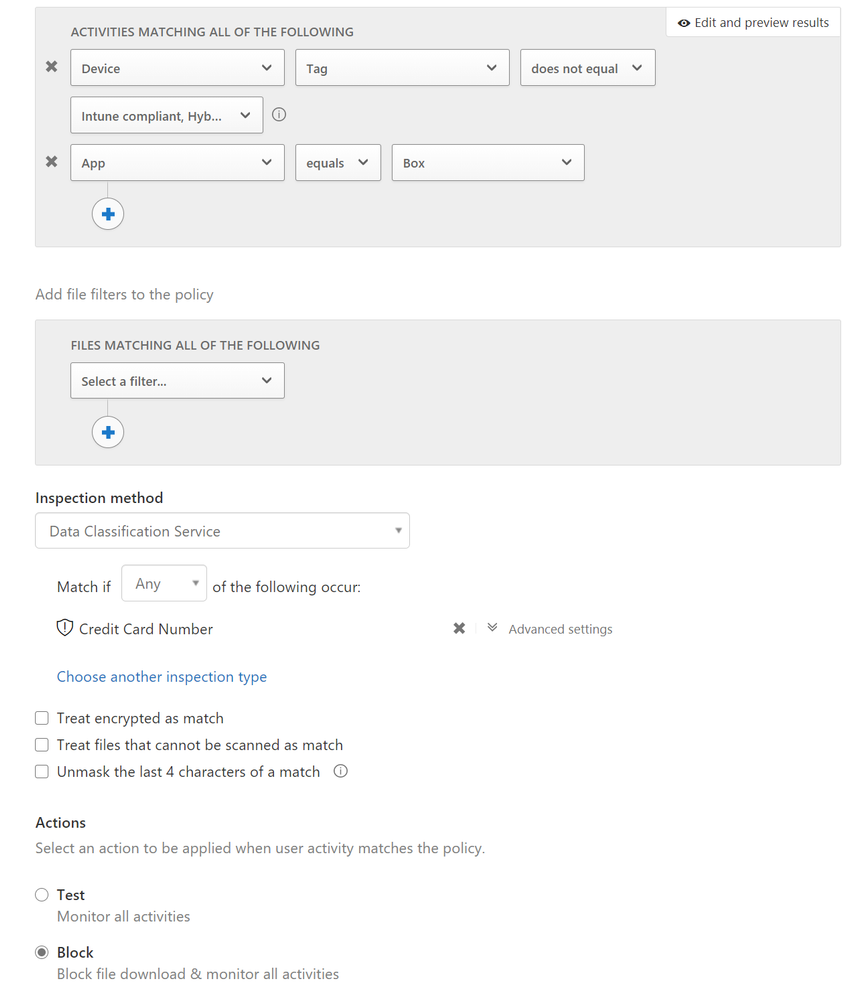
The screenshot below shows the configurations to block downloads of any files that have credit card information in Box from unmanaged devices.
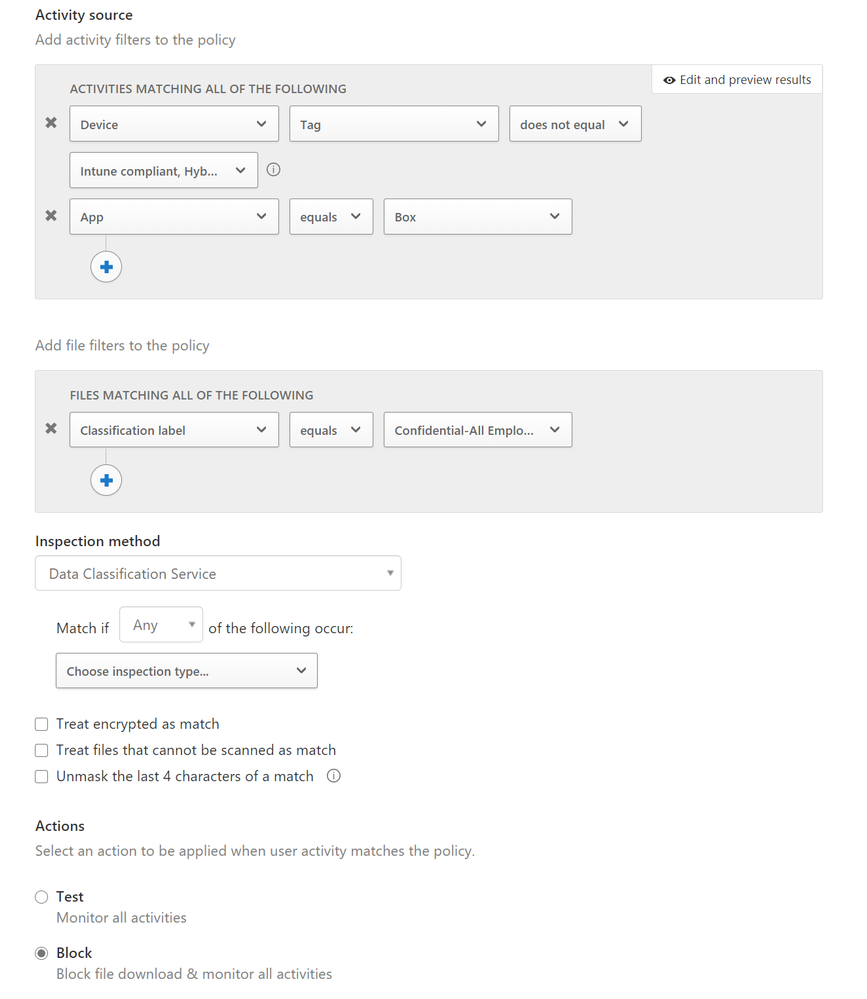
The screenshot below blocks downloads of any files that have the label Confidential applied from unmanaged devices.
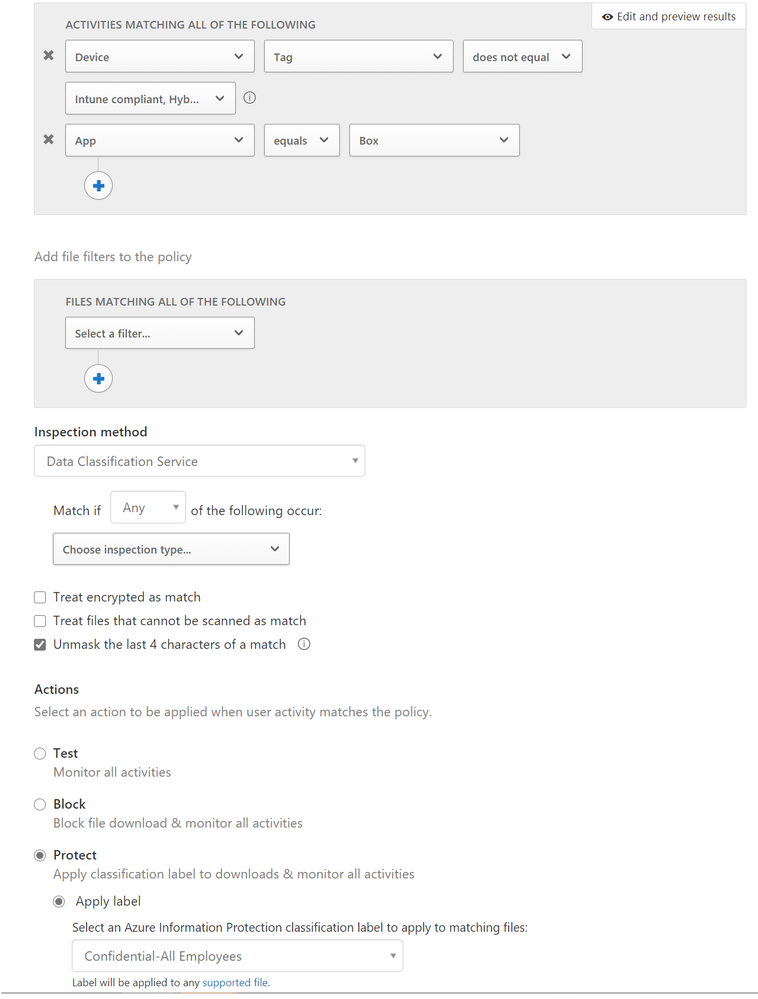
The screenshot below applies an AIP label to every file from Box downloaded from unmanaged devices.
These are great policies for organizations aiming to prevent files from being downloaded on unmanaged devices or have protection if those files do need to have labels be applied.
NOTE: Real-time session controls are only for browser-based session controls. This will not work for thick clients. You can use access control policies to prevent access to the thick client and force a reroute to a browser-based session.
NOTE: You cannot apply AIP labels to uploads using real-time session controls in the browser-based sessions. AIP labels can only be applied during downloads for real-time session controls.
This scenario poses a unique situation.
Customer ask: If we have a policy that blocks downloads of credit card numbers and a policy that applies AIP labels to all downloads, which policy takes precedence?
Answer: The blocking of downloads gets precedence as it is the stronger action. Yes, you are able to have both policies in place.
Now, lets discuss our next example. The MCAS CxE team is often asked about extension types.
Customer ask: Are we able to prevent the upload or download of certain extension types?
Answer: Yes. In addition, you are also able to create a policy where you’re notified of a specific extension type being uploaded or downloaded. This is particularly important for our customers who are in the financial industry. There are specific types of files that they do not want uploaded into the shared Box sites and therefore, they find great value in being able to prevent the uploads and/or downloads of those files.
In the screenshot below, whenever a user downloads .txt files from Box, it’ll be blocked. Similarly, if you chose to monitor all activities, you’ll be able to see whenever that file type is downloaded.
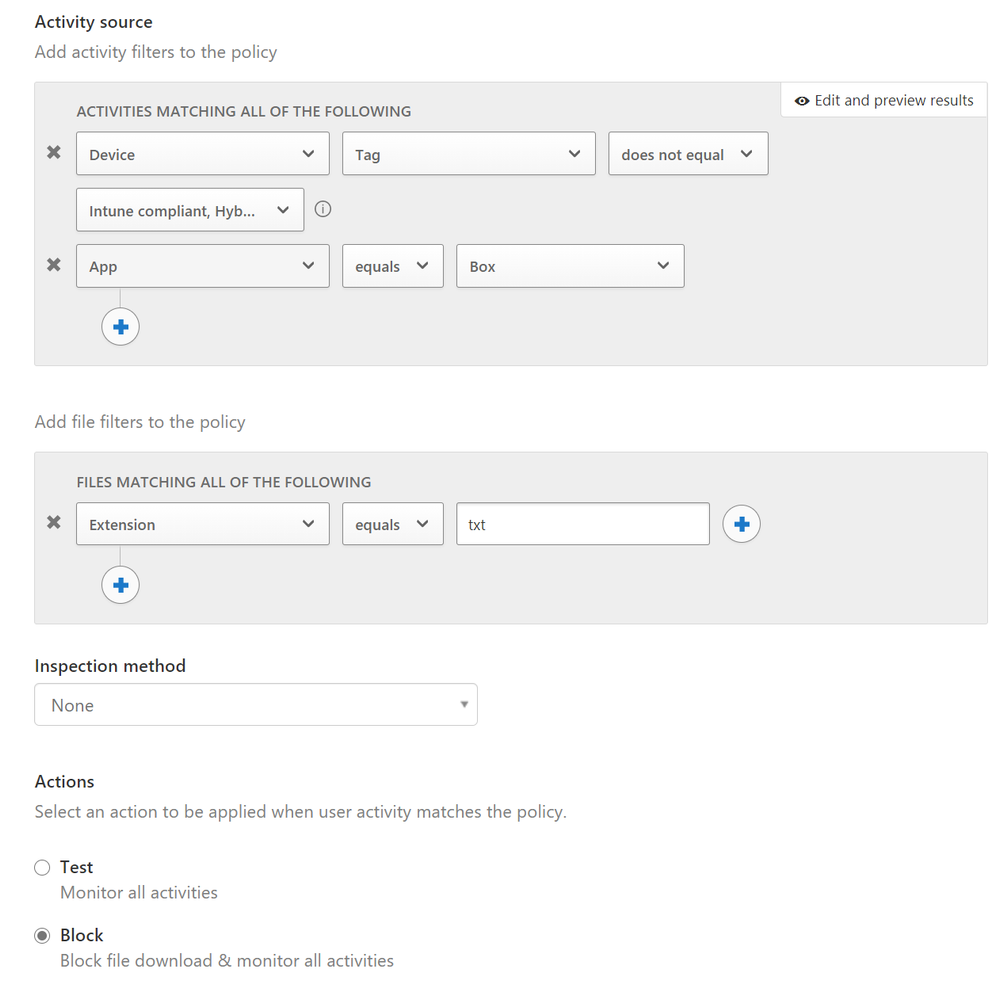
In the last example, we’ll discuss malware detection.
Customer ask: We already use Malware Detection policies with Box from our API connectors. Why do we need to use the Malware real-time session controls?
Answer: The API connection malware configuration is great for going through already existing files. The real-time malware detection stops it at the source, rather than pushing forward potential vulnerabilities into box. Also, the API connection uses near real-time mechanisms. With our session policies, you don’t have to wait to have the malware detection pick up malicious files.
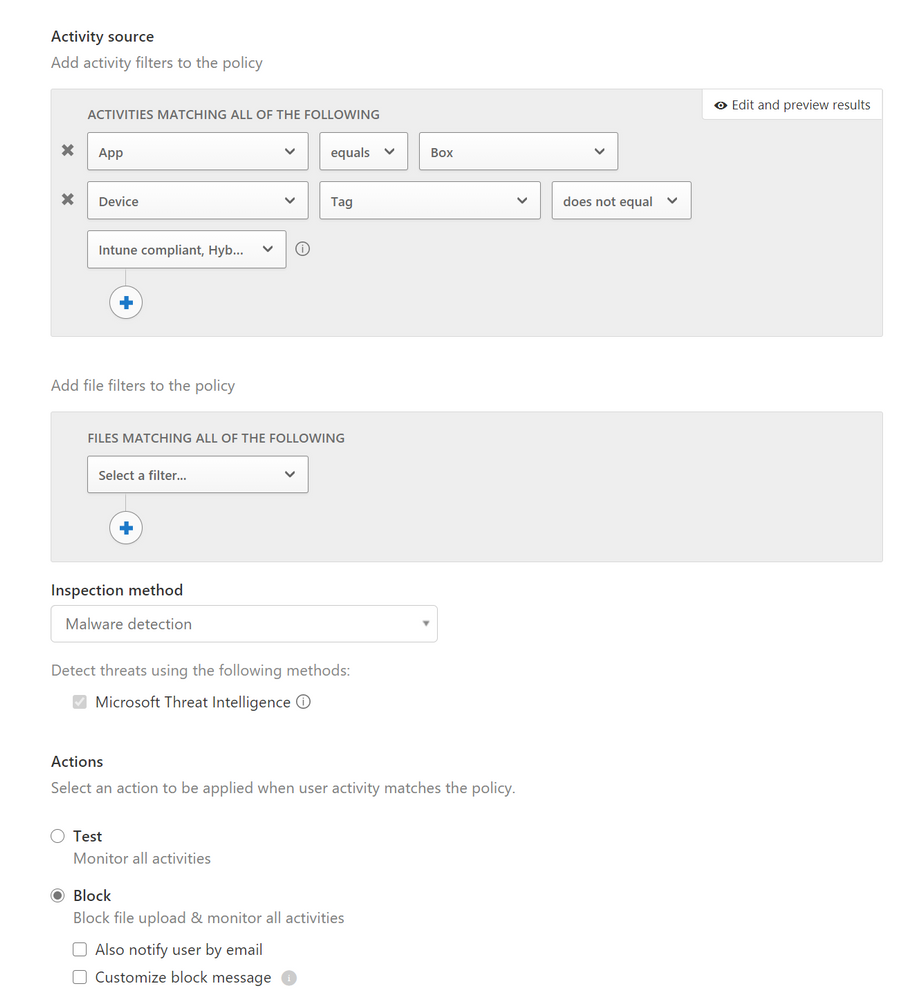
There you have it! A few use cases of MCAS data protection with Box real-time session controls. Let me know if you have any feedback. What other scenarios would you like me to cover? Feel free to comment below!
by Contributed | Nov 30, 2020 | Technology
This article is contributed. See the original author and article here.
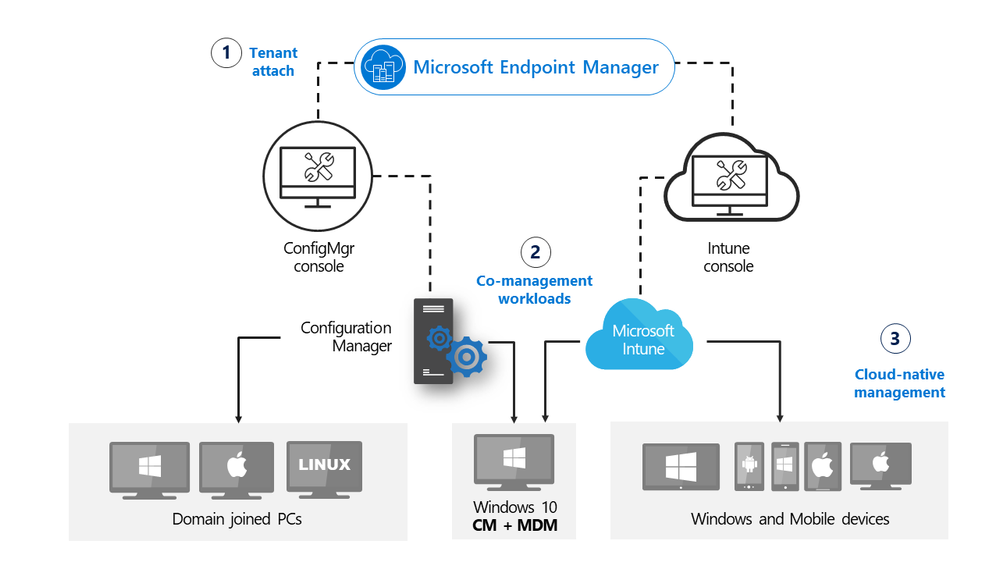
Update 2010 for Microsoft Endpoint Configuration Manager current branch is now available. Microsoft Endpoint Manager is an integrated solution for managing all your devices. Microsoft brings together Configuration Manager and Intune into a single console called Microsoft Endpoint Manager admin center.
In this release we continue to build on the tenant attach and work from anywhere themes from earlier releases, making cloud attach and management from the cloud easier and applicable for all. Cloud attach is using any combination of the “Big 3”: cloud management gateway (CMG), tenant attach and co-management.
cloud attach with MEM
Administrators now have more control over use of the cloud, enhancements to tenant attach and additional functionality when managing clients over cloud management gateway. Additionally, we have introduced CMG support for Azure Cloud Solution Provider (CSP) subscriptions.
Improvements to cloud attach include:
Microsoft Endpoint Manager tenant attach
Troubleshooting portal lists a user’s devices based on usage – The troubleshooting portal in Microsoft Endpoint Manager admin center allows you to search for a user and view their associated devices. Starting in this release, tenant attached devices that are assigned user device affinity automatically based on usage will now be returned when searching for a user.
Enhancements to applications in Microsoft Endpoint Manager admin center
We’ve made improvements to applications for tenant attached devices. Administrators can now do the following actions for applications in the Microsoft Endpoint Manager admin center:
- Uninstall an application
- Repair installation of an application
- Re-evaluate the application installation status
- Reinstall an application has replaced Retry installation
Cloud-attached management
Cloud management gateway with virtual machine scale set – Cloud management gateway (CMG) deployments now use virtual machine scale sets in Azure. This change introduces support for Azure Cloud Solution Provider (CSP) subscriptions.
Disable Azure AD authentication for onboarded tenants – You can now disable Azure Active Directory (Azure AD) authentication for tenants not associated with users and devices.
Additional options when creating app registrations in Azure Active Directory – You can now specify Never for the expiration of a secret key when creating Azure Active Directory app registrations.
Validate internet access for the service connection point – If you use Desktop Analytics or tenant attach, the service connection point now checks important internet endpoints. These checks help make sure that the cloud-connected services are available. It also helps you troubleshoot issues by quickly determining if network connectivity is a problem.
Cloud management gateway
Improvements to available apps via CMG – An internet-based, domain-joined device that isn’t joined to Azure Active Directory (Azure AD) and communicates via a cloud management gateway (CMG) can now get apps deployed as available. The Active Directory domain user of the device needs a matching Azure AD identity. When the user starts Software Center, Windows prompts them to enter their Azure AD credentials. They can then see any available apps.
Deploy an OS over CMG using boot media – Starting in current branch version 2006, the cloud management gateway (CMG) supports running a task sequence with a boot image when you start it from Software Center. With this release, you can now use boot media to reimage internet-based devices that connect through a CMG. This scenario helps you better support remote workers. If Windows won’t start so that the user can access Software Center, you can now send them a USB drive to reinstall Windows.
Improvements to BitLocker management – You can now manage BitLocker policies and escrow recovery keys over a cloud management gateway (CMG). This change also provides support for BitLocker management via internet-based client management (IBCM) and when you configure the site for enhanced HTTP. There’s no change to the setup process for BitLocker management. This improvement supports domain-joined and hybrid domain-joined devices.
This release also includes:
Site infrastructure
Monitor scenario health – You can now use Configuration Manager to monitor the health of end-to-end scenarios. It simulates activities to expose performance metrics and failure points. These synthetic activities are similar to methods that Microsoft uses to monitor some components in its cloud services. Use this additional data to better understand timeframes for activities. If failures occur, it can help focus your investigation.
Report setup and upgrade failures to Microsoft – If the setup or update process fails to complete successfully, you can now report the error directly to Microsoft. If a failure occurs, the Report update error to Microsoft button is enabled. When you use the button, an interactive wizard opens allowing you to provide more information to us.
Delete Aged Collected Diagnostic Files task – You now have a new maintenance task available for cleaning up collected diagnostic files. Delete Aged Collected Diagnostic Files uses a default value of 14 days when looking for diagnostic files to clean up and doesn’t affect regular collected files. The new maintenance task is enabled by default.
Improvements to the administration service – The Configuration Manager REST API, the administration service, requires a secure HTTPS connection. Starting in this release, you no longer need to enable IIS on the SMS Provider for the administration service. When you enable the site for enhanced HTTP, it creates a self-signed certificate for the SMS Provider, and automatically binds it without requiring IIS.
Desktop Analytics
For more information on the monthly changes to the Desktop Analytics cloud service, see What’s new in Desktop Analytics.
Support for new Windows 10 data levels
Microsoft is increasing transparency by categorizing the data that Windows 10 collects:
- Basic diagnostic data is recategorized as Required diagnostic data
- Full is recategorized as Optional
If you previously configured devices for Limited or Limited (Enhanced), in an upcoming release of Windows 10, they’ll use the Required level. This change may impact the functionality of Desktop Analytics.
Support for Windows 10 Enterprise LTSC – The Windows 10 long-term servicing channel (LTSC) was designed for devices where the key requirement is that functionality and features don’t change over time. This servicing model prevents Windows 10 Enterprise LTSC devices from receiving the usual feature updates. It provides only quality updates to make sure that device security stays up to date. Some customers want to shift from LTSC to the semi-annual servicing channel, to have access to new features, services, and other major changes. Starting in this release, you can now enroll LTSC devices to Desktop Analytics to evaluate in your deployment plans.
Client management
Wake machine at deployment deadline using peer clients on the same remote subnet – In version 1810, the introduction of peer wake up allowed an administrator to wake a device or collection of devices, on demand using the client notification channel. This latest improvement allows the Configuration Manager site to wake devices at the deadline of a deployment, using that same client notification channel. Instead of the site server issuing the magic packet directly, the site uses the client notification channel to find an online machine in the last known subnet of the target device(s) and instructs the online client to issue the WoL packet for the target device.
Improved Windows Server restart experience for non-administrator accounts – For a low-rights user on a device that runs Windows Server, by default they aren’t assigned the user rights to restart Windows. When you target a deployment to this device, this user can’t manually restart. For example, they can’t restart Windows to install software updates. Starting in this release, you can now control this behavior as needed. In the Computer Restart group of client settings, enable the following setting: When a deployment requires a restart, allow low-rights users to restart a device running Windows Server.
Operating system deployment
Deploy a task sequence deployment type to a user collection – You can now deploy an application with a task sequence deployment type to a user-based collection. A user-targeted deployment still runs in the context of the local System account.
Manage task sequence size – Large task sequences cause problems with client processing. To further help manage the size of task sequences, this release continues to iterate on improvements.
- Starting in this release Configuration Manager restricts actions for a task sequence that’s greater than 2 MB in size. For example, the task sequence editor will display an error if you try to save changes to a large task sequence.
- When you view the list of task sequences in the Configuration Manager console, add the Size (KB) column. Use this column to identify large task sequences that can cause problems.
Analyze SetupDiag errors for feature updates – With the release of Windows 10, version 2004, the SetupDiag diagnostic tool is included with Windows Setup. If there’s an issue with the upgrade, SetupDiag automatically runs to determine the cause of the failure. Configuration Manager now gathers and summarizes SetupDiag results from feature update deployments with Windows 10 servicing.
Improvements to task sequence performance setting – Starting in Configuration Manager version 1910, to improve the overall speed of the task sequence, you could activate the Windows power plan for High Performance. Starting in this release, you can now use this option on devices with modern standby and other devices that don’t have that default power plan.
Expanded Windows Defender Application Control management – Windows Defender Application Control enforces an explicit list of software allowed to run on devices. In this release, we’ve expanded Windows Defender Application Control policies to support devices running Windows Server 2016 or later.
Collections
Collection query preview – You can now preview the query results when you’re creating or editing a query for collection membership. Preview the query results from the query statement properties dialog. When you select Edit Query Statement, select the green triangle on the query properties for the collection to show the Query Results Preview window. Select Stop if you want to stop a long running query.
Collection evaluation view – We’ve integrated the functionality of Collection Evaluation Viewer into the Configuration Manager console. This change provides administrators a central location to view and troubleshoot the collection evaluation process.
View collection relationships – You can now view dependency relationships between collections in a graphical format. It shows limiting, include, and exclude relationships.
Configuration Manager console
Product feedback – The Configuration Manager console has a new wizard for sending feedback. The redesigned wizard improves the workflow with better guidance about how to submit good feedback. There’s also a new status message query, Feedback sent to Microsoft. Use this query to easily find feedback status messages.
Improvements to in-console notifications
You now have an updated look and feel for in-console notifications. Notifications are more readable, and the action link is easier to find. Additionally, the age of the notification is displayed to help you find the latest information. If you dismiss or snooze a notification, that action is now persistent for your user across
Improvements to the Configuration Manager console –
- You can now copy discovery data from devices and users in the console. Copy the details to the clipboard, or export them all to a file. These new actions make it easier for you to quickly get this data from the console. For example, copy the MAC address of a device before you reimage it.
- Various areas in the Configuration Manager console now use the fixed-width font Consolas. This font provides consistent spacing and makes it easier to read.
- You now have an easier way to view status messages for objects. Select an object in the Configuration Manager console, and then select Show Status Messages from the ribbon.
- Now when you import an object in the Configuration Manager console, it imports to the current folder. Previously, Configuration Manager always put imported objects in the root node. This new behavior applies to applications, packages, driver packages, and task sequences.
- To assist you when creating scripts and queries in the Configuration Manager console, you’ll now see syntax highlighting and code folding, where available.
Content management
Improvements to client data sources dashboard – The client data sources dashboard now offers an expanded selection of filters to view information about where clients get content. These new filters include:
- Single boundary group
- All boundary groups
- Internet clients
- Clients not associated with a boundary group
The dashboard also includes a new tile for Content downloads using fallback source. This information helps you understand how often clients download content from an alternate source.
Improvements to the content library cleanup tool – If you remove content from a distribution point while the site system is offline, an orphaned record can exist in WMI. Over time, this behavior can eventually lead to a warning status on the distribution point. To mitigate the issue in the past, you had to manually remove the orphaned entries from WMI. The content library cleanup tool in delete mode can now remove orphaned content records from WMI.
Software updates
Enable user proxy for software update scans – Beginning with the September 2020 cumulative update, HTTP-based WSUS servers will be secure by default. A client scanning for updates against an HTTP-based WSUS will no longer be allowed to leverage a user proxy by default. If you still require a user proxy despite the security trade-offs, a new software updates client setting is available to allow these connections. For more information about the changes for scanning WSUS, see September 2020 changes to improve security for Windows devices scanning WSUS. To ensure that the best security protocols are in place, we highly recommend that you use the TLS/SSL protocol to help secure your software update infrastructure.
Notifications for devices no longer receiving updates – To help you manage security risk in your environment, you’ll be notified in-console about devices with operating systems that are past the end of support date and that are no longer eligible to receive security updates. Additionally, a new Management Insights rule was added to detect Windows 7, Windows Server 2008, and Windows Server 2008 R2 without Extended Security Updates (ESU).
Immediate distribution point fallback for clients downloading software update delta content – There’s a new client setting for software updates. If delta content is unavailable from distribution points in the current boundary group, you can allow immediate fallback to a neighbor or the site default boundary group distribution points. This setting is useful when using delta content for software updates since the timeout setting per download job is five minutes.
PowerShell
For more information on changes to the Windows PowerShell cmdlets for Configuration Manager, see version 2010 release notes.
Support for PowerShell version 7 – The Configuration Manager PowerShell cmdlet library now offers support for PowerShell 7.
Improvements to cloud management gateway cmdlets – With more customers managing remote devices now, this release includes several new and improved Windows PowerShell cmdlets for the cloud management gateway (CMG). You can use these cmdlets to automate the creation, configuration, and management of the CMG service and Azure Active Directory (Azure AD) requirements.
Other
For more information on changes to the administration service REST API, see Administration service release notes.
For more details and to view the full list of new features in this update, check out our What’s new in version 2010 of Microsoft Endpoint Configuration Manager documentation.
Note: As the update is rolled out globally in the coming weeks, it will be automatically downloaded, and you’ll be notified when it’s ready to install from the “Updates and Servicing” node in your Configuration Manager console. If you can’t wait to try these new features, see these instructions on how to use the PowerShell script to ensure that you are in the first wave of customers getting the update. By running this script, you’ll see the update available in your console right away.
For assistance with the upgrade process, please post your questions in the Site and Client Deployment forum. Send us your Configuration Manager feedback through Send-a-Smile in the Configuration Manager console.
Continue to use our UserVoice page to share and vote on ideas about new features in Configuration Manager.
Thank you,
The Configuration Manager team
Additional resources:
by Contributed | Nov 30, 2020 | Technology
This article is contributed. See the original author and article here.
Do you ever have trouble getting into the coding flow because you just can’t decide what music you want to jam to? Well, we have just the playlist for you: Now That’s What I Call .NET 5!
To help celebrate the release of .NET 5, I reached out to some .NET devs around the world and asked them about why they love .NET and what their favorite song to listen to while coding is. With that info, we created the #dev_jams playlist on Spotify and created an album booklet with our featured tracks/devs! Check it out below and feel free to download it for yourself at the bottom of the page.


Scott Hanselman – @shanselman

Amiee Lo – @amiee_lo

Torin Solarin-Sodara – @tonerdo
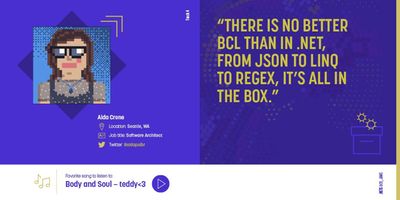
Aida Crone – @aidapsibr

Rodney Littles, II – @rlittiesii

Bron Thulke – @_bron_

Michael Dera – @michaeldera
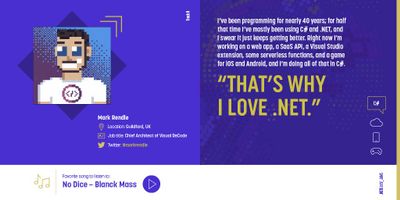
Mark Rendle – @markrendle

Jeremy Sinclair – @sinclairinat0r

Jayme Singleton – @jaymesingleton1
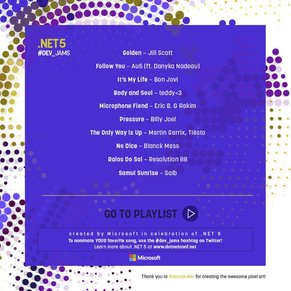
+ a special shout out to Marc Duiker (@marcduiker) for creating the amazing pixel art!
What do you think of these featured tracks? Did we miss a song? Let us know your favorite song by using the hashtag #dev_jams on Twitter. Happy jamming!
Also, just in case you missed it – you can download .NET 5 for Windows, macOS, and Linux here. And although .NET Conf 2020 has wrapped up, you can still catch all the sessions on demand and get a head start on all the new features that were introduced with .NET 5!


Recent Comments