by Contributed | Dec 4, 2020 | Technology
This article is contributed. See the original author and article here.
Microsoft To Do is a task management tool that helps you stay productive, manage your day, and collaborate with your colleagues. We are pleased to announce that it’s now available for use by customers in GCC tenants via the web app, as well as integration in Outlook on the web. Other platforms (desktop, mobile) are not available yet in GCC.
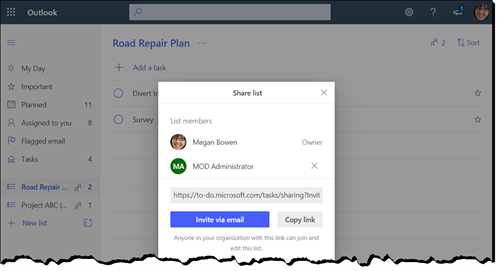
The web app provides access to My Day and all the other familiar task list types, including Shared Lists to help you collaborate with other people in your organization:
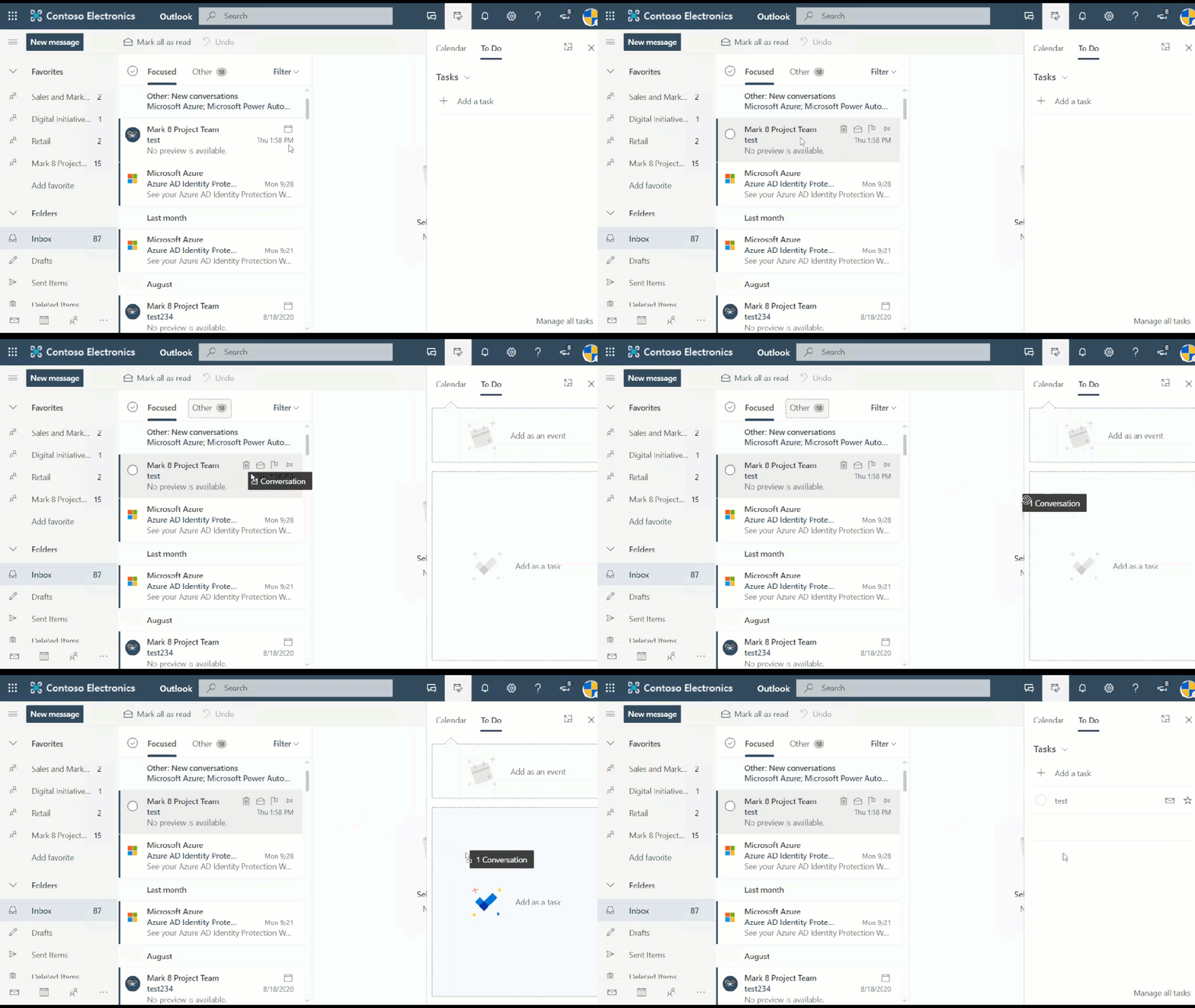
In Outlook on the web, you have the convenience of having your tasks alongside your email messages, including the ability to drag messages and convert them into To Do tasks:
 To do
To do
No admin action is needed to enable To Do for GCC tenants. Features that are not yet available in GCC at this time include push notifications for reminders, and the ability to share task lists outside your organization.
For more information, check out the support page.
by Contributed | Dec 4, 2020 | Technology
This article is contributed. See the original author and article here.
In this inaugural episode of Dr. Device I take a look at my daily, go to, workhorse, the Logitech BRIO. The BRIO provides me with a Microsoft Teams certified device experience and delivers exceptional quality video and microphone capabilities that help light up work meetings and media capture. Watch my video below then check out the description and links below.
Thanks for tuning in – Dr. Device
BRIO ULTRA HD PRO WEBCAM
“Stream crystal-clear video with superb resolution, frame rate, color, and detail. Logitech BRIO delivers 4K Ultra HD at 30 fps or 1080p at either 30 or an ultra-smooth 60 fps for outstanding clarity, smoothness, and detail. Get a closer look with 5x zoom.” – BRIO ULTRA HD PRO WEBCAM
TECHNICAL SPECIFICATIONS – from the BRIO ULTRA HD PRO WEBCAM web page
- 4K Ultra HD video calling (up to 4096 x 2160 pixels @ 30 fps)
1080p Full HD video calling (up to 1920 x 1080 pixels @ 30 or 60 fps)
720p HD video calling (up to 1280 x 720 pixels @ 30, 60, or 90 fps)
Plug-and-play USB connectivity
Field of View:
- Diagonal: 90°
- Horizontal: 82.1°
- Vertical: 52.2°
5x digital zoom in Full HD
Autofocus
Rightlight™ 3 with HDR for clear image in various lighting environments ranging from low light to direct sunlight.
Image controls with optional Camera Settings application for control of pan, tilt, and zoom
Built-in dual omni-directional mics with noise cancellation
Infrared sensor technology for Windows (SDK available for application integration)
External privacy shutter
Multiple mounting options, including clip and tripod mount
Supports multiple connection types, including USB 2.0 Type A and USB 3.0 Type A and C connections
Custom carrying case
To check out the BRIO ULTRA HD PRO WEBCAM head over to Logitech.com
Thanks for visiting – Michael Gannotti LinkedIn | Twitter
 Michael Gannotti
by Contributed | Dec 4, 2020 | Microsoft 365, Office 365, Technology, Tips and Tricks
This article is contributed. See the original author and article here.
Whether your team is working hybrid or working around the world, it’s always great to stay connected personally and professionally with members of your team. Many teams use scheduled get-together meetings in Teams to hold book clubs, celebrate a special moment, or just gather together and catch up on weekend plans. Conversations are always central in these meet ups – but we also know that every get together can be more fun and connecting with quizzes and games. Within Microsoft Teams, there are several good options for hosting these events, virtually.
Running Kahoot! Quizzes and Trivia in your meeting
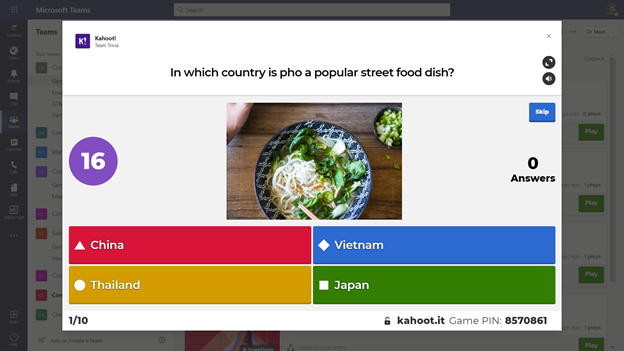
Who doesn’t love great trivia or a friendly competitive quiz? For hosting these for your team, a good option is to use Kahoot! – which is available as a standalone app and with an associated integration directly within Microsoft Teams. Kahoots are engaging quizzes and challenges you can create and re-use within your team. These quizzes can be questions for learning or adding interactivity to presentation experiences, and in addition, you can also use Kahoot! to create team trivia challenges for your next team gathering.
With the Kahoot integration inside of Microsoft Teams, you can see a dashboard of your designed Kahoots, and use them during meetings to spur friendly competition. Before the meeting, design your Kahoots and add questions and answers. In addition to exploring and using questions from popular Kahoots via the Discover option, consider mixing in various forms of general trivia, trivia specific to topics for your team, or maybe trivia about your team specifically.
When it is time for the meeting itself, you can launch a Kahoot from the Kahoot app tab within Teams. Expand the Kahoot! gameplay window, and then share that during a meeting by sharing your screen. Make sure to use the Include computer sound option when you share. Once the Kahoot! gameplay screen is shared, attendees can join in and answer questions from their own devices. Answering question quickly matters, and you’ll soon see a friendly competition bloom. You can find out more about Kahoot! on kahoot.com, and you can add the Kahoot! integration for Microsoft Teams from AppSource.
Using Jackbox Games with Microsoft Teams screen sharing
Jackbox Games are the makers of several party games that are great to play together in person or virtually. From speech games like Talking Points to drawing games like Drawful and witty quip games like Quiplash – there are a wide variety of games and styles to suit every taste. Most games run for about 15-25 minutes with straightforward rules and quick tutorials, so they are easy to pick up and play. Most games support up to 8-10 players, and some have additional audience viewing options if you have extra visitors.
Jackbox Games are available for a wide variety of devices and consoles, but if you want to use Jackbox within a virtual Microsoft Teams streaming session, we’d recommend getting Jackbox on your PC or Mac. The host of the virtual get-together will need a copy; the attendees in the meeting can follow along on their devices. Every player will join the meeting and then connect to the Jackbox game with a room code – which they can do in a web browser or on a separate device, like their phone. It is easy and takes seconds to get everyone started on a game.
You’ll likely want to use Steam – a service for purchasing and installing games – to get Jackbox games. These games come in Party Packs of 5 games each – so each Party Pack provides a lot of choices for different gameplay styles. No one will be bored, and any party pack will work well – the most recent Jackbox Party Pack 7 features both Quiplash 3 and Blather ‘Round which work well in virtual game settings.
As you host your virtual get-together, you’ll want to start up the Jackbox Party pack of your choice. Use the screen sharing option in Teams, and make sure you check the “Include computer sound” option.
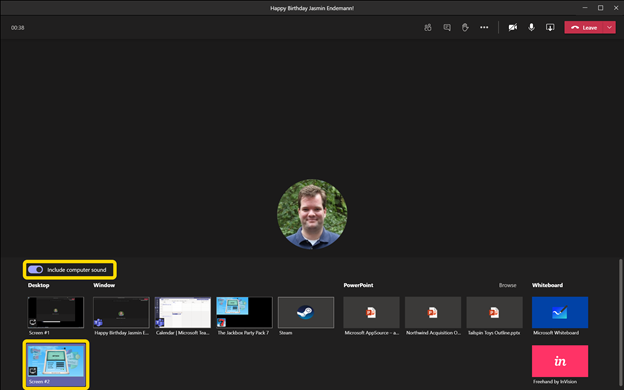
From there, start up a game and your room code will be visible, and attendees can join in.
Tips for using Jackbox Games in a Teams meeting
As you start your Jackbox Games, we recommend a couple of options:
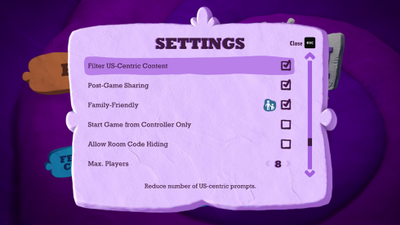
In almost every Jackbox Game, there is a “Family Friendly” checkbox – you may want to consider checking that for your work conversations.
In a few Jackbox Games, there is also an option to filter out US-centric content, if you want to have questions or prompts that are more broadly relevant to teammates around the world.
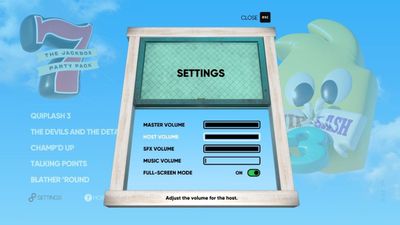
Also, to keep the sound of the game from potentially drowning out your virtual guests and conversation while attending, in some cases you may want to consider turning down the background music.
Also, some more advanced tips can help your virtual party even more:
- If you have it, hosting a game with two screens (e.g., your laptop screen plus a plugged-in monitor) can work better, as you can place Teams on one screen and Jackbox on the other. That way, it is always easy to see your teammates and the game at the same time.
- Using headphones can also help with isolating the sound of the game from the conversation.
We hope you get to explore the wide variety of games and quiz options for having fun, virtually, with your teammates. While the centerpiece of any virtual gathering is the conversations that you’ll have virtual activities through Kahoot! and Jackbox Games, you can help to break the ice, provide some memorable experiences, and heck – have some fun! – in almost any meeting you run.
![[Guest Blog] How community is greater than the sum of its parts, and my journey into it](https://www.drware.com/wp-content/uploads/2020/12/medium-31)
by Contributed | Dec 4, 2020 | Technology
This article is contributed. See the original author and article here.
This blog is written by EY Kalman who shares his journey as a part of the community.
My journey from an individual using online Microsoft technology forums, to attending a community conference, to becoming an active member of the commuting and user groups. Community enables us all and empowers us beyond imagination
Community. It’s such a simple word, but as I’ve learnt over the last few years, it can mean SO much in so many different ways.
Let’s travel a few years…
I’ve been immersed in IT for coming up to two decades. Starting off with simple troubleshooting for friends and family in my local community and building computers by hand. With my IT experience, I ended up building a small business over a few years, which ended up taking off!
Obviously the first step that us, as IT professionals, do when trying to find out an answer to an issue is to look online. Through this, I came across the various Microsoft forums, such as TechNet and many other websites. It was amazing that people would freely contribute of their time to help others with answers to problems, troubleshoot, and guide them to solutions. At the time, I wasn’t cognizant of the time and effort that this could take, but I was appreciative. I even tried to help out a few times myself!
Over the years, various online forums became my ‘go to’ places when trying to troubleshoot. It’s clear in the forums who spends a lot of time in answering questions – it’s not quite gamified, but usually people advance through different ‘levels’ as they post more and more answers. Some people were in the tens of thousands of responses. I just couldn’t understand how they could find the time.
But it was still just online engagement for me. I hadn’t done anything in person. I knew that community events ran at times, but hadn’t really looked any of them up, nor thought about attending in person. I’ve always been more comfortable behind a keyboard than engaging in person, so this suited me.
In fact, I even met my wife through a dating website and all of our initial interactions were through messages. We then moved to Skype calls (ah, those were the days), and finally started meeting up in person.
In-person community events
That all changed in 2018. I had started to think about attending something locally to me (being based in the UK), and just the right thing came up on my radar. It was the Dynamics User Group event for Summit EMEA 2018, based in Dublin. I confirmed with my employer that they’d cover me going, and off I went.
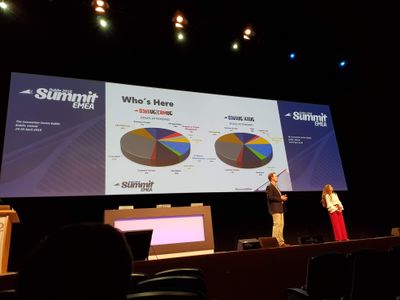
It was incredible. That’s really the only way, thinking back, that I can describe it. Several thousand people, all coming together with a shared goal – to learn, discuss, and further knowledge. Being the first time I had attended such an event, I was a bit overwhelmed, but tried to involve myself as best as I could. I made a few friends there, who I still keep in touch with.
Amusingly, I’ve since found out that many people who I know now were also there! It’s quite amusing to think back and wonder how things might be different if I had known them then.
Post Summit, I decided to start attending my local D365 User Group chapter (based in London). Again, it was stepping into something that I was new to, and took some time in getting used to it. At the first one that I attended in summer 2018, I met amazing people, such as Mark Smith and Chris Huntingford. They drew me into conversations that were going on, enabling me to meet and chat with others as well.
It was also there that I met Microsoft MVPs. Sitting along the side of the room, they seemed all-knowledgeable on the platform and I wondered how they had gotten to such an incredible level, mastering the technology. It was only later that I started to find out what actually caused someone to be an MVP!
I continued attending the User Group sessions every few months and slowly got to know others who were regular attendees as well. Faces started to become familiar and I always looked forward to catching up at the next session.
Compared with people who had been involved in the community for years, I felt an absolute newbie with little to share. I still tried to though, bringing my own experience to some conversations, and sharing tips & tricks that I had discovered. However, I definitely didn’t think I had anything worth volunteering to be a speaker on, leaving aside that I was terrified of standing up in front of others and delivering a session!
Then in summer 2019, something happened. Looking back, it’s what gave me the impetus to the path that I’m on and what I’ve done to date.
I was at the User Group event, having attended all of them for almost 1.5 years. Whilst there, I saw someone who I had worked with quite a few years previously, but hadn’t seen in a while. I went over to say hello and we chatted for a bit. They asked what I was doing, where I was working, etc. On telling them, they seemed quite surprised that I was at the level that I was, and that I was actually directly working with clients. They turned around and told me that they never thought I’d have amounted to anything more than a basic support role. The conversation ended shortly after, leaving me feeling very uncomfortable and somewhat shocked.
Chris Huntingford was there that day as well, and on seeing me a bit later in the day, realised that something wasn’t quite right. We had struck up a good friendship since the first time we met, and had kept in touch. He’s someone I definitely looked up to (though we’re around the same height!), and would ask for guidance on matters.
We went out for drinks after the day ended (I always am of the opinion that buying someone a drink to spend some time with them is a great ROI!), and I shared the events of the day.
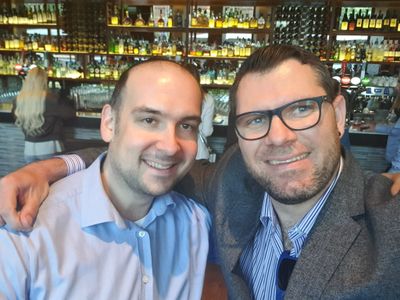
I still treasure the words Chris told me that day. He said ‘dude, you should totally ignore that person. You may not be many years in the community, but you have valuable experience, are doing well professionally, and have so much to offer that you can, and should, share with others’.
Building my own community
I took his words to heart, and looked into what I could do to start things off. I started a blog (personally branded as The CRM Ninja), talking around technology. I did one article, then another, starting from a high level view of technology to ease myself into writing. I found it starting to flow, and continued posting articles in a weekly basis.
I also decided to do two other things. I applied to speak at a User Group (admittedly a smaller one than my usual one) around a topic that I had come up with. Keith Whatling was SO helpful in this, and became another good friend and mentor.
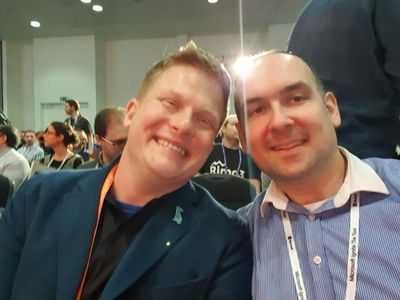
And I started a recorded interview series (called The Oops Factor), to feature other people & bring their stories to light. Both of these pushed me out of my usual comfort zone, but I was wanting to push myself as well as look to see how I could help others.
If I now take a look back, I can’t believe how much I’ve accomplished since that summer. I’ve published over 175 blog post articles, with over 35,000 page views! Quite a few have also been featured in various technology weekly roundups, as well as other places. I’ve received feedback from people as to how my articles have helped them solve a problem, or assisted them with studying for an exam.
My interview series, aired on a weekly basis, is now over a year old. I have a waitlist of people who want to come on it, to share their own experiences & stories. Only this week I found out from someone who was recently looking for a new position that the recruiter had watched their episode, which helped them land the job!
And the ‘cherry on the cake’? I got awarded Microsoft MVP for Business Applications late this year, which was a massive surprise. It’s never been the goal, but I’m looking on it as a milestone of achievement along the way!
Though I definitely have come far in the last 1.5 years, I still feel so much at the beginning of this journey. I’m excited to see how the next few chapters will pan out. My personal slogan throughout all of this is that ‘through community, we enable each other, as well as ourselves. What results is that community is so much greater than the sum of its parts’.
#CommunityBuzz
#HumansofIT
#PowerAddicts
by Contributed | Dec 4, 2020 | Technology
This article is contributed. See the original author and article here.
This blog is written by EY Kalman who shares his journey as a part of the community.
My journey from an individual using online Microsoft technology forums, to attending a community conference, to becoming an active member of the commuting and user groups. Community enables us all and empowers us beyond imagination
Community. It’s such a simple word, but as I’ve learnt over the last few years, it can mean SO much in so many different ways.
Let’s travel a few years…
I’ve been immersed in IT for coming up to two decades. Starting off with simple troubleshooting for friends and family in my local community and building computers by hand. With my IT experience, I ended up building a small business over a few years, which ended up taking off!
Obviously the first step that us, as IT professionals, do when trying to find out an answer to an issue is to look online. Through this, I came across the various Microsoft forums, such as TechNet and many other websites. It was amazing that people would freely contribute of their time to help others with answers to problems, troubleshoot, and guide them to solutions. At the time, I wasn’t cognizant of the time and effort that this could take, but I was appreciative. I even tried to help out a few times myself!
Over the years, various online forums became my ‘go to’ places when trying to troubleshoot. It’s clear in the forums who spends a lot of time in answering questions – it’s not quite gamified, but usually people advance through different ‘levels’ as they post more and more answers. Some people were in the tens of thousands of responses. I just couldn’t understand how they could find the time.
But it was still just online engagement for me. I hadn’t done anything in person. I knew that community events ran at times, but hadn’t really looked any of them up, nor thought about attending in person. I’ve always been more comfortable behind a keyboard than engaging in person, so this suited me.
In fact, I even met my wife through a dating website and all of our initial interactions were through messages. We then moved to Skype calls (ah, those were the days), and finally started meeting up in person.
In-person community events
That all changed in 2018. I had started to think about attending something locally to me (being based in the UK), and just the right thing came up on my radar. It was the Dynamics User Group event for Summit EMEA 2018, based in Dublin. I confirmed with my employer that they’d cover me going, and off I went.
It was incredible. That’s really the only way, thinking back, that I can describe it. Several thousand people, all coming together with a shared goal – to learn, discuss, and further knowledge. Being the first time I had attended such an event, I was a bit overwhelmed, but tried to involve myself as best as I could. I made a few friends there, who I still keep in touch with.
Amusingly, I’ve since found out that many people who I know now were also there! It’s quite amusing to think back and wonder how things might be different if I had known them then.
Post Summit, I decided to start attending my local D365 User Group chapter (based in London). Again, it was stepping into something that I was new to, and took some time in getting used to it. At the first one that I attended in summer 2018, I met amazing people, such as Mark Smith and Chris Huntingford. They drew me into conversations that were going on, enabling me to meet and chat with others as well.
It was also there that I met Microsoft MVPs. Sitting along the side of the room, they seemed all-knowledgeable on the platform and I wondered how they had gotten to such an incredible level, mastering the technology. It was only later that I started to find out what actually caused someone to be an MVP!
I continued attending the User Group sessions every few months and slowly got to know others who were regular attendees as well. Faces started to become familiar and I always looked forward to catching up at the next session.
Compared with people who had been involved in the community for years, I felt an absolute newbie with little to share. I still tried to though, bringing my own experience to some conversations, and sharing tips & tricks that I had discovered. However, I definitely didn’t think I had anything worth volunteering to be a speaker on, leaving aside that I was terrified of standing up in front of others and delivering a session!
Then in summer 2019, something happened. Looking back, it’s what gave me the impetus to the path that I’m on and what I’ve done to date.
I was at the User Group event, having attended all of them for almost 1.5 years. Whilst there, I saw someone who I had worked with quite a few years previously, but hadn’t seen in a while. I went over to say hello and we chatted for a bit. They asked what I was doing, where I was working, etc. On telling them, they seemed quite surprised that I was at the level that I was, and that I was actually directly working with clients. They turned around and told me that they never thought I’d have amounted to anything more than a basic support role. The conversation ended shortly after, leaving me feeling very uncomfortable and somewhat shocked.
Chris Huntingford was there that day as well, and on seeing me a bit later in the day, realised that something wasn’t quite right. We had struck up a good friendship since the first time we met, and had kept in touch. He’s someone I definitely looked up to (though we’re around the same height!), and would ask for guidance on matters.
We went out for drinks after the day ended (I always am of the opinion that buying someone a drink to spend some time with them is a great ROI!), and I shared the events of the day.
I still treasure the words Chris told me that day. He said ‘dude, you should totally ignore that person. You may not be many years in the community, but you have valuable experience, are doing well professionally, and have so much to offer that you can, and should, share with others’.
Building my own community
I took his words to heart, and looked into what I could do to start things off. I started a blog (personally branded as The CRM Ninja), talking around technology. I did one article, then another, starting from a high level view of technology to ease myself into writing. I found it starting to flow, and continued posting articles in a weekly basis.
I also decided to do two other things. I applied to speak at a User Group (admittedly a smaller one than my usual one) around a topic that I had come up with. Keith Whatling was SO helpful in this, and became another good friend and mentor.
And I started a recorded interview series (called The Oops Factor), to feature other people & bring their stories to light. Both of these pushed me out of my usual comfort zone, but I was wanting to push myself as well as look to see how I could help others.
If I now take a look back, I can’t believe how much I’ve accomplished since that summer. I’ve published over 175 blog post articles, with over 35,000 page views! Quite a few have also been featured in various technology weekly roundups, as well as other places. I’ve received feedback from people as to how my articles have helped them solve a problem, or assisted them with studying for an exam.
My interview series, aired on a weekly basis, is now over a year old. I have a waitlist of people who want to come on it, to share their own experiences & stories. Only this week I found out from someone who was recently looking for a new position that the recruiter had watched their episode, which helped them land the job!
And the ‘cherry on the cake’? I got awarded Microsoft MVP for Business Applications late this year, which was a massive surprise. It’s never been the goal, but I’m looking on it as a milestone of achievement along the way!
Though I definitely have come far in the last 1.5 years, I still feel so much at the beginning of this journey. I’m excited to see how the next few chapters will pan out. My personal slogan throughout all of this is that ‘through community, we enable each other, as well as ourselves. What results is that community is so much greater than the sum of its parts’.
#CommunityBuzz
#HumansofIT
#PowerAddicts
by Contributed | Dec 4, 2020 | Azure, Microsoft, Technology
This article is contributed. See the original author and article here.
Sarah Lean
Sarah is a Cloud Advocate for Microsoft. In this Discover STEM video Sarah talks about cloud computing, including explaining the basic principles behind the technology, using terms like servers, data centres and computing power. She provides some advantages and disadvantages of using the technology and also provide examples for how industry might use cloud technology in the future.
A Gentle Introduction to Using a Docker Container as a Dev Environment | CSS-Tricks
Burke Holland
Sarcasm disclaimer: This article is mostly sarcasm. I do not think that I actually speak for Dylan Thomas and I would never encourage you to foist a light
Green Energy Efficient Progressive Web Apps | Sustainable Software
Asim Hussain
As a web developer, can we adjust our code to participate in the global effort to reduce the carbon footprint? PWAs offer some solutions
How to Monitor an Azure virtual machine with Azure Monitor
Thomas Maurer
Here is how to use Azure Monitor to collect and analyze monitoring data from Azure virtual machines to maintain their health. Virtual machines can be monitor…
Working with Git Branches!
Sarah Lean
Let’s get to grips with Git Branches
5 things you should know about Real-Time Analytics | A Cloud Guru
Adi Polak
Running analytics on real-time data is a challenge many data engineers are facing today. But not all analytics can be done in real time! Many are dependent on the volume of the data and the processing requirements. Even logic conditions are becoming a bottleneck. For example, think about join operations on huge tables with more […]
AzUpdate: Azure portal updates, ARM Template support for file share backup and more
Anthony Bartolo
It might be snowing in parts of the Northern Hemisphere, but we won’t let that stop us from sharing Azure news with you. News covered this week includes: New Azure Portal updates for November 2020, Azure Resource Manager template support for Azure file share backup, How to use Windows Admin Center on-premises to manage Azure Windows Server VMs, Multiple new features for Azure VPN Gateway now Generally Available, and our Microsoft Learn Module of the Week.
Hybrid management. Where do I start?
Pierre Roman
Managing & maintaining servers on-premises or in multiple clouds, as well as Azure? Learn about management tools for your servers wherever they are.
#VisualizeIT: A free online series of workshops to build your visual storytelling skills!
Nitya Narasimhan
#VisualizeIT is a free online series of workshops for creative technologists, from @MSFTReactor, @azureadvocates and members of the @letssketchtech community.
Handle app button events in Microsoft Teams tabs
Waldek Mastykarz
Did you know that you can respond to user clicking on the app button of your Microsoft Teams personal app?
Weekly Update #67 – Rebuilding laptops, filming videos and news!
Sarah Lean
In this week’s update I talk about rebuilding my laptop, talking at a user group, filming videos and the Azure news of the week. :red_circle: Azure Cloud Shell Update -…
Picking the Right Distributed Database [Create: Data]
Abhishek Gupta
“In God we trust, all others must bring data” William Edwards Deming Well…
Securing a Windows Server VM in Azure
Sonia Cuff
If you’ve built and managed Windows Servers in an on-premises environment, you may have a set of configuration steps as well as regular process and monitoring alerts, to ensure that server is as secure as possible. But if you run a Windows Server VM in Azure, apart from not having to manage the physical security of the underlying compute hardware, what on-premises concepts still apply, what may you need to alter and what capabilities of Azure should you include?
CLI for Microsoft 365 v3.3 – Microsoft 365 Developer Blog
Waldek Mastykarz
Connect to the latest conferences, trainings, and blog posts for Microsoft 365, Office client, and SharePoint developers. Join the Microsoft 365 Developer Program.
Microsoft 365 PnP Weekly – Episode 107 – Microsoft 365 Developer Blog
Waldek Mastykarz
Connect to the latest conferences, trainings, and blog posts for Microsoft 365, Office client, and SharePoint developers. Join the Microsoft 365 Developer Program.
What is Serverless SQL? And how to use it for Data Exploration | by Adi Polak | Dec, 2020 | Towards Data Science
Adi Polak
So, you are a data scientist, you work with data and need to explore it and run some analytics on the data before jumping into running extensive machine learning algorithms. According to Wikipedia…
Terraform for Java developers, part 1 of 4
Julien Dubois
An introduction to Terraform focusing on Java developers. In this first video (out of 4), we describe what Terraform is, and we fork the Spring Petclinic pro…
by Contributed | Dec 4, 2020 | Technology
This article is contributed. See the original author and article here.
If you use BizTalk Adapters for
- JD Edwards Enterprise One
- People Soft Enterprise
- TIBCO Rendezvous
- TIBCO EMS
And you are using the BizTalk 2020 release or planning to upgrade, here is something of interest to you:
https://support.microsoft.com/help/4598360
Download Microsoft BizTalk Server 2020 – Adapters for Enterprise Applications Cumulative Update from Official Microsoft Download Center
by Scott Muniz | Dec 4, 2020 | Security, Technology
This article is contributed. See the original author and article here.
Original release date: December 4, 2020
The Apache Software Foundation has released a security advisory to address a vulnerability in Apache Tomcat. An attacker could exploit this vulnerability to cause a denial-of-service condition.
The Cybersecurity and Infrastructure Security Agency (CISA) encourages users and administrators to review the Apache security advisory for CVE-2020-17527 upgrade to the appropriate version.
This product is provided subject to this Notification and this Privacy & Use policy.
by Contributed | Dec 4, 2020 | Technology
This article is contributed. See the original author and article here.
December Edition Sections:
- Highlighted
- Microsoft Teams – IT Admins & Planning
- Microsoft Teams – End Users & Champions
- Security & Compliance
- Device Management
- Blogs & Articles of Interest
Highlighted
The Microsoft Federal Customer Success team will be taking a holiday break from trainings. You can watch previous versions on-demand here.
New to Microsoft Teams? This interactive Teams demo is a great overview of how the tool works in less than 10 minutes.
Task Management in Office 365: Looking to better understand how to use all the different Office 365 tools for task management? Matt Wade provides a great summary here.
Reminder: Microsoft Teams App will no longer support Internet Explorer 11
Videos: Microsoft 365 (YouTube) Last week, as well as the week prior, lots of videos have been uploaded to the Microsoft 365 YouTube channel. Some sample videos are linked below, but be sure to check out the full page for all uploaded videos.
Microsoft Teams – IT Admins & Planning
Microsoft Teams: Plan your upgrade (Start here!)
Discover everything you need to facilitate a successful upgrade to Teams. By the end of this workshop, participants will be able to: (1) Understand why a formal plan is crucial for upgrade success, (2) Identify the steps to the upgrade success framework, (3) Recognize common attributes of successful customers, and (4) Create and implement their own upgrade plan. The audience for this session is All (Business Sponsors, IT Admins, User Readiness/Change Manager, Project Lead).
Microsoft Teams: Identify your upgrade approach
Determine the most suitable approach based on your current Skype for Business implementation and upgrade goals. By the end of this workshop, participants will be able to: (1) Understand common scenarios and upgrade approaches, (2) Visualize the user experience for each approach, and (3) Determine the optimal upgrade approach for your organization. IT Admins are the primary audience for this session.
- On-Demand Session
- Tuesday, December 8, 2020 at 9am PT
- Tuesday, December 8, 2020 at 4pm PT
- Wednesday, December 9, 2020 at 6am PT
- Tuesday, December 15, 2020 at 9am PT
- Tuesday, December 15, 2020 at 4pm PT
- Wednesday, December 16, 2020 at 6am PT
Microsoft Teams: Implement your upgrade approach
Execute your defined upgrade approach as part of your formal upgrade plan. By the end of this workshop, participants will be able to: (1) Recognize the upgrade settings in your O365 tenant admin portal, (2) Understand technical tips and considerations for a successful upgrade, and (3) Apply the appropriate settings in the Portal to execute your upgrade. The primary audience for this session is IT Admins.
- On-Demand Session
- Thursday, December 3, 2020 at 6am PT
- Thursday, December 3, 2020 at 9am PT
- Thursday, December 3, 2020 at 4pm PT
- Thursday, December 10, 2020 at 6am PT
- Thursday, December 10, 2020 at 9am PT
- Thursday, December 10, 2020 at 4pm PT
- Thursday, December 17, 2020 at 6am PT
- Thursday, December 17, 2020 at 9am PT
- Thursday, December 17, 2020 at 4pm PT
Learn Together: Developing Apps for Microsoft Teams
When: Wednesday, December 16, 2020 from 9:00am – 11:00am PT | Millions of new Microsoft Teams users are looking to you, the developers, to create engaging and unique application experiences on Teams. In this two-hour livestream on Learn TV, you’ll learn: (1) Why you should consider building apps for Teams, (2) How to get started building apps for Teams in VS Code, and (3) Where you can integrate your apps in the Teams user experience. Quickly get started learning how to build these apps and stick around for some fun trivia and prizes.
Teams Chalk Talk: So…you want to make calls with Microsoft Teams?
Are you ready to add PSTN calling capabilities to Microsoft Teams? Join Microsoft Teams Engineering subject-matter-experts as they demystify the options for adding PSTN calling to Teams, provide you with best practices for configuring calling options and show you how to monitor call quality. After this session, you will be able to: (1) Understand the history of voice services in Microsoft products, (2) Identify what calling options in Microsoft Teams are right for you, (3) Configure your calling options in the Teams admin portal, and (4) Monitor and use call quality tools in Teams.
Teams Chalk Talk: Taking charge of AV quality experiences
Are you looking to ensure users have optimal experiences with meetings and voice capabilities in Teams? During this session, we’ll discuss tools, reporting and best practices to help you manage service quality — from establishing a proactive strategy to resolving common quality issues as they arise. We’ll build upon best practices from Teams experts and make it real with examples of common scenarios that may arise as your organization embraces meetings and voice capabilities in Teams. Join us for an expert-led workshop for guidance on key resources and actionable insights to manage audio and video quality with Microsoft Teams. Your users will thank you for it! After this session, you will be able to: (1) Define key service metrics and user experience factors for quality, (2) Recognize concepts and metrics in core tools and resources that help you assess usage and quality, (3) Identify key indicators of poor experience in common scenarios and relevant actions to address, and (4) Establish a proactive quality management strategy to ensure optimal user experience.
- Thursday, December 3, 2020 at 10am PT
- Tuesday, December 8, 2020 at 6am PT
- Wednesday, December 9, 2020 at 7am PT
- Wednesday, December 9, 2020 at 4pm PT
- Thursday, December 10, 2020 at 10am PT
- Tuesday, December 15, 2020 at 6am PT
- Wednesday, December 16, 2020 at 4pm PT
- Thursday, December 17, 2020 at 10am PT
Teams Chalk Talk: Get to Teams – Zero to Production
Microsoft Teams can help your employees stay connected and collaborate with each other, especially in the current unprecedented time where remote work is a reality of employees around the world. Being able to chat, do video meetings and collaborate on Office documents within Teams can help companies stay productive. Whether you are a small business, a non-profit or a large organization, you can get started with Teams within Microsoft 365 or Office 365 suite – even before deploying any other Office app or service. Join Microsoft Teams experts as we review Teams implementation for collaboration, chat and meetings. We’ll share key configurations, considerations, best practices, and resources to get your users up and running quickly. After this session, you will be able to: (1) Recognize key success factors for technical and user readiness, (2) Identify pre-requisites and tenant setup for your environment, (3) Install the Teams clients appropriate for your organization, (4) Configure policies that enable your preferred user experiences, and (5) Leverage collaboration features to enhance remote work scenarios.
Teams Chalk Talk: Apps in Teams Fundamentals
Join Microsoft Teams experts as we review how you can deploy commonly-used applications directly within Teams, enabling your users to work more efficiently and effectively by accessing everything they need in a single interface. This foundational workshop covers basic capabilities across app management and security. With over 400 out-of-the-box applications available (and growing), you’re sure to find an app, or two, that your team can begin using today in Teams. After this session, you will be able to: (1) Identify suitable apps to meet the needs for your organization, (2) Recognize common attributes of successful app deployment, (3) Navigate security and compliance considerations for Teams’ apps, and (4) Determine the next steps to deploy an app to your environment.
- Thursday, December 3, 2020 at 7am PT
- Tuesday, December 8, 2020 at 8am PT
- Thursday, December 10, 2020 at 7am PT
- Tuesday, December 15, 2020 at 8am PT
- Thursday, December 17, 2020 at 7am PT
Microsoft Teams: Ready your end users
Design a user readiness strategy to help your users love and adopt Teams. By the end of this workshop, participants will be able to: (1) Recognize factors that influence user acceptance and adoption, (2) Define core value messaging for Teams in your organization, and (3) Outline your awareness, training and support activities. The audience for this session is: User Readiness/Change Manager.
- On-Demand Session
- Thursday, December 3, 2020 at 7am PT
- Tuesday, December 8, 2020 at 10am PT
- Thursday, December 10, 2020 at 7am PT
- Tuesday, December 15, 2020 at 10am PT
- Thursday, December 17, 2020 at 7am PT
Microsoft Teams – End User & Champions
Get Started with Microsoft Teams
Whether you are switching from Skype for Business or brand new, join us to learn the basics of how to use Teams to chat with your colleagues and collaborate on projects. Through a series of live demonstrations and best practices, you’ll leave this session with everything you need to start using Teams. After this session, you will be able to: (1) Set up your profile and notifications in Microsoft Teams, (2) Use chat and calling for 1:1 and group conversations, sharing and collaboration in Microsoft Teams, (3) Schedule and conduct meetings in Microsoft Teams, and (4) Align your team and teamwork in Microsoft Teams.
- On-Demand Session
- Thursday, December 3, 2020 at 12pm PT
- Thursday, December 10, 2020 at 2pm PT
- Friday, December 11, 2020 at 8am PT
- Wednesday, December 16, 2020 at 9am PT
- Thursday, December 17, 2020 at 5am PT
Go Deeper with Microsoft Teams: Leverage pro tips and tricks for Microsoft Teams
Designed for those who are already familiar with Microsoft Teams, our ‘Go Deeper’ sessions offer insights and best practices. Learn how Teams can help organize your workday and make it easier to stay connected with colleagues. Learn tips and tricks for managing and organizing work and communications in Teams. After this session, you will be able to: (1) Leverage formatting best practices to help get your messages noticed (and responded to), (2) Easily find files, chats and projects, (3) Implement strategies to manage and organize your work, and (4) Simplify your workday. Note: This session was previously called ‘Learn tips for taking Microsoft Teams to the next level – Part 2’.
Microsoft Teams: Master working from home
Working from home offers the opportunity to maintain your workflow while allowing flexibility in how and where you get your work done. Shifting to a remote worker status can be an adjustment as you look for ways to balance home and work life, maintain focus and be fully productive. Microsoft Teams can help you stay connected to your team while providing access to all of the tools and resources you need to get your work done. Join us to learn tips that can help set you up for success as you transition into a ‘work from home’ scenario. During this session, we’ll share: (1) Guidance for setting up your home environment for work, (2) Best practices for maintaining your workflow while working at home, (3) Tips for staying connected to your team while remote, and (4) Insights for effectively supporting a remote team.
- On-Demand Session
- Friday, December 4, 2020 at 6am PT
- Wednesday, December 9, 2020 at 1pm PT
- Friday, December 11, 2020 at 6am PT
- Monday, December 14, 2020 at 6am PT
- Monday, December 14, 2020 at 2pm PT
Integrate apps to do more in Microsoft Teams
Do you want to get more done in Teams? Receive targeted and timely updates? Access services directly through Teams? Apps let you complete tasks, receive updates and communicate. This session introduces you to the key activities needed to get started with adding applications, bots and connectors in Microsoft Teams today. Through a series of live demonstrations and best practices, you’ll leave this session with everything you need to start using apps in Teams. After this session, you will be able to: (1) See how applications, bots and connectors can help you be more efficient while working in Teams, (2) Select an application, bot or connector for your workspace, (3) Install an application, bot or connector, and (4) Use an application, bot or connector in your workspace.
Go Deeper with Microsoft Teams: Build collaborative workspaces in Microsoft Teams
Designed for those who are already familiar with Microsoft Teams, our ‘Go Deeper’ sessions offer insights and best practices. Learn how Teams can help organize your workday and make it easier to stay connected with colleagues. Explore ways to determine the best approach for creating workspaces for projects and workgroups. After this session, you will be able to: (1) Determine the best approach for your collaboration needs (chat versus teams & channels), (2) Create workspaces for your team to provide the best teamwork experience, and (3) Determine best practices in Microsoft Teams to enhance productivity. Note: This session was previously called ‘Learn tips for taking Microsoft Teams to the next level – Part 1’.
Run Effective Meetings with Microsoft Teams
Have you spent significant time and resources to prepare for a meeting and still felt it wasn’t productive? Have you attended a meeting only to leave feeling like not much was accomplished? Join this class to learn how to make your meetings engaging, productive and effective. Microsoft Teams can help make your meetings worth showing up for. After this session, you will be able to: (1) Use Teams for your entire meeting experience, (2) Record your meeting, making it easy for those who couldn’t attend to get caught up, (3) Keep important meetings at your fingertips by pinning them for easy access, and (4) Assess which audio and video devices are best for your meeting needs.
- On-Demand Session
- Thursday, December 3, 2020 at 8am PT
- Wednesday, December 9, 2020 at 5am PT
- Thursday, December 10, 2020 at 12pm PT
- Tuesday, December 15, 2020 at 8am PT
- Wednesday, December 16, 2020 at 2pm PT
Security & Compliance
Customer Immersion Experience: Protecting Assets and Empowering Your Defenders
Today’s workforce can work from anywhere, on any device, and on any app. Security teams need to understand threat signals from disconnected products and optimize security with minimal complexity. During this 2-hour interactive session, you will explore how to: (1) Safeguard users from malware attacks such as phishing and spoofing with Office 365, (2) Use the Windows Defender ecosystem to proactively monitor and protect your users, (3) Utilize Office 365 ATP to help protect users from bad links and attachments, and (4) Let machine learning and automation protect users from threats. Each session is limited to 12 participants, reserve your seat now.
Microsoft 365 Virtual Training Day: Meeting Organizational Compliance Requirements
Leverage the intelligent and integrated Microsoft solutions to help your organization achieve its compliance goals by joining the Microsoft 365 Virtual Training Day: Meeting Organizational Compliance Requirements free one day online training session. Level 200-300 (Intermediate to Advanced) content. Technology covered: Data classification, labeling, governance, policy violation remediation, eDiscovery, audit, risk assessment. In this session you will: (1) Learn to use intelligence to identify, protect and govern your important data, (2) Learn to intelligently identify and remediate critical insider threats and risks, (3) Learn how to use the latest eDiscovery and audit capabilities to find relevant data and respond efficiently, and (4) Learn how to simplify and automate IT risk assessment.
Customer Immersion Experience: Protecting Identity, Apps, Data and Devices
Identity is at the center of security: don’t compromise when it comes to your company’s valuable information. Join us to explore how to use secure authentication, govern access, get comprehensive protection and set the right identity foundation. During this 2-hour interactive session, you will explore how to: (1) Enable password protection, (2) Bring multi-factor authentication to your Windows 10 users, (3) Protect your users and data through Office 365 multi-factor authentication, and (4) Use conditional access to protect across devices, locations and apps. Each session is limited to 12 participants, reserve your seat now.
Microsoft 365 Virtual Training Day: Securing Your Organization
In this training, you will learn how to protect your organization’s identities, data, applications, and devices across on-premises, cloud, and mobile – end to-end using the latest tools and guidance. This event covers intermediate to advanced content (level 200-300) and includes the following technologies: Threat Protection, Information Protection, Identify and Access Management, Security Management. In this workshop you will: (1) Increase level of understanding on how Microsoft delivers security across Microsoft 365, (2) Increase knowledge of security features and solutions, and (3) Connect with local technical experts and FastTrack resources.
Customer Immersion Experience: Simplifying Your Privacy and Compliance Journey
Your business needs to control how sensitive data is managed. Join us and explore how to assess your compliance risk, protect sensitive and business critical data, and respond efficiently to data discovery requests. During this 2-hour interactive session, you will explore how to: (1) Simplify assessment of compliance risk, (2) Integrate protection and governance of data, and (3) Intelligently respond to data discovery requests. Each session is limited to 12 participants, reserve your seat now.
Device Management
Office Hours: Managing Windows 10 Devices & Updates
To support your efforts to deliver and deploy updates to the Windows 10 devices being used by remote, onsite, and hybrid workers across your organization, and manage those devices effectively, we are continuing our series of weekly “office hours” for IT professionals here on Tech Community. During office hours, we will have a broad group of product experts, servicing experts, and engineers representing Windows, Microsoft Endpoint Manager (Microsoft Intune, Configuration Manager), security, FastTrack, and more. They will be monitoring the Windows 10 servicing space and standing by to provide guidance, discuss strategies and tactics, and, of course, answer any specific questions you may have. Office hours are text-based; there is no audio or virtual meeting component. To post a question, you just need to be a member of the Tech Community. Simply visit the Windows 10 servicing space and click Start a new conversation. At the start of office hours, we’ll pin a post outlining the individuals on hand, and their areas of expertise. Can’t attend at the designated time? Again, no problem. Post a question in the Windows 10 servicing space up to 24 hours in advance and we’ll make sure we review it during office hours.
Blogs & Articles of Interest
Microsoft Teams recognized as a Leader in Gartner UCaaS and Meetings Solutions Magic Quadrants
Microsoft Teams has become the new way to work for over 115 million daily users who come together every day to meet, call, chat, and collaborate. We are honored to be recognized by Gartner as a Leader for both Meeting Solutions and Unified Communications as a Service (UCaaS) in their latest Magic Quadrants. Microsoft was positioned highest among all vendors for ability to execute in both reports. This is Microsoft’s second consecutive year as a Leader for Unified Communications as a Service and the 14th time in which Microsoft has been recognized as a Leader for Meetings Solutions.
Reminder: Microsoft Teams App will no longer support Internet Explorer 11
Beginning November 30, 2020, the Microsoft Teams web app will no longer support IE 11. This means that after this date, customers will have a degraded experience or will be unable to connect to Microsoft 365 apps and services on IE 11.
Public Sector Blog Website | RSS Feed
Microsoft Teams Blog Website | RSS Feed
Office & Microsoft 365
Enterprise identity, mobility, and security
Microsoft Azure and Development
Windows, Operations, Management, and Deployment
Support and adoption
Misc
Thanks for stopping by and reading our monthly resources. Feel free to reach out in the comments below with any comments, questions or ideas on other events to add to the list. Here in Public Sector we want to make sure we are giving you the information and insights to best serve your needs in this community.
by Contributed | Dec 4, 2020 | Technology
This article is contributed. See the original author and article here.
I was working in a few SQL On-demand or SQL Serverless cases and based on an ex-PFE colleague Fabricio Catae script I created this one to help me with some troubleshooting scenarios. Feel free to adapt the script yourself for your scenario.
Basically, I want to take a snapshot of my DMVs while I am troubleshooting a scenario on SQLOD. So I asked the customer to repro the scenario while running my script and once is done. I work on the data collected and issue timestamps.
SET NOCOUNT ON
SET LOCK_TIMEOUT 30000

DECLARE @startDate DATETIME


SET NOCOUNT ON
SET LOCK_TIMEOUT 30000


WHILE 1=1
BEGIN


SET @startDate = GETDATE()


   print 'Begin Requests filtered ' + CONVERT(VARCHAR(24), GETDATE(), 121) + ' ' + convert(VARCHAR(12), datediff(ms,@startDate,getdate()))

   select * from sys.dm_exec_requests where session_id >77

   print 'End Requests filtered ' + CONVERT(VARCHAR(24), GETDATE(), 121) + ' ' + convert(VARCHAR(12), datediff(ms,@startDate,getdate()))

   print '================================================= '

   print 'Begin Requests  ' + CONVERT(VARCHAR(24), GETDATE(), 121) + ' ' + convert(VARCHAR(12), datediff(ms,@startDate,getdate()))

   select * from sys.dm_exec_requests

   print 'End Requests  ' + CONVERT(VARCHAR(24), GETDATE(), 121) + ' ' + convert(VARCHAR(12), datediff(ms,@startDate,getdate()))
   print '================================================= '

   print 'Begin Sessions ' + CONVERT(VARCHAR(24), GETDATE(), 121) + ' ' + convert(VARCHAR(12), datediff(ms,@startDate,getdate()))

   select * from sys.dm_exec_sessions

   print 'End Sessions ' + CONVERT(VARCHAR(24), GETDATE(), 121) + ' ' + convert(VARCHAR(12), datediff(ms,@startDate,getdate()))

   print '================================================= '

   print 'Begin Queries running ' + CONVERT(VARCHAR(24), GETDATE(), 121) + ' ' + convert(VARCHAR(12), datediff(ms,@startDate,getdate()))

	   SELECT
		'Running' as [Status],
		Transaction_id as [Request ID],
		'SQL On-demand' as [SQL Resource],
		s.login_name as [Submitter],
		s.Session_Id as [Session ID],
		req.start_time as [Submit time],
		req.start_time as [Start time],
		'N/A' as [End time],
		req.command as [Request Type],
		SUBSTRING(
			sqltext.text,
			(req.statement_start_offset/2)+1,
			(
				(
					CASE req.statement_end_offset
						WHEN -1 THEN DATALENGTH(sqltext.text)
						ELSE req.statement_end_offset
					END - req.statement_start_offset
				)/2
			) + 1
		) as [Query Text],
		req.total_elapsed_time as [Duration],
		'N/A' as [Queued Duration],
		req.total_elapsed_time as [Running Duration],
		'N/A' as [Data processed in bytes],
		'N/A' as [Workload group],
		'N/A' as [Source],
		'N/A' as [Pipeline],
		'N/A' as [Importance],
		'N/A' as [Classifier]
	FROM
    sys.dm_exec_requests req
    CROSS APPLY sys.dm_exec_sql_text(sql_handle) sqltext
    JOIN sys.dm_exec_sessions s ON req.session_id = s.session_id

    print 'End Queries running ' + CONVERT(VARCHAR(24), GETDATE(), 121) + ' ' + convert(VARCHAR(12), datediff(ms,@startDate,getdate()))
    print '================================================= '

    print 'Begin Query requests greater than 50 ' + CONVERT(VARCHAR(24), GETDATE(), 121) + ' ' + convert(VARCHAR(12), datediff(ms,@startDate,getdate()))

	SELECT
		req.session_id, req.blocking_session_id AS 'blocked',
		req.database_id AS db_id, req.command,
		req.total_elapsed_time AS 'elapsed_time', req.cpu_time, req.granted_query_memory AS 'granted_memory', req.logical_reads,
		req.wait_time, CAST(req.wait_type AS VARCHAR(16)) AS 'wait_type',
		req.open_transaction_count AS 'tran_count',
		req.reads, req.writes,
		req.start_time, req.status, req.connection_id, req.user_id,
		req.group_id, -- KATMAI (SQL2008)
		req.transaction_id, req.request_id,
		CAST(req.plan_handle AS VARBINARY(26)) AS 'plan_handle',
		CAST(req.sql_handle AS VARBINARY(26)) AS 'sql_handle',
		req.nest_level,
		req.statement_start_offset AS 'stmt_start', req.statement_end_offset AS 'stmt_end',
		req.query_hash, req.query_plan_hash
	FROM sys.dm_exec_requests req
	WHERE group_id > 1 AND session_id<>@@SPID
	and req.session_id > 50


	print 'End Query requests greater than 50 ' + CONVERT(VARCHAR(24), GETDATE(), 121) + ' ' + convert(VARCHAR(12), datediff(ms,@startDate,getdate()))
	print '================================================= '

	waitfor delay '00:00:03'

END
This is as you probably noticed a script with an infinite loop : WHILE 1=1
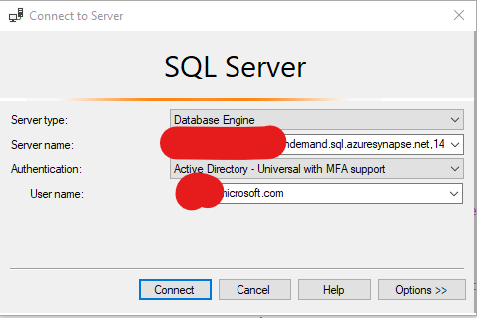
Basically, you would need to connect to SQL On Demand: Server-ondemand.sql.azuresynapse.net
Once connected. Run the script using the result as text option on SSMS. The grid would be nearly impossible to read properly:
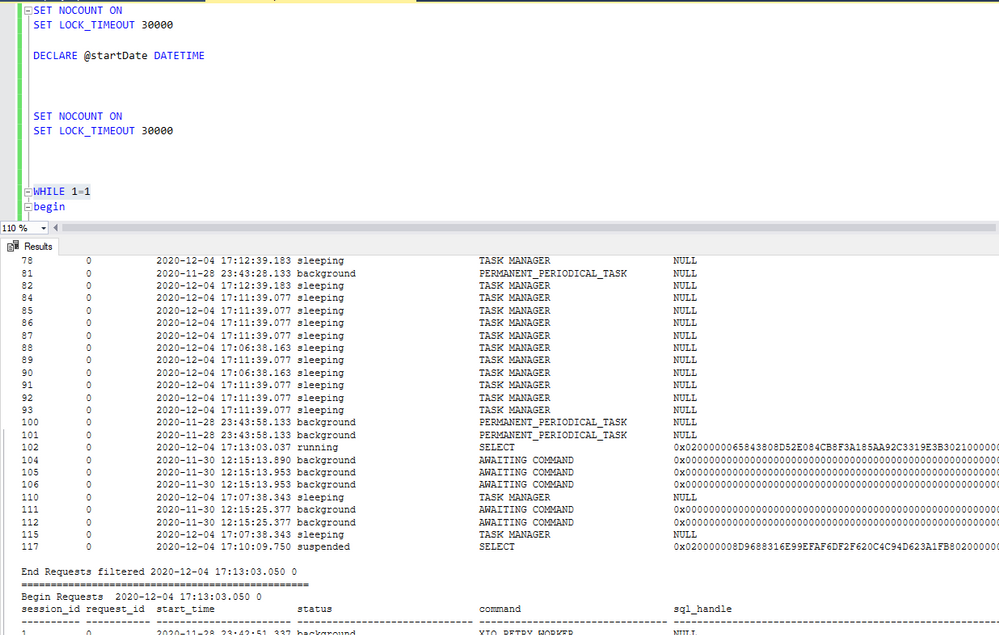
Recreate the situation that you want to monitor. Once done, stop the script as it is an infinite loop and look for the information that you want to find over the script results.
That is it!
Liliam Uk Engineer


Recent Comments