by Contributed | Dec 9, 2020 | Technology
This article is contributed. See the original author and article here.
Data analysts drive business insights and manage ever-growing volumes of data. With Microsoft Power BI, analysts can make the most of this data—from ingesting and storing it to reporting it in inspiring ways. In fact, these insights can help drive your business forward and even open career doors. If you’re a data analyst, you use Power BI to discover hidden insights in the data—and you empower your team to do the same. Plus, you know that better visualization leads to improved recall and communication—and that means powerful insights for your organization.
The Data Analyst Associate certification validates that you have subject matter expertise helping businesses to maximize the value of their data assets using Power BI. It also shows that you have what it takes to design and build scalable data models, clean and transform data, and enable advanced analytics capabilities that provide meaningful business value. You earn the certification by passing Exam DA-100: Analyzing Data with Microsoft Power BI.
What kind of knowledge and experience should you have?
As a candidate for this certification, you should have a fundamental understanding of data repositories and data processing in the cloud and in on-premises settings. In addition, you should have knowledge and experience with Power BI.
How can you get ready?
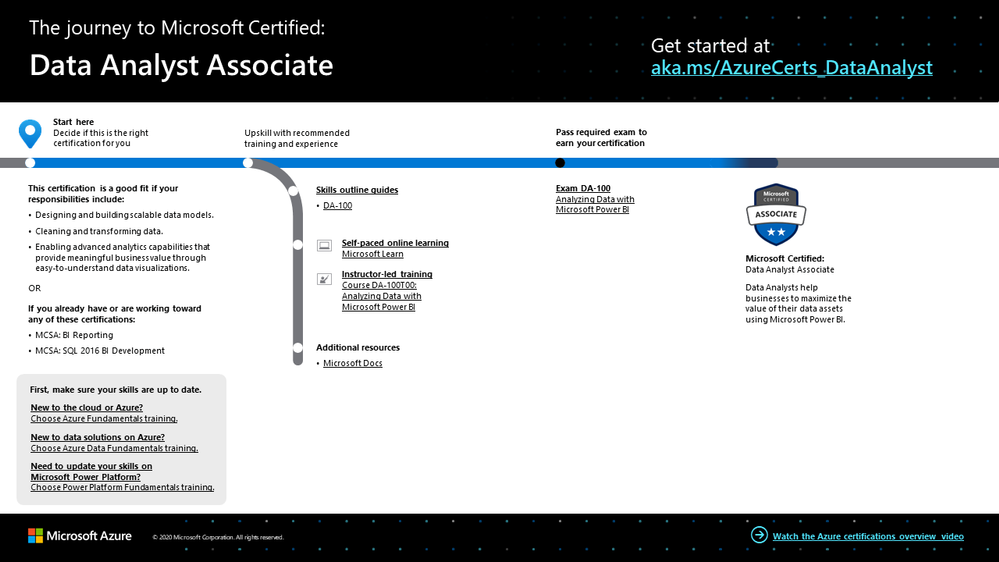
To help you plan your journey, check out our infographic, The journey to Microsoft Certified: Data Analyst Associate. You can also find it in the resources section on the certification and exam pages, which contains other valuable help for data analysts.
To map out your journey, follow the sequence in the infographic. First, decide whether this is the right certification for you.
Next, to understand what you’ll be measured on when taking Exam DA-100, review the skills outline guide on the exam page.
Sign up for training that fits your learning style and experience:
Then take a trial run with the Microsoft Official Practice Test for DA-100: Analyzing Data with Microsoft Power BI. All objectives of the exam are covered in depth, so you’ll find what you need to be ready for any question.
Complement your training with additional resources, like Microsoft Docs or the Power BI Learning catalog. And don’t miss the Power BI community webinars.
After you pass the exam and earn your certification, explore other opportunities with Azure and Power BI to make the most of your big data with Azure. Connect, combine, and analyze your entire data estate with Power BI and Azure analytics services—from Azure Synapse Analytics to Azure Data Lake Storage. Analyze petabytes of data, use advanced AI capabilities, apply additional data protection, share insights across your organization, and much more. For related training, check out Microsoft Learn.
Note: Remember that Microsoft Certifications assess how well you apply what you know to solve real business challenges. Our training resources are useful for reinforcing your knowledge, but you’ll always need experience in the role and with the platform.
It’s time to level up!
Your Microsoft Certification can help validate that you have the skills to stay ahead with today’s technology. It can also help empower you with a boost in confidence and job satisfaction—and maybe even a salary increase. Want to know more? In our blog post, Need another reason to earn a Microsoft Certification?, we offer 10 good reasons to earn your certification.
As a data analyst, you know that data tells a story—and your data’s story could be a potential path to more sales, greater efficiency, improved insights, and patterns that could lead to big wins for your organization. Grow beyond charts and graphs, enrich and expand your data visualizations, and prove your skills and experience. It’s time to level up with a Data Analyst Associate certification.
Related announcements
Understanding Microsoft Azure certifications
Finding the right Microsoft Azure certification for you
Master the basics of Microsoft Azure—cloud, data, and AI
by Scott Muniz | Dec 9, 2020 | Security, Technology
This article is contributed. See the original author and article here.
Original release date: December 9, 2020
The United Kingdom (UK) National Cyber Security Centre (NCSC) has launched a new cyber security campaign encouraging the public to adopt six behaviors to stay safe online.
The six Cyber Aware behaviors recommended by the NSCS are:
- Use a separate password for your email
- Create strong passwords using three random words
- Save your passwords in your browser
- Turn on multi-factor authentication
- Update your devices
- Back up your data
The Cybersecurity and Infrastructure Security Agency (CISA) encourages users and administrators to review the official NCSC website as well as CISA’s Tips page for more information and additional resources.
This product is provided subject to this Notification and this Privacy & Use policy.
by Scott Muniz | Dec 9, 2020 | Security, Technology
This article is contributed. See the original author and article here.
Original release date: December 9, 2020
The Australian Cyber Security Centre (ACSC) has launched a new cyber security campaign encouraging all Australians to protect themselves against online threats. The initial focus of the campaign is ransomware threats, and the ACSC provides easy-to-follow security advice at cyber.gov.au to help Australians act now and stay secure.
The Cybersecurity and Infrastructure Security Agency (CISA) encourages users and administrators to review the official ACSC campaign announcement for more information and to consult CISA’s ransomware page for additional guidance and resources.
This product is provided subject to this Notification and this Privacy & Use policy.
by Contributed | Dec 9, 2020 | Technology
This article is contributed. See the original author and article here.
Creating meaningful connection can be difficult in larger group settings. Breakout rooms allow organizers to divide the meeting into sub-groups to facilitate discussions and brainstorming sessions.
We are excited to announce that breakout rooms will be available today in Microsoft Teams (available in GCC this week).
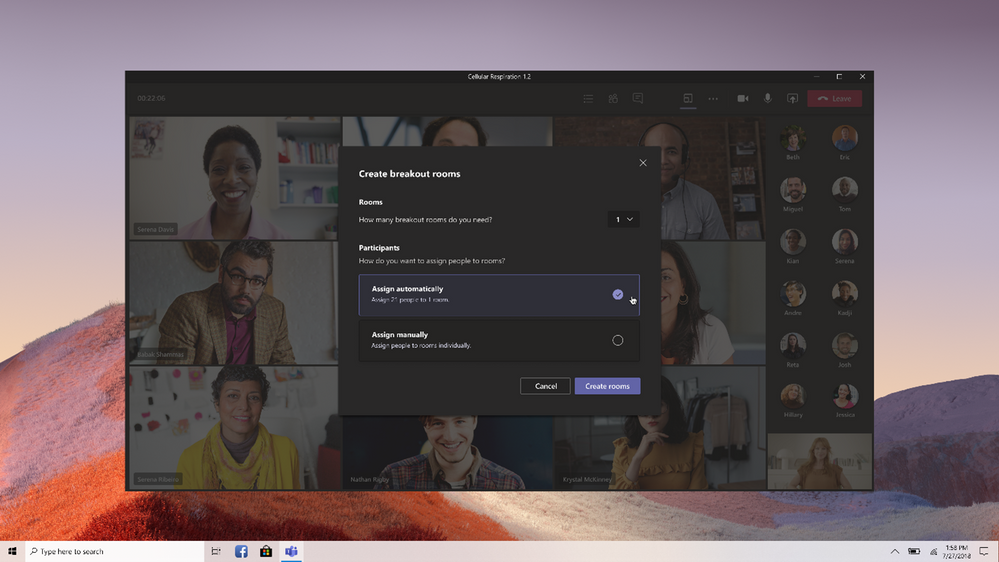
The meeting organizer can create up to 50 breakout rooms and choose to automatically or manually assign participants into rooms. The organizer can start a breakout room in a Teams meeting or a Teams channel meeting, allowing greater flexibility on how you want to meet.
Using the breakout room settings, the meeting organizer can choose to allow participants to come back to the main meeting at any time, then return to the assigned breakout room. This way participants can ask a clarifying question without disturbing the breakout room discussions.
Also, organizers can use the setting to re-create breakout rooms in the same meeting. This allows them to assign participants into new room setups.
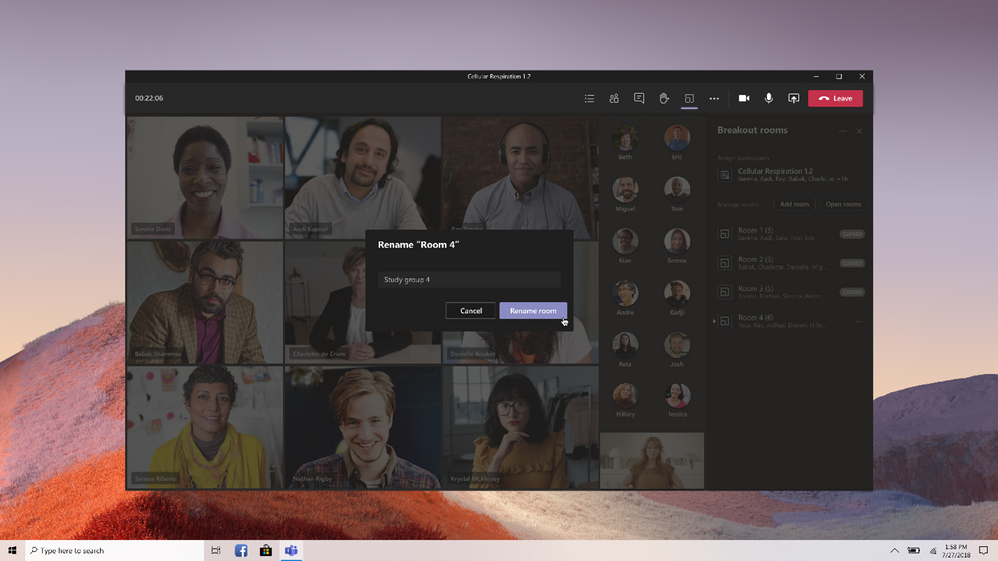
The meeting organizer can create, rename, and delete rooms as needed.
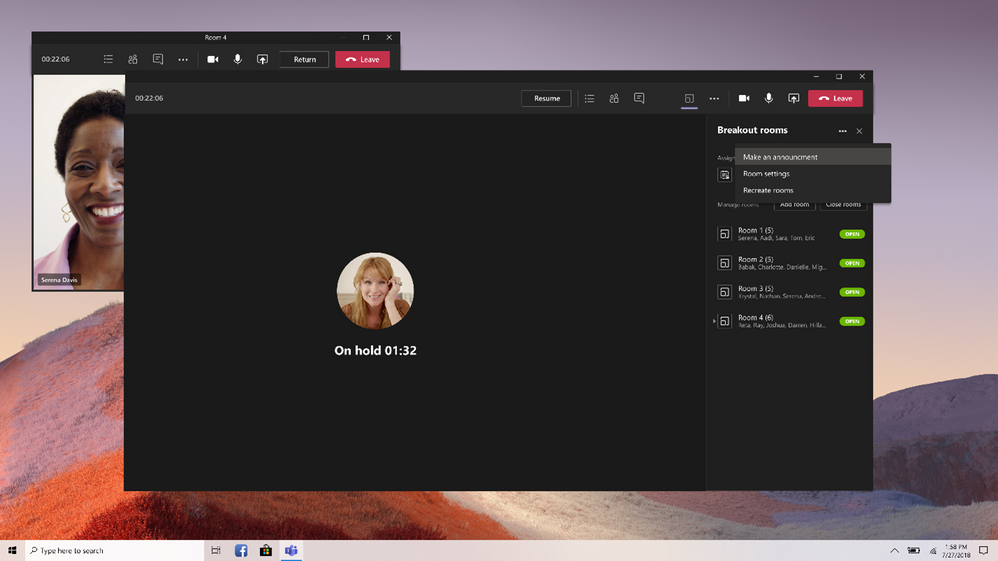
Once the breakout rooms are open, meeting organizers can join any of the breakout sessions. And should the need arise, you can quickly switch attendees in between breakout rooms.
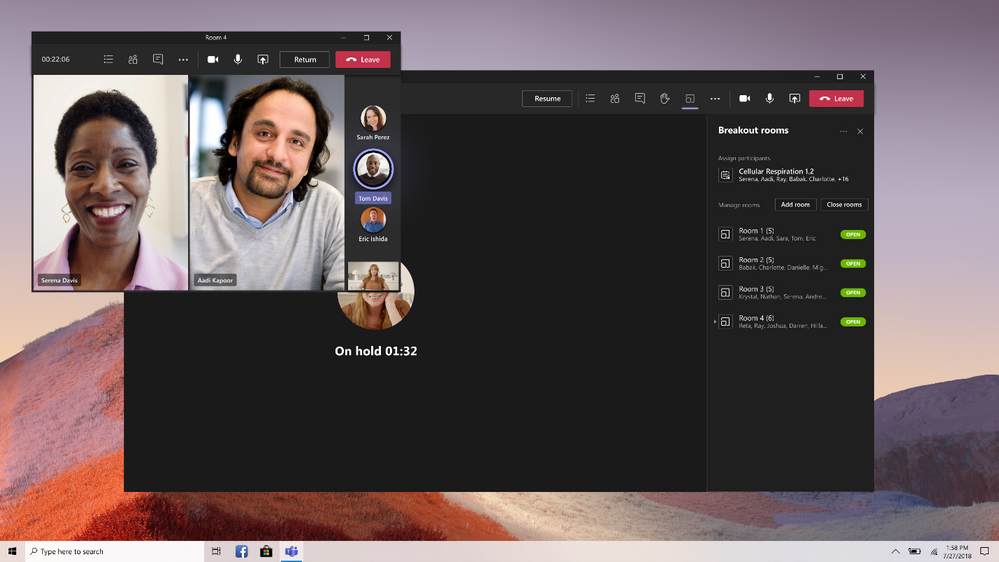
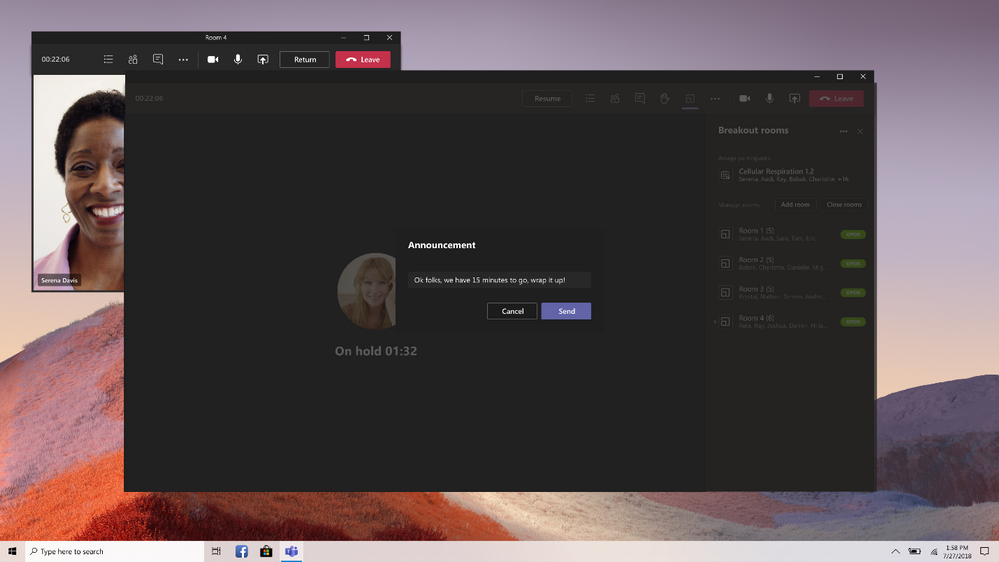
Organizers can send announcements to the breakout rooms, and recall all participants back to the main meeting at any time.
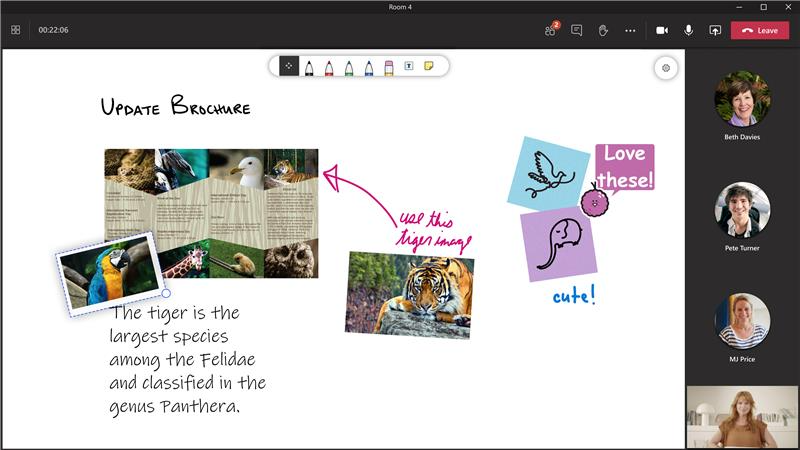
Since breakout rooms are Teams meetings, all the innovation that makes Teams meetings inclusive, interactive, and intelligent are available within. Attendees can discuss a topic in their breakout room while in a virtual coffee shop in Together mode. Or students can bring up the Microsoft Whiteboard and draw out their ideas. This is also true of our security features that help make your Teams meetings a safe and secure place to meet.
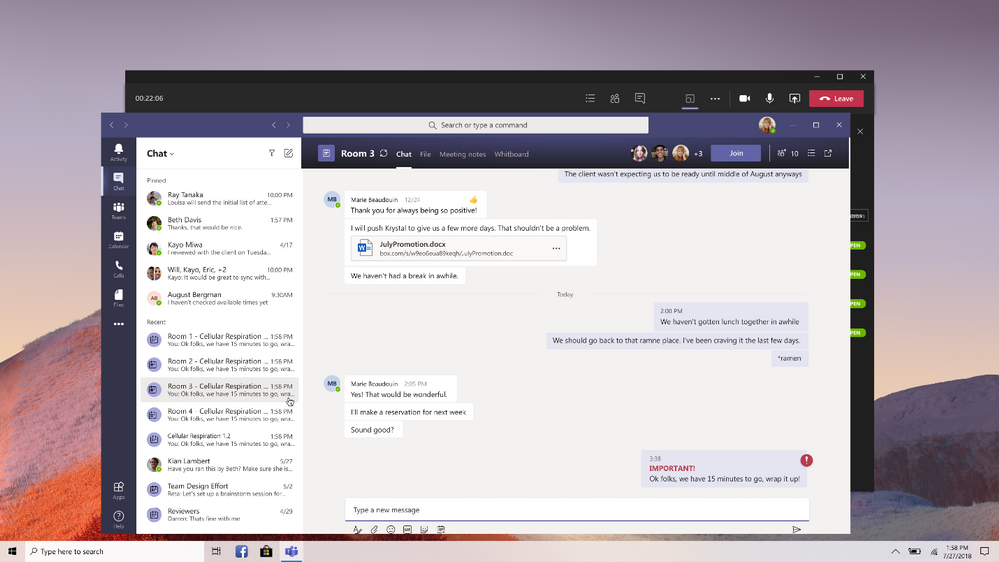
Any files from the breakout rooms can be shared in the main meeting once everyone is back together and will be available afterwards in the meeting chat.
FAQ
Who can start a breakout room?
- Only the meeting organizer can start breakout rooms.
How can I use breakout rooms?
- The meeting organizer can start a breakout room on the desktop client only.
- Participants can join a breakout room from desktop, web or mobile. Microsoft Teams Rooms do not have breakout room capabilities yet.
- Participants logged in from multiple devices will have all end points join the same breakout room.
How do I make sure I can start using breakout rooms?
I’m an educator, what will my students be able to do?
- Since breakout rooms are Teams meetings, the same security policies and options apply.
- Educators will have the option to push students into the breakout rooms and pull them back to the main meeting, without any additional action needed by the student.
- Students can be assigned to breakout rooms, join breakout rooms, use the whiteboard or screen share if allowed to in normal school meetings, re-join the main meeting, and see their breakout room chat.
- Students cannot add participants, will not see suggestions of students who should join, cannot get meeting details or dial out, will not see the files or chats from other breakout rooms, and cannot rejoin the original meeting themselves.
- Learn more about using breakout rooms at your school or university here.

by Contributed | Dec 9, 2020 | Microsoft Teams, Office 365
This article is contributed. See the original author and article here.
New features include holiday-inspired backgrounds, send cheer to co-workers with a Starbucks eGift and tips for hosting a virtual office holiday party
The post New ways to celebrate holiday festivities with Microsoft Teams appeared first on Microsoft 365 Blog.
Brought to you by Dr. Ware, Microsoft Office 365 Silver Partner, Charleston SC.
by Contributed | Dec 9, 2020 | Technology
This article is contributed. See the original author and article here.
Creating meaningful connection can be difficult in larger group settings. Breakout rooms allow organizers to divide the meeting into sub-groups to facilitate discussions and brainstorming sessions.
We are excited to announce that breakout rooms will be available this week in Microsoft Teams.
The meeting organizer can create up to 50 breakout rooms and choose to automatically or manually assign participants into rooms. The organizer can start a breakout room in a Teams meeting or a Teams channel meeting, allowing greater flexibility on how you want to meet.
Using the breakout room settings, the meeting organizer can choose to allow participants to come back to the main meeting at any time, then return to the assigned breakout room. This way participants can ask a clarifying question without disturbing the breakout room discussions.
Also, organizers can use the setting to re-create breakout rooms in the same meeting. This allows them to assign participants into new room setups.
The meeting organizer can create, rename, and delete rooms as needed.
Once the breakout rooms are open, meeting organizers can join any of the breakout sessions. And should the need arise, you can quickly switch attendees in between breakout rooms.
Organizers can send announcements to the breakout rooms, and recall all participants back to the main meeting at any time.
Since breakout rooms are Teams meetings, all the innovation that makes Teams meetings inclusive, interactive, and intelligent are available within. Attendees can discuss a topic in their breakout room while in a virtual coffee shop in Together mode. Or students can bring up the Microsoft Whiteboard and draw out their ideas. This is also true of our security features that help make your Teams meetings a safe and secure place to meet.
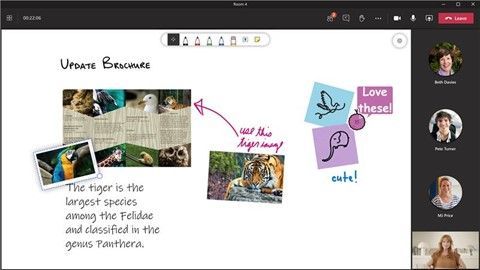
Any files from the breakout rooms can be shared in the main meeting once everyone is back together and will be available afterwards in the meeting chat.
FAQ
Who can start a breakout room?
- Only the meeting organizer can start breakout rooms.
How can I use breakout rooms?
- The meeting organizer can start a breakout room on the desktop client only.
- Participants can join a breakout room from desktop, web or mobile. Microsoft Teams Rooms do not have breakout room capabilities yet.
- Participants logged in from multiple devices will have all end points join the same breakout room.
How do I make sure I can start using breakout rooms?
I’m an educator, what will my students be able to do?
- Since breakout rooms are Teams meetings, the same security policies and options apply.
- Educators will have the option to push students into the breakout rooms and pull them back to the main meeting, without any additional action needed by the student.
- Students can be assigned to breakout rooms, join breakout rooms, use the whiteboard or screen share if allowed to in normal school meetings, re-join the main meeting, and see their breakout room chat.
- Students cannot add participants, will not see suggestions of students who should join, cannot get meeting details or dial out, will not see the files or chats from other breakout rooms, and cannot rejoin the original meeting themselves.
- Learn more about using breakout rooms at your school or university here.
by Contributed | Dec 9, 2020 | Technology
This article is contributed. See the original author and article here.
Earlier last month we announced improvements coming to search in SharePoint Online (https://techcommunity.microsoft.com/t5/microsoft-search-blog/we-re-improving-search-usage-reports-in-sharepoint-online-with/ba-p/1849502). As we continue to innovate across Microsoft Search to bring you a better, more precise search experience – we’re making some changes and improvements to search in SharePoint Online.
No matter where people work or what kind of device they use, they need the ability to quickly and easily find the information that will help them be more productive. As part of our continued effort to bring Microsoft Search to all your favorite productivity apps and services we’re making changes and improvements to several classic search experiences in SharePoint.
Changes and improvements to the query experience in SharePoint Online
Updates to FQL (FAST Query Language)
As we continue to modernize Microsoft Search, we’ll retire some elements of FQL described below in February 2021.
FAST Query Language (FQL) is a powerful query language that enables developers to perform exact searches and to narrow the scope of search to values that belong to a specific managed property or a full-text index. The FQL query language is only intended for programmatic query integration.
As part of this deprecation several operators related to FQL will be removed. Beginning on <DATE> the following FQL operators will be removed:
COUNT operator
The COUNT operator In FQL specifies the of number query term occurrences an item must include for the item to be returned as a result.
FILTER operator
The FILTER operator in FQL is used to query metadata or other structured data. Once this operator is retired, the FILTER operator will be ignored. This change will not impact the user experience; however, ranking of results may change.
Dynamic rank ‘weight’ parameter to the ‘string’ operator
Enables custom ranking where the expressions enclosed in the affected string() operator will get a different rank. This change will not impact the user experience; however, ranking of results may change.
Per string configuration of linguistics on/off
Enables linguistics control where stemming is not applied to the expressions enclosed in the affected string() operator. This change will not impact the user experience; however, ranking of results may change.
Per string configuration of wildcard on/off
Enables wildcard expansion control where the expected behavior is that when set to off then any wildcard character in the string must be treated as a character. This change will not impact the user experience; however, ranking of results may change.
FQL dynamic rank difference between OR and ANY
The ANY operator, is like the OR operator except that the dynamic rank (the relevance score in the result set.md) is affected by neither the number of operands that match nor the distance between the terms in the item. The OR operator in FQL is returns only items that match at least one of the OR operands. Items that match will get a higher dynamic rank if more of the OR operands match. Once this operator is retired, the ANY operator will be implemented similarly to the OR operator.
We recommend, where applicable, using the default SharePoint query language, KQL where your business requirements can be similarly met.
KQL is the default query language for building search queries. Using KQL, you specify the search terms or property restrictions that are passed to the SharePoint search service.
Learn more about KQL query syntax at https://docs.microsoft.com/en-us/sharepoint/dev/general-development/keyword-query-language-kql-syntax-reference.
Search Query Rules
Search Query Rules in SharePoint help support the users’ search intent, by creating pre-defined rules which apply to the user queries. In a query rule, you specify conditions and correlated actions. When a query meets the set conditions, search performs the actions to improve the relevance of the search results.
For example, you might specify a condition that checks whether the query matches a term in a SharePoint term set, or another condition that checks whether the query is frequently performed on a particular search vertical in your search system, such as Videos.
Beginning on February 1st, 2021 we’ll be removing the following conditions in SharePoint
- Context condition: Category
- Context condition: User segment
- Query condition: Taxonomy
- Found in query condition option “Query matches dictionary exactly.”
- Found in query condition option “Query contains action term.”
- Found in query condition option “Advanced Query Text Match.”
- Query condition: Common query
- Query condition: Commonly clicked property
- Query condition: Regular expression
In addition to these changes, we’ll additionally deprecate the following out-of-the-box query rules that take a dependency on the conditions to be deprecated:
- Location in People Search (depends on Taxonomy query condition)
- Location in SharePoint Search (depends on Taxonomy query condition)
- Phone Number in People Search (depends on Regular expression query condition)
- Phone Number in SharePoint Search (depends on Regular expression query condition)
- Tags in People Search (depends on Regular expression query condition)
- Tags in Conversation Search (depends on Regular expression query condition)
- People Expertise Search
NOTE These deprecations only apply to classic search experiences, they do not affect the modern search experiences.
For scenarios in which you would like to promote a result above existing ranked results, Microsoft Search provides a set of Answers, both editorial and AI mined, that can be used in place of classic search functionality such as Best Bets and Promoted Results.
An Answer is a highly relevant and high confidence result that satisfies a user intent expressed as a query/question in search, presenting the most relevant information needed to get a job done and help users to faster task completion.
An Answer is a way to address user intent. When searching, the user typically types in characters and keywords to express an intent. Recognizing the keywords that are triggers for specific intents is important, but it is even more important that the content that is shown in search satisfies the user intent.
Answers are useful when you want to promote a search result to appear above ranked results. For example, for the query “sick leave”, you could specify a particular result, such as a link to a site that has a statement of company policy regarding time off work. You can think of Answers as being navigational aids to assist employees in getting directions to the information that matters most to help them keep productive and informed.
In Microsoft Search, an Answer can come from a variety of sources. Learn more about Microsoft Search Answers at https://blog.wbaer.net/2020/10/06/making-the-most-of-answers-in-microsoft-search/.
Changes and improvements to relevance in SharePoint Online
Changes to Authoritative Pages
Currently, as a global or SharePoint admin in Microsoft 365, you can influence the pages or documents that should appear at the top of your list of search results by identifying high-quality pages, also known as authoritative pages. Authoritative pages link to the most relevant information. A typical example of an authoritative page could be the home page of your company portal. Beginning February 1, 2021, we’ll remove the ability to configure authoritative pages in SharePoint Online.
Like query rules, Answers in Microsoft Search can be implemented to influence specific sites, documents, and more to promote a result above ranked results. Refer to the information above to learn more about Answers in Microsoft Search.
Improving Personal Favorites
Search is something we use every day, a lot, and it’s hard to keep track of what you last searched for now you’ll no longer need to search for what you’ve searched for adding a new option to view and manage your personal query history.
In SharePoint Online, personal favorites were used to display previous queries when a threshold was met, for example, if frequently searching for “Contoso Marketing Presentation”, this query would become a candidate to be displayed in search. Beginning February 1, 2021, we’ll remove personal favorites and recommend personal query history in Microsoft Search.
With personal query history, you’ll see your recent queries as you begin typing in the search box to help you get back to insights and information you recently used or accessed so you’ll no longer have to bookmark your queries or memorize the right query to get you back to where you were. Your personal query history can be managed through your Office 365 My Account settings and new My Account privacy controls allow you to delete your query history or download your query history for future reference.
To learn more about Microsoft Search in SharePoint visit https://aka.ms/MicrosoftSearch/Ignite2020/Sessions/5002. To watch related sessions from Microsoft Ignite visit https://techcommunity.microsoft.com/t5/microsoft-search-blog/microsoft-search-at-ignite-2020/ba-p/1651098.
by Scott Muniz | Dec 9, 2020 | Security
This article was originally posted by the FTC. See the original article here.
It’s the 4th day of Consumer Protection and ’tis the season of…gift cards. Even in Santa’s workshop, it’s one of the most popular ways to give to family and friends for the holidays. But gift cards also are a favorite way for scammers to steal people’s money.
Brought to you by Dr. Ware, Microsoft Office 365 Silver Partner, Charleston SC.
by Contributed | Dec 9, 2020 | Technology
This article is contributed. See the original author and article here.
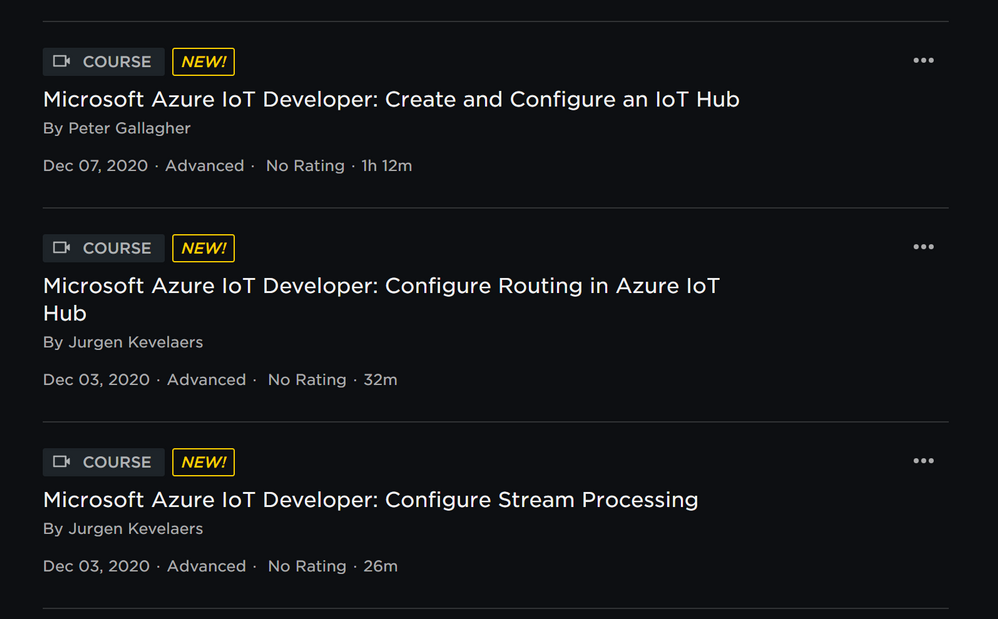
For those of you studying towards the AZ220 Azure IoT Developer Certification, Pluralsight have begun publishing a series of videos targeting individual sections of the Objective Domain.
Why become certified?
Becoming certified in any subject is a fantastic idea for a number of reasons. The primary goal for me when deciding to become certified is to give myself a measure of how well I know the whole subject.
In the case of AZ220 of course, I was involved in writing questions for the exam itself. However the process is actually quite similar, in that as authors, we’re tasked with writing a question on a given topic. In order to write a good question you need a clear understanding of the topic and the areas of learning required. This is the same when preparing for the exam.
There are some other great benefits to becoming certified too. An obvious benefit is the credibility you add to your skill set when either applying for jobs or tendering for contracts depending on your mode of working. This can mean the difference between landing that dream job or not, or perhaps achieving a payrise or promotion, or grabbing a new client.
Of course, having well trained staff working for your company has a heap of benefits in itself, meaning the work they produce will be of a higher quality. Also, staff who are offered training as part of their position tend to be happier in their role.
Finally, certifications often form part of a wider set of exams leading to a achieving an Associate or Expert level certification. This then demonstrates your overall mastery of a far wider topic area.
Where do I start?
When studying for Microsoft Certifications, the first place I start is on the Certification Page;
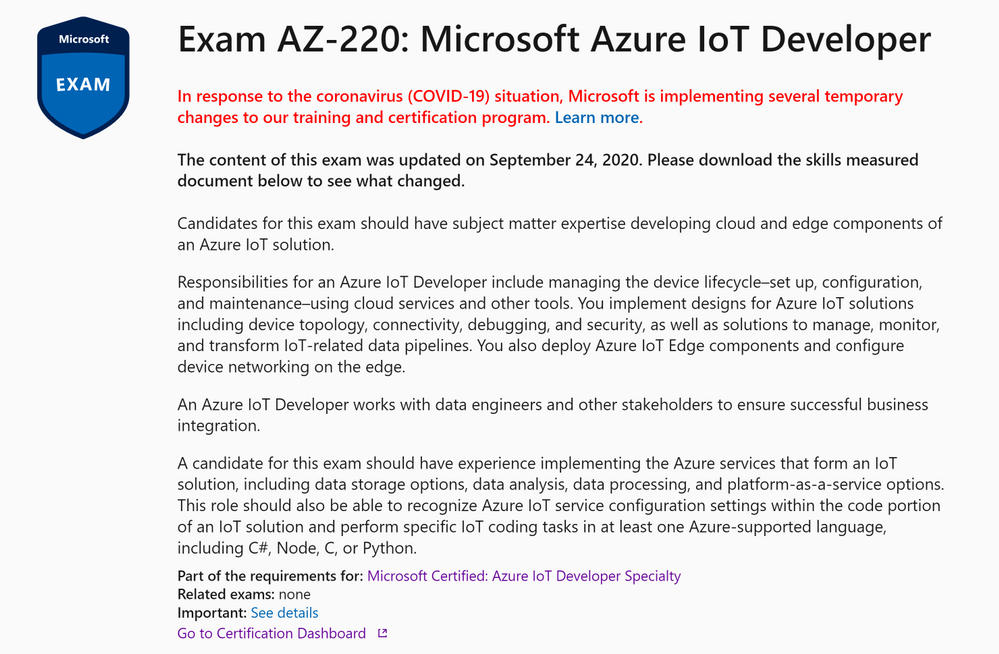
This is where you’ll find information on the audience that Microsoft are pitching the exam to and a roundup of the responsibilities and skills of the person taking the exam.
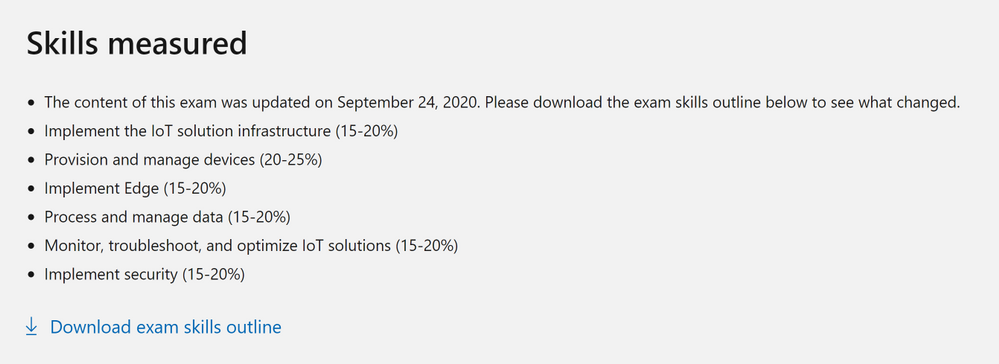
There’s then a more in depth list of Exam Topics which is called the Skills Outline, this is often referred to as the exam Objective Domain or OD. You’ll often find this as a downloadable document in the Skills Outline Section;
What are Pluralsight doing?
There are currently three courses published on the platform, with the rest of the Objective Domain being covered in the coming weeks and months;
- Create and Configure an IoT Hub – Pete Gallagher
- Configure Routing in Azure IoT Hub – Jurgen Kevelaers
- Configure Stream Processing – Jurgen Kevelaers
I have created the first course above, concentrating on Creating and Configuring an IoT Hub.
As a bit of explanation, each section of the Exam Skills Outline or Objective Domain document, is broken down into different categories and sections.
“Create and Configure an IoT hub” forms the first section of the AZ220 Objective Domain Document which is part of the Implement the IoT Solution Infrastructure category;
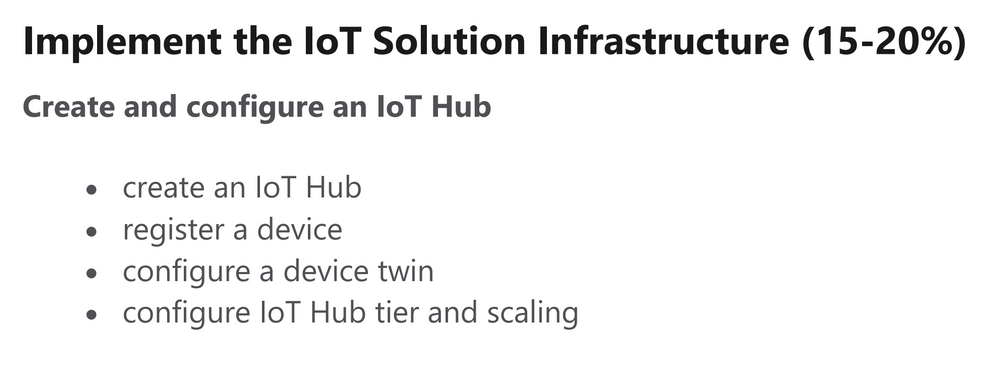
As such, I’ve formatted my course to map to these domain objectives exactly;
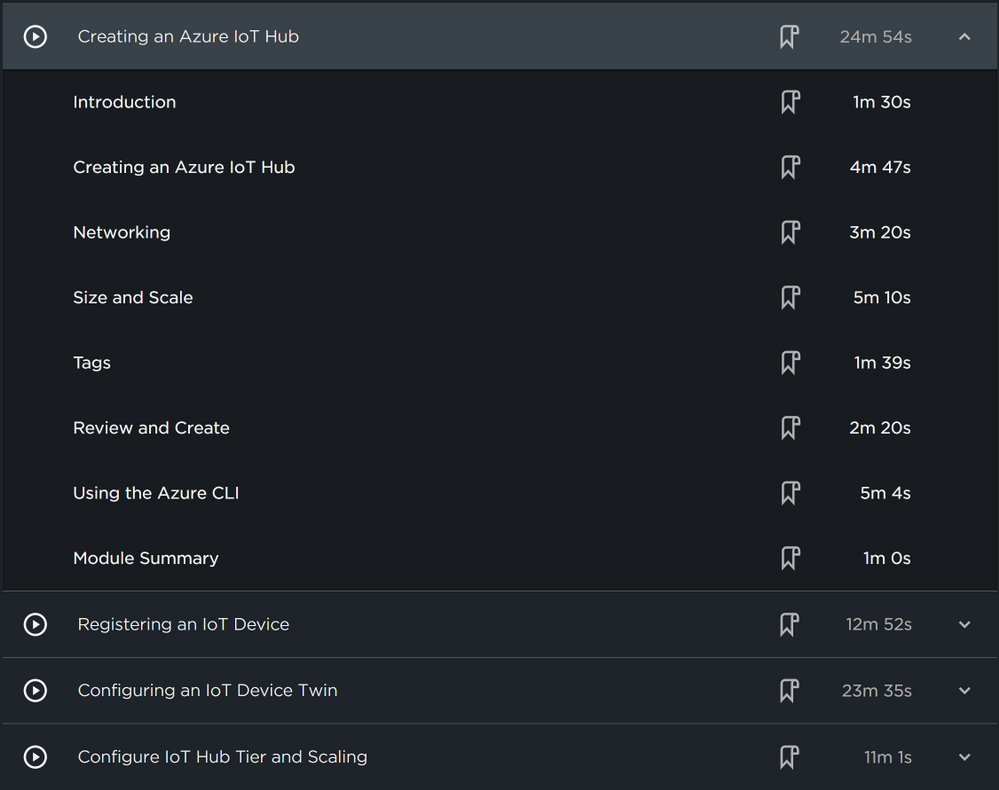
Along with some fabulous fellow authors, I was actually involved in the creation of the AZ220 certification. This has gifted me a unique perspective from which to create valuable content. This I hope will help make these videos very useful in your journey to passing the AZ220 Azure IoT Developer Certification.
What other sources of learning material are there?
Alongside this series of videos, there is also a wealth of information to study on the Microsoft Docs site, as well as curated Learning Paths as part of Microsoft Learn.
Further, the excellent Paul DeCarlo has created an invaluable Study guide for the AZ220 Certification, with links to the relevant MS Docs pages for each section of the Objective Domain.
There’s also an Event Learning Path available. This is a set of curated content created by members of the Azure IoT Advocacy team and is a solution based set of Videos tailored towards the topics in the exam.
Are there any events planned?
At the time of writing, we’re excited to announce a special IoT Event named All Around Azure IoT!
On January 19th 2021, across three different time zones, this awesome event will feature speakers both from the Azure IoT Advocacy team as well as Microsoft MVPs like myself. Once again, this content will be targeted at attendees looking to learn more about the Azure IoT platform with a view to becoming certified. I highly recommend looking at the event, it’ll be awesome!
Final takeaways…
Azure IoT Developers looking to pass the AZ220 Azure IoT Developer have never had so many excellent resources to call upon to help in their journey.
The Azure IoT platform is, in my opinion, the most fully featured platform for IoT Developers, the range of services available on any platform, the learning materials are second to none and the community is fantastic.
Becoming certified will offer you a great range of opportunities in your career as an IoT Developer and is a great way to verify your achievements.
I hope you have fun, enjoy your journey and feel free to get in touch if you have any questions at all!
by Contributed | Dec 9, 2020 | Technology
This article is contributed. See the original author and article here.
Teams Phone System and Direct Routing is more important than ever because it helps companies and their employees to stay connected with their office number even if they are working from home.
To gain best audio quality in a PSTN phone call it is important to understand how local media optimization can support this scenario and how to configure it.
With Teams Phone System in general companies can close the gap between working from anywhere and still stay connected with the office phone number. This is an often-underestimated scenario. Users can use legacy technologies like VPN securely to get a company access from home. They can use Office 365 services like Exchange Online and SharePoint Online to collaborate with colleagues and get work done. But one missing piece is most often left out: the desk phone in the office. With a legacy PBX system, it is difficult to bring the office phone number at home to the user. Here Microsoft Teams Phone System can help and support you. The Microsoft Teams Client will be extended by PSTN calling and the user is reachable under the office number in their home office or wherever they like to work.
But as often: there is no joy without sorrow. The network part and especially the WAN connection is critical. If the roundtrip time for the audio packages in the network is not optimal, users are complaining about bad audio quality and the well-intended solution can turn into a fiasco.
To offer the best experience for your users, Microsoft provides several techniques and features to optimize the media flow for this scenario.
Media Flow in Microsoft Teams– some basics
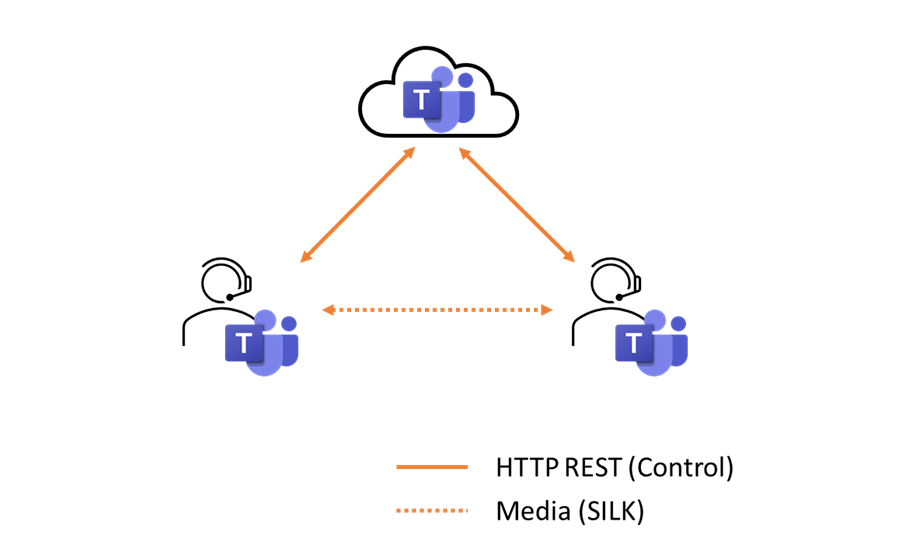
In case of Microsoft Teams, we must two types of media flow. The first scenario is a 1:1 scenario. Microsoft Teams always tries to use the shortest network path for transmitting the data packages. In this 1:1 scenario this is a direct connection between the two endpoints. To optimize the flow even further, Microsoft Teams will try to establish a UDP connection first and will switch to a TCP connection if the first one is not possible.
Figure 1 – Media flow 1:1 call
The second scenario is the Meeting scenario. A meeting scenario can be a scheduled online meeting, but also when you start a one on one conversation and add a third person to it, it will be turned into a meeting. And in case of a meeting, the media flow is always to the Office 365 platform as the central meeting platform.
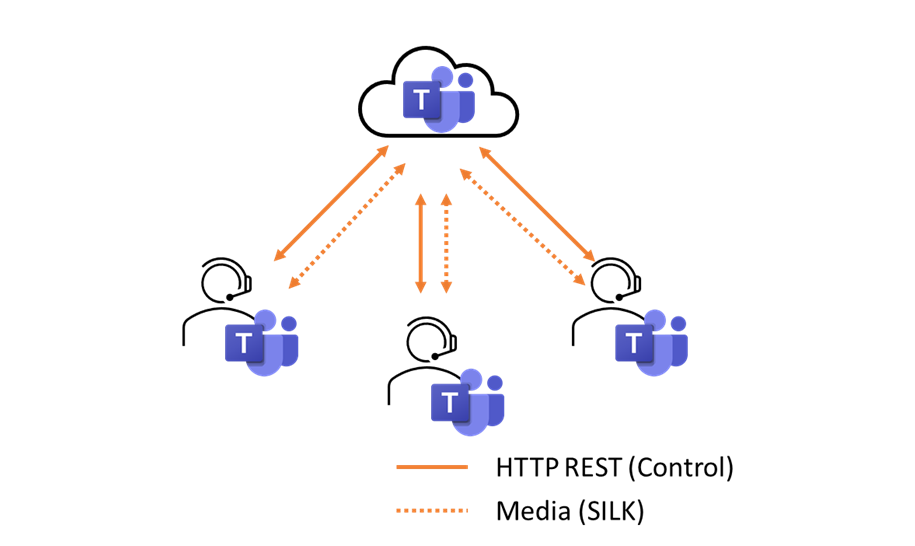 Figure 2 – Media Flow in Teams Meeting
In case of PSTN Calling with Teams Direct Routing a session border controller is required. A session border controller (SBC) terminates the PSTN connection from the provider and routes inbound calls to the Teams platform and vice versa. Therefor the media flow for a PSTN call is slightly different because there is at least one more hop: the SBC itself where the audio packages will be routed through.
Media Flow and Microsoft Teams Direct Routing – default scenario
In a default scenario without Media Optimization, the audio packages will be routed from the SBC to the Microsoft Teams platform and from there to the Teams endpoint. In case of an employee inside the company, the media stream traverses the firewall twice: first time from the SBC to Office 365 and for a second time from the Office 365 platform to the user. As you can imagine this costs bandwidth and, of course, package runtime.
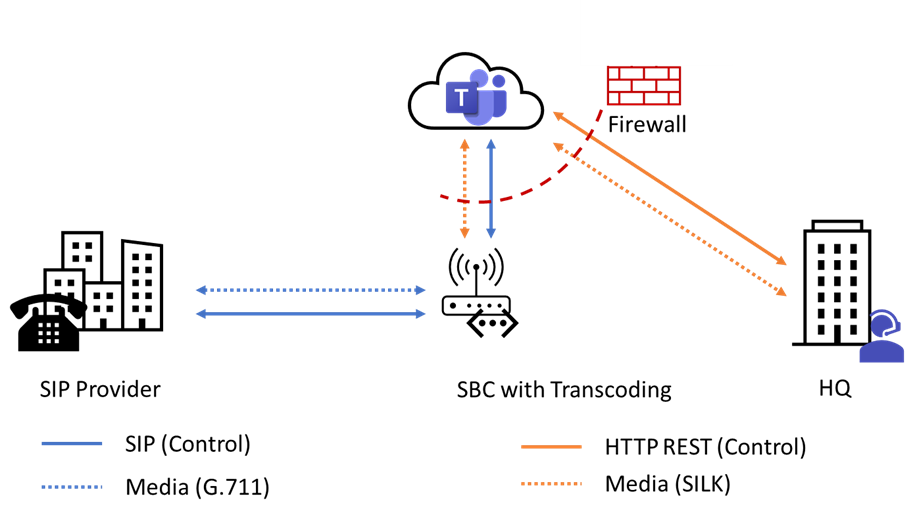 Figure 3 – Default Media Flow with Teams Direct Routing
How to optimize Media Flow with Teams Direct Routing – Media Bypass
The first step to optimize the media flow is a well know technique from Microsoft Lync and Skype for Business deployments: Media Bypass.
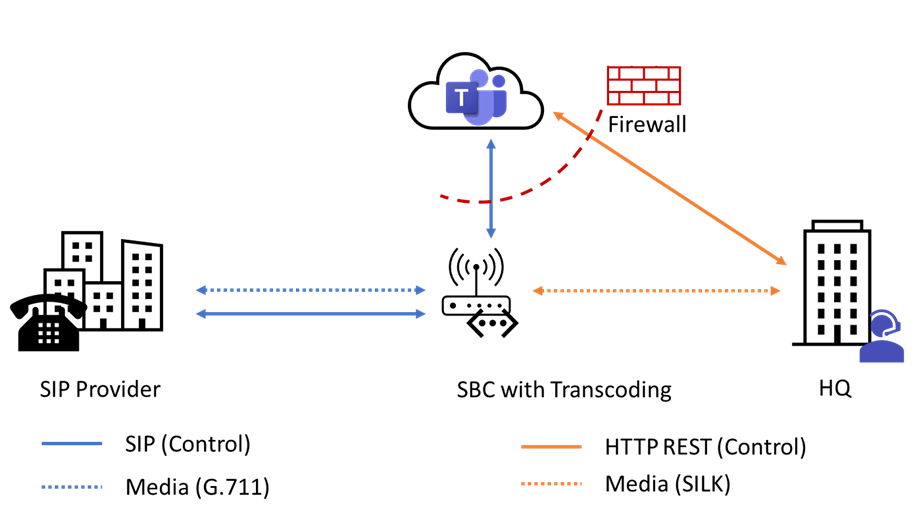 Figure 4 – Media Flow with Teams Direct Routing and Media Bypass
If the Microsoft Teams endpoint can communicate directly to the SBC external IP address, the call is established with Media Bypass. This means that the audio data are transmitted directly between the Teams endpoint and the SBC itself. The audio data does not traverse the firewall and the routing is optimized. Additionally, you have the option to prioritize Microsoft Teams audio data in your network with Quality of Service.
With a current firmware release installed on the SBC and Local Media Optimization, you can configure the SBC to provide an internal facing network adapter to use for Media Bypass, too. The Teams client will send and receive the audio packages to and from an internal IP address of the SBC directly.
In the past, you had to configure the external interface with the public IP address for Media Bypass, so that internal clients use the external IP for a direct connection. This made it very hard and complex because your firewall had to support this scenario.
The advantages are very simple: the media flow stays in your local network and you can control it better with Quality of service. Also, the firewall configuration is much simpler for this scenario.
Local Media Optimization with Centralized SBC for Branch Offices
For your branch offices you can use Media Bypass as a centralized SBC, too. In this scenario the different phone number ranges for your offices will terminate on one SBC in your datacenter. The SBC will do the routing between the users in the branch offices and the Microsoft Teams platform.
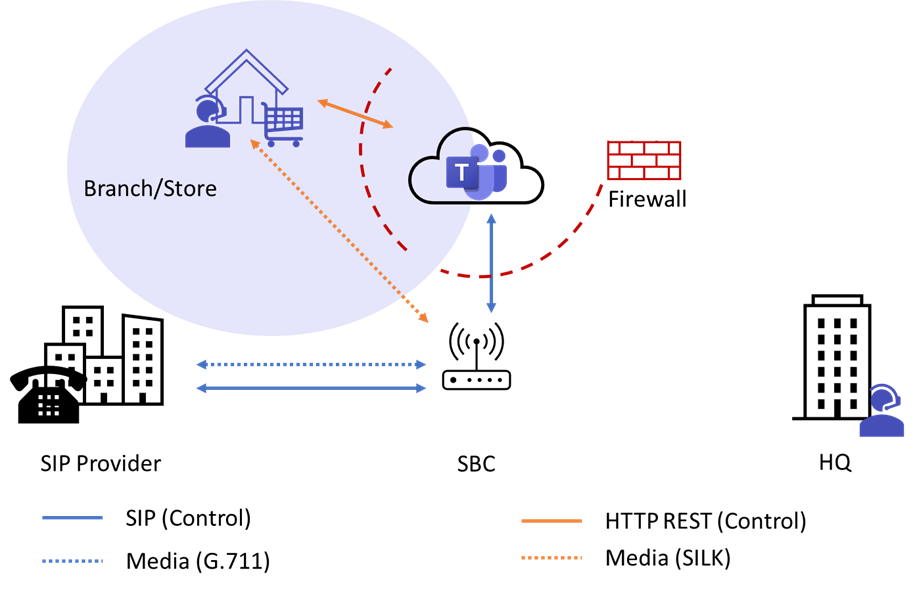 Figure 5 – Media Flow with Media Bypass from the Branch Office
Local Media Optimization with Proxy SBC
A second option for your branch office can be to implement a Proxy SBC in your main datacenter and local SBC systems on site. In this scenario, the Proxy SBC is used for the central communication to the Microsoft Teams platform. The SBC in the branch site is responsible for the local PSTN connection and will route calls over the Proxy SBC to Microsoft Teams and vice versa.
In this scenario a Proxy SBC can help to reduce the requirements to your infrastructure. Only a single SBC instance must be configured to work with Microsoft Teams. Also, it is often used where a centralized SBC is not possible when there are some regulatory or the onsite SBC does not meet the technical requirements.
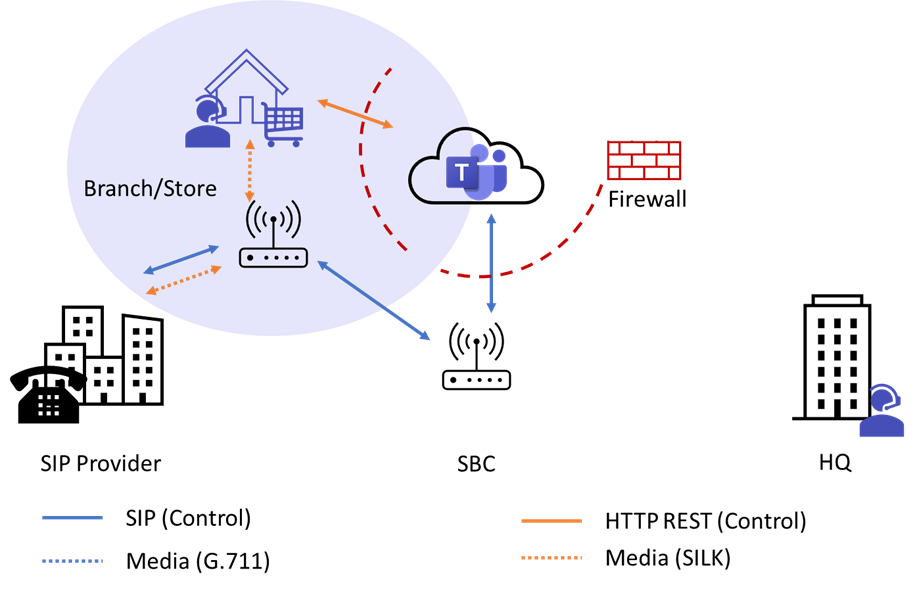 Figure 6 – Proxy SBC for the Branch Office
Can Home Office users participate from Media Bypass?
Of course, Media Bypass and local Media Optimization also provides some benefits for your home office and mobile users.
Microsoft provides several Transport Relay servers in their worldwide datacenters. Best practice is to allow the Teams subnet networks to communicate to the public SBC IP address for media traffic. It is also possible to open the SBC public IP address to your mobile worker, but it is quite difficult to manage this. Each time they connect to the internet, they will use another public IP address. Therefor my recommendation is to allow only the Teams subnet networks to your SBC public IP and to benefit from the Microsoft Global Network.
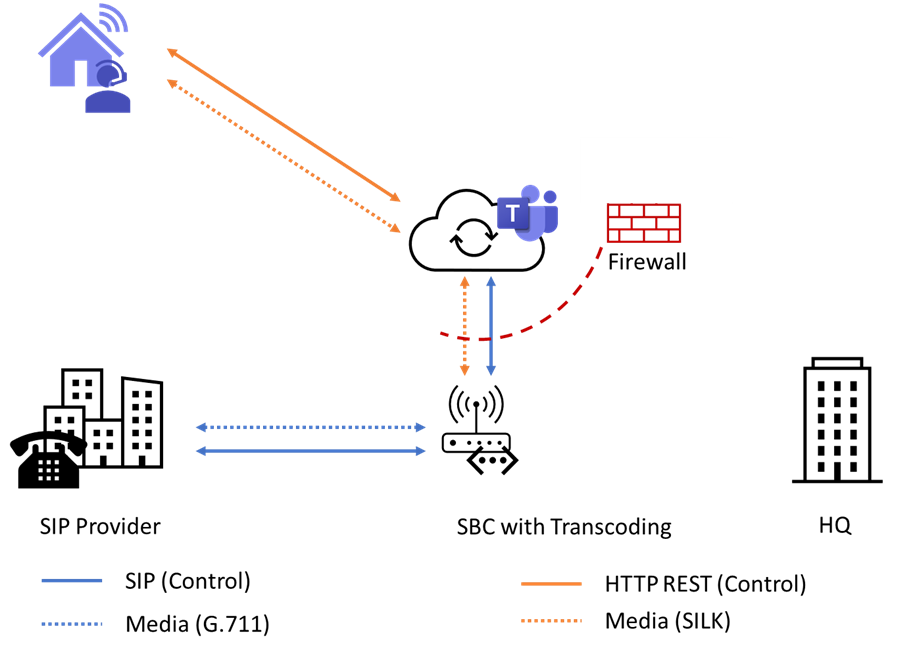
If you are doing so, the audio data from the home user will be transmitted to one of the nearest Transport Relay server of the Microsoft Global Network. Pay attention that your users can use a local internet break out and reach the nearest egress point to the Microsoft Global Network. The Microsoft Transport Relay server will connect to the SBC directly and will establish a communication. And here is the same behavior: the path from the Microsoft Global Network to your SBC will be shorten to the most necessary. That is why even your home user will benefit from Media Bypass. The runtime of the audio packages is optimized with the help of the Microsoft Global network.
How to configure Media Bypass and local Media Optimization
To configure Media Bypass and Local Media Optimization you must check if your installed SBC firmware already supports this feature. If not, ask your vendor for a current release and install it on the SBC.
Then you must configure your network topology in the Microsoft Teams Admin Center, so the Teams platform is aware of your network infrastructure. You can allow or decline Media Bypass in two ways, as we already know from the good old times: Always ByPass or Local Only.
In case of Always ByPass the Microsoft Teams endpoint tries to connect directly to the SBC every time, regardless of where the user is located in your network.
When you configure Local Only, Media Bypass will only be used, if the user is in the same network site as the SBC. If each one is in a separate network site, the media flow is routed to a Microsoft Transport server and then to the SBC.
Therefor you must configure Regions and Sites in the Teams Admin Center or with PowerShell. Next you assign your networks to a site. You must configure the trusted WAN IP addresses as well. Theses are the public IP addresses used by your users to connect to Microsoft Teams. According to this information and the network topology, Microsoft Teams will allow to use Media Bypass for the endpoint.
The last step is to enable Media Bypass on the SBC level in the Teams Admin Center or on the PowerShell.
More information can be found on Microsoft Docs Configure Local Media Optimization for Direct Routing


Recent Comments