This article is contributed. See the original author and article here.
Check out today’s Microsoft Teams blog highlighting how to use Microsoft Teams, our new features, and our fun custom backgrounds for your virtual holiday gathering. We’ve reached the end of this long year, and I’m so grateful for this community. We wanted to have some fun and give back by launching our new Teams Custom Background gallery (https://aka.ms/TeamsCustomBackgrounds) on adoption.microsoft.com. We also have some fun new features that are helpful in creating a great holiday gathering for your team. Read the Teams blog to learn more.
Adoption is about people, not technology, so we also have launched the ability for people to submit their own backgrounds to our library! Let’s build a library of backgrounds that represent this worldwide, diverse community! We are truly #BetterTogether than apart and now is a great time to remember that.
Thank you for all you do in this community. Have fun with our holiday features and images! Take time for yourself and share on social using #HolidaysWithTeams so we can see how you are creating a fun virtual party!
This article is contributed. See the original author and article here.
Janae Chan of Team Tremor Vision
Imagine a fall morning in 2019. It’s Saturday, but the University of Washington’s Seattle campus is filled with the murmur of questions, introductions, and big ideas. Students, staff, and mentors are gathered together for DubHacks, a 24-hour collegiate hackathon to promote diversity, inclusion, and accessibility. In that crowd are Janae Chan, Robert Minneker, and Drew Gallardo. And they’re about to build something that could be deeply meaningful to more than 10 million people around the world: Tremor Vision.
Tremor Vision is a web-based tool that uses Microsoft Azure Custom Vision to enable physicians to detect early onset Parkinson’s disease and quantitatively track patients’ progress throughout a prescribed treatment plan. How? With spirals.
When you open the Tremor Vision website, you see a spiral drawing test. If you trace the spiral from the outside in with your finger or a stylus and upload your entry for evaluation, the vision model will tell you if the results indicate that you’re healthy, or if there’s potential for early onset Parkinson’s.
After DubHacks was over, the team continued to work on Tremor Vision. They had seen the overwhelmingly positive response and were passionate about refining it, improving it, and scaling it to help as many people as possible.
When Imagine Cup 2020 came around, Chan, Minneker, and Gallardo made a last-minute decision to enter Tremor Vision. It was worth it—the team was named one of the top three world champions and the project received positive press.
We recently had a chance to meet with Janae Chan and ask about her experiences working on this project, her path after graduation (spoiler: She’s at Microsoft now), and how competing in the Imagine Cup has changed her life. Here’s what she had to say.
What has the response been from people who use Tremor Vision?
It’s kind of wild. People are reaching out post–Imagine Cup to ask to try Tremor Vision or to help with development. We’ve heard from people with Parkinson’s. We’ve had people from Microsoft reach out internally to team members. We’ve heard from lots of people with family and friends who have Parkinson’s. We had a platform to share and wanted to reach out.
What resources were helpful as you worked on this project?
Azure Custom Vision to power the service and platform. It was useful to have a user-friendly and intuitive tool and platform. Also, because this project started at a hackathon, we had experts there to help us set up, which was helpful at the beginning.
In further development, we’ve been doing user research and asking people with Parkinson’s what challenges they face, and learning what challenges other people face in taking care of someone with Parkinson’s. It’s a community collaboration effort to reach people. It’s impactful and worthwhile.
What technical and interpersonal skills did you stretch as you worked on it?
I’m not a big AI dev, so initially I stretched in figuring out what kind of data to put into the Custom Vision UI to train the data. How do we get that data? None of us had done it before. We also stretched, figuring out what platform to use—mobile versus desktop—and considering the pros and cons. We could’ve created a small mobile app for the sake of being mobile, but we considered the best way to make an accessible platform. We had to consider what was good for the audience. This was a real-world situation, not a school project.
One of the most interesting things I realized—an interpersonal skill—was “How do you present your idea and convey your motivation?” We pitched to judges at the hackathon with a two- to three-minute pitch and had to shift our pitch based on the judge. We tailored our pitch to each judge because each judge cared about something different. For example, we pitched to someone from the Allen Institute of AI. He had a grandfather with Parkinson’s but was also interested in biomedical research. With that pitch, we focused on our motivation and our research over the technology. We talked about why we chose the test we did and why it’s necessary. For someone else who was from a tech company, we focused on the tech itself and how the model is trained.
What do you know now that you wish you’d known when you started working on Tremor Vision?
A lot of times, we’d be in a time crunch, creating presentations, practicing pitches, and doing dev work, so we’d be scrambling at the last minute. I wish we’d laid out a longer plan. We also didn’t know if we’d get to Imagine Cup or how far in. We never planned for that. In hindsight, we should’ve been prepared.
How has the worldwide shift to remote collaboration changed the way that your team works together?
It’s drastically changed. We had all gone to school together, met up on campus, and did partner coding—and we worked well like that. We got along, became friends, and clicked. For a couple of months, it was a group of friends working on a cool project.
Then one teammate went back to Spokane, Washington, and one moved across the country. We’re separated across time zones. We were strong together; now we’re less motivated together. It’s hard to work independently. We’ve tried to block off sections of time that work for everyone to get as much done as possible.
It’s a chatty group, so we’re collaborative online, with lots of ideas flying back and forth. We’re hanging out but also working. We’ll partner-code with someone sharing their screen. There was front-end dev work that we didn’t know how to do, so we’d be investigating Google, with someone else testing on the codebase and another person helping out, checking designs with each other, joking around. We tend to work late. We’re night owls and might end up on a long call working and chatting.
The team has mentioned plans to bring Tremor Vision to clinical trials. How’s that going?
We haven’t gotten to trials yet. After Imagine Cup and graduation, and with us having full-time jobs, it’s been difficult to devote big chunks of time to the project. We have a couple of people that we’re talking to, but there’s nothing official yet. It’s been tough, and not having people in town makes it harder. Plus, there’s less pressure now that it isn’t a school project.
You’ve landed a full-time role. Congratulations! Can you tell us about it?
I have! I’ve been hired by Microsoft as a Software Engineer in Order Management Services (OMS), which handles billing for Azure. Currently, I’m working on the OMS Subscription Bridge, which bridges the legacy Azure system and its current version.
We’re so happy to have you at Microsoft, given your experience with Tremor Vision and your passion for building technology that helps people in meaningful ways. How have your first few months been?
Good! The team has been understanding about me starting this role working from home. I still talk to my managers, mentors, and teammates every day—sometimes about work, sometimes about life. We check in on each other. I haven’t met my coworkers in person, but we have [virtual] team-bonding events and games that keep us connected.
There’s a learning curve at any new job or team, and the first couple of months were tough. I had to understand how the team works.
How did the Imagine Cup help in your job search and the start of your career?
It was a good conversation starter and a unique experience for me personally. I was very excited to talk about it. That naturally draws people; they’re interested in hearing how I did. In reviews and recruiting fairs, I would talk about it with passion and kick off conversations that opened opportunities. It makes you memorable. We’re proud of this project and want to share, so people connected to Parkinson’s would ask for more info and they’d try the tool out.
What advice would you offer to students who want to compete in the Imagine Cup?
JUST DO IT! If you have an idea, pitch it. Our team was hesitant; we applied after an extension. We’d looked at past champs and assumed our “just a hackathon project” wouldn’t qualify. So don’t beat yourself up and tell yourself you’re not equal. Every idea is worth exploring and creating.
Do you see yourself coming back to Imagine Cup as a mentor in the future?
I’ve never thought about it, but that would be really cool. I’m currently a mentor through the Aspire Program at Microsoft, and I want to help people get started in tech.
What else would you like to share about your experience with this project and Imagine Cup?
The best part of the process was the people involved in Imagine Cup. We had some amazing mentors—Lee Stott (Principal Program Manager) and Brian Clark (Cloud Advocate)—and really loved their honesty and feedback. We learned a lot from every mentor session. We worked hard because we wanted to do well, but also because we knew that our mentors were investing time and energy and we wanted to make them proud. It motivated us to nail it. I really appreciated all of the mentors. The change in our pitch from day one to Imagine Cup was drastic, and I loved seeing how the team improved.
Photo: The Tremor Vision team laughs together at Imagine Cup 2020.
Follow Janae’s lead and participate in the next Imagine Cup
What’s your idea? Bring it to life and show it to the world in the 2021 Imagine Cup.
This article is contributed. See the original author and article here.
The following video has been produced to provide a bit of insight for those teaching Microsoft AI-900 course within their academic curriculum.
Dan Baker Microsoft Cloud Solution Architect is offering this very hands-on-with-AI session. Dan will walk you through the content needed for the AI-900 Microsoft Fundamentals Exam. You’ll understand the power and importance of Artificial Intelligence, build a ML Model in the AI Studio, and consume pre-built solutions with Azure Cognitive Services.
At the end of the session you will have built bots, employed text analytics and used Computer Vision to both determine and classify images.
This article is contributed. See the original author and article here.
Original release date: December 10, 2020
Adobe has released security updates to address a vulnerability in Acrobat and Reader. An attacker could exploit this vulnerability to obtain sensitive information.
The Cybersecurity and Infrastructure Security Agency (CISA) encourages users and administrators to review Adobe Security Bulletin APSB20-75 and apply the necessary updates.
In the case of third-party application updates, the tool used to inject the updates into the WSUS catalog signs the updates using a code-signing certificate that you provide. This signing is strictly required and enforced by Windows.
In addition to Windows trusting the code-signing certificate used to sign third-party application updates and PowerShell scripts, the certificate must also exist in the Trusted Publishers certificate store on systems installing the third-party update or running the PowerShell script. Adding a certificate to the Trusted Publishers store for a Windows device using Intune is straight forward but involves a few steps as outlined below.
What’s needed
You need the following three items to add a certificate to the Trusted Publishers store using Intune.
The code-signing certificate you wish to add.
The base-64 encoded version of the code-signing certificate.
The thumbprint of the code-signing certificate.
You do not require the private key for the certificate; you only need the private key when signing a file including scripts and third-party updates.
The code-signing certificate
If you do not have a copy of the code-signing certificate, you can extract it from a file previously signed by the certificate using the following steps:
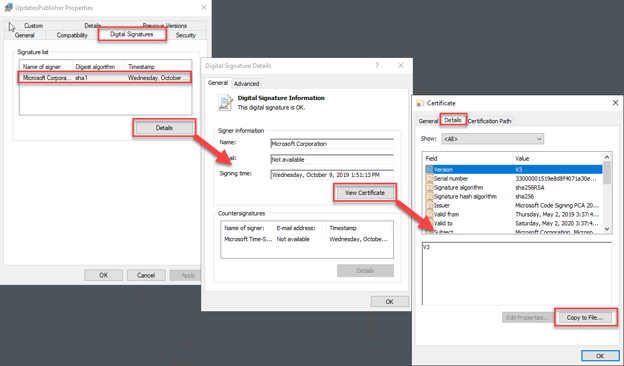
Right-click on the signed file and choose Properties.
Choose the Digital Signatures tab. If this tab does not appear, then the file is not signed.
Choose the appropriate signature from the Signatures list and then press the Details button. Most files will only have a single signature.
In the Digital Signature Details dialog, choose View Certificate.
In the Certificate dialog, choose the Details tab and press Copy to File.
Complete the Certificate Export Wizard to create a CER file containing the certificate. Choose Base-64 encoded x.509 (.CER) for the Export File Format.
Press OK on the three open dialogs.
Code-signing certificate dialog boxes
Thumbprint of the certificate
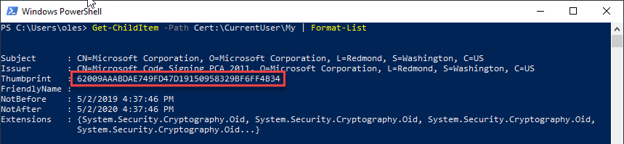
A certificate’s thumbprint is a dynamically computed identifier that uniquely distinguishes it from other certificates. You can retrieve the thumbprint of a certificate in various ways, including the following:
From the properties of the certificate. You can do this for either a certificate stored in a file (like the .CER file extracted above) or a certificate stored in the Windows certificate store:
Open the certificate by double-clicking the file or the certificate’s entry in the MMC Certificates snap-in. You can also right-click on the certificate and choose Open from the context menu.
On the Details tab, scroll down to and select the Thumbprint item in the list box.
Copy the thumbprint from the details pane in the dialog.
Press OK to close the open Certificate dialog.
Using PowerShell:
For a certificate stored in a file (like the .CER file extracted above):
PowerShell terminal displaying the thumbprint of certs stored in a Personal certificate store
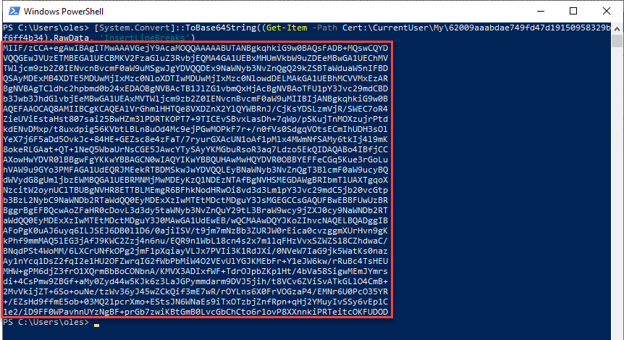
Base-64 encoded version of the certificate
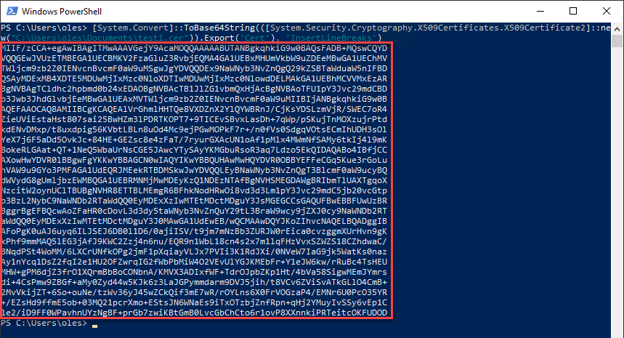
The base-64 encoded version of a certificate is a string-based representation of the certificate. This version contains the complete certificate but in a more portable format that is not bound to a file. Similar to the thumbprint, you can obtain the base-64 encoded version of a certain in several ways, including the following:
From a base-64 encoded .CER file (like the .CER file extracted above):
Open the created .CER file with Notepad.
Copy the lines between —–BEGIN CERTIFICATE—– and —–END CERTIFICATE—–.
Close Notepad.
Using PowerShell:
For a certificate stored in your Personal certificate store:
PowerShell terminal displaying the thumbprint of Base-64 certs stored in a .CER file
The Step-By-Step Guide
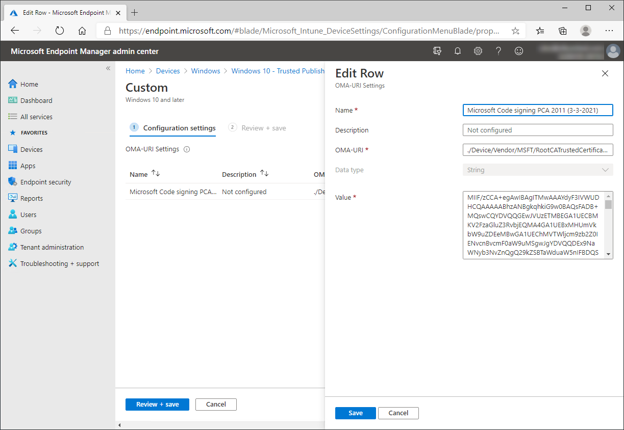
To add a certificate to the Trusted Publishers store using Intune, use a custom profile and an OMA-URI to apply a setting from the RootCATrustedCertificates CSP.
Value: The base-64 encoded version of the certificate.
Intune – OMA-URI policy settings
Add scope tags and assignments as necessary.
Additional Notes
Windows systems should already trust certificates issued by a public CA. When using a certificate from an alternate source for any purpose, including those listed in this article, you need to add the root certificates for the PKI that issued the certificate to your managed Windows devices. See Create trusted certificate profiles in Microsoft Intune for steps to do this using Intune.
Through the magic of Authenticode, a signature is still valid even if the code-signing certificate used to sign a file is past its expiration date. As long as the certificate was valid when it was used to sign a file, then the expiration of the certificate itself does not impact the validity of the signature.
Driver and Windows update installation also require signing using a trusted code-signing certificate, however, either Microsoft or the hardware vendor that creates and supplies the associated files signs them. Administrators do not have to add any certificates to the Trusted Publishers store and no additional action is necessary to install either of these.
If you’re not signing your PowerShell scripts and configuring an execution policy to require signing of PowerShell scripts, you should strongly reconsider your practices as this is a very important safety measure (more on this in a follow-up post).
You can also use certutil.exe for all of the operations above. Official documentation on certutil.exe is sparse, though, so this is left as an exercise for the reader if desired.
Let us know if you have any additional questions on this by replying back to this post or tagging @JasonSandys or @IntuneSuppTeam out on Twitter.
This article is contributed. See the original author and article here.
The Data Hub in Azure Synapse is a central place where you can view and interact with your data sources and, most importantly, query across all of your data sources. Combine this with the Azure Open Datasets found in the Knowledge Center; you can augment your organizational data in a matter of seconds. Azure Open Datasets includes sample data important to business trends; here, you will find data relative to COVID-19, transportation, weather, economic indicators, and more.
Anatomy of the Data Hub
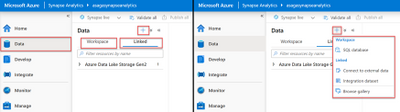
The Data Hub is available from the Synapse Studio left menu and is represented by the database cylinder icon. There are two tabs in the Data Hub blade, Workspace and Linked. The Workspace tab is where you will find your workspace databases for both SQL and Spark. The Linked tab is where you find linked external datasets and integration datasets used in data flows and pipelines. There are over 95 connectors to various data-centric storage technologies. It is also in this linked area where you will find sample data obtained from Azure Open Datasets.
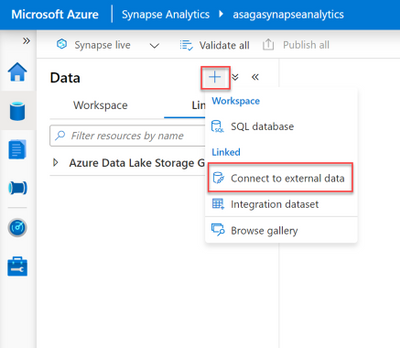
In the header of the Data Hub blade, you will find the + menu. This menu provides the ability to add a new SQL database, connect to external data, create integration datasets, or browse the Knowledge Center gallery.
Image of the Data Hub tabs and + menu
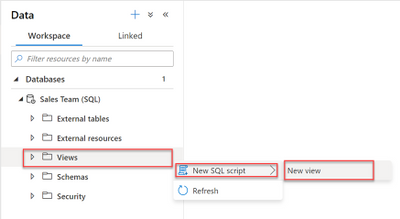
The Data Hub blade provides quick access to your workspace and linked data stores through convenient Action (context) menus. For example, if you select the Views folder of a SQL pool, the context menu provides an option to create a New SQL Script with the option to scaffold a Create View query.
The Actions menu for a SQL pool Views folder is displayed
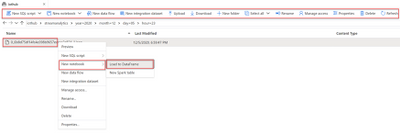
For linked storage accounts, the context menu gives you the choice of interacting with data via scaffolded SQL scripts or Apache Spark notebooks. In addition to this, when browsing a storage container, a handy data explorer tab will open. The data explorer’s taskbar provides even more actions directly at your fingertips, including the ability to upload and download files, manage ACL access, create an integration dataset, and more!
A data explorer tab is displayed
Creating a serverless SQL pool
Let’s create a serverless SQL Pool from within the Data Hub and observe how it gets added to the Workspace tab. Expand the + menu on theData Hub blade and select SQL database beneath the Workspace heading. To the right, a Create SQL database blade appears where you have the choice to create either a serverless or dedicated SQL pool type. In this case, we desire a serverless SQL pool type. We also need to name a database associated to that serverless pool. Select the Create button to deploy the serverless SQL Pool. After a few minutes, refresh the Workspace tab in the Data Hub blade to view the newly created database.
The Create SQL database form is displayed alongside the refreshed Data Hub blade showing the newly created serverless SQL database
Leveraging HTAP capabilities with Azure Synapse Link for Azure Cosmos DB
If you have an analytical store hosted in Azure Cosmos DB, you can connect to it directly from Azure Synapse Analytics through Azure Synapse Link. This connection enables data to flow from Azure Cosmos DB to Azure Synapse without the use of any ETL (Extract-Transform-Load) mechanisms. Azure Synapse Link provides a cloud-native hybrid transactional and analytical processing (HTAP) capability. This HTAP capability offers the benefit of delivering near-real-time data into analytical queries, Power BI dashboards, machine learning pipelines, and more without impacting the transactional workloads in Azure Cosmos DB.
To enable Azure Synapse Link, open your Cosmos DB resource in the Azure Portal. From the left menu, select the Features item from beneath the Settings heading. From the Features listing, select Azure Synapse Link. At this time, the Azure Synapse Link blade will appear on the right side of the screen. Select the Enable button to enable this feature.
The Azure Cosmos DB Features screen is shown along side the Azure Synapse Link form
In Synapse Studio, return to the Data Hub, expand the + menu, and select the Connect to external data item located in the Linked section of the menu.
The Data Hub + menu is expanded with Connect to external data selected
The Connect to external data blade will appear on the screen’s right. Select one of Azure Cosmos DB API options. In this case, we’ll be using the SQL API. Next, the New linked service form will display. Name the linked service and connect to your Azure Cosmos DB resource and analytical store container using your desired authentication method. Once complete, refresh the Data Hub screen to see your HTAP enabled container located in the Linked tab under the Azure Cosmos DB section. Query this data quickly by selecting a collection and expanding the Actions menu and selecting New SQL script, then Select TOP 100 rows.
The Azure Cosmos DB HTAP collection
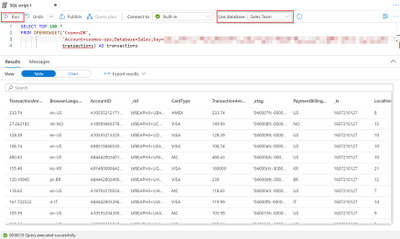
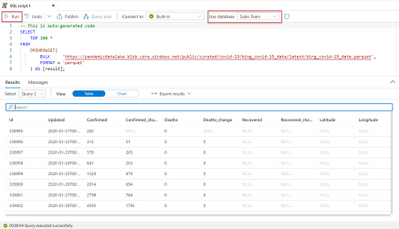
In the generated SQL script, you will need to supply either a key or credential before executing the query. From the top taskbar, we can select the Sales Team serverless SQL database that we created earlier. Select the Run button to execute the query and see the sales transaction data.
A SQL script tab is shown with a query against Azure Cosmos DB and its tabular results. The Sales Team database selected
Augmenting existing data with Azure Open Datasets
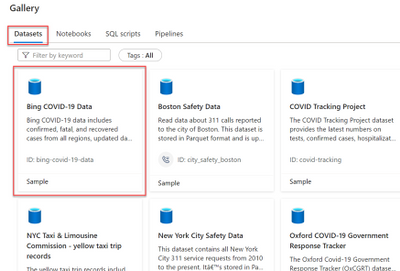
Now that we have the Azure Cosmos DB linked to Azure Synapse, we can augment the sales data with COVID-19 data obtained from Azure Open Datasets. We will use the Knowledge Center to add this dataset to Azure Synapse. In the Data Hub, expand the + menu and select Browse gallery. With the Datasets tab selected in the gallery, choose the Bing COVID-19 Data card, then select the Continue button.
The Knowledge Center Gallery is shown with the Bing COVID-19 Data card selected
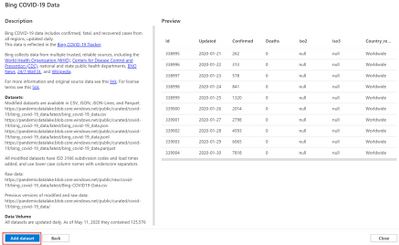
An informational screen then displays along with a preview of the data you should expect in the dataset. Select the Add dataset button to include this data in Azure Synapse.
An informational screen is displayed describing the COVID-19 dataset and providing a preview
The COVID-19 data is now available in the Data Hub under the Linked tab beneath the Azure Blob Storage heading. Expand the Actions menu next to the bing-covid-19-data folder, and choose New SQL script, then Select TOP 100 rows.
In the Linked tab of the Data Hub, the Azure Blob Storage item is expanded and the actions menu is expanded for the bing-covid-19-data folder. From the actions menu, new SQL Script and Select TOP 100 rows is selected
In the SQL script tab toolbar, choose the Sales Team serverless SQL pool and execute the query with the Run button.
The COVID data query is shown with tabular results
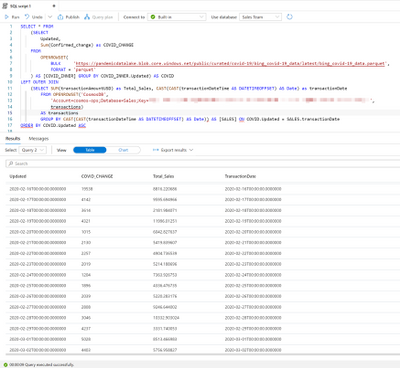
Let’s now combine the COVID-19 data with the data from the Azure Cosmos DB analytical store.
A query combining both the COVID-19 data and the Azure Cosmos DB sales data is shown with its results in tabular format
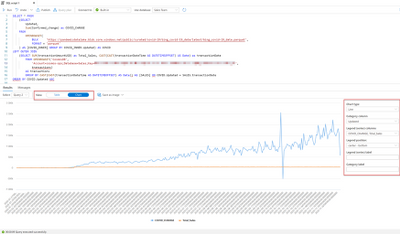
At the top of the results view of the query, toggle the View to Chart. Here you can adjust the chart settings and visualize the data in an instant.
The combined query is shown again but this time with the View set to chart. A chart representing the data is shown
Clean up
You can remove the items created in this post through the Data Hub. On the Workspace tab of the Data Hub blade, expand the Databases section. Expand the actions menu next to the Sales Team (SQL) serverless SQL database and select Delete.
On the Workspace tab of the Data Hub blade, the Databases section is expanded, and the Sales Team SQL pool is shown with the Delete item highlighted
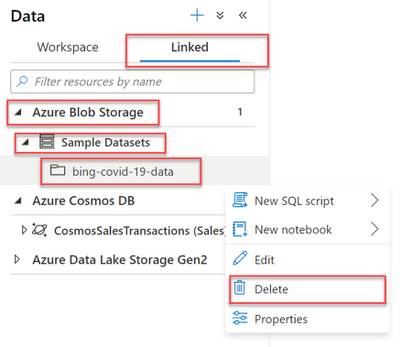
Next, select the Linked tab on the Data Hub blade. Expand the Azure Blob Storage section along with the Sample Datasets item. Open the actions menu next to the bing-covid-19-data folder and select Delete.
On the Linked tab of the Data Hub blade the Azure Blob Storage section and Sample Datasets items are expanded. Next to the bing-covid-19-data folder the actions menu is shown with the Delete item highlighted
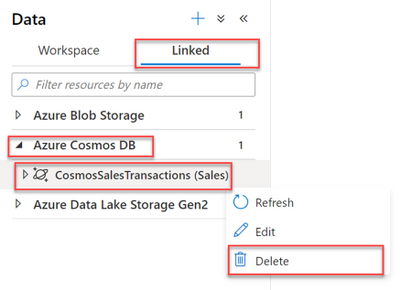
The last item to remove is the connection to Azure Cosmos DB. Remain on the Linked tab in the Data Hub and expand the Azure Cosmos DB section. Open the actions menu next to the Azure Cosmos DB service and select Delete.
On the Linked tab of the Data Hub blade, the Cosmos DB section is expanded. Next to the Cosmos DB service, the actions menu is shown with the Delete menu item highlighted
Conclusion
In this blog post, we learned about the Data Hub in Azure Synapse Analytics. We connected to Azure Cosmos DB through Azure Synapse Link and quickly added COVID-19 data from the Knowledge Center Gallery. We then combined the sales data from Azure Cosmos DB with the COVID-19 data and visualized the results in both tabular and chart format.
Quick get started with Azure Synapse and try this tutorial with these resources:
This article is contributed. See the original author and article here.
Many organizations have complex security and deployment requirements. In the second of this two-part series with Arvind Shyamsundar, we show you how to leverage Azure Pipelines features like multi-stage pipelines and AZ CLI support, to securely deploy an Azure SQL Server and Database into a private VNET in Azure.
To learn how to get started with DevOps for Azure SQL, watch part one.
This article is contributed. See the original author and article here.
Original release date: December 10, 2020
This Joint Cybersecurity Advisory was coauthored by the Federal Bureau of Investigation (FBI), the Cybersecurity and Infrastructure Security Agency (CISA), and the Multi-State Information Sharing and Analysis Center (MS-ISAC).
The FBI, CISA, and MS-ISAC assess malicious cyber actors are targeting kindergarten through twelfth grade (K-12) educational institutions, leading to ransomware attacks, the theft of data, and the disruption of distance learning services. Cyber actors likely view schools as targets of opportunity, and these types of attacks are expected to continue through the 2020/2021 academic year. These issues will be particularly challenging for K-12 schools that face resource limitations; therefore, educational leadership, information technology personnel, and security personnel will need to balance this risk when determining their cybersecurity investments.
This article is contributed. See the original author and article here.
Now is the time to bring some holiday fun to your Microsoft Teams meetings. There are many new features in teams that are perfect for your holiday gathering. Plus we’ve launched a Microsoft Teams background page that will give you some fun holiday backgrounds to use to dress up your next virtual meeting.
It’s time to bring people together to do something other than work. Below you’ll find some ideas for making your virtual holiday gathering fun, but remember a party is about the people not the technology! Whatever you do just make sure you remember that and enjoy this holiday season!
Set the stage for a great holiday themed meeting
Festive attire: Part of the fun of a holiday party is dressing up. This doesn’t have to be forgone just because the party is virtual. In your invite, suggest a dress code. Maybe your office vibe is to go all out with a more formal look, or if going more casual, ask the team to wear their favorite ugly holiday sweater.
Dress up your background: You can bring a festive atmosphere to any meeting by using our holiday themed backgrounds every day. We’ve also created a set of new holiday-themed custom backgrounds for standard meetings and video calls. Visit our Microsoft Teams custom background page (http://aka.ms/TeamsCustomBackgrounds) and pick one, or a few, that are good for you. While you’re setting up your video and audio before joining a meeting, select Background effects, click Add new, and then select a background to upload from your computer. More detailed guidance can be found here.
Submit your background for our library
Our community is diverse and we’d like to show that by expanding our library of holiday themed backgrounds! Don’t see the background you want? Have one that you think is fantastic? Submit your background here to be included in our library of backgrounds from around the world.
Plan some fun holiday activities in Teams with some unique activities and new features
Food and drinks: Ahead of your party, send your team the recipe—and the ingredients if you’re feeling extra festive—for a food, cocktail, or mocktail you can enjoy together during the party. You can also turn this into an activity by making a special drink or meal together over Microsoft Teams, led by one of your talented chef or mixologist teammates.
Photobooth: To recreate the classic holiday party photobooth in Microsoft Teams, ask the team to go on a scavenger hunt at their home or office for a few fun items to use as props—a hat, sunglasses, feather boa, their daughter’s princess tiara—the crazier the better. Ask the team to pose, then take a few screenshots to share in your Microsoft Teams team to commemorate the moment. For a cohesive look, you can ask team members to choose the same custom background, or better yet, use our new winter wonderland Together mode scene in Microsoft Teams.
Use our new together mode scenes Whether you are playing some fun holiday games together like the scavenger hunt or just spending time together our new together mode scenes can bring some holiday cheer to your party. Our new winter wonderland Together mode scenes add a dash of holiday spirit that’s perfect for hosting a virtual holiday party with your team.
You’d be surprised how it lightens a mood to show up with some festive holiday cheer in your meeting!
In addition to these we are announcing additional Together mode scenes, rolling out now, that you can use any time of the year that transport your team to a variety of settings including a coffee shop, conference room, classroom, and more. Read more about this and other features in our Microsoft 365 blog post.
To get started, once you are in your Microsoft Teams meeting, select Together mode from the drop-down menu, then click the small pencil in the left-hand corner of the screen to choose a scene (Together mode requires at least five people in your meeting).
Breakout rooms
We are excited to share that breakout rooms are generally available in Microsoft Teams today. Breakout rooms make it easy to divide your meetings into sub-groups to facilitate smaller discussions, brainstorming sessions, learning groups, and even holiday mixers.
Organizers can jump in between meetings on their own, deliver announcements to all breakout rooms at once, and bring everyone back to the main meeting at any time. And unique to Microsoft Teams, breakout rooms can be initiated both in Microsoft Teams channels and in Microsoft Teams meetings to give you flexibility on how you want to meet. Breakout rooms are especially great this time of year for mixing and mingling and playing games during a virtual holiday party. Learn how to get started with breakout rooms here.
Games: There are a variety of great online party games that are easy to play with your team using screensharing in Microsoft Teams. Kahoot offers engaging quizzes and challenges. Jackbox Games are the makers of several party games that are great to play together virtually. From speech games like Talking Points to drawing games like Drawful—there are a wide variety of games to suit every taste. Learn more about using Kahoot and Jackbox Games in Microsoft Teams.
Have a PowerPoint Party: Holiday parties are often a chance to mix and mingle with people outside of your immediate team. To do so virtually, use new Breakout rooms in Microsoft Teams to split up into smaller groups and get to know each other. To help break the ice, we recommend jumping on a popular trend, the PowerPoint Party. Have the team break out into groups of three or four and ask them to create the funniest, most insightful, or interesting presentation they can think of in just 15 minutes. Then present to the team in just three minutes and the best presentation gets a prize. Learn more about hosting a virtual PowerPoint party.
White elephant gift exchange: Take your white elephant gift exchange virtual using White Elephant Online. It’s a simple way to reimagine the age-old tradition in a Microsoft Teams meeting. It brings the fun of buying a wild and wacky gift and stealing gifts from your teammates, all from the comfort of your home.
Happy holidays from the Microsoft Teams team. We hope these new experiences and tips bring joy to your workplace and make meetings and office parties more festive this holiday season. And we’d love to hear how you’re celebrating the holidays on Microsoft Teams. Share your holiday spirit and ideas using #HolidaysWithTeams and submit your background today!
This article is contributed. See the original author and article here.
Written by Cosmos Darwin, Senior PM Lead on the Azure Edge & Platform team at Microsoft. Follow him on Twitter @cosmosdarwin.
Today we’re announcing the general availability of Azure Stack HCI, the new subscription service for hyperconverged infrastructure from Microsoft Azure. As the pace of digital transformation accelerates, IT organizations are grappling with how to manage infrastructure that spans the cloud and on-premises. Consistent hybrid tools and experiences have never been more important. Azure Stack HCI brings together the familiarity and flexibility of on-premises virtualization with powerful new hybrid capabilities. With Azure Stack HCI, you can run virtual machines, containers, and select Azure services on-premises with management, billing, and support through the Azure cloud.
Ready for production
General availability means that Azure Stack HCI is ready for production use. Based on your feedback during the Public Preview and our own internal measurement, version 20H2 is the most robust release of our software-defined infrastructure stack that has ever shipped. The Azure Stack HCI operating system is available worldwide, in 18 languages. The Azure Stack HCI cloud service is available in three Azure regions, East US, West Europe, and Southeast Asia, with more regions planned every few weeks going forward. Resources are no longer labeled ‘Preview’ in the Azure Portal, and there are new and updated management extensions for Windows Admin Center available in the extension feed.
Starting today, production-level technical support for Azure Stack HCI is available from Azure Support. Whether you’re experiencing an issue or just have a question, our dedicated team of engineers are standing by and ready to help. They’ve been training and drilling for months to provide the best support experience possible, in close collaboration with our solution partners.
Partner solutions and Integrated Systems
The most important news today is that partner solutions are ready for purchase, including a new kind of solution called an ‘Integrated System’.
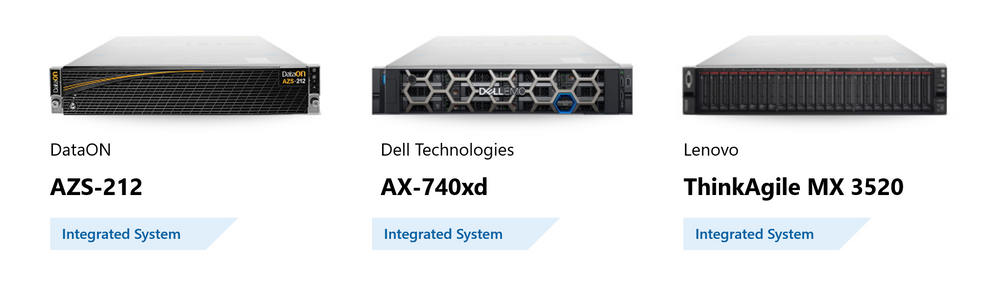
Integrated Systems are the fastest and easiest way to get up and running with Azure Stack HCI. Every Integrated System is jointly engineered and supported by Microsoft and the solution partner to deliver a seamless appliance-like experience. You can order an Integrated System directly from the solution partner as a multi-node configuration with the Azure Stack HCI software preinstalled. Every Integrated System offers Windows Admin Center management extensions, including (at least) new snap-in extensions for full stack updates during deployment and during cluster-aware updating. With an Integrated System, software, firmware, and drivers are constantly tested and re-tested together to ensure compatibility and optimum performance.
Integrated Systems are available today from DataON, Dell Technologies, and Lenovo:
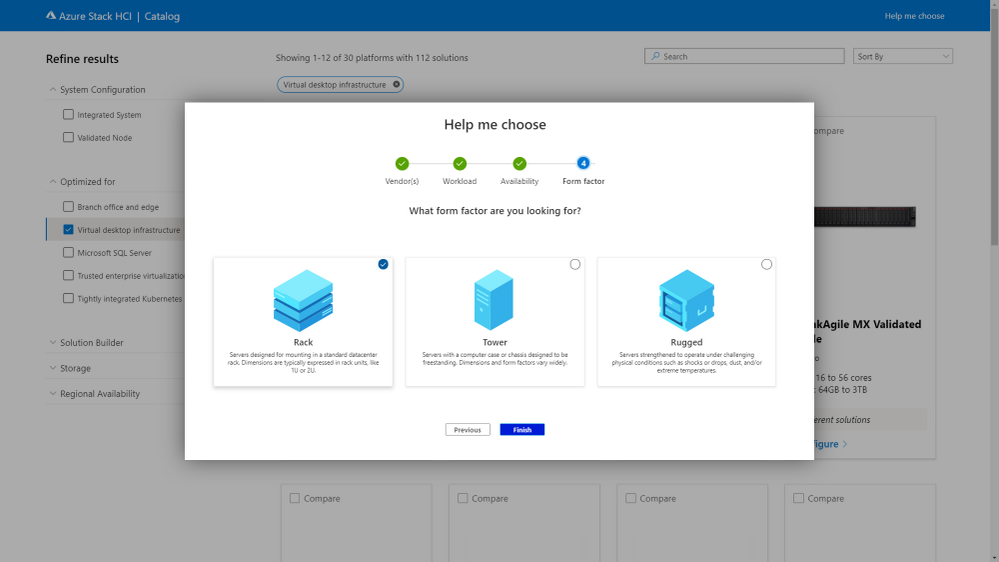
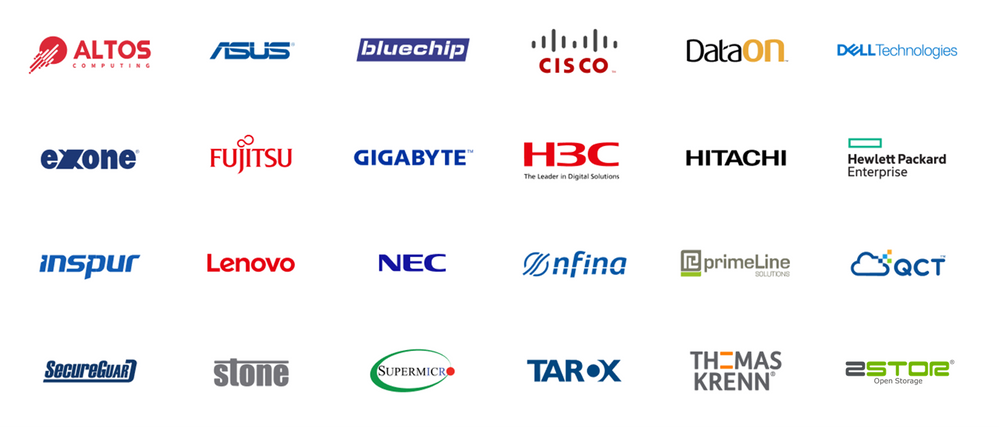
In addition to Integrated Systems, there are more than 200 pre-validated nodes for Azure Stack HCI from 24 solution partners worldwide. This broad selection lets you choose the right hardware for your needs, from the partner who offers the best service and support in your region. Solutions are available from 2 to 16 nodes in a variety of form factors, ranging from very small – with just 4 cores and 64 GiB of memory – up to very large, with 256 cores, 8 TiB of memory, and over 1,000 TB of storage.
Today we’re also announcing a new validation program to officially recognize third-party software utilities such as backup and monitoring agents that are permitted to run directly on the Azure Stack HCI host operating system. The first five participating vendors are Altaro, Commvault, Datadog, Veeam, and Veritas.
Roadmap sneak peek General availability is just the beginning. Because Azure Stack HCI is a subscription service, it will continuously get better as regular feature updates unlock new capabilities for all subscribers. This is a significant and exciting departure from traditional on-premises software. In the coming months, you can look forward to new regions, new partners, new solutions, and most of all, new features!
Here’s a first look at some features coming in 2021:
Restart in seconds with kernel soft reboot
To minimize the disruptiveness of software updates in Azure datacenters, our engineers developed a unique technology called ‘kernel soft reboot’ that makes it possible to reboot the host operating system while bypassing the lengthy pre-boot sequence, like firmware initialization and hardware power-on self-test. Reboot duration is reduced by up to 10 times compared to a classic reboot. Check out this astonishing demo using an AX-740xd Integrated System:
Kernel soft reboot is coming to the Azure Stack HCI operating system in 2021.
Manage from the cloud with Azure Arc
In early 2021, every Azure Stack HCI host node will become Arc-enabled by default to facilitate management from the Azure Portal. With Azure Arc, cloud capabilities such as Azure Monitor, Azure Policy, and select Extensions are just a click away. For example, you can use Azure Policy to configure monitoring across all your Azure Stack HCI nodes, even if you have thousands of clusters in different locations around the world.
Because Azure Stack HCI is an extension of Azure, management built-ins that are included free on Azure are also included on Azure Stack HCI. For example, you’ll get unlimited use of services like Azure Policy and Configuration Management at no additional charge (as opposed to their regular off-Azure pricing).
Here’s an early look at the Azure Arc integration coming to Azure Stack HCI in 2021:
Intent-driven host networking
Based on your feedback and inspired by how we operate our own Azure datacenters, the new feature ‘Network ATC’ provides intent-based control to simplify and automate host networking configuration for Azure Stack HCI. With just one command, you can configure every physical adapter, the virtual switch, VLANs, RDMA, and more, across every node in an Azure Stack HCI cluster. Beyond initial configuration, Network ATC ensures consistency by detecting and correcting configuration drift, so you can be confident that your networking matches the validated and supported best practices from Microsoft. Take a look:
Network ATC is coming to Azure Stack HCI in 2021.
GPU management
In Azure, we use partitioning technology built on SR-IOV to securely deliver GPU acceleration to virtual desktops and other virtual machines. Over the next several feature updates, these innovative GPU technologies are coming to Azure Stack HCI, complete with friendly administrator management in Windows Admin Center:
Note for Preview customers
If you’re already running the Public Preview of Azure Stack HCI, just apply the latest over-the-air updates to reach OS build number 17784.1408 (KB4592441) or later. You don’t need to reinstall to transition to the GA build, although you do need to re-register. Active subscriptions will receive an email notification in January 2021 that regular-price billing will start soon. For more information, visit Azure.com/Pricing.
Thank you!
General availability is an important step toward realizing our vision with Azure Stack HCI: to bring together the familiarity and flexibility of on-premises virtualization with powerful new hybrid capabilities, as a subscription service that continuously gets better over time. On behalf of the team in Redmond, I’m grateful for all your feedback during Public Preview, and we hope you’ll keep it coming in the new year.
We can’t wait to see the incredible things you’ll do with Azure Stack HCI.














Recent Comments