by Contributed | Dec 11, 2020 | Technology
This article is contributed. See the original author and article here.
Some of the users have a need to use service account for the connection – some other account than the logged in user. However because of SSO, this does not work – even after providing username in the credential pop up, it defaults back to the logged in user. The workarounds are documented here – Integrate with Office 365 Outlook – Azure Logic Apps | Microsoft Docs
Also as a workaround, it is possible to use HTTP action with AAD authentication to call the Graph API directly.
One of the members from dev team has found a hack to get it working. For a good number of users, it has worked. If you are are reluctant to provide contributor access to the service account, it may be worth trying.
Symptom:
A user logs into Azure portal as user1@xxx.com and he wants to create a logic app to send emails from logic app. He does not want the email to be sent from user1@xxx.com and instead he wants the email to be sent from user2@xxx.com. Logically he add the Outlook365 action to the logic app and then try to create the connection as user2@xxx.com. The problem is that even though he specifies user2@xxx.com on connection creation, the connection is still created with user1@xxx.com. This is because AAD has the SSO feature, where AAD notices he has already logged in as user1@xxx.com and it just uses that as the credential.
Solution:
This feature/ issue lies on the AAD SSO side – can check SSO article for more details What is Azure single sign-on (SSO)? | Microsoft Docs.
From the Logic Apps side dev member Dan has found a workaround below. It is a hacky workaround but works most of the times:
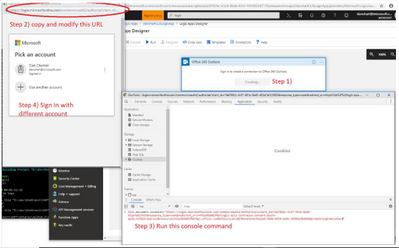
- Open IE Browser setting to disable Integrated Windows Authentication under Internet Options/Advanced tab. Close the browser and open it again to verify the setting is good.
Picture for reference:

by Contributed | Dec 11, 2020 | Technology
This article is contributed. See the original author and article here.
When you’re starting a new dev project or tackling coding problems, it helps to build on the knowledge of others. In 2020 especially, a helping hand was more than welcome!
 So in our second week of #DevDecember, we are taking some time to celebrate the efforts of the dev community.
We’d love to hear how the dev community came through for you in 2020. Did you get assistance learning a new language? Did someone else inspire your project? Share your version of this week’s fill-in-the-blank and tag your thoughts as #DevDecember.
Now, let’s review this week’s highlights:
Live coding community
Learn from the best on Twitch! Watch devs code live, and connect and ask questions in real time. Find out how joining Microsoft’s virtual community can speed up learning new skills and languages.
Watch an intro video on Twitch and live coding (25 min)
The ReadMe Project
Behind the open–source code used by millions of people are the unseen efforts of countless contributors, who put in long hours to build software, fix issues, and more. Meet some of the people making contributions, including veterans who find the teamwork required for open source collaboration a natural fit.
Read their inspiring stories
Remote collaboration with Live Share in Visual Studio Code
With Live Share, you can instantly share your project with fellow developers. No need to clone a repo or set up the environment. It’s a one-stop, real-time collaboration tool for pairing, code reviews, technical interviews, boot camps, and more.
Watch a short video on how to set up Live Share (5 min)
From the open source kitchen
Cooking up code is a bit like developing food recipes. The more people who test your recipe, the more it’s likely to guarantee that what lands on your plate is what you intended.
Browse our crowdsourced cookbook with free code recipes
Before we call it a wrap, don’t forget to check in with #DevWithABev, developer-with-a-beverage selfies. Add to the collection with a pic of yourself and a favorite holiday beverage, and tag it #DevWithABev.
Next week, we’ll talk about what inspired us in 2020. Keep following #DevDecember, and check out our homepage for more info!
by Contributed | Dec 10, 2020 | Technology
This article is contributed. See the original author and article here.
Version 1.456.0 of the Cluster Creation extension
Deploying infrastructure is always a challenge. There are many variables to track and environmental factors to consider. Windows Admin Center provides an easy-to-use workflow to ensure your Azure Stack HCI deployments progress smoothly and intuitively. All you need to do to get started is to install the Azure Stack HCI Cluster Creation extension. This multi-stage workflow guides you through installing features, configuring networking, creating the cluster, setting by S2D and much more. The cluster creation extension is now available on the Windows Admin Center public nuget feed for you to deploy hyperconverged infrastructure (HCI) clusters on servers running Azure Stack HCI 20H2. Customers running our latest GA version of Windows Admin Center (v2009) will need to update their Cluster Creation extension from the extension feed.
How do I get this update?
Updating to the latest version of the Cluster Creation extension is easy!
- Select the gear icon on the top right corner of Windows Admin Center
- Under Gateway, navigate to Extensions
- Under Available extensions, find the extension titled Cluster Creation and select Install
- Navigate back to the Windows Admin Center landing page by selecting Windows Admin Center in the top left corner
- Select Add and then Create new under Server clusters
What’s New?
RDMA support
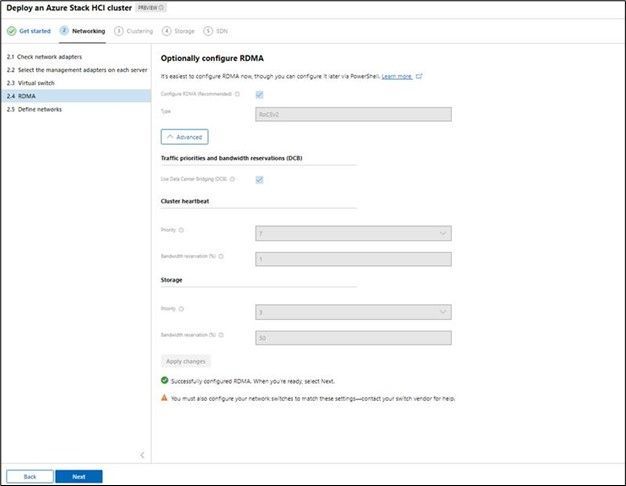
RDMA provisioning is now a part of the deployment flow. Azure Stack HCI customers can fully leverage RDMA capable network adapters using the latest cluster-creation extension in Windows Admin Center. The workflow automatically discovers the supported protocol (iWARP or RoCE V2) and guides with recommended settings for bandwidth and traffic priority.
Stretch Cluster
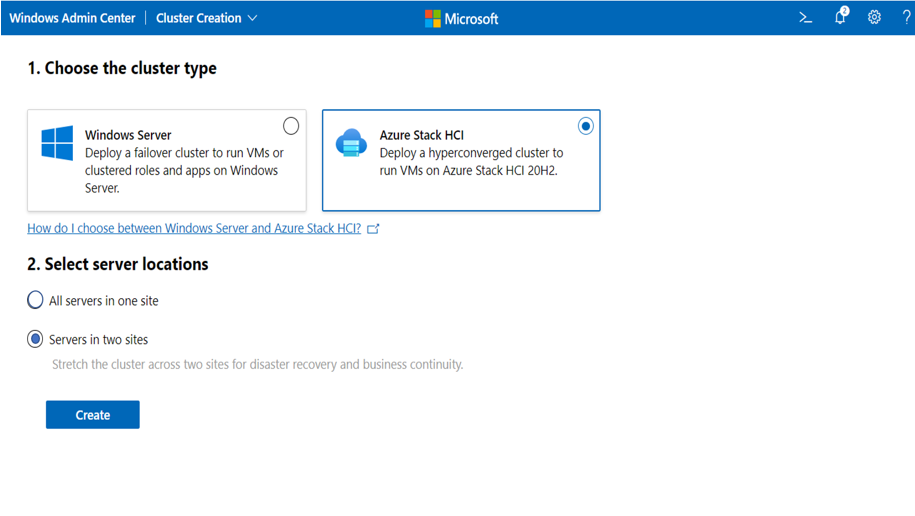
Azure Stack HCI stretch clusters provide a solution for disaster recovery with automatic failover. This release of cluster-creation enables to choose to deploy single-site or multi-site/stretch cluster. The wizard flow provides network configuration options and runs required network connectivity tests to validate user inputs before performing the new cluster creation. The wizard also has in-built ingenuity to auto-assign sites based on AD site provisioning.
Integrated solutions updates
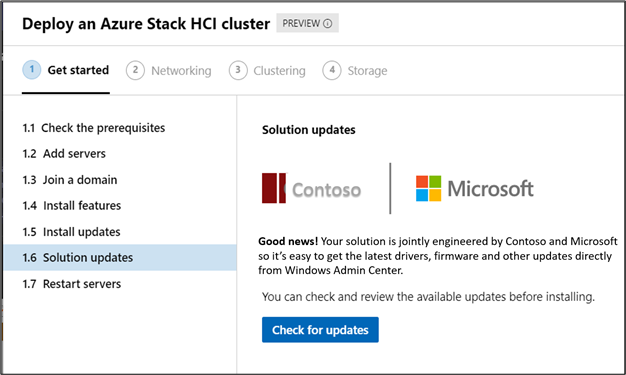
Azure Stack HCI is supported on a broad range of vendor systems and is available through Microsoft’s rich selection of partners and system integrators (SIs). Windows Admin Center provides further integrated solutions through OEM extensions within the cluster deployment flow. This allows Azure Stack HCI customers to not only be up to date with OS updates but also the curated firmware/drivers updates from respective OEMs based on make and model of Azure Stack HCI nodes. This will simplify the deployment of full-stack updates across your Azure Stack HCI cluster infrastructure.
Download today!
As always, thanks for your ongoing support, adoption, and feedback. Your contributions through user feedback continue to be very important and valuable to us, helping us prioritize and sequence our investments.
<3
Windows Admin Center team (@servermgmt)
by Contributed | Dec 10, 2020 | Technology
This article is contributed. See the original author and article here.
A glossary consists of business terms which allows data consumers from different lines of businesses to have a shared understanding of the data they interact with. With Azure Purview, data stewards can curate data assets discovered in the Azure Purview Data Map. They can then standardize the definitions of commonly used terms using business glossary in Azure Purview Data Catalog. Let’s dive into how we make this happen at scale:
1. Concepts – Terms, Term Templates and Custom attributes.
The heart of the business glossary is business term. A term in the Azure Purview Data Catalog business glossary represents a business entity (or process) in an organization. It is highly likely that there are multiple terms representing the same business entity. For example, “customer” = client or purchaser or buyer depending on the business context. Additionally, some terms can inherently have multiple meanings – for eg: API is both Application Programming Interface and Active Pharmaceutical Ingredient! Azure Purview renders distinct meaning to data by defining relationships between terms using related terms and synonyms. It also provides a set of system attributes to define the business term. Finally, data stewards can create custom attributes and templatize terms thus helping customers to contextualize data for easier interpretation.
Azure Purview Data Catalog business glossary also provides flexibility to create custom attributes, logically group them together and attach the same to a term to enrich it’s definition. For example, all finance- related custom attributes like cost center, profit center, accounting code can be grouped in a term template called Finance Template and the Finance template can be used to create financial glossary terms. Learn more about custom attributes and term templates here.
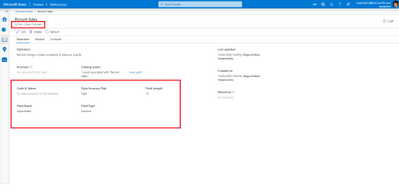
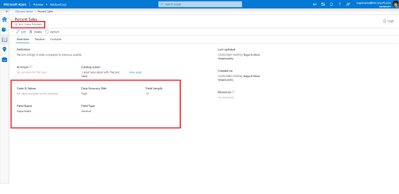
Figure 1: Screenshot showing term template and custom attributes for a term.
2. Role definitions
- Data Curators can create/update/delete glossary terms as well as assign terms to data assets and schemas.
- Data readers can view the glossary terms in Azure Purview.
- Data consumers can refer glossary terms and definitions in the Azure Purview Data Catalog
3. Mapping data to business glossary.
Glossary terms can be associated with data entities such as database tables and files as well as to schemas like table columns to provide a business context to the data object. There can be more than one glossary term assoicated to a data object.
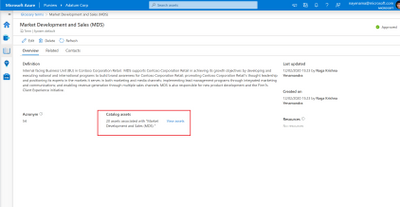
Figure 2 : Screenshot showing number of assets associated with a glossary term.
4.Business Glosssary to facilitate semantic search.
Azure Purview supports the discovery of tables and files using glossary terms. A business analyst can search with terms they understand, such as ‘Sales’ to discover relevant sales data. At the same time, technical data analysts can use terms like ‘Q4 Revenue’ to find the data they need. Further more, glossary terms can be used to narrow down search results to discover data.
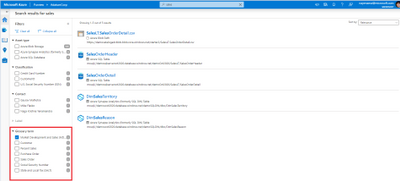
Figure 3 : Screenshot showing search result page filtered by a glossary term..
Note: While classifications define the nature of data in the data asset/schema glossary terms vocabulary for an organization and helps in bridging the gap between various departments in your company.
5.Import glossary terms.
Creating or updating each term is a time-consuming process. Hence Azure Purview provides the ability to bulk create/update glossary terms using a .csv file. All the terms in the csv file should belong to the same term template.
The Azure Purview also provides a sample .csv file per template which can be used as reference to import your terms into your Glossary.
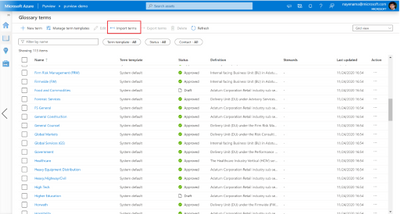
Figure 4: Screenshot showing Import terms icon in Azure Purview business glossary.
6.Export glossary terms.
Like Import, Azure Purview also provides the ability to download glossary terms into a .csv file. All the glossary terms selected for export should belong to same term template.
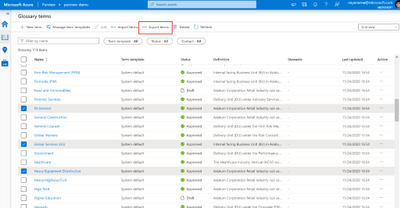
Figure 5: Screenshot showing Export terms icon in Azure Purview business glossary.
Get started today!
We are looking forward to hearing, how Azure Purview helped unlock the potential of your organizations data using business glossary experiences.
- Create an Azure Purview account now and start understanding your data supply chain from raw data to business insights with free scanning for all your SQL Server on-premises and Power BI online
- Use the tutorials to scan and catalog your organization data
- Get an overview of business glossary.
- Go through how-to-guides to create, import and export glossary terms, manage term templates and bulk edit assets to tag glossary terms.
- Use the tutorials document to setup glossary terms in Azure Purview
- Start a conversation on the Azure Purview tech community.
by Contributed | Dec 10, 2020 | Technology
This article is contributed. See the original author and article here.
Problem Statement
Azure services do not have a native feature to report on expiring App registrations. Without a solution in place to monitor and notify on expiration of these SPN’s solutions ranging from Custom Apps, and DevOps CICD Pipelines too orchestration engines like Azure Automation and Logic Apps, can and will cease to function without notice.
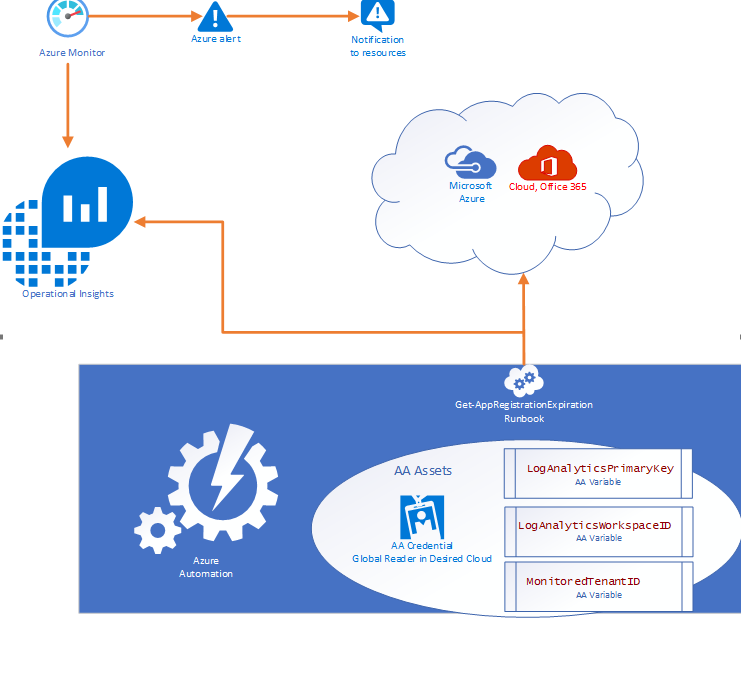
- Purpose of this solution: To provide an automated mechanism of calculating and ingesting the expiration dates into Log Analytics and automatically notify resources when expiration is within threshold.
- Requisites: This solution consists of:
- 1 Runbook consisting of the PowerShell script in this document.
- 2 Automation Variables containing the Log Analytics Workspace ID and the Log Analytics Primary Key.
- 1 SPN in the monitored cloud environment with Global Reader role.
Solution Overview
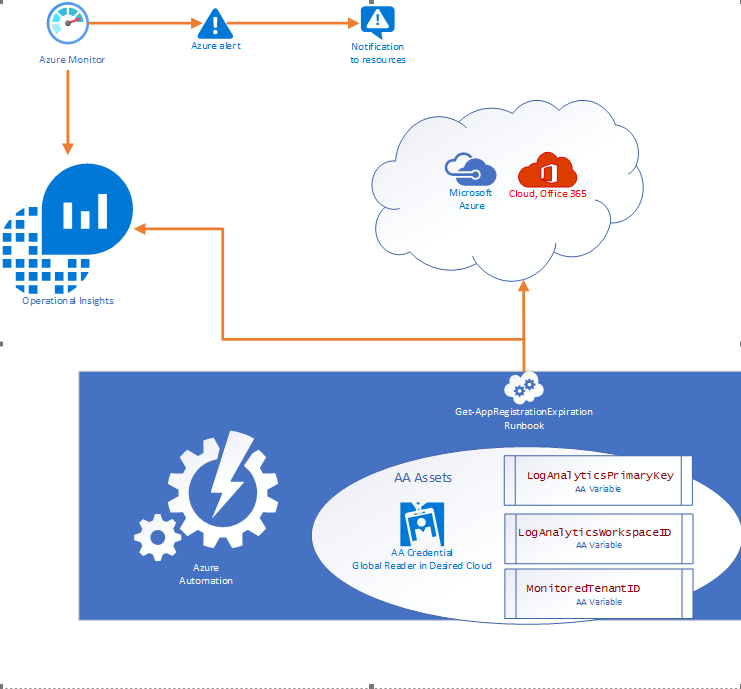
The solution is designed to be cross tenant and requires an App RegistrationSPN in the desired environment with Global Reader rights. Utilizing Azure Automation (AA) and AA resources like Variables and Credentials our runbook pulls an array of SPN’s from the environment and calculates the time until expiration before using our custom function to send the data to a Log Analytics Workspace. Finally, Azure Monitor alerts can be triggered based on a Kusto query to notify resources that there are SPN’s within the threshold for expiration.
Where can I get this solution
The solution is documented in detail on my GitHub repo and available for consumption immediately.
https://github.com/Cj-Scott/Get-AppRegistrationExpiration
by Contributed | Dec 10, 2020 | Technology
This article is contributed. See the original author and article here.
Final Update: Thursday, 10 December 2020 22:29 UTC
We’ve confirmed that all systems are back to normal with no customer impact as of 12/10, 21:45 UTC. Our logs show the incident started on 12/10, 20:45 UTC and that during the 1 hour that it took to resolve the issue some of customers in East US, EastUS2, South Central US, West Central US, Central Canada, South Africa North experienced data access issues and missed/delayed log search alerts.
- Root Cause: The failure was due to a recent deployment in one of the backend services.
- Incident Timeline: 1 hour – 12/10, 20:45 UTC through 12/10, 21:45 UTC
We understand that customers rely on Azure monitor as a critical service and apologize for any impact this incident caused.
-Anupama
Initial Update: Thursday, 10 December 2020 21:42 UTC
We are aware of issues within Azure monitor services and are actively investigating. Some customers in multiple regions may experience data access issues, delayed or missed Log Search Alerts.
- Work Around: None
- Next Update: Before 12/11 00:00 UTC
We are working hard to resolve this issue and apologize for any inconvenience.
-Anupama
by Contributed | Dec 10, 2020 | Technology
This article is contributed. See the original author and article here.
Initial Update: Thursday, 10 December 2020 21:42 UTC
We are aware of issues within Azure monitor services and are actively investigating. Some customers in multiple regions may experience data access issues, delayed or missed Log Search Alerts.
- Work Around: None
- Next Update: Before 12/11 00:00 UTC
We are working hard to resolve this issue and apologize for any inconvenience.
-Anupama
by Contributed | Dec 10, 2020 | Technology
This article is contributed. See the original author and article here.
To connect to Azure SQL Database we could use multiple tools or coding languages like C#, PHP, Java, etc.. In some situations, we need to test our application, for example, how much time take a single connection, review my retry-logic, review the connection, etc..
In this URL you could find an example about several operations that you could use using PHP.
This application has been designed with a main idea: how to obtain information about the elapsed time in the connectivity process and the query execution to a database of Azure SQL Database using PHP ( ODBC or Microsoft Drivers for PHP for SQL Server). This PHP console script runs in Windows and Linux.
This PHP console script has the main features:
- Connect using different driver measuring the time spent.
- Once you have established the connection runs multiple times the query SELECT 1 measuring the time spent.
- Once you have established the connection runs multiple times any query that you need with a random parameter measuring the time spent.
- Check if the port is open.
- Report all the ports that the client has opened.
- All the operations will be saved on a file called Output.log.
You could find the instrucctions in readme file.
As always, all feedback and contributions are very welcome.
Enjoy!

by Contributed | Dec 10, 2020 | Technology
This article is contributed. See the original author and article here.
Since the first release of Azure Functions, .NET support has been tightly coupled to the Azure Functions runtime. While this tight integration enables features unique to .NET functions—such as rich binding types—it also means new releases of .NET can only be supported by updating the .NET version of the host.
.NET has adopted a support lifecycle policy that involves a yearly upgrade cycle, with even numbered versions designated as Long Term Support (LTS) releases. .NET 5 is the first Current (non-LTS) release under the new policy. The Azure Functions runtime is a critical component that powers on all of our customers’ production apps and our local development tooling. Because we’re sometimes required to support specific releases of the runtime for extended periods, we cannot upgrade it to a non-LTS version of .NET due to its short support timeline.
To enable .NET 5 in Azure Functions, we are moving to an out-of-process model that runs a .NET 5 worker process alongside the runtime. This is the same out-of-process model that all non-.NET Azure Functions languages have used successfully since Azure Functions V2.
The .NET 5 worker provides a similar Azure Functions programming model that you’re used to. At the same time, because it runs in a separate process, it allows you full control of your app’s dependencies without worrying about conflicts with the dependencies used by the runtime. The .NET 5 worker also introduces new features, such as a customizable middleware pipeline.
Starting today, you can access an early preview of the Azure Functions .NET 5 worker at this GitHub repository. You can run and debug .NET 5 function apps locally and deploy them to Azure using the Azure Functions Core Tools CLI. More tooling support, including Visual Studio and Visual Studio Code, will arrive in the coming weeks.
The .NET 5 worker will be generally available in early 2021.
We realize that customers who are early adopters of .NET 5 have been disappointed by the delay of .NET 5 in Azure Functions. Building a new language worker from scratch has taken some time. We understand your frustration and appreciate your patience. The investment to separate the .NET worker from the runtime will allow us to quickly support future .NET versions. We expect to support .NET 6 LTS as soon as it is released.
by Contributed | Dec 10, 2020 | Technology
This article is contributed. See the original author and article here.
Ops has traditionally been an important part of any companies’ IT personnel. They are the ones who’ve made sure the apps are up and running. They know everything logging, security, networking and more. Ops continue to be an important part at many companies. There’s even new versions of Ops like DevOps, DevSecOps and more. More and more companies are moving to the Cloud. This move has meant that you spend less time worrying about backups or scaling and that you can now spend time on more interesting tasks such as how to build out your business.
PowerShell
PowerShell has traditionally been a way to manage your IT operations on Windows, to automate workflows like user management, batching and more. Today, PowerShell is a cross platform language and shell that can do a lot more, like supporting you with CI/CD and also manage cloud resources.
Learning PowerShell
PowerShell comes with a lot of built-in commands, so called cmdlets. It might be a bit intimidating to try to understand all that but you’re not supposed to. It’s perfectly fine to learn PowerShell one little piece at a time by knowing the so called “core cmdlets”. That and many other things is covered in this introductory module on PowerShell. So check it out Learn PowerShell


Recent Comments