This article was originally posted by the FTC. See the original article here.
You’ve probably spent a good part of 2020 doing some online shopping. Now that the holidays are here, you definitely want to be sure you — or your friends and family — actually get what you ordered. On this 11th day of Consumer Protection, take these steps to help Rudolph find his way to your house.
Confirm that the seller is legit. Read reviews and recommendations about the product, seller, and warranties from sources you trust. Look for reviews about their reputation and customer service, and be sure you can contact the seller if you have a dispute.
’Twas the night before? Look carefully at the shipping date before you order. If there’s no date given, the seller has 30 days to ship. If you’re notified about a delay in shipping, you have the right to cancel the order and get a full refund. If you decide to cancel, let the seller know right away so you won’t be billed.
Give them some credit. If possible, pay with a credit card — that gives you many protections under the law. If you pay with a credit card, you may be able to dispute certain charges — and temporarily withhold payment for those charges pending an investigation.
Track— and guard — your delivery. Keep a record of your order, including tracking numbers. That way you can see where your stuff is in the shipping process. Also, consider having your items held at the post office or delivered to a family member or neighbor in case you’re not home. Some companies have their own secure locations where you can have your merchandise delivered. This protects you from having some Grinch steal your holiday right from your doorstep.
Brought to you by Dr. Ware, Microsoft Office 365 Silver Partner, Charleston SC.
This article is contributed. See the original author and article here.
The holiday season is upon us and while things may be quiet on the Azure news front, many creatures are stirring with tales of what was in 2020. News items to be covered this week include Microsoft Learn’s plan to help you stay current with in-demand skills through free certification renewals, A retrospect to announcements shared on AzUpdate over the course of 2020, AzUpdate Team gadget holiday picks, and a very special Microsoft Learn Module of the Week.
Providing certified professionals a new method to renew their Microsoft Certifications
With Microsoft moving away from product-focused certifications, they looked at new ways to continue investing in role-based learning offerings. When the pandemic hit, 1,000 new Azure capabilities were created to address our current situation by allowing us to innovate with key advancements in AI, machine learning, and virtualization. To keep pace with this exponential growth, Microsoft has announced a couple of upcoming updates to the certification program.
Beginning in early February 2021, once you’ve completed and passed your initial exam, you’ll be able to renew your role-based and specialty certifications by passing a free renewal assessment on Microsoft Learn. The renewal assessment is completed online within six months before your certification expires. Once passed, certification is extended by one additional year from the current expiration date and can be completed annually.
As mentioned earlier, over one thousand new Azure services were launched in 2020. Here is a quick recap on a couple of announcements that the AzUpdate team reported on:
Detecting large-scale cryptocurrency mining attack against Kubernetes clusters – April 17th (S01E01) Written by Yossi Weizman, a Security Research Software Engineer with the Azure Security Center team, this blog post describes a recent large-scale cryptocurrency mining attack against Kubernetes clusters that was recently discovered by Azure Security Center. The post shares details on what Azure Security Center discovered during the attack and how others can better protect themselves from similar attacks.
Microsoft announces next evolution of Azure VMware Solution – May 8th (S01E04) The new Azure VMware Solution empowers customers to seamlessly extend or completely migrate their existing on-premises VMware applications to Azure without the cost, effort, or risk of re-architecting applications or retooling operations. Customers can also save money with Windows Server and SQL Server workloads running on Azure VMware by taking advantage of Azure Hybrid Benefits.
AMD Nested Virtualization Support now available – June 12 (S01E08) Nested Virtualization is not a new idea. In fact, we announced our first preview of Nested Virtualization running on Windows way back in 2015. Unfortunately, users of AMD hardware were unable to take advantage of Nested Virtualization on Windows…. until now. Windows Build 19636 saw the public preview of Nested Virtualization on AMD processors
New Windows Virtual Desktop capabilities now generally available – July15 (S01E15) New Windows Virtual Desktop capabilities now GA including Azure portal integration for deployment / management and new audio/video redirection capabilities providing seamless meeting and collaboration experience for Microsoft Teams.
New Microsoft Learn Modules for Azure and Windows Server IT Pros – August 14 (S01E17) Whether you’re just starting or an experienced professional, the hands-on approach helps you arrive at your goals faster, with more confidence and at your own pace. In the last couple of days, we published a couple of new Microsoft Learn modules around Azure, Hybrid Cloud, and Windows Server for IT Pros. These modules help you to learn how you can leverage Microsoft Azure in a hybrid cloud environment to manage Windows Server.
Azure IoT Central new and updated features – September 18 (S01E21) A plethora of new IoT Central capabilities were announced in September and included the redesign of Jobs creation with a new wizard experience, added File upload support, newly added data export capabilities, CLI improvements and others. Biggest Azure IoT Central update of the year making it easier for organizations to deploy and manage their IoT infrastructures.
Microsoft Ignite 2020 saw the announcement of Azure Automanage, an exciting new preview service which aims to simplify the management of Windows Server virtual machines. When you deploy a virtual machine (VM) into any environment, on prem or within the Cloud there are other components and services that you need to consider. Backup, Monitoring, Patch Management, etc. The management and operations of a VM. What Azure Automanage helps you with is enrolling and configuring those supporting components for you.
Using Windows Admin Center on-premises to manage Azure Windows Server VMs – November 27 (S01E30) Sonia Cuff and Orin Thomas share how to spin up a WAC gateway server instance on a local VM, configure Windows Server’s built in Azure Network Adapter as a VPN connection (between your on-premises server and the VNet that hosts your Windows Server VMs in Azure), and then add connections from the WAC gateway server to your Windows Server VMs in Azure.
Azure Synapse now Generally Available – December 4 (S01E31) Solutions like data lakes and data warehouses have helped organizations collect and analyze several types of data. The process however, created niches of expertise and specialized technology. Azure Synapse rearchitects operational and analytics data stores to take full advantage of a new, cloud-native architecture. The solution enables organizations to query data using either serverless or dedicated resources at scale while maintaining consistent tools and languages. Think of it as your organization’s one pane of glass to analyze all its captured data. Azure Synapse combines capabilities spanning the needs of data engineering, machine learning, and BI without creating silos in processes and tools.
Community Events
Patch and Switch – It’s the holidays and Rick Claus and Joey Snow are back one final time in 2020 with surprises in store.
Festive Tech Calendar – Continuing this month’s content from different Azure communities and people around the globe for the month of December
All Around Azure – A Beginners Guide to IoT – Focus on topics ranging from IoT device connectivity, IoT data communication strategies, use of artificial intelligence at the edge, data processing considerations for IoT data, and IoT solutioning based on the Azure IoT reference architecture
Introduction to Cloud Adoption Framework – Sarah Lean investigates Microsoft’s Cloud Adoption Framework offering and what is available for organizations to take advantage of
MS Learn Module of the Week
Kids out on holiday break? Looking for a fun way to keep them entertained and possibly have some fun yourself? Check out this ne Learn module which is fun for the whole family!
Explore data in basketball; inspired by Space Jam: A New Legacy
Basketball and coding both require creativity, curiosity, and the ability to look at the big picture while strategizing your next move. Space Jam: A New Legacy is the perfect inspiration to learn computer and data science, and we’ve teamed up to create unique learning paths for data science and machine learning.
Develop skills in Visual Studio Code, Azure, GitHub, JavaScript, and Python, to gain insights into how individual moments throughout a player’s history can lead to a critical game decision in the finals.
Let us know in the comments below if there are any news items you would like to see covered in the next show. AzUpdate will return for Season 2 on January 8th, 2021 so be sure to catch the next episode and join us in the live chat.
This article is contributed. See the original author and article here.
Some customer asked me about the following topic.
“We use App Service for hosting applications and Azure Front Door as global L7 load balancer. We would like to permit access only from Azure Front Door to Azure App Service as simply as possible. Could you please share good solution with us?”
By default, each App Service has a public IP address and is accessible via FQDN from across theglobe. If you simply deploy App Service behind Azure Front Door, everyone can access App Service directly. Therefore, we have to configure permit only access from Azure Front Door at App Service. If you were me, what do you think is a good solution?
What is Azure Front Door?
If you are not familiar with Azure Front Door, please read the following document.
I would like to walk through how to configure access restriction from other than Azure Front Door to App Service. If you can access Azure environment, I recommend following my instruction. In this article, I use quick start tutorial for Azure Front Door.
We can choose several options to configure Azure Front Door – Azure Portal, CLI, PowerShell, and ARM template. In this article, I use Azure Portal to configure access restriction.
Even if we don’t create two App Service instances, we can test access restriction. You may follow the quick start tutorial dutifully, of course.
Create App Service instance
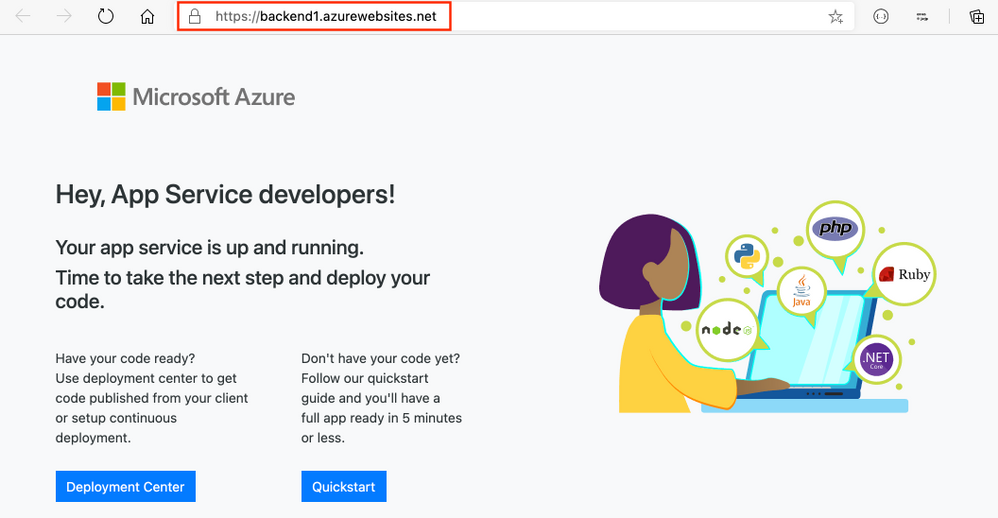
Following the tutorial, we can create simple App Service instances for backend service. Nothing special configuration is required. At this point, you should be able to access the instances via FQDN.
Configure Front Front Door
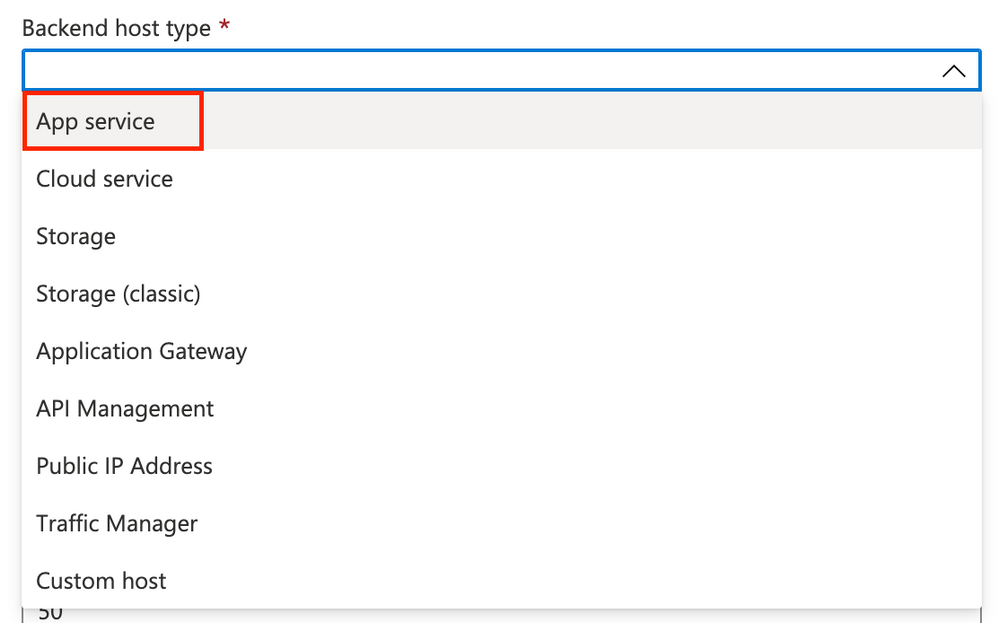
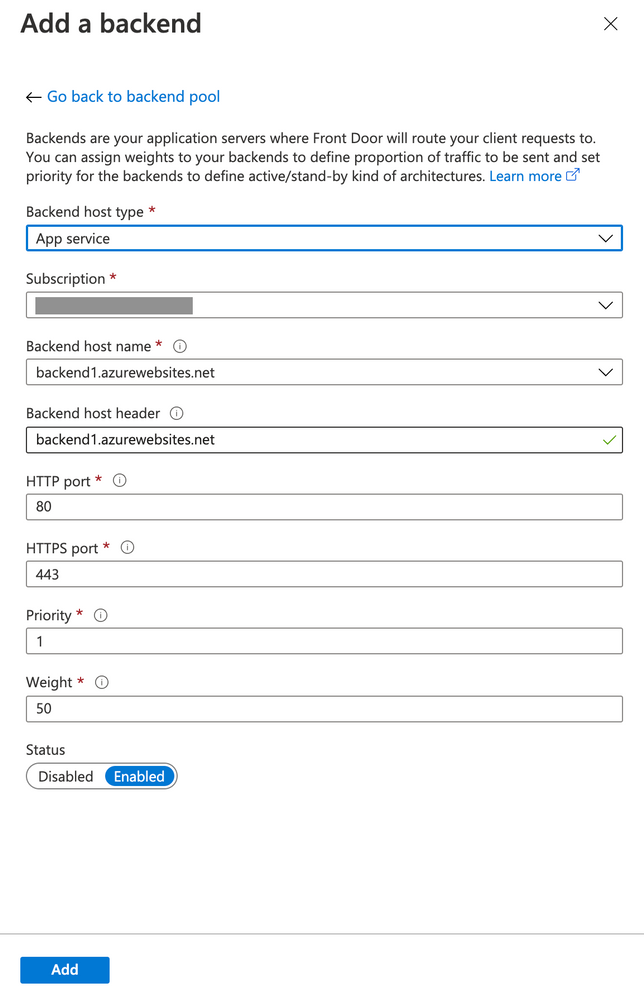
Following the tutorial, you can configure Azure Front Door. Note that we have to specify “App Service” when choosing “Backend host type”.
After specifying backend host type, we should see the following image.
When all configuration is ready, click “Create” and wait a minute. When Azure Front Door is ready, we can test if access via Azure Front Door is available.
At this point, we can still access App Service instances directly via FQDN since we have not configured access restrictions yet.
Configure access restriction for App Service instances
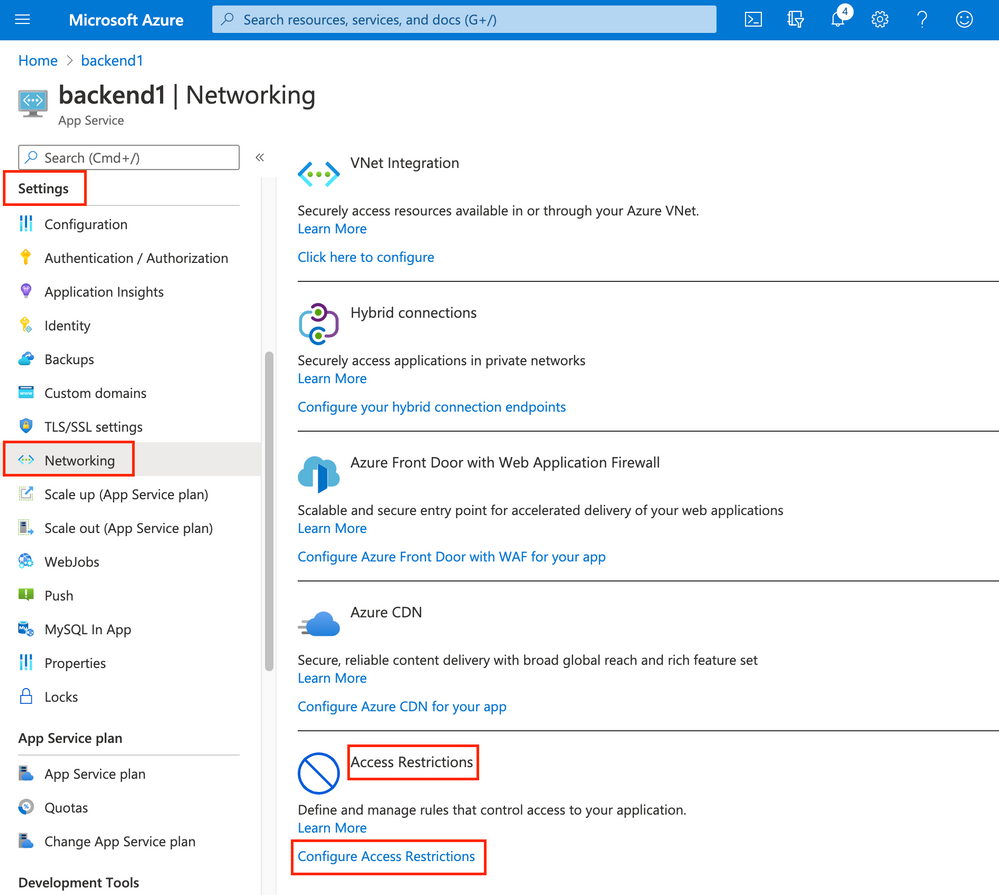
We open App Service instances created in the previous step in Azure Portal. And, we select “Settings” > “Networking” > “Access Restrictions” > “Configure Access Restrictions”.
Clicking “Add rule”, some screen appears from righthand where we create access restriction rule.
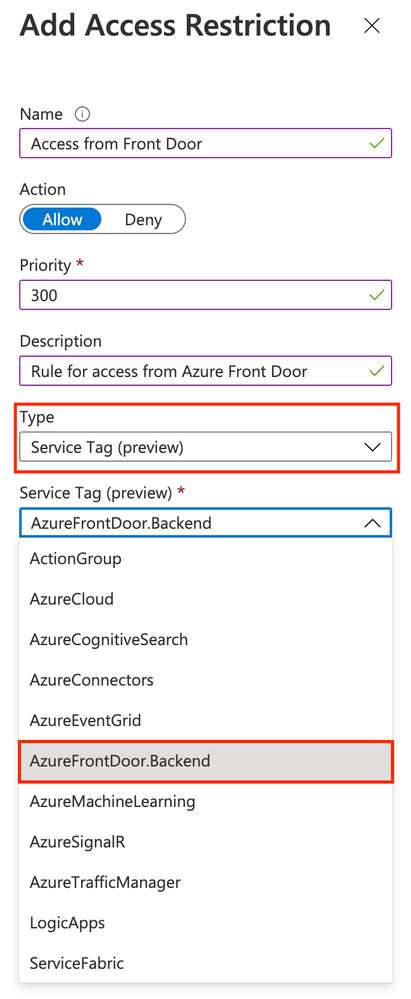
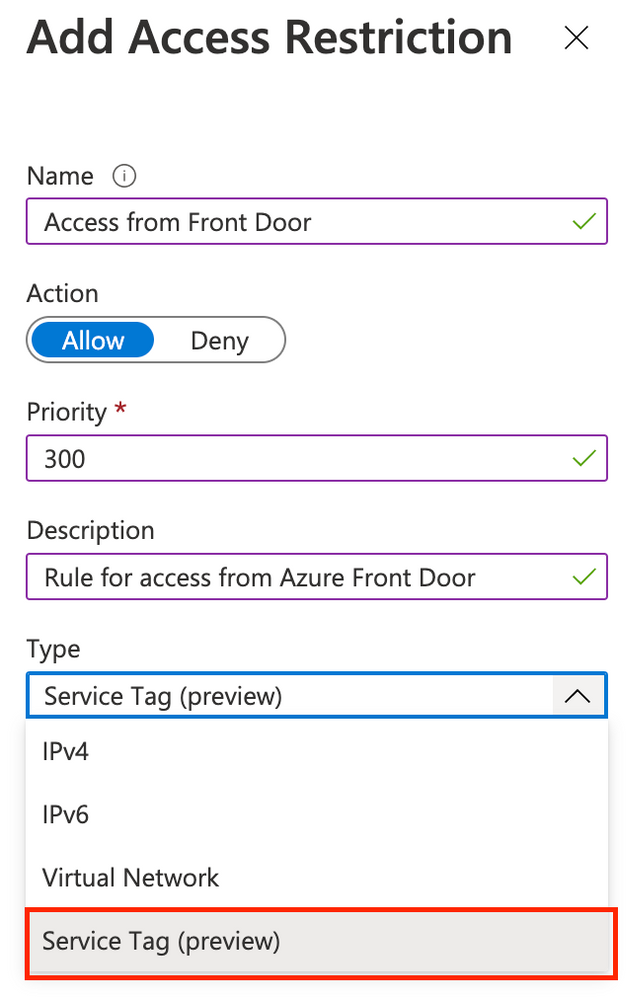
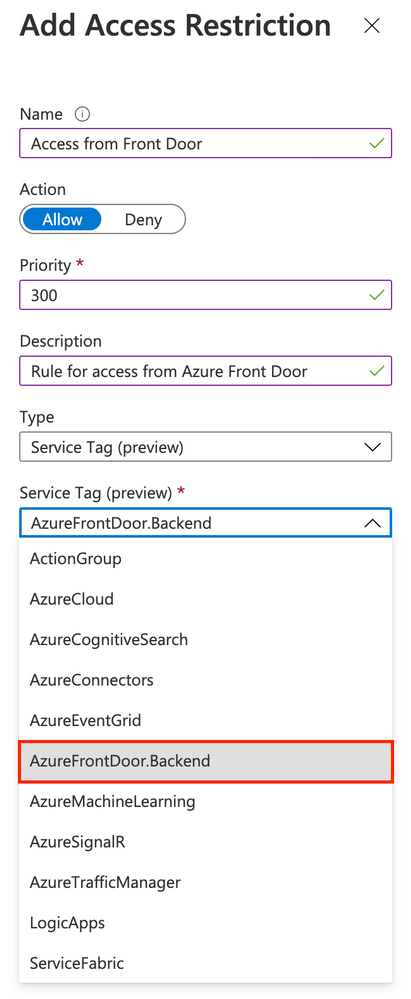
We can specify some attributes. Name, priority, and description as we like. And then, this the most important thing in this article! We have to choose “Service Tag (preview)” among several options of “type”. When choosing “Service Tag (preview)”, we can choose a service tag among options. In this case, we have to pick up “AzureFrontDoor.Backend” among them, and click “Add rule”.
If you create two App Service instances, you have to repeat to do these steps to the other instance.
That’s it. It’s simple, isn’t it?
Give it a try!
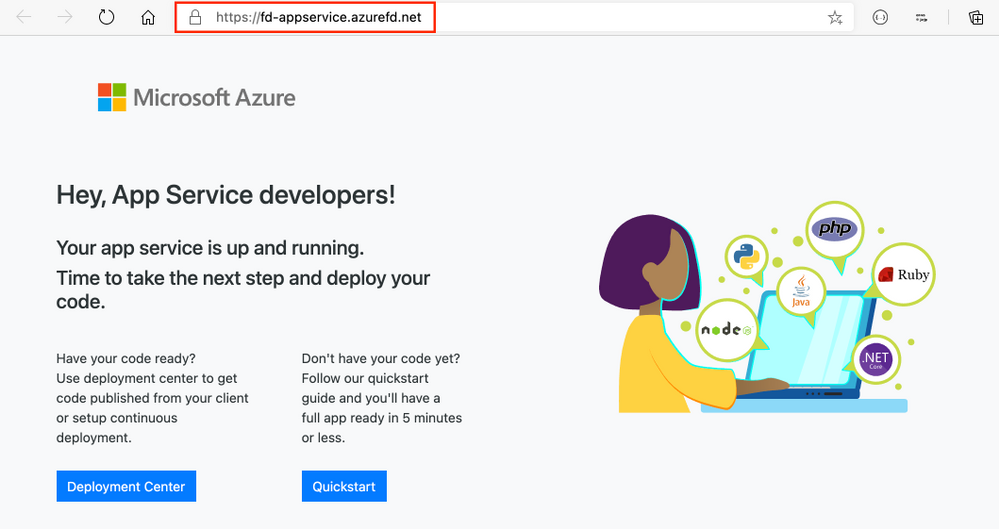
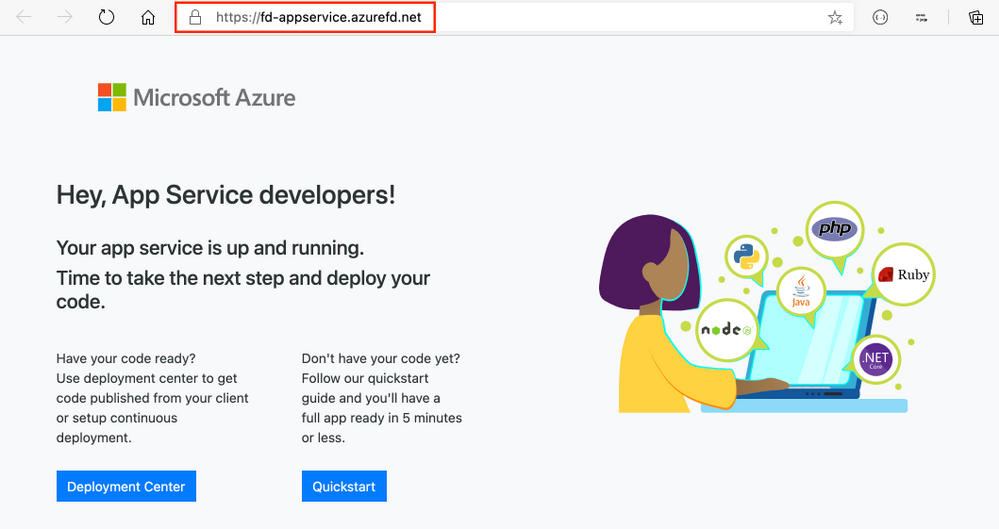
First of all, we test access via Azure Front Door. This access is permitted and we can see the following image.
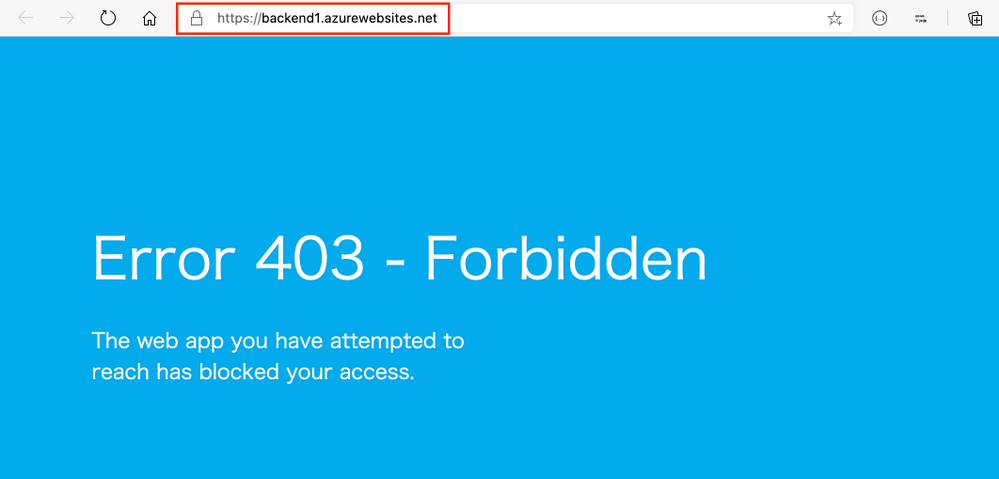
How about access to App Service directly? This access is restricted and HTTP 403 returns.
Conclusion
In this article, I describe a simple way of access restrictions when using Azure Front Door and App Service. Hope this helps.
This article is contributed. See the original author and article here.
Some customer asked me about the following topic.
“We use App Service for hosting applications and Azure Front Door as global L7 load balancer. We would like to permit only accesses from Azure Front Door at Azure App Service as simply as possible. Could you please share good solution with us?”
By default, each App Service has a public IP address and is accessible via FQDN from the globe. If you simply deploy App Service behind Azure Front Door, everyone can access App Service directly. Therefore, we have to configure permit only access from Azure Front Door at App Service. If you were me, what do you think is a good solution?
What is Azure Front Door?
If you are not familiar with Azure Front Door, please read the following document.
I would like to walk through how to configure access restriction from other than Azure Front Door to App Service. If you can access Azure environment, I recommend following my instruction. In this article, I use quick start tutorial for Azure Front Door.
We can choose several options to configure Azure Front Door – Azure Portal, CLI, PowerShell, and ARM template. In this article, I use Azure Portal to configure access restriction.
Even if we don’t create two App Service instances, we can test access restriction. You may follow the quick start tutorial dutifully, of course.
Create App Service instance
Following the tutorial, we can create simple App Service instances for backend service. Nothing special configuration is required. At this point, you should be able to access the instances via FQDN.
Configure Front Front Door
Following the tutorial, you can configure Azure Front Door. Note that we have to specify “App Service” when choosing “Backend host type”.
After specifying backend host type, we should see the following image.
When all configuration is ready, click “Create” and wait a minute. When Azure Front Door is ready, we can test if access via Azure Front Door is available.
At this point, we can still access App Service instances directly via FQDN since we have not configured access restrictions yet.
Configure access restriction for App Service instances
We open App Service instances created in the previous step in Azure Portal. And, we select “Settings” > “Networking” > “Access Restrictions” > “Configure Access Restrictions”.
Clicking “Add rule”, some screen appears from righthand where we create access restriction rule. We can specify some attributes. Name, priority, and description as we like. And then, this is the most important thing in this article, we have to choose “Service Tag (preview)” among several options of “type”.
When choosing “Service Tag (preview)”, we can choose a service tag among options. In this case, we have to pick up “AzureFrontDoor.Backend” among them.
Clicking “Add rule”, that’s it. If you create two App Service instances, you have to repeat to do these steps to the other instance.
Git it a try!
First of all, we test access via Azure Front Door. This access is permitted and we can see the following image.
How about access to App Service directly? This access is restricted and HTTP 403 returns.
Conclusion
In this article, I describe a simple way of access restrictions when using Azure Front Door and App Service. Hope this helps.
This article is contributed. See the original author and article here.
This blog focuses on how you can use the combination of Azure Automation ,Logic App ,Sendgrid and webhook Azure services to send email notification alerts when your Azure Database for MySQL server status changes.
If you are using data encryption with customer managed key in Azure Database for MySQL, if there is an issue with reading from the Azure Key vault, any permission issues or key has expired the server goes in inaccessible state. This is by design to avoid security violations. To detect these conditions and get alerted when the server goes in inaccessible state, you can run following command:
az mysql server show -g <ResourceGroupName>-n <servername>--query [fullyQualifiedDomainName,userVisibleState] -o json
The below solution uses
• Azure Automation runbook to run and check the server status with the az modules • Sendgrid to send the mail • Webhook and Logic App to make the schedule to run every 15 mins
Step 1: Make your Environment ready for Azure Automation runbook
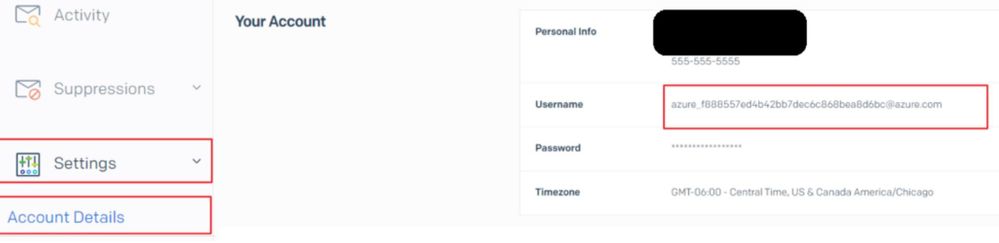
Click on Manage and get the account name for the alias you used while creating the SendGrid account
Go to Settings , Select Accounts details and make a note of the username
Step 2: Create a Runbook in Azure Automation account
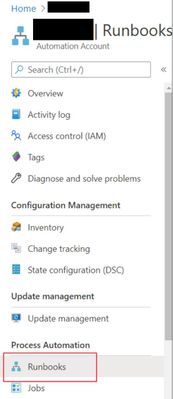
From the portal check the Azure automation account you have created.
Click on Runbooks and Select Create a Runbook
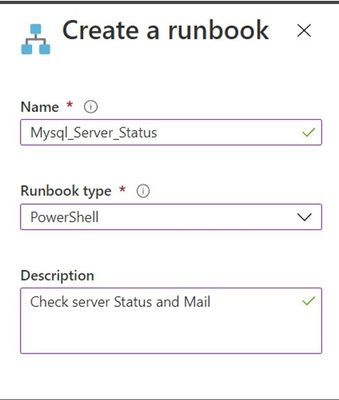
Give the Name and Runbook Type (PowerShell)
Click on Create below
Once created then select the runbook “Mysql_Server_Status” and click on Edit.
Copy paste the following script and make the following changes with the data we have received. Click Save and Publish.
Import-Module Az.Accounts
Import-Module Az.Automation
import-Module Az.MySql
$connectionName = "AzureRunAsConnection"
$EmailTo = "<Alias>@domain.com"
$smtpServer = "smtp.sendgrid.net"
$smtpFrom = "No-reply@azureadmin.com"
$messageSubject = "The Azure Database for MySQL is not Available"
try
{
# Get the connection "AzureRunAsConnection "
$servicePrincipalConnection = Get-AutomationConnection -Name $connectionName
"Logging in to Azure..."
Connect-AzAccount `
-ServicePrincipal `
-TenantId $servicePrincipalConnection.TenantId `
-ApplicationId $servicePrincipalConnection.ApplicationId `
-CertificateThumbprint $servicePrincipalConnection.CertificateThumbprint
}
catch {
if (!$servicePrincipalConnection)
{
$ErrorMessage = "Connection $connectionName not found."
throw $ErrorMessage
} else{
Write-Error -Message $_.Exception
throw $_.Exception
}
}
#Get all Mysql resources status which are not in ready state
$mysqlservers = Get-AzMysqlServer | Where-Object {$_.UserVisibleState -ne "Ready"}
if ($mysqlservers.count -gt 0)
{
foreach ($mysqlserver in $mysqlservers)
{
#Write-Output ($mysqlserver.Name + " Current state is : " + $mysqlserver.UserVisibleState)
$Body = $mysqlserver.Name + " Current state is : " + $mysqlserver.UserVisibleState
$message = New-Object System.Net.Mail.MailMessage
$message.From="No-reply@azureadmin.com"
$message.to.add($EmailTo)
$message.Subject = $messageSubject
$message.Body = $Body
$message.IsBodyHTML = $false
$smtp = New-Object Net.Mail.SmtpClient($smtpServer,"587")
#Add your Sendgridusername and sendgridpassword here:
$credentials=new-object system.net.networkcredential("username_xxxxxxxxxx@azure.com","P@ssw0rd")
$smtp.credentials=$credentials.getcredential($smtpServer,587,"basic")
$smtp.Send($message)
}
}
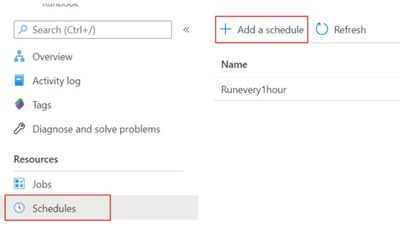
If you are ok to do this check once in hour you can directly got to schedule for runbooks and skip Step 3 below.
Step 3: Scheduling the runbook
Since the frequency we require is lesser than one hour which is now not available we will use webhooks and logic app to do it to achieve monitoring at the minutes granularity.
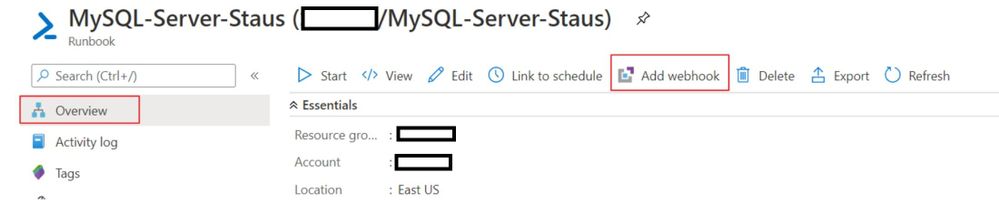
On the overview please click on Add webhook
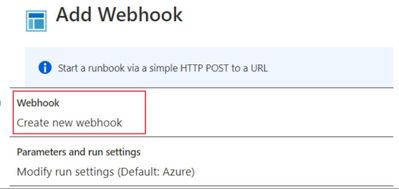
Select Create a Webhook
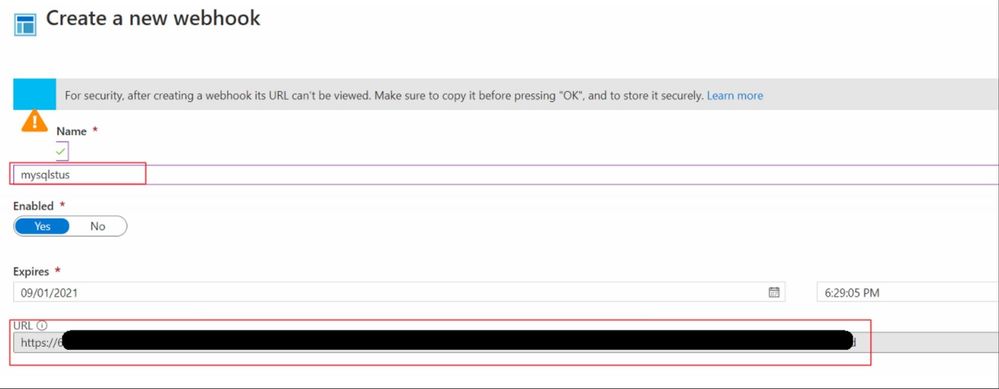
Give the Name and Make sure you copy the URL from the below and keep it . Expire date also you can set as per you need.
Click on Create
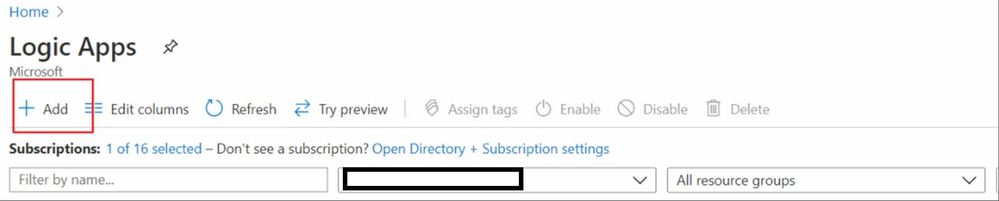
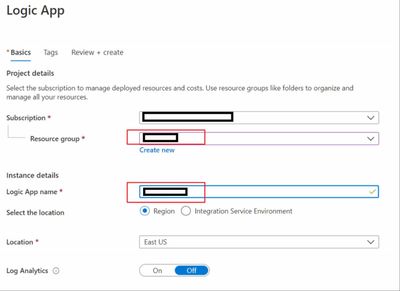
Now go to Logic App from portal and click on ADD
Give the details and click on Review and Create
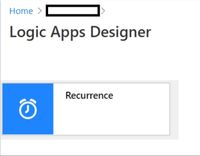
Once you go to the Logic app created you will see Logic Apps Designer , Select Recurrence
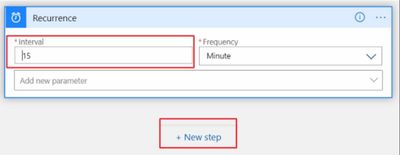
Select the interval as 15 Frequency in Minute and click on New step
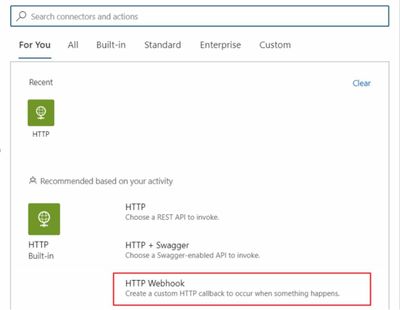
Select the HTTP webhook
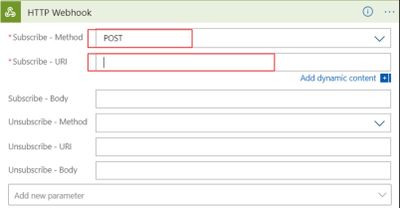
Select Subscribe Method as POST and SubscribeURI copy the URI you got while creating the webhook (Step 3 , Section 3)
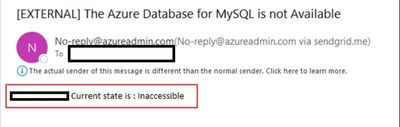
Once you do this the Logic app will trigger the webhook and that will in-turn trigger the script to run every 15 mins and if there is any of the MySQL servers which are not in ready state, an e-mail notification will be triggered as shown below.
This article is contributed. See the original author and article here.
The National Security Agency (NSA) has released a cybersecurity advisory on detecting abuse of authentication mechanisms. This advisory describes tactics, techniques, and procedures used by malicious cyber actors to access protected data in the cloud and provides guidance on defending against and detecting such activity.
CISA encourages users and administrators to review the NSA cybersecurity advisory and CISA Activity Alert AA20-352A and take the appropriate mitigation actions.
This article is contributed. See the original author and article here.
Microsoft Information Protection (MIP) is a built-in, intelligent, unified, and extensible solution to protect sensitive data in documents and emails across your organization. MIP provides a unified set of capabilities to know and protect your data and prevent data loss across Microsoft 365 apps (e.g., Word, PowerPoint, Excel, Outlook), services (e.g., Microsoft Teams, SharePoint, Exchange, Power BI), on-premises locations (e.g., SharePoint Server, on-premises files shares), devices, and third-party apps and services (e.g., Box and Dropbox).
We are excited to announce availability for new MIP capabilities:
General availability of Exact Data Match user interface in Microsoft 365 compliance center and configurable match
External sharing policies for Teams and SharePoint sites, in public preview
Exact Data Match user interface in Microsoft 365 compliance center
The first step to effectively protect your data and prevent data loss is to understand what sensitive data resides in your organization. Foundational to Microsoft Information Protection are its classification capabilities—from out-of-the-box sensitive information types (SITs) to Exact Data Match (EDM). Out-of-box SITs use pattern matching to find the data that needs to be protected. Credit card numbers, account numbers, and Social Security Numbers are examples of data that can be detected using patterns. MIP offers 150+ out-of-the-box sensitive information types mapped to various regulations worldwide. EDM is a different approach. It is a classification method that enables you to create custom sensitive information types that use exact data values. Instead of matching on generic patterns, EDM finds exact matches of data to protect the most sensitive data in your organization. You start by configuring the EDM custom SIT and uploading a CSV table of the specific data to be protected, which might include employee, patient, or other customer-specific information. You can then use the EDM custom SIT with policies, such as Data Loss Prevention (DLP), to protect your sensitive data. EDM nearly eliminates false positives, as the service compares the data being copied or shared with the data uploaded for protection.
We continue to invest in and enhance our EDM service, increasing its service scale by a factor of 10 to support data files containing up to 100 M rows, while decreasing by 50% the time it takes for your data to be uploaded and indexed in our EDM cloud service. To better protect sensitive data uploaded into our EDM service, we added salting to the hashing process, which adds additional protection for the data while in transit and within the cloud repository. You can learn more about these EDM enhancements and details on how to implement in this three-part blog series.
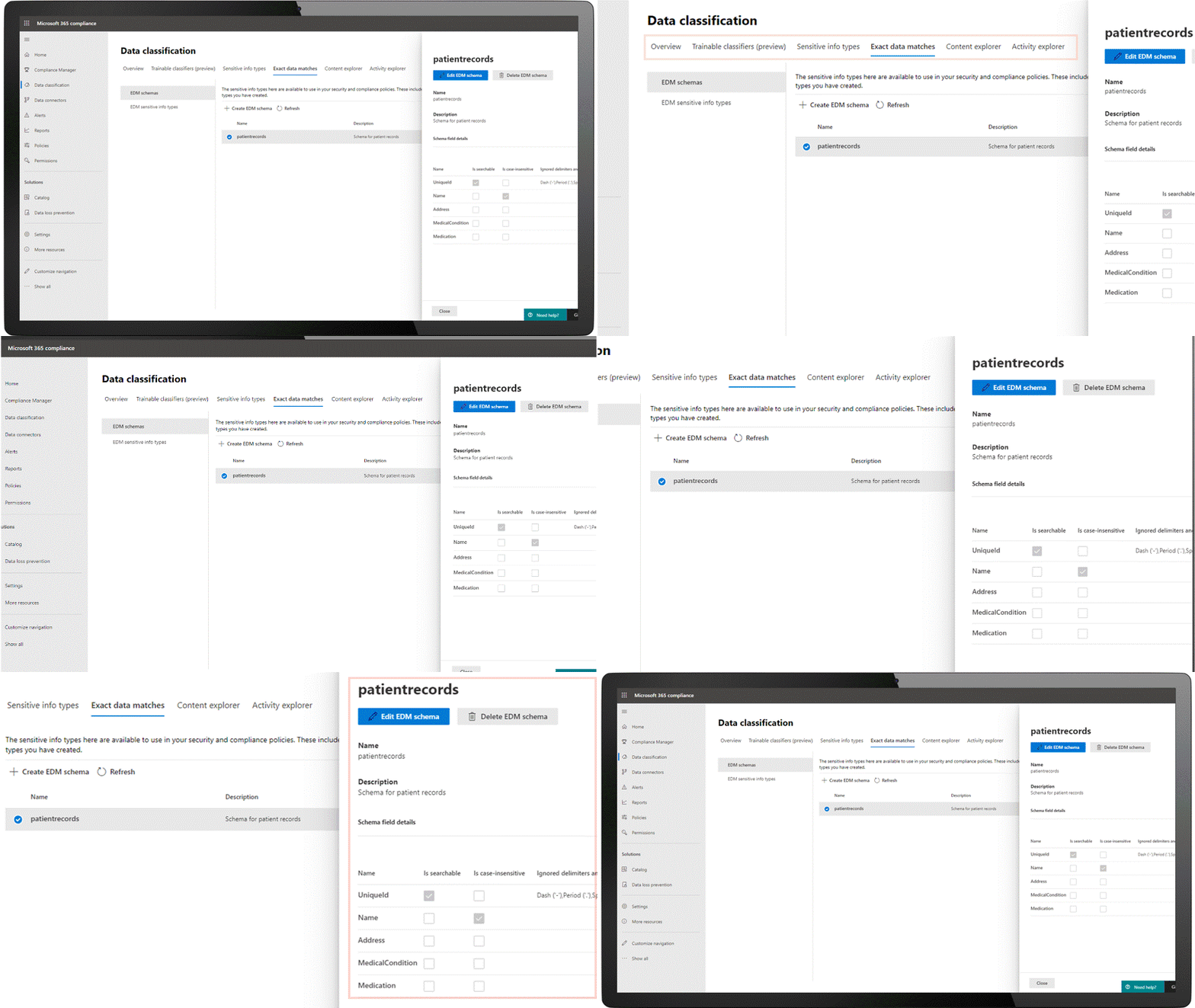
Today we are announcing general availability of a user interface in the Microsoft 365 compliance center to configure and manage EDM in the portal, in addition to the option of using PowerShell. This allows customers who are unable to use PowerShell or prefer to use the UI to manage EDM. Learn more here.
Figure 1: Details of an Exact Data Match schema
We are also announcing general availability of configurable match (aka normalization). This feature will add additional flexibility in defining the matches, allowing you to protect your confidential and sensitive data more broadly. For example, you can elect to ignore case so customer email address will match whether it is capitalized or not. Similarly, you can choose to ignore punctuation such as spaces or dashes in the data such as for social security number. Learn more here.
External sharing policies for Teams and SharePoint sites
Core to Microsoft Information Protection are sensitivity labels. You can apply your sensitivity labels to not only protect document and emails but also to protect entire Teams and sites. In spring, we enabled you to apply a sensitivity label to a Team or site and associate that label with policies related to privacy and device access. This allows for holistically securing sensitive content whether it is in a file or in a chat by managing access to a specific team or site. Along with manual and auto-labeling of documents on SharePoint and Teams, this capability helps you scale your data protection program to manage the proliferation of data and the challenge of secure collaboration while working remotely.
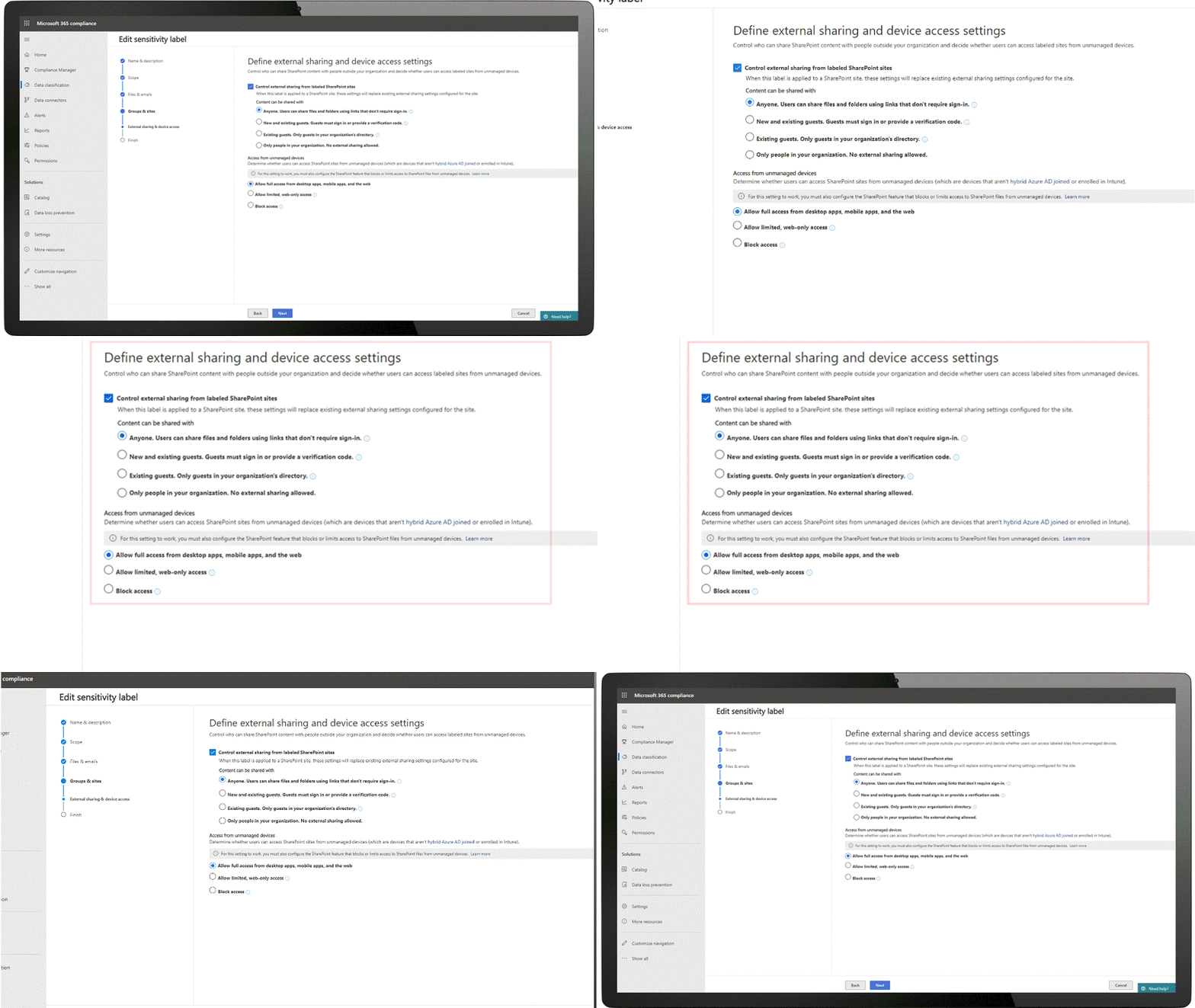
We are pleased to announce that you can now also associate external sharing policies with labels to achieve secure external collaboration. This capability is in public preview. Administrators can tailor the external sharing settings according to the sensitivity of the data and business needs. For example, for ‘Confidential’ label you may choose to block external sharing whereas for ‘General’ label you may allow it. Users then simply select the appropriate sensitivity label while creating a SharePoint site or Team and the appropriate external sharing policy for SharePoint content is automatically applied. It is common for projects at an organization to involve collaboration across employees, vendors, and partners. This capability further helps ensure only authorized users can get access to sensitive data in Teams and SharePoint sites.
Figure 2: External sharing policies available alongside policy for unmanaged device access
Customer Key support for Teams
Microsoft 365 provides customer data protection at multiple layers, starting with volume-level encryption enabled through BitLocker, and then there is protection at the application layer. We offer Customer Key, so you can control a layer of encryption for your data in Microsoft’s data centers, with your own keys. This also enables you to meet requirements of compliance regulations for controlling your own keys.
Customer Key was already available for SharePoint, OneDrive, and Exchange. Today, we are pleased to announce that Customer Key is available in Public Preview for Microsoft Teams. You can now assign a single data encryption policy at the tenant level to encrypt your data-at-rest in Teams and Exchange. Click here to learn more.
Sensitivity labels in Power BI desktop
In June we announced general availability of MIP sensitivity labels in Power BI service, helping organizations classify and protect sensitive data even as it is exported from Power BI to Excel, PowerPoint and PDF files, all this without compromising user productivity or collaboration.
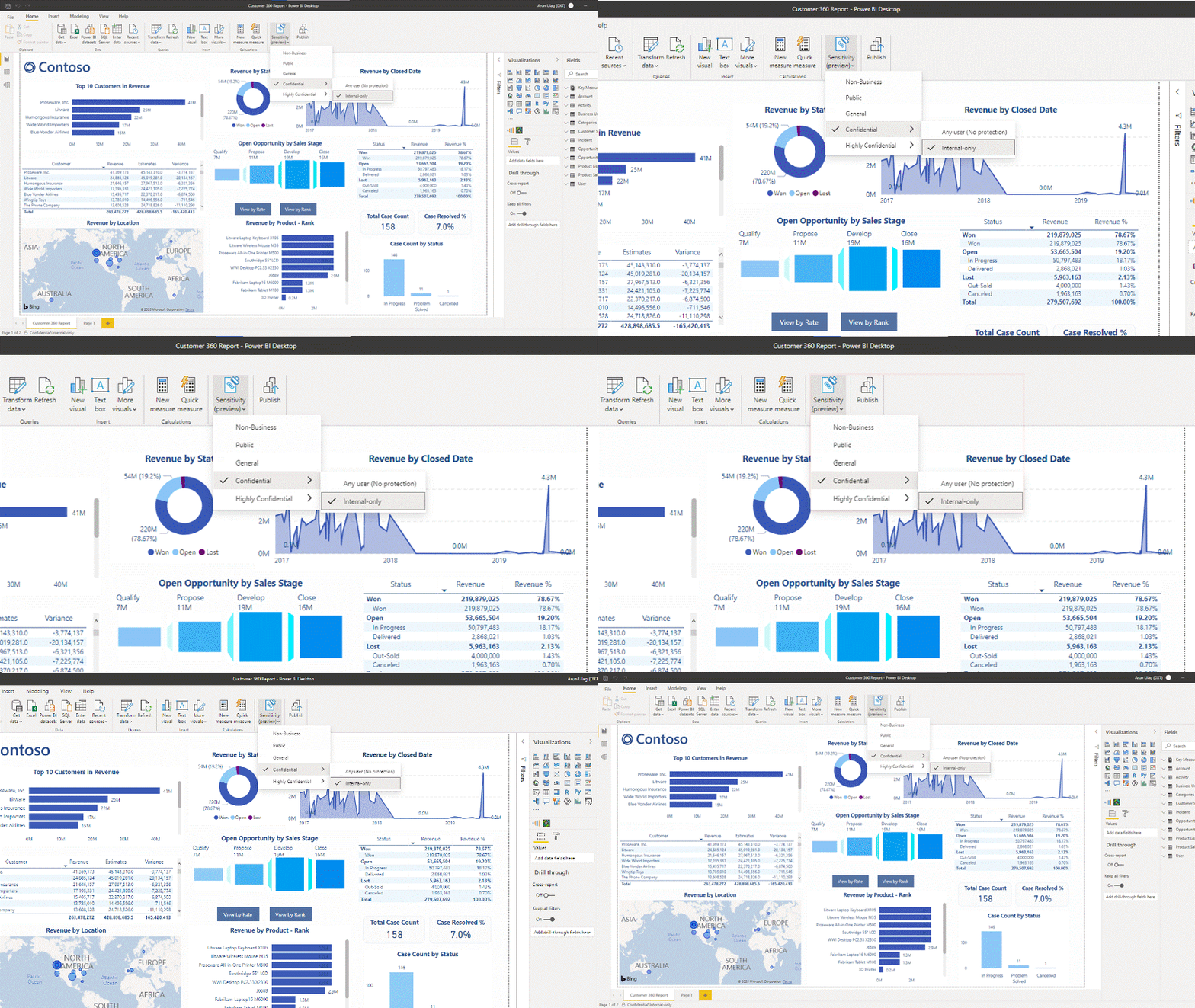
We’re now expanding MIP sensitivity labels support to Power BI desktop application (PBIX), in public preview, to enable content creators to classify and protect sensitive PBIX files while authoring datasets and reports in Power BI desktop. The label applied on PBIX files persist when uploaded to Power BI service. Learn more here.
Figure 3: Sensitive built-in label experience in Power BI Desktop
We are also announcing the availability of a new API that enables administrators to get information on sensitivity labels applied to content in Power BI service. With this information, Power BI and Compliance admins can answer questions like which workspaces in Power BI service have reports with a specific label. Learn more here.
Data is the currency of today’s economy. Data is being created faster than ever in more locations than organizations can track. To secure your data and meet compliance requirements like the General Data Protection Requirement (GDPR) – you need to know what data you have, where it resides, and have capabilities to protect it. The above new capabilities are part of the built-in, intelligent, unified, and extensible solution that Microsoft Information Protection offers to enable both administrators and users to protect organization data while staying productive.
Getting Started
Here’s information on licensing and on how to get started with the capabilities announced today:
You can see here required licensing for the capabilities listed above. If you are new to Microsoft 365, learn how to try or buy a subscription
To learn more about Microsoft Information Protection, start with online documentation here. Check out our compilation of past product announcements for Microsoft 365 Compliance’s Information Protection and Governance solution area. To learn more about Microsoft 365 Compliance and to access technical training, visit the Virtual Hub today.
This article is contributed. See the original author and article here.
We are pleased to announce the final release of the for Windows 10 and Windows Server, version 20H2 (a.k.a. October 2020 Update) security baseline package!
This Windows 10 feature update brings very few new policy settings, which we list in the accompanying documentation. At this point, no new 20H2 policy settings meet the criteria for inclusion in the security baseline, but there are a few policies we are going to be making changes to, which we highlight below along with our recommendations.
Tip: If you read the Draft release, we will save you another read. There are no changes since the draft to the actual settings. There were two small changes to the package though; the Baseline-LocalInstall.ps1 script has a change to error handling (thanks to a community member’s suggestion) and second, we neglected to include the custom ADMX/L files in the GP Reports so they showed up as additional registry keys which is now fixed also.
Block at first sight
We started the journey for cloud protection several years ago. Based on our analysis of the security value versus the cost of implementation, we feel it’s time to add Microsoft Defender Antivirus’ Block At First Sight (BAFS) feature to the security baseline. BAFS was first introduced in Windows 10, version 1607 and allows new malware to be detected and blocked within seconds by leveraging various machine learning techniques and the power of our cloud.
BAFS currently requires 6 settings to be configured. Our baseline already sets 2 of them, Join Microsoft MAPS and Send file sample when further analysis is required. We are now recommending the addition of the following settings to enable BAFS:
Computer ConfigurationAdministrative TemplatesWindows ComponentsMicrosoft Defender AntivirusMAPSConfigure the ‘Block at first sight’ feature set to Enabled
Computer ConfigurationAdministrative TemplatesWindows ComponentsMicrosoft Defender AntivirusReal-time ProtectionScan all downloaded files and attachments set to Enabled
Computer ConfigurationAdministrative TemplatesWindows ComponentsMicrosoft Defender AntivirusReal-time ProtectionTurn off real-time protection set to Disabled
Computer ConfigurationAdministrative TemplatesWindows ComponentsMicrosoft Defender AntivirusMPEngineSelect cloud protection level set to High blocking level
These new settings have been added to the MSFT Windows 10 20H2 and Server 20H2 – Defender Antivirus group policy.
We routinely evaluate our Attack Surface Reduction configuration, and based on telemetry and customer feedback we are now recommending configuring two additional Attack Surface Reduction controls: Computer ConfigurationAdministrative TemplatesWindows ComponentsMicrosoft Defender AntivirusMicrosoft Defender Exploit GuardAttack Surface ReductionConfigure Attack Surface Reduction rules: Use advanced protection against ransomware and Block persistence through WMI event subscription.
Introduced in Windows 10, version 1709 the Use advanced protection against ransomwarerule will scan any executable files and determine, using advanced cloud analytics, if the file looks malicious . If so, it will be blocked unless that file is added to an exclusion list. This rule does have a cloud dependency, so you must have Join Microsoft MAPS also configured (which is already part of the security baseline).
Block persistence through WMI event subscription is a rule that was released in Windows 10, version 1903. This rule attempts to ensure WMI persistence is not achieved – a common technique adversaries use to evade detection. Unlike many of the other ASR rules, this rule does not allow any sort of exclusions since it is solely based on the WMI repository.
A friendly reminder that the security baselines set all ASR rules to block mode. We recommend first configuring them to audit mode, then testing to ensure you understand the impacts these rules will have in your environment, and then configuring them to block mode. Microsoft Defender for Endpoints (formally Microsoft Defender Advanced Threat Protection, MDATP) will greatly enhance the experience of testing, deployment, and operation of ASR rules. We would encourage you to look at evaluating, monitoring and customizing links to better prepare your environment.
These new settings have been added to the MSFT Windows 10 20H2 and Server 20H2 – Defender Antivirus group policy.
UEFI MAT
You might recall in the draft release of our security baseline for Windows 10, version 1809 we enabled UEFI Memory Attributes Tables, but based on your feedback we removed that recommendation from the final version. After further testing and discussions, we are recommending that you enable Computer ConfigurationAdministrative TemplatesSystemDevice GuardTurn on Virtualization Based SecurityRequire UEFI Memory Attributes Table.
Microsoft Edge
Starting with Windows 10, version 20H2 the new Microsoft Edge (based on Chromium) is now installed as part of the operating system. Please ensure you are applying the security baseline for Microsoft Edge to your Windows 10, version 20H2 machines. We have gotten questions about including it on the Windows security baseline, but since Microsoft Edge is a cross platform product and has a different release cadence, we are going to keep it a separate security baseline.
As always, please let us know your thoughts by commenting on this post.
We have just enabled streaming of Azure Active Directory audit logs into Advanced Hunting, already available for all customers in public preview.
These logs provide traceability for all changes done by various features within Azure AD. Examples of audit logs include changes made to any resources within Azure AD like adding or removing users, apps, groups, roles and policies.
At the moment, the data ingestion has a dependency on MCAS, so customers that have MCAS with the Office365 connector connected will be able to see this data. Our intent is to expand availability to more Microsoft 365 Defender customers going forward.
The new log data is available in the CloudAppEvents table:
CloudAppEvents
| where Application == “Office 365”
and contains activity logs useful for investigating and finding related activities.
We are publishing a handful of relevant queries to our Git as they can assist with recent nation state attack investigation.
Here’s an example query that helps you see when credentials were added to an Azure AD application after ‘Admin Consent’ permissions were granted:
CloudAppEvents
| where Application == “Office 365”
| where ActionType == “Consent to application.”
| where RawEventData.ModifiedProperties[0].Name == “ConsentContext.IsAdminConsent” and RawEventData.ModifiedProperties[0].NewValue == “True”
| extend spnID = tostring(RawEventData.Target[3].ID)
| parse RawEventData.ModifiedProperties[4].NewValue with * “=> [[” dummpy “Scope: ” After “]]” *
| extend PermissionsGranted = split(After, “]”,0)
| project ConsentTime = Timestamp , AccountDisplayName , spnID , PermissionsGranted
| join (
CloudAppEvents
| where Application == “Office 365”
| where ActionType == “Add service principal credentials.” or ActionType == “Update application – Certificates and secrets management “
| extend spnID = tostring(RawEventData.Target[3].ID)
| project AddSecretTime = Timestamp, AccountDisplayName , spnID
) on spnID
| where ConsentTime < AddSecretTime and AccountDisplayName <> AccountDisplayName1
Keep watching for our updates, we will publish more information and guidance on how to leverage Microsoft 365 Defender for investigations of this evolving advanced threat soon!
This article is contributed. See the original author and article here.
Howdy folks,
We’ve heard from youover the years that while you’re always interested in capabilities that make your own ITexperiences more seamless, you’re even more passionate about creating highly productive and secure experiences for your workforce. This is more relevant than ever, with a recent Microsoft study revealing that identity decision makers like you say that investing in end-user experiences is your top investment priority for the next year.
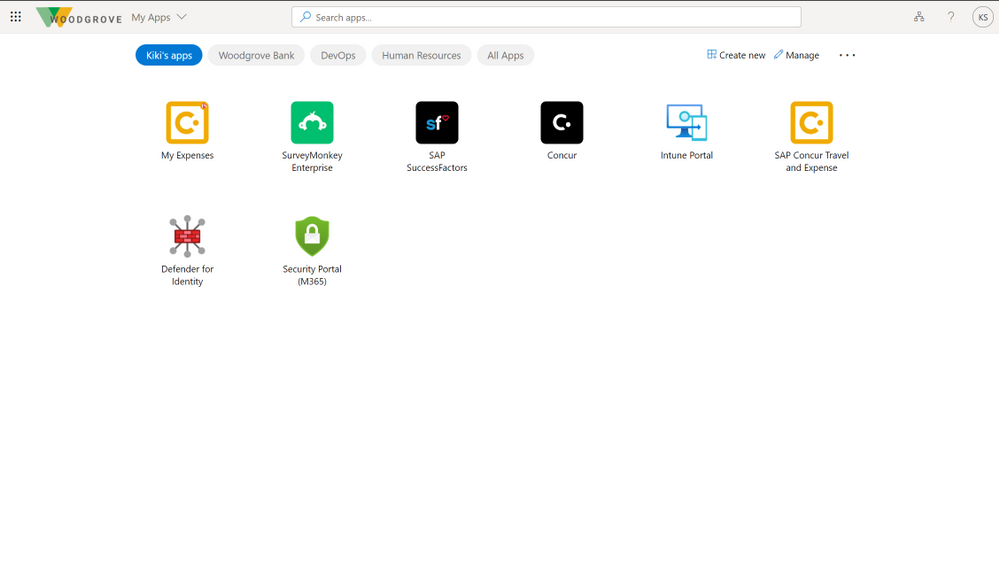
Your passion for your workforce is our passion, and so every identity experience that we build has a foundation of ensuring your end-users can be their most authentic and productive selves. Last year we introduced the refreshed My Apps portal, as a one-stop destination for app launching and discovery.With this refresh we introduced app collections, which let admins build role-basedand functional app categories to aid with user discoverability in the My Apps portal.
To take app experiences to the next level, I’m happy to announce the public preview of user-based collections in the My Apps portal. Now your end-users can create their own personalized app collections without IT intervention, allowing them individually to organize their work apps in whichever intuitive way they see fit and allowing you to focus on other admin tasks.
Getting started
To try it out, simply visit https://myapplications.microsoft.com/?endUserCollections. Anyone with this link, can experiment with creating and managing collections. Once you’ve created a collection though, it’s yours and you no longer need to use this special link to use it.
If you want to share details around app collections with your workforce, you can access user-facing documentation on the feature here. You can also learn more about My Apps and app collections from the admin side from our training videos and documentation.
As always, we’d love to hear from you. Please let us know what you think in the comments below, on Twitter (@AzureAD), or on the Azure AD My Apps feedback forum.




Recent Comments