by Contributed | Jan 1, 2021 | Technology
This article is contributed. See the original author and article here.
Final Update: Friday, 01 January 2021 15:42 UTC
We’ve confirmed that all systems are back to normal with no customer impact as of 01/01, 15:30 UTC. Our logs show the incident started on 01/01, 08:20 UTC and that during the 7 Hours 10 Minutes that it took to resolve the issue some of customers may have experienced issues with delayed or wrongly fired Log Search alerts or experienced difficulties accessing data for resources hosted in China East Region.
Root Cause: We identified the issue was caused by a configuration setting.
- Incident Timeline: 7 Hours & 10 minutes – 01/01, 08:20 UTC through 01/01, 15:30 UTC
We understand that customers rely on Log Search Alerts as a critical service and apologize for any impact this incident caused.
-Madhav
Update: Friday, 01 January 2021 13:27 UTC
We are aware of issues within Log Search Alerts and are actively investigating. Some customers may experience issues with missed, delayed or wrongly fired Log Search Alerts or experience difficulties accessing data for resources hosted in China East 2 region.
- Root Cause: The failure was due to a recent deployment in one of the backend services.
- Next Update: Before 01/01 15:30 UTC
We are working hard to resolve this issue and apologize for any inconvenience.
-Madhav
Initial Update: Friday, 01 January 2021 10:08 UTC
We are aware of issues within Log Search Alerts and are actively investigating. Some customers may experience issues with missed, delayed or wrongly fired Log Search Alerts or experience difficulties accessing data for resources hosted in China East 2 region.
- Work Around: None
- Next Update: Before 01/01 13:30 UTC
We are working hard to resolve this issue and apologize for any inconvenience.
-Anmol
by Contributed | Jan 1, 2021 | Technology
This article is contributed. See the original author and article here.
Initial Update: Friday, 01 January 2021 10:08 UTC
We are aware of issues within Log Search Alerts and are actively investigating. Some customers may experience issues with missed, delayed or wrongly fired Log Search Alerts or experience difficulties accessing data for resources hosted in China East 2 region.
- Work Around: None
- Next Update: Before 01/01 13:30 UTC
We are working hard to resolve this issue and apologize for any inconvenience.
-Anmol
by Contributed | Jan 1, 2021 | Technology
This article is contributed. See the original author and article here.
Brad Watts here to talk about a solution that I’ve implemented with several organizations in my role as a CSA. Azure Cost Management is a powerful way to visualize and report on your Azure spend but it doesn’t currently give you the ability to detect when you have cost anomalies. Below we will walk through how to load cost data into Log Analytics to detect anomalies.
This walkthrough uses a template to deploy a complete environment. If you want details on the template or would like a copy of the Azure Function being used, then you can visit App Service Template Repo.
Deploying the Solution
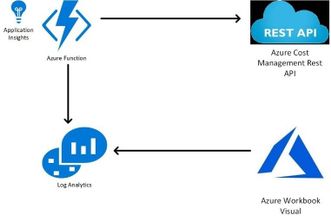
This architecture is made of the following resources:
- Azure Function App with System Managed Identity
- Azure Log Analytics
- Azure Storage Account
The below deployment will deploy these to the resource group that you define in Azure.
The meat of this solution is an Azure Function that makes an API call to the Azure Cost Query API. It then takes those results and ingest them into Log Analytics workspace that is created by the template. The function is scheduled to run each afternoon at 2pm EST.
Note There are two parameters that you need to supply when deploying the solution:
- deploymentPrefix: this will prefix the name of all the resources created.
- scope: this defines the scope or scopes for the Cost Management API.
- ex: subscriptions/5f1c1322-cebc-4ea3-8779-fac7d666e18f
- ex: subscriptions/5f1c1322-cebc-4ea3-8779-fac7d666e18f, subscriptions/718c1322-cebc-4ea3-8779-fac7d666e18f
Use the link below to deploy this solution to your Azure Subscription!
Deploy to Azure
Post Deployment Steps
After deploying this solution, you must give the App Service System Assigned Managed Identity “Read” permissions at the scope or scopes that you are querying. The system assigned managed identity will have the same name as your function app.
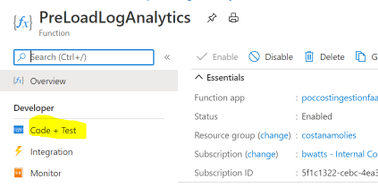
If you want to load historical data into Log Analytics you can utilize the function named PreLoadLogAnalytics.
- Get the function url by opening the Function and clicking on Get Function URL. Note that it may take a little bit to light up.
- Use a tool like PostMan or Curl to send the request. Below is an example using curl.
curl ‘https://poccostingestionfadhr2puxbmgliy.azurewebsites.net/api/PreLoadLogAnalytics?code=ichangedthisstring‘
**Note: You could also use the “Code + Test” tab within the function to run it.
Visualizing
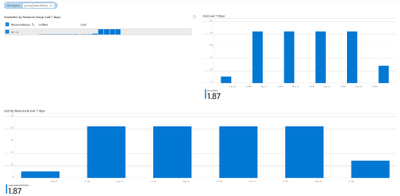
Azure Workbooks are a great option to get insights from the data in the csv file. We’ll generate a Workbook that looks for anomalies in the cost per Resource Group. Once imported you will be able to select the Resource Group in the workbook to look at the details on what resources are causing the anomalies.
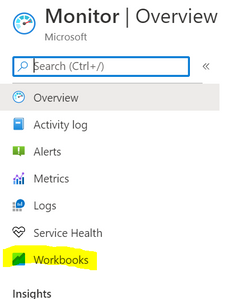
1) Open Azure Monitor and open the Workbooks tab
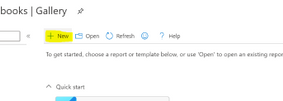
2) In the main pain click on “New” at the top:
3) On the top toolbar click on Advanced Editor

4) In the editor past the content of CostWorkbook.json in this repo
https://raw.githubusercontent.com/microsoft/CSACostAnomalies/main/CostWorkbook.json
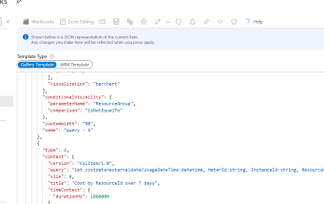
5) Click on Apply to enter the editing Windows.
- Go ahead and select a Log Analytics Workspace from the drop down. Make sure you select the Log Analytics workspace created by the template.
- Click on the Save button. Give your workbook a name and place it in a resource group. If you want others to be able to see it save it as a Shared workbook.

6) You can now click on Done Editing and start to utilize the workbook.
Alerting
We can now work on setting up alerting on anomalies. In the below example we’ll utilize Logic App to execute once a day and look for any Resource Group that had an anomaly.
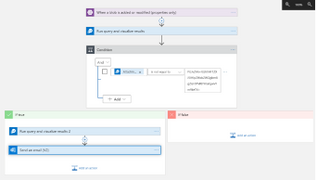
Our workflow for alerting will follow this pattern:
- Run on a schedule
- Run Log Analytics Query to see if we have any Resource Groups with an anomaly in the last day.
- If no anomalies, then end Logic App
- If anomaly detected then create a HTML report of the last 7 days for those Resource Groups
- Create a second HTML report showing the cost by resources for more details
- Send both HTML Reports as attachments in an email
Now lets walk through the steps to create the Logic App!
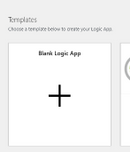
1) Create a new Logic Apps and select “Blank Logic App” Template
2) The Logic App Designer will open with the trigger selection available. Select Recurrence
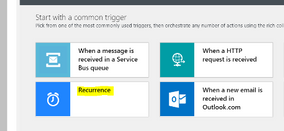
3) For the Recurrence trigger you’ll want to configure this to run every 1 day and you need to add the Start Time Property
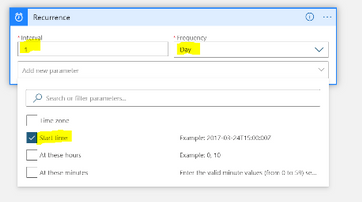
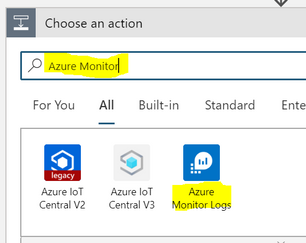
4) Below your trigger click on Add New Step and look for Azure Monitor. You’ll select the Azure Monitor Logs
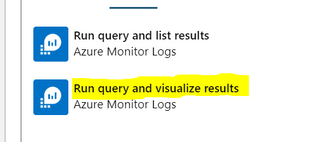
5) Select the Run Query and Visualize Results action
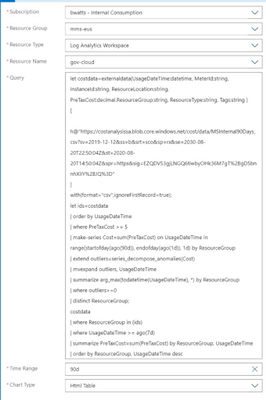
6) Fill in the Properties:
- Subscription: Subscription where the Log Analytics Workspace is located
- Resource Group: Resource Group where the Log Analytics Workspace is located
- Resource Type: Log Analytics Workspace
- Resource Name: Name of Log Analytics Workspace
- Query:
let ids=AzureCostAnamolies_CL
| extend UsageDateTime = todatetime(Date_s)
| order by UsageDateTime
| where PreTaxCost_d >= 5
| make-series Cost=sum(PreTaxCost_d) on UsageDateTime in range(startofday(ago(90d)), endofday(ago(1d)), 1d) by ResourceGroup
| extend outliers=series_decompose_anomalies(Cost)
| mvexpand outliers, UsageDateTime
| summarize arg_max(todatetime(UsageDateTime), *) by ResourceGroup
| where outliers>=1
| distinct ResourceGroup;
AzureCostAnamolies_CL
| extend UsageDateTime = todatetime(Date_s)
| where ResourceGroup in (ids)
| where UsageDateTime >= ago(7d)
| summarize PreTaxCost=sum(PreTaxCost_d) by ResourceGroup, UsageDateTime
| order by ResourceGroup, UsageDateTime desc
- Time Range: 90d
- Chart Type: HTML Table
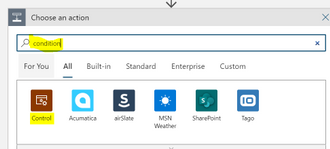
7) Click on New Action below the Run Query and Visualize Results. Search for Condition and select Control.
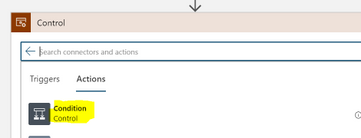
8) In the Control actions choose Condition
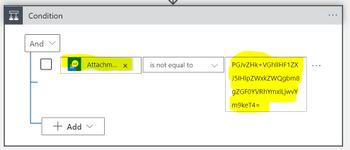
9) In the Condition use the following properties:
- Dynamic Field: Attachment Content
- Not Equal to
- PGJvZHk+VGhlIHF1ZXJ5IHlpZWxkZWQgbm8gZGF0YVRhYmxlLjwvYm9keT4=
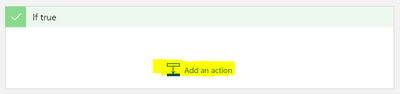
10) In the If true section click on Add an Action
11) Repeat steps 6-8 but this time use the below query
let ids=AzureCostAnamolies_CL
| extend UsageDateTime = todatetime(Date_s)
| order by UsageDateTime
| where PreTaxCost_d >= 5
| make-series Cost=sum(PreTaxCost_d) on UsageDateTime in range(startofday(ago(90d)), endofday(ago(1d)), 1d) by ResourceGroup
| extend outliers=series_decompose_anomalies(Cost)
| mvexpand outliers, UsageDateTime
| summarize arg_max(todatetime(UsageDateTime), *) by ResourceGroup
| where outliers>=1
| distinct ResourceGroup;
AzureCostAnamolies_CL
| extend UsageDateTime = todatetime(Date_s)
| where ResourceGroup in (ids)
| where UsageDateTime >= ago(7d)
| summarize PreTaxCost=sum(PreTaxCost_d) by ResourceId, UsageDateTime
| order by ResourceId, UsageDateTime desc
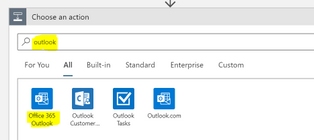
12) Add a new action after the last step (but still in the if true section) and search for Outlook. Choose the Office 365 Outlook actions
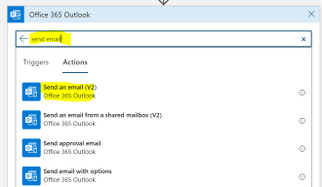
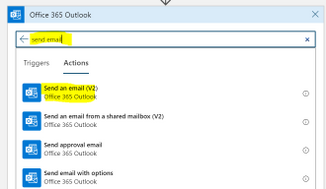
13) In the actions windows search for Send email and choose Send an email (v2). Note: This action will send an email from your email account. For production you would want to setup a shared mailbox and choose the action Send an email from a shared mailbox (v2)
14) The first time using this connector it asks you to login to Office 365 to make the connection. Once you’ve done this fill in the following properties:
- Body: You can fill in whatever you want for the body. Below is an example of what I entered:
Cost Anomalies were detected for Resource Groups in your environment. Attached are the details on the Resource Groups causing the anomalies and the Resources in those Resource Groups.
- Subject: You can fill in whatever you want for the subject. Below is an example of what I entered:
RG Cost Anomalies
- To: Whoever you want to receive the emails. This can be a ; delimited list
- Click on Add new Parameter and click the check box next to Attachments. Click back in one of the other fields like To: to make the attachment parameters available.
- Click on Add new Item so that you have two attachments available. Fill in the following for the Attachment Parameters:
- Attachments Content – 1: From the Dynamic Content select the Attachment Content from Run Query and Visualize Results. It should be the second one in the list.
Attachments Content – 1: From the Dynamic Content select the **Attchment Content** from **Run Query and Visualize Results**. It should be the second one in the list.
Attachments Name – 1: RGCost7Days.html
Attachments Content – 2: From the Dynamic Content select the **Attchment Content** from **Run Query and Visualize Results 2**. It should be the first one in the list.
Attachments Name – 2: ResourceIdCost7Days.html
15) Save the Logic App and click on Run. The next time the csv file is updated on the blob this logic app should run and alert if there are any anomalies.
Conclusion
The above solution takes advantage of the Cost Management API along with the anomaly detection algorithms built into Log Analytics to help you quickly discovery cost spikes for dips in your environment. We focused on showing the anomalies based on Resource Group but once the data is in Log Analytics we could group and show anomalies in different ways. For instance, we could show it based on individual resources or resource types. I believe this is a common need for organizations and hopefully this can help some of you fill that requirement!
Disclaimer
The sample scripts are not supported under any Microsoft standard support program or service. The sample scripts are provided AS IS without warranty of any kind. Microsoft further disclaims all implied warranties including, without limitation, any implied warranties of merchantability or of fitness for a particular purpose. The entire risk arising out of the use or performance of the sample scripts and documentation remains with you. In no event shall Microsoft, its authors, or anyone else involved in the creation, production, or delivery of the scripts be liable for any damages whatsoever (including, without limitation, damages for loss of business profits, business interruption, loss of business information, or other pecuniary loss) arising out of the use of or inability to use the sample scripts or documentation, even if Microsoft has been advised of the possibility of such damages.
by Contributed | Dec 31, 2020 | Technology
This article is contributed. See the original author and article here.
Happy New Year everyone!
With the new year comes a new Azure Sentinel PowerShell module!
Based on the Azure SDK for .NET and part of the Azure (Az) module, we are announcing the public preview release of the SecurityInsights PowerShell module.
Because this is an official supported PowerShell module when we release it, the cmdlets are based on the Generally Available (GA) 2020-01-01 SecurityInsights API. As soon as features hit GA, we will update the SecurityInsights module to reflect that.
How to download and test
Prerequisites: the SecurityInsights module requires at a minimum PowerShell version 5.1 and relies on Az.Accounts for Azure authentication.
You can download the SecurityInsights PowerShell module from the PowerShellGallery and install it by using the PowerShell command Install-Module -Name Az
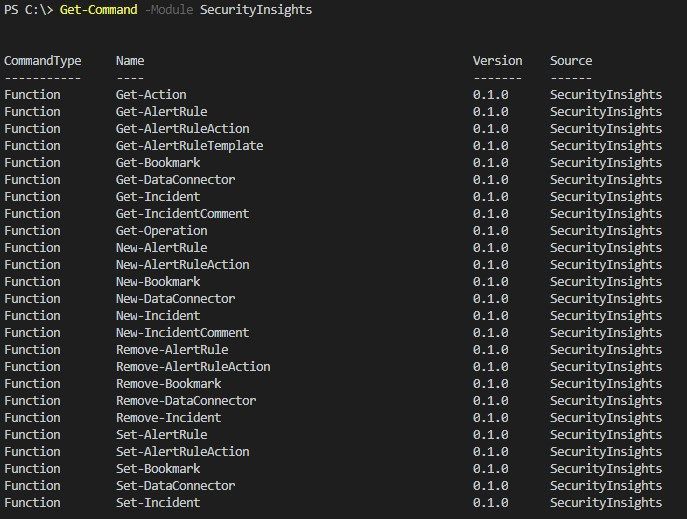
The available cmdlets can be explored by using Get-Command -Module
The SecurityInsights module supports the most common use cases, like interacting with incidents to change status, severity, owner, etc. But also, to add comments and labels to incidents and creating bookmarks.
Although using ARM templates is the preferred way for your CI/CD pipeline, the SecurityInsights module can be very useful for post deployment tasks and is specifically targeted to Security Operations Center (SOC) automation tasks. These tasks can vary from configuring data connectors, creating analytics rules, adding automation actions to analytics rules, etc.
Managing Incidents
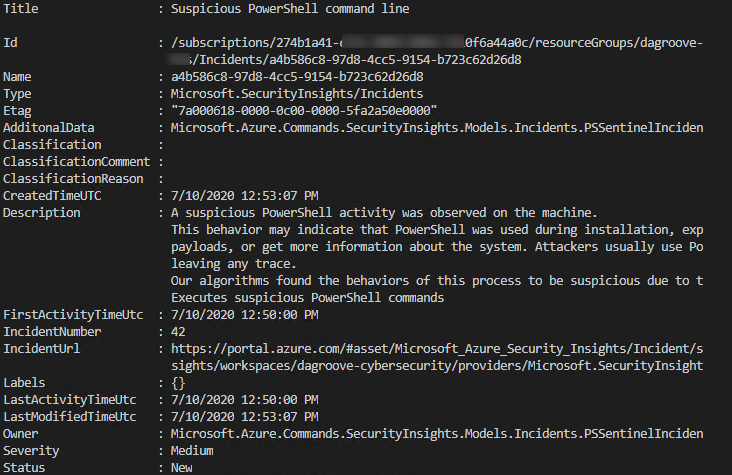
Using the SecurityInsights module is straightforward and is parameter driven as most of the PowerShell modules. The common parameters are your Azure Sentinel workspace and resource group name. You can retrieve all your incidents using Get-AzSentinelIncident -ResourceGroupName $resourceGroupName -WorkspaceName $workspaceName or retrieve a specific incident by adding the parameter -IncidentId <yourIncidentId>
Note: the IncidentId is derived from the Name field as depicted below:
Assign an Incident Owner
Most of the cmdlets accept a string as a parameter, but some cmdlets require an input object. For example, to assign an owner to an incident you would first need to create the owner object.
The owner object requires the following mandatory object parameters:
- AssignedTo – the owner full name
- Email – the email address of the owner
- ObjectId – the Azure Active Directory objectId of the owner
- UserPrincipalName – the user principal name of the owner
There are a couple of ways to create an owner object, for example:
$ownerObject = @{"AssignedTo" = "Jeff Leatherman"; "Email" = "JeffL@contoso.com"; "ObjectId" = "f4e959b4-feda-4345-a1e7-16b4af2fc226";"UserPrincipalName" = "JeffL@contoso.com"}
After you have created the owner object, you can then pass it as a parameter to the cmdlet Update-AzSentinelIncident like this:
Update-AzSentinelIncident -ResourceGroupName <yourResourceGroupName> -WorkspaceName <yourWorkspaceName> -IncidentId a4b586c8-97d8-4cc5-9154-b723c62d26d8 -Owner $ownerObject
Closing an incident
In case you need to close an incident, you need to make sure that you are passing the valid closing classifications and classification reasons.
Valid closing incident classifications are:
- Undetermined
- TruePositive
- BenignPositive
- FalsePositive
Valid closing classification reasons are:
- SuspiciousActivity
- SuspiciousButExpected
- IncorrectAlertLogic
- InaccurateData
Example closing an incident:
Update-AzSentinelIncident -ResourceGroupName <yourResourceGroupName> -WorkspaceName <yourWorkspaceName> -IncidentID "a5977bae-2775-44d1-8381-a28f6f061954" -Classification FalsePositive -ClassificationComment "my comment" -ClassificationReason InaccurateData -Status Closed
Configuring data connectors
The cmdlet New-AzSentinelDataConnector supports configuring and enabling Azure Sentinel data connectors. The current supported GA data connectors are:
The following example configures the Office 365 data connector:
New-AzSentinelDataConnector -ResourceGroupName "yourResourceGroupName" -WorkspaceName "yourWorkspaceName" -Office365 -Exchange "Enabled" -SharePoint “Enabled"
Some data connectors require more information, like the Azure Security Center data connector:
New-AzSentinelDataConnector -ResourceGroupName "yourResourceGroupName" -WorkspaceName "yourWorkspaceName" -AzureSecurityCenter -SubscriptionId <yourSubscriptionId> -Alerts Enabled
Exporting and importing analytics rules
The most common asked question that we get is how to export analytics rules and import those in another Azure Sentinel environment. This use case is specifically valid in a Dev-Test scenario where you want to have automation support to import your created analytics rules into production. To export your analytics rules you can leverage the Get-AzSentinelAlertRule cmdlet like in the following example:
$myRules = Get-AzSentinelAlertRule -ResourceGroupName $resourceGroupName -WorkspaceName $workspaceName
$myExportPath = "C:SentinelRulesExport"
$myExtension = ".json"
foreach($rule in $myRules){
    $ruleName = $rule.DisplayName
    $rule = $rule | ConvertTo-Json
    $rule | Out-File "$($myExportPath)$($ruleName)$($myExtension)"
}
This will export your analytics rules into a folder as JSON formatted files.
You can then edit the analytics rules or just import those into another Azure Sentinel environment using the following example:
$myImportPath = "C:SentinelRulesImport"
$myNewRules = Get-ChildItem $myImportPath -Filter *.json
foreach ($myNewRule in $myNewRules) {
    $myRuleObject = Get-Content -Path $myNewRule | ConvertFrom-Json
    New-AzSentinelAlertRule -ResourceGroupName $resourceGroupName -WorkspaceName $workspaceName `
        -Scheduled -DisplayName $myRuleObject.DisplayName -Description $myRuleObject.Description -Query $myRuleObject.Query `
        -QueryFrequency $myRuleObject.QueryFrequency.Ticks -QueryPeriod $myRuleObject.QueryPeriod.Ticks -Severity $myRuleObject.Severity -TriggerThreshold $myRuleObject.TriggerThreshold
Happy automating!
by Contributed | Dec 31, 2020 | Technology
This article is contributed. See the original author and article here.
Azure Stack Hub, part of the Azure Stack portfolio, is an extension of Azure that enables you to bring the agility and fast-paced innovation of cloud computing to your on-premises environment. It extends the power of Azure so your organization can consistently build, deploy, and operate hybrid applications across cloud, datacenter, and edge locations. As an Azure Stack Hub operator, you can run your own autonomous cloud—partially or completely disconnected from the internet and public cloud—and you control access to your own data.
If this is your skill set, we have a new certification for you. The Microsoft Certified: Azure Stack Hub Operator Associate certification validates your expertise in this area and offers you the opportunity to prove your skills. To earn this certification, pass Exam AZ-600: Configuring and Operating a Hybrid Cloud with Microsoft Azure Stack Hub, currently in beta.
Is this the right certification for you?
If you’re an Azure administrator or Azure Stack Hub operator who provides cloud services to your end users or customers from within their own datacenter using Azure Stack Hub, you’re on the right path, especially if you plan, deploy, package, update, and maintain the Azure Stack Hub infrastructure. Your responsibilities also include offering hybrid cloud resources and requested services and managing infrastructure as a service (IaaS) and platform as a service (PaaS).
This certification could be a great fit if you have significant experience managing and operating Azure Stack Hub environments. You should also have a strong understanding of Azure, in addition to some knowledge of virtualization, networking, and identity management. And you need to understand how Azure Stack Hub enables DevOps processes and the hybrid development model.
Ready to prove your skills?
Take advantage of the discounted beta exam offer. The first 300 people who take Exam AZ-600 (beta) on or before February 2, 2021, can get 80% off market price!
To receive the discount, when you register for the exam and are prompted for payment, use code AZ600CASCADE. This is not a private access code. The seats are offered on a first-come, first-served basis. As noted, you must take the exam on or before February 2, 2021. Please note that this beta exam is not available in Turkey, Pakistan, India, or China.
Get ready to take Exam AZ-600 (beta):
What about Exam 70-537?
If you’re preparing for Exam 70-537: Configuring and Operating a Hybrid Cloud with Microsoft Azure Stack Hub, which is an elective for Microsoft Certified Solutions Expert (MCSE): Core Infrastructure, remember that Exam 70-537 and the associated certification will be retired on January 31, 2021, so you’ll want to pass your exam by that date.
That being said, you should consider the new Azure Stack Hub Operator Associate certification—and Exam AZ-600 (beta) instead—to help you prove that your knowledge and skills in this specific job role are up to date.
Did you know that you can take any role-based exam online? Online delivered exams—taken from your home or office—can be less hassle, less stress, and even less worry than traveling to a test center—especially if you’re adequately prepared for what to expect. To find out more, check out my blog post Online proctored exams: What to expect and how to prepare.
When do you get your score?
The rescore process starts on the day an exam goes live, and final scores for beta exams are released approximately 10 days after that. For details on the timing of beta exam rescoring and results, read my post Creating high-quality exams: The path from beta to live. For more information, follow me on Twitter (@libertymunson).
Ready to get started?
Remember, the number of spots is limited to the first 300 candidates taking Exam AZ-600 (beta) on or before February 2, 2021.
Pass Exam AZ-600 (beta), earn your certification, and apply your Azure Stack Hub operator skills to working with Azure Stack Hub. Extend the reach of Azure, balance flexibility and control, and bring the fast-paced innovation of cloud computing to your on-premises environment. Plus, earn the recognition that can come with certification, as you manage modern applications in a hybrid cloud, bringing more agility to your workplace with this powerful extension of Azure.
Related announcements
MCSA, MCSD, MCSE certifications retire; with continued investment to role-based certifications
Updating Microsoft Certifications: How we keep them relevant
Finding the right Microsoft Azure certification for you
by Contributed | Dec 31, 2020 | Technology
This article is contributed. See the original author and article here.
As we’re announcing the new Microsoft Certified: Azure Stack Hub Operator Associate certification and the Exam AZ-600: Configuring and Operating a Hybrid Cloud with Microsoft Azure Stack Hub (currently in beta – you can find more details on the announcement here, including how to access the 80% discount for the beta), we wanted to list some of the resources you can use to prepare, or refresh, you Azure Stack Hub Operator skills.
The exam page lists the skills requires and they are also outlined in the skills outline document. For the study materials, we have prepared a number of resources:
by Contributed | Dec 30, 2020 | Technology
This article is contributed. See the original author and article here.
Here’s a quick video that walks you through our scanner architecture and deployment steps!
(link to the video attached :) )
Enjoy!

by Contributed | Dec 30, 2020 | Technology
This article is contributed. See the original author and article here.
Well, I don’t think anyone was ready for what 2020 had in store for us! We are very proud of how our Health and Life Sciences community came together to help each other get through the year. Thank you to all of our authors, customers, and partners for your contributions and HAPPY NEW YEAR from the Microsoft HLS team!
Check out the top 10 HLS blog posts that were viewed the most in 2020 (in order):
- Return to work, Office Space Distancing – Vasu Sharma and Pradeep Bethi, Microsoft Customer Success Managers: As organizations limit the workforce permitted to be physically present at office locations, it has placed an additional burden on leaders, particularly facilities, office managers, and logistics teams. Learn how to use Shifts in Microsoft Teams to help create, update and manage schedules for your team here.
- Quick Start: Setting Up Your COVID-19 Health Bot – Nikita Pitliya, Microsoft Cloud Solution Architect and Sam Brown, Microsoft Teams Technical Specialist: Need a step-by-step guide on how to set up the health bot for inbound COVID-19 requests? We take you through the implementation of the Assessment, Metrics, and FAQ templates here.
- Virtual rounding using Microsoft Teams – Max Fritz, Microsoft Senior Program Manager: This is an open source solution to support virtual rounding with Microsoft Teams. Hospital and emergency room rounds will be conducted virtually, through a Microsoft Teams meeting between the provider and the patient, reducing risk of exposure to COVID-19 and helping to prevent the drain of personal protective equipment. Max demonstrates the solution and answers commonly asked questions here.
- Track the COVID-19 Growth Curve in Power BI – Greg Beaumont, Microsoft Senior Technical Specialist, Power Platform: Greg Beaumont built an interactive COVID-19 report using the data from Johns Hopkins University, The New York Times and the COVID Tracking Project. For this link, iframe snippet, and a video detailing ways that you can interact with the dashboard, check out his updated post.
- In response to COVID-19: How Microsoft can help with Situational Response and Crisis Communication – Shelly Avery, Microsoft Teams Senior Technical Specialist: As a response to the COVID-19 outbreak, Microsoft has many solutions available for customers, which Shelly summarizes here.
- Introducing the Medical Imaging Server for DICOM – Heather Cartwright, Microsoft GM, Healthcare NExT, Artificial Intelligence & Research: Microsoft recently released a new Open Source Software (OSS) that provides developers with a powerful tool to migrate medical imaging data to the cloud and integrate imaging metadata with clinical data in FHIR using DICOM Cast technology. Microsoft’s Heather Cartwright explains its impact on the next horizon of health data transformation in this article.
- Setting Up Bookings for virtual visits – Microsoft Teams Technical Specialists Shelly Avery, Max Fritz and Sam Brown: Interested in virtual visits but need to know how to set it up within Bookings and integrate it into Teams? Check out the step-by-step with screenshots and videos here.
- Deploy an End-to-End Azure Synapse Analytics and Power BI Solution using CMS Medicare Data – Greg Beaumont, Microsoft Senior Technical Specialist, Power Platform: In just 1-2 hours with no code required, you can deploy an end-to-end Azure Synapse and Power BI solution using 120+ million rows of real CMS Medicare Part D Data with the Azure ARM template. Check out the paint-by-numbers video tutorial and instructions here.
- Return to Workplace – Space management with Shifts (Part 2) – Vasu Sharma and Pradeep Bethi, Microsoft Customer Success Managers: As a follow up to the office space distancing article above, this details how administrators can use Shifts for space management, send daily guidance, provide topical Q&A, and use incident reporting capabilities. Details here.
- Situational Response Management, Communications, and Virtual Patient Outreach – Webcast Recording: Several Microsoft Technical Specialists review tools and solutions applicable not only for business continuity and crisis management in general, but also for the immediate needs of organizations dealing with the impact of COVID-19 today. Check out the recording.
Authors of these popular 2020 HLS blog posts:

Nikita Pitliya, Microsoft Data & AI Solution Architect

Vasu Sharma, Microsoft Customer Success Manager

Pradeep Bethi, Microsoft Director, Customer Success

Greg Beaumount, Senior Technical Specialist, Microsoft Power Platform

Michael Gannotti, Principal Technical Specialist, Microsoft Teams

Shelly Avery, Senior Technical Specialist, Microsoft Teams

Max Fritz, Microsoft Senior Program Manager

Heather Cartwright, GM, Microsoft Health Cloud and Data
Let us know how the Microsoft HLS team can help you in the upcoming year!

Sam Brown, Technical Specialist, Microsoft Teams

by Contributed | Dec 30, 2020 | Technology
This article is contributed. See the original author and article here.
For the final instalment this year, it is time once again to Reconnect! For this very special edition of the blog, we are joined by eight-time Data Platform MVP titleholder Aaron Nelson.
Hailing from Georgia, United States, Aaron is a SQL Server Architect with more than 20 years of experience in Architecture, Business Intelligence, Development, and Performance Tuning of SQL Server.
Aaron’s accomplishments read like a laundry list of tech experience. He is a Microsoft Certified Professional as a Business Intelligence Developer, Database Administrator, and Database Developer. Meanwhile, Aaron helped to pen Microsoft SQL Server 2012 Bible, an in-depth guide crammed with specific examples, sample code, and a host of tips, workarounds, and best practices.
This extensive experience led Aaron to begin work as a senior consultant for Microsoft in April 2019, where he assists premier customers on data platform design and Azure across the United States.
In addition, Aaron has been very active in his community. Aaron has volunteered with the PowerShell Virtual Chapter of PASS since its inception in October 2010, with the chapter growing to more than 5,000 members and amassing a following on YouTube. Further, Aaron serves as a board member of the Technology Association of Georgia Young Professionals, and volunteers with Atlanta Microsoft Database Forum.
Since 2010, Aaron has have spoken at more than 100 events across the US, Canada, Europe, and the Caribbean. His personal highlights include PASS Summit, Teched North America, TechEd Europe, and SQLRally.
For more on Aaron, check out his Twitter @SQLvariant

by Contributed | Dec 30, 2020 | Technology
This article is contributed. See the original author and article here.
Before. 2020. Blink. Breathe. 2021 (soon). Breathe. Begin.
To close out the year, December 2020 brought many a new offering: SharePoint site header updates, send pages to Yammer, “SharePoint Success” site template, add Microsoft Teams to SharePoint team sites update (aka, Teamify), Microsoft Lists adoption center, Microsoft Graph Toolkit v2.0, and more. Details and screenshots below, including our audible companion: The Intrazone Roadmap Pitstop: December 2020 podcast episode – all to help answer, “What’s rolling out now for SharePoint and related technologies into Microsoft 365?” Blink. Breathe.
https://html5-player.libsyn.com/embed/episode/id/17363762/height/90/theme/custom/thumbnail/yes/direction/backward/render-playlist/no/custom-color/247bc1/
In the podcast episode, listen to an exclusive chat with @Tejas Mehta (LinkedIn | Twitter), principal program manager on the SharePoint team who owns content services integration work with Microsoft Teams. I nabbed a 6ft-apart check-in with Tejas to talk about life for SharePoint before Teams, ongoing integration work including this month’s #teamify update, and what the future may bring in this space. Also, exclusive this month on The Intrazone, we share the Top 10 SharePoint features released in 2020.
Tejas Mehta, principal program manager at Microsoft (SharePoint + Teams integration) [Intrazone guest]; myself and Tejas social-distanced, 6ft-pic-nic table-apart podcasting at Sammamish Commons.
All features listed below began rolling out to Targeted Release customers in Microsoft 365 as of December 2020 (possibly early January 2021). Blink. Breathe.
Inform and engage with dynamic employee experiences
Build your intelligent intranet on SharePoint in Microsoft 365 and get the benefits of investing in business outcomes – reducing IT and development costs, increasing business speed and agility, and up-leveling the dynamic, personalized, and welcoming nature of your intranet.
SharePoint site header updates
We are making it easier to customize the header of your site. The default site header for new SharePoint sites will be the compact header instead of the standard header. Site owners will see updated options in the “Change the Look” panel, including: a minimal header which has a reduced height to provide quick, visual access to content, an extended header includes an optional background image, expanded site logo widths, and options for logo alignment – left, middle, right. And now it’s easy to toggle site title label to be on or off.
 From the upper-right gear icon, click into the “Change the look” panel, select “Header” and then customize it the way you prefer.
Now you can truly control your site’s first impression, starting at the very top with the site header – just the way you want it.
Send SharePoint pages to Yammer
Expand the reach and the conversation of your SharePoint pages news posts. You can now send articles from SharePoint directly into Yammer communities and include questions, polls, praise, and rich text. It’s also possible to upload images and files to the post linked to the share.
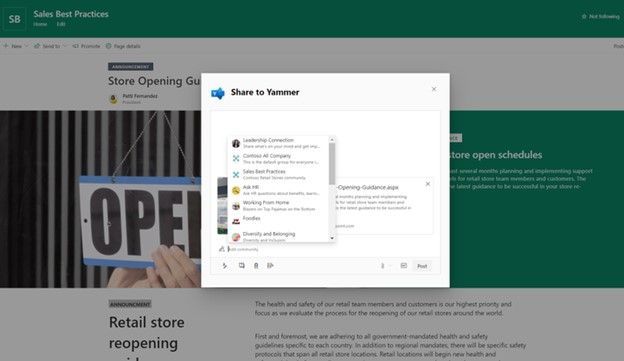 The SharePoint Send-to-Yammer dialog provides a rich preview for media and the ability add text to the post.
Page to post in a few clicks.
“SharePoint Success” site template
Now available via the SharePoint Look Book, the “SharePoint Success” site template is a ready to deploy, customizable SharePoint communication site that helps your colleagues create high-impact sites to meet the goals of your organization. It comes pre-populated with site creation inspiration and training on how to create high quality and purposeful SharePoint sites. You’ll find Microsoft maintained SharePoint training content feed, success stories, and site creation guidelines.
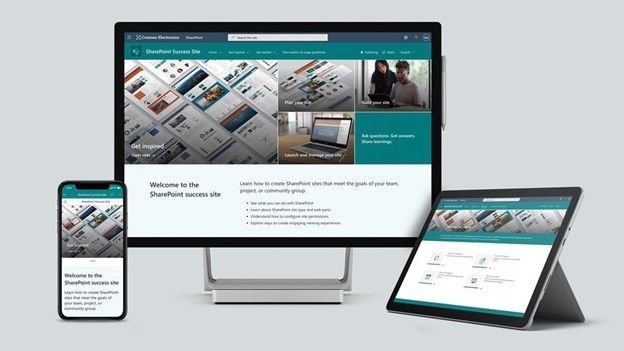 Make this site your own to establish a learning destination to help everyone make SharePoint a success for your organization.
Teams and OneDrive destinations when using Migration Manager in the SharePoint admin center
Admins now have greater visibility and choice selecting destination(s) for files and folders when moving content from on-premises file shares into Microsoft 365. New beyond SharePoint, admins can select OneDrive usernames or URLs and/or select various Teams team and channels as migration destinations – moving files exactly where you want them.
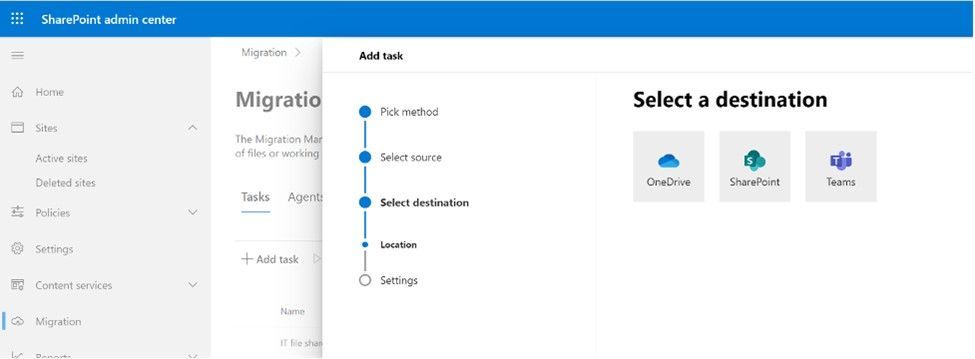 When moving files and folders into Microsoft 365 from on-premises file shares, admins choose OneDrive, SharePoint, and Teams as destinations.
A note on credentials: You need to have access to the destination as a global admin or OneDrive/SharePoint admin to the Microsoft 365 tenant where you want to migrate your content to, and access to the source; aka, Windows credentials that have read access to any of the network file shares you plan to migrate.
Teamwork updates across SharePoint team sites, OneDrive, and Microsoft Teams
Microsoft 365 is designed to be a universal toolkit for teamwork – to give you the right tools for the right task, along with common services to help you seamlessly work across applications. SharePoint is the intelligent content service that powers teamwork – to better collaborate on proposals, projects, and campaigns throughout your organization – with integration across Microsoft Teams, OneDrive, Yammer, Stream, Planner and much more.
Add Microsoft Teams to your SharePoint team site
We’re pleased to announce that we are making it even easier to bring SharePoint content into Teams, in the same motion of adding Microsoft Teams to your team site, aka #teamify. As you connect SharePoint to Teams, you choose what lists, libraries, and pages you want to bring into Teams as tabs in the new, default General channel.
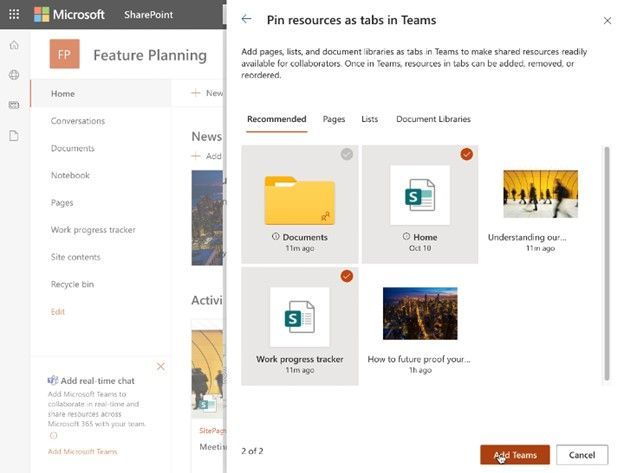 Choose what SharePoint lists, libraries, and pages to bring into Microsoft Teams as tabs in the new, default General channel when adding Teams to your SharePoint team site.
By default, your team site home page will be selected, you can change it to suit your needs, and you can fully navigate the primary document library from the Files tab – just follow the new folder breadcrumbs from the channel folder up to the root of the library. This helps bring content and collaboration to more of the sites you use for teamwork excellence.
Microsoft Lists adoption center on adoption.microsoft.com (managed by @Andrea Lum)
Simplify and accelerate your time to value throughout your organization. We know your time is important, so we’ve created adoption materials to help onboard employees at scale while being confident that you are improving the employee experience.
For Microsoft Lists, you’ll find an adoption playbook, day-in-the-life guides, a quick start guide, a look book, internal communication templates, pointers to documentation and training, plus materials to help build an internal Lists champion program within your organization.
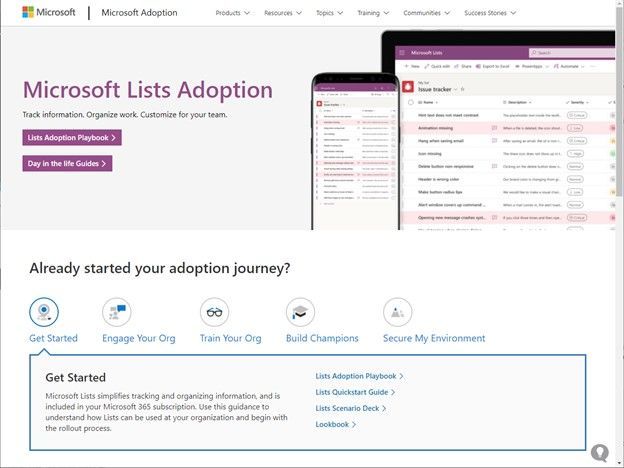 Screenshot showing the Microsoft Lists adoption center at https://aka.ms/ListsAdoption.
Learn more:
Related technology
OneDrive 2020 summary of highlights
It was a big year for OneDrive. And much of the value you see promoted by and for OneDrive also improves productivity experiences within SharePoint and Teams. Things like differential sync, 100GB file uploads, Add to OneDrive, expiring access for external users, and more.
This month’s The Intrazone Roadmap Pitstop: December 2020 audio companion (above) contains a segment of audio where we hear from @Randy Wong, Principal PM Manager, recap 2020 and explain the 200 million monthly active user impact on the service and how the team work hard to keep pace with both scale and innovation.
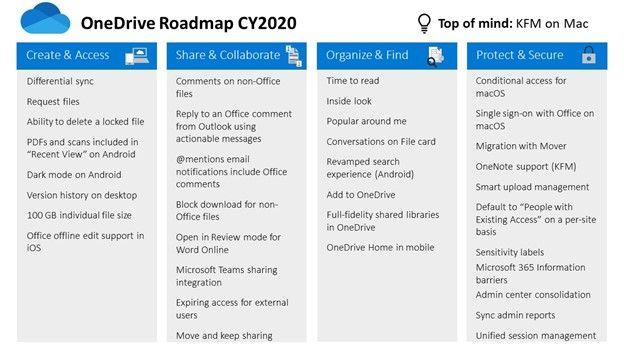 PowerPoint slide from Microsoft Ignite 2020 highlighting the OneDrive 2020 roadmap.
The above below is a roadmap summary PowerPoint slide from Microsoft Ignite 2020, taken from the “What’s new and coming to OneDrive” session presented by @Ankita Kirti and @Jason Moore.
The Microsoft Graph Toolkit 2.0
A better dev toolkit is better for everyone. The Microsoft Graph Toolkit is great for developers of all experience levels looking to develop a web application, Microsoft Teams tab, or SharePoint web part that connects to and accesses data from Microsoft Graph. Collectively, it’s a collection of components and providers designed to ease app integration with Microsoft Graph – as easy as writing two lines of code. In 2.0, you’ll find reusable, framework-agnostic components and authentication providers for accessing and working with Microsoft Graph:
- Now broken into several packages so you only get the code you need.
- A new React package, making it simpler to use the toolkit when developing React applications by wrapping all components and exporting them as React components.
- New components like the Person Card 2.0, a new To Do component, and all components have better caching, theming, localization, accessibility with general bug fixes all around.
1.0 was so yesterday. 2.0 is here and awaits your Graph-powered apps. Dev with it today!
SharePoint and Microsoft Lists sweater backgrounds for Microsoft Teams meetings
Be the foreground. Be it in memory of the holidays, a New Year’s Eve Teams call, or you just wanna get cozy and warm on any chat or concall in 2021. SharePoint, Lists and many others got your back(ground) in Teams meetings.
 Some examples of what the cozy Microsoft-365-app-inspored holiday backgrounds look like in Microsoft Teams; clockwise from top left: Wenvi Hidayat + SharePoint + Christmas, Ben Truelove + Lists + Christmas, Mark Kashman + SharePoint + Hanukkah + Teams, and YOU + SharePoint.
Big thanks to my colleagues @Wenvi and @Ben Truelove for creating and getting these out there – and to our community members, Jason Custer and Michael Gillet.
Follow this all-in-one tweet thread to see all the designs and link to grad the full-res version that most captures your mood. Plus learn how to change your background for a Microsoft Teams meeting.
January 2021 teasers
Psst, still here? Still scrolling the page looking for more roadmap goodness? If so, here is a few teasers of what’s to come to production next month…
- Teaser #1 | JSON list form customization: footer, header, body [Roadmap ID: 63519]
- Teaser #2 | Microsoft Lists: Integrate menu item [Roadmap ID: 64869]
… shhh, tell everyone.
Helpful, ongoing change management resources
- Follow me to catch news and interesting SharePoint things: @mkashman; warning, occasional bad puns may fly in a tweet or two here and there.
Thanks for tuning in and/or reading this episode/blog of the Intrazone Roadmap Pitstop – December 2020 (blog/podcast). We are open to your feedback in comments below to hear how both the Roadmap Pitstop podcast episodes and blogs can be improved over time.
Engage with us. Ask questions. Push us where you want and need to get the best information and insights. We are here to put both our and your best change management foot forward.
Stay safe out there on the road’map, and thanks for listening and reading.
Appreciate your time,
Mark “HNY” Kashman – senior product manager (SharePoint/Lists) | Microsoft)
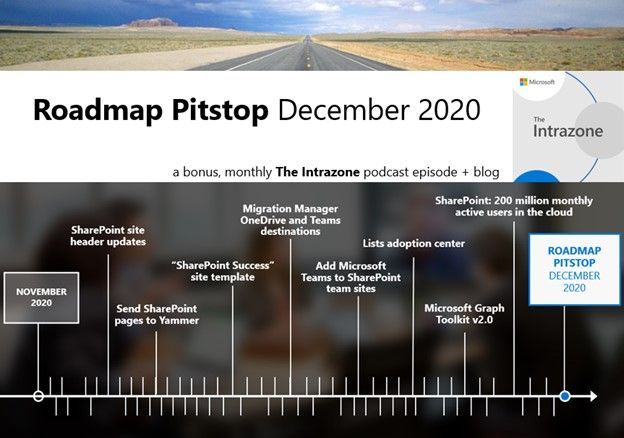 The Intrazone Roadmap Pitstop – December 2020 graphic showing some of the highlighted release features.
Subscribe to The Intrazone at aka.ms/TheIntrazone, or where you get your podcasts (direct links to The Intrazone on various podcast platforms:
And listen and subscribe to other Microsoft podcasts: aka.ms/microsoft/podcasts
 The Intrazone, a show about the Microsoft 365 intelligent intranet: https://aka.ms/TheIntrazone.


Recent Comments