by Contributed | Jan 4, 2021 | Technology
This article is contributed. See the original author and article here.
A brief snapshot of the conversation that my colleague and I had a couple of weeks ago:
Colleague: “I am new to Kubernetes and Linux world and was hoping if I could deploy SQL Server using helm chart from my Helm on my windows client and a managed kubernetes cluster service like Azure kubernetes service cluster (AKS)?”
Me: “Yes, you can!”
Colleague: “Great! Can you share articles or guidance to do that so I could follow those?”
Me: “hmm.. For Helm refer this.. for Kubernetes refer this.. For SQL Server deployment using helm on kubernetes refer this.. “
and that’s when I noticed there wasn’t a single stop end to end guidance. This is what prompted me to write this blog. And I hope this helps anyone who is new to Kubernetes/helm charts or even SQL Server and want to get started with the deployment of SQL Server on Kubernetes.
By the end of this blog, you should have the SQL Server deployed via the helm charts on the managed kubernetes service which in this case is Azure Kubernetes Service (AKS). For more information on Kubernetes, Helm chart please refer to articles mentioned below to get you started.
- What is Kubernetes ?
- What is helm chart ?
- The sample helm chart that we will use for this SQL Server deployment is available here. Please go through the readme file, to understand the files and values that you can chance and customize for your SQL Server deployment.
With the pre-read done, now lets start with deployment.
The follow along plan-
Please deploy an AKS (Azure Kubernetes Service) cluster. If you do not want to use AKS and want to create your custom kubernetes cluster you could do that as well.
On your windows client system, from where you will connect to the AKS cluster and deploy SQL Server using the helm chart below, the tools that need to be installed on the windows client are:
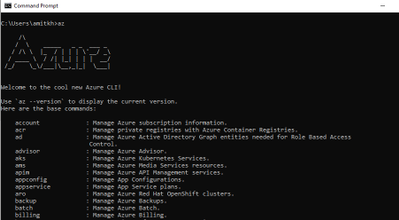
You first install “az”, you can follow the steps documented here. From the link, download the current version of “az cli” exe and install the exe. If the installation is successful, you can type the command az in command prompt and if it is installed you should see output similar to the image shown below:
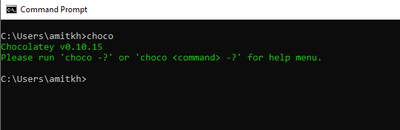
- Once you have the Azure CLI installed the next step is to install chocolatey, which is required to install helm on the windows client. To install chocolatey, follow the chocolatey install documentation. Follow the “Install with cmd.exe” section for a installation via the cmd.exe. Once the installation of the chocolatey is complete to confirm, open cmd.exe and run the command : choco as shown below:
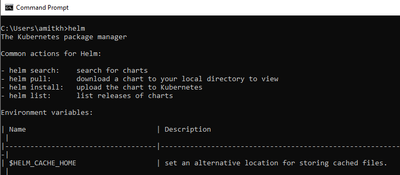
Post the successful installation, when you run helm command in the cmd.exe you should see the output as shown below
- Now it is time to install the “kubectl” tool to interact and work with the kubernetes cluster, to install kubectl in the command prompt run the command
az aks install-cli
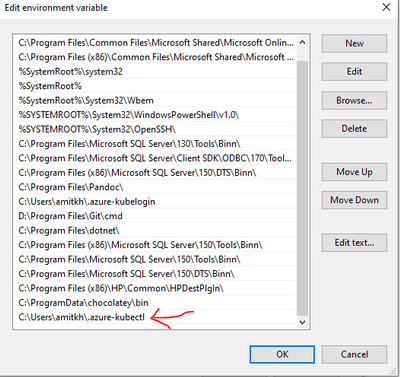
Post the successful install of “kubectl” you should add the path to “kubectl” as one of the environment variables. In my case the path to kubectl is at “C:Usersamitkh.azure-kubectl” so I add the path to the environment variable as shown below:
With all the required tools installed on the windows client, we need to merge the context of the AKS cluster with the kubectl, so when we run kubectl or helm commands the operation takes place on that specific AKS cluster. To merge, run the command as described in the connect to aks cluster which is:
az aks get-credentials --resource-group <resourcegroupname> --name <aks clustername>

Once this is done, when you run a kubectl command the execution happens in the context of the aks cluster that we merged our tools with in the above step. An example shown below:
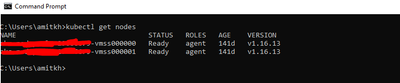
You are now ready to deploy the SQL Server on AKS cluster via the helm chart. You can download the sample helm-chart from this github location. Please go through the readme file to ensure you understand the options that you need or can change as per your requirement and customization.
Once you have the helm chart and all its file download to your windows client, switch to the directory where you have downloaded and after you have done modification to the downloaded helm chart to ensure it is as per your requirement and customization, deploy SQL Server using the command as shown below, you can change the deployment name (“mssql-latest-deploy”) to anything that you’d like.
helm install mssql-latest-deploy . --set ACCEPT_EULA.value=Y --set MSSQL_PID.value=Developer
Here is a example for reference, I have the chart and its files downloaded to the mssql-latest directory and this is how it looks and then I run the helm install command to deploy SQL Server.
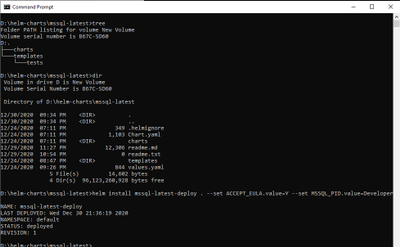
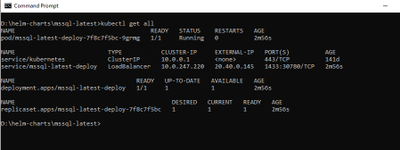
After a few minutes, you should see SQL Server deployed and ready to be used as shown below:
Connect to the SQL Server running on AKS:
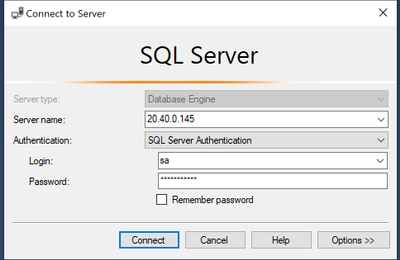
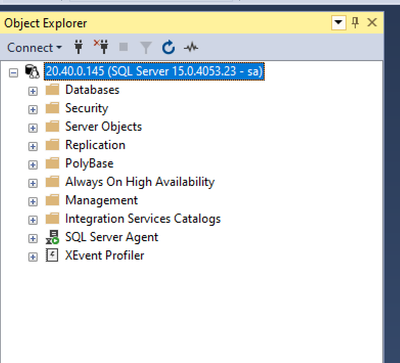
- Using any of the familiar SQL Server tools like the SSMS (SQL Server Management Studio) or SQLCMD or ADS (Azure Data Studio), etc. You can connect to the instance of the SQL Server using the External-IP address for the “mssql-latest-deploy” service. In this case it is 20.40.0.145.
- The sa_password is the value you provide to the Values.sa_password in the values.yaml file in the helm chart.
Changing the tempdb path:
As you would have noticed in the helm chart, we provide a specific location for tempdb files to ensure that the tempdb files are stored in those specific location. Here are the steps you can follow:
- To change the tempdb location to the specific path you can connect to the SQL Server instance and then run the below T-SQL queries:
-- Get the tempdb specific files
select * from sysaltfiles where dbid=2
--We want to move the tempdb files to this specific location : /var/opt/mssql/tempdb/, ---so here are the commands:
ALTER DATABASE tempdb
MODIFY FILE (NAME = tempdev, FILENAME = '/var/opt/mssql/tempdb/tempdb.mdf');
GO
ALTER DATABASE tempdb
MODIFY FILE (NAME = tempdev2, FILENAME = '/var/opt/mssql/tempdb/tempdb2.ndf');
GO
ALTER DATABASE tempdb
MODIFY FILE (NAME = templog, FILENAME = '/var/opt/mssql/tempdb/templog.ldf');
GO
--check and confirm that the locations for tempdb files are updated
select * from sysaltfiles where dbid=2
2. Now for the change to take in affect, you will have to restart the SQL Server container and you can do the same using the commands below:
kubectl scale deployment mssql-latest-deploy --replicas=0
Once you run the above command, wait for the container to be deleted and once it is, run the below command for the new container to be deployed
kubectl scale deployment mssql-latest-deploy --replicas=1
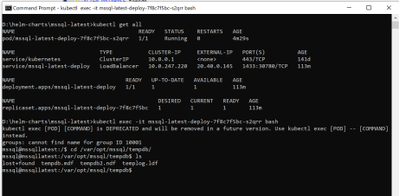
Here you can now connect to the pod and check the tempdb files are now located to the new location : /var/opt/mssql/tempdb/
Hope you enjoyed it !! Happy learning!!
Amit Khandelwal
Sr. Program Manager

by Scott Muniz | Jan 4, 2021 | Security
This article was originally posted by the FTC. See the original article here.
If you, or someone you care about, lives in an assisted living facility or nursing home, read on. Because the bill funding the second round of Economic Impact Payments (EIPs) has now been signed into law. The money — right now, $600 per person who qualifies — will be sent out over the next few weeks. And, like last time, the money is meant for the PERSON, not the place they might live.
In the first round, which I’ll call EIP 1.0, we know that some nursing facilities tried to take the stimulus payments intended for their residents…particularly those on Medicaid. Which wasn’t, shall we say, legal, and kept some attorneys general busy recovering those funds for people.
Now, with EIP 2.0, we would hope those facilities have learned their lesson. But, just in case, let’s be clear: If you qualify for a payment, it’s yours to keep. If a loved one qualifies and lives in a nursing home or assisted living facility, it’s theirs to keep. The facility may not put their hands on it, or require somebody to sign it over to them. Even if that somebody is on Medicaid.
It would be worth a quick chat with management of the facility in question, just to remind them that the rules are the same this time through. And if you hear about a nursing home or assisted living facility being grabby about Economic Impact Payments, tell your state attorney general right away. And then tell the FTC at www.ReportFraud.ftc.gov.
Brought to you by Dr. Ware, Microsoft Office 365 Silver Partner, Charleston SC.
by Contributed | Jan 4, 2021 | Technology
This article is contributed. See the original author and article here.
Microsoft’s Azure Sentinel, our Security Incident and Event Management (SIEM) solution, enables you to connect activity data from different sources into a shared workspace. That data ingestion is just the first step in the process though. The power comes from what you can now do with that data, including investigating incident alerts, building your own dashboards with workbooks, responding to threats with security playbooks and hunting for security threats.
Let’s take a look at some of the built-in rule templates that you can activate, to query and alert on that data.
Built-in rule templates
Your active rules and the list of available rule templates can be found in Azure Sentinel under ConfigurationAnalytics:
Azure Sentinel Analytics menu
The rule templates are published by Microsoft and are updated and added to as new events and threats are detected, classified as low, medium or high severity. There are currently just under 200 rule templates covering 38 different data sources, both from Microsoft and third parties.
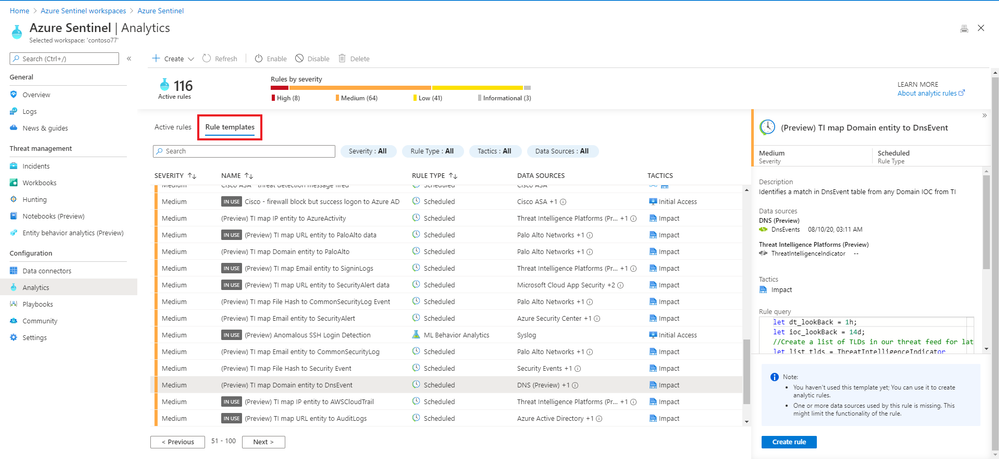 Some of the rule templates in Azure Sentinel
Examples
There are rule templates to create incidents in Azure Sentinel based on alerts from Azure Security Center, Office 365 Advanced Threat Protection (Preview) and Microsoft Defender Advanced Threat Protection. This helps you build one place to manage and investigate threats across different Microsoft products.
There are individual rules for Microsoft and non-Microsoft products:
High |
First access credential added to Application or Service Principal where no credential was present |
Azure Active Directory |
Medium |
Rare application consent |
Azure Active Directory |
Medium |
Full Admin policy created and then attached to Roles, Users or Groups |
Amazon Web Services |
Low |
Changes to AWS Security Group ingress and egress settings |
Amazon Web Services |
Medium |
Known Malware Detected |
VMWare Carbon Black Endpoint Standard (preview) |
Medium |
Port scan detected |
Sophos XG Firewall (preview) |
Medium |
New internet-exposed SSH endpoints |
Syslog |
Low |
Request for single resource on domain |
Zscaler |
There are also rules that combine more than one product, linking events that could indicate a possible incident:
High |
Anomalous login followed by Teams action |
Office 365 + Azure Active Directory |
High |
Multiple password reset by user |
Azure Active Directory + Security Events + Syslog + Office 365 |
And there are rules that detect a known threat from different data sources:
High |
Known IRIDIUM IP |
Office 365, DNS (preview), Cisco ASA, Palo Alto Networks, Security Events, Azure Active Directory, Azure Activity, Amazon Web Services |
High |
THALLIUM domains included in DCU takedown |
DNS (preview), Cisco ASA, Palo Alto Networks |
Anatomy of a rule template
As well as a severity and a list of the data source/s for this rule, a description tells you why this rule is important and may give you links to other relevant information.
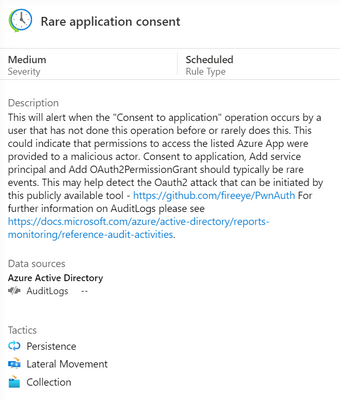 Azure Sentinel rule template description
The rule type can be:
Microsoft Security – these rules automatically create Azure Sentinel incidents from alerts generated in other Microsoft security products, in real time.
Scheduled – these run periodically based on the settings you configure and allow you to alter the query logic.
ML Behaviour Analytics – these are based on proprietary Microsoft machine learning algorithms, so you can’t see of change the query logic.
Fusion – this detects multistage attacks by identifying combinations of anomalous behaviors and suspicious activities observed at various stages of the kill chain. By design, these incidents are low-volume, high-fidelity, and high-severity, which is why this detection is turned ON by default. For more information on Fusion incident types, visit Advanced multistage attack detection in Azure Sentinel.
The tactics icons show what kind of threat this rule is related to:
Credential access, command and control, initial access, impact, defence evasion, collection, persistence, lateral movement, privilege escalation.
You can also see the details of the rule query, written in Kusto Query Language (KQL).
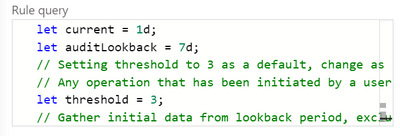
Scheduled rules have a frequency, a rule period and a rule threshold, and may allow event grouping, suppression, the creation of incidents from this alert and alert grouping.
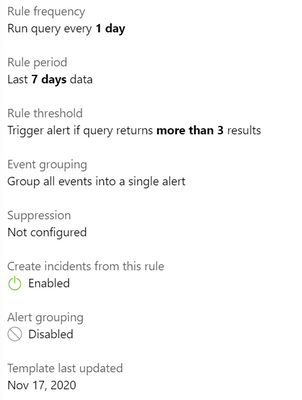 Rule template settings for a scheduled rule
Creating a rule from a rule template
To turn a rule template into an active rule for your environment, you just select the Create rule button. With the wizard, you can then customize any rule settings or the rule logic itself (if appropriate) and you will be warned if you don’t have the required data sources connected.
Choosing your rules
Azure Sentinel gives you a very powerful security capability, but it’s up to you to decide how to apply it to your organization. The built-in rule templates are a great start, or you may also choose to build your own queries. Take a look at the data sources across your environment and what security incident and event monitoring tools and processes you already have in place. What in particular do you need to monitor – network attacks? logins of administrative accounts? events from different systems that may be related?
In addition, the Azure security baseline for Azure Sentinel takes guidance from the Azure Security Benchmark‘s security controls.
Learn more:
MS Learn – Cloud-native security operations with Azure Sentinel
Docs – Tutorial: Detect threats out of the box
Docs – Tutorial: Create custom analytics rules to detect threats
Docs – Extend Azure Sentinel across workspaces and tenants
by Contributed | Jan 4, 2021 | Technology
This article is contributed. See the original author and article here.
To keep Service Fabric cluster running the old certificate are needed to be replaced with new certificates the below steps can help you rotate the old certificate with new certificates. This article assumes you are running cluster with thumbprint approach. In general the common name approach is recommended for easy certificate management. More information about certificate on Standalone cluster refer to Secure a cluster on Windows by using certificates – Azure Service Fabric | Microsoft Docs
Service Fabric with certificates that aren’t expired (cluster running with near expiry or non-expired certificates)
Important Note: Before you change below config, you should install all certificate on all nodes i.e. New certificate should be present and acled to Network Service before you start this operation on all nodes.
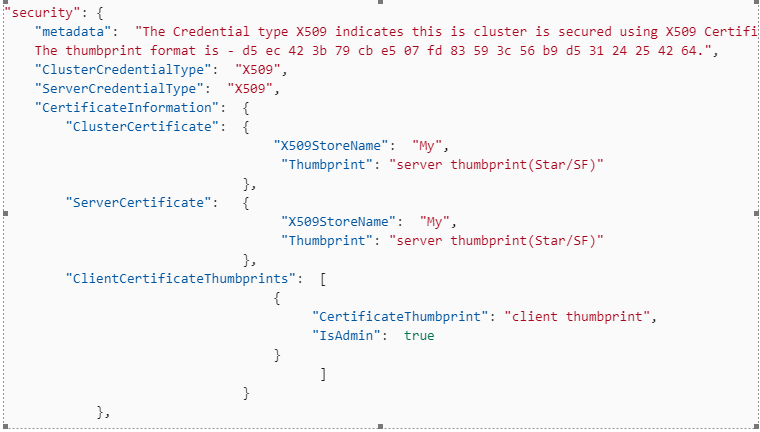
1. Open the Clusterconfig.json file for editing, and find the following section. If a secondary thumbprint is defined, you need to clean up old Service Fabric certificates before you go any further. i.e. trigger an upgrade to remove secondary certificate section first.
"security": {
    "metadata":  "The Credential type X509 indicates this cluster is secured using X509 Certificates.
    The thumbprint format is - d5 ec 42 3b 79 cb e5 07 fd 83 59 3c 56 b9 d5 31 24 25 42 64.",
    "ClusterCredentialType":  "X509",
    "ServerCredentialType":  "X509",
    "CertificateInformation":  {
        "ClusterCertificate":  {
                                   "X509StoreName":  "My",
                                    "Thumbprint": "*Old server thumbprint(Star/SF)*"
                               },
        "ServerCertificate":   {
                                    "X509StoreName":  "My",
 									"Thumbprint": "*Old server thumbprint(Star/SF)*"
                               },
        "ClientCertificateThumbprints":  [
                                   {
                                        "CertificateThumbprint": "*Old client thumbprint*",
                                        "IsAdmin":  true
                                   }
                                         ]
                               }
            },
2. Replace that section in the file with following section.
"security":  {
    "metadata":  "The Credential type X509 indicates this cluster is secured using X509 Certificates.
    The thumbprint format is - d5 ec 42 3b 79 cb e5 07 fd 83 59 3c 56 b9 d5 31 24 25 42 64.",
    "ClusterCredentialType":  "X509",
    "ServerCredentialType":  "X509",
    "CertificateInformation":  {
        "ClusterCertificate":  {
                                   "X509StoreName":  "My",
                                    "Thumbprint": "*New server thumbprint(Star/SF)*",
                                    "ThumbprintSecondary": "Old server thumbprint(Star/SF)"
                               },
        "ServerCertificate":   {
                                    "X509StoreName":  "My",
 									"Thumbprint": "*New server thumbprint(Star/SF)*",
                                    "ThumbprintSecondary": "Old server thumbprint(Star/SF)"
                               },
        "ClientCertificateThumbprints":  [
                                   {
                                        "CertificateThumbprint": "*Old client thumbprint*",
                                        "IsAdmin":  false
                                   },
                                   {
                                        "CertificateThumbprint": "*New client thumbprint*",
                                        "IsAdmin":  true
                                   }
                                         ]
                               }
            },
by Contributed | Jan 3, 2021 | Technology
This article is contributed. See the original author and article here.
Overview
Happy New Year everyone!
Thanks to @amitsheps (Azure Defender for IoT Senior Program Manager) and @paulrob (Azure Defender for IoT Global Black Belt) for the brainstorming, contributing, reviewing and proof reading!
To enable rapid detection and response for attacks that cross IT/OT boundaries, Azure Defender is deeply integrated with Azure Sentinel—Microsoft’s cloud-native SIEM/SOAR platform. As a SaaS-based solution, Azure Sentinel delivers reduced complexity, built-in scalability, lower total cost of ownership (TCO), and continuous threat intelligence and software updates. It also provides built-in IoT/OT security capabilities, including:
- Deep integration with Azure Defender for IoT: Azure Sentinel provides rich contextual information about specialized OT devices and behaviors detected by Azure Defender—enabling your SOC teams to correlate and detect modern kill-chains that move laterally across IT/OT boundaries.
- IoT/OT-specific SOAR playbooks: Sample playbooks enable automated actions to swiftly remediate IoT/OT threats.
- IoT/OT-specific threat intelligence: In addition to the trillions of signals collected daily, Azure Sentinel now incorporates IoT/OT-specific threat intelligence provided by Section 52, our specialized security research team focused on IoT/OT malware, campaigns, and adversaries.
Using the Azure Sentinel Out-of-the box Azure Defender for IoT data connector (tagged as: “Azure Security Center for IoT (Preview)“), you will be able to easily pull Defender for IoT alerts to Azure Sentinel for further correlation, aggregation, investigations & detections. For more details please visit Connect your data from Defender for IoT to Azure Sentinel (preview)
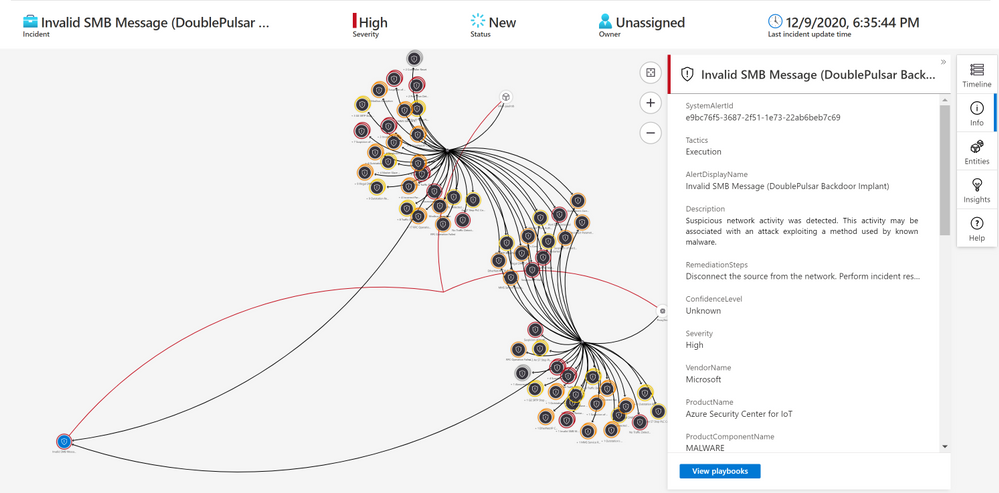
Here’s an example of correlating OT alerts in Azure Sentinel:
Use Case
SOC requirements is to ingest Azure Defender for IoT “Raw-Data” to Azure Sentinel and build set of analytics rules for further correlation activities & detections covering the entire MITRE ATT&CK ICS matrix and further use cases, Achieving full coverage of the IoT and ICS threats described in the ATT&CK for ICS framework not only positions you to protect your networks against the threats that exist today, it also prepares you for the new ones that will, inevitably, appear in the future.
Crafting an IoT/ICS security approach capable of this requires a combination of capabilities: you need full visibility into your assets, proactive risk management to address vulnerabilities that could be exploited by adversaries, and M2M analytics to provide continuous network security monitoring.
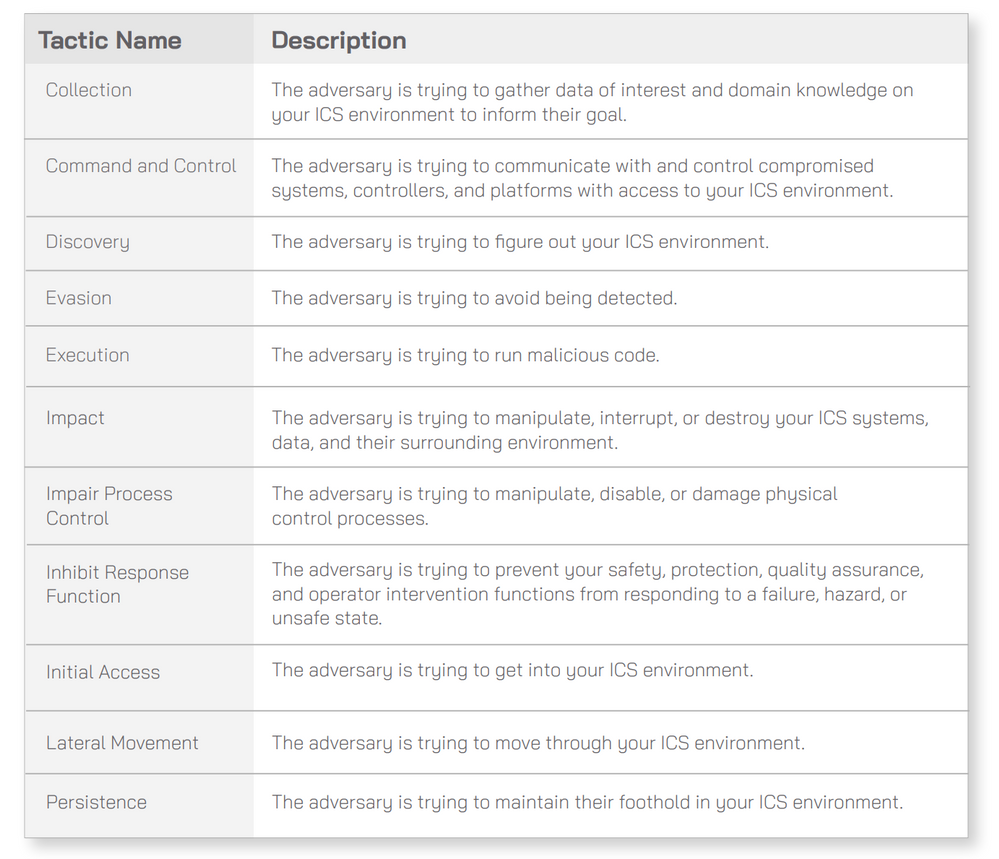
In January 2020 MITRE has addressed the gap with the ATT&CK for ICS Framework. Cataloging the unique adversary tactics adversary use against facing IoT/ICS environments. The framework consists of eleven tactics that threat actors use to attack an ICS environment, which are then broken down into specific techniques. Ultimately, this database describes every stage of an ICS attack from initial compromise to ultimate impacts.
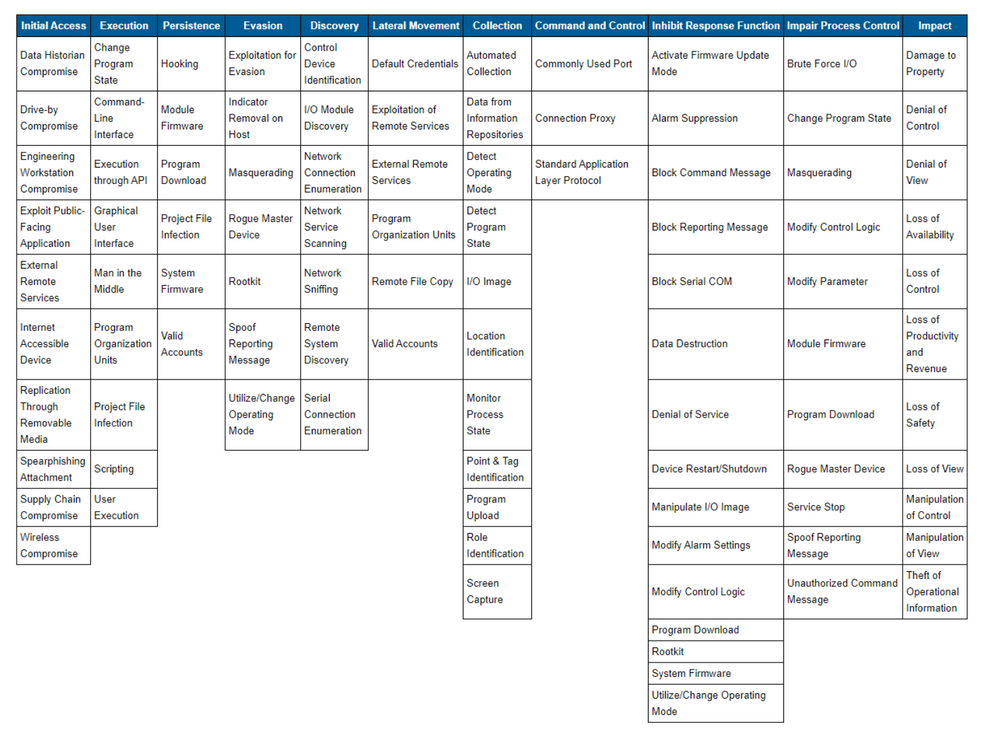
The 11 tactics described above are listed across the top column in the table on. Beneath each column header are techniques used by attackers to perform the respective tactic. The techniques listed are not necessarily unique to any one specific tactic:
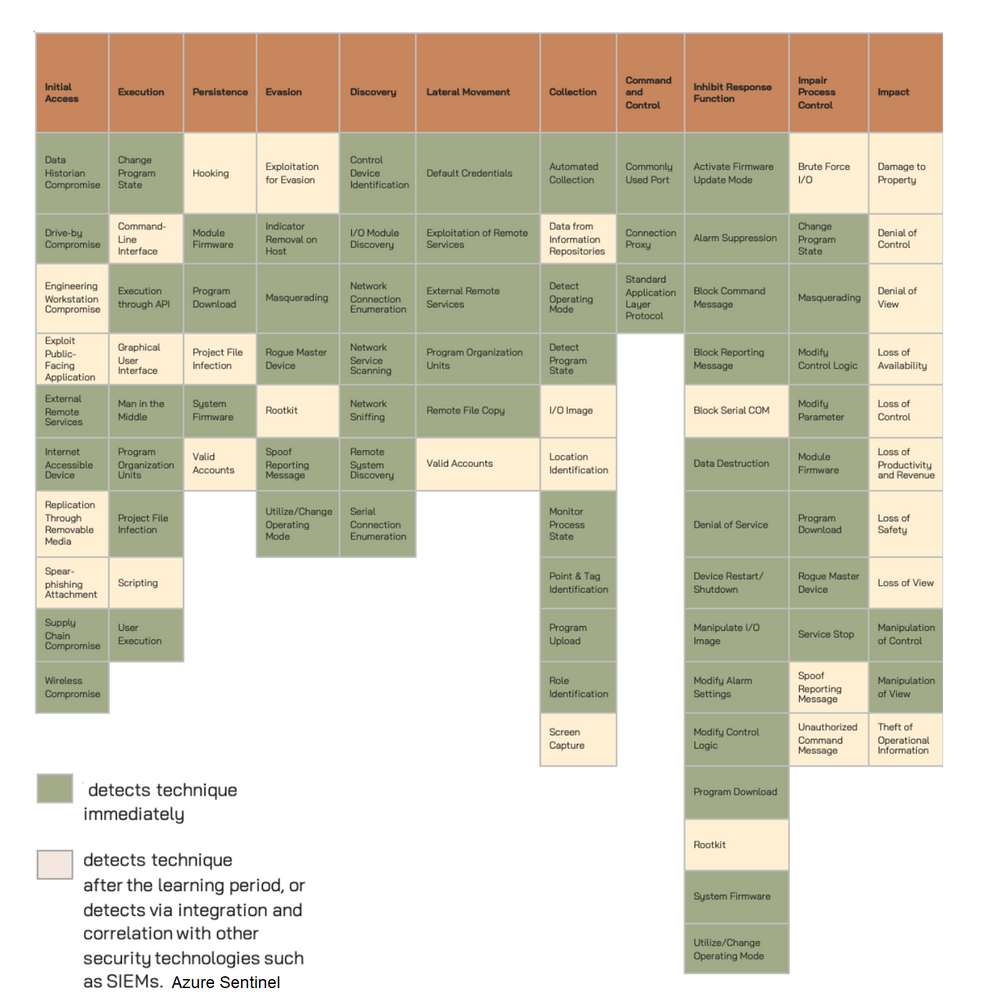
The techniques that Azure Defender for IoT detects immediately are in green boxes. The
techniques that Azure Defender for IoT can detect after the initial compromise or where Azure Defender for IoT can detect via integration and correlation with other security technologies, such as Azure Sentinel, are in tan boxes, for more details please click here:
Architecture
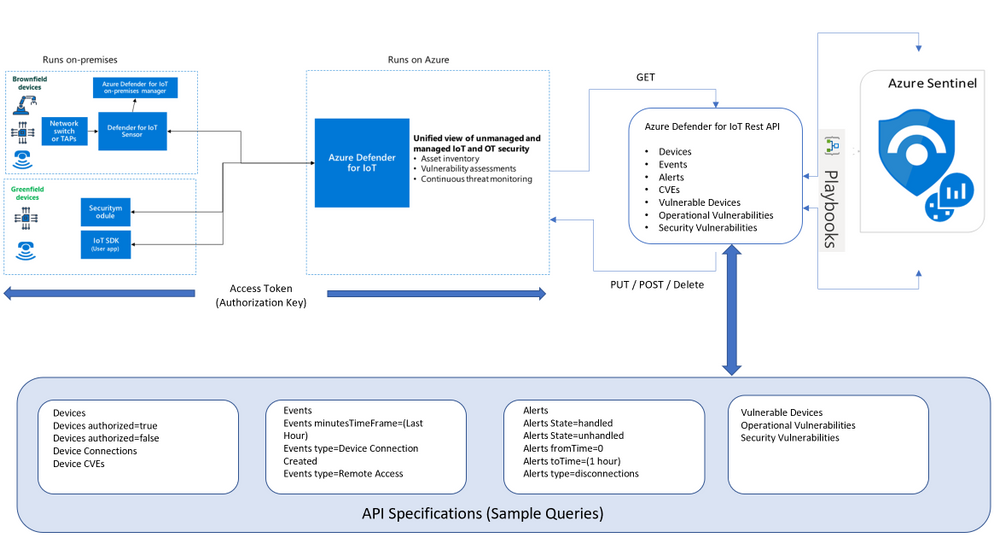
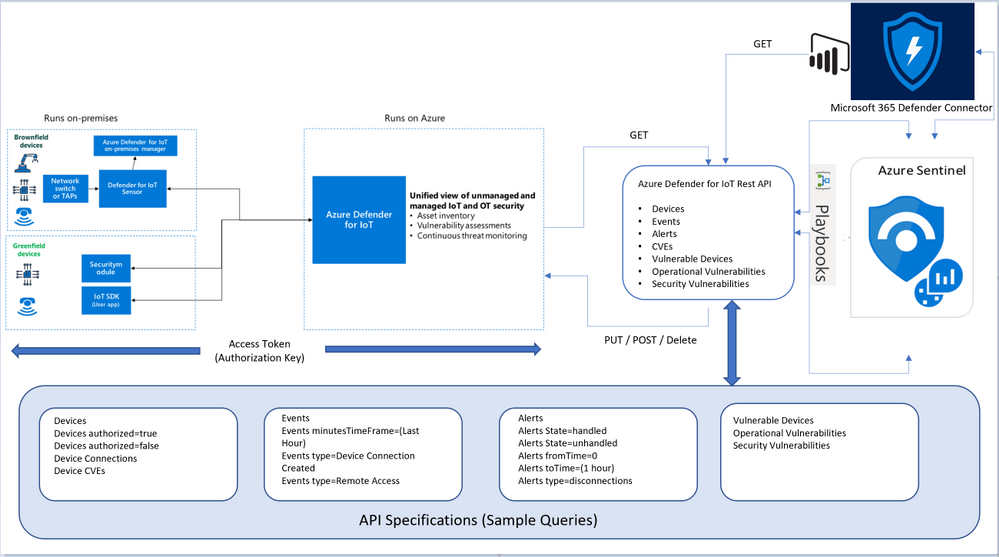
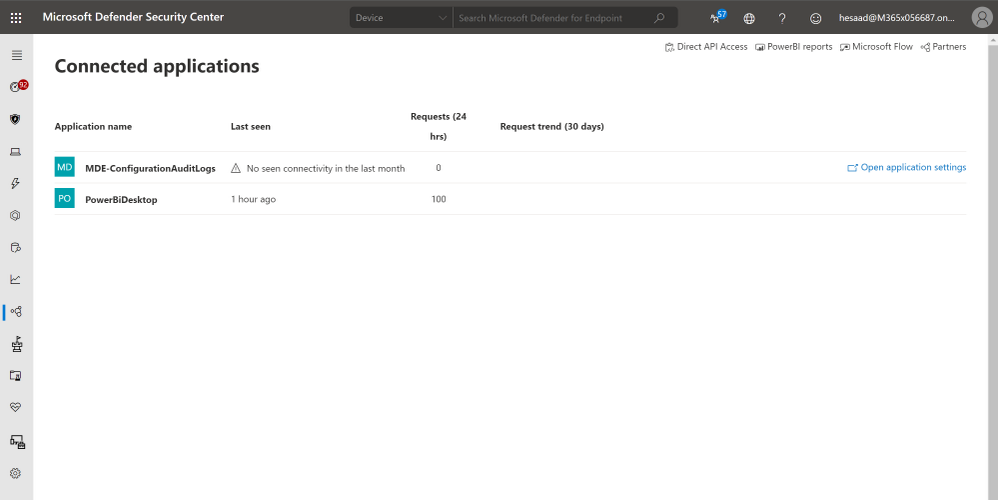
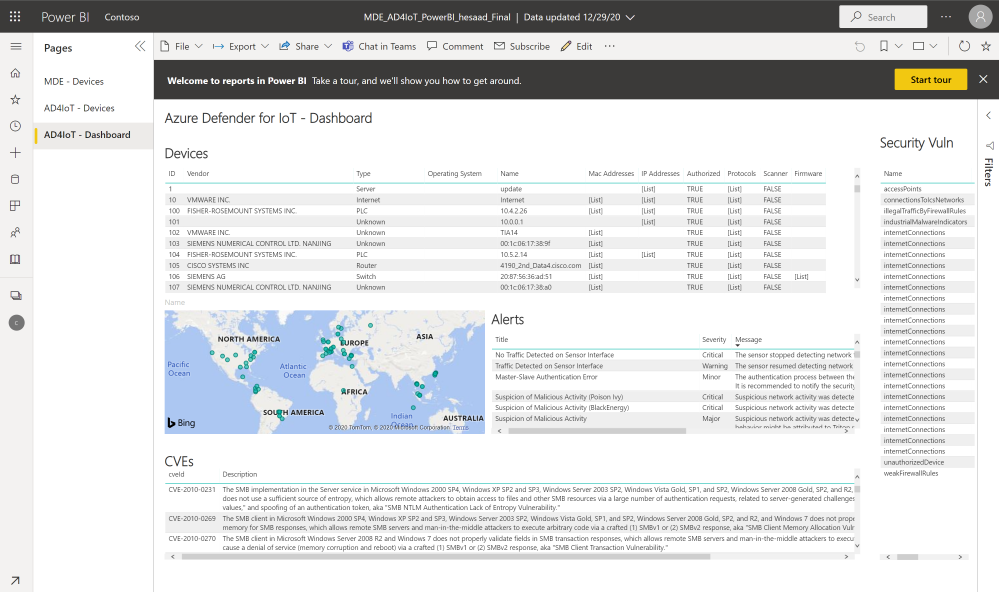
Looking for Microsoft Defender for Endpoint PowerBI connected application that pull both Azure Defender for IoT Raw-Data & Microsoft Defender for Endpoint via APIs here’s the architecture and guidance, also a sample MDE_AD4IoT_PowerBI_Sample.pbit template uploaded to github (ensure amending the Sensor URL and Authorization key values):
Implementation
- Log in to the Azure Defender for IoT central manager console, System Settings > Access Tokens
- Select Generate new token, describe the purpose of the new token and select
- Copy the token, save it and select finish
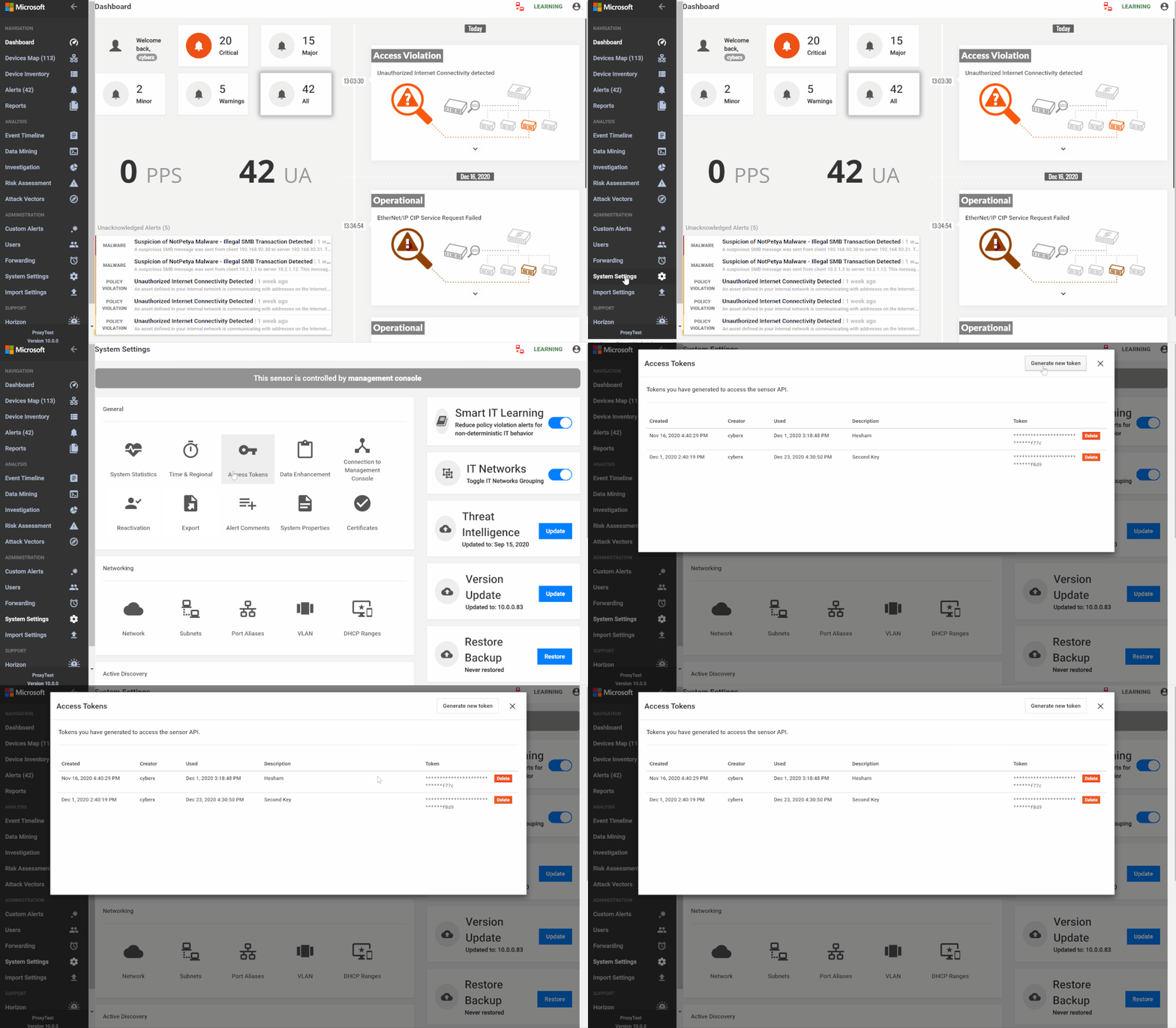
- Go to Azure Sentinel > Playbooks
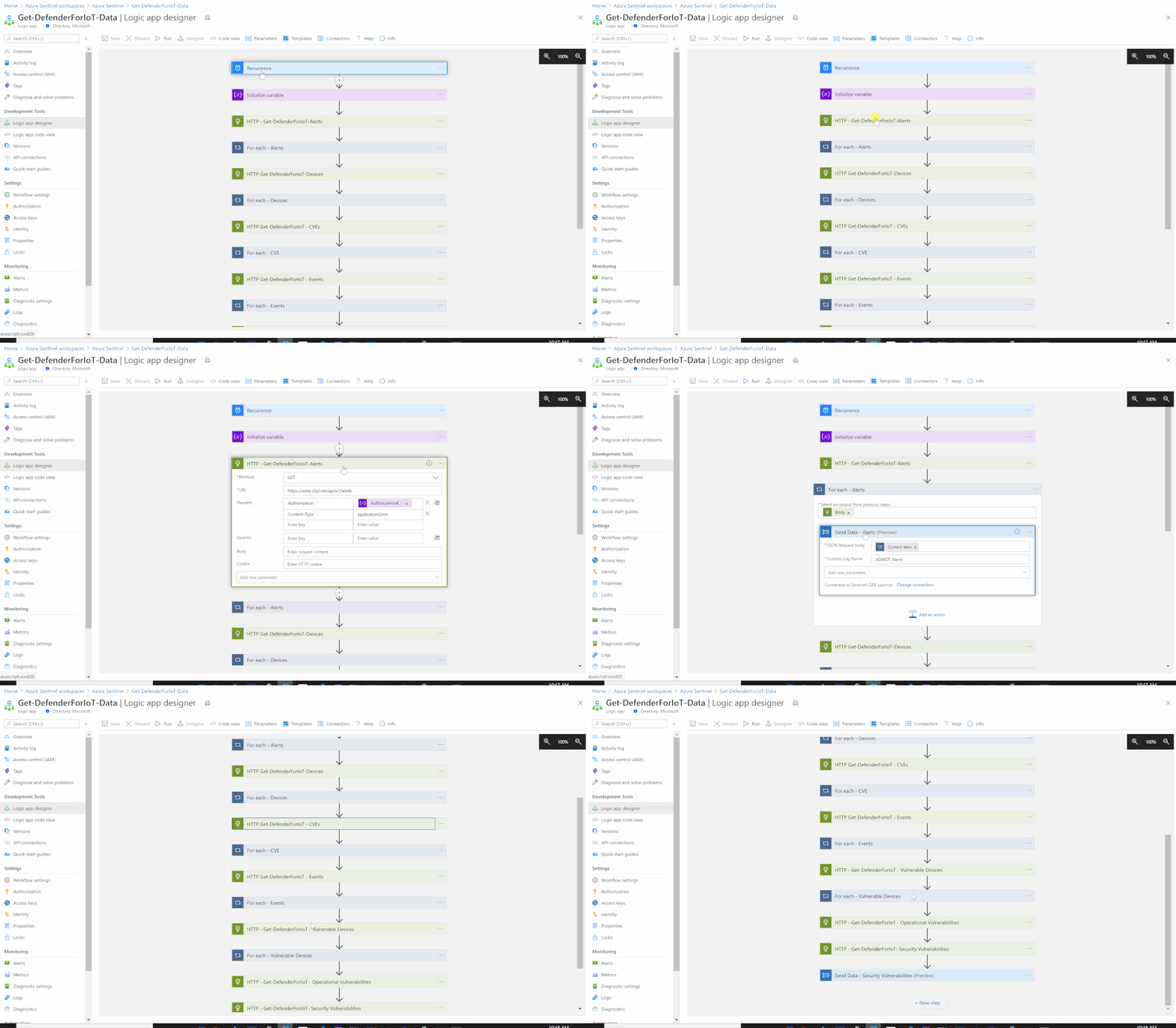
- Create a new Playbook and follow the below gif / step-by-step guide, the code being uploaded to github repo as well:
- Add a “Recurrence” step and set the following field, below is an example to trigger the Playbook once a daily basis:
- Interval: 1
- Frequency: Day
- Initialize a variable for the Azure Defender for IoT Sensor Access Token (Authorization Key):
- Name: AuthorizationKey
- Type: String
- Value: X1X0XXX5XXXXXbXXX0XXX
- Set an HTTP endpoints to Get Azure Defender for IoT Alerts data:
- HTTP – Get-DefenderForIoT-Alerts:
- Add For each control to iterate Azure Defender for IoT Alerts items:
- Select an output from previous steps: @body(‘HTTP_-_Get-DefenderForIoT-Alerts’)
- Send the data (Alerts) to Azure Sentinel Log analytics workspace via a custom log tables:
- JSON Request body: @{items(‘For_each_-_Alerts’)}
- Custom Log Name: AD4IOT_Alerts
- Set an HTTP endpoints to Get Azure Defender for IoT Devices data:
- HTTP – Get-DefenderForIoT-Devices:
- Add For each control to iterate Azure Defender for IoT Devices items:
- Select an output from previous steps: @body(‘HTTP_Get-DefenderForIoT-Devices’)
- Send the data (Devices) to Azure Sentinel Log analytics workspace via a custom log tables:
- JSON Request body: @{items(‘For_each_-_Devices’)}
- Custom Log Name: AD4IOT_Devices
- Set an HTTP endpoints to Get Azure Defender for IoT CVEs data:
- HTTP – Get-DefenderForIoT-CVEs:
- Add For each control to iterate Azure Defender for IoT CVEs items:
- Select an output from previous steps: @body(‘HTTP_Get-DefenderForIoT_-_CVEs’)
- Send the data (CVEs) to Azure Sentinel Log analytics workspace via a custom log tables:
- JSON Request body: @{items(‘For_each_-_CVE’)}
- Custom Log Name: AD4IOT_CVE
- Set an HTTP endpoints to Get Azure Defender for IoT Events data:
- HTTP – Get-DefenderForIoT-Events:
- Add For each control to iterate Azure Defender for IoT Events items:
- Select an output from previous steps: @body(‘HTTP_Get-DefenderForIoT_-_Events’)
- Send the data (Events) to Azure Sentinel Log analytics workspace via a custom log tables:
- JSON Request body: @{items(‘For_each_-_Events’)}
- Custom Log Name: AD4IOT_Events
- Set an HTTP endpoints to Get Azure Defender for IoT Vulnerable Devices data:
- HTTP – Get-DefenderForIoT-Vulnerable Devices:
- Add For each control to iterate Azure Defender for IoT Vulnerable Devices items:
- Select an output from previous steps: @body(‘HTTP_-_Get-DefenderForIoT_-_Vulnerable_Devices’)
- Send the data (Vulnerable Devices) to Azure Sentinel Log analytics workspace via a custom log tables:
- JSON Request body: @{items(‘For_each_-_Vulnerable_Devices’)}
- Custom Log Name: AD4IOT_Vulnerable_Devices
- Set an HTTP endpoints to Get Azure Defender for IoT Operational Vulnerabilities data:
- HTTP – Get-DefenderForIoT-Operational Vulnerabilities:
- Set an HTTP endpoints to Get Azure Defender for IoT Security Vulnerabilities data:
- HTTP – Get-DefenderForIoT-Security Vulnerabilities:
- Add For each control to iterate Azure Defender for IoT Vulnerable Security Vulnerabilities items:
- Select an output from previous steps: @body(‘HTTP_-_Get-DefenderForIoT_-_Vulnerable_Devices’)
- Send the data (Security Vulnerabilities) to Azure Sentinel Log analytics workspace via a custom log tables:
- JSON Request body: @{body(‘HTTP_-_Get-DefenderForIoT-_Security_Vulnerabilities’)}
- Custom Log Name: AD4IOT_Security_Vulnerabilities
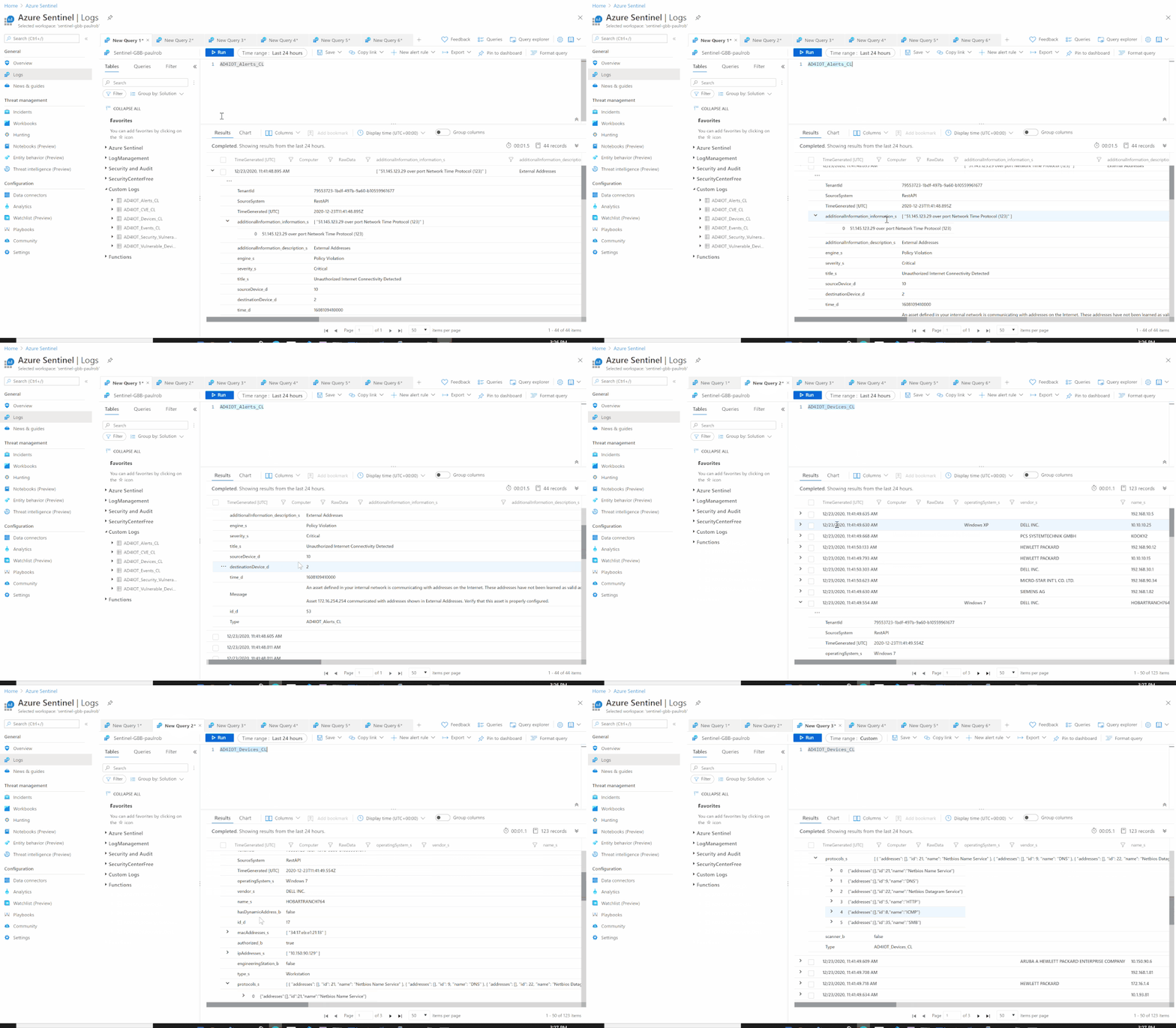
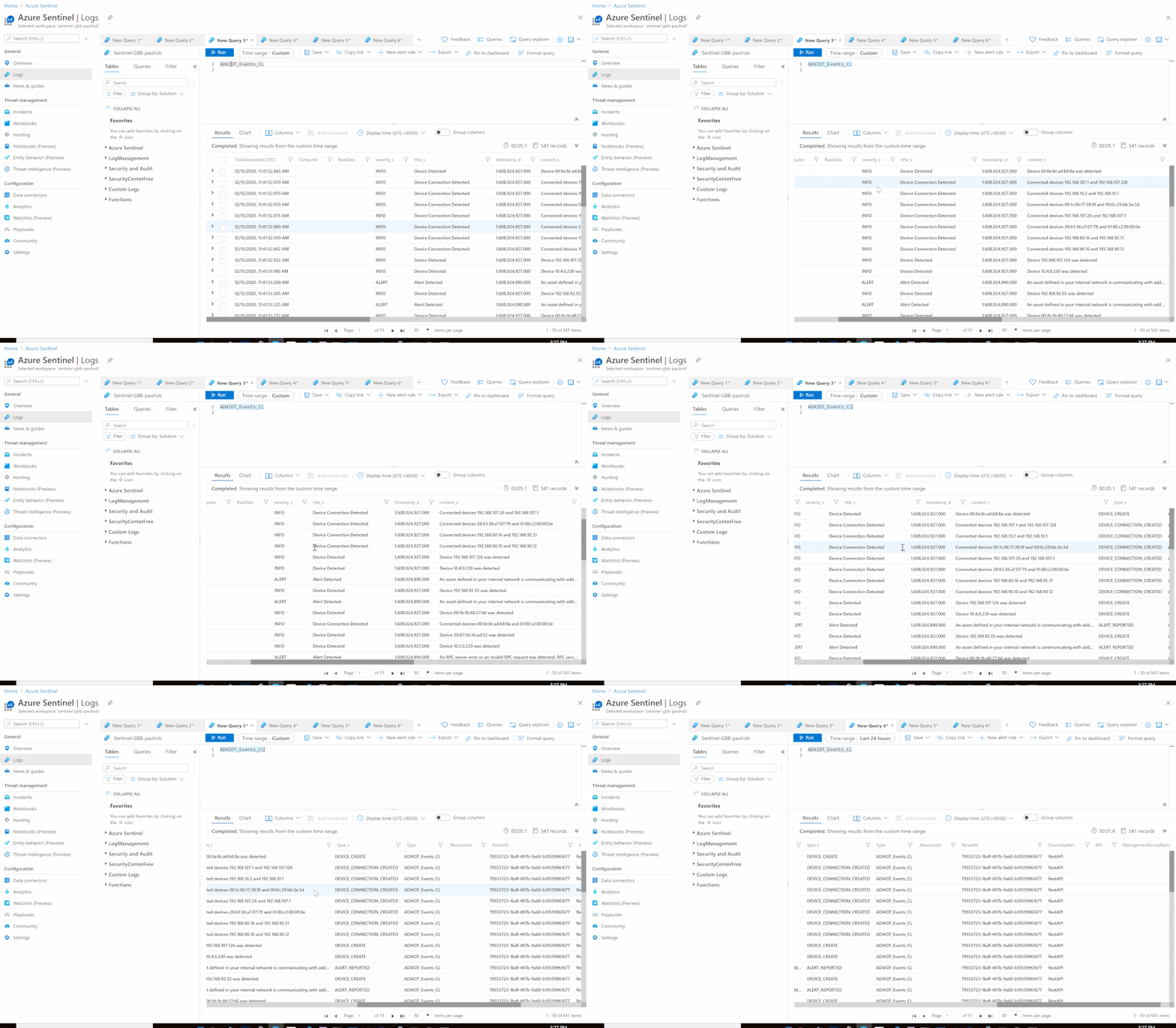
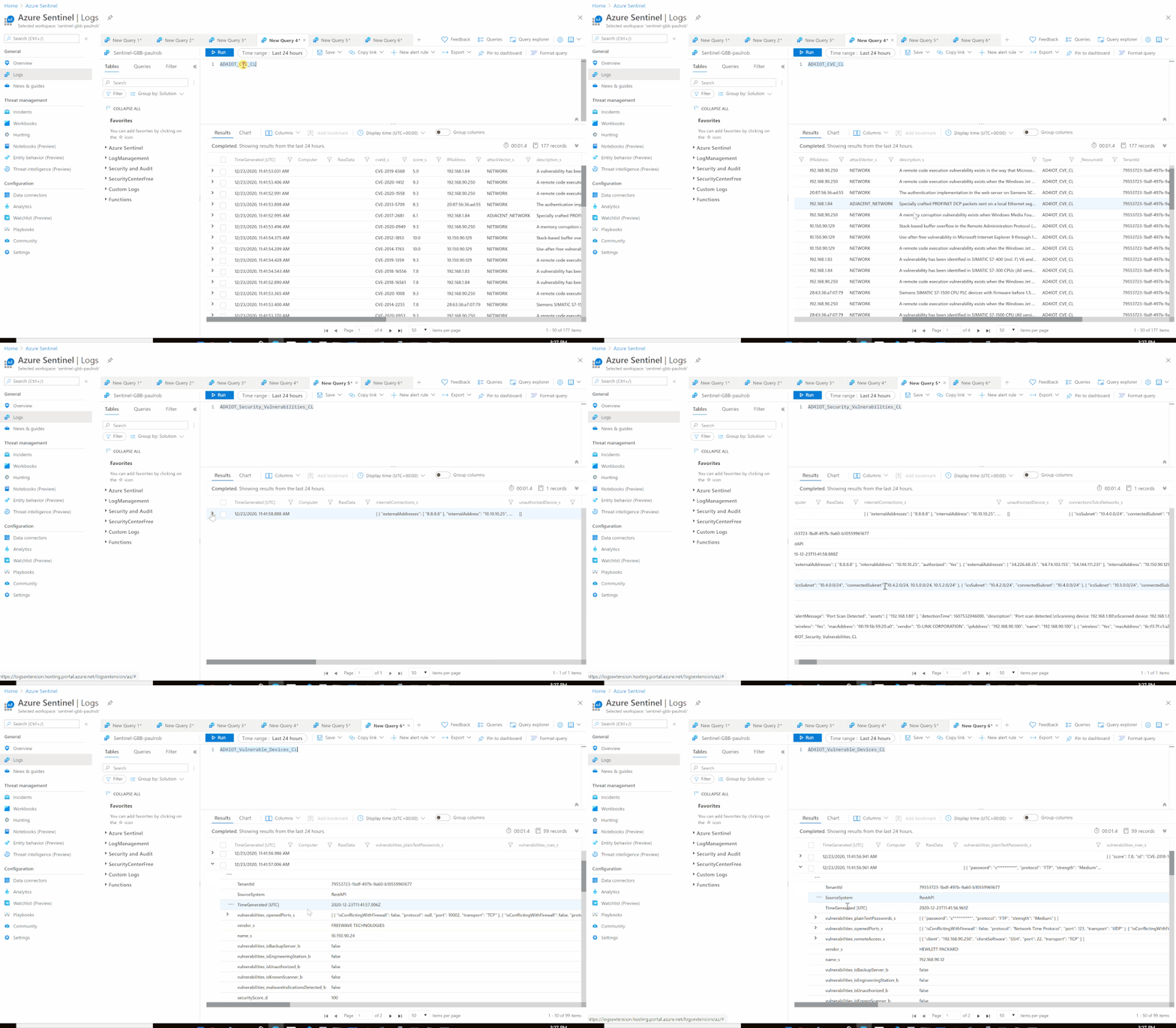
Notes & Consideration
- In case if there is any technical requirement of not allowing using Azure Defender for IoT in the cloud and require to run On-premises, you can rely on local Logic App gateway for API calls for outbound traffic instead of inbound, for more details Install on-premises data gateway for Azure Logic Apps
- You can easily build a parser at the connector’s flow with the required and needed attributed / fields based on your schema / payload before the ingestion process, also you can create custom Azure Functions once the data being ingested to Azure Sentinel
- You can build your own detection and analytics rules / use cases leveraging the raw data and mapping to ICS MITRE ATT&CK, a couple of custom analytics rules will be ready to use at github, stay tuned
- For more details about Microsoft Defender for Endpoint (MDE) PowerBI connected application integration, check out MDE – Create custom reports using Power BI and also Migrate the old Power BI App to Microsoft Defender ATP Power BI templates blog post by @Thorsten Henking as we referenced it in creating the custom PowerBI template
- Couple of points to be considered while using Logic Apps:
Get started today!
We encourage you to try it now!
You can also contribute new connectors, workbooks, analytics and more in Azure Sentinel. Get started now by joining the Azure Sentinel Threat Hunters GitHub community.
by Contributed | Jan 3, 2021 | Technology
This article is contributed. See the original author and article here.
While extensive, the Ninja training has to follow a script and cannot expand on every topic. Like any training, you may have questions after the session. This live blog post tries to address that by providing answers to common questions ordered by the Ninja training modules.
Let go!
Module 1: Get started with Azure Sentinel
Q: How do I do a free of charge trial for Azure Sentinel?
There is no straight forward free trial for Sentinel:
- Every new workspace is not billed for *Azure Sentinel* for a month.
- However, the Azure Sentinel cost is made of the Azure Sentinel cost and the Log Analytics cost, and there is *no free trial for Log Analytics*.
There is, however, some usage that is always free, and you try to limit yourself to those to have a free POC:
- Log Analytics is free for the first 5GB for each month, across an *account*
- Both Log Analytics and Sentinel are free when Sentinel is deployed for selected sources such as Office 365.
So, how do I run a free PoC? Either of those:
- Using free sources only.
- On top of an existing, already paid for Log Analytics data. Giving 30 days of free Sentinel ingestion.
- A dedicated Azure tenant unrelated to the EA gives 30 days of free Sentinel ingestion and 5GB/m free Log Analytics ingestion. The 30 days can be restarted by creating a new workspace.
Q. How can I send sample data?
For CEF (CommonEventLog) events stored in a file, you can use Logstash to read data from your CEF sample log file and send it directly into the Log Forwarder.
This is the Logstash sample config file:
{
input {
file {
path => “/home/stefan/samplelogs/cef.log”
start_position => “beginning”
sincedb_path => “/dev/null”
}
output {
# change to your log forwarder host and port
tcp {
host => “127.0.0.1”
port => 514
}
}
Q: How can I have a direct link to the Azure Sentinel overview page? Any other page?
You don’t need to get to Azure Sentinel through the Azure Portal every time. Just bookmark any page (or copy the URL) and use it to access your favorite starting point. The URL will have the following format, with the blade number changing based on the specific page you wanted to start with:
https://portal.azure.com/#blade/Microsoft_Azure_Security_Insights/MainMenuBlade/11/subscriptionId/<your-subscription-id>/resourceGroup/<your-resource-group-name>/workspaceName/<your-resource-workspace-name>
Pricing and billing
Q: How do I know how much I am charged?
Use the Azure portal
cost management screen. Filter by the scope relevant to you (the workspace or resource group, for example).
Q: How do I know which sources contribute to my bill?
The usage information is available in the workspace, and you can use these queries to report or as a starting point for your reporting. The usage reporting workbooks for Azure Sentinel uses this information to provide a comprehensive view of usage.
Q: If a workspace ingests data and has Azure Sentinel is enabled, is all data consumed by log analytics into that workspace counted as being ingested by Sentinel, or is it only data that Sentinel connectors are enabled on?
Azure Sentinel bills for all data ingested to the workspace apart from free sources. The Sentinel connectors gallery is only one way to connect data to Azure Sentinel. If you connected using other means such as Azure diagnostics logs, custom sources, or additional agent streams, it is still Sentinel data.
While the built-in analytics may cover just some sources (and covers sources not explicitly listed in the connector gallery), users can create custom analytics on any data in the workspace.
Q: If I retain logs for longer than the included 90 days, do they pay for retention for sources that are free to ingest, such as Office Activity?
Our official pricing is to charge for retention beyond 90 days for sources ingested for free. However, you may find that in some cases, we do not actually charge. While we may start charging for such retention in the future, we will not charge for past charges not collected.
Q: Does collecting logs across regions incur networking charges?
It does for logs collected from VMs using the agent or the Log Forwarder, but not for service to service connectors or Azure diagnostics logs.
Q: When I enable Azure Sentinel on an existing Log Analytics workspace, how does pricing change?
If you enable Azure Sentinel in an existing Log Analytics workspace:
- There will be an additional cost for Sentinel applied to all data in the workspace.
- All data will be retained for 90 days with no additional charge. Additional retention remains at the current Log Analytics rate.
- The sources free for Sentinel ingestion will not be charged for ingestion (Log Analytics or Sentinel tier). Retaining this data beyond 90 days costs at the Log Analytics retention price.
Q: Can Azure Sentinel capacity reservations be reserved for 1 year, 3 years?
No. Azure Sentinel capacity reservations are different from Azure reserved instances and behave like standard Azure meters, billed daily. They differ from pay-as-you-go pricing as they offer a lower per-unit price for reserving a larger amount of units.
Q: Why is the pricing calculator using different capacity reservations for Log Analytics and Azure Sentinel?
Since capacity reservation is at 100GB/d increment, at one point between 0 and 100, it makes sense to commit to the higher capacity. So if you only need 10GB/d, you will use pay-as-you-go pricing, while if you need 90 GB/d, you will commit to 100 GB/d. Since the discount level is different for Log Analytics (up to 25%) and Azure Sentinel (up to 60%), the cutoff value you would like to commit to the full additional 100GB/d is different.
Q: How much is the data compressed when stored?
The internal implementation is not relevant. Billing is based on the ingest, uncompressed volume.
Module 2: How is Azure Sentinel used?
Azure Sentinel as part of the Microsoft Security stack
Q: On a Windows system with Defender for endpoints already installed, would you install the Log Analytics agent to report Security Events to Azure Sentinel as well?
In general, the answer is yes, but it would depend on the use cases. Windows events are wide in scope but broadly fall into two groups:
- Activity (such as process, file, and network activity) that overlap with MDATP.
- Management audit (for example, user management) is not in the MDATP domain.
Other event sources such as SQL use the Windows Event Log and are not covered by MDATP.
Q: How does Azure Sentinel compare with the Graph Security API?
The Azure Sentinel and Graph Security API teams work very closely. Sentinel utilizes the Graph Security API when applicable, for example, to get threat intelligence or integrating with SIEM and ticketing systems.
The main difference is that the Graph Security API does not support raw telemetry, which is the bread and butter of Azure Sentinel. The Sentinel connectors focus on getting raw telemetry. There are exceptions in areas we need to improve the cross-utilization, and we are working on that.
Side by side with your existing SIEM
Q: How do I forward alerts from Azure Sentinel to another system?
See the Ninja training side-by-side section.
Q: How do I forward data, alerts, or events from my current SIEM to Azure Sentinel?
The most common way would be to use Syslog or CEF, which most SIEM products support. Note that you would like to forward from the 3rd party SIEM collector layer in many cases, which is more efficient than overloading the 3rd party SIEM processing layer.
The following links can get you started:
Q: Ticket System Integration? Is it ServiceNow only?
While ServiceNow is the most popular ticketing system and many of our examples are focused on it, Logic Apps, on which the integration is based, has connectors with other ticketing systems:
If not available, you can still connect to your ticketing systems using a custom Logic App connector, the HTTP connector that supports most APIs, or an Azure function from Logic Apps.
Q: How do I forward events from Azure Sentinel to another SIEM?
We do not recommend forwarding all events from Azure Sentinel to your on-prem SIEM. It may imply you are not getting enough value from Azure Sentinel and worth looking into.
In case you want to forward events (all of some), export from Azure Sentinel / Log Analytics to Azure Storage and Event Hub or move Logs to Long-Term Storage using Logic Apps.
Module 3: Workspace and tenant architecture
Q: Best practice is to minimize the number of workspaces, but I want to split the bill. How do I do that?
Read how to report on the ingestion volume per computer, resource, resource group of subscription.
Q: Are the best practices for Log Analytics and Azure Sentinel concerning workspace architecture the same?
Not always. Log Analytics and Azure Sentinel have different use cases and users, which sometimes require a different approach. If Azure Sentinel uses a workspace, use the Azure Sentinel best practices. Also, try to minimize the amount of data not relevant to Azure Sentinel in the workspace to avoid unnecessary costs.
As a reference, you can find the Log Analytics multi-workspace best practices here:
Q: Should I use a workspace in a region geographically close?
Apart from regulatory requirements, the geographical location of workspaces does not make a difference. Specifically, the
latency between regions does not influence Azure Sentinel services in a meaningful way. This may imply that you should pick your region based on price if there are no other requirements.
Module 4: Collecting events
General
Q: What is the collection latency for events collected by Azure Sentinel
The latency is different for different sources and mostly stems from the source behavior, with Azure Sentinel (and Log Analytics) adding very little. Azure AD and Office 365 do not provide real-time events and have a typical latency of 30 minutes with longer delays at times. This delay would be experienced in Azure Sentinel or any other SIEM collecting events from those sources.
You can read more on the topic, including how to measure the delay,
here.
Log Forwarder
Note that the Log Forwarder is based on the Linux based Log Analytics Agent (MMA), so the questions in the next section, as far as they pertain to the Linux MMA, are relevant for the Log Forwarder as well.
Q: How do I set the Log Forwarder to listen to encrypted Syslog
Configure the Syslog server part of the Log Forwarder (rsyslog or Syslog-NG) to listen to TLS based Syslog:
Q: Can I filter Syslog of CEF events?
Yes, See the Log Forwarder webinar: YouTube, MP4, Deck.
Q: Should I filter firewall events?
Unlike windows events, Firewall events are simple and of only a handful of types. The most common event types (using Palo Alto’s terminology) are:
- Traffic events – any connection through the Firewall.
- Threat events – any URL accessed through the Firewall (the name is misleading here)
Both have significant value for your security but have a large volume and therefore cost. Preferably, all should be collected. Inbound failures are candidates for filtering out, as they include a huge volume of low quality attack attempts.
Q: What size VM should I use for the Log Forwarder?
The Log Forwarder does little itself as parsing is done in the cloud. Therefore, comparatively, smaller and cheaper systems can be used.
Recent reports from customers have suggested:
- 500 GB/d of CEF data using a three VM scale set of Standard_D4s_v3 (4 CPU, 16GB) VMs.
- 6000 EPS of CEF data using a single physical VM: 8 vCPUs, 16 GB memory, Intel Xeon Platinum 8171M CPU @ 2.60GHz.
Use a VM scale set with an Azure load balancer or an on-prem load balanced to go beyond.
Log Analytics Agent and Azure Monitor Agent
Q: Is the workspace key stored on the agent machine?
We don’t store the workspace key. It’s only used during onboarding to generate the certs used for on-going communications by the Agent. The Workspace ID is stored in a config file per workspace here: /etc/opt/microsoft/omsanget/ws-id.
Q: Can Azure Sentinel filter Windows Events?
The Log Analytics agent (MMA) offers limited control over the Windows events forwarded. You can set a collection tier for all agents. However, the common tier is often not enough for Azure Sentinel customers, especially as it has to be set for all agents.
The new Azure Monitoring Agent (AMA) can granularly filter Windows events using WEF like XPath expressions.
Q: Does the Agent compress data from on-prem to the cloud?
Yes, the Log Analytics agent (MMA) compresses data when sending it to the cloud. This is used for Syslog, CEF, and local Windows or Linux telemetry. For Linux, the agent uses Zlib compression. The lib compression ratio is typically between 2:1 to 5:1 and maxes out theoretically at 1032:1
Specific connectors
Q: Missing DNS Lookups Data
First, try resetting the config or just loading the configuration page once in the portal. For resetting, just change a setting to another value, then change it back to the original value, and save the config (
Source).
If this does not work, there might be a caching problem in the agent, requiring deleting the Health Service State folder. Use these steps:
- Start an Administrative Command Prompt and run ‘Net Stop HealthService’
- Start File Explorer and navigate to C:Program Files or C:Program Files(x86)
- Go to this location: Microsoft Monitoring AgentAgent
- Rename the folder Health Service State to Old Health Service State
- In the Administrative Command Prompt, run Net Start Health Service
Module 5: Log Management
Q: The log search is limited to 10K results; what can I do?
Indeed, there is a 10K cap on the result set size in the UI. There is usually not meaningful need to review so many results in the UK. The API, and hence PowerShell, can return up to 500,000 results. Use the PowerShell script to run a query and get the results in a CSV file.
If you still need more than 10K results in the portal:
- You can transform your results into an array, which can hold much more than 10K values. See this example, where over 40K values are put into a single array that you can later export to excel. That would mean you need to use Excel formulas if you want to return to a tabular structure.
- Reduce the size of your results – you can use “distinct Computer,” “summarize by Computer,” or “summarize make_set” to remove duplicate values from your results (Also, if all you need is that computer’s name, “project” only that column)
Q: Which columns are displayed in a search result if not specifically projected?
Multiple heuristics determine which fields to display. Some common ones are:
Q: Can I delete unused custom log tables from a workspace?
The tables will disappear once empty. Use the purge API or wait for the retention period ends.
Q: How much is the data compressed when stored?
The internal implementation is not relevant. Billing is based on the ingest, uncompressed volume.
Q: Are there any standard fields available for each record?
Module 6: Enrichment: TI, Watchlists, and more
Q: How often does Azure Sentinel Poll TAXII for new IOCs, and can this be configured?
This depends on the TAXII server. Generally speaking, if a well-formed TAXII server adheres to the standards, the TAXII data connector will pull the entire collection on the first connection and then pull only incremental changes every minute.
Q: What information from the TAXII server does Azure Sentinel pull
Currently, Azure Sentinel requests from the TAXII server and ingests only indicator STIX objects. We are planning the support of other STIX Domain Objects in the future. We perform a mapping from STIX to the ThreatIntelligenceIndicator table schema when we import the data.
Q: Is pagination supported in TAXII?
Yes, we support pagination. The TAXII server determines the size of the page. The TAXII server that you are connected to decides the number of IOC’s to be returned in a request.
Q: Do we have specific IP addresses that we would use to pull this data into Sentinel?
While there are no specific IP addresses, they will be Azure IP addresses within the relevant workspace region.
Q: Since the Graph Security API is a tenant level, can one control what threat indicators each workspace receives?
The Graph Security API operates on a Tenant level. So operations performed against the Graph are based on your AAD tenant. What this means for the TI APIs is when you send threat indicators to Graph API with a target product of Azure Sentinel (or Defender for endpoints), you are supplying those threat indicators to your tenant, your entire organization.
Any Azure Sentinel workspace that connects the Threat Intelligence – Platforms data connector will tap into this tenant-level repository of threat indicators.
To send threat indicators to Graph API, the sending application (the app supplying the threat indicators) must be granted the proper permissions to write indicators to the Graph API on behalf of the tenant. This is a highly privileged operation that requires a Global Admin level user to consent on behalf of the application. Organizations generally restrict this ability and do not grant such permissions to applications for testing. For example, at Microsoft, I (Jason) cannot configure any application to send threat indicators to the Graph API on behalf of the Microsoft tenant.
If an organization is experiencing a problem, it means that a Global Admin has authorized the application providing incorrect TI or test data to push threat indicators into Graph on behalf of their tenant. It might be needed to revisit this decision.
Module 8: Analytics
Q: Are there any restrictions to queries used in Azure Sentinel rules?
Azure Sentinel supports Log Analytics KQL queries; those may somewhat differ from Azure Data Explorer KQL queries.
Also, queries used in alert rules have the following limitations:
- The query max length is 10000
- Cannot contain “search *” and “union *”.
Q: How many analytic rules can I define?
512 per workspace
Q: The field I need is not available for entity mapping. Why?
If the field you want to map to an entity in the alert rule configuration screen is not available, the chances are that the value is not a string.
You can check that by trying to manually map as part of the query by adding to the query an “extend” operation:
| extend AccountCustomEntity = your_value
If you get the error “Entity mapping conflict – make sure you choose the correct property type,” the issue is indeed the value type.
To solve typecast to string the value using the “tostring” function:
| extend AccountCustomEntity = tostring(your_value)
Q: Is there a way to get a list of the built-in rule templates?
Use the PowerShell script
here. Note that it enumerates the rules in GitHub, and it might take a couple of weeks for new rules to be available in the gallery. You can configure them yourself in the meanwhile.
Module 10: Workbooks, reporting, and visualization
Q: Can I add custom Images to a workbook?
You can insert images in a markdown (text) steps in a workbook using the markdown image syntax. The text’s content can also use workbook parameters if you want the paths to change based on the values of parameters.
Q: Can I embed videos in a workbook?
Not at this time, though animated images will work.
Module 12: A day in a SOC analyst’s life, incident management, and investigation
Q: How do I get a notification when a resource is updated?
- When rule templates are updated, the template is flagged as “new” in the UI.
- When a workbook is updated, you are notified in the UI to update it.
- For other resources subscribing to notifications on GitHub
Q: How are incidents updates when Microsoft alerts are updated?
When using Microsoft rules which create incidents directly from an alert from Microsoft products, Azure Sentinel handles updates for those alerts automatically:
- For a new alert arrives, a new incident is created. If the alert is sent as resolved, the incident will be created as resolved.
- If an incident for the alert (meaning, SystemAlertId) already exists, Azure Sentinel updates the incident but will not change its status.
- However, when presented with an alert, Azure Sentinel looks only 1 month back for existing incidents. This means that if an alert is resolved at the providers’ after, say, 50 days, a new resolved incident will be created for that alert update.
Module 13: Hunting
Q: Is there a reason to choose the MITRE attacks tactic in Sentinel for Hunting?
A hunting campaign has to start with a strategy – where do I hunt? This translates to filtering the hunting queries in Azure Sentinel and running the relevant queries to your starting point. A strategy that takes a specific MITRE tactic as a starting point is a popular one.

by Contributed | Jan 1, 2021 | Technology
This article is contributed. See the original author and article here.
Putting Project ‘Bicep’ 0.2 to the test, a WVD deployment use case
Freek Berson is an Infrastructure specialist at Wortell, a system integrator company based in the Netherlands. Here he focuses on End User Computing and related technologies, mostly on the Microsoft platform. He is also a managing consultant at rdsgurus.com. He maintains his personal blog at themicrosoftplatform.net where he writes articles related to Remote Desktop Services, Azure and other Microsoft technologies. An MVP since 2011, Freek is also an active moderator on TechNet Forum and contributor to Microsoft TechNet Wiki. He speaks at conferences including BriForum, E2EVC and ExpertsLive. Join his RDS Group on Linked-In here. Follow him on Twitter @fberson

Deploying Azure Stack HCI Cluster with Windows Admin Center
James van den Berg has been working in ICT with Microsoft Technology since 1987. He works for the largest educational institution in the Netherlands as an ICT Specialist, managing datacenters for students. He’s proud to have been a Cloud and Datacenter Management since 2011, and a Microsoft Azure Advisor for the community since February this year. In July 2013, James started his own ICT consultancy firm called HybridCloud4You, which is all about transforming datacenters with Microsoft Hybrid Cloud, Azure, AzureStack, Containers, and Analytics like Microsoft OMS Hybrid IT Management. Follow him on Twitter @JamesvandenBerg and on his blog here.

PerfInsights self-help diagnostics tool in Azure Troubleshooting and reporting
Robert Smit is a EMEA Cloud Solution Architect at Insight.de and is a current Microsoft MVP Cloud and Datacenter as of 2009. Robert has over 20 years experience in IT with experience in the educational, health-care and finance industries. Robert’s past IT experience in the trenches of IT gives him the knowledge and insight that allows him to communicate effectively with IT professionals. Follow him on Twitter at @clusterMVP

Teams Real Simple with Pictures: Block Call Me within Teams Meetings
Chris Hoard is a Microsoft Certified Trainer Regional Lead (MCT RL), Educator (MCEd) and Teams MVP. With over 10 years of cloud computing experience, he is currently building an education practice for Vuzion (Tier 2 UK CSP). His focus areas are Microsoft Teams, Microsoft 365 and entry-level Azure. Follow Chris on Twitter at @Microsoft365Pro and check out his blog here.

C#.NET: HOW TO CONVERT LIST TO DATATABLE DATA TYPE
Asma Khalid is an Entrepreneur, ISV, Product Manager, Full Stack .Net Expert, Community Speaker, Contributor, and Aspiring YouTuber. Asma counts more than 7 years of hands-on experience in Leading, Developing & Managing IT related projects and products as an IT industry professional. Asma is the first woman from Pakistan to receive the MVP award three times, and the first to receive C-sharp corner online developer community MVP award four times. See her blog here.


Recent Comments