
by Contributed | Jan 7, 2021 | Technology
This article is contributed. See the original author and article here.
Having a goal like completing a Microsoft Learn learning path or earning a Microsoft Certification starts with a determination to succeed. In fact, in an IDC white paper, research showed that well-trained and certified IT professionals had one common attribute – their ability to have a growth mindset. Certified IT professionals were also 15% more confident with new technology responsibilities than noncertified specialists; on average, those who were certified prior to their first IT position were promoted 23% sooner than their noncertified counterparts.1
So, how do you stay focused while continuing your learning journey? With Microsoft Learn, get trained on your own time and at your own pace. Explore topics in-depth through guided learning paths and learn how to accomplish specific tasks through individual modules. Feel empowered and inspired to keep going throughout your journey.
Experience points
Once you get started on Microsoft Learn, you’ll notice that you can earn experience points (XP) by completing units, modules, and learnings paths. The more you complete, the more XPs you’ll earn which will ultimately increase your level. For instance, if you’re starting at level one, then finish a unit that’s worth 200 XPs and you’ll achieve a level two status.
You are capable of putting in the work. If you need encouragement, try creating your own XP goal to hit. Write that number on a sticky note, tell a friend or family member what you’re aiming for, and get started.
Badges, trophies, and certifications
Sharing your achievement can feel just as great as earning it. With Microsoft Learn, earn badges when you finish a module, and earn trophies when you complete a learning path. Be proud of these learning accomplishments and show them off with your network on social media.
You can also take the next step in your career and earn a globally and industry-recognized Microsoft Certification to help you get hired, promoted, and stay ahead. By becoming certified, you can share your achievement via a digital badge, giving you an easy way to validate your skills and ability to embrace new technologies, empowering you to get the recognition you deserve.
Set yourself up for success
A new goal could require extra concentration, more dedicated time, and a good amount of encouragement. You can make each task easier by creating a quiet space and blocking an hour or more on your calendar when needed. As you go through your learning journey, remember that you have XPs, badges, trophies, and more on Microsoft Learn to help you stay focused. If you prefer to learn with an instructor in person or virtually, instructor-led training courses delivered by our Learning Partners are also an option to help you skill up. You’ll get in-depth, dedicated, and personal attention and support from technical subject matter experts. And finally, find the right Microsoft Certification for you and aim to achieve one to validate your knowledge and ability to perform in a job role.
Now that you’re aware of various features available on Microsoft Learn to keep you motivated and empowered, get started on your learning journey for free today.
Related posts:
Need another reason to earn a Microsoft Certification?
Continue your learning journey: New certifications and training experience on Microsoft Learn
EY’s learning journey
1. Source: IDC, “Impact of Certifications and Training on Career Milestones”, June 2019
by Contributed | Jan 7, 2021 | Technology
This article is contributed. See the original author and article here.
January Edition Sections:
- Highlighted
- Microsoft Teams – IT Admins & Planning
- Microsoft Teams – End Users & Champions
- Security & Compliance
- Device Management
- Blogs & Articles of Interest
Highlighted
This month we’re highlighting ways to automate processes and explore powerful ways they can be incorporated into Teams.
Learn how to automate your business process
We have just launched a new set of documents to help people learn how to automate their business processes with Power Automate. In these new articles, you’ll learn about the five basic steps of automating with Power Automate, using the best practices and knowledge from Power CAT (Customer Advisory team). The articles focus on the non-technical aspects of automating business processes with Power Automate, such as how to plan your Power Automate project, how to discover automation areas, how to assess business value, etc. Whether you’re a businessperson who has never participated in an automation or RPA project before, or you’re a “full stack” developer who wants to use Power Automate to bridge between cloud services and legacy systems – this set of articles is for everyone who wants to learn or upgrade their methodology for business process automation projects. We recommend that you start from the introduction and read through the document step by step.
Microsoft 365 Virtual Training Day: Building Microsoft Teams Integrations and Workflows
Remote work requires smarter workflows. Microsoft 365 Virtual Training Day: Building Microsoft Teams Integrations and Workflows shows you how the Microsoft Teams developer platform makes it easy to integrate your apps and services to improve productivity, make decisions faster and create collaboration around existing content and workflows. Join us to learn how to build apps for Teams and create integrated, people-centered solutions that can transform productivity in your organization, whether you’re on-site or working remotely. During this two-part training event, you will explore how to: (1) Build modern enterprise-grade collaboration solutions with Microsoft Teams, (2) Transform everyday business processes with Microsoft 365 platform integrations for Power Platform, SharePoint and Microsoft Office, and (3) Use the wealth of data in Microsoft Graph to extend Microsoft 365 experiences and build unique intelligent applications.
Integrate apps to do more in Microsoft Teams
Do you want to get more done in Teams? Receive targeted and timely updates? Access services directly through Teams? Apps let you complete tasks, receive updates and communicate. This session introduces you to the key activities needed to get started with adding applications, bots and connectors in Microsoft Teams today. Through a series of live demonstrations and best practices, you’ll leave this session with everything you need to start using apps in Teams. After this session, you will be able to: (1) See how applications, bots and connectors can help you be more efficient while working in Teams, (2) Select an application, bot or connector for your workspace, (3) Install an application, bot or connector, and (4) Use an application, bot or connector in your workspace.
Microsoft Teams – IT Admins & Planning
Microsoft 365 Virtual Training Day: Enabling Remote Work with Microsoft Teams
To be productive in a remote environment, your employees need to be able to safely collaborate from anywhere. Microsoft 365 Virtual Training Day: Enabling Remote Work with Microsoft Teams helps you provide a remote workforce with the tools, resources and solutions they need to stay connected and productive. Join us to learn how to get the most out of Microsoft Teams online meetings, calling, video and chat, and empower your workforce to work from any location on any device. During this two-part training event, you will explore how to: (1) Enable your people to meet and collaborate from home, (2) Make productivity applications available on any device, and (3) Deliver the best remote user experience.
Microsoft Teams: Plan your upgrade (Start here!)
Discover everything you need to facilitate a successful upgrade to Teams. By the end of this workshop, participants will be able to: (1) Understand why a formal plan is crucial for upgrade success, (2) Identify the steps to the upgrade success framework, (3) Recognize common attributes of successful customers, and (4) Create and implement their own upgrade plan. The audience for this session is All (Business Sponsors, IT Admins, User Readiness/Change Manager, Project Lead).
- On-Demand Session
- Thursday, January 7, 2021 at 11am PT
- Tuesday, January 12, 2021 at 7am PT
- Wednesday, January 13, 2021 at 9am PT
- Thursday, January 14, 2021 at 11am PT
- Tuesday, January 19, 2021 at 7am PT
- Wednesday, January 20, 2021 at 9am PT
- Thursday, January 21, 2021 at 11am PT
- Tuesday, January 26, 2021 at 7am PT
- Wednesday, January 27, 2021 at 9am PT
- Thursday, January 28, 2021 at 11am PT
Microsoft Teams: Identify your upgrade approach
Determine the most suitable approach based on your current Skype for Business implementation and upgrade goals. By the end of this workshop, participants will be able to: (1) Understand common scenarios and upgrade approaches, (2) Visualize the user experience for each approach, and (3) Determine the optimal upgrade approach for your organization. IT Admins are the primary audience for this session.
- On-Demand Session
- Tuesday, January 12, 2021 at 9am PT
- Tuesday, January 12, 2021 at 4pm PT
- Wednesday, January 13, 2021 at 6am PT
- Tuesday, January 19, 2021 at 9am PT
- Tuesday, January 19, 2021 at 4pm PT
- Wednesday, January 20, 2021 at 6am PT
- Tuesday, January 26, 2021 at 9am PT
- Tuesday, January 26, 2021 at 4pm PT
- Wednesday, January 27, 2021 at 6am PT
Microsoft Teams: Implement your upgrade approach
Execute your defined upgrade approach as part of your formal upgrade plan. By the end of this workshop, participants will be able to: (1) Recognize the upgrade settings in your O365 tenant admin portal, (2) Understand technical tips and considerations for a successful upgrade, and (3) Apply the appropriate settings in the Portal to execute your upgrade. The primary audience for this session is IT Admins.
- On-Demand Session
- Thursday, January 7, 2021 at 6am PT
- Thursday, January 7, 2021 at 9am PT
- Thursday, January 7, 2021 at 4pm PT
- Thursday, January 14, 2021 at 6am PT
- Thursday, January 14, 2021 at 9am PT
- Thursday, January 14, 2021 at 4pm PT
- Thursday, January 21, 2021 at 6am PT
- Thursday, January 21, 2021 at 9am PT
- Thursday, January 21, 2021 at 4pm PT
- Thursday, January 28, 2021 at 6am PT
- Thursday, January 28, 2021 at 9am PT
- Thursday, January 28, 2021 at 4pm PT
Teams Chalk Talk: So…you want to make calls with Microsoft Teams?
Are you ready to add PSTN calling capabilities to Microsoft Teams? Join Microsoft Teams Engineering subject-matter-experts as they demystify the options for adding PSTN calling to Teams, provide you with best practices for configuring calling options and show you how to monitor call quality. After this session, you will be able to: (1) Understand the history of voice services in Microsoft products, (2) Identify what calling options in Microsoft Teams are right for you, (3) Configure your calling options in the Teams admin portal, and (4) Monitor and use call quality tools in Teams.
Teams Chalk Talk: Taking charge of AV quality experiences
Are you looking to ensure users have optimal experiences with meetings and voice capabilities in Teams? During this session, we’ll discuss tools, reporting and best practices to help you manage service quality — from establishing a proactive strategy to resolving common quality issues as they arise. We’ll build upon best practices from Teams experts and make it real with examples of common scenarios that may arise as your organization embraces meetings and voice capabilities in Teams. Join us for an expert-led workshop for guidance on key resources and actionable insights to manage audio and video quality with Microsoft Teams. Your users will thank you for it! After this session, you will be able to: (1) Define key service metrics and user experience factors for quality, (2) Recognize concepts and metrics in core tools and resources that help you assess usage and quality, (3) Identify key indicators of poor experience in common scenarios and relevant actions to address, and (4) Establish a proactive quality management strategy to ensure optimal user experience.
- Thursday, January 7, 2021 at 10am PT
- Tuesday, January 12, 2021 at 6am PT
- Wednesday, January 13, 2021 at 7am PT
- Wednesday, January 13, 2021 at 4pm PT
- Thursday, January 14, 2021 at 10am PT
- Tuesday, January 19, 2021 at 6am PT
- Wednesday, January 20, 2021 at 7am PT
- Wednesday, January 20, 2021 at 4pm PT
- Thursday, January 21, 2021 at 10am PT
- Tuesday, January 26, 2021 at 6am PT
- Wednesday, January 27, 2021 at 7am PT
- Wednesday, January 27, 2021 at 4pm PT
- Thursday, January 28, 2021 at 10am PT
Teams Chalk Talk: Get to Teams – Zero to Production
Microsoft Teams can help your employees stay connected and collaborate with each other, especially in the current unprecedented time where remote work is a reality of employees around the world. Being able to chat, do video meetings and collaborate on Office documents within Teams can help companies stay productive. Whether you are a small business, a non-profit or a large organization, you can get started with Teams within Microsoft 365 or Office 365 suite – even before deploying any other Office app or service. Join Microsoft Teams experts as we review Teams implementation for collaboration, chat and meetings. We’ll share key configurations, considerations, best practices, and resources to get your users up and running quickly. After this session, you will be able to: (1) Recognize key success factors for technical and user readiness, (2) Identify pre-requisites and tenant setup for your environment, (3) Install the Teams clients appropriate for your organization, (4) Configure policies that enable your preferred user experiences, and (5) Leverage collaboration features to enhance remote work scenarios.
Teams Chalk Talk: Supercharge key workflows with apps in Teams
Join Microsoft Teams experts as we review high-value scenarios including incident management (help desk), employee engagement, and productivity that can be enhanced through simple integrations in Teams. We focus on popular enterprise applications your users may already be using every day. Come see how easy it is to connect your systems, increase automation, and deliver improved experiences by bringing the apps your organization relies on into Teams. After this session, you will be able to: (1) Understand common app integrations for Teams across multiple scenarios and user personas, and (2) Understand third-party apps available for key scenarios.
Teams Chalk Talk: Apps in Teams Fundamentals
Join Microsoft Teams experts as we review how you can deploy commonly-used applications directly within Teams, enabling your users to work more efficiently and effectively by accessing everything they need in a single interface. This foundational workshop covers basic capabilities across app management and security. With over 400 out-of-the-box applications available (and growing), you’re sure to find an app, or two, that your team can begin using today in Teams. After this session, you will be able to: (1) Identify suitable apps to meet the needs for your organization, (2) Recognize common attributes of successful app deployment, (3) Navigate security and compliance considerations for Teams’ apps, and (4) Determine the next steps to deploy an app to your environment.
- Tuesday, January 5, 2021 at 8am PT
- Tuesday, January 5, 2021 at 4pm PT
- Wednesday, January 6, 2021 at 10am PT
- Thursday, January 7, 2021 at 7am PT
- Tuesday, January 12, 2021 at 8am PT
- Tuesday, January 12, 2021 at 4pm PT
- Wednesday, January 13, 2021 at 10am PT
- Thursday, January 14, 2021 at 7am PT
- Tuesday, January 19, 2021 at 8am PT
- Tuesday, January 19, 2021 at 4pm PT
- Wednesday, January 20, 2021 at 10am PT
- Thursday, January 21, 2021 at 7am PT
- Tuesday, January 26, 2021 at 8am PT
- Tuesday, January 26, 2021 at 4pm PT
- Wednesday, January 27, 2021 at 10am PT
- Thursday, January 28, 2021 at 7am PT
Microsoft Teams: Ready your end users
Design a user readiness strategy to help your users love and adopt Teams. By the end of this workshop, participants will be able to: (1) Recognize factors that influence user acceptance and adoption, (2) Define core value messaging for Teams in your organization, and (3) Outline your awareness, training and support activities. The audience for this session is: User Readiness/Change Manager.
- On-Demand Session
- Tuesday, January 5, 2021 at 10am PT
- Thursday, January 7, 2021 at 7am PT
- Tuesday, January 12, 2021 at 10am PT
- Thursday, January 14, 2021 at 7am PT
- Tuesday, January 19, 2021 at 10am PT
- Thursday, January 21, 2021 at 7am PT
- Tuesday, January 26, 2021 at 10am PT
- Thursday, January 28, 2021 at 7am PT
Microsoft Teams – End User & Champions
Get Started with Microsoft Teams
Whether you are switching from Skype for Business or brand new, join us to learn the basics of how to use Teams to chat with your colleagues and collaborate on projects. Through a series of live demonstrations and best practices, you’ll leave this session with everything you need to start using Teams. After this session, you will be able to: (1) Set up your profile and notifications in Microsoft Teams, (2) Use chat and calling for 1:1 and group conversations, sharing and collaboration in Microsoft Teams, (3) Schedule and conduct meetings in Microsoft Teams, and (4) Align your team and teamwork in Microsoft Teams.
Go Deeper with Microsoft Teams: Leverage pro tips and tricks for Microsoft Teams
Designed for those who are already familiar with Microsoft Teams, our ‘Go Deeper’ sessions offer insights and best practices. Learn how Teams can help organize your workday and make it easier to stay connected with colleagues. Learn tips and tricks for managing and organizing work and communications in Teams. After this session, you will be able to: (1) Leverage formatting best practices to help get your messages noticed (and responded to), (2) Easily find files, chats and projects, (3) Implement strategies to manage and organize your work, and (4) Simplify your workday.
Microsoft Teams: Master working from home
Working from home offers the opportunity to maintain your workflow while allowing flexibility in how and where you get your work done. Shifting to a remote worker status can be an adjustment as you look for ways to balance home and work life, maintain focus and be fully productive. Microsoft Teams can help you stay connected to your team while providing access to all of the tools and resources you need to get your work done. Join us to learn tips that can help set you up for success as you transition into a ‘work from home’ scenario. During this session, we’ll share: (1) Guidance for setting up your home environment for work, (2) Best practices for maintaining your workflow while working at home, (3) Tips for staying connected to your team while remote, and (4) Insights for effectively supporting a remote team.
Go Deeper with Microsoft Teams: Build collaborative workspaces in Microsoft Teams
Designed for those who are already familiar with Microsoft Teams, our ‘Go Deeper’ sessions offer insights and best practices. Learn how Teams can help organize your workday and make it easier to stay connected with colleagues. Explore ways to determine the best approach for creating workspaces for projects and workgroups. After this session, you will be able to: (1) Determine the best approach for your collaboration needs (chat versus teams & channels), (2) Create workspaces for your team to provide the best teamwork experience, and (3) Determine best practices in Microsoft Teams to enhance productivity.
Run Effective Meetings with Microsoft Teams
Have you spent significant time and resources to prepare for a meeting and still felt it wasn’t productive? Have you attended a meeting only to leave feeling like not much was accomplished? Join this class to learn how to make your meetings engaging, productive and effective. Microsoft Teams can help make your meetings worth showing up for. After this session, you will be able to: (1) Use Teams for your entire meeting experience, (2) Record your meeting, making it easy for those who couldn’t attend to get caught up, (3) Keep important meetings at your fingertips by pinning them for easy access, and (4) Assess which audio and video devices are best for your meeting needs.
Integrate apps to do more in Microsoft Teams
Do you want to get more done in Teams? Receive targeted and timely updates? Access services directly through Teams? Apps let you complete tasks, receive updates and communicate. This session introduces you to the key activities needed to get started with adding applications, bots and connectors in Microsoft Teams today. Through a series of live demonstrations and best practices, you’ll leave this session with everything you need to start using apps in Teams. After this session, you will be able to: (1) See how applications, bots and connectors can help you be more efficient while working in Teams, (2) Select an application, bot or connector for your workspace, (3) Install an application, bot or connector, and (4) Use an application, bot or connector in your workspace.
Security & Compliance
Microsoft 365 Virtual Training Day: Meeting Organizational Compliance Requirements
Leverage the intelligent and integrated Microsoft solutions to help your organization achieve its compliance goals by joining the Microsoft 365 Virtual Training Day: Meeting Organizational Compliance Requirements free one day online training session. Level 200-300 (Intermediate to Advanced) content. Technology covered: Data classification, labeling, governance, policy violation remediation, eDiscovery, audit, risk assessment. In this session you will: (1) Learn to use intelligence to identify, protect and govern your important data, (2) Learn to intelligently identify and remediate critical insider threats and risks, (3) Learn how to use the latest eDiscovery and audit capabilities to find relevant data and respond efficiently, and (4) Learn how to simplify and automate IT risk assessment.
Microsoft 365 Virtual Training Day: Securing Your Organization
In this training, you will learn how to protect your organization’s identities, data, applications, and devices across on-premises, cloud, and mobile – end to-end using the latest tools and guidance. This event covers intermediate to advanced content (level 200-300) and includes the following technologies: Threat Protection, Information Protection, Identify and Access Management, Security Management. In this workshop you will: (1) Increase level of understanding on how Microsoft delivers security across Microsoft 365, (2) Increase knowledge of security features and solutions, and (3) Connect with local technical experts and FastTrack resources.
Azure AD workbook to help you assess Solorigate risk
In the interest of helping customers concerned about the Solorigate attacks we are publishing a new workbook in the Azure AD admin portal to assist investigations into the Identity Indicators of Compromise related to the attacks. The information in this workbook is available in Azure AD audit and sign in logs, but the workbook helps you collect and visualize the information in one view. The workbook is split into 5 sections, each aimed at providing information associated with the attack patterns we have identified: (1) Modified application and service principal credentials/authentication methods, (2) Modified federation settings, (3) Azure AD STS Refresh token modifications by service principals and applications other than DirectorySync, (4) New permissions granted to service principals, and (5) Directory role and group membership updates for service principals. First, we’ll detail how to access the workbook and then walk through each of these in turn.
Using Microsoft 365 Defender to protect against Solorigate
This blog is a comprehensive guide for security operations and incident response teams using Microsoft 365 Defender to identify, investigate, and respond to the Solorigate attack if it’s found in your environment. The description of the attack in this blog is based on current analysis and investigations by researchers across Microsoft, our partners, and the intelligence community who are actively collaborating to respond to the attack. This is an active threat that continues to evolve, and the findings included here represent what we know at the time of publishing. We continue to publish and update intelligence, indicators, tactics, techniques, and procedures (TTPs), and related details as we discover them. The report from the Microsoft Security Response Center (MSRC) includes the latest analysis of this threat, known indicators of compromise (IOCs), and initial recommended defenses, and will be updated as new data becomes available.
Device Management
Getting Started with Windows Virtual Desktop
Businesses are shifting to a desktop experience that empowers IT and enables employees to be more productive and secure, but not all employees sit in an office or always work from secure locations. With Windows Virtual Desktop, you can set up a scalable and flexible environment to unlock mobility, productivity and security. This new 2-hour session will give you the opportunity to get hands-on experience with Windows Virtual Desktop. During this session, you will explore how to: (1) Create your first Windows Virtual Desktop architecture, (2) Create images and assign them to users, (3) Operationalize the virtual desktop infrastructure with monitoring, scaling, and image management, and (4) Explore security best practices within Windows Virtual Desktop. Each session is limited to 15 participants, reserve your seat now.
Office Hours: Managing Windows 10 Devices & Updates
To support your efforts to deliver and deploy updates to the Windows 10 devices being used by remote, onsite, and hybrid workers across your organization, and manage those devices effectively, we are continuing our series of weekly “office hours” for IT professionals here on Tech Community. During office hours, we will have a broad group of product experts, servicing experts, and engineers representing Windows, Microsoft Endpoint Manager (Microsoft Intune, Configuration Manager), security, FastTrack, and more. They will be monitoring the Windows 10 servicing space and standing by to provide guidance, discuss strategies and tactics, and, of course, answer any specific questions you may have. Office hours are text-based; there is no audio or virtual meeting component. To post a question, you just need to be a member of the Tech Community. Simply visit the Windows 10 servicing space and click Start a new conversation. At the start of office hours, we’ll pin a post outlining the individuals on hand, and their areas of expertise. Can’t attend at the designated time? Again, no problem. Post a question in the Windows 10 servicing space up to 24 hours in advance and we’ll make sure we review it during office hours.
- Thursday, January 21, 2021 at 9am PT
- Thursday, February 18, 2021 at 9am PT
- Thursday, March 18, 2021 at 9am PT
- Thursday, April 15, 2021 at 9am PT
- Thursday, May 20, 2021 at 9am PT
- Thursday, June 17, 2021 at 9am PT
Blogs & Articles of Interest
Microsoft Teams recognized as a Leader in Gartner UCaaS and Meetings Solutions Magic Quadrants
Microsoft Teams has become the new way to work for over 115 million daily users who come together every day to meet, call, chat, and collaborate. We are honored to be recognized by Gartner as a Leader for both Meeting Solutions and Unified Communications as a Service (UCaaS) in their latest Magic Quadrants. Microsoft was positioned highest among all vendors for ability to execute in both reports. This is Microsoft’s second consecutive year as a Leader for Unified Communications as a Service and the 14th time in which Microsoft has been recognized as a Leader for Meetings Solutions.
Public Sector Blog Website | RSS Feed
Microsoft Teams Blog Website | RSS Feed
Office & Microsoft 365
Enterprise identity, mobility, and security
Microsoft Azure and Development
Windows, Operations, Management, and Deployment
Support and adoption
Misc
Thanks for stopping by and reading our monthly resources. Feel free to reach out in the comments below with any comments, questions or ideas on other events to add to the list. Here in Public Sector we want to make sure we are giving you the information and insights to best serve your needs in this community.
by Contributed | Jan 7, 2021 | Technology
This article is contributed. See the original author and article here.
TechNet Script Center gallery hosting Automation scripts (runbooks) as shown in the Runbooks Gallery is set to retire by December 2020. You can go through the official announcement here by the TechNet team. It entails that all PowerShell & Python scripts available at Script Center gallery would have to be moved to another location. We’ve chosen GitHub as the new source for all Azure the TechNet gallery here. We chose GitHub due to the various benefits offered by the platform around making it easy to contribute to your open-source projects, showcase your work to the community, track down issues, documentation etc.
The change would go live by Jan 15, 2021.
How will it look like?
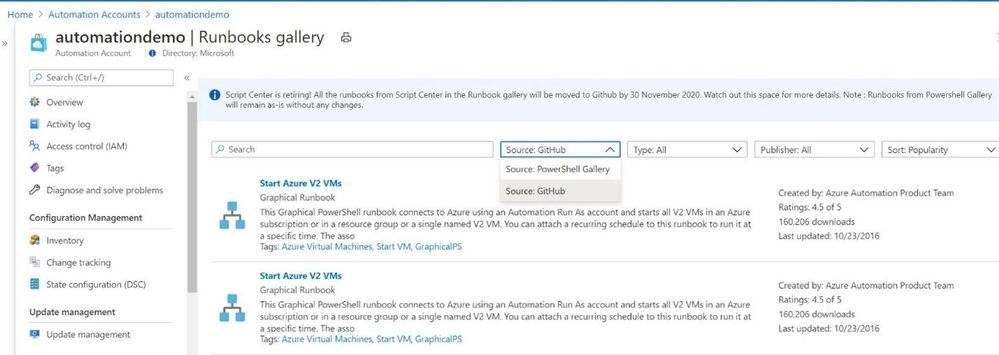
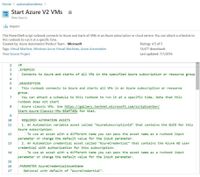
Today, there are more than 700 Azure Scripts owned by various Product Teams at Microsoft as well as external contributors. These scripts are accessed by the customers through the Runbook Gallery blade of the Automation account in the Azure Portal. The Source filter, previously shown as Script Center would be replaced by GitHub as shown below. The workflow will be integrated with GitHub moving forward.
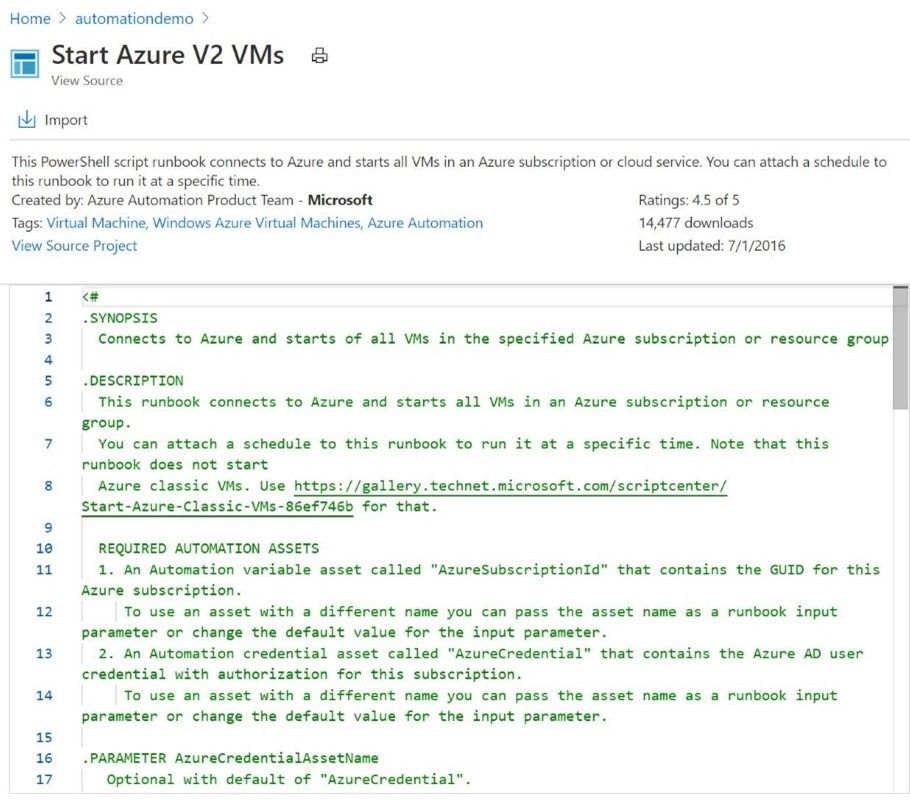
Upon selecting a runbook, “View Source Project” will take you to the GitHub repository for that script. Runbooks displayed from Source PowerShell Gallery will remain as-is without any changes.
What will change?
Summarizing the changes that you will see in the script migration from Script Center to GitHub below:
- The Top-level GitHub organization would be azureautomation
- Each Script Center script would be a repository created with the same name as the script under “azureautomation” organization.
- All the scripts will have a GitHub Topic as “azureautomationrunbookgallery”.
- Script center license would be moved to the GitHub License.md file.
- All the script metadata fields in script center such as Author, rating, downloads, summary, category, sub-category, tags etc. would be added to the GitHub Metadata.json file.
- Readme.md file holds the script description & a note for scripts have been migrated from Script Center.
” TechNet gallery is retiring! This script was migrated from TechNet script center to GitHub by Microsoft Azure Automation product group. All the Script Center fields like Rating, Rating Count and Download Count have been carried over to GitHub as-is for the migrated scripts only. Note: The Script Center fields will not be applicable for the new repositories created in GitHub & hence those fields will not show up for new GitHub repositories.”
- Script center Q&A will not be moved to GitHub. You can instead use GitHub tracker called Issues which is a great way to keep track of tasks, enhancements, and bugs for your projects.
- New Scripts (Runbooks) synced from GitHub to the Runbook Gallery won’t have Rating & downloads field as these fields are specific to Script Center and not GitHub. You’d only see Created By & Last updated field for GitHub scripts.
What to do next?
If you want to contribute to an existing runbook:
You can either raise a PR with the changes or create a fork out of the repository.
Note: If you fork the repository, the runbook maybe be shown twice on the Automation runbook gallery (One of them would be the original and other one would be the forked one.)2.
If you want to author a new runbook for runbook gallery:
- Create a public repository on GitHub and add the runbook, readme.md, description etc.
- Add the topic “azureautomationrunbookgallery” to make sure it is discovered by our service and displayed in the Automation Runbook gallery.
- If the runbook that you created is a PowerShell workflow or a python 3 runbook add the topic “PowerShellWorkflow” or “Python3” respectively. No specific Topic is needed for PowerShell runbooks. These Topics would be used for categorization & search operation in the Runbook Gallery.
- Sync duration between GitHub & Automation Runbook Gallery would be 12 hours for updated and new added runbooks.
- We strongly encourage you to contribute & help grow the Azure Automation community. Share the amazing work you’ve been doing with the runbooks with the community members. Your contributions would be appreciated!
- Please don’t forget to “star” rate the repository if you use or like it or it helped you with your scenario. This will help us improve our categorization workflow within Runbook Gallery and show you the most popular scripts first.
Happy Automation!
Learn more about Azure Automation.
by Contributed | Jan 6, 2021 | Technology
This article is contributed. See the original author and article here.
Pyodbc is an open-source Python module that helps in accessing ODBC database.
The following blog explains on how this module can be used for Linux based App Services.
- Using Blessed Image:
The blessed image of Linux based App Service doesn’t have this module installed by default, as this is used for a specific business logic.
The following steps helps in the installation of this module on blessed images:
- Deploy your code via Git repository or via local Git.
- The App Service deployment engine automatically activates a virtual environment and runs pip install -r requirement.txt for you when you deploy to a Git repository or perform zip package deployment.
You could refer to our documentation at Customize Build Automation which explains this in detail.
- Using Custom Image:
You could build a custom image with pyodbc pre-installed.
A sample image is available at vijaysaayi/Using-Pyodbc-in-Linux-App-Service (github.com)
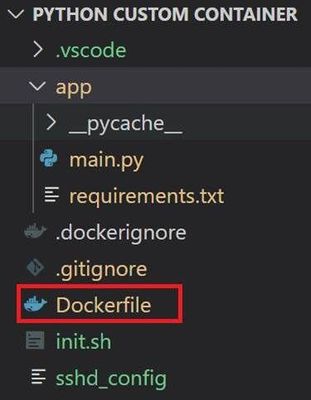
The folder structure is as follows :
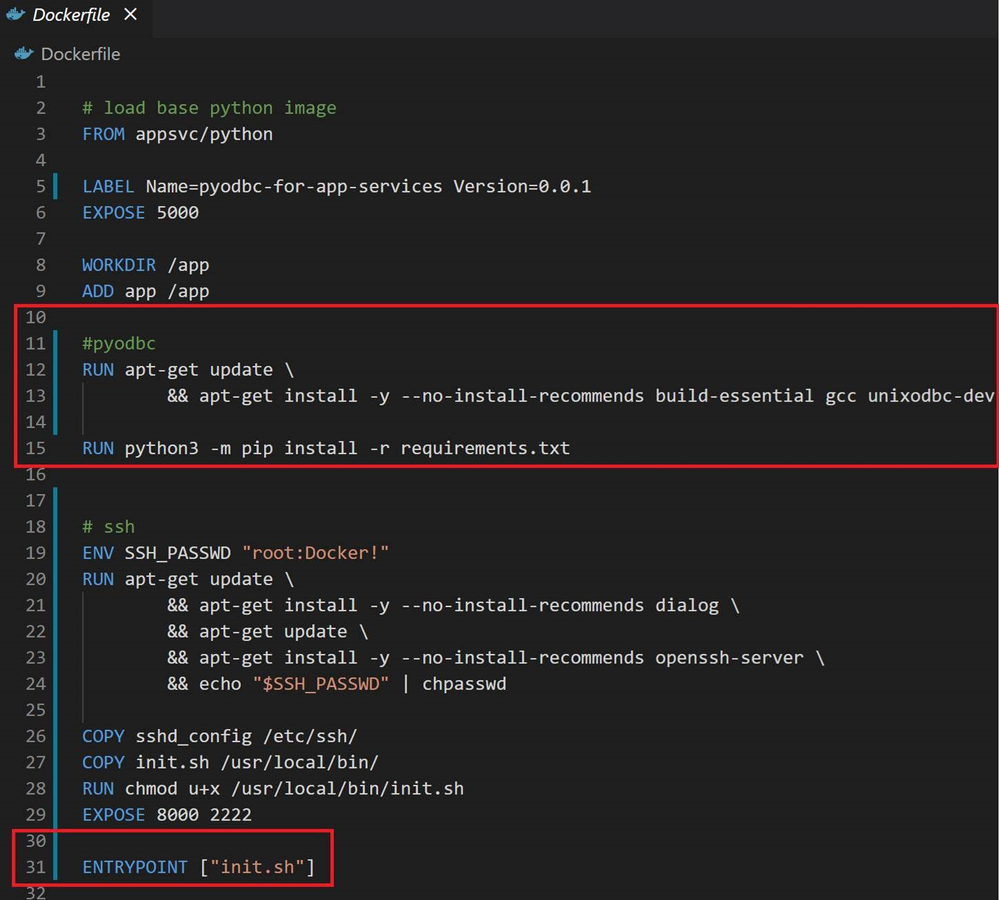
A Dockerfile is a text document that contains all the commands a user could call on the command line to assemble an image. This file is necessary when you’re creating a custom docker container image.
As you can see from the contents of my Dockerfile, I’ve mentioned the pre-requisites needed to install pyodbc: apt-get update and apt-get install -y –no-install-recommends build-essential gcc unixodbc-dev. Once the pre-requisites are installed, I install requirements.txt in my image. I also installed SSH on the image, since SSH needs to be specifically enabled on custom images.
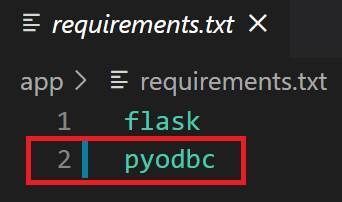
Here’s what my requirements.txt looks like:
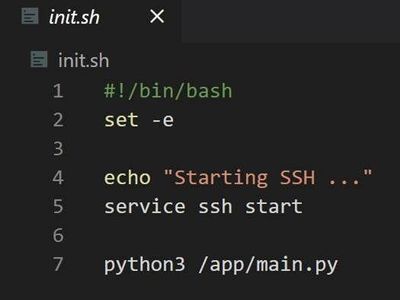
The entry point for my App is init.sh and does 2 things:
- Start the SSH Service
- Run main.py which starts a flask webserver
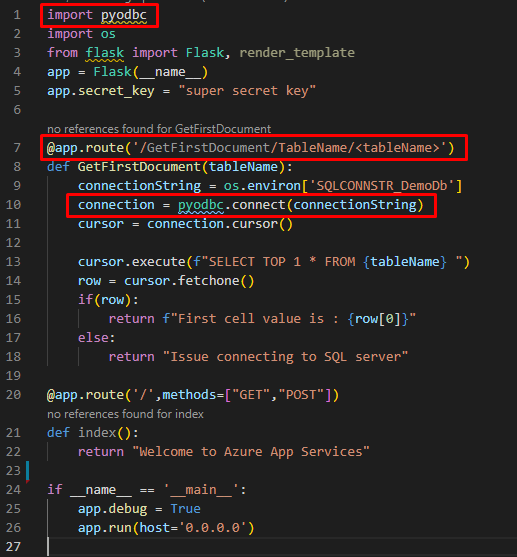
Now since pyodbc has been successfully installed already, it can be directly.
The following is my sample App Service that that return the first cell value from a given tableName
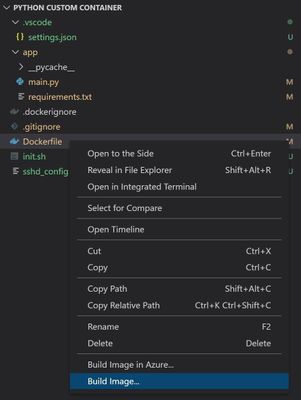
To build this image, make sure you have the Docker Extension installed on Visual Studio Code. Once you have this installed, you can easily, build the image by Right click Dockerfile > Build Image.
I connected my VSCode to my Dockerhub account and pushed my image to my Dockerhub repository on hub.docker.com.
You can choose to push your image to Dockerhub or Azure Container Registry or a private registry of your choice.
Here’s the link to the custom image pushed to DockerHub:
https://hub.docker.com/repository/docker/vijaysaayi/pyodbc-linux-appservice-demo
The following steps could help you deploy the above image to your Linux based App Service in case you would like to test it.
- Create an App Service Web App Container with the following configuration:
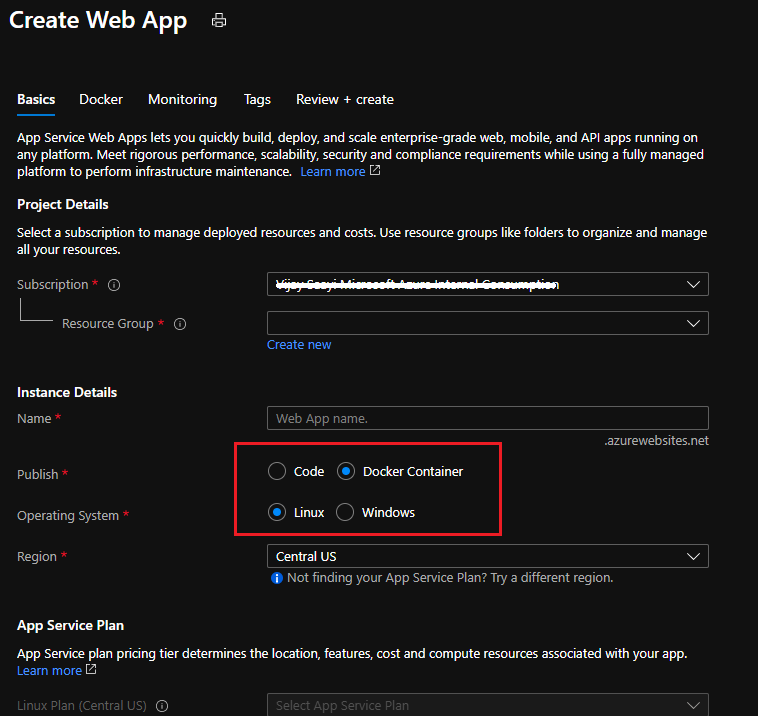
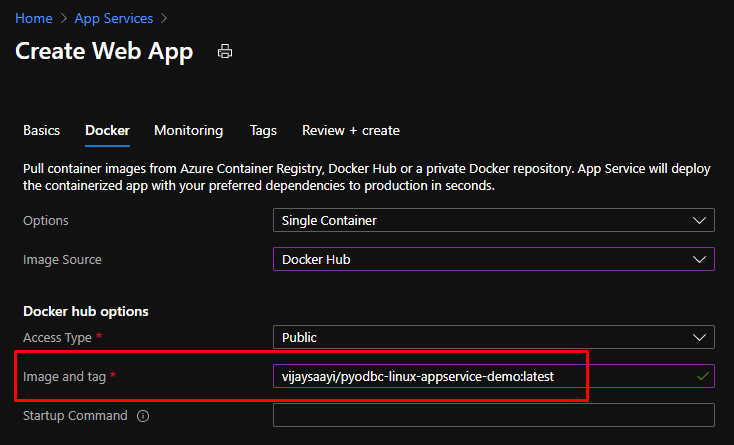
- Your DB connection string value in App Setting needs to be in the following format:
DRIVER={ODBC Driver 17 for SQL Server};SERVER=’+server+’;DATABASE=’+database+’;UID=’+username+’;PWD=’+ password
- When you browse to the App Service , you should see the following response.

by Contributed | Jan 6, 2021 | Technology
This article is contributed. See the original author and article here.
In this episode of Data Exposed, Kate Smith shows us how to run and monitor Elastic Jobs using both PowerShell and T-SQL.
Watch on Data Exposed
Resources:
View/share our latest episodes on Channel 9 and YouTube!
by Contributed | Jan 6, 2021 | Technology
This article is contributed. See the original author and article here.
Hi Teams Community,
Tomorrow January 7th, 2021 is another big milestone date for Teams Meeting Recording Storage. We wanted to send a quick reminder to everyone to bookmark and review https://aka.ms/tmrodsp for all the details!
What’s happening tomorrow? Glad you asked:
Rolling out starting January 7, 2021 |
All new Teams meeting recordings will be saved to OneDrive for Business and SharePoint unless you delay this change by modifying your organization’s Teams Meeting policies and explicitly setting them to Stream. Seeing the policy reporting as Stream isn’t enough. You need to explicitly set the policy value to Stream. |
Be sure to review the document carefully for additional information. For most of you there’s no action you need to take. If you have business requirements to stay on Stream, be sure to opt out following the instructions in
Otherwise, starting tomorrow this change will begin rolling out world wide to non-GCC/DoD tenants (the rollout isn’t ‘instant’ so your Tenant may not start saving Teams Meeting Recordings to OneDrive SharePoint immediately, please be patient).
If you are signed into your M365 Tenant Admin Portal as an Admin you can also review the information in Message Center Post 222640.
And finally, this Feature rollout is listed in the Microsoft 365 Roadmap, item 67138.
As always we welcome your feedback on the Blog.
Happy Recording!
Microsoft Teams Support
by Scott Muniz | Jan 6, 2021 | Security, Technology
This article is contributed. See the original author and article here.
CISA has released Emergency Directive (ED) 21-01 Supplemental Guidance version 3: Mitigate SolarWinds Orion Code Compromise, providing guidance that supersedes Required Action 4 of ED 21-01 and Supplemental Guidance versions 1 and 2.
- Federal agencies without evidence of adversary follow-on activity on their networks that accept the risk of running SolarWinds Orion in their enterprises should rebuild or upgrade, in compliance with hardening steps outlined in the Supplemental Guidance, to at least SolarWinds Orion Platform version 2020.2.1 HF2. The National Security Agency (NSA) examined this version and verified it eliminates the previously identified malicious code. This version also includes updates to fix un-related vulnerabilities, including vulnerabilities that SolarWinds has publicly disclosed.
- Federal agencies with evidence of follow-on threat actor activity on their networks should keep their affected versions disconnected, conduct forensic analysis, and consult with CISA before rebuilding or reimaging affected platforms and host operating systems.
The updated supplemental guidance also includes forensic analysis and reporting requirements.
CISA has also updated AA20-352A: Advanced Persistent Threat Compromise of Government Agencies, Critical Infrastructure, and Private Sector Organizations, originally released December 17, 2020. This update includes new information on initial access vectors, updated mitigation recommendations, and new indicators of compromise (IOCs).
Although the Emergency Directive only applies to Federal Civilian Executive Branch agencies, CISA encourages state and local governments, critical infrastructure entities, and other private sector organizations to review CISA Emergency Directive 21-01 – Supplemental Guidance v.3 for recommendations on operating the SolarWinds Orion Platform. Review the following resources for additional information on the SolarWinds Orion compromise.
by Contributed | Jan 6, 2021 | Technology
This article is contributed. See the original author and article here.
Attack simulation training Generally Available
We are pleased to announce the General Availability (GA) of Attack simulation training in Microsoft Defender for Office 365. Delivered in partnership with Terranova Security, Attack simulation training is an intelligent social engineering risk management tool that automates the creation and management of phishing simulations to help customers detect, prioritize and remediate phishing risks by using real phish and hyper-targeted training to change employee behaviors. To see a demo of the product tune into our announcement video at Microsoft Ignite 2020.
Emulate real threats with intelligent simulations
Intelligent simulations automate simulation and payload management, user targeting, schedule and cleanup. In the Microsoft 365 Security Center, administrators can launch a simulation and choose a technique commonly used by attackers and target users.
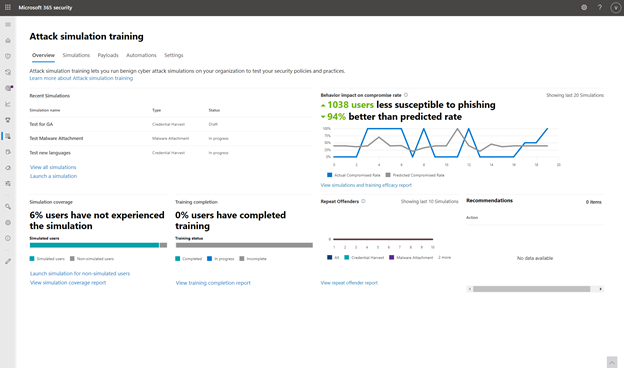
Attack simulation training dashboard
Wide variety of Phishing Techniques
Following the simple steps outlined in the workflow, administrators can choose from the top five social engineering techniques and select the phish template from a list of real attacks seen in their tenant. Optionally customers can upload their own template and then select the users to whom the simulation will be sent.
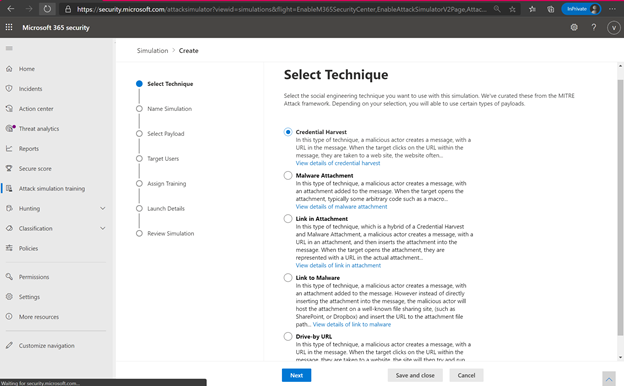
Phishing Techniques available
Phish Template Library from Real Phish Emails
To maximize accuracy, Attack simulation training pulls its phishing templates from real world phish attackers seen in the customers environment. The security administrator can automate a “payload harvester” that collects and neutralizes phish emails received by the organization.
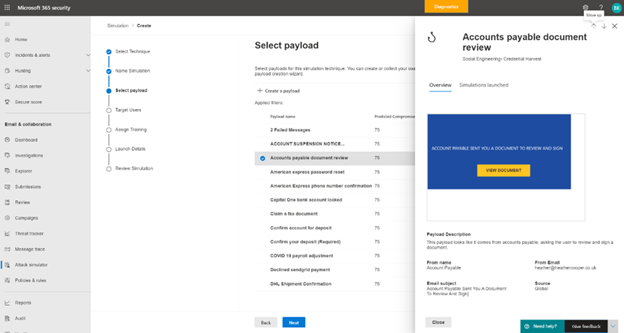
Payloads Available
Through the real payload harvester, Attack simulation training trains employees to identify and report the kinds of emails real attackers will send them. The security administrator can set up targeted payload harvesting as well, using conditions like technique used, department targeted and frequency.
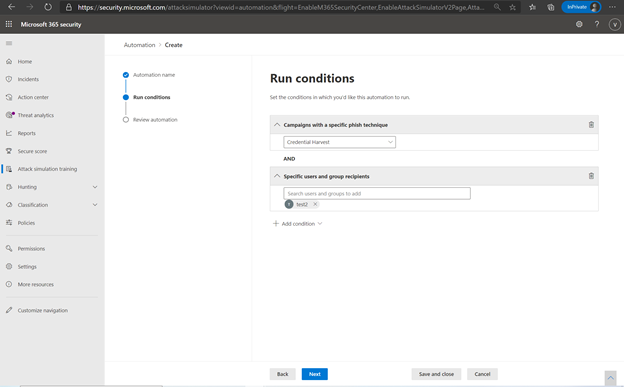
Payload Harvesting Conditions
Finally, security administrators can add ‘phishing indicators’ like an incorrect domain name, an urgency tip or a misspelled company name to train end users on commonly-seen phishing indicators.
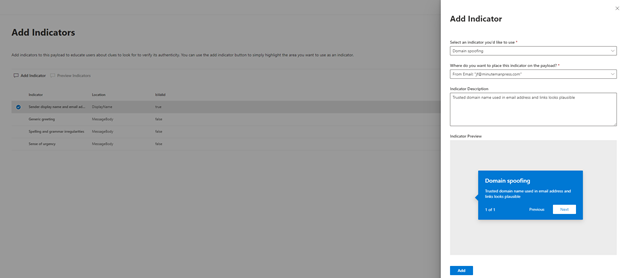
Add indicators to phishing templates
User targeting and training assignment
User targeting is automated, and the administrator can use any address book properties to filter for a user list and target them. The administrator can also quickly import a list of “repeat offenders” or employees who have failed a simulation in the past and target the simulation to this group.
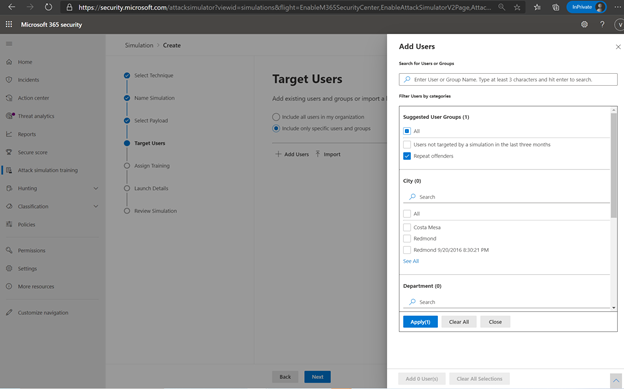
Target users based on address book filters
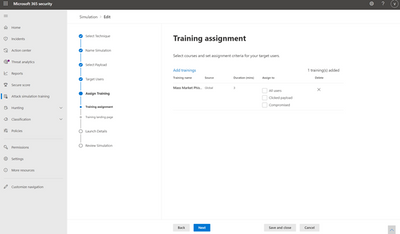
The administrator can then assign training tailored to a user’s behavior in the simulation. Microsoft recommends training to assign based on learning pathways and our intelligence into which training is effective for which kinds of behavior. The administrator can also choose to assign training themselves. For example, an administrator may choose to assign 3 trainings to users who were compromised in the simulation but only 2 to those who clicked and 1 to all users. The landing page on which the end user will land to access this training are wholly customizable for the look and voice of your brand. Finally, the administrator has the option to schedule the simulation to launch right away or at a later time, which can be customized by recipient time-zone.
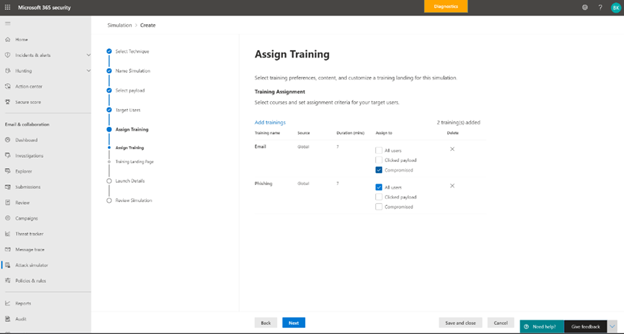
Assign Training
Customized Role Based Access ensures that administrating the simulation and training is a secure and diversified workflow.
Quantify social engineering risk and prioritize remediation through training
The training effectiveness metric, which plots your organization’s actual compromise rate in a simulation against Microsoft’s predicted compromise rate, measures the effectiveness of the training program. Overlay the dates of training completion and simulations to correlate which trainings caused a drop in compromise rate and evaluate their effectiveness.
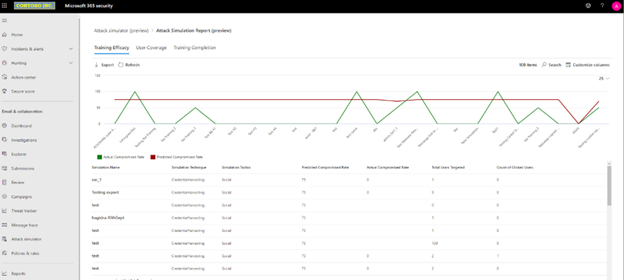
Training Effectiveness Report
Gain visibility over your organization’s training completion and simulation status through completeness and coverage metrics and track your organization’s progress against the baseline predicted compromise rate. Every reporting dashboard can be filtered in different ways and exported for reporting. Multiple reporting views allowing you to drill down on training efficacy, training completion, repeat offenders and coverage.
Reinforce the human firewall with industry-leading Security Awareness Training
Terranova Security’s huge library of phish training content enables personalized and highly specific training targeting based on the user’s behavior during a simulation.
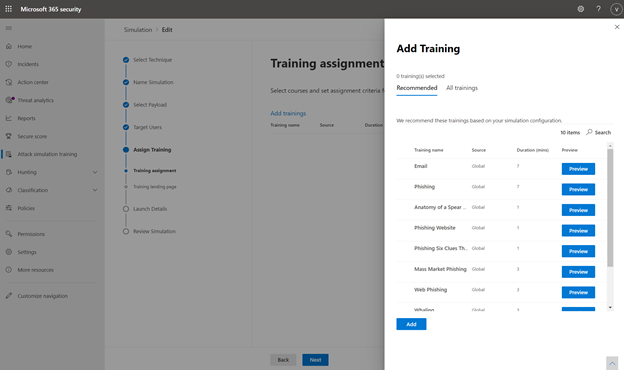
Training Library
Nanolearnings, microlearnings, and interactivity
cater to diverse learning styles and reinforce awareness. Additionally, all trainings are available in 40+ languages and accessible to the highest standards to meet the needs of Microsoft’s global customers.
Attack simulation training enables organizations to improve their security posture by training their employees effectively and changing risky behavior. Organizations can choose from multiple training options to best fit their needs – using Microsoft’s recommended learning pathways, choosing to assign training manually, or choosing not to add training to a simulation.
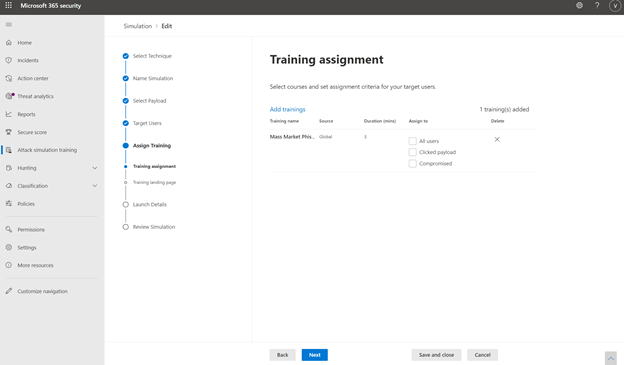
Assigning Training
E3 Trial
As we mentioned in our blog announcing the expansion of public preview to E3 license holders, we will continue to offer a subset of Attack simulation training capabilities to E3 customers as a trial. The trial offering contains the ability to use a Credential Harvest payload and the ability to select from 2 training experiences ISA Phishing and Mass Market Phishing.
The trial offering will not include any other phishing techniques, automated simulation creation and management, conditional payload harvesting, and the complete catalog of Terranova Security trainings.
To get started today, go to Attack simulation training in your M365 Security and Compliance Center or use this link: aka.ms/AttackSim
by Contributed | Jan 6, 2021 | Technology
This article is contributed. See the original author and article here.
The MSIX Packaging Extension is an Azure DevOps extension which helps build, package and sign Windows apps using the MSIX package format.
CI/CD workflows have become an integral part of the development process to improve efficiency and quality while reducing cost and time to market. Microsoft’s CI/CD solution Azure DevOps Pipelines is widely adopted and popular, but the current process of integrating build and deployment workflows for apps that need to be packaged as MSIX into Azure Pipelines is tedious, specifically for people that are not Azure Pipelines or MSIX experts. The new Azure DevOps extension offers a straightforward, intuitive and UI based solution making it easier to automate build and deployment process for apps being packaged as MSIX, and also for apps with existing CI/CD workflows to move to MSIX without disrupting their build and deployment mechanisms.
To learn more about using MSIX with CI/CD pipelines, check out our documentation. Head to the Azure DevOps Marketplace to grab the extension.
Check it out and let us know what you think!
John Vintzel (@jvintzel), PM Lead, MSIX
Thanks to Sahibi Miranshah for the post!
by Contributed | Jan 6, 2021 | Technology
This article is contributed. See the original author and article here.
One of the most common challenge faced by developers while maintaining source code on Azure resources is: how to store and retrieve the secrets without having to save any credentials whatsoever. Moreover, this is strictly discouraged in accordance with Defence-in-depth approach.
Managed identities on Azure solve this challenge by assigning service principals to the identities on Azure AD.
To understand how it works, let’s build a setup with Ubuntu VM running on Azure, Key Vault to fetch secrets, and Azure AAD to register the VM as a managed identity.
For brevity, I have already spun up a Ubuntu 18.04 VM.
1. Let’s create a AKV account and save dummy credentials on it, which needs to be fetched by application running on VM.
PS C:WINDOWSsystem32> New-AzKeyVault -Name "dummy-keyvault" -ResourceGroupName "ManagedIdentityLab" -Location "East US2"


Vault Name                          : dummy-keyvault
Resource Group Name                 : ManagedIdentityLab
Location                            : East US2
Resource ID                         : /subscriptions/<redacted>/resourceGroups/ManagedIdentityLab/providers/Microsoft.KeyVault/vaults/dummy-keyvault
Vault URI                           : https://dummy-keyvault.vault.azure.net/

PS C:WINDOWSsystem32> $secretvalue = ConvertTo-SecureString 'abc@123' -AsPlainText -Force
PS C:WINDOWSsystem32> $secret = Set-AzKeyVaultSecret -VaultName 'dummy-keyvault' -Name 'ExamplePassword' -SecretValue $secretvalue
2. Now, let’s assign a system-assigned identity to the ubuntu VM, so that applications running on it will use this identity to access other Azure resources like AKV.
PS C:WINDOWSsystem32> $vm = Get-AzVM -ResourceGroupName ManagedIdentityLab -Name  vm-running-app

PS C:WINDOWSsystem32> Update-AzVM -ResourceGroupName ManagedIdentityLab -VM $vm -IdentityType SystemAssigned

RequestId IsSuccessStatusCode StatusCode ReasonPhrase
--------- ------------------- ---------- ------------
                         True         OK OK
PS C:WINDOWSsystem32> $spID = (Get-AzVM -ResourceGroupName ManagedIdentityLab  -Name vm-running-app).identity.principalid
PS C:WINDOWSsystem32> $spID
f9733206-1fcb-42c9-abc9-a75d1b68d52b
3. Now we can assign this principal ID Reader access to Azure Key Vault we created in first step. We do this by assigning RBAC role: Reader to the principal ID assigned to the VM in step 2.
PS C:WINDOWSsystem32> New-AzRoleAssignment -ObjectId $spID -RoleDefinitionName "Reader" -Scope /subscriptions/<redacted>/resourceGroups/ManagedIdentityLab/providers/Microsoft.KeyVault/vaults/dummy-keyvault


RoleAssignmentId   : /subscriptions/<redacted>/resourceGroups/ManagedIdentityLab/providers/Microsoft.KeyVault/vaults/dummy-keyvault/providers/Microsoft.Authorization/roleAssignments/780e1100-f4a0-44a8-a8ee-79c5
                     588c3e17
Scope              : /subscriptions/<redacted>/resourceGroups/ManagedIdentityLab/providers/Microsoft.KeyVault/vaults/dummy-keyvault
DisplayName        : vm-running-app
SignInName         :
RoleDefinitionName : Reader
RoleDefinitionId   : acdd72a7-3385-48ef-bd32-f606fba81ae7
ObjectId           : f9733206-1fcb-42c9-abc9-a75d1b68d52b
ObjectType         : ServicePrincipal
CanDelegate        : False
Description        :
ConditionVersion   :
Condition          :

PS C:WINDOWSsystem32>
4. We are now all set to access the keyvault from the python3 interactive shell on ubuntu VM
>>> from azure.identity import ManagedIdentityCredential
>>> credentials=ManagedIdentityCredential()
>>> import os
>>> import cmd
>>> keyVaultName = os.environ["KEY_VAULT_NAME"]
>>> KVUri = f"https://{keyVaultName}.vault.azure.net"
>>> from azure.keyvault.secrets import SecretClient
>>> client = SecretClient(vault_url=KVUri, credential=credentials)
>>> retrieved_secret = client.get_secret("ExamplePassword")
>>>
>>> retrieved_secret
<KeyVaultSecret [https://dummy-keyvault.vault.azure.net/secrets/ExamplePassword/4d1ef64abc4d4c2e8741df66ee0f0065]>
>>> retrieved_secret.
retrieved_secret.id          retrieved_secret.name        retrieved_secret.properties  retrieved_secret.value
>>> retrieved_secret.value
'abc@123'
>>>
Voila! We can fetch the secret from the AKV without having to store the secret anywhere. The class ManagedIdentityCredential in azure-identity package fetches the VM’s managed identity client ID.
The magic that happens behind the scene is described below:
1. As soon as the client.get_secret method is called to fetch secret from AKV, an http request is made to the AKV url. The response back is http 401 error, since the request header does not have a valid token.
INFO:azure.core.pipeline.policies.http_logging_policy:Request URL: 'https://dummy-keyvault.vault.azure.net/secrets/ExamplePassword/?api-version=REDACTED'
INFO:azure.core.pipeline.policies.http_logging_policy:Request method: 'GET'
INFO:azure.core.pipeline.policies.http_logging_policy:Response status: 401
2. Post this failure, another request is made to the AAD to get the token for the managed identity associated with the ubuntu VM. The response returned back is the access token :
INFO:azure.core.pipeline.policies.http_logging_policy:Request URL: 'http://169.254.169.254/metadata/identity/oauth2/token?api-version=REDACTED&resource=REDACTED'
INFO:azure.core.pipeline.policies.http_logging_policy:Request method: 'GET'
INFO:azure.core.pipeline.policies.http_logging_policy:Response status: 200
INFO:azure.core.pipeline.policies.http_logging_policy:Response headers:

    "response": {
        "access_token": "********",
        "client_id": "1699a4a0-2f2a-4696-b483-dd32a950349a",
        "expires_in": "85295",
        "expires_on": 1610038816,
        "ext_expires_in": "86399",
        "not_before": "1609952116",
        "resource": "https://vault.azure.net",
        "token_type": "Bearer"
    },
    "scope": [
        "https://vault.azure.net/.default"
    ]
}
3. Finally, the access token retrieved from step 2 is used in the header to reattempt step 1. When AKV receives the request this time, it validates the access token against AAD. Since the access token is valid, the request is allowed to read the secret and we get a http 200 response back.
INFO:azure.identity._internal.decorators:ManagedIdentityCredential.get_token succeeded
INFO:azure.core.pipeline.policies.http_logging_policy:Request URL: 'https://dummy-keyvault.vault.azure.net/secrets/ExamplePassword/?api-version=REDACTED'
INFO:azure.core.pipeline.policies.http_logging_policy:Request method: 'GET'
INFO:azure.core.pipeline.policies.http_logging_policy:Request headers:
INFO:azure.core.pipeline.policies.http_logging_policy:Response status: 200
To summarize, managed identity allows the apps running on Azure resources to authenticate against AAD without having to store credentials. This is super convenient and compliant, also eliminates the need to rotate the client secret upon compromise or expiration.


Recent Comments