Understanding email scenarios if TLS versions cannot be agreed on with Exchange Online

Understanding email scenarios if TLS versions cannot be agreed on with Exchange Online

This article is contributed. See the original author and article here.

By now you are hopefully aware of the TLS 1.0/1.1 deprecation efforts that are underway across the industry and Microsoft 365 in particular. Head out to our documentation for more details and references if you need a refresher! Also check out this blog entry to see how you can use reporting in Exchange Online to get an overview about the TLS versions used by mails submitted to your tenant. This topic may be super-relevant to you, because as confirmed by the message center post MC229914, TLS 1.0 and TLS 1.1 deprecation started enforcing for Exchange Online mail flow endpoints beginning January 11th, 2021. The rollout will continue over the following weeks and months. This essentially means, soon this deprecation process will be over, and we will no longer accept TLS 1.0 and TLS 1.1 email connections from external sources. Also note that Exchange Online will never use TLS 1.0 or 1.1 to send outbound email.


We wanted to talk about what this means for SMTP traffic destined to Exchange Online in particular. What happens if a server on your side can only use TLS 1.0 with SMTP? Will sending fail, and if yes, how do you notice TLS 1.0 or TLS 1.1 is the root cause of your email problems? There are different variables that impact this and we will try to mention most frequent scenarios.


Before diving into further details, keep in mind that generally speaking, the TLS implementation in Exchange on-premises or Exchange Online is done opportunistically. This means:


  • For receiving mail into Exchange: If the sending server does not support TLS, or if the TLS negotiation fails, Exchange Online will still accept messages unencrypted and without TLS (provided the sending server’s configuration allows that).

  • For sending mail from Exchange: For outbound email, if the receiving server does not support TLS (does not advertise the STARTTLS Verb), Exchange on-premises and Exchange Online will send email without TLS (provided TLS is not forced on the send connector or outbound connector).


Another point to keep in mind is that Exchange will always attempt to initially negotiate the highest possible version of TLS which is enabled on the other server. Once this version is selected during the TLS handshake – Exchange does not attempt a lower version of TLS/SSL that might also be enabled on the server. In case there is a failure during communication, Exchange will instead re-attempt the delivery without TLS. Our previously published 3 part blog posts (Exchange Server TLS guidance part 1, Part 2 and Part 3) extensively covered how various components like Schannel, WinHTTP, .Net, etc. work together to decide the version of TLS Exchange server should use during TLS handshakes.


Other than TLS versions, another factor that we tend to overlook are the Cipher Suites supported by Office 365. While the servers or devices may use TLS 1.2, not supporting one of the ciphers suites adopted by Office 365 from the published list could also cause mail flow issues.


Let us look at the details of each scenario!


3rd party SMTP server sending to Exchange Online


The experience here will mostly depend on the sending server’s implementation. In most cases, there should be no impact. Once the TLS 1.0 attempt fails, the sender should fall back to not using TLS at all and send in an unencrypted manner. If the sender is relying solely on TLS 1.0 or TLS 1.1 and cannot send unencrypted, it is again up to the sending server’s implementation on what happens – the mail might remain queued while the sender keeps retrying. Ultimately the sending server should generate an error or an NDR after the message expiration timeout.


Exchange server (external to the organization) sending to Exchange Online


This applies to the case where your Exchange servers in contoso.com would be sending to a different organization, let’s say fabrikam.com, which is hosted in Exchange Online. For most organizations, mail flow will not break. This is because send connectors in Exchange are by default created with the setting “RequireTLS: false”, meaning they will attempt a TLS connection if the remote party supports it, but if TLS negotiation fails, they will simply fall back to not using TLS and will send anyway. The SMTP Send protocol logs will contain entries that resemble the following:


You will see that initially the mail could not be sent to Office 365 and it failed with error: TLS negotiation failed with error SocketError


#Fields: date-time,connector-id,session-id,sequence-number,local-endpoint,remote-endpoint,event,data,context
2021-01-11T16:43:14.811Z,Connector2Fabrikam,08D8B64FC6449F2A,0,,10.1.0.16:25,*,SendRoutingHeaders,Set Session Permissions
2021-01-11T16:43:14.811Z,Connector2Fabrikam,08D8B64FC6449F2A,1,,10.1.0.16:25,*,,attempting to connect
2021-01-11T16:43:14.817Z,Connector2Fabrikam,08D8B64FC6449F2A,2,10.0.0.16:6933,10.1.0.16:25,+,,
2021-01-11T16:43:14.969Z,Connector2Fabrikam,08D8B64FC6449F2A,3,10.0.0.16:6933,10.1.0.16:25,<,”220 BN3USG02FT012.mail.protection.office365.us Microsoft ESMTP MAIL Service ready at Mon, 11 Jan 2021 17:43:14 +0100″,
2021-01-11T16:43:14.969Z,Connector2Fabrikam,08D8B64FC6449F2A,4,10.0.0.16:6933,10.1.0.16:25,>,EHLO exc16.contoso.com,
2021-01-11T16:43:15.012Z,Connector2Fabrikam,08D8B64FC6449F2A,5,10.0.0.16:6933,10.1.0.16:25,<,250 BN3USG02FT012.mail.protection.office365.us Hello [10.0.0.16] SIZE 37748736 PIPELINING DSN ENHANCEDSTATUSCODES STARTTLS X-ANONYMOUSTLS AUTH NTLM X-EXPS GSSAPI NTLM 8BITMIME BINARYMIME CHUNKING XRDST,
2021-01-11T16:43:15.013Z,Connector2Fabrikam,08D8B64FC6449F2A,6,10.0.0.16:6933,10.1.0.16:25,>,STARTTLS,
2021-01-11T16:43:15.016Z,Connector2Fabrikam,08D8B64FC6449F2A,7,10.0.0.16:6933,10.1.0.16:25,<,220 2.0.0 SMTP server ready,
2021-01-11T16:43:15.016Z,Connector2Fabrikam,08D8B64FC6449F2A,8,10.0.0.16:6933,10.1.0.16:25,*,” CN=mail.contoso.com CN=R3, O=Let’s Encrypt, C=US 03C6CCE6D57C1D2DA908BF69EBD10963AE74 AF15A9798388DD9C0C03FEBC897025CD76963178 2020-12-05T09:46:36.000Z 2021-03-05T09:46:36.000Z mail.contoso.com;autodiscover.contoso.com;”,Sending certificate Subject Issuer name Serial number Thumbprint Not before Not after Subject alternate names
2021-01-11T16:43:15.043Z,Connector2Fabrikam,08D8B64FC6449F2A,9,10.0.0.16:6933,10.1.0.16:25,*,,TLS negotiation failed with error SocketError
2021-01-11T16:43:15.043Z,Connector2Fabrikam,08D8B64FC6449F2A,10,10.0.0.16:6933,10.1.0.16:25,-,,Remote


A network capture will resemble the following, which clearly explains the reason behind the failure. As you see in the following screenshot, the sending server, after the exchange of STARTTLS verb, tried to negotiate transport layer security using TLS version 1.1. The Exchange Online server instantly disconnected the session with a “FINISH” flag (FIN):


TLSbehavior01.jpg


However, immediately after that, the sending server should fall back to not using TLS and will send the email anyway and it will be accepted by Exchange Online:


2021-01-11T16:43:15.047Z,Connector2Fabrikam,08D8B64FC6449F2B,0,,10.1.0.16:25,*,SendRoutingHeaders,Set Session Permissions
2021-01-11T16:43:15.047Z,Connector2Fabrikam,08D8B64FC6449F2B,1,,10.1.0.16:25,*,,attempting to connect
2021-01-11T16:43:15.050Z,Connector2Fabrikam,08D8B64FC6449F2B,2,10.0.0.16:6934,10.1.0.16:25,+,,
2021-01-11T16:43:15.053Z,Connector2Fabrikam,08D8B64FC6449F2B,3,10.0.0.16:6934,10.1.0.16:25,<,”220 BN3USG02FT012.mail.protection.office365.us Microsoft ESMTP MAIL Service ready at Mon, 11 Jan 2021 17:43:14 +0100″,
2021-01-11T16:43:15.053Z,Connector2Fabrikam,08D8B64FC6449F2B,4,10.0.0.16:6934,10.1.0.16:25,>,EHLO exc16.contoso.com,
2021-01-11T16:43:15.055Z,Connector2Fabrikam,08D8B64FC6449F2B,5,10.0.0.16:6934,10.1.0.16:25,<,250 BN3USG02FT012.mail.protection.office365.us Hello [10.0.0.16] SIZE 37748736 PIPELINING DSN ENHANCEDSTATUSCODES STARTTLS X-ANONYMOUSTLS AUTH NTLM X-EXPS GSSAPI NTLM 8BITMIME BINARYMIME CHUNKING XRDST,
2021-01-11T16:43:15.058Z,Connector2Fabrikam,08D8B64FC6449F2B,6,10.0.0.16:6934,10.1.0.16:25,*,,sending message with RecordId 40900973559810 and InternetMessageId <5149fa60b89741cfaf6e05d5767776a9@contoso.com>
2021-01-11T16:43:15.059Z,Connector2Fabrikam,08D8B64FC6449F2B,7,10.0.0.16:6934,10.1.0.16:25,>,MAIL FROM:<user@contoso.com> SIZE=9031,
2021-01-11T16:43:15.059Z,Connector2Fabrikam,08D8B64FC6449F2B,8,10.0.0.16:6934,10.1.0.16:25,>,RCPT TO:<user@fabrikam.com>,
2021-01-11T16:43:15.118Z,Connector2Fabrikam,08D8B64FC6449F2B,9,10.0.0.16:6934,10.1.0.16:25,<,250 2.1.0 Sender OK,
2021-01-11T16:43:15.120Z,Connector2Fabrikam,08D8B64FC6449F2B,10,10.0.0.16:6934,10.1.0.16:25,<,250 2.1.5 Recipient OK,
2021-01-11T16:43:15.121Z,Connector2Fabrikam,08D8B64FC6449F2B,11,10.0.0.16:6934,10.1.0.16:25,>,BDAT 2932 LAST,
2021-01-11T16:43:18.300Z,Connector2Fabrikam,08D8B64FC6449F2B,12,10.0.0.16:6934,10.1.0.16:25,<,”250 2.6.0 <5149fa60b89741cfaf6e05d5767776a9@contoso.com> [InternalId=171798691842, Hostname=BN3USG02FT012.mail.protection.office365.us] 4228 bytes in 2.816, 1.466 KB/sec Queued mail for delivery”,
2021-01-11T16:43:18.314Z,Connector2Fabrikam,08D8B64FC6449F2B,13,10.0.0.16:6934,10.1.0.16:25,>,QUIT,
2021-01-11T16:43:18.316Z,Connector2Fabrikam,08D8B64FC6449F2B,14,10.0.0.16:6934,10.1.0.16:25,<,221 2.0.0 Service closing transmission channel,
2021-01-11T16:43:18.316Z,Connector2Fabrikam,08D8B64FC6449F2B,15,10.0.0.16:6934,10.1.0.16:25,-,,Local


Note: to see where the SMTP Send protocol logs are stored on your on-premises server, run “Get-TransportServer <servername> | fl SendProtocolLog*”. Logs will be generated once you enable logging with a cmdlet like “Set-SendConnector <connectorname> -ProtocolLoggingLevel Verbose”.


If you explicitly configured your send connector with the setting “RequireTLS: True”, the fallback to non-TLS will not happen. In this case, the behavior will be similar to what is described in the next section.


On-premises Exchange server in a hybrid configuration sending to Exchange Online (internal to the organization)


In this scenario, mails are sent from your on-premises recipients to your Exchange Online recipients. When your Exchange servers are configured for hybrid, by default, the “Outbound to Office 365…” connector has “RequireTLS: True”. This means that on-premises servers won’t fall back to sending unencrypted. If the TLS 1.0/1.1 attempt fails, Exchange will keep retrying the connection using TLS several times at various intervals (the exact retry intervals and counts are described here.) The send protocol log entries will be similar to those shown above, with the difference that the “TLS negotiation failed with error SocketError” entries will just keep repeating, since there is no fallback. Unless you modified the default retry configuration, the on-premises Exchange server will keep retrying for 2 days. Throughout this time, the affected mails will stay in the queue. The queue details will look similar to this:


TLSbehavior02.jpg


[PS] C:>Get-Queue <queue ID> | fl
(…)
Status : Retry
LastError : [{LED=451 4.4.397 Error communicating with target host. -> 421 4.4.2 Connection dropped due to SocketError};{MSG=};{FQDN=<servername>};{IP=<serverIP>};{LRT=1/11/2021 6:02:39 PM}]
(…)


By default, the sender will receive a delay DSN (the subject starts with “Delivery delayed”, localized) after 4 hours. Unless you do some manual intervention sooner, the sending Exchange server will normally give up after 2 days and generate an NDR. The NDR message would look like this:


Delivery has failed to these recipients or groups:
user@contoso.com
Several attempts to deliver your message were unsuccessful and we stopped trying. It could be a temporary situation. Try to send your message again later.
Diagnostic information for administrators:
Generating server: <servername>
Receiving server: <servername>
user@contoso.com
1/7/2021 7:24:14 PM – Server at <servername> returned ‘550 5.4.300 Message expired -> 451 4.4.397 Error communicating with target host. -> 421 4.4.2 Connection dropped due to SocketError’
1/7/2021 7:23:14 PM – Server at mail.contoso.com (10.0.0.16) returned ‘451 4.4.397 Error communicating with target host. -> 421 4.4.2 Connection dropped due to SocketError’


To avoid such problems, be sure to configure your on-premises Exchange servers to support TLS 1.2, as described in our three-part blog series starting here.


Exchange Online sending to Exchange server (external to the organization)


This experience will depend on how the receiving server has implemented inbound mail flow. Assuming the receiving server supports TLS (advertises STARTTLS Verb), Exchange Online will only use TLS 1.2 to send outbound email. If the receiving server does not support TLS 1.2, Exchange Online being opportunistic will try to send email without TLS. If the receiving mail server does not have TLS enforced for inbound email flow, the email will be sent without TLS. You will know if your server is enforcing TLS by querying for the RequireTLS property of the Receive Connector, e.g. ‘Get-ReceiveConnector “Default Frontend <ServerName>” | fl RequireTLS’. If TLS is enforced at the receiving end, Exchange Online will continue retrying and the email will remain queued, and eventually we will generate NDR message after 24 hours (which is default message expiration timeout for Exchange Online).


On-premises non-Exchange server, application or device relaying external emails through your Exchange Online tenant following this article


If you have an on-premises non-Exchange server, application or device that relays email through your Office 365 tenant either by SMTP AUTH client submission or by using a certificate based inbound connector, make sure these servers or devices or applications support TLS 1.2. If they do not support TLS 1.2, the TLS negotiation will fail, and a subsequent non-TLS retry might be attempted. SMTP AUTH client submission does not work without TLS. And in case relay is configured through a certificate based inbound connector, the common name (CN) or subject alternative name (SAN) verification will fail during non-TLS communication. This will cause an “550 5.7.0. Relay Access Denied” error in both scenarios. Email delivery to mailboxes hosted in your Office 365 tenant will continue to work albeit it will be treated as “anonymous” submission.


Hopefully, this clarifies what you need to look for in case mail flow starts to break with the disablement of TLS 1.0/1.1! We also want to take a moment to thank Mike Brown, Nino Bilic and Sean Stevenson for their contributions and review.


Szabolcs Vajda and Arindam Thokder

In-Depth Training Sessions for Global IT Admins

In-Depth Training Sessions for Global IT Admins

This article is contributed. See the original author and article here.


Webinars on Microsoft 365 onboarding, deployment, Teams governance, Windows 10 device configuration


IT.png


Introduction

We’re very excited to announce a series of Microsoft 365 EDU onboarding and deployment webinars.

These events are public and may be joined by anyone who’s interested, so feel free to share. The sessions will be hosted through Microsoft Teams Live Events, which means that at event time you can join by clicking on one of the join link listed down below.

For your convenience, we also provide .ics calendar files.

Each session will be available on demand afterwards.


We’ll first go over the details for each session. Scroll down for a table connecting the sessions with date /time info and join links.


Additional opportunities for free 1-on-1deep-dive ask us anything session

Yes. During the webinars, our presenters will explain how you can schedule a 1:1 deep-dive session to assist with any questions regarding onboarding, deployment, configuration, or training resources.


5 Different sessions on multiple topics, held at various times across time zones


1 – Manage Microsoft Teams for Hybrid Learning

This session will provide an intermediate overview of the Benefits, Deployment, and Configuration of Microsoft Teams EDU, managing policy and resources for IT professionals, Educators, and other roles. One on one sessions will be available for further assistance after the presentation session.


2 – Ask the Microsoft Education Expert about Onboarding


This session will provide an Open Session to ask Microsoft 365 Experts for help and guidance on deploying Microsoft 365. Question and Answer session will last up to 60 minutes and will focus on questions for available training resources, questions on Azure Active Directory Connect, Teams policy management, starting with School Data Sync, and available resources to help in greater detail on these topics. One on one sessions will be available for further assistance after the presentation session.


3 – Deploy Microsoft 365 Education in your School

This session will provide an intermediate overview of the Deployment and Configuration of Microsoft 365 EDU, available training and adoption resources for IT professionals, Educators, and other roles, and methods to measure and drive usage and adoption throughout your organization. One on one sessions will be available for further assistance after the presentation session.


4 – Protect Student Data and Stay Compliant


This session will provide an intermediate overview of the Configuration of Microsoft 365 EDU to ensure a secure and safe environment for hybrid and distanced learning. This session will focus on best practices in configuration, resources for educators, and methods of measuring the security of your school’s Microsoft 365 EDU environment. One on one sessions will be available for further assistance after the presentation session.


5 – Set up and Manage Windows 10 Devices


This session will provide an intermediate overview of the Deployment and Configuration of Microsoft 365 EDU Windows 10 Devices. This will focus on managing provided educator and student Windows 10 devices safely and securely. One on one sessions will be available for further assistance after the presentation session.


Presenters

Jeff Zekoff, Brandon Horbacz, Jason Weeks


Microsoft 365 PnP Weekly – Episode 109

Microsoft 365 PnP Weekly – Episode 109

This article is contributed. See the original author and article here.

pnp-weekly-109-promo.png


In this installment of the weekly discussion revolving around the latest news and topics on Microsoft 365, hosts – Vesa Juvonen (Microsoft) | @vesajuvonen, Waldek Mastykarz (Microsoft) | @waldekm, are joined by Microsoft 365 Consultant and MVP Luise Freese | @LuiseFreese, based in Germany. 


The core discussion focus in this episode is on creating a safe, inclusive environment for existing and new community members to learn and share, tips for increasing your visibility within the community and finally Luise’s TeamsAdvisor Microsoft Power App. 


This episode was recorded on Monday, January 11, 2020.


Did we miss your article? Please use #PnPWeekly hashtag in the Twitter for letting us know the content which you have created. 


As always, if you need help on an issue, want to share a discovery, or just want to say: “Job well done”, please reach out to Vesa, to Waldek or to your Microsoft 365 PnP Community.


Sharing is caring!

DevTest Labs Outage: Customers in certain regions might experience degraded performance

This article is contributed. See the original author and article here.

We would like to inform you that, starting 07:59 UTC on 15 Jan 2021, customers in the below mentioned regions might experience degraded performance while performing any major action on DevTest Labs. We are currently investigating the root cause and our team continues to work diligently on a fix.


  • Australia Southeast

  • Canada Central

  • Central India

  • East Asia

  • East US

  • Japan East

  • Korea Central

  • North Europe

  • UK West

  • West India


We will update this post to share regular updates and will also share a root cause analysis once the fix is rolled out. We apologize for the inconvenience and thank you for your patience. 


– DevTest Labs Team


Apache Releases Security Advisory for Tomcat

This article is contributed. See the original author and article here.

The Apache Software Foundation has released a security advisory to address a vulnerability affecting multiple versions of Apache Tomcat. An attacker could exploit this vulnerability to obtain sensitive information.   

CISA encourages users and administrators to review the Apache security advisory for CVE-2021-24122 and upgrade to the appropriate version.  

Friday Five: Azure Databricks, Teams Breakout Rooms, More!

Friday Five: Azure Databricks, Teams Breakout Rooms, More!

This article is contributed. See the original author and article here.

tomaz.jpg

Blog Series: Advent of 2020 Azure Databricks

Tomaž Kaštrun is a SQL Server developer and data scientist with more than 15 years of experience in the fields of business warehousing, development, ETL, database administration, and also data analysis and machine learning. He is a Microsoft Data Platform MVP, a blogger, and a frequent speaker at community and Microsoft events. For more, check out Tomaž’s Twitter @tomaz_tsql

20180904081913-IMG_0221_medium copy.jpg

How to use “Definite Guide” for the new Microsoft Teams Breakout Rooms

Vesku Nopanen is a Principal Consultant in Office 365 and Modern Work and passionate about Microsoft Teams. He helps and coaches customers to find benefits and value when adopting new tools, methods, ways or working and practices into daily work-life equation. He focuses especially on Microsoft Teams and how it can change organizations’ work. He lives in Turku, Finland. Follow him on Twitter: @Vesanopanen

image.png

SharePoint 2016 Get All User Alerts By List Name

Mohamed El-Qassas is a Microsoft MVP, SharePoint StackExchange (StackOverflow) Moderator, C# Corner MVP, Microsoft TechNet Wiki Judge, Blogger, and Senior Technical Consultant with +10 years of experience in SharePoint, Project Server, and BI. In SharePoint StackExchange, he has been elected as the 1st Moderator in the GCC, Middle East, and Africa, and ranked as the 2nd top contributor of all the time. Check out his blog here.

image.png

Manage Scrum Projects with Microsoft 365

John Naguib is an Office Servers and Services MVP. He’s also a Solution Architect and Senior Consultant, with a deep knowledge of SharePoint. In addition, he has a strong .net application development background and is knowledgable in Office 365, Azure and several Microsoft products. John is a recognized expert within the IT industry, as he’s published several gold award articles on Microsoft TechNet blogs and spoken at several events. He is based in Egypt. Follow him on Twitter @johnnaguib.

image.png

Azure Migration Services – Easy Cloud Migration Services 

Robert Smit is a EMEA Cloud Solution Architect at Insight.de and is a current Microsoft MVP Cloud and Datacenter as of 2009. Robert has over 20 years experience in IT with experience in the educational, health-care and finance industries. Robert’s past IT experience in the trenches of IT gives him the knowledge and insight that allows him to communicate effectively with IT professionals. Follow him on Twitter at @clusterMVP

Coronavirus relief scam impersonates Joe Simons from the Federal Trade Commission

Coronavirus relief scam impersonates Joe Simons from the Federal Trade Commission

This article was originally posted by the FTC. See the original article here.

Scammers are at it again, pretending to be from a government agency to rip people off. Here’s what you need to know about the latest coronavirus relief fund scam.

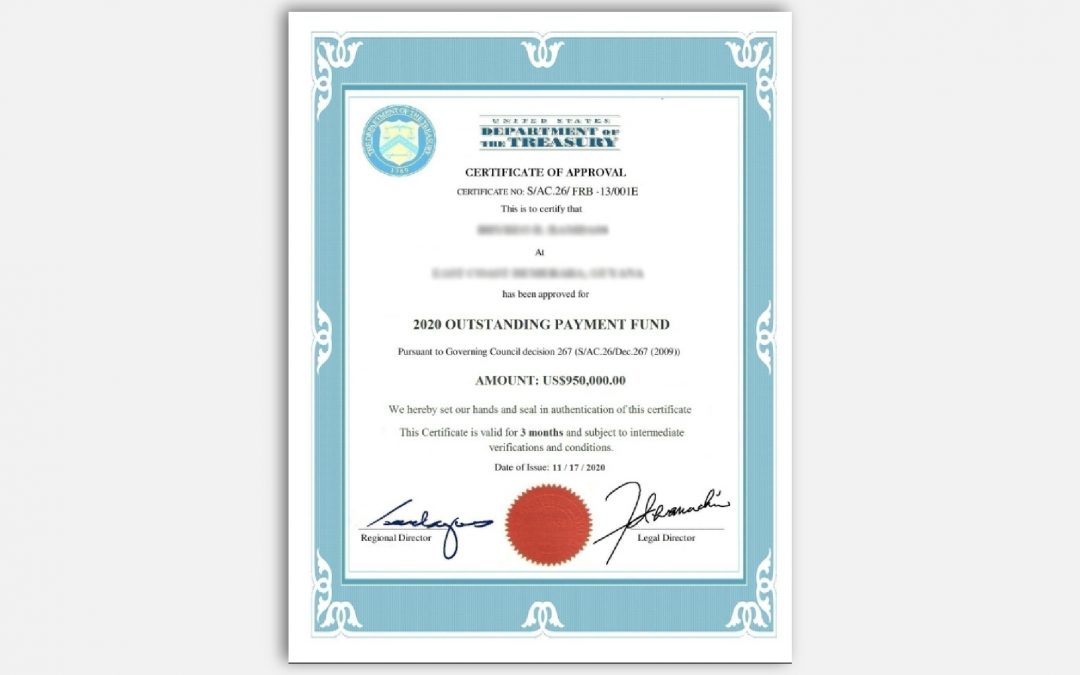
You get an email that looks to be from Joe Simons of the Federal Trade Commission. It says you’re getting coronavirus relief money. The email includes a fake certificate to make you think the money is real.

FTC_impersonator_certificate

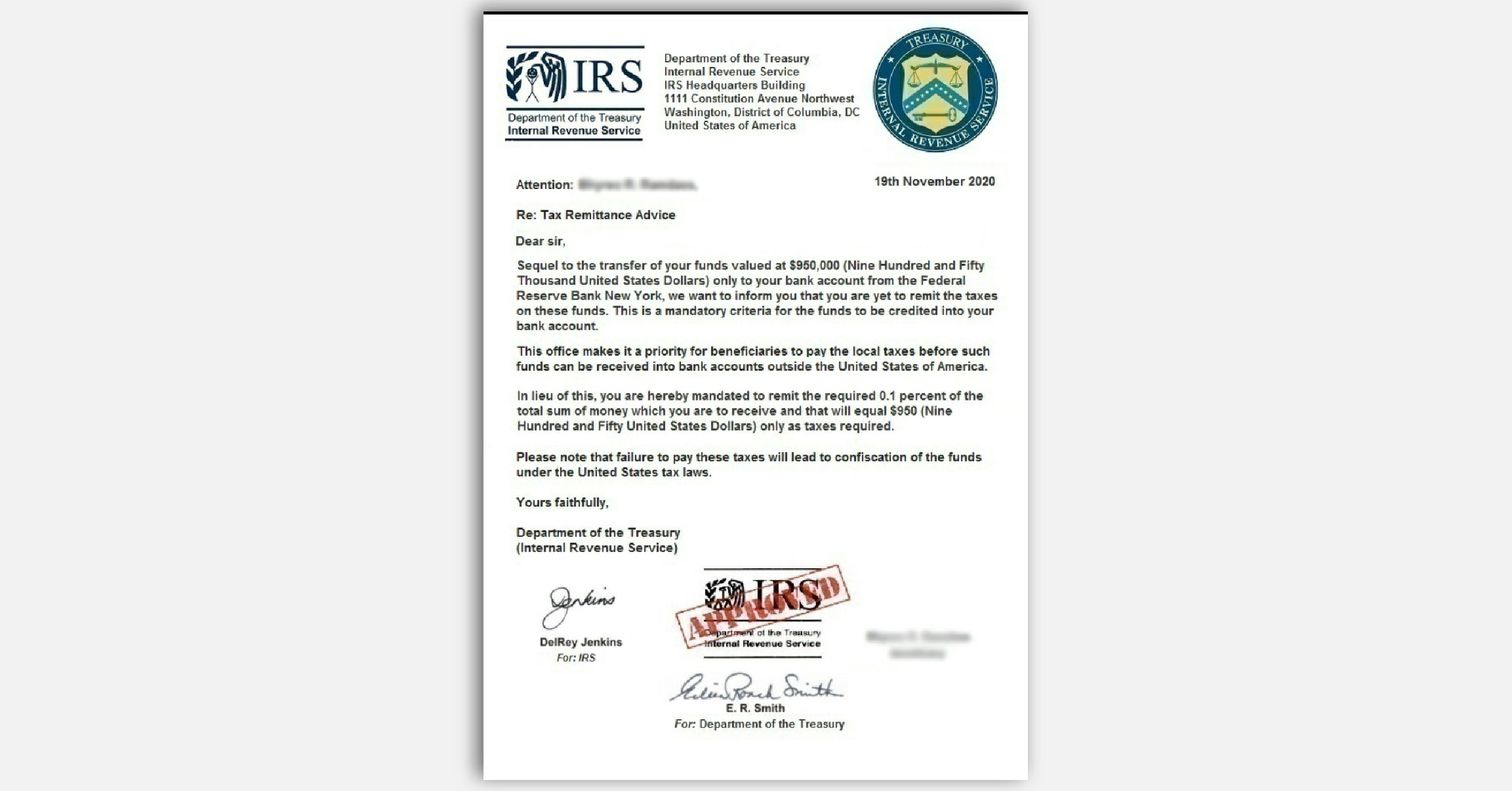
If you reply, they say you have to pay taxes before you get your money. They may include a fake letter from the IRS, like this one, to convince you.

FTC impersonator scam fake IRS letter

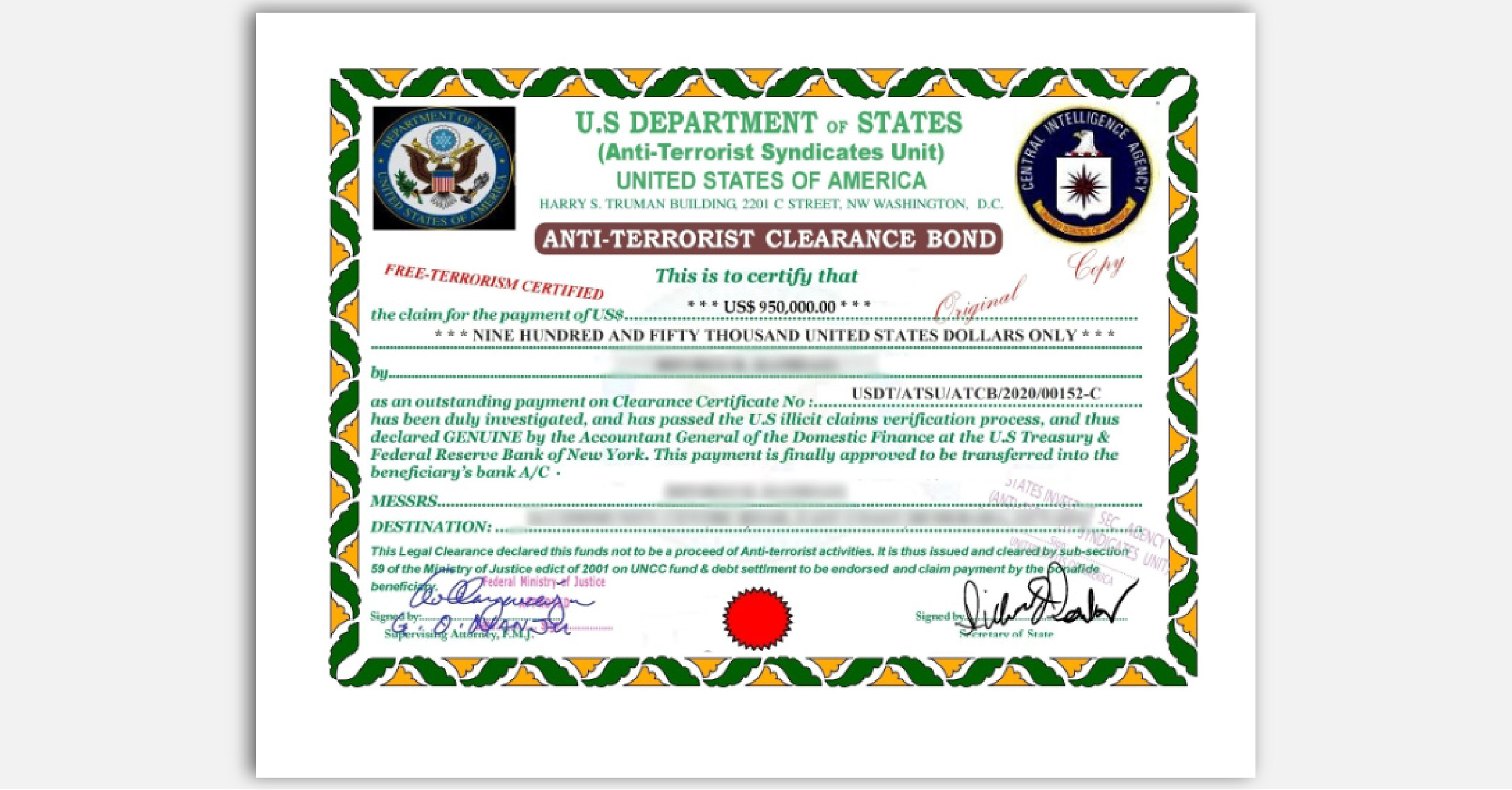
If you pay, they say you must pay the State Department for a certificate that proves the funds are not related to any terrorist activity and the money is cleared for you to receive. (Yes, really!)

FTC impersonator scam fake State Dept. certificate

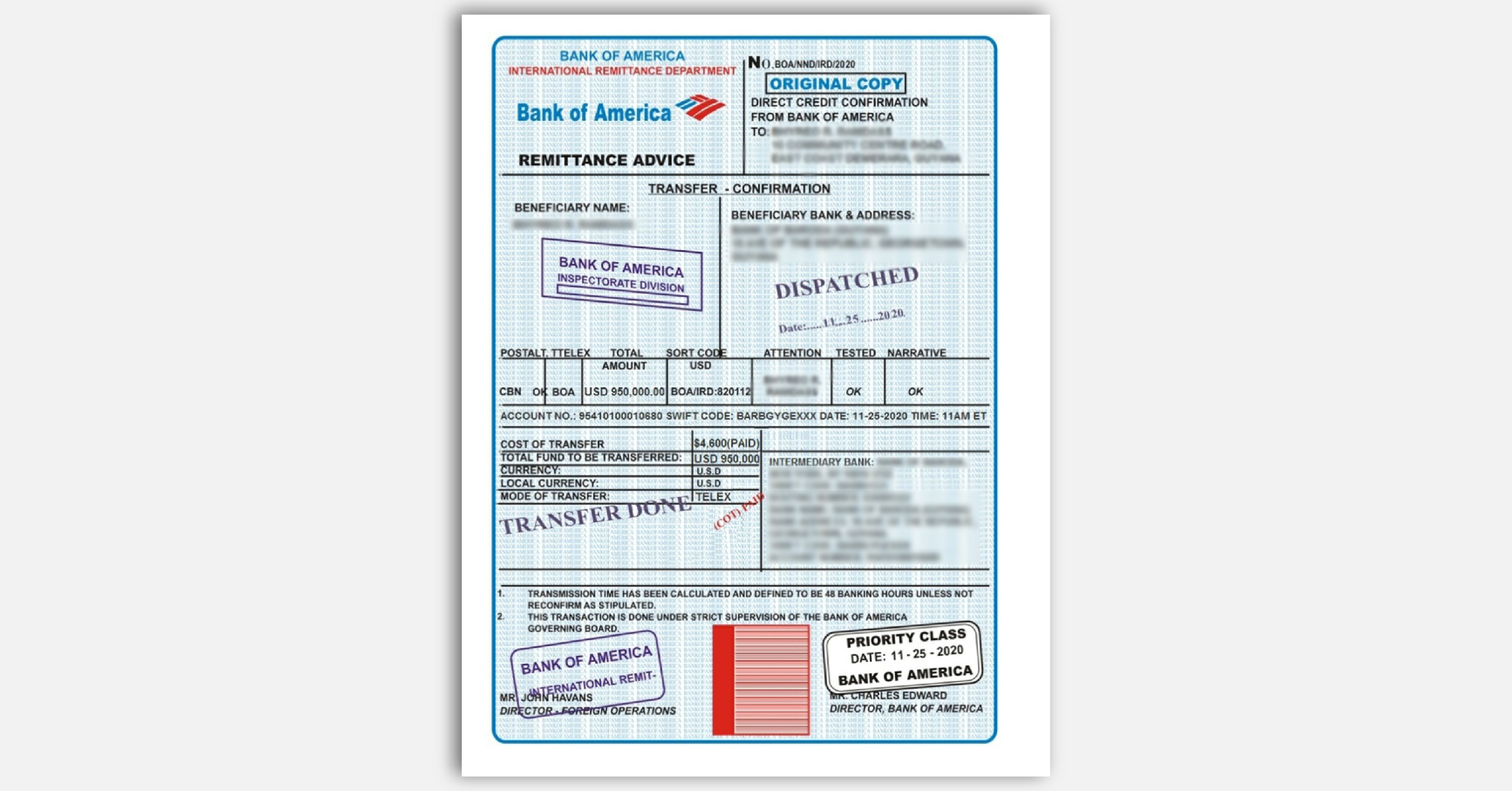
Finally, if you pay that, they send you a fake remittance order showing that the money is on the way to your bank account.

FTC impersonator scam fake remittance order

As you might have suspected by now, the money never shows up. That’s because every step of the way was carried out by scammers looking to steal your money. So, what can you do to protect yourself against imposters when their stories keep changing?

  • Be suspicious of any call, email, text, or letter from a government agency asking for money or information. Government agencies don’t call you with threats or promises of – or demands for – money. Scammers do.
  • Don’t trust caller ID – it can be faked. Even if it might look like a real call from a real government agency, don’t trust it.
  • Never pay with a gift card or wire transfer. If someone tells you to pay this way, it’s a scam.
  • Check with the real agency. Look up their number. Call them to find out if they’re trying to reach you – and why.

If you look up Joe Simons, you’ll see that he is the Chairman of the FTC. But Joe didn’t email you. Scammers pretending to be Joe did.

Here’s another sign this is a scam: The FTC is not involved in distributing coronavirus economic stimulus money in any way. Economic stimulus payments come from the IRS. The IRS won’t contact you by phone, email, text message, or social media with information about any payments related to the coronavirus pandemic, or to ask you for personal or financial information. Check out irs.gov/coronavirus for the latest info about coronavirus relief payments.

If you get an email that says you’re getting some money, don’t reply, period. And definitely don’t give them your bank account or other financial information. Report it to the FTC at ReportFraud.ftc.gov.

Brought to you by Dr. Ware, Microsoft Office 365 Silver Partner, Charleston SC.

AzUpdate: Email-based passcodes, Azure Security Centre Lab, Office 365 attack simulation and more

AzUpdate: Email-based passcodes, Azure Security Centre Lab, Office 365 attack simulation and more

This article is contributed. See the original author and article here.

The team is back for our second season of AzUpdate. News to be covered this week includes: Public IP SKU Upgrade Support, Microsoft announces GA of email-based one-time passcode (email OTP) feature for collaboration, Azure Security Centre Lab availability, Attack simulation training in Microsoft Defender for Office 365 now Generally Available and as always, our Microsoft Learn Module of the Week.


Public IP SKU Upgrade Support


Azure public IP addresses now support the ability to be upgraded from Basic to Standard SKU. Additionally, any Basic Public Load Balancer can now be upgraded to a Standard Public Load Balancer, while retaining the same public IP address. This is supported via PowerShell, CLI, templates, and API and available across all Azure regions.


Learn more about the process to upgrade Azure public IPs here. Learn about how to upgrade Azure Public Load Balancers here.


Microsoft announces GA of email-based one-time passcode (email OTP) feature for collaboration


email-otp.png


It can be painful for IT managers to keep track of guest user accounts, and for end users to remember multiple usernames and passwords. To address this, Microsoft is continually improving the Azure AD External Identities solution with more support for bring-your-own-identity (BYOI) options with the general availability of email-based one-time passcode (email OTP) feature for collaboration.


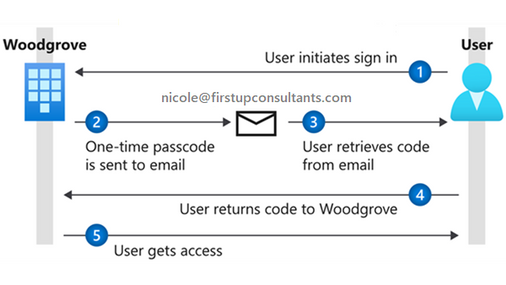
Email OTP allows org members to collaborate with anyone in the world via a shared link or an email invitation. Once users prove their identity by using a verification code sent to their email, each authenticated session is provided access to the shared resource for 24 hours. On subsequent sign ins, users receive a new one-time code via email, which they must enter to prove continued ownership of the email account and continue receiving access.


Check out the following documentation to get started with email OTP.


Azure Security Centre Lab availability


asc-labs-logo.png


Microsoft’s security center labs project can help organizations get ramped up with Azure Security Center by providing hands-on practical experience for product features, capabilities, and scenarios. The labs contain cover several different pillars such as Cloud Security Posture Management (CSPM) and Cloud Workload Protection (CWP). An Azure Trial Subscription is required to start using the labs providing you all capabilities for thirty days.


Visit the Azure Security Center Lab repo to get started.


Attack simulation training in Microsoft Defender for Office 365 now Generally Available


Delivered in partnership with Terranova Security, Attack simulation training is an intelligent social engineering risk management tool that automates the creation and management of phishing simulations to help customers detect, prioritize, and remediate phishing risks by using real phish and hyper-targeted training to change employee behaviors.
 
Go to the Attack simulation training in your M365 Security and Compliance Center to get started today.


Community Events


  • Patch and Switch – Rick Claus and Joey Snow are back for thier first show in 2021.

  • All Around Azure – A Beginners Guide to IoT – Focus on topics ranging from IoT device connectivity, IoT data communication strategies, use of artificial intelligence at the edge, data processing considerations for IoT data, and IoT solutioning based on the Azure IoT reference architecture

  • ITOps Talks: All Things Hybrid – The team is putting together a new type of event that allows you to watch sessions on your time.  Focusing on “All Things Hybrid” the event, the sessions will focus on hybrid based cloud strategies and resources at a 300 level.


MS Learn Module of the Week


Microsoft_Learn_Banner.png


Learn how Microsoft Defender Advanced Threat Protection can help your organization stay secure.


Protect against threats with Microsoft Defender Advanced Threat Protection


Microsoft Threat Protection (MTP) is an integrated, cross-domain threat detection and response solution. It provides organizations with the ability to prevent, detect, investigate. and remediate sophisticated cross-domain attacks within their Microsoft 365 environments. The Microsoft Threat Protection learning path covers an introduction to Microsoft Threat Protection and the underlying pillars such as Microsoft Defender Advanced Threat Protection, Office 365 Advanced Threat Protection, and Azure Advanced Threat Protection concepts.


This learning path can be completed here: Defend against threats with Microsoft Threat Protection


Let us know in the comments below if there are any news items you would like to see covered in the next show. Be sure to catch the next AzUpdate episode and join us in the live chat.

‘Accessibility Is About Affording All Users The Dignity Of Equal Access’

This article is contributed. See the original author and article here.

The technical community needs to be deliberate about accessibility, ethics and inclusion if it wants to progress in equality and diversity.


This is the message of Australian MVPs Larene Legassick and Greg Alchin, and Korean MVP Jaesok Lee, as they continue to rally for the development of more inclusive technology-based solutions.


Accessibility in tech is an essential issue for each of the MVPs. Larene’s father is blind, and she has “grown up watching how the digital world has forgotten and excluded him and other disabled friends and family.” Greg, meanwhile, has a visual impairment, and Jaesok has worked closely with the hearing impaired in working toward “AI democratization.”


Unfortunately, accessibility continues to be an afterthought in the way technology solutions are designed. The trio says a lack of awareness and training results in tech creators who are usually not aware of what accessibility is and why it is important.


“Adding accessibility later takes much longer than building it in from the start, yet it should still be done,” Larene says. “It’s not ‘over-engineering’ or a nice-to-have, it’s a basic requirement.”


Greg concurs: “In my experience, most post-design accessibility checks are done in a rush near the end,” he says. “Then, when the design flaws are presented, the usual responses are ‘we don’t have the time or money now and will pick them up in version two.’ Nine times out of ten it doesn’t happen. So people are excluded by ignorance and omission. The product fails to reach the widest possible audience and the product owner is put at risk.”


Jaesok, meanwhile, notes the lack of accessibility for the hearing impaired in the remote age. “Hearing-impaired people have more difficulties in practising and implementing new technologies than ordinary people,” he says. “Although many AI technologies are being introduced and services for the hearing impaired are emerging, I think it is important to help them create the services they need and want for themselves.”


While there remain barriers surrounding inclusive design, those barriers are beginning to fall, the trio says. More dev tools support the creation of inclusive products and Microsoft “has done a lot to support developers to adopt methodology through the inclusive design resources they have developed,” Greg says. Further, the MVP community is proving willing and able to amplify the importance of accessibility.


“Once there’s awareness, people usually go learn and champion accessibility passionately,” Larene says.


“Being a member of the MVP community has provided multiple opportunities to connect with individual members and Microsoft staff to present at events and share articles,” Greg says. “Each connection and opportunity to promote inclusion through design is a perpetual ripple in the pond.”


“Accessibility is about affording all users the dignity of equal access,” Greg says. “And equal access enables the full and effective participation and inclusion of all citizens in a society.”