
by Contributed | Jan 29, 2021 | Business, Microsoft 365, Office 365, Technology
This article is contributed. See the original author and article here.
This month, we’re announcing the general availability of highly requested features Tasks publishing and Breakout rooms in Teams along with new capabilities in Teams and Microsoft 365 services.
The post From breakout rooms in Microsoft Teams to AI in To Do—here’s what’s new to Microsoft 365 in January appeared first on Microsoft 365 Blog.
Brought to you by Dr. Ware, Microsoft Office 365 Silver Partner, Charleston SC.
by Contributed | Jan 29, 2021 | Technology
This article is contributed. See the original author and article here.
This post was authored by Adam Wasserman, Solutions Architect at Databricks and Clinton Ford, Staff Partner Marketing Manager at Databricks.
The importance of supply chain analytics
Rapid changes in consumer purchase behavior can have a material impact on supply chain planning, inventory management, and business results. Accurate forecasts of consumer-driven demand are just the starting point for optimizing profitability and other business outcomes. Swift inventory adjustments across distribution networks are critical to ensure supply meets demand while minimizing shipping costs for consumers. In addition, consumers redeem seasonal offers, purchase add-ons and subscriptions that affect product supply and logistics planning.
Supply chain analytics at ButcherBox
ButcherBox faced extremely complex demand planning as it sought to ensure inventory with sufficient lead times, meet highly-variable customer order preferences, navigate unpredictable customer sign-ups and manage delivery logistics. It needed a predictive solution to address these challenges, adapt quickly and integrate tightly with the rest of its Azure data estate.
“Though ButcherBox was cloud-born, all our teams used spreadsheets,” said Jimmy Cooper, Head of Data, ButcherBox. “Because of this, we were working with outdated data from the moment a report was published. It’s a very different world now that we’re working with Azure Databricks.”
How ButcherBox streamlined supply chain analytics
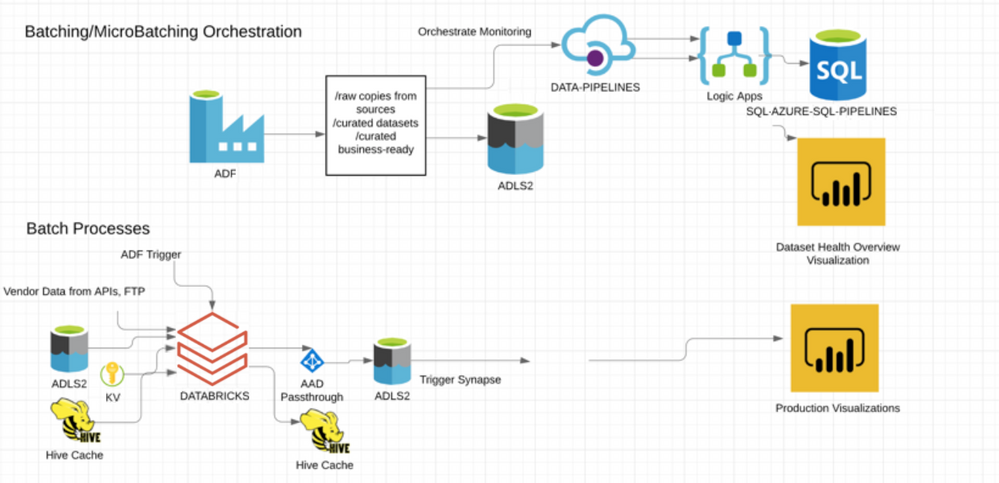
ButcherBox uses Azure Databricks to generate its Demand Plan. When Azure Data Factory (ADF) triggers the Demand Plan run, Azure Databricks processes supply chain data from Azure Data Lake, vendor data and Hive caches. New outputs are stored in a data lake, then Azure Synapse updates Demand Plan production visualizations.
Batching/microbatching orchestration with Azure Databricks
Learn more and get started
See more detail in this blog post and visit the Azure Databricks page to learn how you can get started and accelerate your business growth.

by Scott Muniz | Jan 29, 2021 | Security
This article was originally posted by the FTC. See the original article here.
If you’re facing eviction for any reason, there are organizations out there who can help you. But there are also fake “organizations” and “charities” who can hurt you.
COVID-19 has created an even greater opportunity for scammers to target people — people who are just trying to get help with paying their rent or taking care of other financial needs. Scammers may call, email, or text, saying you can get money for rent. Or they may say they can get you legal help to avoid eviction. No matter what kind of help they promise, these scammers always tell you to give them money up front or hand over your personal information first. But those are dead giveaways that it’s a scam.
Whether someone you don’t know contacts you out of the blue, or you go looking for rental assistance, here are ways to protect yourself:
-
Never give your Social Security, bank account, credit card, or debit card number to anyone who contacts you. And even if you’re the one reaching out, do your research on the organization first, before you share your info.
-
If you look online for help with your rent, search for the name of the groups you find, plus the words “scam,” “fraud,” or “complaint,” to see what others are saying. Do that before you contact them.
-
Find out about local programs that offer rental assistance and other help.
-
If you’re facing eviction, you still have rights. The first step in most evictions is a written notice. Check with your local court system for more details about the eviction process and your rights. You also may qualify for free legal services and be able to speak to a lawyer to learn about your rights.
-
If you spot a rental assistance scam like this, please tell the FTC at ReportFraud.ftc.gov.
Brought to you by Dr. Ware, Microsoft Office 365 Silver Partner, Charleston SC.

by Contributed | Jan 29, 2021 | Technology
This article is contributed. See the original author and article here.
A look back at the marvellous venues hosting MVP Attendee Parties over the years
Hal Hostetler is an Office Apps and Services MVP who has been in the MVP program since 1996. Now retired, Hal is a Certified Professional Broadcast Engineer and remains the regional engineer for Daystar Broadcasting and a senior consultant for Roland, Schorr, & Tower. He lives in Tucson, Arizona. For more on Hal, check out his Twitter @TVWizard

ML.NET Predictions on the Web in F# with the Safe Stack – YouTube
Jonathan Wood is an AI MVP who lives in Raleigh, North Carolina. By day, Jonathan is a .NET web developer, while by morning, he studies machine learning with ML.NET and shares his discoveries on his YouTube channel. For more, check out Jonathan’s Twitter @JWood

SOAP API to REST with Azure API Management and Visual Studio Code
Oscar Garcia is a Principal Software Architect who resides in South Florida. He is a Developer Technologies MVP and certified solutions developer with many years of experience building software solutions. He specializes in building cloud solutions using technologies like AWS, Azure, ASP.NET, NodeJS, AngularJS as well as BI projects for data visualization using tools like Power BI, Tableau and JMP. You can follow Oscar on Twitter @ozkary or his blog at ozkary.com

Predicting Crypto Prices with Machine Learning: Part 1 – Automated ML
Vlad Iliescu is an AI MVP, public speaker, storyteller, music lover and uke player. Hailing from Romania, Vlad is Partner and Head of AI at Strongbytes, a company with a strong focus on building software products around well-operationalized machine learning models, and the co-founder of the Romanian AI conference NDR. For more on Vlad, check out his blog and Twitter @vladiliescu

Teams Real Simple with Pictures: Using List Controls to disable personal lists and List Templates
Chris Hoard is a Microsoft Certified Trainer Regional Lead (MCT RL), Educator (MCEd) and Teams MVP. With over 10 years of cloud computing experience, he is currently building an education practice for Vuzion (Tier 2 UK CSP). His focus areas are Microsoft Teams, Microsoft 365 and entry-level Azure. Follow Chris on Twitter at @Microsoft365Pro and check out his blog here.
by Contributed | Jan 29, 2021 | Technology
This article is contributed. See the original author and article here.
Background:
Nowadays almost every service support connection over TLS to encrypt data in transit to protect data.
You may experience exceptions or errors when establishing TLS connections with Azure services. Exceptions are vary dramatically depending on the client and server types. A typical ones such as “Could not create SSL/TLS secure channel.” “SSL Handshake Failed”, etc.
In this article we will discuss common causes of TLS related issue and troubleshooting steps.
How SSL/TLS connections are established:
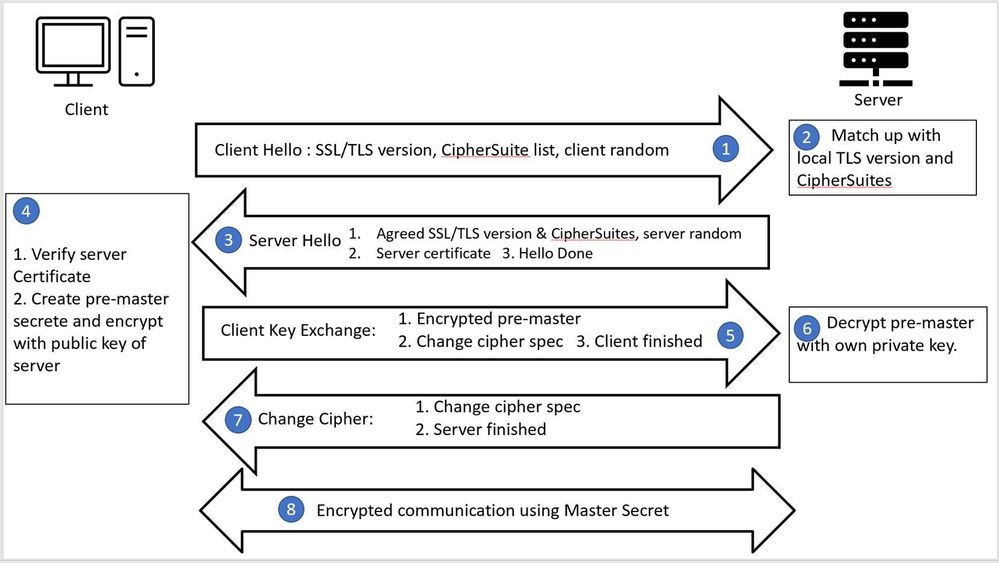
Before we start, let us get to know how SSL/TLS connections are established. I know there are millions of articles out there explaining the same handshake process using different colors, styles and arrows, so here comes my version:
- It is always client that starts a conversation. Client says “Hello, I would like to talk to you secretly by encrypting the messages. Here is my TLS version and a list CipherSuite I have on my hand. “
- Server checks if itself supports same TLS version and go through server’s own CipherSuite lists to see if there is any matching ones.
- Server replies “Hello back, we can use the TLS version you sent and I find this CipherSuite from your list on my hand as well. Let’s use this TLS version and CipherSuite. By the way here is my certificate (certificate chain) with my public key for you to check my identity.”
- Client review server’s certificate, verify if the certificate is expired, if it is issued to the same server name client tried to access, if the certificate issuer is trustable, or if the certificate is ever revoked, etc. Once verification passed, client creates a random secret and encrypt with server’s public key (derived from server certificate).
- Client says “Alright let’s use you picked cipher, here is secret key I encrypted with your public key. Let me know if you can understand.”
- The message sent from client can be only decrypted using server’s private key which is known by server only and cannot be peeked by others. So yes server is able to decrypt the secret key.
- Server replies “Let’s encrypt using our own secret key and let’s get our secret conversation start now!” (Normally server and client generate another key so called Master Key using the secrete key and agreed algorithm. Both server and client use the Master key for following message encryption and decryption. This step may be vary for different ciphers )
- *#FSNV%^&BSJ}D#@#(#*;]# (Client and server starts their own secret conversation encrypted with their agreed secret key which I don’t even understand…)
SSL/TLS connection real case example:
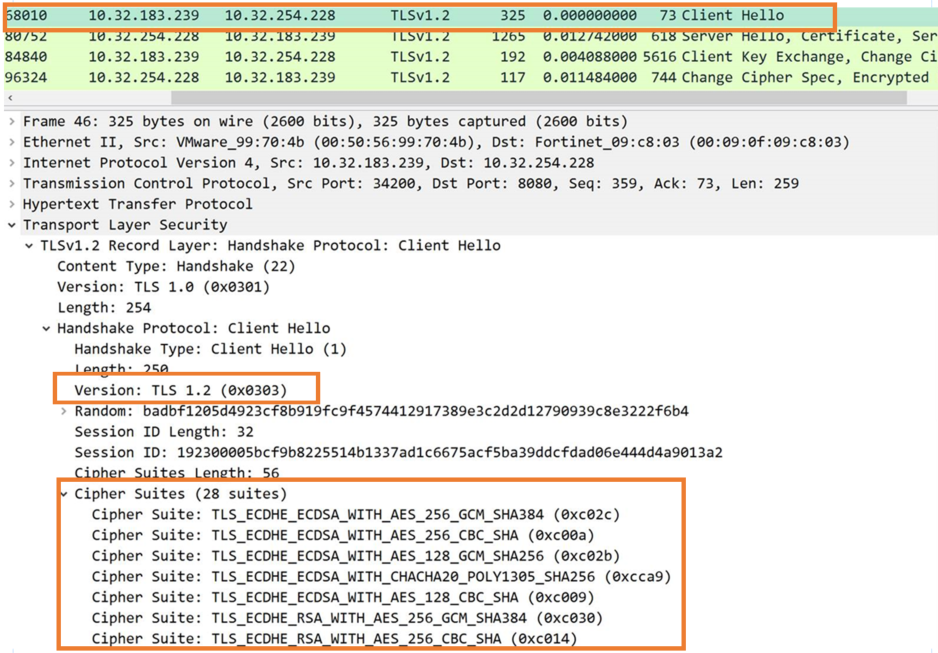
Below is a real example showing how it looks like in network packet.
If you capture network packet using Wireshark, Netmon or tcpdump, you can open the file in Wireshark.
Below is an example:
You may filter for “TLS” or “Client Hello” to locate the first TLS packet.

1. Client Hello
2. Server Hello
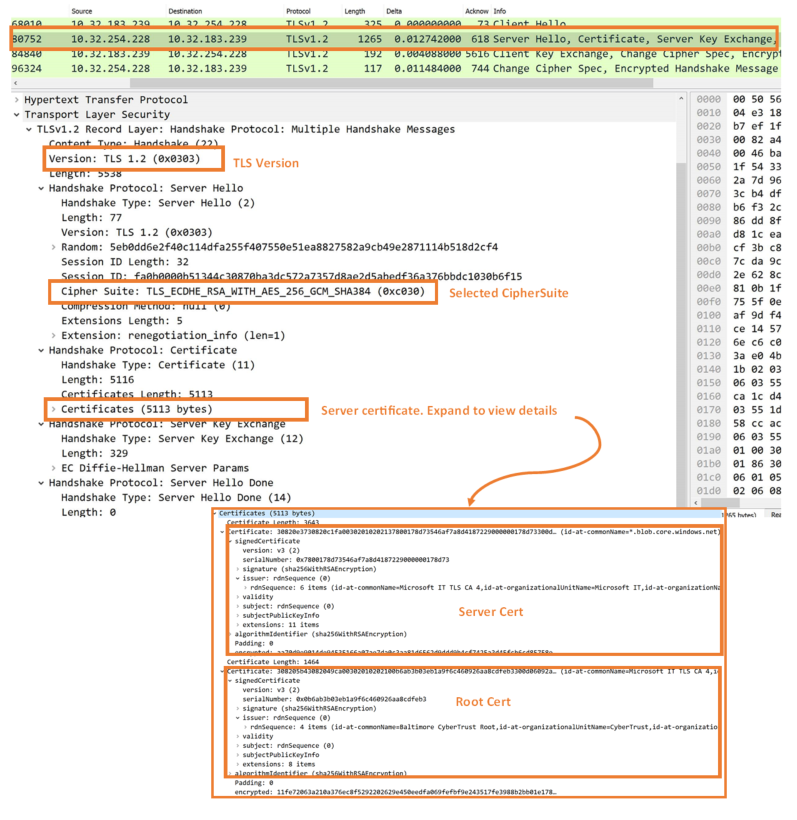
As you can see all elements needed during TLS connection are available in the network packet.
If you capture network packet for a not working case, you can compare with the above working one and find in which step it fails.
However in some cases, capturing network packet is not the best option or not even an option due to security reasons, for example many Azure PaaS service, such as Storage, Serivce Bus, etc are hosting in a shared tenant and we cannot capture the packet on server end. In those scenarios there are also a few handy tools available for troubleshooting.
In next blogs, I will introduce more TLS troubleshooting methods, common causes and corresponding solutions. Stay tuned.
by Contributed | Jan 29, 2021 | Technology
This article is contributed. See the original author and article here.
We’re going to keep this month short and sweet. There are new features and capabilities to share for Microsoft Teams for Education this month, and great training and resources available. Plus, a beautiful vision for the future of education:
Without further ado, here are the latest updates available now to help you:
- Help keep students safe with better meeting controls and policy set-up
a. Meeting chat moderation settings
b. Education policy wizard
- Stay organized with improvements to calendars
a. Add a shared calendar to a Teams channel
b. G-suite calendar add-on for Teams meetings
- Scale within large schools and universities
a. Include up to 10,000 users in an org-wide team
- Support student safety in Teams with Gaggle, Lightspeed Systems, and senso.cloud
- Join Public preview to get early access to some of the latest Teams features
- Train yourself and learn more about Teams with additional resources
Let’s dive in! (If you’re just looking for a list without extra description, click here to jump.)
1) Help keep students safe with better meeting control and policy set-up
Meeting chat moderation settings
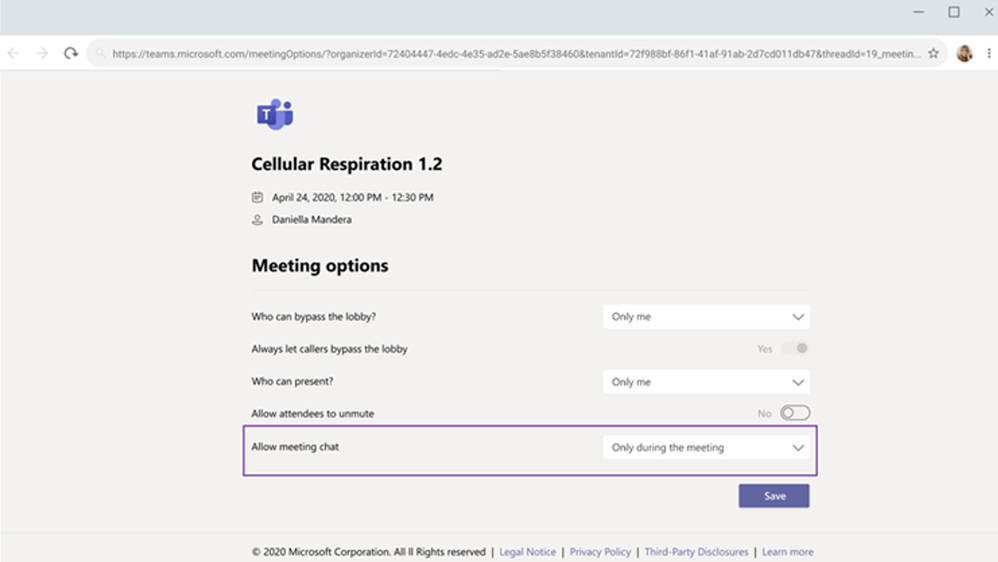
Meeting organizers and teachers can now choose from three chat settings to help create a safe and inclusive meeting environment. Chats can be “Disabled”, preventing the organizer and participants from using the meeting chat. Alternatively, they can be set to “Only during the meeting”, allowing participants to send messages only during the meeting and the organizer to send messages at any time. Lastly, the default will be set to “Enabled”, allowing chats for all meeting attendees at any time.
Microsoft Teams for Education policy wizard
With remote and hybrid learning on online platforms, it’s more important than ever to help keep your school community safe. With the new Microsoft Teams for Education policy wizard, available school IT admins can now easily apply education tailored policies for a safe learning environment.
The policy wizard allows the IT admin at primary and secondary schools and universities to quickly and easily apply the most relevant set of policies for students at a global (Org-wide default) level. It also allows for admins to apply a custom policy set to a group of educators and staff tailored to their needs. Learn more in this detailed post.

Student safety is a top priority. For quick tips on how educators can help keep students safe during remote and hybrid classes, check out this post here.
2) Stay organized with improvements to calendars
Add a shared calendar to a Teams channel
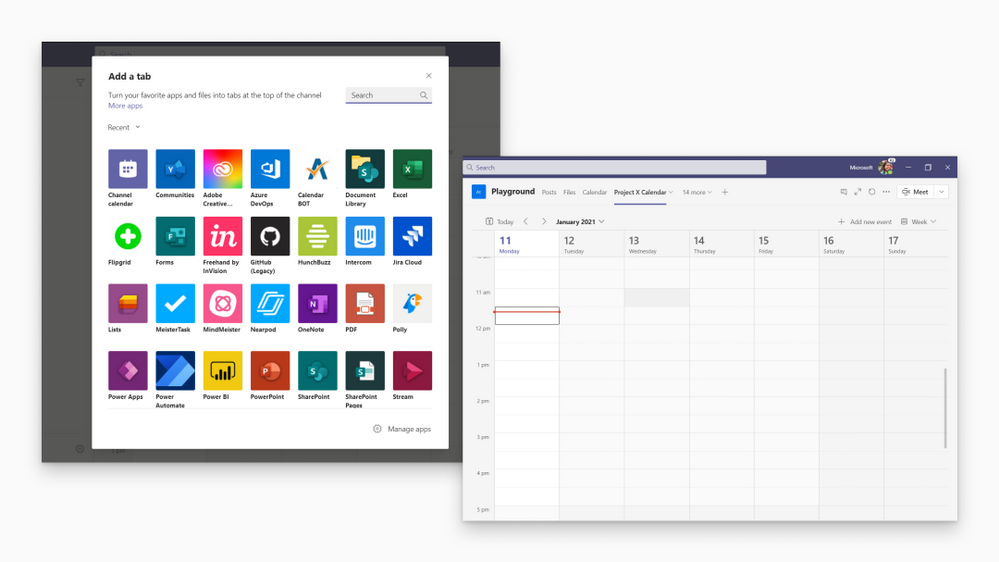
Create and share a channel specific calendar for your class, course, or community members to view events. Teams automatically creates a new post in the channel activity feed when a channel meeting is created. Any user who has notifications turned off will see the event only when they open the channel calendar. This provides all members within the channel visibility to upcoming events. Learn more.
G-suite calendar add-on for Teams meetings
Now you can easily add a Teams meeting and link to any Google calendar invite or access it directly in Gmail or Google Classroom. Click here to access the G-suite add-on, and watch this detailed video to learn how to use it.
3) Scale within large schools and universities
Include up to 10,000 users in an org-wide team
Create an org-wide team to promote collaboration and communications across the entire organization. Administrators who manage tenants that have less than or equal to 10,000 members can now create an org-wide team, which automatically syncs all the tenant’s members with the team. Learn more.
4) Support student safety with Gaggle, Lightspeed Systems, and senso.cloud
Gaggle
In today’s connected world, anti-bullying, self-harm prevention, dealing with substance abuse, and general school safety are serious concerns for modern schools. With Gaggle Safety Management, you can monitor communication among students and between teacher and students in order to provide a safe environment for everyone. Gaggle uses machine learning and human analysts to look for and flag concerning statements and behavior in student conversations. It can then alert school officials when students show signs of self-harm, depression, thoughts of suicide, substance abuse, cyberbullying, unhealthy relationships, and credible threats of violence against others. If you would like to request a demo or learn more about this service from Gaggle, click here.
Lightspeed Systems
Lightspeed solutions, designed for primary and secondary schools, integrate seamlessly with Microsoft Education products like Teams for actionable visibility into student digital engagement. Lightspeed Alert works with Teams meetings and chats to flag warning signs of harmful student online activity. Protect your students on all devices from everywhere learning happens with Microsoft Education and Lightspeed Systems. Click here to learn more.
Senso.Cloud
In your school or across your district, senso.cloud can help safeguard staff and students using Microsoft Teams chats. With AI based visual threat detection engine, senso.cloud monitors chat and inspects images for visual threats, alerting you when a violation is detected. This can help to pinpoint and reduce recurring issues, easily scale to a small school or an entire district, and seamlessly integrate into the systems and processes you already have. Click here to learn more to start safeguarding your staff today.
5) Join Public preview to get early access to some of the latest Teams features
Microsoft Teams Public Preview is now available to help you and your school get early access to the latest Teams features. After an IT Admin enabled policy via a policy setting, individuals in the school can set your Teams client to switch on the public preview mode and try Together mode and Large Gallery (7×7) on the web, live reactions in Teams meetings and share your computer sound on a Mac.
6) Train yourself in Teams and support students with additional resources
For educators
- Find what you need to get started on Teams all in one place at aka.ms/TeamsPP
- Check this quick article about how to have secure online meetings
- Watch the recordings from the Microsoft Teams for Edu digital readiness event which dive into common scenarios, use cases to support you this school year at https://aka.ms/TeamsEduEvent.
- Learn how to start using breakout rooms with these resources
Check out the main breakout rooms blog
Get the breakout rooms quick start guide for educators (PDF)
Watch the Tips from the Team breakout rooms video
Visit the breakout rooms support page to learn more
- Quickly get up-to speed on Teams Meetings and Accessibility with 1-page guides
https://aka.ms/TeamsEduGetStartedTeachers
https://aka.ms/TeamsEduMeetingsTeachers
https://aka.ms/TeamsEduAccessibilityTeachers
For parents
- Learn about Teams and common classroom scenarios with clickable interactive demos (in English).
- Quickly get up-to speed on Teams Meetings and Accessibility with 1-page guides.
https://aka.ms/TeamsEduGetStartedParents
https://aka.ms/TeamsEduMeetingsParents
https://aka.ms/TeamsEduAccessibilityParents
- Find resources to keep kids engaged and learning new skills with family-led learning experiences (for children 3-12)
For IT
- Check out the Quick Start Guide
- Watch the recordings from the Microsoft Teams for Edu digital readiness event which dive into common scenarios, use cases to support you this school year at https://aka.ms/TeamsEduEvent.
- Learn which policies to enable to keep students safe when using Teams for remote and hybrid learning with this Policy quick guide.
For all -> check the Teams help homepage. You can also click Help in your Teams app at any time for extra how-tos and support!
And for those that love lists, here’s a quick review of all the features we shared:
Help keep students safe with better meeting controls and policy set-up
Meeting chat moderation settings
Education policy wizard
Stay organized with improvements to calendars
Add a shared calendar to a Teams channel
G-suite calendar add-on for Teams meetings
Scale within large schools and universities
Include up to 10,000 users in an org-wide team
You’ve got this. And we’re right here if you need us.
by Contributed | Jan 29, 2021 | Technology
This article is contributed. See the original author and article here.
Welcome to another installment of What’s new in Microsoft Teams! In this post we are sharing everything we have made available in January! Enjoy the read!
What’s New: Chat & Collaboration
Approvals in Teams
Approvals in Microsoft Teams enables everyone, from frontline workers to corporate headquarters employees, to easily create, manage, and share approvals directly from your hub for teamwork. You can quickly start an approval flow from the same place you send a chat, in a channel conversation, or from the Approvals app itself. Just select an approval type, add details, attach files, and choose approvers. Once submitted, approvers are notified and can review and act on the request. Learn more.
Offline autosend
The offline experience for Microsoft Teams chat and channels helps you to continue be productive even without a network connection. Offline autosend identifies when Teams messages are sent or edited while the user is offline. These messages are automatically sent once the device is back online.
Include up to 10,000 users in an org-wide team
Create an org-wide team to promote collaboration and communications across the entire organization. Administrators who manage tenants that have less than or equal to 10,000 members can now create an org-wide team, which automatically syncs all the tenant’s members with the team. Learn more.
What’s New: Meetings
Meeting chat moderation settings
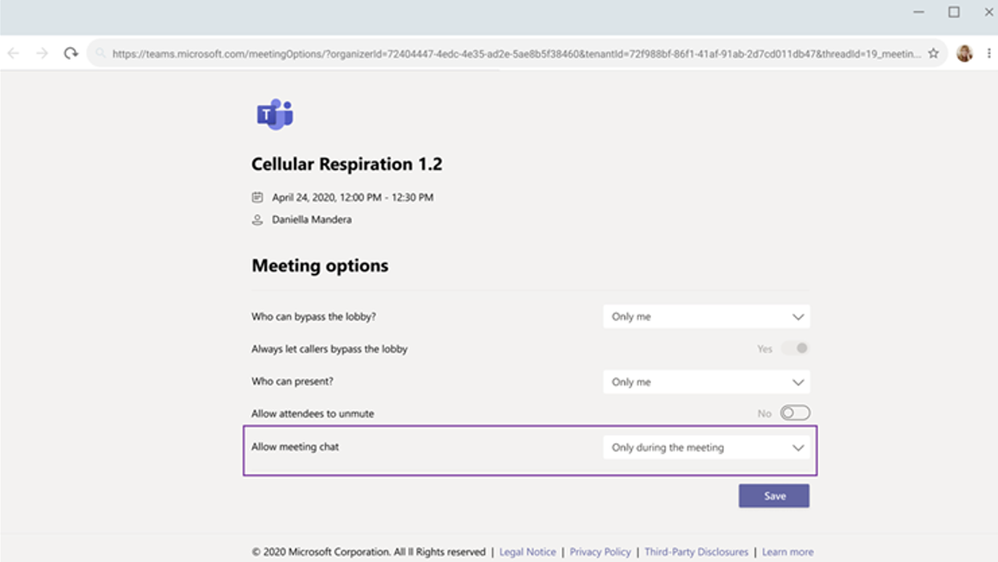
Meeting organizers and teachers can now choose from three chat settings to help create a safe and inclusive meeting environment. Chats can be “Disabled”, preventing the organizer and participants from using the meeting chat. Alternatively, they can be set to “Only during the meeting”, allowing participants to send messages only during the meeting and the organizer to send messages at any time. Lastly, the default will be set to “Enabled”, allowing chats for all meeting attendees at any time.
Add a shared calendar to a Teams channel
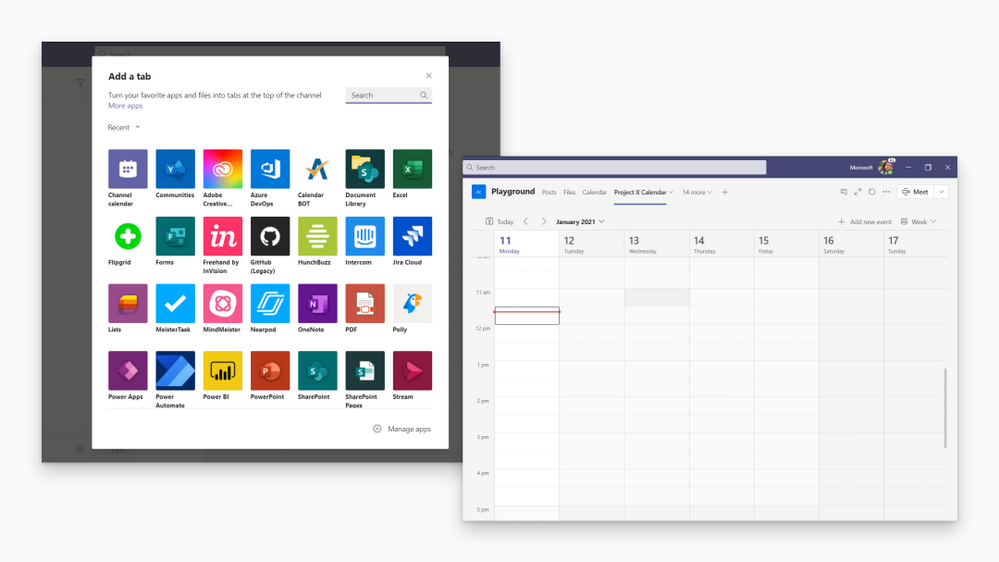
Create and share a calendar with members of a specific channel. When a channel meeting is created, Teams automatically creates a new post in the channel’s activity feed. Users, who have notifications turned off, will see the event only when they open the channel’s calendar. Once a channel event is posted, you can add it to your personal calendar. This feature provides all members within the channel, except guest users, visibility to upcoming events. Learn more.
Offer: Get Audio Conferencing for free
Join Microsoft Teams meetings with a global dial-in number from virtually any mobile device or dial out to help others join a meeting with Audio Conferencing. Enterprise Agreement customers1 and customers purchasing via partners and web2 can take advantage of our free Audio Conferencing offer now extended through June 30th, 2021. Get started.
What’s New: Calling
Session Border Controller certifications
Cataleya, ULTATEL, Atos, and Patton have successfully completed the Session Border Controller (SBC) certification process, which ensures that their SBCs support Direct Routing for Microsoft Teams, joining the list of certified SBCs. This rigorous certification process includes 3rd party testing and validation in production and pre-production Direct Routing environments. Direct Routing permits customers to bring their own operators and infrastructure to enable users to place and receive calls over the Public Switched Telephone Network (PSTN) in Teams when coupled with Microsoft Phone System. Learn more.
What’s New: Devices
Logitech Rally Bar
The Logitech Rally Bar is the newest addition to Logitech’s Teams Rooms portfolio. Intended for midsize rooms, the integrated form factor makes it easy to set up and maintain. The Logitech Rally Bar features motorized pan and tilt lenses and AI-powered RightSense™ technologies for expansive room coverage with automatic framing, lifelike video quality, people count, and exquisite voice clarity. Learn more.

Crestron Flex Mercury Mini
The Crestron Flex MM Teams Audio device fits several scenarios from the conference room to the home office. Exceptional microphone and speaker quality with 10’ mic pickup range. Stunning all-new 7” touch screen delivers easy to see and use controls. In a home office environment, it enables you to view your calendar, join calls with one touch, place phone calls, or browse the directory. Learn more.

Yealink A30
Yealink MeetingBar A30, the integrated Microsoft Teams Rooms on Android, designs a dual-camera system that fits perfectly for small meeting spaces. Audio features and AI-powered camera with Speaker Tracking and Auto Framing, the MeetingBar A30 brings a powerful video and voice experience. With the all-in-one design and plug-and-play features, the MeetingBar A30 ensures an easy deployment. Supporting the dual-screen share and whiteboarding, the MeetingBar A30 brings a seamless Teams experience to every user.

AudioCodes RXV80
The AudioCodes RXV80 video collaboration bar delivers an intuitive meeting room experience that supports collaboration in video-enabled meeting rooms and is especially designed for huddle rooms. Integrating unified communication and video collaboration capabilities, one standalone device enables remote participants to see and hear everyone in the room with outstanding image clarity and enhanced voice quality.

EPOS Expand 80T
A new premium, scalable speakerphone supports rooms with up to 7 meeting participants. This speaker is built with six adaptable, beamforming microphones that isolate voices from room reverberations and ambient noise. A great speaker phone to add to meeting rooms to enhance audio quality in meetings.

Nureva HDL300
The Nureva HDL300 system brings full-room audio coverage to large Teams spaces –making it ideal for the new reality. No matter where people sit, they’ll be heard easier by remote participants. Because it’s not a multicomponent system, the HDL300 takes just 30 minutes to install, with no need for specialized technicians or complicated setups. Learn more.
Poly Sync 40
Poly Sync 40 USB/Bluetooth® smart speakerphone is designed for flexible and huddle workspaces. Everyone can hear and be heard without missing a word with multi-microphone array and full-duplex audio. The Poly Sync 40 is battery-powered for hours so teams can use it anywhere in the room. You can also pair two units together for larger meetings with bigger volume, more microphones and wider voice pickup.

Video Conferencing Monitors by Dell
Three monitors from Dell are now certified for Microsoft Teams. Integrated into 24, 27 and 34 inch displays are cameras, speakers and noise cancelling microphones-meaning that users can be seen and heard on their teams calls and meetings with one device. The monitors also include a dedicated Teams button-simply press the icon in the lower right-hand corner to instantly join a Teams meeting.

Phones from Yealink MP 54 & Audiocodes C470HD
The Yealink MP54 is an entry-level desk phone with a 4-inch capacitive touch screen, offering an easy-to-use Microsoft Teams communication experience for common areas, front desks, and office workers. Thanks to Yealink Optima HD voice, magnet handset, dedicated Teams button and optional Wi-Fi and Bluetooth connectivity (via USB dongles), the MP54 is a practical and cost-effective option to enable efficient collaborations.
The AudioCodes Microsoft Teams-native C470HD IP phone is a feature-rich, executive high-end business phone for Microsoft Teams. The C470HD is equipped with a large, single surface, full touch interface, incorporating an exceptionally sharp 5.5” color touch screen, with optional support for Wi-Fi and Bluetooth.
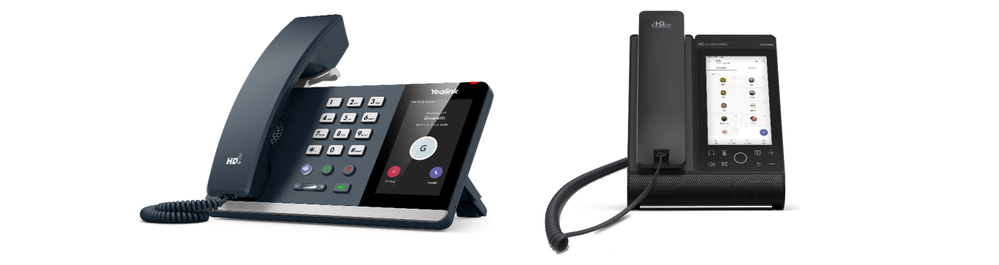
Sidecars from Audiocodes and Yealink EXP50
We recently announced sidecar support from Teams phones, and two of our OEMs Audiocodes and Yealink have introduced two newly certified devices to allow for easy contact access and information. The sidecar from Audiocodes and the Yealink EXP50 are two great ways to quickly connect to numbers and understand their availability.

Check out all these devices and more at http://aka.ms/teamsdevices!
What’s New: Power Platform and custom development
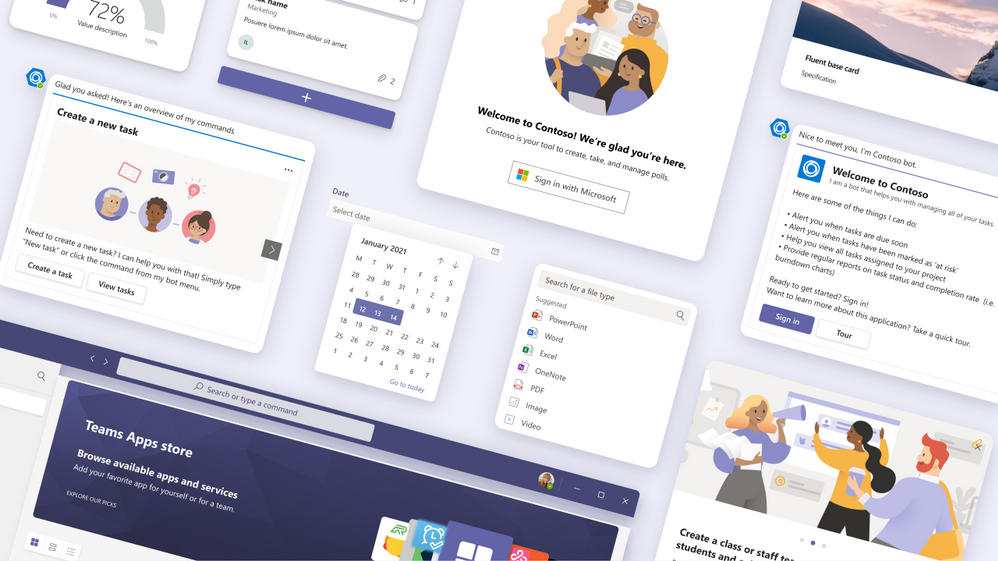
New Teams UI Design Kit and UI Library
The new Microsoft Teams UI Kit and Microsoft Teams UI Library helps you as a designer, product manager, or developer quickly understand the key design considerations for making quality Teams apps and also simplify the process by providing templates and tools to use. Learn more.
App Spotlight

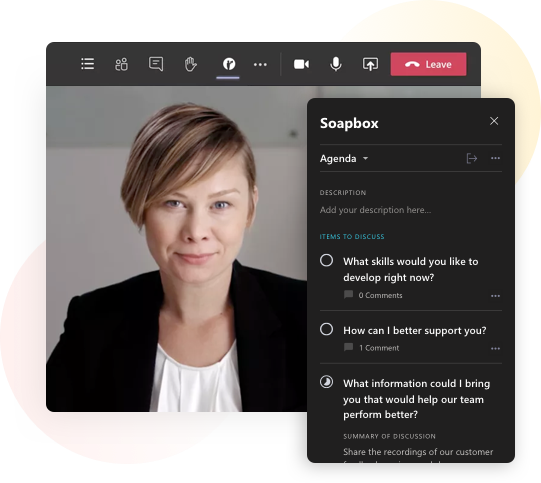
Soapbox empowers teams to be high performing by simplifying the agenda preparation and management process by allowing teams to build, collaborate, and action team meeting agendas all without leaving their workspace in Teams. With the new Teams app in meeting functionality, teams now stay on track during meetings by collaborating on their agenda without switching context, can document decisions made, and assign next steps all without having to navigate out of their meeting. When the meeting is finished, meeting notes can be sent out along with pulse surveys to stay on top of how team members are feeling. Learn more and check out their Teams app available on AppSource.
What’s New: Security, compliance & privacy
Microsoft 365 Compliance capabilities for card content generated through apps in Teams messages
We are excited to announce that the following Microsoft 365 compliance capabilities are now generally available for Adaptive Card content generated through apps in Teams messages: Legal hold, eDiscovery, Audit, and Retention. Learn more.
Microsoft Teams Secure Score recommendation
We are happy to announce our first security recommendation for Microsoft Teams on Secure Score is now available! Learn more.
What’s New: Teams for Education
Education Policy Wizard
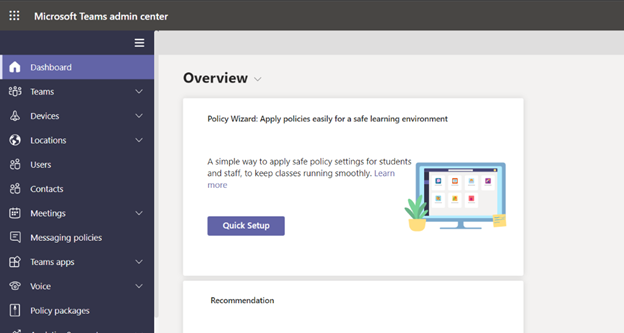
With remote and hybrid learning on online platforms, it’s more important than ever to help keep your school community safe. With the new Microsoft Teams for Education policy wizard, you can easily apply education tailored policies for a safe learning environment. The policy wizard allows you as an IT admin to quickly and easily apply the most relevant set of policies for students at a global (Org-wide default) level and apply a custom policy set to a group of educators and staff tailored to their needs. Learn more.
What’s New: Firstline Workers
Task publishing feature in Tasks in Teams
As the need for corporate offices to better communicate and work with their frontline workforce becomes top of mind, task publishing lets companies create tasks centrally at the corporate level and publish those tasks to different locations, specific store layouts or other customizable attributes of their frontline teams. For example, leadership for a nationwide retailer can create tasks for the reopening of their stores, attach relevant documents like a planogram, send that list to only the affected store locations, and then track progress against the assigned tasks. Managers can easily assign tasks to individual employees, while frontline workers can see a simple prioritized list of those tasks on their personal or company-issued mobile device. Learn more.
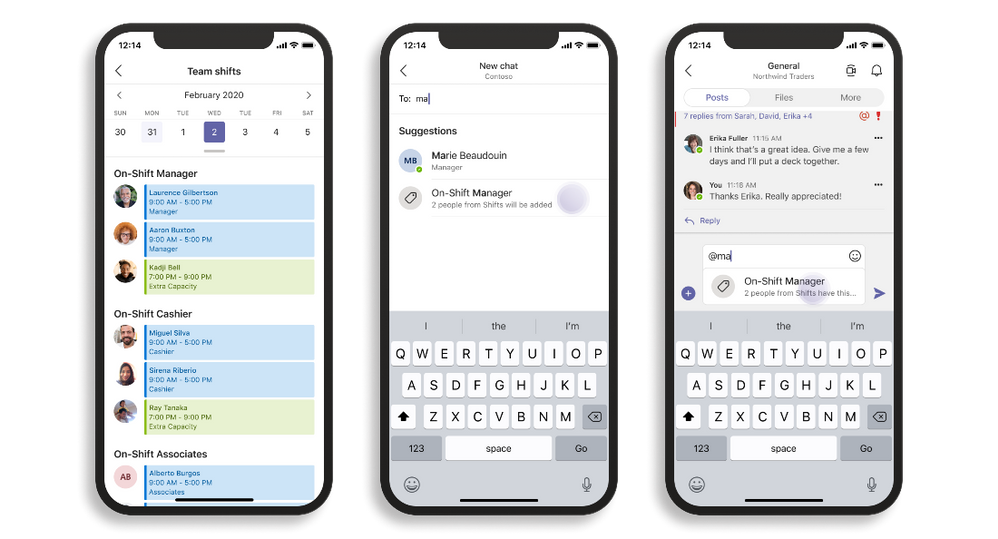
@mention by shift group
Tagging by shift connects you to the right people faster. Tagging by shift helps you to take the guesswork out of knowing the names of on-shift employees and automatically assigns users with tags matching their schedule in the Shifts app in Teams, backed by major workforce management systems like AMiON, BlueYonder, and Kronos. Use this @mention tag to start a chat or call, or to just notify everyone on a channel. Learn more.
What’s New: Government
These features currently available to Microsoft’s commercial customers in multi-tenant cloud environments are now rolling out to our customers in US Government Community Cloud (GCC), US Government Community Cloud High (GCC-High), and/or United States Department of Defense (DoD).
Together Mode
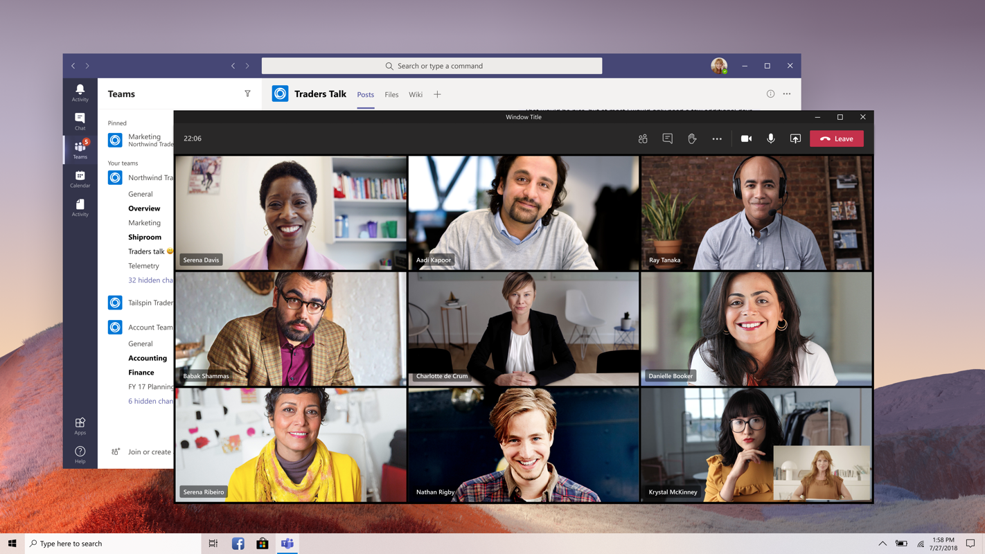
Together mode reimagines meeting experiences to help participants feel closer together even when you are apart. We are excited to introduce Together mode scene selections to transport your team to a variety of settings. Choose a scene to set the tone and create a unique experience for your meeting, whether it be a smaller conference room meeting, or an all-hands meeting held in an outdoor amphitheater. Available in GCC and GCC-High.

Multi-Window Chat
You are now able to pop out individual Teams chat conversations into a separate window, to help them streamline their workflow and more easily move between ongoing conversations. Available in GCC and GCC-High.
Multi-Window for Meetings and Calling experiences
Multi-window experiences are coming to Teams meetings and calling. Users will have the ability to pop out meetings and calling into separate windows to help them optimize their workflow. These experiences can be turned on directly within Teams for PC and Mac clients. Available in GCC-High as opt-in. Learn more.
Meeting recordings saved to OneDrive and SharePoint
You can now save Microsoft Teams meeting recordings to OneDrive and SharePoint. This provides improved sharing capabilities, basic governance, automatic retention labels, and more. Available in GCC.
Simplified way to manage your channel notification settings
Through the teams and channels list or from the channel header, the users can quickly manage their channel notification settings by the means of a new fly-out design. Users can turn on all activity on or off with a single click or diving deep into custom to set their preferred permutations. Available in GCC.
Targeted communications in GCC
Targeted communication allows team members to message everyone in a specific role at the same time by @mentioning the role name in a post by using tags. For example, you could send a message to all cashiers in a store or to all nurses in a hospital. With this feature, you can quickly reach a group of people all at once. Available in GCC. Learn more.
Footnotes
1Get Audio Conferencing for free until the end of your enrollment. Available only for net new Audio Conferencing seats (defined as seats incremental to any existing seats as of August 1, 2020) for EA, EAS, or EES (A3 Only) customers with paid subscriptions that include Teams. Available now through June 30th, 2021. Available worldwide with exceptions in China and India. Talk to your Microsoft sales representative to learn more. The offer is subject to additional terms and conditions.
2Get Audio Conferencing for free for 12 months. Available only for net new Audio Conferencing seats (defined as seats incremental to any existing seats as of August 1, 2020) for CSP or Web Direct customers with paid subscriptions that include Teams. Available Starting October 1st, 2020 through June 30th, 2021. Available worldwide with exceptions in China and India. The offer is subject to additional terms and conditions. If you do not have a Microsoft Account representative, please work with your Enterprise Agreement reseller to request the offer.

by Contributed | Jan 29, 2021 | Technology
This article is contributed. See the original author and article here.
Azure Policy – What’s the length of Policy assignments name?
Introduction:
If you’re not familiar with Azure policy or Terraform please read these documents about Azure Policy, Terraform with Azure and Azure Policy with Terraform
Azure Policy can evaluate resources in Azure Resource Manager by comparing the properties of resources with the policy rules.
These rules in JSON format are known as Policy Definition. These Policy Assignments can be assigned in every scope in Azure, like subscription, Management Group And what’s the relation between Terraform with Azure Policy?
Terraform is an open-source tool for provisioning and managing cloud infrastructure. It also supported by Azure.We can also use Terraform to assign Azure Policies.
This Blog will discuss the length of Azure Policy Assignment name using Powershell script and Terraform. And clarify what is resource name and display name of Azure Policy Assignments
Discussion:
You may already have experience in using Azure Policy, but did did you pay attention to what’s the maximum length for Azure Policy Assignment name? And did you notice there’re display name and resource name for Azure Policy Assignments?
Based on this document Azure Name rules, we know that
policyAssignments
|
scope of assignment
|
1-128 display name
1-64 resource name
1-24 resource name at management group scope
|
Display name can contain any characters.
Resource name can’t include % and can’t end with period or space
|
The above document mentions the length of display name and resource name. Especially for Management Group, it only 24 characters can use as the resource name.
So, if the length is more than 24 characters, what’s the error would you get? Now let’s start a test for it.
Tests:
Powershell:
Using Powershell there is a script can assign Policy, here is the refence link for your interesting New-AzureRmPolicyAssignment (AzureRM.Resources) | Microsoft Docs
New-AzureRmPolicyAssignment
-Name <String>
-Scope <String>
[-NotScope <String[]>]
[-DisplayName <String>]
[-Description <String>]
[-PolicyDefinition <PSObject>]
[-PolicySetDefinition <PSObject>]
[-Metadata <String>]
[-Sku <Hashtable>]
[-AssignIdentity]
[-Location <String>]
[-ApiVersion <String>]
[-Pre]
[-DefaultProfile <IAzureContextContainer>]
[-InformationAction <ActionPreference>]
[-InformationVariable <String>]
[<CommonParameters>]
You can see here are two parameter Name and DisplayName. So how to run this script ?
To run this script, I need get the Definition ID using Get-AzPolicyDefinition
$definition = Get-AzPolicyDefinition | Where-Object { $_.Properties.DisplayName -eq ‘Audit VMs that do not use managed disks’ }
- First, I tried to use Name with value “Audit VMs without managed disks npdi1_csam1_CC001321121_PublicIP” it’s 64 characters. And Display Name as “‘Audit VMs without managed disks Assignment npdi1_csam1_CC00_PublicIP VMs without managed disks npdi1_csam1_CC001321121_PublicIP” it’s 127 characters. Then assigned it in my Management group.
Then I got error “The assignment name must not exceed ‘24’ characters”
- And then I change the Name to “Audit VMs no PublicIP”, it can create Policy Assignment successfully.
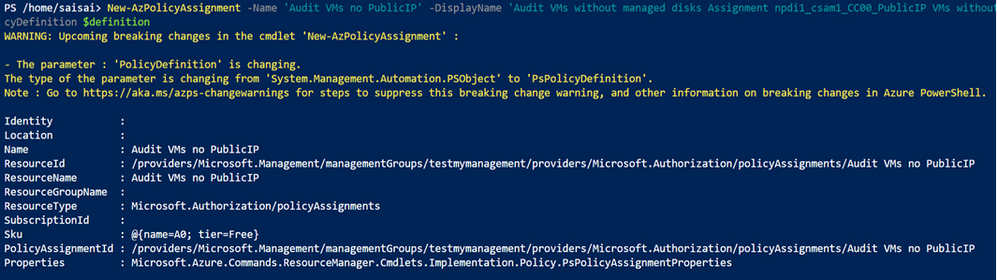
- After that I change Display name to “Audit VMs without managed disks Assignment npdi1_csam1_CC00_PublicIP VMs without managed disks npdi1_csam1_CC001321121_PublicIPAA” it’s 129 characters.
It shows error “The policy assignment ‘Audit VMs no PublicIP‘ display name exceeded the allowed length limit. Current length: ‘129’, allowed maximum length: ‘128’.

Now we check in Azure portal, here only shows one Policy Assignment “Audit VMs without managed disks Assignment npdi1_csam1_CC00_PublicIP VMs without managed disks npdi1_csam1_CC001321121_PublicIP”
Meanwhile the name “Audit VMs no PublicIP” is used I the Assignment ID.
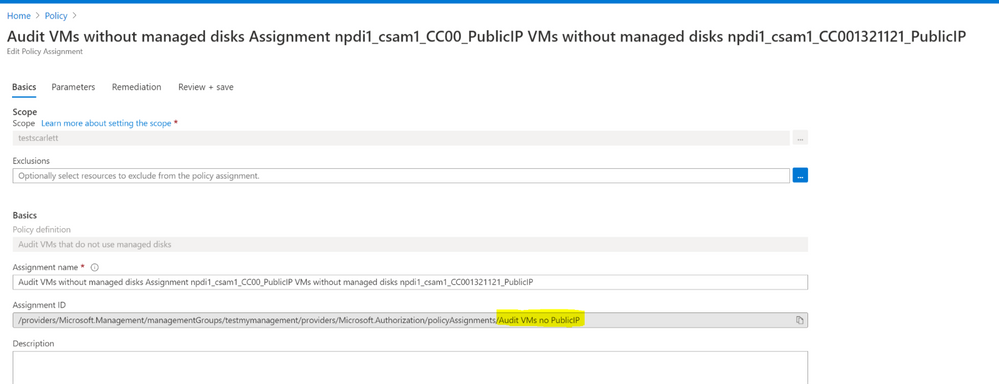
So, in Powershell Script name is the Resource name mentioned in the document. And assign in Management Group scope, the maximum length is 24 characters.
And Display Name is the display name in Powershell script. It needs to less than 128 characters.
Based on the test above we also know that the Assignment name we checked in Azure portal is the display name.
Terraform:
To test in Terraform, you need to understand the way to assign a Policy in Terraform, you can check in the document above or from here again Azure Policy with Terraform
It needs to create a main.tf file in Cloud shell Bash console or local Bash console.
Similar like Powershell script, it also has name and display name. Here I also use Management Group as the scope.
provider “azurerm” {
version = “2.35.0”
features {}
}
resource “azurerm_policy_assignment” “npdi1_csam1_CC0_PublicIP” {
name = “ Audit VMs without managed disks npdi1_csam1_CC001321121_PublicIP “
scope = “/providers/Microsoft.Management/managementGroups/testmymanagement”
policy_definition_id = “/providers/Microsoft.Management/managementGroups/testmymanagement/providers/Microsoft.Authorization/policyDefinitions/23a424a8-d05c-4824-916a-d9422272d299”
description = “Shows all virtual machines not using managed disks”
display_name = “Audit VMs without managed disks Assignment npdi1_csam1_CC00_PublicIP VMs without managed disks npdi1_csam1_CC001321121_PublicIP”
}
I got same error with Powershell Script.
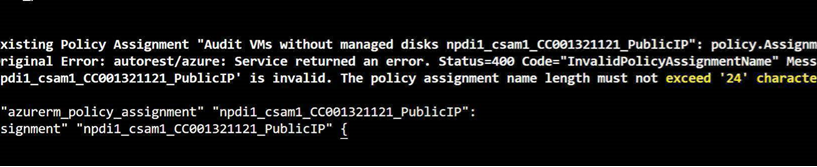
Then change Name to “Audit VMs no PublicIP” an display name to “Audit VMs without managed disks Assignment npdi1_csam1_CC00_PublicIP VMs without managed disks npdi1_csam1_CC001321121_PublicIPAA”. We have same error for display name exceed to 128 characters.

Test Result Summary
- From this test we know that the resource name use Azure Policy Assignment is the last part of Assignment ID.
- The display name is the Assignment name that show in Azure portal. The maximin length is 128 characters.

Please pay attention about the length of name and display name when you assign a Policy in PowerShell script and Terraform.
Welcome to provide your comments about this blog, if you are interested about Terraform with Azure Policy please also read this Blog Implementing Azure Policy using Terraform from my colleague Sannidhya.
by Contributed | Jan 29, 2021 | Technology
This article is contributed. See the original author and article here.
It’s the Friday before ITOps Talks: All Things Hybrid and there is a ton of news to discuss. Highlights this week include: ARM Template Specs is now Public Preview, MFA methods changes for hybrid customers, Resource instance rules for access to Azure Storage now in public preview, IoT Hub IP filter upgrade and the Microsoft Learn Module of the week.
ARM Template Specs now Public Preview
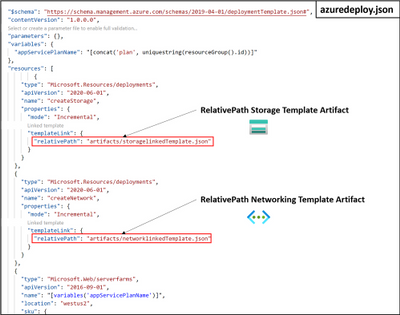
Is sharing ARM templates across an org challenging? Angel Perez shares how Template Specs, new resource type for storing ARM templates in resource groups, enables faster sharing, deployment, and role-based access control on ARM templates. As a native solution, ARM Template Specs will enable users to bring all their ARM templates to Azure as a resource and securely store and share them within an Azure tenant.
Further information and the ability to provide feedback can be found here: ARM Template Specs Announcement
MFA methods changes for hybrid customers
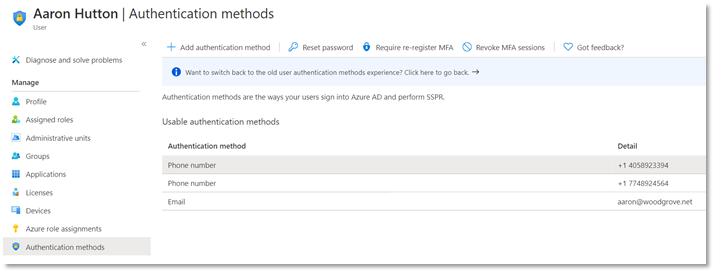
The previous announcement made in November shared that Microsoft was working towards simplifying the MFA management experience to manage all authentication methods directly in Azure AD. The change was successfully rolled out to cloud-only customers and work has begun to make this transition smooth for hybrid customers. Starting February 1, 2021, Microsoft will be updating the authentication numbers of synced users to accurately reflect the phone numbers used for MFA.
If your organization uses Azure AD Connect to synchronize user phone numbers, the following post will be important for you: Changes to managing MFA methods for hybrid customers
Resource instance rules for access to Azure Storage now in public preview
You can now configure your storage accounts to allow access to only specific resource instances of select Azure services by creating a resource instance rule. Resource instances must be in the same tenant as your storage account, but they may belong any resource group or subscription in the tenant.
Learn more reguarding the public preview here: Configure Azure Storage firewalls and virtual networks
Action Required: Upgrade IoT Hub IP filter before 1 February 2022
The upgraded IP filter for IoT Hub protects the built-in endpoint, blocks all IP ranges by default, and is easier to configure. With the new enhancement, Microsoft has announce the retirement of classic IP Filter which will take place on February 1, 2022. To avoid service disruption, you must perform the guided upgrade before the migration deadline, at which point the upgrade will be performed automatically.
Learn more about our secure capabilities here and upgrade steps here: IoT Hub classic IP filter and how to upgrade
Community Events
- ITOps Talks: All Things Hybrid – A new type of event that allows you to watch sessions on your time. Focusing on “All Things Hybrid” the event, the sessions will focus on hybrid based cloud strategies and resources at a 300 level.
- Microsoft Ignite – Few details available on the upcoming event. Stay tuned for more details as they become available.
MS Learn Module of the Week

Windows Server deployment, configuration, and administration
Learn how to configure and administer Windows Server 2019 securely using the appropriate management tool. Learn to deploy Windows Server and perform post-installation configuration
This learning path can be completed here: Windows Server deployment, configuration, and administration
Let us know in the comments below if there are any news items you would like to see covered in the next show. Be sure to catch the next AzUpdate episode and join us in the live chat.
by Contributed | Jan 29, 2021 | Technology
This article is contributed. See the original author and article here.
v:* {behavior:url(#default#VML);}
o:* {behavior:url(#default#VML);}
w:* {behavior:url(#default#VML);}
.shape {behavior:url(#default#VML);}
Joel Vickery
Joel Vickery
2
0
2021-01-28T20:04:00Z
2021-01-28T20:04:00Z
1
902
5146
42
12
6036
16.00
true
2020-12-08T01:54:26Z
Standard
Internal
72f988bf-86f1-41af-91ab-2d7cd011db47
19523986-82a6-469c-9e83-5a2a80add554
0
Clean
Clean
false
false
false
false
EN-US
X-NONE
<w:LidThemeComplexscript>X-NONE</w:LidThemeComplexscript>
Some things today you just take for granted. We can download an entire movie in the time it took to download a low-resolution .jpg file back in the dial-up days. I guess I’m feeling nostalgic since I just found and AOL 3.5-inch floppy while cleaning out the basement over the weekend. Yes, you read that correctly, a floppy….not a CD…a 3.5-inch floppy. Back then, 1.44 Mb and a good phone line were the only thing standing between you and the awesomeness of the 14.4 kb internet…of course you had to wait for the squawks and screeches of the modem handshakes which were audible back then, almost like they were proud of it (we even had volume control for it).
It’s funny to think about that era and fast forward to today, where DHCP assignments and 3-way handshakes happen in milliseconds and we don’t see or hear any of it…unless something goes wrong. The Microsoft team recently put a DHCP issue to bed that brought to mind how blazing fast the world is today and how little we appreciate the minutia going on under the covers of that speed.
The Problem
Our story starts with a report that client machines are not receiving DHCP assignments from the DHCP server on a very wide scale. This is also where DORA comes into our adventure…minus the backpack. Any sort of troubleshooting DHCP requires an understanding of the DORA negotiation: Discover -> Offer -> Request -> Acknowledge. Prior to calling us in to assist, the customer had taken network captures and noticed that the “A” in DORA (the ACK or Acknowledgement) was not arriving quickly enough to prevent the DHCP negotiation from timing out.
The Troubleshooting
First rule of troubleshooting. Trust but verify. Until this point, no one was capturing traffic from the DHCP server, so we needed to see if the traffic was leaving the server. A quick analysis of the network capture from the DHCP server confirmed two things: DHCP ACKS were being sent, and that DHCP ACKS were being sent on an extremely delayed cycle. The network administrators verified that the network for this site had no strange load-balancing/split route or routing loop problems, so we turned the focus to the performance of the DHCP Server.
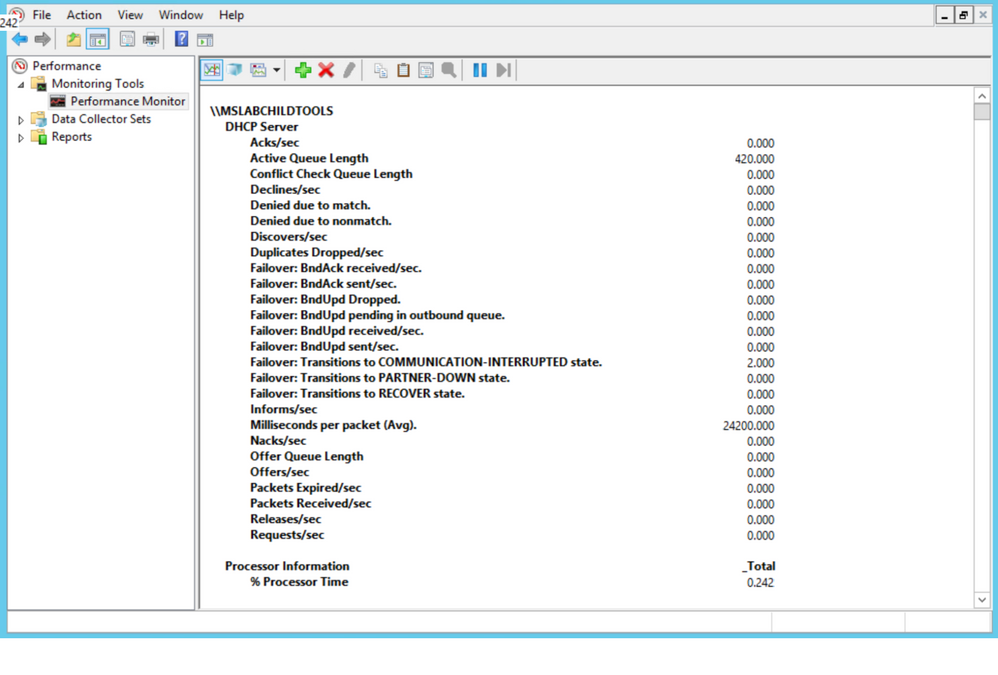
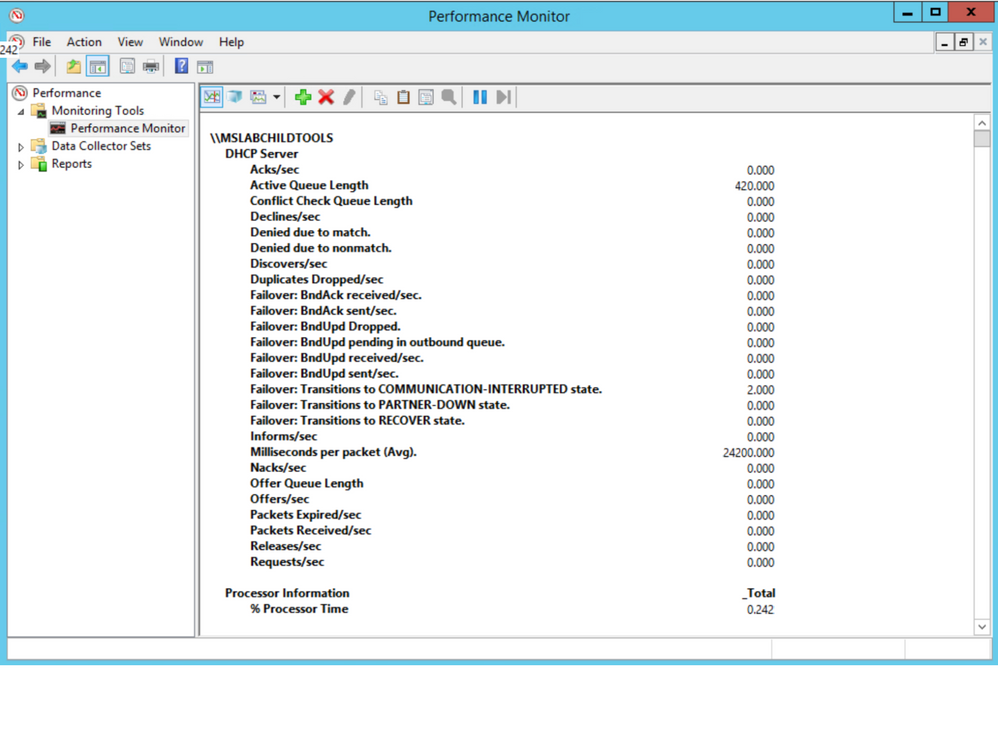
We checked all the usual suspects for performance and no issues were present to lead us to suspect that CPU/Memory/Disk/Network were bottlenecked. Performance counters are available for DHCP Server, so we took a quick look there. Below are the counters for our DHCP Server, the first thing that jumped out was that the Acks/Sec was abnormally low, just sporadically jumping above zero. Also, note the Active Queue Length, that is not normal. Finally, the counter for Milliseconds per packet (Avg) was very high. So, now we are starting to see a queue form on the server, but the real question is why?
Next, we did some testing to move about half of the DHCP scopes to another server to see if it was something with that server. Half of the scopes were moved to a partner server in site via an ad-hoc failover relationship, with the failover removed leaving the scopes and their configuration on the partner server. We checked Perfmon and we see the same two counters running at elevated levels. So, the issue followed the scopes. Scopes were moved back to the original server in blocks until the counters finally returned to normal to isolate the groups that had the offending configuration.
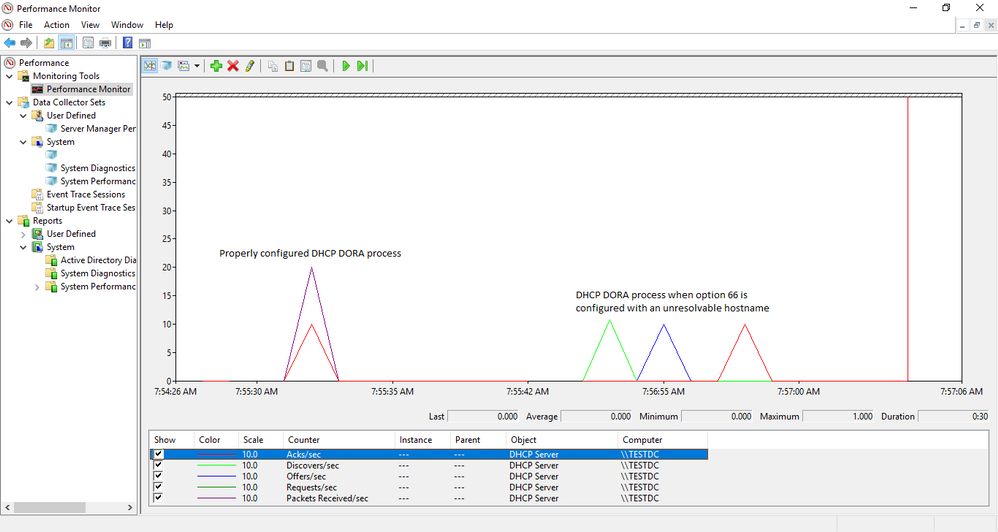
With perfmon running as the bad scope goes into place, you can see the Acks/Sec counter reflect the timing delay we are seeing in graph view:
The next step was to look at the scopes and the configured scope options to see of anything looked out of place. This environment has a well-defined policy for configuration, so anything out of the ordinary tends to stand out. Using some PowerShell Fu, the scope options for a user workstation scope were found to have a TFTP server configured and the thing that caught our eye was that the name of the server was specified, not the IP address. Below is the command and output for the search:
Get-DhcpServerV4Scope | %{Write-Host “`r`n$($_.name)” –ForegroundColor Red; Get-DHCPServerV4OptionValue –ScopeId $_.ScopeId –OptionId 66 –ErrorAction SilentlyContinue}
The text in the “Value” column is what you would be looking for. The screenshot below is just an example and the “Value” displays the actual string values that were entered into Option 66 for the TFTP server.
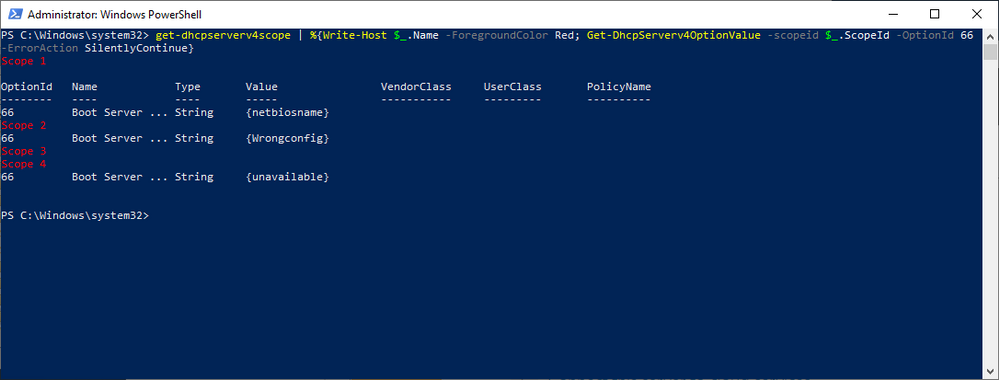
In our case, we found one single-label name, which was out of the ordinary for their normal configuration. A quick check of the server name revealed that it could neither be resolved via DNS nor contacted on the network. The defunct option was removed from the server and the DHCP service restarted on the server and, what do you know…the server’s Perfmon counts for Active Queue Length and Milliseconds Per Packet (Avg) returned to normal. Loosely translated, DORA is happy again.
The Takeaway
Keep it simple…when configuring this sort of thing, it is always a good idea to use IP addresses instead of building in a reliance on name resolution, especially when you factor in how early in the network configuration this process resides. In our case we also had a nonexistent server problem but assuming it was still available, using the IP address takes one link out of the complexity chain in getting to that TFTP server. RFC5859 for TFTP Server Address even specifies using the IP address to eliminate this complexity. Follow their advice and keep things as simple as possible.
The Outcome
In the IT field, you rarely hear the accolades when things return to normal, the silence of the content has to be music to your ears to know that you have fixed things. In this case the lightning fast exchange of DORA, 3-way handshakes, TLS negotiations, etc. are back in the background where they belong, with the users focusing on their work duties/web browsing/social media, whatever normal users do in your case.
Take care and stay safe!



Recent Comments