by Contributed | Feb 1, 2021 | Technology
This article is contributed. See the original author and article here.
You carry your mobile device with you to every room of your house, to friends’ places, on walks and to and from the office or at home. Your mobile device has truly become your daily companion, at your fingertips to help you stay connected to people and things that matter. Imagine if that companion could provide extra help during your day. To this end, Microsoft will soon introduce new conversational AI experiences with Cortana, your Microsoft 365 personal productivity assistant, in Outlook for iOS to help reduce the effort required to get things done quickly and easily on an iPhone or iPad.
With your mobile device at your side virtually all the time, using your voice offers a fast and easy way to manage your time and inbox. We are exploring ways Cortana can help to schedule meetings, compose email messages, and find files, emails, and people that are relevant to you using the power of human voice in Outlook. Using natural language, speech recognition, machine learning, and linguistics based on Microsoft AI technology, Cortana will get to know you and your voice to help you stay organized, connected to people and things that are important to you, and stay in control of your day.
How and when can I get Cortana’s assistance in Outlook?
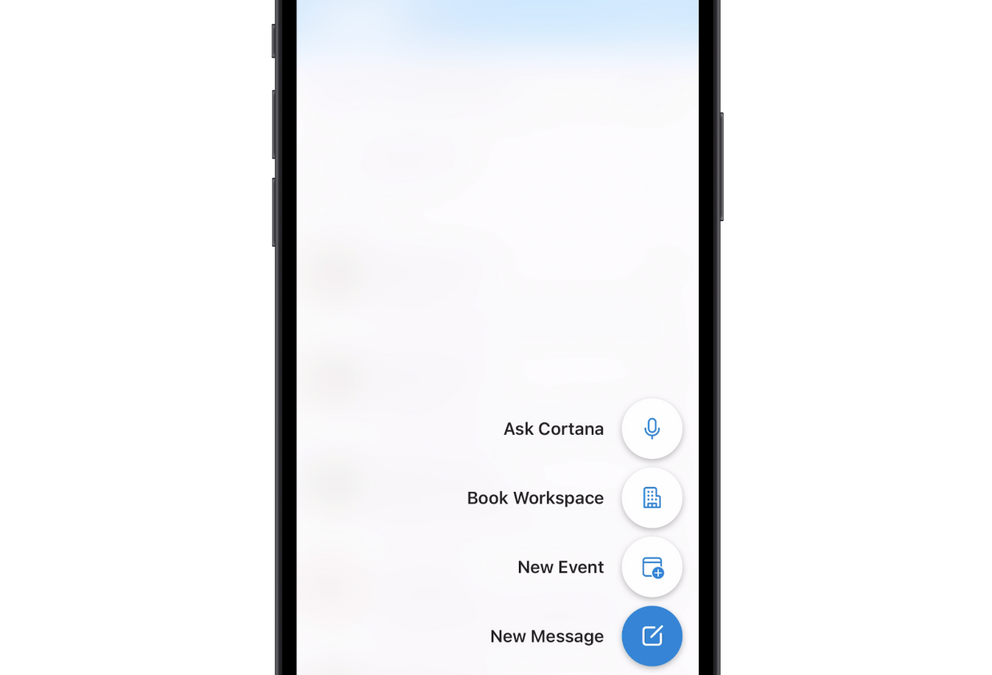
We will start the roll out conversational AI in Outlook for iOS in the coming weeks. However it will take a month or so after that to reach all the eligible customers. You’ll know it’s available when your Outlook app updates, and you see new event and message buttons on your Inbox and Calendar screens. When pressed and expanded, an Ask Cortana microphone icon will be available as well as other common Outlook tasks. We will continue to add more and more capabilities over time. As a personal productivity assistant that is a natural part of Microsoft 365, Cortana processes data safely and securely to meet your needs.
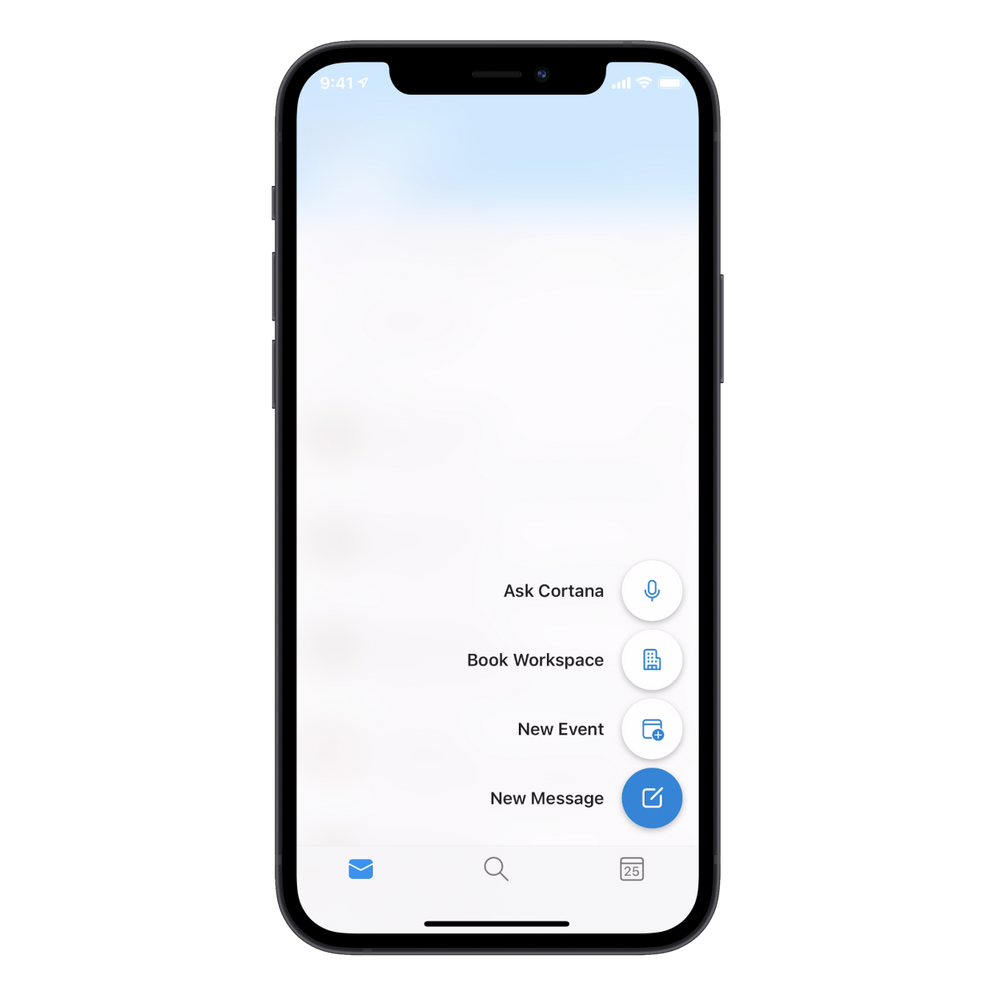 Long press the new message button in Outlook
Initially, this new conversational AI capability with Cortana will be available in English for customers in the United States using Outlook for iOS with a Microsoft 365 work account.
Managing your time in Outlook with help from Cortana
Managing your time and your commitments effectively can be challenging on a mobile phone. By delivering assistive experiences, Cortana can help schedule new events and customize the event details on the screen with language that you use every day instead of tapping or typing. Cortana can help you stay connected to the people and events that are relevant to you with insights from the Microsoft Graph so it’s easier to stay on top of important commitments. With time and location suggestions, planning your day in Outlook can help save you time and effort when you ask Cortana for assistance.
For example, if you would like to schedule a meeting next week with 3 colleagues, it may take you more than 15 screen taps to set that up although Outlook can proactively suggest people and locations and can enable you to have Teams Meeting on by default. This new capability allows you to simply ask Cortana in Outlook to:
“Schedule a Teams Meeting on Tuesday next week with Megan and Adele at 2 PM to discuss the launch.”
Conversational AI allows you to have a conversation with your personal productivity assistant. You will be able to ask Cortana to change meeting recipients, dates, times and eventually the location based on your preferences for your meeting or focus time, all with your voice.
For example, when creating a new event using your voice, you can say:
“Schedule a meeting with Megan and Adele tomorrow at 2PM to discuss the Budget …
Change it to 3PM …
Change the title to 2021 Planning and add Nestor.”
Or if you are a participant and not the organizer or host of an event, you can ask Cortana about details of the event. For example:
“Has anyone accepted this meeting?”
Or do something with it:
“Forward this event to my manager.”
We will also add a new microphone button at the top of your events’ details page on your calendar. You will be able to ask Cortana to:
“Add Lee to this, make it a Teams meeting, make it a private appointment …
Move this meeting to 4PM.”
And building on Microsoft Search capabilities that are available in Outlook mobile today, you will be able to ask Cortana to find specific events.
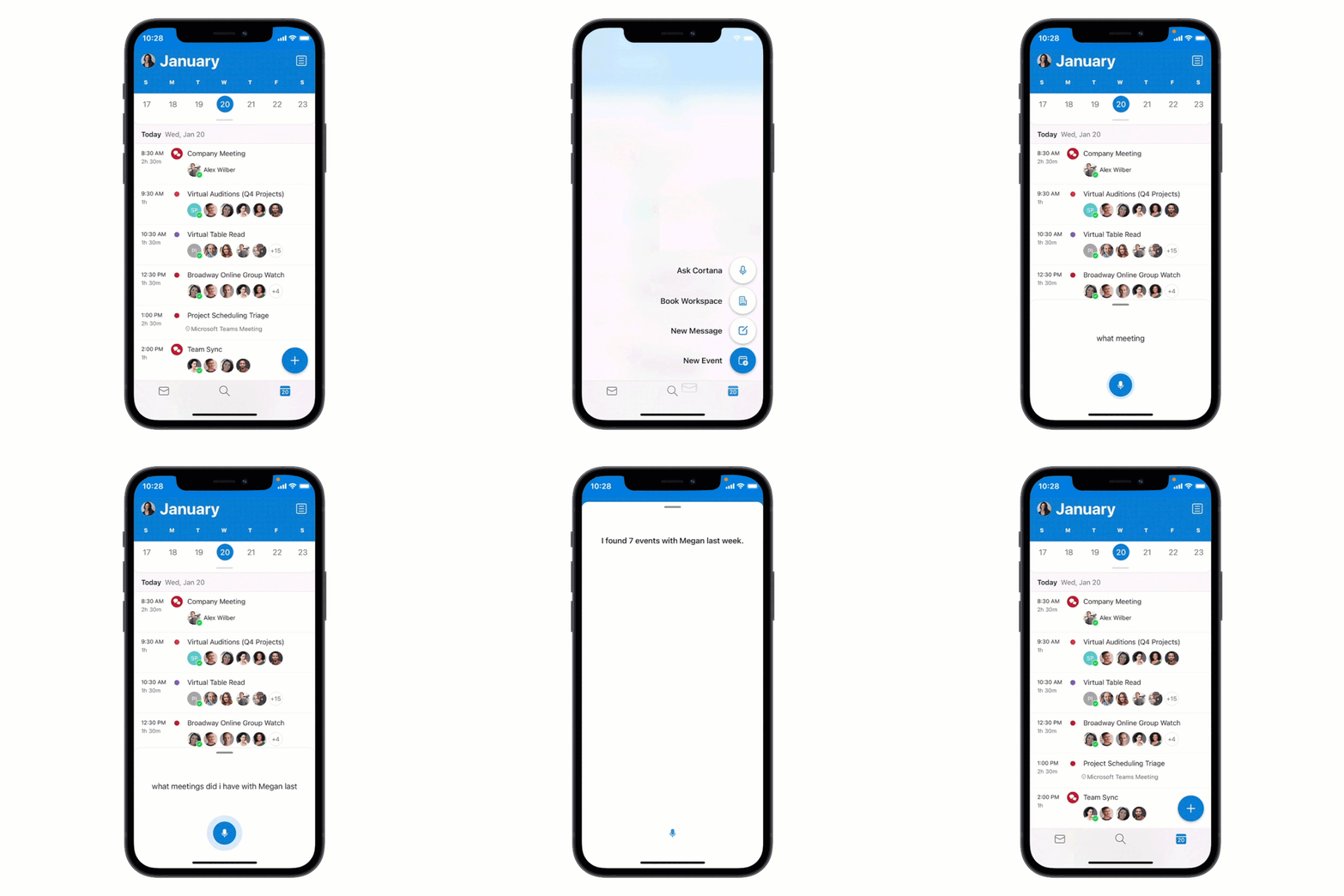
You can use your voice to search for events with specific people in your organization over a specific timeframe making it a more natural and efficient experience.
Continue the conversation with email
You will also be able to use natural language voice commands in your Inbox and email messages. We are starting by delivering the assistive experience with Cortana to help you compose quick messages, forward emails to your contacts or people in your organization and reply to the sender or all the recipients of the message or conversation thread.
The new message button on your Focused Inbox will give you the ability to ask Cortana to start a short message. For example, you can press the new message button and tap the mic icon to ask Cortana to:
“Send an email to Adele about 2021 planning” – a new message will start to be created with your colleague as a recipient and the subject completed as “2021 planning”. Then you can type the rest of your message.
In the coming months, we will make it easier to compose full, longer email messages by adding Dictate to Outlook for iOS. This way, you will be able to continue composing messages using your voice and natural language the same way you can today in Office mobile with Word, and like the Dictate option in many Microsoft 365 Windows and Mac apps with this voice-enabled capability.
In addition, we are introducing another new way to quickly manage your messages as you read them. With a new microphone at the top of the message or conversation you have opened in Outlook; you will be able to do things such as:
“Forward this to my manager” – Outlook will set up the message with your manager’s email address in the To: list where you can add more recipients and add a typed a comment.
“Reply to this” or “Reply to all” or “Reply and add Alex to this” – similarly Outlook will set up the message with the appropriate recipients so you can quickly add additional text and simply send your response.
This new mic in your messages will also enable you to start Play My Emails in Outlook for iOS so you can continue a hands-free experience and choose to listen to Cortana read out your new messages in your inbox and changes to your day.
More options to play emails in Outlook
We are excited about our investments in assistive experiences as we continue to build upon Play My Emails capabilities in Outlook with Cortana. We are adding additional options to personalize your experience in ways that help you get time back in your day, stay organized, and get things done quicker.
For example, by the end of February you will be able to open an email message in Outlook and if it is one you would like to listen to rather than read, you can choose to play the conversation from an option within the ellipses.
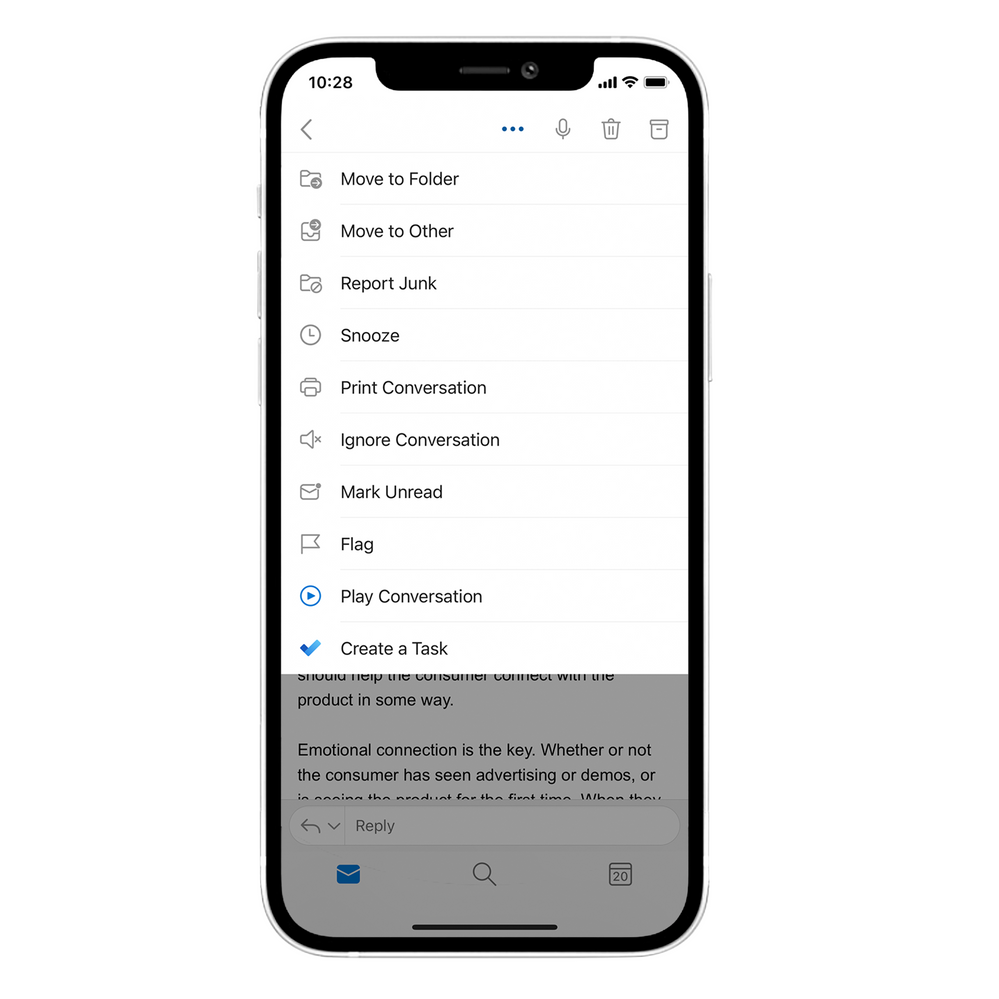 Start the Play My Emails experience from an open message in Outlook
With Play My Emails running, at any time you can interrupt the readout by touching the mic on the screen or saying, “Hey Cortana”. Soon you will be able to ask Cortana to play messages from specific people, such as your manager or someone else in your organization and over a range of time, such as “last week” or “in January”. Or you can customize Play My Emails in Outlook settings to only listen to updates from your Favorite People or Favorite Folders so it’s easier to stay on top of what’s important to you.
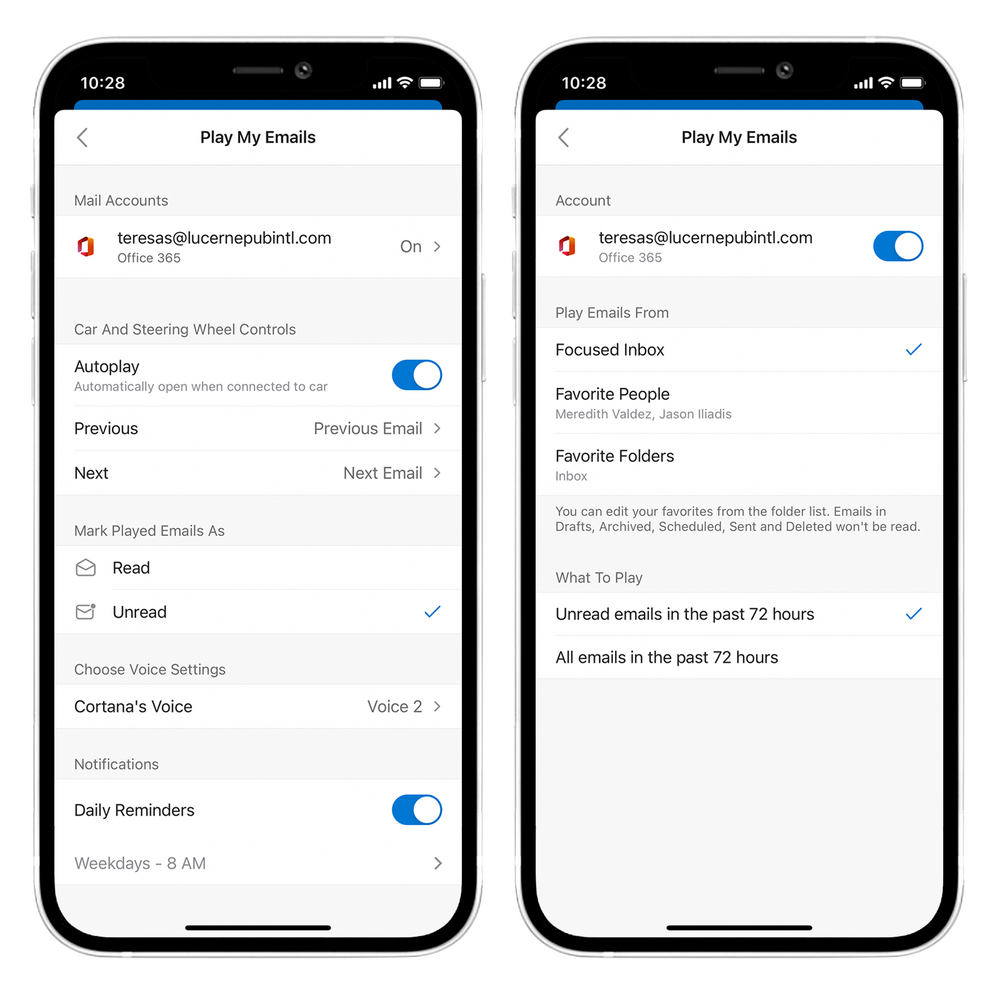 Personalize your Play My Emails experience in Outlook
We have also learned that users often tap through Outlook to start Play My Emails as soon as they connect their smartphone to their car audio system. We have added an option to automatically do that so you can get going to your destination straight away. This is not on by default, but you can turn it on in Outlook settings.
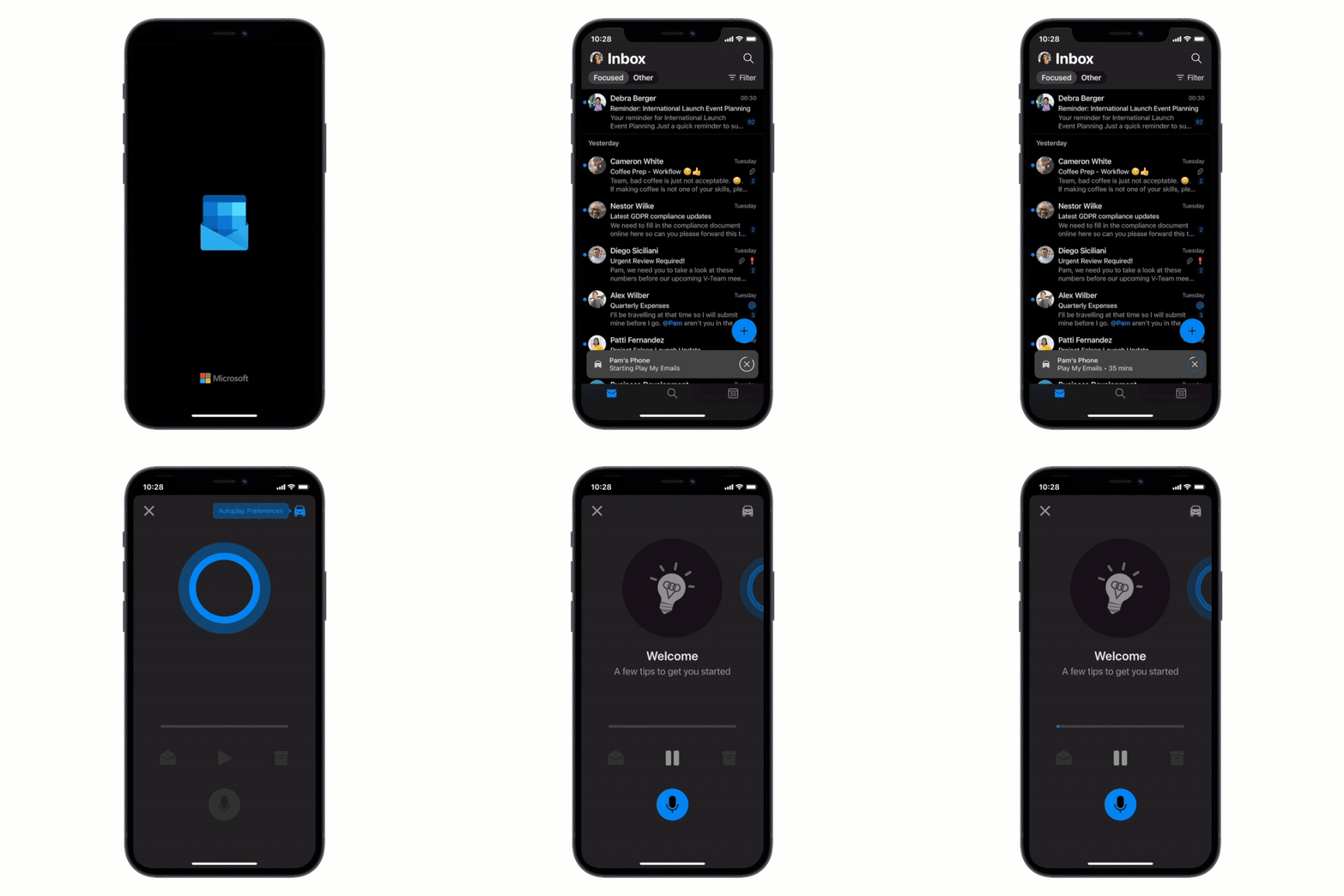 Autoplay Play My Emails when connected to your car audio
For added convenience, we also added the ability for you to set a Daily Reminder to start Play My Emails on a scheduled basis. This way you can Play My Emails on your preferred day at your preferred hour, so you stay on top of what’s new when and where you choose.
It is our pleasure to bring new, helpful ways to manage your time and organize the important things in your daily life. We are excited to embark on this journey with you to explore what conversational AI can enable you to do more quickly and with less effort. As your mobility and connectivity needs evolve so too will the capabilities we bring through intelligent technology in Outlook with Cortana.
Please try these new capabilities once they become available to you and let us know what you think by adding a message below or at Outlook.uservoice.com. To watch an exciting video learn more about this and other new mobile productivity features rolling out across our Microsoft 365 mobile apps, visit https://aka.ms/M365mobileapps21.
___________________________________________________________________________________
Frequently asked questions
What does conversational AI mean?
With Microsoft AI we strive to help people to be more productive in many ways including using voice interaction in a natural, conversational way. We believe to be truly helpful and reduce the effort to get things done requires the capability to extend across multiple domains (e.g. mail and calendar) and be able to take multiple commands in sequence (multi turn) while being contextually aware of what is happening in the application in a similar way that a conversation evolves.
This experience relies on enterprise-grade services including Cortana in Microsoft 365, the Microsoft Graph, the algorithms and the intelligent technology developed by the team that joined Microsoft from Semantic Machines.
How is the voice data handled?
Please refer to the section about Conversational AI in Outlook with Cortana here: https://aka.ms/CortanaAdminGuide
Are these updates coming to Outlook for Android?
Yes, we are working on providing a similar experience in Outlook for Android while we learn from this initial experience from customers using Outlook for iOS. We anticipate it will be a few months before we are ready to expand to the Android platform.
Can I use my personal email account such as Outlook.com?
The initial release of conversational AI in Outlook with Cortana will not support Outlook.com or Gmail accounts.
by Contributed | Feb 1, 2021 | Technology
This article is contributed. See the original author and article here.
Howdy folks,
I’m happy to announce the public preview of search, sort, and filter for Azure AD Conditional Access policies in the Azure Portal. This has been one of top requests in the Azure AD feedback forum, and will make it much easier to manage your policies.
Vikas Deora, a Program Manager in the Identity division, drove this exciting work and his guest blog below will take you through the highlights. As always, please share your feedback in the comments below or reach out to the team with any questions.
Best regards,
Alex Simons (Twitter: Alex_A_Simons)
Corporate Vice President of Program Management
Microsoft Identity Division
————————————————————–
Hey everyone,
I’m excited to tell you about the new search, sort, and filter capability for Conditional Access. This feature is being rolled out incrementally to all tenants starting on 1st February and will be available in all tenants in the next few weeks.
Search
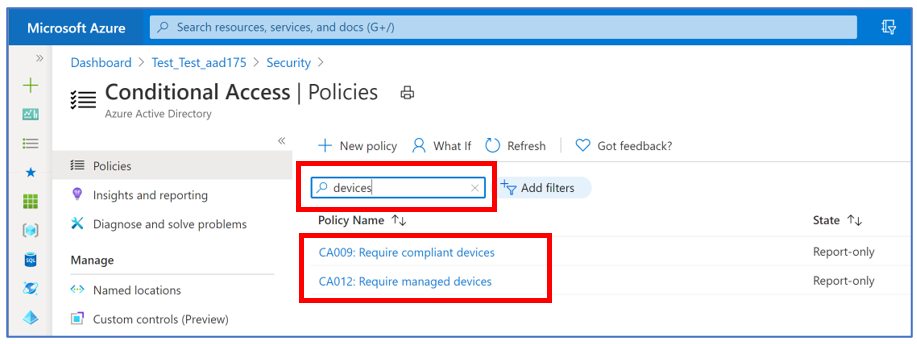
The Conditional Access policy list page has been enhanced with the search bar so that you can quickly and easily find a particular policy by name. The search automatically performs a starts-with and substring search on the list of policy names. The substring search is performed on whole words, partial words, and includes support for special characters. The search is case-insensitive.
For example, a search for “Devices” will return both “compliant devices” and “managed devices” within policy name.
Sort
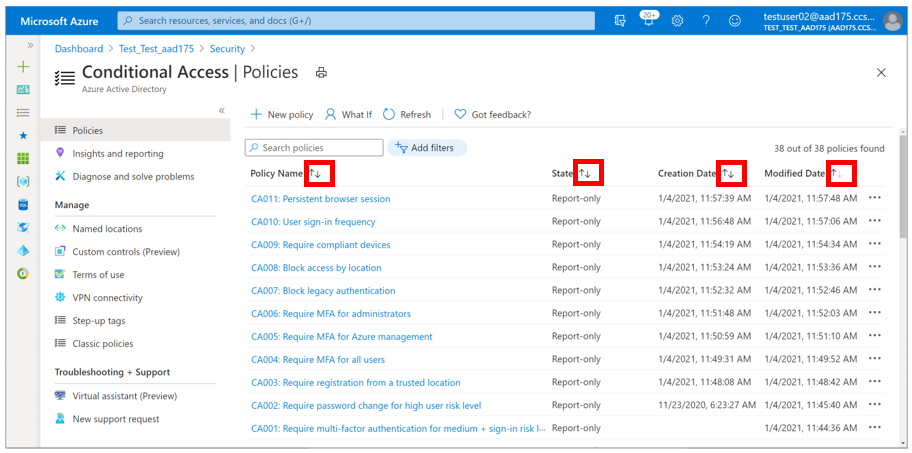
You can sort the policy list by policy name, state, creation date and modified date. Use the arrows to the right of the respective column headings to sort the list in ascending or descending order.
Filter
In addition to search and sort, you can also filter the policy lists by state, creation time and modified time.
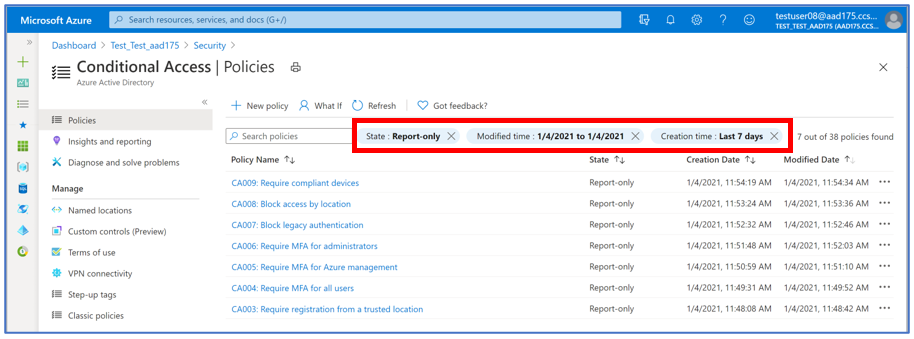
Last but not the least, we have also improved the policy list page to provide policy counts. You can now see the total number of policies you have configured. When a search or filter is applied, you can also see number of policies returned out of total policies.
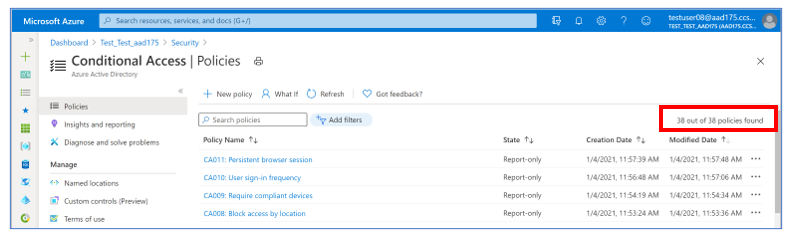
You have created more than 18 thousand policies in last 30 days. Hope you can use the search, sort, filter capabilities in Conditional Access to find them.
On behalf of Azure AD team, thank you for all your feedback so far. We hope you’ll continue to help us improve and share more about your admin experience with Azure AD Conditional Access.
As always, we invite you to share any questions or feedback about the feature through the Azure forum or @AzureAD on Twitter.
Best,
Vikas Deora (@Vi_Deora),
Program Manager
Microsoft Identity Division
by Contributed | Feb 1, 2021 | Technology
This article is contributed. See the original author and article here.
If you have been doing any OAuth and/or Open ID Connect troubleshooting in recent years it’s very likely you’ve run across https://jwt.io, or in the Microsoft world https://jwt.ms. Great tools, but primarily JWT parsing tools rather than JWT validation tools.
Yes, jwt.io allows you to upload your keys in the UI, but there are a lot of scenarios that doesn’t work for.
Let’s rewind a step or two here first though. Last year I showed how you could create your own faux tokens. That is; the tokens were real enough, but they mimicked actual tokens as they would look if issued by Azure AD and Azure AD B2C without actually being signed by Microsoft’s keys. If you pasted the result into jwt.ms it would look like a real token.
Identity is a large topic, but the two central concepts are “who are you” (authentication) and “what are you allowed to do” (authorization). If your approach in web app or api is to accept any old token and say “this looks good” you might run into trouble.
Which is why I wanted to show how to build a web app that will attempt to validate the token in addition to parsing it. This is based on supplying a metadata url to retrieve signing keys, etc. If you don’t have this the app will just parse the token and check against the attributes you supply (issuer, audience).
The code for this post can be found here:
https://github.com/ahelland/Identity-CodeSamples-v2/tree/master/blazor_jwt_validator_dotnet_core
In the real world i don’t actually recommend you to do all these steps manually. There are libraries that will handle most of these things for you like MSAL on the client side of Identity.Web on the backend side. It is however always useful to dig a little deeper to gain an understanding of how it works behind the scenes.
There are third party libraries available for token validation that support a large range of algorithms and formats, but to keep it simple I’m just using components native to the .NET toolbox.
Step 1 – Is it a JWT that has been pasted in?
The web app will allow pretty much any text to be passed in so we need to validate that it is actually a token.
JwtSecurityTokenHandler handler = new JwtSecurityTokenHandler();

//Check if readable token (string is in a JWT format)
var readableToken = handler.CanReadToken(Jwt.Base64Token);
if (readableToken != true)
{
  FormatStatus = "The token doesn't seem to be in a proper JWT format.";
  return;
}
if (readableToken == true)
{
  FormatStatus = "The token seems to be in a proper JWT format.";
}
Step 2 – Do we have metadata?
To be able to leverage concepts like public/private key cryptography we need to exchange the keys used, and we also need to agree on a couple of other attributes the tokens contain. It is entirely possible to exchange this in a manual way whether that is sending files per email or reading them loud over the phone for that matter, but the recommended approach is to have the identity provider expose a metadata endpoint. Loading things in a more manual way also requires more code, so we’ve kept it simple here and only provide the option for using an endpoint. (If you don’t have one the code will not break, but revert to just parsing the token.)
If you followed my previous post you should be able to provide your own endpoint even if that’s just pointing to a different port on https://localhost.
https://techcommunity.microsoft.com/t5/azure-developer-community-blog/generating-azure-ad-quot-look-alike-quot-tokens/ba-p/1163098
https://github.com/ahelland/Identity-CodeSamples-v2/tree/master/blazor-jwt_generator-dotnet-core
//Load Metadata if available
IConfigurationManager<OpenIdConnectConfiguration> configurationManager;
OpenIdConnectConfiguration openIdConfig = null;
bool metadataAvailable;
try
{
  configurationManager = new ConfigurationManager<OpenIdConnectConfiguration>(Jwt.MetadataAddress, new OpenIdConnectConfigurationRetriever());
  openIdConfig = configurationManager.GetConfigurationAsync(CancellationToken.None).Result;
  metadataAvailable = true;
  MetadataStatus = $"Successfully loaded metadata.";
}
catch (Exception e)
{
  MetadataStatus = $"Failed to load metadata (skipping signature validation):  {e.Message}";
  metadataAvailable = false;
}
Step 3 – Set up token validation parameters
As said already we handle the absence of metadata gracefully. We can still check things like the lifetime and the audience, but we are not able to verify the signature. And that is the critical part – what separates my fake tokens with actual Azure AD tokens is the keys they are signed with. Which is why you should never disable validation of the signing key like we do here :)
While there is some logic in locating the keys and retrieving them we see that this is one of the things the libraries handle for us in a developer friendly way.
TokenValidationParameters validationParameters = null;

//If we cannot load metadata we fall back
if (!metadataAvailable)
{
  validationParameters =
  new TokenValidationParameters
  {
    ValidIssuer = Jwt.Issuer,
    ValidAudience = Jwt.Audience,
    ValidateLifetime = true,
    ValidateAudience = true,
    ValidateIssuer = true,
    //Needed to force disabling signature validation
    SignatureValidator = delegate (string token, TokenValidationParameters parameters)
    {
      var jwt = new JwtSecurityToken(token);
      return jwt;
    },
    ValidateIssuerSigningKey = false,
  };
}

//If we succcessfully loaded metadata we do signature validation as well
if (metadataAvailable)
{
  validationParameters =
    new TokenValidationParameters
    {
      ValidIssuer = openIdConfig.Issuer,
      ValidAudience = Jwt.Audience,
      ValidateLifetime = true,
      ValidateIssuerSigningKey = true,
      ValidateAudience = true,
      ValidateIssuer = true,
      IssuerSigningKeys = openIdConfig.SigningKeys
    };
}
Step 4 – Validate the token
The actual validation is shorter than the setup. We read the JWT. (Notice how Microsoft also use “token” twice in the naming – spelling out the acronym it would be ReadJsonWebTokenToken.)
token = handler.ReadJwtToken(Jwt.Base64Token);
try
{
  var identity = handler.ValidateToken(Jwt.Base64Token, validationParameters, out SecurityToken validatedToken);
  if (metadataAvailable)
  {
    output += "Token is valid according to metadata!";
  }
  else
  {
    output += "Token is valid according to a self-evaluation!";
  }

  jwtSignature = token.RawSignature;
}
catch (Exception e)
{
  //Print errors
}
Step 5 – Pretty print the contents and the result
The last step is to print out the result of the validation test, and the contents of the token split into header/payload/signature with some color coding. I did not find satisfactory ways to do this with the built-in mechanisms as these didn’t really play nice with Blazor so I did a more hackish and manual approach for this. Not including the code here, but it is of course part of the sample on GitHub.
In an actual app or api you would of course not care so much about these things anyway.
While I also prefer using “proper” libraries for validation I use tools like this all the time when working with things like custom policies in Azure AD B2C.
I’m sure you are able to come up with more elaborate versions that what I did here, but I’m hoping it provided some of the basic understand for making sure you don’t end up in the category of developers who skip token validation. (There are unfortunately too many that don’t do this right and produce code with horrible vulnerabilities included.)

by Contributed | Feb 1, 2021 | Dynamics 365, Microsoft 365, Technology
This article is contributed. See the original author and article here.
While we may not have adequate measurement, one of the lasting repercussions of shutdowns, closings, quarantines, and widespread work-from-homes due to the pandemic will be to propel a shift toward a B2C-type experience within B2B impacting how customers expect to be understood and communicated with. It will also compel chief marketing officers (CMO) and marketing operations leaders to re-examine the value proposition offered to their customers and demonstrate how agile they can be in responding to deep, widespread changes in their selling environments.
CMOs: success requires reinvention
A recent Forrester report examining the concerns of European business and technology leaders underscores the need for CMOs to increase their focus on customersensuring that the customer experience is always at the core of leadership, strategy, and operations. Reinvention of marketing leaders’ roles, their teams, and marketing functions will be the theme for successful CMOs in 2021.
The pandemic conditions that disrupted normal marketing and sales created disjointed customer experiences that translated into lost customers and decreased revenue. The challenge ahead is to utilize and optimize new ways to discover, nurture, and gain long-term loyalty from customers.
Forrester states that CMOs will re-emphasize customer loyalty and the programs that strengthen it. The study also predicts that the spend on loyalty and retention marketing will increase by 30 percent in 2021.
30 percent increase in loyalty and retention marketing spending in 2021Forrester Predictions 2021
Move confidently in an unsettled environment
The competitive advantage will go to marketing organizations that can quickly address the new realities and implement solutions that succeed both now and throughout the settling process that will occur in this unsettled environment. Microsoft Dynamics 365 Marketing, in concert with other Microsoft Dynamics 365 products and Microsoft Teams, offers powerful but easy-to-use technology to achieve:
- Greater personalization
- Optimized virtual events
Both capabilities are improving the ability of the New Zealand Trade and Enterprise (NZTE) agency to help New Zealand businesses compete around the globe.
An island nation extends its business reach
NZTE is a government agency with a mission to spur trade and help grow the island nation’s economy. The agency works across 50 countries and currently works with more than 6,000 businesses across all industries, ranging from food producers, tech startups, service providers, and manufacturers.
“By using the Dynamics 365 Marketing event management feature, we created a better customer experience and personalized the interactions, resulting in a 400 percent increase in engagement.”Jonathan Southee, Director Digital Delivery, New Zealand Trade and Enterprise
Deeper understanding for greater personalization
Data is the key to a deeper understanding. NZTE is using Dynamics 365 Marketing for email communications, campaigns, and a host of other marketing activities. The agency takes advantage of the Dynamics 365 common platform to make sure its data is fully utilized across Dynamics 365 Marketing, Microsoft Dynamics 365 Sales, and Microsoft Dynamics 365 Customer Service applications. This data is the foundation for the design of orchestrated customer journeys in Dynamics 365 Marketing that help guide the customer and continually strengthen business relationships.
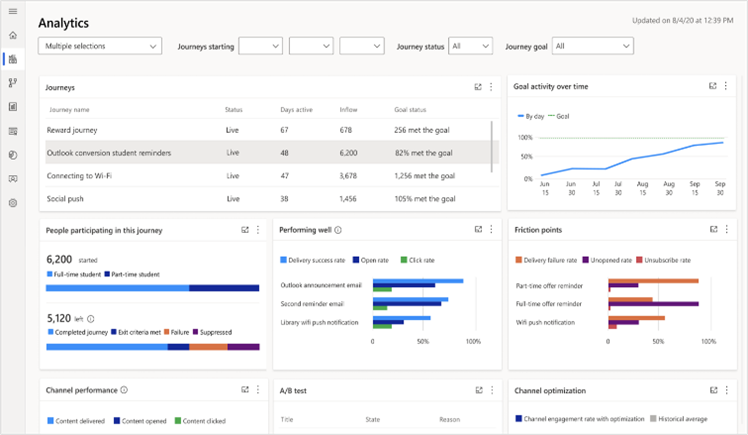
Dynamics 365 Marketing also extends the usefulness of customer data through integrated analytics. An organization such as NTZE can set the business goals for journeys and measure the progress toward those goals. Built-in analytics dashboards provide cross-journey insights and companies provide the ability to monitor customer journeys and channel KPIs in real time. To help organizations respond to changing circumstances during a campaign, Dynamics 365 Marketing provides customizable out- of-the-box templates to target segments and content to get the word out quickly.
In a period when many analysts, including Deloitte, raise concerns about uncertainties in CMO budgets, Dynamics 365 has also helped NZTE reduce operational costs. By consolidating its marketing, sales, event management, and other tools, NZTE has fewer systems to license and maintain. In fact, it allowed the agency to reduce the number of systems it supports to only one, reducing its overall licensing bill by NZD50,000.
Greater results from events
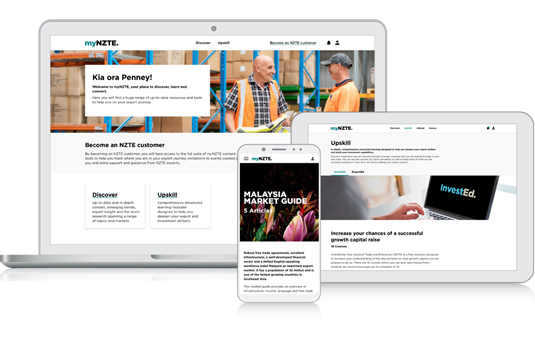
NTZE, including its regional teams, holds more than 300 events a year. In order to optimize how it runs events and utilize the data involved, it began using the Dynamics 365 Marketing event management capabilities. They created a customer-facing, web-based portal that synchs with its Dynamics 365 apps. Through myNZTE, customers can learn about and choose events they want to attend, register online, and access a wide variety of content. Jonathan Southlee, Director Digital Delivery for NTZE, observes that, “Our customers highly value our events, and it’s critical that we provide them with the best experience possible because events can lead directly to trade deals.”
CMOs: focus on customer loyalty
Building and strengthening customer relationships is imperative to a marketing organization’s success, especially in an environment where the customer base is dispersed and often distracted. Gartner reports that loyalty will be a key factor: 79 percent of CMOs surveyed will look to existing customers to fuel growth in a post-Covid-19 environment. Deeper customer understanding, customer journeys that reflect that understanding, and bringing people together without person-to-person interactions are essential to achieving that goal.
Learn more
The post Changing the customer experience for better customer connections appeared first on Microsoft Dynamics 365 Blog.
Brought to you by Dr. Ware, Microsoft Office 365 Silver Partner, Charleston SC.
by Contributed | Feb 1, 2021 | Technology
This article is contributed. See the original author and article here.
Eighteen months ago, we announced the July 31, 2021 retirement of Skype for Business Online. With six months until the service ends, we’re focused on helping each of our customers upgrade to Microsoft Teams and enabling more ways to come together and get things done.
Skype for Business Online has been a critical communications tool for millions of organizations across the globe. Once customers experience the way Teams brings together chat, calling, meetings and more, they realize the amazing potential to collaborate seamlessly and simplify work in a secure and compliant way.
Regardless of where you are on the journey from Skype for Business to Teams, this is an important checkpoint to make sure your organization is on track to upgrade to Teams before Skype for Business Online retires and access to the service ends.
“We’ve got a plan, and we’re working the plan.”
Most Skype for Business Online customers have deployed Teams, either with Overlapping Capabilities (aka “Islands Mode”) or Select Capabilities, and are gradually moving users and workloads as their organization is ready. Chances are if you’re in this camp, your finish line is in sight. You still have time to double-check your technical and organizational readiness before changing the coexistence and upgrade settings as you move users or your tenant to Teams Only.
“Uh oh, we’re not ready.”
Some organizations may not be far along in the Teams upgrade planning process. It’s understandable as the events of the past year have impacted strategies, priorities, and resources for so many. Don’t worry, you still have time. In fact, there are numerous examples of organizations that have made the upgrade from Skype for Business Online, or hybrid deployments or Skype for Business Server to Teams in a matter of months. With six months until retirement, we encourage you to begin planning today to accommodate the technical, process, and user scenarios that may be unique to your organization. But rest assured, there are resources to guide you step-by-step.
If you’re not sure where to start, we recommend the following:
FastTrack assistance is available for eligible subscriptions, or you may choose to engage a Microsoft Partner to help plan or execute your upgrade from Skype for Business to Teams.
Automated upgrades to Teams
Some Skype for Business Online customers will be eligible for automated upgrades to Microsoft Teams. This program was designed to assist customers with the technical elements of upgrading a Skype for Business Online tenant to Teams Only. Customers scheduled for automated upgrades will receive notifications in both the Teams admin center, as well as the Microsoft 365 Message Center, at least three months before their upgrade date to allow time for technical and user readiness. To learn more about eligibility and more details about the experience, read Automated Upgrades from Skype for Business Online to Microsoft Teams.
More engaging and efficient meetings. Improved collaboration. Easy app and workflow integration. There’s so much to love about Teams.
In six months, access to Skype for Business Online will end. Though we’re getting a bit nostalgic about what’s going away, it’s easy to see how much more organizations can do with Teams – staying connected and accomplishing more together across work, school, and life. And that has us excited about what’s ahead.
See you on Teams!
by Contributed | Feb 1, 2021 | Technology
This article is contributed. See the original author and article here.
How goes your resolutions so far? We here at Microsoft are resolved to continue to bring you new features and refinements that give you the best productivity tools and experiences a tech subscription can buy.
To start the year, January 2021 brought many new offerings: Yammer notifications in Teams, inclusive Yammer reactions, OneDrive settings in SharePoint admin center, 250GB file uploads, Microsoft Lists app for iOS, Lists rules, Lists forms customization, task publishing, and more. Details and screenshots below, including our audible companion: The Intrazone Roadmap Pitstop: January 2021 podcast episode – all to help answer, “What’s rolling out now for SharePoint and related technologies into Microsoft 365?”
https://html5-player.libsyn.com/embed/episode/id/17753732/height/90/theme/custom/thumbnail/yes/direction/backward/render-playlist/no/custom-color/247bc1/
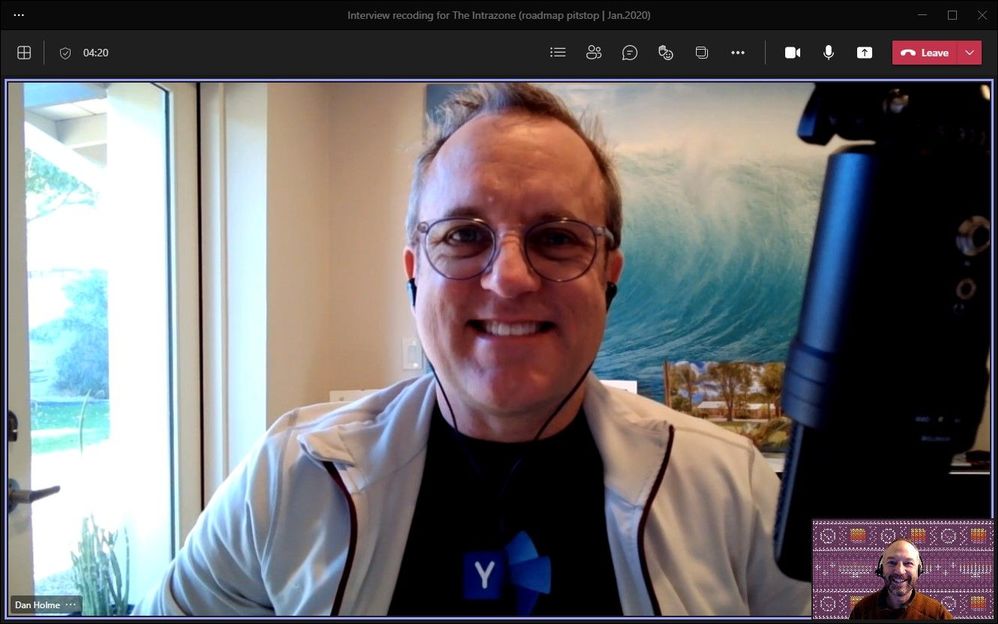
In the podcast episode, get a bonus discussion with Dan Holme (LinkedIn | Twitter), principal product manager lead on the Yammer and Groups team at Microsoft. Dan and I chat about his recent move to the Yammer engineering team after year in SharePoint product marketing. We zeroed in on Yammer tech: Yammer communities, latest Yammer + SP innovations, including a progress check sneak peek at future Yammer investments. We also touch on his new life in Arizona, being closer to family, warmer weather (not jealous, not jealous), and more.
Dan Holme, Principal Product Manager Lead on the Yammer and Groups team (Microsoft) [Intrazone guest].
All features listed below began rolling out to Targeted Release customers in Microsoft 365 as of January 2021 (possibly early February 2021).
Inform and engage with a dynamic employee experience
Build your intelligent intranet on SharePoint in Microsoft 365 and get the benefits of investing in business outcomes – reducing IT and development costs, increasing business speed and agility, and up-leveling the dynamic, personalized, and welcoming nature of your intranet.
Notifications from Yammer communities in the Microsoft Teams Activity feed
With millions of employees working remotely or in hybrid environments, it’s more important than ever for employees to feel connected. Teams makes it easier to collaborate with others, create workspaces, chat, meet virtually with others, and integrate your business solutions all from a single platform.
Last year, Microsoft released the Communities app for Microsoft Teams, bringing all your Yammer communities and conversations into Teams. And this month, that integration goes to the next logical level. Now, you will receive Yammer notifications in the Teams Activity feed on web, desktop, and mobile.
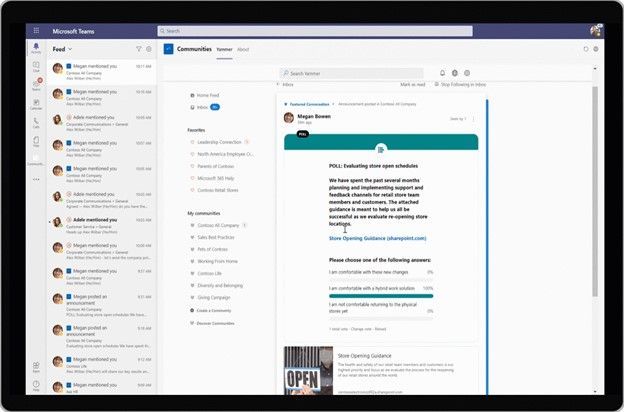 Stay up to date with notifications coming from your Yammer communities while in Teams.
This means that you can be notified in Teams for high-value scenarios—when announcements are made in communities that you are a member of, and when you are @mentioned in a conversation. You can then like, read, respond to the post, and react with our new inclusive reactions – without leaving Teams.
Inclusive Yammer Reactions
We believe that Yammer, a tool that connects people and helps build communities, has an important role to play for a sense of belonging and inclusion. And with the build for inclusivity, we celebrate it as well.
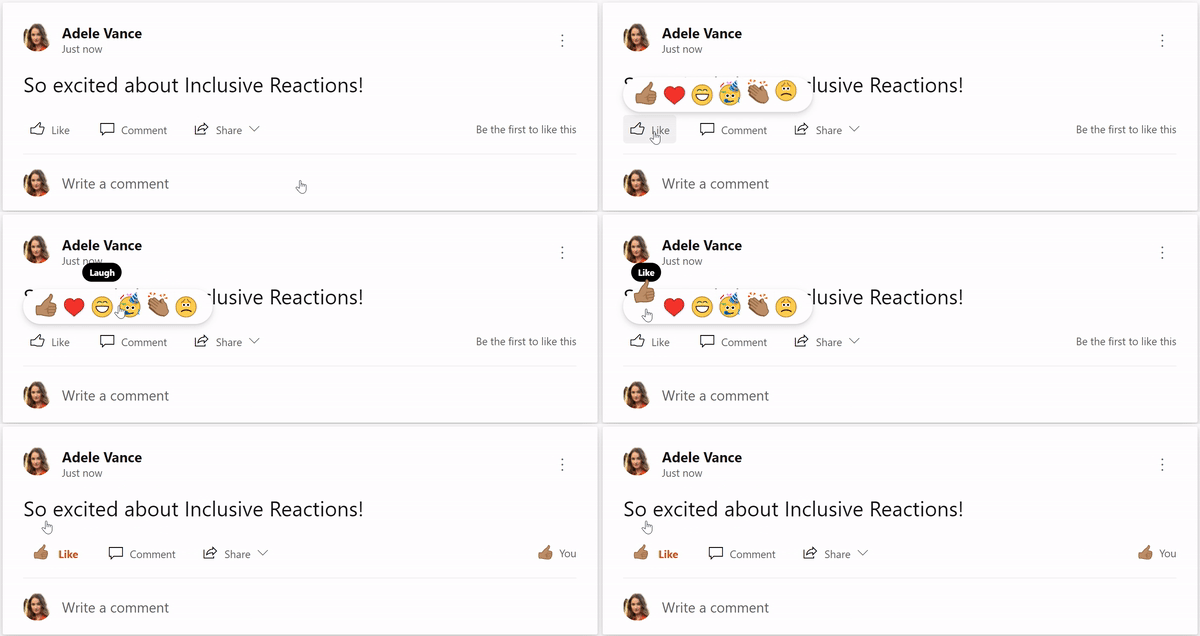 Use diverse, inclusive skin tones in Yammer reactions.
We want everyone to feel a deep sense of representation when interacting within the new Yammer. Once you select your skin tone (which you can set in both on web and mobile), you can react quickly without having to decide every time you reply.
Yammer will be the first of the Microsoft 365 products to offer inclusive reactions. We are excited to lead the charge with other product groups at Microsoft in keeping inclusivity at the center of everything we do.
Here, too, is a good summary of all Yammer innovation launched in January 2021.
OneDrive settings move into the SharePoint admin
Aligning to our coherence and modernization efforts, we are working to unify these experiences by bringing consistent design, naming conventions, look and feel, and more to enable a smoother admin experience across the Microsoft 365 admin suite. We’re happy to announce that you will have holistic control over OneDrive and SharePoint in the same location.
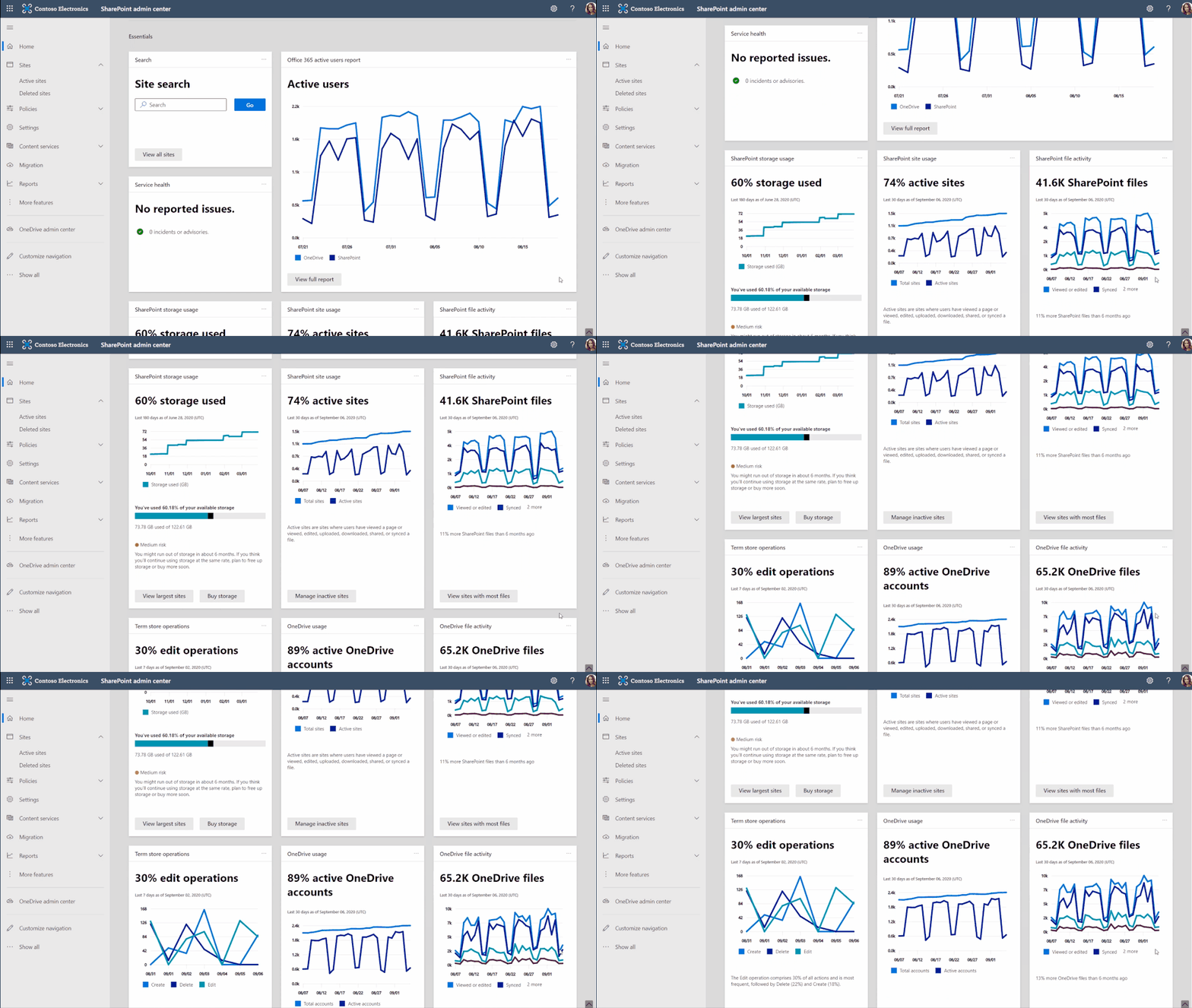 Examine OneDrive usage and activity along with SharePoint storage and site usage. along with SharePoint.
Now, from within the SharePoint admin center, you can:
- Control internal and external sharing
- Set user access controls
- Manage default storage limits
- Enable user device notifications
- Specify retention policies
- And manage sync controls for OneDrive
- This all alongside managing sites, policies, migration and more – to best control and manage your vast intelligent intranet from a single admin center.
Teamwork updates across SharePoint team sites, OneDrive, and Microsoft Teams
Microsoft 365 is designed to be a universal toolkit for teamwork – to give you the right tools for the right task, along with common services to help you seamlessly work across applications. SharePoint is the intelligent content service that powers teamwork – to better collaborate on proposals, projects, and campaigns throughout your organization – with integration across Microsoft Teams, OneDrive, Yammer, Stream, Planner and much more.
250GB file uploads
250 is the new 100. Bring the GBs! Remote work and on-demand learning increases the need to share large files – like 4K /8K video files, 3D models, CAD files, or large scientific data sets-with your co-workers, clients and peers – reliably and securely.
 Gain more flexibility with 250GB file size support in Microsoft 365.
We’re making it easier than ever for you to store, sync, and share large files in Microsoft 365. Our latest improvement will help increase the upload file size limit for Microsoft 365 from 100 GB to 250 GB—which includes uploads of files into SharePoint, Teams, and OneDrive.
So, gain more flexibility with 250 GB file size support across Microsoft 365.
Microsoft Lists app for iOS
Your iPhone, and soon iPad, users will now be able to access their lists on the go anytime anywhere. Microsoft Lists is a Microsoft 365 app that helps you track information and organize work. List is simple, smart, and flexible, so you can stay on top of what matters most to your team.
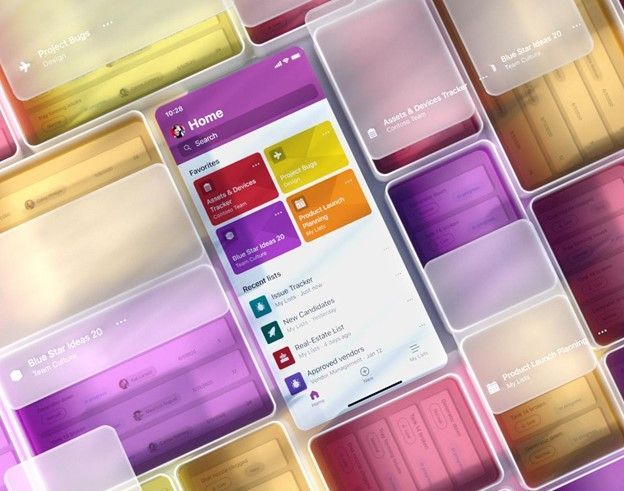 The Microsoft Lists app for iOS provides direct access to your favorite and recent lists, offline, capture photos, edit items, configure views, create using ready-made templates, and more.
The app is fully functional – giving you the agility to create lists (from scratch and using our ready-made templates), manage list items, share lists, take lists offline, work in the dark with dark mode, and more.
Notes:
- To sign in, the Microsoft Lists app for iOS requires a Microsoft 365 or Office 365 subscription plan where SharePoint is included. You cannot sign in with a consumer Microsoft account credentials.
- iPad support coming soon
- And, we are working on a Microsoft Lists app for Android and will have more to share later this year.
Microsoft Lists: Rules
Create simple if/then rules, based on changes to list information, to set reminders and send notifications. Users with edit permissions on the list can create and manage rules. Users with read-only permissions can’t create or manage rules.
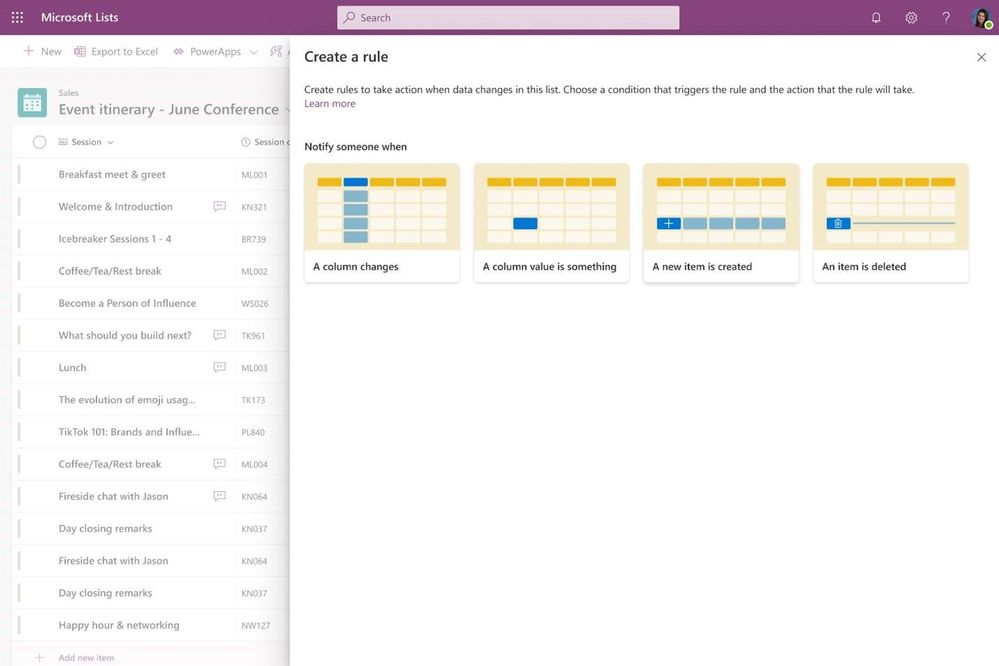 Click the Automate drop-down menu, and then select “Create a rule” to begin creating rules for your list.
Once the feature is available to your users, they’ll be able to create a rule by selecting Automate and then Create a rule in the list command bar near the top of the page.
Learn more: blog, plus a few help articles:
JSON list form customization: footer, header, body text
You can configure the list form in a list or library with a custom header, footer, and the form body with one or more sections with fields in each of those sections. The form configuration does not change the data in the list item or file; it only changes how the form is displayed to users who browse the list or library. Anyone who can create and manage views in a list can use form configuration to configure the form with header, footer, and body with sections.
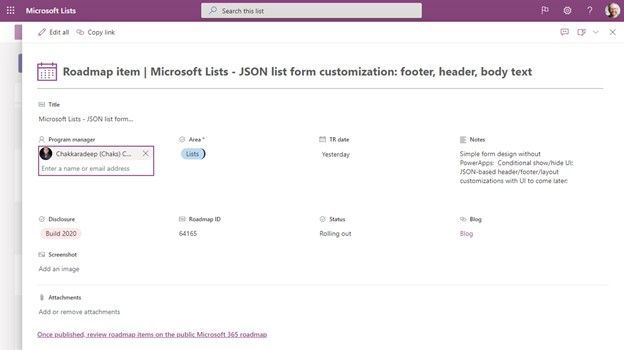 A Microsoft Lists form configured with a custom header (the calendar icon plus text incorporating Title field), a custom layout (expanded left-to-right to show more), and a custom footer (here adding a link to a related site). Small meta-note: this is the list item from our internal roadmap list to track this exact roadmap feature and Chakkaradeep Chandran is our lead PM.
Related technology
Push tasks from corporate to frontline workers with task publishing in Teams
Task publishing is now generally available. Your leadership can create tasks centrally at the corporate level and publish them to targeted frontline locations like stores, clinics, or factories. Tasks can be assigned to all frontline teams or specific locations based on customizable publishing characteristics like size or layout.
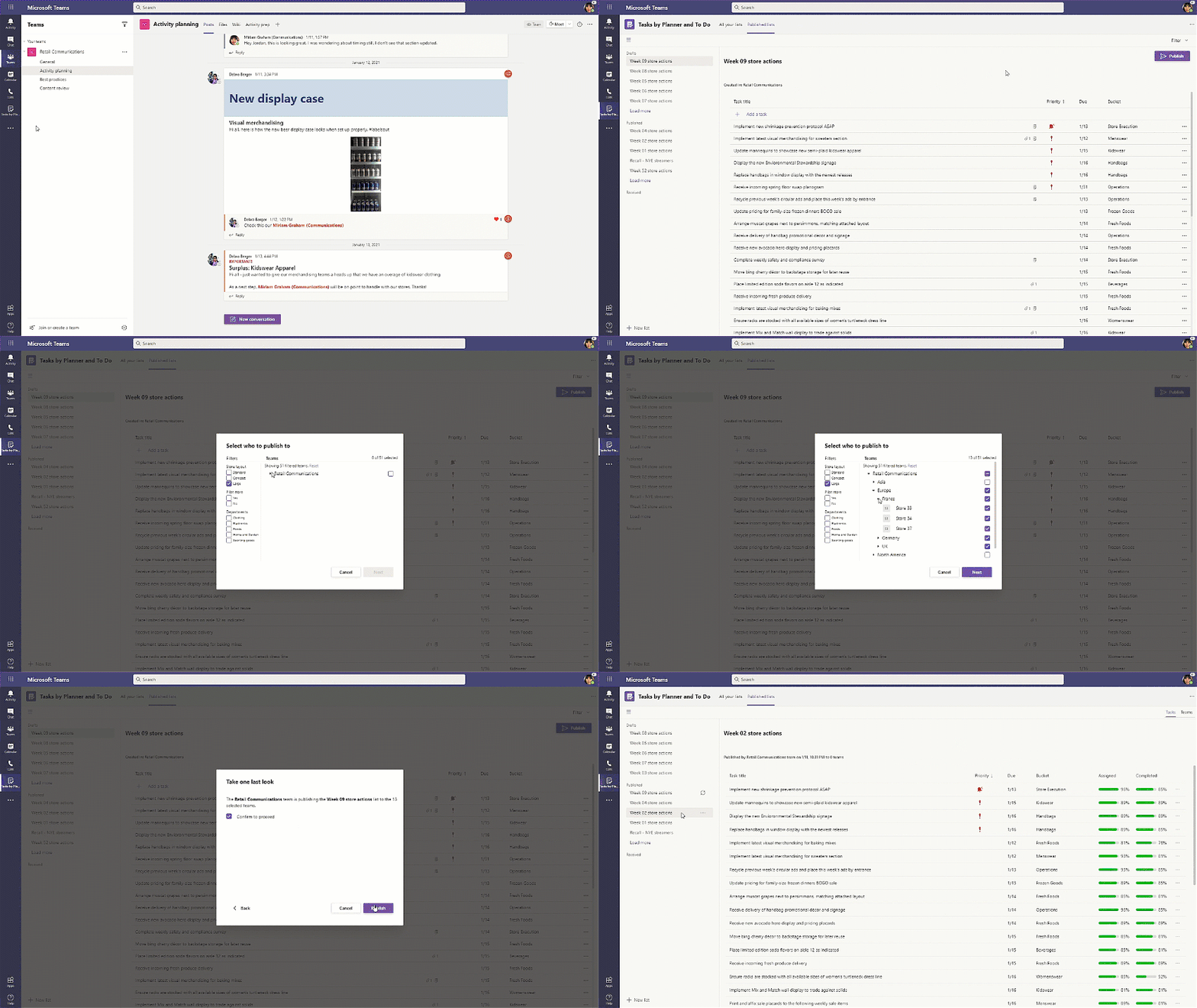 With task publishing in Teams, leadership can create tasks centrally at the corporate level and publish those tasks to targeted frontline locations like stores, clinics, or factories.
After tasks are assigned, frontline workers see a simple list of their task assignments through Teams, while corporate has full visibility into progress across all locations.
The new WorkLab site from Microsoft
WorkLab leverages Microsoft expertise and research, as well as customer voices, to spark conversation on the changing world of work. You’ll find stories like Together mode’s origin story (who knew Stephen Colbert was involved?) to tips on how to improve your meeting culture. You’ll hear from an expert on workplace friendships; learn about the technology opportunity for frontline workers; and discover new ways to find balance in the ever-evolving workday.
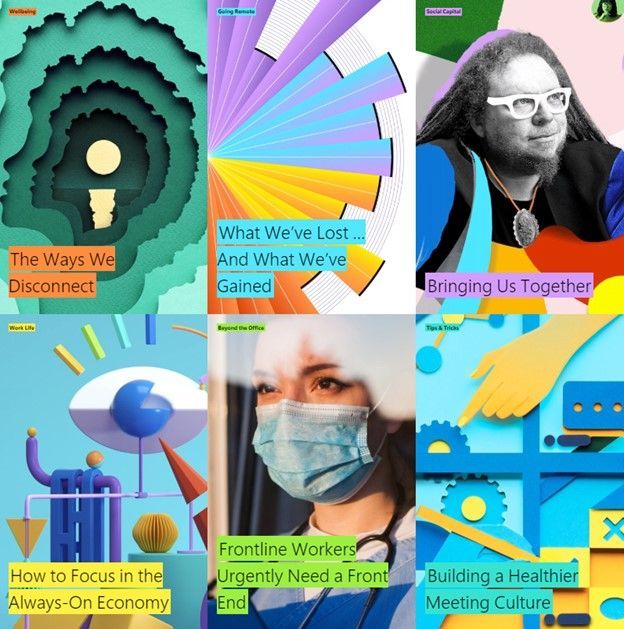 Stories of exploring the science of work and ingenuity live on the WorkLab site as of 2/1/2021.
Microsoft Content Services whitepaper
Mainly want to share a link so you can read about our approach to grow your organizational intelligence with knowledge and content in Microsoft 365 – for those interested to go deeper in understanding our broad range of knowledge and content management capabilities.
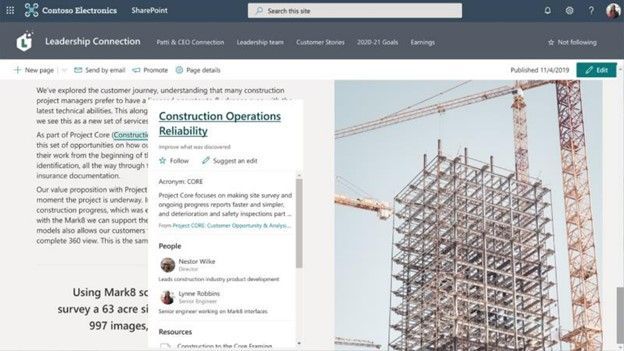 Topic card on a SharePoint page in Microsoft 365.
This whitepaper showcases Microsoft Search, Microsoft Stream, Yammer, and Workplace Analytics. It’s a good read. A good, foundational primer before jumping into tech like SharePoint Syntex and what’s coming for Topics (pictured above) in Microsoft 365.
February 2021 teasers
Psst, still here? Still scrolling the page looking for more roadmap goodness? If so, here is a few teasers of what’s coming to production next month…
- Teaser #1 | SharePoint web part toolbox updates [Roadmap ID: 70668]
- Teaser #2 | Microsoft Search in classic SharePoint sites [Roadmap ID: 57131]
… shhh, tell everyone.
Helpful, ongoing change management resources
- Follow me to catch news and interesting SharePoint things: @mkashman; warning, occasional bad puns may fly in a tweet or two here and there.
Thanks for tuning in and/or reading this episode/blog of the Intrazone Roadmap Pitstop – January 2021 (blog/podcast). We are open to your feedback in comments below to hear how both the Roadmap Pitstop podcast episodes and blogs can be improved over time.
Engage with us. Ask questions. Push us where you want and need to get the best information and insights. We are here to put both our and your best change management foot forward.
Stay safe out there on the road’map, and thanks for listening and reading.
Appreciate your time,
Mark Kashman – senior product manager (SharePoint/Lists) | Microsoft)
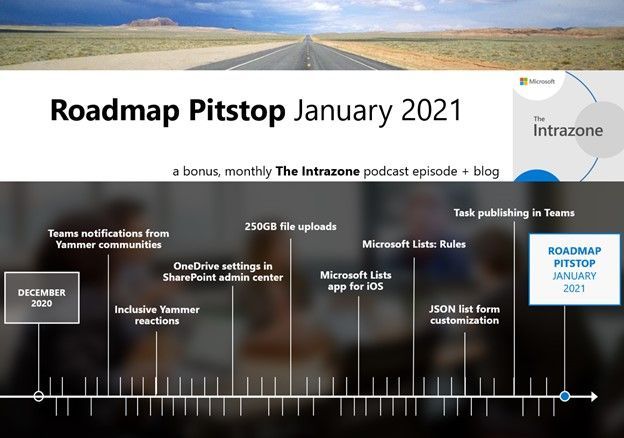 The Intrazone Roadmap Pitstop – January 2021 graphic showing some of the highlighted release features.
Subscribe to The Intrazone at aka.ms/TheIntrazone, or where you get your podcasts (direct links to The Intrazone on various podcast platforms:
And listen and subscribe to other Microsoft podcasts: aka.ms/microsoft/podcasts
 The Intrazone – a Microsoft podcast that covers the Microsoft 365 intelligent intranet: https://aka.ms/TheIntrazone.
by Contributed | Feb 1, 2021 | Technology
This article is contributed. See the original author and article here.
While working remotely, our mobile devices have continued to be our daily companions. As an extension of our desktop screens, our mobile apps enable us to be flexible with our productivity throughout the workday.
With Forms available in the Office app and Teams mobile app, you can quickly create a form or poll to get feedback from your collaborators, customers, or classroom in a variety of scenarios. Here are just three quick tips on how Forms on mobile might work for you throughout the workday.
(1) Follow up on a conversation with a poll in Teams meeting chat
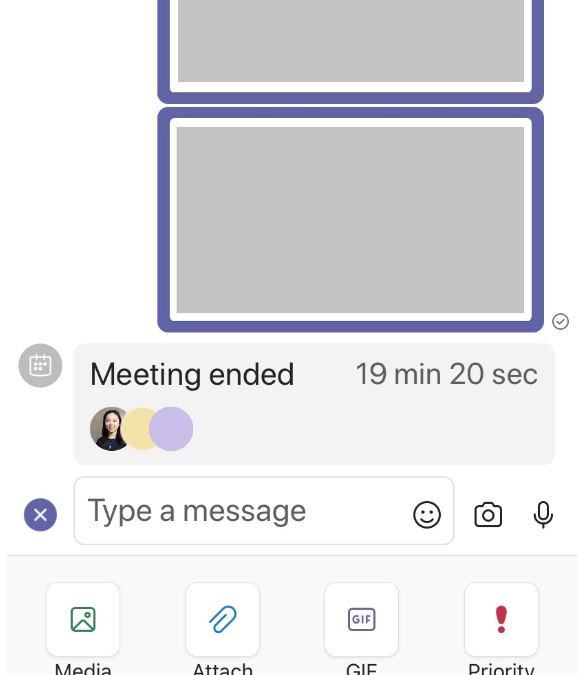
After driving a productive morning meeting, you send a follow-up email or message to continue the collaboration with those who attended. Later, while away from your desktop computer, you remember that you want their perspectives on a particular decision. In this case, you can quickly send a poll in the Teams meeting chat on your phone. Under the “+” button in the chat, tap on the Forms app, after which you can create your one-question poll.
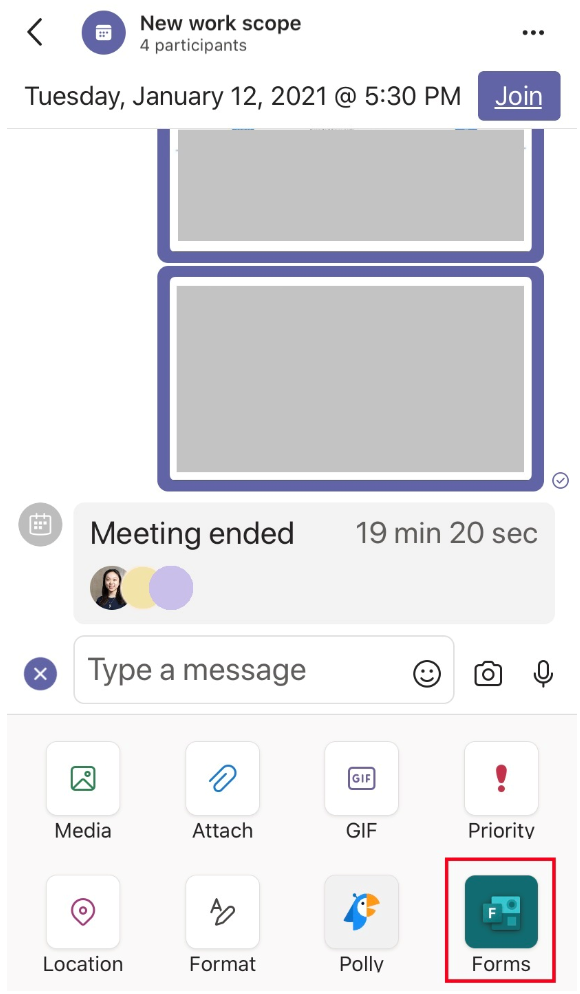 Forms Poll in Teams chat
(2) Engage and remind others with a poll in your Teams channel
Later, while checking your tasks on the Teams mobile app, you are reminded that your department has trainings to complete this week. To quickly check in with others on these trainings, you can create a poll in your Teams channel. You can find the Forms app under the “+” button to the left of the text box when typing a new post or new comment in your Teams channel.
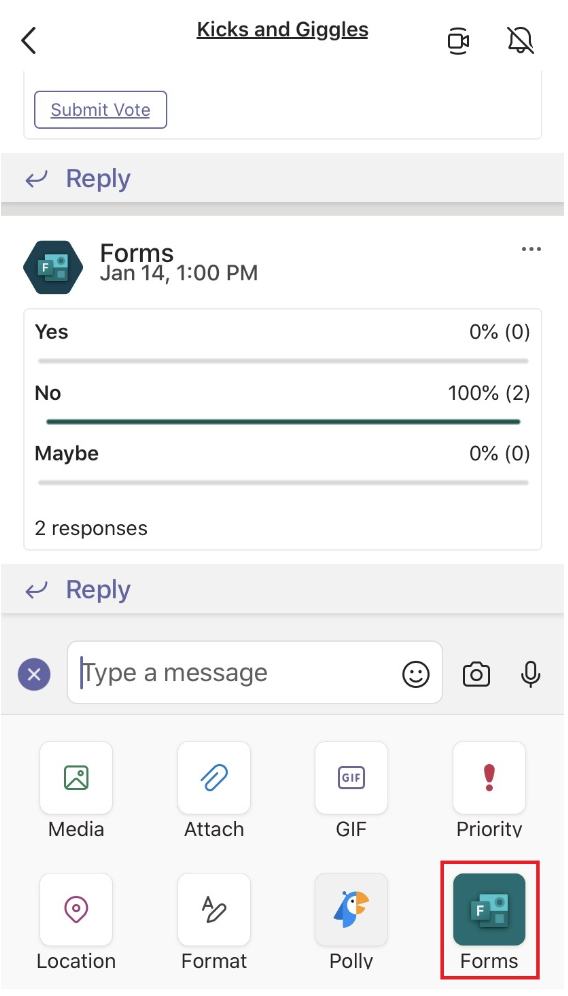 Forms Poll in Teams channel
(3) Tap into intelligence to save time when making a form in the Office app or Teams
After your organization’s monthly all-hands meeting that afternoon, you plan to use a form to gather feedback. You step outside briefly with your phone, during which you can go to the “Actions” pane in your Office app to quickly “Create a Form.” This feedback form to meeting participants can be created and shared via email or Teams in a matter of minutes.
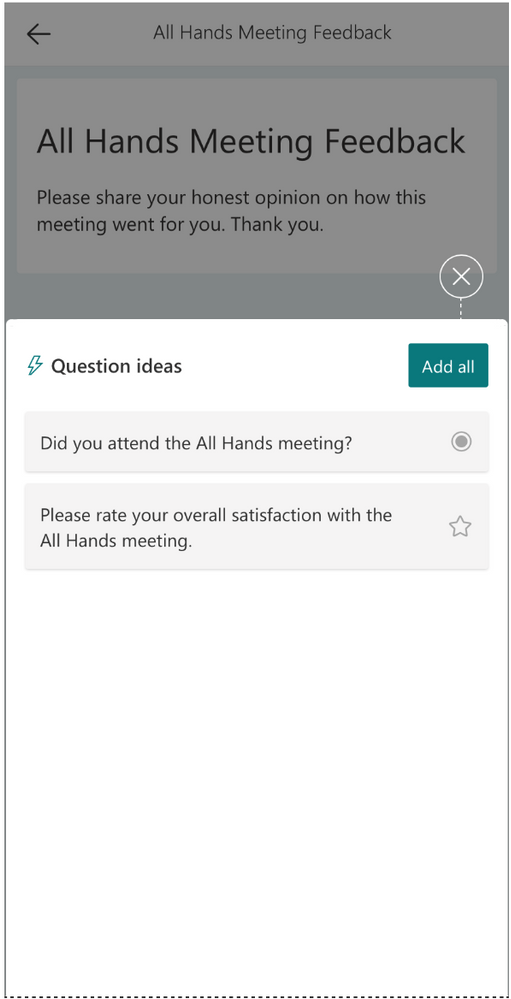 Forms in Office mobile app – intelligence
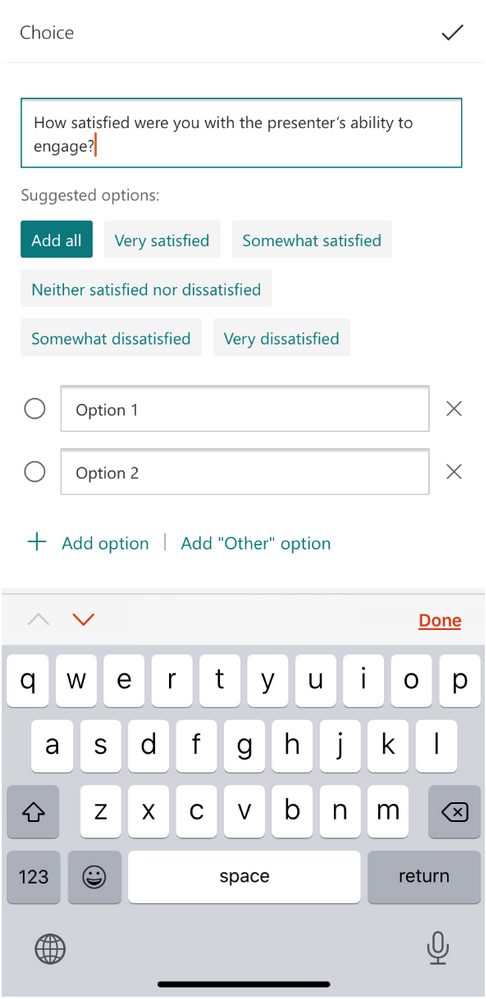 Forms in Office mobile app – intelligence
In this case, Forms’ intelligence was able to not only suggest two questions based on your form title, but also suggest answer choices based on your written question. With remote work sometimes creating challenges around work-life balance, intelligent suggestions can help with reducing time spent on tasks, like creating forms and polls.
Finally, you have your last Teams call of the day—a virtual event planning meeting. With the strength of your Wi-Fi connection waning, you decide to join on your phone. To agree on the best date for the event with the group, you start on a poll in the Teams chat. Midway through typing the question, you discover Forms’ intelligent suggestions, which allows you to send the poll in a few taps.
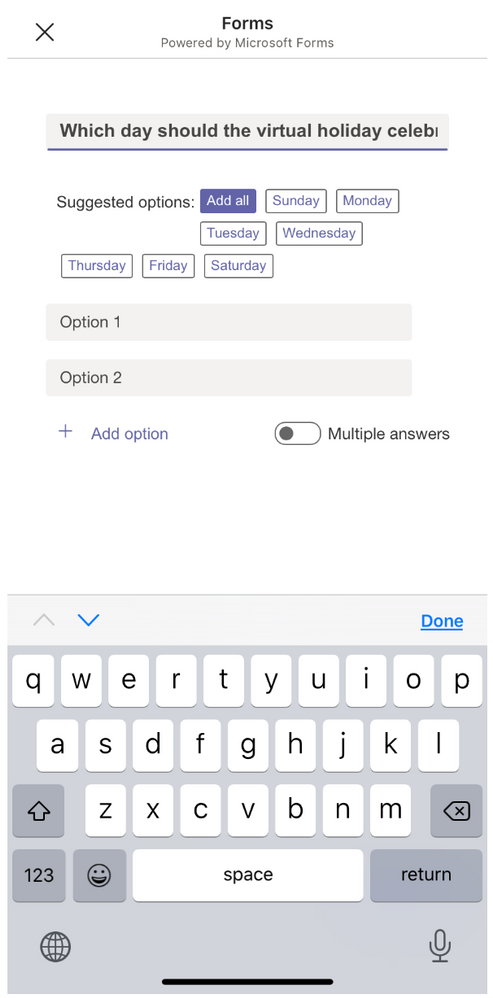 Polls in Teams – Answer Suggestions
(4) Quickly check responses to your previous surveys in the Office app
Let’s say that right after you log off for the day, you realize you want to check if a feedback form you sent to customers last week was getting enough responses. Without needing to go back to your desktop, you quickly check the summary of responses in the Office app. Given that you only received 9 responses so far, you make a task to follow up with a reminder email tomorrow.
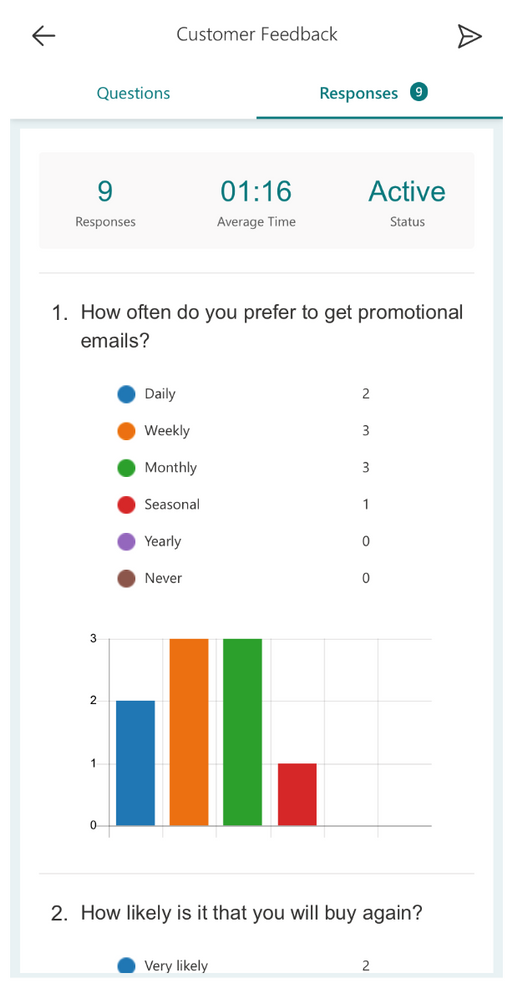 Check Forms responses in Office mobile app
As MVP @DavidBenaim tells us, checking responses to your form doesn’t have to be cumbersome “I find having Forms in the mobile app is amazing,” he says. “It’s actually the primary reason I use the Office mobile app.”
Get Started
Whether you are on-the-go or working from home, creating a form on your mobile device might fall into your workflow. Get started with creating a form on the Office app or a poll in your Teams chat or channel today.
If you had additional questions on Forms, please visit our Support page. You can also watch @Mike Tholfsen‘s video on the Top 25 Tips for Microsoft Forms to strengthen your Forms’ skills. To provide feedback, please visit our Forms UserVoice site. You can also join discussions in the Microsoft Forms Tech Community and follow the Forms Blog to stay updated in the future.
by Contributed | Feb 1, 2021 | Technology
This article is contributed. See the original author and article here.
Hi Folks! I’m Naveen kanneganti and Welcome to my blogpost.
Configmgr has release BitLocker Drive Encryption (BDE) in v1910 for on-premises Windows clients running Windows 10 or Windows 8.1. This feature is optional so, you must enable this feature before using it. Enable co-management and benefit from cloud-based BitLocker management with Microsoft Intune is the best approach. However, there are scenario’s where cloud is not an option and require managing on-premises clients. configmgr gives this capability from V1910 and can replace the use of Microsoft BitLocker Administration and Monitoring (MBAM). This post is intended to give you guidance to implement Configmgr Bitlocker management, monitoring and troubleshooting.
Configmgr will provide the following BitLocker management capabilities:
Client deployment
- Bitlocker client deployment with seamless experience in configmgr console to manage devices running Windows 10 or Windows 8.1
Manage encryption policies
Compliance reports
Built-in reports, currently available are:
- Encryption status per volume or per device
- The primary user of the device
- Compliance status
- Reasons for non-compliance
Administration and monitoring website
- User admins outside of Configmgr console able to help with key recovery including key rotation and other BitLocker-related support
User self-service portal
- Users able to get single-use key for unlocking a BitLocker encrypted device. Once this key is used, it generates a new key for the device.
Deploy and Use Bitlocker
Configmgr 1910 introduce Bitlocker management to manage manage BitLocker Drive Encryption (BDE) for configmgr managed devices.
Prerequisites
- Administrator users require full administrator Role in configmgr to create Bitlocker management policies
- for configmgr 1910 ,Https-enabled management Point is required to integrate Bitlocker recovery service
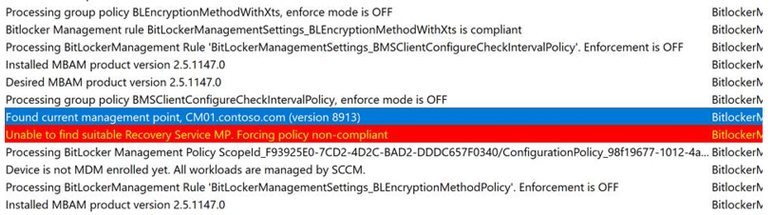
Note: if no HTTPS MP found, client will show “unable to find suitable recovery service MP” in bitlockermanagementhandler.log
- From ConfigMgr 2002 , https Management point is not mandatory to work. however, just HTTPS-enable IIS website on the management point that hosts the recovery service is required
- Client computers need to join on-premises Active directory
- Reporting services point is required to use reports
- IIS server is required to use self-service portal
For more information, please see https://docs.microsoft.com/en-us/configmgr/protect/plan-design/bitlocker-management
Following is the step by step procedure to enable Bitlocker on configmgr Managed Devices
Bitlocker Management Control Policy
- Open the SCCM console
- Go to Assets and ComplianceOverviewEndpoint ProtectionBitLocker Management
- Right-click BitLocker Management and click Create Bitlocker Management Control Policy
- Give the name
- Select Client Management and Operating System Drive and then click Next
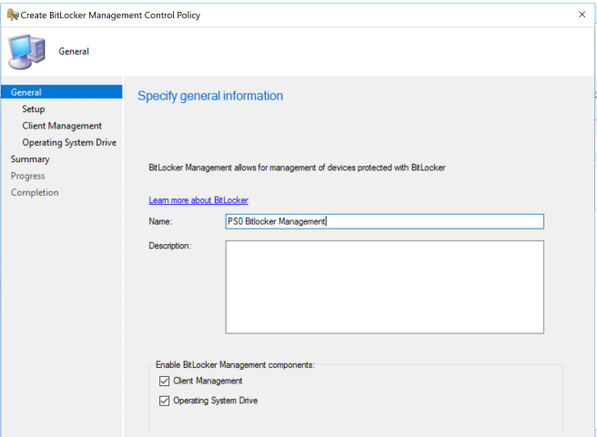
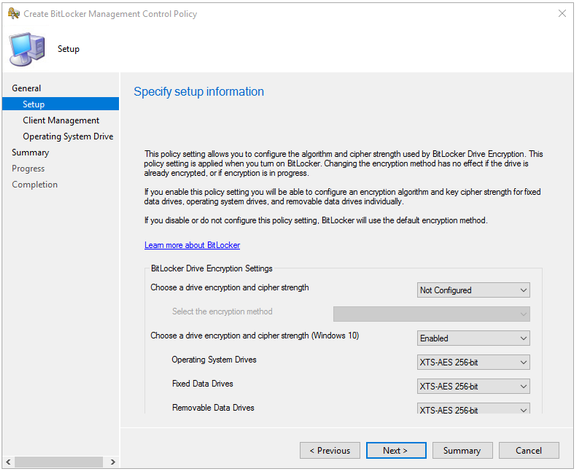
- On the Setup page select desired options as shown below
- Example
- Choose a drive encryption and cipher strength (windows 10): Enabled
- Operating System Drives: XTS-AES 256-bit
- Fixed Data Drives: XTS-AES 256-bit
- Removable Data Drives: XTS-AES 256-bit
- On Client Management page, select desired options as shown below and click Next
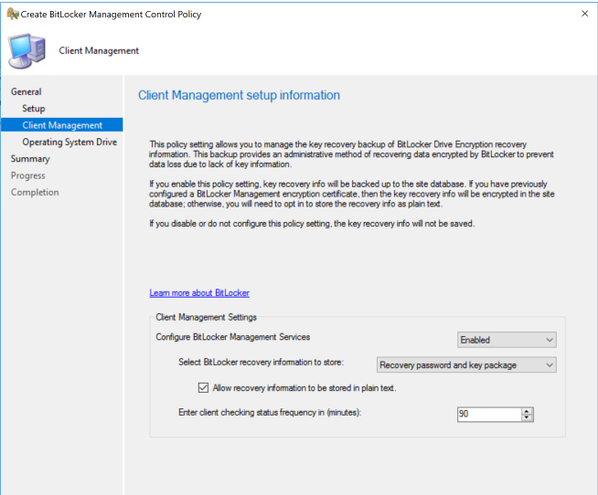
- Example:
- Configure Bitlocker Management Services: Enabled
- Select bitlocker recovery information: Recovery password and key package
- Check the box Allow recovery information to be stored in plain text
- Enter client checking status frequency in (minutes): 90
- On Operating System Drive page, select desired options as shown below and click Next
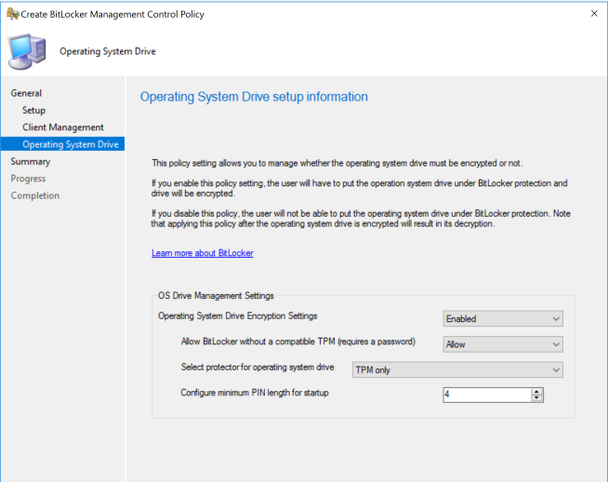
- Example:
- Operating System Drive Encryption Settings: Enabled
- Allow Bitlocker without a compatible TPM (requires a password): Allow
- Select protector for operation system drive: TPM only
- Configure minimum PIN length for startup: 4
- On the Summary Page, review your choices and click Next
- On the Completion Page, close the wizard.
Deploy Bitlocker Management Control Policy
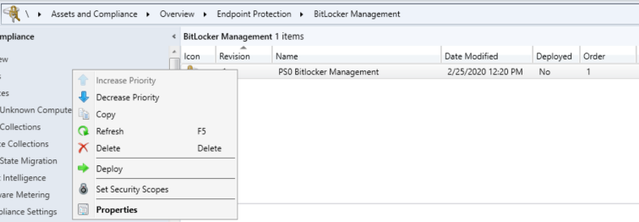
- Right click on created PS0 Bitlocker Management Policy and click Deploy
- Select desired collection and simple schedule
- Click ok
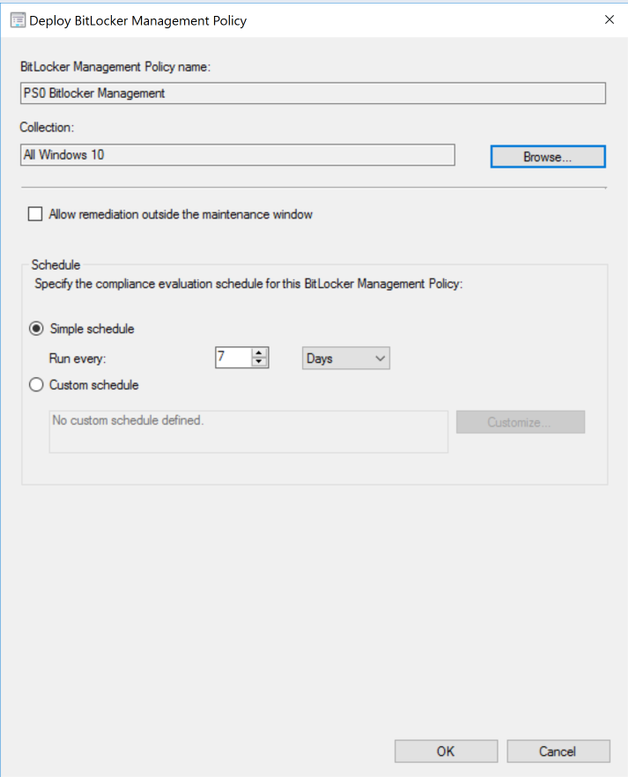
Monitoring
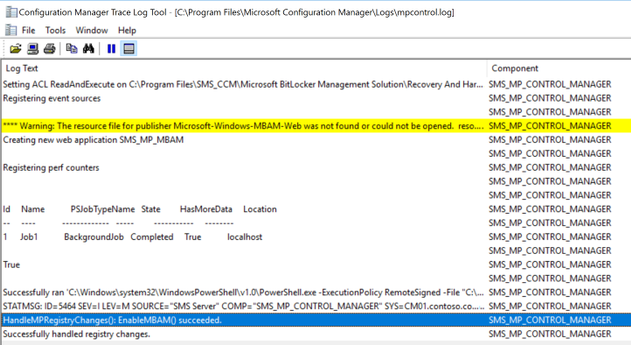
- Monitor the progress at <install location>Logsmpcontrol.log. When completed you’ll have the following lines in the log
Successfully ran ‘C:Windowssystem32WindowsPowerShellv1.0PowerShell.exe -ExecutionPolicy RemoteSigned -File “C:Program FilesMicrosoft Configuration Managerbinx64mbamrecoveryserviceinstaller.ps1″‘. Exit code = 0.
HandleMPRegistryChanges(): EnableMBAM() succeeded.
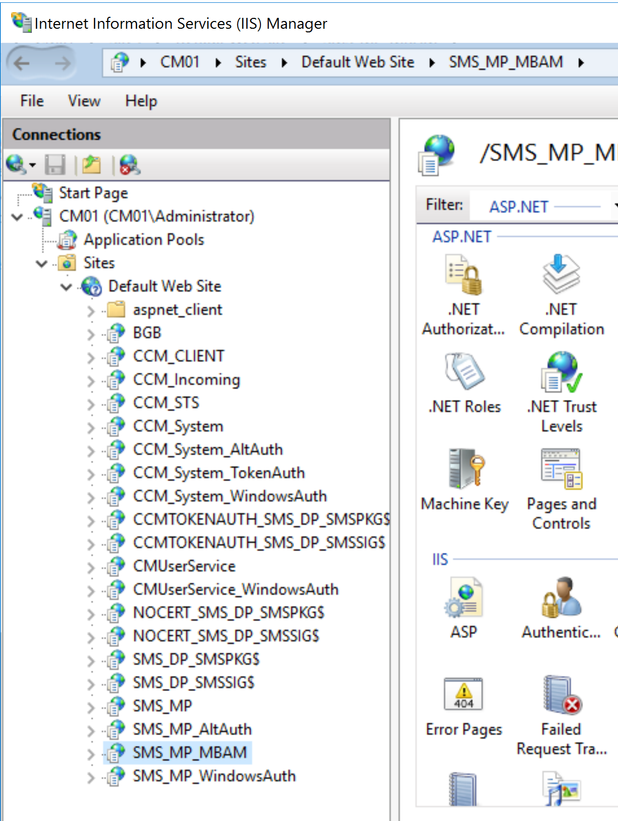
- The following SMS_MP_MBAM service is created in IIS at SitesDefault Web SiteSMS_MP_MBAM
Client
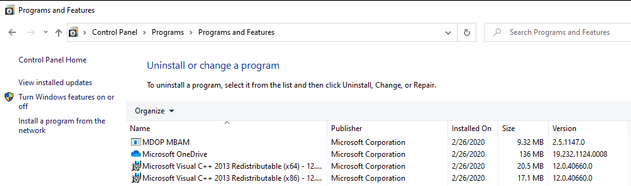
- When the Bitlocker Management Control Policy is deployed successfully, you will see MDOP MABM program installed at Control PanelProgramsPrograms and Features
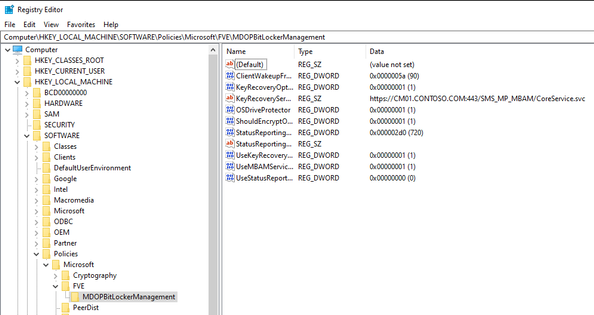
- Reg keys are created as shown below at ComputerHKEY_LOCAL_MACHINESOFTWAREPoliciesMicrosoftFVEMDOPBitLockerManagement
- The following 2 log files are created at c:windowsccmlogs
- BitlockerManagement_GroupPolicyHandler.log
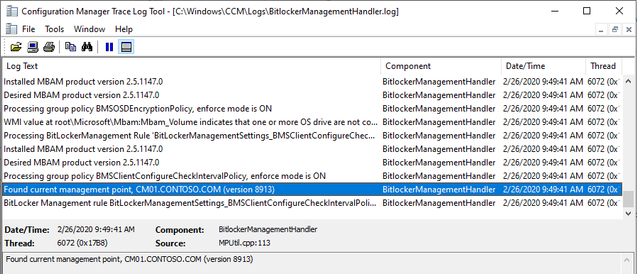
- BitlockerManagementHandler.log

- Check if the client can find Management from BitlockerManagementHandler.log
Bitlocker Encryption on clients
Use Case 1:
When a BitLocker Management policy is deployed to configmgr managed device, a wizard will pop on the device prompting the user to start the bitlocker encryption. This is the recommend and primary method to use. you can also enable BitLocker via Task Sequences or “manually” via manage-bde/scripts.
On a new computer you may run these commands manually or using task sequence during OSD or other methods to enable Bitlocker drive encryption and escrow keys to configmgr. Here is some guidance to help with commands, monitor and troubleshooting
- Run Powershell command gwmi -class mbam_volume -Namespace rootmicrosoftmbam. search for Compliant and ReasonsForNoncompliance
- Note: the codes shown at ReasonsForNoncompliance gives the reasons for non-compliant state which helps during troubleshooting
- Run Powershell command Manage-bde -status and check results as shown below
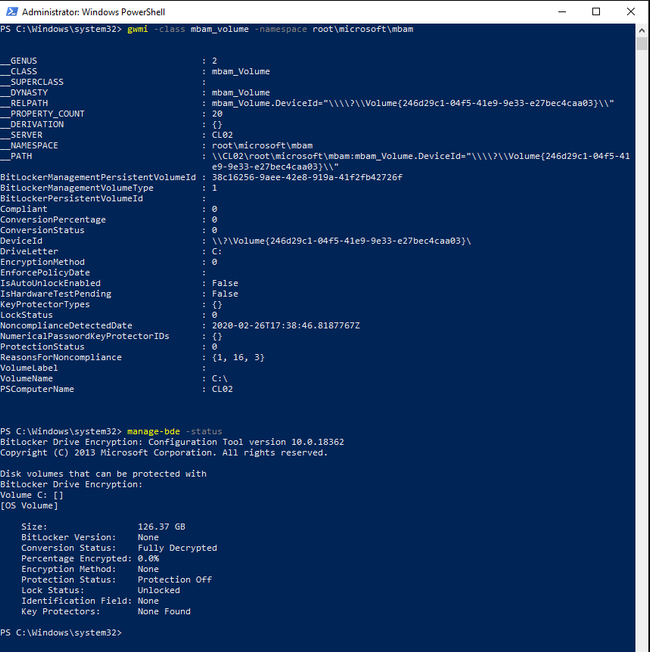
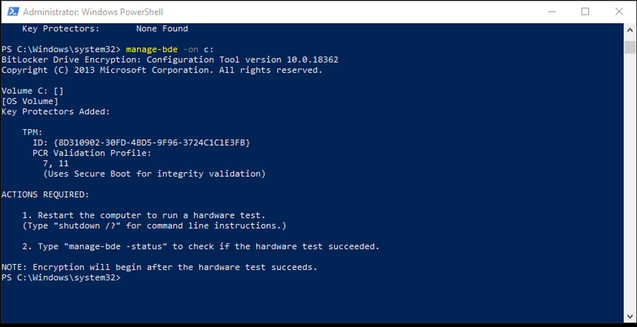
- Run Powershell command Manage-bde -status to check the status of bitlocker drive encryption (BDE)
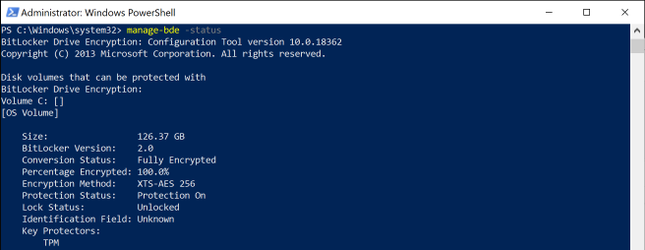
- Run Powershell command gwmi -class mbam_volume -Namespace rootmicrosoftmbam. search for Compliant and ReasonsForNoncompliance
- Note: the codes shown at ReasonsForNoncompliance gives the reasons for non-compliant state which helps during troubleshooting
- In this case:
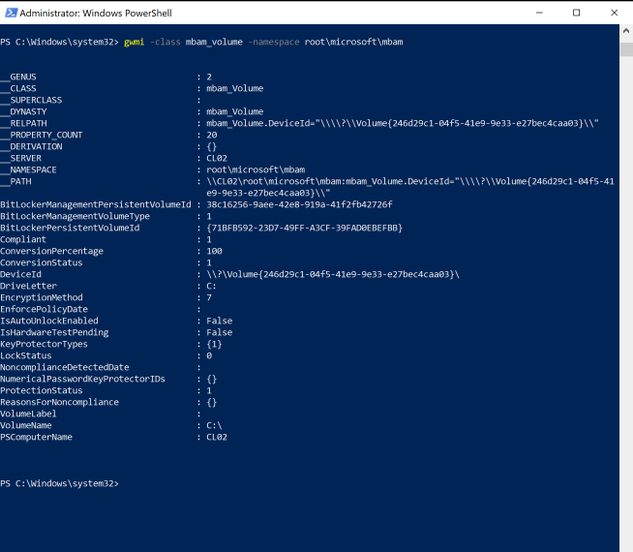
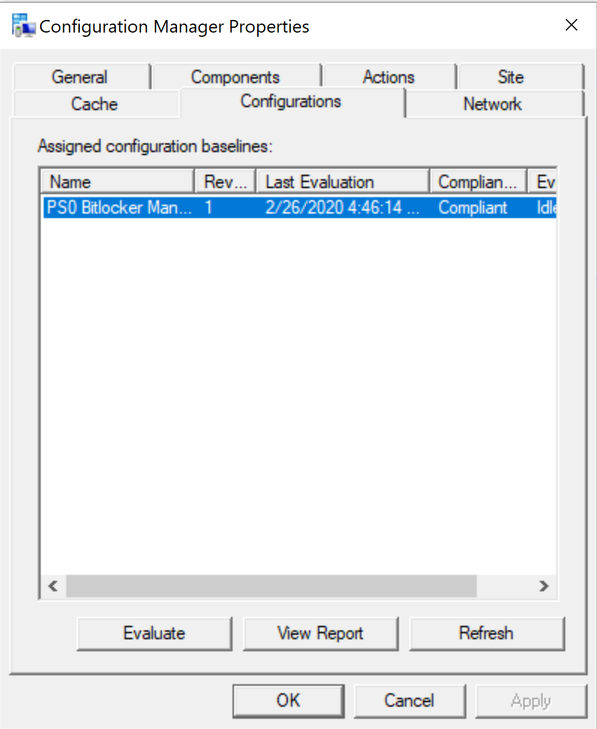
- You can also search Deployed Bitlocker Management Control Policy in configuration manager applet located at Control PanelSystem and Security for Compliant state
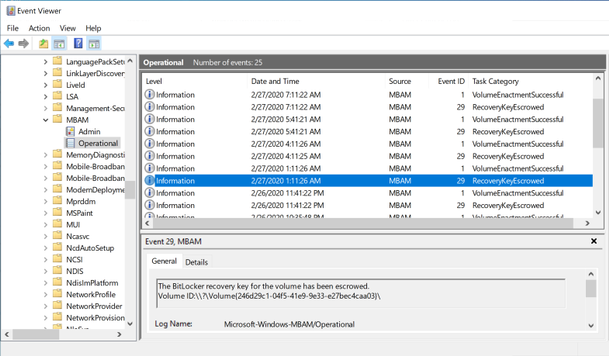
- Check Event Viewer logs in Applications and Services LogsMicrosoftWindowsMBAM for events
Use Case 2:
You may have configmgr managed devices already encrypted and escrowed to active directory. We can deploy configmgr policy and escrow keys to configmgr database. Here is some guidance to help deploy monitor and troubleshoot
- Computer already encrypted and keys are backed with AD as shown below
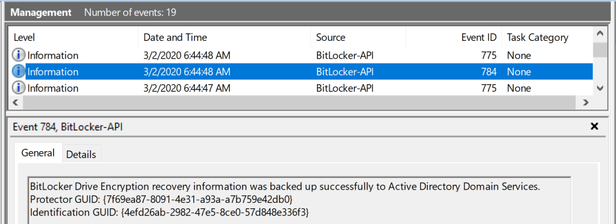
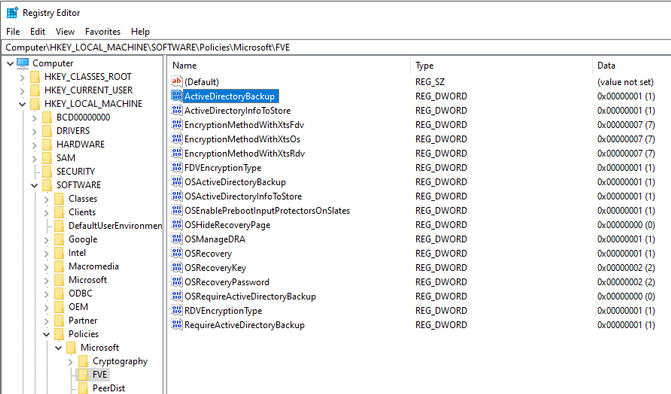
- You can check if recovery backup to active directory is enabled from registry HKLMSoftwarePoliciesMicrosoftFVE as shown below
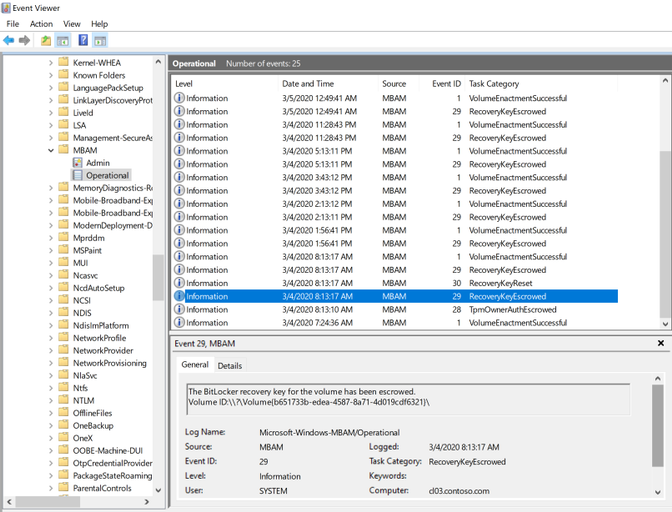
- Add computer to Bitlocker Management Policy deployed collection. refer client section to monitor policy deployment. You can monitor policy escrowed to configmgr on client from Applications and Services LogsMicrosoftWindowsMBAMOperational in event Viewer.
Install and configure BitLocker portals
Prerequisites
- IIS server is required to use self-service portal
- Microsoft ASP.NET MVC 4.0 is required to install on same IIS server hosting self-service portal
- Sysadmin rights on SQL is required for the account used to run scripts to install self-service portal
For more information, please see https://docs.microsoft.com/en-us/configmgr/protect/plan-design/bitlocker-management
Note: in V1910 install Portals on Primary site. In a hierarchy having CAS, install portals on Primary sites
Install Portals
- Copy the files MBAMWebSiteInstaller.ps1 and MBAMWebsite.cab from configmgr installation folder cd.latestSMSSETUPBINX64
Note: in V190 these files are already available at configmgr installation folder cd.latestSMSSETUPBINX64
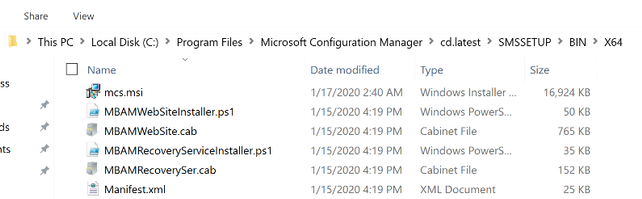
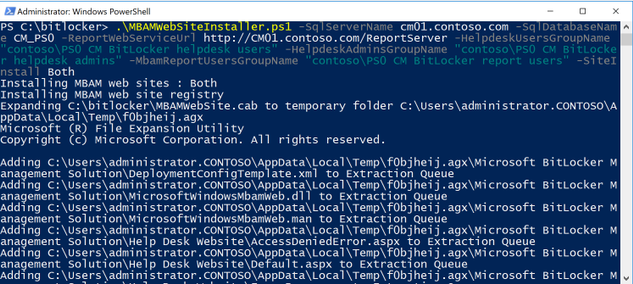
- Run the PowerShell command from the folder having MBAMWebSiteInstaller.ps1 and MBAMWebsite.cab files.
.MBAMWebSiteInstaller.ps1 -SqlServerName cm01.contoso.com -SqlDatabaseName CM_PS0 -ReportWebServiceUrl http://CM01.contoso.com/ReportServer -HelpdeskUsersGroupName “contosoPS0 CM BitLocker helpdesk users” -HelpdeskAdminsGroupName “contosoPS0 CM BitLocker helpdesk admins” -MbamReportUsersGroupName “contosoPS0 CM BitLocker report users” -SiteInstall Both
[For more information on script usage, please see https://docs.microsoft.com/en-us/configmgr/protect/deploy-use/bitlocker/setup-websites ]
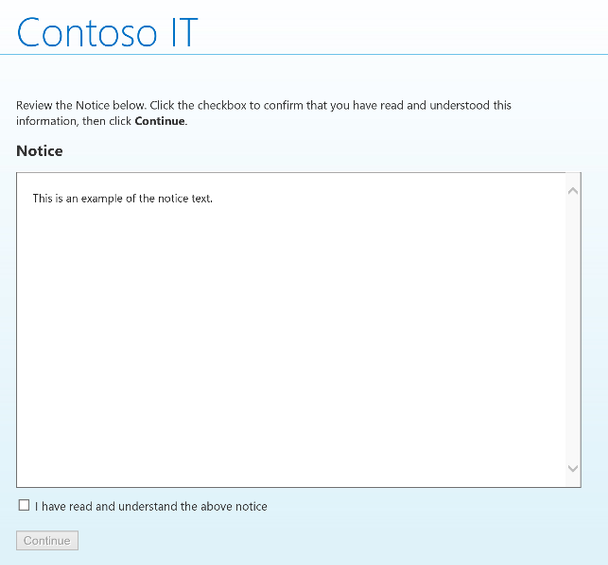
- Access the self-service portal via URL https:// [webserver FQDN]/SelfService
Ex: https://cm01.contoso.com/selfservice/
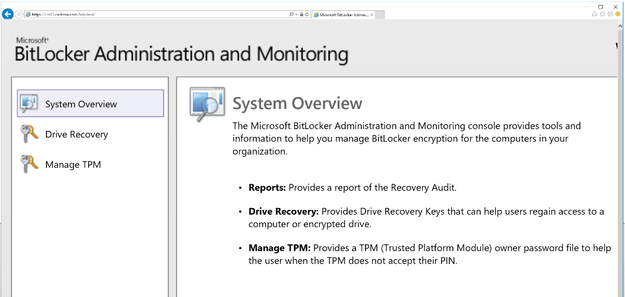
- Access Administration and monitoring portal via URL https:// [webserver FQDN]/helpdesk
Ex: https://cm01.contoso.com/helpdesk/
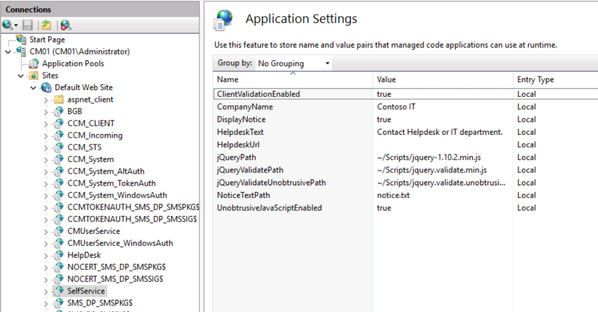
- After installation of self-service portal, you can customize portal. Go to Sites>Default Web Site>SelfService node. In the details pane, ASP.NET group, click Application Settings.
- CompanyName = The organization name displays in self-service portal
- DisplayNotice = notice that the user has to acknowledge in self-service portal
- HelpdeskText = helpdesk contact info
- HelpdeskUrl = The link for the HelpdeskText string.
- NoticeTextPath = The text of the initial notice that the user requires to acknowledge. By default, the full file path on the web server is C:inetpubMicrosoft BitLocker Management SolutionSelf Service WebsiteNotice.txt. Edit and save the file in a plain text editor.
Administration and monitoring Portal
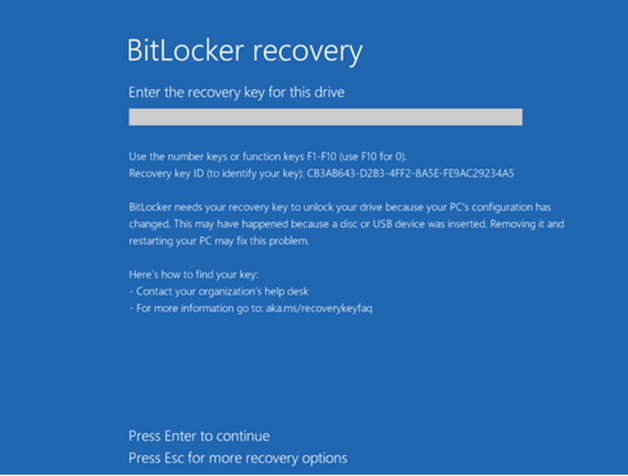
- At Bitlocker recovery screen, note first 8 characters of recovery Key ID
Ex: CB3AB643
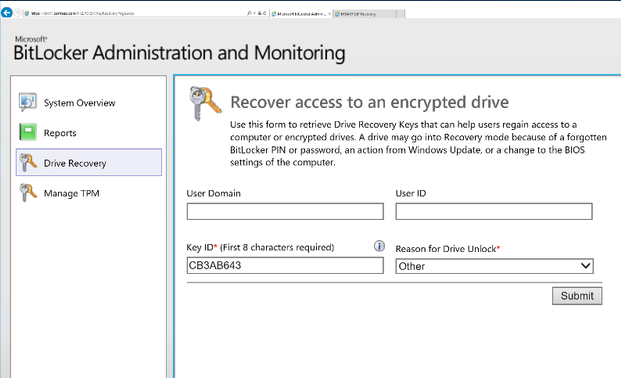
- Logon to Administration and monitoring website via URL https:// [webserver FQDN]/helpdesk. Give User Domain, User ID, first 8 characters of recovery Key ID (Ex: CB3AB643) and Reason for Drive Unlock. click Submit.
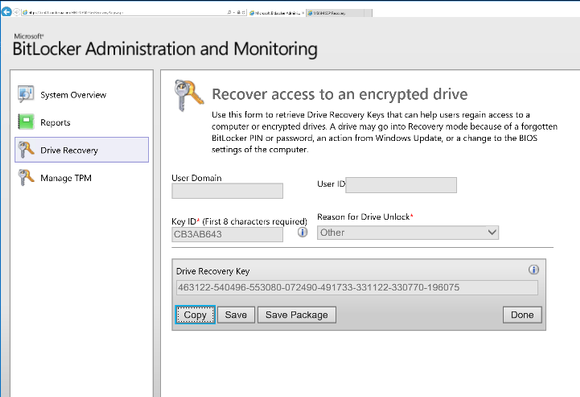
- Copy the Drive Recovery Key
- Give the recovery key from previous step then press enter
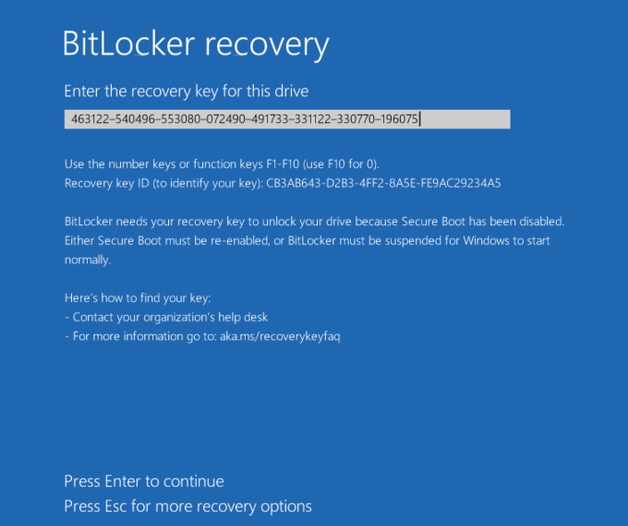
- Continue to Windows log in screen
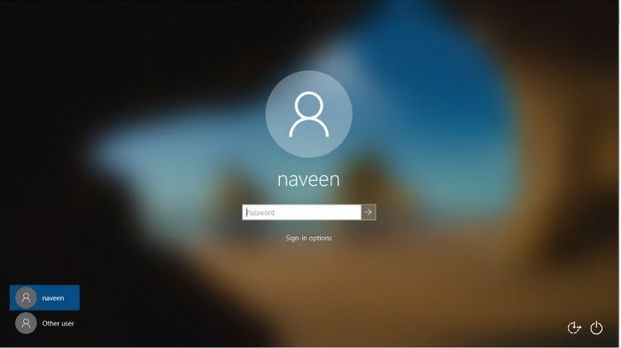
Self-service portal
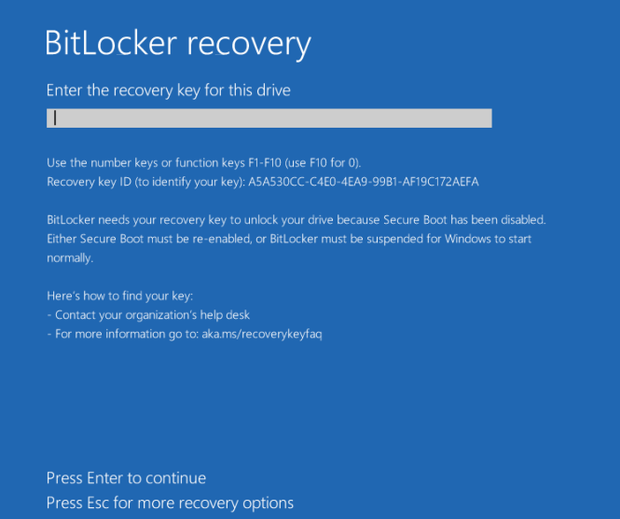
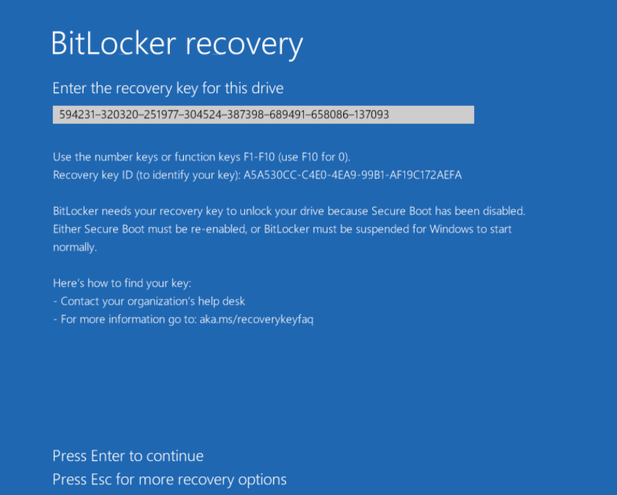
- At Bitlocker recovery screen, note first 8 characters of recovery Key ID
Ex: A5A530CC
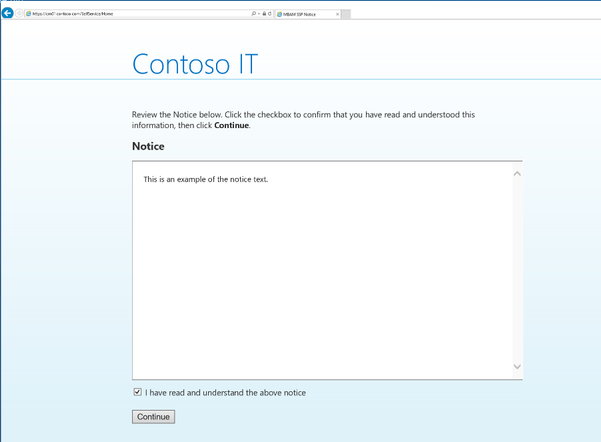
- Log on to the self-service portal via URL https://[webserver FQDN ]/SelfService using User credentials of the computer from another device. Check the box “I have read and understand the above notice” and click continue
Ex: https://cm01.contoso.com/selfservice/
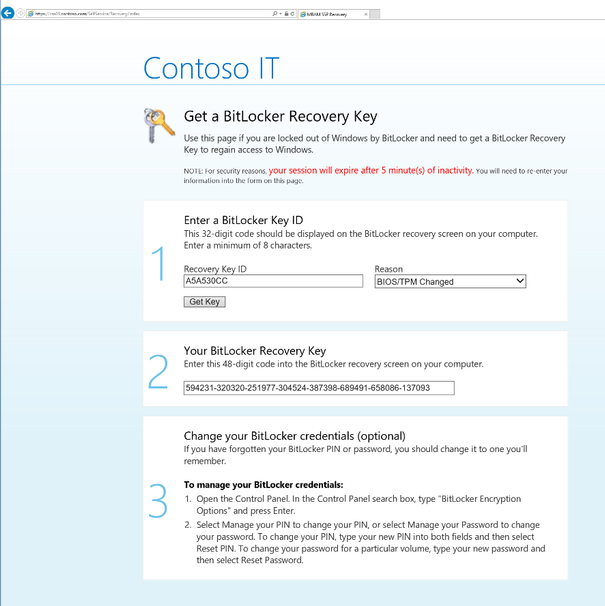
- Give the Recovery Key ID (ex: A5A530CC) and select a Reason from drop down menu. Click Get Key and then Copy the Bitlocker recovery key generated
- Give the recovery key from previous step then press enter
- Continue to Windows log in screen
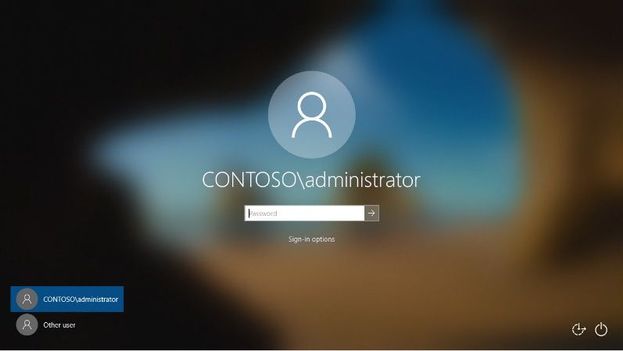
Hope this step by step process and Monitoring helps in deployment and troubleshooting!
If you are looking to manage BitLocker from Azure please check URL : https://techcommunity.microsoft.com/t5/core-infrastructure-and-security/bitlocker-intune-and-raven/ba-p/1048033
Best Regards
Naveen Kanneganti
Premier Field Engineer
Microsoft Services

by Contributed | Feb 1, 2021 | Technology
This article is contributed. See the original author and article here.
Qualification Limit for REORGANIZE to remove deleted rows from a rowgroup in Columnstore Index:
By default when one runs ALTER INDEX REORGANIZE the qualifying limit to remove delete rows from a rowgroup is –> the specific rowgroup have 10% of the max possible rows in a rowgroup deleted.
As the max possible rows in a row group is 1M rows, the qualification limit is that we need to have 100K rows deleted in a row group for the Reorganize to remove them from the Rowgroup.
From <https://docs.microsoft.com/en-us/sql/relational-databases/indexes/reorganize-and-rebuild-indexes?view=sql-server-ver15#defragmenting-indexes-by-rebuilding-or-reorganizing-the-index>
This threshold limit has few concerns
- for few groups which are of full size of 1M rows, reaching 100K deleted rows may take a long time and until then the deleted rows are not cleared.
- For smaller rowgroups, the percentage of deleted rows will be huge but still the deleted rows will not be considered done.
New Trace flags from SQL 2019 CU9:
From SQL 2019 CU9 we have introduced 2 new trace flags for better management of the deleted rows.
Trace flag 11631 –> will not use the ~1M rows to calculate the 10%, but rather it will use the actual no of rows in a rowgroup.
Therefore if your rowgroup has only 20k rows, the limit comes to 10% of 20K i.e to 2K deleted rows , so if have >= 2k rows deleted REORG will qualify this rowgroup for cleanup of deleted eows
Trace flag 11634 –> will bring down the Percentage of deleted rows limit from 10% to 1%.
For example,
drop table TABLE1
–> create table
create table TABLE1
(
roll int,
Name char(10)
)
–>insert 5K rows
declare @i int
set @i=0;
while (@i<5000)
begin
insert into TABLE1 values (@i,‘test’);
set @i=@i+1;
end
–> Create a columnstore index
CREATE CLUSTERED COLUMNSTORE INDEX [TABLE1_CCIindex] ON dbo.TABLE1 WITH (DROP_EXISTING = OFF)
GO
–> Delte 3.5K rows (70% rows)
delete from TABLE1 where roll<3500
–> checking rowgroup properies
SELECT rg.total_rows,
cast(100.0*(total_rows – ISNULL(deleted_rows,0))/iif(total_rows = 0, 1, total_rows) as Decimal(6,3)) AS PercentFull,
100–cast(100.0*(total_rows – ISNULL(deleted_rows,0))/iif(total_rows = 0, 1, total_rows) as Decimal(6,3)) as PercentDeleted,
i.object_id, object_name(i.object_id) AS TableName,
i.name AS IndexName, i.index_id, i.type_desc,
rg.*
FROM sys.indexes AS i
INNEr JOIN sys.column_store_row_groups AS rg
ON i.object_id = rg.object_id
AND i.index_id = rg.index_id
WHERE object_name(i.object_id) = ‘TABLE1’
ORDER BY object_name(i.object_id), i.name, row_group_id;
–> Even though 70% of the rows are deleted, the REORGANIZE won’t consider this rowgroup for cleanup of the deleted rows.
ALTER INDEX [TABLE1_CCIindex] ON dbo.TABLE1 REORGANIZE à has no affect and the deleted rows wont be cleared

So when I enable the Trace flags
dbcc traceon(11631,-1) –> The threshold limit is now calculated for the 5K rows but not 1M rows. i.e So the limit comes down to 10% of 5K i.e >= 500 deleted rows.
dbcc traceon(11634,-1) –> Brings down the threshold limit further from 10% to 1% i.e from 500 to 50 deleted rows.
Now after the Trace flags are enabled, when we run the
ALTER INDEX [TABLE1_CCIindex] ON dbo.TABLE1 REORGANIZE –> effectively cleans up the deleted rows
Thanks,
Hemanth Tarra @ SQL Engine Escalation team
by Scott Muniz | Feb 1, 2021 | Security
This article was originally posted by the FTC. See the original article here.
The challenges that COVID-19 has brought include a higher risk of identity theft. In 2020, the FTC got about 1.4 million reports of identity theft, double the number from 2019. Repeatedly, identity thieves targeted government funds earmarked to help people hard hit financially by the pandemic. Join us for Identity Theft Awareness Week, February 1-5. Learn about protecting yourself from identity theft, and recovering if it happens to you .
.
The FTC and its partners will co-host a series of free events. Among them, a webinar with the Identity Theft Resource Center (ITRC), and a Facebook Live event where experts from the AARP Fraud Watch Network and the FTC will take your questions. Visit ftc.gov/IDtheftweek to learn more.
2020’s biggest surge in identity theft reports to the FTC related to the nationwide dip in employment. After the government expanded unemployment benefits to people left jobless by the pandemic, cybercriminals filed unemployment claims using other people’s personal information. In 2020, we had 394,280 reports about government benefits fraud — overwhelmingly about identity theft involving unemployment benefits. Compare that with 12,900 reports in 2019.
People also reported identity theft in which criminals used their business or personal information to get money from government-sponsored small business loan programs. Last year, we had 99,650 reports of fraud involving business or personal loans, compared with 43,920 reports in 2019. Not all of the new reports related to the government relief effort, but they were a big share of the increase.
People told us about identity theft involving their federal stimulus payments from the IRS by reporting it as tax identity theft. In 2020, the FTC got 89,390 reports of tax identity theft, compared with 27,450 reports in 2019. While many of the reports concerned other types of tax identity theft, the report numbers began to swell when distribution of the stimulus payments began.
Join us for Identity Theft Awareness Week to learn more about identity theft during the pandemic.
Brought to you by Dr. Ware, Microsoft Office 365 Silver Partner, Charleston SC.


Recent Comments