by Contributed | Feb 11, 2021 | Technology
This article is contributed. See the original author and article here.
With the release of version 1.5.1 Bluetooth Test Platform (BTP) software package, we added support for Bluetooth Virtual Sniffer (BTVS) a graphical tool that enables developers to collect the HCI packets between Windows and the Bluetooth radio controller. Developers can then view them live in a supported packet analyzer tool either running locally on their test machine or connected over IP. The currently supported packet analyzer formats are: Wireshark, Ellisys Bluetooth Analyzer, and Frontline Protocol Analysis System .
You can see the attached video and links below for more details on how you can use BTVS:
by Contributed | Feb 11, 2021 | Technology
This article is contributed. See the original author and article here.
The Cybersecurity Maturity Model Certification (CMMC) is a set of certification standards produced by the United States Department of Defense and intended to serve as a verification mechanism to ensure that companies bidding on defense contracts have appropriate levels of cybersecurity practices and processes in place. The CMMC is a unified standard for implementing cybersecurity across the defense industrial base (DIB). The CMMC is the DoD’s response to significant compromises of sensitive defense information located on contractors’ information systems.
Of particular interest is the following requirement:
CMMC – Level 3 – IA.3.083 (NIST 800-171r2 3.5.3) – Use multifactor authentication for local and network access to privileged accounts and for network access to non-privileged accounts.
- Local Access – Access to an organizational information system by a user (or process acting on behalf of a user) communicating through a direct connection without the use of a network.
- Network Access – Access to an information system by a user (or a process acting on behalf of a user) communicating through a network (e.g., local area network, wide area network, Internet).
- Privileged User – A user that is authorized (and therefore, trusted) to perform security-relevant functions that ordinary users are not authorized to perform.
Breaking down the above requirement means the following:
- All users are required MFA for network/remote access.
- Only privileged users are required MFA for local access (if regular user accounts have administrative rights only on their computers, they are not considered a “privileged account” and as such do not require MFA authentication for local access).
Why Windows Hello for Business is a viable MFA authenticator
Windows Hello for Business provides authentication methods intended to replace passwords, which can be difficult to remember and easily compromised. The Windows Hello provisioning process creates a cryptographic key pair bound to the Trusted Platform Module (TPM) and combines it with additional information to authenticate users. The additional information the user supplies is the activation factor for Windows Hello for Business and can be a PIN value (“something you know”) or, if the system has the necessary hardware, biometric information, such as fingerprint or facial recognition (“something you are”). The TPM constitutes the “something you have” factor for the purpose of MFA. Learn more about How Windows Hello for Business uses the TPM.
The idea of TPM as a valid “something you have” factor is not new, and addressed by NIST 800-63B Section 5.1.9.1 back in December 2017 (as captured in the errata) where a TPM is recognized as a hardware cryptographic authenticator. Multi-factor cryptographic device authenticators use tamper-resistant hardware to encapsulate one or more secret keys unique to the authenticator and accessible only through the input of an additional factor, either a memorized secret or a biometric. The authenticator operates by using a private key that was unlocked by the additional factor to sign a challenge nonce presented through a direct computer interface (e.g., a USB port). Alternatively, the authenticator could be a suitably secure processor integrated with the user endpoint itself (e.g., a hardware TPM).
Configuring Windows Hello in a way that adheres to NIST guidance
Now that we unveiled the mystery behind CMMC – Level 3 – IA.3.083 requirement and explained why Windows Hello for Business is a viable MFA authenticator, let us make sure it is configured in a way that adheres to NIST guidance and provides the required strength:
- To adhere to NIST 800-63B Section 5.1.2.2 requirements of activation factor (PIN) at least 8 characters long, configure minimum PIN length Group Policy setting for PIN Complexity to be at least 8 characters (no complexity rules are required, PIN can be digits only).
- Make sure Windows Hello for Business cryptographic key are protected using a tamper-resistant hardware by enabling use a hardware security device Group Policy setting for Windows Hello for Business.
- For securing privileged access, restrict privileged users to only access from secure workstations and require MFA for sign-in:
For those who still do not accept TPM as “something you have” factor for local accesses (sign-in to the endpoint) or for those seeking additional risk mitigation, an alternative option is using FIDO2 keys or smart cards.
Additional resources
Achieving National Institute of Standards and Technology Authenticator Assurance Levels with the Microsoft Identity Platform
About the author
@Ehud_Itshaki is a Principal Program Manager in the Azure Active Directory Customer Success Team. Currently he is focused on regulatory issues for highly regulated industries and Government. Areas of focus include but are not limited to NIST, FedRAMP, DoD SRG, CMMC, CJIS, IRS 1075, EPCS, etc.
by Contributed | Feb 11, 2021 | Technology
This article is contributed. See the original author and article here.
Overview
Businesses today are applying Optical Character Recognition (OCR) and document AI technologies to rapidly convert their large troves of documents and images into actionable insights. These insights power robotic process automation (RPA), knowledge mining, and industry-specific solutions. However, there are several challenges to successfully implementing these scenarios at scale.
The challenge
Your customers are global, and their content is global so your systems should also speak and read international languages. Nothing is more frustrating than not reaching your global customers due to lack of support for their native languages.
Secondly, your documents are large, with potentially hundreds and even thousands of pages. To complicate things, they have print and handwritten style text mixed into the same documents. To make matters worse, they have multiple languages in the same document, possibly even in the same line.
Thirdly, you are a business that’s trusted by your customers to protect their data and information. If your customers are in industries such as healthcare, insurance, banking, and finance, you have stringent data privacy and security needs. You need the flexibility to deploy your solutions on the world’s most trusted cloud or on-premise within your environment.
Finally, you should not have to choose between world-class AI quality, world languages support, and deployment on cloud or on-premise.
Computer Vision OCR (Read API)
Microsoft’s Computer Vision OCR (Read) technology is available as a Cognitive Services Cloud API and as Docker containers. Customers use it in diverse scenarios on the cloud and within their networks to help automate image and document processing.
What’s New
We are announcing Computer Vision’s Read API v3.2 public preview as a cloud service and Docker container. It includes the following updates:
- OCR for 73 languages including Simplified and Traditional Chinese, Japanese, Korean, and several Latin languages.
- Natural reading order for the text line output.
- Handwriting style classification for text lines.
- Text extraction for selected pages for a multi-page document.
- Available as a Distroless container for on-premise deployment.
First wave of language expansion
With the latest Read preview version, we are announcing OCR support for 73 languages, including Chinese Simplified, Chinese Traditional, Japanese, Korean, and several Latin languages, a 10x increase from the Read 3.1 GA version.
Thanks to Read’s universal model, to extract the text in these languages, use the Read API call without the optional language parameter. We recommend not using the language parameter if you are unsure of the language of the input document or image at run time.
The latest Read preview supports the following languages:
English
French
Italian
German
Spanish
Portuguese
Dutch
Chinese Simplified
Chinese Traditional
Japanese
Korean
Czech
Hungarian
Polish
Swedish
Turkish
Danish
Norwegian
|
Cebuano
Fijian
Swahili (Latin)
Uzbek (Latin)
Zulu
Afrikaans
Albanian
Indonesian
Malay (Latin script)
Filipino
Catalan
Galician
Basque
Haitian Creole
Irish
Javanese
Scottish Gaelic
Scots
Romansh
|
Luxembourgish
Occitan
Breton
Asturian
Neapolitan
Western Frisian
Corsican
Friulian
Manx
Kara-Kalpak
Gilbertese
Bislama
Kachin (Latin script)
Khasi
Hani
Greenlandic
Tetum
Zhuang
|
Volapük
Interlingua
Kabuverdianu
Cornish
Hmong Daw (Latin)
Inuktitut (Latin)
K’iche’
Yucatec Maya
Estonian
Finnish
Slovenian
Kashubian
Kurdish (Latin)
Tatar (Latin)
Crimean Tatar (Latin)
Chamorro
Upper Sorbian
Walser
|
For example, once you have created a Computer Vision resource, the following curl code will call the Read 3.2 preview with the sample image.
Make the following changes in the command where needed:
- Replace the value of
<subscriptionKey> with your subscription key.
- Replace the first part of the request URL (
westcentralus) with the text in your own endpoint URL.
curl -v -X POST "https://westcentralus.api.cognitive.microsoft.com/vision/v3.2-preview.2/read/analyze" -H "Content-Type: application/json" -H "Ocp-Apim-Subscription-Key: <subscription key>" --data-ascii "{"url":"https://upload.wikimedia.org/wikipedia/commons/thumb/a/af/Atomist_quote_from_Democritus.png/338px-Atomist_quote_from_Democritus.png"}"
The response will include an Operation-Location header, whose value is a unique URL. You use this URL to query the results of the Read operation. The URL expires in 48 hours.
curl -v -X GET "https://westcentralus.api.cognitive.microsoft.com/vision/v3.2-preview.2/read/analyzeResults/{operationId}" -H "Ocp-Apim-Subscription-Key: {subscription key}" --data-ascii "{body}"
Natural reading order output
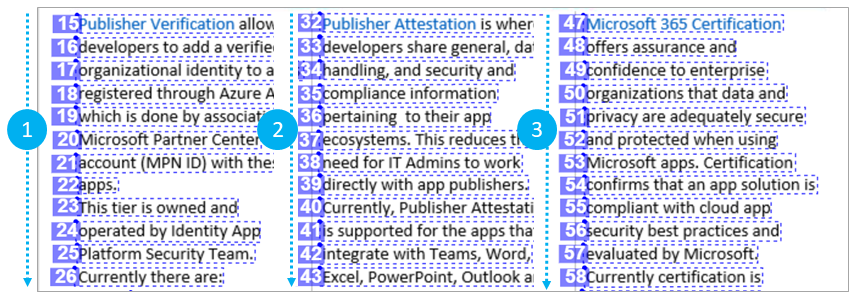
OCR services typically output text in a certain order in their output. With the new Read preview, choose to get the text lines in the natural reading order instead of the default left to right and top to bottom ordering. Use the new readingOrder query parameter with the “natural” value for a more human-friendly reading order output as shown in the following example.
The following visualization of the JSON formatted service response shows the text line order for the same document. Note the first column’s text lines output in order before listing the second column and finally the third column.
OCR Read order example
For example, the following curl code sample calls the Read 3.2 preview to analyze the sample newsletter image and output a natural reading order for the extracted text lines.
curl -v -X POST "https://westcentralus.api.cognitive.microsoft.com/vision/v3.2-preview.2/read/analyze?readingOrder=natural -H "Content-Type: application/json" -H "Ocp-Apim-Subscription-Key: <subscription key>" --data-ascii "{"url":"https://docs.microsoft.com/en-us/microsoft-365-app-certification/media/dec01.png"}"
The response will include an Operation-Location header, whose value is a unique URL. You use this URL to query the results of the Read operation.
curl -v -X GET "https://westcentralus.api.cognitive.microsoft.com/vision/v3.2-preview.2/read/analyzeResults/{operationId}" -H "Ocp-Apim-Subscription-Key: {subscription key}" --data-ascii "{body}"
Handwriting style classification
When you apply OCR on business forms and applications, it’s useful to know which parts of the form has handwritten text in them so that they can be handled differently. For example, comments and the signature areas of agreements typically contain handwritten text. With the latest Read preview, the service will classify English and Latin languages-only text lines as handwritten style or not along with a confidence score.
For example, in the following image, you see the appearance object in the JSON response with the style classified as handwriting along with a confidence score.
 OCR handwriting style classification for text lines
The following code analyzes the sample handwritten image with the Read 3.2 preview.
curl -v -X POST "https://westcentralus.api.cognitive.microsoft.com/vision/v3.2-preview.2/read/analyze -H "Content-Type: application/json" -H "Ocp-Apim-Subscription-Key: <subscription key>" --data-ascii "{"url":"https://intelligentkioskstore.blob.core.windows.net/visionapi/suggestedphotos/2.png"}"
The response will include an Operation-Location header, whose value is a unique URL. You use this URL to query the results of the Read operation.
curl -v -X GET "https://westcentralus.api.cognitive.microsoft.com/vision/v3.2-preview.2/read/analyzeResults/{operationId}" -H "Ocp-Apim-Subscription-Key: {subscription key}" --data-ascii "{body}"
Extract text from select pages of a document
Many standard business forms have fillable sections followed by long informational sections that are identical between documents, and versions of those documents. At other times, you will be interested in applying OCR to specific pages of interest for business-specific reasons.
The following curl code sample calls the Read 3.2 preview to analyze the financial report PDF document with the pages input parameter set to the page range, “3-5”.
curl -v -X POST "https://westcentralus.api.cognitive.microsoft.com/vision/v3.2-preview.2/read/analyze?pages=3-5 -H "Content-Type: application/json" -H "Ocp-Apim-Subscription-Key: <subscription key>" --data-ascii "{"url":"https://www.annualreports.com/HostedData/AnnualReports/PDF/NASDAQ_MSFT_2019.pdf"}"
The response will include an Operation-Location header, whose value is a unique URL. You use this URL to query the results of the Read operation.
curl -v -X GET "https://westcentralus.api.cognitive.microsoft.com/vision/v3.2-preview.2/read/analyzeResults/{operationId}" -H "Ocp-Apim-Subscription-Key: {subscription key}" --data-ascii "{body}"
The following JSON extract shows the resulting OCR output that extracted the text from pages 3, 4, and 5. You should see a similar output for your sample documents.
"readResults": [
      {
        "page": 3,
        "angle": 0,
        "width": 8.5,
        "height": 11,
        "unit": "inch",
        "lines": []
      },
      {
        "page": 4,
        "angle": 0,
        "width": 8.5,
        "height": 11,
        "unit": "inch",
        "lines": []
      },
      {
        "page": 5,
        "angle": 0,
        "width": 8.5,
        "height": 11,
        "unit": "inch",
        "lines": []
      }
]
On-premise option with Distroless container

The Read 3.2 preview OCR container provides:
- All features from the Read cloud API preview
- Distroless container release
- Performance and memory enhancements
Install and run the Read containers to get started and find the recommended configuration settings.
Get Started
by Scott Muniz | Feb 11, 2021 | Security, Technology
This article is contributed. See the original author and article here.
Summary
On February 5, 2021, unidentified cyber actors obtained unauthorized access to the supervisory control and data acquisition (SCADA) system at a U.S. drinking water treatment plant. The unidentified actors used the SCADA system’s software to increase the amount of sodium hydroxide, also known as lye, a caustic chemical, as part of the water treatment process. Water treatment plant personnel immediately noticed the change in dosing amounts and corrected the issue before the SCADA system’s software detected the manipulation and alarmed due to the unauthorized change. As a result, the water treatment process remained unaffected and continued to operate as normal. The cyber actors likely accessed the system by exploiting cybersecurity weaknesses, including poor password security, and an outdated operating system. Early information indicates it is possible that a desktop sharing software, such as TeamViewer, may have been used to gain unauthorized access to the system. Onsite response to the incident included Pinellas County Sheriff Office (PCSO), U.S. Secret Service (USSS), and the Federal Bureau of Investigation (FBI).
The FBI, the Cybersecurity and Infrastructure Security Agency (CISA), the Environmental Protection Agency (EPA), and the Multi-State Information Sharing and Analysis Center (MS-ISAC) have observed cyber criminals targeting and exploiting desktop sharing software and computer networks running operating systems with end of life status to gain unauthorized access to systems. Desktop sharing software, which has multiple legitimate uses—such as enabling telework, remote technical support, and file transfers—can also be exploited through malicious actors’ use of social engineering tactics and other illicit measures. Windows 7 will become more susceptible to exploitation due to lack of security updates and the discovery of new vulnerabilities. Microsoft and other industry professionals strongly recommend upgrading computer systems to an actively supported operating system. Continuing to use any operating system within an enterprise beyond the end of life status may provide cyber criminals access into computer systems.
Click here for a PDF version of this report.
Technical Details
Desktop Sharing Software
The FBI, CISA, EPA, and MS-ISAC have observed corrupt insiders and outside cyber actors using desktop sharing software to victimize targets in a range of organizations, including those in the critical infrastructure sectors. In addition to adjusting system operations, cyber actors also use the following techniques:
- Use access granted by desktop sharing software to perform fraudulent wire transfers.
- Inject malicious code that allows the cyber actors to
- Hide desktop sharing software windows,
- Protect malicious files from being detected, and
- Control desktop sharing software startup parameters to obfuscate their activity.
- Move laterally across a network to increase the scope of activity.
TeamViewer, a desktop sharing software, is a legitimate popular tool that has been exploited by cyber actors engaged in targeted social engineering attacks, as well as large scale, indiscriminate phishing campaigns. Desktop sharing software can also be used by employees with vindictive and/or larcenous motivations against employers.
Beyond its legitimate uses, TeamViewer allows cyber actors to exercise remote control over computer systems and drop files onto victim computers, making it functionally similar to Remote Access Trojans (RATs). TeamViewer’s legitimate use, however, makes anomalous activity less suspicious to end users and system administrators compared to RATs.
Windows 7 End of Life
On January 14, 2020, Microsoft ended support for the Windows 7 operating system, which includes security updates and technical support unless certain customers purchased an Extended Security Update (ESU) plan. The ESU plan is paid per-device and available for Windows 7 Professional and Enterprise versions, with an increasing price the longer a customer continues use. Microsoft will only offer the ESU plan until January 2023. Continued use of Windows 7 increases the risk of cyber actor exploitation of a computer system.
Cyber actors continue to find entry points into legacy Windows operating systems and leverage Remote Desktop Protocol (RDP) exploits. Microsoft released an emergency patch for its older operating systems, including Windows 7, after an information security researcher discovered an RDP vulnerability in May 2019. Since the end of July 2019, malicious RDP activity has increased with the development of a working commercial exploit for the vulnerability. Cyber actors often use misconfigured or improperly secured RDP access controls to conduct cyberattacks. The xDedic Marketplace, taken down by law enforcement in 2019, flourished by compromising RDP vulnerabilities around the world.
Mitigations
General Recommendations
The following cyber hygiene measures may help protect against the aforementioned scheme:
- Update to the latest version of the operating system (e.g., Windows 10).
- Use multiple-factor authentication.
- Use strong passwords to protect Remote Desktop Protocol (RDP) credentials.
- Ensure anti-virus, spam filters, and firewalls are up to date, properly configured, and secure.
- Audit network configurations and isolate computer systems that cannot be updated.
- Audit your network for systems using RDP, closing unused RDP ports, applying multiple-factor authentication wherever possible, and logging RDP login attempts.
- Audit logs for all remote connection protocols.
- Train users to identify and report attempts at social engineering.
- Identify and suspend access of users exhibiting unusual activity.
Water and Wastewater Systems Security Recommendations
The following physical security measures serve as additional protective measures:
- Install independent cyber-physical safety systems. These are systems that physically prevent dangerous conditions from occurring if the control system is compromised by a threat actor.
- Examples of cyber-physical safety system controls include:
- Size of the chemical pump
- Size of the chemical reservoir
- Gearing on valves
- Pressure switches, etc.
The benefit of these types of controls in the water sector is that smaller systems, with limited cybersecurity capability, can assess their system from a worst-case scenario. The operators can take physical steps to limit the damage. If, for example, cyber actors gain control of a sodium hydroxide pump, they will be unable to raise the pH to dangerous levels.
TeamViewer Software Recommendations
For a more secured implementation of TeamViewer software:
- Do not use unattended access features, such as “Start TeamViewer with Windows” and “Grant easy access.”
- Configure TeamViewer service to “manual start,” so that the application and associated background services are stopped when not in use.
- Set random passwords to generate 10-character alphanumeric passwords.
- If using personal passwords, utilize complex rotating passwords of varying lengths. Note: TeamViewer allows users to change connection passwords for each new session. If an end user chooses this option, never save connection passwords as an option as they can be leveraged for persistence.
- When configuring access control for a host, utilize custom settings to tier the access a remote party may attempt to acquire.
- Require remote party to receive confirmation from the host to gain any access other than “view only.” Doing so will ensure that, if an unauthorized party is able to connect via TeamViewer, they will only see a locked screen and will not have keyboard control.
- Utilize the ‘Block and Allow’ list which enables a user to control which other organizational users of TeamViewer may request access to the system. This list can also be used to block users suspected of unauthorized access.
Contact Information
To report suspicious or criminal activity related to information found in this Joint Cybersecurity Advisory, contact your local FBI field office at www.fbi.gov/contact-us/field, or the FBI’s 24/7 Cyber Watch (CyWatch) at (855) 292-3937 or by e-mail at CyWatch@fbi.gov or your local WMD Coordinator. When available, please include the following information regarding the incident: date, time, and location of the incident; type of activity; number of people affected; type of equipment used for the activity; the name of the submitting company or organization; and a designated point of contact.
To request incident response resources or technical assistance related to these threats, contact CISA at Central@cisa.dhs.gov.
Revisions
February 11, 2021: Initial Version
This product is provided subject to this Notification and this Privacy & Use policy.

by Contributed | Feb 11, 2021 | Technology
This article is contributed. See the original author and article here.
How to get started with HTTP requests in Power Automate
If you ever wondered what is an HTTP request and why you would want to know how this works – this post is made for you.
What is a HTTP request and why would I need it?
HTTP requests are a super powerful thing – not only in Power Automate! We will first need to understand what this is in order to determine why we would like to know how to use them. But wait – HTTP?
What is HTTP?
Let’s first get us all an the same page. HTTP is the acronym for Hypertext Transfer Protocol. Its purpose is to structure requests and responses over the internet (yeah, you heard of that one :smiling_face_with_halo:
) – Data needs to be transferred from Point A to Point B over the network.
The transfer of resources (like html files, images, videos etc) happens with TCP – which again is acronym, for Transmission Control Protocol. When you read this blog post, TCP manages the channels between your browser (hope you are using Microsoft Edge) and the server. TCP is used a lot for scenarios in which one computer sends something to another. Now what has TCP to do with HTTP? Think of HTTP as the command language for both computers so they are able to communicate.
When you type a URL like https://www.m365princess.com into the address bar of your browser, your computer establishes first a TCP connection and then makes a request. We will call your computer now client. The request is a HTTP GET request, as we nicely ask to retrieve the website that the browser shall display. And as we send a (nice) request, the server (site that you requested) will send a response and close the TCP connection afterwards. Of course, there are more methods than just the GET method, you will learn later more about methods POST, PUT, PATCH, DELETE.
Now that we know what an HTTP request does, we want to learn what it could do in Power Automate
What can HTTP requests do in Power Automate?
Power Automate offers you a huge variety of connectors and within those connectors, many actions which you can use to automate your processes. But although we have so many options, this won’t cover everything you need or that you might want to build in Power Automate, which is why we have an HTTP action in Power Automate as well. With the HTTP action we can invoke a REST API.
What is a REST API?
Wait but what? Ok, let’s slow down a little bit. What is a REST API and would we want to invoke that?
API is -yet again- an acronym for application programming interface and it is a set of rules and mechanisms. By these an app or a component interacts with others. RESTful APIs (REST means representational state transfer) can return data that you need for your app in a convenient format (for example JSON or XML). By using the HTTP action in Power Automate we can invoke/call an API by using methods GET (read), POST (write), PUT (update), PATCH (update, but only partially) or DELETE (remove). The same way as our browser made a call towards a website and getting a response using HTTP, we now use HTTP to send a request to a service. In my example, I will use Microsoft Graph. Microsoft Graph is a RESTful API that enables you to access Microsoft Cloud service resources. It is literally THE way to read, create, update and delete resources (like files, teams, meetings etc.).
Microsoft provides us with an amazing tool to try out Microsoft Graph, it’s the Graph Explorer.
How to create a HTTP request in Power Automate
Now how do we create an HTTP requests in Power Automate? First let me introduce everyone to our little
Use case
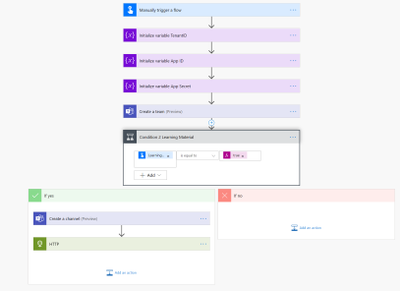
We want to use Power Automate to create a Team with some predefined content in it. To make things easier, we will use the mobile trigger and ask for Team Name, Team Description, and if a user wants a channel for Learning and wants to pin training material (a website) as a tab to this channel
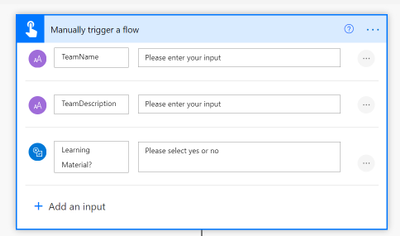
(Of course, we would do that later in a form, an app, or a bot, but for understanding the logic of HTTP requests in Power Automate I will keep this as simple as possible)
We will now add actions to create the team and then we add a condition: If user wants learning material, we want create a channel called Learning and want to pin a website to it.
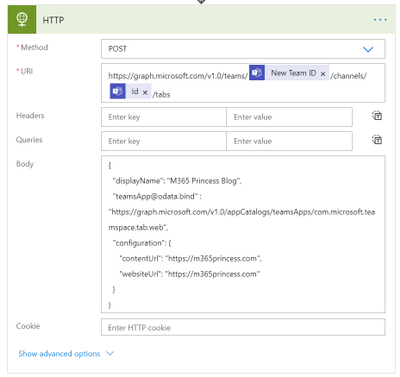
Unfortunately, there is no action “pin a website to a channel in Teams” in Power Automate. Fortunately, we can still do this by making an HTTP request towards Microsoft Graph. This is why I added the HTTP action into the flow:
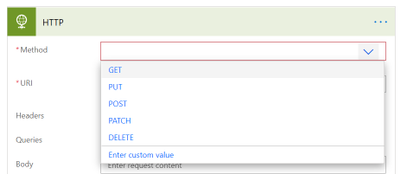
You can see a lot of fields in that HTTP action, so I will make you understand them.
What do we need to make a successful HTTP request?
It is a very good idea to open documentation on docs.microsoft.com while building your flows that call Microsoft Graph. You will find in nearly all pages four things, that we need to consider when doing an HTTP request:
Endpoint
First things first, if we want to call an API with HTTP, we need to know the right endpoint. Think of an endpoint like a phone number that you want to call. You need to know it, because otherwise you won’t reach the right person.
An endpoint is a URL like this: https://graph.microsoft.com/v1.0/{resource}?[query_parameters] and we will later use https://graph.microsoft.com/v1.0/teams/{team-id}/channels/{channel-id}/tabs to create this tab.
Method
Second thing we need to know is which method we want to use. As already explained,
GET == Read
POST == Write
PUT == Update
PATCH == partially update
DELETE == remove
If we now open the dropdown menu for the Method field in the HTTP action, we will see a representation of that:
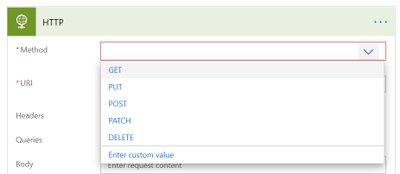
As we want to create a new tab in a channel, we will use POST.
Headers
Headers are not mandatory for all requests, but look like this: Content-type: application/json – If they are needed, documentation will tell you.
Data (or body)
If we call an endpoint, it’s not enough to specify the URL the request needs to make to, but we will also need to post some additional info into the body of our requests. Most GET requests though don’t need information in the body, as they will only list the requested resources.
Fill in the HTTP action
If we carefully follow the Docs, we will see that we should do this:
POST https://graph.microsoft.com/v1.0/teams/{team-id}/channels/{channel-id}/tabs
{ “displayName”: “M365Princess Blog”,”teamsApp@odata.bind” : “https://graph.microsoft.com/v1.0/appCatalogs/teamsApps/com.microsoft.teamspace.tab.web“, “configuration”: { “contentUrl”: “https://m365princess.com“, “websiteUrl”: “https://m365princess.com” } }
Some remarks on that:
In total, this looks like this:
Authentication in Azure AD
We are almost there, but some critical parts are missing. As you can see in the last image, there is a Show advanced options link in the HTTP action and we need to click on it. Our HTTP request need authentication. We can authenticate via Azure Active Directory OAuth, but we will first need to have a representation of our app (yes, this flow that calls Graph is an application) in Azure AD.
We will follow these steps to register an app in Azure AD:
Permission type |
Permissions (from least to most privileged) |
|---|
Application |
TeamsTab.Create.Group*, TeamsTab.Create, TeamsTab.ReadWriteForTeam.All, TeamsTab.ReadWrite.All, Group.ReadWrite.All, Directory.ReadWrite.All |
- Select all these permissions
- Grant Admin consent
- Click Certificates & secrets
- Click New client secret
- Type in a description
- Click Add
- Copy the value and save it in your notepad (you will need that later)
Write the IDs into variables
In our flow, we will now initialize three variables at first level (before any condition) and set their values the copied values of Tenant ID, App ID and App Secret. All three variables are of type string.
Complete the HTTP request
Now we will fill in some more information in the HTTP request:
Besides that, we will use our three variables for Tenant ID, App ID and App Secret.
Our flow should look like this:
Celebrate
If we now run the flow and take a look at the new team in Microsoft Teams:
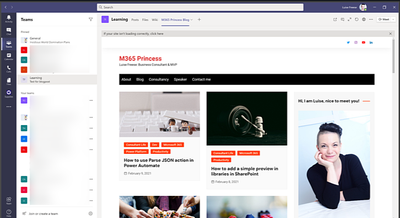
we can spot our freshly created tab with the the content we wanted to provide!
Conclusion
HTTP requests re a super coo method to achieve a lot of things that are not actions in Power Automate, but can still be executed using Microsoft Graph (or other APIs!).
What are you using HTTP requests for?
First published on m365princess.com
by Contributed | Feb 11, 2021 | Technology
This article is contributed. See the original author and article here.
Today, I worked on an interesting service request where our customer is facing the error message “Connection to database master failed (error 11001, state 0): A network-related or instance-specific error occurred while establishing a connection to SQL Server. The server was not found or was not accessible. Verify that the instance name is correct and that SQL Server is configured to allow remote connections. (provider: TCP Provider, error: 0 – No such host is known.)” trying to connect to Azure SQL Managed Instance.
All points to that the issue is related about DNS resolution based on the message “No such host is known”. In this situation, we saw that our customer created their own entry in their custom DNS to the .database.windows.net DNS Zone pointing to the name of the Azure SQL Managed Instance, for example, nameofmanagedinstance.virtualcluster.database.windows.net 10.0.1.254.
However, when our customer tries to connect they faced the error message that we mentioned before. Why?
By default, the connection policy of Azure SQL Managed Instance is configured as “Default” that means that if the client machine is running on Azure, the connection policy will be redirect.
In this redirection the client will connect directly to the node hosting the Managed Instance that has a specific name. Unfortunately, if the name of this node is not in the Custom DNS that our customer has the redirection will not be possible and you are going to have the error message that the node is unknown.
In this situation, we have 2 different alternatives:
- Custom DNS:
- Add the name of the node in the Custom DNS. Unfortunately, it is quite complex, because we might have different nodes name and different IPs. For this reason, forward the request to the default Azure DNS will be a solution.
- Don’t use a Custom DNS for zone resolution .database.windows.net and add as a last Custom DNS server the IP of the default Azure DNS server.
- If you want to know the name and the IP of this node you could take a network trace from the client machine. But, it is not a recommend solution.
- Change the connection policy to Proxy.
- In this situation, the redirection will be not take place and you could connect normally.
Enjoy!
by Contributed | Feb 11, 2021 | Technology
This article is contributed. See the original author and article here.
Introduction
This blog is a continuation of the blog series on this topic. If you haven’t read Part 1 of the series, here is the link to help you catch up.
At the end of Part 1, we finished the overall planning and assessment of HANA N+M scale-out architecture on ANF. We then designed the base infrastructure. Finally, we went through the build phase of the base infrastructure. With this base setup, we now have the necessary architectural elements for Part 2, and the stage is now set to design and build the remaining components.
Note: The intention throughout the blog series is to cover a solution architect view to designing and building the solution in a more thought-provoking manner, and to compliment already available well-crafted MS Docs and NetApp documentation on this topic. I will cover key highlights from these documentations, and where necessary, will also augment additional detail in this blog to cover more surface area.
Design – Backup and Recovery
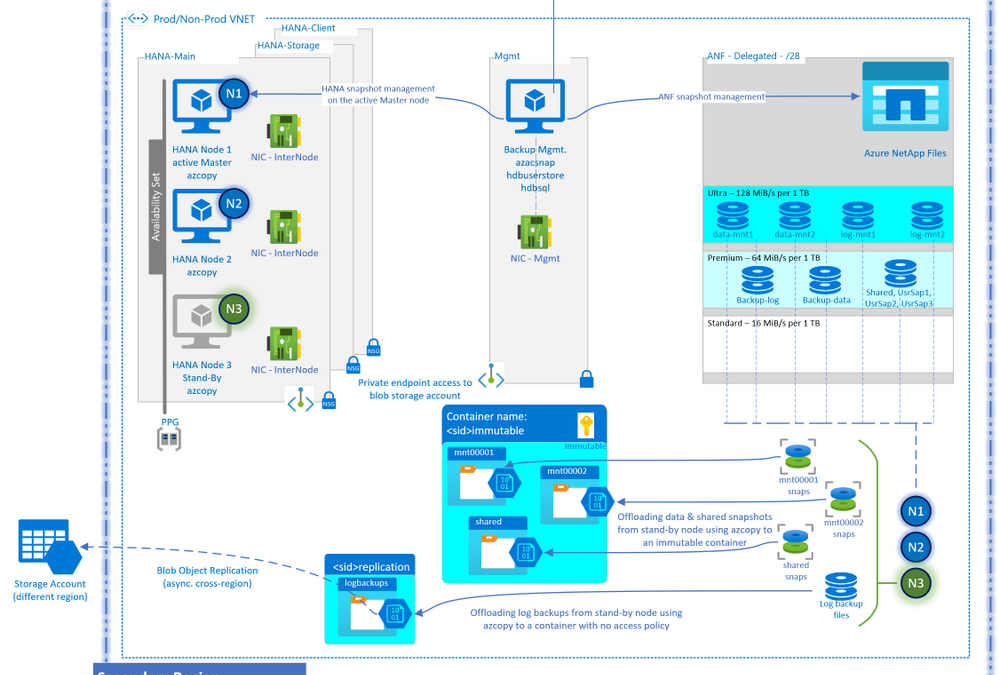
Final Design
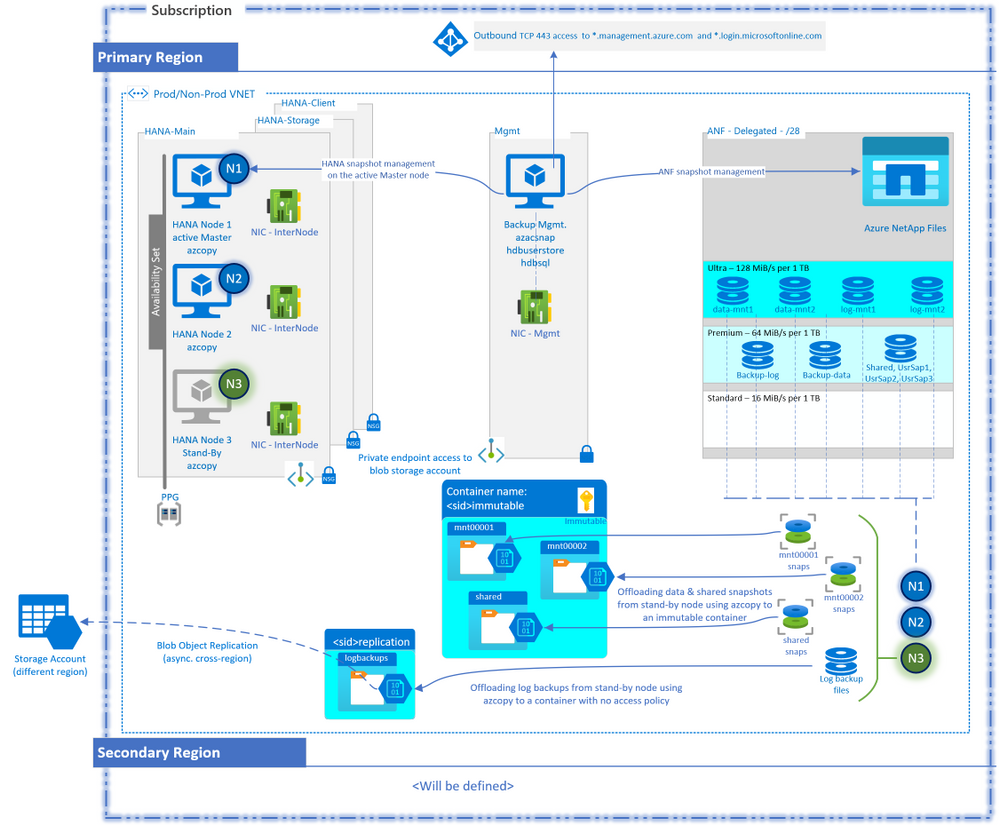
Before going through the entire design process, it might be beneficial to see what the end result might look like. The above diagram serves that purpose. The diagram may have components that you may not be familiar with, and that is okay. Once you have gone through the design process below and come back to this diagram, it will make a lot more sense.
Prerequisite Questions
By answering the below questions based on the backup requirements for this scale-out HANA environment, you will have a better sense of what a backup schedule would look like:
- What are you protecting?
- How big are these data components considering the YoY growth?
- How often do you need to back up?
- Do you have any performance boundaries or expectations for the backups?
- How long do you need to retain the backups in the primary location?
- Do you also want to protect the protection of your data (backups of the backups)? If so, do you want to offload locally and/or cross-region, and what retention will these backups of the backups have in these local and cross-region locations?
- Do you need policy variations for other environments (Dev, QA, Prod)?
- How much are you willing to pay for this insurance policy (backups)?
- What will the backup security look like? (data access, immutability, credentials handling etc.)
- What is the Recovery Point Objective (RPO)?
- What is the Recovery Time Objective (RTO)?
- Do you intend to use this backup for recovering (refreshing) another environment? If so, a local refresh or a cross-region refresh?
Design Considerations
Based on the responses to the above questions, the design will vary. Let’s add some commentary and a sample response to the questions to move the design to build phase for this exercise:
- What are you protecting? SAP HANA critical data components: Data volumes, Log Backups and shared binaries and profiles
- How big are these data components considering YoY growth? A database size of 5 TiB with 15% YoY growth. The log Backups volume keeps a day worth of log backups which is roughly around a TiB. Even though /hana/shared doesn’t contain the backup catalog, it does contain the profiles and binaries, and needs to be backed up.
- How often do you need to back up? The log backup volume most frequently since it contains the redo logs which are critical to point-in-time recovery. The availability of log backups also drives the RPO. Since log backups are applied on top of a data backup, the more recent data backup you have, the faster the recovery would be. You could counter adjust this by increasing the frequency of data backups, but this could impact your cost objective, so a happy medium of data backups and log backups frequency is preferred.
- Do you have any performance boundaries for backups? For example, must finish within ‘x’ hours, can only run overnight with a cap of no more than 20% of system resource consumption, etc.
- How long do you need to retain the backups in the primary location? Does the option of storing the backups for ‘x’ many days incurring costs and the time it takes to recover from them, outperforms the option of simply restoring to the most recent data backup and re-run the business process? And the answer could very much be yes, say for example, for a transactional system. But, what about an OLAP system with frequent considerable overwritten of data? Will it be easier to get to a reasonably recent backup and then run the data loads to bring the environment to a state of your choice? Only you, as a business owner, can answer a restore question like this.
- Do you want to protect the protection of your data (backups of the backups)? If so, do you want to offload locally and/or cross-region and what retention will these backups of the backups have? You are defining your protection trail: Original data > first protection > secondary protection > tertiary protection etc. For example, I want to take backups and store them locally, but would also want these backups to be stored in another separate local entity. On top of it, I want the backups to be further offloaded from that local entity to a cross-region entity.
- Do you need policy variations for other environments? Dev, QA and Prod typically do have different flavors of backup policies.
- How much do you want to pay for this insurance? A cost benefit analysis is needed to understand the right backup schedule that doesn’t exceed the cost budget
- What will the backup security look like? Who will have access to perform backups, access to the stored backups, and permission to restore a backup? How will the credentials be shared, will the backups be immutable, etc.?
- What is the Recovery Point Objective (RPO)? I cannot afford to lose more than ‘x’ min. worth of transactions. This ‘x’ defines the frequency of your log backups.
- What is the Recovery Time Objective (RTO)? I cannot afford a downtime of more than ‘y’ hours before I must resume business. The farther back in time you recover from, the amount of log backups needed for the chosen recovery time and re-do of the business processes from that point onwards to bring the system back to current state, defines your total incurred downtime.
- Do you intend to use this backup for recovering (refreshing) another environment? If so, local refresh or cross-region refresh? I want to leverage the offloading of the backups cross-region to prepare a lower environment for an upcoming testing (planned activity).
A sample policy* table would look like this:
Protect:
|
Size
|
Frequency
|
Retention
|
Offloading
|
HANA data
|
5 TiB
(15% YoY Growth)
|
Twice daily
|
48 hrs.
|
To another location within the region, retain for 7 days.
Immutable but no replication to DR region
|
HANA log backups
|
1 TiB
|
Every 15 min.
|
24 hrs.**
|
To another location within the region, retain for 7 days.
Also, replicate to DR region, retain for 7 days
|
Shared binaries and profiles
|
100 GiB
|
Weekly
|
48 hrs.
|
To another location within the region, retain for 7 days.
Immutable but no replication to DR region
|
* This example doesn’t include the special ad-hoc backups, or monthly or yearly longer-term backups, but you can adopt the method for them as well.
* If you keep 24 hours of log backups in your volume, then the 24 hours old snapshot would contain ~48 hours old log backup. Define your log backup settings accordingly.
The weapon of choice
With enough ammunition after answering the above questions, we are now ready to choose the backup solution and design various aspects of it. For this architecture, you could use an enterprise-grade backup solution (backint), or a more traditional native HANA full/inc./diff. file level backups. Though Azure Backup for SAP HANA would have been a great choice for SAP HANA running in Azure, it currently doesn’t support scale-out configuration – please check at the time of reading to get the latest support offering. There is one more option that comes inherently with ANF, it’s native snapshot capability. With HANA 2.0 SP4, snapshots on multi-tenant databases are also supported. We will pick ANF snapshots as the primary backup solution for this architecture and will use native HANA file level backups as a secondary backup option.
Design the secondary backup solution – HANA native file level backups
- Let’s get those low-hanging fruits first. Let’s design the secondary solution first.
- You need a target volume to store the file level HANA backups. Depending upon the number of backups you intend to keep, you can use either the premium or the standard ANF volume. Do your size-cost-performance analysis to pick the SKU that’s right for you. The following graphs will help you with this analysis:
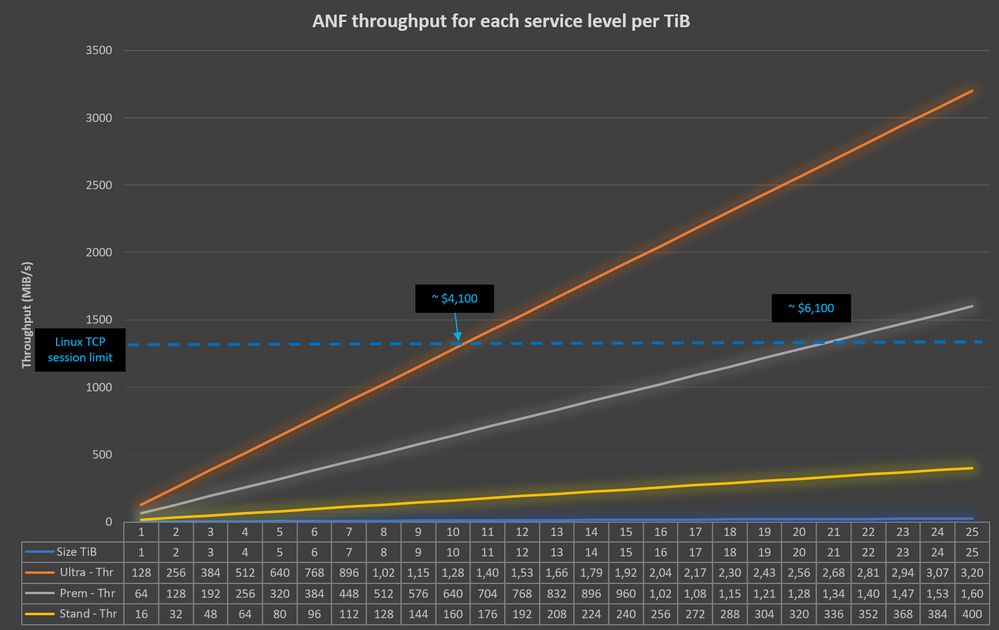
- For example, replacing a 10 TiB ultra sku volume with a 20 TiB premium sku volume, would experience similar performance on a Linux machine but yet cheaper than a 20TiB ultra volume.
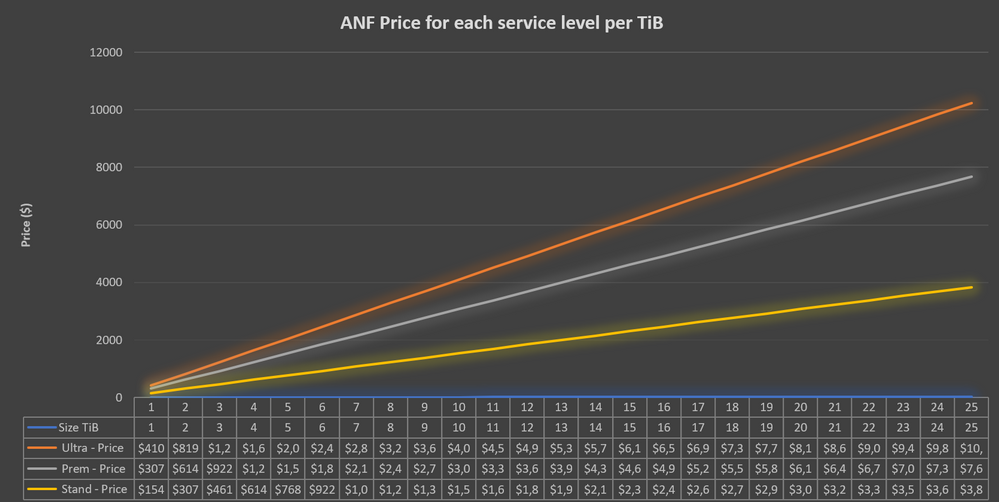
*Estimated monthly pricing calculated using Azure Pricing page for US East region at the time of writing.
- Point the default data backup location in HANA configuration to point to this new data backup volume (basepath_databackup)
- We will not cover the secondary backup solution in the build section.
Design the primary backup solution – ANF snapshots
- Management Server: A D4ds_v4 VM would be sufficient, though you can try a smaller SKU as well. You will need azacsnap software on it. You will also need outbound connectivity to Azure APIs from this VM (see Part 1). The management server will also need a saved HANA database user credential capable of managing backups. You will use hdbuserstore to securely store and use this user credential.
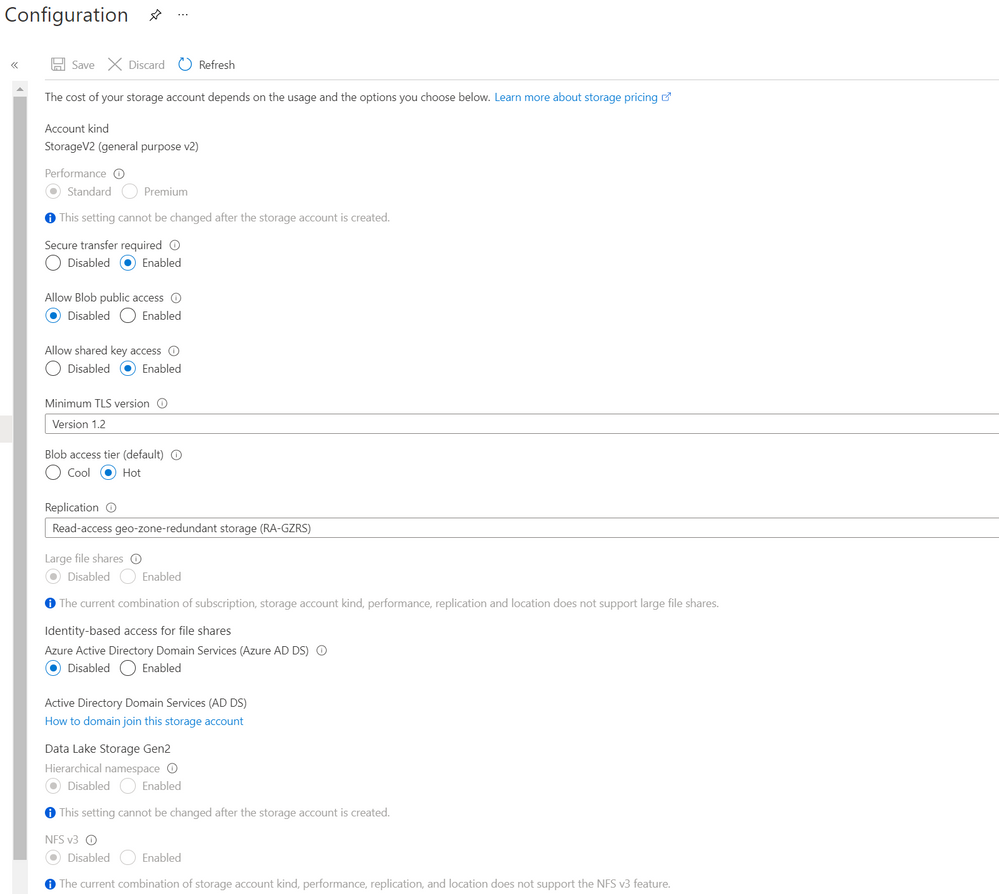
- Storage Account kind and access tier: A GPV2 blob standard performance SKU would be ideal to store backups with multi-tier option from hot to archive. The archive tier may not be the best option for you, though the cheapest, if you intend to use a specific redundancy option not available for archive tier, or plan to delete the backups in less than 180 days. You can check more details in Azure docs referenced at the end. We will use “hot” tier for the backups for the first 2 full days before moving them to cool tier for the last 5 full days to meet the 7 days retention. You can also opt to start out with cool tier as the default tier and leave the backups in there for the entire retention period if you have weighed in the SLAs differences, read charges differences, and early deletion charges for different tiers. For an infrequent read access of these backups, and a retention of 7 days, and to get 4 9’s availability SLA, I would start with hot tier only and then optimize later once I have a better understanding of the backup access, costs and usage pattern.
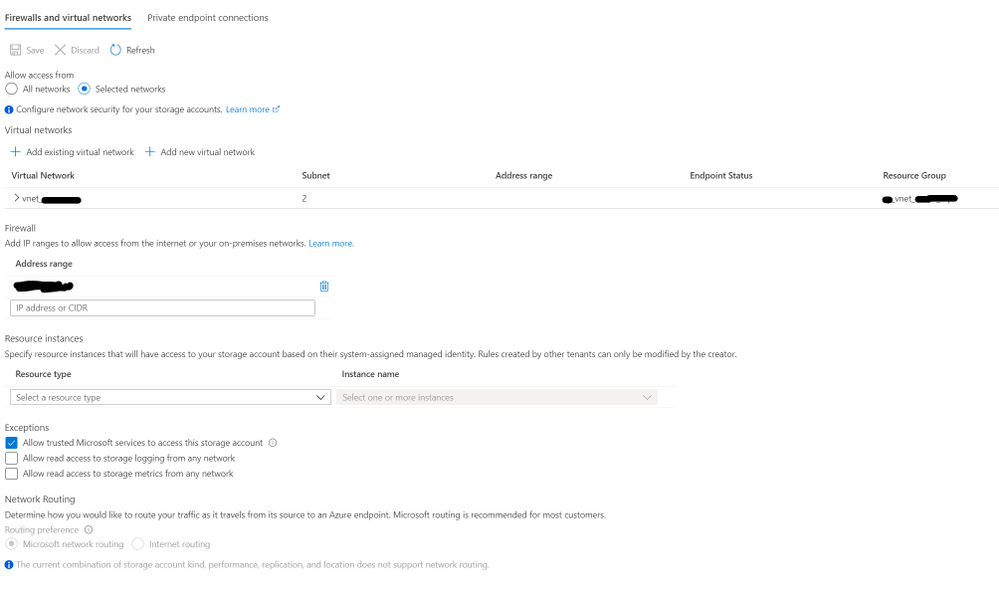
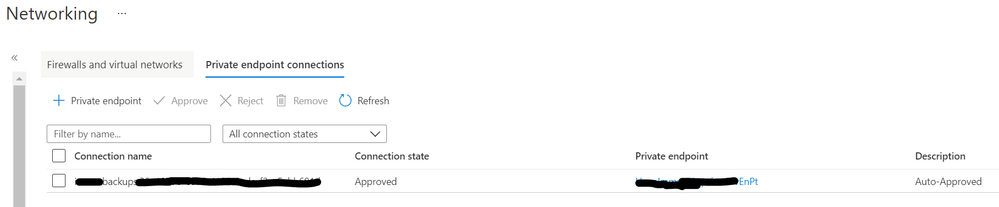
- Storage Account security: You will need to consider whether to keep the storage account accessible only from the VNET or not. If so, you would want to allow access to this storage account from selected subnets only and turning on private endpoint for the blob service. We will choose private endpoints for this scenario.
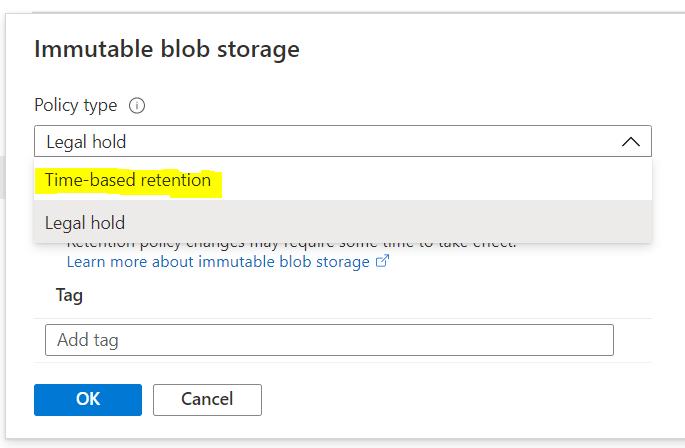
- Immutable blob: By turning on time-based retention access policy, you can make the blobs immutable. This can be applied to any blob that gets stored in the selected container on which this setting is applied. You can keep the policy in the “unlock” mode for a short period to test out how it works before you lock yourself into the policy.
- Offsite offloading: If you want to further offload the backups that have arrived in the blob storage account for additional protection, you could choose blob object replication to offload these blobs to any cross-region storage account of your choice. Keep in mind that the blob object replication is not backed by an SLA and is currently not supported for blobs that have immutable policy turned on. Also, you can pick and choose these options based on the container’s content. See an example below:
Container for:
|
Immutable Policy
|
Blob Object Replication
|
Data snapshots
|
Yes
|
No (we will have a separate solution for DR)
|
Log backups
|
No
|
Yes
|
Shared snapshots
|
Yes
|
No
|
- You will also need azcopy to be installed on each of the HANA node.
- Log Backups settings: Consider changing the default location of the log backups (basepath_logbackup) and the backup catalog (basepath_catalogbackup). The default setting is /hana/shared/ path and it would make more sense to point both to a separate /backup/log/ volume to enable you to apply different backup and retention values and be able to protect backup catalog alongside the log backups. In addition, consider updating the default log backup timeout (log_backup_timeout_s) from 15 min to a shorter value to meet your recovery point objective. This is well described by my colleague Ralf Klahr in his video series on YouTube.
- Major costs elements to consider: ANF snapshot size that equates to the net increase in the volume consumption, management server compute, ANF volume to store native HANA backups as a secondary backup option, network egress, blob storage and access charges are among the major cost elements.
Design Recovery
- Preferred method of recovery: Define the recovery scenarios and the source of the backup to be used for each of the recovery scenario.
Scenario
|
Getting to the backups
|
HANA recovery comments
|
Restore to a specific backup (snapshot)
|
Is the data snapshot available locally (.snapshot directory of the protected volume)? If not, then download from the storage account.
|
Recovery with no log backups
Initialize log area
|
Restore to a specific point-in-time
|
Are the log backups (or snapshots containing them) available locally? Is the data snapshot available locally? If not, then download from the storage account.
|
Recovery with log backups
Initialize log area
|
Restore to the latest consistent state
|
Same as point-in-time
|
Recovery with log backups
Also recover log segments residing in the log area
|
Let’s go back and look at the design diagram again. Hopefully, this process has helped understanding each of the components laid out in the diagram. We are now ready to build the backup solution!
Build – Backup and Recovery
Build ANF snapshots capability using azacsnap
- For the primary backup solution, build the backup manager VM by choosing a D4ds_v4 in a separate subnet dedicated for management, running RHEL OS, and no additional data disk. Apply OS hardening as needed.
- Install azacsnap software including all the prerequisite on the backup management server. Follow the well-laid-out details in Azure Docs. I have added relevant links in the Reference section at the bottom. The option “I” is the default and the preferred option that would install the tool and configure all relevant options for you.
- Familiarize yourself with azacsnap command guide in Azure Docs. It explains each of the available options with examples.
- Create your own custom configuration JSON file by following the guide. For this setup, and based on the backup schedule we have chosen, we will be needing two config files: One for data volume and log backup volume snapshots, and a separate one for shared volume snapshots. Or, even better, you can place the shared volume together with the data volumes if you have the same snapshot schedule for the both data and shared volumes.
- Test azacsnap with both “hana” and “storage” option and ensure that the test executed successfully. You can get more details about this option in the “Install azacsnap”, “Tips and tricks…” and “Troubleshoot…” sections of azacsnap Azure Docs (links in the reference section)
- Once you are comfortable with the execution, add it to the crontab for automatic scheduling. The crontab will have three lines, one for each data, other (log backup) and other (shared) snapshots:
0 */12 * * * (. /home/azacsnap/.bash_profile ; cd /home/azacsnap/bin ; ./azacsnap –configfile <SID>DataLogConfig.json -c backup –volume data –prefix <SID>DataHrly –retention=4 –trim)
0,15,30,45 * * * * (. /home/azacsnap/.bash_profile ; cd /home/azacsnap/bin ; ./azacsnap –configfile <SID>DataLogConfig.json -c backup –volume other –prefix <SID>LogBk20min –retention=96)
05 0 * * * (. /home/azacsnap/.bash_profile ; cd /home/azacsnap/bin ; ./azacsnap –configfile <SID>SharedConfig.json -c backup –volume other –prefix <SID>SharedDly –retention=2)
|
Note: I am also using “trim” functionality to purge log backups older than the oldest backup available in the backup catalog – the Azure Doc has more details.
- Now you have the local protection of your data.
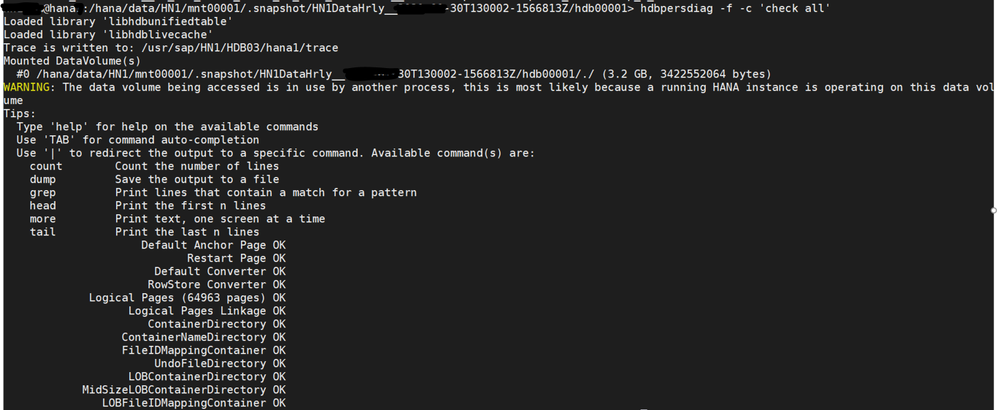
- It is also a good idea to check the persistence of the snapshots time to time by using SAP’s provided hdbpersdiag tool (SAP Note 2843934). A sample execution is shown below on an hdb00001 volume by going into the snapshot directory in question and run it from each of the volume’s directories. Based on the lab testing on an E8s_v4 VM, it took 2 minutes to check a 3 GB volume on an ANF volume with 64 MB/s throughput, so effectively 27 MB/s to check the persistence. Run this tool against all the volumes for that snapshot.
Build Storage Account for Offloading
It is now time to create a storage account, secure it, and then use azcopy to offload snapshots and log backup files over for offsite protection.
- Create a storage account per specifications laid out in the design session. This is a sample configuration screenshot: (A link is provided below for the tutorial on Azure Docs)
- A sample network configuration would look like this:
- The private endpoint configuration would look like this:

- Next, we will enable system managed id for all HANA nodes. Check the link below for details.
- Grant Blob Data Reader, Blob Data Contributor and Blob Data Owner permissions to these managed IDs of HANA nodes on the storage account.
- Now, let’s give some structure to your storage. Create blob containers as follows:
Container
|
Folders
|
Access Policy
|
Blob Object Replication
|
<sid>immutable
|
/mnt00001
/mnt00002
/shared
|
Yes – Immutable – time based – 7 days
|
No (we will have a separate solution for DR)
|
<sid>replication
|
/logbackups
|
No
|
Yes – to a storage account in another region
|
- Apply immutable policy on the container you are not planning to further offload to another/DR region (<sid>immutable). In our case, we will apply the policy on <sid>immutable/mnt00001, mnt00002 and shared:
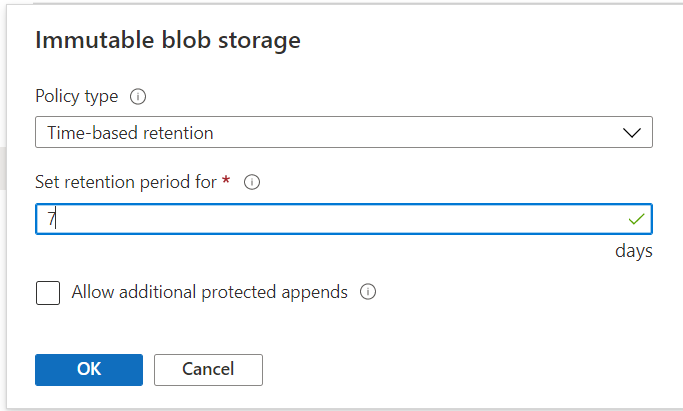
- Set up object replication for the container that contains log backups (<hn1>replication/logbackups)

Build offloading capability using azcopy
Now let’s setup azcopy tool on HANA nodes and initiate our first offloading!
- Install azcopy for Linux on HANA nodes – link to Azure Docs below. You can use the <sid>adm user or a new user per your security requirements.
- Use azcopy login –identity command to leverage the managed identity on the VM to access the storage account:
# ./azcopy./azcopy login –identity
INFO: Login with identity succeeded.
|
- Use “sync” option with recursive=true to send all the delta blobs, preserving the directory structure, over to the storage account. YouTube videos from Ralf Klahr has good explanation of these steps.
- Sample commands:
Offloading snapshots (delta). Each snapshot then becomes a full volume size
# ./azcopy sync /hana/data/HN1/mnt00001/.snapshot https://<saName>.blob.core.windows.net/newhn1/mnt00001 –recursive=true
Offloading log backup files (delta)
# ./azcopy sync /backup/log https://<saName>.blob.core.windows.net/<sid>replication/logbackup –recursive=true
|
- Similarly, you can update crontab to schedule this on the stand-by node. You can add a couple of minutes of lag between azacsnap and azcopy execution just to ensure the latest snapshot is ready for the next azcopy execution.
- Performance consideration: The storage account has throughput limitations for each performance tier. You can always scale-out the solution by adding additional storage accounts to reduce your overall offloading time. For instance, you can set up one storage account for data mount 1, another one for data mount 2, and so on. You can also scale-out the azcopy execution by setting it up to run on multiple HANA nodes if you’d like. Underlying ANF volumes’ throughput can also be adjusted.
Build additional logic – Intelligent orchestration and offloading
With the above setup, you have successfully created protection for your data, log backups and HANA binaries. You have also offloaded critical backups for longer retention at a lower cost point. You have also implemented a tertiary replication for selected blobs. If you want, you are done here. But if you want to further enhance this solution and make it more intelligent, then continue reading.
What If there is a failover and stand-by node become the new master node? Your current azacsnap configuration file will fail if it contains one database host name. One option is to add three separate database sections, corresponding to each of the nodes, and replicate the same data and other volumes information in a single configuration file. In that case, the azacsnap will successfully take the snapshots on the active master node but would fail the execution for the remaining nodes. Similarly, the azcopy which was configured to run on the stand-by node, after the failover, will now run on the same node as the active master node.
To enhance this experience, we will build some logic to azacsnap and azopy executions, so that you can identify the current master node and then run azacsnap on it. In addition, you also identify the current stand-by node, and use that to execute azcopy for offloading snapshots/log backups. Here is how you can achieve that:
- Create a shell script on the management server, called “aztools.sh”, pronounced easy tools – pun intended. You can use azacsnap user to execute this.
- Update the crontab to execute this bash script instead of the azacsnap.
- Remove the crontab execution for azcopy on the stand-by node.
- Create a password less ssh connection configuration between the management and the HANA nodes by sharing the ssh keys. The result: azacsnap should be able to ssh into any HANA node using the sidadm user without having to enter the password. You can also use a dedicate azcopy user on HANA nodes if you’d like.
- Now let’s add some logic in this new shell script:
- Determine if the HANA nodes have key HANA processes running. You are essentially checking if the node is up and carrying out “a” role.
- Determine the current name server node and the stand-by node from the nameserver configuration.
- Provide execution choices of running azacsnap or azcopy by passing a selection parameter at the execution time.
- In addition, provide a choice of choosing the volume to execute the tool against by passing a parameter at the execution time.
- Update the azacsnap config file with the current master node.
- Declare variables to store azacsnap and azcopy command settings.
- Update the azacsnap command to execute on the volume of choice.
- Update azcopy command to offload the volume of choice.
- Now, the execution of this new shell script for a three-node system would look like:
./aztools.sh <sidadm> <host1> <host2> <host3> <azacsnap|azcopy> <data|logbackup|shared>
e.g.
Take a snapshot of data volumes from the active master node
# ./aztools.sh hn1adm hana1 hana2 hana3 azacsnap data
Offload log backups by running azcopy from the stand-by node, and sync it with a replication enabled container
# ./aztools.sh hn1adm hana1 hana2 hana3 azcopy logbackup
|
- I am providing a quick linear shell script to achieve the above – check for the link in the Reference section. Please note that there is a quite a bit of room to make this script more robust and effective with error handling and advanced logic. Feel free to fork it and code away.
Note: You need to test aztools extensively especially in the split-brain scenarios where more than one node thinks its the master, and ensure that this overlaying aztools logic weather that storm. Azacsnap tool is inherently configured to check for this situation and would not execute if it detects a split-brain.
Test Recovery
The next logical step is to test this backup solution by restoring. Again, Ralf Klahr has done a fantastic job of explaining it in his YouTube series, but just for completeness, I will skim through it. In the “Design Recovery” section above, we created a scenario table. Let’s expand on that and provide high-level steps for each of the scenario:
- Restore to a specific backup when the snapshot is available locally:
- This means you can get the snapshot from the .snapshot directory of the data volumes.
- You can achieve that in three ways:
- Preferred: ANF option: “Restore to new volume”. This is the least risky option, as the existing volume is preserved for forensic purposes. This does add additional steps such as swapping out volumes at the OS layer by unmounting old volumes and mounting the new ones.
- ANF option: “Revert volume”. This option is quicker, but it will revert all existing content, hence only the adventurous administrators venture this option. This option will also delete all the snapshots newer than the one you used to revert the volume to.
- A manual overwrite at the OS layer. You are essentially doing the reversion at the OS layer by copying the content of a snapshot inside the .snapshot folder to the data volume. For a file recovery, this option is great, but the entire volume reversion, this is not the best option.
- Restore to a specific backup when the snapshot is available in storage account container:
- The major difference here is how you get your backup files.
- You can use azcopy to bring back the backup to a staging volume, perhaps the data backup volume from the secondary backup solution. Or you can also overwrite the existing volumes.
- Restore to a point-in-time or to the latest consistent state:
- For this scenario, you will also need relevant log backups. Follow the same copy process, but also include getting the relevant log backups. You will skip copying the log backups if they are already available in the current log backups directory.
- Apply the log segments in the log area if you need them applied in addition to the log backups.
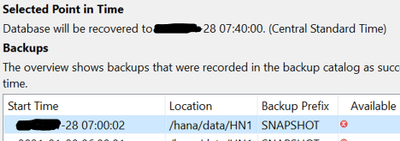
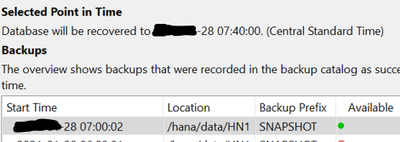
Also, for the case when backup catalog is being utilized for recovery (point-in-time), you can wait until you get to the backup catalog screen before you overwrite the data and the log backup content, and then refresh the backup catalog. This way, you will see the available snapshot lights up when you refresh the recovery screen after the copy process is complete.
Before overwriting the data volume
|
After overwriting the data volume
|
|
|
Follow the remainder of the recovery process as usual.
Conclusion and What’s next
This concludes the second part of the blog series. Now, in addition to the base infrastructure (Part 1), you now have designed and built the protection for your critical HANA workload using azacsnap. In addition, you have a redundant onsite and offsite protection of the backup. Finally, you have added logic to the execution so it can run more intelligently. Next, we will focus on high-availability and disaster recovery for this setup in Part 3. Stay tuned and stay well.
Reference
by Contributed | Feb 11, 2021 | Technology
This article is contributed. See the original author and article here.
In this series, Microsoft identity team members share their reasons for loving passwordless authentication (and why you should too!). Today, Sue Bohn continues the series.
Hello,
Today, I’m sharing with you my second reason to love passwordless authentication. Last time, I shared how passwordless authentication meets security assurance guidelines using crypto keys, to give you more peace of mind. This week, I’m going to talk about the real cost of passwords on productivity and how this solution addresses it.
In a study by one of our passwordless partners, more than 12 minutes each day entering or resetting passwords—that’s almost an hour every month! Multiplying that hourly loss across an organization with 15,000 members results in more than 160,000 hours of lost productivity and thousands of support calls, all due to managing passwords.
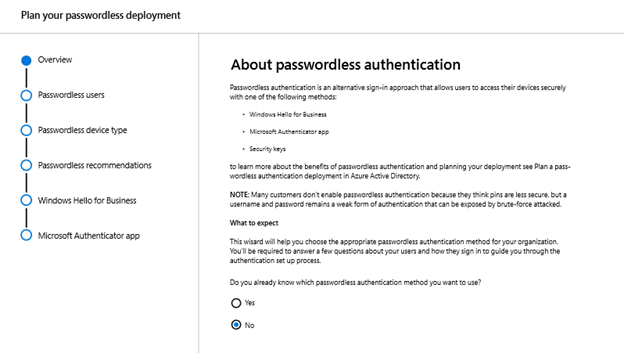
Going passwordless can seem daunting, so we’ve created a powerful tool to help you get started. The passwordless wizard within the Microsoft 365 admin portal helps organizations determine which devices and passwordless methods fit their organization and existing infrastructure. If you’re looking for the easiest place to start with your passwordless deployment, Windows Hello for Business is baked right into Windows and requires no extra hardware.
If your employees have PCs with biometric hardware (think fingerprint scanners, Intel RealSense or other 3D cameras), this is our premier Windows Hello for Business experience. Using biometrics, employees can log in to their PCs and enjoy single sign-on to their local and cloud-based resources, all without ever entering a password. Windows Hello logs you in 3x faster than a password. Those who don’t have biometrics can still take advantage of these features through the use of a PIN.
“But Sue, isn’t a PIN worse than a password?” If a user’s password is compromised, that password can be used anywhere in your digital estate where that person has access. When someone sets up a PIN within Windows Hello for Business, that PIN is tied to their specific device and can’t be used to gain access anywhere else. Once they log in with their PIN, users get the same single sign-on experience without ever having to deal with a password.
Going passwordless means typing a password suddenly becomes very strange for your users, which can make it easier for them to recognize phishing attempts, too. If a password isn’t ever entered into a device from provisioning on day one, it makes it that much harder for a malicious actor to capture a user’s password. Add this to 160,000 hours of productivity and a sizable reduction in password-related help desk calls, all using what’s already built-in to Windows 10. This might just be the easiest decision you have to make today.
Check out the other posts in this series:
Learn more about Microsoft identity:
by Contributed | Feb 11, 2021 | Technology
This article is contributed. See the original author and article here.
SQL assets are critical resources and contain the most precious information a company owns, which makes them one of the preferred targets for attackers. Protecting them across the environments can be challenging and requires multiple skills to deploy, manage, and remediate those precious resources. In this episode with David Trigano, you will learn how Azure Defender for SQL protects your SQL anywhere and offers capabilities to discover misconfigurations and raise alerts in case of usual activities across every flavor of SQL you are using today, in any environment.
Watch on Data Exposed
Resources:
Introduction to Azure Defender for SQL
Azure Security Center
View/share our latest episodes on Channel 9 and YouTube!

by Contributed | Feb 11, 2021 | Dynamics 365, Microsoft 365, Technology
This article is contributed. See the original author and article here.
Retail used to look different. It was local; it was a relationship. But new technology brought change. Trains opened the door for the Sears catalog, offering a wide array of products to distant customers. Henry Ford’s automobile led to suburbanization, malls, and department stores, changing the face of retail. And now, enabled by digital technology and the internet, customers can leverage the convenience and rapid delivery of e-commerce. Each of these innovations improved the shopping experience by offering access to more goods while reducing friction, but there was a cost to each of these changes: the relationship between a customer and retailer became more distant.
While the way people buy has changed, their desire to have a relationship with retailers has not. More than half of customers say they prefer buying from local stores (51.5 percent) verses big retailers (48.5 percent), and this trend has only been accelerated by the pandemic, with nearly 20 percent of adults saying they will support more small businesses as a result of the pandemic. (GWI, Core survey data, 20201.) At the same time, we’re seeing record growth in e-commerce (United States Census, 2020), suggesting that what customers really want is the best of both worlds: the variety and convenience of e-commerce with the personal relationships of local retail. This presents a new challenge for modern retailers: how do they build relationships with customersdelivering the unique and personalized experiences they wantat scale?
To accomplish this, retailers must rely on modern commerce platforms, like Microsoft Dynamics 365 Commerce, that provide the data they need to understand their customers and the tools to deliver personalized and unified customer experiences.
Understanding customers through unified data
Building relationships with customers starts with understanding customers. In the past, customers have built relationships with brandsthrough social media, online purchases, in-store visits, and interactions with support staffbut these relationships have been one-sided. While the customer remembered each interaction due to siloed data and systems, retailers had little visibility into the customer’s history with the brand. They didn’t know the last time a customer interacted with them or for what. From the customer’s perspective, this experience can feel like every interaction with a brand is the first interaction.
For better or worse, customers want brands to act like people; like a friend who owns a local shop. They want to have an ongoing relationship with a brand, not one that resets at every touchpoint. When they interact with a new sales associate or support agent, they expect that individual to understand the context of their existing relationship with the brand. They want a continuous conversation, not fragmented, one-off discussions.
Delivering connected experiences across channels begins with unified data; however, nearly 50 percent of retail decision-makers lack unified customer data and real-time insights needed to drive these types of experiences. Recognizing these challenges, 47 percent are focused on improving analytics capabilities, including cross-channel analytics, to better turn customer data into insights. (Forrester Consulting, The Digital Imperative, 2021.)
“If you’re able to gauge customer lifetime value and find out who your best customers areand locate other customers like themit opens up tremendous possibilities for targeting them with more meaningful messaging,”Sashi Kommineni, Director of Enterprise Analytics, Chipotle Mexican Grill
Microsoft Dynamic 365 solutions enable retailers to aggregate customer data across every customer touchpoint, enabling retailers and their employees to see a customer’s history with a brand. In doing so, they can provide continuity in the relationship between a customer and brand, giving employees the essential information to make each conversation a continuation of the lastthe way a true relationship with a peer would evolve.
From unified data to unified experiences
When building customer relationships, unifying data is the first step. The second step is leveraging that data to improve customer experiences. To do this, modern retailers must consider their offering in the context of the digital era. When a customer engages with a retailer, they aren’t just buying “goods” and “services,” they are investing in the end-to-end experience of discovering, purchasing, procuring, and using the product. The “product” is the sum of every interaction a customer has with a brand. Accordingly, retailers must design every customer touchpoint with the same detail and care they do their productsbecause to the customer, they’re one and the same.
“We are driving efficiencies in our warehouse, trialing new fulfilment models, and unlocking deeper insights into customer experiences faster than ever before.”Matt Keays, Chief Information Officer, Michael Hill
Retailers must not only consider every touchpoint individually; they must also consider the holistic experience for the customer. Many retailers understand this need, with 83 percent of retail and CPG decision-makers agreeing that delivering a connected and unified experience to customers is vital to their business success. (Forrester Consulting, The Digital Imperative, 2021.) No matter the platformwhether in-store or onlinecustomers should have a consistent and continuous experience
Creating personalization at scale
Beyond creating unified experiences, retailers must create personalized experiences. The benefits of creating personalized experiences are clear. Personalization increases the number of items purchased by 110 percent, increases average order value by 40 percent, and increases net promoter scores by 20 percent. (BCG, Business Impact of Personalization in Retail Study, 2019.)
There are still many challenges in providing this level of personalization to customers. Forty-two percent of retailers said an inability to track targeted customers through the entire journey inhibited their ability to implement and grow personalization strategies, while 35 percent cited challenges attributing marketing performance to individual programs, campaigns, and channels. (NRF, The State of Retailing Online, 2019.) Over three-quarters (76 percent) of retailers cite improving digital commerce capabilities as the most urgent business priority, with 52 percent expecting better personalization as a result. (Forrester Consulting, The Digital Imperative, 2021.)
“We are well ahead of where we thought we would be, our ability to engage meaningfully with customers using real-time data has increased exponentially because we use cutting-edge Dynamics 365 technology.” Emmett Vallender, Chief Operating Officer, Citt
While many leverage personalization onlinesuch as personalized recommendations in an email (67 percent)far fewer connected the dots across channels, with only 9 percent of retailers including in-store clienteling solutions for store associates as part of their personalization strategy. (NRF, The State of Retailing Online, 2019.) For companies to build strong relationships with customers, they need to think beyond personalized experiences to create personal experiences. Where personalization is a targeting exercise, creating personal experiences requires greater data unification and a deeper level of insight and intelligence.
How to get started
Dynamics 365 Commerce makes it possible for retailers to deliver unified, personalized, and seamless shopping experiences. Combined with native support for Microsoft Dynamics 365 Customer Insights, businesses can gain a deeper understanding of their customers. By providing frictionless and consistent engagement across online and offline channels, consumer facing organizations can build strong, personal relationships with their customers at scale.
Learn more about Dynamics 365 Commerce today or contact us to request a demo or speak to a specialist.
1These data points are from GlobalWebIndex’s GWI Core dataset. The data points were analyzed from responses to two survey questions: 1. Typically, which of the following would you rather do? Buy from big retailers (48.5%) OR Buy from local retailers (51.5%). 2. After the outbreak is over, how do you anticipate your shopping behaviors will change? Buy more from local retailers (19.8%).
The post Building customer relationships through relevant and unified personal experiences appeared first on Microsoft Dynamics 365 Blog.
Brought to you by Dr. Ware, Microsoft Office 365 Silver Partner, Charleston SC.


Recent Comments