by Contributed | Feb 17, 2021 | Technology
This article is contributed. See the original author and article here.
The stereotypes of burdensome bureaucratic processes and legacy mindsets are self-fulfilling prophecies robbing municipalities and institutions of the change-makers we need to effect positive change at scale.
Listen to Sean Bugler, a public sector cloud architect, as he discusses how he’s using Power Automate, Power Apps, and SharePoint to empower an entirely new class of power users to reimagine what workflows can (and should) be in 2021 and beyond.
YouTube Recording: https://youtu.be/Vj9jGI9lVuU
https://www.youtube-nocookie.com/embed/Vj9jGI9lVuU
LinkedIn Group: Microsoft 365 for Government DC Users Group | Groups | LinkedIn
Relevant links
Sean’s social:
:cloud: Sean Bugler | LinkedIn
https://twitter.com/sbglr
Sean Bugler (@sbglr) / Twitter
Sean Bugler and Matt Wade’s Weekly Microsoft News Show:
https://www.youtube.com/playlist?list=PLF_VzpIgKVtxbA93KO39YwcTo7CbuoaMa
Sean’s journey into IT:
The Geek Within Ep9: Sean Bugler – YouTube
Innovation Backlog (mentioned during presentation):
https://docs.microsoft.com/en-us/power-platform/guidance/coe/setup-innovationbacklog#:~:text=The%20Innovation%20Backlog%20solution%20contains%20assets%20that%20are,installed%20in%20Production%20or%20Dataverse%20for%20Teams%20environments.
by Contributed | Feb 17, 2021 | Technology
This article is contributed. See the original author and article here.
In January 2021, Microsoft publicly launched the new Azure Data Community webpage, began onboarding qualified user groups to the new Azure Data Meetup network, and began providing Microsoft Teams access to qualified user groups. To empower the community, we are providing you with some resources to help you continue to connect with one another, learn and develop your skills, and grow in your careers. Below are some frequently asked questions to help group leaders decide if the Azure Data Community is a good fit for their group.
Q: How many group leaders are required?
A: You must have at least one group leader and one designated co-leader.
Q: Who needs to sign the Terms and Conditions?
A: Both the leader and designated co-leader must sign and accept the T&Cs.
Q: May I charge a fee to members?
A: Group leaders may not charge other members a fee to attend Group meetings, except in cases in which the venue and/or hosting costs (e.g., food and beverages) are passed through to members.
Q: Do I need a Code of Conduct?
A: Yes, Groups must maintain a published code of conduct that is easily accessible from the Group’s home page. See guidance https://aka.ms/atg/guidance.
Q: How many meetings must I have to participate in Azure Data Tech groups community?
A: You must maintain a regular meeting cadence including having meetings at least SIX (6) times per year.
Q: What topics should be the focus of our group?
A: At least half of your meetings must relate to or cover Azure Data products & services or relate to Diversity, Equity & Inclusion (DE&I) or Professional Development targeted to data professionals.
Q: What technologies does my local group need to focus on for my group leader to qualify for benefits?
SQL Server (on Windows, Linux, and in Containers, on-premises and in Microsoft Azure)
Azure Data Lake
Azure Cosmos DB
Azure HDInsight, Hadoop and Spark on Azure
Azure Search
Data Warehousing (Azure SQL Data Warehouse, Fast Track and APS)
Azure Stream Analytics
Cortana Intelligence Suite
Information Management (ADF, SSIS, and Data Sync)
SQL Server Reporting Services and Analysis Services
SQL Server Machine Learning Services
Azure Database for MySQL
Azure Database for PostgreSQL
Azure SQL (Database, Pools, Serverless, Hyperscale, Managed Instance, Virtual Machines)
Azure SQL Edge
Big Data Clusters
Azure Databricks
Azure Arc Enabled Data Services
Azure Synapse Analytics
Azure Data Catalog
Q: Do group leaders need to comply with the Program’s Code of Conduct?
A: Yes, all groups must comply with the Program’s Code of Conduct located at https://aka.ms/atg/code_of_conduct.
Q: Do groups need to consider Microsoft Trademark & Brand guidelines?
A: All group must adhere to Microsoft’s Trademark and Brand guidelines, when using any Microsoft trademarks or referring to Microsoft’s software, products or services (see https://www.microsoft.com/en-us/legal/intellectualproperty/trademarks/usage/general.aspx
Q: What if my group wants to leave the program?
A: You may choose to remove the Group from the Program at any time by referencing the information on the following page https://aka.ms/atg/leave. If the Group leaves the Program, it will no longer receive related communications from Microsoft and no longer have access to Benefits.
Q: What if my group has a leadership change?
A: You may stop being the group leader, or may make leadership changes at any time by providing Microsoft with at least 14 days’ written notice, via email at ms-data@microsoft.com. In order for the Group to continue as part of the Program without suspension, the notification to Microsoft must identify the new group leader or co-leader.
Q: Does this program constitute a relationship with Microsoft?
A: Your participation in the Program does not create a partnership, agency or employer-employee relationship with Microsoft or any of its suppliers. Neither you nor the Group will make any statements on behalf of Microsoft or its suppliers about Microsoft or its suppliers, or any of Microsoft’s or its suppliers’ products or services.
Q: Can my group be removed from the program?
A: Yes. Failure to meet any of the Program requirements throughout the duration of the Group’s participation may result in the Group’s removal from the Program. We may also remove the Group or suspend the Group’s participation in the Program at any time if we suspect that the Group has violated any of these T&Cs. Unless Microsoft believes an immediate suspension is required, Microsoft will provide you reasonable notice before removing the Group from the Program.
Prohibited Uses
You or the Group will not use the Program:
- To try to gain unauthorized access to or disrupt any Microsoft or third-party service, device, data, account or network.
- To financially enrich yourself, any member of the Group, or any third party.
- In a way prohibited by law, regulation, governmental order or decree.
Check out the Azure Data Community landing page today to join local user groups and access SQL Server and Azure Data content.
by Contributed | Feb 17, 2021 | Technology
This article is contributed. See the original author and article here.
Managing certificates is an important scenario when it comes to server management. You want to make sure you can roll out certificates to your servers and manage these from a central place. In a pure on-premises environment, we have done this for example by using Group Policies (GPOs). But if you want to run this in a hybrid cloud environment, where machines are not only in your own datacenter but also running at different edge locations or even other cloud providers, where machines in some cases are not even are domain-joined? Here is where Azure Arc can help you with, Azure Arc enabled servers allows you to manage your Linux and Windows Servers directly from the Azure control plane, and with the new Azure Arc Key Vault extension, you can also manage certificates on these machines.
Since Azure Arc enabled Servers have a managed identity, you can use that managed identity not just for your applications, but also for extensions and accessing Azure Key Vault.
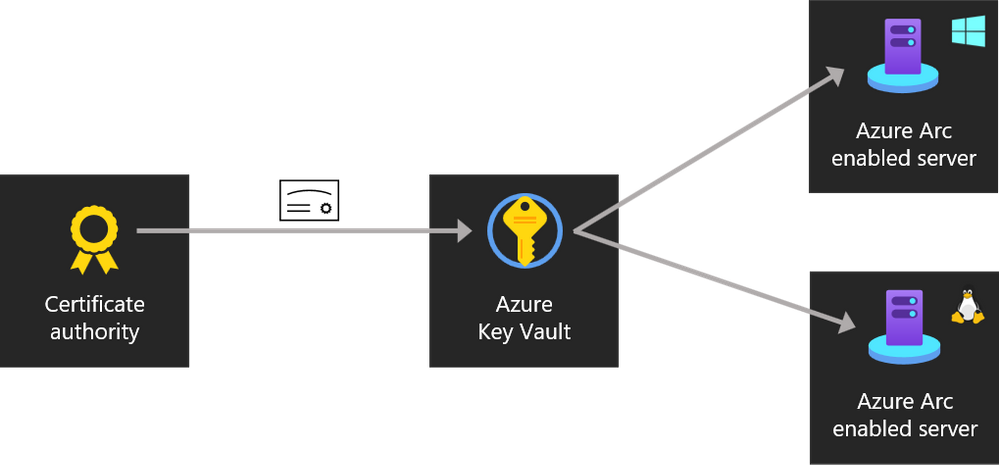
Instead of individually copying the certificate to each machine, the PKI admin just has to upload or generate certificates in a Key Vault and configure which servers are allowed to download them. Then, the server admin deploys the Azure Key Vault extension to their servers (the same extension works for both Azure and Arc enabled servers) and specifies which certificates should be installed on the server, and how frequently the server should check for updates. From there, the extension takes care of the rest. It uses the unique managed identity assigned to every Arc enabled server to authenticate to Azure Key Vault and download the certificates. When it comes time to renew a certificate, the PKI admin only needs to update the copy in Key Vault. The extension will take care of downloading it to each server automatically.
Azure Arc Enabled Server Key Vault Extension
Getting started with the Azure Key Vault extension for Arc enabled servers
This extension is currently in preview, and you can find more information about it here in the announcement blog post by Ryan Puffer (Program Manager for Azure Arc enabled server).
Prerequisites
To get started, you will need the following:
Set up and deploy the Key Vault extension to Azure Arc
Set permission to the Key Vault so the Arc enabled server has a system-assigned managed identity that can access it.
You can configure permissions on your vault by going to it in the Azure Portal, clicking Access policies in the navigation pane, and then Add Access Policy. In the Secret permissions drop down, tick the boxes for Get and List. Then, next to Select Principal, click None selected to open the AAD object picker. Search for your Arc enabled server by its name, click it, then click Select. Click Add to finish configuring the Arc enabled server’s permissions then click Save to commit the change.
If you’re using the Azure Key Vault RBAC, grant the Arc enabled server the Key Vault Secrets User role in Access control (IAM) for the vault.
Deploy the Azure Arc Key Vault extension
Now you can deploy the extension to the server. For that run this command on your admin workstation with Azure PowerShell or Azure Cloud Shell and the Az.ConnectedMachine module installed.
$Settings = @{
  secretsManagementSettings = @{
    observedCertificates = @(
      "https://YOURVAULTNAME.vault.azure.net/secrets/YOURCERTIFICATENAME"
      # Add more here in a comma separated list
    )
    certificateStoreLocation = "LocalMachine"
    certificateStoreName = "My"
    pollingIntervalInS = "3600" # every hour
  }
  authenticationSettings = @{
    # Don't change this line, it's required for Arc enabled servers
    msiEndpoint = "http://localhost:40342/metadata/identity"
  }
}

$ResourceGroup = "ARC_SERVER_RG_NAME"
$ArcMachineName = "ARC_SERVER_NAME"
$Location = "ARC_SERVER_LOCATION (e.g. eastus2)"

New-AzConnectedMachineExtension -ResourceGroupName $ResourceGroup -MachineName $ArcMachineName -Name "KeyVaultForWindows" -Location $Location -Publisher "Microsoft.Azure.KeyVault" -ExtensionType "KeyVaultForWindows" -Setting (ConvertTo-Json $Settings)
In my case this looked something like this:
$Settings = @{
  secretsManagementSettings = @{
    observedCertificates = @(
      "https://toms-awesomearc-keyvault.vault.azure.net/secrets/TomsAwesomeCert"
      # Add more here in a comma separated list
    )
    certificateStoreLocation = "LocalMachine"
    certificateStoreName = "My"
    pollingIntervalInS = "3600" # every hour
  }
  authenticationSettings = @{
    # Don't change this line, it's required for Arc enabled servers
    msiEndpoint = "http://localhost:40342/metadata/identity"
  }
}

$ResourceGroup = "toms-azurearcservers-rg"
$ArcMachineName = "TOMSVM"
$Location = "westeurope"

New-AzConnectedMachineExtension -ResourceGroupName $ResourceGroup -MachineName $ArcMachineName -Name "KeyVaultForWindows" -Location $Location -Publisher "Microsoft.Azure.KeyVault" -ExtensionType "KeyVaultForWindows" -Setting (ConvertTo-Json $Settings)
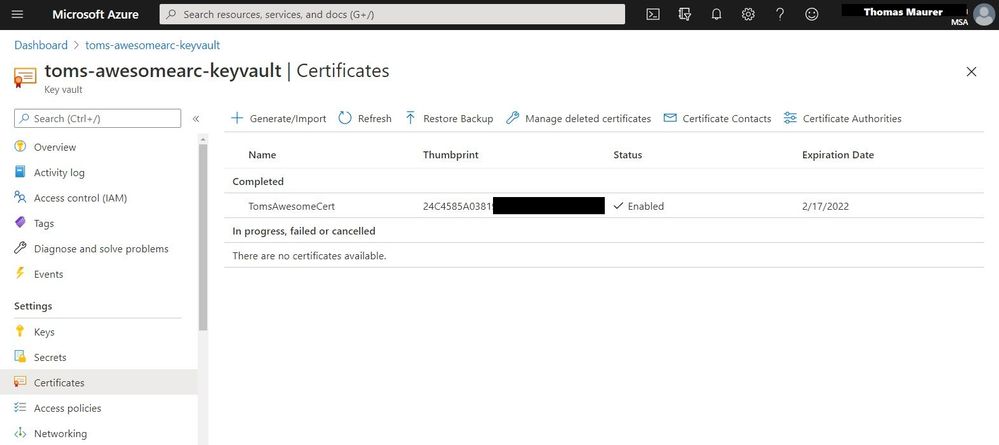
When the extension has finished installing you should see your certificate on your Azure Arc enabled server.
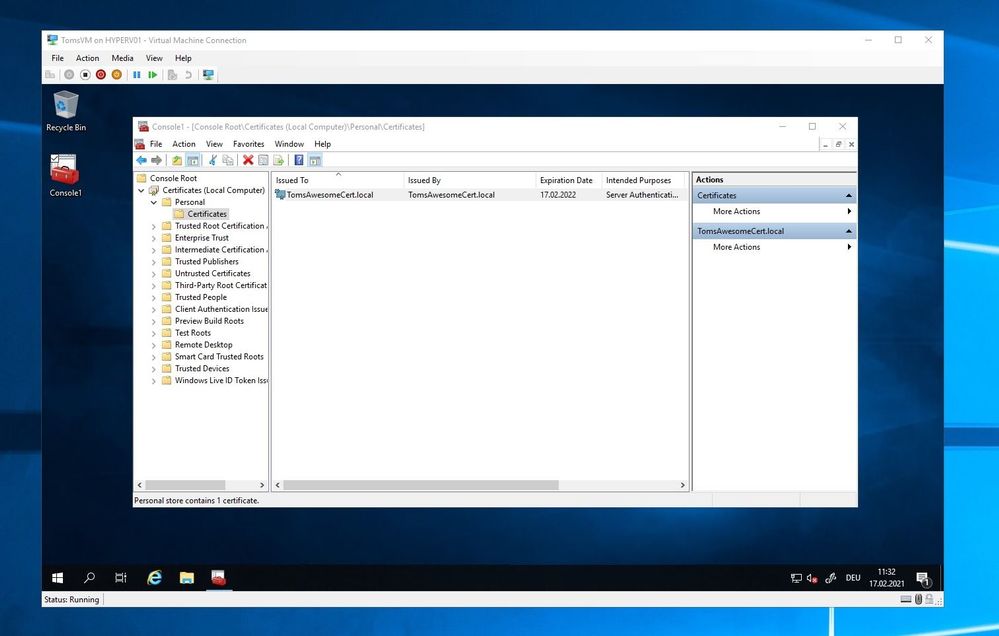 Certificate on local machine deployed by Azure Arc Key Vault extension
For Linux machines you can run the following to deploy the extension:
$Settings = @{
  secretsManagementSettings = @{
    observedCertificates = @(
      "https://YOURVAULTNAME.vault.azure.net/secrets/YOURCERTIFICATENAME"
      # Add more here, don't forget a comma on the preceding line
    )
    # The cert store location is optional, the default path is shown below
    # certificateStoreLocation = "/var/lib/waagent/Microsoft.Azure.KeyVault.Store/"
    pollingIntervalInS = "3600" # every hour
  }
  authenticationSettings = @{
    msiEndpoint = "http://localhost:40342/metadata/identity"
  }
}

$ResourceGroup = "ARC_SERVER_RESOURCE_GROUP_NAME"
$ArcMachineName = "ARC_SERVER_NAME"
$Location = "ARC_SERVER_LOCATION (e.g. eastus2)"

New-AzConnectedMachineExtension -ResourceGroupName $ResourceGroup -MachineName $ArcMachineName -Name "KeyVaultForLinux" -Location $Location -Publisher "Microsoft.Azure.KeyVault" -ExtensionType "KeyVaultForLinux" -Setting (ConvertTo-Json $Settings)
Conclusion
Azure Arc enabled servers is a great way to manage your servers in a hybrid and multi-cloud environment. With the new Key Vault extensions (preview) Azure Arc makes it easy to manage certificates on servers you need to manage, where every they are deployed in a secure way.
If you want to learn more check out the following links:
You can also watch the ITOps Talks All Thing Hybrid, where I had the chance to talk with Ryan about Azure Arc enabled Servers.
If you have any questions feel free to leave a comment.
by Contributed | Feb 16, 2021 | Technology
This article is contributed. See the original author and article here.
The 1.1.0 version of Azure IoT Edge is our first long term servicing (LTS) release. It is based on 1.0.10.4 and includes incremental bug fixes. Going forward, we’ll only service the 1.1.0 branch with fixes to critical security issues and regressions through December 3, 2022. All other bug fixes and new feature work will go into future releases (1.2.0 and greater). These limited changes makes 1.1.0 our most stable release and perfect for extended periods of use in production.
Customers should be aware of two changes when upgrading to 1.1.0:
Full release notes can be found on the GitHub release page for 1.1.0. Instructions on how to update IoT Edge can be found here.
by Contributed | Feb 16, 2021 | Technology
This article is contributed. See the original author and article here.
Azure Database for MySQL is a fully managed database service, based on the MySQL Community Edition, that runs in the Microsoft cloud. While the service provides features such as patching, backups, high availability, and security, there are some requirements and best practices to understand when you are using the service.
This article lists the most common connection issues that users may encounter, together with suggestions and recommended solutions for addressing those issues.
This detail applies specifically to the Azure Database for MySQL Single Server deployment model.
Scenario: After provisioning an Azure Database for MySQL server, the connection fails
There can be multiple reasons for this. Please see the following guidance.
Invalid connection String or password
- Symptom: ERROR 1045 (28000): Access denied for user ‘username’@’IP address’ (using password: YES)”
Recommended solution
- Be sure that the “username” exists as a valid user on the server, as it may have been inadvertently deleted.
- Check Users and Privileges in MySQL Workbench or run query: select user from mysql.user. This will provide a list of all users that can connect and help you to determine if the host IP is allowed to connect for the user in question. You may be able to connect with another user from the list.
- Symptom: Invalid Username specified.
Recommended solution: Confirm that the username you are passing ends with the correct server name/hostname field. The username needs to be passed in the format username@servername.
- Symptom: Failed to log in to Azure Database for MySQL to run the query using the admin account.
Recommended solution: You can reset the admin password by using the Azure portal. The reset password option in the Azure portal helps recreate the user, reset the password, and restore the admin permissions, which will allow you to log in using the server admin account and perform further operations.
Firewall and Network
Start by testing the connection from the Azure Cloud shell in the portal to see if you can connect. This can also help determine whether it’s a database availability issue or an issue with your client network.
Server firewall configuration
- Symptom: Client with IP address ‘XXX.XX.XXX.X’ is not allowed to connect to this MySQL server
Recommended solution: Make sure the IP address is allowed on the server Firewall rule and that you are using correct the username format, your_user@servername, and the right password. For temporary testing purposes only, set up a firewall rule using 0.0.0.0 as the starting IP address and using 255.255.255.255 as the ending IP address. This will open the server to all IP addresses. If this resolves your connectivity issue, remove this rule, and create a firewall rule for an appropriately limited IP address or address range.
Client firewall configuration
The firewall on your client must allow connections to your database server.
- Confirm that your network allows outbound connections on port 3306(we cannot change this port number). You can try to telnet to your server. When using single server deployment mode, confirm your network/firewall does not block connection to the regional Azure Database for MySQL Gateway IP.
- Test the connection to the MySQL database server using psping. Ping the FQDN and see if it resolves to our Gateway IP correctly when using MySQL Single Server deployment mode. If you’re using the private endpoint, it should resolve to your private IP for the private endpoint.
- If you are connecting from Azure VM (virtual machines), check NSG (network security groups) rules to see if it blocks the connection. Also check the route table and see if there is any VPN device which may need to be configured.
- If you are using VNET rules, ensure that the service endpoints are correctly configured and you can find some limitations in this doc.
- If you are using the Private link and deny the public access is set to on, it means you can only connect from the VNET of private endpoint or peered VNET or VPN/express route.
- Symptom: Server is not configured to allow IPv6 connections.
Recommended solution: Note that the Basic tier does not support VNet service endpoints. You must remove the endpoint Microsoft.Sql from the subnet attempting to connect to the Basic tier server.
- With the Single Server deployment model, a gateway is used to redirect the connections to server instances. After the connection is established, the MySQL client displays the version of MySQL set in the gateway, not the actual version running on your MySQL server instance. To determine the version of your MySQL server instance, use the SELECT VERSION(); command at the MySQL prompt. For more information about supported versions, see Supported MySQL server versions.
TLS/SSL
- Ensure that you’re using the correct SSL configuration and the right certificate.
- As a part of our maintenance activity, we’re working on changing the root certificate for the client application/driver enabled with SSL. To mitigate the issue, see this article.
- Be sure that you’re using the correct TLS configuration. To configure TLS for single server, see TLS configuration.
- If you use the Flexible Server deployment mode, TLS/SSL is enabled by default and can’t be disabled. The minimum TLS version supported on the server is TLS1.2. All incoming connections with TLS 1.0 and TLS 1.1 will be denied. You cannot disable or change the TLS version.
DRIVER
It is highly recommended to use only the supported drivers and tools and latest client version. Note that you can’t connect to Azure Database for MySQL using SSMS.
Scenario: It takes longer to establish connections than before
- Symptom: If you recently migrated to MySQL single server in Azure from on premise server or Azure MySQL flexible server, you may notice the higher connection time which was due to the Single Server architecture. This can impact your workload performance if there are large number of short-lived connections, such as when a user creates a connection, runs a simple query, and closes the connection.
Recommended solution: We highly recommend connection pooling if you have not done it yet and exam your pool configuration. Learn more about this.
- Symptom: If you notice the connection latency suddenly increases.
Recommended solution: You can start checking if you have increased workload and if you have made any changes to application code as well as server parameters.
Scenario: Connection dropped
- Symptom: ERROR 1184 (08S01): Aborted connection 22 to db: ‘db-name’ user: ‘user’ host: ‘hostIP‘ (init_connect command failed)
Recommended solution: You should reset init_connect value in server parameters tab in Azure portal and use only the supported server parameter. More information can be found here and in this blog post.
- Symptom: Error Code: 2013. Lost connection to MySQL server during query error or receive MySQL server has gone away intermittently.
Recommended solution
- The server dropped an incorrect or too large packet. Please increase value max_allowed_packet in Azure portal server parameter tab.
- Timeout from the TCP/IP connection. From server side, consider increasing connect_timeout, net_write_timeout, net_read_timeout, wait_timeout. From client side, check your client timeout value.
- The running thread was killed manually, or the query was executed after closing the connection. In this case, check who may killed the thread and your application logic.
- For more information, check out this blog and performance suggestions.
- Symptom: ERROR 1040 (08004): Too many connections
Recommended solution: Check out the max_connnections. You can find the limit for each tier in this doc and increase the max_connections. For best experience, we recommend that you use a connection pooler like ProxySQL to efficiently manage connections as mentioned above. If you see unexpected high number of connections, check your application code, and retry configuration as well.
- It’s possible that you may experience either connection failures or timeouts during peak hours. Please check your active connections as well as CPU/memory/IO usage percentage in the portal metrics tab. Consider upgrading your server if any resource is hitting 100%. For more information, see performance troubleshooting basics.
- Symptom: The last packet sent successfully to the server was X milliseconds ago. The driver has not received any packets from the server.
Recommended solution: Consider either expiring and/or testing connection validity before using it in your application. To avoid this issue, increase the server configured values for client timeouts, or use the Connector/J connection property autoReconnect=true to avoid this problem.
- Retry logic is recommended to handle transient errors. However, you may want to limit the total retry count and delay between each retry to avoid excessive retry causing further issues. For details, please check this link.
Scenario: All connections are failing
This could be because of issue in Azure infra or maintenance activities.
Conclusion
Hopefully, if you’ve been through all the guidance above, you’ve identified the cause of the connectivity issue. If you have any questions, please feel free to let me know.
Reference
by Contributed | Feb 16, 2021 | Technology
This article is contributed. See the original author and article here.
Update: Tuesday, 16 February 2021 22:13 UTC
We continue to investigate issues within Log Analytics in East US2 region. Root cause is not fully understood at this time. Some customers ingesting telemetry in their Log Analytics workspaces in East US 2 may experience intermittent data latency, data gaps and incorrect alert activation. We are working to establish the start time for the issue, initial findings indicate that the problem began at 2020-02-16 19:45 UTC. We currently have no estimate for resolution.
- Work Around: None
- Next Update: Before 02/17 00:30 UTC
-Anupama

by Scott Muniz | Feb 16, 2021 | Security, Technology
This article is contributed. See the original author and article here.
Official websites use .gov
A .gov website belongs to an official government organization in the United States.

Secure .gov websites use HTTPS A
lock ( )
) or
https:// means you’ve safely connected to the .gov website. Share sensitive information only on official, secure websites.
by Contributed | Feb 16, 2021 | Technology
This article is contributed. See the original author and article here.
We’re excited to announce the next Excel Reddit AMA on March 10 at 10 AM PT. Our whole team will be online answering your questions. Come ask us anything related to Excel!
Not sure what to ask, check out some of these questions from past AMAs:
Can’t wait to chat with y’all soon!
by Contributed | Feb 16, 2021 | Technology
This article is contributed. See the original author and article here.
Final Update: Tuesday, 16 February 2021 21:34 UTC
We’ve confirmed that all systems are back to normal with no customer impact as of 02/16, 21:30 UTC. Our logs show the incident started on 02/16, 20:17 UTC and that during the 1 hour and 13 minutes that it took to resolve the issue customers experienced in the West US 2 Region with workspace-enabled Application Insights resources experienced intermittent data gaps as well as possible misfiring of alerts based on resulting data gaps or latencies.
- Root Cause: The failure was due to an ingestion backend resource that was in a bad state due to cached data.
- Incident Timeline: 1 Hours & 13 minutes – 02/16, 20:17 UTC through 02/16, 21:30 UTC
We understand that customers rely on Application Insights as a critical service and apologize for any impact this incident caused.
-Jeff
Initial Update: Tuesday, 16 February 2021 21:22 UTC
We are aware of issues within Application Insights and are actively investigating. Some customers in West US 2 may experience delayed or missed Log Search Alerts and Data Gaps.
- Work Around: None
- Next Update: Before 02/16 22:30 UTC
We are working hard to resolve this issue and apologize for any inconvenience.
-Jeff
by Contributed | Feb 16, 2021 | Technology
This article is contributed. See the original author and article here.
Azure confidential computing offers a state-of-the-art hardware, software & services platform to protect sensitive customer data in-use while minimizing the Trusted Computing Base (TCB). Customers taking advantage of Azure confidential computing can further strengthen their security posture through use of Azure Attestation, a feature that allows them to verify the compliance of various workloads according to their security policies. If their environment becomes non-compliant with their security policies, the customer can prevent exposure of data.
Azure Attestation offers a simple PaaS experience to enable customers solve the complicated problem of gaining trust and verifying the identity of an environment before they interact with it. The ability to gain this trust allows customers to develop applications and create business models that require uncompromising trust where they were previously unable to create them — in the cloud.
What is Azure Attestation?
Azure Attestation is a unified solution that supports attestation of platforms backed by Trusted Platform Modules (TPMs) alongside the ability to attest to the state of Trusted Execution Environments (TEEs) such as Intel® Software Guard Extensions (SGX) enclaves
Azure Attestation receives evidence from an environment, validates it with Azure security standards and user-defined policies, and produces cryptographic proofs (called attestation tokens) for claims-based applications. These tokens enable relying parties to gain confidence in the trustworthiness of the environment, the integrity of the software binaries running inside it and make trust-based decisions to release sensitive data to it. The tokens generated by Azure Attestation can be consumed by services in scenarios such as enclave validation, secure key sharing, and confidential multi-party computation.
Why use Azure Attestation ?
Azure Attestation provides the following benefits:
- Offers a unified solution for attesting multiple TEEs or platforms backed by TPMs
- Allows the creation of custom attestation providers and configuration of policies to customize the generation of attestation tokens
- Provides the ability to securely communicate with the attested platform with the help of data embedded in an attestation token using industry-standard formatting
- A highly available service with Business Continuity and Disaster Recovery (BCDR) configured across regional pairs
How does Azure Attestation work?
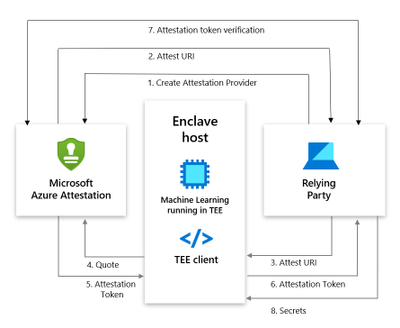
The following actors are involved in an Azure Attestation workflow:
Client: The component which collects evidence from an environment and sends attestation requests to Azure Attestation.
Azure Attestation: The component which accepts evidence from the client, validates it with Azure security standards, evaluates it against the configured policy and returns the attestation token to the client.
Relying party: The component which relies on Azure Attestation for remotely attesting the state of an environment supported by the TPM/enclave.
Consider a multi-party data sharing use-case where an organization (relying party) wants to share data with its partners and achieve great insights by running inference models on the aggregated information. To protect data confidentiality while leveraging mutual benefits, data in-use can be encrypted and stored in TEEs like SGX enclaves. However, before giving access to the encrypted content, organizations would like to validate the trust worthiness of the enclave and then securely transfer secrets to the enclave. Azure Attestation enables the remote verification process.
Below is the workflow to perform SGX attestation using custom attestation providers:
- User creates an provider using PowerShell/Portal/CLI. Note that Regional shared attestation providers can be used to perform attestation when there is no requirement for custom policies
- Attest URI is returned to the user
- Attest URI is shared with the TEE client as a reference to Azure Attestation
- The client collects enclave evidence and sends attestation request to Azure Attestation
- The service validates the submitted information and evaluates it against a configured policy. If the verification succeeds, it issues an attestation token and returns it to the client
- Client sends the attestation token back to the relying party
Getting started with Azure Attestation
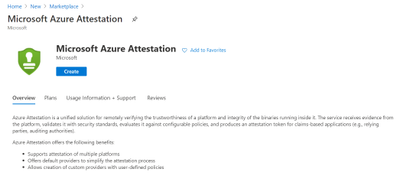
- To create an attestation provider via Azure portal, click the Create button on the Azure Attestation page in the Azure portal Marketplace menu.
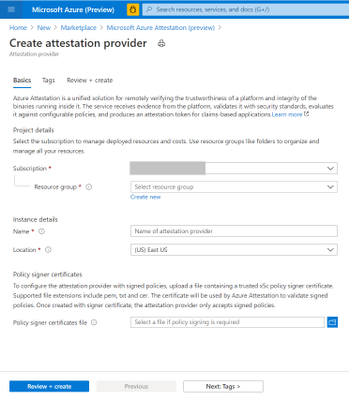
- Provide a name, location, subscription and resource group and proceed with the creation of your attestation provider.
- If needed, upload policy signer certificates file to configure the attestation provider with signed policies. Learn more.
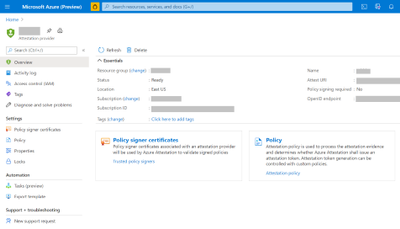
- Once created, details of the provider can be seen in Overview page.
- To view the default policy of your attestation provider, select Policy in the left-hand side Resource Menu.
- To configure a custom policy to meet your requirements, click configure and provide policy information in text/JSON Web Token format and click Save.
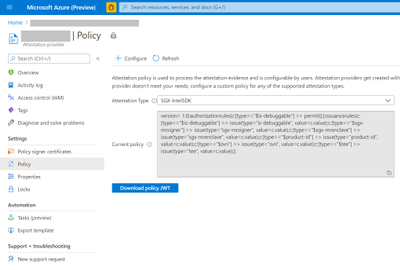
- Click the Refresh button to view the updated policy
Creation and management of attestation providers can also be performed using Command Line Interface (CLI) or Azure PowerShell.
Customer success stories
We are excited to enable multiple scenarios that benefit from Azure Attestation. Some of them include:
SQL Always Encrypted with secure enclaves
“Microsoft Azure Attestation is a key component of a solution for confidential computing provided by Always Encrypted with secure enclaves in Azure SQL Database. Azure Attestation allows database users and applications to attest secure enclaves inside Azure SQL Database are trustworthy and therefore can be confidently used to process queries on sensitive data stored in customer databases.”
– Joachim Hammer, Principal Group PM Manager, Azure SQL
ISV partners
Microsoft also works with platform partners who specialize in creating scalable software running on top of Azure confidential computing environments. Partners like Fortanix, Anjuna and Scone are already poised to use the services offered by Azure Attestation.
Future roadmap for Azure Attestation
Our long-term aspiration is to partner with people and organizations around the planet to help them achieve more, and more securely with Microsoft Azure Attestation. Azure Attestation will be the one Microsoft service that attests multiple platforms used by Azure customers such as Confidential Containers, Confidential VMs, IoT edge devices and more. We expect Azure Attestation to be the leading cloud service used by customers to establish unconditional trust in infrastructure and runtime across Azure, on-premises and at the edge. Azure Attestation will continue to strengthen customer data governance.
Learn more about Azure Attestation


Recent Comments