by Scott Muniz | Jul 5, 2020 | Uncategorized
This article is contributed. See the original author and article here.
In one case, I have noticed that SignalR components and pricing model might be confusing for Azure users who are discovering this service.
A SignalR instance is what you need to create first to use SignalR.
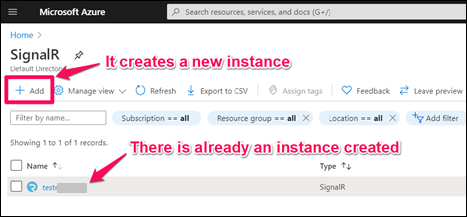
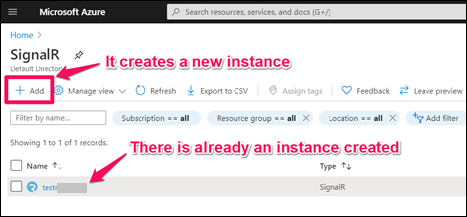
After searching for SignalR in Azure and going to SignalR homepage, you can create an instance by clicking “Add”. This is the very first step to use SignalR.
A unit is a sub-instance that processes your SignalR messages. Units are used to increase the performance and connections count.
Think unit this way: Let’s say you have a web server that is not enough to handle the web traffic. You can add two more servers to load balance the traffic. This increases the performance and number of requests your environment can handle. In this example, the environment is an INSTANCE. Each server is a UNIT. Before adding new servers, you have 1 instance and 1 unit in that instance. After adding new servers, you have 1 instance and 3 units in that instance.
SignalR Pricing
- In FREE plan, you can use only 1 unit and this unit can handle maximum 20 concurrent connections
- In STANDARD plan, you can use 100 units. Each unit can handle 1,000 concurrent connections
(Please note the difference: The unit in FREE plan supports maximum 20 connections while a unit in STANDARD plan supports 1,000 connections. In terms of pricing, FREE plan unit and STANDARD plan unit are not the same)
Only outbound messages are counted for billing. There is more information on this page:
For billing, only outbound messages from Azure SignalR Service are counted. Ping messages between clients and servers are ignored. Messages larger than 2 KB are counted as multiple messages of 2 KB each. The message count chart in the Azure portal is updated every 100 messages per hub. For example, imagine that you have three clients and one application server. One client sends a 4-KB message to let the server broadcast to all clients. The message count is eight: one message from the service to the application server and three messages from the service to the clients. Each message is counted as two 2-KB messages.
Useful Links about SignalR:
Information about Azure SignalR Pricing:
by Scott Muniz | Jul 5, 2020 | Uncategorized
This article is contributed. See the original author and article here.
If you add a certificate to Server Certificates in IIS but you don’t see it in the binding window, there are two things to check first:
- Make sure the certificate you added to “Server Certificates” is the one you created a “Certificate Request” for. If you add a certificate that wasn’t requested in “Server Certificates”, it won’t show up in IIS binding window even if it does in “Server Certificates” list
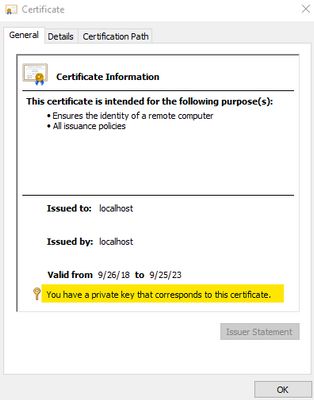
- Make sure there is a private key in the certificate (steps are below)
Check if the certificate has a private key:
- Open mmc. Add Certificates for Computer account
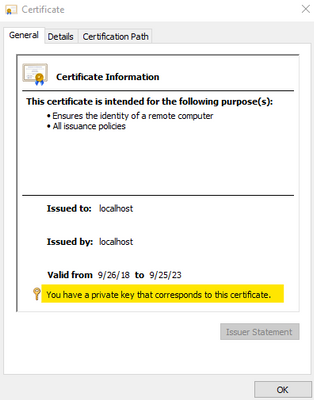
- A “key image” should be on the certificate image. You can also check it by double clicking the certificate
If the certificate doesn’t have a private key, run the command below.
certutil -repairstore my [thumbprint]
You should see CertUtil: -repairstore command completed successfully message. Close IIS Manager and open it again. Then check if the certificate appears in the binding window.
by Scott Muniz | Jul 4, 2020 | Azure, Microsoft, Technology, Uncategorized
This article is contributed. See the original author and article here.
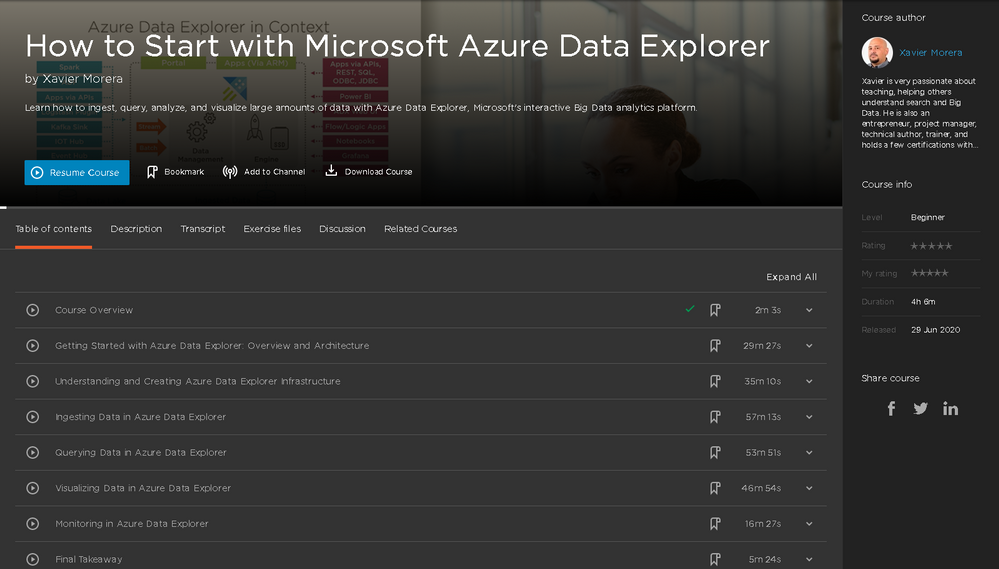
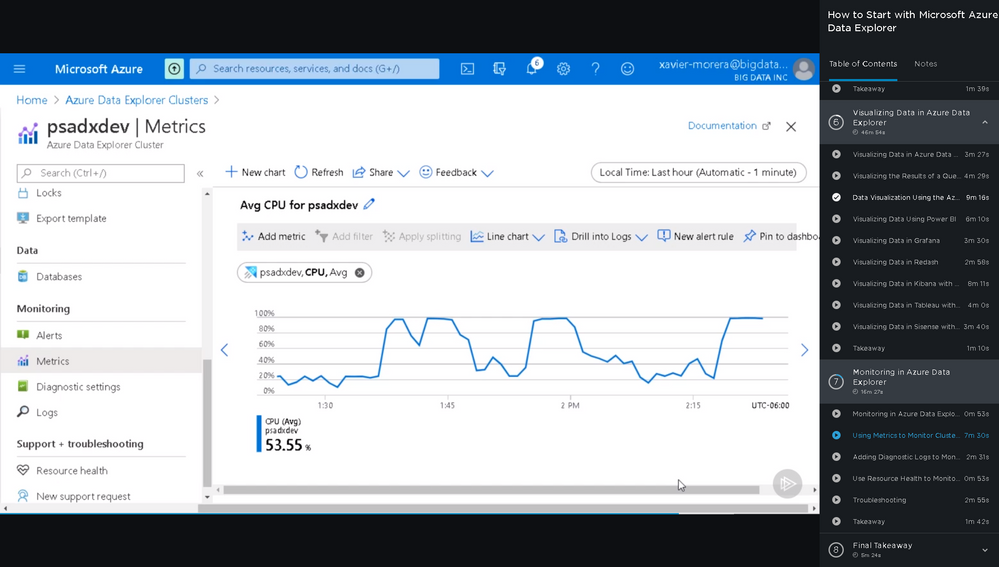
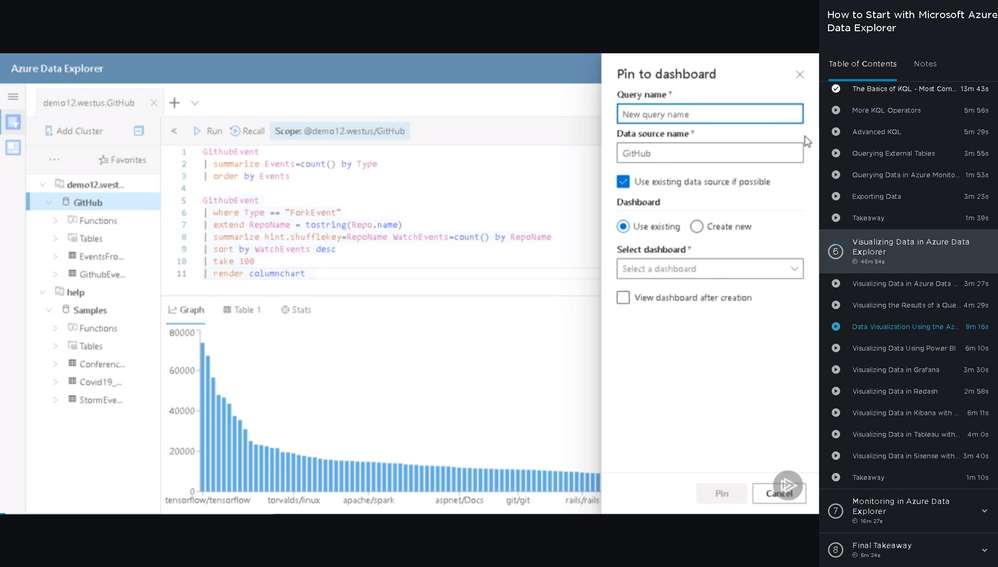
Presenting a brand-new free online course that will teach you everything you ever wanted to know about data analytics with Azure Data Explorer.
Register here to get free access.
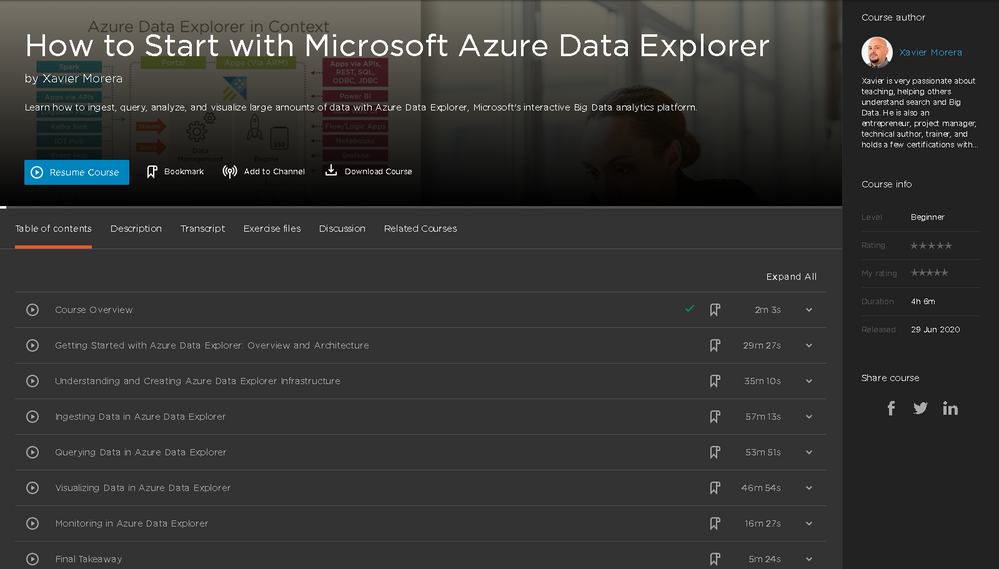
It’s long enough to give you everything you need to know about Azure Data Explorer (ADX), but broken up into bite-sized modules so you can do it at your own pace. Pick and choose your favorite topics and come back to specific topics as many times as you want. Each module is a standalone subject with an explanation, demonstration, and example for you to try at home. Do one module to refresh your knowledge of a certain subject. Do them all, and you’ll be an ADX master!
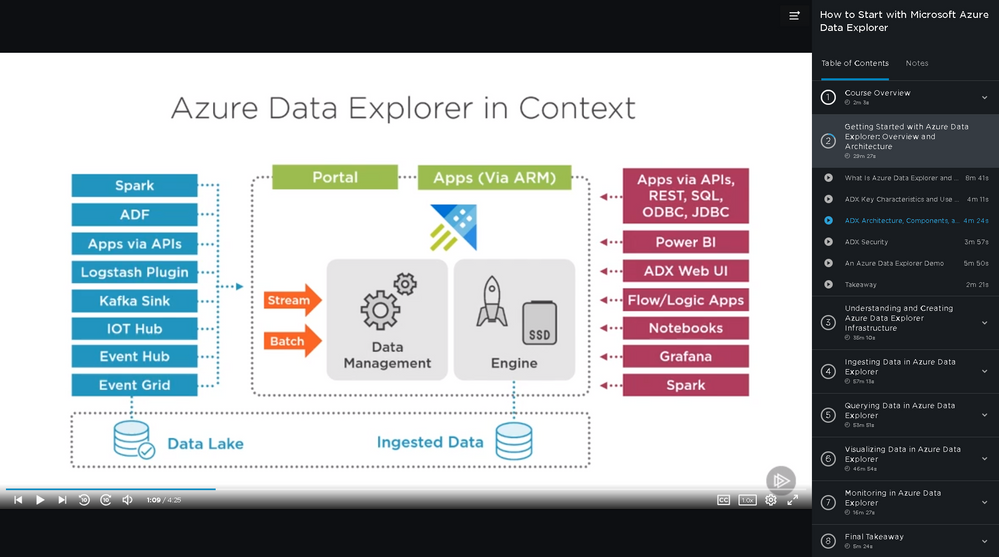
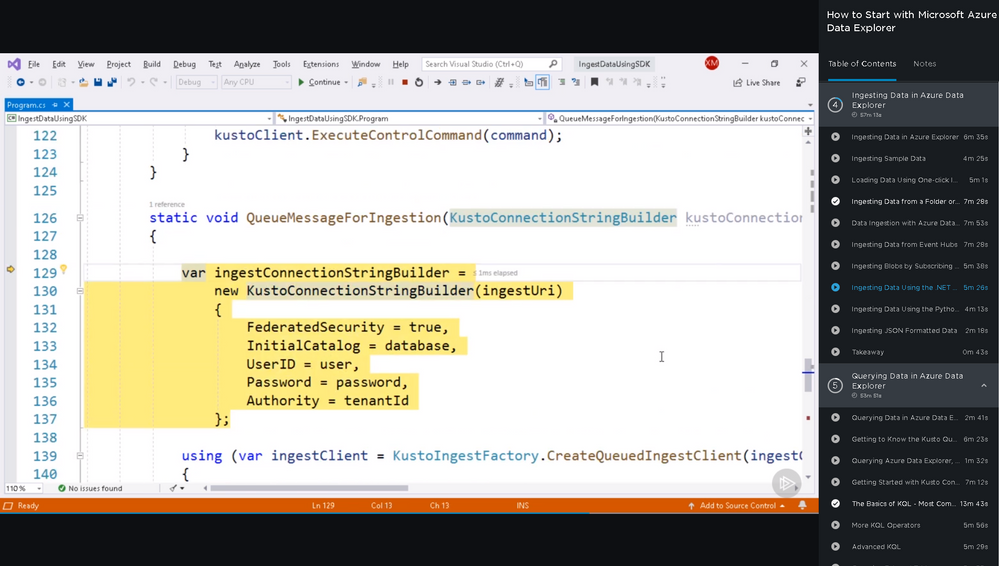
First, you will learn the basic use cases and architecture of ADX. Next, select your cluster size and define a cluster. Then you will ingest data, followed by query with the Kusto Query Language (KQL). Finally, you will explore data visualization options, monitors and alerts, and troubleshooting. When you’re finished with this course, you will have the skills and knowledge of Azure Data Explorer needed for real-time analysis on large volumes of streaming data. Four and a half hours, eight modules in total.
What are you waiting for?
Coming soon (August 2020), Azure Data Explorer Advanced Query Capabilities.
Already here, Basic KQL.
by Scott Muniz | Jul 4, 2020 | Azure, Microsoft, Technology, Uncategorized
This article is contributed. See the original author and article here.
In this episode of One Ops Question, Steven Murawski answers the question “What are Azure Blueprints?”
The cloud can be a scary, wide-open space. Azure Blueprints helps bring structure to your enterprise’s use of Azure subscriptions with RBAC, Azure Policy, and Resource Manager Templates in a versionable artifact.
Just as a blueprint allows an engineer or an architect to sketch a project’s design parameters, Azure Blueprints enables cloud architects and central information technology groups to define a repeatable set of Azure resources that implements and adheres to an organization’s standards, patterns, and requirements.
Azure Blueprints makes it possible for development teams to rapidly build and stand up new environments with trust they’re building within organizational compliance with a set of built-in components, such as networking, to speed up development and delivery.
Blueprints are a declarative way to orchestrate the deployment of artifacts such as:
You can quickly learn how to create and assign blueprints, how to define common patterns to develop reusable and rapidly deployable configurations based on Azure Resource Manager templates, policy, security, and more in this tutorial, you will learn to use Azure Blueprints to do some of the common tasks related to creating, publishing, and assigning a blueprint within your organization.
Check it out!
Cheers!
Pierre
by Scott Muniz | Jul 3, 2020 | Uncategorized
This article is contributed. See the original author and article here.
Initial Update: Friday, 03 July 2020 23:45 UTC
We are aware of issues within Log Search Alerts and are actively investigating. Some customers may experience missing or mis-fired alerts.
- Next Update: Before 07/04 01:00 UTC
We are working hard to resolve this issue and apologize for any inconvenience.
-Jack Cantwell


Recent Comments