by Scott Muniz | Jul 26, 2020 | Alerts, Microsoft, Technology, Uncategorized
This article is contributed. See the original author and article here.
Hello folks,
Last month I presented a session during the “Windows Server webinar miniseries – Month of Cloud Essentials”. The session was on how to create highly available apps with Azure VMs. Following the session I was asked about setting up traditional Windows Server Clusters.
During that conversation I stated my belief that if you are building modern apps that can run in an active-active model, a traditional cluster might not be needed.
You can achieve the same results with Azure Availability Set/Zones, Azure Load Balancers and virtual machine. However, if your migrating or deploying an app that requires the traditional Windows cluster, or shared storage. Our story was not the best. Up to now, you had to deploy an additional VM that would “host” the Cluster Shared Volumes.
That changed last week with 2 announcements…
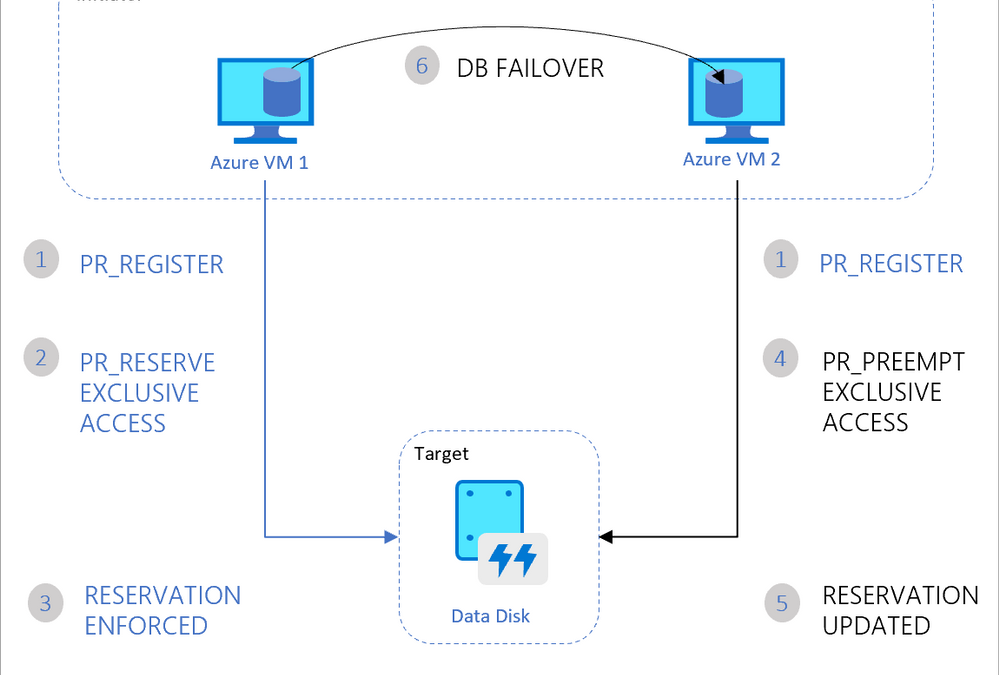
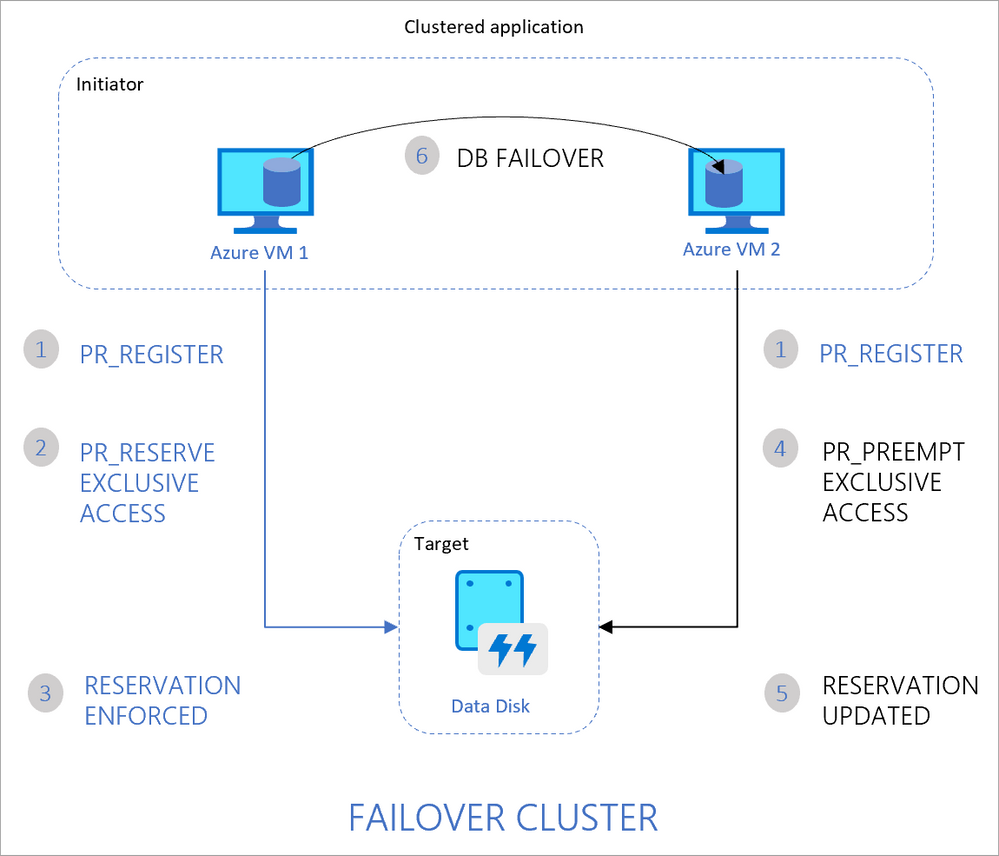
The first announcement was about Announcing the general availability of Azure shared disks and new Azure Disk Storage enhancements. The general availability of shared disks on Azure Disk Storage will now enable enterprises to easily migrate your existing on-premises Windows and Linux-based clustered environments to Azure. This is a new feature for Azure managed disks that allows you to attach a managed disk to multiple virtual machines (VMs) simultaneously. Therefore, allowing you to either deploy new or migrate existing clustered applications to Azure.
VMs in the cluster can read or write to their attached disk based on the reservation chosen by the clustered application using SCSI Persistent Reservations (SCSI PR). The shared disks are exposed as logical unit numbers (LUNs) and look like direct-attached-storage (DAS) to your VM.
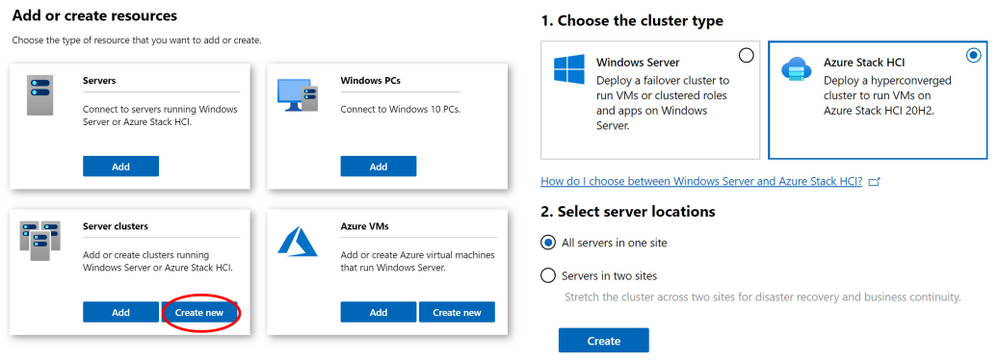
The second interesting announcement is Windows Admin Center version 2007 is now generally available!. The new version comes with multiple new improvements but one in particular caught my attention. New Cluster deployment experience and capabilities.
Windows Admin Center now provides a graphical cluster deployment workflow. It allows you to deploy multiple cluster types based on the operating system that runs on their choice of servers.
Together these two announcements are enabling the deployment of traditional Windows or Linux Clusters without the need for an additional VM to host the CSV. Therefore, simplifying your deployments and making them more cost efficient since you save the cost of the additional VM.
Our Story is getting better all the time and Hybrid is built into it.
Cheers!
Pierre Roman
by Scott Muniz | Jul 26, 2020 | Alerts, Microsoft, Technology, Uncategorized
This article is contributed. See the original author and article here.
This is the third post of a series dedicated to the implementation of automated Continuous Optimization with Azure Advisor Cost recommendations. For a contextualization of the solution here described, please read the introductory post for an overview of the solution and also the second post for the details and deployment of the main solution components.
Introduction
If you read the previous posts and deployed the Azure Optimization Engine solution, by now you have a Log Analytics workspace containing Advisor Cost recommendations as well as Virtual Machine properties and performance metrics, collected in a daily basis. We have all the historical data that is needed to augment Advisor recommendations and help us validate and, ultimately, automate VM right-size remediations. As a bonus, we have now a change history of our Virtual Machine assets and Advisor recommendations, which can also be helpful for other purposes.
So, what else is needed? Well, we need first to generate the augmented Advisor recommendations, by adding performance metrics and VM properties to each recommendation, and then store them in a repository that can be easily consumed and manipulated both by visualization tools and by automated remediation tasks. Finally, we visualize these and further recommendations with a simple Power BI report.
Anatomy of a recommendation
There isn’t much to invent here, as the Azure Advisor recommendation schema fits very well our purpose. We just need to add to this schema some other relevant fields:
- Confidence score – each recommendation type will have its own algorithm to compute the confidence score. For example, for VM right-size recommendations, we’ll calculate it based on the VM metrics and whether the target SKU meets the storage and networking requirements.
- Details URL – a link to a web page where we can see the actual justification for the recommendation (e.g., the results of a Log Analytics query chart showing the performance history of a VM).
- Additional information – a JSON-formatted value containing recommendation-specific details (e.g., current and target SKUs, estimated savings, etc.).
- Tags – if the target resource contains tags, we’ll just add them to the recommendation, as this may be helpful for reporting purposes.
Generating augmented Advisor recommendations
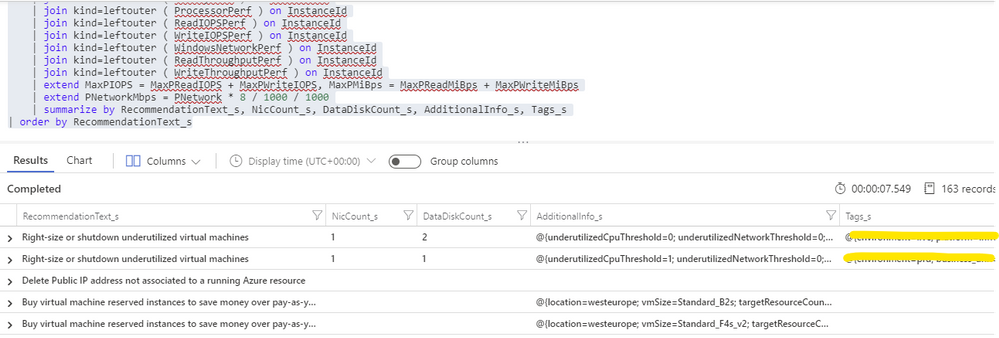
Having in the same Log Analytics repository all the data we need makes things really easy. We just need to build a query that joins Advisor recommendations with VM performance and properties and then automate a periodic export of the results for additional processing (see sample results below). As Advisor right-size recommendations consider only the last seven days of VM performance, we just have to run it once per week.
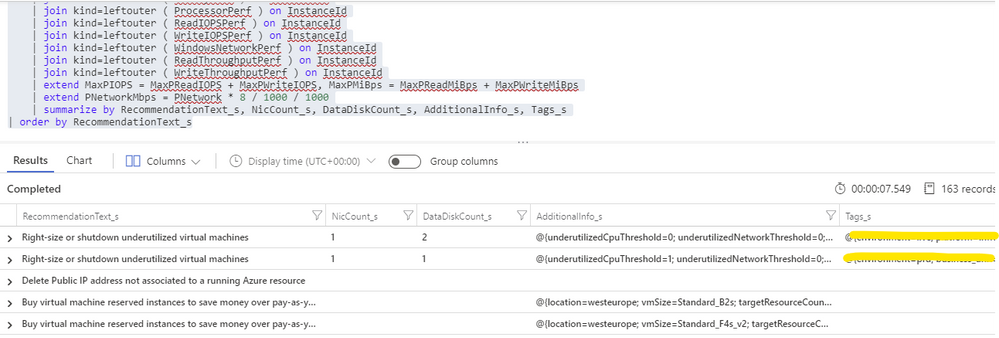
For each exported recommendation, we’ll then execute a simple confidence score algorithm that decreases the recommendation confidence whenever a performance criterion is not met. We are considering these relatively weighted criteria against the recommended target SKU and observed performance metrics:
- [Very high importance] Does it support the current data disks count?
- [Very high] Does it support the current network interfaces count?
- [High] Does it support the percentile(n) un-cached IOPS observed for all disks in the respective VM?
- [High] Does it support the percentile(n) un-cached disks throughput?
- [Medium] Is the VM below a given percentile(n) processor and memory usage percentage?
- [Medium] Is the VM below a given percentile(n) network bandwidth usage?
The confidence score ranges from 0 (lowest) to 5 (highest). If we don’t have performance metrics for a VM, the confidence score is still decreased though in a lesser proportion. If we are processing a non-right-size recommendation, we still include it in the report, but the confidence score is not computed (remaining at the -1 default value).
Bonus recommendation: orphaned disks
The power of this solution is that having so valuable historical data in our repository and adding other sources to it will allow us to generate our own custom recommendations as well. One recommendation that easily comes out of the data we have been collecting is a report of orphaned disks – for example, disks that belonged to a VM that was meanwhile deleted (see sample query below). But you can easily think of others, even beyond cost optimization.
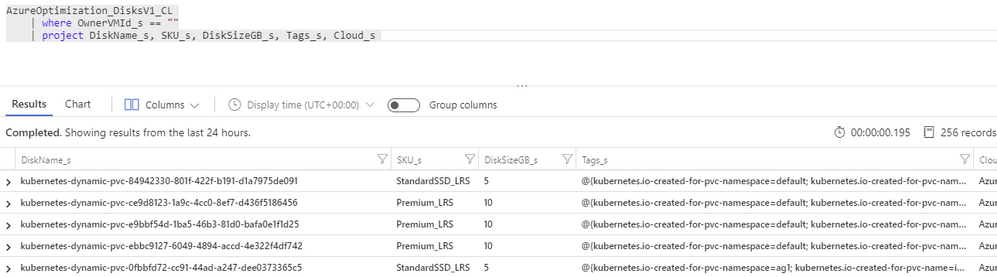
Azure Optimization Engine reporting
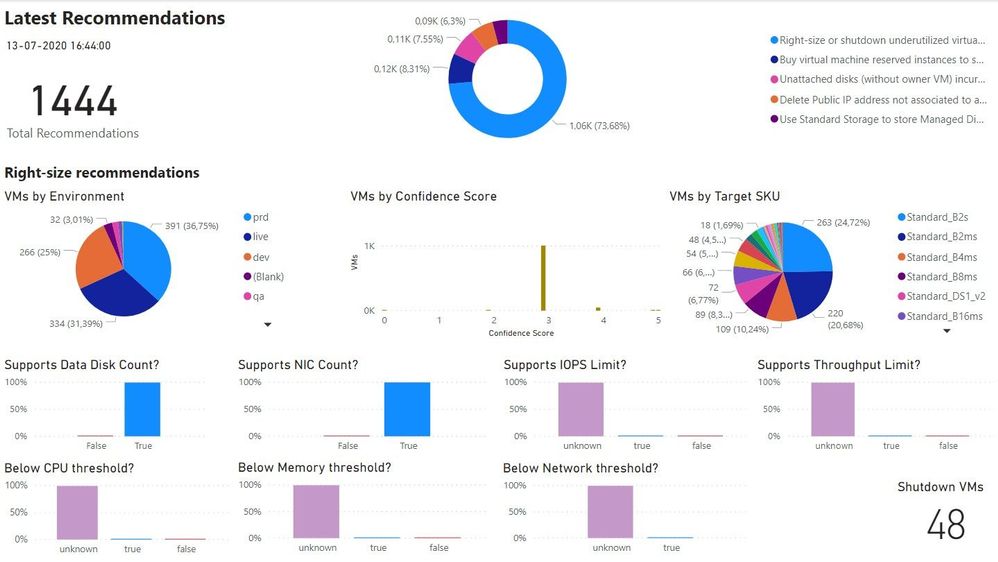
Now that we have an automated process that generates and augments optimization recommendations, the next step is to add visualizations to it. For this purpose, there is nothing better than Power BI. To make things easier, we have meanwhile ingested our recommendations into an Azure SQL Database, where we can better manage and query data. We use it as the data source for our Power BI report, with many perspectives (see sample screenshots below).
The overview page gives us a high-level understanding of the recommendations’ relative distribution. We can also quickly see how many right-size recommended target SKUs are supported by the workload characteristics. In the example below, we have many “unknowns”, since only a few VMs were sending performance metrics to the Log Analytics workspace.
In the exploration page, we can investigate all the available recommendations, using many types of filters and ordering criteria.
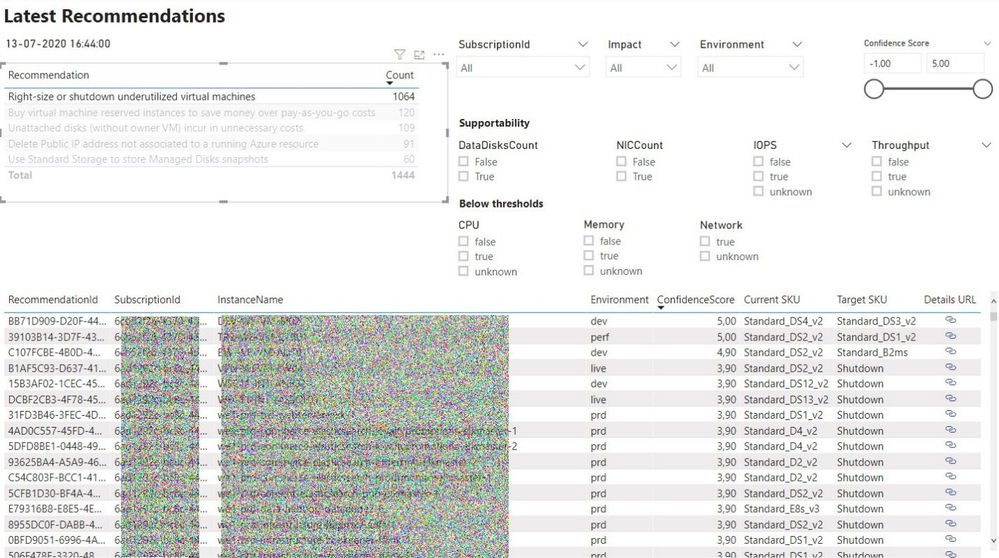
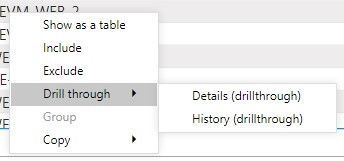
After selecting a specific recommendation, we can drill through it and navigate to the Details or History pages.
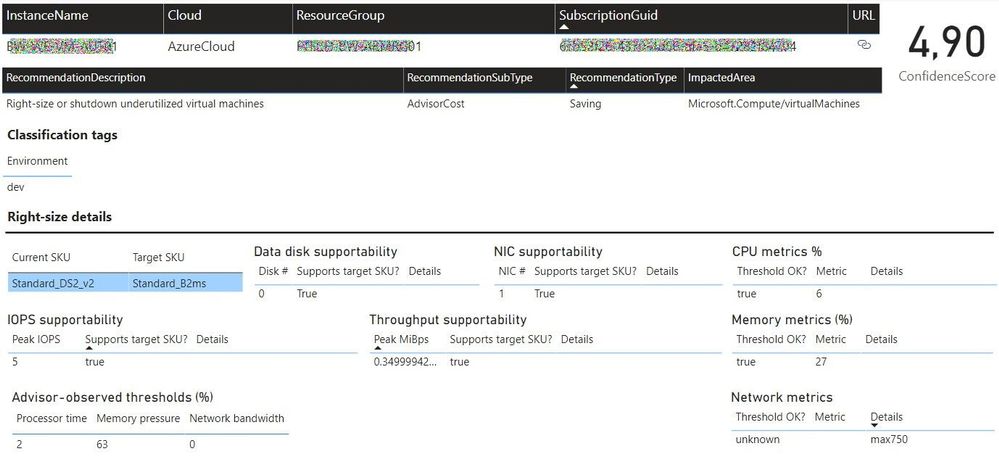
In the Details page, we can analyze all the data that was used to generate and validate the recommendation. Interestingly, the Azure Advisor API has recently included additional details about the thresholds values that were observed for each performance criterion. This can be used to cross-check with the metrics we are collecting with the Log Analytics agent.
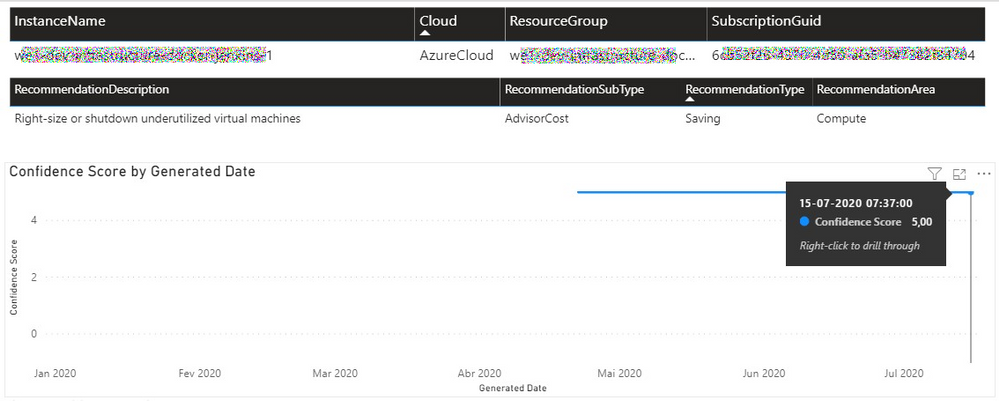
In the History page, we can observe how the confidence score has evolved over time for a specific recommendation. If the confidence score has been stable at high levels for the past weeks, then the recommendation can likely be implemented without risks.
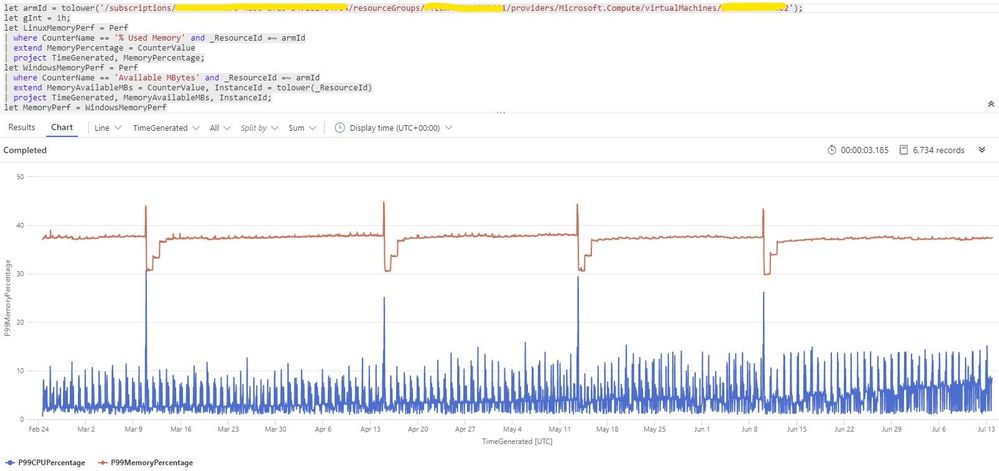
Each recommendation includes a details URL that opens an Azure Portal web page with additional information not available in the report. If we have performance data in Log Analytics for that instance, we can even open a CPU/memory chart with the performance history.
Deploying the solution and next steps
Everything described so far in these posts is available for you to deploy and test, in the Azure Optimization Engine repository. You can find there deployment and usage instructions and, if you have suggestions for improvements or for new types of recommendations, please open a feature request issue or… why not be brave and contribute to the project? ;)
The final post of this series will discuss how we can automate continuous optimization with the help of all the historical data we have been collecting and also how the AOE can be extended with additional recommendations (not limited to cost optimization).
Thank you for having been following! See you next time! ;)
by Scott Muniz | Jul 25, 2020 | Uncategorized
This article is contributed. See the original author and article here.
In this episode of One Ops Question, Sarah answers the question “What’s the Microsoft Adoption Framework?”
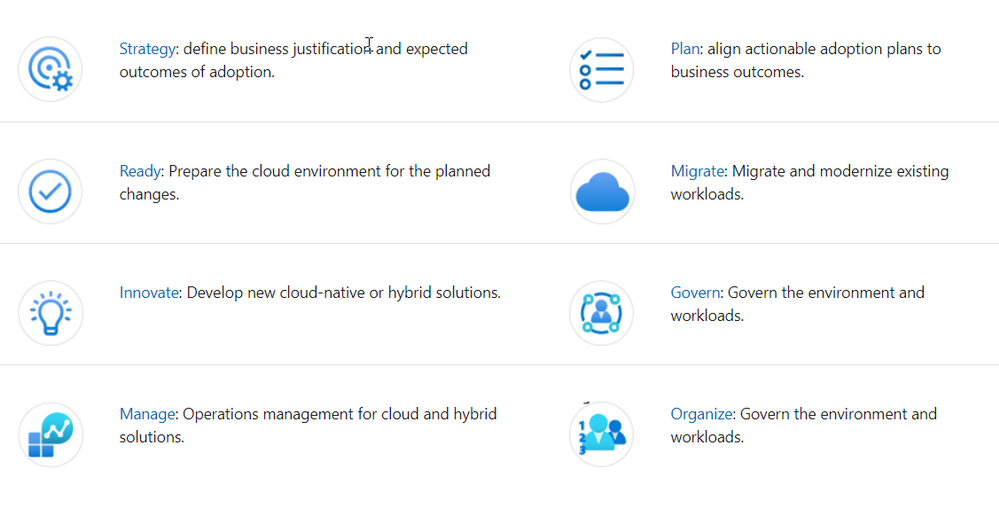
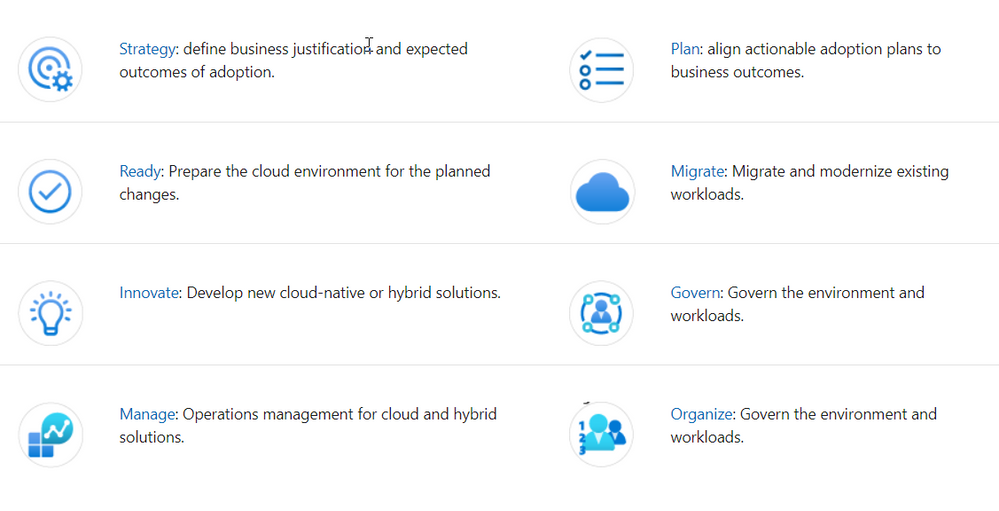
The Microsoft Adoption Framework is a set of guidelines and advice that has been pulled from multiple sources, such as Microsoft employees, partners and customers to help others with their Cloud Adoption Journey. It pulls together proven practices and strategies from Microsoft, partners, and customers. It provides a set of tools and guidance to help shape technology, business, and people strategies achieving your desired business outcomes.
This guidance aligns to the following phases of the cloud adoption lifecycle:
To get started with the Cloud Adoption Framework, review these common scenarios:
I hope this helps.
Cheers!
Pierre
by Scott Muniz | Jul 24, 2020 | Uncategorized
This article is contributed. See the original author and article here.
#JulyOT
This is part of the #JulyOT IoT Tech Community series, a collection of blog posts, hands-on-labs, and videos designed to demonstrate and teach developers how to build projects with Azure Internet of Things (IoT) services. Please also follow #JulyOT on Twitter.
Operating Systems and ARM architectures supported
This tutorial has been tested with .NET Core applications running on Raspberry Pi OS and Ubuntu 20.04 (including Ubuntu Mate 20.04) for both 32bit (ARM32) and 64bit (ARM64). The projects also include build tasks for Debug and Release configurations.
Source Code
The source and the samples for this tutorial can be found here.
Get started
Get started, head to Raspberry Pi .NET Core Developer Learning Path
Learn how to build .NET Core C# and F# apps, connect hardware with the .NET Core IoT library, send telemetry to Azure IoT and IoT Central, control the device with device twins and direct method.
Tips and Tricks for setting up Ubuntu 20.04 on a Raspberry Pi
Check out the following Raspberry Pi Tips and Tricks to boot Ubuntu from USB3 SSD, how to overclock, enable WiFi, and support for the Raspberry Pi Sense HAT.
Raspberry Pi Hardware
.Net Core requires an AMR32v7 processor and above, so anything Raspberry Pi 2 or better and you are good to go. Note, Raspberry Pi Zero is an ARM32v6 processor, and is not supported.
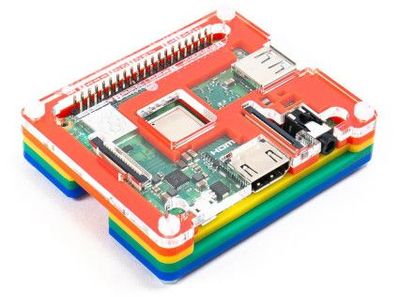
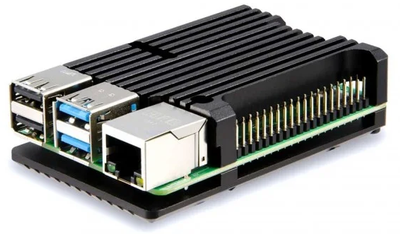
| The Raspberry Pi 3a Plus is a great device for .NET Core. |
I’m super happy with my Raspberry Pi 4B 4GB and 8GB devices seen here dressed in a heatsink case. |
 |
 |
Why .NET Core
It used by millions of developers, it is mature, fast, supports multiple programming languages (C#, F#, and VB.NET), runs on multiple platforms (Linux, macOS, and Windows), and is supported across multiple processor architectures. It is used to build device, cloud, and IoT applications.
.NET Core is an open-source, general-purpose development platform maintained by Microsoft and the .NET community on GitHub.
Learning C#
There are lots of great resources for learning C#. Check out the following:
- C# official documentation
- C# 101 Series with Scott Hanselman and Kendra Havens
- Full C# Tutorial Path for Beginners and Everyone Else
The .NET Core IoT Libraries Open Source Project
The Microsoft .NET Core team along with the developer community are building support for IoT scenarios. The .NET Core IoT Library is supported on Linux, and Windows IoT Core, across ARM and Intel processor architectures. See the .NET Core IoT Library Roadmap for more information.
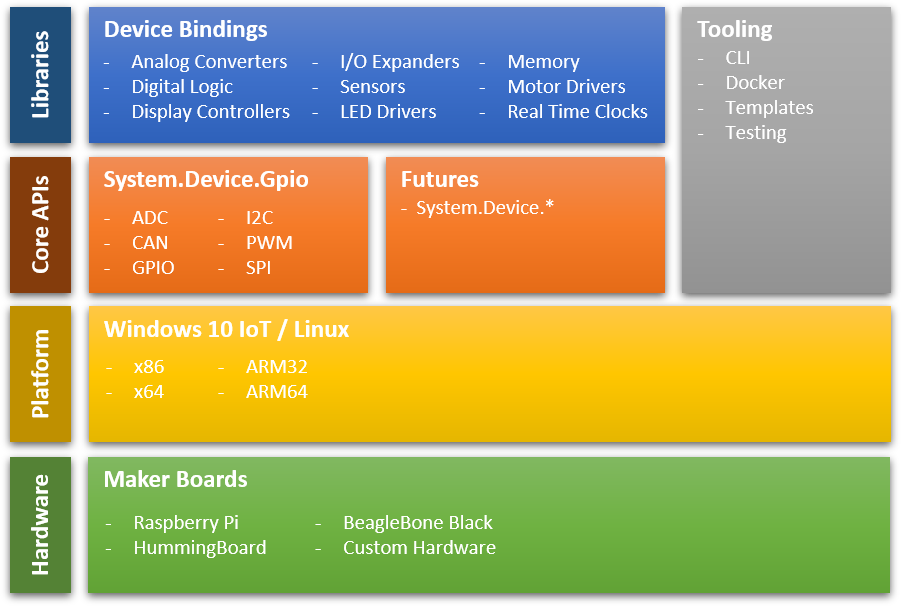
System.Device.Gpio
The System.Device.Gpio package supports general-purpose I/O (GPIO) pins, PWM, I2C, SPI and related interfaces for interacting with low-level hardware pins to control hardware sensors, displays and input devices on single-board-computers; Raspberry Pi, BeagleBoard, HummingBoard, ODROID, and other single-board-computers that are supported by Linux and Windows 10 IoT Core.
Iot.Device.Bindings
The .NET Core IoT Repository contains IoT.Device.Bindings, a growing set of community-maintained device bindings for IoT components that you can use with your .NET Core applications. If you can’t find what you need then porting your own C/C++ driver libraries to .NET Core and C# is pretty straight forward too.
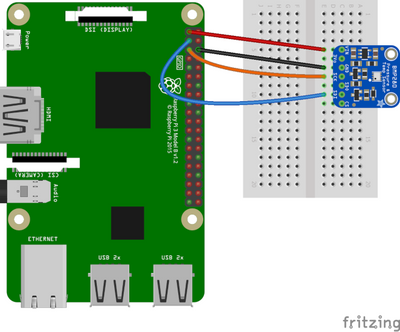
The drivers in the repository include sample code along with wiring diagrams. For example the BMx280 – Digital Pressure Sensors BMP280/BME280.
Get started
Get started, head to Raspberry Pi .NET Core Developer Learning Path
Learn how to build .NET Core C# and F# apps, connect hardware with the .NET Core IoT library, send telemetry to Azure IoT and IoT Central, control the device with device twins and direct method.
Have fun and stay safe and be sure to follow us on #JulyOT.



Recent Comments