This article is contributed. See the original author and article here.
Join us for new insights on the employee experience
Faced with a shifting economic landscape and increasingly tight labor market, today’s leaders are looking for new ways to balance organizational success with the wellbeing of their teams.
Join Satya Nadella and Jared Spataro, plus Ryan Roslansky of LinkedIn, at this digital event to get urgent insights into creating meaningful digital employee experiences, bridging the gap between leaders and their people, and empowering people to be their best.
Empowering Your Workforce in Economic Uncertainty Thursday, September 22, 2022 9:00 AM–9:45 AM Eastern Time
This article is contributed. See the original author and article here.
Now more than ever organizations need a single, integrated experience that makes working together easier and more engaging for their employees whether they are all in the same room, remote, or—for many of us—a mix of both. Because of this, Microsoft is happy to announce changes to our Microsoft Teams Rooms licensing model.
This article is contributed. See the original author and article here.
Organizations are looking for ways to offer hyper-personalized service and foster deeper relationships with their customers. Customers want to connect to agents who understand their needs. They feel more comfortable talking to an agent who has served them in the past, knows about their issues, and can resolve them quickly. Agents want to serve their customers, meet service-level agreements (SLAs), and receive high satisfaction ratings. The key to achieving all these goals is a good relationship between agents and customers. Preferred agent routing in Microsoft Dynamics 365 Customer Service can help build those relationships.
Introducing preferred agent routing in Customer Service
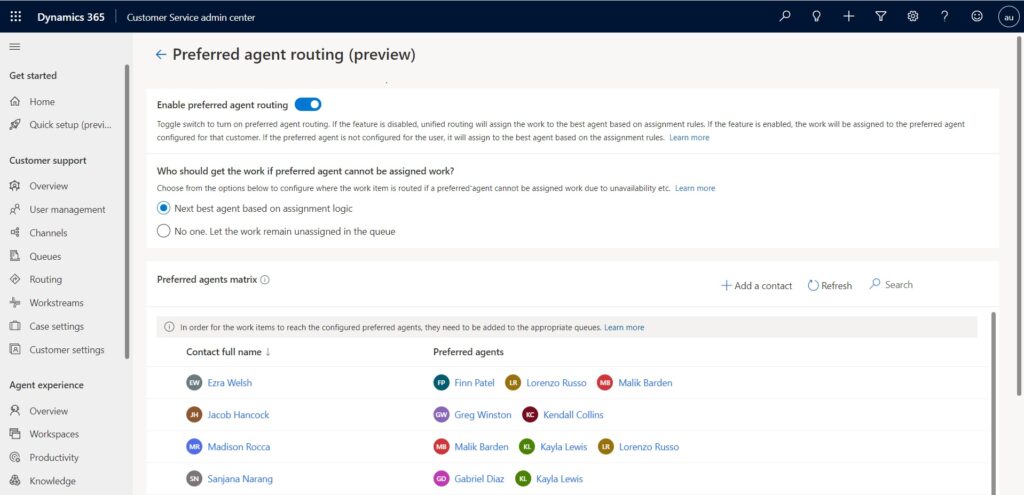
With the preferred agent routing feature in Dynamics 365 Customer Service, organizations can offer relationship management to their customers. Once set up, the unified routing system will connect the customers to their corresponding preferred agents, thus ensuring a delightful service experience.
Administrators can associate up to three agents with a contact to help ensure that if a customer’s most preferred agent isn’t available, they can still be connected to an agent who is familiar with their past interactions and preferences.
Fallbacks ensure no customer goes unattended
In case no preferred agent is available, fallback options ensure that a customer will never be left unattended. Administrators can choose one of two fallback options:
Next best agent based on assignment logic. The system will try to find an available agent based on the assignment rules already in place. If no preferred agent is found or is available, then the work item is assigned to other available agents, ensuring that the customer is always served. We suggest this option for live chat conversations and voice channel calls.
No one. Let the work remain unassigned in the queue. A supervisor or available agent must manually pick up the work item. We suggest this option for asynchronous or social channels, where the customer doesn’t directly connect to a live agent.
Preferred agent routing in action: Contoso Coffee’s Gold membership plan
To see how your organization can benefit from preferred agent routing, consider the following scenario based on the illustration above.
Contoso Coffee recently started offering a Gold membership plan. Gold membership comes with premium customer service, which includes a dedicated relationship manager (preferred agent).
Madison calls the support line to report a problem with her old coffee machine. She has such a pleasant interaction with the support agent, Malik, that she buys a Contoso Caf 100 and enrolls in the Gold membership plan.
When Kayla, the customer success manager, gets the new subscription information, she reviews Madison’s customer service history. Noticing the positive sentiment in her interaction with Malik, she associates Malik as Madison’s preferred agent.
A few months later, Madison buys a bag of coffee beans and receives the wrong product. She initiates a chat to get a replacement. The chat is automatically routed to Malik, Madison’s preferred agent. Knowing her purchase history and remembering that she had praised Arabica coffee beans in their previous interaction, Malik suggests replacing the incorrect product with Contoso’s new Arabica beans, recommended for the Caf 100.
Madison feels happy and satisfied with the personalized support she received, without having to explain her issue to different agents. Malik feels happy to receive a high satisfaction rating from Madison.
Learn more
Check out the documentation for more information about automatic assignment and preferred agent routing in Dynamics 365 Customer Service:
This article is contributed. See the original author and article here.
Introduction
For-each loop is a common construct in many languages, allowing collections of items to be processed the same way. Within Logic Apps, for-each loops offer a way to process each item of a collection in parallel – using a fan-out / fan-in approach that, in theory, speeds up the execution of a workflow.
But for-each loop in Logic Apps, in both Consumption and Standard skus, has been a performance pain point because of how they are executed under the hood. To provide resiliency and distributed execution at scale, performance end up being sacrificed, as a lot of execution metadata must be stored and retrieved from Azure Storage, which adds network and I/O latency, plus extra compute cost, thanks to serialization/deserialization.
With stateless workflows, an opportunity to improve the performance of for-each loop arises. As stateless workflows run in-memory and are treated as atomic items, the resiliency and distribution requirements can be removed – this removes a dependency on Azure Storage to store the state of each action, which removes both I/O and networking latency, while also removing most of the serialization/deserialization costs.
The original for-each loop code was shared between stateful and stateless workflows. But as performance on stateless was not scaling we rethought the way we execute for-each loop in the context of a Stateless workflow. Those changes almost doubled the performance of for-each loop within the context of stateless, as we were able to achieve a 91% speedup in our benchmark scenario.
Benchmark
In order to compare the performance of a stateless workflow before and after the code changes, we used a familiar scenario – which we used for our previous performance benchmark blogpost, modifying it slightly to process a batch of messages using a for-each loop instead of the split-on technique we used previously. You can find the modified workflow definitions here.
We deployed the same workflow to two Logic Apps – one which used the previous binaries and another running the optimized binaries – and used a payload of 100 messages in an array delivered by a single POST request. The for-each loop turned this into 100 iterations, executing with a concurrency limit of 10. We then measured the time it took for each Logic App to complete all 100 iterations. The total execution time can be found below:
Batch Execution (100 messages)
Total execution time (seconds)
Previous binaries
30.91
Optimized binaries
16.24
As per results above we confirmed that the optimized app took 47.6% less time to execute, which means 90.7% execution speedup.
Analysis
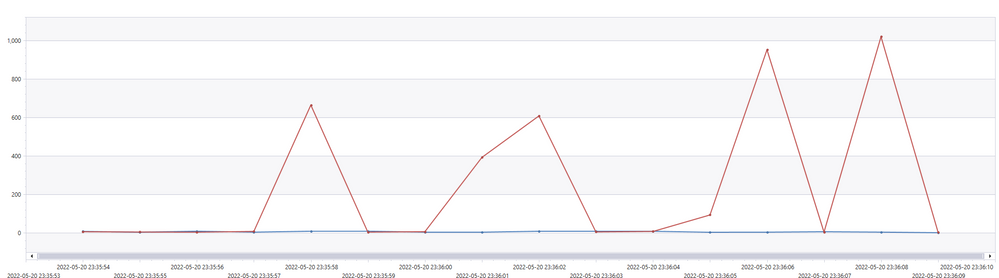
Two interesting graphs are that of execution delay and jobs per second.
Execution delay is the time difference between when a job was scheduled to be executed and when it was actually executed. Lower is better.
Red = unoptimized
Blue = optimized
From the graph, we see that the unoptimized execution experienced spikes in executing delay. This was due to a synchronization mechanism that we used to wait for a distributed batches of for-each repetition to complete. We were able to optimize that delay away.
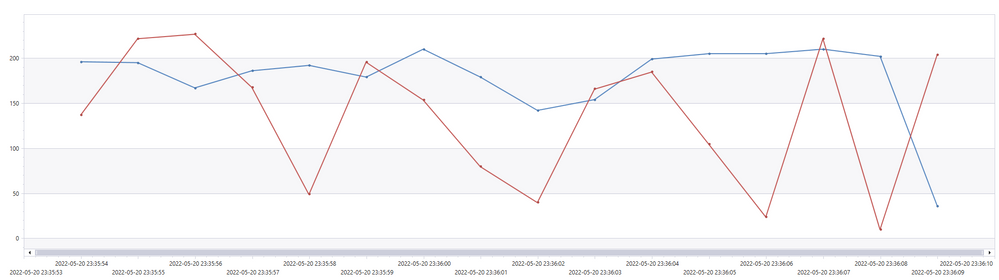
Jobs per second is another metric that we looked at because under the hood, all workflows are translated into a sequence of jobs. Higher is better.
Red = unoptimized
Blue = optimized
We can see that the optimized version remains higher and steadier, meaning that compute resources were more efficiently utilized.
What about Stateful workflows?
As Stateful workflows still run in a distributed manner like Consumption workflows, this optimization is not directly applicable. To maximize the performance of a for-each loop in Stateful, the most important factor is to make sure the app is scaling out enough to handle the workload.
One of the important recommendations is when joining a large table (Fact) with a much smaller table (Dimension), is to mention the small table first:
Customers | join kind=rightouter FactSales on CustomerKey
It is also recommended in such cases to add a hint:
Customers | join hint.strategy=broadcast kind=rightouter FactSales on CustomerKey
The hint allows the join to be fully distributed using much less memory.
Joins in PBI
When you create a relationship between two tables from Kusto, and both tables use Direct Query, PBI will generate a join between the two tables.
The join will be structured in this way:
FactSales | join Customers on CustomerKey
This is exactly the opposite of the recommended way mentioned above.
Depending on the size of the fact table, such a join can be slow, use a lot of memory or fail completely.
Recommended strategies until now
In blogs and presentations, we recommended few workarounds.
I’m mentioning it here because I would like to encourage you to revisit your working PBI reports and reimplement the joins based on the new behavior that was just released.
Import the dimension tables
If the dimension tables are imported, no joins will be used.
Any filters based on a dimension table will be implemented as a where based on the column that is the base of the relationship. In many cases this where statement will be very long:
| where CustomerKey in (123,456,678,…) .
If you filter on the gender F and there are 10,00 customers with F in the gender column, the list will include 10,000 keys.
This is not optimal an in extreme cases it may fail.
Join the table in a Kusto function and use the function in PBI
This solution will have good performance, but it requires more understanding of KQL and is different from the way normal PBI tables behave
Join the tables on ingestion using an update policy
Same as the previous method but requires even a deeper understanding of Kusto.
New behavior
Starting from the September version of PBI desktop, the Kusto connector was updated, and you can use relationships between dimension tables and fact table like with any other source with a few changes:
In every table that is considered a dimension add IsDimension=true to source step so it will look like
The data volume of the dimension tables (The columns you will use) should not exceed 10 megabytes.
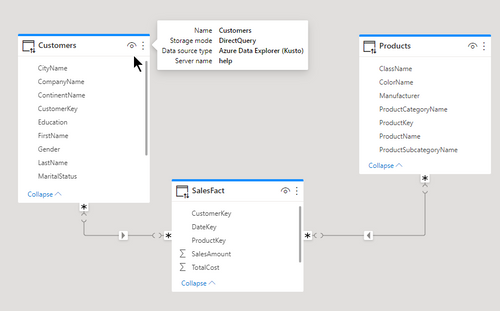
Relationships between two tables from Kusto will be identified by PBI as M:M. You can leave it as M:M but be sure to set the filtering direction to single from the dimension to the fact.
When the relationship is M:M, the join kind will be inner. If you want a rightouter join (because you are not sure you have full integrity) you need to force the relationship to be 1:1. You can edit the model using Tabular editor (V2 is enough)
Before and after
In the attached example you can see two dimension tables with relationships to a fact table. The relationships are M:M and you can see the generated KQL in the text box.
The query as shown takes 0.5 seconds of CPU and uses 8MB of memory
The same query without the new setting takes 1.5 seconds of CPU and 478MB of memory.





Recent Comments