Announcing Az Predictor preview 2

Announcing Az Predictor preview 2

This article is contributed. See the original author and article here.

Last November, we announced the first preview of Az Predictor, a PowerShell module for Azure that brings to your fingertips the entire knowledge of the Azure documentation customized to your current session.
Today we are announcing the second preview of Az Predictor and we want to share some clarity on our plans for the next few months.


AzPredictor-preview2-dynamichelp.png


What did we learn from the first preview?


Since the release of the first preview, we listened to customer feedback and identified some challenges.


  1. Customers believed that the predictor was not functional. Since the service that is used to deliver the predictions did not support outages, we believe this feedback is caused by the following reasons:

    1. The module had to be imported manually and several customers either forgot or did not know that they had to import the module.

    2. The default configuration of PSReadline had to be changed to show the predications from Az Predictor.


  2. With an accepted suggestion, the navigation through the parameter values can be complicated especially when the list of parameters is long.

  3. We were not making any suggestions for several modules (for example Az.MySql).


What has changed?


The module now exposes two cmdlets ‘Enable-AzPredictor’ and ‘Disable-AzPredictor’ to automatically import the module and configure PSReadline. The cmdlet also allows users to enable the settings for future sessions by updating the user’s PowerShell profile (Microsoft.PowerShell_profile.ps1).


Az.Tools.Predictor required API changes to the PowerShell engine to improve suggestions (requiring PowerShell 7.2 preview 3).


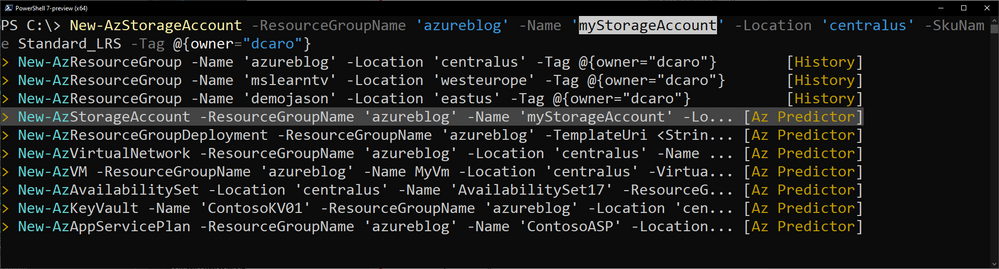
You can now use dynamic completers to easily navigate through the parameter value with the ‘Alt+A’ combination.


We are continuously improving the model that is serving the predictions displayed on your screen. This is the most important and invisible piece of software that makes the magic! The most recent update of the model now comprises the missing modules.


Getting started with preview 2


If you have installed the first preview:


  • Close all your PowerShell sessions

  • Remove the Az.Tools.Predictor module


To install the second preview of Az.Tools.Predictor follow these steps:


  1. Install PowerShell 7.2-preview 3
    Go to: https://github.com/PowerShell/PowerShell/releases/tag/v7.2.0-preview.3
    Select the binary that corresponds to your platform in the assets list.


  2. Launch PowerShell 7.2-preview 3 and Install PSReadline 2.2 beta 2 with the following:

    Install-Module -Name PSReadLine -AllowPrerelease

    More details about PSReadline: https://www.powershellgallery.com/packages/PSReadLine/2.2.0-beta2


  3. Install Az.Tools.Predictor preview 2
    Install-module -name Az.Tools.Predictor -RequiredVersion 0.2.0

    More details about Az.Tools.Predictor: https://www.powershellgallery.com/packages/Az.Tools.Predictor/0.2.0


  4. Enable Az Predictor

    Enable-AzPredictor -AllSession

    This command will enable Az Predictor in all further sessions of the current user.


Inline view mode (default)


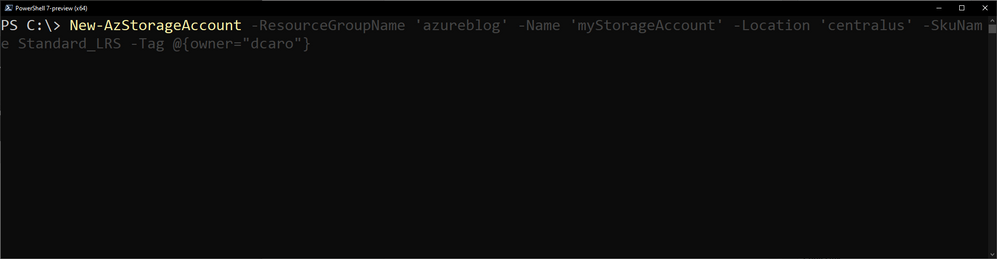
Once enabled, the default view is the “inline view” as shown in the following screen capture: 


AzPredictor-preview2-inlineview.png


This mode show only one suggestion at a time. The suggestion can be accepted by pressing the right arrow or you can continue to type. The suggestion will dynamically adjust based on the text that you have typed.


You can accept the suggestion at any time then come back and edit the command that is on your prompt. 


List view mode


This is definitely my favorite mode!


Switch to this view either by using the “F2” function key on your keyboard or run the following command: 


Set-PSReadLineOption -PredictionViewStyle ListView

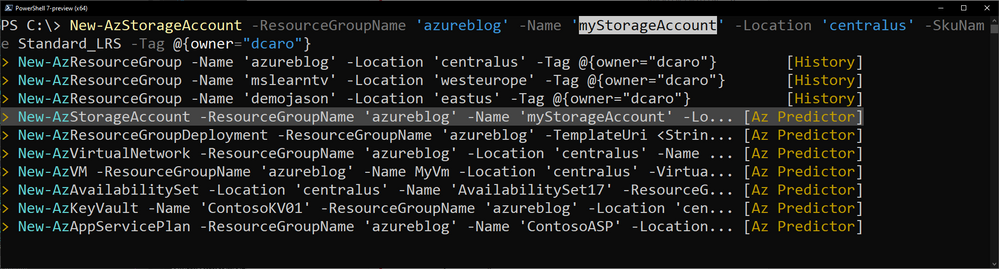
This mode shows in the a list down your current prompt a list of possible match for the command that you are typing. It combines suggestions from the history as well as suggestions from Az Predictor.


Select a suggestion and then navigate through the parameter values with “Alt + A” to quickly fill replace the proposed values with yours.


AzPredictor-preview2-dynamichelp.png


What’s next?


We are looking for feedback on this second preview.


We will continue to improve our predictor in the coming months. Stay tuned for our next update of the module.


Tell us about your experience. What do you like or dislike about Az Predictor?


Further Reading


Advance Resource Access Governance for AML

Advance Resource Access Governance for AML

This article is contributed. See the original author and article here.


Access control is a fundamental building block for enterprise customers, where protecting assets at various levels is absolutely necessary to ensure that only the relevant people with certain positions of authority are given access with different privileges. This is more so prevalent in machine learning, where data is absolutely essential in building ML models, and companies are highly cautious about how the data is accessed and managed, especially with the introduction of GDPR.  We are seeing an increasing number of customers seeking for explicit control of not only the data, but various stages of the machine learning lifecycle, starting from experimentation and all the way to operationalization. Assets such as generated models, cluster creation and model deployment require to be governed to ensure that controls are in line with the company’s policy.


Azure traditionally provides Role-based Access Control [1], which helps to manage access to resources; who can access these and what they can access.  This is primarily achieved via the concept of roles.  A role defines a collection of permissions.


Existing Roles in AML


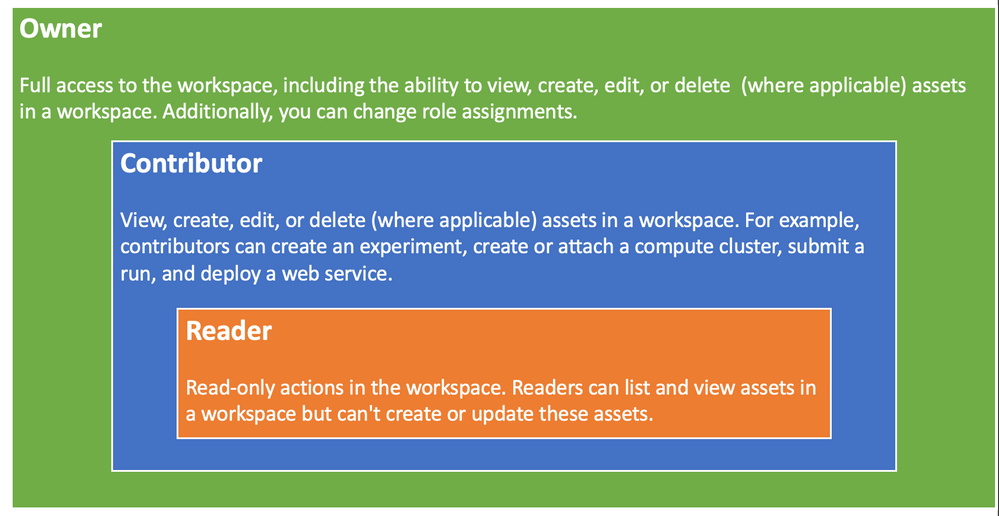
Azure Machine Learning provides three roles [3] for enterprise customers to provision as a coarse-grained access control, which is designed for simplicity in mind.  The first role (Owner) has the highest level of privileges, that grants full control of the workspace.  This is followed by a Contributor, which is a bit more restricted role that prevents users from changing role assignment. Reader having the most restrictive permissions and is typically read or view only (see figure 1 below).  


roles-1.png


 Figure 1 – Existing AML roles


What we have found with the customers is that while Coarse-grained Access Control immensely simplifies the management of the roles, and works quite well with a small team, primarily working in the experimentation environment.  However, when a company decides to operationalize the ML work, especially in the enterprise space, these roles become far too broad, and too simplistic.   In the enterprise space, the deployment tends to have several stages (such as dev, test, pre-prod, prod, etc.), and require various skillset (data scientist, data engineer, etc.) with a greater control in each stage.  For example, a Data Scientist may not operate in the production environment. A Data Engineer can only provision resources and should not have the ability to commission and decommission training clusters. Such governance policies are crucial for companies to be enforced and monitored to maintain integrity of their business and IT processes.


Unfortunately, such requirements cannot be captured with the existing roles. Enterprise needs a better mechanism to define policies for various assets in AML to satisfy their business specific requirements.


This is where the new exciting feature of advanced Role-based Access Control really shines. It is based on Fine-grained Access Control at component level (see figure 2) with a number of pre-built out of the box roles, plus the ability to create custom roles that can capture more complex governance access processes and enforce them.  


Advance Fine-grained Role-based Access Control


The new advance Role-based Access Control feature of AML is really going to solve many of the enterprise problems around the ability to restrict or grant user permissions for various components.  Azure AML currently defines 16 components  with varying permissions.
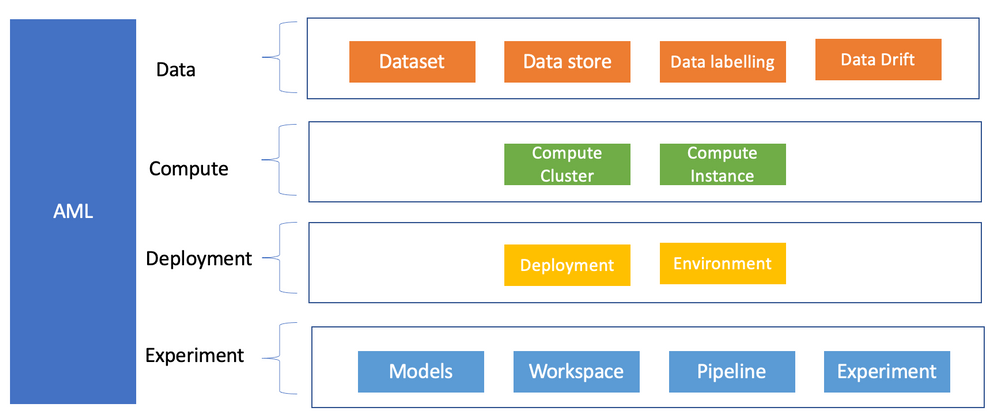


aml-components.png


Figure 2 – Components Level RBAC


Each component defines a list of actions such as read, write, delete, etc.  These actions can then be amalgamated together to create a custom specific role. To illustrate this with an example of a list of actions currently available for a Datastore component (see Figure 3 below).
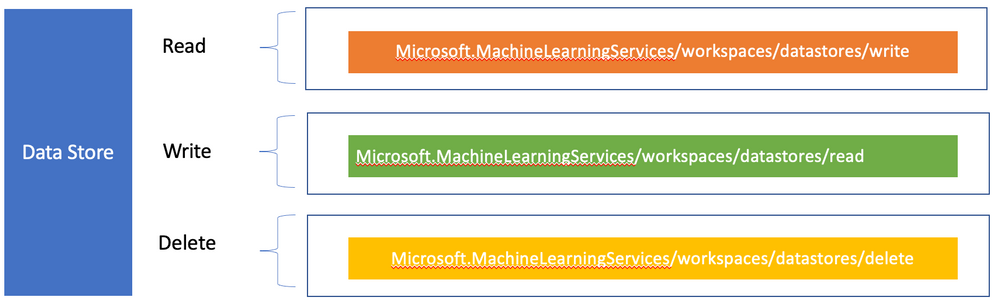


datastore-1.png


Figure 3 – Datastore Actions


A datastore along with Dataset are important concepts in Azure Machine Learning,  since they provide access to various data sources, with lineage and tracking ability.  Many enterprises have built global Datalake that contain terabytes of data which can contain highly sensitive information. Companies are quite protective of who can access these data, along with various business justifications for how these data are being accessed/used. It is therefore imperative that a tighter access control is mandated for a specific role, such as a Data Engineer to accomplish such a task.


Fortunately, AML advance access control provide custom roles.  to cater for their company specific access control, which may be a hybrid of these roles.  For such requirements, Azure caters for custom roles.


Custom Role


Custom role [4] allows creation of Fine-grained Access Control on various components, such as the workspace, datastore, etc. 


  • Can be any combination of data or control plane actions that AzureML+AISC support.

  • Useful for creating scoped roles to a specific action like an MLOps Engineer


These controls are defined in a JSON policy definition, for example.


{
“Name”: “Data Scientist”,
“IsCustom”: true,
“Description”: “Can run experiment but can’t create or delete datastore.”,
“Actions”: [“*”],
“NotActions”: [
“Microsoft.MachineLearningServices/workspaces/*/delete”,
“Microsoft.MachineLearningServices/workspaces/ datastores/write”,
“Microsoft.MachineLearningServices/workspaces/ datastores /delete”,
“Microsoft.MachineLearningServices/workspaces/datastores/write”,
“Microsoft.Authorization/*/write”
],
“AssignableScopes”: [
“/subscriptions/<subscription_id>/resourceGroups/<resource_group_name>/providers/Microsoft.MachineLearningServices/workspaces/<workspace_name>”
]
}


The above code defines a Data Scientist who can run an experiment but cannot create or delete a Datastore. This role can be created using the Azure CLI (az role definition create -role-definition filename), however, the CLI ML extension needs to be installed first.  


Role Operation Workflow


In an organization, the following activities are to be undertaken by various role owners. 


  • Sub admin comes in for an enterprise and requests Amlcompute quota

  • They create an RG and a workspace for a specific team, and also set workspace level quota

  • The team lead (aka workspace admin), comes in and starts creating compute within the quota that the sub admin defined for that workspace

  • Data Scientist comes in and uses the compute that workspace admin created for them (clusters or instances).


Roles for Enterprise


AML provides a single environment for doing end-to-end experimentation to operationalization.  For a start-up this is really useful as they tend to operate in a very agile manner, where many iterations can happen in a short period of time and having the ability to quickly move from ideation to production really reduces their cycle time.  Unfortunately, this may not be the case for the enterprise customers, where they would typically be using either two or three environments to carry out their production workload such as: Dev, QA and Prod. 


Dev is used to do the experimentation, while QA is catered for satisfying various functional and non-functional requirements, followed by Prod for deployment into the production for consumer usage.


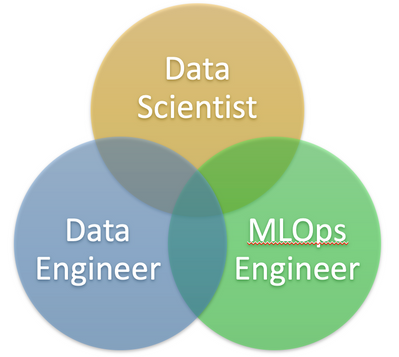
The environments would also have various roles to carry out different activities, such as Data Scientist, Data Engineer and MLOps Engineer (see figure 8 below).


role-3.png


Figure 8 – Enterprise Roles


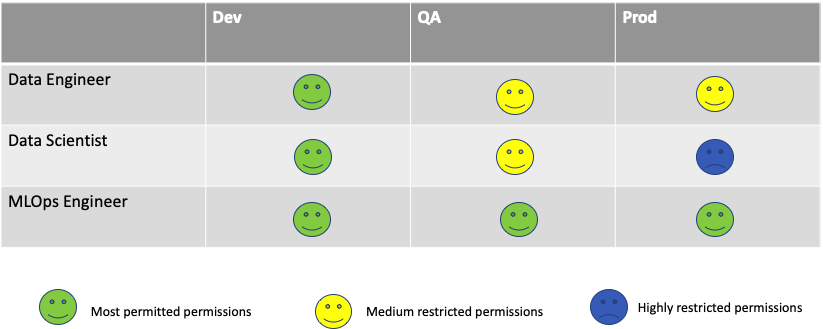
A Data Scientist normally operates in the Dev environment and has full access to all the permissions related to carrying out experiments, such as provisioning training clusters, building models, etc. While some permissions are granted in the QA environment, primarily related model testing and performance, and very minimal access to the Prod environment, mainly telemetry (see below Table 1). 


A Data Engineer on the other hand primarily operates in the Build and QA environment. The main focus is related to the data handling, such as data loading, doing some data wrangling, etc.  They have restricted access in the Prod environment.


Mufajjul_Ali_10-1614737951507.png


Table 1 – Role/environment Matrix


An MLOps Engineer has some permission in the Dev environment, but full permissions in the QA and Prod.  This is because an MlOPs Engineer is tasked with building the pipeline, gluing things together, and ultimately deploying models in production.


The interesting part is how do all these roles and environments and other components fit together in Azure to provide the much-needed access governance for the enterprise customers. 


Enterprise AML Roles Deployment


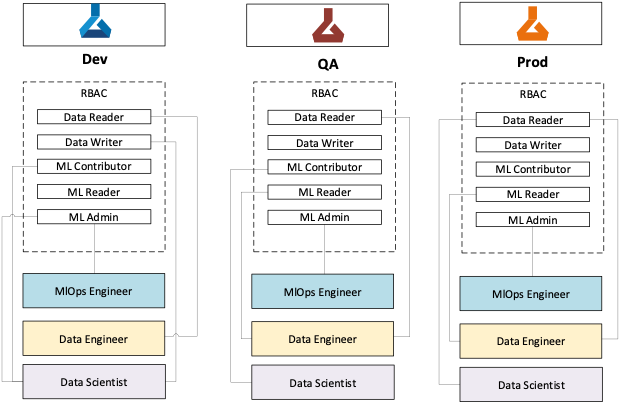
It is impressive for enterprises to be able to model these complex roles/environments mapping as shown in Table one.  Fortunately these can be achieved in Azure using a combination of AD groups, roles and resource groups.


Mufajjul_Ali_11-1614737951524.png


Figure 9 – Enterprise AML Roles Deployment


Fundamentally, Azure Active Directory groups play a major part in gluing all these components together to make it functional. 


First step is to group the users specific to role(s) in a “Role AD group” for a given persona (DS, DE, etc.,). Then assign roles with various RBAC actions (Data Writer, MLContributor, etc.) to this AD group.  All these users will now inherit the permissions specific to this role(s).  Multiple AD groups will be created for different persona roles.


Separate AD groups (‘AD group for Environment’) are created for each environment (i.e. Dev, QA and Prod), the Role AD Groups are added to these Environment AD groups.  This creates a mapping of users belonging to a specific role persona with given permissions to an environment.


The ‘AD group for Environment’ is then assigned to a resource group, which contains a specific AML Workspace.  This ensures that the role permissions assigned to users will be enforced at the workspace level. 


Summary


In this blog, we have discussed the new advance Role-based Access Control, and how it is being applied in a complex enterprise with various environments with different user personas.


The important point to note is the flexibility that comes with this new feature which can operate at any of the 16 AML components and be able to define Fine-grained Access Control for each through custom roles, and out of box four roles which should be sufficient for the majority of the customers.  


References


[1] https://docs.microsoft.com/en-us/azure/role-based-access-control/overview


[2] https://azure.microsoft.com/en-gb/services/machine-learning/


[3] https://docs.microsoft.com/en-us/azure/machine-learning/concept-enterprise-security


[4] https://docs.microsoft.com/en-us/azure/role-based-access-control/custom-roles


Additional Links:


co-author: @Nishank Gupta 



Support Tip: Connecting Adobe and OneDrive for Business

Support Tip: Connecting Adobe and OneDrive for Business

This article is contributed. See the original author and article here.

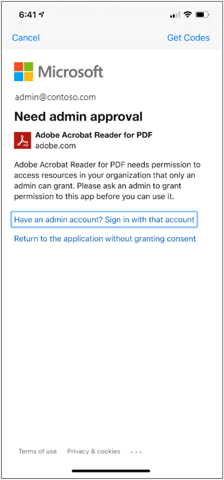
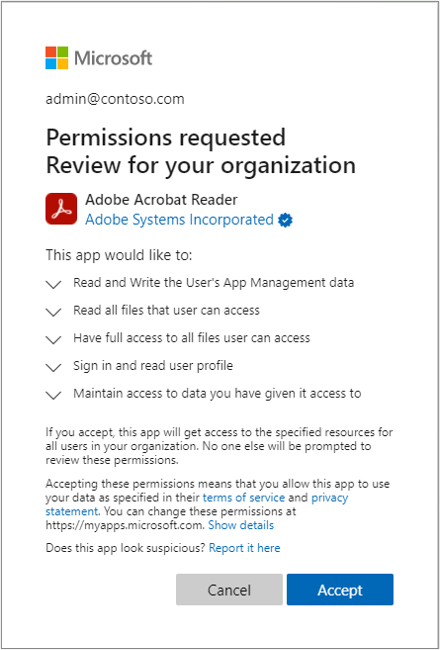
Adobe Acrobat recently updated their application to include deeper integration with Microsoft including access to OneDrive for Business files. This integration allows users to access their OneDrive for Business files from the Acrobat app. The improvements have a few configuration changes which will require that Intune admins approve the Adobe Acrobat app to connect to the Intune service. This is a one-time approval that you may not have had to do historically when connecting Adobe Acrobat and OneDrive for Business.


There are two options for this one-time approval:


  1. Use the latest Adobe Acrobat iOS and Android app and enable the OneDrive feature:

    Adobe Acrobat Reader for PDF approval promptAdobe Acrobat Reader for PDF approval prompt


  2. Use the link below to associate the two for your organization:


    Permissions requested – Review for your organization | Adobe Acrobat Reader

    Admin consent - Permissions requested for review and approval processAdmin consent – Permissions requested for review and approval process


Enjoy the integration!


More info and feedback


Let us know if you have any additional questions by replying to this post or reaching out to @IntuneSuppTeam on Twitter.

Deliver Java Apps Quickly using Custom Connectors in Power Apps

This article is contributed. See the original author and article here.

Overview  


In 2021, each month we will be releasing a monthly blog covering the webinar of the month for the Low-code application development (LCAD) on Azure solution. LCAD on Azure is a new solution to demonstrate the robust development capabilities of integrating low-code Microsoft Power Apps and the Azure products you may be familiar with.    


This month’s webinar is ‘Deliver Java Apps Quickly using Custom Connectors in Power Apps’ In this blog I will briefly recap Low-code application development on Azure, how the app was built with Java on Azure, app deployment, and building the app’s front end and UI with Power Apps. 


What is Low-code application development on Azure?   


Low-code application development (LCAD) on Azure was created to help developers build business applications faster with less code, leveraging the Power Platform, and more specifically Power Apps, yet helping them scale and extend their Power Apps with Azure services.    


For example, a pro developer who works for a manufacturing company would need to build a line-of-business (LOB) application to help warehouse employees’ track incoming inventory. That application would take months to build, test, and deploy, however with Power Apps’ it can take hours to build, saving time and resources.   


 However, say the warehouse employees want the application to place procurement orders for additional inventory automatically when current inventory hits a determined low. In the past that would require another heavy lift by the development team to rework their previous application iteration. Due to the integration of Power Apps and Azure a professional developer can build an API in Visual Studio (VS) Code, publish it to their Azure portal, and export the API to Power Apps integrating it into their application as a custom connector. Afterwards, that same API is re-usable indefinitely in the Power Apps’ studio, for future use with other applications, saving the company and developers more time and resources. To learn more, visit the LCAD on Azure pageand to walk through the aforementioned scenario try the LCAD on Azure guided tour. 


Java on Azure Code 


In this webinar the sample application will be a Spring Boot application, or a Spring application on Azure, that is generated using JHipster and will deploy the app with Azure App service. The app’s purpose is to catalog products, product descriptions, ratings and image links, in a monolithic app. To learn how to build serverless PowerApps, please refer to last month’s Serverless Low-code application development on Azure blog for details. During the development of the API Sandra used H2SQL and in production she used MySQL. She then adds descriptions, ratings, and image links to the API in a JDS studio. Lastly, she applies the API to her GitHub repository prior to deploying to Azure App service.  


Deploying the Sample App 


Sandra leverages the Maven plug-in in JHipster to deploy the app to Azure App service. After providing an Azure resource group name due to her choice of ‘split and deploy’ in GitHub Actions she only manually deploys once, and any new Git push from her master branch will be automatically deployed. Once the app is successfully deployed it is available at myhispter.azurewebsites.net/V2APIdocs, where she copies the Swagger API file into a JSON, which will be imported into Power Apps as a custom connector. 


Front-end Development 


The goal of the front-end development is to build a user interface that end users will be satisfied with, to do so the JSON must be brought into Power Apps as a custom connector so end users can access the API. The first step is clearly to import the open API into Power Apps, note that much of this process has been streamlined via the tight integration of Azure API management with Power Apps. To learn more about this tighter integration watch a demo on integrating APIs via API management into Power Apps.  


After importing the API, you must create a custom connector, and connect that custom connector with the Open API the backend developer built. After creating the custom connector Dawid used Power Apps logic formula language to collect data into a dataset, creating gallery display via the collected data. Lastly, Dawid will show you the data in a finalized application and walk you through the process of sharing the app with a colleague or making them a co-owner. Lastly, once the app is shared, Dawid walks you through testing the app and soliciting user feedback via the app. 


Conclusion 


To conclude, professional developers can rapidly build the back and front ends of the application using Java, or any programming language with Power Apps. Fusion development teams, professional developers and citizen developers, can collaborate on apps together, reducing much of the lift for professional developers. Please watch the webinar and complete the survey so, we can improve these blogs and webinars in the future. 


Resources 


  • Webinar 


  • Low-code application development on Azure  


  • Java on Azure resources  


  • Power Apps resources