by Contributed | Mar 10, 2021 | Technology
This article is contributed. See the original author and article here.
Version 17.7.2 of the Microsoft ODBC Driver 17 for SQL Server has been released. Version 17.7.2 brings a few fixes to the driver.
Fixes
- Fix issue with 404 Not Found errors when using Managed Service Identity authentication
- Fix for intermittent Encryption Not Supported errors under high multithreaded loads
- Fix for intermittent crash under high multithreaded loads
Next steps
For Windows installations, you can directly download the Microsoft ODBC Driver 17 for SQL Server.
Linux and macOS packages are also available. For installation details see the online instructions for Linux or macOS.
Roadmap
We are committed to improving quality and bringing more feature support for connecting to SQL Server Azure SQL Database Azure SQL DW, and Azure SQL Managed Instance through regular driver releases. We invite you to explore the latest the Microsoft Data Platform has to offer via a trial of Microsoft Azure SQL Database or by evaluating Microsoft SQL Server.
David Engel
by Contributed | Mar 10, 2021 | Technology
This article is contributed. See the original author and article here.
We recently released an update to Microsoft.Data.SqlClient, version 1.1.4. The update addresses a couple issues that are important to our customers.
Updates in Microsoft.Data.SqlClient 1.1.4 are:
Fixed
- Fixed wrong results issues during high load by changing the timeout timer to ensure a correct execution state #950
- Fixed MARS header contains errors issue against .NET Framework 4.8+ #959
To get the new package, add a NuGet reference to Microsoft.Data.SqlClient in your application.
For the list of changes in Microsoft.Data.SqlClient 1.1.4, you can also see the Release Notes.
If you encounter any issues or have any feedback, head over to the SqlClient GitHub repository and submit an issue.
David Engel
by Contributed | Mar 10, 2021 | Technology
This article is contributed. See the original author and article here.
By Jon Callahan – Senior Program Manager | Microsoft Endpoint Manager
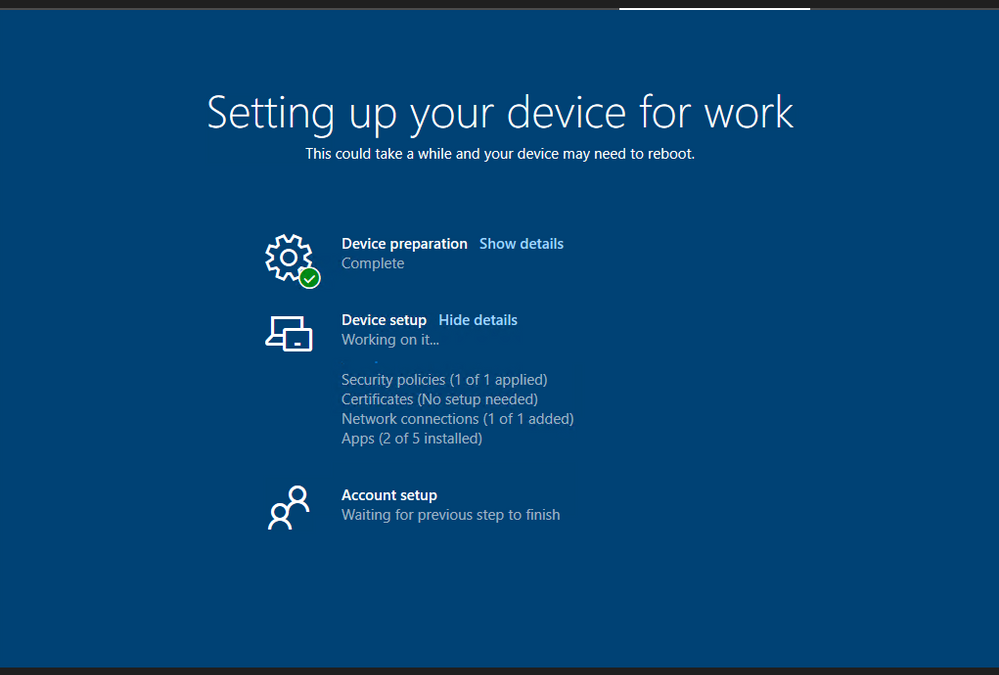
The Enrollment Status Page is a feature of Microsoft Endpoint Manager that displays progress of preparing the device for management, applying policies, and installing apps during the out-of-box experience (OOBE) of Windows Autopilot. An available configuration is the option to block device use until apps are installed – preventing the user from accessing the desktop for the first time until the device is in an expected state.
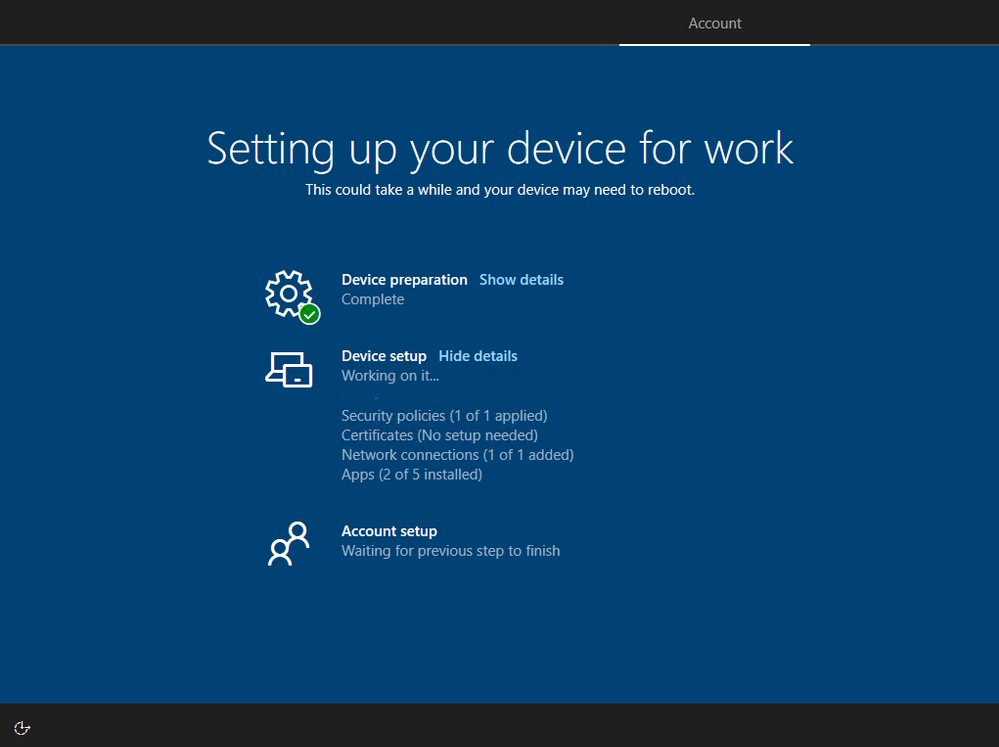 Screenshot of the Enrollment Status Page
Those familiar with Windows operating system deployment using a custom “golden image” may want to block device use until all apps are installed. Blocking on all apps will most closely mimic what IT and users are familiar with in their existing deployment process where a fully configured device is delivered to the user. However, carry-over of this legacy approach comes with trade-offs that may compromise your goals of delivering a better user experience and simplified setup with Autopilot. Successful transition to Autopilot must begin with a careful evaluation of the approach and assumptions of “how” and “why” services are delivered by IT and requires making necessary changes to the experiences and expectations of both IT and users. This post will provide a simple framework for evaluating those trade-offs and discuss how to configure the Enrollment Status Page within Microsoft Intune to meet your goals.
Planning for the Enrollment Status Page
The following table can be useful in planning what apps should be configured to block use of the device during the Enrollment Status Page:
Block device use until required apps are installed
|
Required apps that can be installed as the device is used
|
Apps that can be installed later from Company Portal
|
- Critical apps that if missing would lead to an inability to be secure or access core services (ex: VPN, antivirus, etc.)
- Core productivity apps like Microsoft 365 Apps and Teams
- Important apps that are likely to be needed within the first 30 minutes to 1 hour of provisioning the device
|
- Important apps that may not be needed right away or take a long time to install (ex: CAD software)
|
|
These categories provide a simple framework for maximizing the value of the Enrollment Status Page. The rest of this post will discuss each category in detail and how to configure the desired behavior.
Configuring the Enrollment Status Page
The Enrollment Status Page can be configured to block until all apps are installed or a specific list of apps have been installed.
It is important to keep in mind that there are trade-offs to the number of required apps configured to block use of the device:
- User Experience – The Enrollment Status Page will take longer to complete as you increase the number of apps that can block the use of a newly provisioned device. Blocking on apps that are unlikely to be needed right away will unnecessarily delay the device becoming productive.
- Probability of issues – Every app that can block use of the device adds a chance for something to go wrong. Unforeseen app install issues like a network or power loss could prevent use of the device if these apps are configured to block use.
Block only on apps that are required for the device to be acceptable in your environment like critical security apps and important apps that will likely be needed within the first 30 minutes to 1 hour. Required apps not included in your list of blocking apps will continue to install in the background even after the Enrollment Status Page has finished. Any apps that failed to install will automatically try installing again.
Block device use until all required apps are installed
Blocking use of the device until all apps have been installed is useful in scenarios where you may have a limited number of required apps that will not take too long to install or for dedicated devices like kiosks where all apps must be installed prior to use.
This option is configured by setting Block device use until these required apps are installed if they are assigned to the user/device to All.
 Screenshot of the Block device use until all required apps are installed toggle
Block use until a specific list of apps are installed
Blocking use of the device until a specific list of apps are installed is the most common option and carefully planning this list will help create the best user experience. Not including your critical apps in this list might result in a device that is not yet ready for the user, but including too many apps can make users unhappy as they wait for their device to be ready. Both too few and too many apps in this list can result in unnecessary headaches and calls to the helpdesk.
The types of apps to consider blocking device use until they are installed:
- Critical apps – Apps that if missing can lead to an inability to be secure or access core services. These types of apps might include VPN clients, antivirus, or data protection and compliance software.
- Core productivity – Microsoft 365 Apps and Teams are likely the first apps to be opened on a device. Consider blocking device use on these apps to make sure users can read their emails, chat with colleagues, and access files stored in OneDrive for Business.
- Important apps – Core business or functional apps that are both necessary and important for the user. These are the apps that will likely be opened within the first 30 minutes to 1 hour of receiving the device, and if missing there will be a loss of productivity or ability to execute. This is likely a short list of apps.
This option is configured by setting Block device use until these required apps are installed if they are assigned to the user/device to Selected and adding apps to the Selected apps list.
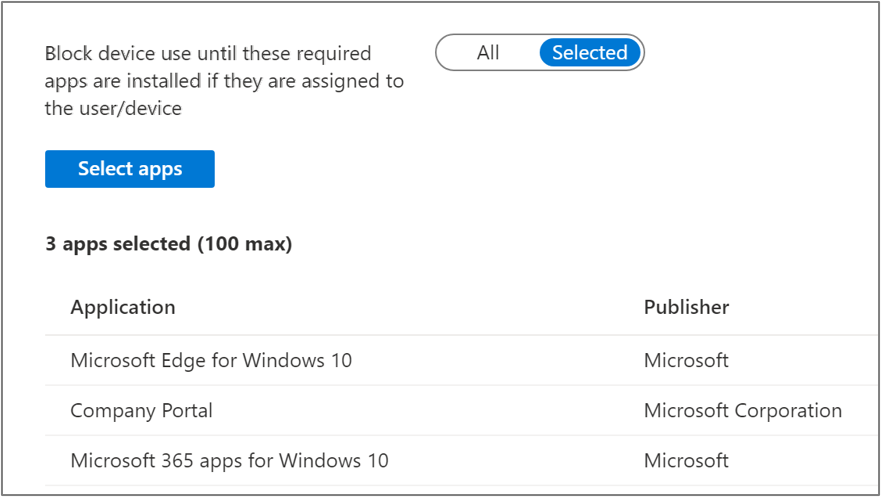 Screenshot of the Block device use until all required apps are installed toggle and Application list
Note that adding apps to this list does not mean that only those apps will install during the Enrollment Status Page:
- Apps do not install in any specific order – Adding apps to your list of blocking apps for the Enrollment Status Page does not mean that only those apps will install or that those apps will install first. Additional required apps may install in the background while the Enrollment Status Page is displayed that are not included in this list.
- Win32 app dependencies – App dependencies may install in the background before a Win32 app included in your blocking apps list. The Enrollment Status Page will block device use until the Win32 app and its required dependencies have been installed.
Apps that can be installed as the device is used
Do not block device use on apps that are unlikely to be needed immediately or can take a long time to download and install, like CAD software. Including these apps in your list would unnecessarily delay the device from becoming productive. Plug-ins, file viewer and utility apps, or business apps that are not used all the time are other examples of this type of app.
Required apps will install automatically in the background as the device is used. In most cases, these apps will already be installed by the time they are needed.
You may want to communicate to users in printed documentation included with their new device that not all apps will be installed when they first logon, but that they should be installed soon. This will help avoid unnecessary calls to the helpdesk.
Apps available in Company Portal
All other apps can be made available in Company Portal for the user to install as needed. Assigning apps as required that are not needed will waste disk space, increase overhead to manage and update the app overtime, and potentially increase the attack surface of a device if security vulnerabilities are later discovered.
Communicate to users that they can install additional apps from Company Portal without having to contact the helpdesk.
More info and feedback
For further resources on the Enrollment Status page, please see the links below.
Windows Autopilot Enrollment Status Page
Set up the Enrollment Status Page
Understand and troubleshoot the Enrollment Status Page
Let us know if you have any additional questions by replying to this post or reaching out to @IntuneSuppTeam on Twitter.
by Scott Muniz | Mar 10, 2021 | Security, Technology
This article is contributed. See the original author and article here.
CISA and the Federal Bureau of Investigation (FBI) have released a Joint Cybersecurity Advisory (CSA) to address recently disclosed vulnerabilities in Microsoft Exchange Server. CISA and FBI assess that adversaries could exploit these vulnerabilities to compromise networks, steal information, encrypt data for ransom, or even execute a destructive attack.
The CSA places the malicious cyber actor activity observed in the current Microsoft Exchange Server compromise into the MITRE Adversarial Tactics, Techniques, and Common Knowledge (ATT&CK®) framework.
CISA recommends organizations to review Joint CSA: AA-21-069 Compromise of Microsoft Exchange Server as well as the CISA Remediating Microsoft Exchange Vulnerabilities web page for guidance on detecting, protecting against, and remediating this malicious activity.
by Contributed | Mar 10, 2021 | Technology
This article is contributed. See the original author and article here.
If you’re looking for tips and tricks to help you optimize and simplify the way you manage your endpoints, we’ve got a great new series for you.
Over the years, my colleagues and I have worked one-on-one with IT pros and organizations all around the world. When it comes to managing devices, applications, and end users, there is no such thing as a standard approach. There are, however, some configurations, policies, and approaches that work better than others. That’s why I and my friend Steve Thomas are going to be working with our fellow colleagues in the Microsoft Endpoint Manager engineering and product teams to bring you deep dives into key areas of a successful endpoint management strategy.
First up: Modern policy management
- When is it? Friday, March 19th, 10:00-11:00 a.m. Pacific Time
- How do I add it to my calendar? Click here to save the date
- What’s the format? This event will take place on Teams Live Events and members of the engineering team will be standing by in the background to answer your questions.
- Will it be available on demand? Yes! This event will be recorded and available on Tech Community in the Video Hub 72 hours after the conclusion of the live event. We’ll update this post with a link for easy reference.
Stay tuned for details on future episodes
We’re already working on topics for future episodes. Have a preference on which we cover first? Leave a comment below!
- Device join strategies
- Device provisioning
- Application management
- Data-driven decisions
- Onboarding iOS devices to Microsoft Intune
Bookmark this blog post for updates on dates and times for future episodes—and links to calendar invitations!


Recent Comments