by Contributed | Mar 16, 2021 | Technology
This article is contributed. See the original author and article here.
Last month, we used this space to announce Microsoft Viva Insights, part of the broader Microsoft Viva initiative that’s empowering and connecting employees in new ways in our evolving digital age. (You can this and other past blog articles here). In addition to Viva Insights, the Workplace Analytics team has introduced other feature updates over the past few weeks. Today’s update describes expanded support of worldwide languages in query results and the release of an R package for Workplace Analytics.
- UTF-8 encoded characters allowed in metric names
- Open-source R package for Workplace Analytics
UTF-8-encoded characters allowed in metric names
When you define a query, you select metrics and organizational-data attributes. After the query runs, its results are organized into columns and rows. The column headers in the results match the attribute names and metric names that you selected while defining the query.
Before this update, metric names that were in any character set other than Latin appeared garbled in column headers in query and OData output. This caused some customers to develop downstream apps or clients that anticipated and processed that output to make it consumable.
Now, this is no longer necessary. With this update, the names of metrics that you select while building a query can now be in any UTF-8 encoded character set – in other words, in the language of your choice.
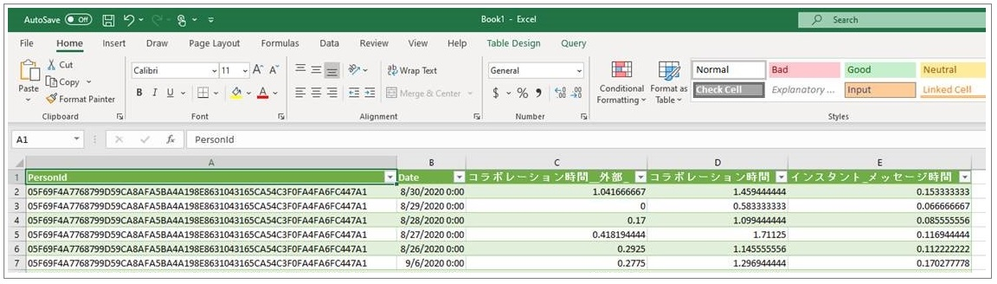
In the following example of a query-result file that’s been opened in Excel, metric names that the customer input in Japanese have remained in Japanese, while attribute names were uploaded in English and remain in English:
For more information, see Supported languages for column headers.
Open-source R package for Workplace Analytics
The M365 Insights team is pleased to share the first open-source release of Workplace Analytics shareable code, the wpa R package.
Note: R is an open-source statistical programming language and one of the most popular toolkits for data analysis and data science. For users of the R language, a “package” is a unit of sharable code that’s organized into libraries.
The wpa R package is a flexible repository of more than 100 functions that provide pre-built analyses in a single curated package. With this release, customer and partner analysts can go beyond the popular insights that Power BI templates and Workplace Analytics queries make available. They can help leaders go deeper and solve more specific problems by defining, scoping, and executing custom analyses.
Analyst objectives
This R package can be used by analysts and data scientists who are intermediate-to-advanced users of R or Python. With the wpa package, an analyst can:
- Run prebuilt analysis and visualizations of Workplace Analytics data with the ability to make settings to use organizational data variables and maintain privacy thresholds. They can easily export these outputs into any format required, including clipboard (copy & paste), Excel, .csv, and – for plots – .png, .svg, and .pdf.
- Validate data prior to analysis by running a data validation report, which performs systematic checks on metrics, organizational attributes, and meeting subject lines. The data-validation functions promote good practices of checking for patterns such as public holidays, non-knowledge workers, outliers, and missing values in the data to improve the quality and reliability of analysis.
- Generate prebuilt interactive HTML reports, which includes reports on data validation, subject-line text mining, and key collaboration metrics.
- Leverage advanced analytics functions, such as text mining, network analysis, and hierarchical clustering, all designed specifically for Workplace Analytics metrics.
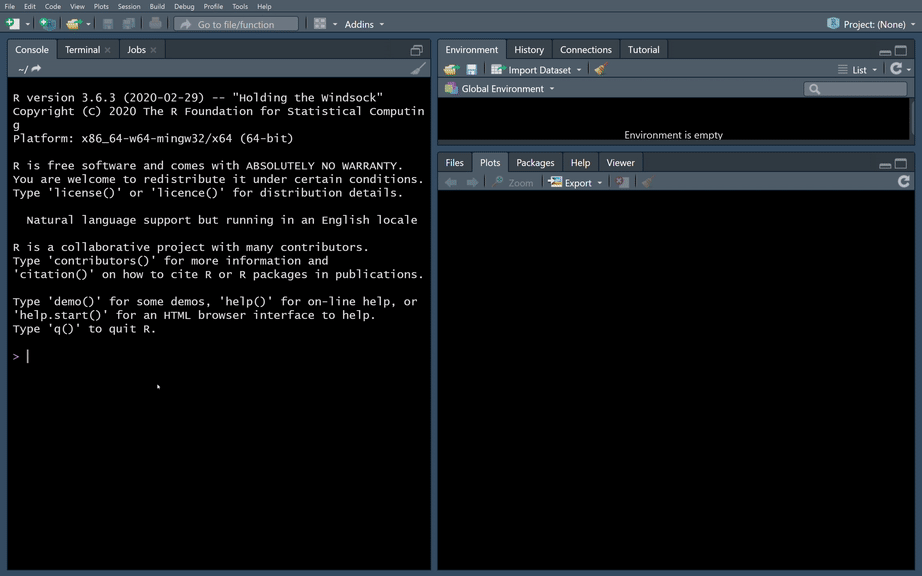
The user experience in creating Workplace Analytics visuals in R
Additional resources:
by Contributed | Mar 16, 2021 | Technology
This article is contributed. See the original author and article here.
Azure IoT is a leading platform of choice for organizations to develop applications and extract value from their sensor data. In order to do that, we need efficient tools and services that can help extract, collect, and understand relevant data to the Azure IoT platform from a variety of sensors from devices located on the edge.
Azure IoT Edge allows parts of AI, machine learning, advanced analytics, and other workloads that have traditionally been run in the cloud to be offloaded to on-prem IoT devices. Additionally, the runtime implements many of the mundane tasks required to create any IoT device (provisioning, secret integration with HSM, and observability) so that developers can concentrate on the business logic being run by the device. Even with these benefits, other aspects of IoT solutions are still pushed on to customers.
Orchestrating deployment of Azure IoT Edge on devices, managing the hardware, or ensuring secure and consistent data delivery from the sensors on to Azure IoT Hub are all areas that extend the development of IoT solutions. Customers need robust end-to-end IoT edge lifecycle management with orchestration optimized to scale their IoT deployments, and the ability to route relevant data securely and efficiently to both Azure IoT and on-prem.
Infiot’s integration with Azure IoT delivers relevant capabilities to more quickly unleash the power of Azure IoT at scale. With Infiot and Microsoft together, the solution unlocks value from IoT sensor data by solving the challenges of provisioning and securing IoT Edge devices, deploying applications, and accelerating the transmission and collection of data headed to Azure IoT Hub and enables capabilities like analytics and machine learning. The solution offers the following:
- Azure IoT Edge Runtime Deployed on : Customers benefit from complete life-cycle of container management for Azure IoT Edge Runtime and service modules on edges with policy based workflows.
- Automated Azure IoT Hub Connectivity: With API integration, Azure IoT Edge devices automatically connect to Azure IoT Hub and IoT devices are auto provisioned in the IoT Hub via Device Provisioning Service, making scalability simple and straightforward.
- Zero Trust Security: Comprehensive security functionality based on zero trust models safeguards IoT traffic from sensor devices to Azure IoT cloud services.
- Infiot Private Access: IoT devices can easily be accessed securely from anywhere with remote maintenance and troubleshooting with Infiot Private Access.
- Ruggedized Form Factor: Automated connectivity to Azure IoT Edge runtime deployed on Infiot ruggedized edges to Azure IoT cloud over wired or wireless (LTE/5G) WAN with complete link visibility and insights.
- Infiot Store and Forward: Upon blackout conditions, Infiot’s thin, wireless ruggedized edges locally store telemetry data bound for Azure IoT Hub. Once connectivity is restored, locally stored messages are delivered to IoT Hub.
Infiot Intelligent Access is ideal for all IoT deployments requiring converged connectivity, zero trust security, and edge compute, connecting IoT devices over LTE and 5G cellular networks, and addressing the challenges of most IoT projects around complexity and efficiency. Infiot thin, wireless ruggedized edge devices collect data from various assets and sensors running on a wide spectrum of protocols, govern data ownership, and send the right data to the right place by the right personnel – enabling deploying and managing hundreds of Azure IoT Edge devices at scale.
To learn more, please visit: https://www.infiot.com/azure-iot/
by Contributed | Mar 16, 2021 | Technology
This article is contributed. See the original author and article here.
Welcome to the “March Ahead with Azure Purview” blog series that helps you to maximize your Azure Purview trial/pilot/PoC with best practices, tips and tricks from product experts. In the previous blog post, we covered setting up the appropriate control plane and data plane roles to manage Azure Purview. In this post, we’ll roll up the sleeves and walk through the process of scanning data. Let’s get started!
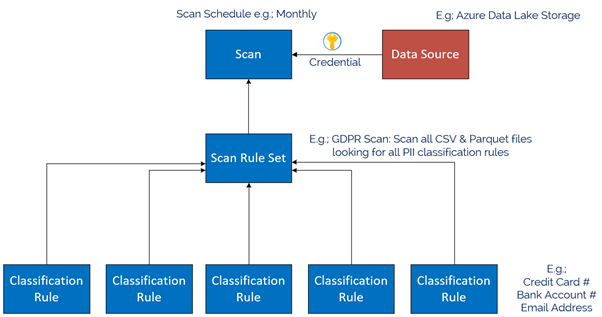
The Azure Purview Data Map enables you to create a holistic knowledge graph of your data residing in on-premises, multicloud and SaaS data stores via automated scanning and classification. The anatomy of an Azure Purview scan involves a number of key components illustrated in this diagram;
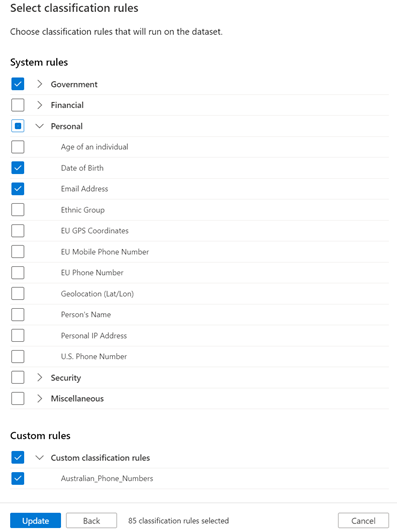
Starting at the bottom, we have Classification rules. Out of the box, Purview provides rules for common Personally Identifiable Information (PII) data such as Name, Email Address, Social Security Number and a heap of others. These are known as “System Rules”. We can access the System Rules by clicking Classification Rules in the Management Centre of Purview Studio.
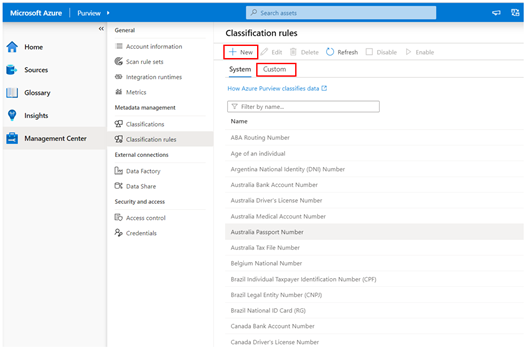
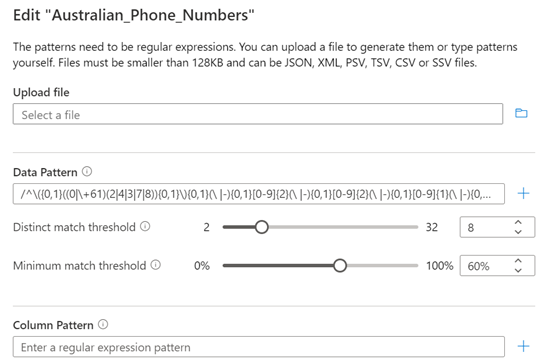
Beyond these, you can create your own custom classification rules using Regular Expressions and Dictionary Lists. Click on the Custom tab and then click + New to add a new Custom Rule. An example below is for Australian Phone Numbers.
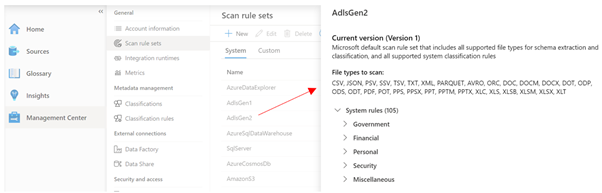
Once we have our Classification Rules, we group them together into Scan rule sets, used by a scan to look for certain data points. Out of the box, Purview has default Scan Rule Sets for each Source Type. For example, the default Scan Rule Set for Azure Data Lake Storage Gen 2 will scan all common file types (csv, json, parquet etc) looking for all out of the box System Rules.
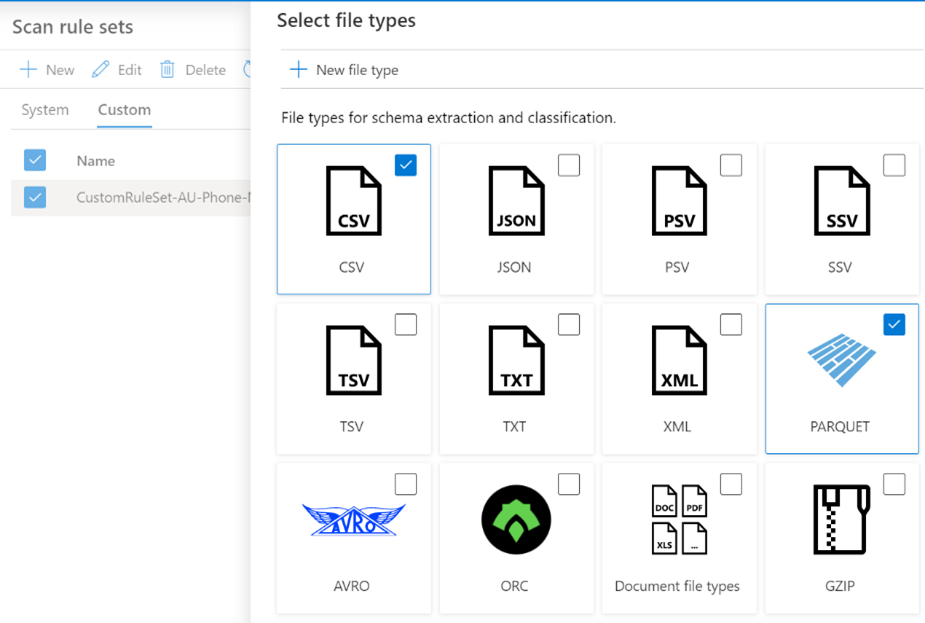
You can create your own Scan Rule Sets should you wish to customize how scans are performed. For example, you may only wish to scan certain file types, and include custom classification rules and/or ignore some System rules. This allows you to fine tune the time scans take, and therefore control the cost of Purview. Like Classification Rules, to create a custom Scan Rule Set, click on the Custom tab and then + New.
In the example below, we limit the file types for our custom Scan Rule Set to Parquet and CSV and choose specific classification rules to include in the scan.
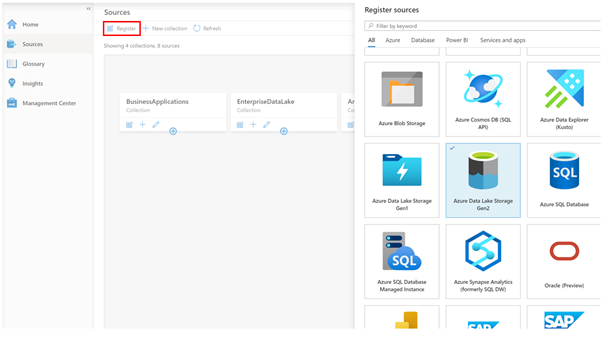
Now we have our Classification Rules and Scan Rule Sets, let’s create a data source to scan! On the Sources tab, we click Register, and choose a data source type. Today we natively support a range of Azure data sources such as Azure SQL Database, Power B I and Data Lake Storage, along with preview support for Oracle, SAP and Teradata . This list will expand as we move towards General Availability. Note that for Power BI and 3rd Party data sources such as Oracle, it’s a meta-data only scan. For these sources, we don’t use the classification rules during scanning to detect data such as email addresses.
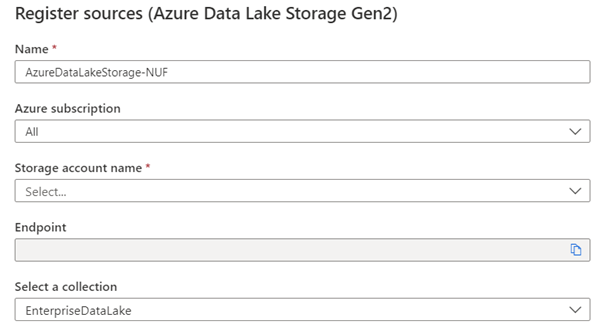
In my case, I chose Azure Data Lake Storage Gen2, so I’m asked for the account details, such as Subscription, Storage Account Name and what collection on the Data Map I want to register this source into, for example, EnterpriseDataLake.
Once registered, I can now perform a scan of the source by clicking the scan icon.
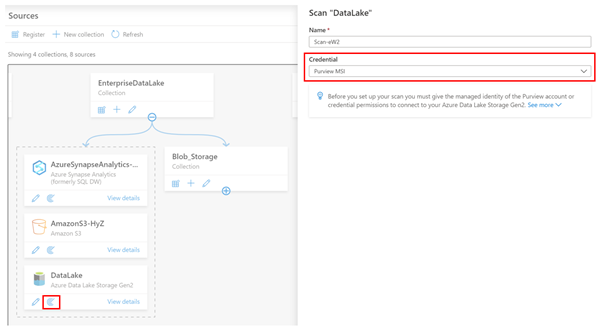
The first thing I need to do is choose what credentials Purview will use to scan the source. In the example above, I’m using the Purview Managed Service Identity (MSI), so I would need to grant the MSI permissions to read the storage account.
Let’s say my data source was Azure SQL Database, and I wanted to use a username and password, instead of the Purview MSI. In this case, I can choose to create a new credential and use Purview’s integration with Azure Key Vault to securely reference credentials from there.
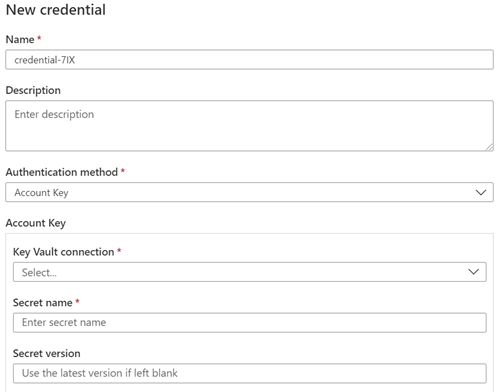
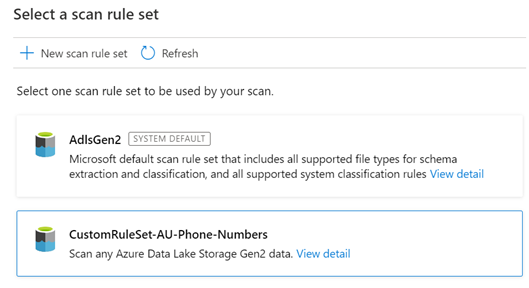
Depending on the Data Source, the next step asks for the scan scope. In the case of a Data Lake storage account, it might be to select which folders to scan or for a SQL Database, which tables to scan. After this, you choose the Scan Rule Set, as we covered above. In this example I’m choosing my Custom Scan Rule set.
The final step is to choose the scan schedule, which can be either recurring, or a Once-off scan.
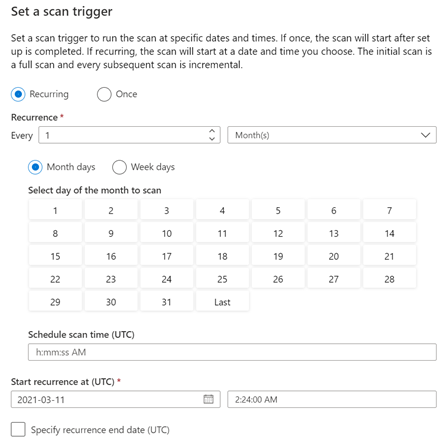
And that’s it! The scan is now scheduled to execute per your instructions. You can view the scan status by clicking View details button in the Data Map.
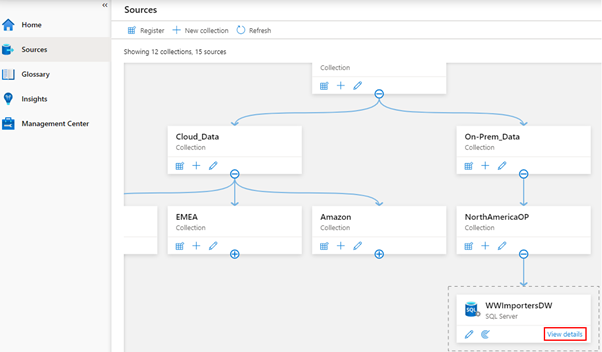
The Details screen shows the scan history and the number of assets scanned and classified.
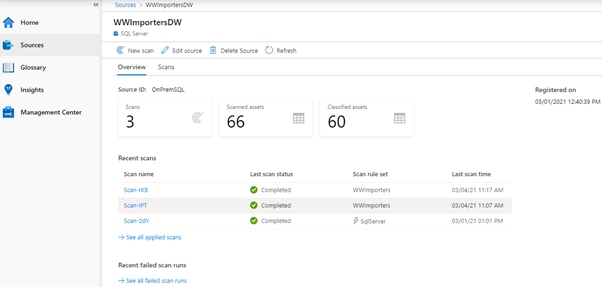
Once your scan completes, you can browse the assets from the home page, using either the Search bar, or the Browse Assets button.
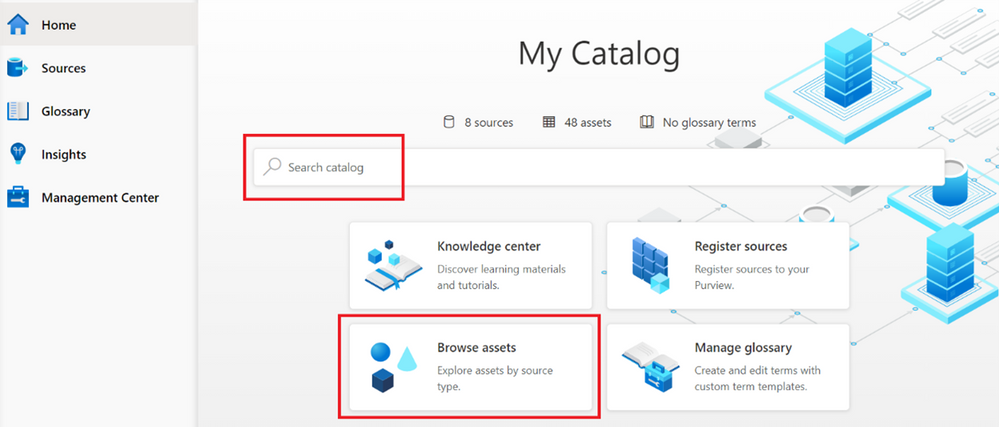
Depending on the source, the scan setup process varies, for example, On-Premises SQL Server, AWS S3, Teradata, Oracle, SAP S/4HANA and SAP ECC. And be sure to checkout this blog post, which covers additional information on scanning, including Resource sets and scanning scale.
Finally, we’ve encapsulated some important Purview best practices here covering stakeholder management, deployment models and platform hardening.
Happy scanning!

by Scott Muniz | Mar 16, 2021 | Security
This article was originally posted by the FTC. See the original article here.
If you’re feeling anxious about your financial health during these uncertain times, you’re not alone. That’s why the three national credit reporting agencies, which last year gave people weekly access to monitor their credit report for free, are extending that benefit until April 20, 2022.
This is some helpful news, because staying on top of your credit report is one important tool to help manage your financial data. Your credit report has information about your credit history and payment history — information that lenders, creditors, and other businesses use when giving you loans or credit.
Now it’s easier than ever to check your credit more often. That’s because everyone is eligible to get free weekly credit reports until April 20, 2022 from the three national credit reporting agencies: Equifax, Experian, and Transunion. To get your free reports, go to AnnualCreditReport.com.
If you’re one of the many Americans struggling to pay your bills right now because of the Coronavirus crisis, here’s what you can do:
- Contact the companies you owe money to. Ask if they can postpone your payment, put you on a payment plan, or give you a temporary forbearance.
- Check your credit report regularly to make sure it’s correct — especially any new payment arrangements or temporary forbearance. The CARES Act generally requires your creditors to report these accounts as current.
- Fix any errors or mistakes that you spot on your credit report. Notify the credit reporting agencies directly. You can find out more by reading Disputing Errors on Credit Reports.
Find more advice and tips on handling the financial impact of the Coronavirus, and subscribe to the FTC’s Consumer Alerts.
Updated March 16, 2021 to reflect extension of weekly free credit reports.
Brought to you by Dr. Ware, Microsoft Office 365 Silver Partner, Charleston SC.

by Scott Muniz | Mar 16, 2021 | Security
This article was originally posted by the FTC. See the original article here.
At a time when many people left jobless by the pandemic are struggling to get by, scammers reportedly are using websites that mimic government unemployment insurance (UI) benefits websites. These sites trick people into thinking they’re applying for UI benefits, and they wind up giving the scammers their personal information.
The Department of Justice’s National Unemployment Insurance Fraud Task Force reports that scammers lure people to their fake websites by sending spam text messages and emails. These messages look like they’re from a state workforce agency (SWA) and give people links to these fake sites. When people enter their sensitive personal information on the fake sites, the scammers can use the information for identity theft.
A report to the FTC even said one of the fake sites told people to click the link if they did not file for UI benefits.
Here’s what you need to know: An SWA will not contact you out of the blue. SWAs will not send a text message or email inviting you to apply for UI benefits. If you get an unsolicited text or email message that looks like it’s from an SWA, know the steps to take to protect yourself:
- Never click links in an unexpected text message or email claiming to be from an SWA.
- If you have applied for UI benefits and get a text or email about your application, contact your SWA directly using contact information from its official website.
- If you need to apply for UI benefits, use this link to find your state’s UI application page. Follow the directions you find there.
- If you gave someone your sensitive information, visit IdentityTheft.gov/unemploymentinsurance to learn how to protect your credit from scammers or, if necessary, report that someone has misused your personal information to claim UI benefits.
If you get a suspicious text message or email message claiming to be from an SWA, please report it to the National Center for Disaster Fraud by visiting justice.gov/disaster-fraud or by calling 866-720-5721. You also can report it to the FTC at ReportFraud.ftc.gov. And please, tell the people you know about this scam. By sharing the information, you can help defeat the scammers.
Brought to you by Dr. Ware, Microsoft Office 365 Silver Partner, Charleston SC.



Recent Comments