by Contributed | Mar 4, 2021 | Technology
This article is contributed. See the original author and article here.
By @Sarahzin, @John_Lewis , @DanEdwards
We have some exciting news to share about our Microsoft Cloud App Security documentation updates. Last year, we released the ability to deploy Real Time Controls using any identity provider (IdP). After receiving initial feedback from our customers and the field, the top three most requested IdPs were PingOne, Okta, and AD FS.
The configuration can be tricky. We thought publishing an example for each IdP would be useful for our users. We are happy to announce that all three guides are now LIVE!
They can be found here:
- Configuring your PingOne IdP: Deploy Cloud App Security Conditional Access App Control for any web app using PingOne | Microsoft Docs
- Configuring your AD FS IdP: Deploy Cloud App Security Conditional Access App Control for any web app using AD FS | Microsoft Docs
- Configuring your Okta IdP: Deploy Cloud App Security Conditional Access App Control for any web app using Okta | Microsoft Docs
If you have any feedback or would like to see examples of other identity providers, please leave a comment below!
————————-
Feedback
We welcome your feedback or relevant use cases and requirements for Microsoft Cloud App Security by emailing CASFeedback@microsoft.com and mentioning the core area of concern.
Learn more
For further information on how your organization can benefit from Microsoft Cloud App Security, connect with us at the links below:
To experience the benefits of full-featured CASB, sign up for a free trial—Microsoft Cloud App Security.
Follow us on LinkedIn as #CloudAppSecurity. To learn more about Microsoft Security solutions, visit our website. Bookmark the Security blog to keep up with our expert coverage on security matters. Also, follow us at @MSFTSecurity on Twitter and Microsoft Security on LinkedIn for the latest news and updates on cybersecurity.

by Contributed | Mar 4, 2021 | Technology
This article is contributed. See the original author and article here.
The Azure Sphere 21.02 release includes the following components:
- Updated Azure Sphere OS
- Updated Azure Sphere SDK for Windows and for Linux
If your devices are connected to the internet, they will receive the updated OS from the cloud. We encourage you to install the latest SDK, but the existing 21.01 SDK will continue to work with the updated OS. To install the latest SDK, see the installation Quickstart for Windows or Linux:
New and changed features in the 21.02 release
The 21.02 release includes the promotion of the CLI v2 from Beta to release, and a new tutorial about memory management. The 21.02 OS update includes bug fixes and performance enhancements. The following sections provide details about these changes.
Azure Sphere CLI
The 21.02 Azure Sphere SDK release includes a new version of the Azure Sphere CLI that is easier to use in your shell and in your scripts. The new CLI is available in any shell such as PowerShell, Windows command prompt, or Linux command shell. It is installed alongside the deprecated Azure Sphere classic CLI on both Windows and Linux, so you have access to either interface.
- Azure Sphere CLI v2 now referred to as “Azure Sphere CLI”.
- Earlier Azure Sphere CLI versions (CLI v1 and lower) are now referred to as “Azure Sphere classic CLI”.
- The dedicated Azure Sphere Developer Command Prompt (available from Start > Azure Sphere or a shortcut) will be marked as deprecated and can be used only with the deprecated classic CLI.
The main new features of the new Azure Sphere CLI are summarized below and explained in detail here. The input and output for the new Azure Sphere CLI also have some differences compared to the Azure Sphere classic CLI. We encourage you to familiarize yourself with these differences and plan to migrate your processes and scripts that use the CLI. Although both versions of the CLI can be installed and used side-by-side, the classic CLI is no longer updated or maintained and will be retired in the coming months.
Tab completion
Tab completion is like autocomplete for the command-line interface. Type a few characters of a command and then press TAB to select the desired completion text. If multiple items begin with the text that you initially typed, then continue pressing TAB until the item you want appears.
In Linux, Azure Sphere CLI supports the tab completion feature for commands under the Bash shell.
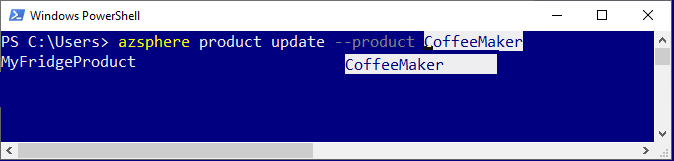
Additionally, autocompletion helps you discover commands, parameters, and parameter values that are available to use. This is available by using CTRL+Space in Windows PowerShell or press TAB twice in the Linux Bash shell.
For example, type azsphere product update and use autocompletion to see a list of available parameters.
Similarly, type azsphere product update –product and use autocompletion to see a list of available products in your tenant.
Interactive mode (preview)
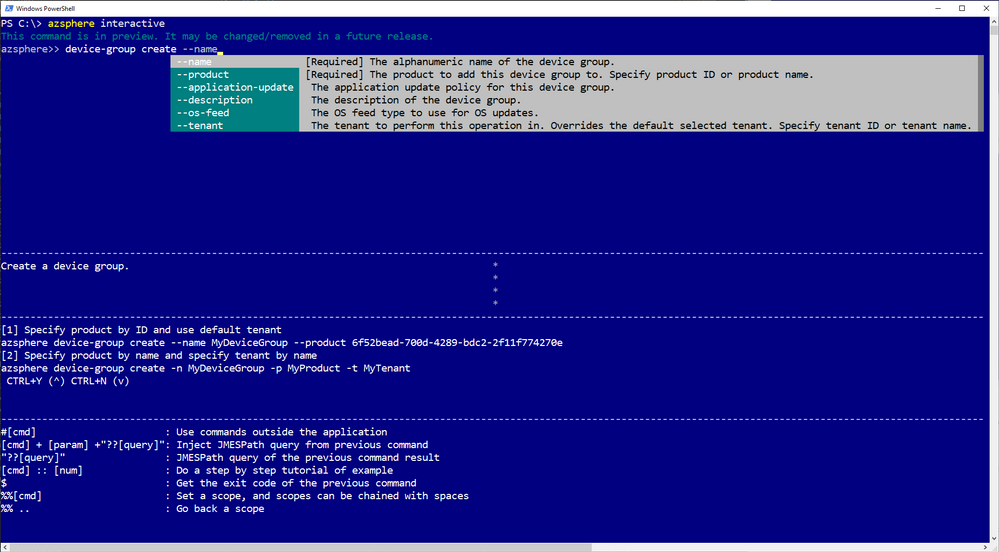
Interactive mode automatically displays information and makes it easier to select commands and sub-commands. Enter the interactive mode with the azsphere interactive command. The command prompt changes to azsphere>> to indicate that you are now running commands in the interactive shell.
Flexible output (preview)
You can more easily automate CLI commands by writing scripts that consume JSON or YAML output. You can separate this “stdout” output from “stderr” related error and informational messages. You can redirect it or paginate it with your favorite tools. And you can filter, modify, and sort it using the new –query option. Only some commands currently support these new output options; let us know via azsphere feedback if we’re missing a command that you need to script.
New and updated samples for 21.02
The 21.02 release includes the following new and updated sample hardware designs and applications:
- New tutorial on memory usage to demonstrate how to detect and fix memory usage problems, such as a memory leak, in your application.
- Updated Readme files include commands for both the new Azure Sphere CLI and deprecated Azure Sphere classic CLI.
Fixed bugs and common vulnerabilities in the 21.02 OS release
The 21.02 OS release includes various bug fixes, a Linux kernel update, and mitigations against the following CVEs:
- CVE-2021-3336
- CVE-2020-8285
- CVE-2020-8286
- CVE-2020-8284
- CVE-2020-8231
For more information on Azure Sphere OS feeds and setting up an evaluation device group, see Azure Sphere OS feeds and Set up devices for OS evaluation.
For self-help technical inquiries, please visit Microsoft Q&A or Stack Overflow. If you require technical support and have a support plan, please submit a support ticket in Microsoft Azure Support or work with your Microsoft Technical Account Manager. If you would like to purchase a support plan, please explore the Azure support plans.
by Contributed | Mar 4, 2021 | Technology
This article is contributed. See the original author and article here.
After a customer has connected Microsoft Defender for Identity to Microsoft 365 Defender one of the benefits is the ability to query the Defender for Identity activities. In this blog we showcase two customer use cases that took advantage of the Advanced Hunting functionality available today.
We continue to build functionality into Microsoft 365 Defender and we are encouraging identity focused customers to leverage its available activities in Advanced Hunting. This unified solution provides a platform to conduct advanced hunting, incident correlation and custom detections across the Microsoft 365 security stack. Building on these options, we wanted to supply two queries that have helped solve two customer use cases.
Use Case #1: Enhanced reporting on usage of LDAP Simple Bind
When LDAP Simple Bind is used, the username and password are sent across the network (wire) in cleartext. Imagine if this happens to a user who has elevated privileges in the domain.
In this use case the customer had started a project to eliminate the use of LDAP Simple Bind. Anyone who might be sniffing the network traffic would see this information and could then start impersonating the user.
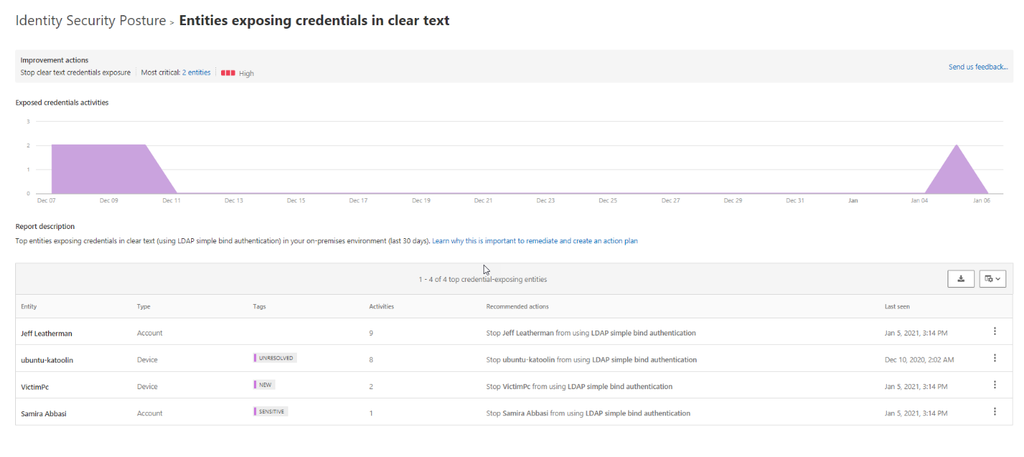
One of the Identity Security Posture assessments part of Defender for Identity is “Entities exposing credentials in clear text”. This assessment shows the top devices that are sending user authentications via LDAP Simple Bind and which users are authenticating from these devices.
For organizations with multiple domains and forests that are monitored by Defender for Identity the assessment shows data across all forests and domains.
For customers that have multiple domains, Microsoft 365 Defender can assist in pinpointing where these accounts fall across their environment. We can create this report by leveraging Microsoft 365 Defender Advanced Hunting , which can be found here.
Run the below Kusto Query Language (KQL) query that will return all LDAP logons where the logon types include passwords in clear text.
let firstIndexof = (input:string, lookup: string) {

    indexof(input, lookup, 0, -1)

};

IdentityLogonEvents

| where LogonType == "LDAP cleartext" and ActionType == "LogonSuccess"

| extend DomainName = substring(DestinationDeviceName, firstIndexof(DestinationDeviceName, '.') + 1)

| where DomainName == "contoso.azure" // replace contoso.azure with your domain name.

| summarize NumberOfEntries=count()by LogonType, ActionType, AccountDisplayName, DomainName, AccountSid, IPAddress, DeviceName, DC = DestinationDeviceName

| sort by AccountDisplayName
You will see that we have summarized by the number of events and the results you receive will contain data such as users, domain and device, etc.
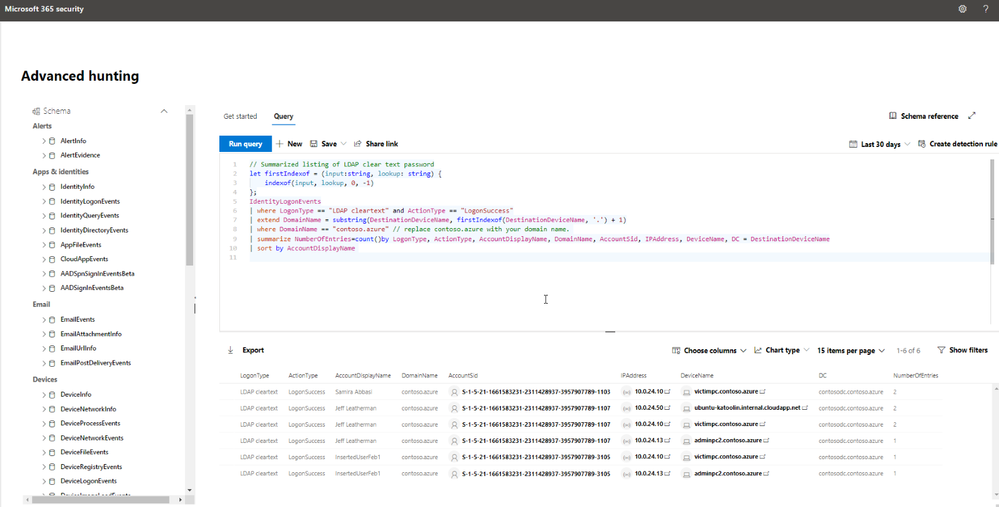
As the customer, you could also add the following line to specify a domain within your environment
| where DomainName == “domain name”
By using a combination of both products, we have elevated our MDI experience and can continue to generate on demand reports for the last 30 days that will assist in improving your overall security posture.
Use Case #2: What were the commands that were run in the Remote Code Execution alert
In our second query, we are focusing on using Advanced Hunting to join multiple tables from both Defender for Identity and Microsoft Defender for Endpoint that will better assist us in determining all important details from a single MDI alert.
This alert will trigger when Defender for Identity detects PSexec, Remote WMI, and remote PowerShell connections to a monitored domain controller.
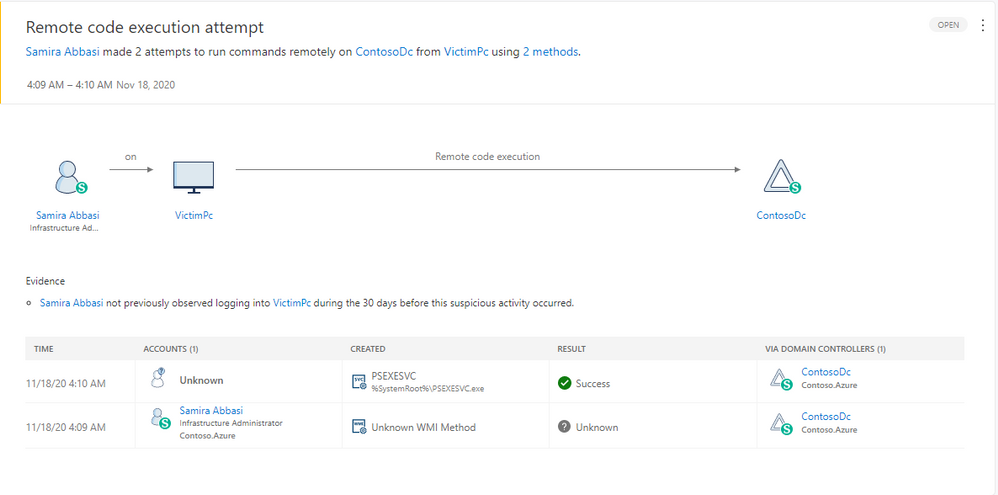
As you can see from the graphic above, Defender for Identity provides critical details that we can use in our query including the timeframe of the suspected attempt, the device name and the user in question. We will take these critical details and join them to data available from Defender for Endpoint.
After receiving the alert, the customer was looking for the WMI command that was run to determine if they would need to further investigate these activities.
In the example above, we also have deployed Defender for Endpoint so local device activity is also available. Via an advanced hunting query we were able to extract the device (VictimPc) from the Defender for Identity alert and then query the endpoint data for the required information. This allows us to extract the commands that triggered the alert.
let duration = totimespan(600m); //update this number of minutes in the future you want to check for WMIC and PSexec commands

AlertInfo

| where Timestamp > ago(7d)

| where ServiceSource == "Microsoft Defender for Identity"

| where Title == "Remote code execution attempt"

| project AlertId, AlertTime = Timestamp, Title

| join (AlertEvidence) on AlertId

| where EvidenceDirection == "Source" and EntityType == "Machine"

| project AlertId, AlertTime, DeviceId, DeviceName, UpdateTime = Timestamp, Title

| join (DeviceProcessEvents

| where FileName == "WMIC.exe" or FileName == "PsExec.exe"

| project ProcessTime = Timestamp, ProcessCommandLine, FileName, FolderPath, DeviceName, DeviceId) on DeviceId

| where ProcessTime - UpdateTime between (-2m .. duration)

// | where ProcessTime >= AlertTime

| project AlertId, AlertTime, ProcessTime, UpdateTime,Title, DeviceName, FolderPath, ProcessCommandLine, FileName

| sort by ProcessTime desc
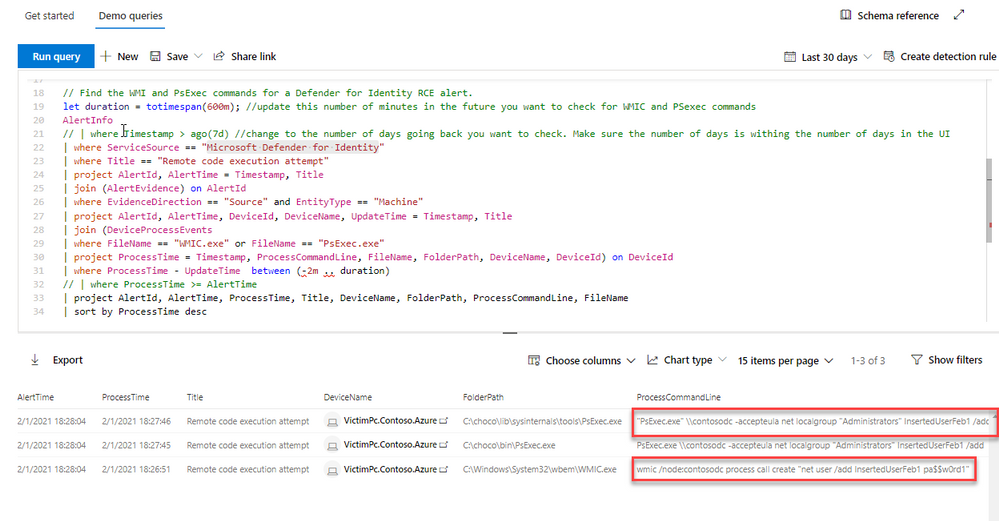
In the above query, you can see the psexec and WMI commands that triggered the alert. Using this information, you can more easily determine if this is anomalous behavior for your environment.
With the capabilities discussed above, you can see there is a lot of data available to query and assist customers in deep diving into their environment after receiving an alert. As our products and analytics grow, we will continue to find more ways to elevate the customer experience across the Microsoft 365 security stack.
by Scott Muniz | Mar 4, 2021 | Security, Technology
This article is contributed. See the original author and article here.
The National Security Agency (NSA) and CISA have released a Joint Cybersecurity Information (CSI) sheet with guidance on selecting a protective Domain Name System (PDNS) service as a key defense against malicious cyber activity. Protective DNS can greatly reduce the effectiveness of ransomware, phishing, botnet, and malware campaigns by blocking known-malicious domains. Additionally organizations can use DNS query logs for incident response and threat hunting activities.
CISA encourages users and administrators to consider the benefits of using a protective DNS service and review NSA and CISA’s CSI sheet on Selecting a Protective DNS Service for more information.


Recent Comments