by Contributed | Mar 7, 2021 | Technology
This article is contributed. See the original author and article here.
We are happy to announce that Threat and Vulnerability Management (TVM) tables in advanced hunting are being updated with an improved structure and additional data – now available in public preview.
The existing ‘DeviceTvmSoftwareInventoryVulnerabilities’ table in advanced hunting, which currently combines both software inventory and vulnerabilities, is being deprecated and split into two new dedicated tables.
This change is aimed at creating better clarity and reducing noise/complexity when using advanced hunting for common threat and vulnerability management scenarios.
Newly introduced tables:
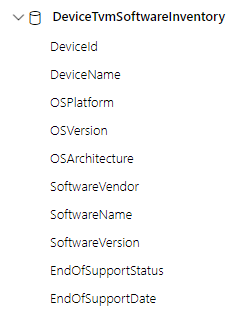
- DeviceTvmSoftwareInventory (see schema below) – This table will serve as a complete list of all software on your devices, whether or not they have any vulnerabilities.
- No duplicate entries – unlike the old table, you’ll have a single row for each software installed on every device.
- New fields – ‘EndOfSupportStatus’ and ‘EndOfSupportDate’ will have the end-of-support state (if applicable) for specific software versions installed on devices.
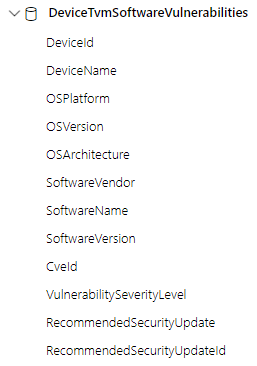
- DeviceTvmSoftwareVulnerabilities (see schema below) – This table will be dedicated to discovering vulnerabilities (CVEs) in existing software across all your devices.
- New fields – ‘RecommendedSecurityUpdate’ and ‘RecommendedSecurityUpdateId’ will have missing security updates / KBs for installed software.
To avoid breaking existing flows in the short term, the old advanced hunting table will continue to be available in the back-end for querying. However, to avoid future issues it’s strongly encouraged you switch to using the new tables at your earliest convenience.
New table schemas:
For more information on advanced hunting tables in Microsoft Defender for Endpoint, read our advanced hunting documentation.
To get access to Microsoft Defender for Endpoint public preview capabilities, we encourage you to turn on preview features in the Microsoft Defender Security Center. We’re looking forward to hearing any feedback you may have.
Microsoft Defender for Endpoint is an industry leading, cloud powered endpoint security solution offering vulnerability management, endpoint protection, endpoint detection and response, and mobile threat defense. With our solution, threats are no match. If you’re not yet taking advantage of Microsoft’s unrivaled threat optics and proven capabilities, sign up for a free Microsoft Defender for Endpoint trial today.
Microsoft Defender for Endpoint team
|
|
by Contributed | Mar 6, 2021 | Technology
This article is contributed. See the original author and article here.
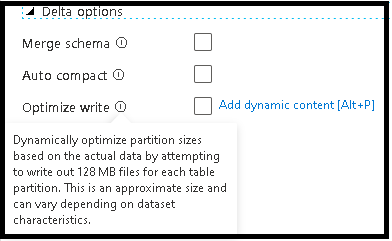
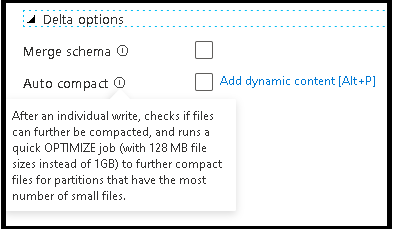
New options added to data flow sinks available in both Azure Data Factory and Azure Synapse Analytics will make writing data to ADLS Gen2 using Delta Lake much more efficient. Data flows will now natively support Delta auto compact and optimized write options in your sink transformation.
by Contributed | Mar 6, 2021 | Technology
This article is contributed. See the original author and article here.
In this blog post I will show you how to avoid creating unnecessary apply to each loops in Power Automate which can slow down your flow and make it harder to read.
Use Case
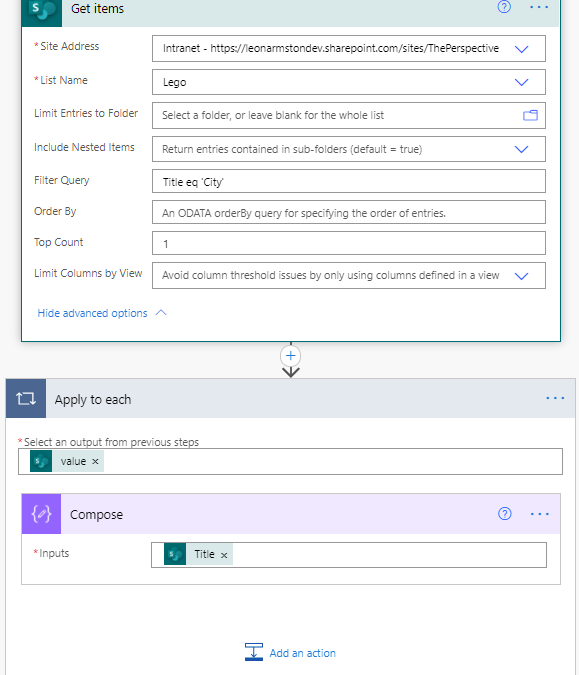
Often you want to retrieve just one item in a SharePoint list and then display the value of a property from it. You will use the SharePoint Get Items action with a query (ODATA filter query) i.e. Title eq ‘City’ and you know that it should only return one record. Unfortunately the SharePoint Get Items action by default returns an array (collection of items) even if there is just one item and even if you specify the Top Count (items to be returned) to be 1. So if you want to use a property from the Get Items action then Power Automate will automatically add the action to an Apply to each loop as it comes from an Array (see image below).
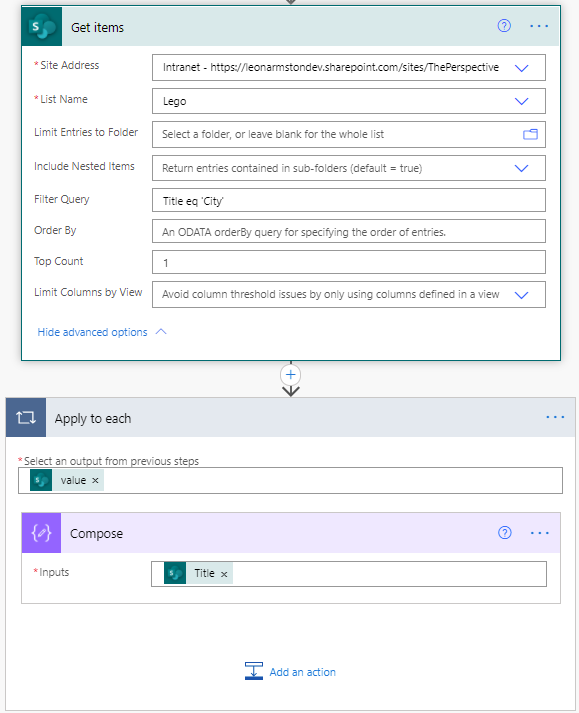
If we test the Flow and we can see there is only one object in the array so we can see the Apply to each loop is unnecessary as it does not need to loop through any other items.
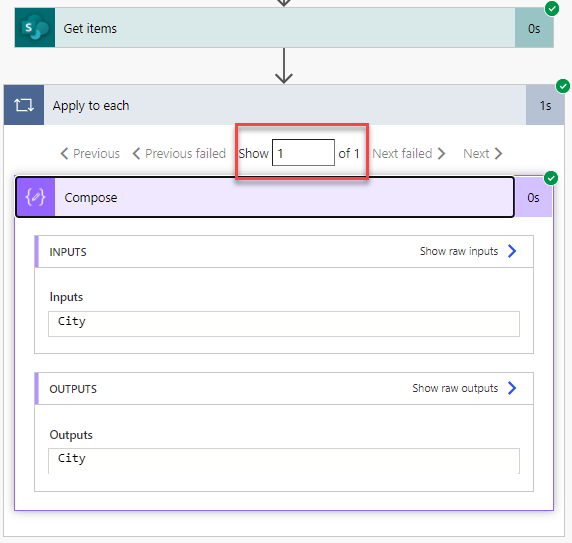
I always like to reduce the amount of actions and loops in Power Automate for speed and readability reasons.
Remove unnecessary Apply to each loops with the first() function
I will now show you how to avoid having unnecessary Apply to each loops being added to your Flow and instead just access the first element of the array using an Expression.
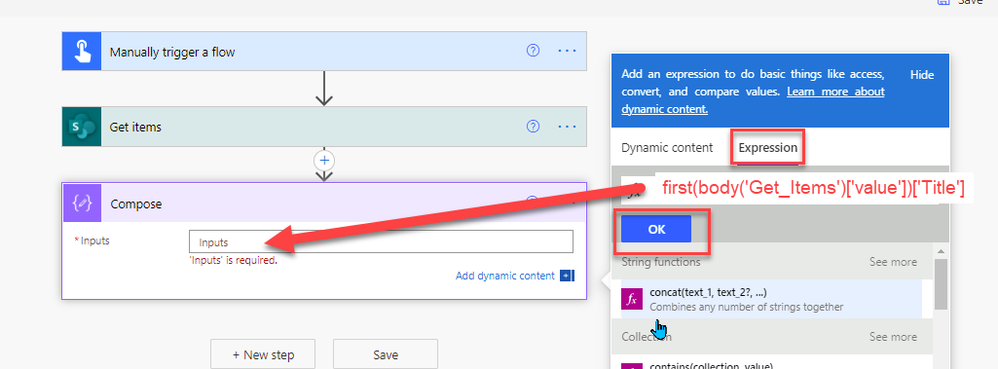
Enter to the room the Power Automate first function which used for retrieving the first item from an array or string. Now we will delete the Apply to each loop from our Flow and then create a new Compose action where we will enter the following expression to access just the Title property of the list item without a loop.
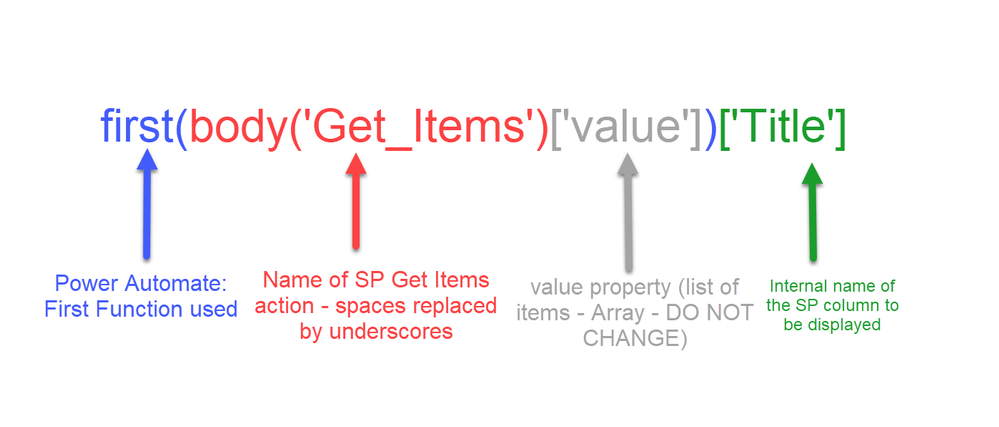
first(body('Get_Items')['value'])['Title']
In the image below I will describe the expression: in blue the first() expression is being used and within it is brackets () in red is a body reference to the SharePoint Get Items action. If you have renamed the SharePoint Get Items action then you will need to replace ‘Get_Items’ with the name of your action with spaces replaced by underscores. Next in Grey is the SharePoint value column which holds all of the SharePoint list item values in an array – this does not need to be changed. The first function brackets are then closed in blue. Then finally in green enter the internal name of the SP column you wish display in my case the Title column.
The above expression could also be done with the following expression using [0] to access the first element of the array. However using the first() function is much better for readability
body('Get_Items')['value'][0]['Title']
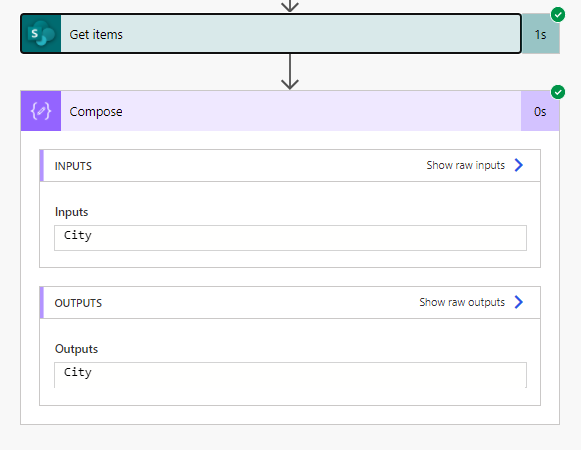
I will now test my Flow by running it and we can now see from the image below that it ran successfully and without a adding the Compose action to a Apply to each loop.
Summary
So there we have it we have learnt how to remove unnecessary Apply to each loops when using the SharePoint Get Items action by using the First() function. You can use the knowledge you have learned in this article to reduce the amount of actions and loops in your flows in Power Automate today. As an extra bonus the same first() function can also be used in Azure Logic Apps which names it’s loop For each.

by Scott Muniz | Mar 6, 2021 | Security, Technology
This article is contributed. See the original author and article here.
Official websites use .gov
A .gov website belongs to an official government organization in the United States.

Secure .gov websites use HTTPS A
lock ( )
) or
https:// means you’ve safely connected to the .gov website. Share sensitive information only on official, secure websites.
by Scott Muniz | Mar 5, 2021 | Security, Technology
This article is contributed. See the original author and article here.
Official websites use .gov
A .gov website belongs to an official government organization in the United States.
Secure .gov websites use HTTPS A
lock () or
https:// means you’ve safely connected to the .gov website. Share sensitive information only on official, secure websites.


Recent Comments