
by Contributed | Apr 9, 2021 | Technology
This article is contributed. See the original author and article here.
Export SharePoint Version History to Excel Using PowerShell
Mohamed El-Qassas is a Microsoft MVP, SharePoint StackExchange (StackOverflow) Moderator, C# Corner MVP, Microsoft TechNet Wiki Judge, Blogger, and Senior Technical Consultant with +10 years of experience in SharePoint, Project Server, and BI. In SharePoint StackExchange, he has been elected as the 1st Moderator in the GCC, Middle East, and Africa, and ranked as the 2nd top contributor of all the time. Check out his blog here.

Azure Linux VM: Using several apps to remote connect
George Chrysovalantis Grammatikos is based in Greece and is working for Tisski ltd. as an Azure Cloud Architect. He has more than 10 years’ experience in different technologies like BI & SQL Server Professional level solutions, Azure technologies, networking, security etc. He writes technical blogs for his blog “cloudopszone.com“, Wiki TechNet articles and also participates in discussions on TechNet and other technical blogs. Follow him on Twitter @gxgrammatikos.

Excluding failing dependencies from Application Insights logging
Tobias Zimmergren is a Microsoft Azure MVP from Sweden. As the Head of Technical Operations at Rencore, Tobias designs and builds distributed cloud solutions. He is the co-founder and co-host of the Ctrl+Alt+Azure Podcast since 2019, and co-founder and organizer of Sweden SharePoint User Group from 2007 to 2017. For more, check out his blog, newsletter, and Twitter @zimmergren

Create your classroom lab with Azure Lab Services!
Sergio Govoni is a graduate of Computer Science from “Università degli Studi” in Ferrara, Italy. Following almost two decades at Centro Software, a software house that produces the best ERP for manufacturing companies that are export-oriented, Sergio now manages the Development Product Team and is constantly involved on several team projects. For the provided help to technical communities and for sharing his own experience, since 2010 he has received the Microsoft Data Platform MVP award. During 2011 he contributed to writing the book: SQL Server MVP Deep Dives Volume 2. Follow him on Twitter or read his blogs in Italian and English.

Teams Real Simple with Pictures: Forms to the Flow, to the List, to the Team and Yammer using conditions and approvals
Chris Hoard is a Microsoft Certified Trainer Regional Lead (MCT RL), Educator (MCEd) and Teams MVP. With over 10 years of cloud computing experience, he is currently building an education practice for Vuzion (Tier 2 UK CSP). His focus areas are Microsoft Teams, Microsoft 365 and entry-level Azure. Follow Chris on Twitter at @Microsoft365Pro and check out his blog here.
by Contributed | Apr 9, 2021 | Technology
This article is contributed. See the original author and article here.
A plethora of cloud services stories to share this week. News includes Cloud Services (extended support) is generally available, migration tool in preview, new Azure AD Verifiable Credentials, Windows Virtual Desktop Start VM on connect feature, Azure Monitor container insights support for Azure Arc enabled Kubernetes extension mode in preview and an enterprise-scale Microsoft Learn module of the week.
Microsoft announces general availability of Cloud Services (extended support)
The new Azure Resource Manager (ARM)-based deployment model for Azure Cloud Services has now become generally available along with the platform-supported tool for migrating existing cloud services to Cloud Services (extended support) has gone into preview.
The primary benefit Cloud Services (extended support) provides is regional resiliency along with feature parity with Azure Cloud Services deployed using Azure Service Manager (ASM). It also offers some ARM capabilities such as role-based access and control (RBAC), tags, policy, private link support, and use of deployment templates.
There are several resources customers can use to learn more about Cloud Services (extended support).
Public preview for Azure AD verifiable credentials is now available
Organizations can now empower users to control credentials that manage access to their information. Organizations using Azure AD can now easily design and issue verifiable credentials to represent proof of employment, education, or any other claim, so that the holder of such a credential can decide when, and with whom, to share their credentials. Each credential is signed using cryptographic keys associated with the DID that the user owns and controls.
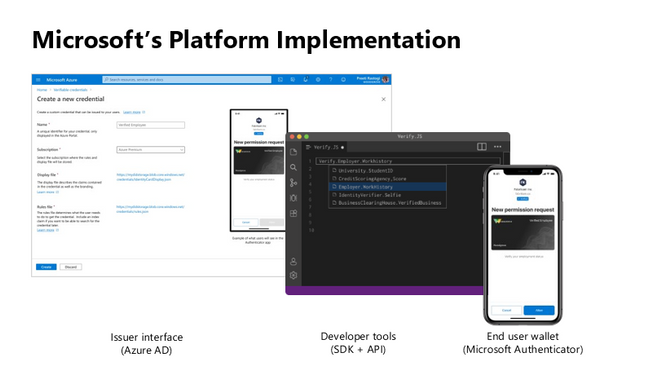
Unlike current proprietary identity systems, verifiable credentials are standards-based which makes it easy for developers to understand, and doesn’t require custom integration. Users can manage and present credentials using Microsoft Authenticator with one key difference. Unlike domain-specific credentials, verifiable credentials function as proofs that users control, even when they’re issued by organizations. Because verifiable credentials are attached to DIDs that users own, they can be confident that they—and only they—control who can access them and how.
Please visit Verifiable Credentials documentation to learn more.
Start VM on connect feature for Windows Virtual Desktop now in public preview
The start VM on connect setting for Windows Virtual Desktop automatically turns on a VM that is in a deallocated state when a user attempts to connect to it. This setting enables the ability to deallocate VMs that are not in use to save cost while ensuring that users can connect to it if needed.
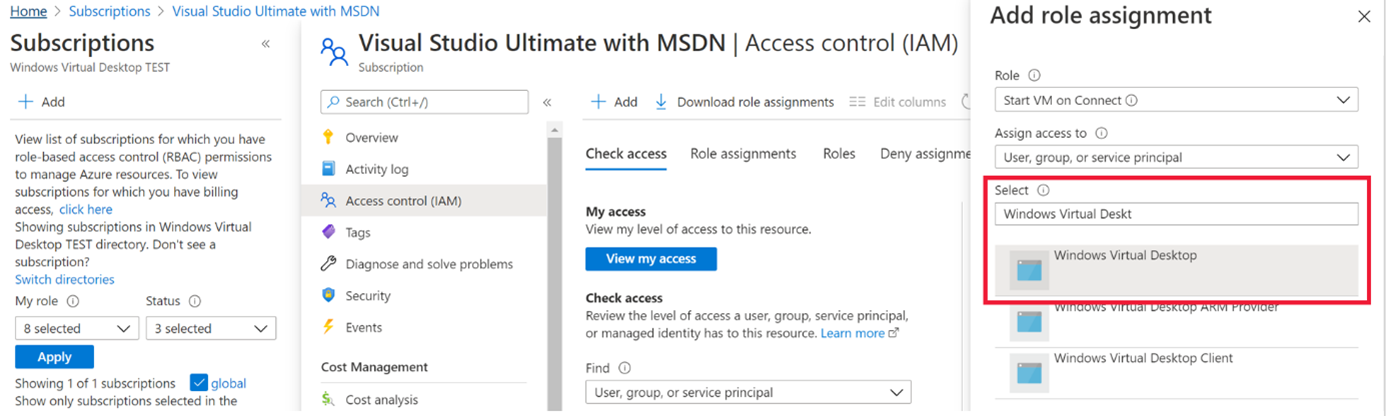
Please note the following limitations currently with the public preview:
- The setting can be configured on the validation pool only
- The setting can only be applied for personal host pools only.
- Access to this setting is available from PowerShell and Rest API only.
Learn more about additional pre-requisites and set-up guidance in our documentation.
Azure Monitor container insights support for Azure Arc enabled Kubernetes extension model in public preview
Containers insights in Azure Monitor is now extending monitoring support for Kubernetes clusters hosted on Azure Arc via public preview.
Container insights on Azure Arc-enabled Kubernetes keeps the same features as Azure Kubernetes Service (AKS) monitoring, such as:
- Performance visibility by collecting memory and processor metrics from controllers, nodes, and containers that are available in Kubernetes.
- Visualization through workbooks and in the Azure portal.
- Alerting and querying historical data for troubleshooting issues.
- Capability to scrape Prometheus metrics.
With the new extension model update, you receive these new benefits:
- Easier enablement of container insights through the portal.
- Receive automatic agent updates for the latest version of monitoring.
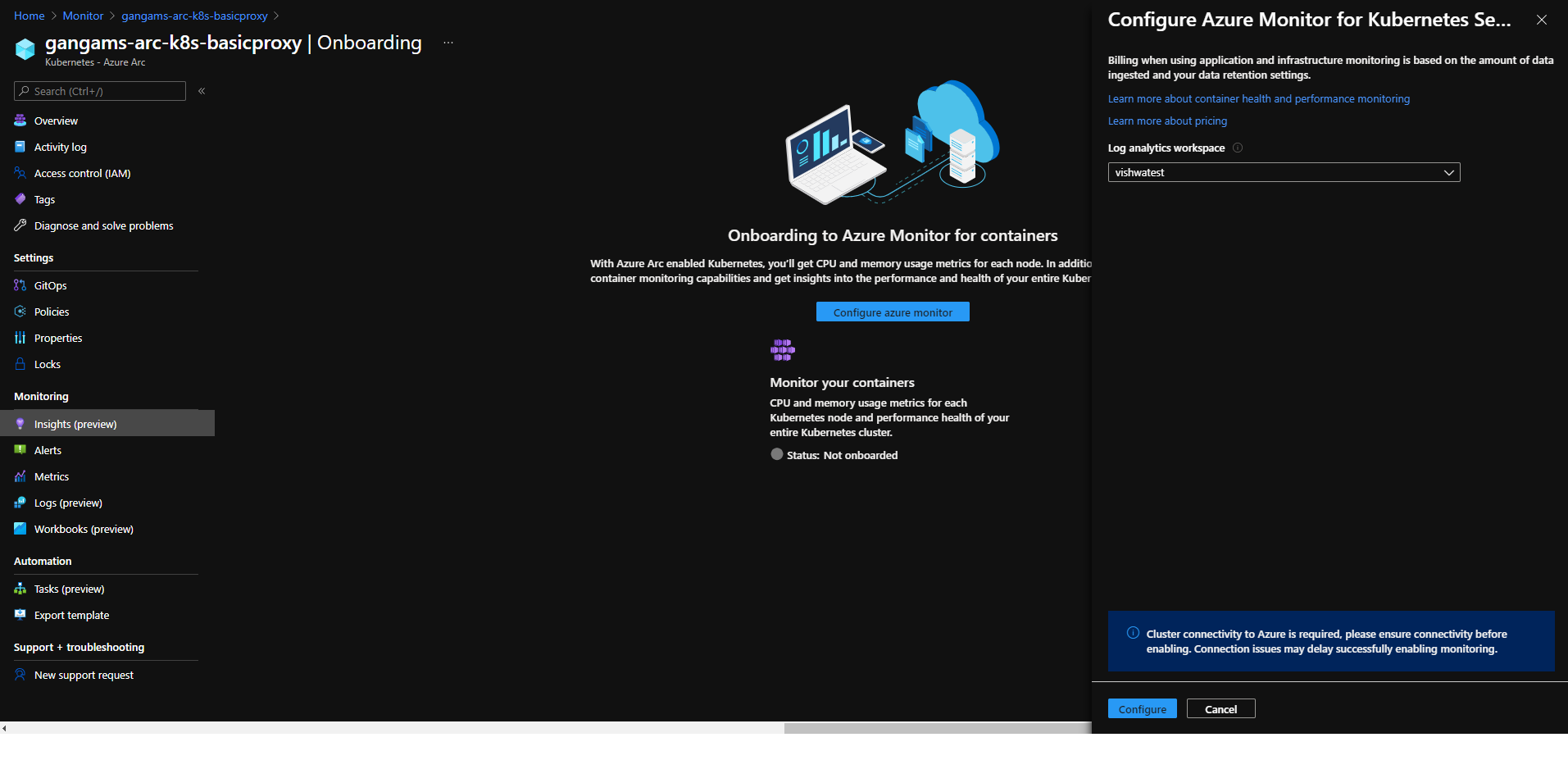
Learn more about containers insights.
Learn more about Azure Arc-enabled Kubernetes onboarding through the extension model.
Community Events
- Global Azure 2021 – April 15th to 17th, communities around the world are organizing localized live streams for everyone around the world to join and learn about Azure from the best-in-class community leaders.
- Hello World – Special guests, content challenges, upcoming events, and daily updates
- Testing in Production – Producer Pierre and Producer Steve are back to share thier broadcasting tips and talk a little tech
MS Learn Module of the Week

Creating an enterprise-scale architecture in Azure
Learn how Microsoft Cloud Adoption Framework for Azure enterprise-scale landing zones can help your organization to accelerate cloud adoption from months to weeks. We will explore how to create Azure landing zone architecture at enterprise-scale. Learn about landing zone critical design areas to build and operationalize your Azure environment.

Modules include:
- Introduction to enterprise-scale landing zones in the Microsoft Cloud Adoption Framework for Azure
- Enterprise-scale architecture organizational design principles
- Network design principles for enterprise-scale architecture
- Enterprise-scale architecture operational design principles
Learn more here: Create an enterprise-scale architecture in Azure

Let us know in the comments below if there are any news items you would like to see covered in the next show. Be sure to catch the next AzUpdate episode and join us in the live chat.

by Contributed | Apr 9, 2021 | Technology
This article is contributed. See the original author and article here.
SharePoint Framework Special Interest Group (SIG) bi-weekly community call recording from April 8th is now available from the Microsoft 365 Community YouTube channel at http://aka.ms/m365pnp-videos. You can use SharePoint Framework for building solutions for Microsoft Teams and for SharePoint Online.
Call summary:
Preview the new Microsoft 365 Extensibility look book gallery – cross platform extensibility. Update on upcoming SharePoint Framework v1.12.1 features, preview, beta and release. Register now for April trainings on Sharing-is-caring. Latest project updates include: PnPjs Client-Side Libraries v2.4.0 release scheduled for April 9, and please provide feedback on v3.0 Hub planning and discussion issues posted – issue #1636 by April 15th. CLI for Microsoft 365 Beta v3.9 delivered. Reusable SPFx React Controls – v2.6.0 and v3.0.0 (on hold for SPFx v1.12.1) and Reusable SPFx React Property Controls – v2.5.0 and v3.0.0 (on hold for SPFx v1.12.1). PnP SPFx Generator v1.16.0 (Angular 11 supported), PnP Modern Search v3.19 to be released shortly and v4.1.0 released March 20th. There were eight PnP SPFx web part samples delivered last 2 weeks. Great work! The host of this call is Patrick Rodgers (Microsoft) @mediocrebowler. Q&A takes place in chat throughout the call.
Actions:
Demos:
Teams Meeting Questionnaire App with SharePoint Framework – The Questionnaire Pre-meeting app allows Microsoft Teams meeting attendees to ask questions related to meeting before meeting starts. SPFx v1.12 provides support for Microsoft Teams meeting apps development, this web part. Operationally – in calendar create meeting, then add Meeting Questionnaire tab to meeting. Questionnaire is tied to a single SharePoint list that organizes questions by Meeting ID. Sample in PnP Samples repository.
Building an advanced SPFx Image Editor web part – This solution contains an SPFx web part – a browser-based HTML Image Editor that uses canvas and Office UI Fabric. Use File Picker component to select image and manipulate it – Resize, Crop, Flip, Rotate, Scale, Filter (Grayscale / Sepia), Redo / Undo, History of Actions. Web part created initially to pick files from a custom external data source. Sample is in Sample Gallery.
Viva Connections Desktop and Extensibility – Microsoft Viva is a suite of products. Viva Connections is an integrated experience with Microsoft Teams and SharePoint backed by Microsoft security, privacy, and compliance. Viva Connections is extensible – use out of the box web parts or create custom web parts and extensions based on requirements. You ultimately determine what capabilities to make available in the Viva Connections UX. The journey – a phased rollout of capabilities Worldwide over the next 6 months. Currently available Viva Connections Desktop is just a start on this journey.
SPFx web part samples: (https://aka.ms/spfx-webparts)
As is the case this week, samples are often showcased in Demos. Thank you for your great work.
Agenda items:
Demos:
Resources:
Additional resources around the covered topics and links from the slides.
General Resources:
Other mentioned topics:
Upcoming calls | Recurrent invites:
PnP SharePoint Framework Special Interest Group bi-weekly calls are targeted at anyone who is interested in the JavaScript-based development towards Microsoft Teams, SharePoint Online, and also on-premises. SIG calls are used for the following objectives.
- SharePoint Framework engineering update from Microsoft
- Talk about PnP JavaScript Core libraries
- Office 365 CLI Updates
- SPFx reusable controls
- PnP SPFx Yeoman generator
- Share code samples and best practices
- Possible engineering asks for the field – input, feedback, and suggestions
- Cover any open questions on the client-side development
- Demonstrate SharePoint Framework in practice in Microsoft Teams or SharePoint context
- You can download a recurrent invite from https://aka.ms/spdev-spfx-call. Welcome and join the discussion!
“Sharing is caring”
by Contributed | Apr 9, 2021 | Technology
This article is contributed. See the original author and article here.
Azure Batch:
You can use Batch to run large-scale parallel and high-performance computing (HPC) applications efficiently in the cloud. It’s a platform service that schedules compute-intensive work to run on a managed collection of virtual machines (VMs). It can automatically scale compute resources to meet the needs of your jobs.
With the Batch service, you define Azure compute resources to execute your applications in parallel, and at scale. You can run on-demand or scheduled jobs. You don’t need to manually create, configure, and manage an HPC cluster, individual VMs, virtual networks, or a complex job and task-scheduling infrastructure.
Azure Data Factory:
Data Factory is a cloud-based data integration service that orchestrates and automates the movement and transformation of data. You can use Data Factory to create managed data pipelines that move data from on-premises and cloud data stores to a centralized data store. An example is Azure Blob storage. You can use Data Factory to process/transform data by using services such as Azure HDInsight and Azure Machine Learning. You also can schedule data pipelines to run in a scheduled manner (for example, hourly, daily, and weekly). You can monitor and manage the pipelines at a glance to identify issues and take action.
Configure Batch job with ADF:
In this article, we will be looking into the steps involved in configuring a simple batch job with Azure data factory using the Azure portal.
We will be using an *.exe file and execute it in Azure data factory pipeline using Azure Batch.
This example does not require any additional tools or application to be pre-installed for the execution.
Create a Batch account:
- In the Azure portal, select Create a resource > Compute > Batch Service.
- In the Resource group field, select Create new and enter a name for your resource group.
- Enter a value for Account name. This name must be unique within the Azure Location selected. It can contain only lowercase letters and numbers, and it must be between 3-24 characters.
- Under Storage account, select an existing storage account or create a new one.
- Do not change any other settings. Select Review + create, then select Create to create the Batch account.
When the Deployment succeeded message appears, go to the Batch account that you created.
Public documentation for creating a Batch account.
Create a Pool with compute nodes:
- In the Batch account, select Pools > Add.
- Enter a Pool ID called mypool.
- In Operating System, select the following settings (you can explore other options).
Setting
|
Value
|
Image Type
|
Marketplace
|
Publisher
|
microsoftwindowsserver
|
Offer
|
windowsserver
|
Sku
|
2019-datacenter-core-smalldisk
|
- Scroll down to enter Node Size and Scale settings. The suggested node size offers a good balance of performance versus cost for this quick example.
Setting
|
Value
|
Node pricing tier
|
Standard A1
|
Target dedicated nodes
|
2
|
- Keep the defaults for remaining settings, and select OK to create the pool.
Batch creates the pool immediately, but it takes a few minutes to allocate and start the compute nodes. During this time, the pool’s Allocation state is Resizing. You can go ahead and create a job and tasks while the pool is resizing.
After a few minutes, the allocation state changes to Steady, and the nodes start. To check the state of the nodes, select the pool and then select Nodes. When a node’s state is Idle, it is ready to run tasks.
Public documentation for creating a Batch pool.
Create Azure Data Factory:
- Go to the Azure portal.
- From the Azure portal menu, select Create a resource.
- Select Integration, and then select Data Factory.
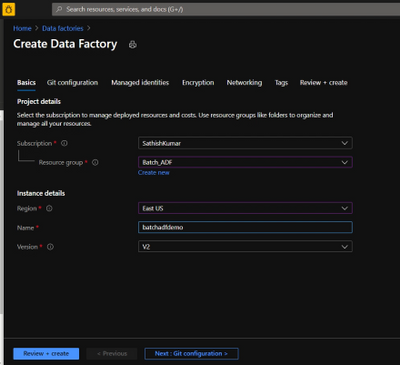
- On the Create Data Factory page, under Basics tab, select your Azure Subscription in which you want to create the data factory.
- For Resource Group, take one of the following steps:
- Select an existing resource group from the drop-down list.
- Select Create new, and enter the name of a new resource group.
- For region, select the same region as the Batch account to avoid additional charges due to communication between different datacenters.
- For Name, provide a name for your ADF and kindly note that the name must be universally unique.
- For version, select v2.
- Select Next: Git configuration, and then select Configure Git later check box.
- Select Review + create and select Create after the validation is passed. After the creation is complete, select Go to resource to navigate to the Data Factory page.
- Below is an example of how a Azure Data Factory overview page looks like.
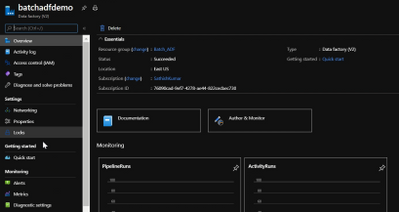
- Now click on ‘Author & Monitor’ to open the ADF workspace.
- Before the next step, download the helloworld.exe file from the here and upload it to one of the containers in your storage account which is being used with the Batch account.
Public documentation for creation of Azure Data Factory.
Configure a pipeline in ADF:
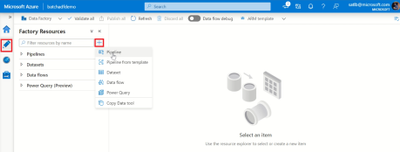
- In the left-hand side options, click on ‘Author’.
- Now click on the ‘+’ icon next to the ‘Filter resource by name’ and select ‘Pipeline’.
- Now select ‘Batch Services’ under the ‘Activities’.
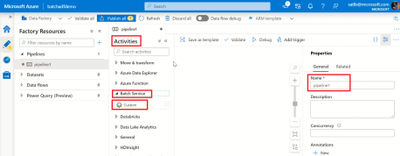
- Change the name of the pipeline to the desired one.
- Drag and drop the custom activity in the work area.
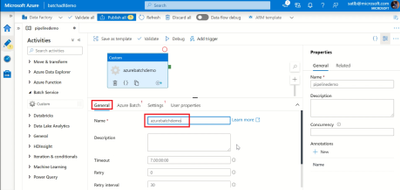
- Under the General section, enter a Name.
- Next, select Azure Batch and select the existing Azure Batch Linked Service or create a new one.
- To create an Azure Batch Linked Service, click on the + New. Enter the details as provided in the below screenshot.
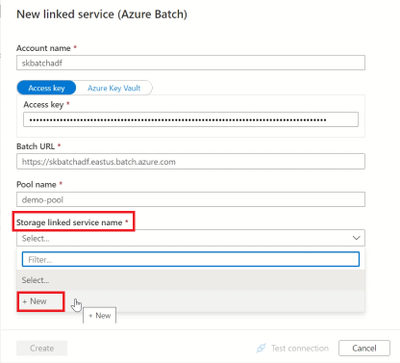
- Create a Storage Linked service name too, by selecting the + New in the dropdown.
- Enter the required details to create a storage linked service name, test the connection to check if it succeeds and click on create.
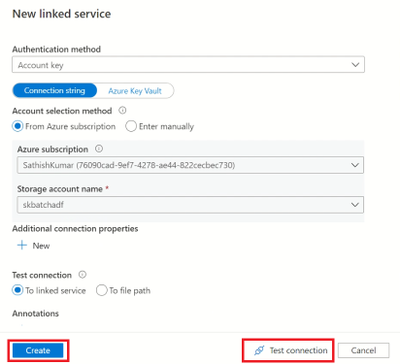
- Now, select the storage linked service name in the Azure Batch linked service and click on create.
- Next, click on settings and enter the command you want to execute (in this example, we will execute a simple helloworld.exe file which will print ‘Hello World’).
- So, in the command line type ‘(filename).exe’
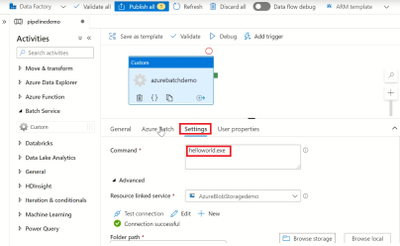
- Select the storage account linked service which we created, under the Resource Linked service.
- Under the Folder path, select the location of the container where the ‘helloworld.exe’ file is present by clicking on Browse storage.
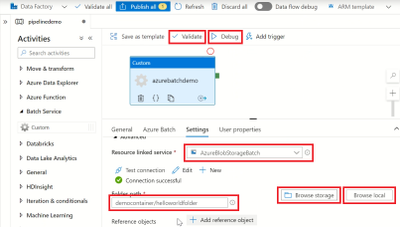
- Then click on Validate to check for any errors in the configuration.
- Finally, click on Debug to run the pipeline while will create a job in the Azure batch pool and execute the command line as a task.
Note: We are currently checking the pipeline without publishing it. So once the pipeline succeeds make sure to click on Publish All else all these configuration will be lost.
Check the Job status in Azure Batch:
- Navigate to the corresponding Batch account and click on Jobs.
- Click on the recently created Job and open the task which had run under it.
- Check for the successful Job completion by opening the stdout.txt file which will contain the output.
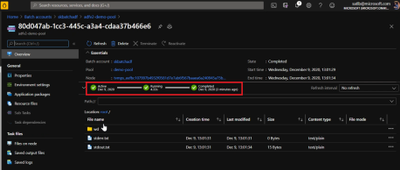
- The output is displayed in the stdout.txt file for us.
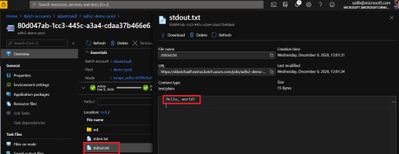
- We have now configured a simple Batch job using ADF pipeline and verified the output successfully.
Thank you for following the steps, I hope the blog was useful and kindly provide any comments based on your view or if any additional information needs to be included.
You can also try out a different execution of Azure batch with Azure Data Factory using a python script file.
by Contributed | Apr 9, 2021 | Technology
This article is contributed. See the original author and article here.
Ultra Disk Storage is now generally available for the HPC and GPU VM sizes.
Ultra Disks
Ultra Disks are the highest performance tier of Azure managed disks for data-intensive workloads. They deliver high throughput and IOPS, and consistent low latency disk storage. Customers can dynamically change the performance of the disks without the need to restart your virtual machines (VM).
For HPC/AI workloads, the Ultra Disks can be used as a higher performance tier to Premium Disks for remote storage scenarios (NFS pools, parallel file systems, etc.)
Considerations for Ultra Disks vis-a-vis Premium Disks
Note that the availability of Ultra Disks by region/AZ/SKU is different (and restrictive today) from that of Premium Disks. Even though a VM size is supported, the support is different per region/zone.
- Today Ultra Disk and VMs have to be co-located, so Ultra Disks are only available to deploy for those H/N clusters that are co-located with Ultra Disk. Hence NOT ALL H/N clusters will be deployable with Ultra Disk.
HPC and GPU VM SKUs with Ultra Disks
In addition to the support for Premium Disks, the Ultra Disks can now also be attached to the following H* and N* VM sizes (depending on region/zone as outlined above):
- HPC: HBv2, HB, HC
- Currently HBv3 is not co-located with Ultra Disk. So as an example, Ultra Disk cannot be attached to an HBv3 VM in any region where HBv3 is live today.
- GPU: NDv4, NDv2, ND, NC_T4_v3, NCv3, NCv2, NVv4, NVv3
Performance
The table below demonstrated averaged bandwidth, IOPS and latency numbers on some of the HPC and GPU SKUs. These are obtained obtained using fio.
- The biggest improvement from Ultra Disks on the H*/N* VMs is to latencies that are now sub-millisecond (10x lower than Premium Disks).
- For most scenarios, the VM limits are the bottleneck with Ultra Disks and the disk limits becomes the bottleneck with Premium Disks. The suspected VM limits are anticipated to be increased in the coming weeks.
- VM limits are pre-assigned limits for managed disk performance to each VM size.
- HBv2 and HC obtain max write bandwidth with Ultra Disk. For many other SKUs, However the bandwidth obtained with an Ultra Disk is similar to what is obtained with Premium Disk.
- A single Ultra Disk can hit the , hence removing the need for striping multiple disks and making disk management easier.
- The IOPS obtained with a single Ultra Disk is 2.5-4x of a single Premium Disk.
- Note the results obtained below are using both the Disks at the highest performance tiers
VM SKU |
Premium (20000 GB) |
Ultra (1024 GB) |
Spec: BW 900 MBps, 20K IOPS |
Spec: BW 2000 MBps, 160K IOPS |
BW (MBps) |
IOPS (K) |
Latency (ms) |
BW (MBps) |
IOPS (K) |
Latency (ms) |
HC44 |
876 (R, W) |
20 |
2.495 |
700 (R), 1944 (W) |
64 |
0.215 |
HB120_v2 |
876 (R, W) |
18 |
2.422 |
840 (R), 1946 (W) |
30 |
0.235 |
NV48_v3 |
880 (R, W) |
20 |
1.51 |
1172 (R, W) |
80 |
0.339 |
NV32_v4 |
703 (R, W) |
20 |
2.258 |
703 (R, W) |
49 |
0.242 |
NDv2 |
876 (R, W) |
20 |
2.207 |
710 (R), 1173 (W) |
78 |
0.216 |
NC64_T4_v3 |
704 (R, W) |
20 |
2.149 |
704 (R, W) |
49 |
0.254 |
Impact of Accelerated Networking
None. AccelNet does not improve Managed Disks performance. Exceptions maybe corner cases of the VMs doing heavy VM-VM network traffic over the Ethernet interface while doing VM-Managed Disk traffic at the same time.
Resources


Recent Comments