by Contributed | Apr 19, 2021 | Technology
This article is contributed. See the original author and article here.
Public read access to Azure containers and blob storage is an easier and convenient way to share data, however it also possesses security risk. For better and enhanced security, public access to entire storage account can be disallow regardless of the public access setting for an individual container present within the storage container. By disallowing public access to storage prevents a user from enabling public access for a container in respective storage account.
Remediating secure access to storage account across subscriptions and storage account can be tedious as we grow. Below solution can help you to disallow public access to storage account at scale. We can extract list of all storage account from azure subscriptions and use the same csv as input to below solution to disallow storage account containers at scale across all your subscriptions.
Pre-Requisite:
– Az Modules must be installed
– Service Principal created as part of Step 1, must be having contributor level access to subscriptions
Steps to follow:
Step 1: Create a service principal
Post creation of service principal, please retrieve below values.
- Tenant Id
- Client Secret
- Client Id
Step 2: Create a PowerShell function which will be used in generating authorization token
function Get-apiHeader{
[CmdletBinding()]
Param
(
 [Parameter(Mandatory=$true)]
 [System.String]
 [ValidateNotNullOrEmpty()]
 $TENANTID,
 [Parameter(Mandatory=$true)]
 [System.String]
 [ValidateNotNullOrEmpty()]
 $ClientId,
 [Parameter(Mandatory=$true)]
 [System.String]
 [ValidateNotNullOrEmpty()]
 $PasswordClient,
 [Parameter(Mandatory=$true)]
 [System.String]
 [ValidateNotNullOrEmpty()]
 $resource
)
$tokenresult=Invoke-RestMethod -Uri https://login.microsoftonline.com/$TENANTID/oauth2/token?api-version=1.0 -Method Post -Body @{"grant_type" = "client_credentials"; "resource" = "https://$resource/"; "client_id" = "$ClientId"; "client_secret" = "$PasswordClient" }
$token=$tokenresult.access_token
$Header=@{
  'Authorization'="Bearer $token"
  'Host'="$resource"
  'Content-Type'='application/json'
  }
return $Header
}
Step 3: Invoke API to retrieve authorization token using function created in above step
Note: Replace $TenantId, $ClientId and $ClientSecret with value captured in step 1
$AzureApiheaders = Get-apiHeader -TENANTID $TenantId -ClientId $ClientId -PasswordClient $ClientSecret -resource "management.azure.com"
Step 4: Extracting list of storage accounts across accessible subscriptions
$subscriptionList =  Get-AzSubscription
$subscriptionIdList = $subscriptionList.Id
foreach($subscriptionId in $subscriptionIdList)
{
$resourceURL = "https://management.azure.com/subscriptions/$($subscriptionId)/providers/Microsoft.Storage/storageAccounts?api-version=2021-01-01"
$resourcedetails=(Invoke-RestMethod  -Uri $resourceURL -Headers $AzureApiheaders -Method GET)
$TableData = $resourcedetails.value.ID
}
Step 5: Enable secure access to storage account
foreach($Data in $TableData)
{
  #Select Current Subscription and get All Storage Accounts
  $resourceid=$Data
  $resourceURL="https://management.azure.com$($resourceid)?api-version=2021-02-01"
  $resourcedetails=(Invoke-RestMethod  -Uri $resourceURL -Headers $AzureApiheaders -Method GET)
  $resourcelocation=$resourcedetails.location
  $permissions=$resourcedetails.properties.allowBlobPublicAccess
  if($permissions -eq $false)
  {
   Write-Output "Public access to Storage Account: $($resourcedetails.name) is already disabled"
  }
  Else
  {
   Write-Output "Changing ACL for Storage Account: $($resourcedetails.name)"
   $body = @"
   {
    "location":"$($resourcelocation)",
    "properties": {
         "allowBlobPublicAccess":  "false"
                  }
   }"@
   Invoke-RestMethod -Uri $resourceURL -Method Put -Headers $AzureApiheaders -Body $body
  }
}
Overall Script:
function Get-apiHeader{
[CmdletBinding()]
Param
(
 [Parameter(Mandatory=$true)]
 [System.String]
 [ValidateNotNullOrEmpty()]
 $TENANTID,
 [Parameter(Mandatory=$true)]
 [System.String]
 [ValidateNotNullOrEmpty()]
 $ClientId,
 [Parameter(Mandatory=$true)]
 [System.String]
 [ValidateNotNullOrEmpty()]
 $PasswordClient,
 [Parameter(Mandatory=$true)]
 [System.String]
 [ValidateNotNullOrEmpty()]
 $resource
)
$tokenresult=Invoke-RestMethod -Uri https://login.microsoftonline.com/$TENANTID/oauth2/token?api-version=1.0 -Method Post -Body @{"grant_type" = "client_credentials"; "resource" = "https://$resource/"; "client_id" = "$ClientId"; "client_secret" = "$PasswordClient" }
$token=$tokenresult.access_token
$Header=@{
  'Authorization'="Bearer $token"
  'Host'="$resource"
  'Content-Type'='application/json'
  }
return $Header
}

$AzureApiheaders = Get-apiHeader -TENANTID $TenantId -ClientId $ClientId -PasswordClient $ClientSecret -resource "management.azure.com"

$subscriptionList =  Get-AzSubscription
$subscriptionIdList = $subscriptionList.Id

foreach($subscriptionId in $subscriptionIdList)
{
$resourceURL = "https://management.azure.com/subscriptions/$($subscriptionId)/providers/Microsoft.Storage/storageAccounts?api-version=2021-01-01"
$resourcedetails=(Invoke-RestMethod  -Uri $resourceURL -Headers $AzureApiheaders -Method GET)
$TableData = $resourcedetails.value.ID
foreach($Data in $TableData)
{
  #Select Current Subscription and get All Storage Accounts
  $resourceid=$Data
  $resourceURL="https://management.azure.com$($resourceid)?api-version=2021-02-01"
  $resourcedetails=(Invoke-RestMethod  -Uri $resourceURL -Headers $AzureApiheaders -Method GET)
  $resourcelocation=$resourcedetails.location
  $permissions=$resourcedetails.properties.allowBlobPublicAccess
  if($permissions -eq $false)
  {
   Write-Output "Public access to Storage Account: $($resourcedetails.name) is already disabled"
  }
  Else
  {
   Write-Output "Changing ACL for Storage Account: $($resourcedetails.name)"
   $body = @"
   {
    "location":"$($resourcelocation)",
    "properties": {
         "allowBlobPublicAccess":  "false"
                  }
   }"@
   Invoke-RestMethod -Uri $resourceURL -Method Put -Headers $AzureApiheaders -Body $body
  }
}
}
References:
https://docs.microsoft.com/en-us/azure/storage/blobs/anonymous-read-access-configure?tabs=powershell
by Contributed | Apr 19, 2021 | Technology
This article is contributed. See the original author and article here.
Whether it’s to repeat common tasks or to automatically respond to a trigger, IT Pros look to automation to help streamline their work and improve their response times. In Azure, runbooks stored in Azure Automation accounts need to use credentials of an identity that they will run their actions as, if they are acting on a Azure resource. Azure Resource Manager checks that identity against to ensure it has permission to the resource before the actions are executed. Lets look at the new managed identities for Azure Automation (preview) and how they’re better than the previous Run As accounts.
Run As accounts
Previously, we’ve used an Azure Automation “Run As” account for this execution identity. When you create an Azure Automation Run As account, it creates:
- An Azure AD application with a self-signed certificate
- A service principal account in Azure Active Directory for that application
- And assigns the Contributor role to that service principal account in your subscription.
- It also creates an Automation certificate asset to hold the certificate’s private key, and an Automation connection asset which holds the application ID, tenant ID, subscription ID and certificate thumbprint.
That’s a bit of complexity there, all to provide a secure identity. Also, that self-signed certificate will expire one year after creation and will need to be renewed.
System-assigned Managed Identity
Now in preview, Azure Automation supports using a system-assigned managed identity instead. This managed identity works with any Azure service that supports AD authentication and can be used in Hybrid jobs on Azure and non-Azure VMs with the Hybrid Runbook Worker. It removes the need for renewing certificates and you dont need to specify the Run As connection object in your runbook code.
Enabling managed identity in an Azure Automation account
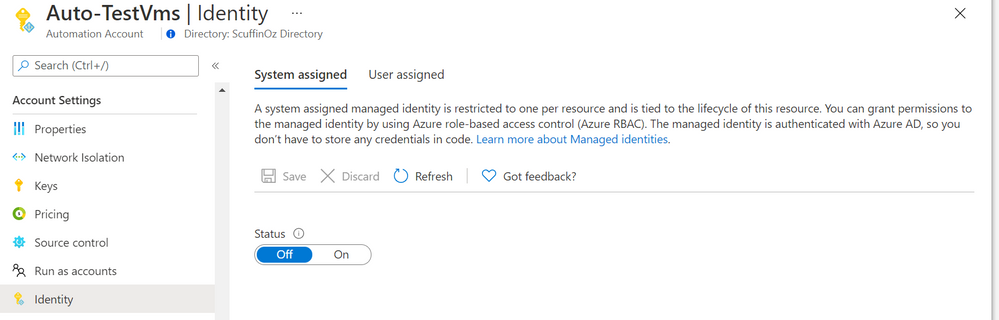
In an existing automation account, in the Account Settings section you’ll find the Identity blade and the option to turn on a system assigned identity.
Adding a system-assigned managed identity to your Azure Automation account – Identity blade inside the Azure Portal
Once created, it will show the managed identity’s Object ID and you can add role assignments at the subscription or resource group level, or to key vault, storage or SQL
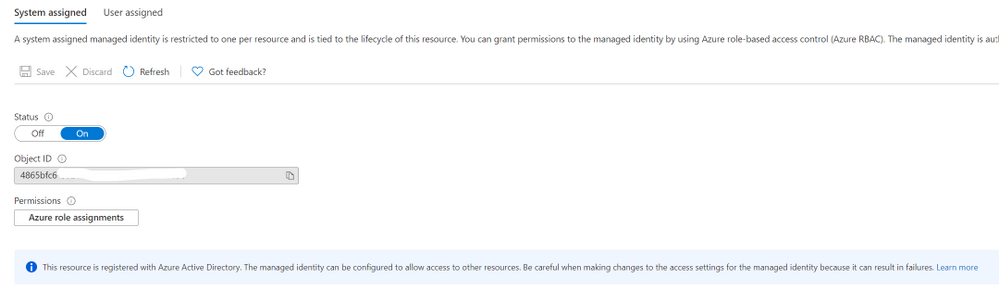 Azure Automation account enabled with a system-assigned managed identity
Now that your managed identity has been created and has a role that allows it to access your target resources, you can update your runbooks to use the Connect-AzAccount PowerShell cmdlet to call the managed identity:
Connect-AzAccount -Identity
View more sample runbooks here using managed identity.
Feedback
As always, we love your feedback but especially for features in preview as we seek to improve them. What do you think? Is this a better way of providing your automation runbooks with an identity? Would you change over your existing Azure Automation accounts? Let us know in the comments!
Learn more:
Azure Automation account authentication overview
Manage an Azure Automation Run As account
Manage runbooks in Azure Automation
Enable a managed identity for your Azure Automation account (preview)
What are managed identities for Azure resources?
by Contributed | Apr 18, 2021 | Technology
This article is contributed. See the original author and article here.
Azure Security Center monitors the security posture of your Azure resources. Today, organizations are extending their hybrid footprint and using additional public clouds. Security Center allows you to protect non-Azure resources located on-premises or on other cloud providers, from virtual machines, Kubernetes services and SQL resources.
To do so, those resources need to be connected to Azure by leveraging Azure Arc service – meaning that you can now manage and operate all your existing IT resources consistently and at-scale, wherever they reside, from Azure. You can also run Azure services anywhere, on-premises or in other public clouds, and take advantage of cloud benefits everywhere, such as scalability, fast deployment, and always up-to-date cloud innovation. Moreover, Azure Arc allows you to manage these resources like any other first citizen resource in Azure and benefit from additional capabilities, such as: non-Azure virtual machines connected to Azure Arc can benefit from capabilities such as patch management, RBAC roles, extension platform, tags and more.
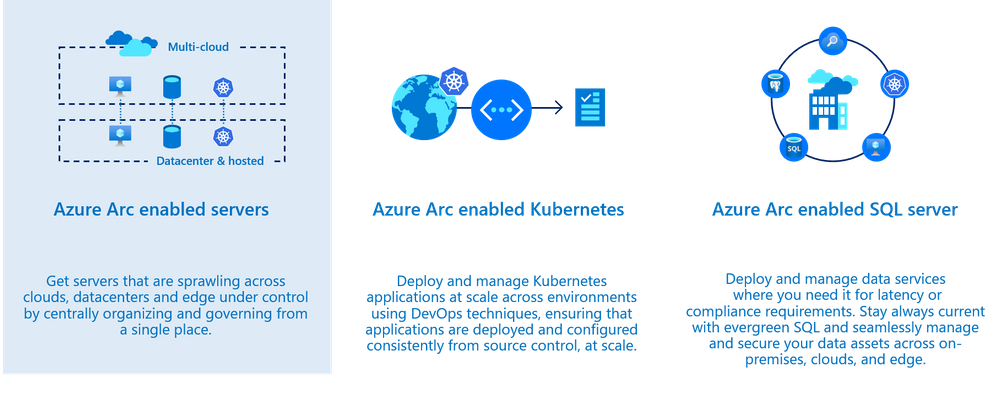
Using Security Center and Azure Arc, you can also secure the 3 core scenarios which are offered today. In this blog post we will focus on the first one which is Azure Arc enabled servers.
Onboarding non-Azure machines into Azure Arc provide you the ability to:
- Deploy virtual machine extension (such as Log Analytics agent, vulnerability assessment scanner, custom script extension and more)
- Enable guest configuration policies (Azure Policy)
- Use Security Center to improve the security posture such as misconfigured settings, missing system updates and more.
- Use Azure Defender for server capabilities such security alerts, vulnerability assessment, adaptive application controls, network hardening and more.
Prepare
Onboard machines as Azure Arc connected machines by installing the Hybrid Connected Machine agent on the target machine(s); this can be done by using a script or manually. Once a machine is onboarded, you will see it as Azure resource.
Before you onboard machines, please make sure to review these tasks:
- Make sure to review the supported operating system version as found here: Overview of the Connected Machine agent – Azure Arc | Microsoft Docs. If you still want to onboard a non-Azure machine but the target machine runs an OS version which is not supported by the agent yet, you can still onboard it by installing the Log Analytics agent directly on a machine.
- Ensure the target machines can communicate over the internet with the required URLs for the agent through a firewall or proxy server – proxy settings are set on the OS level.
All URLs used for communication are outbound and secured over TCP port 443 and can be found here.
Onboard
There are multiple ways to deploy the agent on a target machine as provided here: Connect hybrid machines to Azure from the Azure portal – Azure Arc | Microsoft Docs.
During the onboarding, you will be asked to onboard the resource to a subscription and a resource group you selected a subscription where Azure Defender for Servers plan is enabled.
To do so, navigate to Security Center Pricing and Settings page, and in the Servers row, click ON as shown the example below:

Once the machine is successfully onboarded, you will be able to see it listed on the Azure Arc blade.
In the Azure portal, search for Azure Arc service, then select Servers to see all the onboarded servers and their status, as shown in the example below:
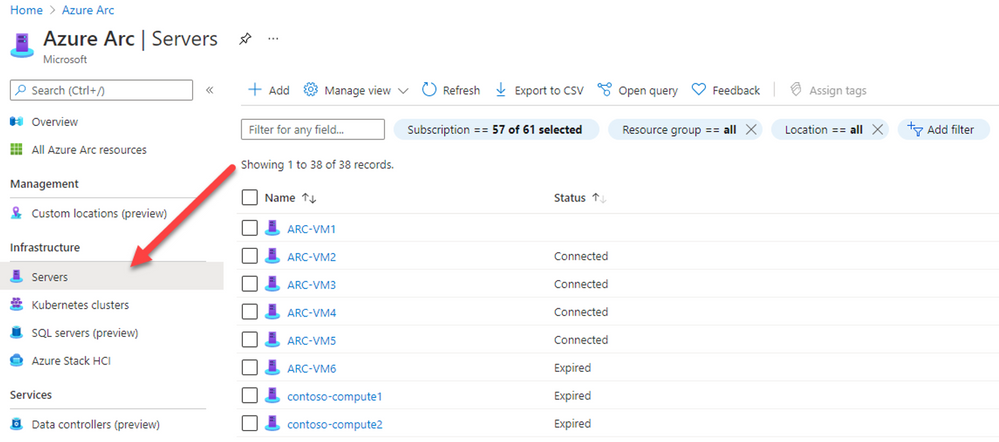
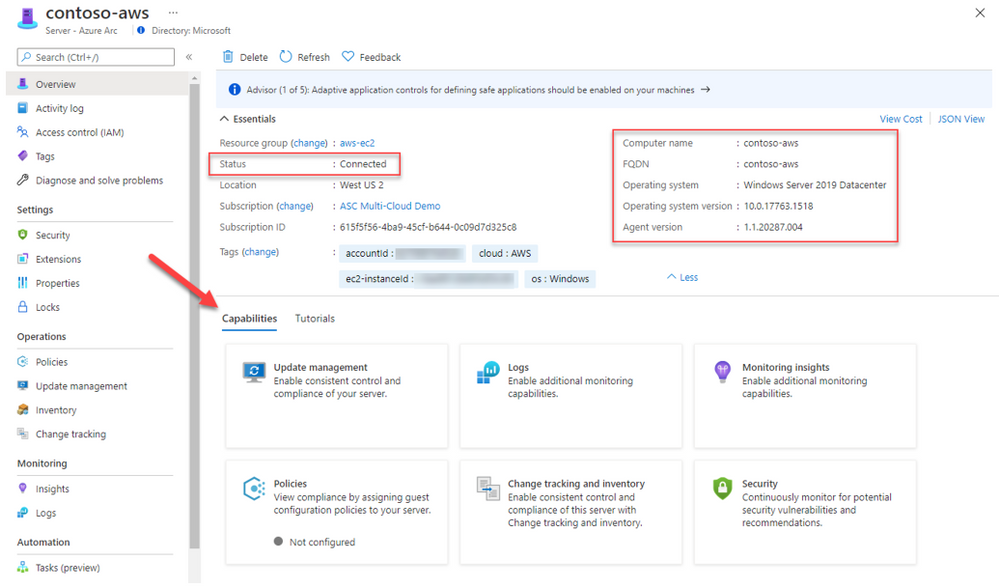
Selecting one of the onboarded machines, opens the resource blade. Here you can see the connectivity status, OS details and additional metadata.
Since it’s an ARM resource, you can assign tags, manage permissions using Azure RBAC and use additional capabilities such as policies, change tracking and inventory, patch management and security.
Secure
Projecting resources using Arc is a necessary step to ensure your machines are protected by Security Center. Like an Azure VM, you will need to deploy the Log Analytics agent on the target machine. To do so, you can use dedicated recommendations on Security Center recommendation list to deploy the Log Analytics agent; one for Azure Arc machines based on Linux and for Windows.
These recommendations offer you the Quick Fix approach to remediate it with a single click to trigger an installation of the Log Analytics agent.

The agent is being deployed using the VM extension platform which is one of the advantages of using Arc. Once the Log analytics agent is installed and connected to a workspace used by Security Center, your machine will be ready to use and benefit of the variety of features which are available as part of the Azure Defender for Servers plan.
On Security Center’s asset inventory, you can filter Arc resources by using the filters located on the upper section, for example: select “servers – azure arc”. Unlike Azure VMs, Arc connected machines are presented in purple as you can see below.
For each resource you can see the agent monitoring alongside with the current security recommendations:
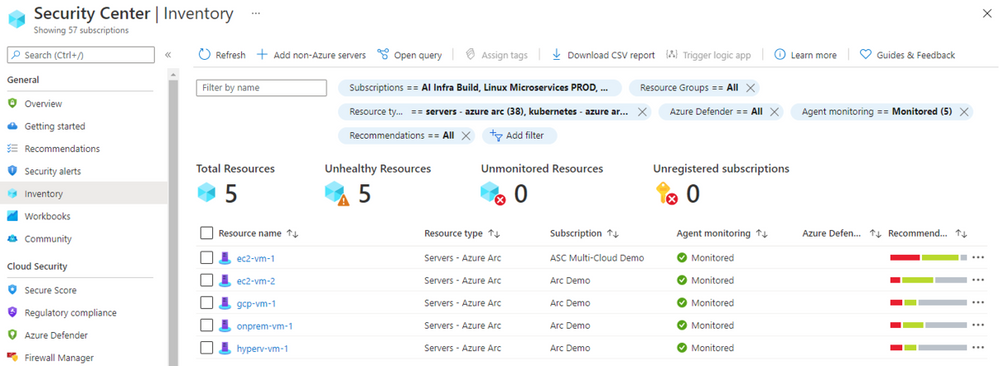
You can distinguish between the different resource by the icon:

The security alert below was triggered by Azure Defender from a virtual machine onboarded to Azure Arc and located on other cloud vendor:

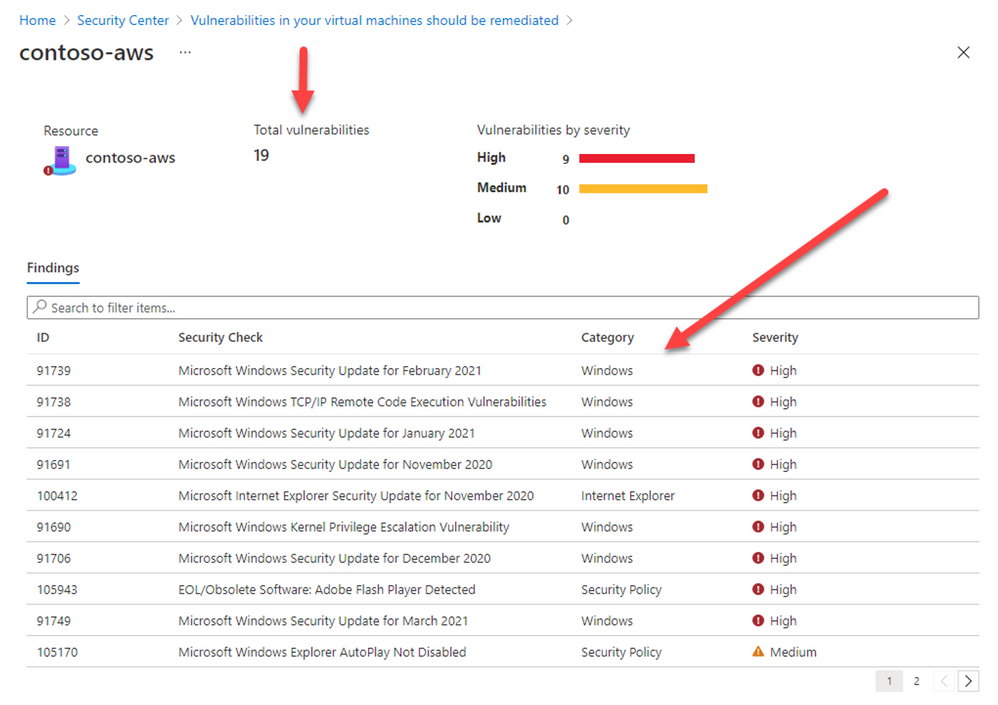
Deploying our integrated vulnerability assessment solution on non-Azure machine is included with the Azure Defender for servers plan and provide you a visibility for all vulnerabilities found on the target resource including the remediation steps:
Hope you enjoyed learning on how Security Center and Azure Arc can protect your non-Azure resources located anywhere 
Reviewers:
@Yuri Diogenes, Principal Program Manager, ASC CxE
Future Kortor, Program Manager, ASC CxE
by Contributed | Apr 18, 2021 | Technology
This article is contributed. See the original author and article here.
Intro
A function is a log query in Azure Monitor that can be used in other log queries as though it’s a command. Functions allow developers to provide solutions to different customers and for you to reuse query logic in your own environment.
We have upgraded the functions experience in Log Analytics, providing new UI and capabilities to allow you to do more with functions.
Log Analytics supports the following types of functions:
- Solution function: Pre-built functions included with Azure Monitor. These are available in all Log Analytics workspaces and can’t be modified.
- Workspace functions: Functions installed in a particular Log Analytics workspace and can be modified and controlled by the user
The new Functions experience
Discover functions in the sidebar
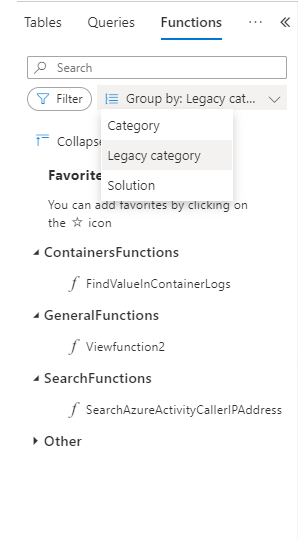
Functions are now a part of Log Analytics sidebar. As any other Log Analytics sidebar, functions are searchable, filterable and you can group the functions tree according to the function’s metadata:
You may also set your own favorite functions per workspace for quicker access.
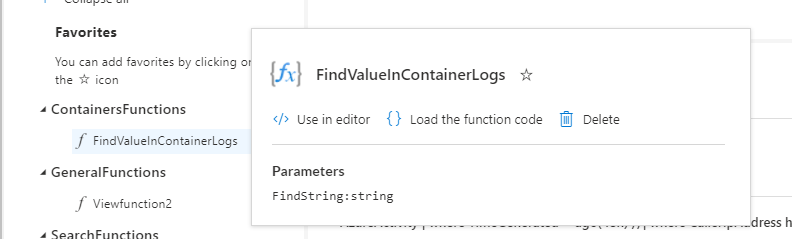
Functions have a popover with additional data, including parameters defined for the function:
Use functions in your queries with intellisense
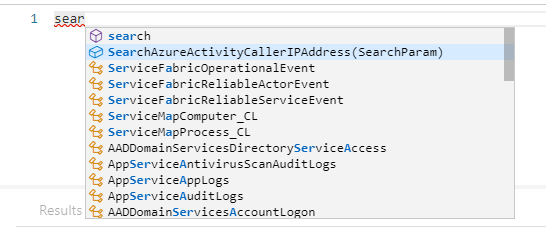
Functions are integrated with Log Analytics intellisense. Intellisense supports auto complete for functions and will also assist with the defined parameters per function:
Workspace functions
Workspace functions were upgraded and they now support parameters and default parameter values.
You can create and save your own workspace functions per Log Analytics workspace.
Compose your query with parameters and use the “save” ->”Save as function” to define your own workspace functions in LA.
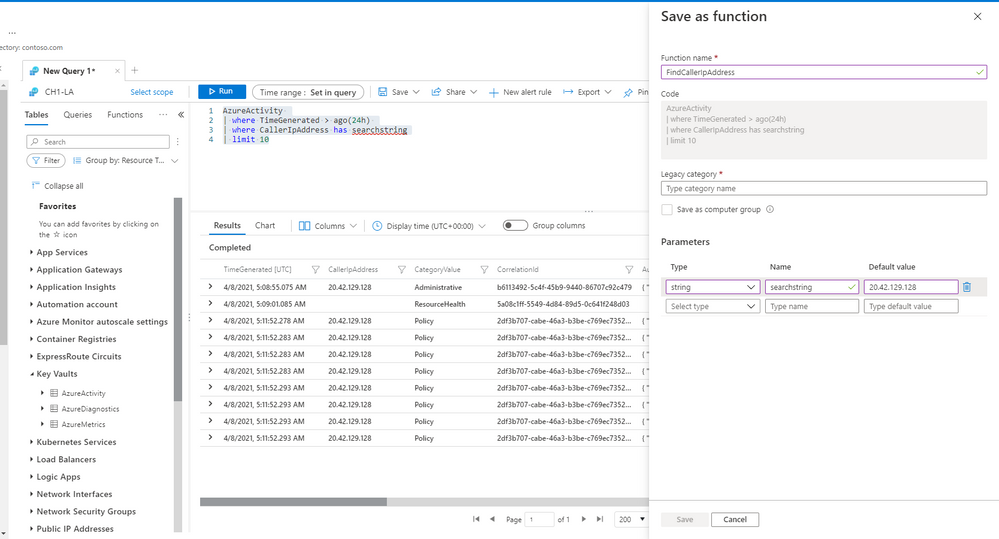 Note: you must have sufficient workspace permissions to save a function.
Edit and mange your functions
Once a function is saved, you can still edit and mange it. Load the function’s code to an empty Log Analytics tab to change the function’s code or it’s metadata.
Summary
Functions are a great way to do more with Log Analytics.
Use our solution functions or define your own functions to re-use logic and queries and shorten your way to insight.
Read our in depth functions documentation to learn more about functions in Log Analytics.
Feedback
We appreciate your feedback! comment on this blog post and let us know what you think of the this feature.
You may also use our in app feedback feature to provide us with additional feedbacks:

by Contributed | Apr 17, 2021 | Technology
This article is contributed. See the original author and article here.
One of the beautiful things about Azure VMware Solution is integrating directly with other Azure services. As you may be aware, Azure VMware Solution is an Azure service that allows for running VMware workloads natively in Azure. Microsoft maintains and manages the platform components, allowing the user to focus on the workloads. As expected, periodically the platform receives upgrades and patches which are all done by Microsoft. Knowing when those patches and updates are coming is critical to the user in production operations.
Upgrades or patches should not impact workloads running on Azure VMware Solution, but knowing when they are taking place for many organizations is required to support change management protocols. The best way organizations can keep abreast of planned Azure VMware Solution maintenance, Azure service incidents, health advisories, or security advisories is to use Azure Service Health.
To configure these alerts, you will need to know which subscription and region Azure VMware Solution private cloud was deployed. From there, using Azure Service Health, you can send texts, voice calls, or emails about any combination of the previously mentioned categories.
Additionally, Azure Service Health can trigger other actions when an event occurs. For example, when an event occurs, like a pending upgrade, an Azure Logic App can be called that logs the event into your enterprise change management system. This is just one example of the very powerful use of Azure Service Health and its integrations with not only Azure VMware Solution but any Azure service.
If you would like to see step-by-step details of how to configure alerts for Azure VMware Solution, check out this blog article.


Recent Comments