by Contributed | May 5, 2021 | Technology
This article is contributed. See the original author and article here.
Sometimes we have a business requirement to get site collections with all the sub-webs so we can achieve the solution easily using PnP Powershell.
Let’s see step-by-step implementation:
Implementation
Open Windows Powershell ISE
Create a new file and write a script
Now we will see all the steps which we required to achieve the solution:
1. We will initialize the admin site URL, username, and password in the global variables.
2. Then we will create a Login function to connect the O365 SharePoint Admin site.
3. Create a function to get all site collections and all the sub-webs
So in the end, our script will be like this,
$SiteURL = "https://domain-admin.sharepoint.com/"
$UserName = "UserName@domain.onmicrosoft.com"
$Password = "********"
$SecureStringPwd = $Password | ConvertTo-SecureString -AsPlainText -Force
$Creds = New-Object System.Management.Automation.PSCredential -ArgumentList $UserName, $SecureStringPwd

Function Login {
    [cmdletbinding()]
    param([parameter(Mandatory = $true, ValueFromPipeline = $true)] $Creds)
    Write-Host "Connecting to Tenant Admin Site '$($SiteURL)'"
    Connect-PnPOnline -Url $SiteURL -Credentials $creds
    Write-Host "Connection Successfull"
}

Function AllSiteCollAndSubWebs() {
    Login($Creds)
    $TenantSites = (Get-PnPTenantSite) | Select Title, Url

    ForEach ( $TenantSite in $TenantSites) {
        Connect-PnPOnline -Url $TenantSite.Url -Credentials $Creds
        Write-Host $TenantSite.Title $TenantSite.Url
        $subwebs = Get-PnPSubWebs -Recurse | Select Title, Url
        foreach ($subweb in $subwebs) {
            Connect-PNPonline -Url $subweb.Url -Credentials $Creds
            Write-Host $subweb.Title $subweb.Url
        }
    }
}

AllSiteCollAndSubWebs
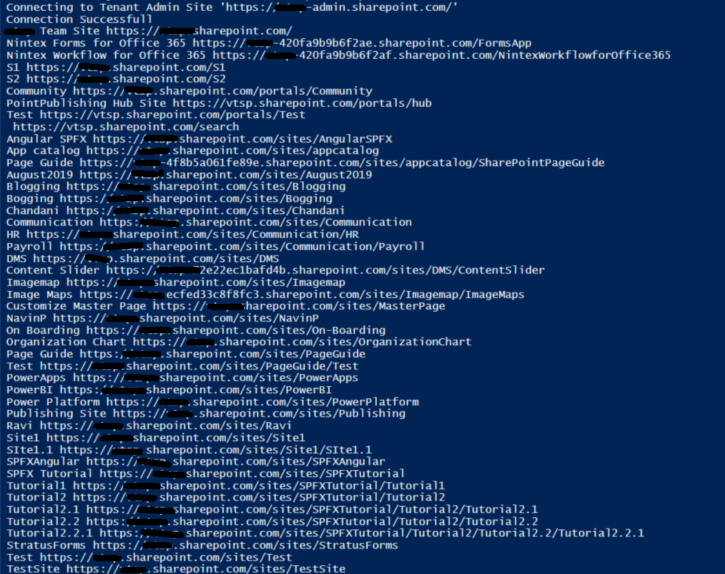
Output:
Summary:
In this article, we have seen how to get all the site collections and their subwebs using pnp Powershell.
Hope this helps! If it is helpful to you then share it with others.
Sharing is caring!
by Contributed | May 5, 2021 | Technology
This article is contributed. See the original author and article here.
In this blog post, we are going to have a look at how you can automatically upload files to an Azure Blob storage account using Power Automate Desktop. Power Automate Desktop is a great tool to build automation on your desktop. You can create flows, interact with everyday tools such as email and excel and work with modern and legacy applications.
For example, you can automate tasks like:
- Quickly organize your documents using dedicated files and folders actions
- Accurately extract data from websites and store them in excel files using Web and Excel automation
- Apply desktop automation capabilities to put your work on autopilot.
Now want tasks I want to build some automation is to upload files to an Azure Blob Storage account for long-term storage. These can be small and large files, in my cases I wanted to backup all my large video files to an Azure blob Storage account.
To learn more about Power Automate check out Microsoft Docs.
Preparation
Install Power Automate Desktop (it is free)
You can download Power Automate Desktop from here.
Sign in to the Power Automate Desktop Windows application using one of the following accounts and automate your tedious tasks.
A full comparison of the features included in each account can be found here.
Create an Azure Storage account
Secondly you create a Storage account in Azure. An Azure storage account provides you to host all of your Azure Storage data objects: blobs, files, queues, and tables. For more information about Azure storage accounts, see Storage account overview.
To create an Azure storage account just follow these steps on Microsoft Docs: Create a storage account.
Download AzCopy
Since I am dealing with large files, I decided to use the AzCopy utility. AzCopy is a command-line utility that you can use to copy blobs or files to or from a storage account. Get started with AzCopy.
Create Power Automate Desktop Flow
After we prepared everything, we can now start to create the flow in Power Automate Desktop.
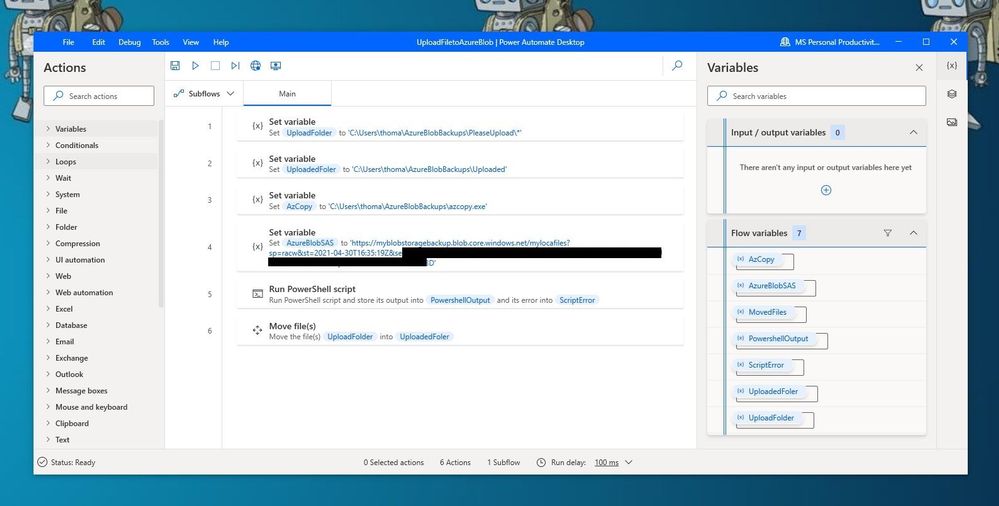
Power Automate Desktop Flow – Upload to Azure Blob Storage using AzCopy
First, I create the following variables within the flow.
- UploadFolder – This is the folder where I place my files, which I want to be uploaded
- UploadedFolder – This is the folder where the file gets moved after it has been uploaded
- AzCopy – This is the path where I saved the azcopy.exe
- AzureBlobSAS – This is the URI for the Azure Blob Storage account including the Shared access signature (SAS) token
To generate the URI with the SAS (Shared access signature) token, go to the Azure Portal to your Azure storage account. Go to containers and create a new container. Open the container and on the and navigate to Shared access signature. Select add, create, and write permission, change the time if needed, and press Generate SAS token and URL. Copy the Blob SAS URL and save it as the variable in the flow.
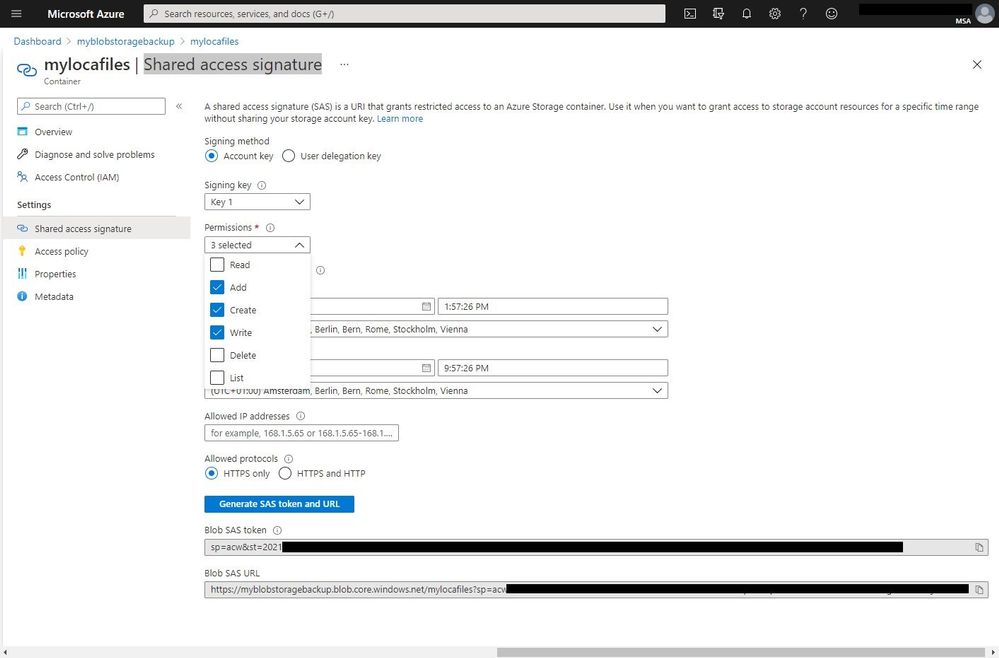 Azure Storage Account SAS Token
IMPORTANT: When you add the SAS URL to the variable you will need to make all the % to %% because of how Power Automate Desktops names variables.
Since we want to use the AzCopy utility to copy the files to the Azure Blob storage, you can now add the “Run PowerSheel script” action with the following PowerShell code:
%AzCopy% copy "%UploadFolder%" "%AzureBlobSAS%" --recursive=true
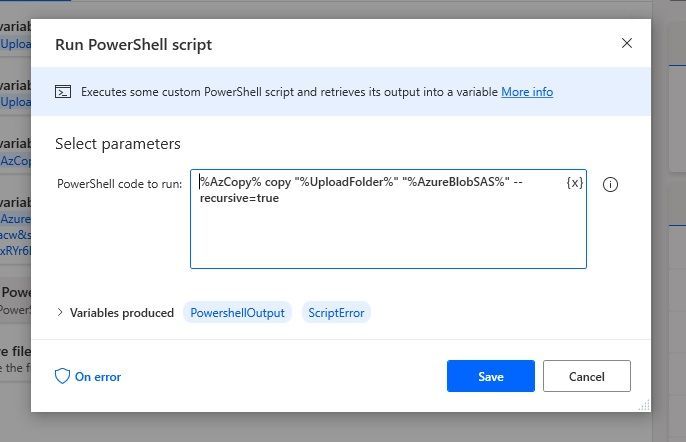 Run PowerShell script
With the last step, we are going to move the uploaded files to another folder.
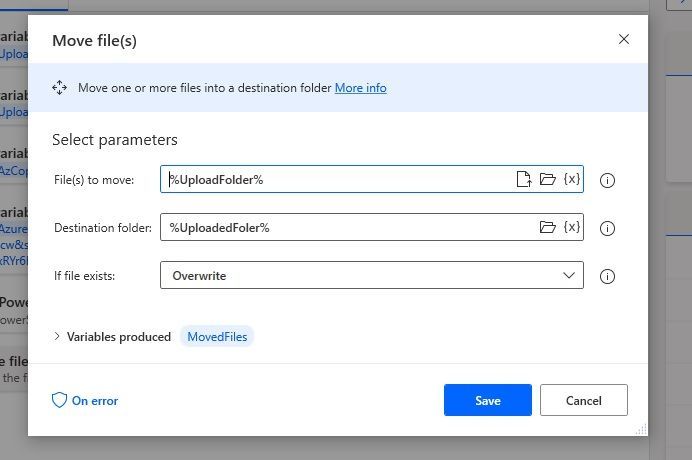 Move Files
Conclusion
I hope this blog post provides you with a quick overview of how you can upload files to an Azure Blob storage account using Power Automate. There are of course other ways on how to do this but the great thing here is that you can easily upload large files and add more actions to your Power Automate Desktop Flow. If you have any questions, feel free to leave a comment below.
by Contributed | May 5, 2021 | Technology
This article is contributed. See the original author and article here.
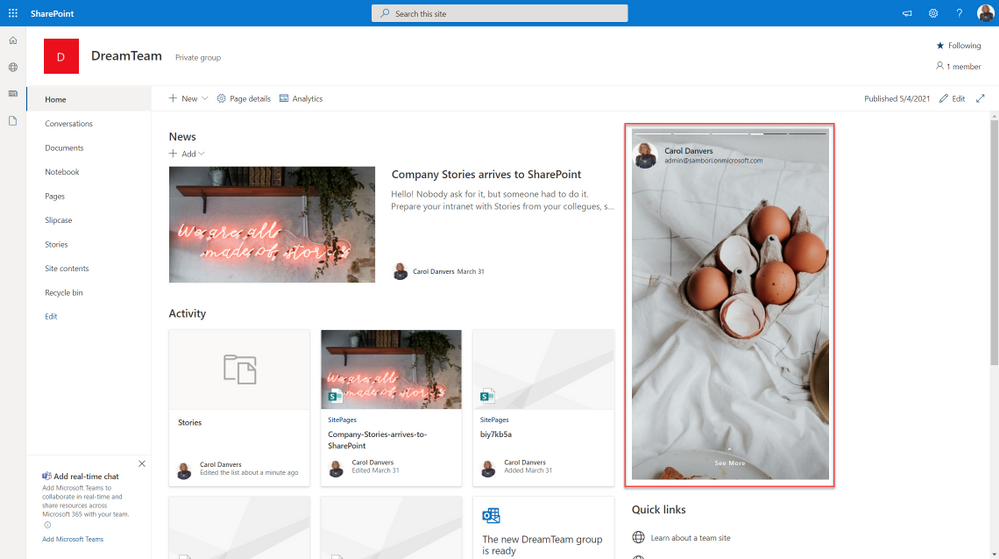
Would not be cool to engage your Modern Workplace users with content appearing like in your favourite social network? In my latest community sample, I built an SPFx webpart to do so. Here is how I did it, but first, this is how it looks:
SharePoint stories webpart
What we need first, is a SharePoint list that will contain all the “story images”, with the author of that story, and some Text, if we want to show the “show more” option. This list will be something like this:
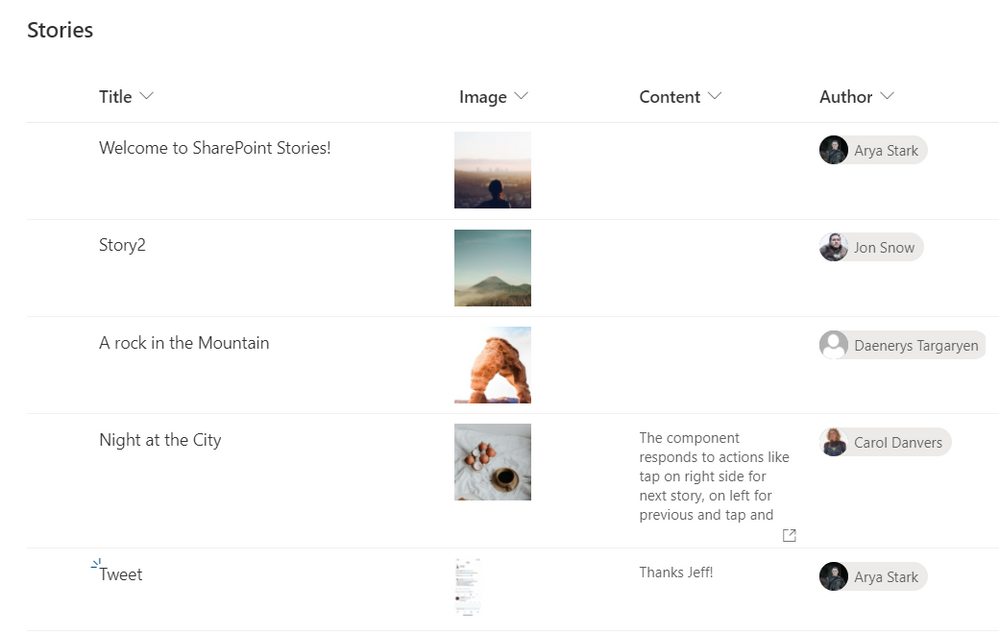 SP List
Now it is time to code our SPFx webpart.
Before starting, for all the UI thing, I am using an existing open-source React component called “react-insta-stories”, that you can find in its GitHub repository. This component does most of the hard work with the image slide and so on. In its most simple way, the component just needs an array of images:
 react package
But you can also specify an array of Story objects, where a Story can have the following properties:
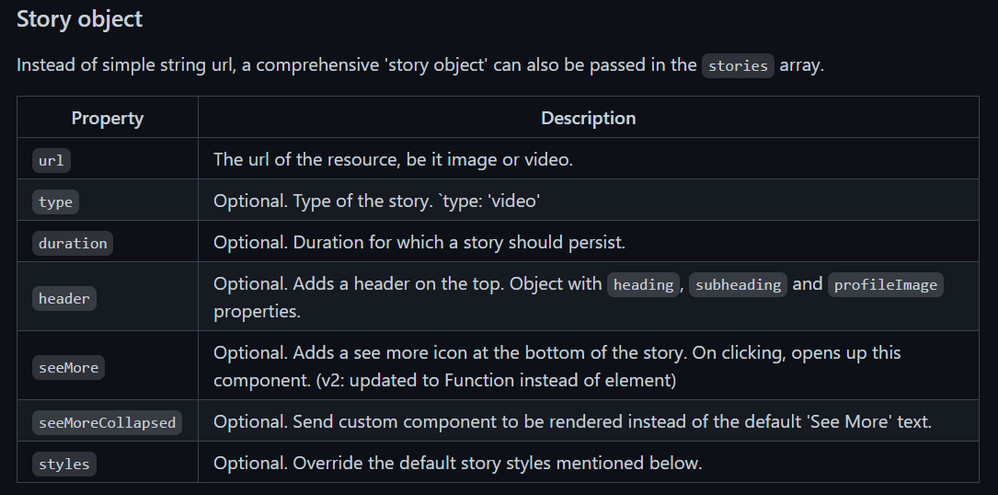 Story object properties
Now that we know how to use the Stories component, the webpart functionality is quite easy. We just need to get the Stories information from the SharePoint list, and compose the proper Stories array.
As usual when developing SPFx webparts, the webpart itself, just loads a React component, passing the information that we need, in this case, for simplicity, I am passing the entire WebPartContext object, but try to avoid this practice, and only pass what you need.
This is the main code in the Render webpart method:
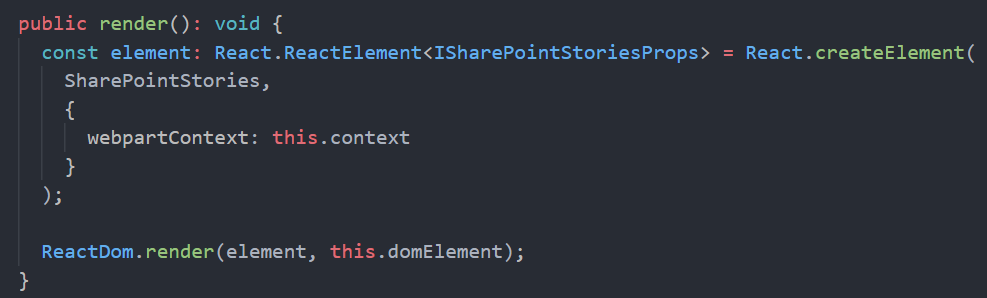 SPFx Webpart render
Once in the main React component, we are calling the SharePoint REST API to get the sotries from the list. To do so, I am using the endpoint:
/_api/web/lists/GetByTitle('Stories')/RenderListDataAsStream
As this endpoint is given me the Image URL in the format that I need (but pretty sure you can do the same with other endpoints, or using the PnP JS library). The code to do so is:
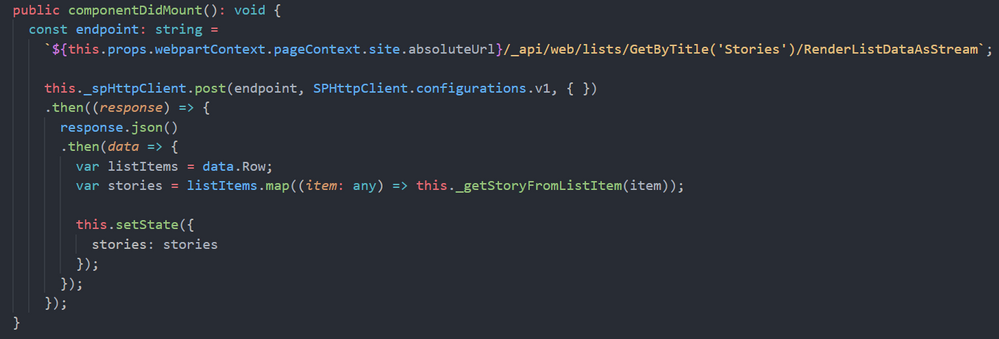 componentDidMount
The method “_getStoryFromListItem” will create a Story object for the “react-insta-stories” component, and here we have an interesting challenge. The Story object, has a Header property, aimed to render the Story author information, so you just provide the profile image, and a couple of texts for heading and subheading. Although we could get the Author profile image, username and email using Graph API, it is going to be much easier to make use of the MS Graph Toolkit library, and use the MGT Person component. In order to render the GMT Person component, we cannot use the Story Header property, however, the Story object allow us to specify a custom render function for the entire Story, and in that function, we can use the Person component. This is the relevant code to achieve it:
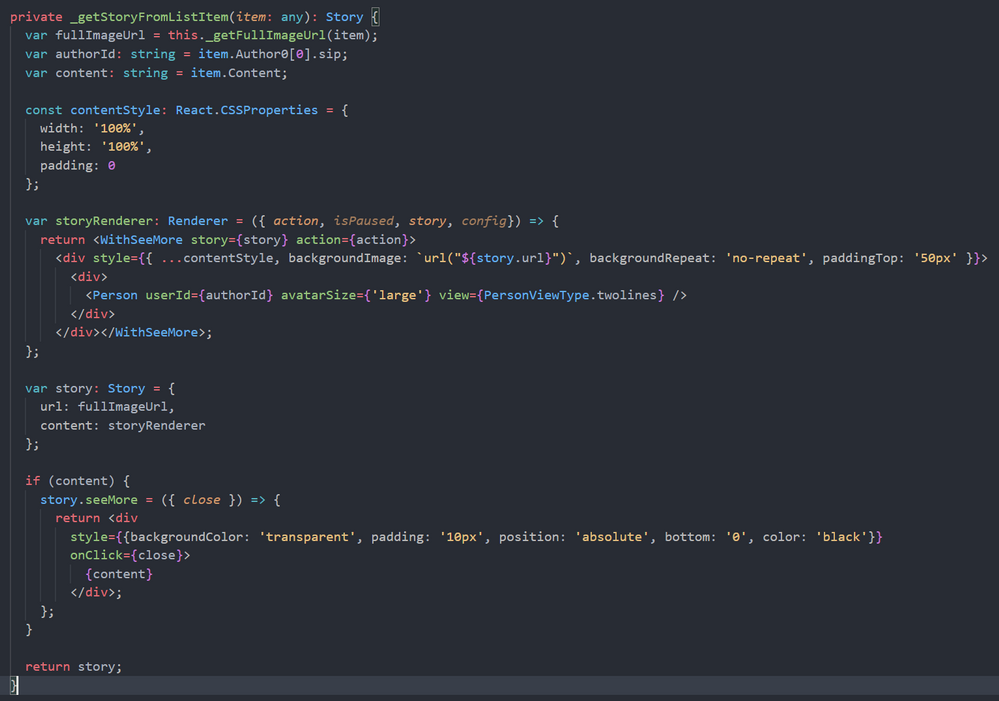 Story custom render function
The storyRenderer function is the one responsible for rendering the Story, and there, we use the GMT Person component. As you can see in the code above, we also use a React High Order Component called WithSeeMore, this component is from the react-insta-stories library and is the way to load a specific text when the “See more” link is clicked in the Story. So, if the list item has the Content field filled, we set the “seeMore” property of the Story object. This property is again a function, so you can customize how the content is rendered.
And that´s all!… you can get the full code sample in the PnP GitHub repository
Cheers!
by Contributed | May 5, 2021 | Technology
This article is contributed. See the original author and article here.
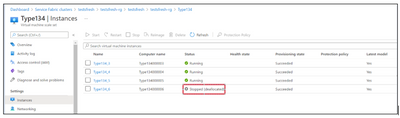
Node may go down for several reasons, please find the probable causes for Nodes going down in Service Fabric Cluster.
Scenario#1:
Check the Virtual Machine associated with the Node exists or Deleted or Deallocated.
Azure Portal-> VMSS Resource -> Instances
If Virtual machine doesn’t exist, then one must perform either of below to Remove node state from Service Fabric cluster.
From SFX:
- Go to the service fabric explorer of the cluster.
- Check the Advanced mode setting check box on the cluster:
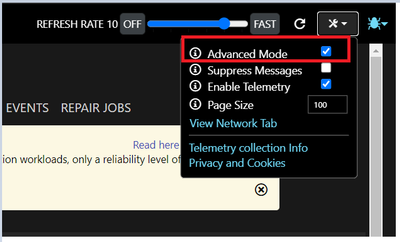
- Then click on Ellipsis (…) of the down nodes to have the “Remove node state” options and click on it. This should remove node state from the cluster.
From PS Command:
PS cmd: Remove-ServiceFabricNodeState -NodeName _node_5 -Force
Reference: https://docs.microsoft.com/en-us/powershell/module/servicefabric/remove-servicefabricnodestate?view=azureservicefabricps
Scenario#2:
Check if Virtual machine associate with the node is healthy in VMSS.
Go to Azure Portal-> VMSS Resource -> Instances -> Click on the Instance -> Properties
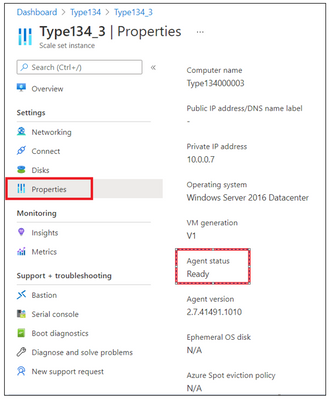
If Virtual Machine Guest Agent is “Not Ready” then reach out to Azure VM Team for the RCA.
Possible Mitigation:
- Restart the Virtual machine from VMSS blade.
- Re-image the Virtual Machine.
Scenario#3:
Check the performance of the Virtual Machine-like CPU and Memory.
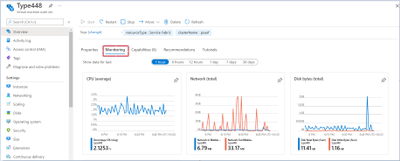
If the CPU or Memory is High, then Fabric related process will not be able to establish any instances/start the instances causing the node to go down.
Mitigation:
- Check which process is consuming high CPU/Memory from the Task Manager to investigate the root cause and fix the issue permanently.
Collect the dumps using below tool to determine the root cause:
DebugDiag:
Download Debug Diagnostic Tool v2 Update 3 from Official Microsoft Download Center
(or) Procdump:
ProcDump – Windows Sysinternals | Microsoft Docs
- Restart the Virtual machine from VMSS blade.
Scenario#4:
Check the Disk usage of the Virtual Machine, no space is the disk could lead to Node down issues.
For disk space related issues, we recommend to use ‘windirstat’ tool mentioned in the article: https://github.com/Azure/Service-Fabric-Troubleshooting-Guides/blob/master/Cluster/Out%20of%20Diskspace.md to understand which folders are consuming more space.
Mitigation:
Free up the space to bring the Node Up.
by Contributed | May 5, 2021 | Technology
This article is contributed. See the original author and article here.
We are pleased to announce the launch of the new Visio start page on Office.com, providing Visio users with a familiar start experience that is similar to other Office 365 apps and powerful Office features, like improved file discovery, improved collaboration features, and better template categorization.
From the new landing page, you will experience the benefits of the Office.com ecosystem combined with unique features of the existing Visio landing page. Below are additional details on the latest enhancements:
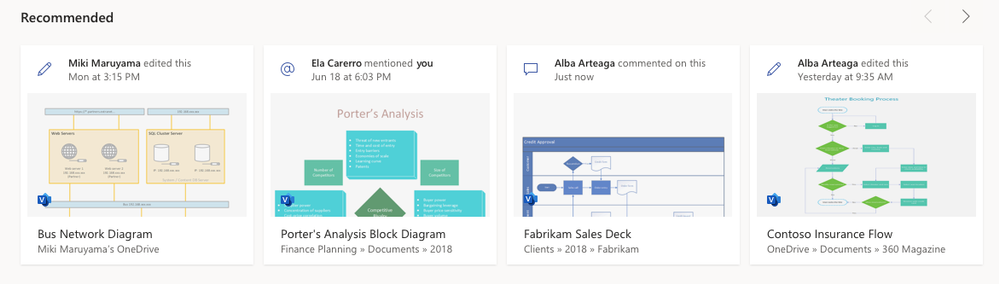
- Improved collaboration: The new design will allow you to see recommended files with actions from your teammates like, “Anne edited this Thursday at 9:10 pm.” You can easily open files that have been recently edited, accessed, and reviewed by your colleagues and quickly pick up where your colleagues left off.
- Better discovery of existing files: With the addition of My recent and Shared files, you can access your frequently used Visio files easily. There is also an option to add your files to the Favorites section for quick access by clicking on the star icon adjacent to the file.

- Better categorization of templates and sample diagrams: The new experience provides a set of templates at the top of the start page to quickly create new Visio diagrams.
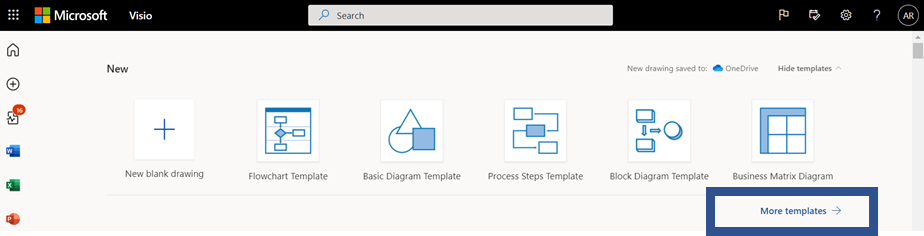
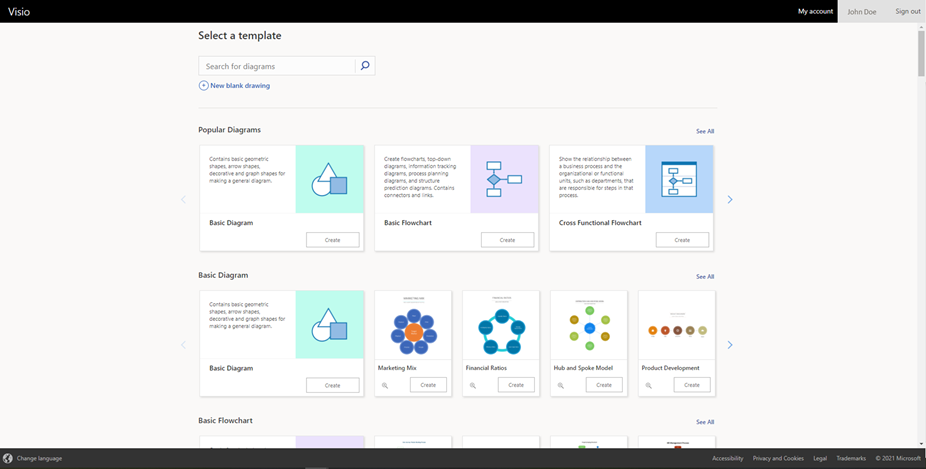
To access the full set of templates and sample diagrams, click on More templates, which will direct you to the “More templates” page. Here, you will see the vast repertoire of Visio’s templates and sample diagrams. Navigate to the desired template and click on the Create button to design your new Visio diagram quickly. design your new Visio diagram quickly.
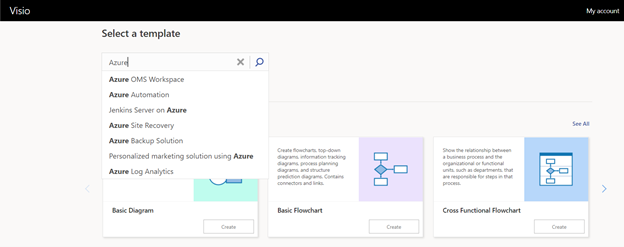
- New search experience: The new search experience will enable you to search quickly through Visio’s rich library of templates and sample diagrams using relevant search terms to help facilitate quicker file creation.
- Overall performance improvements: With the new landing page, you will also experience vastly improved app performance when opening existing or creating new Visio files, reduced time to create new files and so on.
How to access the new landing page
If you have a Visio Plan 1 or Visio Plan 2 subscription, you can access the new landing page via any of the below entry points:
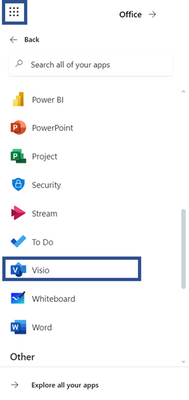
- Click on the waffle menu in the top left. Then, click on All apps and search for “Visio.”
- Search for “Visio” in the universal search box at the top of the page and click on the Visio icon under the Apps header of the search results dropdown.

- Click on the All apps icon in the left navigation bar. Then, click on the Visio app tile under the Office 365 tab.
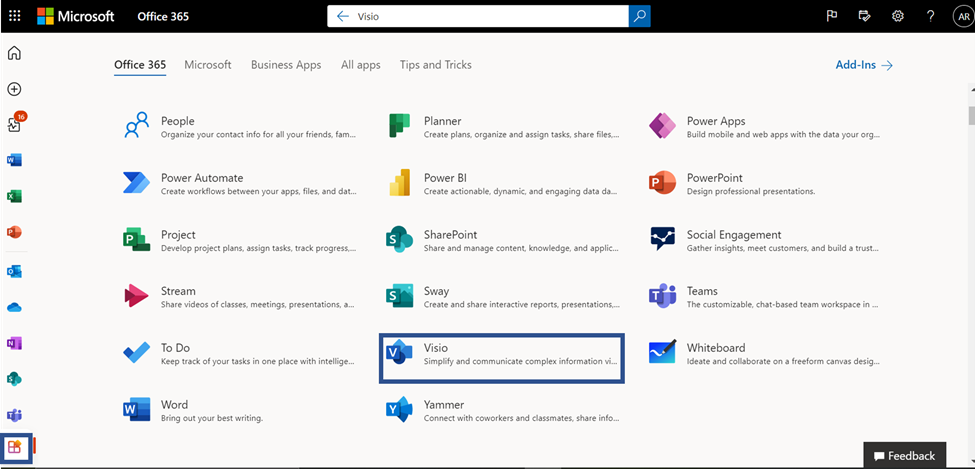
This experience will be rolling out gradually to our users , so stay tuned to experience the new start page soon!
New announcements are coming your way shortly, so keep checking the Visio Tech Community blog and please continue to send us your product feedback and ideas through UserVoice.


Recent Comments