Greg Hurlman: Create inventive solutions with Microsoft Power Platform

This article is contributed. See the original author and article here.

This blog post is a follow-on to a three-part series exploring the many ways that Microsoft Power Platform empowers people with no coding experience to upskill and quickly learn how to create apps to solve business problems or local community issues. The cloud advocate featured in this post, Greg Hurlman, shows developers how using Microsoft Power Platform can empower them in new ways. He also works with nondeveloper creators who use Microsoft Power Platform to come up with inventive solutions. To hear the other cloud advocates talk about their experience with Microsoft Power Platform, tune in to this Digital Lifestyle podcast.


When Dona Sarkar, lead for the Microsoft Power Platform Advocacy team, needed a developer advocate for the team, she looked for “one of the best people in the world at what they do.” She wanted someone who could show classic software developers how to do their job more efficiently and how to write and debug less code. She found that person in Greg Hurlman, who is now in customer engagement on the Microsoft Power Apps engineering team.


As Hurlman talked to customers trying to get Power Apps started in their organizations, he heard about Sarkar’s efforts. In fact, he even helped her when she had issues with her own environment as she was doing a demo. Sarkar saw firsthand how knowledgeable and helpful Hurlman was and how friendly and informative he was when he moderated Q&As for different Microsoft Power Platform sessions. So when he asked her if there was anything else he could do to help, she told him she needed a cloud developer advocate. As Hurlman puts it, “If you’re going to volunteer to Dona that you’re going to help her do her work, she will volunteer you to do it.”


A career helping others use technology


As a support engineer and consultant, Hurlman has always helped customers solve their problems. As he puts it, “I’ve been keeping people from having to call IT for the past 20 years.” His consulting work allowed him to develop empathy for customers. Hurlman explains, “I met with a lot of end users of the folks that were going to use the applications that IT was having us build. I helped them figure out their requirements and how they were going to actually use it. I’ve done a lot of community work when I was in the SharePoint space. That gives me a more rounded outlook on how software gets built because I’ve actually talked to customers that build things.”


Reaching out to traditional developers


The message that Hurlman brings to the traditional developer community is simple—using Power Apps saves time and development effort. He points out, “At this point in my career, I’ve been coding forever but I will create an app with Power Apps first before I try to create anything with custom code—just because it’s so much faster and does so much of what you’re trying to do.”


Hurlman has a lot of tips and tricks to show traditional developers how to create apps faster using Power Apps. He observes that there are two types of traditional developers—those who like building the user interface (UI) for the web (the front end) and those who like building the middle layer APIs that talk to databases (the back end). Typically, these developers can code for both the front end and the back end, but they have a preference. He uses an example, “If you’re a developer who only wants to work on the back end but you still need to work on the UI, you can use Power Apps to create that front end for you. You create your API, and you write a connector to it. Now the data through your API can get into that app super easily. The amount of time you can spend on the front end goes from weeks and months to days and weeks.”


He tells the story of a mobile developer who was introduced to Power Apps. “In the span of an hour, he was able to build an app that was actually useful, that you could run on your phone. It made him question why he would go through the rigamarole of doing things to create mobile apps the way you do as a professional developer when you’re getting 90 percent of everything you could get either out of the box or with just a little bit of tweaking with Power Apps.”


Greg notes that Microsoft Certification can be a great career boost for developers who become Power Apps power users. To learn more about these developer certifications, check out the “Skill up with Microsoft Power Platform certification” section later in this post.


Reaching out to app creators


Then there’s Lauren Taylor, an elementary school principal in Tacoma, Washington, who uses Power Apps to help her run the school better. Her customers are her faculty. She created apps to help track student reading data, to have the teachers coordinate lesson plans, and more. Hurlman was struck by the fact that Taylor says that “she’s not an application developer—she’s an app creator.”


To acknowledge these new skills, Hurlman points out that the cloud advocates are working on a fusion developer team learning path that walks through creating Microsoft Power Platform apps using both the traditional dev sensibility and the app maker approach. Hurlman marvels at the creativity of the app makers. “They will take one thing and use it the way you planned,” he states, “and then use it 10 more ways that you didn’t plan.”


A future full of opportunity


Sometimes these app creators attend Hurlman’s talks for developers on custom connectors or the Power App platform at (pre-COVID-19) in-person events. He explains, “Every single time there would be somebody who has never written traditional code who maybe created a few Power Apps or maker apps or used Power Apps with Power Automate, and so on. These folks didn’t understand the developer content, but they would come up to me after and say that they’re interested in learning more so they can take the next step in their career journey. They just need to pick up the development 101 stuff.” They’re eager to use Power Apps to enrich or advance their careers.


Hurlman observes that there’s going to be a surge in the number of apps that need to be created in the next decade. He explains, “The amount of traditional developers we have to create those apps does not line up. We’re only going to be able to create a third of what we need. The other two-thirds are going to have to come from this maker space.” This means that there’s more than enough work for traditional developers and app makers who understand their organizations’ needs and who want to quickly create and iterate on apps.


Skill up with Microsoft Power Platform certifications


Depending on your skill set, Hurlman recommends that you check out the certifications for Microsoft Power Platform developers. A Microsoft Certification signals that you have the skills that organizations are looking for when they hire and advance employees. And it can help open career doors for you.


If you’re a maker and an app creator without a formal background in development, see whether your skills map to the requirements for passing Exam PL-100: Microsoft Power Platform App Maker for the Microsoft Power Platform App Maker Associate certification.


Those with a more traditional development background and some experience with Microsoft Power Platform should take a look at the new Microsoft Power Platform Developer Associate certification. To learn more, read our blog post, New certification: Microsoft Power Platform Developer Associate


And if you’re a traditional developer looking to showcase your consulting and configuration skills, explore the Microsoft Power Platform Functional Consultant Associate certification.


Seasoned developers who have a lot of experience with Microsoft Power Platform should check out the Microsoft Power Platform Solution Architect Expert certification. It’s a great way to signal that you’re ready to take your career further.


Helping developers discover their career paths


Hurlman is passionate about helping a wide variety of developers. He likes to surprise the traditional developers by showing them new ways they can save time and effort by incorporating Power Apps into their traditional tool set. Certifications can help them grow their careers. Plus, the inventive app creators have a special place for him because they, too, will be important to tomorrow’s workplace. It doesn’t matter what their backgrounds are—they can come to Power Apps and quickly build tools that make a difference for themselves and their organizations. Power Apps is a confidence builder, and Hurlman wants to spread the news that there are Power Apps development career paths available for people who love to create apps.


Resources for Setting Up Viva Topics and Viva Connections

Resources for Setting Up Viva Topics and Viva Connections

This article is contributed. See the original author and article here.

Microsoft-Viva-Platform-for-Employee-Experience.jpgOver the last several weeks since Ignite I have been approached by multiple customers about how to go about setting up Microsoft Viva Topics and Viva Connections. With the availability of Viva Topics for deployment and the announcements about Viva Connections rolling out this month customers are anxious to begin leveraging these transformative technologies.


Below are resources to assist in purchasing Topic as well as readiness and preparedness for both.


Hope you find these helpful!


 Thanks for visiting – Michael Gannotti   LinkedIn | Twitter


Michael GannottiMichael Gannotti

Fetch User Profile Properties From Site Collection And Export To CSV Using PNP PowerShell

Fetch User Profile Properties From Site Collection And Export To CSV Using PNP PowerShell

This article is contributed. See the original author and article here.

Introduction


Many times we have a requirement like to get users or user profile properties from any SharePoint site collection and we need it in CSV or Excel format. so to achieve this solution we will use PnP Powershell. 


Let’s see step-by-step implementation.


Prerequisites


If we are using Window 10 or we have PowerShellGet then we can run the below commands to install PnP PowerShell and AzuerAD Modules

Install PnP PowerShell Module,


Install-Module SharePointPnPPowerShellOnline -Scope CurrentUser  


Implementation


  • Open Windows Powershell ISE

  • Create a new file and write a script


Now we will see all the steps which we required to achieve the solution:


1.  We will read the site URL from the user


2.  then we will connect to the O365 admin site and then we will connect to the site which the user has entered


3. Create a function to bind a CSV


4. Create a function to get user profile properties by email d


5.  In the main function we will write a logic to get web and users of site collection URL and then get all the properties and bind it to CSV


So at the end, our script will be like this,


$basePath = #base path where you want to save CSV file("D:Chandani...")
$dateTime = "{0:MM_dd_yy}_{0:HH_mm_ss}" -f (Get-Date)
$csvPath = $basePath + "userdetails" + $dateTime + ".csv"
$adminSiteURL = "https://****-admin.sharepoint.com/" #O365 admin site URL
$username = #user email id
$password = "********"
$secureStringPwd = $password | ConvertTo-SecureString -AsPlainText -Force 
$Creds = New-Object System.Management.Automation.PSCredential -ArgumentList $username, $secureStringPwd
$global:userDetails = @()
$index = 1;
$userInfo;
  
Function Login() {
    [cmdletbinding()]
    param([parameter(Mandatory = $true, ValueFromPipeline = $true)] $Creds)
 
    #connect to O365 admin site
    Write-Host "Connecting to Tenant Admin Site '$($adminSiteURL)'" -f Yellow | Out-File $LogFile -Append -Force
  
    Connect-PnPOnline -Url $adminSiteURL -Credentials $Creds
    Write-Host "Connection Successfull" -f Yellow | Out-File $LogFile -Append -Force
   
}
Function StartProcessing {
    Login($Creds);
    ConnectionToSite($Creds)
}

Function ConnectionToSite() {
    $siteURL = Read-Host "Please enter site collcetion URL" 
  
    try {            
        Write-Host "Connecting to Site '$($siteURL)'" -f Yellow          
                              
        $SCWeb = Get-PnPWeb -Identity ""              
                                                     
        $getusers = Get-PnPUser -Web $SCWeb

        ForEach ($user in $getusers) { 
            $email = $user.Email
            If ($email) {
                $userInfo = GetUserProfileProperties $email        
                #creating object fro CSV
                $global:userDetails += New-Object PSObject -Property ([ordered]@{                   
                        Id            = $index
                        GUID          = $userInfo.'UserProfile_GUID'
                        FirstName     = $userInfo.FirstName
                        LastName      = $userInfo.LastName
                        WorkEmail     = $userInfo.WorkEmail 
                        PictureURL    = $userInfo.PictureURL    
                        Department    = $userInfo.Department
                        PreferredName = $userInfo.PreferredName                        
                    })
                $index++ 
            } 
        }                                                                
    }
    catch {
        Write-Host -f Red "Error in connecting to Site '$($TenantSite)'"                        
    }                                     
    BindingtoCSV($global:userDetails) 
}

Function BindingtoCSV {
    [cmdletbinding()]
    param([parameter(Mandatory = $true, ValueFromPipeline = $true)] $Global)   
    Write-Host -f Yellow "Exporting to CSV..."
    $userDetails | Export-Csv $csvPath -NoTypeInformation -Append
    Write-Host -f Yellow "Exported Successfully..."
}

Function GetUserProfileProperties($username) {
    $Properties = Get-PnPUserProfileProperty -Account $username
    $Properties = $Properties.UserProfileProperties
   
    If ($Properties) {
        $Properties = $Properties
    }
    else {
        $Properties = $null
    }
    return $Properties
}

StartProcessing


In the above script do the following changes:


1. Change O365 Site Url, base path, username, and password


2. To check all the properties you can print $userInfo and then change $global:userDetails object as per your requirement at where I have used $userInfo.FirstName,LastName etc.


Then run the script with the F5 command.


Output


OP.png


After this check the CSV file at your base location.


Summary


So in this article, we have seen how to get user and user profile properties and as well as how to export them to CSV.


Hope this helps! If it is helpful to you then share it with others.


Sharing is caring!


Reconnect Series: Hilton Giesenow

Reconnect Series: Hilton Giesenow

This article is contributed. See the original author and article here.

We’re back once again to Reconnect and thrilled to be joined by 12-time Office Apps & Services MVP Hilton Giesenow! An industry veteran of almost 20 years, Hilton counts experience across varied IT, development and consulting roles, geographies and client industries and types.


Hailing from Cape Town, South Africa, Hilton recently founded a company called ChitChattr which builds products for Microsoft Teams.


Moreover, “I’m having a ton of fun doing lots of Teams development,” Hilton says, “so lately I’ve been learning a lot and working on a number of related open source projects (Teams PnP Samples, Graph Toolkit, Text Recognizers, Teams developer docs), and building some awesome Teams products at ChitChattr (such as our new TeamMate new employee onboarding welcome bot)”


Hilton, who mostly stays in touch with Reconnect via the Yammer group, says MVP has played a large role in his life and the community helps him to still feel part of the program. 


“It has helped me keep in touch with other community members, both Reconnect and ‘regular’ MVPs,” Hilton says. In terms of other projects and community organizations, Hilton says: “I’m a regular contributor to various projects, both code and docs-related, but also quite active on Stack Overflow helping answer Teams development questions (and learning a lot from other people’s challenges!)”


Hilton fondly recalls various global gatherings during his time as an MVP, and encourages all program newcomers to get the most out of the program. “Enjoy the program and keep up the great contributions – community is all about sharing and helping others – we’re all ‘beginners’ in something!”


Looking forward, Hilton says: “Right now I’m loving learning about Teams development, so planning to keep learning more and contributing to the Teams development community. I’m also planning to improve our current ChitChattr products and to build a bunch of new ones for Teams.”


For more on Hilton, visit his blog.


hilton.jpg

New VSCode extension for autocompleting your Microsoft Graph APIs

New VSCode extension for autocompleting your Microsoft Graph APIs

This article is contributed. See the original author and article here.

While working on a project which uses Microsoft Graph APIs, I found myself opening the Microsoft Graph Explorer a lot to check which paths/parameters were available. The Microsoft Graph Explorer is a great tool, but I love not to change context too much.


As I like to create Visual Studio Code extensions, I did not have to think long to start building a new extension.


Background info


The good news for me was that Microsoft Graph Explorer has an API for retrieving the Open API information. This API returns all the available endpoints and their parameters per path. All I had to do, was create the logic to know when you are writing a Microsoft Graph URL and call the API to provide the suggestions.


The extension


> Info: The Visual Studio Code extension can be found on the marketplace: MS Graph Completion.


The initial version of the extension supports the GET API paths, query string parameters, and their values.


how-it-works.gif


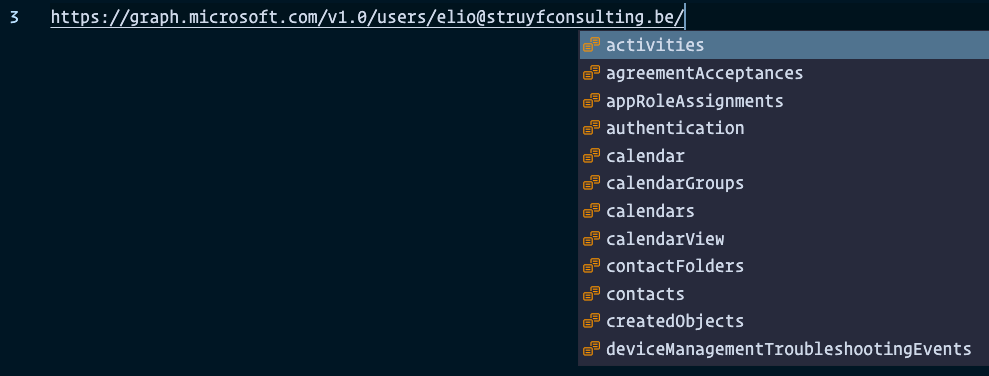
The /users/ API completion allows you to add a {user-id} token.


Screenshot 2021-03-23 at 21.04.10.png


When providing your user-ID or username, it will automatically tokenize it.


Screenshot 2021-03-23 at 21.04.25.png


When would you use it?


There are various reasons for this. My reasoning, as mentioned, was to know which parameters are available for selecting and expanding quickly.


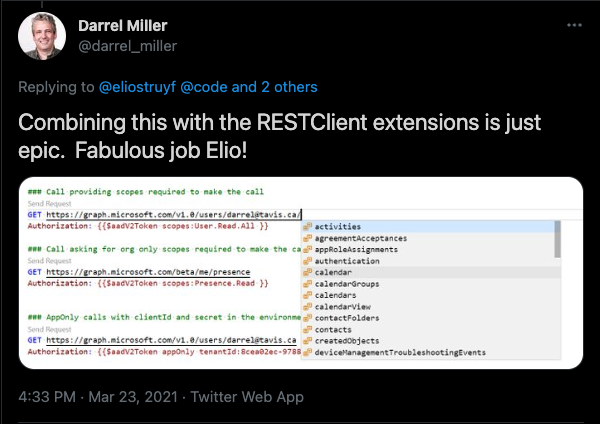
Another option could be to use it in combination with the popular REST Client – Visual Studio Marketplace


Screenshot 2021-03-24 at 08.30.52.png


Let me know how you would use it and feel free to contribute to the project MS Graph Completion – GitHub Repository.


*Thanks to the Microsoft Graph team for the API and Graph explorer*