[Guest Blog] Leveraging Dynamics 365 and HoloLens 2 to Assist Surgeons in Rural Uganda

[Guest Blog] Leveraging Dynamics 365 and HoloLens 2 to Assist Surgeons in Rural Uganda

This article is contributed. See the original author and article here.

This guest blog was written by Katie Glerum, Global Health Program Manager at Mt Sinai Health Systems. At the recent Microsoft Ignite, Katie shared the inspiring story of how Mount Sinai Health System (MSHS) is using Microsoft technology to bridge the 7,000+ mile gap between MSHS in New York and their partners at the Kyabirwa Surgical Centre (KSC), an ambulatory surgical facility in rural, eastern Uganda. Her session with Payge Winfield received overwhelming interest and tons of questions from attendees eager to learn more about how Mt Sinai Hospital uses mixed reality to bridge the gap in providing critical care to patients in remote villages in Uganda, hence she is thrilled to follow up on those questions in this post. You can also watch her Microsoft Ignite session recording here


Thanks everyone for showing up to our session at Microsoft Ignite and asking excellent questions about how we at Mt Sinai Health System (MSHS) are using Dynamics 365 Remote Assist on HoloLens 2 in our facilities across New York and at the Kyabirwa Surgical Centre. For those who have not had a chance to read the full written story about our use case, please be sure to check out this link here: Microsoft Customer Story-From 7,000 miles apart, Mount Sinai and Ugandan surgeons work together in real time, bringing life-saving expertise to rural communities


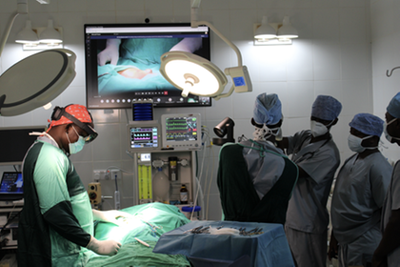
I wanted to share some of the photos that I had previously shown during the session, just for context:
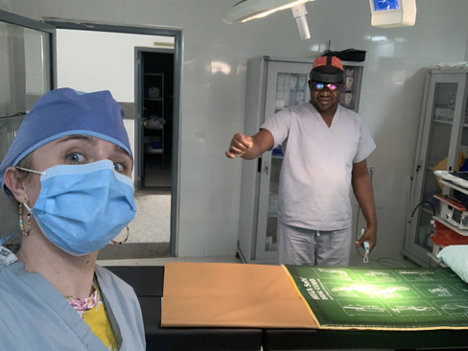


katieglerum_1-1616597549265.png


katieglerum_0-1616597493180.png


Some additional background for those who may have not seen the presentation (recording here): Uganda is included among the poorest 35% of the world’s population, which undergoes only 3.5% of all surgical procedures performed annually. This is due to a variety of factors including the fact that for every 500,000 Ugandans there are only three surgeons and one operating room.  


To help address this gap in care, MSHS built a self-sustainable facility in rural Uganda in partnership with the local community. We then leveraged Microsoft technologies to create clinical partnerships between the Ugandan surgeons and surgeons at MSHS, so that all may learn from each other. The comprehensive suite of Microsoft technologies powering these clinical partnerships include:


  • Microsoft HoloLens 2 with Dynamics 365 Remote Assist, which allows for remote surgeons at MSHS to assist with surgery happening in Uganda, allowing surgeons in Uganda to work hands-free, with real time support from their colleagues at MSHS who can simultaneously view the live surgery via Microsoft Teams

  • Microsoft Teams also serves an additional two purposes: (1) to connect a pathology microscope in Uganda with a MSHS pathologist in NYC, allowing them to perform specimen readings remotely; and (2) to facilitate remote training/assistance during endoscopic procedures

  • Microsoft Azure allows us to store patient data securely on the cloud, making it easily accessible by both Ugandan and MSHS clinicians

  • Microsoft Power BI provides analysis of patient data stored on the cloud, also making this easily accessible by both Ugandan and MSHS clinicians

  • 17 Microsoft Surface Hubs that facilitate intercontinental collaboration and communication (15 in NYC, USA and 2 in Kyabirwa, Uganda)

  • Office 365 is used for all our communication and collaboration needs

  • Dynamics 365 Business Central powers all our ERP needs


Now to the unanswered questions that I couldn’t get to during the session because we ran out of time (and all of you had SO many awesome questions!) – These all tended to fall within the bulleted categories below. Several questions from folks overlapped, so I picked the most common question themes and hope that I have addressed all of the questions you might have:


katieglerum_2-1616597633621.png


Training and Implementation:


  • What training is required to get your users up to speed?

    • The technology may be complicated, but the actual usage training is actually quite simple. All surgeons receive an initial two-hour training with the HoloLens 2 headset. This includes the MSHS surgeons, so they can better understand the experience of the Ugandan surgeons, who will be wearing the headset during surgery. Then the MSHS surgeons are trained to use Remote Assist to join sessions and use mixed reality 3D annotations as well.


  • How are the surgeons using the Kyabirwa tenant with their own teams and Remote Assist licenses?

    • As the question references, this is all done on the KSC tenant, where the operating surgeon is located. The Dynamics 365 Remote Assist licenses are also part of the KSC tenant. This means that the meeting must be set up by someone on that tenant, which is simple because I, as the Global Health Program Manager for the Department of Surgery at MSHS, have an account on the KSC tenant as well. Once they’re let into the meeting as Guest users on the KSC tenant, the MSHS surgeons can annotate in 3D using Remote Assist.


  • Are there any issues regarding the sterility of the device?

    • The device is viewed similarly to vision corrective glasses that a surgeon may be wearing. It does not require additional effort to maintain sterility. Of course, if an adjustment is required (if it is slipping or something), a surgical assistant in the operating theater will assist, so the surgeon maintains sterility.


User Experience:


  • What frustrations have surgeons experienced using the HoloLens?

    • I passed this question on to Dr. Joseph Okello Damoi, the lead surgeon at Kyabirwa Surgical Centre and he had three main points of feedback on this which I am sharing in full transparency for your own consideration/evaluation:

      • Head Position: The operating surgeon must hold their head at a different angle than they would otherwise

      • Battery Life: The battery life doesn’t always last the entirety of a procedure and charging while in use has at times caused the device to overheat and turn off in the middle of a procedure

      • Accuracy of Drawings: The holographic drawings do a good job of illustrating a point, but precision can be improved


  • Has anyone viewing the HoloLens perspective experienced motion sickness and gotten nauseated or dizzy?


This has not been an issue, and, honestly, I get car sick quite often, so am a good test for this! :)


Technical Concerns:


  • How is technical support provided to users in rural locations?

    • We work with both SphereGen, a mixed reality company, and Tellistic, an East African Microsoft partner. With their powers combined, we have not had any issues receiving technical support. Software issues can be addressed remotely by SphereGen, while Tellistic ensures the device is properly configured, connected, and powered on the Ugandan side. At the moment, we ensure that there is representation from both SphereGen and Tellistic on all Remote Assist calls during surgery, in the event of technical difficulties.


  • Are bandwidth limitations in rural areas a big challenge?

    • The answer is a definite yes! However, having anticipated these challenges, we dug and laid fiber optic cable from the closest city (Jinja, Uganda) underground, a total of seven miles to the facility. This has ensured stable internet connection with a consistent bandwidth of 40Mbps, of which 30Mbps is dedicated and reserved for theater operations including Remote Assist and Teams. Without this set up, the story would be very different.


  • What do you do to mitigate potential connectivity loss during a procedure?

    • In addition to both the dedicated 30Mbps and ensuring that tech support is engaged and available throughout the entire procedure, we have handheld cameras available as backup should the HoloLens disconnect or fail to connect. In a recent procedure, we had to pivot to these cameras when the HoloLens overheated and forced itself to turn off. It doesn’t happen often, but it’s always good to have backup especially in a surgery!

    • Currently our internet fiber has no backup, so we are susceptible to a blackout should the cable get cut. However, we are in the process of setting up a wireless link (via microwave transmission) to give us the necessary backup.


If you have any additional questions, or would like to learn more about this project, or how to support our efforts, feel free to follow or message me on Twitter: katie glerum (@katieglerum) / Twitter


It is such an honor to be able to share this story. Thank you to Microsoft for the amazing platform, and thank you to my colleagues at Kyabirwa Surgical Centre for allowing me the privilege of assisting in, and sharing their story.



katieglerum_3-1616597705330.png


#MixedReality #HealthcareTech

1:1 Call Recording Policy Controls Are (Almost!) Here

1:1 Call Recording Policy Controls Are (Almost!) Here

This article is contributed. See the original author and article here.

Hi Teams Community,


A long outstanding request from Teams Administrators is the ability to control 1:1 Call recording independently of Teams Meeting Recording.  We’re pleased to announce these controls are almost here.  


Today, any user allowed to record Teams meetings can also record 1:1 Calls.  This setting is currently governed by Teams Meeting Policy parameter AllowCloudRecording.  Very soon, 1:1 Call Recording will be governed by a new parameter in Teams Calling Policies, AllowCloudRecordingForCalls.  


For more information, be sure you’re logged into your M365 Admin Portal as a Tenant Admin account and review the following Message Center Post:  (Updated) 1:1 Call recording policy introduction


In fact, the AllowRecordingForCalls parameter is there now, and you should take immediate action to ensure your users have the desired experience once we begin enforcing this policy, current Plan of Record is to start the rollout April 12, 2021.


What this means for you as a Teams Administrator depends on what your business requirements are.  If you are fine with your users recording 1:1 Calls, you will need to take action to ensure they can continue to do so after the new Policy goes into effect.  Because of the policy requirements of a significant majority of Teams customers, 1:1 Call Recording will be disabled by default.  Further, the new policy is only manageable through PowerShell.  


So, if you would like your users to continue to have the ability to record 1:1 Calls after April 12, 2021 – you should take action now.  What action?  Set -AllowCloudRecordingForCalls to $True in the Calling Policy applied to the desired Users.  For many of you this will be the Global Default policy and for that, the change can be achieved with the following PowerShell cmdlet:


Set-CsTeamsCallingPolicy -Identity Global -AllowCloudRecordingForCalls $True


If however you want some users to be prevented from recording 1:1 Calls, you would modify the appropriate policy by setting -AllowCloudRecordingForCalls to $False.  Keep in mind, $False will be the default value for the Global and any out-of-the-box a.k.a. “OOB” Calling Policies when this change rolls out. 


OOB Calling Policies cannot be modified – so if you have users with OOB Calling Policies set you will need to move those users to a new policy if you want them to be able to record 1:1 Calls.  Based on customer feedback we expect this case to be somewhat rare – but just in case we’ve provided you an example PowerShell script that copies your existing Calling Policies and creates new policies with -AllowCloudRecordingForCalls set to $True.  We hope this eases the administrative burden of preparing for this change and also gives you a cool example of how to make a copy of a Teams Policy (yes, with appropriate modifications this script can make a copy of other Teams policies, not just Calling!).


You can find the script here: TeamsCallingPolicyUpdateIt was written by our good friend @Andy Thomson, thanks Andy!  


Side note – there are other very useful Sample Scripts there – take a moment and bookmark this shortcut: 


Be sure to read the ReadMe file there for important instructions (requires MicrosoftTeams ps module, 2.0.0 or higher, for example).  


From my test tenant, running the script example:

CallRecordingScriptRun.png


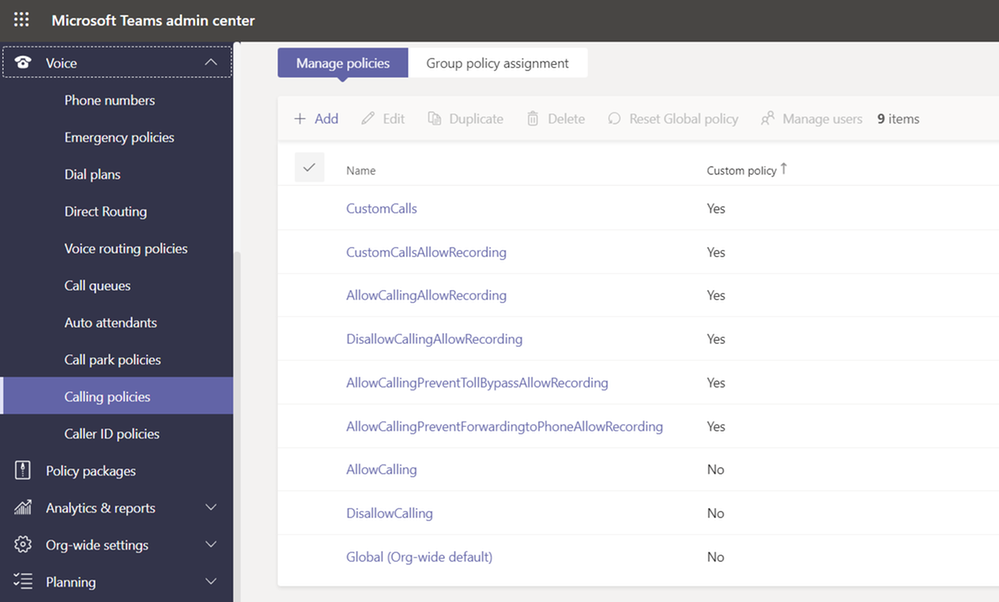
And, this is what it looks like in the Teams Admin Center after I’ve copied my Calling Policies with the script:

CallingPoliciesAfterScriptGUI.png

In my case, I had a ‘CustomCalls’ custom Calling Policy created as the only non-default (OOB) policy in my Tenant.  You may have others, and you can copy only select policies if you wish, the script will prompt you.


At this point I would use my preferred method of applying the new policies that allow 1:1 Call recording to my desired user set.  Remember, you do have to Grant these policies to users for the setting to take effect.  


TLDR: 1:1 Call Recording Policy controls are coming starting April 12, 2021.  Default will be disabled.  If you want your users to be able to continue recording 1:1 Calls in Teams – you need to make policy changes now to ensure they can continue to do so.  If you are OK with the default (disabled) – no action is required!


Final notes:

First, you may be wondering what constitutes a 1:1 Call vs a Meeting?  If you schedule a Meeting with 1 other person only, is that a 1:1 Call?  Nope.  That’s a Meeting, and will be governed by Meeting Policies.  So will a Meet Now.  If you call someone, then add video, or screensharing, and then decide to Record – that’s a 1:1 Call and will be governed by Calling Policies.


Second, this new Calling Policy Parameter does not apply to PSTN calls, yet.  That’s coming later.  For the moment you cannot record PSTN calls or calls with Skype for Business users in Teams.


And last but not least, this new policy setting relates to the Microsoft Teams Recording solution for 1:1 calls. This setting does not affect 1:1 Compliance Recording, which is still controlled via the Compliance Recording policy.


As always we hope this information is useful for you, please comment the blog with any questions or feedback.

Thanks!
Microsoft Teams Support


Timeout Issue Caused by Idle Time-Out Action

Timeout Issue Caused by Idle Time-Out Action

This article is contributed. See the original author and article here.

While navigating the pages in an application, the page was spinning for about a minute and giving a timeout error. This application utilizes a WCF service.


We collected a dump file from both the ASP.NET page and WCF service while the page was spinning. Here are the exceptions we saw in the dump files:


Exception Type : System.Net.Sockets.SocketExceptionMessage: An existing connection was forcibly closed by the remote hostSystem.ServiceModel.Channels.SocketConnection.Write(Byte[], Int32, Int32, Boolean, System.TimeSpan)Exception Type : System.ServiceModel.CommunicationExceptionMessage: The server did not provide a meaningful reply; this might be caused by a contract mismatch, a premature session shutdown or an internal server error.System.Runtime.AsyncResult.End[[System.__Canon, mscorlib]](System.IAsyncResult)System.ServiceModel.Activation.WorkerProcess.EndDispatchSession(System.IAsyncResult)Exception Type : System.IO.PipeExceptionMessage: There was an error reading from the pipe: The pipe has been ended. (109, 0x6d).System.ServiceModel.Channels.PipeConnection.OnAsyncReadComplete(Boolean, Int32, Int32)


Solution


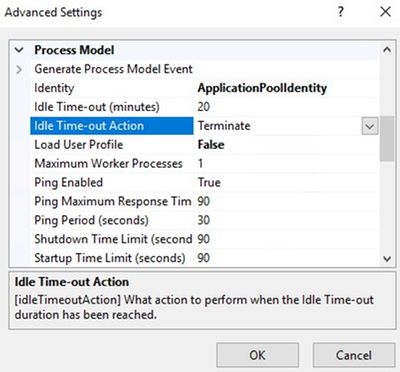
For this website, Idle Time-out Action was set to “Suspend”. This option isn’t always helpful. I don’t recommend using it.


Setting Idle Time-out Action to Terminate solved the issue. Website started displaying pages.


Nedim_0-1616781621350.jpeg


If you like to find out who change the application pool settings, check this post out.

Keyset does not exist

Keyset does not exist

This article is contributed. See the original author and article here.

IIS may display “Keyset does not exist” error while trying to set application pool identity. In the the Event Viewer, I saw this message:


ERROR ( hresult:80090016, message:Failed to commit configuration changes. Keyset does not exist)


This issue occurs when there is a problem with the machine keys (C:ProgramDataMicrosoftCryptoRSAMachineKeys)


IIS uses the machine keys below for encryption. The first thing to check is if these files exist.


6de9cb26d2b98c01ec4e9e8b34824aa2_GUID


iisConfigurationKey


d6d986f09a1ee04e24c949879fdb506c_GUID


NetFrameworkConfigurationKey


76944fb33636aeddb9590521c2e8815a_GUID


iisWasKey


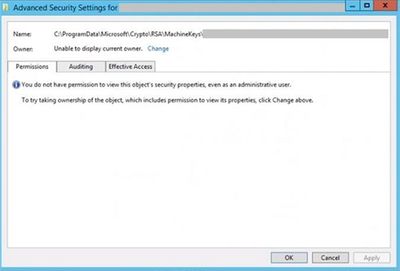
If the files exist in MachineKeys folder, check their security permissions. In the server I worked on, these files didn’t have owners.


Nedim_0-1616781541387.jpeg


After taking the ownership, it displayed only IIS_IUSRS account in the permission list. I added DatabaseAdministrators group to the Security list. Other required permissions came back right away. Afterward, we were able to change application pool identity.


Note: If you see 0x8009000D error along with “Keyset does not exist” message, please check this post.

Application Request Routing is Missing in IIS Manager

Application Request Routing is Missing in IIS Manager

This article is contributed. See the original author and article here.

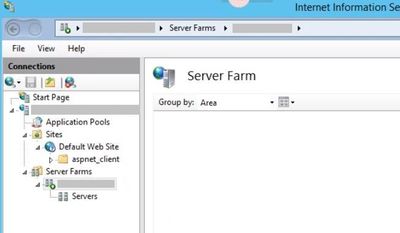
Even if you install Application Request Routing (ARR), it may not show up in IIS Manager. Here is how a server farm looks like when ARR settings are not displayed:


Nedim_0-1616781479566.jpeg


Solution


It’s possible that something went wrong during the ARR installation. Follow the steps below to fix the issue and make ARR settings available.


  1. Remove ARR (Using Add/Remove Programs)

  2. Remove the server farm

  3. Install ARR back

  4. Restart IIS

  5. Close and open IIS Manager


Note: If you remove ARR and install it back without removing the server farm, it won’t work.